
Welcome to Optimal Resume Student How To Guide


- Slides: 24
Welcome to Optimal Resume Student How To Guide westwoodonline. optimalresume. com 1
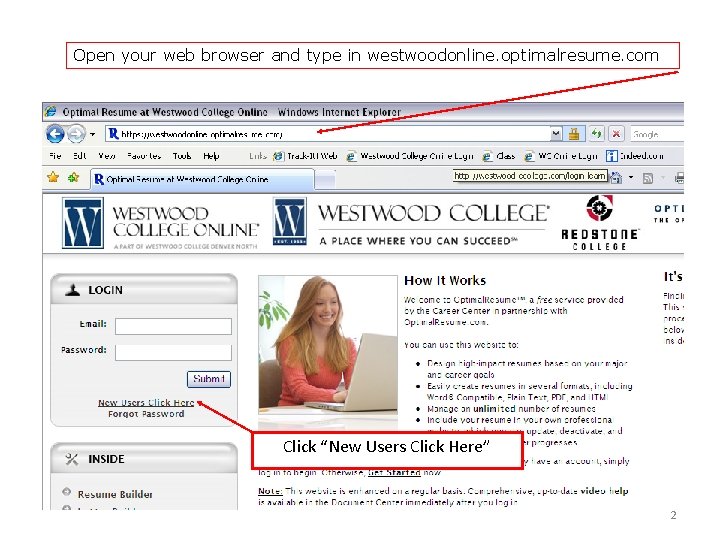
Open your web browser and type in westwoodonline. optimalresume. com Click “New Users Click Here” 2
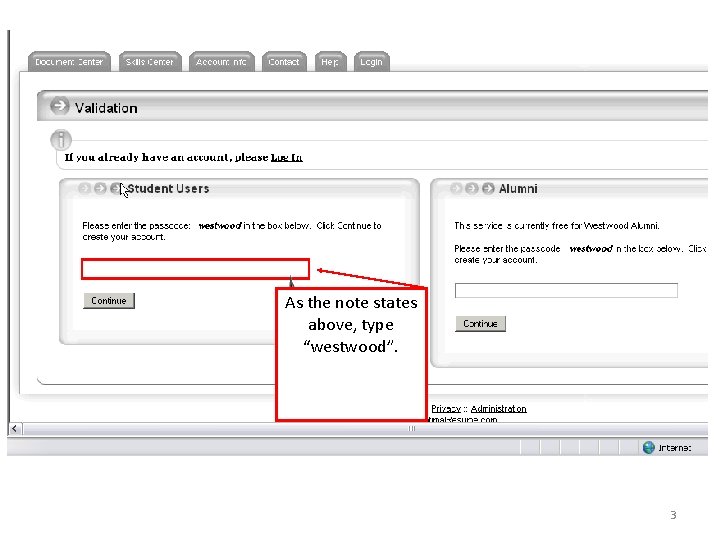
As the note states above, type “westwood”. 3
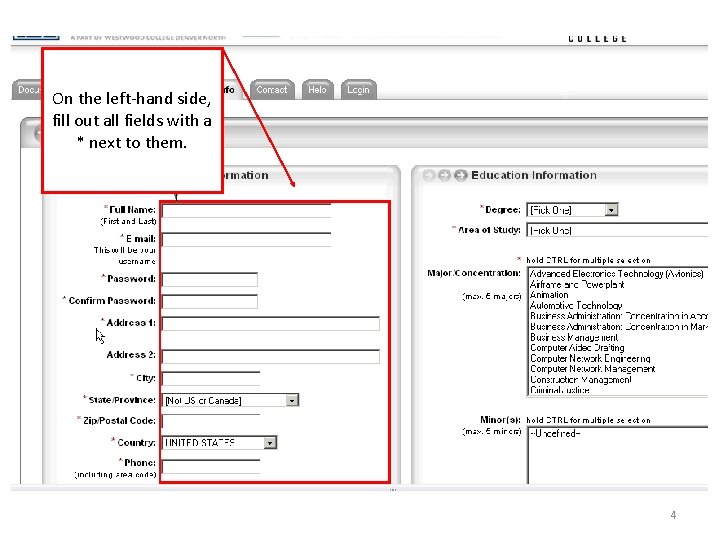
On the left-hand side, fill out all fields with a * next to them. 4
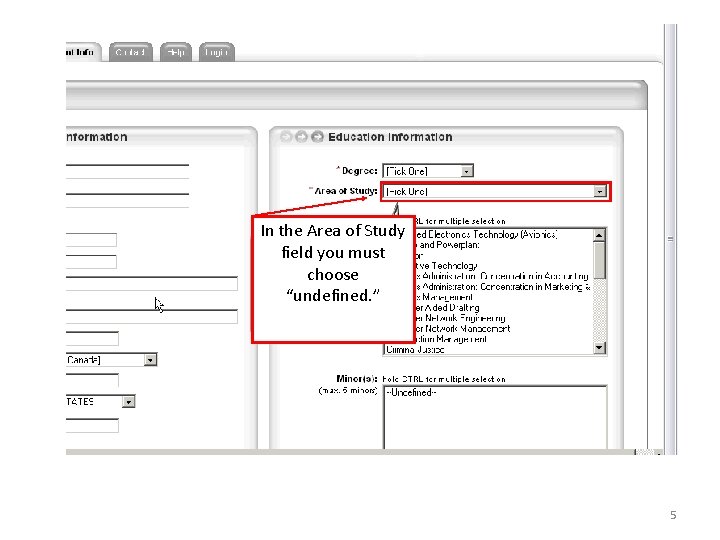
In the Area of Study field you must choose “undefined. ” 5
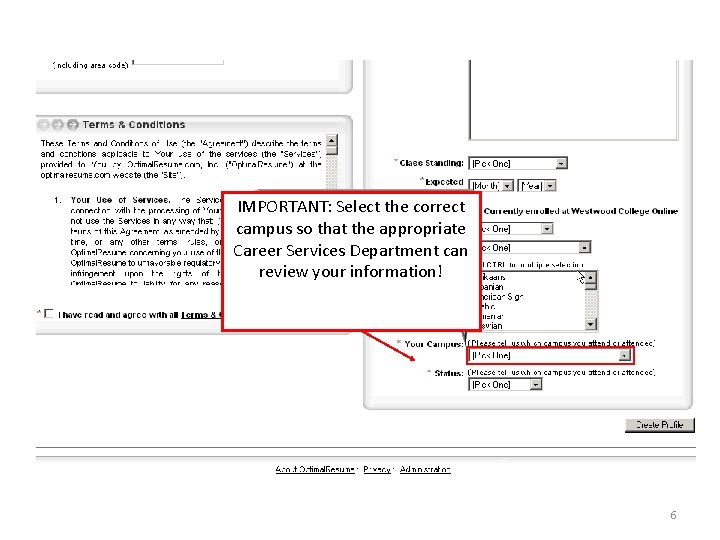
IMPORTANT: Select the correct campus so that the appropriate Career Services Department can review your information! 6
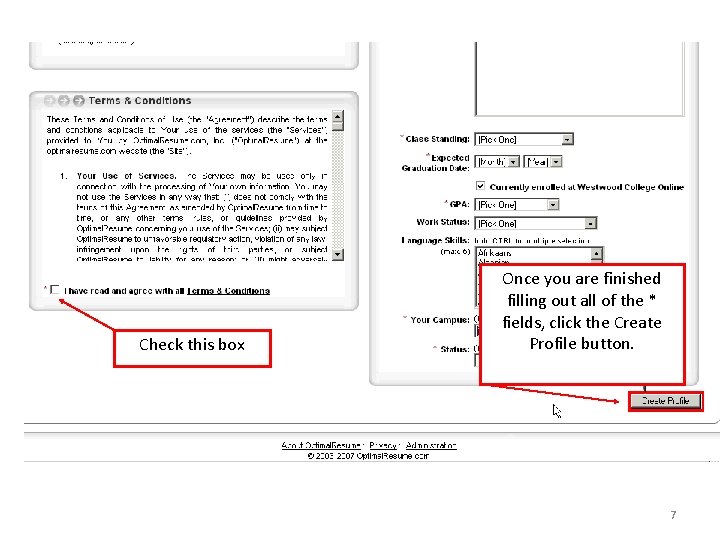
Check this box Once you are finished filling out all of the * fields, click the Create Profile button. 7
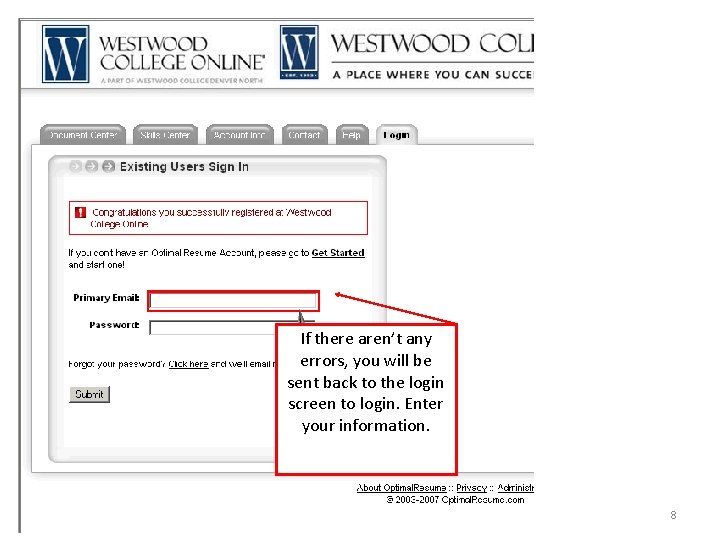
If there aren’t any errors, you will be sent back to the login screen to login. Enter your information. 8
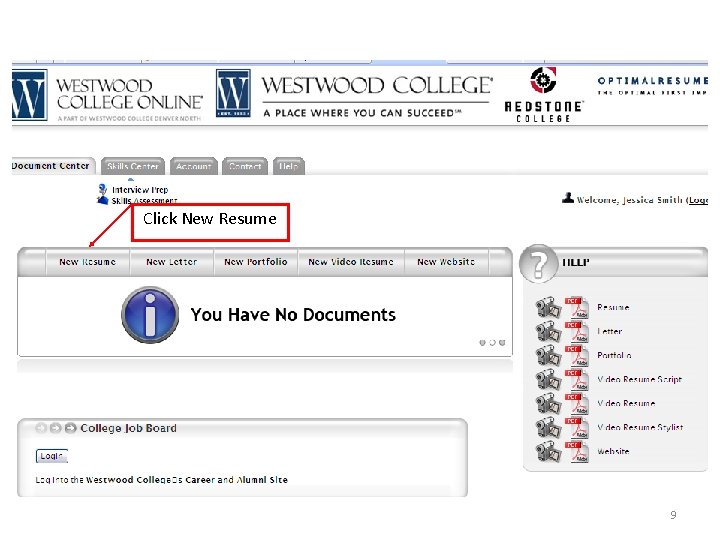
Click New Resume 9
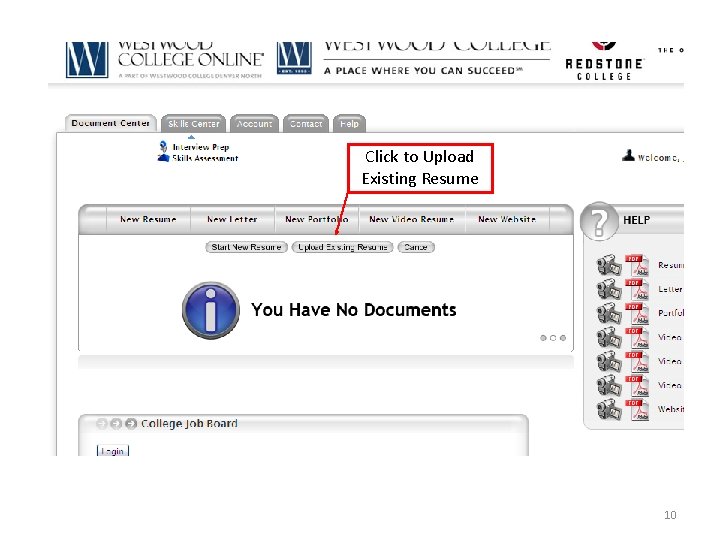
Click to Upload Existing Resume 10
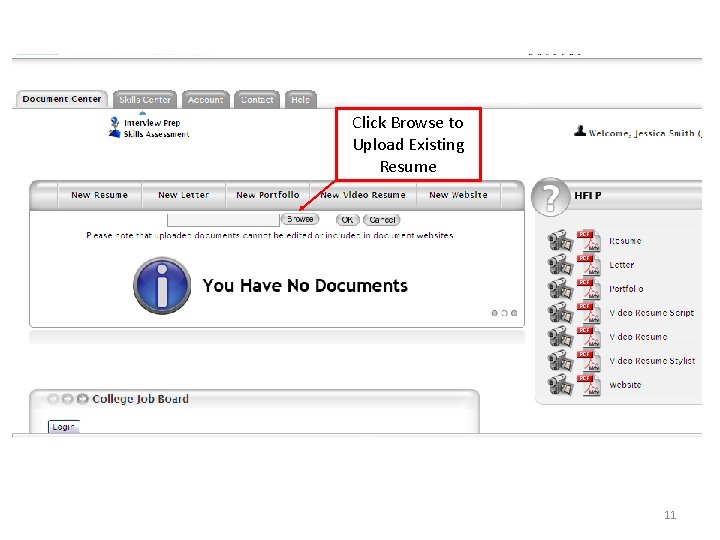
Click Browse to Upload Existing Resume 11
Find your resume - did you save it on the Desktop? My Documents? Select and Click Open. 12
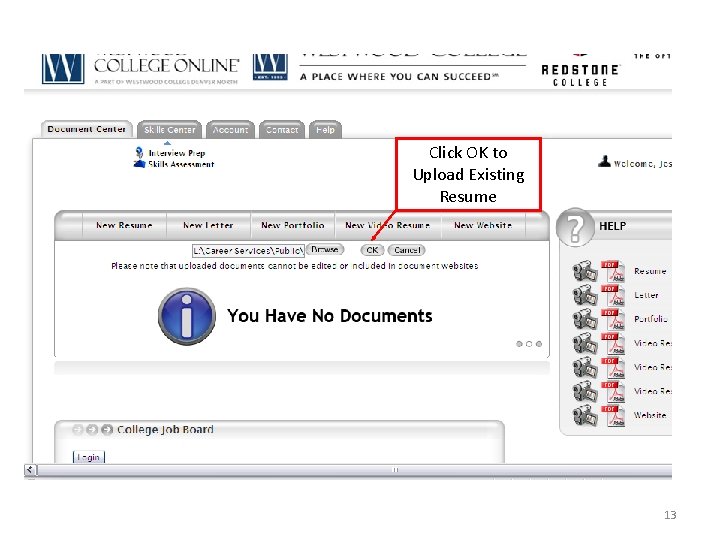
Click OK to Upload Existing Resume 13
Your document was successfully uploaded! Click OK to close the box. 14
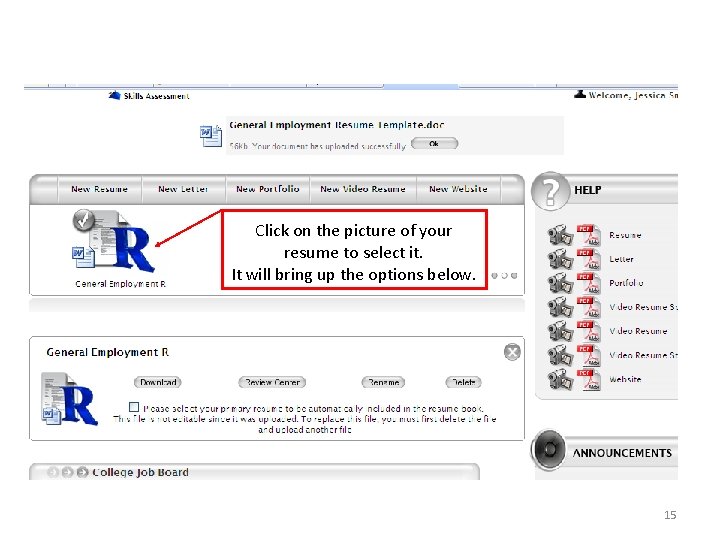
Click on the picture of your resume to select it. It will bring up the options below. 15
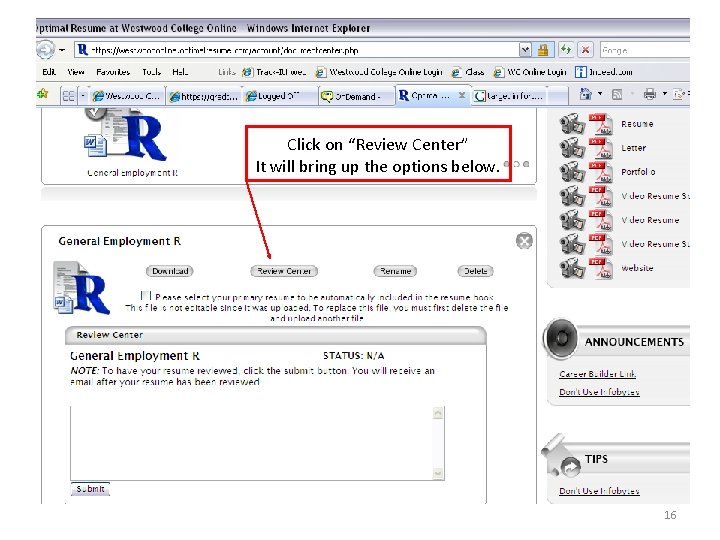
Click on “Review Center” It will bring up the options below. 16
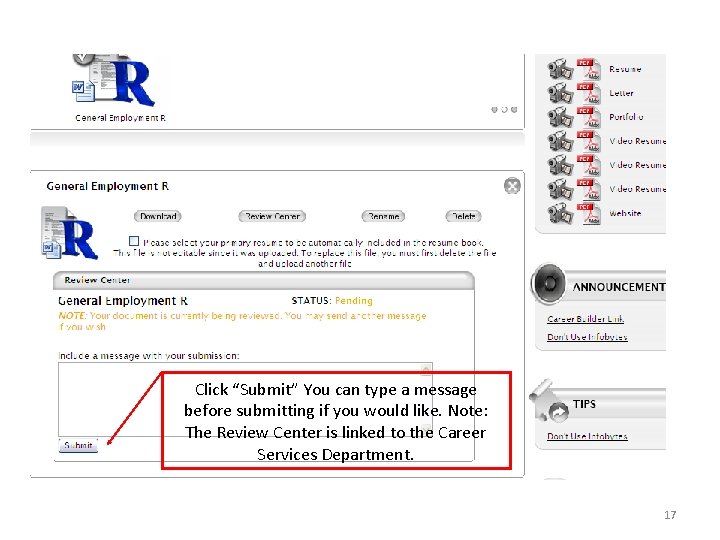
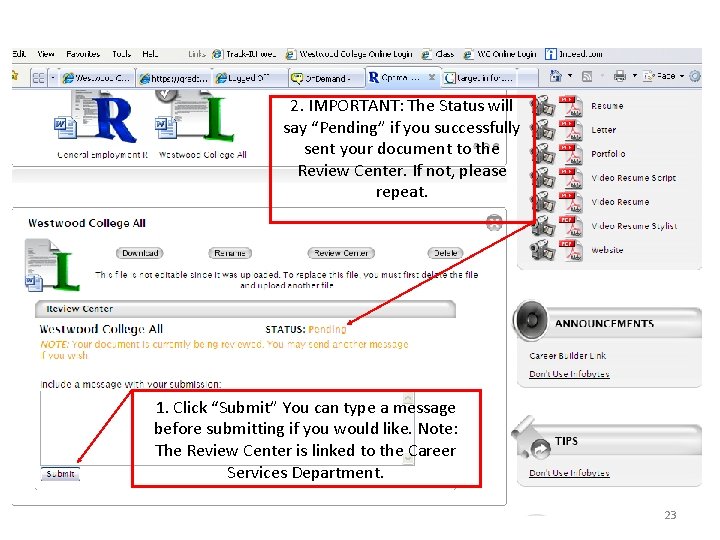
Click “Submit” You can type a message before submitting if you would like. Note: The Review Center is linked to the Career Services Department. 17
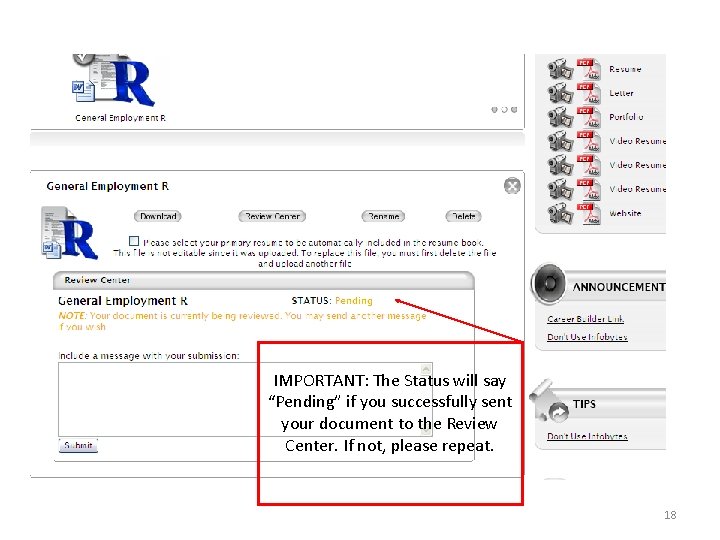
IMPORTANT: The Status will say “Pending” if you successfully sent your document to the Review Center. If not, please repeat. 18
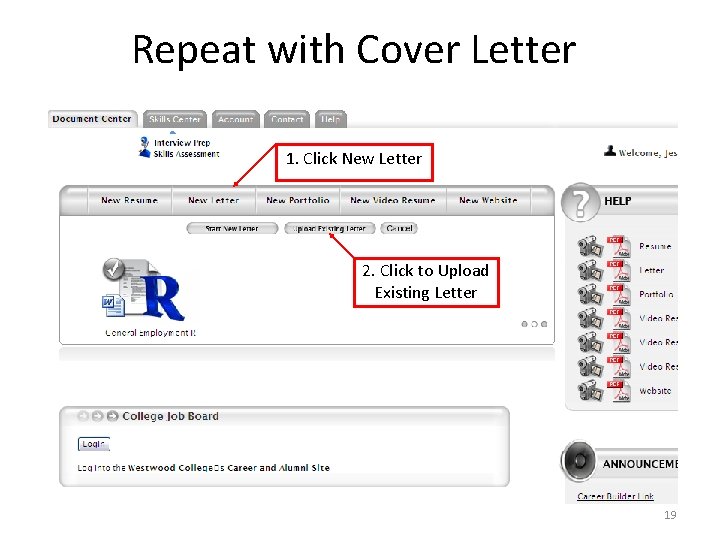
Repeat with Cover Letter 1. Click New Letter 2. Click to Upload Existing Letter 19
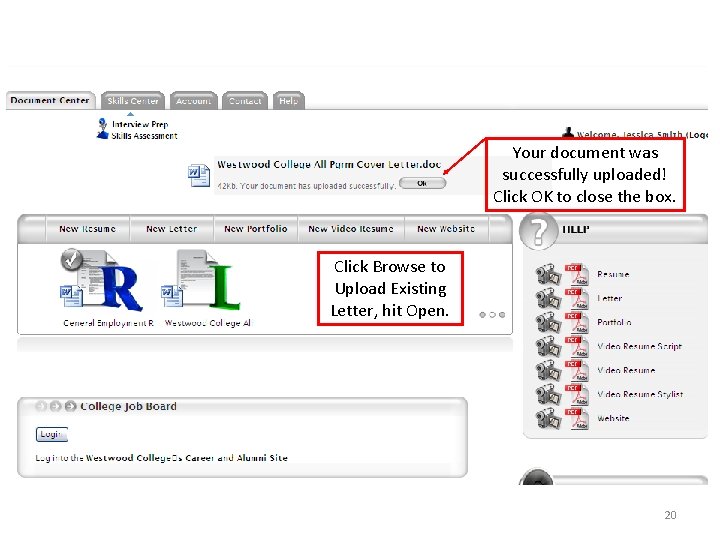
Your document was successfully uploaded! Click OK to close the box. Click Browse to Upload Existing Letter, hit Open. 20
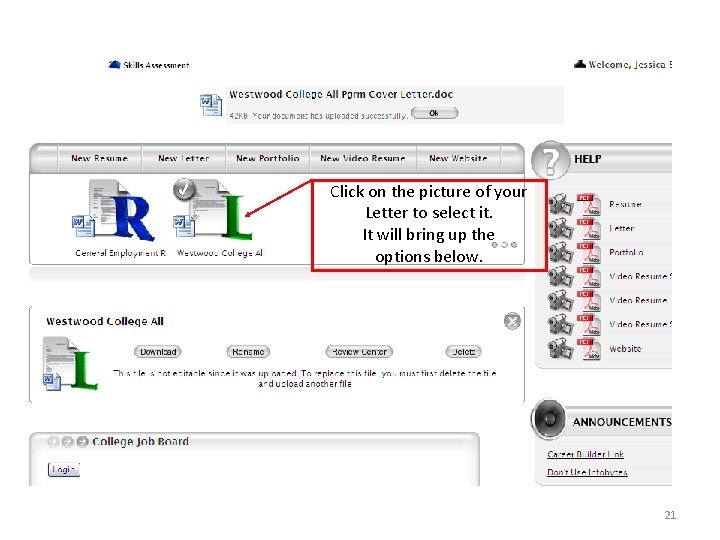
Click on the picture of your Letter to select it. It will bring up the options below. 21
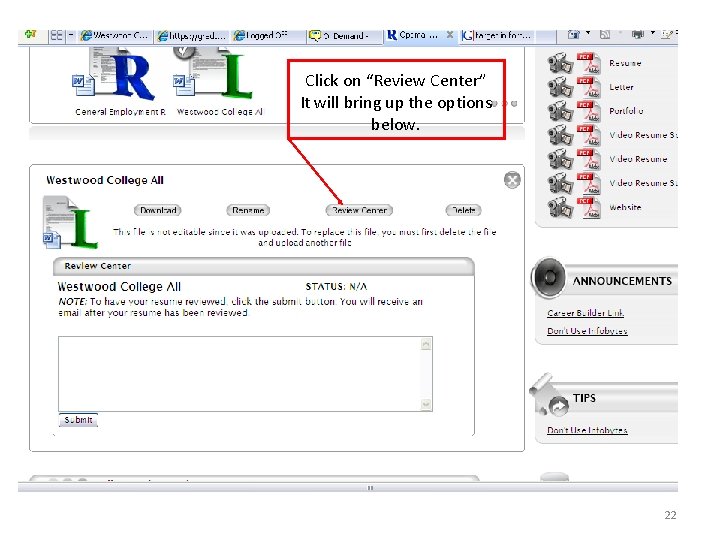
Click on “Review Center” It will bring up the options below. 22
2. IMPORTANT: The Status will say “Pending” if you successfully sent your document to the Review Center. If not, please repeat. 1. Click “Submit” You can type a message before submitting if you would like. Note: The Review Center is linked to the Career Services Department. 23
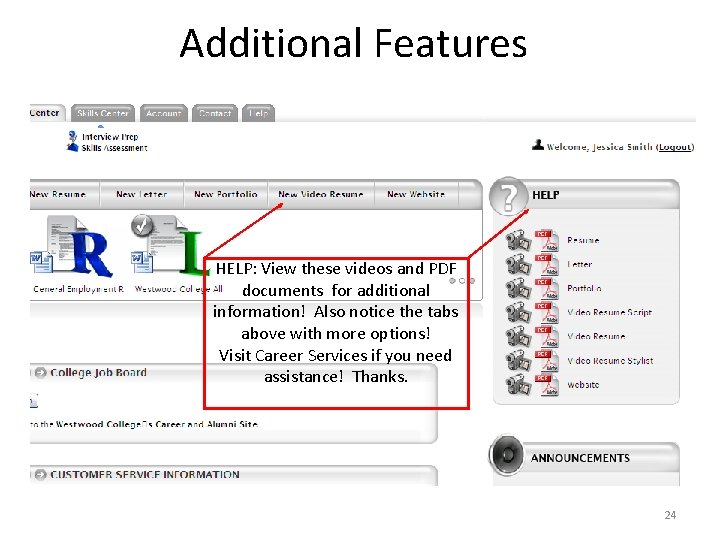
Additional Features HELP: View these videos and PDF documents for additional information! Also notice the tabs above with more options! Visit Career Services if you need assistance! Thanks. 24