
Welcome to Manage Bac Type in the following
Welcome to Manage. Bac
Type in the following web address • https: //srhsib. managebac. com/
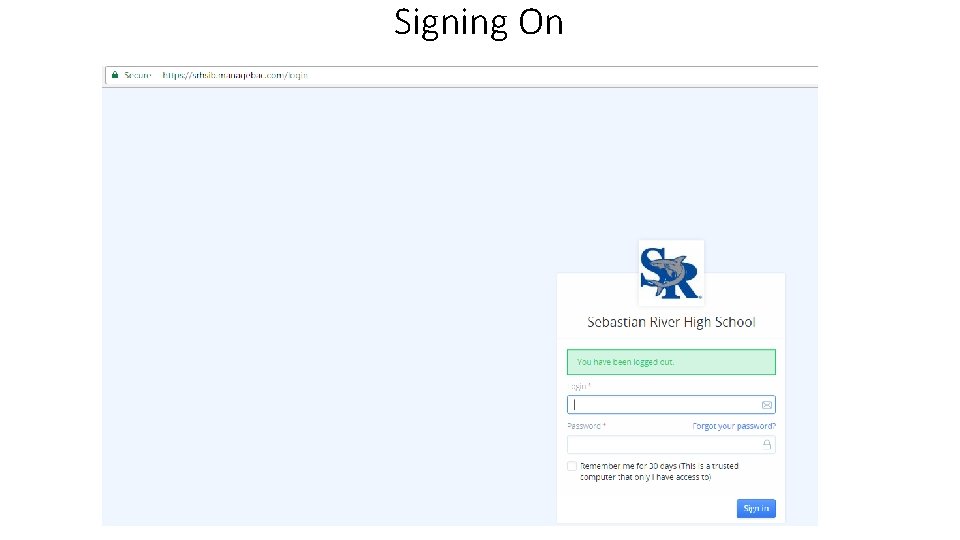
Signing On
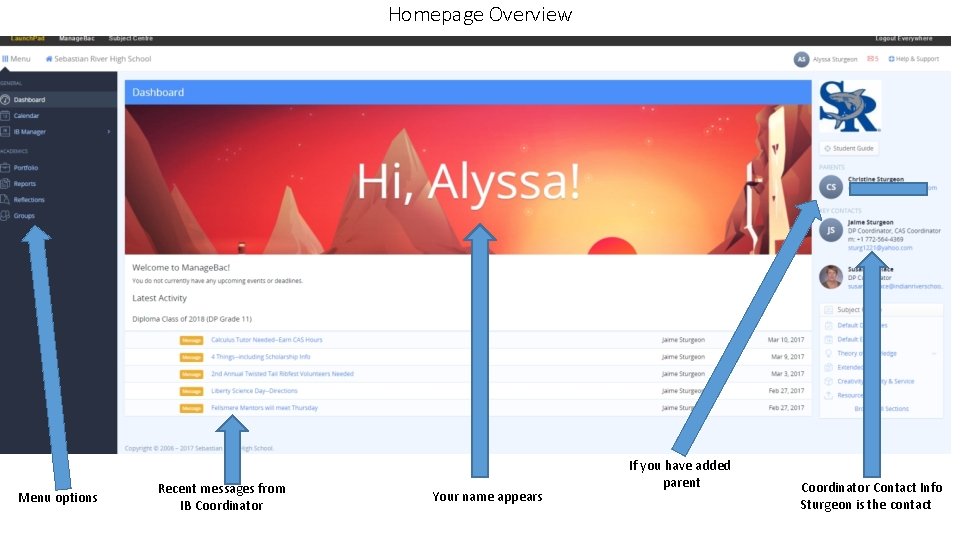
Homepage Overview Menu options Recent messages from IB Coordinator Your name appears If you have added parent Coordinator Contact Info Sturgeon is the contact
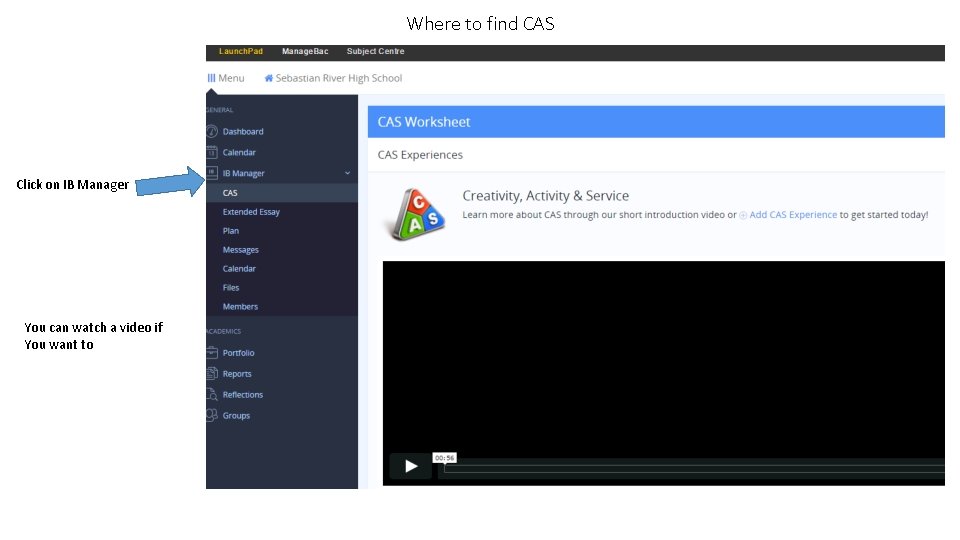
Where to find CAS Click on IB Manager You can watch a video if You want to
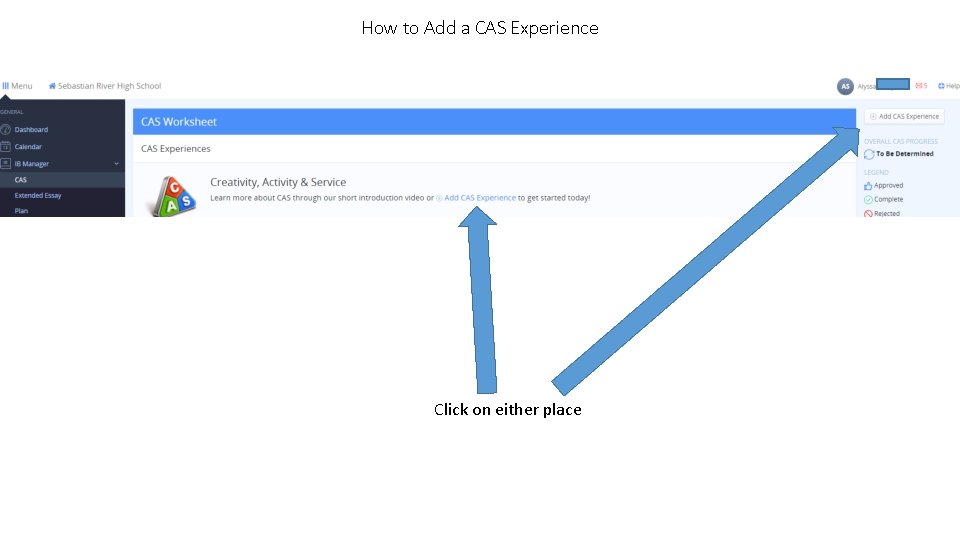
How to Add a CAS Experience Click on either place
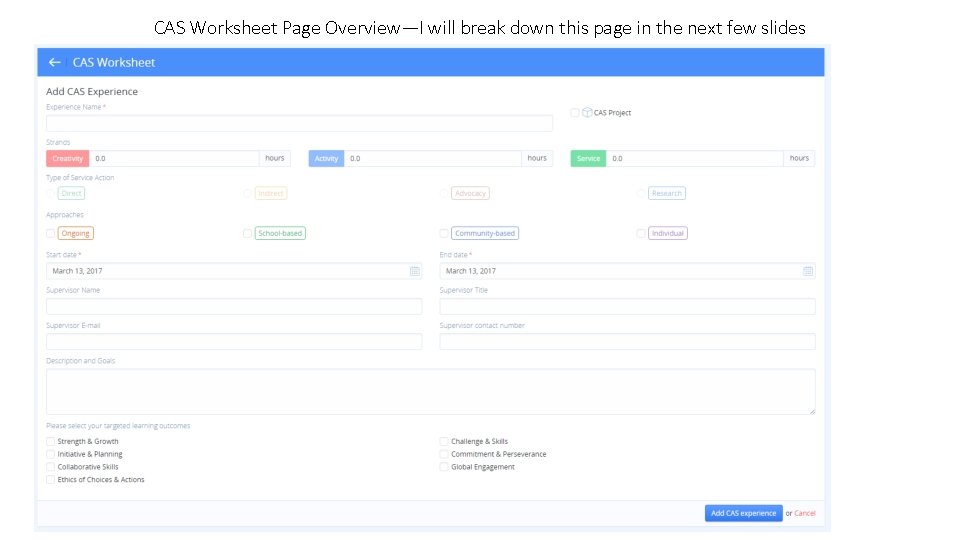
CAS Worksheet Page Overview—I will break down this page in the next few slides
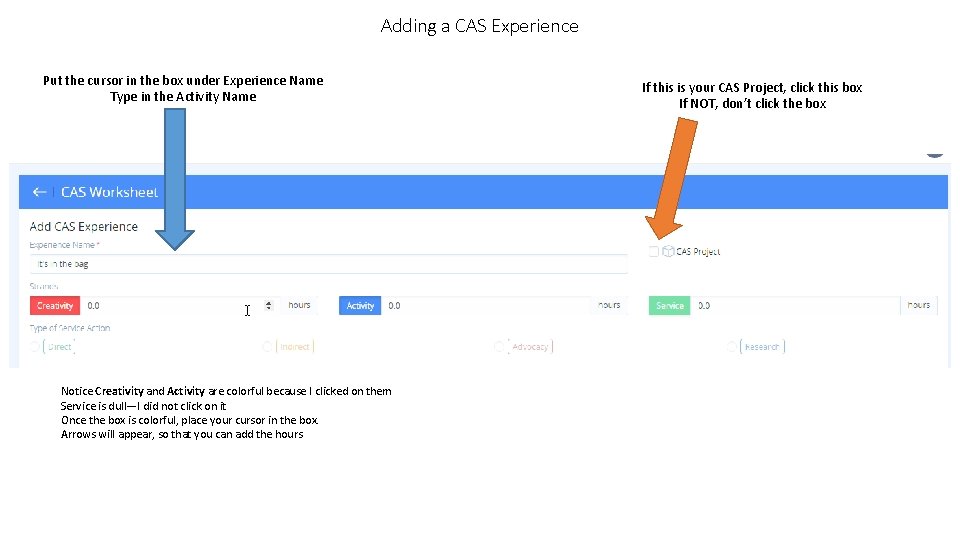
Adding a CAS Experience Put the cursor in the box under Experience Name Type in the Activity Name Notice Creativity and Activity are colorful because I clicked on them Service is dull—I did not click on it Once the box is colorful, place your cursor in the box. Arrows will appear, so that you can add the hours If this is your CAS Project, click this box If NOT, don’t click the box
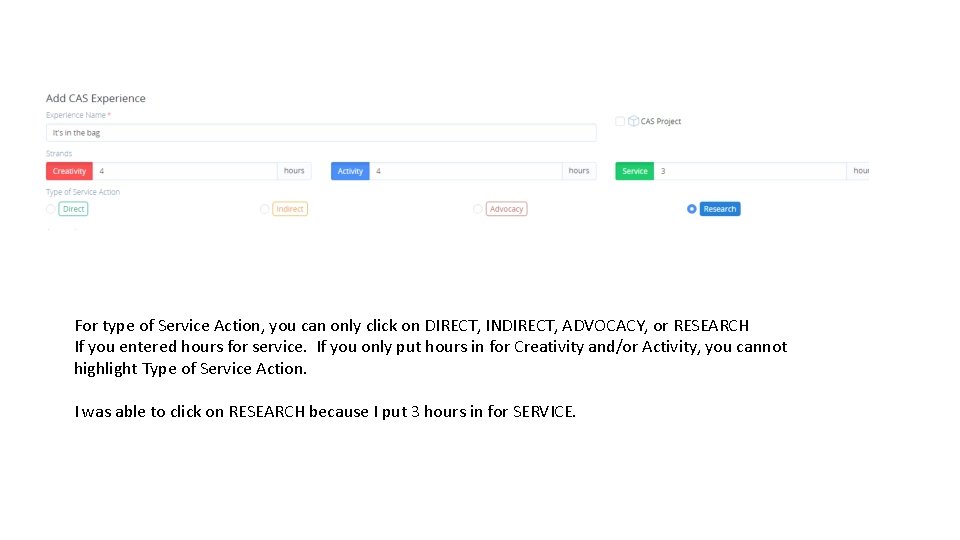
For type of Service Action, you can only click on DIRECT, INDIRECT, ADVOCACY, or RESEARCH If you entered hours for service. If you only put hours in for Creativity and/or Activity, you cannot highlight Type of Service Action. I was able to click on RESEARCH because I put 3 hours in for SERVICE.
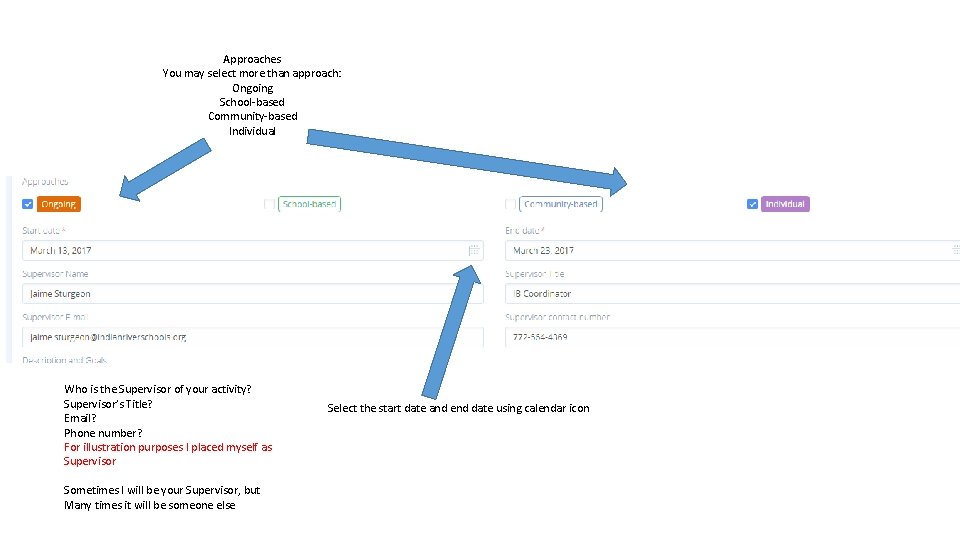
Approaches You may select more than approach: Ongoing School-based Community-based Individual Who is the Supervisor of your activity? Supervisor’s Title? Email? Phone number? For illustration purposes I placed myself as Supervisor Sometimes I will be your Supervisor, but Many times it will be someone else Select the start date and end date using calendar icon
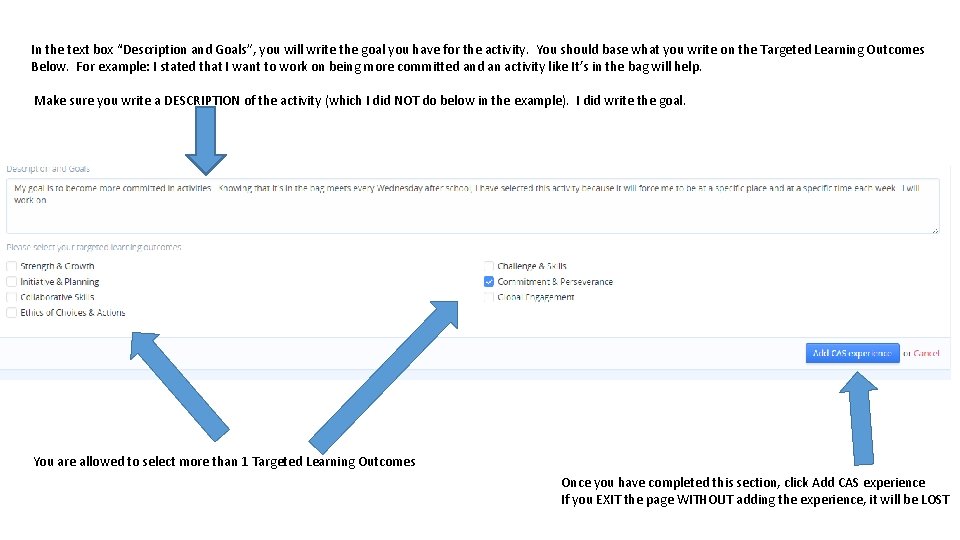
In the text box “Description and Goals”, you will write the goal you have for the activity. You should base what you write on the Targeted Learning Outcomes Below. For example: I stated that I want to work on being more committed an activity like It’s in the bag will help. Make sure you write a DESCRIPTION of the activity (which I did NOT do below in the example). I did write the goal. You are allowed to select more than 1 Targeted Learning Outcomes Once you have completed this section, click Add CAS experience If you EXIT the page WITHOUT adding the experience, it will be LOST
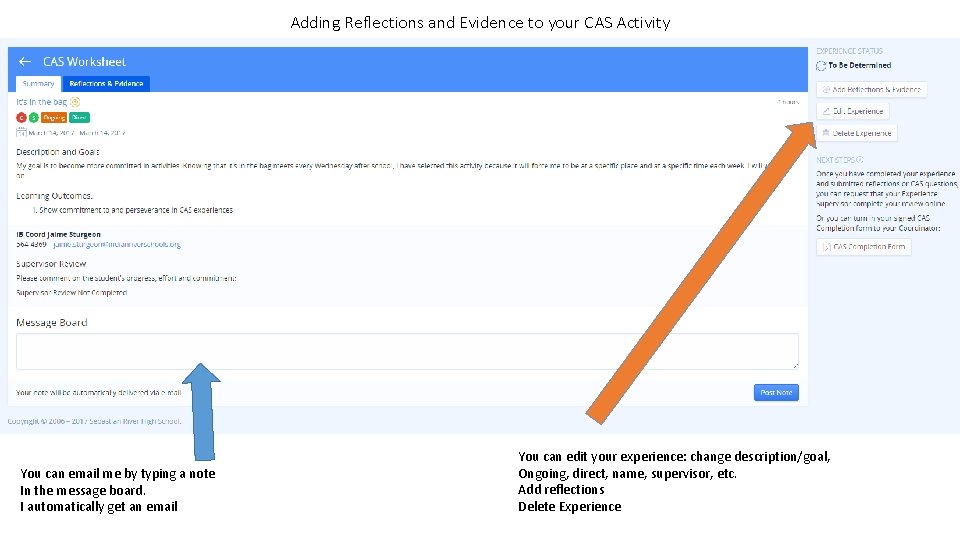
Adding Reflections and Evidence to your CAS Activity You can email me by typing a note In the message board. I automatically get an email You can edit your experience: change description/goal, Ongoing, direct, name, supervisor, etc. Add reflections Delete Experience
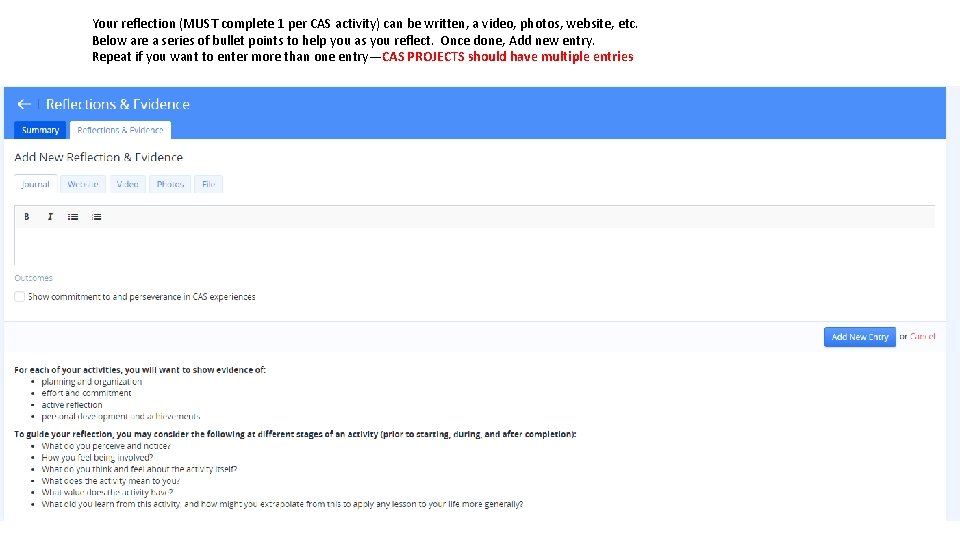
Your reflection (MUST complete 1 per CAS activity) can be written, a video, photos, website, etc. Below are a series of bullet points to help you as you reflect. Once done, Add new entry. Repeat if you want to enter more than one entry—CAS PROJECTS should have multiple entries
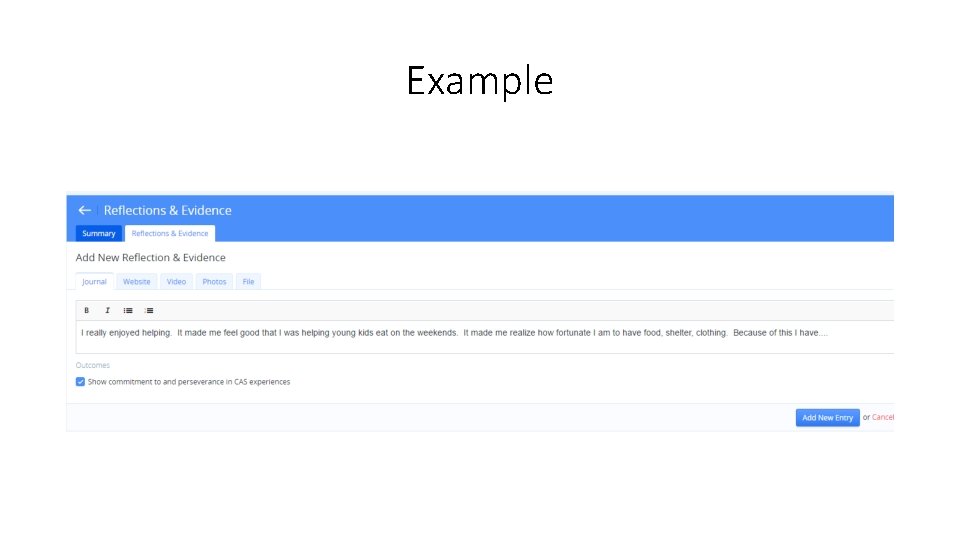
Example
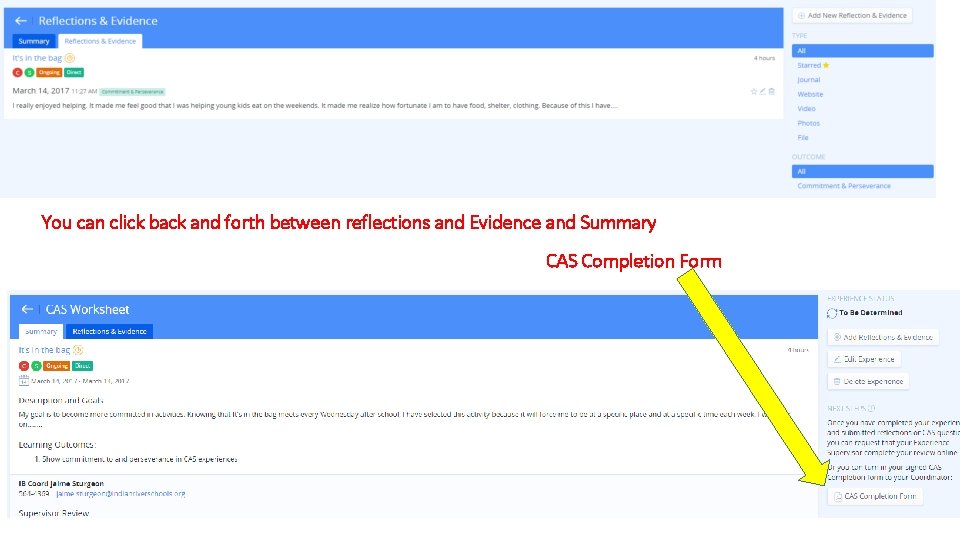
You can click back and forth between reflections and Evidence and Summary CAS Completion Form
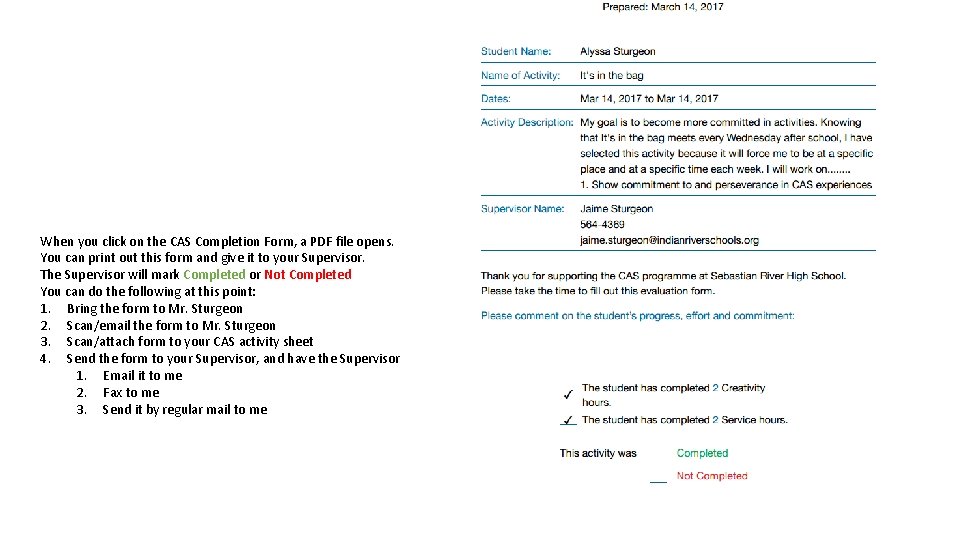
When you click on the CAS Completion Form, a PDF file opens. You can print out this form and give it to your Supervisor. The Supervisor will mark Completed or Not Completed You can do the following at this point: 1. Bring the form to Mr. Sturgeon 2. Scan/email the form to Mr. Sturgeon 3. Scan/attach form to your CAS activity sheet 4. Send the form to your Supervisor, and have the Supervisor 1. Email it to me 2. Fax to me 3. Send it by regular mail to me
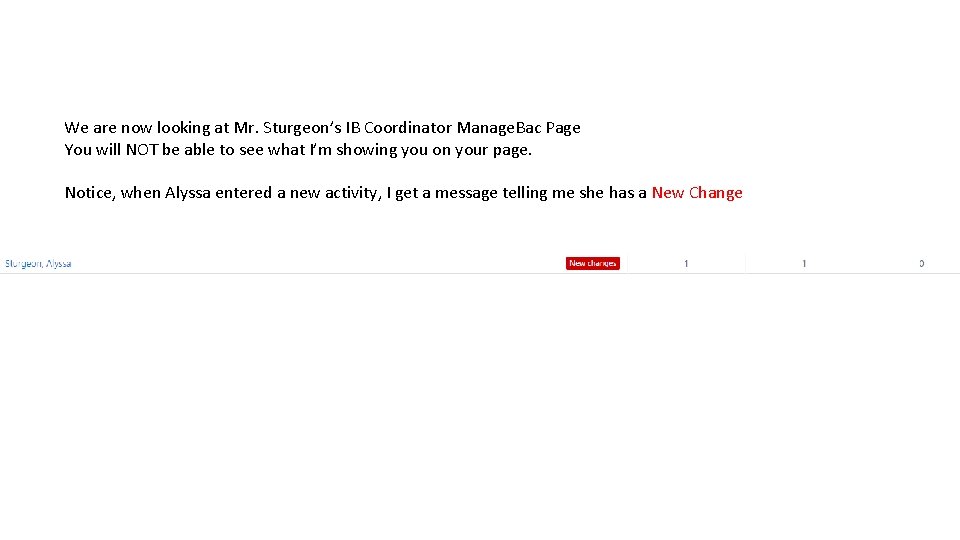
We are now looking at Mr. Sturgeon’s IB Coordinator Manage. Bac Page You will NOT be able to see what I’m showing you on your page. Notice, when Alyssa entered a new activity, I get a message telling me she has a New Change
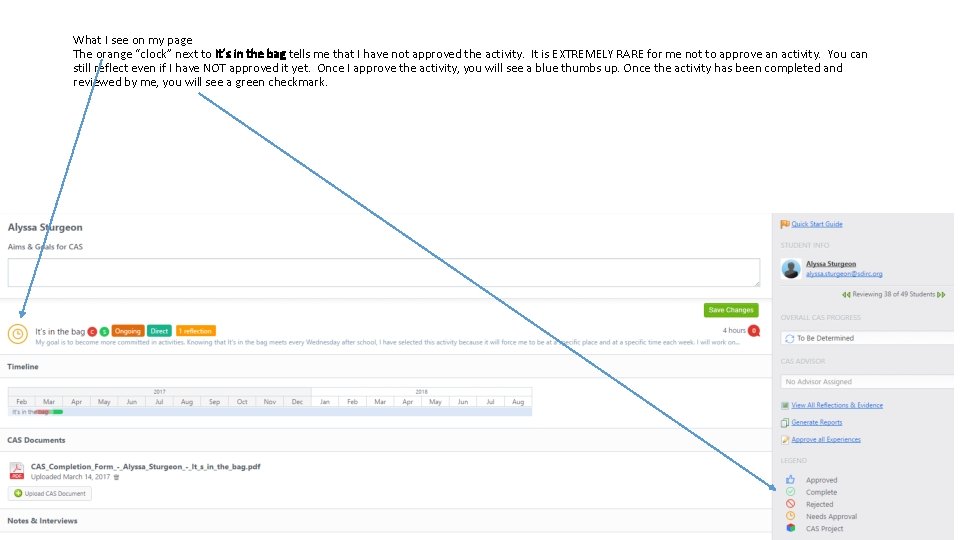
What I see on my page The orange “clock” next to It’s in the bag tells me that I have not approved the activity. It is EXTREMELY RARE for me not to approve an activity. You can still reflect even if I have NOT approved it yet. Once I approve the activity, you will see a blue thumbs up. Once the activity has been completed and reviewed by me, you will see a green checkmark.
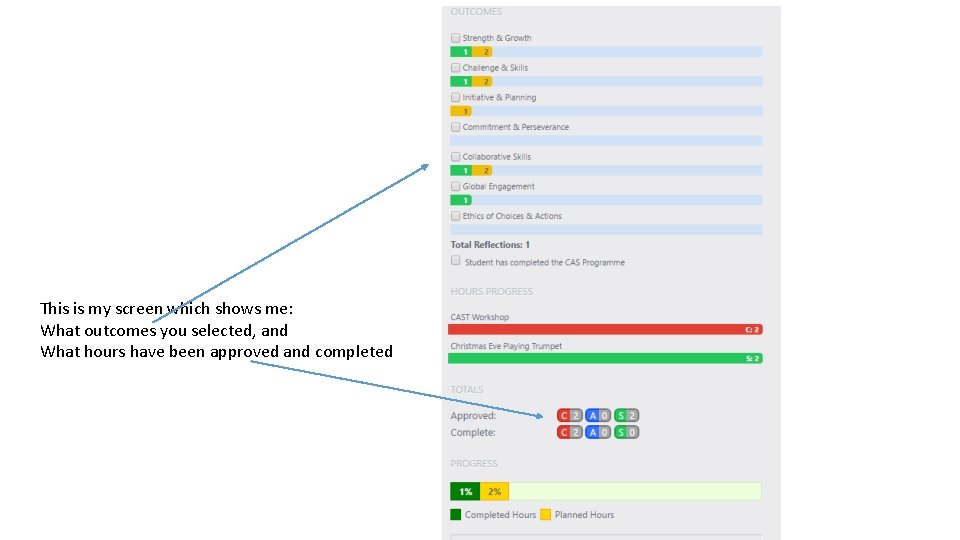
This is my screen which shows me: What outcomes you selected, and What hours have been approved and completed
Basic Information • I will be meeting with you as you go through this process • Always email me through the message board if you have questions • Check your CAS Handbook, which is also located on the website, SRHS—IB Page—Using Manage. Bac for CAS
- Slides: 20