
Welcome to ICHAT The Michigan State Police Internet
- Slides: 41
Welcome to ICHAT The Michigan State Police Internet Criminal History Access Tool
ICHAT is the only public resource for non-fingerprint-based Michigan criminal history background checks.
This tutorial is designed for PS&I (private security guard and burglar alarm) companies. There are other tutorials specially designed for both the general public and for government agencies, schools, churches, and charities.
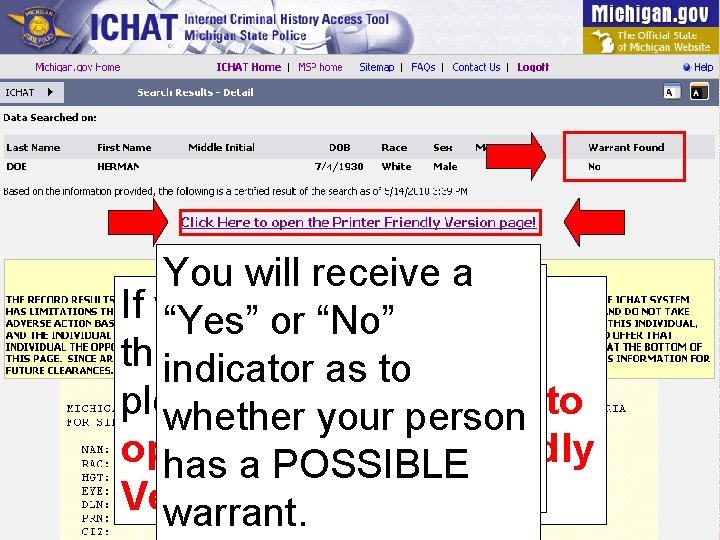
ICHAT reports DO NOT display suppressed records or criminal history information from other state or federal government agencies. You will receive an indicator of possible warrants, not necessarily actual warrants.
To register in ICHAT with a private security guard and burglar alarm company please submit a request on official letterhead with: the name, address, and phone number of the organization; the name, address, and phone number of the agency; the name and e-mail address of a contact person; the number of additional users; the estimated number of warrant searches per year; the company's federal tax ID number; and your PS&I license number. You may send the request by mail, fax, or email to ICHAT Help Desk Michigan State Police Criminal Justice Information Center P. O. Box 30634 Lansing, Michigan 48909 Tel. 517 -241 -0606 Fax 517 -241 -0866 email: MSP-CRD-ICHATHELP@michigan. gov
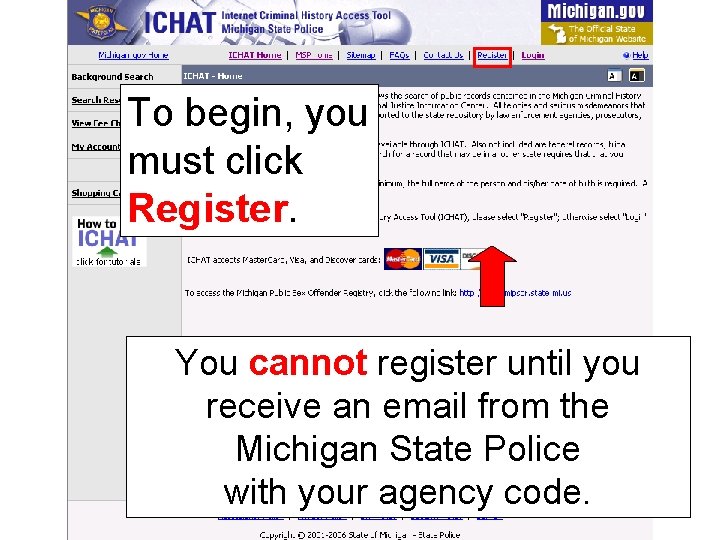
To begin, you must click Register. You cannot register until you receive an email from the Michigan State Police with your agency code.
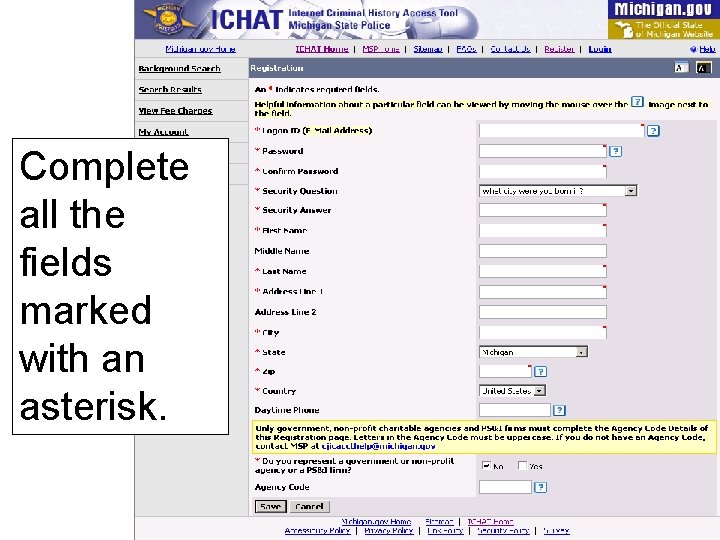
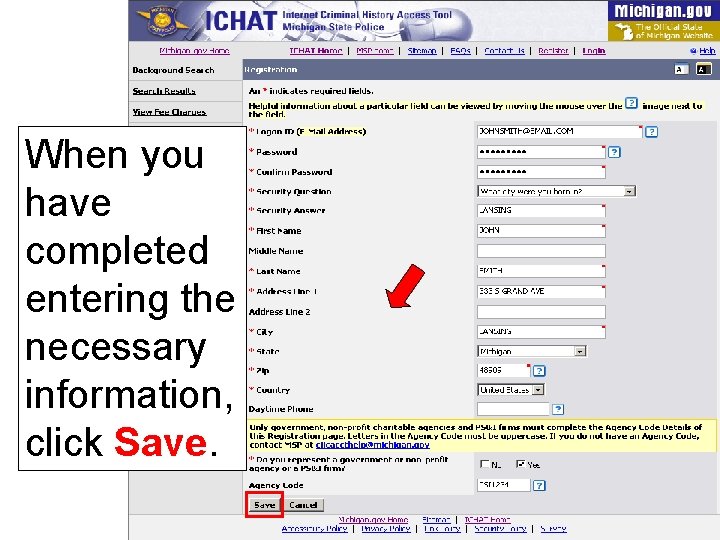
Complete all the fields marked with an asterisk.
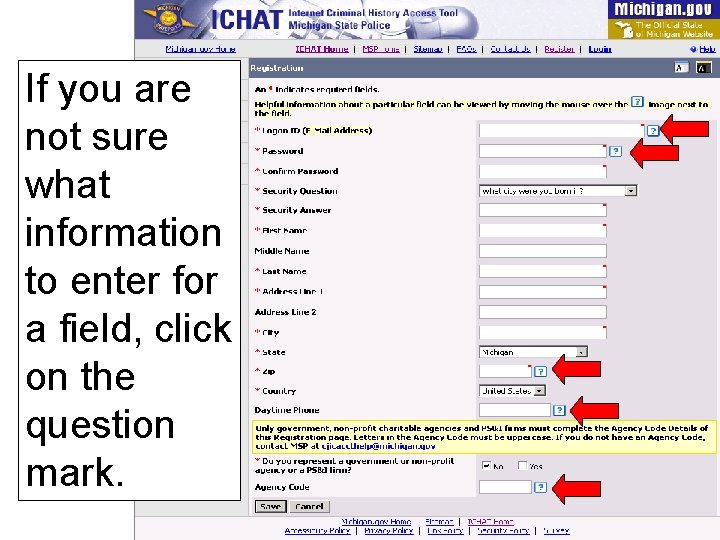
If you are not sure what information to enter for a field, click on the question mark.
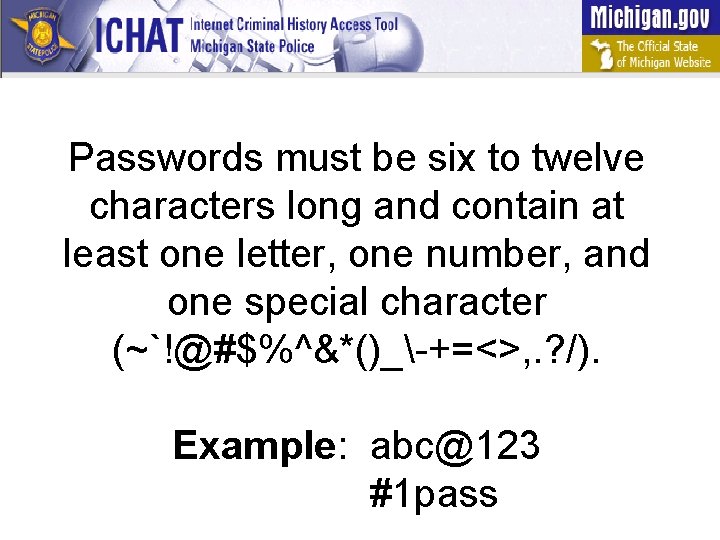
Passwords must be six to twelve characters long and contain at least one letter, one number, and one special character (~`!@#$%^&*()_-+=<>, . ? /). Example: abc@123 #1 pass
PS&I (private security guard and burglar alarm) companies must enter their ICHAT PS&I code in the agency code field.
When you have completed entering the necessary information, click Save.
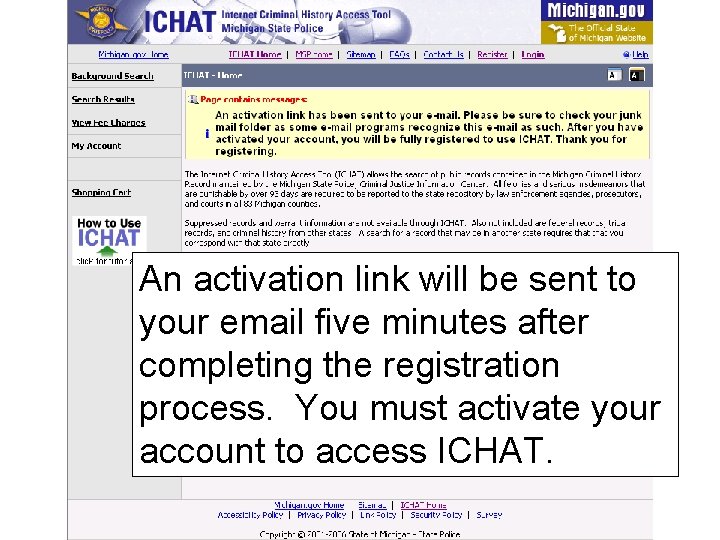
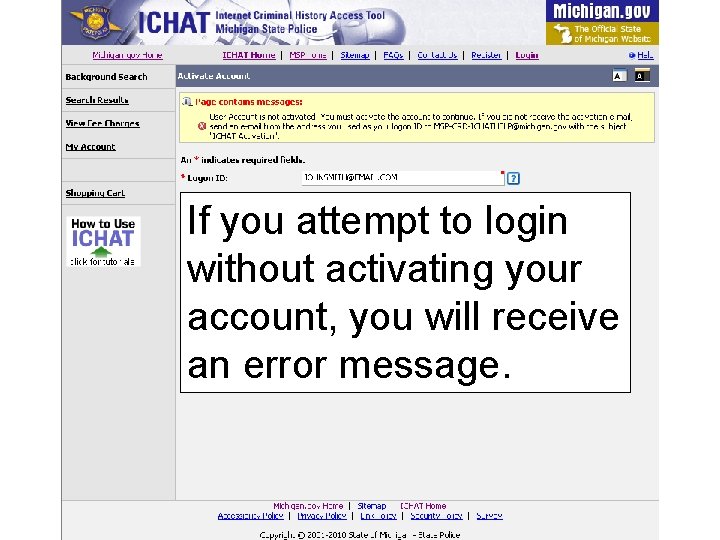
An activation link will be sent to your email five minutes after completing the registration process. You must activate your account to access ICHAT.
If you attempt to login without activating your account, you will receive an error message.
After your company’s ICHAT contact person has registered in the ICHAT system with your PS&I Agency Code, send an e-mail to MSP-CRD-ICHATHELP@michigan. gov so they can be upgraded to “Agency Administrator”.
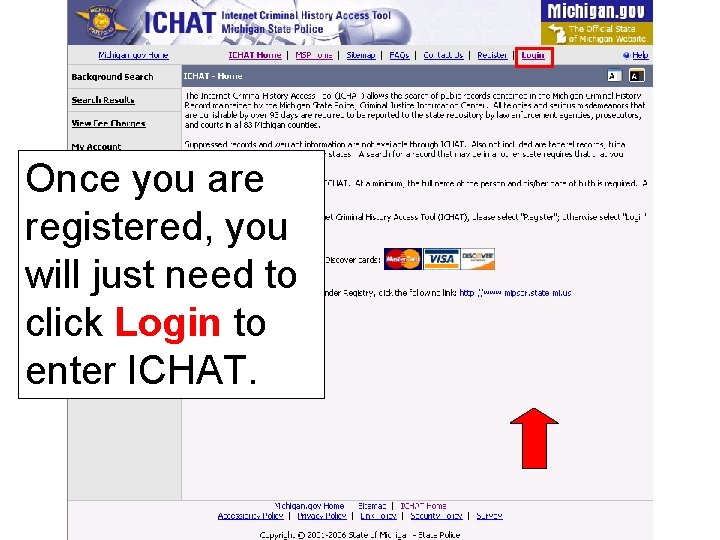
Once you are registered, you will just need to click Login to enter ICHAT.
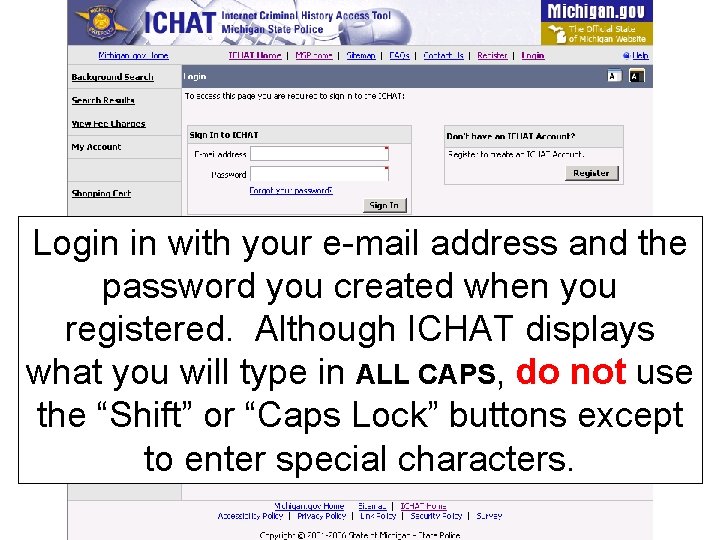
Login in with your e-mail address and the password you created when you registered. Although ICHAT displays what you will type in ALL CAPS, do not use the “Shift” or “Caps Lock” buttons except to enter special characters.
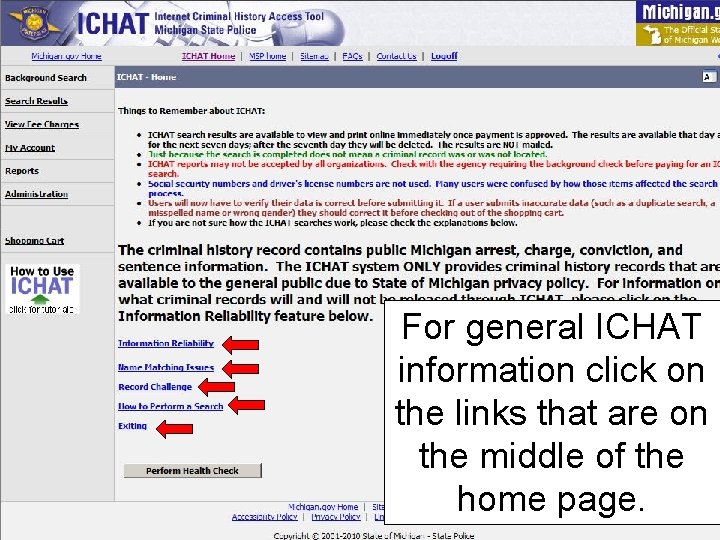
For general ICHAT information click on the links that are on the middle of the home page.
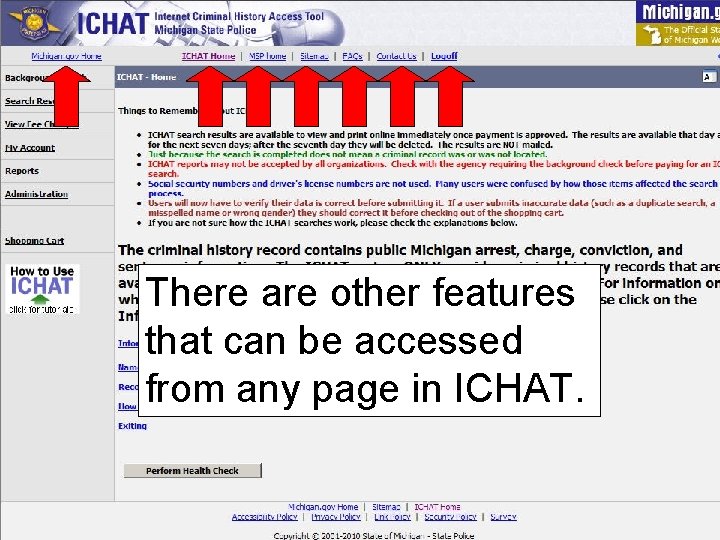
There are other features that can be accessed from any page in ICHAT.
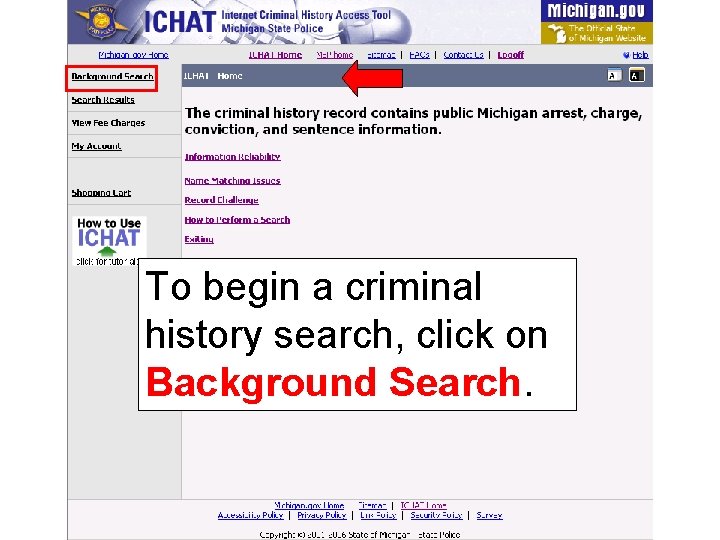
To begin a criminal history search, click on Background Search.
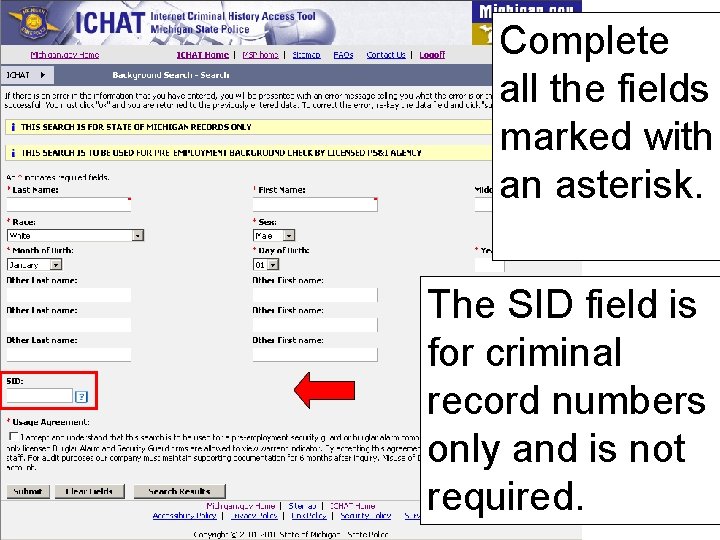
Complete all the fields marked with an asterisk. The SID field is for criminal record numbers only and is not required.
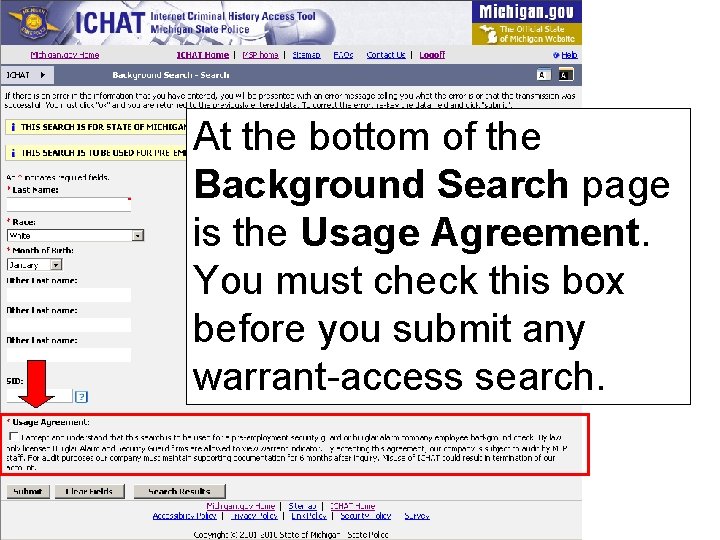
At the bottom of the Background Search page is the Usage Agreement. You must check this box before you submit any warrant-access search.
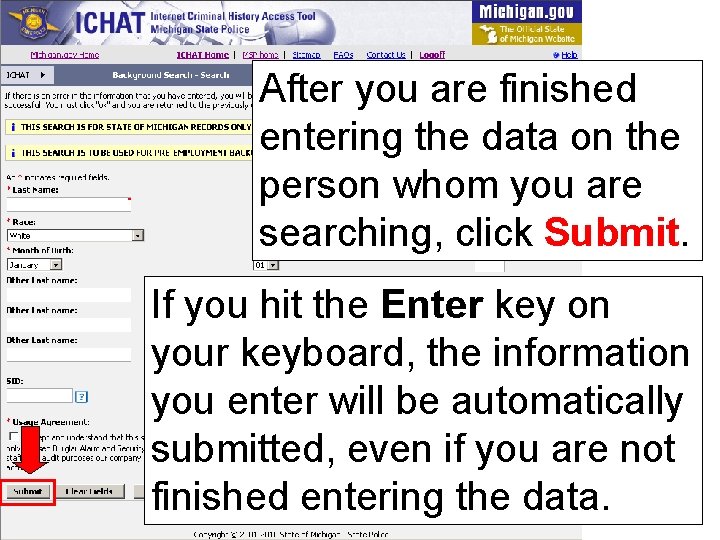
After you are finished entering the data on the person whom you are searching, click Submit. If you hit the Enter key on your keyboard, the information you enter will be automatically submitted, even if you are not finished entering the data.
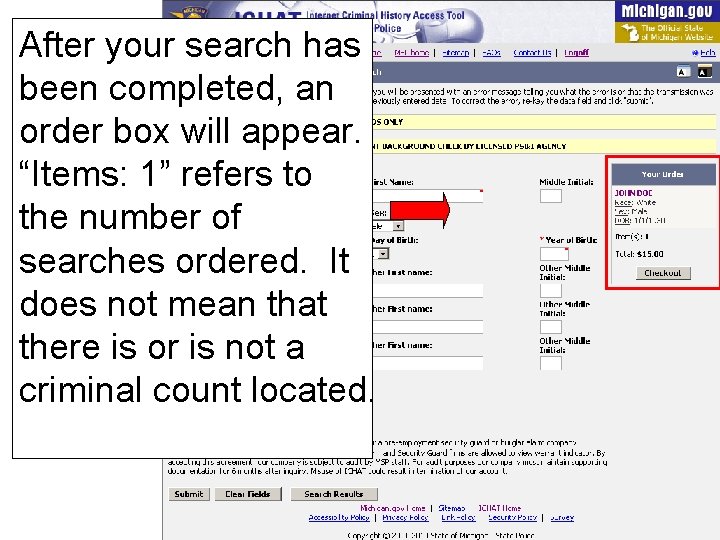
After your search has been completed, an order box will appear. “Items: 1” refers to the number of searches ordered. It does not mean that there is or is not a criminal count located.
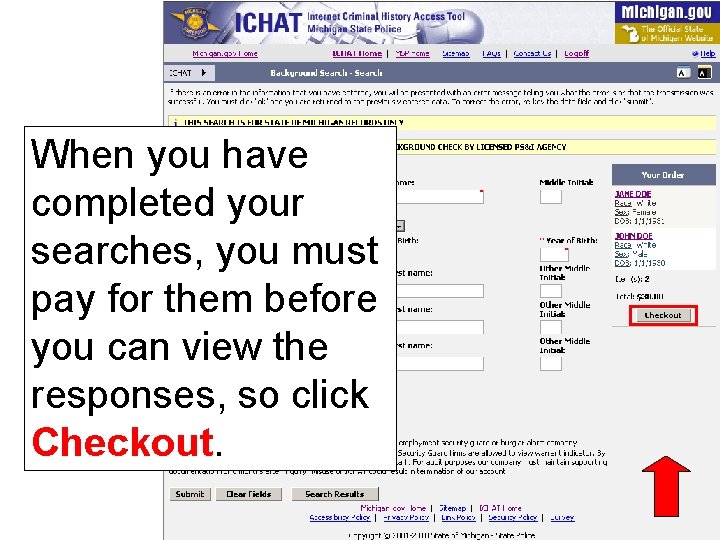
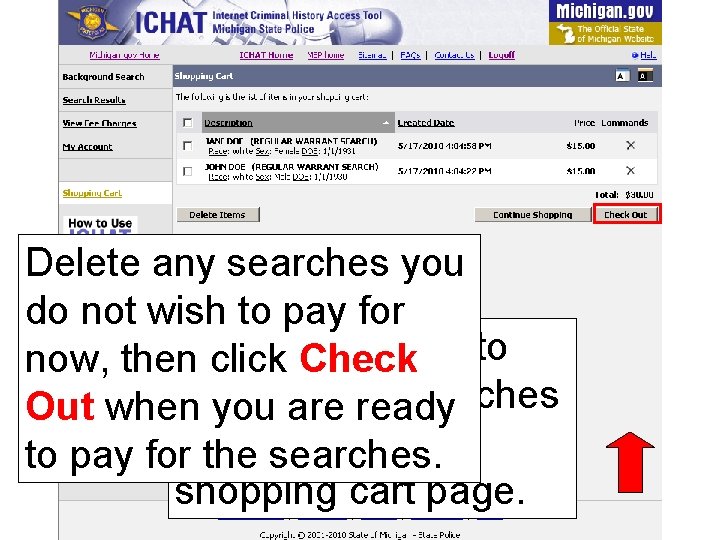
When you have completed your searches, you must pay for them before you can view the responses, so click Checkout.
Delete any searches you do not wish to pay for When begin to now, then click you Check pay forare your searches Out when you ready be at the to pay foryou thewill searches. shopping cart page.
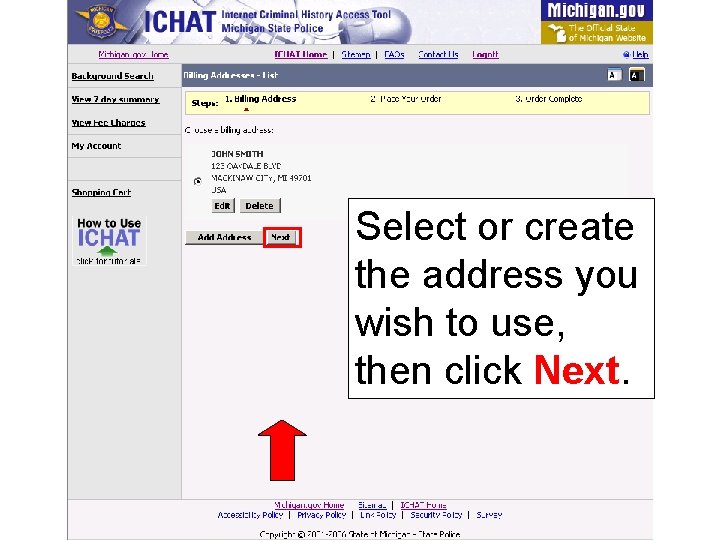
Select or create the address you wish to use, then click Next.
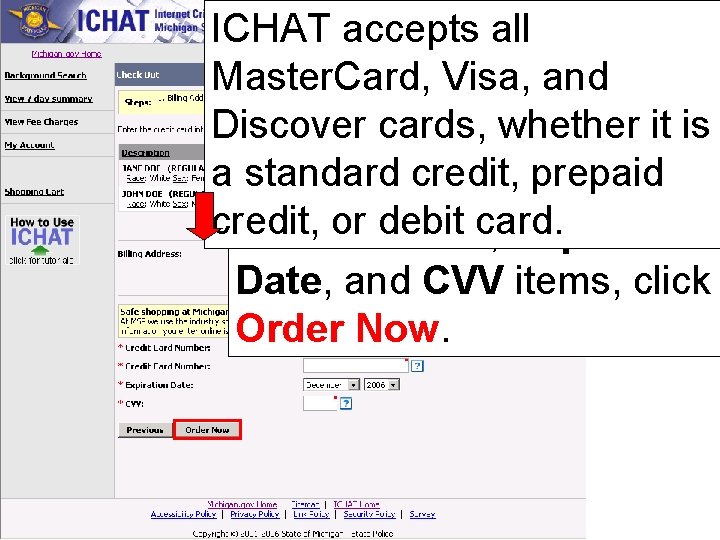
ICHAT accepts all Master. Card, Visa, and Discover cards, whether it is After completing the a Credit standard credit, prepaid Card Type, Credit credit, debit card. Card or Number, Expiration Date, and CVV items, click Order Now.
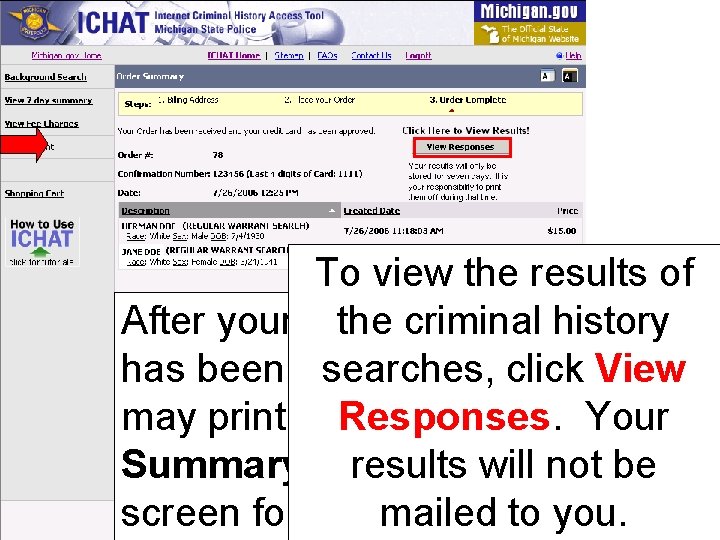
To view the results of the criminal history After your credit card has been approved, searches, you click View Your may print the. Responses. Order results will not be Summary page off the to you. screen for yourmailed records.
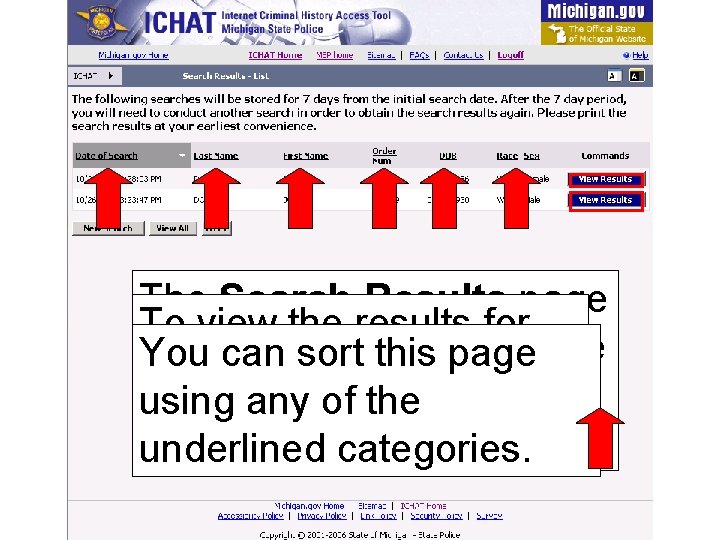
The Search Results page To view the results for lists all searches you have You can sort this page an individual search, ordered that day and the using any of the click View Results. previous sixcategories. days. underlined
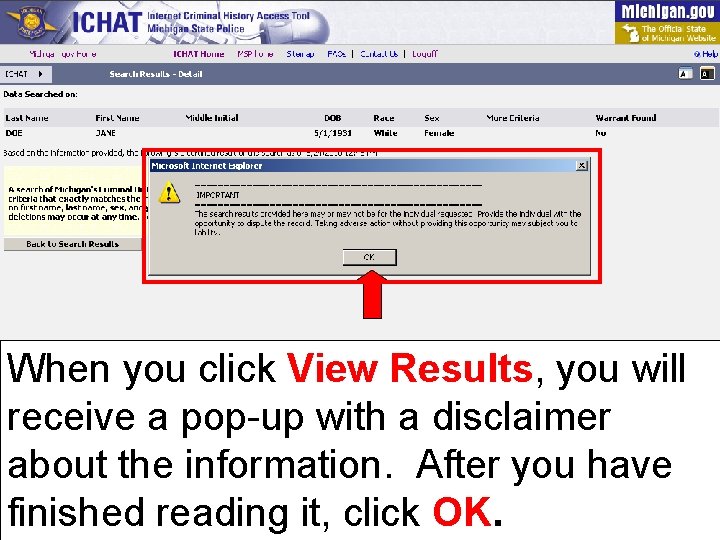
When you click View Results, you will receive a pop-up with a disclaimer about the information. After you have finished reading it, click OK.
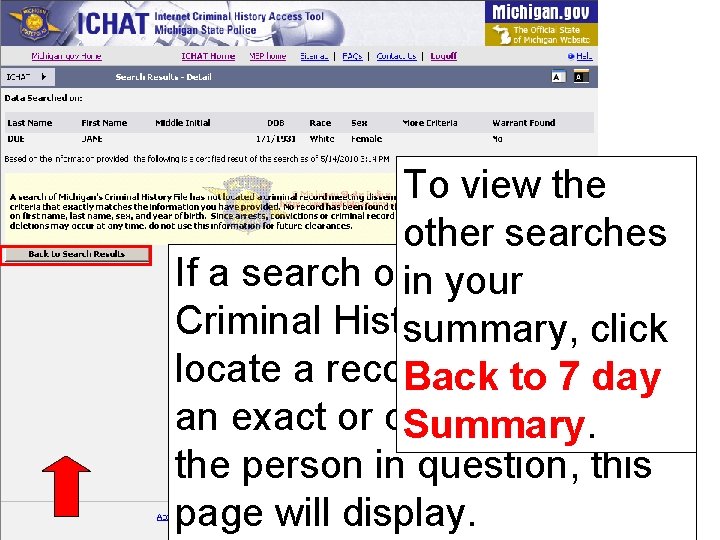
To view the other searches If a search ofin. Michigan’s your Criminal History file does not summary, click locate a record thattois 7 either Back day an exact or close match for Summary. the person in question, this page will display.
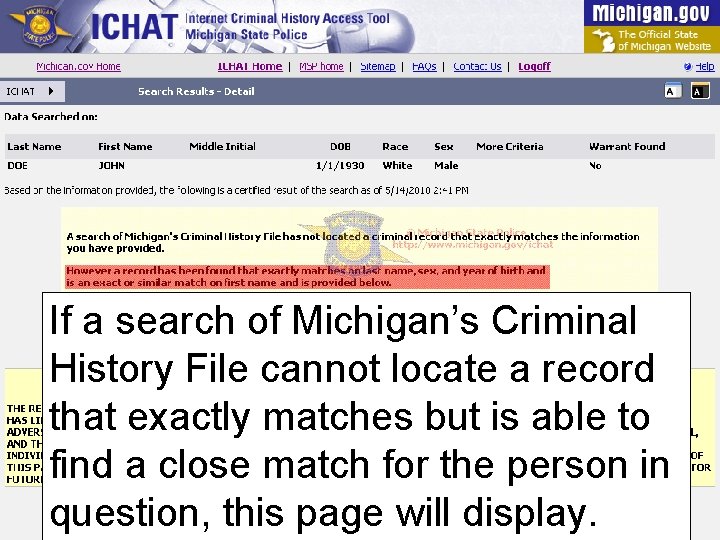
If a search of Michigan’s Criminal History File cannot locate a record that exactly matches but is able to find a close match for the person in question, this page will display.
You will receive a Please take the If awould search does If you like to print “Yes” or “No” time to read the locate a criminal this page off the screen, indicator as to disclaimers. history that exactly please click Click Here to whether your person matches, this page open the Printer Friendly has a POSSIBLE will bepage!. presented. Version warrant.
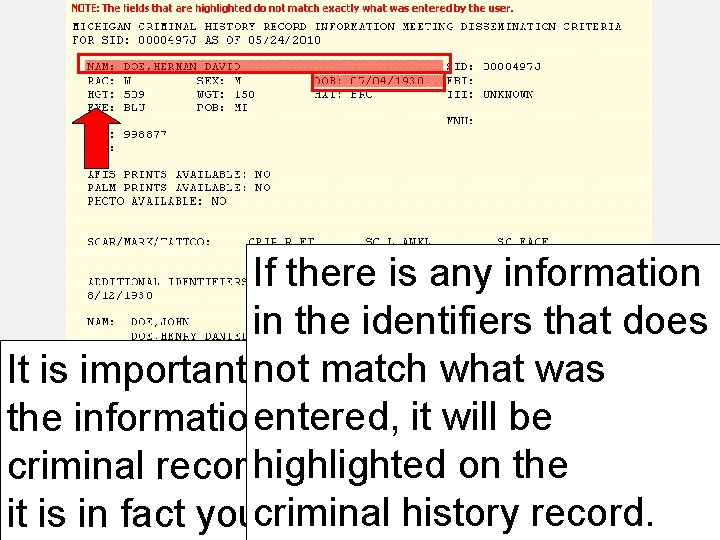
If there is any information in the identifiers that does match double what was It is important not to always check it will be the informationentered, of the person on the or not criminal recordhighlighted to verify whether criminal it is in fact your person. history record.
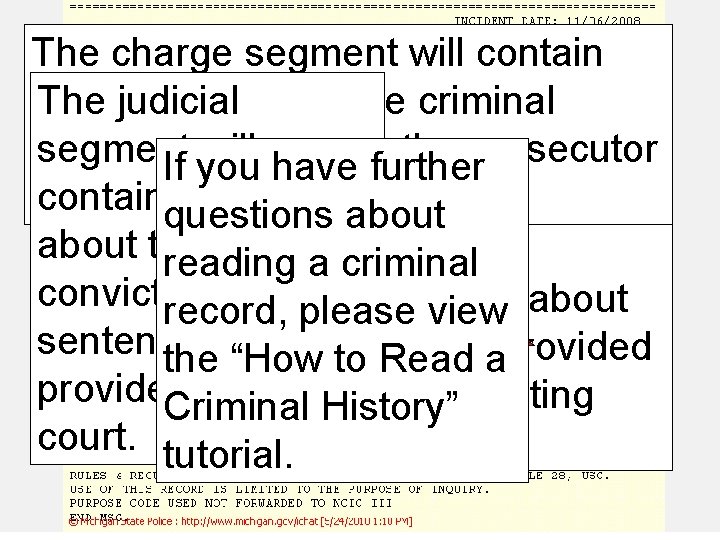
The charge segment will contain information The judicialabout the criminal segment will charges provided by the prosecutor If you have further for that questions case. contain information The arrest segment about the will contain reading a criminal Criminal history information conviction and information about record, please view will be broken down into sentence and is the arrest provided the “How to Read a three segments: provided by the arresting Criminal by History” court. tutorial. agency.
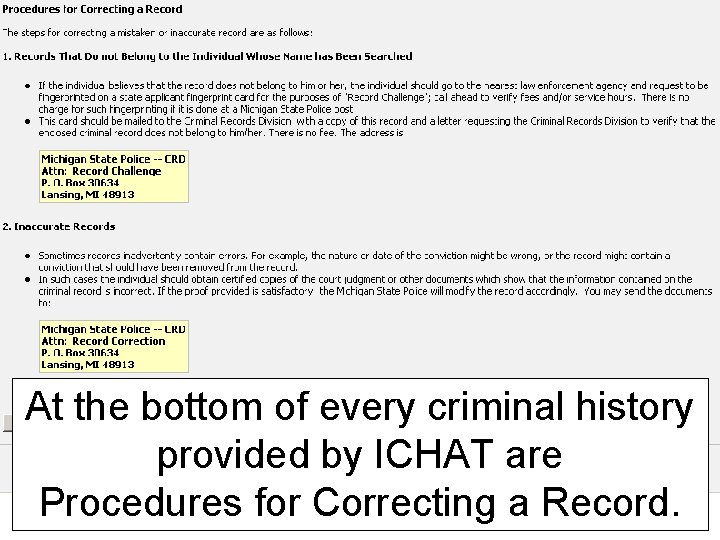
At the bottom of every criminal history provided by ICHAT are Procedures for Correcting a Record.
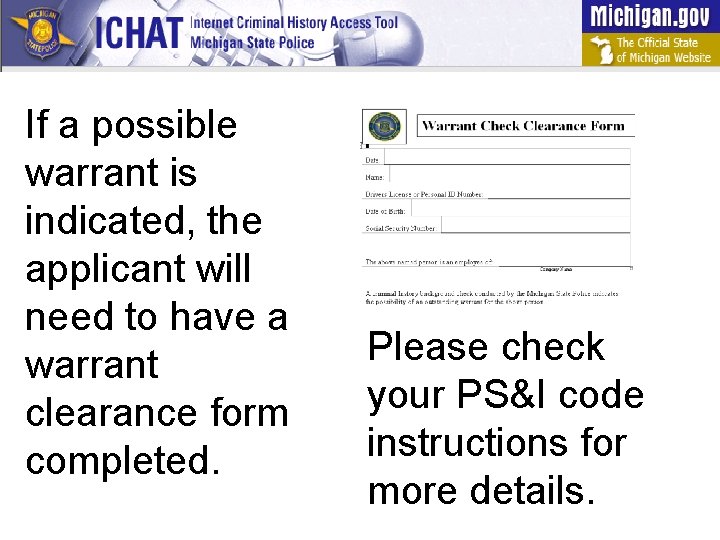
If a possible warrant is indicated, the applicant will need to have a warrant clearance form completed. Please check your PS&I code instructions for more details.
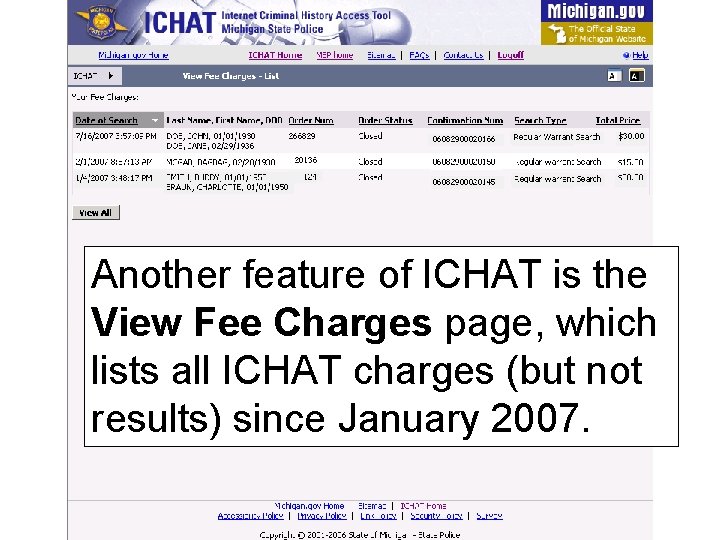
Another feature of ICHAT is the View Fee Charges page, which lists all ICHAT charges (but not results) since January 2007.
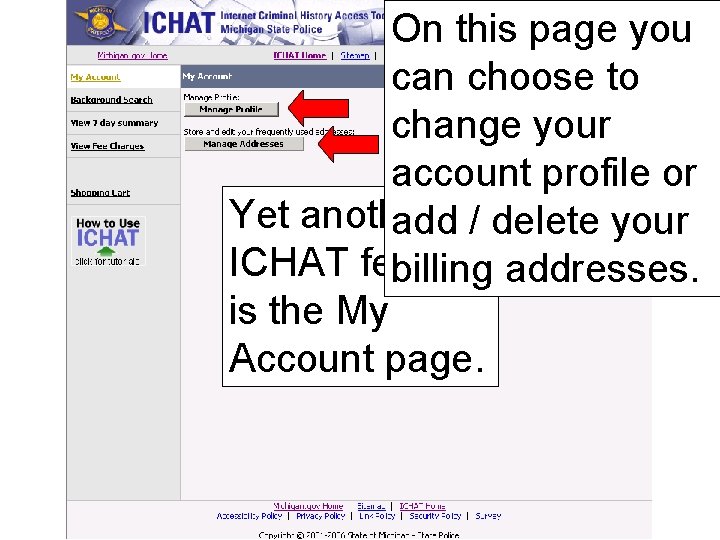
On this page you can choose to change your account profile or Yet another add / delete your ICHAT feature billing addresses. is the My Account page.
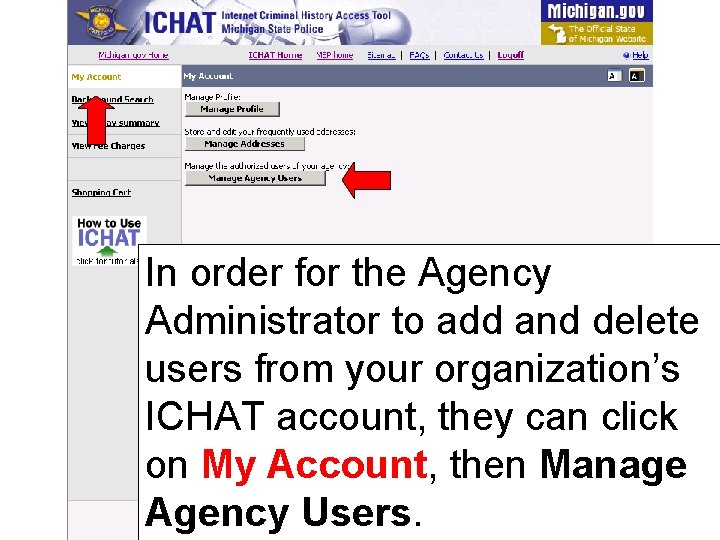
In order for the Agency Administrator to add and delete users from your organization’s ICHAT account, they can click on My Account, then Manage Agency Users.
If you have questions or need additional assistance, you may contact the ICHAT Coordinator at 517 -241 -0713 or MSP-CRDICHATHELP@michigan. gov.