
Welcome to Google Classroom This is where your
- Slides: 10
Welcome to Google Classroom! This is where your student’s teacher will share assignments, homework, helpful tips, class updates and even links for Google Meetings.
Before We Begin. . . Make sure to have your student’s school email and google account sign in information. If you have yet to receive your student’s school google account sign in information, please click this link Helpdesk@millbrookcsd. org or 845. 677. 4200 ext 1138.
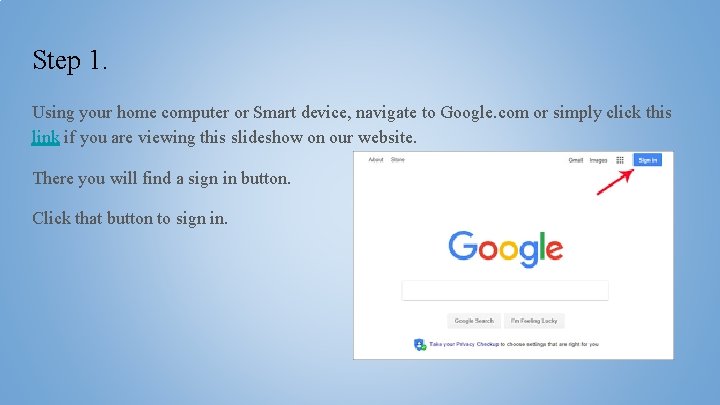
Step 1. Using your home computer or Smart device, navigate to Google. com or simply click this link if you are viewing this slideshow on our website. There you will find a sign in button. Click that button to sign in.
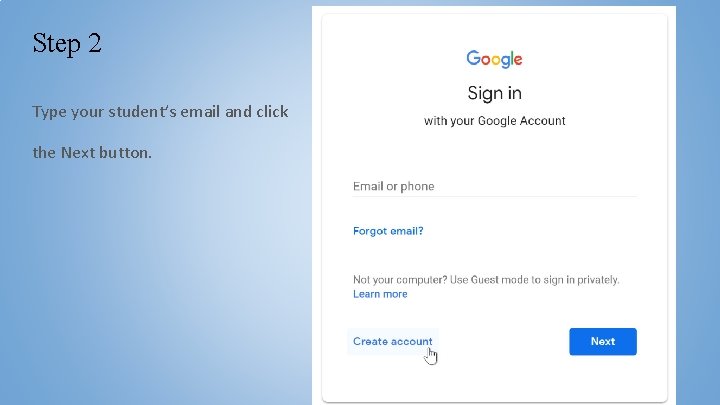
Step 2 Type your student’s email and click the Next button.
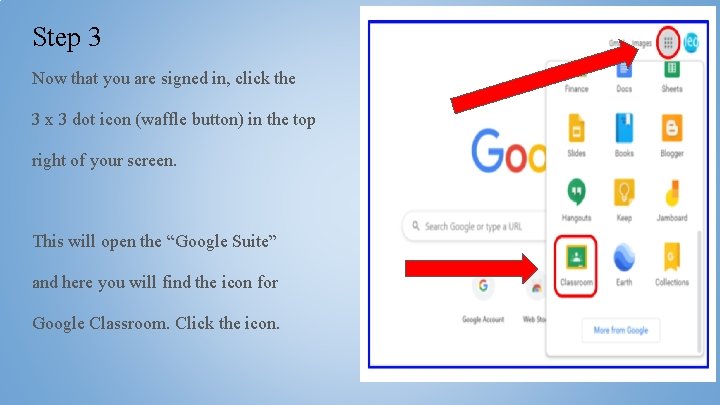
Step 3 Now that you are signed in, click the 3 x 3 dot icon (waffle button) in the top right of your screen. This will open the “Google Suite” and here you will find the icon for Google Classroom. Click the icon.
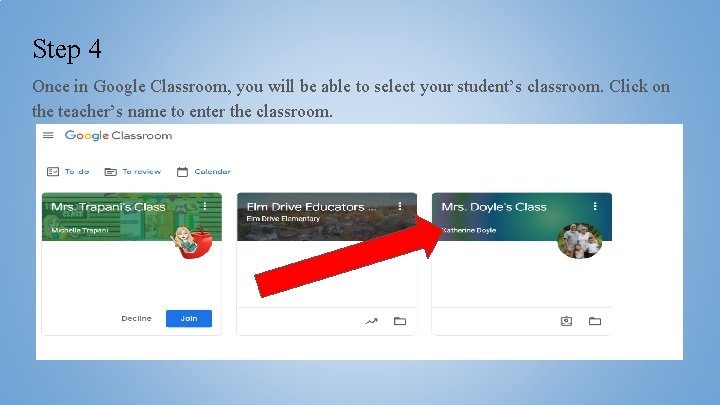
Step 4 Once in Google Classroom, you will be able to select your student’s classroom. Click on the teacher’s name to enter the classroom.
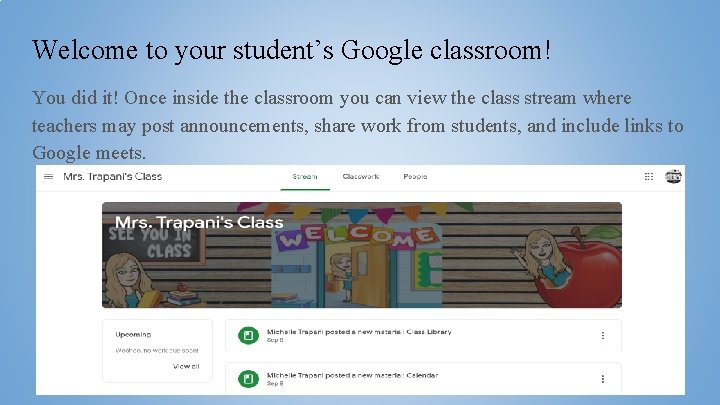
Welcome to your student’s Google classroom! You did it! Once inside the classroom you can view the class stream where teachers may post announcements, share work from students, and include links to Google meets.
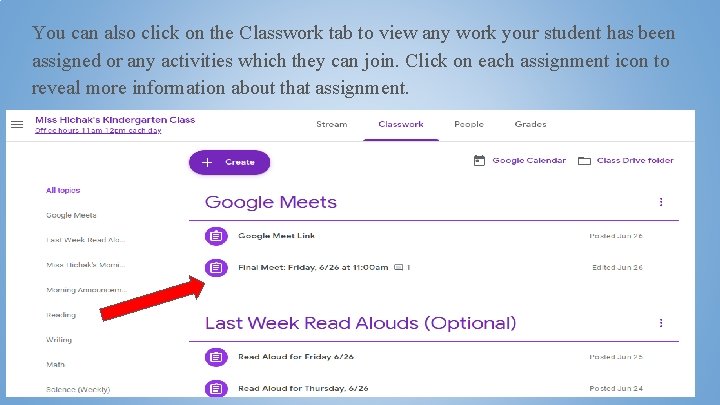
You can also click on the Classwork tab to view any work your student has been assigned or any activities which they can join. Click on each assignment icon to reveal more information about that assignment.
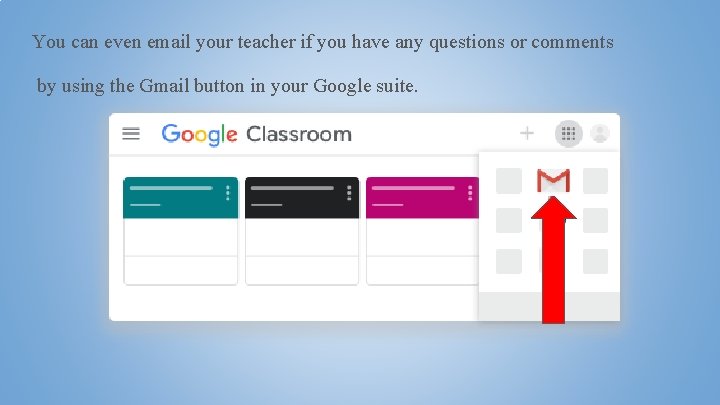
You can even email your teacher if you have any questions or comments by using the Gmail button in your Google suite.
Finally. . . Thank you for all the support you are providing at home. We are partners in your student’s education and we are grateful for your active participation. If you have any questions or comments, please do not hesitate to reach out. Principal email: Steven. Cabello@Millbrook. CSD. org Office phone number: 845. 677. 4225 Help Desk email: Helpdesk@millbrookcsd. org