
Welcome to Google Classroom Digital Workshop 1 Well
- Slides: 31
Welcome to Google Classroom Digital Workshop 1. We’ll begin at 10: 00 2. Please enter your name in the chat and rate your Google Classroom Knowledge from 4 -1: I can teach it (4), Proficient (3), Somewhat proficient (2), Need to learn (1). 3. We will take attendance/survey at the end. 4. We will record the session for internal use.
Google Classroom Support for Digital Pedagogy Presenter: Chat Moderator:
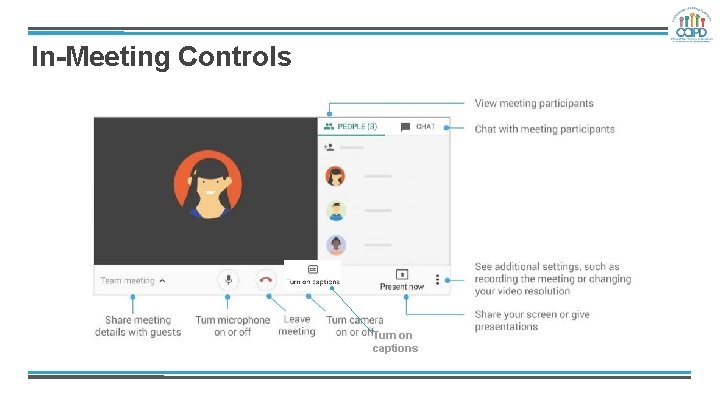
In-Meeting Controls Turn on captions
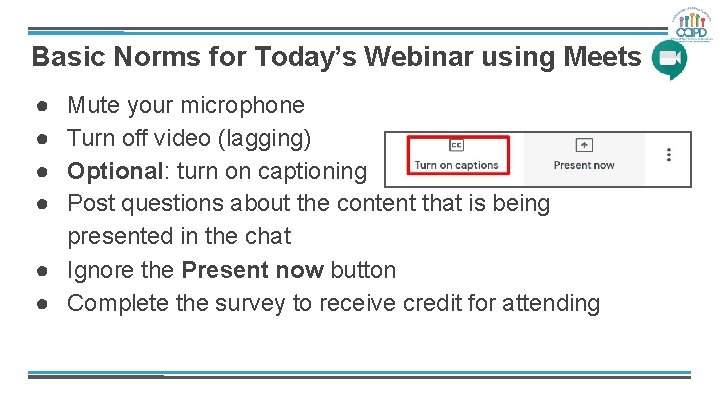
Basic Norms for Today’s Webinar using Meets ● ● Mute your microphone Turn off video (lagging) Optional: turn on captioning Post questions about the content that is being presented in the chat ● Ignore the Present now button ● Complete the survey to receive credit for attending
Shifting to Digital Pedagogy Context: ● Over 2900 attendees in over 60 webinars! ● Live webinars archived and available through my. PD, also posted on the Teacher Communication website. ● Transition from digital tools support to digital pedagogy support.
Shifting to Digital Pedagogy Purpose: ● We are building our own common language and practices to support content area teachers in digital pedagogies: ○ Identify key instructional moves ○ Use G Suite to support those instructional moves ○ Discuss innovative ways to help build our system’s capacity
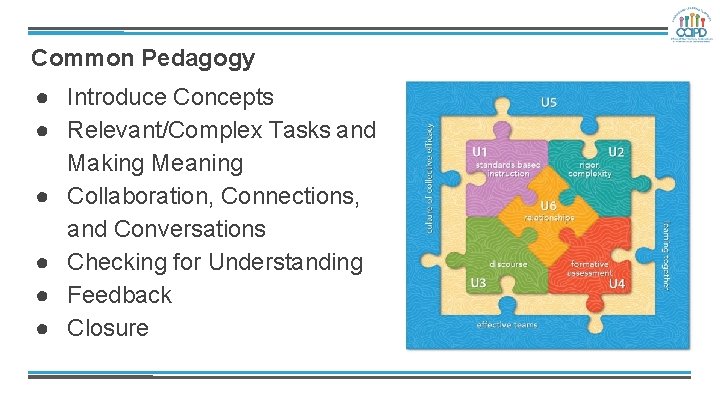
Common Pedagogy ● Introduce Concepts ● Relevant/Complex Tasks and Making Meaning ● Collaboration, Connections, and Conversations ● Checking for Understanding ● Feedback ● Closure
Why Google Classroom? ● Connect with “students” ○ Asynchronously ○ Synchronously ● Platform for content resources as well as feedback ● Flexibility and G-Suite integration ● Discussion forum using Question feature.
Learning Target ● Identify methods of using Google Classroom to address pedagogical moves online ● Understand that integrating Google Suite with Google Classroom allows for greatest potential ● Understand that Google Classroom alone may not be the best technological tool for the pedagogical move selected
Pedagogy Utilizing Google Classroom Pedagogical Moves ● ● ● ● Introduce a Concept Make Meaning of Text/Task (eg DBQ or TDQ? ) Check for Understanding Provide Feedback Closure Collaboration Differentiation
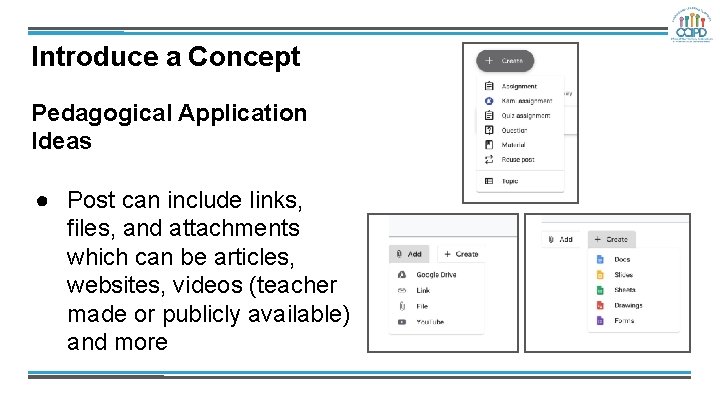
Introduce a Concept Pedagogical Application Ideas ● Post can include links, files, and attachments which can be articles, websites, videos (teacher made or publicly available) and more
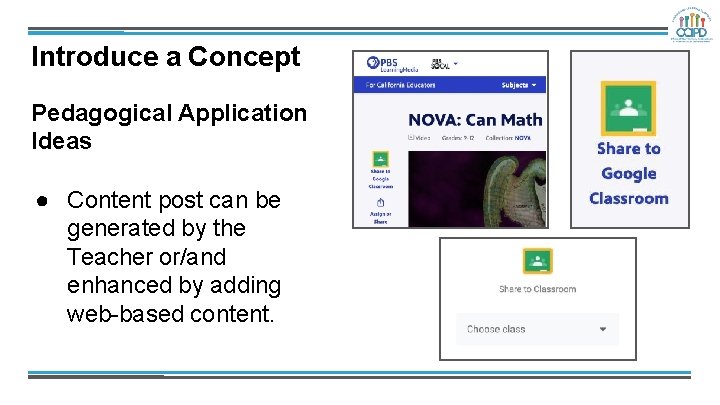
Introduce a Concept Pedagogical Application Ideas ● Content post can be generated by the Teacher or/and enhanced by adding web-based content.
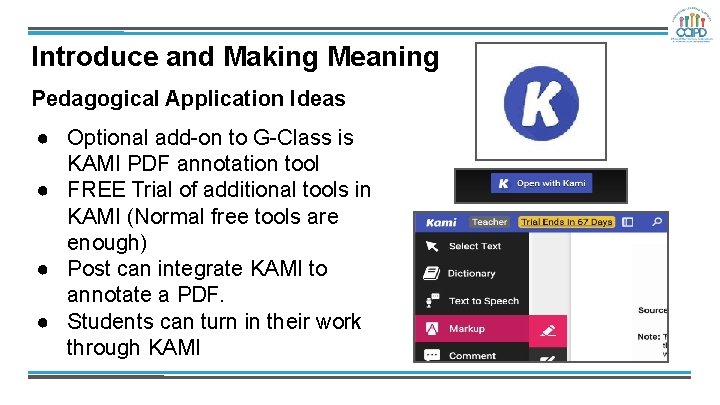
Introduce and Making Meaning Pedagogical Application Ideas ● Optional add-on to G-Class is KAMI PDF annotation tool ● FREE Trial of additional tools in KAMI (Normal free tools are enough) ● Post can integrate KAMI to annotate a PDF. ● Students can turn in their work through KAMI
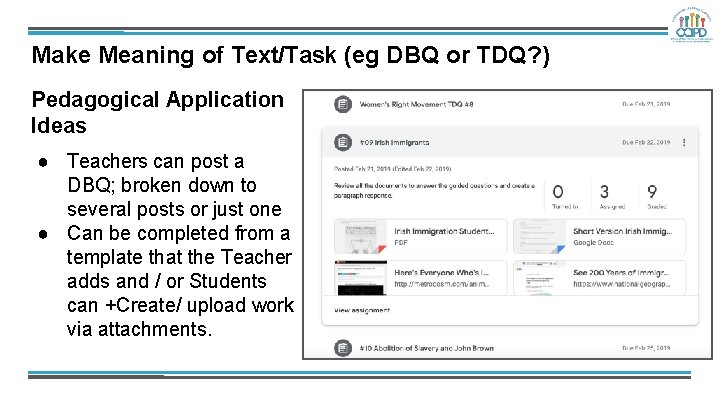
Make Meaning of Text/Task (eg DBQ or TDQ? ) Pedagogical Application Ideas ● Teachers can post a DBQ; broken down to several posts or just one ● Can be completed from a template that the Teacher adds and / or Students can +Create/ upload work via attachments.
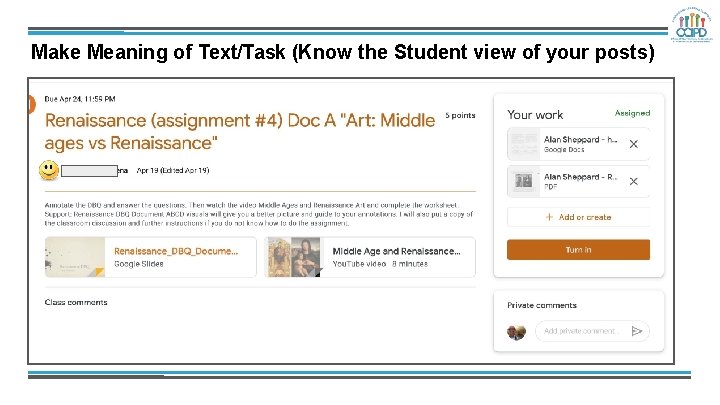
Make Meaning of Text/Task (Know the Student view of your posts)
Introduce a Concept & Make Meaning of Text/Task ● ● Questions Comments Ideas Examples to share
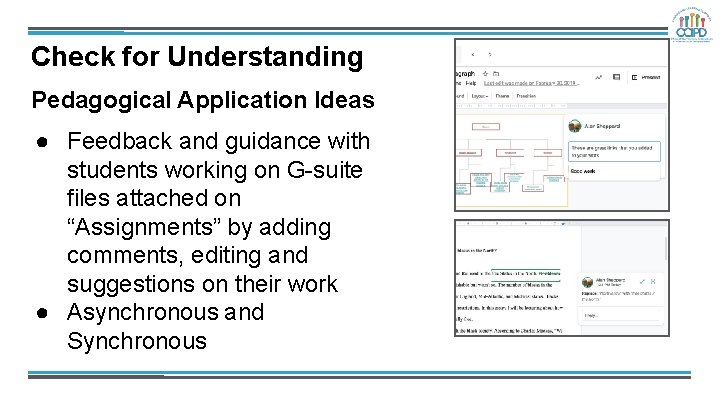
Check for Understanding Pedagogical Application Ideas ● Feedback and guidance with students working on G-suite files attached on “Assignments” by adding comments, editing and suggestions on their work ● Asynchronous and Synchronous
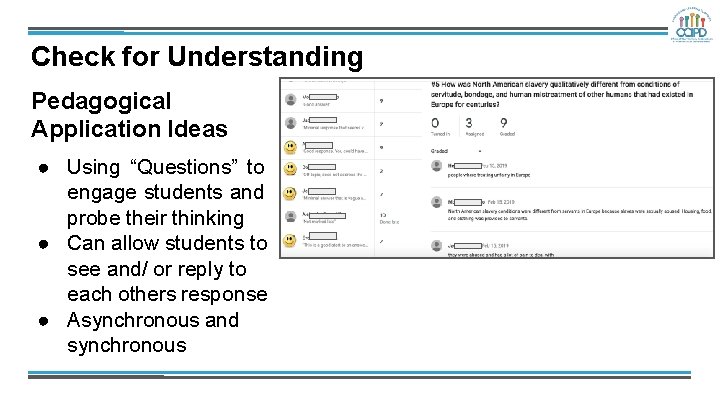
Check for Understanding Pedagogical Application Ideas ● Using “Questions” to engage students and probe their thinking ● Can allow students to see and/ or reply to each others response ● Asynchronous and synchronous
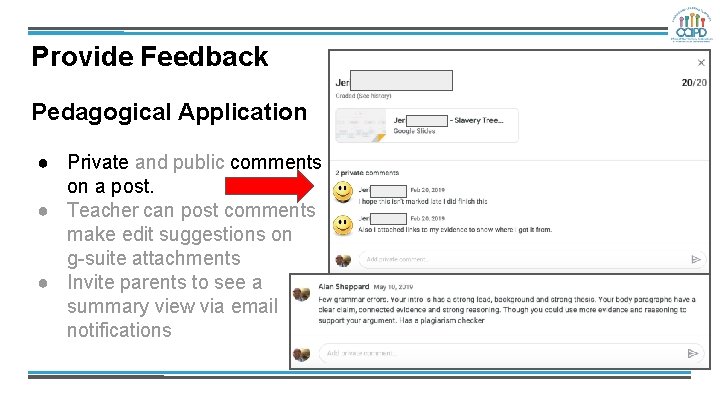
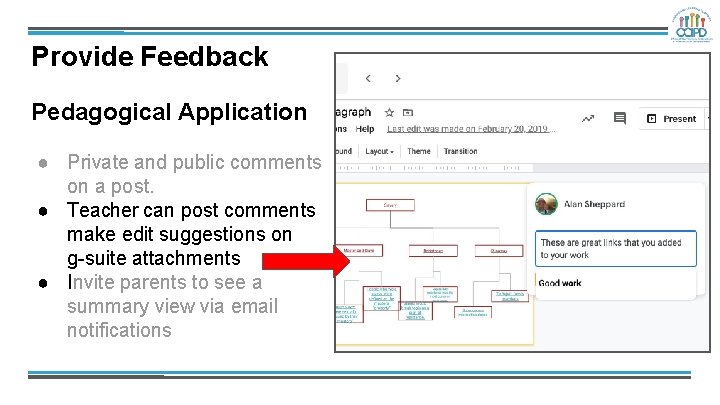
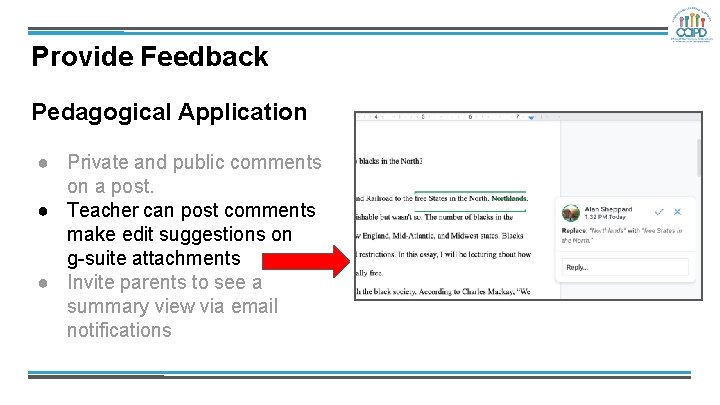
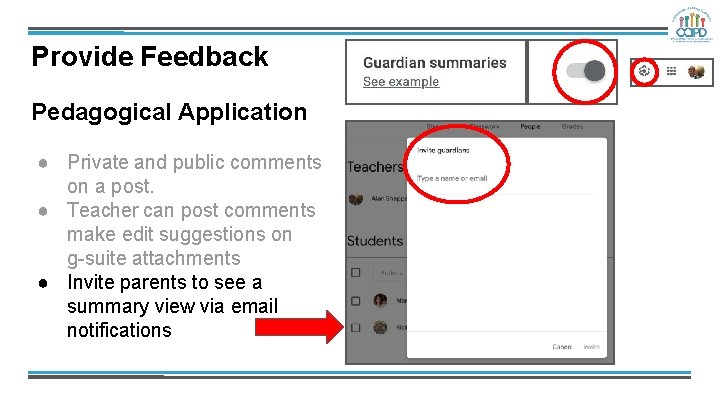
Provide Feedback Pedagogical Application ● Private and public comments on a post. ● Teacher can post comments make edit suggestions on g-suite attachments ● Invite parents to see a summary view via email notifications
Provide Feedback Pedagogical Application ● Private and public comments on a post. ● Teacher can post comments make edit suggestions on g-suite attachments ● Invite parents to see a summary view via email notifications
Provide Feedback Pedagogical Application ● Private and public comments on a post. ● Teacher can post comments make edit suggestions on g-suite attachments ● Invite parents to see a summary view via email notifications
Provide Feedback Pedagogical Application ● Private and public comments on a post. ● Teacher can post comments make edit suggestions on g-suite attachments ● Invite parents to see a summary view via email notifications
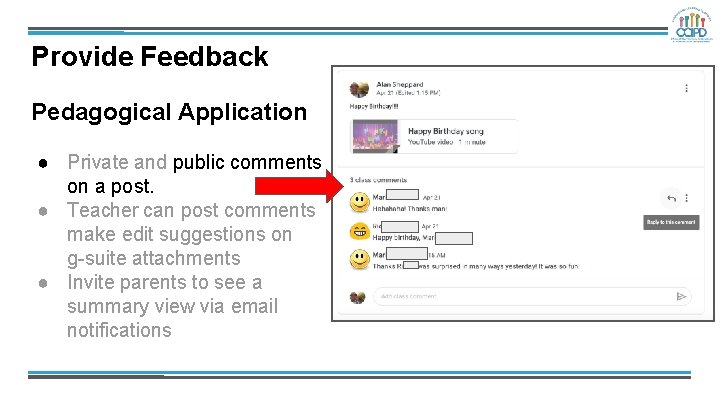
Provide Feedback Pedagogical Application ● Private and public comments on a post. ● Teacher can post comments make edit suggestions on g-suite attachments ● Invite parents to see a summary view via email notifications
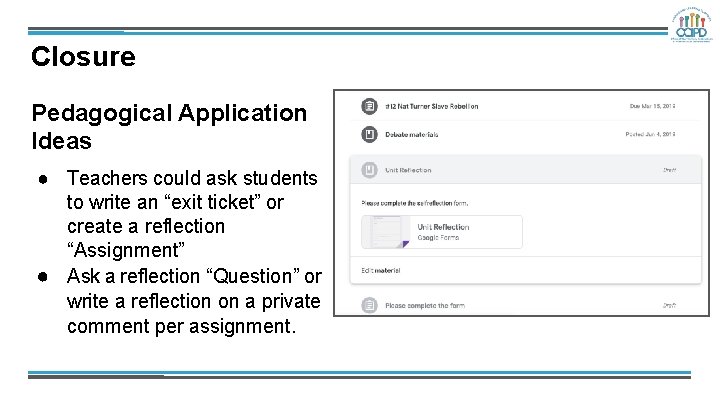
Closure Pedagogical Application Ideas ● Teachers could ask students to write an “exit ticket” or create a reflection “Assignment” ● Ask a reflection “Question” or write a reflection on a private comment per assignment.
Feedback, Checking for Understanding and Closure ● ● Questions Comments Ideas Examples to share
Collaboration Pedagogical Application Ideas ● ● Students can be asked to collaborate on attachments which is enhanced with G-Suite Assignments can be collaborated on both asynchronously/ synchronously. ○ Students cannot submit shared files. ■ Each collaborator would need to make a copy to submit their own version or the owner would need to unshare the shared file ● Assignments can be posted to the whole class or a select few ○ Teacher can create small groups by level of readiness or interest ○ Posts can be custom to the group and allow collaboration in the assignment ● Teachers can use the “Question” function to allow students to build on each others responses and collaborate in the discussion forum
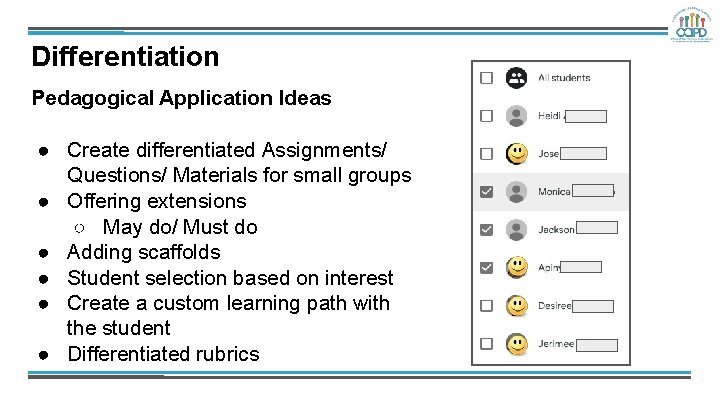
Differentiation Pedagogical Application Ideas ● Create differentiated Assignments/ Questions/ Materials for small groups ● Offering extensions ○ May do/ Must do ● Adding scaffolds ● Student selection based on interest ● Create a custom learning path with the student ● Differentiated rubrics
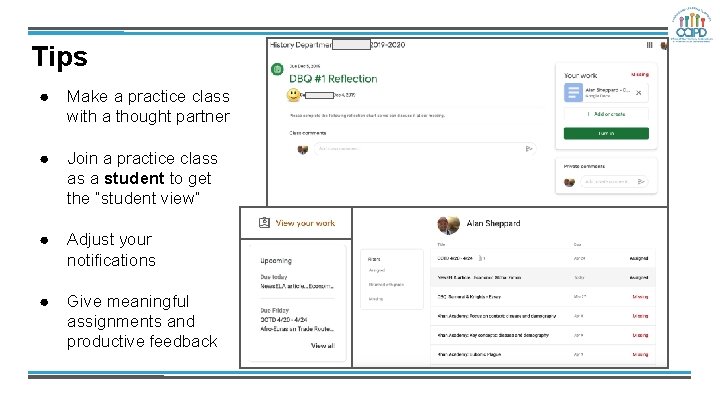
Tips ● Make a practice class with a thought partner ● Join a practice class as a student to get the “student view” ● Adjust your notifications ● Give meaningful assignments and productive feedback
Google Classroom ● ● Questions Comments Ideas Examples to share
Additional Supports ● G-Suite and Other Technology Applications ● Contact Me ● Ask around to see other G-Classes to get Ideas ○ Do a “digital class walkthrough” with teachers
Link to reflection form: https: //bit. ly/2 xu. Hw 5 L