
Welcome to Cyberspace The Internet World Wide Web
Welcome to Cyberspace The Internet - World Wide Web Chapter One 1 2/28/2021
Cyberspace 2 l Collection of information from all computers connected to Internet l The Internet is a WAN (Wide Area Network) spanning the world 2/28/2021
The Internet l l Network of networks Evolved from project through U. S. Department of Defense – – l Computer were connected to communicate with each other – 3 Project known as ARPAnet (Advanced Research Projects Agency Network) Used by military and academics until creation of the World Wide Web Node – computer connected to network 2/28/2021
The Internet functions include l Information retrieval including – – – – – 4 l www (World Wide Web) viewing of multimedia documents file transfer protocol - transferring files from one system to another telephone networking – connecting to a remote system email – transferring of letters electronically newsgroups – connecting to remote discussion groups mailing lists – interest groups subscribed to via e-mail message gopher – older information system (predecessor to www) webcasting – broadcasting of real-time audio and video streams IRC (Internet Relay Chat) - communicating with other in real-time conversations Worldwide communications 2/28/2021
Internet Protocol l Data is transmitted from one system to another via TCP/IP l TCP/IP stands for Transmission Control Protocol/Internet Protocol – 5 Communications protocol that allows data to be transmitted over the Internet 2/28/2021
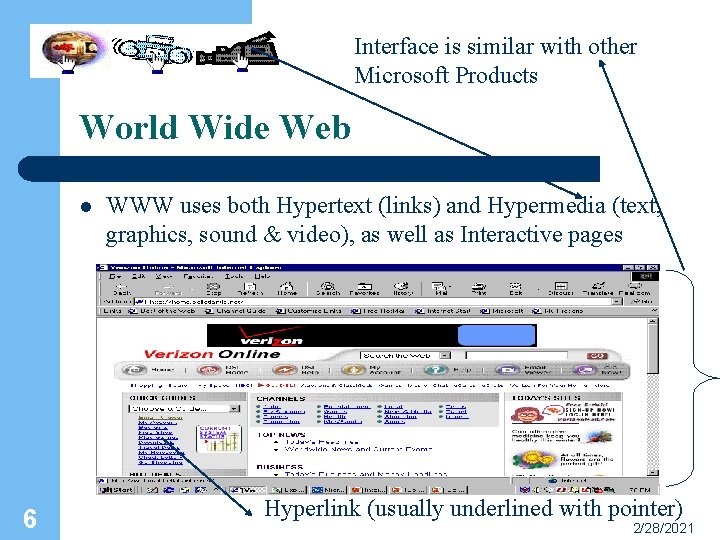
Interface is similar with other Microsoft Products World Wide Web l 6 WWW uses both Hypertext (links) and Hypermedia (text, graphics, sound & video), as well as Interactive pages Hyperlink (usually underlined with pointer) 2/28/2021
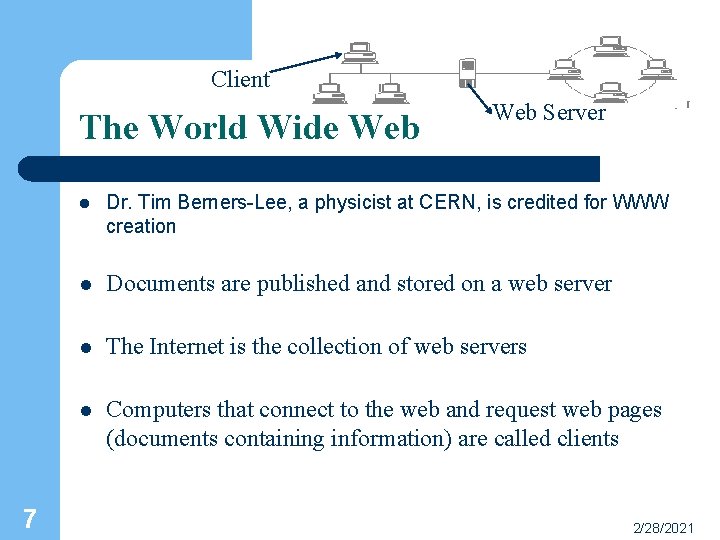
Client The World Wide Web 7 Web Server l Dr. Tim Berners-Lee, a physicist at CERN, is credited for WWW creation l Documents are published and stored on a web server l The Internet is the collection of web servers l Computers that connect to the web and request web pages (documents containing information) are called clients 2/28/2021

Hypertext Transfer Protocol (http) l Protocol used by all computers to display world wide web pages l Data transfers from client to server via http l http is part of TCP/IP protocol suites l Other protocols include l 8 File Transfer Protocol (ftp: //address here), Telephone Network (telnet: //address here), Gopher (gopher: //address here)… 2/28/2021
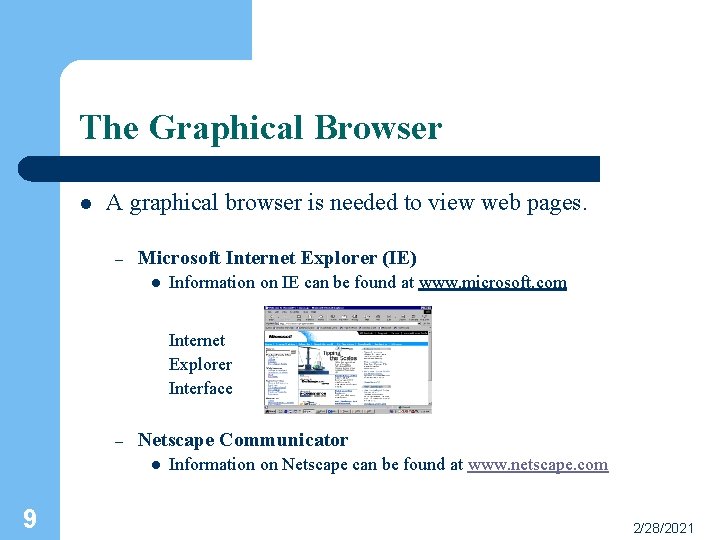
The Graphical Browser l A graphical browser is needed to view web pages. – Microsoft Internet Explorer (IE) l Information on IE can be found at www. microsoft. com Internet Explorer Interface – Netscape Communicator l 9 Information on Netscape can be found at www. netscape. com 2/28/2021
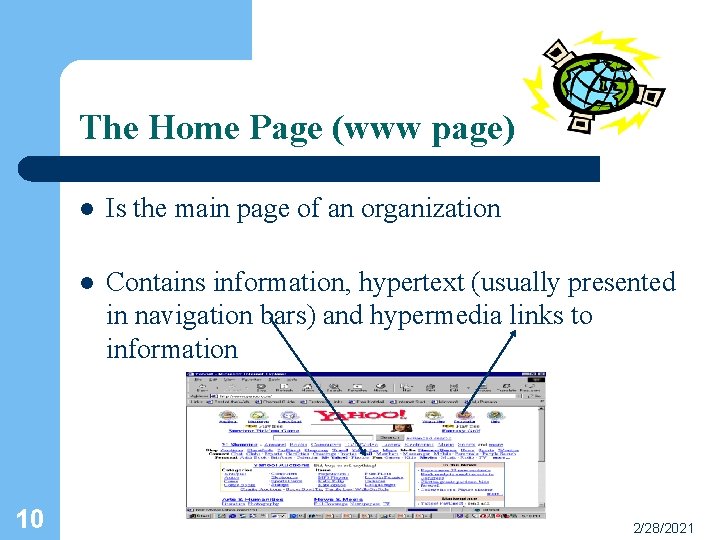
The Home Page (www page) 10 l Is the main page of an organization l Contains information, hypertext (usually presented in navigation bars) and hypermedia links to information 2/28/2021
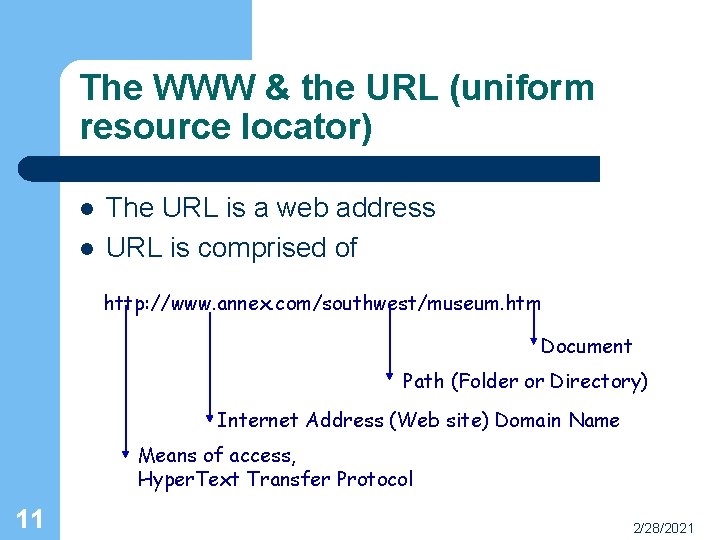
The WWW & the URL (uniform resource locator) l l The URL is a web address URL is comprised of http: //www. annex. com/southwest/museum. htm Document Path (Folder or Directory) Internet Address (Web site) Domain Name Means of access, Hyper. Text Transfer Protocol 11 2/28/2021
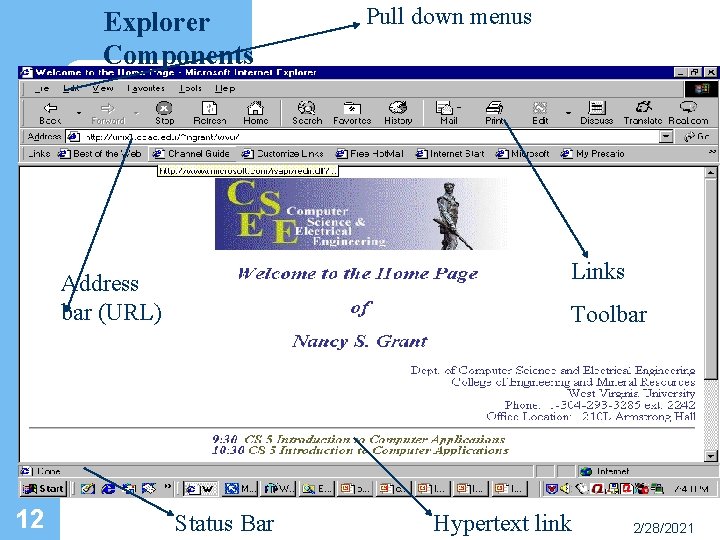
Explorer Components Links Address bar (URL) 12 Pull down menus Toolbar Status Bar Hypertext link 2/28/2021
Navigating on the WWW l Click in the address bar and type the URL l Use the File Open command enter the URL l Click a hypertext link to go to another page www. microsoft. com 13 2/28/2021
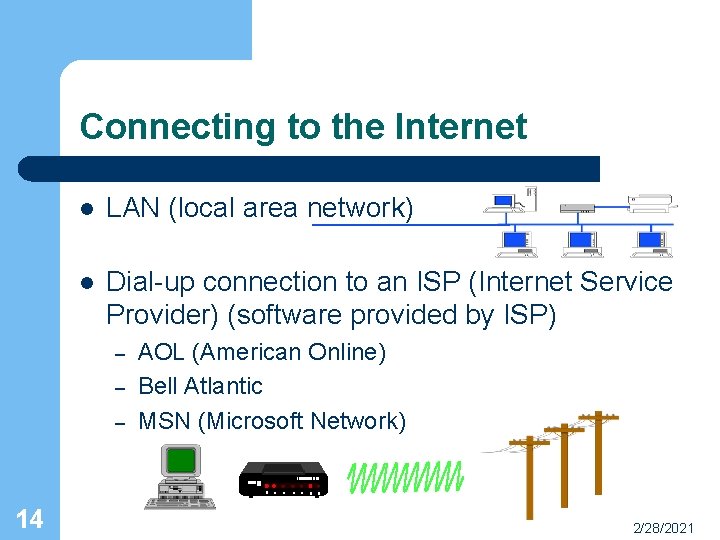
Connecting to the Internet l LAN (local area network) l Dial-up connection to an ISP (Internet Service Provider) (software provided by ISP) – – – 14 AOL (American Online) Bell Atlantic MSN (Microsoft Network) 2/28/2021
Hands-on Exercise One l l l 15 Use Internet Explorer (on desktop) to access the Internet Use the File, Open command to go to a URL Use the hypertext links to view other pages Use the back and forward buttons to navigate Set menu options with the View, Toolbars command Use the File, Print command to print a page 2/28/2021
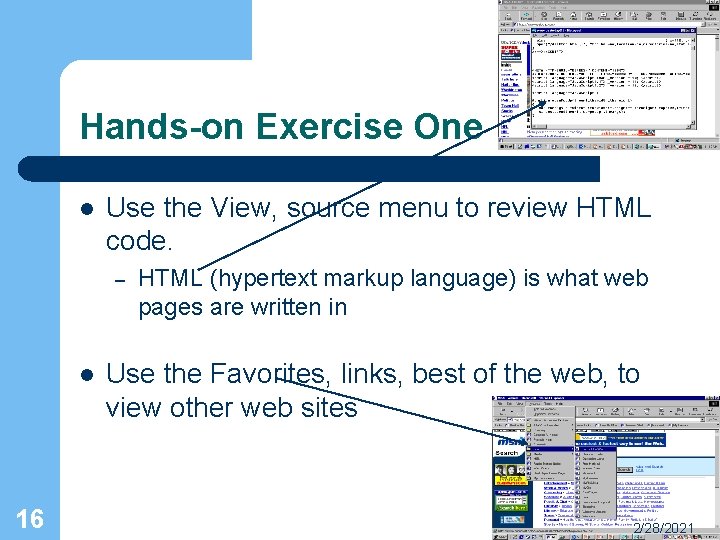
Hands-on Exercise One l Use the View, source menu to review HTML code. – l 16 HTML (hypertext markup language) is what web pages are written in Use the Favorites, links, best of the web, to view other web sites 2/28/2021
Internet Explorer 5. 0 l l Tools, options menu controls various functions of Browser Use the menu bar to perform activities – l l 17 Menus include (File, Edit, View, Favorites, Tools, and Help) Use the favorites menu to add and organize web page addresses Use the toolbar to access shortcuts to functions Use the address bar to enter a web page address (URL) Use the status bar to view current web operations 2/28/2021
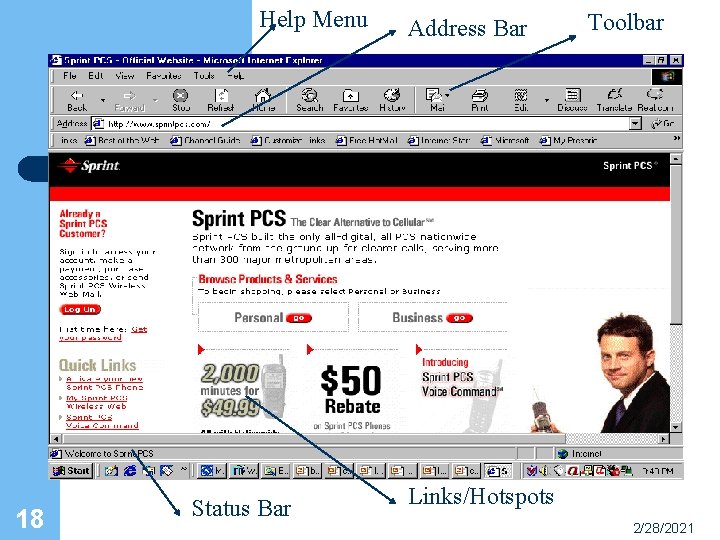
Help Menu 18 Status Bar Address Bar Toolbar Links/Hotspots 2/28/2021
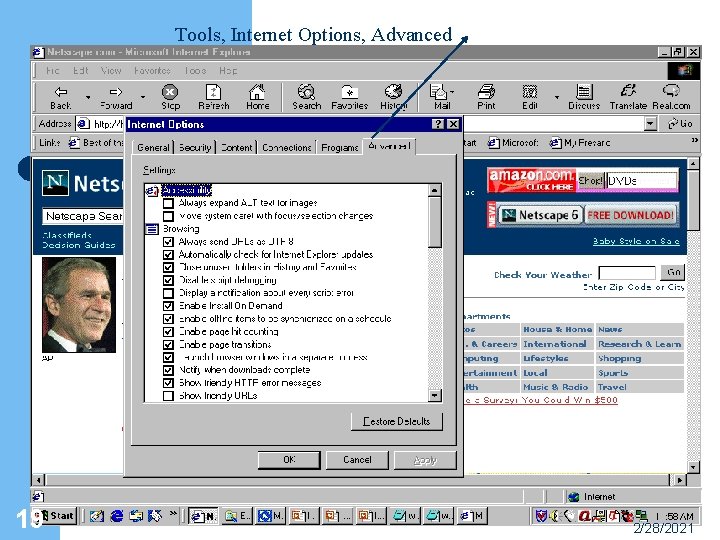
Tools, Internet Options, Advanced 19 2/28/2021
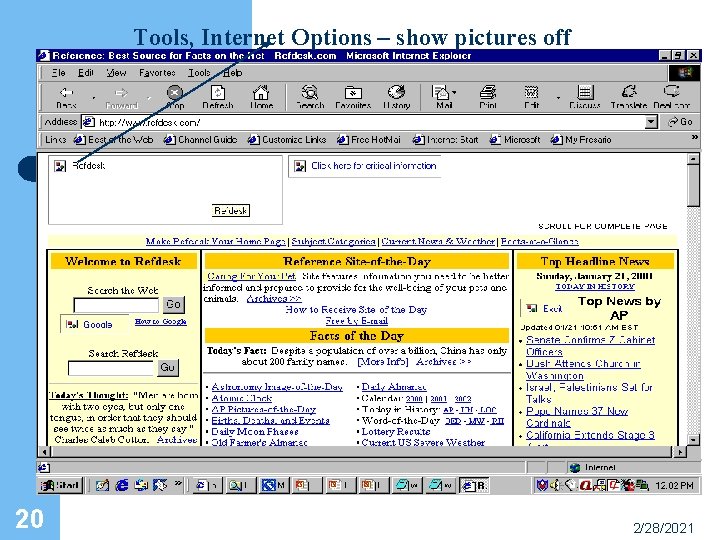
Tools, Internet Options – show pictures off 20 2/28/2021
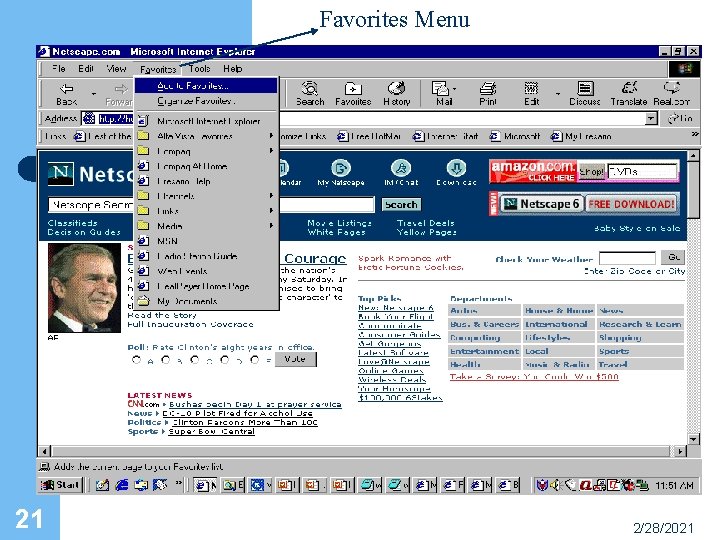
Favorites Menu 21 2/28/2021
Hands-on Exercise Two l l l l 22 Use the View, Toolbar to check and change command Use the Tools, Internet Options, advanced tab to change Explorer options Use the Refresh button to show screen changes Use the Favorites, add to favorites menu to save URL addresses Use the Help menu to obtain help Use the history button to view sites visited Students should review orange notes in chapter 2/28/2021
Internet Issues l l e-commerce – involves doing business over the Internet Firewall – restrictions placed on web site access – l 23 Intranets (private company networks) are restricted Spamming – messages of junk-mail content 2/28/2021
Welcome to Cyberspace The Internet - World Wide Web Chapter Two 24 2/28/2021
Search Engines l Comprehensive database that are indexed to locate information on specific topics l Enter a query (keyword search) into the search form l A spider is a special program used to find new pages published on web – 25 The spider updates the database index 2/28/2021

Search Engines 26 l There are many search engines available on Internet l Use the search button to begin a search l Popular search engines include Lycos, Infoseek, Yahoo, and Alta Vista. l Search engine returns web sites (hits) containing keywords searched for 2/28/2021
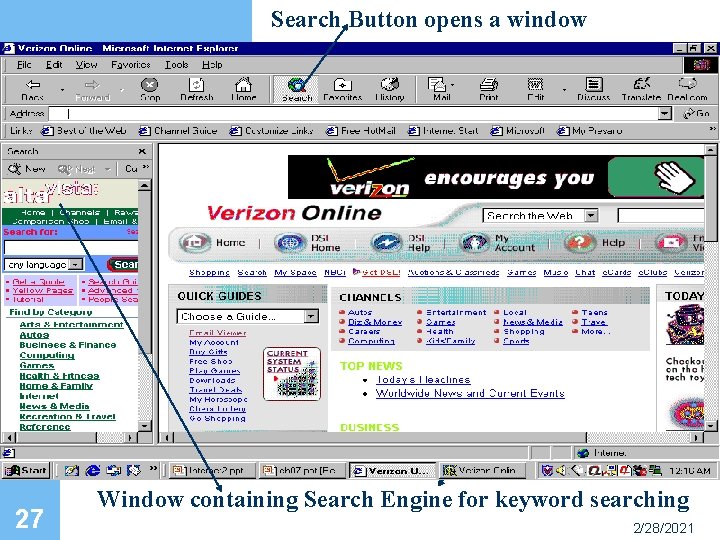
Search Button opens a window 27 Window containing Search Engine for keyword searching 2/28/2021
Other ways to search 28 l Category search – locate the information based on subject categories l Site Search – Search a given web site for specific content information 2/28/2021
Hands-on Exercise One l l 29 Use the search button of Internet Explorer and carry out a search Search for information on a specific site Use the back and forward button to view previously visited web sites Use the Internet to find someone located on the Internet 2/28/2021
Finer Points of Searching 30 l Searches or queries are based on Boolean logic operators And, Or, and Not l Use the advanced search button to locate more specific searches l Use search guides/help screens to view information pertaining to advanced searches 2/28/2021
Copyright Protection 31 © l Information on Internet is copyright protected (unless specified otherwise) l Indicate sources of materials used via footnote, reference, or bibliography 2/28/2021
Hands-on Exercise Two l l l Use an available search engine to locate specific information Use the print command to print a web page Use the right-click on a graphic and save it locally on disk – – l l 32 Be aware of copyright protection laws Get permission before using graphics Insert the picture into a wordprocessing document Use the Insert, footnote menu to indicate address of picture location 2/28/2021
Review Appendix B l 33 Review some of the web sites listed 2/28/2021
- Slides: 33