
Welcome School of Business Information Technology Services Chris
Welcome School of Business Information Technology Services Chris Buckridge, Chris Zissis Provide Support for OPIM Virtual Desktop (OVD)
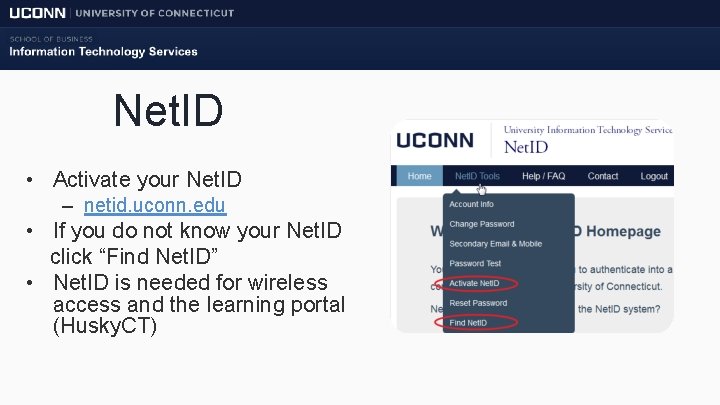
Net. ID • Activate your Net. ID – netid. uconn. edu • If you do not know your Net. ID click “Find Net. ID” • Net. ID is needed for wireless access and the learning portal (Husky. CT)

UCONN Wireless • UCONN-SECURE is available in Storrs and the GBLC. • Antivirus protection is required (yes, even for Macs) • UConn Wireless
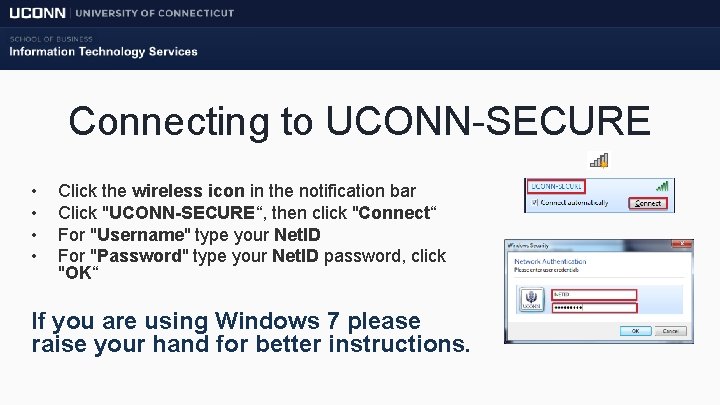
Connecting to UCONN-SECURE • • Click the wireless icon in the notification bar Click "UCONN-SECURE“, then click "Connect“ For "Username" type your Net. ID For "Password" type your Net. ID password, click "OK“ If you are using Windows 7 please raise your hand for better instructions.
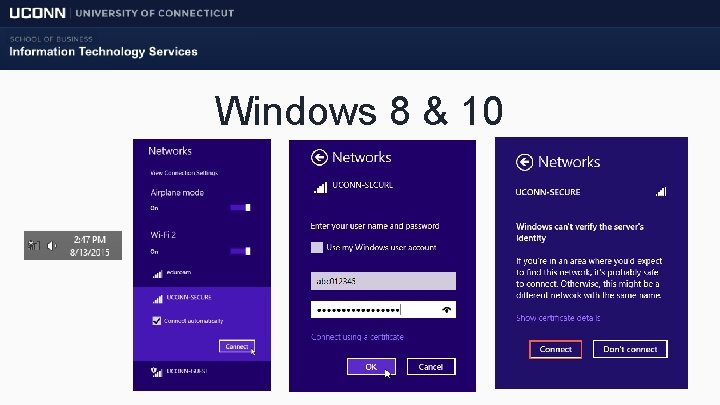
Windows 8 & 10
Connecting to UCONN-SECURE • For connection information related to other operating system please go to wireless. uconn. edu
Best Connection Method • Ethernet – 1000 Mbps vs. 24 Mbps – More stable • No disconnects – No authentication needed
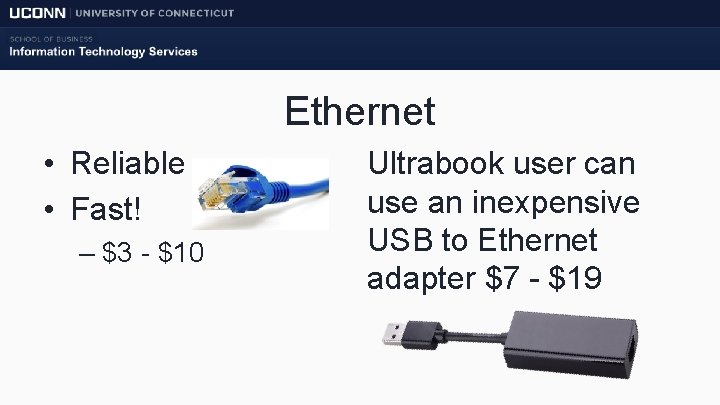
Ethernet • Reliable • Fast! – $3 - $10 Ultrabook user can use an inexpensive USB to Ethernet adapter $7 - $19
How to Access OPIM Virtual Desktops (OVD)
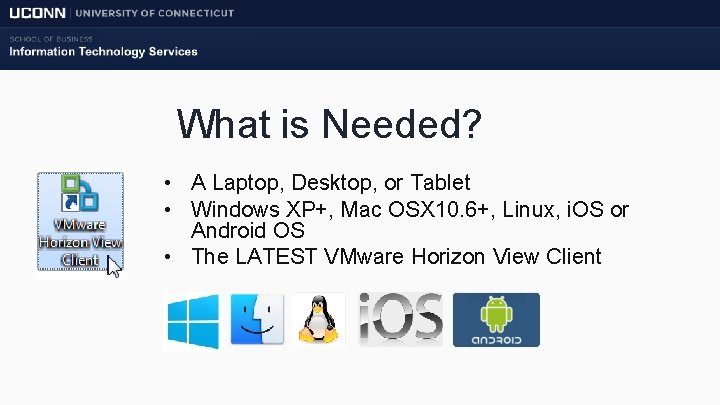
What is Needed? • A Laptop, Desktop, or Tablet • Windows XP+, Mac OSX 10. 6+, Linux, i. OS or Android OS • The LATEST VMware Horizon View Client
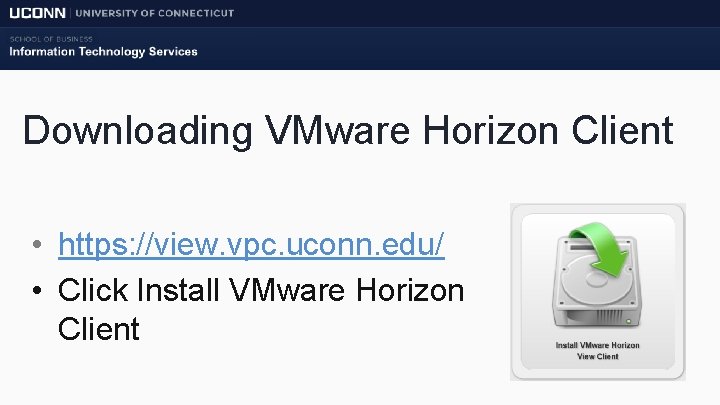
Downloading VMware Horizon Client • https: //view. vpc. uconn. edu/ • Click Install VMware Horizon Client
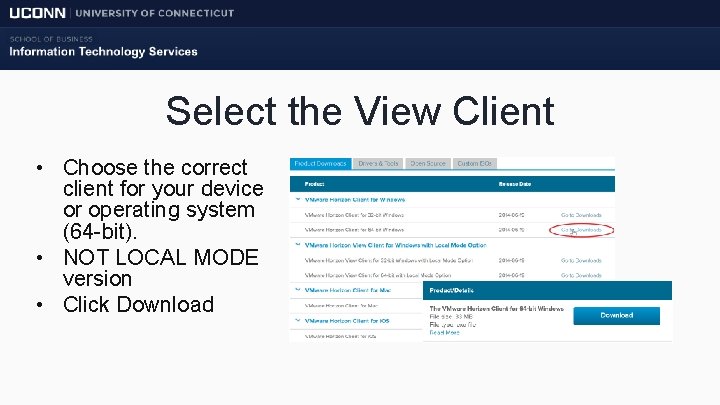
Select the View Client • Choose the correct client for your device or operating system (64 -bit). • NOT LOCAL MODE version • Click Download
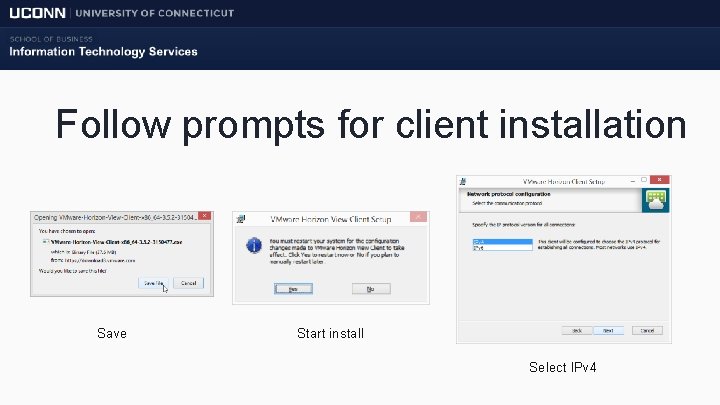
Follow prompts for client installation Save Start install Select IPv 4
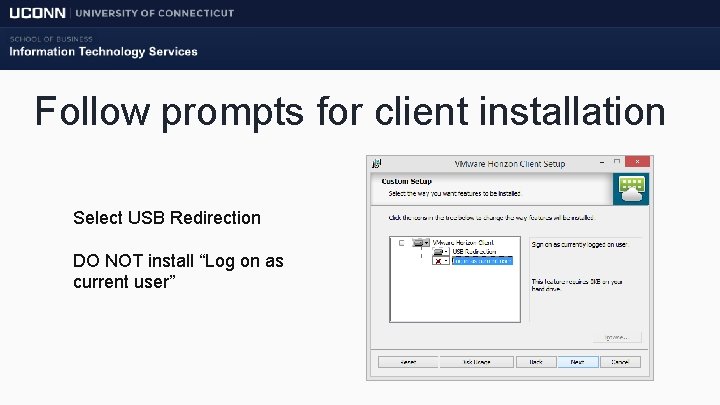
Follow prompts for client installation Select USB Redirection DO NOT install “Log on as current user”
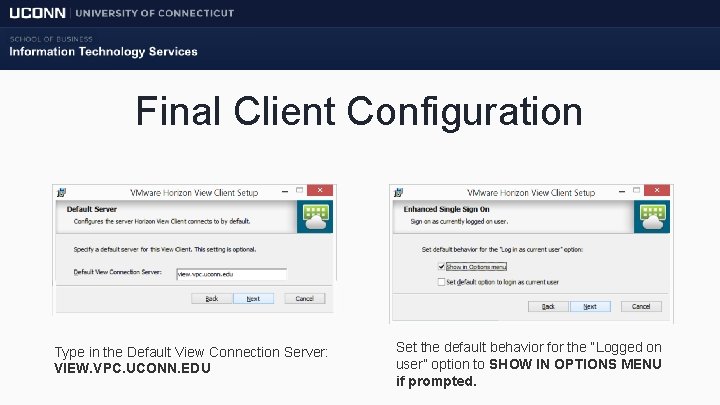
Final Client Configuration Type in the Default View Connection Server: VIEW. VPC. UCONN. EDU Set the default behavior for the “Logged on user” option to SHOW IN OPTIONS MENU if prompted.
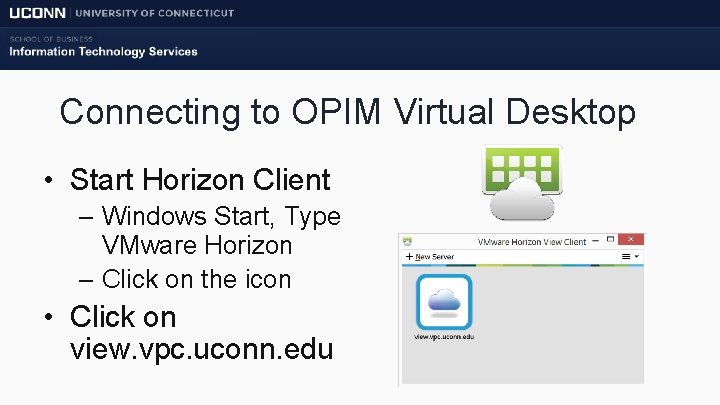
Connecting to OPIM Virtual Desktop • Start Horizon Client – Windows Start, Type VMware Horizon – Click on the icon • Click on view. vpc. uconn. edu
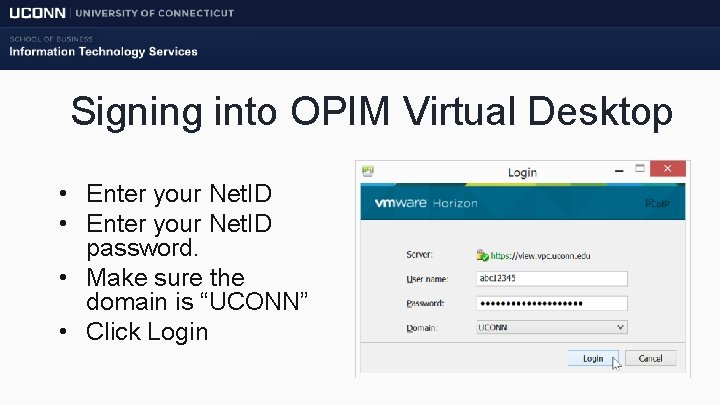
Signing into OPIM Virtual Desktop • Enter your Net. ID password. • Make sure the domain is “UCONN” • Click Login
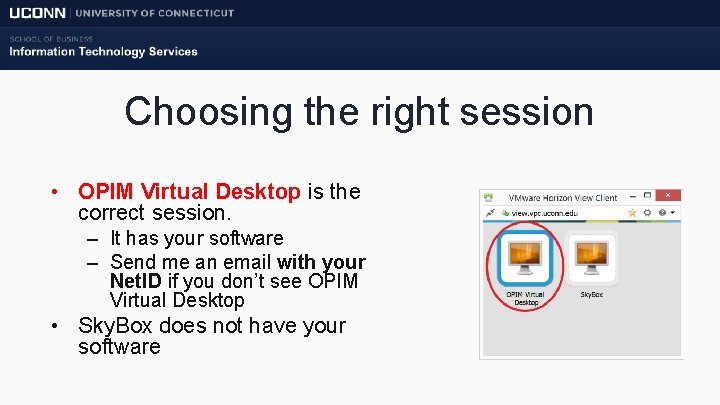
Choosing the right session • OPIM Virtual Desktop is the correct session. – It has your software – Send me an email with your Net. ID if you don’t see OPIM Virtual Desktop • Sky. Box does not have your software
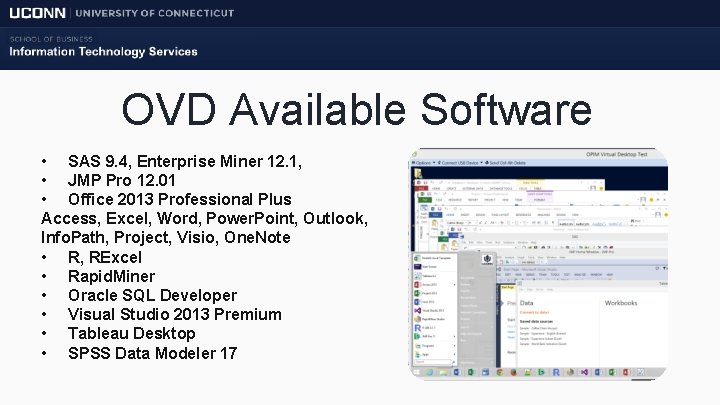
OVD Available Software • SAS 9. 4, Enterprise Miner 12. 1, • JMP Pro 12. 01 • Office 2013 Professional Plus Access, Excel, Word, Power. Point, Outlook, Info. Path, Project, Visio, One. Note • R, RExcel • Rapid. Miner • Oracle SQL Developer • Visual Studio 2013 Premium • Tableau Desktop • SPSS Data Modeler 17
OVD Sessions & Data • • Sessions close after 15 minutes of nonuse Save as you go UCONN File Services (P: ) Web browser interface – – Dropbox. com One. Drive Google Drive Send data in an email
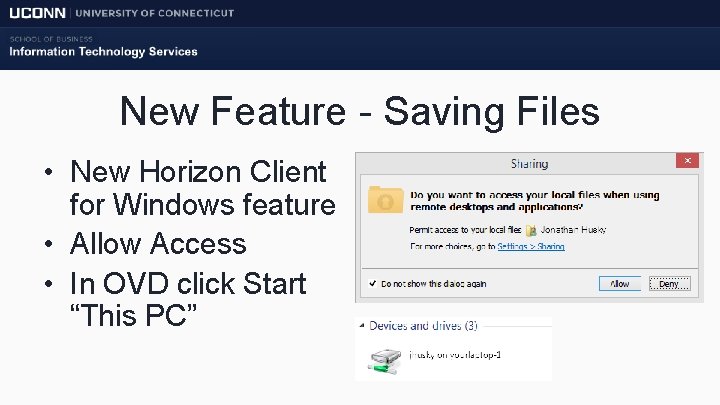
New Feature - Saving Files • New Horizon Client for Windows feature • Allow Access • In OVD click Start “This PC”
Laptop Sleep Mode is BAD! Session disconnects abruptly Problems reconnecting to OVD – Bring a power adapter – Disable sleep when laptop is closed
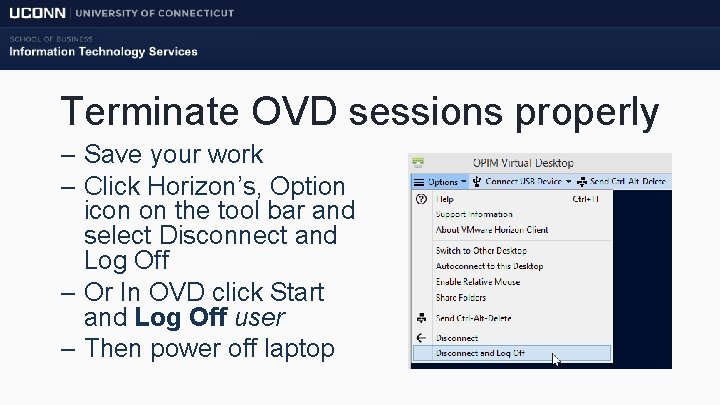
Terminate OVD sessions properly – Save your work – Click Horizon’s, Option icon on the tool bar and select Disconnect and Log Off – Or In OVD click Start and Log Off user – Then power off laptop
Data IS NOT SAVED BETWEEN SESSIONS • • Accessing Student Files from home http: //fileserver. uconn. edu/students/ Student Home Directory (P: ) 10 Gigabytes (GB) Private Storage Accessed via Net. ID. Files are secured behind UConn’s Firewalls. Virtual Private Network Session is required while off campus
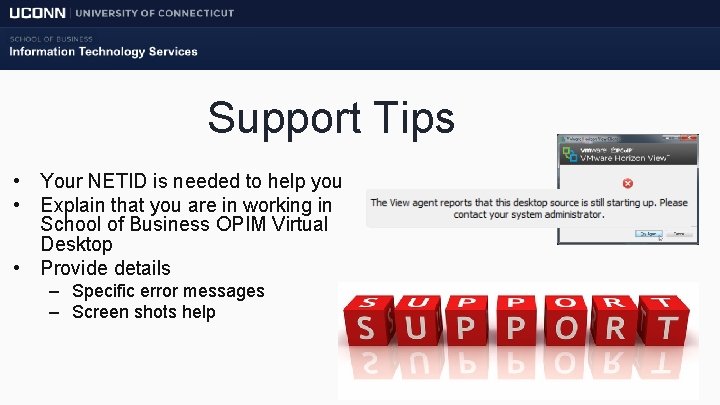
Support Tips • Your NETID is needed to help you • Explain that you are in working in School of Business OPIM Virtual Desktop • Provide details – Specific error messages – Screen shots help
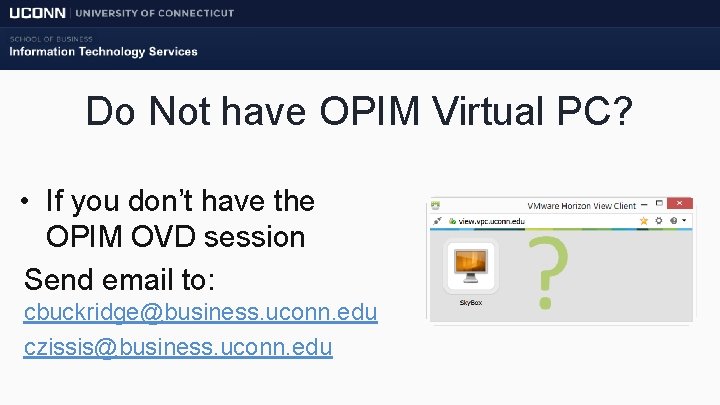
Do Not have OPIM Virtual PC? • If you don’t have the OPIM OVD session Send email to: cbuckridge@business. uconn. edu czissis@business. uconn. edu
Select VMware Products • • FREE! Request an account Click here to register You must register with a valid UConn email address, all others will be ignored
Available Products • • VMware Workstation 11 VMware Player 7 VMware Fusion 7 (Mac) VMware v. Center Server 5, 6 VMware Cloud Suite VMware v. Sphere 5, 6 Discounts on study materials and Certification Exams
OPIM Software on Personal Devices • • • Windows ONLY versions JMP Pro 12 (File. Locker, links forthcoming) Rapid Miner 6 and Rapid Miner 5. 3 (Internet) Tableau Desktop (Links forthcoming) Node. XL (Internet) – • • R (Internet) RExcel (Internet) – • • Requires Microsoft Excel 2010 or 2013, R, rscproxy, rcom with statconn. DCOM (Internet) IBM SPSS Data Modeler 17 (File Locker, links forthcoming) Oracle SQL Developer (Internet) Visual Studio 2015 Community (Internet) Office 2013, Windows 8. 1 (On. The. Hub)
Windows 10 • Best to wait if possible • Some software not certified by publisher – JMP 12 Pro – Tableau – SPSS Data Modeler – SQL Developer
Problems connecting to OVD? • Are you connected to UCONN-SECURE – Use Ethernet instead • Have you updated to the LATEST version of the Horizon Client (https: //view. vpc. uconn. edu/) • Have you tried the web client? https: //view. vpc. uconn. edu/portal/webclient/index. html
Where to Get Support Questions: – cbuckridge@business. uconn. edu – czissis@business. uconn. edu Support: • Help@business. uconn. edu • Huskytech@uconn. edu GBLC Room 203 -Sat 8 to 2 - Weekdays 9 AM to 8 PM
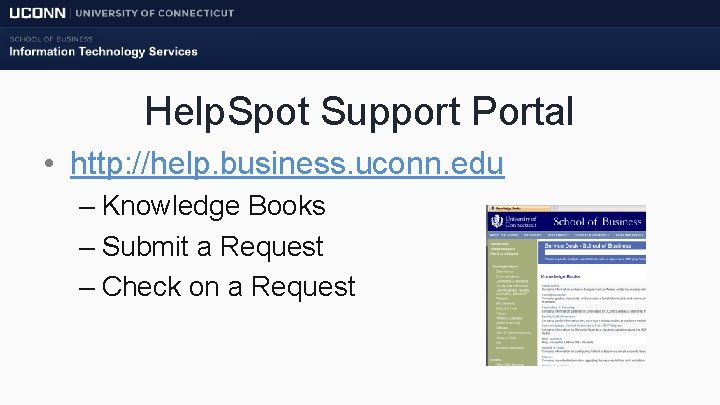
Help. Spot Support Portal • http: //help. business. uconn. edu – Knowledge Books – Submit a Request – Check on a Request
- Slides: 33