
Welcome Maryland High School Assessments Training October 2017
Welcome! Maryland High School Assessments Training October 2017 Call–in Phone Number: 1 -866 -469 -3239 Access Code: 630 557 117 Shelby Pouliot and Abbie Currier
Introductions § Measured Progress § Shelby Pouliot, Project Manager II § e. Metric § Abbie Currier, Project Manager III § Neil Gandhi, Sr. Technology Manager
AGENDA Time Topics 8: 30 – 8: 45 AM • Introduction • Maryland HSA Testing Program Overview • General Information • Schedule and Timelines 9: 15 – 9: 30 AM • Policy • Test Security 9: 30 – 11: 00 AM • Computer Based Testing with the HSA Online System • HSA Kiosk • Test. Monitor (Local Caching) 11: 00 – 11: 30 AM • Questions & Answers
Introduction Contact Information Maryland HSA Testing Program Overview General Information Schedule/Timelines
Contact Information Maryland State Department of Education For questions relating to policy or the MD HSA in general: § Brianna Creed, Program Manager 410 -767 -5171, brianna. creed@maryland. gov Measured Progress Technical Product Support For questions relating to the HSA Portal or HSA Kiosk or any technical issues: § Monday-Friday, 6: 00 a. m. – 8: 00 p. m. during the testing window § Monday-Friday, 7: 00 a. m. – 5: 00 p. m. outside the testing window § (866) 207 -8804, HSAhelpdesk@measuredprogress. org.
Maryland HSA Testing Program § The HSAs are designed to ensure that Maryland‘s high school graduates are prepared to pursue higher education and career paths. § The HSAs are rigorous assessments of a student‘s knowledge of the skills outlined in the State standards for government and science.
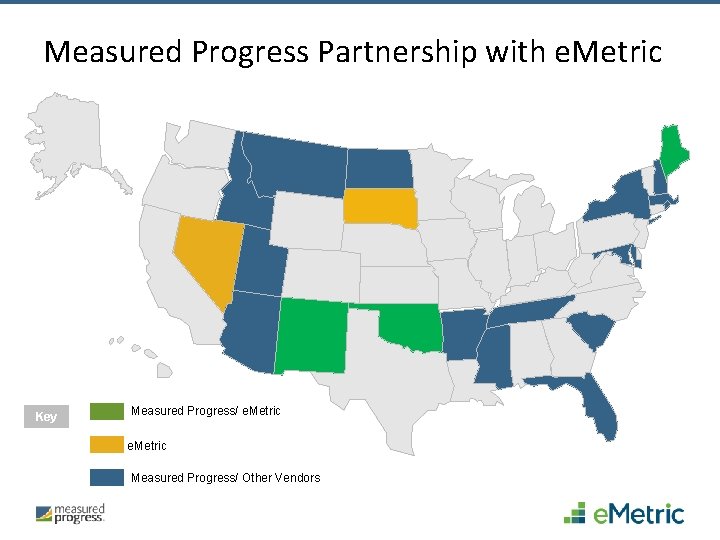
Measured Progress Partnership with e. Metric Key Measured Progress/ e. Metric Measured Progress/ Other Vendors
Our Partnership § Successful implementation for five years, to 5. 2 million students annually, with no interruptions § Transparent integration across systems and support
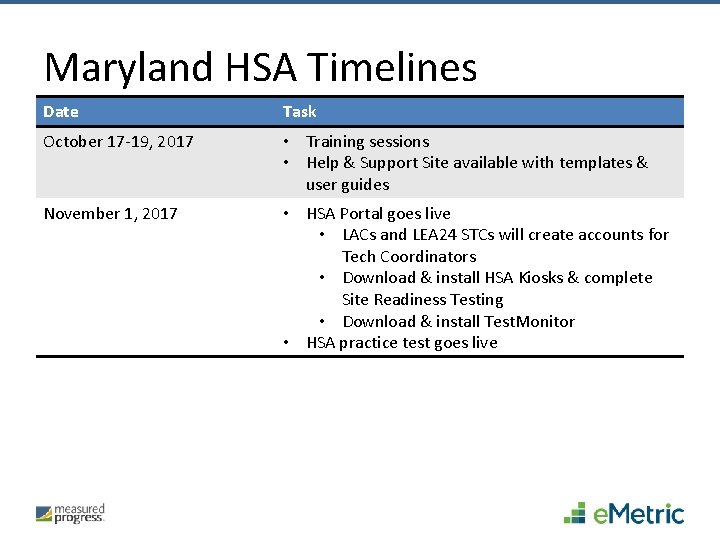
Maryland HSA Timelines Date Task October 17 -19, 2017 • Training sessions • Help & Support Site available with templates & user guides November 1, 2017 • HSA Portal goes live • LACs and LEA 24 STCs will create accounts for Tech Coordinators • Download & install HSA Kiosks & complete Site Readiness Testing • Download & install Test. Monitor • HSA practice test goes live
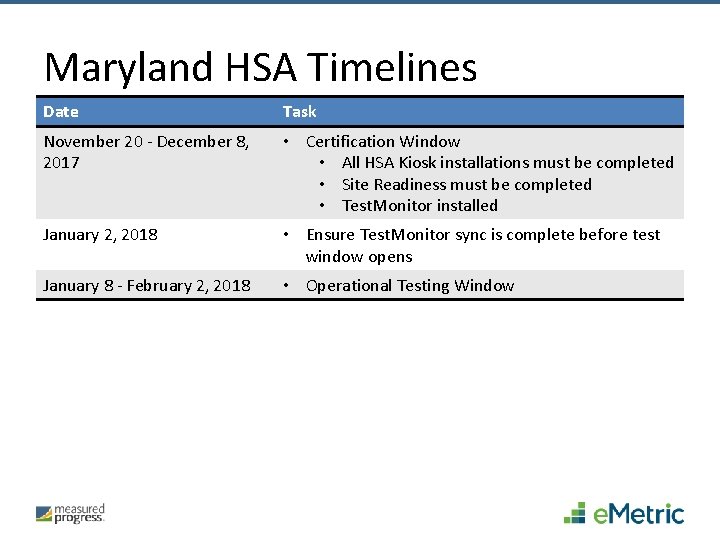
Maryland HSA Timelines Date Task November 20 - December 8, 2017 • Certification Window • All HSA Kiosk installations must be completed • Site Readiness must be completed • Test. Monitor installed January 2, 2018 • Ensure Test. Monitor sync is complete before test window opens January 8 - February 2, 2018 • Operational Testing Window
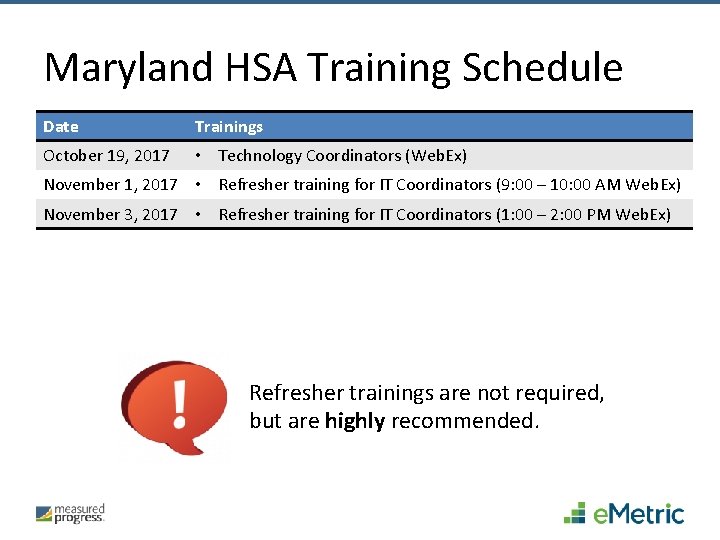
Maryland HSA Training Schedule Date Trainings October 19, 2017 • Technology Coordinators (Web. Ex) November 1, 2017 • Refresher training for IT Coordinators (9: 00 – 10: 00 AM Web. Ex) November 3, 2017 • Refresher training for IT Coordinators (1: 00 – 2: 00 PM Web. Ex) Refresher trainings are not required, but are highly recommended.
Policy Test Security
Score Invalidation Policy § The State Board regulations provide that MSDE may invalidate scores when there is evidence of inappropriate collaboration between or among individuals during the test administration, or when the scores reflect improbable gains which cannot be satisfactorily explained through changes in instruction or the student population (COMAR 13 A. 03. 04. 07 A). § Score invalidation occurs in situations that involve blatant cheating by the student or school. § In matters involving school staff cheating or error, MSDE makes every effort to resolve the matter without imposing any undue hardship on the student.
COMAR 13 A. 03. 04. 07 A § § § § . 07 Sanctions for Violations. A. Invalidation of Test Scores or Other Data. (1) An individual shall adhere to all procedures specified in all operating manuals and related materials governing the Maryland School Performance Program including the mandated testing programs. (2) The Department: (a) Shall establish procedures to identify: (i) Improbable test score gains or improbable changes in data in consecutive years, (ii) Situations in which inappropriate collaboration between or among individuals occurs during the test administration or data collection and reporting, and (iii) Any other situation which may result in the invalidation of test results or other data; and (b) May invalidate test scores or other data that reflect improbable gains which cannot be satisfactorily explained through changes in the student population or instruction. (3) The invalidation of test results or other data because of a breach of security, or action of the State Board of Education, also invalidates any graduation, programmatic, or evaluative criteria dependent upon these data or test results. (4) The Department may invalidate test results of a student who causes, allows, or is otherwise involved in the presentation of forged, counterfeit, or altered identification for the purpose of obtaining admission to a test administration site for any of the tests listed in Regulation. 01 of this chapter, and the student may be ineligible to retake the test until the next official testing opportunity. (5) A student who engages in any activities during testing which result in invalidation of scores may be ineligible to retake the test until the next official testing opportunity. (6) All central office and school-based personnel whose duties involve either test administration or data collection and reporting shall be held accountable for compliance with all of the requirements described in this chapter.
Possible Reasons for Score Invalidation § § § Student Cheating Student Error School Staff Cheating School Staff Error Other Note: This list is not meant to be comprehensive and/or exhaustive.
Student Cheating If a student is proven to have cheated on any portion of the test (even if it is just 1 item), the entire test receives a LOSS (lowest obtainable scale score) for the Individual Student Report (ISR) and MAP (Maryland Accountability Program).
Student Error § If a student mistakenly works ahead (1 -2 items) or commits a minor infraction, there is generally no score adjustment. § If a student is proven to have blatantly disregarded direction from testing personnel, the entire test receives a LOSS for the ISR and MAP.
School Staff Cheating § If it is proven that the school intentionally cheated to make “gains” on the test, the entire test receives a LOSS for the ISR and MAP. § If only 1 -2 items are impacted, the student will receive an ISR reflecting the accurate score but the test receives a LOSS for MAP. § If more items are impacted, the entire test receives a LOSS for the ISR and MAP.
School Staff Error § If personnel unintentionally make an error (and only 1 -2 items are impacted) such as in administering an accommodation, allocating proper time, etc. , there is generally no score adjustment. § If more items are impacted, MSDE may make the determination to issue a LOSS.
Other MSDE may make the determination for invalidation based on other areas such as: § § Vendor Alert Multiple Mark Analysis Improbable Gains reporting Plagiarism Analysis reports
Reporting of Infractions When a suspected infraction occurs, the LAC must: § § Determine whether the incident is Category 1 or Category 2 Document the incident for the End-of-Year Log or on a Testing Incident Report Form (TIRF) Category 1 - Occurrences related to test security and test administration that do not compromise test security and have no possible impact on student scores, test validity, or data reporting may be handled exclusively on a local level according to local school system policy. (EOY Log) Category 2 - Any incidents that, upon investigation, may impact student scores, test validity, data reports, or that compromise the security of test items. Should sanctions be warranted in these cases, they will be determined by the Local Education Agency in accordance with local policy and MSDE guidelines. Within 5 days of a Category 2 incident, the LAC is to submit a TIRF to MSDE.
For Questions or Assistance State Test Security Officer Dr. Tamara L. Lewis tamara. lewis@maryland. gov (410) 767 -0074
Online Testing System Maryland HSA Kiosk i. Tester Test. Monitor CBT Practice Test
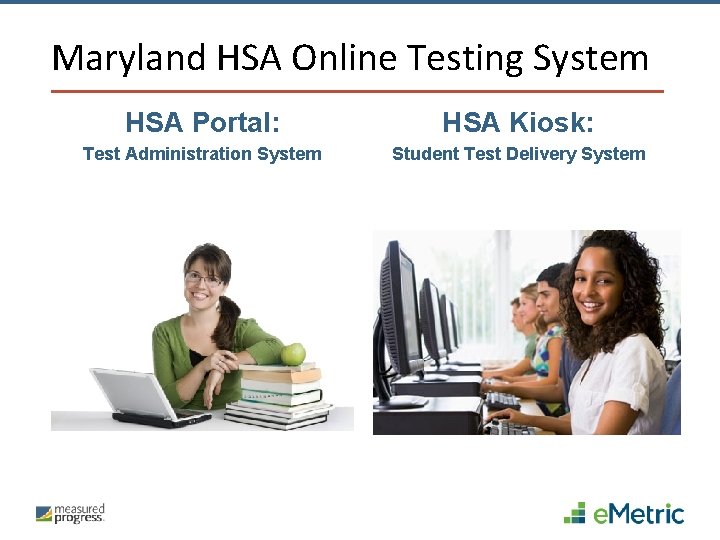
Maryland HSA Online Testing System HSA Portal: HSA Kiosk: Test Administration System Student Test Delivery System
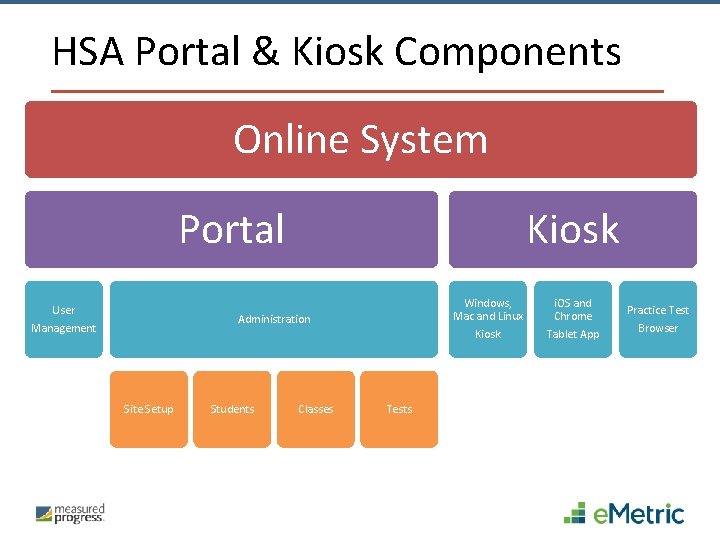
HSA Portal & Kiosk Components Online System Portal User Management Kiosk Administration Site Setup Students Classes Tests Windows, Mac and Linux i. OS and Chrome Kiosk Tablet App Practice Test Browser
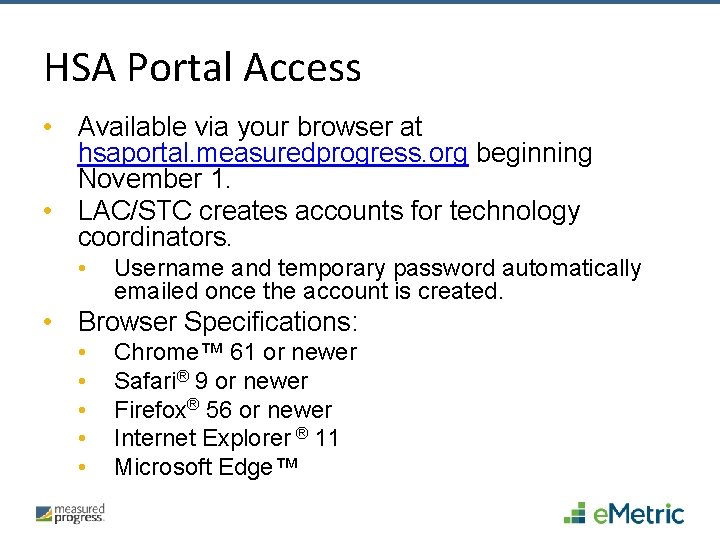
HSA Portal Access • Available via your browser at hsaportal. measuredprogress. org beginning November 1. • LAC/STC creates accounts for technology coordinators. • Username and temporary password automatically emailed once the account is created. • Browser Specifications: • • • Chrome™ 61 or newer Safari® 9 or newer Firefox® 56 or newer Internet Explorer ® 11 Microsoft Edge™
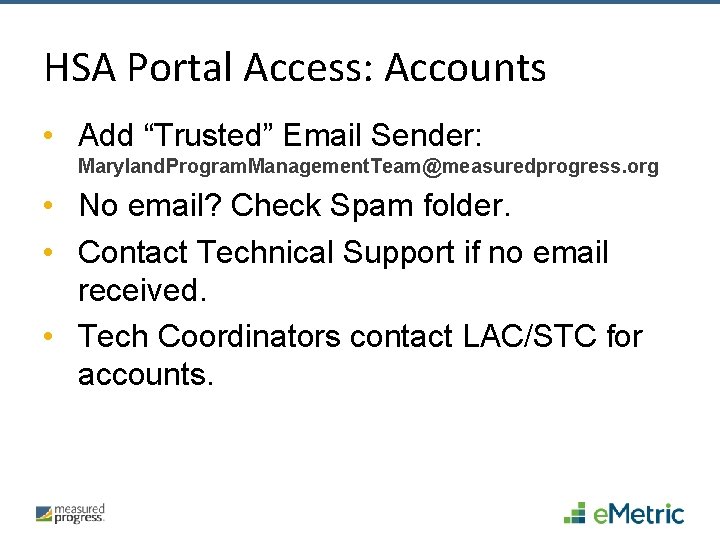
HSA Portal Access: Accounts • Add “Trusted” Email Sender: Maryland. Program. Management. Team@measuredprogress. org • No email? Check Spam folder. • Contact Technical Support if no email received. • Tech Coordinators contact LAC/STC for accounts.
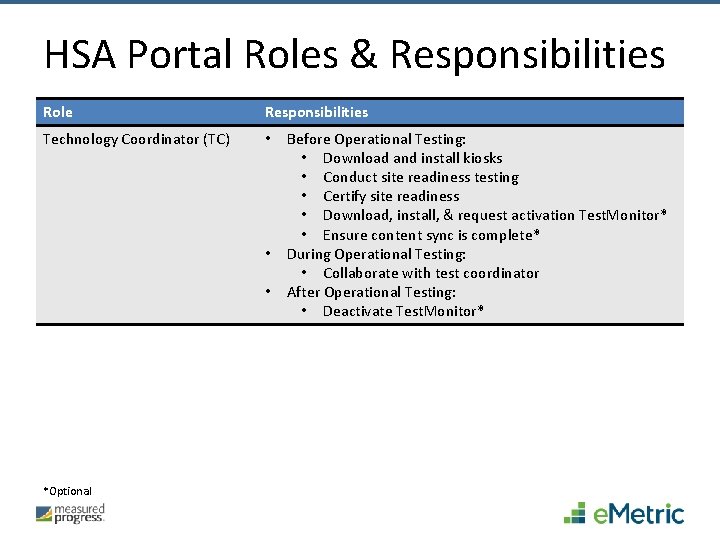
HSA Portal Roles & Responsibilities Role Responsibilities Technology Coordinator (TC) • • • *Optional Before Operational Testing: • Download and install kiosks • Conduct site readiness testing • Certify site readiness • Download, install, & request activation Test. Monitor* • Ensure content sync is complete* During Operational Testing: • Collaborate with test coordinator After Operational Testing: • Deactivate Test. Monitor*
Very Important: Help Guides § Help and Support Site maryland. onlinehelp. measuredprogress. org § § Help Guides File templates SR/PNP data definitions file Training slides and Webex recording
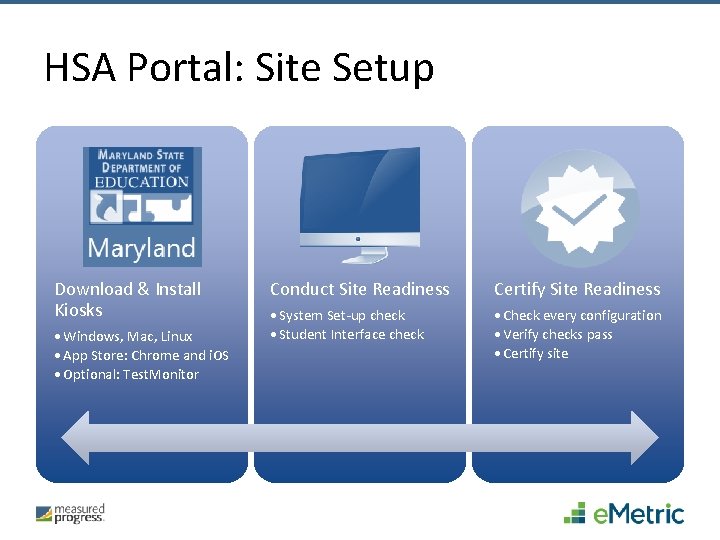
HSA Portal: Site Setup Download & Install Kiosks • Windows, Mac, Linux • App Store: Chrome and i. OS • Optional: Test. Monitor Conduct Site Readiness Certify Site Readiness • System Set-up check • Student Interface check • Check every configuration • Verify checks pass • Certify site
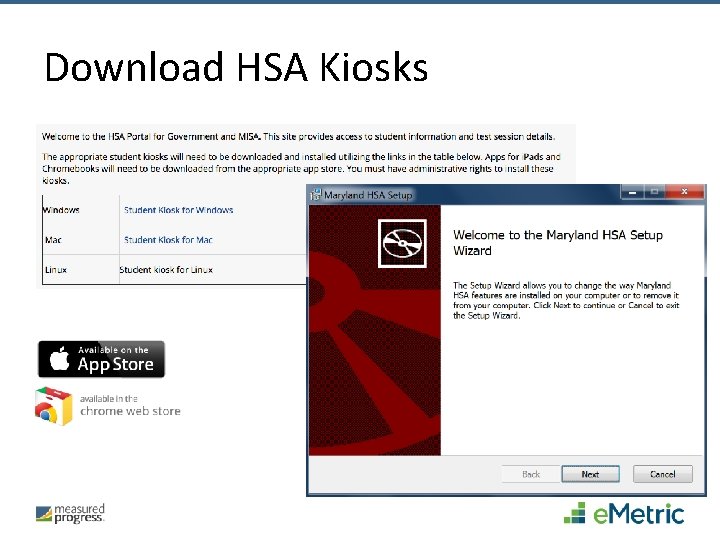
Download HSA Kiosks
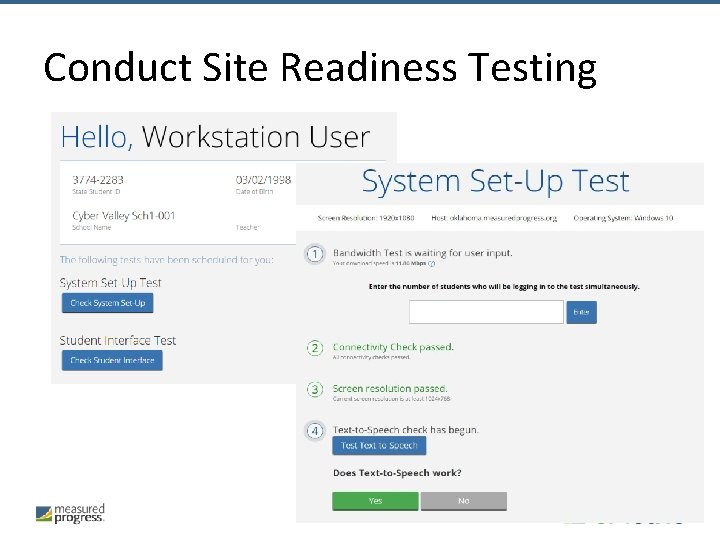
Conduct Site Readiness Testing
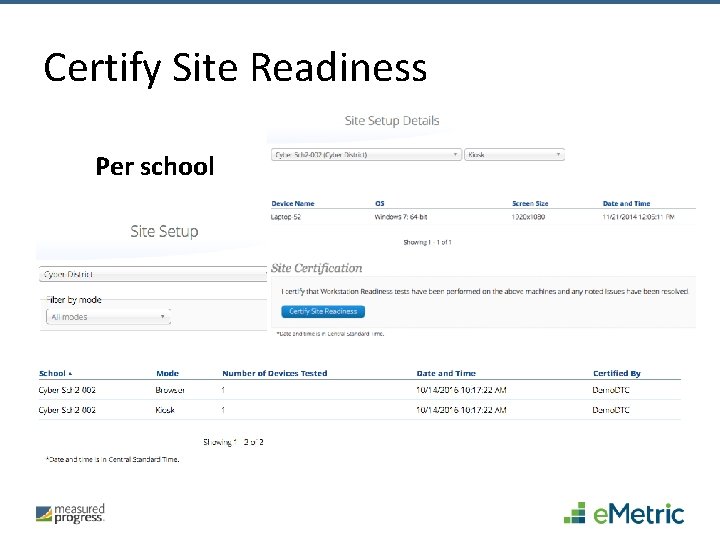
Certify Site Readiness Per school
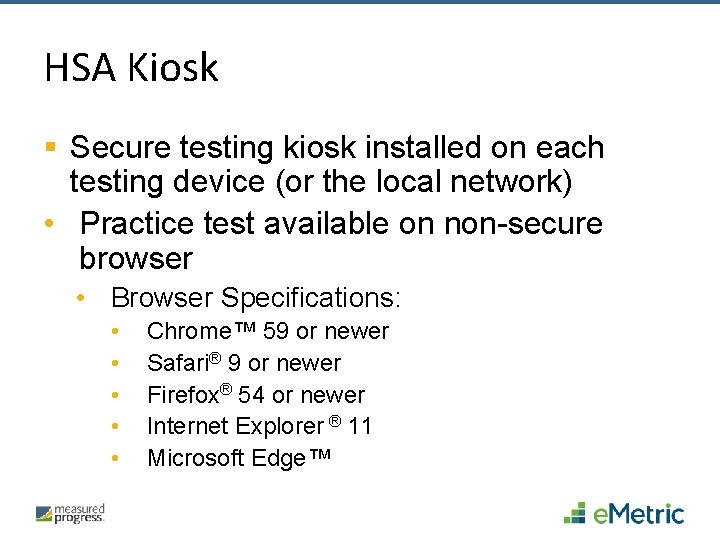
HSA Kiosk § Secure testing kiosk installed on each testing device (or the local network) • Practice test available on non-secure browser • Browser Specifications: • • • Chrome™ 59 or newer Safari® 9 or newer Firefox® 54 or newer Internet Explorer ® 11 Microsoft Edge™
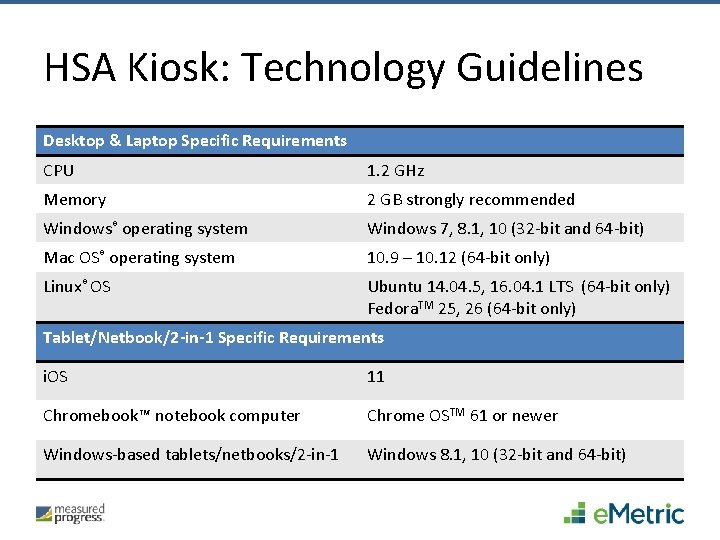
HSA Kiosk: Technology Guidelines Desktop & Laptop Specific Requirements CPU 1. 2 GHz Memory 2 GB strongly recommended Windows® operating system Windows 7, 8. 1, 10 (32 -bit and 64 -bit) Mac OS® operating system 10. 9 – 10. 12 (64 -bit only) Linux® OS Ubuntu 14. 04. 5, 16. 04. 1 LTS (64 -bit only) Fedora. TM 25, 26 (64 -bit only) Tablet/Netbook/2 -in-1 Specific Requirements i. OS 11 Chromebook™ notebook computer Chrome OSTM 61 or newer Windows-based tablets/netbooks/2 -in-1 Windows 8. 1, 10 (32 -bit and 64 -bit)
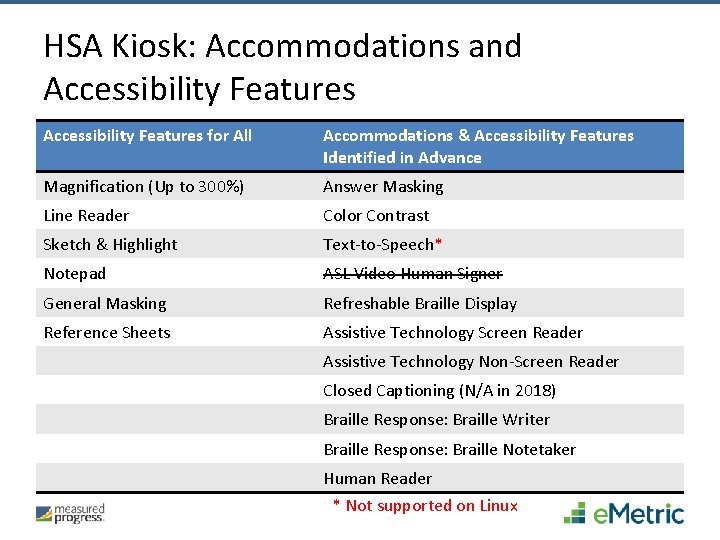
HSA Kiosk: Accommodations and Accessibility Features for All Accommodations & Accessibility Features Identified in Advance Magnification (Up to 300%) Answer Masking Line Reader Color Contrast Sketch & Highlight Text-to-Speech* Notepad ASL Video Human Signer General Masking Refreshable Braille Display Reference Sheets Assistive Technology Screen Reader Assistive Technology Non-Screen Reader Closed Captioning (N/A in 2018) Braille Response: Braille Writer Braille Response: Braille Notetaker Human Reader * Not supported on Linux
HSA Kiosk: Text-to-Speech Voice • HSA Kiosk uses the default voice set on the student’s workstation. • Use the practice test to let the students hear the voice. • Must use HSA Kiosk, not browser for this.
HSA Accessibility Mode Kiosk § Students who require assistive technology software to be used in conjunction with the HSA Kiosk must use the HSA Accessibility Mode Kiosk. § ONLY students requiring AT should use this kiosk. § Assistive Technology software has been whitelisted in this Kiosk. § Windows only
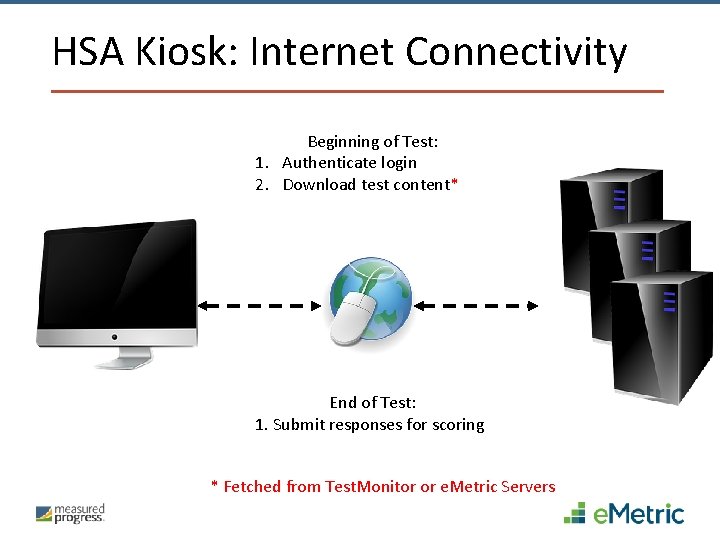
HSA Kiosk: Internet Connectivity Beginning of Test: 1. Authenticate login 2. Download test content* End of Test: 1. Submit responses for scoring * Fetched from Test. Monitor or e. Metric Servers
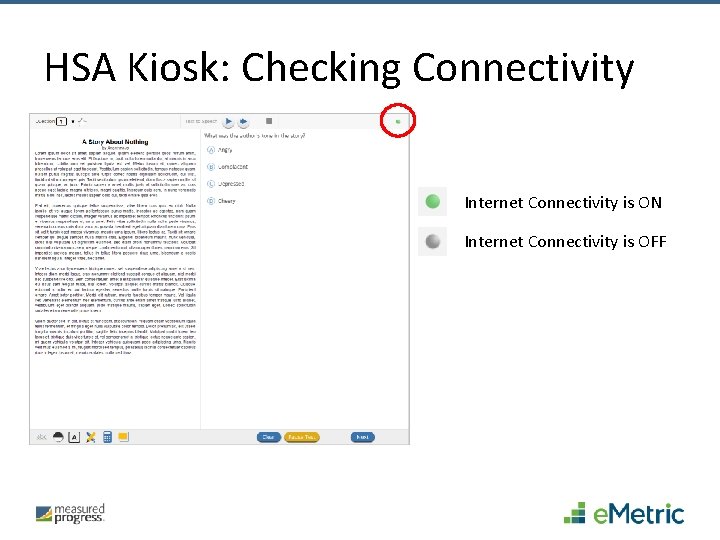
HSA Kiosk: Checking Connectivity Internet Connectivity is ON Internet Connectivity is OFF
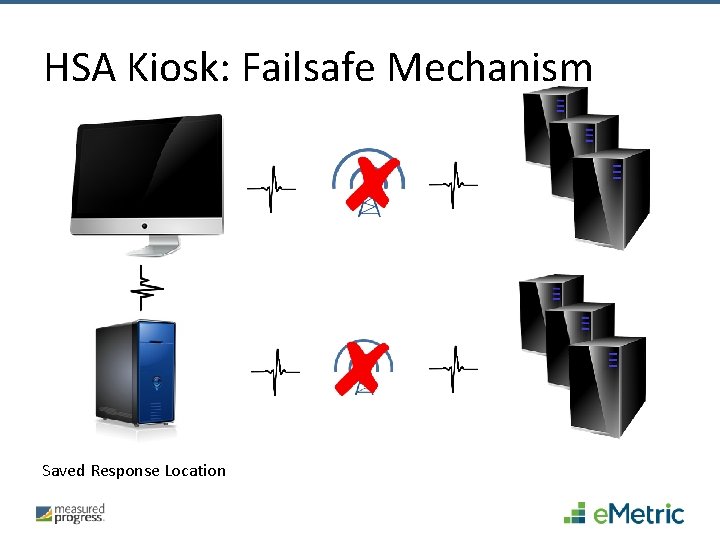
HSA Kiosk: Failsafe Mechanism Saved Response Location
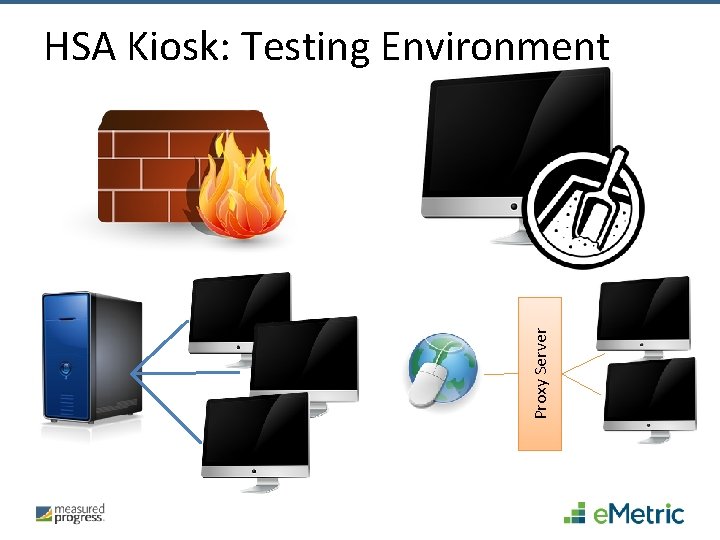
Proxy Server HSA Kiosk: Testing Environment
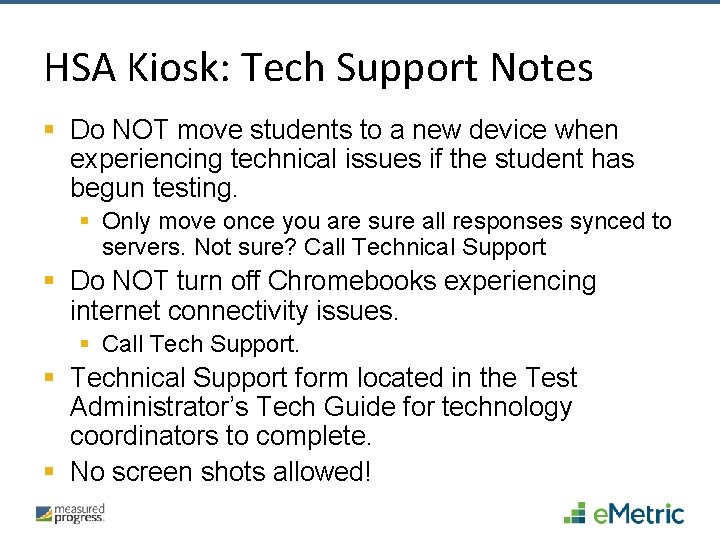
HSA Kiosk: Tech Support Notes § Do NOT move students to a new device when experiencing technical issues if the student has begun testing. § Only move once you are sure all responses synced to servers. Not sure? Call Technical Support § Do NOT turn off Chromebooks experiencing internet connectivity issues. § Call Tech Support. § Technical Support form located in the Test Administrator’s Tech Guide for technology coordinators to complete. § No screen shots allowed!
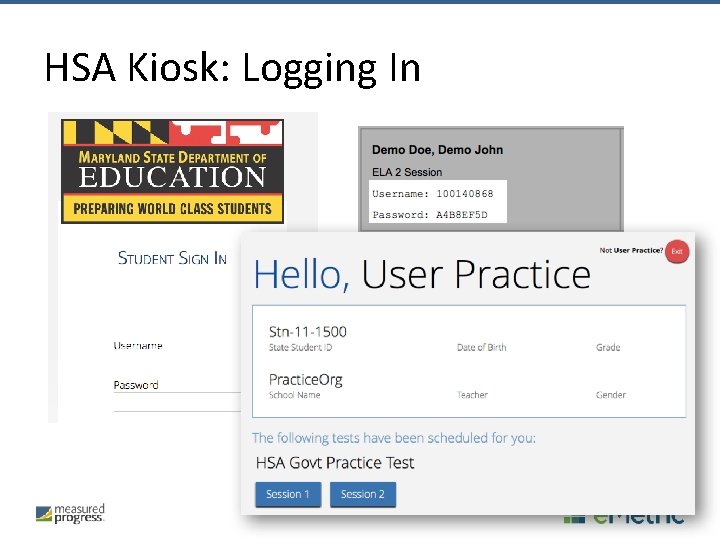
HSA Kiosk: Logging In
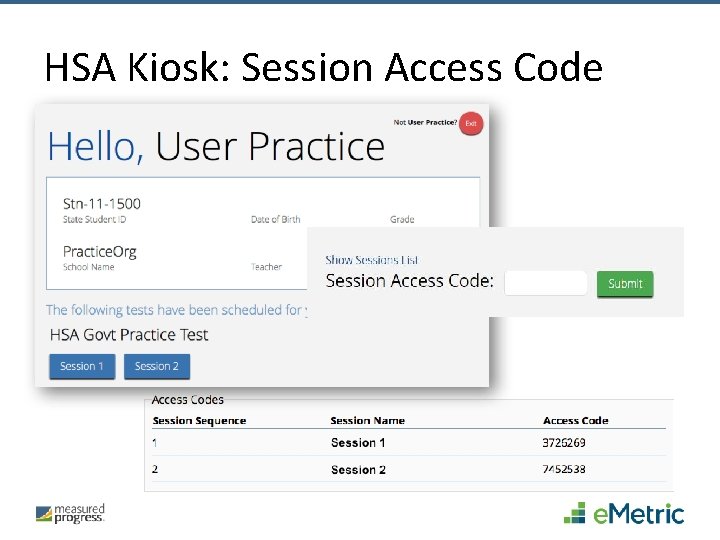
HSA Kiosk: Session Access Code
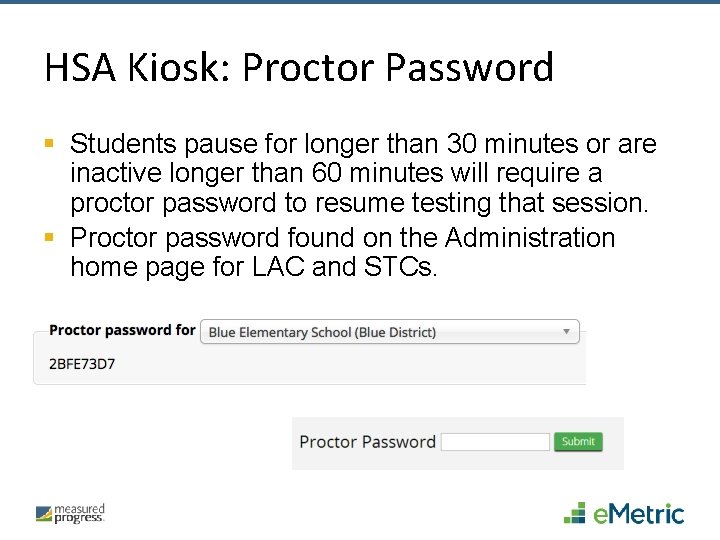
HSA Kiosk: Proctor Password § Students pause for longer than 30 minutes or are inactive longer than 60 minutes will require a proctor password to resume testing that session. § Proctor password found on the Administration home page for LAC and STCs.
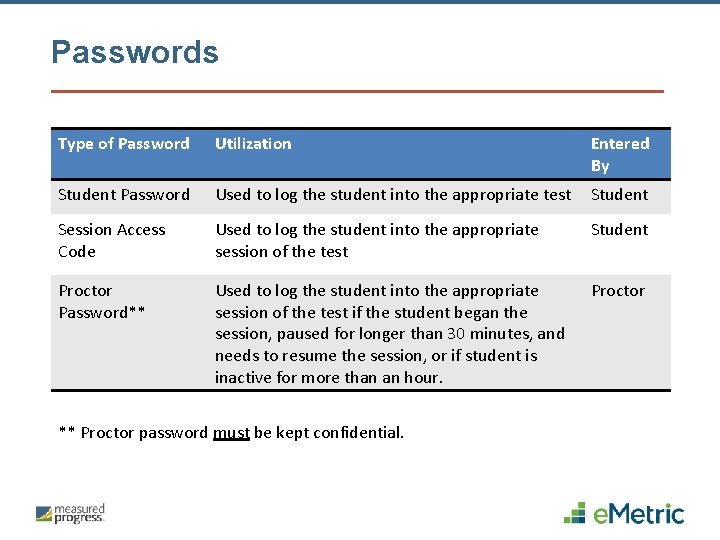
Passwords Type of Password Utilization Entered By Student Password Used to log the student into the appropriate test Student Session Access Code Used to log the student into the appropriate session of the test Student Proctor Password** Used to log the student into the appropriate session of the test if the student began the session, paused for longer than 30 minutes, and needs to resume the session, or if student is inactive for more than an hour. Proctor ** Proctor password must be kept confidential.
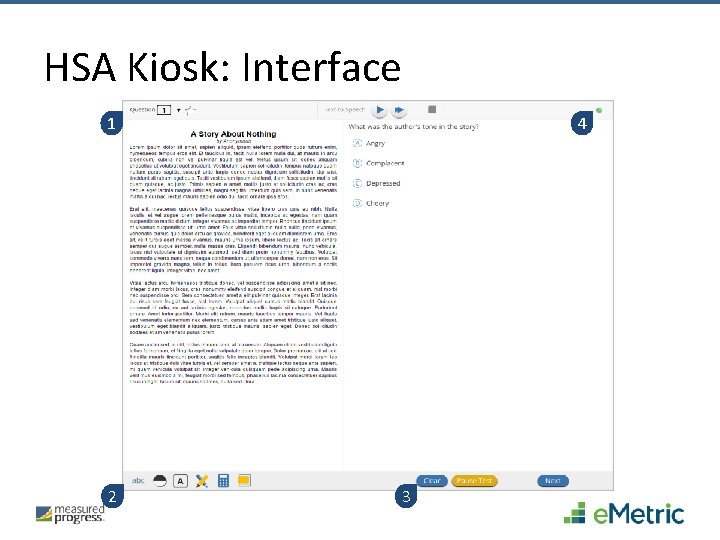
HSA Kiosk: Interface 1 2 4 3
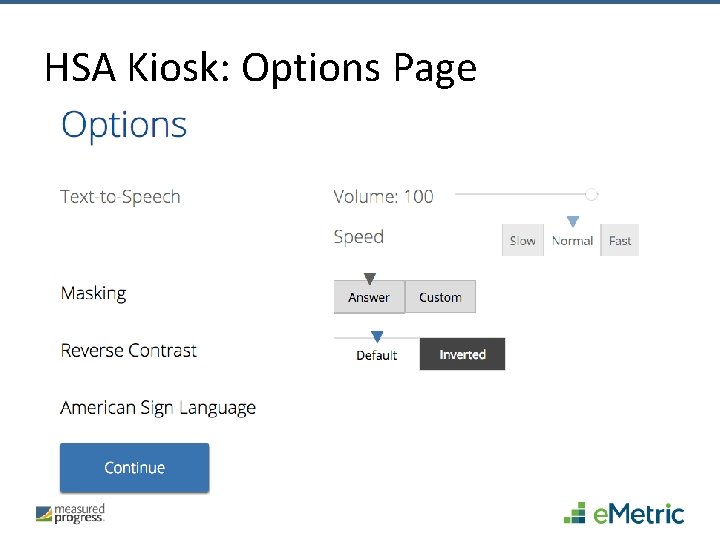
HSA Kiosk: Options Page
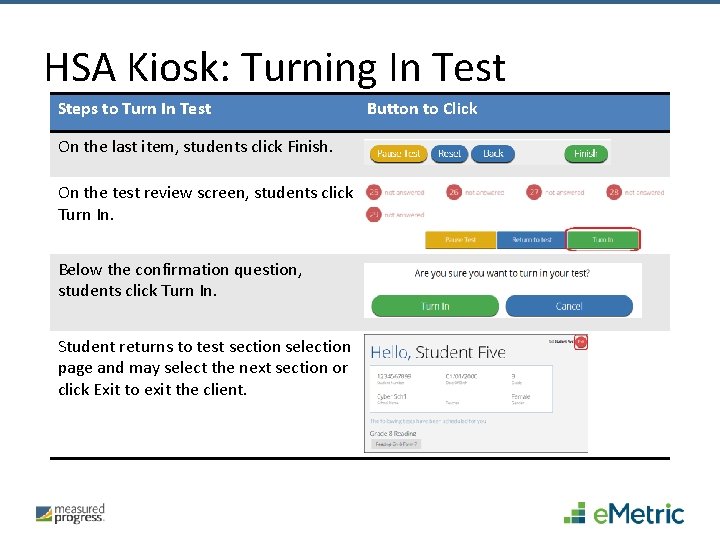
HSA Kiosk: Turning In Test Steps to Turn In Test On the last item, students click Finish. On the test review screen, students click Turn In. Below the confirmation question, students click Turn In. Student returns to test section selection page and may select the next section or click Exit to exit the client. Button to Click
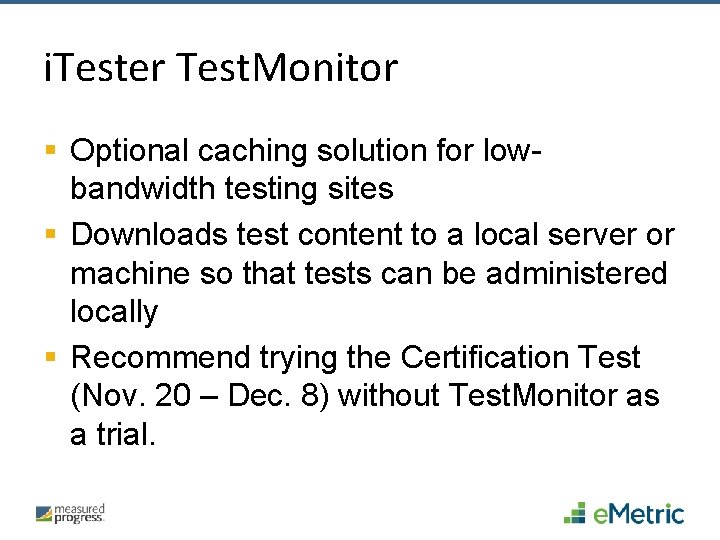
i. Tester Test. Monitor § Optional caching solution for lowbandwidth testing sites § Downloads test content to a local server or machine so that tests can be administered locally § Recommend trying the Certification Test (Nov. 20 – Dec. 8) without Test. Monitor as a trial.
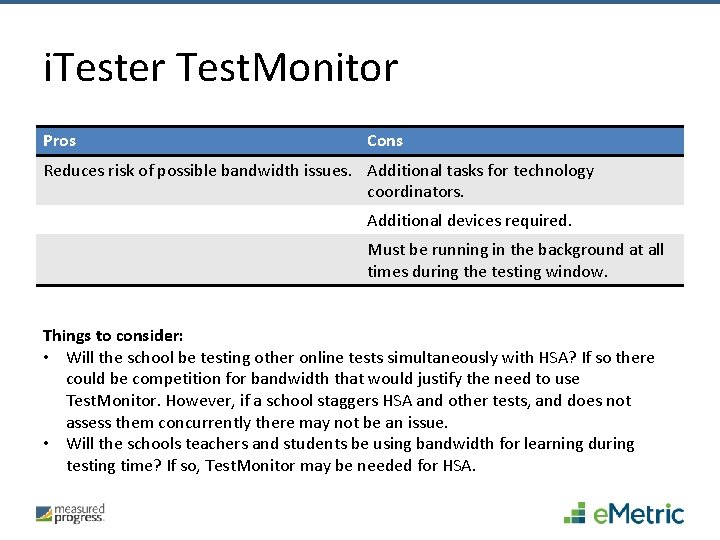
i. Tester Test. Monitor Pros Cons Reduces risk of possible bandwidth issues. Additional tasks for technology coordinators. Additional devices required. Must be running in the background at all times during the testing window. Things to consider: • Will the school be testing other online tests simultaneously with HSA? If so there could be competition for bandwidth that would justify the need to use Test. Monitor. However, if a school staggers HSA and other tests, and does not assess them concurrently there may not be an issue. • Will the schools teachers and students be using bandwidth for learning during testing time? If so, Test. Monitor may be needed for HSA.
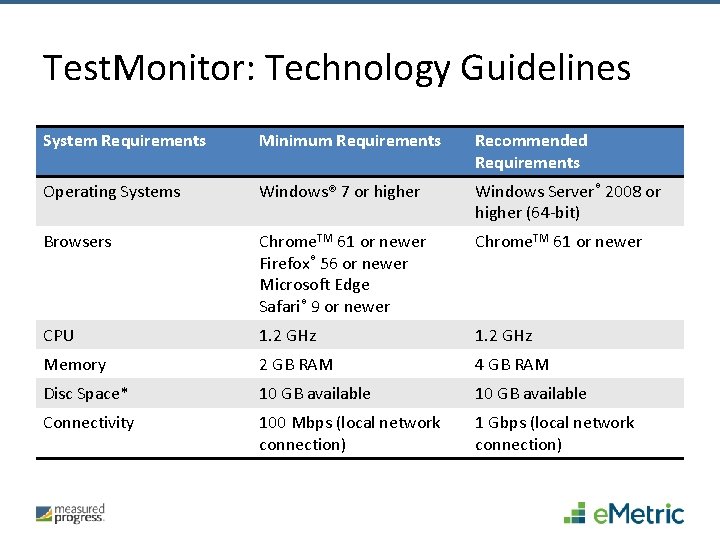
Test. Monitor: Technology Guidelines System Requirements Minimum Requirements Recommended Requirements Operating Systems Windows® 7 or higher Windows Server® 2008 or higher (64 -bit) Browsers Chrome. TM 61 or newer Firefox® 56 or newer Microsoft Edge Safari® 9 or newer Chrome. TM 61 or newer CPU 1. 2 GHz Memory 2 GB RAM 4 GB RAM Disc Space* 10 GB available Connectivity 100 Mbps (local network connection) 1 Gbps (local network connection)
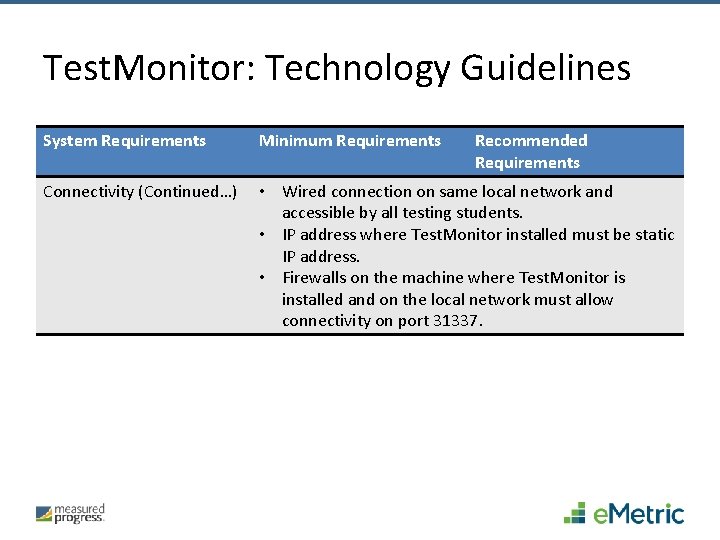
Test. Monitor: Technology Guidelines System Requirements Minimum Requirements Recommended Requirements Connectivity (Continued…) • Wired connection on same local network and accessible by all testing students. • IP address where Test. Monitor installed must be static IP address. • Firewalls on the machine where Test. Monitor is installed and on the local network must allow connectivity on port 31337.
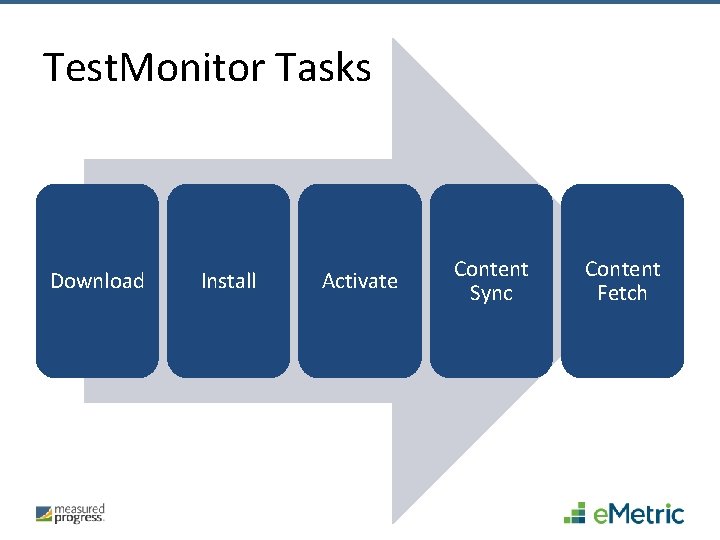
Test. Monitor Tasks Download Install Activate Content Sync Content Fetch
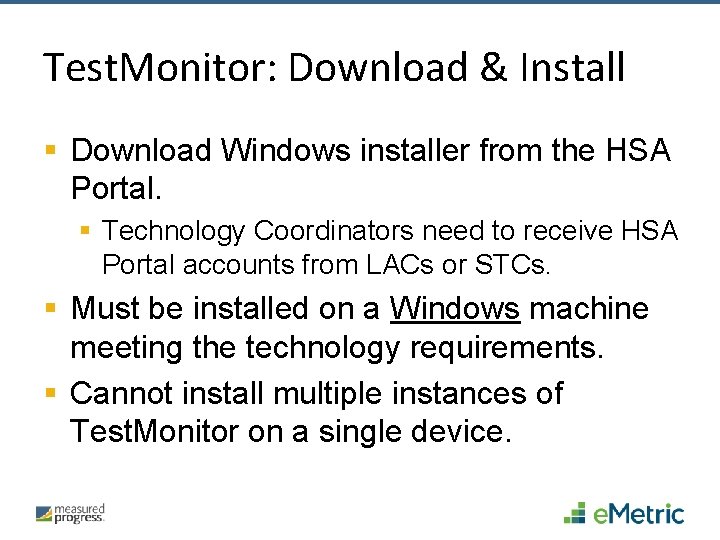
Test. Monitor: Download & Install § Download Windows installer from the HSA Portal. § Technology Coordinators need to receive HSA Portal accounts from LACs or STCs. § Must be installed on a Windows machine meeting the technology requirements. § Cannot install multiple instances of Test. Monitor on a single device.
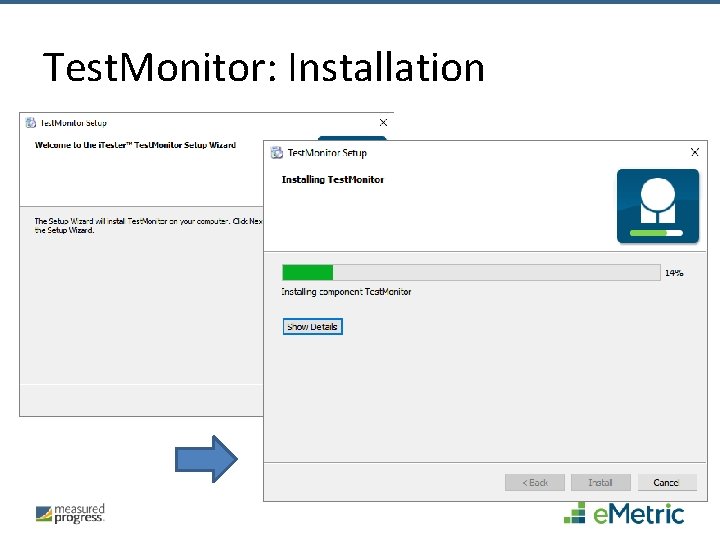
Test. Monitor: Installation
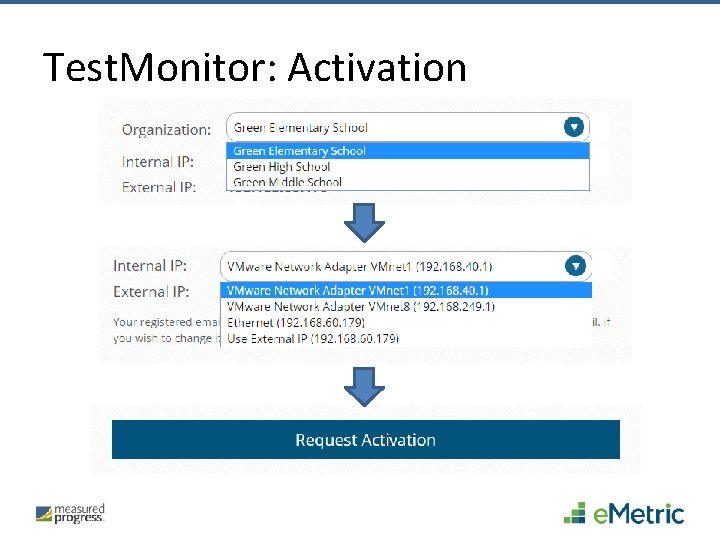
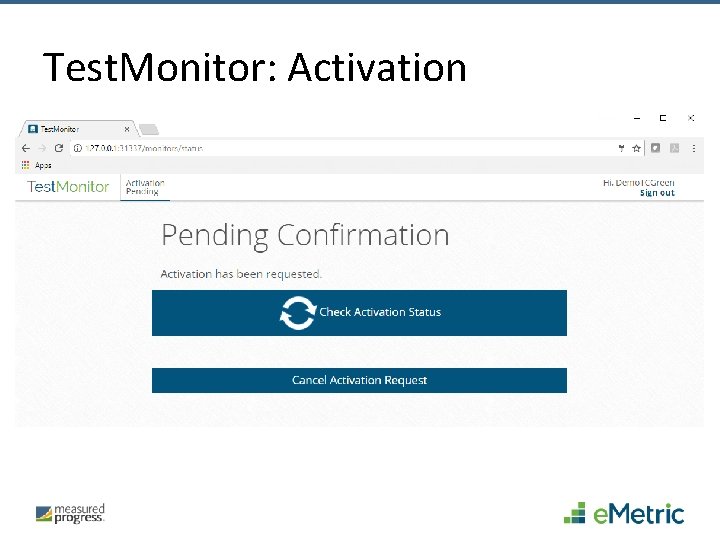
Test. Monitor: Activate § Test Coordinator (only), log in to Test. Monitor with HSA Portal account and request activation. § LAC or STC (only), log in to HSA Portal and approve activation. § Technology Coordinator will receive an email when activation status changes. § Activate at the school level, not the LEA level. Could be installed at the LEA, but must be activated per school.
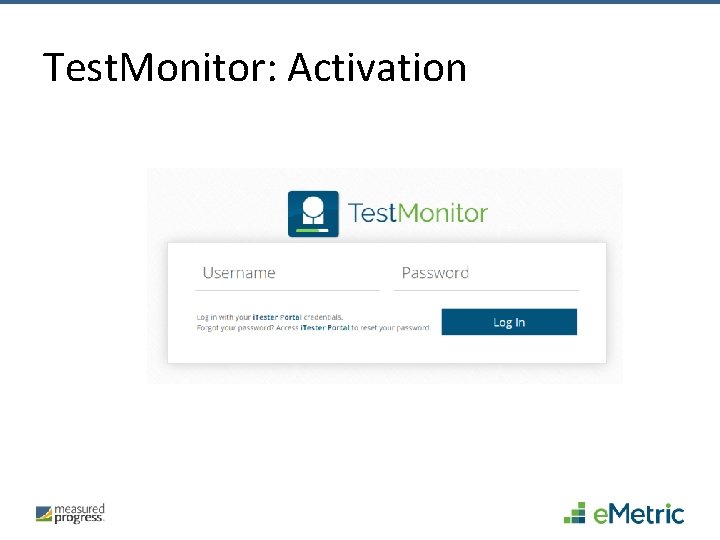
Test. Monitor: Activation
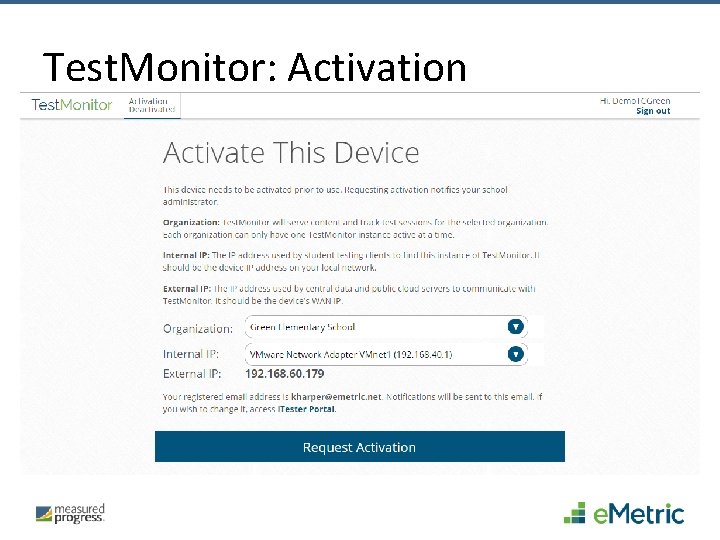
Test. Monitor: Activation
Test. Monitor: Activation
Test. Monitor: Activation
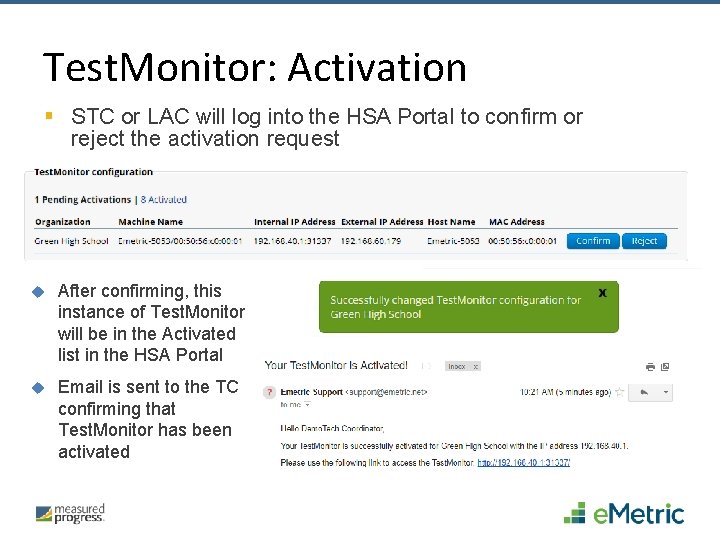
Test. Monitor: Activation § STC or LAC will log into the HSA Portal to confirm or reject the activation request After confirming, this instance of Test. Monitor will be in the Activated list in the HSA Portal Email is sent to the TC confirming that Test. Monitor has been activated
Test. Monitor: Content Sync § Content synced automatically after Test. Monitor is activated and test content is made available. § Test. Monitor will check for updated content every hour. § Technology Coordinator will receive an email when content has been synced. § All tests and forms will be synced to Test. Monitor regardless of tests being administered at the school. § Ensure content syncs before the operational test window opens January 8. § Content will be made available January 2 for syncing.
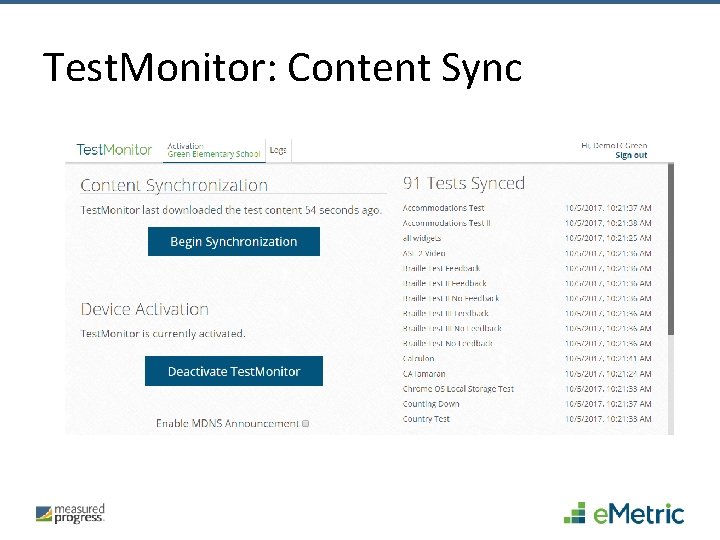
Test. Monitor: Content Sync
Test. Monitor: Content Fetch § Student logs in to HSA Kiosk and kiosk will verify if there is an active Test. Monitor for the student’s school. § If Test. Monitor activated, the service will return the IP address of the activated Test. Monitor. § Student’s test taking device will find Test. Monitor on local network using IP address. § Once connected, the kiosk will fetch test session content from Test. Monitor. § If no Test. Monitor is activated or found, test session content will be fetched from e. Metric servers. § Test. Monitor supports content fetching for HSA Kiosk on Windows, Mac, i. OS, and Chrome OS. § HSA Kiosk on Linux is not currently supported.
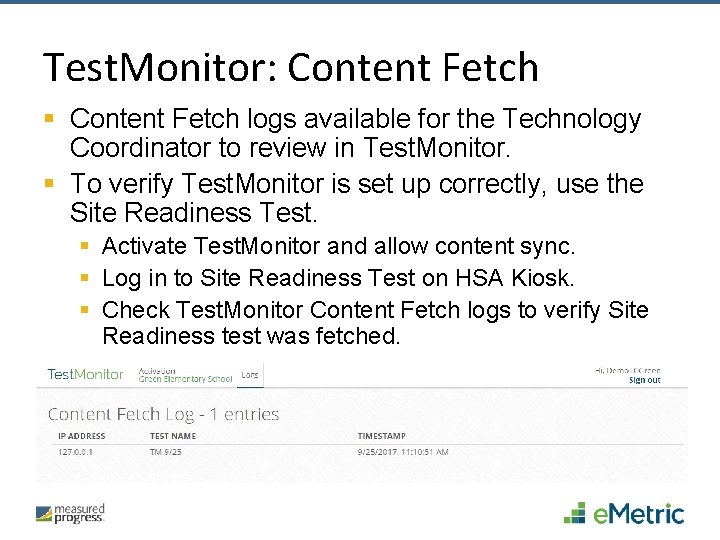
Test. Monitor: Content Fetch § Content Fetch logs available for the Technology Coordinator to review in Test. Monitor. § To verify Test. Monitor is set up correctly, use the Site Readiness Test. § Activate Test. Monitor and allow content sync. § Log in to Site Readiness Test on HSA Kiosk. § Check Test. Monitor Content Fetch logs to verify Site Readiness test was fetched.
Online Practice Test § Practice test will be available November 1. § Practice test can be taken with a browser or the kiosk. Students requiring magnification or Text-to -Speech will need to use the kiosk. § URL: hsapracticetest. measuredprogress. org
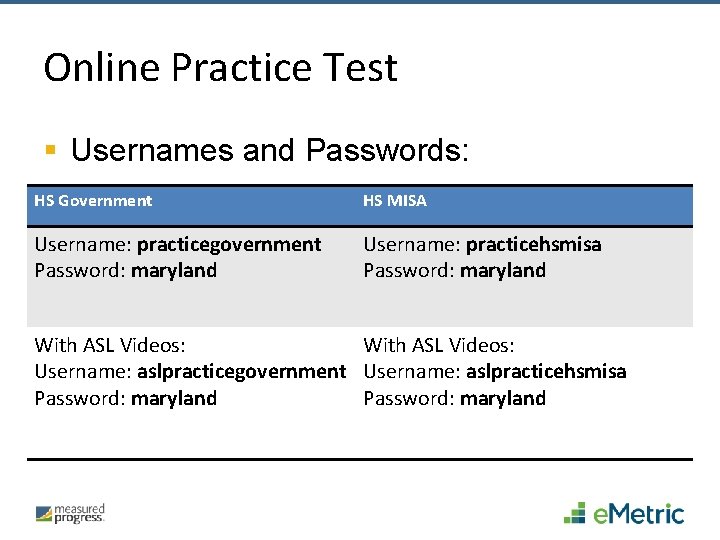
Online Practice Test § Usernames and Passwords: HS Government HS MISA Username: practicegovernment Password: maryland Username: practicehsmisa Password: maryland With ASL Videos: Username: aslpracticegovernment Username: aslpracticehsmisa Password: maryland
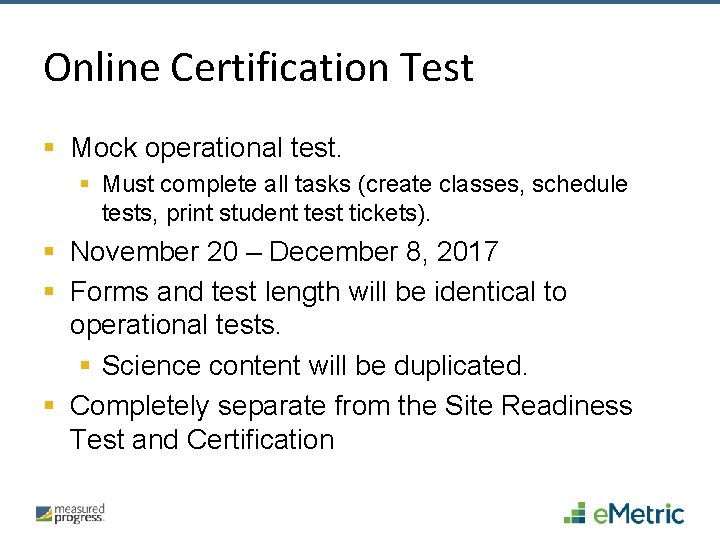
Online Certification Test § Mock operational test. § Must complete all tasks (create classes, schedule tests, print student test tickets). § November 20 – December 8, 2017 § Forms and test length will be identical to operational tests. § Science content will be duplicated. § Completely separate from the Site Readiness Test and Certification
Have Additional Questions? Measured Progress Technical Product Support (866) 207 -8804 or HSAhelpdesk@measuredprogress. org Help & Support Site maryland. onlinehelp. measuredprogress. org

Thank you.
- Slides: 72