
Week 9 Using the Box Properties The CSS
Week 9 Using the Box Properties
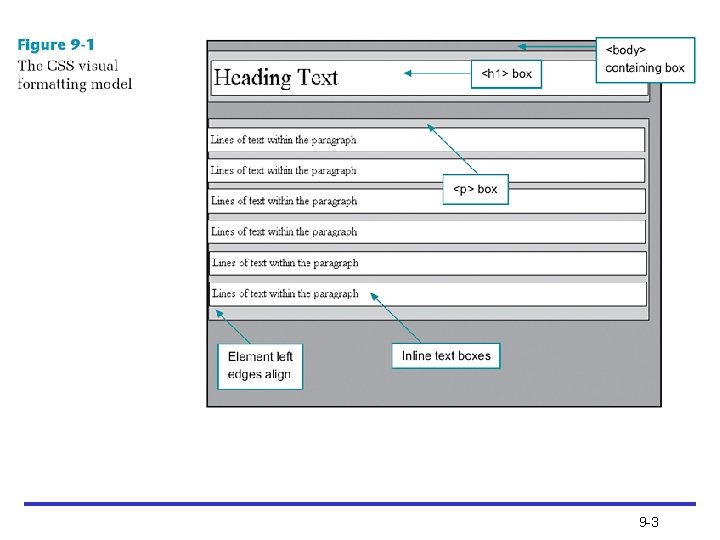
The CSS Visual Formatting Model • Describes how the element content boxes should be displayed by the browser – Based on the hierarchical structure of the HTML document and element display type • Elements fall into three display type categories – Block - (e. g. , paragraphs) block elements contain inline boxes that contain element content – Inline - contain the content within the block-level elements; they do not form new blocks of content – List-item - create a surrounding containing box and listitem inline boxes 9 -2
9 -3
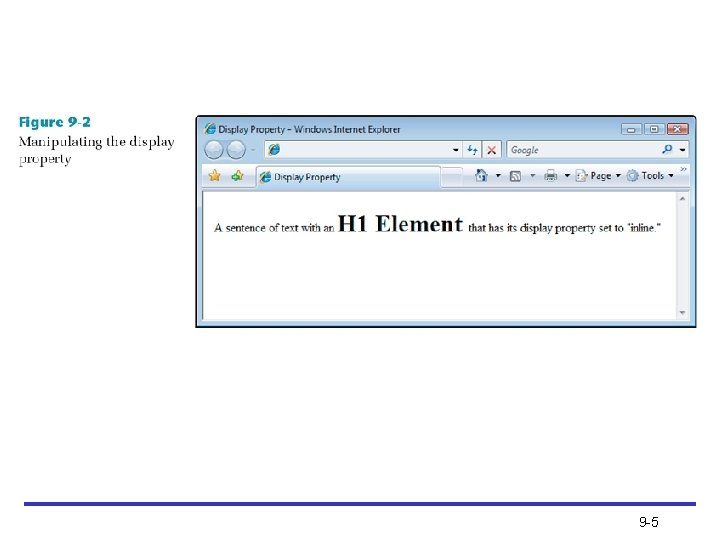
Specifying Element Display Type • The CSS display property determines the display type of an element • The following style rule changes the default display type for an <h 1> element from block to inline: h 1 {display: inline; } 9 -4
9 -5
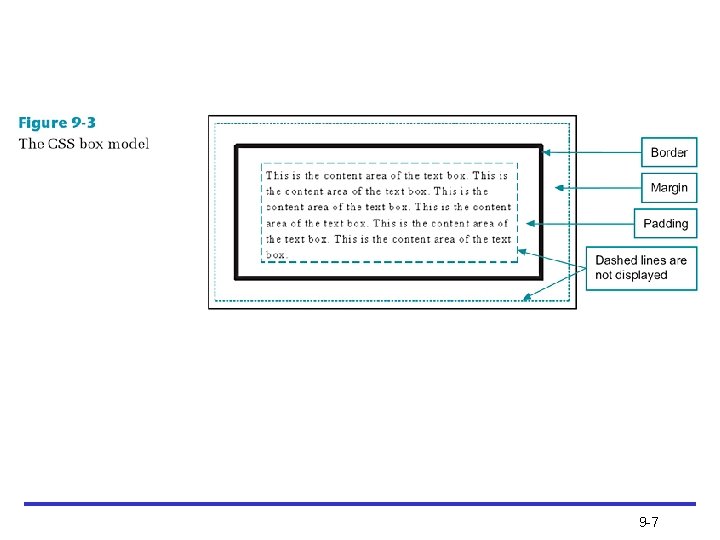
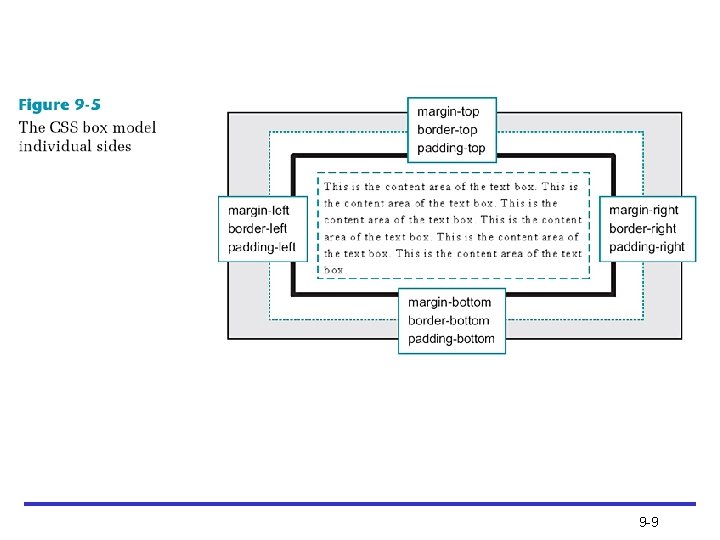
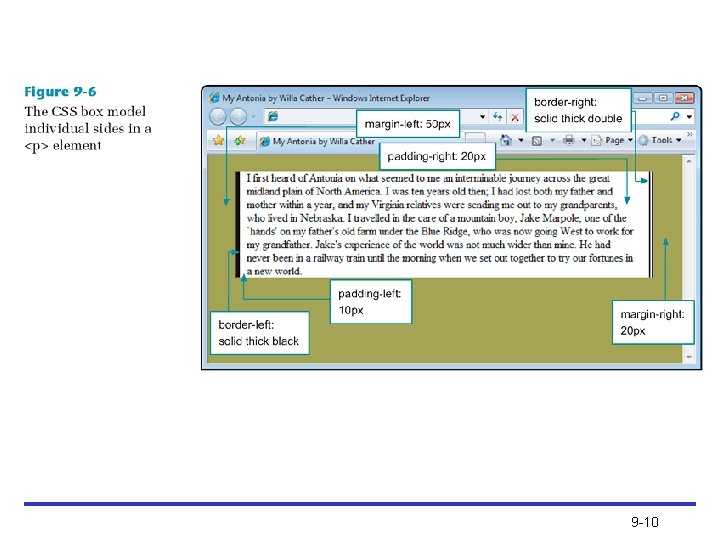
Using the CSS Box Model • Describes the rectangular boxes that contain content on a Web page • Each block-level element created is displayed as a box containing content in the browser window • Each content box can have margins, borders, and padding (specified individually) 9 -6
9 -7
9 -8
9 -9
9 -10
Measurement Values • The margin, border, and padding properties allow two types of measurement: – Length • Absolute or relative values – Percentage • Based on width of containing box 9 -11
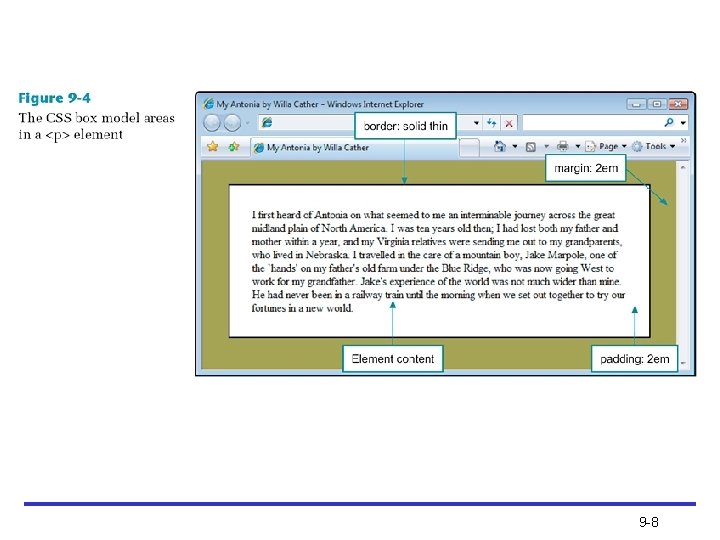
Using the Margin Properties • Specifying Margins – Shorthand property that sets all four individual margins with one declaration p {margin: 2 em; } 9 -12
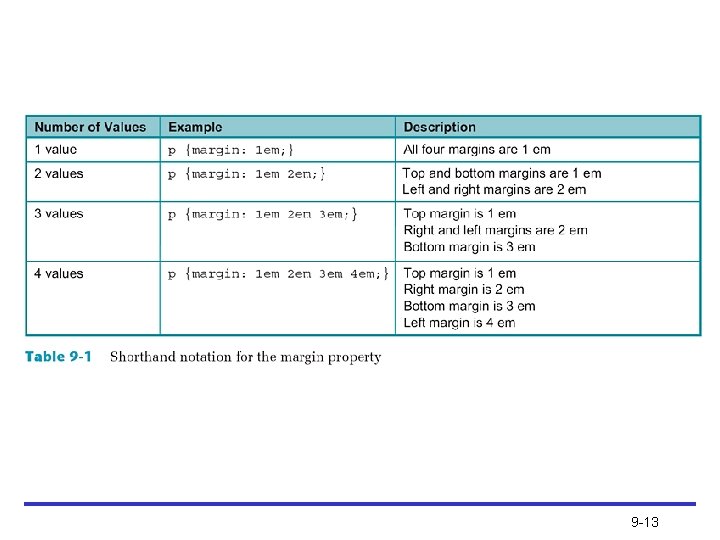
9 -13
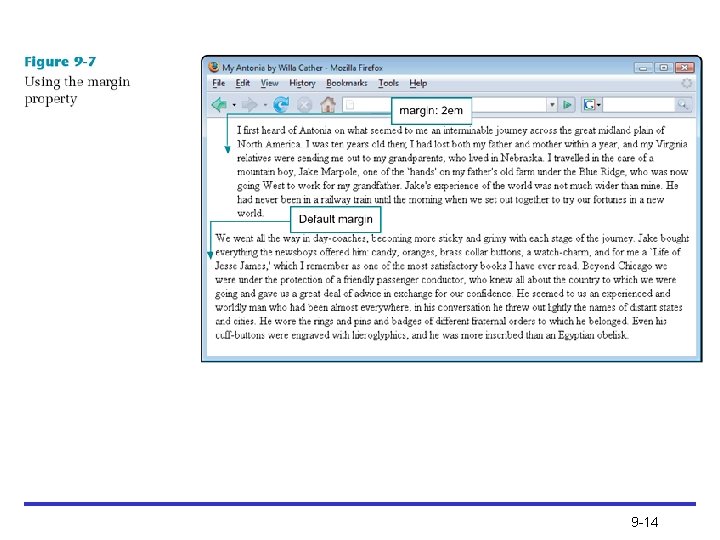
9 -14

Specifying the Individual Margin Properties • Sets the individual margin properties p {margin-left: 2 em; margin-right: 2 em; } 9 -15
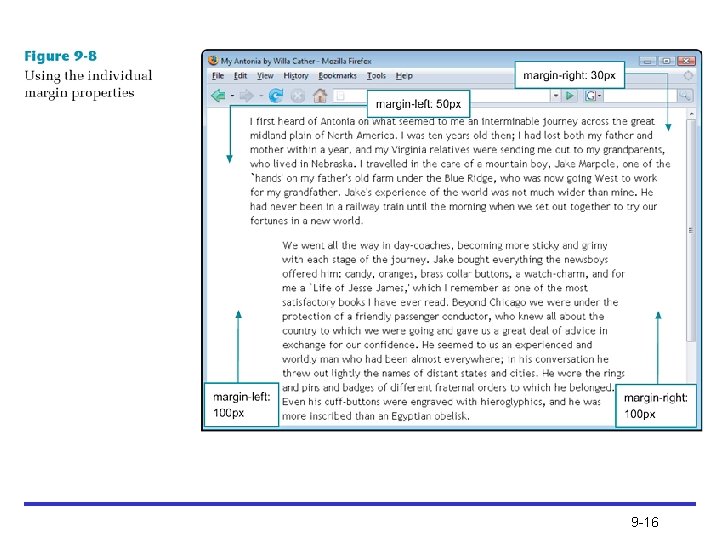
9 -16
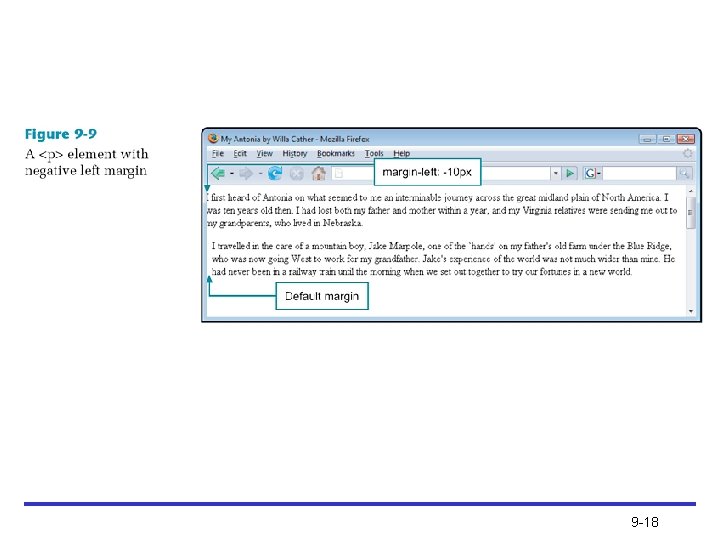
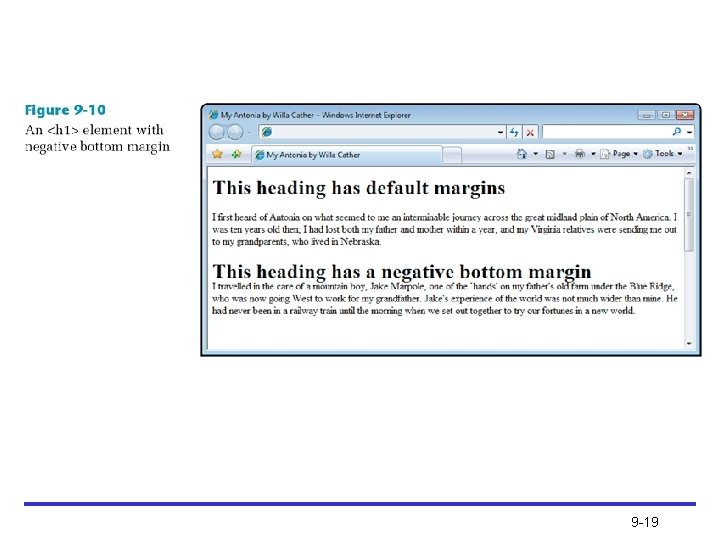
Negative Margins • Negative margins can be set to achieve special effects – Example: • Override the default browser margin by setting a negative value p {margin-left: -10 px; } • Can also be used to remove the default margins from other elements 9 -17
9 -18
9 -19
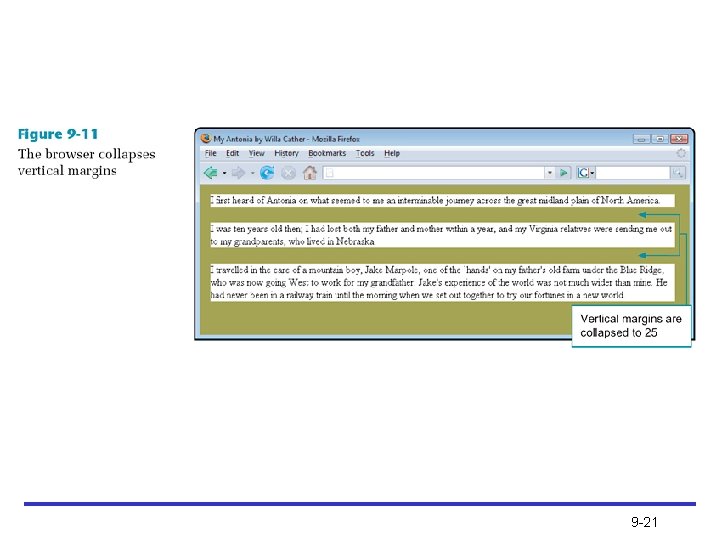
Collapsing Margins • To ensure spacing is consistent, the browser will collapse vertical margins between elements • By default, browser selects the greater of the two margins (top and bottom) 9 -20
9 -21
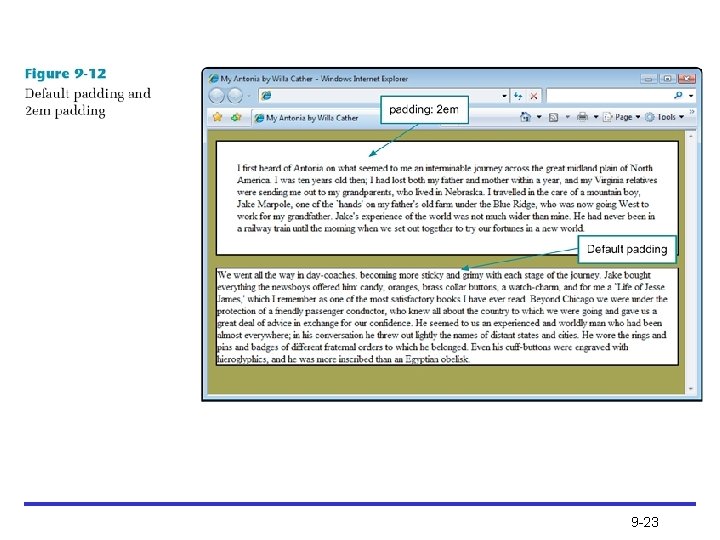
Using the Padding Properties • Control the padding area in the box model – Area between the element content and the border • Padding area inherits the background color of the element • If a border is added to an element, padding should be adjusted to increase legibility and enhance the presentation 9 -22
9 -23
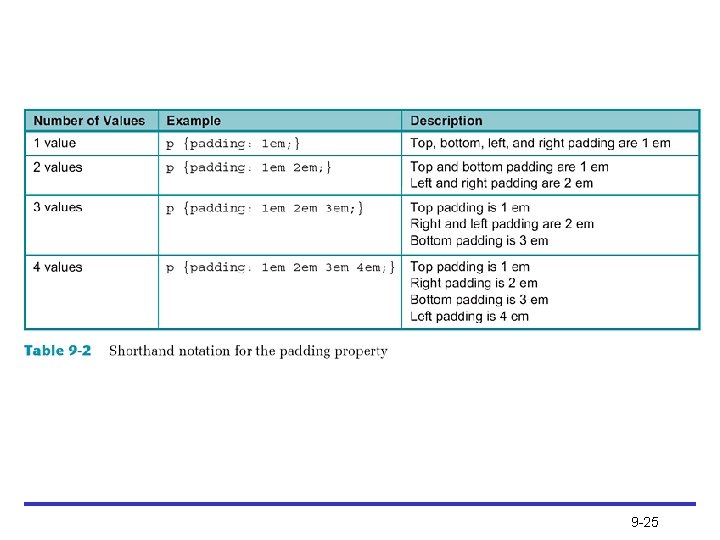
Specifying Padding • Shorthand property that sets all four individual padding values with one rule • The most common usage of the padding property is to state one value for all four padding sides, as shown in the following style rule: p {padding: 2 em; } 9 -24
9 -25
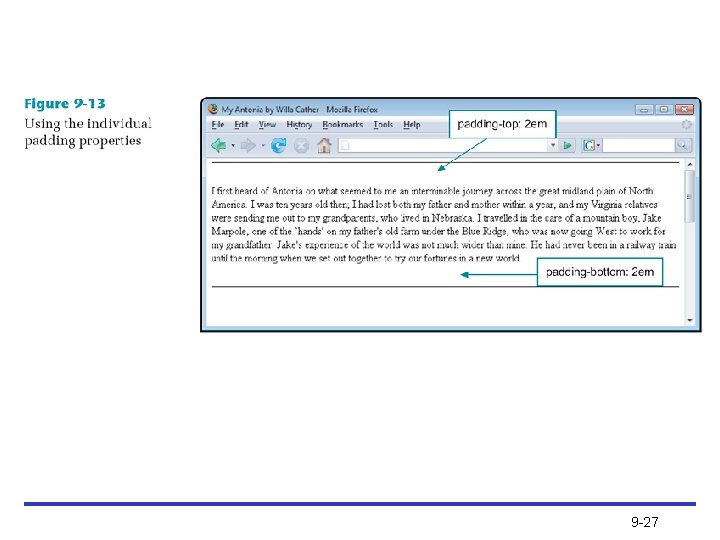
Specifying the Individual Padding Properties • Controls the individual padding areas • The following style sets the top and bottom padding areas for the paragraph, along with complementing borders and a white background: p {padding-top: 2 em; padding-bottom: 2 em; border-top: solid thin black; border-bottom: solid thin black; background-color: #ffffff; } 9 -26
9 -27
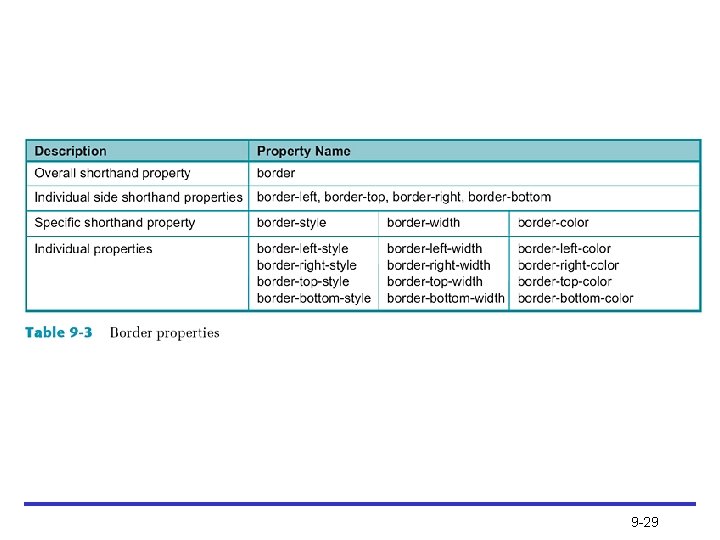
Using the Border Properties • Control the appearance of borders around elements – Area between the margin and the padding • There are five basic border properties: – – – border-left border-right border-top border-bottom 9 -28
9 -29
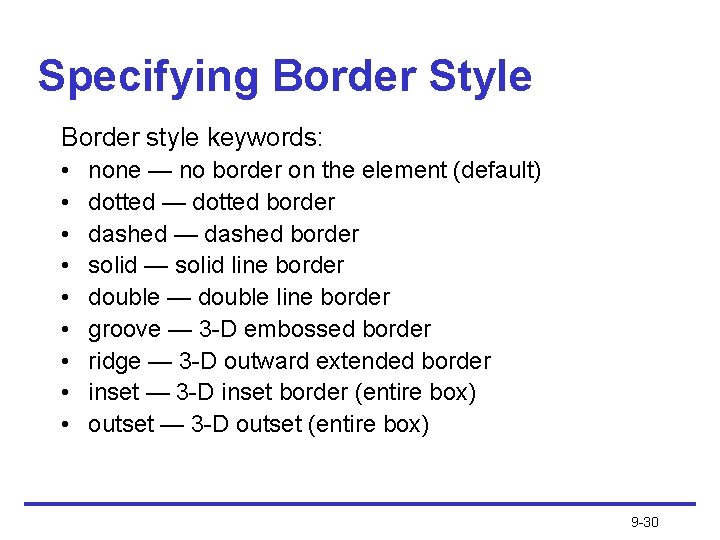
Specifying Border Style Border style keywords: • • • none — no border on the element (default) dotted — dotted border dashed — dashed border solid — solid line border double — double line border groove — 3 -D embossed border ridge — 3 -D outward extended border inset — 3 -D inset border (entire box) outset — 3 -D outset (entire box) 9 -30
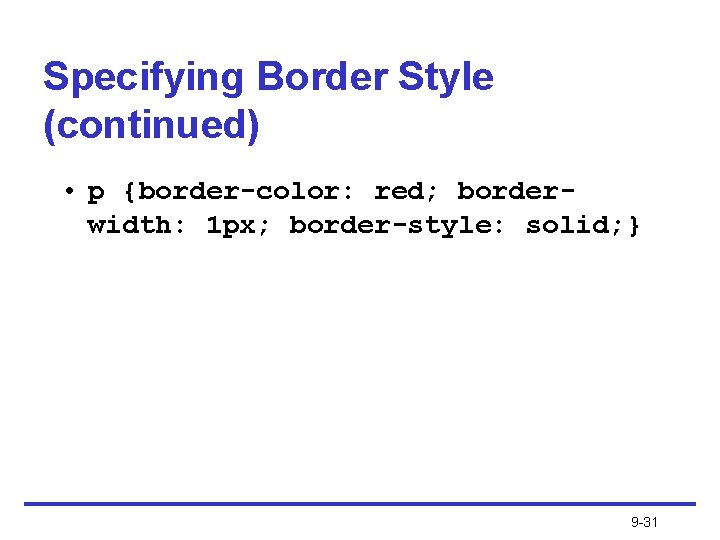
Specifying Border Style (continued) • p {border-color: red; borderwidth: 1 px; border-style: solid; } 9 -31
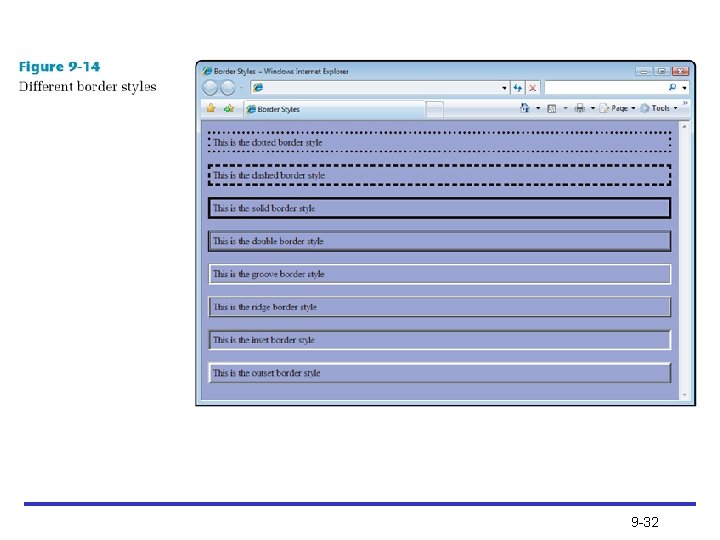
9 -32
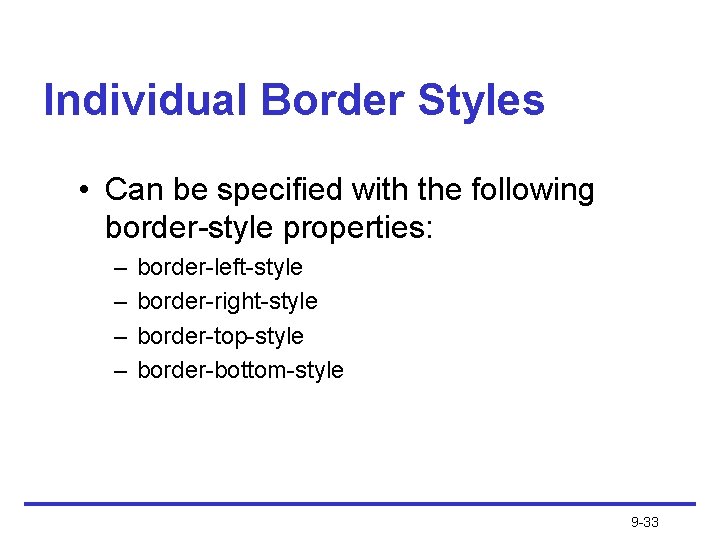
Individual Border Styles • Can be specified with the following border-style properties: – – border-left-style border-right-style border-top-style border-bottom-style 9 -33
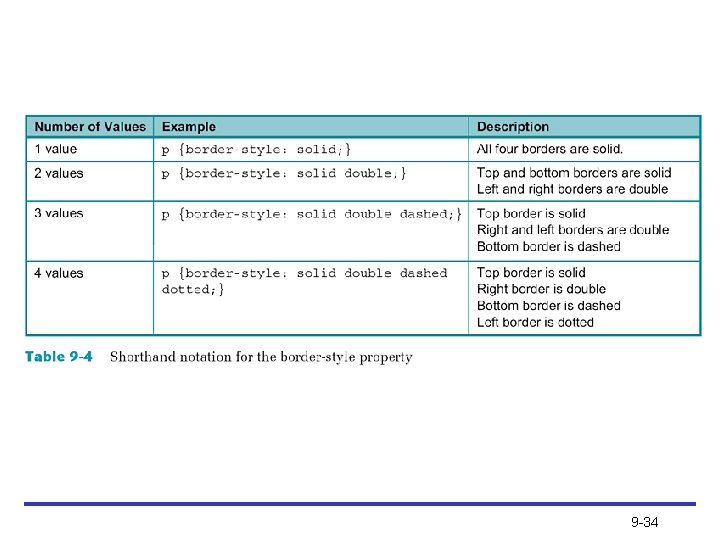
9 -34
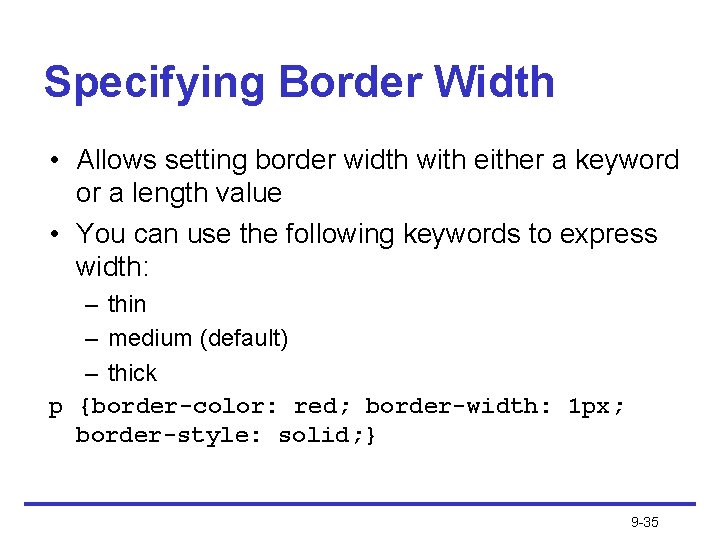
Specifying Border Width • Allows setting border width with either a keyword or a length value • You can use the following keywords to express width: – thin – medium (default) – thick p {border-color: red; border-width: 1 px; border-style: solid; } 9 -35
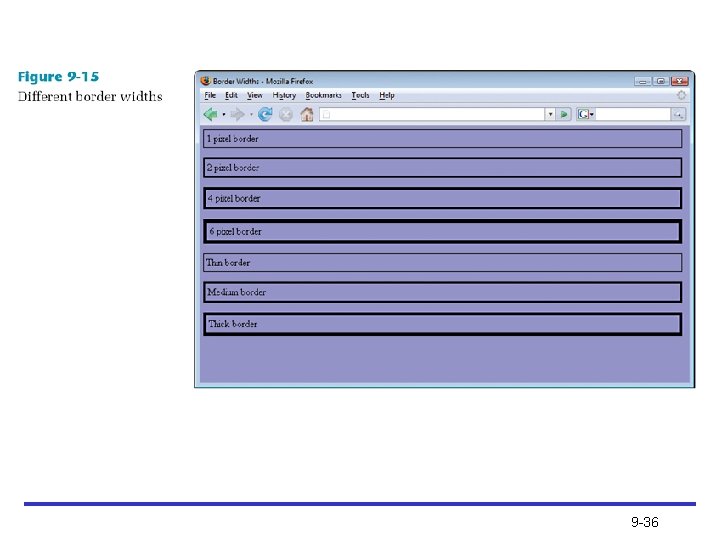
9 -36
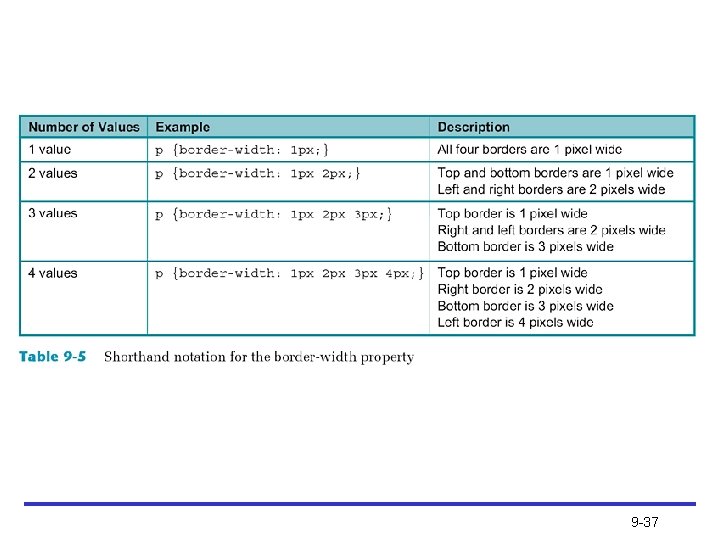
9 -37
Individual Border Widths • Can be specified with the following border-width properties: – border-left-width – border-right-width – border-top-width – border-bottom-width 9 -38
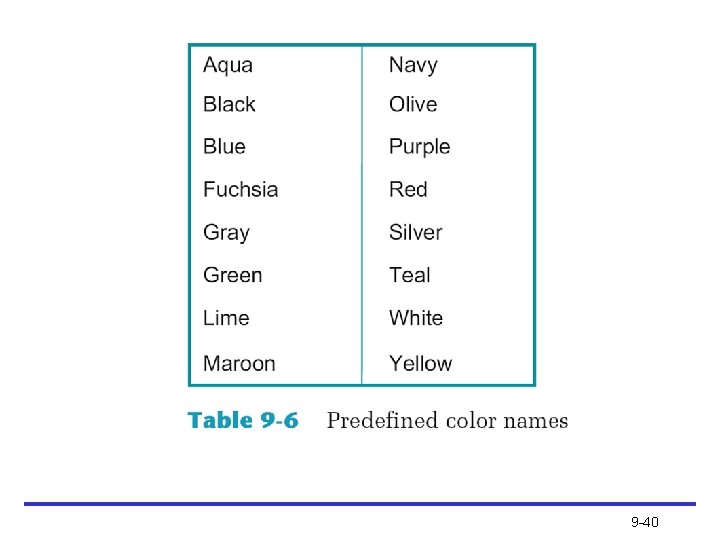
Specifying Border Color • Allows setting of element border color • To set a border color, use the property as shown in the following rule: p {border-color: red; border-width: 1 px; border-style: solid; } 9 -39
9 -40
9 -41
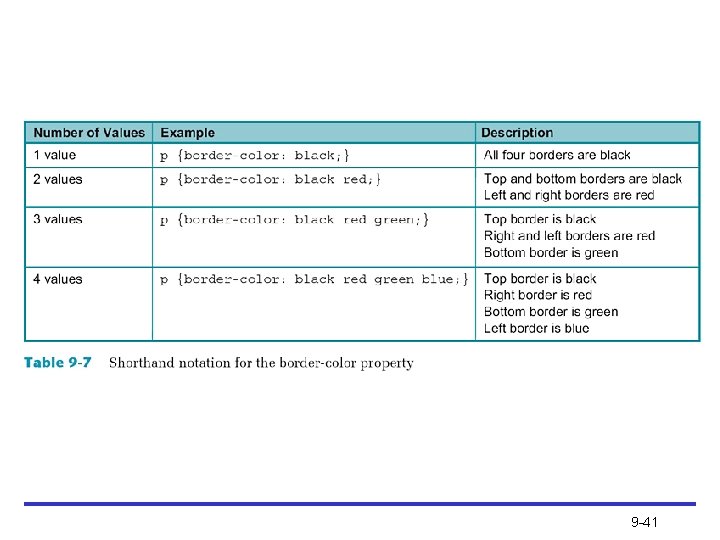
Specifying Individual Border • Can be specified with the following border-color properties: – border-left-color – border-right-color – border-top-color – border-bottom-color 9 -42
Using the Border Shorthand Properties • The border property lets you state the properties for all four borders of an element – You can state the border-width, border-style, and border-color in any order • The following rule sets the border-style to solid − The border-weight is 1 pixel; the border color is red p {border: solid 1 px red; } 9 -43
Using the Special Box Properties • Allow floating of images or boxes to the left or right of content on the page • Special box properties: – width – height – float – clear 9 -44
Width • Sets the horizontal width of an element • Width is not intended for normal block-level elements, but you can use it to create floating text boxes or with images div {width: 200 px; } 9 -45
Height • Sets the vertical height of an element • Like width, height is not intended for normal block-level elements, but you can use it to create floating text div {height: 150 px; } 9 -46
Float • The float property lets you position an element to the left or right edge of its parent element • Float is most commonly used for <img> elements, allowing alignment of an image to the left or right of text • You can also use the float property to align a text box to the left or right edge of its parent 9 -47
Float (continued) • Float property can be used to float a text box to the left or right of text • Advantage: tables aren’t required, just a single simple CSS style rule is all that is required 9 -48
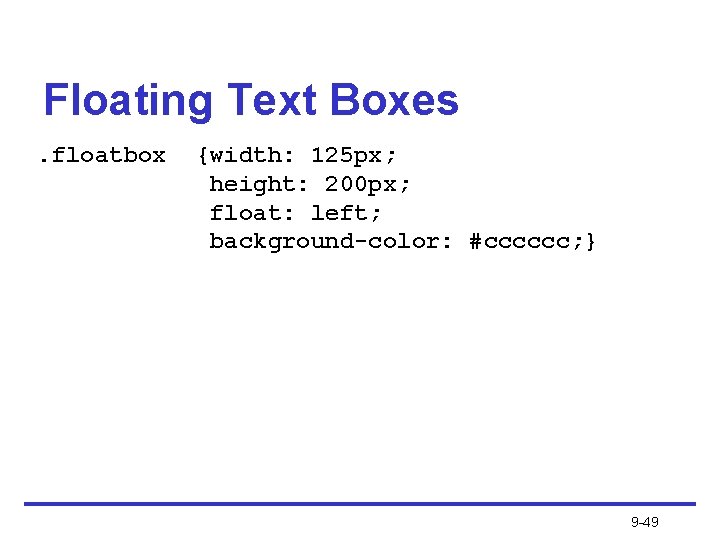
Floating Text Boxes. floatbox {width: 125 px; height: 200 px; float: left; background-color: #cccccc; } 9 -49
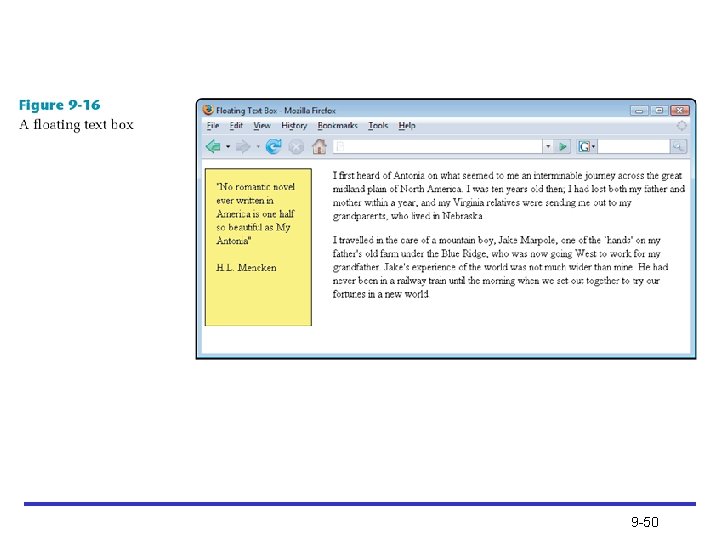
9 -50
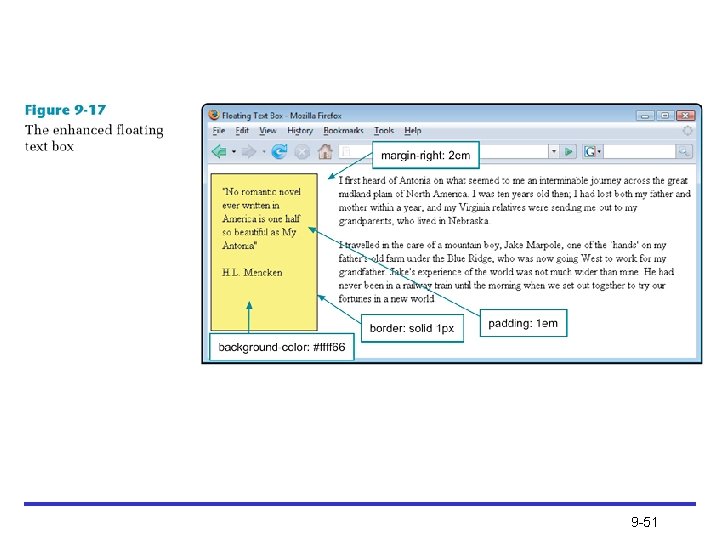
9 -51
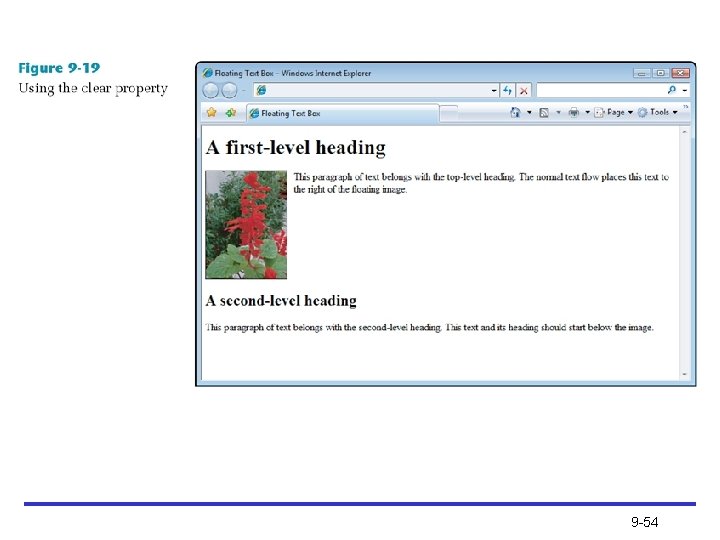
Clear • Controls the flow of text around floated elements • You only use the clear property when you are using the float property • Clear lets you force text to appear beneath a floated element, rather than next to it <h 2 style=”clear: left; ”> 9 -52
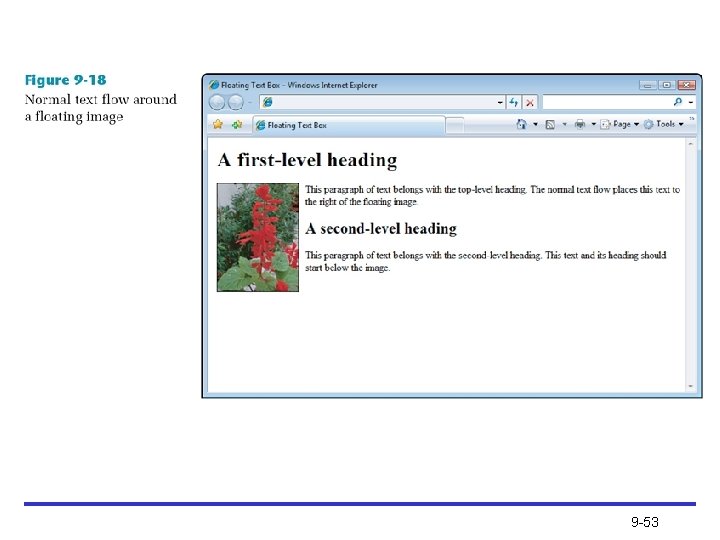
9 -53
9 -54
Summary • The box model controls spacing around the element content • Values of margin, border, and padding can be designated for all sides or individual sides • Choose relative length units (e. g. , ems and pixels) to build scalable Web pages • The browser collapses vertical margins to ensure even spacing between elements 9 -55
Summary (continued) • Margins are transparent • Border properties allow the addition of borders to individual sides or all sides of an element • Special box properties allow the creation of floating images of text boxes • Use all properties judiciously to increase legibility (not for novelty effects) 9 -56
- Slides: 56