
Week 6 Adding Attribute Data 8 Specifics on
Week 6 Adding Attribute Data 8. Specifics on Digitizing & Layout tips 1
Areas to be covered today Adding Attribute data to a shape file Exporting your final Layout to a folder Adding a Data Table as an Inset 8. Specifics on Digitizing & Layout tips 2
1. ADDING ATTRIBUTE DATA: Illustrated Proclib 8. Specifics on Digitizing & Layout tips 3
Proclib Title: Adding Attributed Data Description: Steps for adding additional columns of attributes to new or existing shape files. Steps… 8. Specifics on Digitizing & Layout tips 4
Proclib Steps 1. Open the Attribute table for a existing theme (shape file). 2. From the Attribute window menu select Table/Start_Editing 3. From the menu select Edit/Add_Field 8. Specifics on Digitizing & Layout tips 5
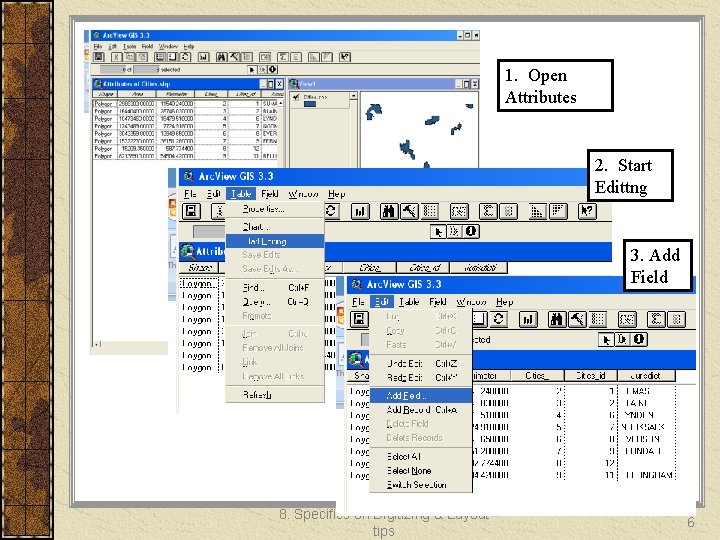
1. Open Attributes 2. Start Edittng 3. Add Field 8. Specifics on Digitizing & Layout tips 6
Proclib 4. A Field Definition window opens in this: 1. In the Name pick window write in the new name for the attribute 2. In the Type pick window select between the four choices (string is for alpha entries) 3. In the Width pick window indicate the width of the column 4. In the Decimal Places enter a number if appropriate 8. Specifics on Digitizing & Layout tips 7
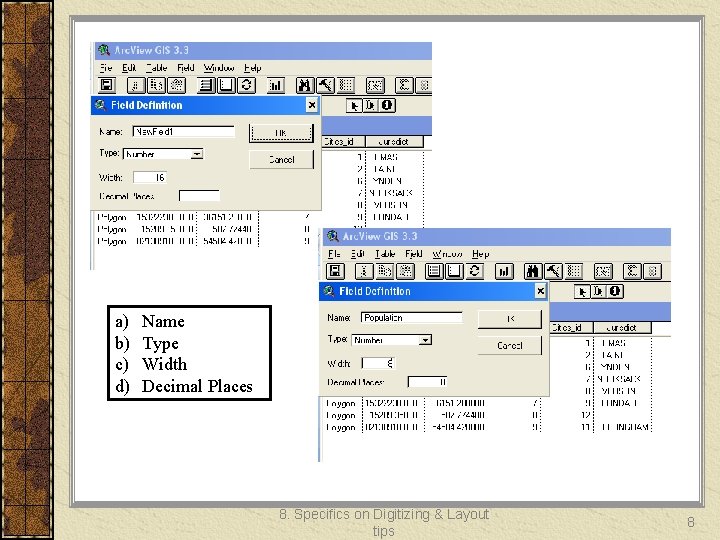
a) b) c) d) Name Type Width Decimal Places 8. Specifics on Digitizing & Layout tips 8
Proclib 5. Now from the Icon bar go to the lower right and select the edit icon (looks like a capital I with a black arrow) 6. Move to the cell where you wish to enter the new data and type it in 7. Continue until all data is entered 8. After entering last data value, be sure to hit an ENTER (if not last data point might not appear) 8. Specifics on Digitizing & Layout tips 9
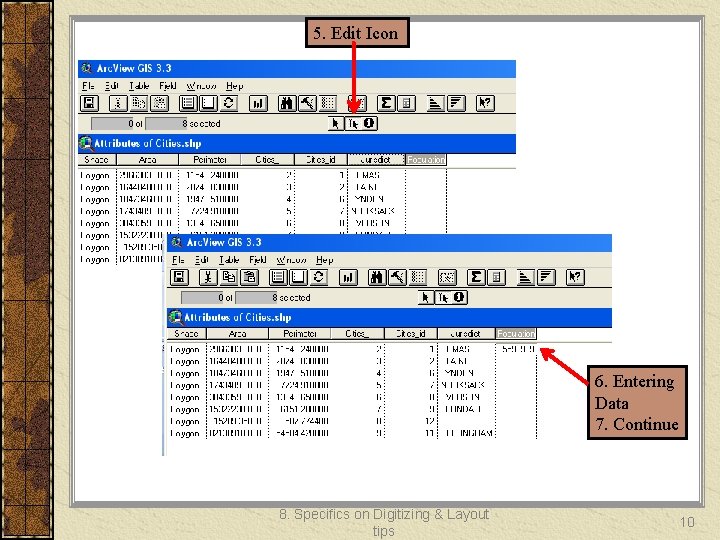
5. Edit Icon 6. Entering Data 7. Continue 8. Specifics on Digitizing & Layout tips 10
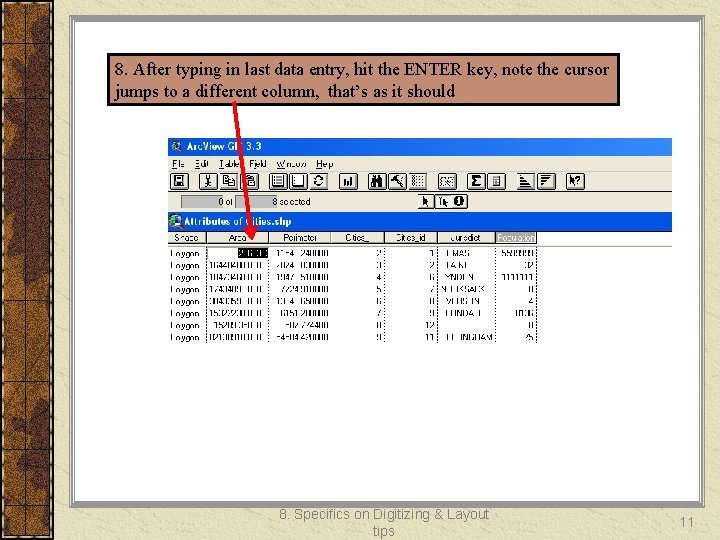
8. After typing in last data entry, hit the ENTER key, note the cursor jumps to a different column, that’s as it should 8. Specifics on Digitizing & Layout tips 11
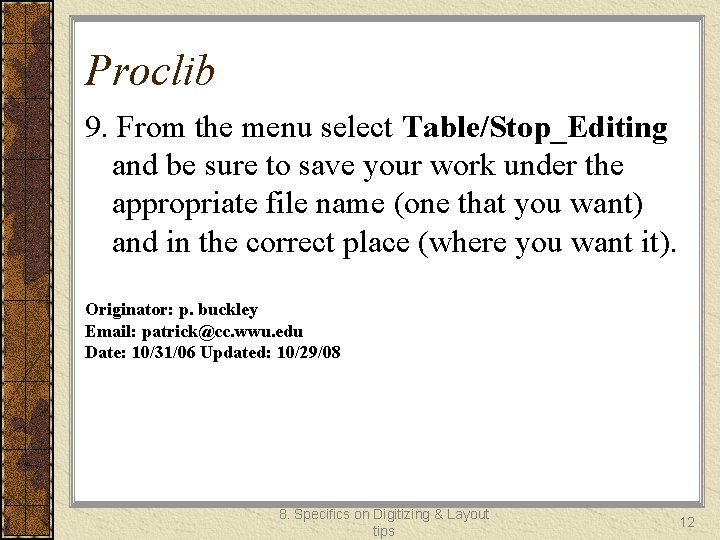
Proclib 9. From the menu select Table/Stop_Editing and be sure to save your work under the appropriate file name (one that you want) and in the correct place (where you want it). Originator: p. buckley Email: patrick@cc. wwu. edu Date: 10/31/06 Updated: 10/29/08 8. Specifics on Digitizing & Layout tips 12
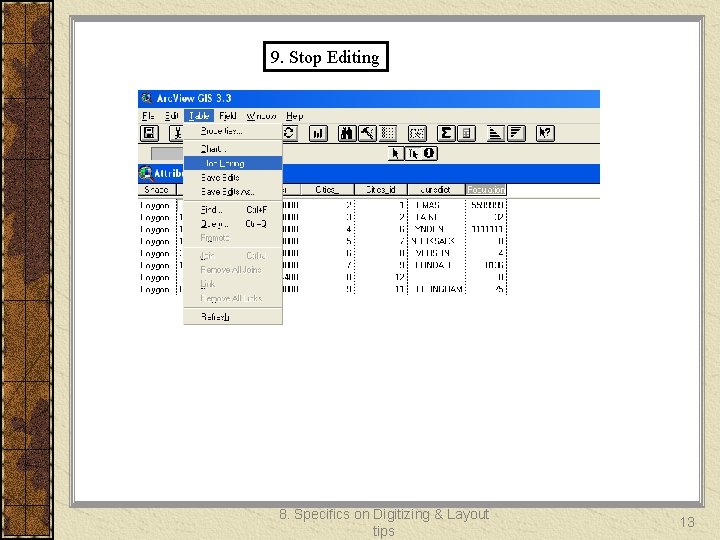
9. Stop Editing 8. Specifics on Digitizing & Layout tips 13
2. IN CLASS EXERCISE 8. Specifics on Digitizing & Layout tips 14
Task Using a file manager copy the folder containing the small Whatcom County City data we have been using J: saldataEgeo 250Data GIS assignment Paste this data somewhere on your c: /temp/”your new folder name” Start Arc. View Open the Whatcom County City data from the c: drive into a View make sure things are working 8. Specifics on Digitizing & Layout tips 15
Task Using your favorite web browser find the city populations for the places in Whatcom County Current population is found in http: //quickfacts. census. gov/qfd/states/53/5305280. html http: //factfinder. census. gov/servlet/GCTTable? _bm=n&_lang=en&mt_name= DEC_2000_PL_U_GCTPL_ST 7&format=ST-7&_box_head_nbr=GCTPL&ds_name=DEC_2000_PL_U&geo_id=04000 US 53 8. Specifics on Digitizing & Layout tips 16
Task Now using the Proclib above add the population data to each city in Whatcom County Once completed, map this data, make a final layout and show it to the instructor If time permits, select one or more additional attributes to add to the GIS database describing the cities 8. Specifics on Digitizing & Layout tips 17
3. Reminder: EXPORTING A LAYOUT AS A JPEG 8. Specifics on Digitizing & Layout tips 18
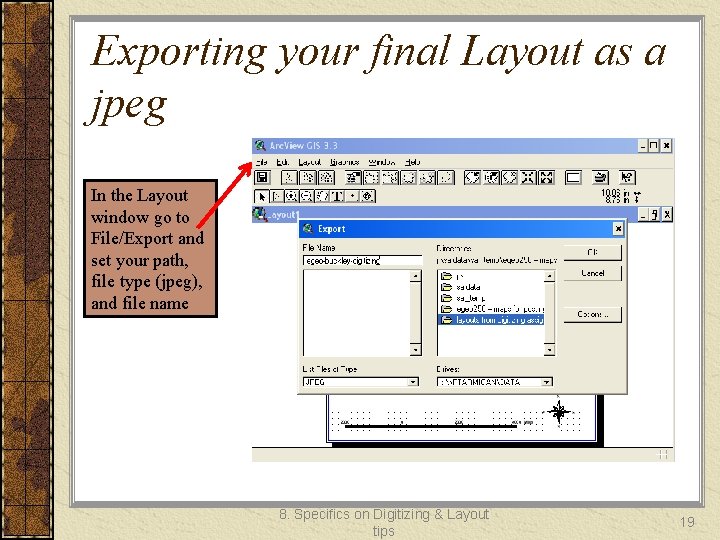
Exporting your final Layout as a jpeg In the Layout window go to File/Export and set your path, file type (jpeg), and file name 8. Specifics on Digitizing & Layout tips 19
4. Adding a Data Table as an Inset 8. Specifics on Digitizing & Layout tips 20
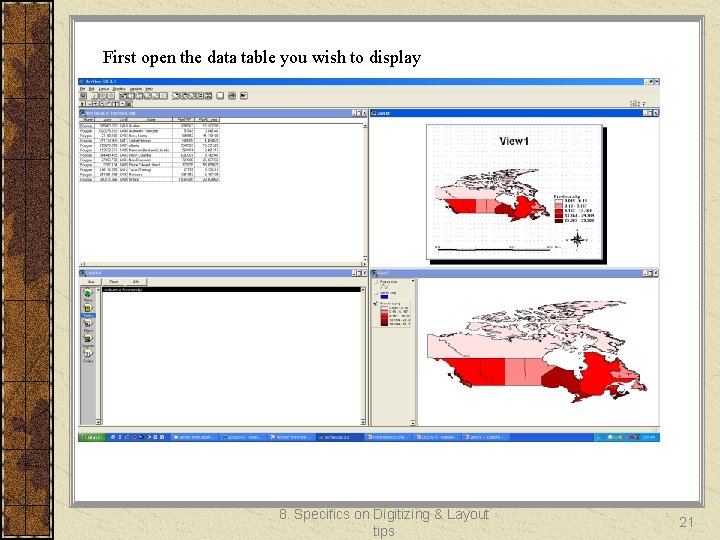
First open the data table you wish to display 8. Specifics on Digitizing & Layout tips 21
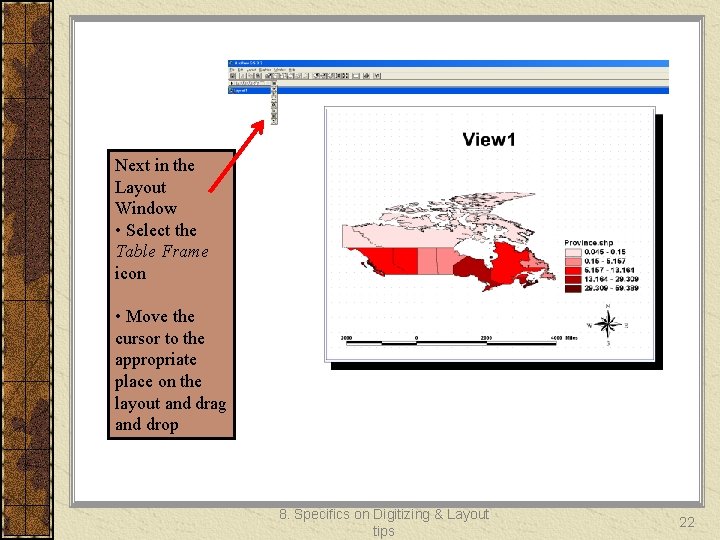
Next in the Layout Window • Select the Table Frame icon • Move the cursor to the appropriate place on the layout and drag and drop 8. Specifics on Digitizing & Layout tips 22
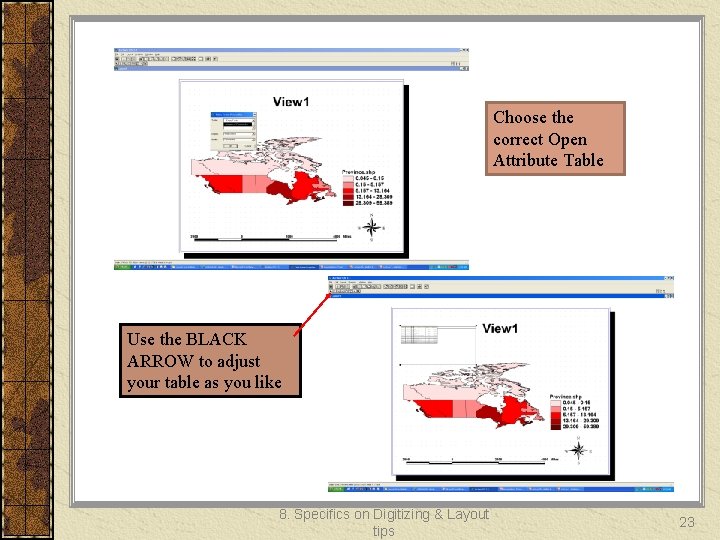
Choose the correct Open Attribute Table Use the BLACK ARROW to adjust your table as you like 8. Specifics on Digitizing & Layout tips 23
- Slides: 23