
Week 4 Steps 5 and 6 Step 5
- Slides: 59
Week 4 Steps 5 and 6
Step 5 SELECT THE PROPER KINDS OF WINDOWS Step 5 Overview • A window’s characteristics • A window’s components • A window’s presentation styles • The types of windows available • Organizing window system functions • A window’s operations • Web system frames and pop-up windows
Step 5 • • • WINDOW CHARACTERISTICS A name or title, allowing it to be identified A size in height and width A state, accessible or active, or not accessible Visibility—the portion that can be seen A location, relative to the display boundary Presentation, that is, its arrangement in relation to other windows • Management capabilities • Its highlight, that is, the part that is selected • The function, task, or application to which it is dedicated
Step 5 WINDOW CHARACTERISTICS The Attraction of Windows • Presentation of Different Levels of Information • Presentation of Multiple Kinds of Information • Sequential Presentation of Levels or Kinds of Information • Access to Different Sources of Information • Combining Multiple Sources of Information • Performing More Than One Task • Reminding • Monitoring • Multiple Representations of the Same Task
Step 5 WINDOW CHARACTERISTICS Constraints in Window System Design • Historical Considerations • Hardware Limitations • Human Limitations • Other Limitations • Where To?
Step 5 COMPONENTS OF A WINDOW • • Frame Title Bar Icon Window Sizing Buttons • What’s This? Button • Menu Bar • • Status Bar Scroll Bars Split Box Toolbar Command Area Size Grip Work Area
Step 5 WINDOW PRESENTATION STYLES • Tiled Windows • Use for: • • Single-task activities Data that needs to be seen simultaneously Tasks requiring little window manipulation Novice or inexperienced users • Overlapping Windows • Use for: • • Switching between tasks Tasks necessitating a greater amount of window manipulation Expert or experienced users Unpredictable display contents • Cascading Windows
Step 5 TYPES OF WINDOWS Primary Window • Proper Usage: • Represent an independent function or application • Present constantly used window components and controls • Menu bar items that are: • Used frequently • Used by most, or all, primary or secondary windows • Controls used by dependent windows • Presenting information that is continually updated • For example, date and time • Providing context for dependent windows • Do not: • Divide an independent function into two or more primary windows • Present unrelated functions in one primary window
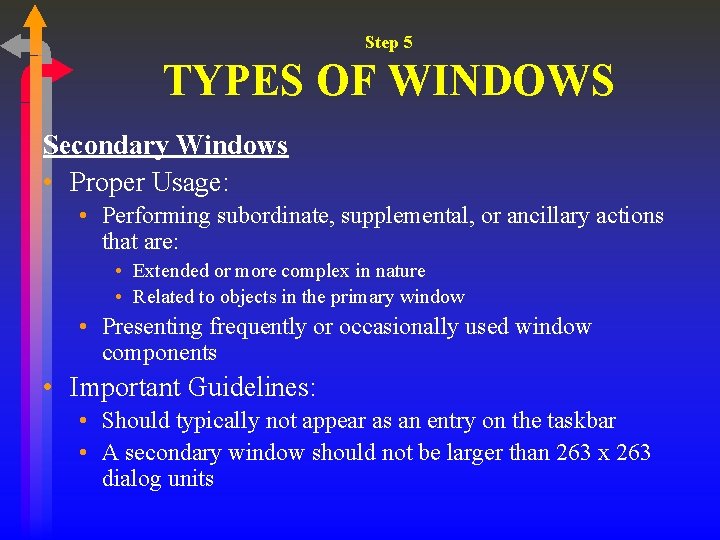
Step 5 TYPES OF WINDOWS Secondary Windows • Proper Usage: • Performing subordinate, supplemental, or ancillary actions that are: • Extended or more complex in nature • Related to objects in the primary window • Presenting frequently or occasionally used window components • Important Guidelines: • Should typically not appear as an entry on the taskbar • A secondary window should not be larger than 263 x 263 dialog units
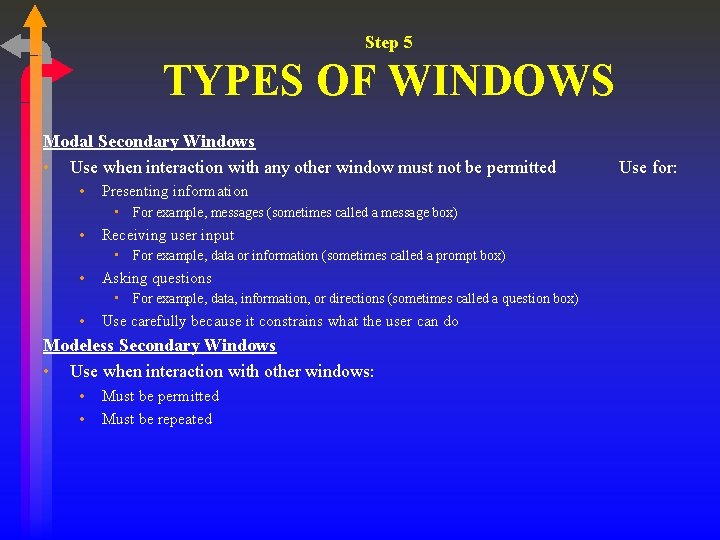
Step 5 TYPES OF WINDOWS Modal Secondary Windows • Use when interaction with any other window must not be permitted • Presenting information • For example, messages (sometimes called a message box) • Receiving user input • For example, data or information (sometimes called a prompt box) • Asking questions • For example, data, information, or directions (sometimes called a question box) • Use carefully because it constrains what the user can do Modeless Secondary Windows • Use when interaction with other windows: • • Must be permitted Must be repeated Use for:
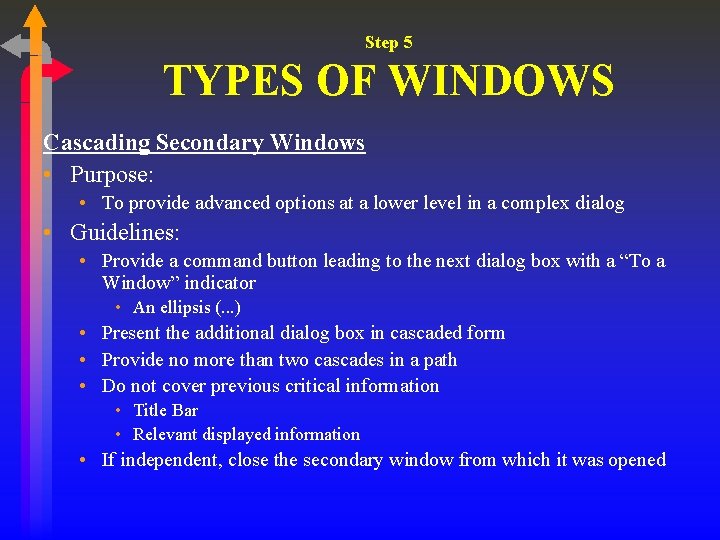
Step 5 TYPES OF WINDOWS Cascading Secondary Windows • Purpose: • To provide advanced options at a lower level in a complex dialog • Guidelines: • Provide a command button leading to the next dialog box with a “To a Window” indicator • An ellipsis (. . . ) • Present the additional dialog box in cascaded form • Provide no more than two cascades in a path • Do not cover previous critical information • Title Bar • Relevant displayed information • If independent, close the secondary window from which it was opened
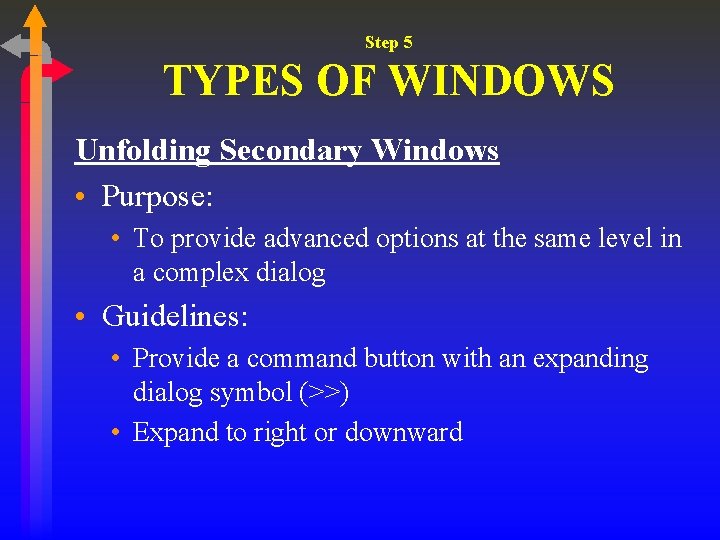
Step 5 TYPES OF WINDOWS Unfolding Secondary Windows • Purpose: • To provide advanced options at the same level in a complex dialog • Guidelines: • Provide a command button with an expanding dialog symbol (>>) • Expand to right or downward
Step 5 TYPES OF WINDOWS Dialog Boxes • Purpose: • Use for presenting brief messages • Use for requesting specific, transient actions • Use for performing actions that: • Take a short time to complete • Are not frequently changed • Guidelines: • Command buttons to include: • OK • Cancel • Others as necessary
Step 5 TYPES OF WINDOWS Property Sheets • Purpose: • Use for presenting the complete set of properties for an object • Guidelines: • Categorize and group within property pages • Use tabbed property pages for grouping peer-related property sets • Command buttons to include: • OK • • Cancel Apply Reset Others as necessary • For single property sheets: • Place commands on the sheet • For tabbed property pages: • Place commands outside the tabbed pages
Step 5 TYPES OF WINDOWS Property Inspectors • Purpose: • Use for displaying only the most common or frequently accessed object properties • Guideline: • Make changes dynamically
Step 5 TYPES OF WINDOWS Message Boxes • Purpose: • Use for displaying a message about a particular situation or condition • Guidelines: • Command buttons to include: • • • OK Cancel Help Yes and No Stop Buttons to correct the action that caused the message box to be displayed • Enable the title bar close box only if the message includes a cancel button • Designate the most frequent or least destructive option as the default command button
Step 5 TYPES OF WINDOWS Palette Windows • Purpose: • Use to present a set of controls • Guidelines: • Design as resizable • Alternately, design as fixed in size
Step 5 TYPES OF WINDOWS Pop-up Windows • Purpose: • Use pop-up windows to display: • Additional information when an abbreviated form is the main presentation • Textual labels for graphical controls • Context-sensitive Help information
Step 5 WINDOW MANAGEMENT Single-Document Interface • Description: • A primary window with set of secondary windows • Proper Usage: • Where object and window have a simple, one-to-one relationship • Where the object’s primary presentation or use is as a single unit • To support alternate views with a control that allows the view to be changed • To support simultaneous views split into panes • Advantages: • Most common usage • Window manipulation is easier and less confusing • Data-centered approach • Disadvantage: • Information displayed or edited in separate windows
Step 5 WINDOW MANAGEMENT Multiple-Document Interface • Description: • • A technique for managing a set of windows where documents are opened into windows Contains: • A single primary window, called the parent • A set of related document or child windows, each also essentially a primary window • • Each child window is constrained to appear only within the parent window Child windows share the parent window’s operational elements Parent window’s elements can be dynamically changed to reflect requirements of active child Proper Usage: • • • To present multiple occurrences of an object To compare data within two or more windows To present multiple parts of an application Best suited for viewing homogeneous object types To clearly segregate the objects and their windows used in a task
Step 5 WINDOW MANAGEMENT Multiple-Document Interface (Continued) • Advantages: • The child windows share the parent window’s interface components (menus, toolbars, and status bars), making it a very space-efficient interface • Useful for managing a set of objects • Provides a grouping and focus for a set of activities within the larger environment of the desktop
Step 5 WINDOW MANAGEMENT Multiple-Document Interface (Continued) • Disadvantages: • Reinforces an application as the primary focus • Containment for secondary windows within child windows does not exist, obscuring window relationships and possibly creating confusion • Because the parent window does not actually contain objects, context cannot always be maintained on closing and opening • The relationship between files and their windows is abstract, making an MDI application more challenging for beginning users to learn • Confining child windows to the parent window can be inconvenient or inappropriate for some tasks • The nested nature of child windows may make it difficult for the user to distinguish a child window in a parent window from a primary window that is a peer with the parent window but is positioned on top
Step 5 WINDOW MANAGEMENT Workbooks • Description: • A technique consisting of set of views organized like a tabbed notebook • Based upon the metaphor of a book or notebook • Views of objects are presented as sections within the workbook’s primary windows; child windows do not exist • Each section represents a view of data • Tabs can be included and used to navigate between sections • Otherwise, its characteristics and behavior are similar to those of the multipledocument interface with all child windows maximized • Proper Usage: • To manage a set of views of an object • To optimize quick navigation of multiple views • For content where the order of the sections is significant
Step 5 WINDOW MANAGEMENT Workbooks (Continued) • Advantages: • Provides a grouping and focus for a set of activities within the larger environment of the desktop • Conserves screen real estate • Provides the greater simplicity of the single-document window interface • Provides greater simplicity by eliminating child window management • Preserves some management capabilities of the multiple-document interface • Disadvantage: • Cannot present simultaneous views
Step 5 WINDOW MANAGEMENT Projects • Description: • • A technique that consists of a container: a project window holding a set of objects Objects being held within the project window can be opened in primary windows that are peers with the project window Visual containment of the peer windows within the project window is not necessary Each opened peer window must possess its own menu bar and other interface elements Each opened peer window can have its own entry on the task bar When a project window is closed, all the peer windows of objects also close When the project window is opened, the peer windows of the contained objects are restored to their former positions Peer windows of a project may be restored without the project window itself being restored
Step 5 WINDOW MANAGEMENT Projects (Continued) • Proper Usage: • • To manage a set of objects that do not necessarily need to be contained When child windows are not to be constrained Advantages: Provides a grouping and focus for a set of activities within the larger environment of the desktop • Preserves some management capabilities of the multiple document interface • Provides the greatest flexibility in the placement and arrangement of windows • Disadvantage: • Increased complexity due to difficulty in differentiating peer primary windows of the project from windows of other applications
Step 5 ORGANIZING WINDOW FUNCTIONS Window Organization • Organize windows to support user tasks • Support the most common tasks in the most efficient sequence of steps • Use primary windows to: • Begin an interaction and provide a top-level context for dependent windows • Perform a major interaction • Use secondary windows to: • Extend the interaction • Obtain or display supplemental information related to the primary window • Use dialog boxes for: • Infrequently used or needed information • “Nice-to-know” information
Step 5 ORGANIZING WINDOW FUNCTIONS • Poor functional organization is often a result of: • Emphasis on technical ease of implementation rather than proper analysis of user tasks • Focus on applications, features, functions, or data types instead of tasks • Organization of the design team into applications, with little cross-team communication • Blindly mimicking the manual world and carrying over manual inefficiencies to the computer system
Step 5 ORGANIZING WINDOW FUNCTIONS Number of Windows • Minimize the number of windows needed to accomplish an objective
Step 5 WINDOW OPERATIONS Active Window • A window should be made active with as few steps as possible • Visually differentiate the active window from other windows General Guidelines • Design easy to use and learn windowing operations • Direct manipulation seems to be a faster and more intuitive interaction style than indirect manipulation • Minimize the number of window operations necessary to achieve a desired effect • Make navigating between windows particularly easy and efficient to do • Make the setting up of windows particularly easy to remember • In overlapping systems, provide powerful commands for arranging windows on the screen in user-tailorable configurations
Step 5 WINDOW OPERATIONS Opening a Window • Provide an iconic representation or textual list of available windows • If opening with an expansion of an icon, animate the icon expansion • When opening a window: • Position the opening window in the most forward plane of the screen • Adapt the window to the size and shape of the monitor on which it will be presented • Designate it as the active window • Set it off against a neutral background • Ensure that its title bar is visible • When a primary window is opened or restored, position it on top • Restore all secondary windows to the states that existed when the primary window was closed
Step 5 WINDOW OPERATIONS Opening a Window (Continued) • When a dependent secondary window is opened, position it on top of its associated primary window • Position a secondary window with peer windows on top of its peers • Present layered or cascaded windows with any related peer secondary windows • When a dependent secondary window is activated, its primary window and related peer windows should also be positioned at the top • If more than one object is selected and opened, display each object in a separate window. Designate the last window selected as the active window • Display a window in the same state as when it was last accessed • If the task, however, requires a particular sequence of windows, use a fixed or consistent presentation sequence • With tiled windows, provide an easy way to resize and move newly opened windows
Step 5 WINDOW OPERATIONS Sizing Windows • Provide large-enough windows to: • • Present all relevant and expected information for the task Avoid hiding important information Avoid crowding or visual confusion Minimize the need for scrolling • But use less than the full size of the screen • If a window is too large, determine: • Is all the information needed? • Is all the information related? • Otherwise, make the window as small as possible • Optimum window sizes: • For text, about 12 lines • For alphanumeric information, about 7 lines
Step 5 WINDOW OPERATIONS • Advantages of larger windows • • • Permit displaying of more information Facilitate learning: Data relationships and groupings are more obvious Less window manipulation requirements exist Breadth is preferred to depth (based on menu research) More efficient data validation and data correction can be performed • Disadvantages of larger windows • • • Longer pointer movements are required Windows are more crowded More visual scanning is required Other windows more easily obscure parts of the window Not as easy to hide inappropriate data
Step 5 WINDOW OPERATIONS Window Placement • Considerations: • In placing a window on the display, consider: • The use of the window • The overall display dimensions • The reason for the window’s appearance • General: • Position the window so it is entirely visible • If the window is being restored, place the window where it last appeared • If the window is new, and a location has not yet been established, place it: • At the point of the viewer’s attention, usually the location of the pointer or cursor • In a position convenient to navigate to • So that it is not obscuring important or related underlying window information
Step 5 WINDOW OPERATIONS Window Placement (Continued) • For multiple windows, give each additional window its own unique and discernible location • A cascading presentation is recommended • In a multiple-monitor configuration, display the secondary window on the same monitor as its primary window • If none of the above location considerations apply, then: • Horizontally center a secondary window within its primary window just below the title bar, menu bar, and any docked toolbars • If the user then moves the window, display it at this new location the next time the user opens the window • Adjust it as necessary to the current display configuration • Do not let the user move a window to a position where it cannot be easily repositioned
Step 5 WINDOW OPERATIONS Window Placement (Continued) • Dialog boxes: • If the dialog box relates to the entire system, center it on screen • Keep key information on the underlying screen visible • If one dialog box calls another, make the new one movable whenever possible
Step 5 WINDOW OPERATIONS Window Separation • Crisply, clearly, and pleasingly demarcate a window from the background of the screen on which it appears • Provide a surrounding solid line border for the window • Provide a window background that sets the window off well against the overall screen background • Consider incorporating a drop shadow beneath the window
Step 5 WINDOW OPERATIONS Moving a Window • Permit the user to change the position of all windows • Change the pointer shape to indicate that the move selection is successful • Move the entire window as the pointer moves • If it is impossible to move the entire window, move the window outline while leaving the window displayed in its original position • Permit the moving of a window without its being active
Step 5 WINDOW OPERATIONS Resizing a Window • Permit the user to change the size of primary windows • Unless the information displayed is fixed or cannot be scaled to provide more information • Change the pointer shape to indicate that the resizing selection is successful • The simplest operation is to anchor the upper-left corner and resize from the lower-right corner • Also permit resizing from any point on the window • Show the changing window as the pointer moves • If it is impossible to show the entire window being resized, show the window’s outline while leaving the window displayed in its original position • When window size changes and content remains the same: • Change image size proportionally as window size changes
Step 5 WINDOW OPERATIONS Resizing a Window (Continued) • If resizing creates a window or image too small for easy use, do one of the following: • Clip (truncate) information arranged in some logical structure or layout when minimum size is attained, or • When no layout considerations exist, format (restructure) information as size is reduced, or • Remove less useful information (if it can be determined), or • When minimum size is attained, replace information with a message that indicates that the minimum size has been reached and that the window must be enlarged to continue working • Permit resizing a window without its being active
Step 5 WINDOW OPERATIONS Other Operations • Permit primary windows to be maximized, minimized, and restored Window Shuffling • Window shuffling must be easy to accomplish Keyboard Control/Mouseless Operation • Window actions should be capable of being performed through the keyboard as well as with a mouse • Keyboard alternatives should be designated through use of mnemonic codes as much as possible • Keyboard designations should be capable of being modified by the user
Step 5 WINDOW OPERATIONS Closing a Window • Close a window when: • The user requests that it be closed • The user performs the action required in the window • The window has no further relevance • If a primary window is closed, also close all of its secondary windows • When a window is closed, save its current state, including size and position, for use when the window is opened again
Step 5 WEB SYSTEMS Frames • Description: • Multiple Web screen panes that permit the displaying of multiple documents on a page • These documents can be independently viewed, scrolled, and updated • The documents are presented in a tiled format • Proper usage: • For content expected to change frequently • To allow users to change partial screen content • To permit users to compare pieces of information • Guidelines: • • Use only a few frames (three or less) at a time Choose sizes based upon the type of information to be presented Never force viewers to resize frames to see information Never use more than one scrolling region on a page
Step 5 WEB SYSTEMS Pop-Up Windows • Be extremely cautious in the use of pop-up windows
Step 6 SELECT THE PROPER DEVICE-BASED CONTROLS Step 6 Overview • • • Trackball Joystick Graphic tablet Light pen Touch screen Voice Mouse Keyboard Selecting Controls Pointers
Step 6 CHARACTERISTICS OF DEVICE-BASED CONTROLS • Point at an object on the screen • Select the object or identify it as the focus of attention • Drag an object across the screen • Draw something free form on the screen • Track or follow a moving object • Orient or position an object • Enter or manipulate data or information
Step 6 TRACKBALL Description: • A spherical object (ball) that rotates freely in all directions in its socket • Direction and speed is tracked and translated into cursor movement Advantages: • Direct relationship between hand pointer movement in terms of direction and speed • Does not obscure vision of screen • Does not require additional desk space (if mounted on KB) Disadvantages: • Movement is indirect, in a plane different from the screen • No direct relationship exists between hand pointer movement in terms of distance • Requires a degree of eye-hand coordination • Requires hand to be removed from keyboard keys • Requires different hand movements • Requires hand to be removed from keyboard (if not mounted on keyboard) • Requires additional desk space (if not mounted on keyboard) • May be difficult to control • May be fatiguing to use over extended time
Step 6 JOYSTICK Description: • A stick or bat-shaped device anchored at the bottom • Variable in size, smaller ones being operated by fingers, larger ones requiring the whole hand • Variable in cursor direction movement method, force joysticks respond to pressure, movable to movement • Variable in degree of movement allowed, from horizontal-vertical only to continuous Advantages: • Direct relationship between hand pointer movement in terms of direction • Does not obscure vision of screen • Does not require additional desk space (if mounted on KB) Disadvantages: • Movement indirect, in plane different from screen • Indirect relationship between hand pointer in terms of speed and distance • Requires a degree of eye-hand coordination • Requires hand to be removed from keyboard keys • Requires different hand movements to use • Requires hand to be removed from keyboard (if not on KB) • Requires additional desk space (if not on KB) • May be fatiguing to use over extended time • May be slow and inaccurate
Step 6 GRAPHIC TABLET Description: • Pressure-, heat-, light-, or light-blockage-sensitive horizontal surfaces that lie on the desktop or keyboard • May be operated with fingers, light pen, or objects like a stylus or pencil • Pointer imitates movements on tablet Advantages: • Direct relationship between touch movements and pointer movements in terms of direction, distance, and speed • More comfortable horizontal operating plane • Does not obscure vision of screen Disadvantages: • Movement is indirect, in a plane different from screen • Requires hand to be removed from keyboard keys • Requires different hand movements to use • Requires additional desk space • Finger may be too large for accuracy with small objects
Step 6 TOUCH SCREEN Description: • A special surface on the screen sensitive to finger or stylus Advantages: • Direct relationship between hand pointer location in terms of direction, distance, and speed • Movement is direct, in the same plane as screen • Requires no additional desk space • Stands up well in high-use environments Disadvantages: • Finger may obscure part of screen • Finger may be too large for accuracy with small objects • Requires moving the hand far from the keyboard to use • Very fatiguing to use for extended period of time • May soil or damage the screen Design Guidelines: • Screen objects should be at least 3/4" x 3/4" in size • Object separation should be at least 1/8" • Provide visual feedback in response to activation • • • Auditory feedback may also be appropriate When the consequences are destructive, require confirmation to eliminate inadvertent selection Provide an instructional invitation to begin using
Step 6 LIGHT PEN Description: • A special surface on a screen sensitive to the touch of a special stylus or pen Advantages: • Direct relationship between hand pointer movement in terms of direction, distance, and speed • Movement is direct, in the same plane as screen • Requires minimal additional desk space • Stands up well in high-use environments • More accurate than finger touching Disadvantages: • Hand may obscure part of screen • Requires picking it up to use • Requires moving the hand far from the keyboard to use • Very fatiguing to use for extended period of time
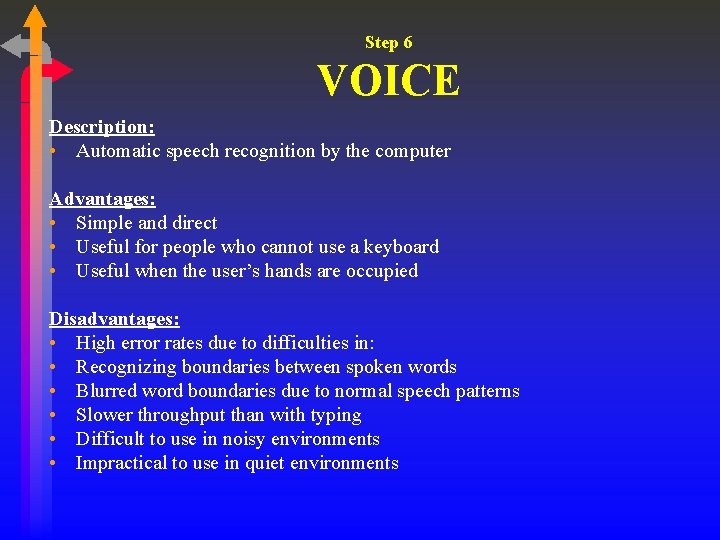
Step 6 VOICE Description: • Automatic speech recognition by the computer Advantages: • Simple and direct • Useful for people who cannot use a keyboard • Useful when the user’s hands are occupied Disadvantages: • High error rates due to difficulties in: • Recognizing boundaries between spoken words • Blurred word boundaries due to normal speech patterns • Slower throughput than with typing • Difficult to use in noisy environments • Impractical to use in quiet environments
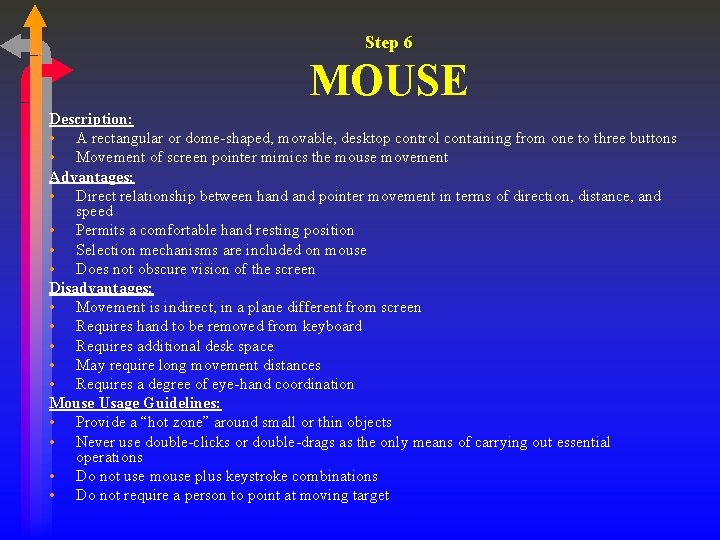
Step 6 MOUSE Description: • A rectangular or dome-shaped, movable, desktop control containing from one to three buttons • Movement of screen pointer mimics the mouse movement Advantages: • Direct relationship between hand pointer movement in terms of direction, distance, and speed • Permits a comfortable hand resting position • Selection mechanisms are included on mouse • Does not obscure vision of the screen Disadvantages: • Movement is indirect, in a plane different from screen • Requires hand to be removed from keyboard • Requires additional desk space • May require long movement distances • Requires a degree of eye-hand coordination Mouse Usage Guidelines: • Provide a “hot zone” around small or thin objects • Never use double-clicks or double-drags as the only means of carrying out essential operations • Do not use mouse plus keystroke combinations • Do not require a person to point at moving target
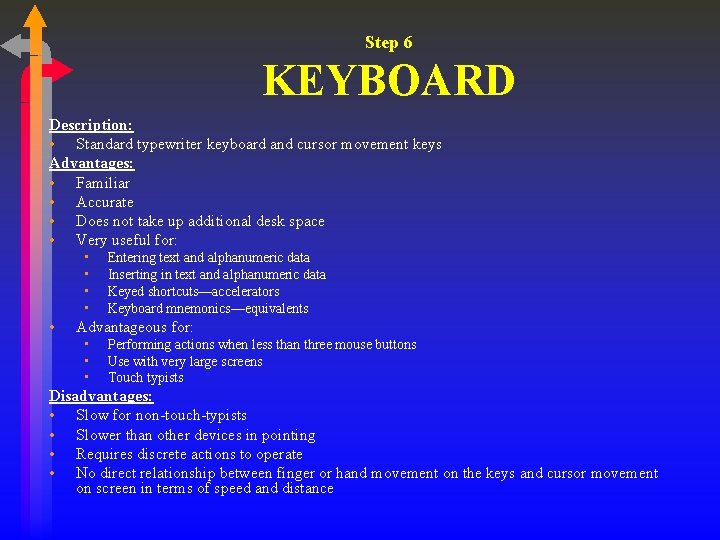
Step 6 KEYBOARD Description: • Standard typewriter keyboard and cursor movement keys Advantages: • Familiar • Accurate • Does not take up additional desk space • Very useful for: • • • Entering text and alphanumeric data Inserting in text and alphanumeric data Keyed shortcuts—accelerators Keyboard mnemonics—equivalents Advantageous for: • • • Performing actions when less than three mouse buttons Use with very large screens Touch typists Disadvantages: • Slow for non-touch-typists • Slower than other devices in pointing • Requires discrete actions to operate • No direct relationship between finger or hand movement on the keys and cursor movement on screen in terms of speed and distance
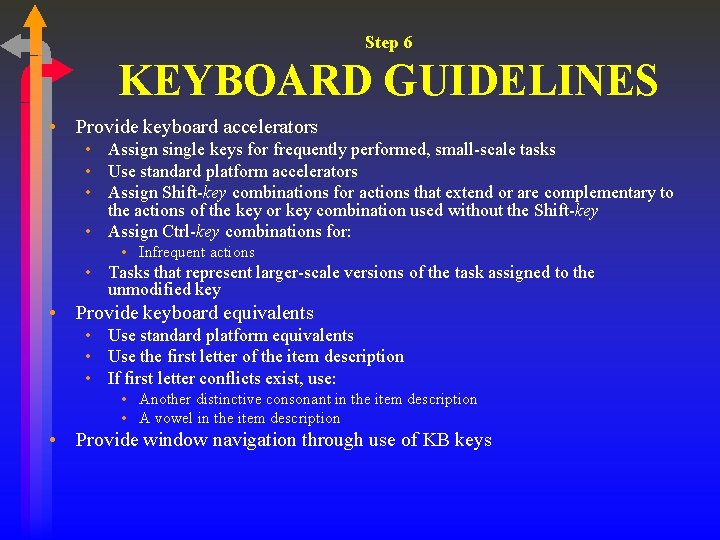
Step 6 KEYBOARD GUIDELINES • Provide keyboard accelerators • Assign single keys for frequently performed, small-scale tasks • Use standard platform accelerators • Assign Shift-key combinations for actions that extend or are complementary to the actions of the key or key combination used without the Shift-key • Assign Ctrl-key combinations for: • Infrequent actions • Tasks that represent larger-scale versions of the task assigned to the unmodified key • Provide keyboard equivalents • Use standard platform equivalents • Use the first letter of the item description • If first letter conflicts exist, use: • Another distinctive consonant in the item description • A vowel in the item description • Provide window navigation through use of KB keys
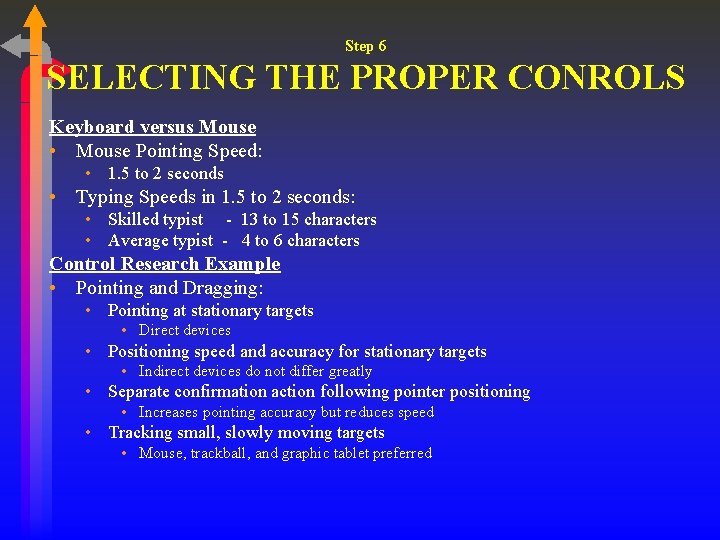
Step 6 SELECTING THE PROPER CONROLS Keyboard versus Mouse • Mouse Pointing Speed: • 1. 5 to 2 seconds • Typing Speeds in 1. 5 to 2 seconds: • Skilled typist - 13 to 15 characters • Average typist - 4 to 6 characters Control Research Example • Pointing and Dragging: • Pointing at stationary targets • Direct devices • Positioning speed and accuracy for stationary targets • Indirect devices do not differ greatly • Separate confirmation action following pointer positioning • Increases pointing accuracy but reduces speed • Tracking small, slowly moving targets • Mouse, trackball, and graphic tablet preferred
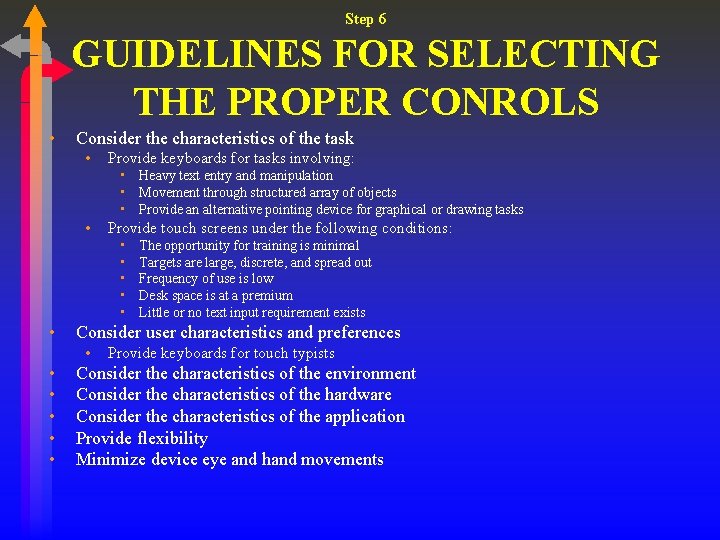
Step 6 GUIDELINES FOR SELECTING THE PROPER CONROLS • Consider the characteristics of the task • Provide keyboards for tasks involving: • Heavy text entry and manipulation • Movement through structured array of objects • Provide an alternative pointing device for graphical or drawing tasks • Provide touch screens under the following conditions: • • • Consider user characteristics and preferences • • • The opportunity for training is minimal Targets are large, discrete, and spread out Frequency of use is low Desk space is at a premium Little or no text input requirement exists Provide keyboards for touch typists Consider the characteristics of the environment Consider the characteristics of the hardware Consider the characteristics of the application Provide flexibility Minimize device eye and hand movements
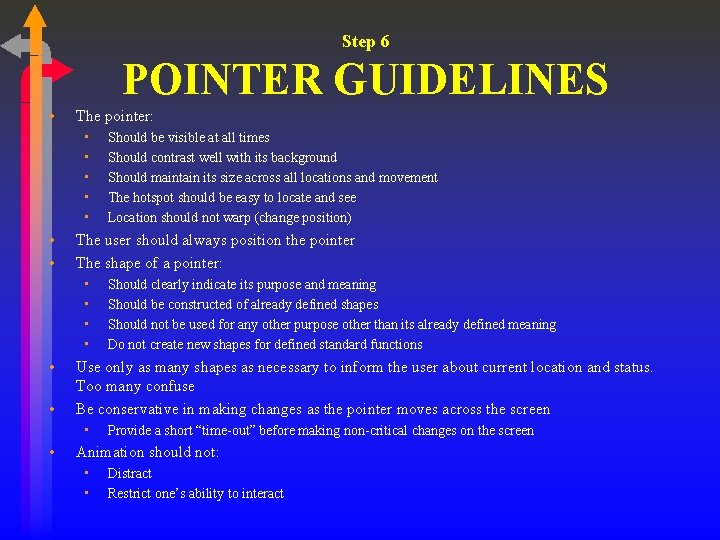
Step 6 POINTER GUIDELINES • The pointer: • • The user should always position the pointer The shape of a pointer: • • • Should clearly indicate its purpose and meaning Should be constructed of already defined shapes Should not be used for any other purpose other than its already defined meaning Do not create new shapes for defined standard functions Use only as many shapes as necessary to inform the user about current location and status. Too many confuse Be conservative in making changes as the pointer moves across the screen • • Should be visible at all times Should contrast well with its background Should maintain its size across all locations and movement The hotspot should be easy to locate and see Location should not warp (change position) Provide a short “time-out” before making non-critical changes on the screen Animation should not: • • Distract Restrict one’s ability to interact