
Week 2 Essential Administrative Tools Objectives Common Commands
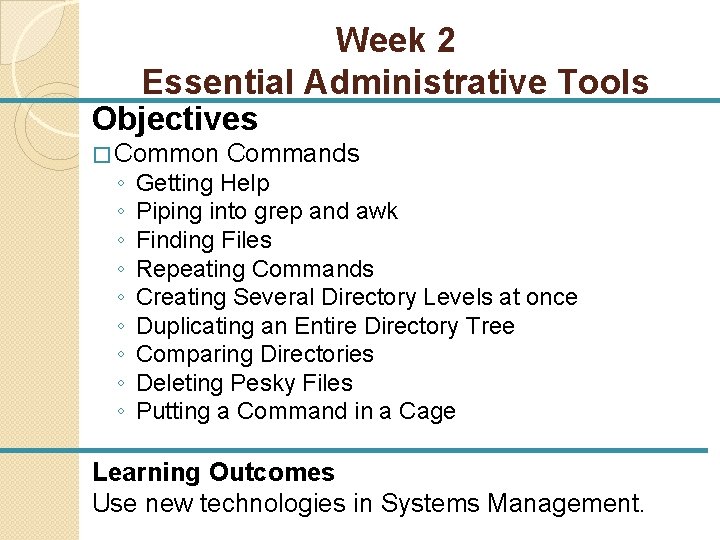
Week 2 Essential Administrative Tools Objectives � Common ◦ ◦ ◦ ◦ ◦ Commands Getting Help Piping into grep and awk Finding Files Repeating Commands Creating Several Directory Levels at once Duplicating an Entire Directory Tree Comparing Directories Deleting Pesky Files Putting a Command in a Cage Learning Outcomes Use new technologies in Systems Management.

Common Commands � The right tools make any job easier, and the lack of them can make some tasks almost impossible. � The commands and utilities that Unix provides can make system administration easier. � Sometimes that means applying common user commands to administrative tasks, sometimes it means putting commands together in unexpected ways, and sometimes it means making smarter and more efficient use of familiar tools. � So, consider advanced and administrative uses of familiar Unix commands.
Getting Help � The manual page facility is the quintessentially Unix approach to online help: superficially minimalist, often obscure, but mostly complete. It’s also easy to use, once you know your way around it. � Undoubtedly, the basics of the man command are familiar: getting help for a command, specifying a specific section, using -k (or apropos) to search for entries for a specific topic, and so on. � The first is that you can request multiple manual pages within a single man command: $ man umount fsck newfs � man presents the pages as separate files to the display program, and you can move among them using its normal method (for example, with : n in more).
Getting Help (cont…) � On Free. BSD, Linux, and Solaris systems, man also has a -a option, which retrieves the specified manual page(s) from every section of the manual. � For example, the first command below displays the introductory manual page for every section for which one is available, and the second command displays the manual pages for both the chown command system call: $ man -a intro $ man -a chown � Manual pages are generally located in a predictable location within the filesystem, often /usr/share/man.
Getting Help (cont…) � You can configure the man command to search multiple man directory trees by setting the MANPATH environment variable to the colon-separated list of desired directories ( In Linux Mint: MANPATH=/usr/man: /usr/share/man export MANPATH) � If you want these changes to stick, and to be sure they always persist, then put a line in /etc/profile. � Eg PATH=/usr/bin/jdk 1. 5. 0_11/bin/: /u/DLC/dlcv 102 b/: /u/DLC/d lcv 102 b/bin: $PATH: /opt/dell/srvadmin/bin: /opt/dell/srvadmi n/sbinexport PATH

Getting Help - Changing the search Order � The man command searches the various manual page sections in a predefined order: commands first, followed by system calls and library functions, and then the other sections (i. e. , 1, 6, 8, 2, 3, 4, 5, and 7 for BSD-based schemes). � The first manual page matching the one specified on the command line is displayed. � In some cases, a different order might make more sense. � Many operating systems allow this ordering scheme to be customized via the MANSECTS entry within a configuration file. For example, Solaris allows the search order to be customized via the MANSECTS entry in the /usr/share/man. cf configuration file. � You specify a list of sections in the order in which you want them to be searched: MANSECTS=8, 1, 2, 3, 4, 5, 6, 7 � This ordering brings administrative command sections to the beginning of the list.
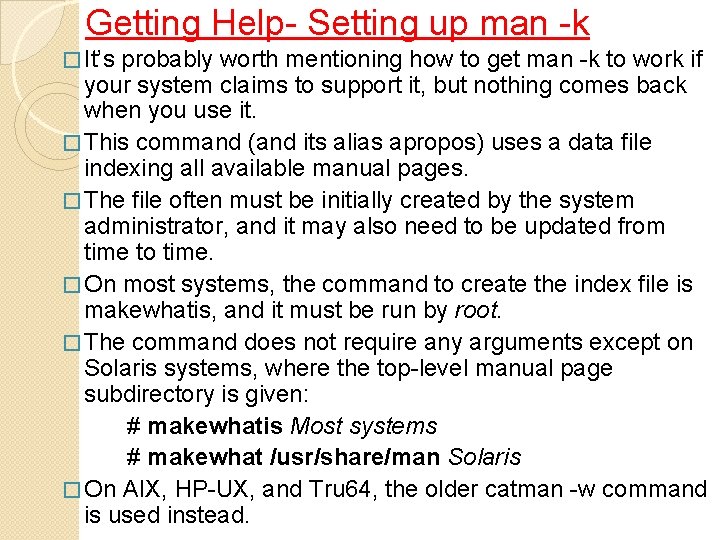
Getting Help- Setting up man -k � It’s probably worth mentioning how to get man -k to work if your system claims to support it, but nothing comes back when you use it. � This command (and its alias apropos) uses a data file indexing all available manual pages. � The file often must be initially created by the system administrator, and it may also need to be updated from time to time. � On most systems, the command to create the index file is makewhatis, and it must be run by root. � The command does not require any arguments except on Solaris systems, where the top-level manual page subdirectory is given: # makewhatis Most systems # makewhat /usr/share/man Solaris � On AIX, HP-UX, and Tru 64, the older catman -w command is used instead.
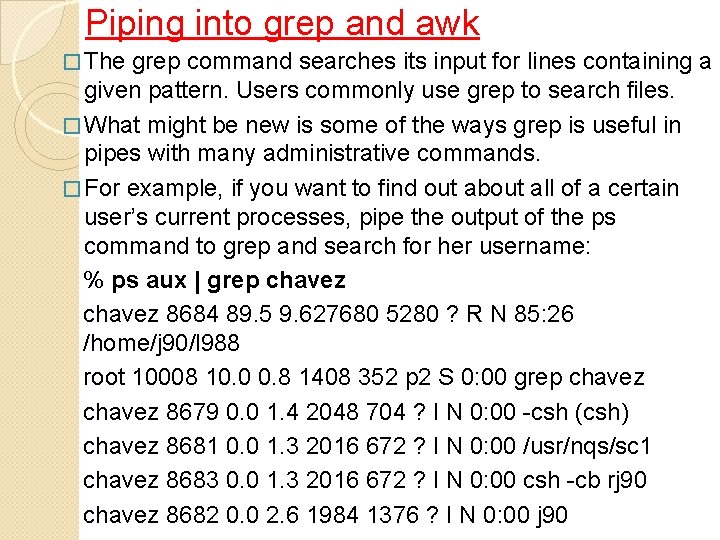
Piping into grep and awk � The grep command searches its input for lines containing a given pattern. Users commonly use grep to search files. � What might be new is some of the ways grep is useful in pipes with many administrative commands. � For example, if you want to find out about all of a certain user’s current processes, pipe the output of the ps command to grep and search for her username: % ps aux | grep chavez 8684 89. 5 9. 627680 5280 ? R N 85: 26 /home/j 90/l 988 root 10008 10. 0 0. 8 1408 352 p 2 S 0: 00 grep chavez 8679 0. 0 1. 4 2048 704 ? I N 0: 00 -csh (csh) chavez 8681 0. 0 1. 3 2016 672 ? I N 0: 00 /usr/nqs/sc 1 chavez 8683 0. 0 1. 3 2016 672 ? I N 0: 00 csh -cb rj 90 chavez 8682 0. 0 2. 6 1984 1376 ? I N 0: 00 j 90
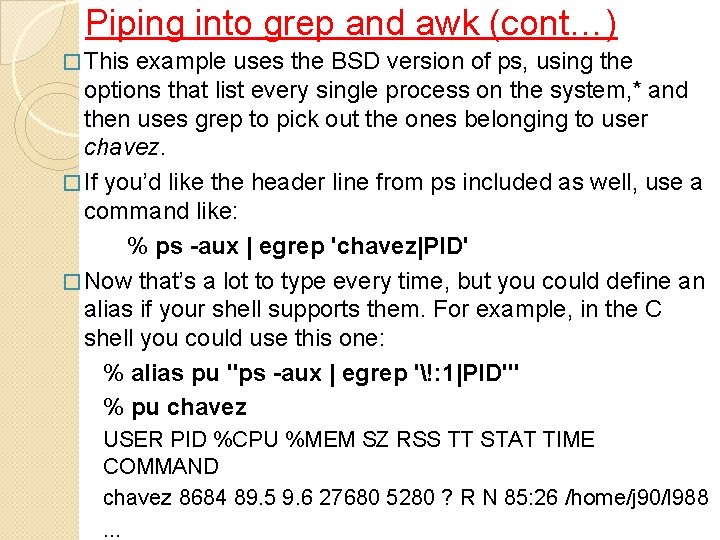
Piping into grep and awk (cont…) � This example uses the BSD version of ps, using the options that list every single process on the system, * and then uses grep to pick out the ones belonging to user chavez. � If you’d like the header line from ps included as well, use a command like: % ps -aux | egrep 'chavez|PID' � Now that’s a lot to type every time, but you could define an alias if your shell supports them. For example, in the C shell you could use this one: % alias pu "ps -aux | egrep '!: 1|PID'" % pu chavez USER PID %CPU %MEM SZ RSS TT STAT TIME COMMAND chavez 8684 89. 5 9. 6 27680 5280 ? R N 85: 26 /home/j 90/l 988. . .
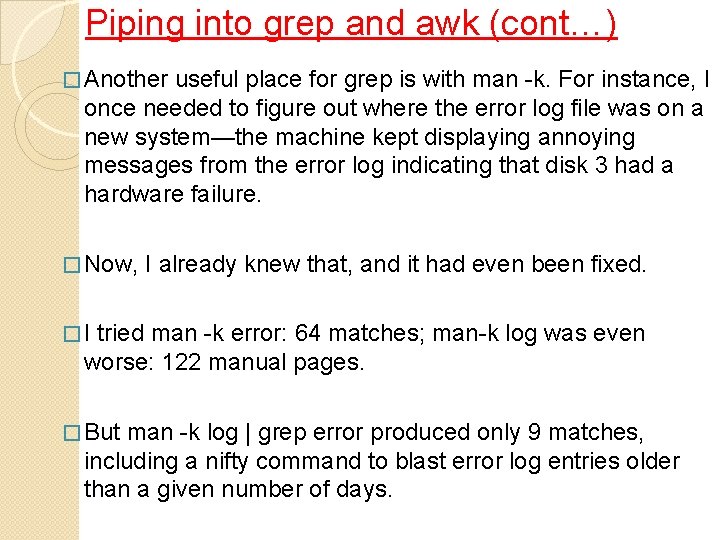
Piping into grep and awk (cont…) � Another useful place for grep is with man -k. For instance, I once needed to figure out where the error log file was on a new system—the machine kept displaying annoying messages from the error log indicating that disk 3 had a hardware failure. � Now, I already knew that, and it had even been fixed. �I tried man -k error: 64 matches; man-k log was even worse: 122 manual pages. � But man -k log | grep error produced only 9 matches, including a nifty command to blast error log entries older than a given number of days.
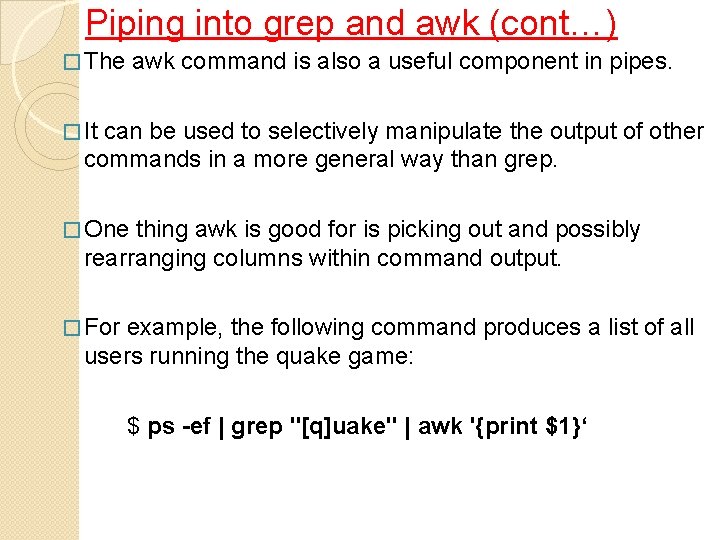
Piping into grep and awk (cont…) � The awk command is also a useful component in pipes. � It can be used to selectively manipulate the output of other commands in a more general way than grep. � One thing awk is good for is picking out and possibly rearranging columns within command output. � For example, the following command produces a list of all users running the quake game: $ ps -ef | grep "[q]uake" | awk '{print $1}‘
Piping into grep and awk (cont…) � This awk command prints only the first field from each line of ps output passed to it by grep. � The search string for grep may strike you as odd, since the brackets enclose only a single character. � The command is constructed that way so that the ps line for the grep command itself will not be selected (since the string “quake” does not appear in it). � It’s basically a trick to avoid having to add grep -v grep to the pipe between the grep and awk commands.
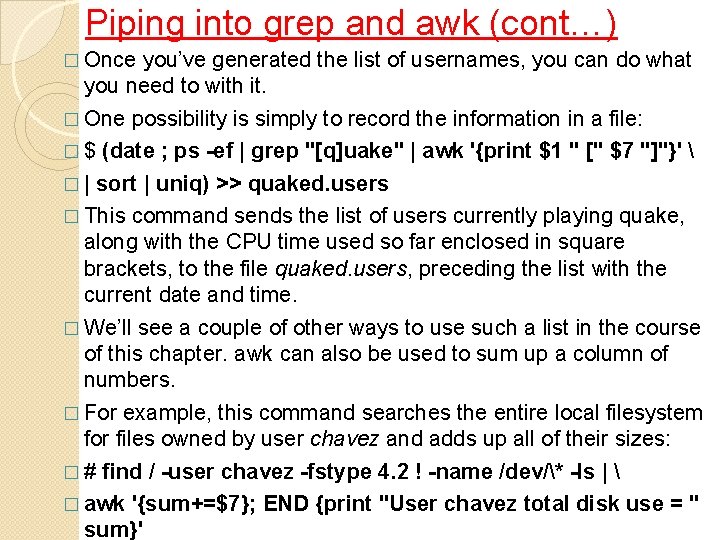
Piping into grep and awk (cont…) � Once you’ve generated the list of usernames, you can do what you need to with it. � One possibility is simply to record the information in a file: � $ (date ; ps -ef | grep "[q]uake" | awk '{print $1 " [" $7 "]"}' � | sort | uniq) >> quaked. users � This command sends the list of users currently playing quake, along with the CPU time used so far enclosed in square brackets, to the file quaked. users, preceding the list with the current date and time. � We’ll see a couple of other ways to use such a list in the course of this chapter. awk can also be used to sum up a column of numbers. � For example, this command searches the entire local filesystem for files owned by user chavez and adds up all of their sizes: � # find / -user chavez -fstype 4. 2 ! -name /dev/* -ls | � awk '{sum+=$7}; END {print "User chavez total disk use = " sum}'
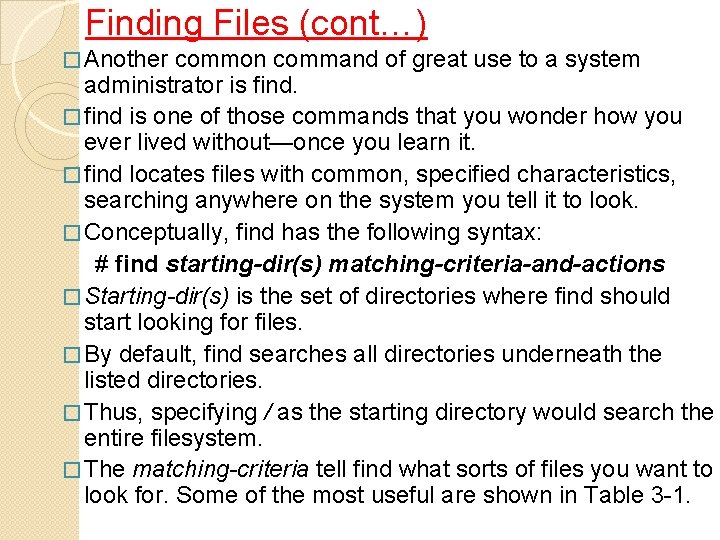
Finding Files (cont…) � Another common command of great use to a system administrator is find. � find is one of those commands that you wonder how you ever lived without—once you learn it. � find locates files with common, specified characteristics, searching anywhere on the system you tell it to look. � Conceptually, find has the following syntax: # find starting-dir(s) matching-criteria-and-actions � Starting-dir(s) is the set of directories where find should start looking for files. � By default, find searches all directories underneath the listed directories. � Thus, specifying / as the starting directory would search the entire filesystem. � The matching-criteria tell find what sorts of files you want to look for. Some of the most useful are shown in Table 3 -1.
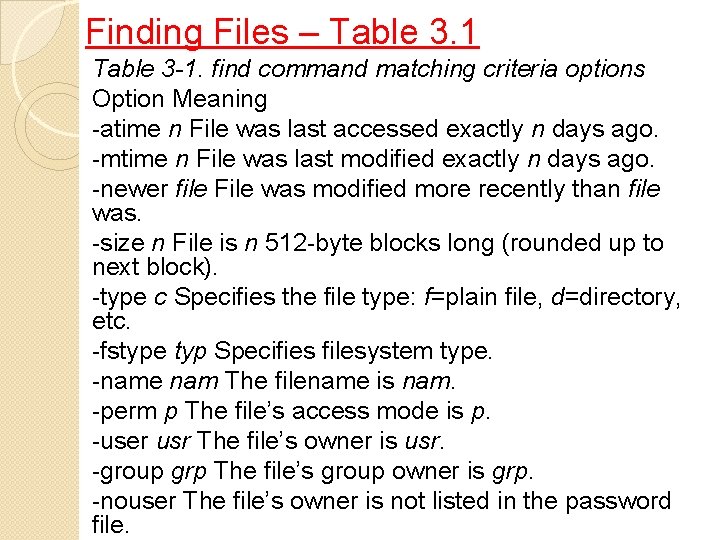
Finding Files – Table 3. 1 Table 3 -1. find command matching criteria options Option Meaning -atime n File was last accessed exactly n days ago. -mtime n File was last modified exactly n days ago. -newer file File was modified more recently than file was. -size n File is n 512 -byte blocks long (rounded up to next block). -type c Specifies the file type: f=plain file, d=directory, etc. -fstype typ Specifies filesystem type. -name nam The filename is nam. -perm p The file’s access mode is p. -user usr The file’s owner is usr. -group grp The file’s group owner is grp. -nouser The file’s owner is not listed in the password file.
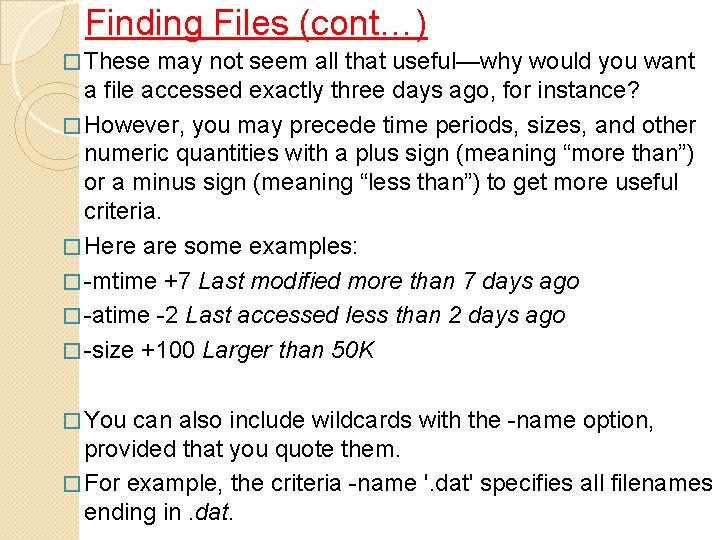
Finding Files (cont…) � These may not seem all that useful—why would you want a file accessed exactly three days ago, for instance? � However, you may precede time periods, sizes, and other numeric quantities with a plus sign (meaning “more than”) or a minus sign (meaning “less than”) to get more useful criteria. � Here are some examples: � -mtime +7 Last modified more than 7 days ago � -atime -2 Last accessed less than 2 days ago � -size +100 Larger than 50 K � You can also include wildcards with the -name option, provided that you quote them. � For example, the criteria -name '. dat' specifies all filenames ending in. dat.
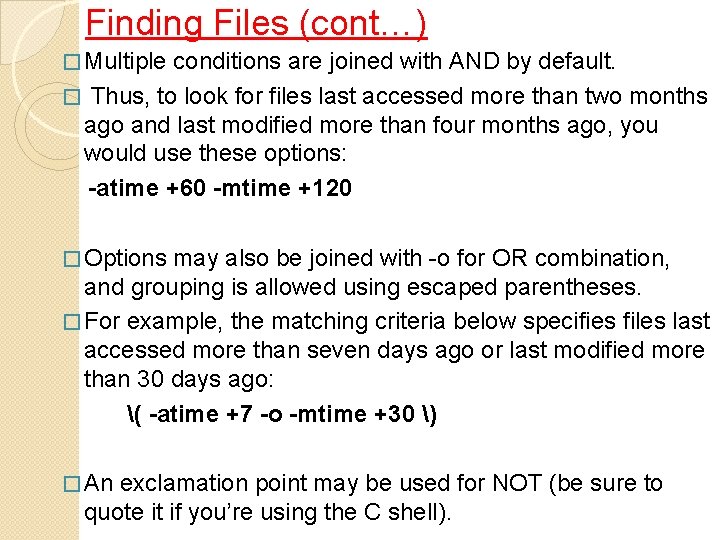
Finding Files (cont…) � Multiple conditions are joined with AND by default. � Thus, to look for files last accessed more than two months ago and last modified more than four months ago, you would use these options: -atime +60 -mtime +120 � Options may also be joined with -o for OR combination, and grouping is allowed using escaped parentheses. � For example, the matching criteria below specifies files last accessed more than seven days ago or last modified more than 30 days ago: ( -atime +7 -o -mtime +30 ) � An exclamation point may be used for NOT (be sure to quote it if you’re using the C shell).
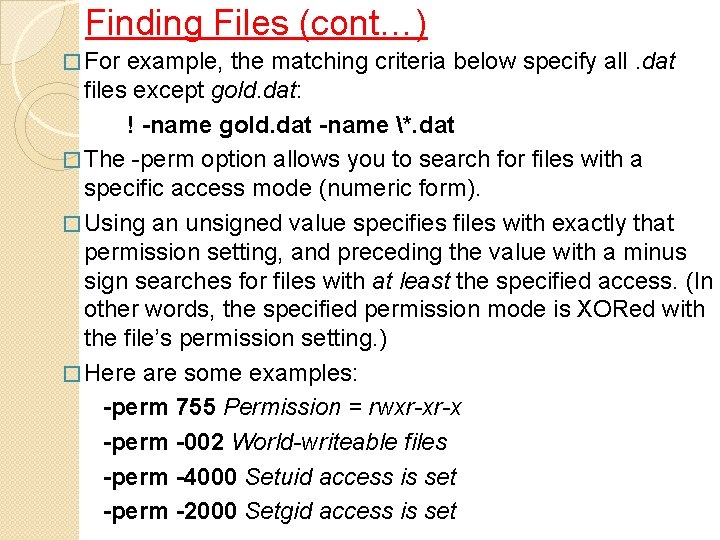
Finding Files (cont…) � For example, the matching criteria below specify all. dat files except gold. dat: ! -name gold. dat -name *. dat � The -perm option allows you to search for files with a specific access mode (numeric form). � Using an unsigned value specifies files with exactly that permission setting, and preceding the value with a minus sign searches for files with at least the specified access. (In other words, the specified permission mode is XORed with the file’s permission setting. ) � Here are some examples: -perm 755 Permission = rwxr-xr-x -perm -002 World-writeable files -perm -4000 Setuid access is set -perm -2000 Setgid access is set
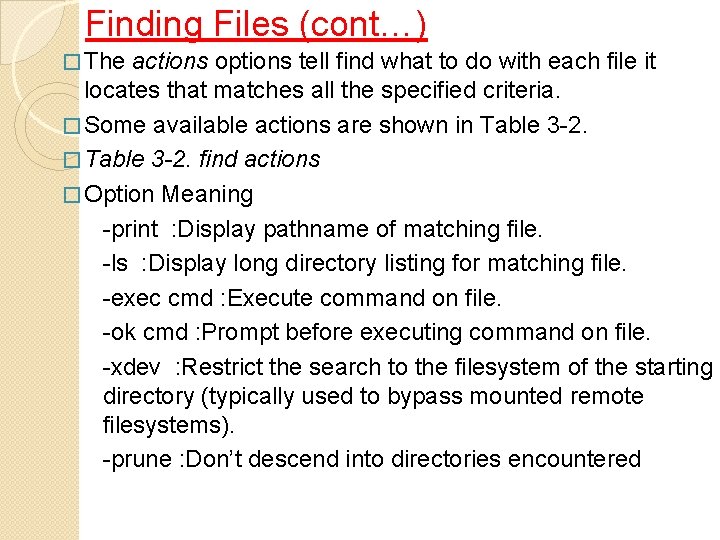
Finding Files (cont…) � The actions options tell find what to do with each file it locates that matches all the specified criteria. � Some available actions are shown in Table 3 -2. � Table 3 -2. find actions � Option Meaning -print : Display pathname of matching file. -ls : Display long directory listing for matching file. -exec cmd : Execute command on file. -ok cmd : Prompt before executing command on file. -xdev : Restrict the search to the filesystem of the starting directory (typically used to bypass mounted remote filesystems). -prune : Don’t descend into directories encountered
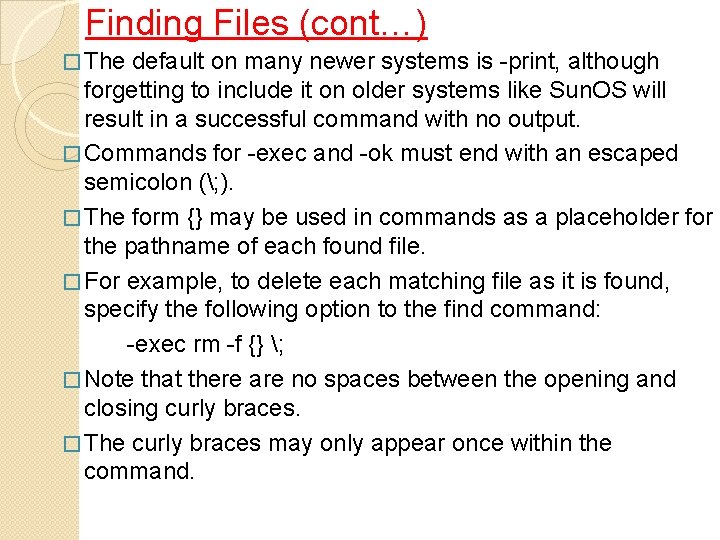
Finding Files (cont…) � The default on many newer systems is -print, although forgetting to include it on older systems like Sun. OS will result in a successful command with no output. � Commands for -exec and -ok must end with an escaped semicolon (; ). � The form {} may be used in commands as a placeholder for the pathname of each found file. � For example, to delete each matching file as it is found, specify the following option to the find command: -exec rm -f {} ; � Note that there are no spaces between the opening and closing curly braces. � The curly braces may only appear once within the command.
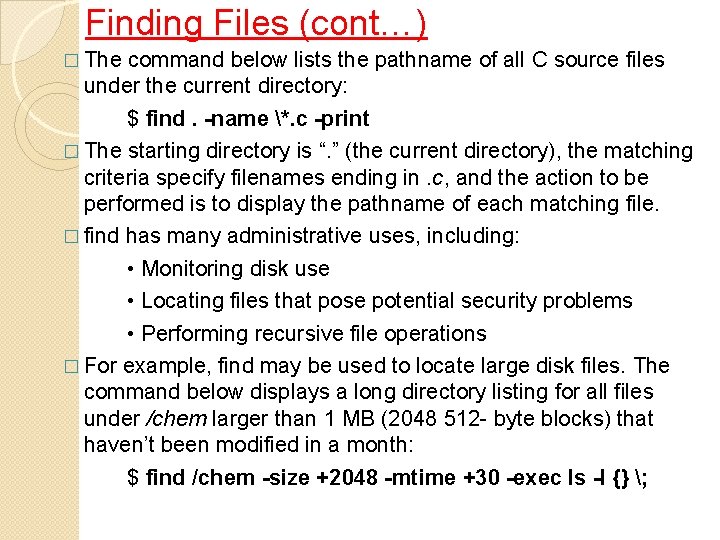
Finding Files (cont…) � The command below lists the pathname of all C source files under the current directory: $ find. -name *. c -print � The starting directory is “. ” (the current directory), the matching criteria specify filenames ending in. c, and the action to be performed is to display the pathname of each matching file. � find has many administrative uses, including: • Monitoring disk use • Locating files that pose potential security problems • Performing recursive file operations � For example, find may be used to locate large disk files. The command below displays a long directory listing for all files under /chem larger than 1 MB (2048 512 - byte blocks) that haven’t been modified in a month: $ find /chem -size +2048 -mtime +30 -exec ls -l {} ;
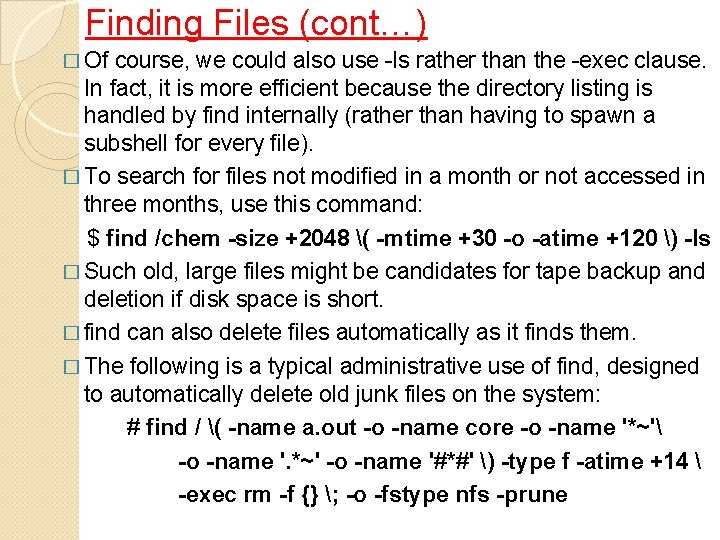
Finding Files (cont…) � Of course, we could also use -ls rather than the -exec clause. In fact, it is more efficient because the directory listing is handled by find internally (rather than having to spawn a subshell for every file). � To search for files not modified in a month or not accessed in three months, use this command: $ find /chem -size +2048 ( -mtime +30 -o -atime +120 ) -ls � Such old, large files might be candidates for tape backup and deletion if disk space is short. � find can also delete files automatically as it finds them. � The following is a typical administrative use of find, designed to automatically delete old junk files on the system: # find / ( -name a. out -o -name core -o -name '*~' -o -name '. *~' -o -name '#*#' ) -type f -atime +14 -exec rm -f {} ; -o -fstype nfs -prune
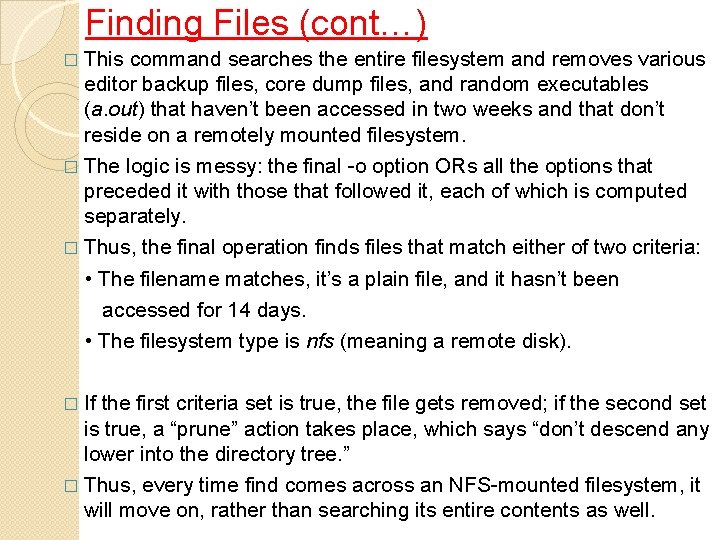
Finding Files (cont…) � This command searches the entire filesystem and removes various editor backup files, core dump files, and random executables (a. out) that haven’t been accessed in two weeks and that don’t reside on a remotely mounted filesystem. � The logic is messy: the final -o option ORs all the options that preceded it with those that followed it, each of which is computed separately. � Thus, the final operation finds files that match either of two criteria: • The filename matches, it’s a plain file, and it hasn’t been accessed for 14 days. • The filesystem type is nfs (meaning a remote disk). � If the first criteria set is true, the file gets removed; if the second set is true, a “prune” action takes place, which says “don’t descend any lower into the directory tree. ” � Thus, every time find comes across an NFS-mounted filesystem, it will move on, rather than searching its entire contents as well.
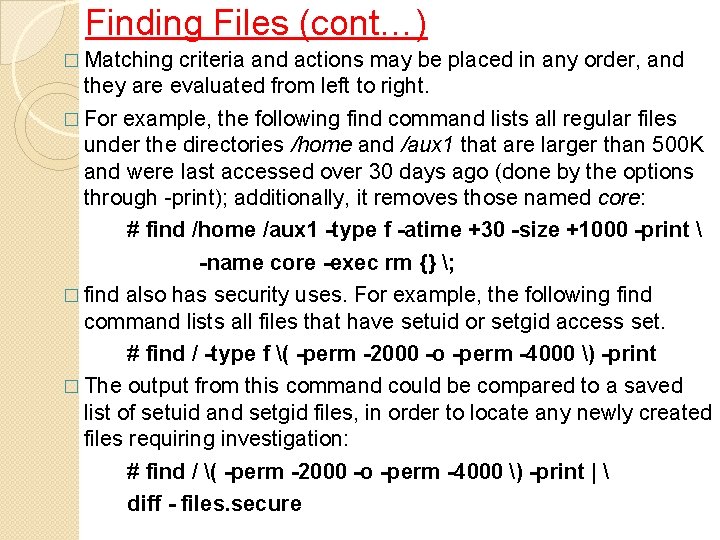
Finding Files (cont…) � Matching criteria and actions may be placed in any order, and they are evaluated from left to right. � For example, the following find command lists all regular files under the directories /home and /aux 1 that are larger than 500 K and were last accessed over 30 days ago (done by the options through -print); additionally, it removes those named core: # find /home /aux 1 -type f -atime +30 -size +1000 -print -name core -exec rm {} ; � find also has security uses. For example, the following find command lists all files that have setuid or setgid access set. # find / -type f ( -perm -2000 -o -perm -4000 ) -print � The output from this command could be compared to a saved list of setuid and setgid files, in order to locate any newly created files requiring investigation: # find / ( -perm -2000 -o -perm -4000 ) -print | diff - files. secure
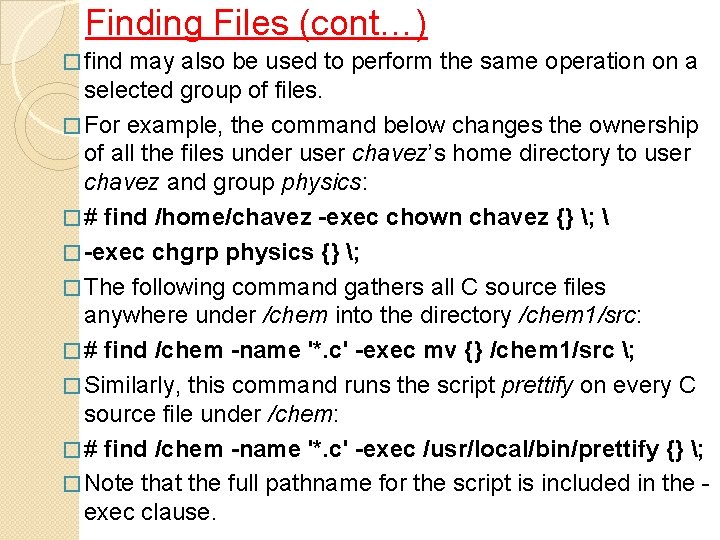
Finding Files (cont…) � find may also be used to perform the same operation on a selected group of files. � For example, the command below changes the ownership of all the files under user chavez’s home directory to user chavez and group physics: � # find /home/chavez -exec chown chavez {} ; � -exec chgrp physics {} ; � The following command gathers all C source files anywhere under /chem into the directory /chem 1/src: � # find /chem -name '*. c' -exec mv {} /chem 1/src ; � Similarly, this command runs the script prettify on every C source file under /chem: � # find /chem -name '*. c' -exec /usr/local/bin/prettify {} ; � Note that the full pathname for the script is included in the exec clause.
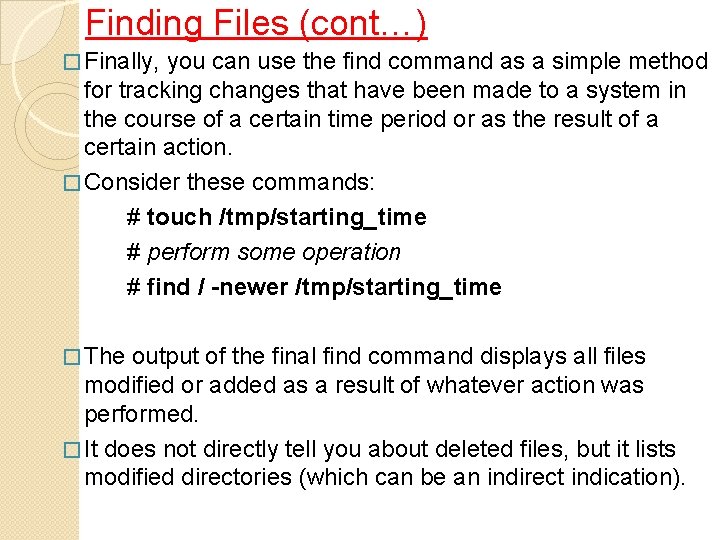
Finding Files (cont…) � Finally, you can use the find command as a simple method for tracking changes that have been made to a system in the course of a certain time period or as the result of a certain action. � Consider these commands: # touch /tmp/starting_time # perform some operation # find / -newer /tmp/starting_time � The output of the final find command displays all files modified or added as a result of whatever action was performed. � It does not directly tell you about deleted files, but it lists modified directories (which can be an indirect indication).
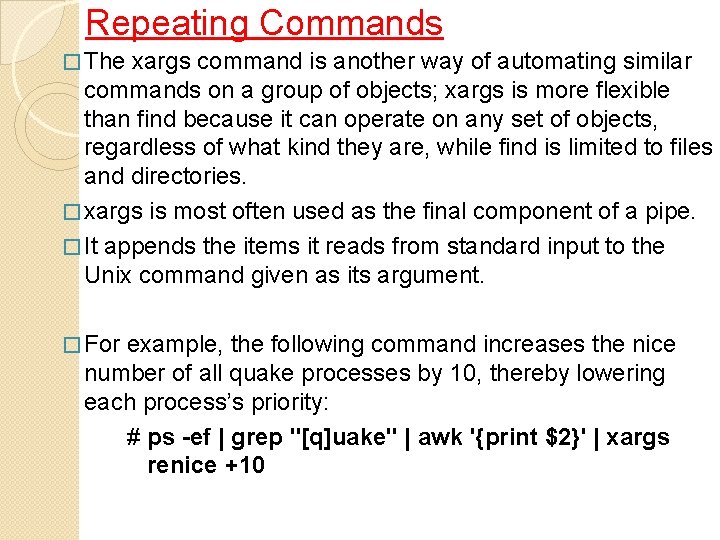
Repeating Commands � The xargs command is another way of automating similar commands on a group of objects; xargs is more flexible than find because it can operate on any set of objects, regardless of what kind they are, while find is limited to files and directories. � xargs is most often used as the final component of a pipe. � It appends the items it reads from standard input to the Unix command given as its argument. � For example, the following command increases the nice number of all quake processes by 10, thereby lowering each process’s priority: # ps -ef | grep "[q]uake" | awk '{print $2}' | xargs renice +10
Repeating Commands (cont…) � The pipe preceding the xargs command extracts the process ID from the second column of the ps output for each instance of quake, and then xargs runs renice using all of them. � The renice command takes multiple process IDs as its arguments, so there is no problem sending all the PIDs to a single renice command as long as there are not a truly inordinate number of quake processes. � You can also tell xargs to send its incoming arguments to the specified command in groups by using its -n option, which takes the number of items to use at a time as its argument.
Repeating Commands � If you wanted to run a script for each user who is currently running quake, for example, you could use this command: � # ps -ef | grep "[q]uake" | awk '{print $1}' | xargs -n 1 warn_user � The xargs command will take each username in turn and use it as the argument to warn_user. � So far, all of the xargs commands we’ve look at have placed the incoming items at the end of the specified command. � However, xargs also allows you to place each incoming line of input at a specified position within the command to be executed. � To do so, you include its -i option and use the form {} as placeholder for each incoming line within the command.
Repeating Commands (cont…) � For example, this command runs the System V chargefee utility for each user running quake, assessing them 10000 units: # ps -ef | grep "[q]uake" | awk '{print $1}' | xargs -i chargefee {} 10000 � If curly braces are needed elsewhere within the command, you can specify a different pair of placeholder characters as the argument to -i. � Substitutions like this can get rather complicated. xargs’s -t option displays each constructed command before executing, and the -p option allows you to selectively execute commands by prompting you before each one.
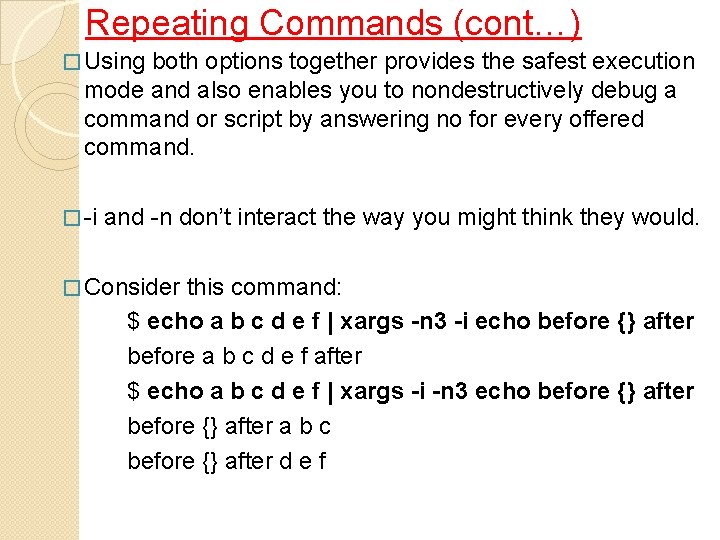
Repeating Commands (cont…) � Using both options together provides the safest execution mode and also enables you to nondestructively debug a command or script by answering no for every offered command. � -i and -n don’t interact the way you might think they would. � Consider this command: $ echo a b c d e f | xargs -n 3 -i echo before {} after before a b c d e f after $ echo a b c d e f | xargs -i -n 3 echo before {} after a b c before {} after d e f
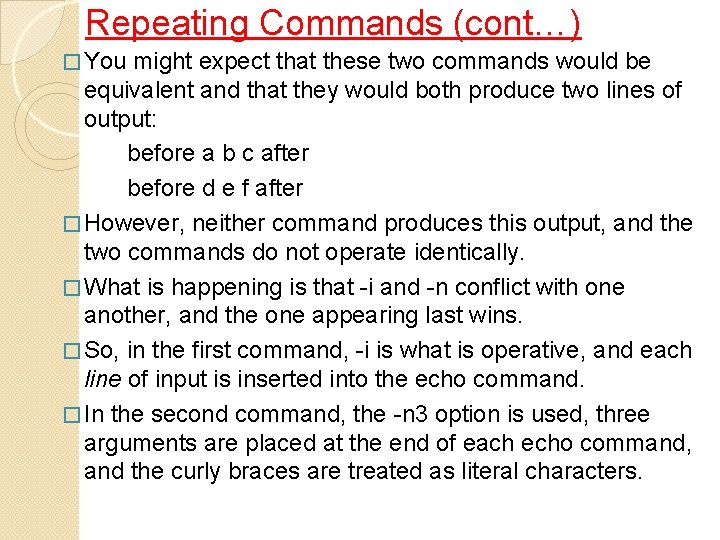
Repeating Commands (cont…) � You might expect that these two commands would be equivalent and that they would both produce two lines of output: before a b c after before d e f after � However, neither command produces this output, and the two commands do not operate identically. � What is happening is that -i and -n conflict with one another, and the one appearing last wins. � So, in the first command, -i is what is operative, and each line of input is inserted into the echo command. � In the second command, the -n 3 option is used, three arguments are placed at the end of each echo command, and the curly braces are treated as literal characters.
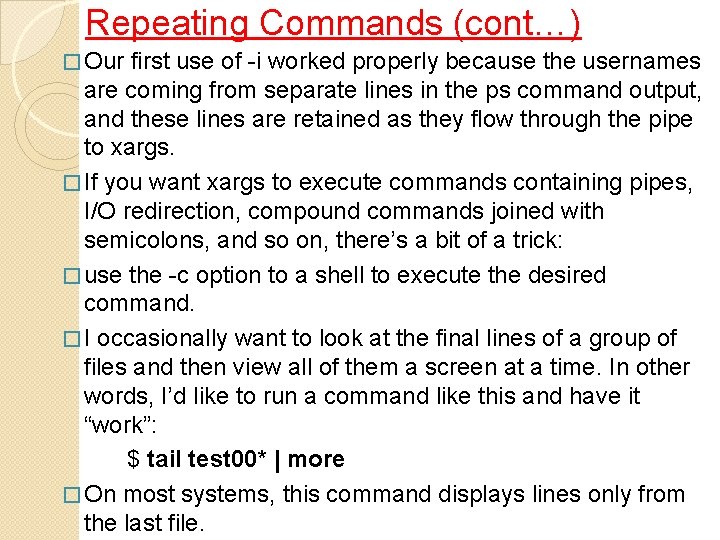
Repeating Commands (cont…) � Our first use of -i worked properly because the usernames are coming from separate lines in the ps command output, and these lines are retained as they flow through the pipe to xargs. � If you want xargs to execute commands containing pipes, I/O redirection, compound commands joined with semicolons, and so on, there’s a bit of a trick: � use the -c option to a shell to execute the desired command. � I occasionally want to look at the final lines of a group of files and then view all of them a screen at a time. In other words, I’d like to run a command like this and have it “work”: $ tail test 00* | more � On most systems, this command displays lines only from the last file.
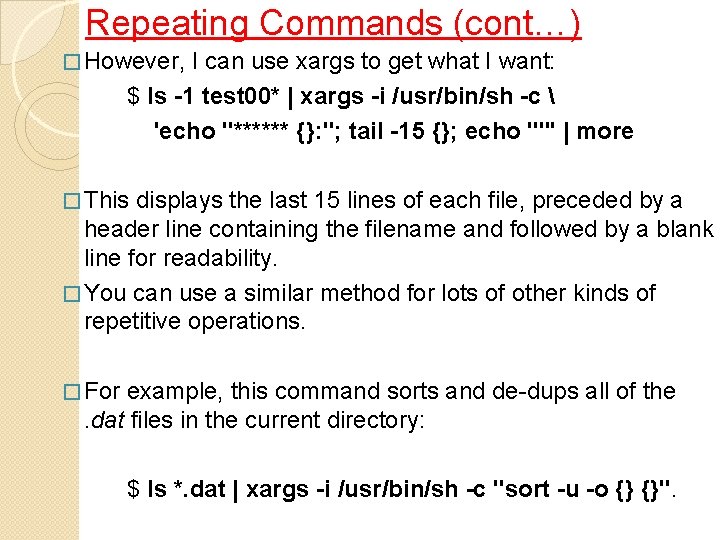
Repeating Commands (cont…) � However, I can use xargs to get what I want: $ ls -1 test 00* | xargs -i /usr/bin/sh -c 'echo "****** {}: "; tail -15 {}; echo ""' | more � This displays the last 15 lines of each file, preceded by a header line containing the filename and followed by a blank line for readability. � You can use a similar method for lots of other kinds of repetitive operations. � For example, this command sorts and de-dups all of the. dat files in the current directory: $ ls *. dat | xargs -i /usr/bin/sh -c "sort -u -o {} {}".
- Slides: 34