
Week 2 BIOS Operating System A Guide to
Week 2 BIOS & Operating System A+ Guide to Managing and Maintaining your PC, 6 e
Objectives • Learn how an OS interfaces with users, files and folders, applications, and hardware • Learn what happens when you first turn on a PC before the OS is loaded • Learn about the Power System. 2
Introduction • A computer comprises hardware and software – Physical devices are the visible component – The controlling software component is not visible • Computer technicians need to master both parts 3
Operating Systems Past and Present • What an operating system (OS) does: – – Manages hardware Runs applications Provides an interface for users Retrieves and manipulates files • The OS can be analogized to a “middleman” • A computer needs only one operating system • Operating systems have evolved to a complex form 4
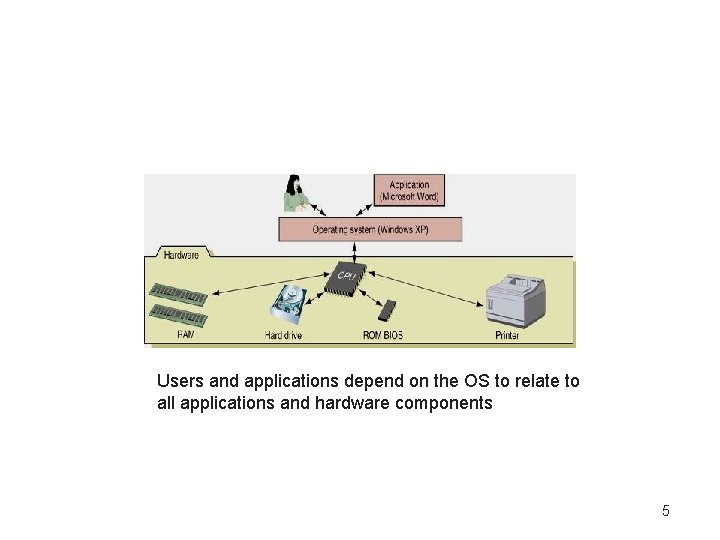
Users and applications depend on the OS to relate to all applications and hardware components 5
DOS (Disk Operating System) • The first OS used by IBM computers/compatibles • Where DOS can still be found: – Specialized systems using older applications – On troubleshooting disks or CDs • Used by some diagnostic applications on UBD_CD • Windows 3. x and DOS – Windows 3. x provided a graphical interface – Underlying OS functions were performed by DOS • Windows 9 x/Me uses DOS in the underlying OS • Windows XP/2000/Vista/Win 7 run DOS emulation programs 6
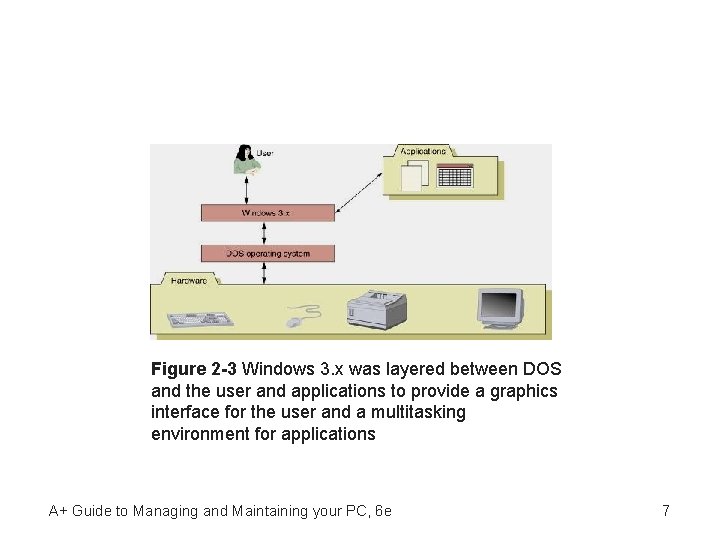
Figure 2 -3 Windows 3. x was layered between DOS and the user and applications to provide a graphics interface for the user and a multitasking environment for applications A+ Guide to Managing and Maintaining your PC, 6 e 7
Windows 9 x/Me • Refers to Windows 95, Windows 98, Windows Me • Combine a DOS core with graphical user interface • Designed to bridge legacy and newer technologies – Backward-compatible with older systems – Able to accommodate new technologies • Cautionary note on minimum requirements – May differ for upgrades and new installations – May differ for installation and run-time operation 8
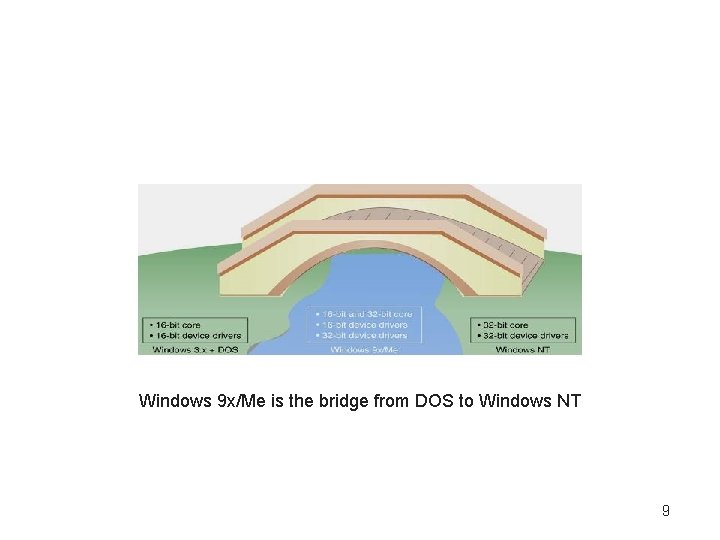
Windows 9 x/Me is the bridge from DOS to Windows NT 9
Windows NT • Two versions of Windows NT (New Technology): – Windows NT Workstation for desktops – Windows NT Server to control a network • Best known feature: new OS core replacing DOS – First Microsoft product which did not rely on DOS – Windows NT introduced many new problems • Security • Compatibility to most gaming s/w – Did not support Direct x – Problems only solved in later versions of Windows 10
Windows 2000 • • Upgrades Windows NT (both desktop and server) Improvements over Windows NT: – – A more stable environment Support for Plug and Play Device Manager, Recovery Console Active Directory • Central security authentication & authorization – Better network support – Features specifically targeting notebook computers. • OS includes only qualified hardware and software. 11
Windows XP • Integrates Windows 9 x/Me and Windows 2000 • Two main versions: Home Edition and Professional • Noteworthy new features: – Allows two users to logon and open applications – Incorporates Windows Messenger and Media Player – Adds advanced security, such as Windows Firewall • Hardware requirements – 64 MB RAM (128 MB recommended) – 1. 5 GB free hard drive space (2 GB recommended) • Typical installs consume 3+ GB – 233 -MHz CPU speed (300 -MHz recommended) 12
Windows Vista • Next generation of Windows operating systems • Noteworthy new features: – New graphical interface • Harder to use? • Targeted a less computer literate user – Supported a consumer electronic paradigm – Revamped engine • Faster • Too security conscious for typical users. – A new interface between it and applications. • Some s/w must be upgraded. – Many hidden “features”. – Driver compatibility issues. 13
Windows 7 • Basically an updated Vista without the problems of Vista – Very Solid OS, still widely used. • Features – Performance enhancements. – Better support for touch screens • Better handwriting & speech recognition – More user centric, users have more control over the look and feel as well as performance tweeks – Many backward compatible look and feel enhancements which vista had are now a free download from MS, e. g. classic menu. • H/W resources – 32 bit, same as vista – 64 bit, considerably more, almost double. – 2 Gb ram min, 20 Gb hd space min.
Windows 8 • Target market is Touch Screen Devices – Use of ribbon interface • Improved security – Pins & picture passwords • Improved performance – USB 3. 0 support • Boot speed increased by hibernating the Kernel. • Can be compiled for Intel and Arm processors – Arm used in many hand held devices – Cell phones 15
Windows 10 • More traditional UI. – Auto detects desktop or touch and defaults correct interface. • Unified across all platforms, PC, Cell, Xbox – It’s free • Less Storage required, better system restore. • Better virtualization – Ability to install other OS in a virtual space under W 10. • Replaced Win 8 and its assorted UI problems. 16
Windows Server 2003 • Refers to a suite of Microsoft operating systems: – – – Windows Small Business Server 2003 Storage Server 2003 Web Edition Server 2003 Standard Edition Server 2003 Enterprise Edition Server 2003 Datacenter Edition • Not designed for use in a PC • Not covered in this text 17
UNIX • • • Comprises a class of operating systems UNIX versions referred to as flavors or distributions Chief uses: – Controlling networks – Supporting Internet-based applications • Each maker of “Work Stations” had their own UNIX version. – Derived from Bell Labs and AT&T – Sun. OS, Irix (SGI) 18
Linux • Variation on UNIX created by Linus Torvalds. – Not Unix but a look alike. • OS kernel and source code are freely distributed • Popular distributions: – – Su. SE (www. novell. com/linux/suse) Red. Hat (www. redhat. com) Turbo. Linux (www. turbolinux. com) Ubuntu (www. ubuntu. com) • Used as both a server and a desktop • X Windows: GUI shells for UNIX and Linux 19
Free. BSD • Berkley Software Distribution – Free – Derived directly from Bell Labs and AT&T to run on a PC – Unlike Linux, it maintains many of the security and performance features of UNIX. – Is considered a PC UNIX. 20
OS/2 Defunct • • Jointly developed by IBM and Microsoft Chiefly used in certain types of networks Part of OS/2 was incorporated into Windows NT OS/2 is not covered in this book 21
Mac OS • • • First introduced in 1984 with Macintosh computers Current version: Mac OS X (10. 12) Mac OS X can work on most Intel-based computers Markets: education, desktop publishing, graphics Noteworthy features: – – – Support for graphics and multimedia capabilities Use of the Finder program to provide the desktop Superior Plug and Play capabilities Excellent support for multitasking Unix based kernel with Mac interface • Derived from BSD. 22
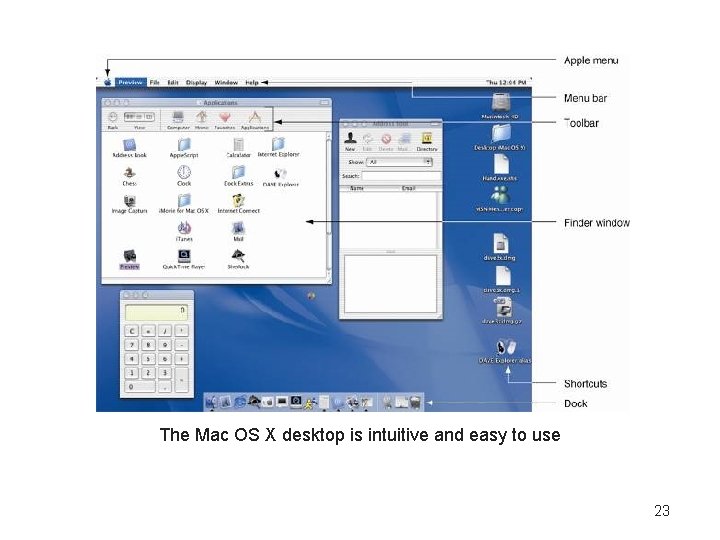
The Mac OS X desktop is intuitive and easy to use 23
What an Operating System Does • Four functions common to all operating systems: – – *** Providing a user interface Managing files Managing applications *** Managing hardware • All OSs can have similar core components. • All do the same job – Some better then others. 24
Operating System Components • Components common to all OSs: shell and kernel • The shell exposes functions to users and applications – Example 1: enables user to select a CD – Example 2: enables application to print a document • The kernel (core) interacts with hardware devices – Example: passes a print request to a printer device • Registry database and initialization files – Used to store configuration information in Windows 25
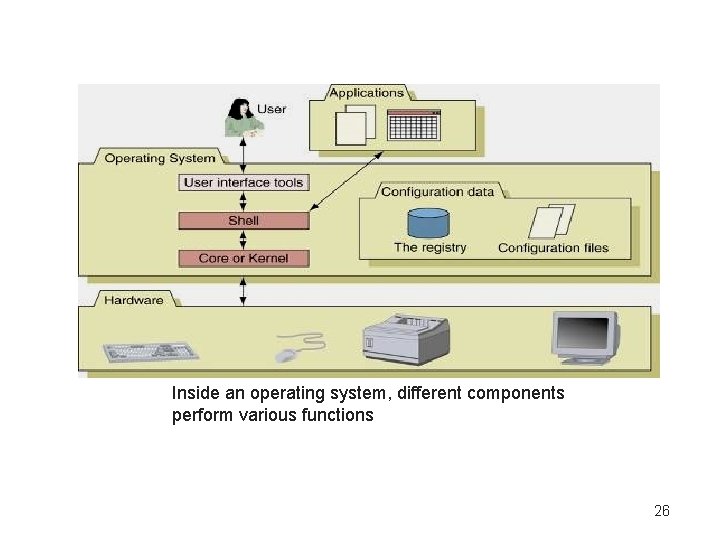
Inside an operating system, different components perform various functions 26
An OS Manages Hardware • OS interacts with hardware using drivers or BIOS • Software falls into three categories: – Device drivers, Main BIOS or component BIOS – Operating system – Application software 27
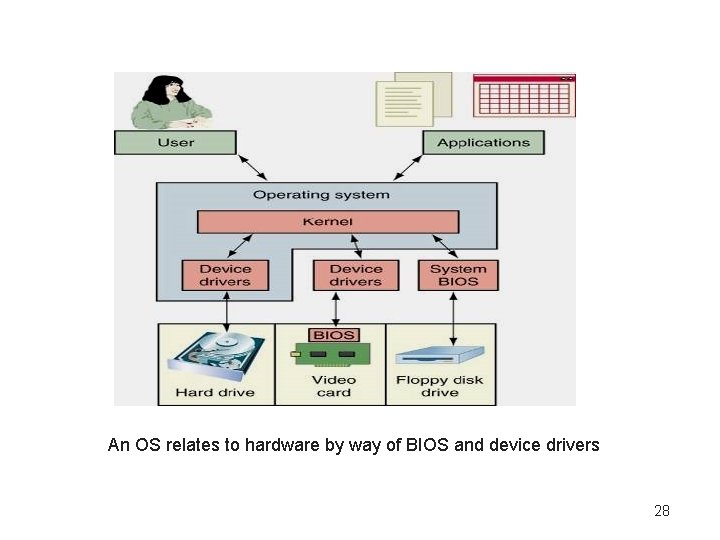
An OS relates to hardware by way of BIOS and device drivers 28
How an OS Uses Device Drivers to Manage Devices • Device drivers: specify how to interact with a device – Example: a driver links a computer to a digital camera • Drivers are provided by OS and device manufacturer • Device drivers in Windows – Before installation, verify Microsoft has tested device – Registry stores information about 32/64 -bit device drivers – Updated drivers are available at manufacturer’s site 29
How an OS Uses System BIOS to Manage Devices • System BIOS contains device information – Instructions enable CPU to communicate with device – Example: keyboard activated at startup using BIOS • Configure BIOS device interaction in CMOS setup • The OS may use system BIOS to access devices • Disadvantage of using BIOS device management – BIOS does not operate as fast as device drivers • Device drivers are faster – Reside in Memory – BIOS is Firmware, which is slow. • Maybe limited in functionality. • Supports only basic operations. 30
Understanding the Boot Process • Key learning objectives – Know how to boot a PC – Understand what happens first when a PC is turned on – Understand how an operating system is loaded 31
Booting a Computer • • Process that drives a computer to a working state Hard (cold) boot: turn the power switch on Soft (warm) boot: allow the OS to reboot How to soft boot Windows XP. . Win 8 – – Click Start Click Turn Off Computer Click Restart Some utilities that direct the OS to warmboot. 32
Choosing Between a Hard Boot and a Soft Boot • Hard boots are more stressful on machines – Power surges through system when PC is turned on • Reasons to choose a soft boot over hard boot – Less stressful on the machine – Faster due to skipping initial steps • Some computers have a soft and hard power switch – Soft power switch shuts down and restarts Windows – Hard power switch cuts power and restarts machine • Dell power button, will soft boot if pressed. – Shut down machine if held for 5 sec. 33
The Startup BIOS Controls the Beginning of the Boot • The startup BIOS gets a system up and running • Four phases of the boot process: – BIOS runs the POST and assigns system resources • POST: power-on self test – BIOS searches for and loads an OS – OS configures system and completes its own loading – Application software is loaded and executed 34
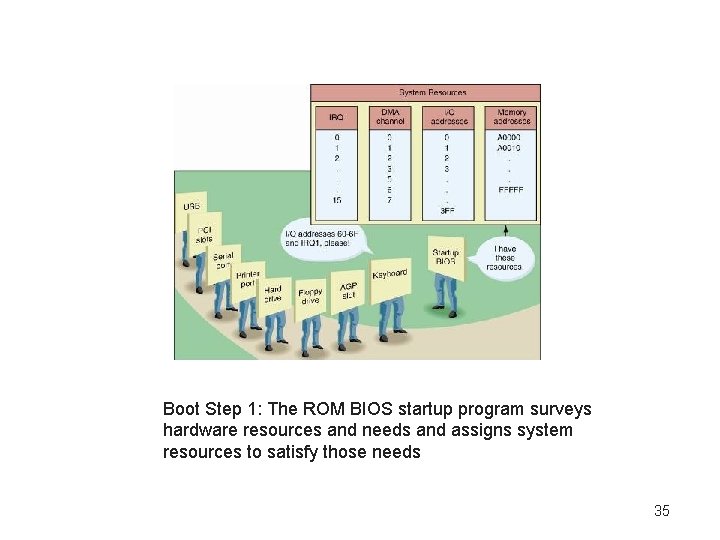
Boot Step 1: The ROM BIOS startup program surveys hardware resources and needs and assigns system resources to satisfy those needs 35
Changing the Boot Sequence • • BIOS looks to CMOS RAM to locate the OS Boot sequence: order of drives checked for an OS Change boot sequence using CMOS setup utilities Access CMOS setup utilities when PC is turned on – Example: press F 8 before Windows screen appears 36
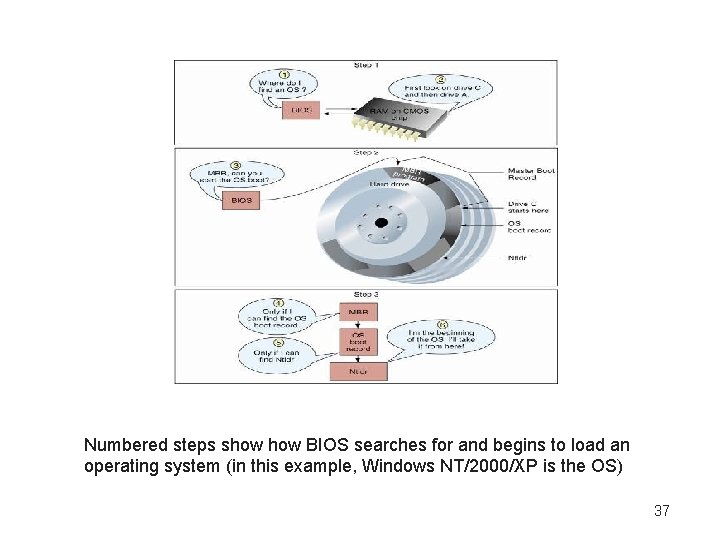
Numbered steps show BIOS searches for and begins to load an operating system (in this example, Windows NT/2000/XP is the OS) 37
How to Troubleshoot a PC Problem • • • Assume the attitude of an investigator Do not compound the problem by your own actions Look at the problem as a learning opportunity Ask questions until you understand the problem Believe that you can solve the problem 38
Steps to Solving a PC Problem • Key advice: – Ask good questions – Document the process • Four-step problem solving process: – – Step 1: Interview the user Step 2: Back up data Step 3: Solve the problem Step 4: Verify the fix and document the solution 39
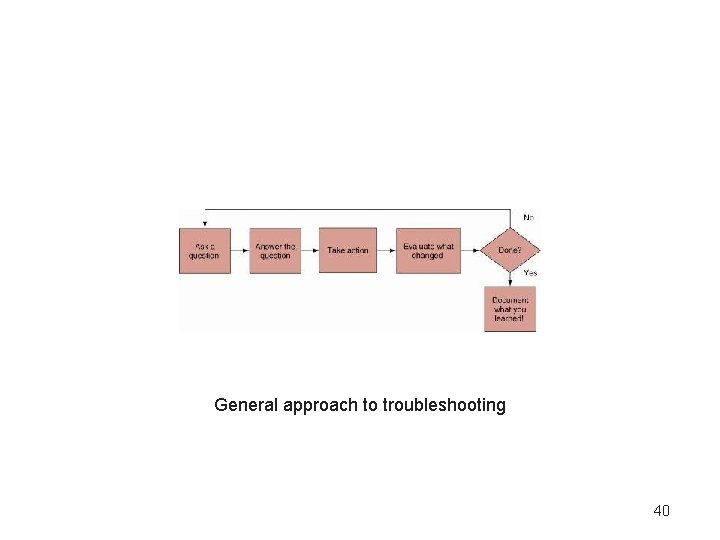
General approach to troubleshooting 40
Troubleshooting a Failed Boot • It takes time to acquire troubleshooting skills • Hands-on training: troubleshooting a failed boot 41
My Computer Won’t Boot • First step: maintain your calm • Second step: develop a game plan • Figure 3 -45 provides a procedure – Plan is driven by a set of yes-no questions – Example: Does the PC boot properly? • If no, troubleshooter is directed to another question • If yes, troubleshooter is directed to stop (for now) 42
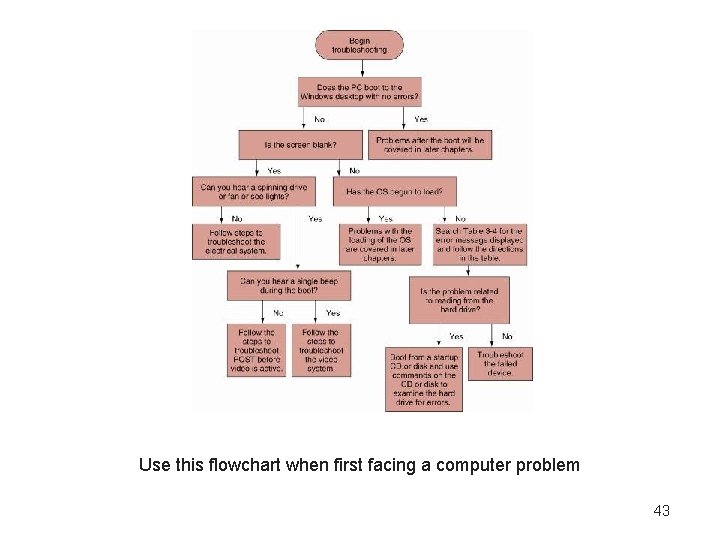
Use this flowchart when first facing a computer problem 43
Troubleshooting Major Subsystems Used For Booting • Categories of troubleshooting steps in Figure 3 -45 – The electrical subsystem – Essential hardware devices • The motherboard, memory, and the CPU – Video – Reading from the hard drive • Key aides: tables identifying error codes 44
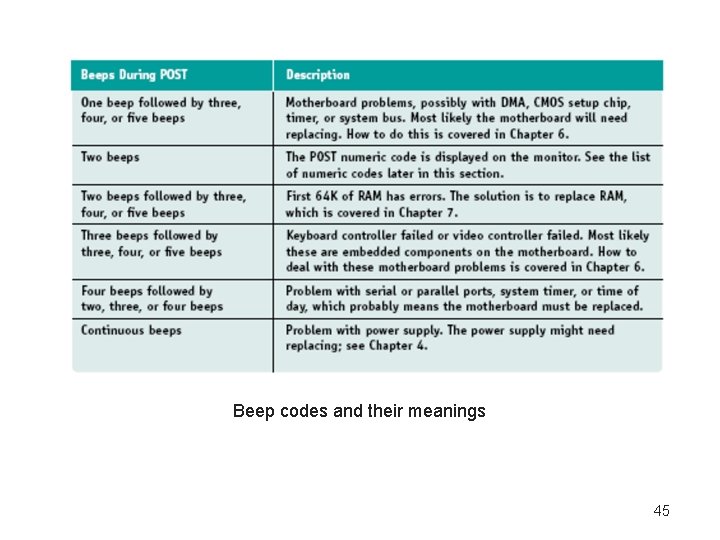
Beep codes and their meanings 45
Summary • Some PC repair tools: recovery CDs, screwdrivers, POST, cleaning pads and solutions, diagnostic cards • Preventive maintenance plans extend the life of a PC • Follow an organization’s preventive maintenance plan, or develop one if it does not exist • Computers present chemical and electrical hazards • Protect components in case from ESD by grounding yourself and the PC 46
Summary (continued) • Assembling and reassembling a PC prepares the technician for actual repair work • Startup BIOS controls when the boot process begins • Four step boot process: POST, loading the OS, OS initializing itself, loading and executing applications • Expert troubleshooters ask good questions • Before tackling a problem, develop a game plan 47
- Slides: 47