
WEEK 10 LESSON 1 INTRODUCTION TO SHELL SCRIPTING
![CONTROL FLOW STATEMENTS - LOGIC Using [ ] to Represent test Command A set](https://slidetodoc.com/presentation_image_h2/22923d61b3e79bea770c0bc67ce0dc12/image-44.jpg "CONTROL FLOW STATEMENTS - LOGIC Using [ ] to Represent test Command A set")
- Slides: 51
WEEK 10 LESSON 1 INTRODUCTION TO SHELL SCRIPTING / CREATING SHELL SCRIPTS / SHELL VARIABLES PHOTOS AND ICONS USED IN THIS SLIDE SHOW ARE LICENSED UNDER CC BYSA
LESSON 1 TOPICS Shell Scripts • Definition / Purpose • Considerations When Creating Shell Scripts / • Comments / She-bang line / echo command • Creating Shell Scripts / Running Shell Scripts / Demonstration Shell Variables • Definition / Purpose • Environment Variables / User Defined Variables / read command • Demonstration Perform Week 10 Tutorial • Investigation 1 • Review Questions (Questions Part A 1 – 3 , Part B Walk-Thru #1)
CREATING SHELL SCRIPTS Definition A shell script is a computer program designed to be run by the Unix shell, a command-line interpreter. Typical operations performed by shell scripts include file manipulation, program execution, and printing text. Reference: https: //en. wikipedia. org/wiki/Shell_script
CREATING SHELL SCRIPTS Considerations When Creating Shell Scripts The reason to create shell scripts is to automate the execution of commonly issued Linux commands, shell operations, math calculations as well as Logic / Loop operations. Prior to the creation of the shell script file, you should plan the shell script and list steps that you want to accomplish. Those sequence of steps can then be used to create your shell script.
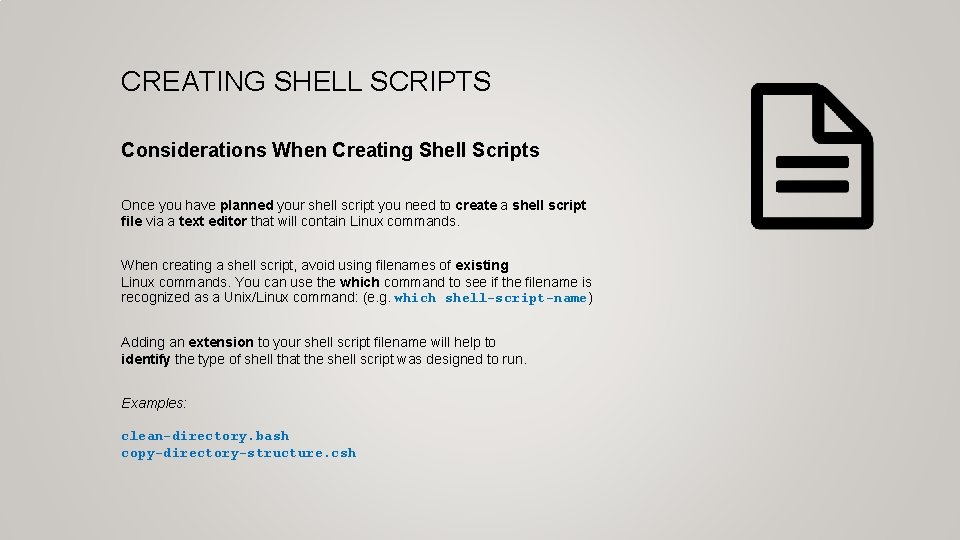
CREATING SHELL SCRIPTS Considerations When Creating Shell Scripts Once you have planned your shell script you need to create a shell script file via a text editor that will contain Linux commands. When creating a shell script, avoid using filenames of existing Linux commands. You can use the which command to see if the filename is recognized as a Unix/Linux command: (e. g. which shell-script-name) Adding an extension to your shell script filename will help to identify the type of shell that the shell script was designed to run. Examples: clean-directory. bash copy-directory-structure. csh
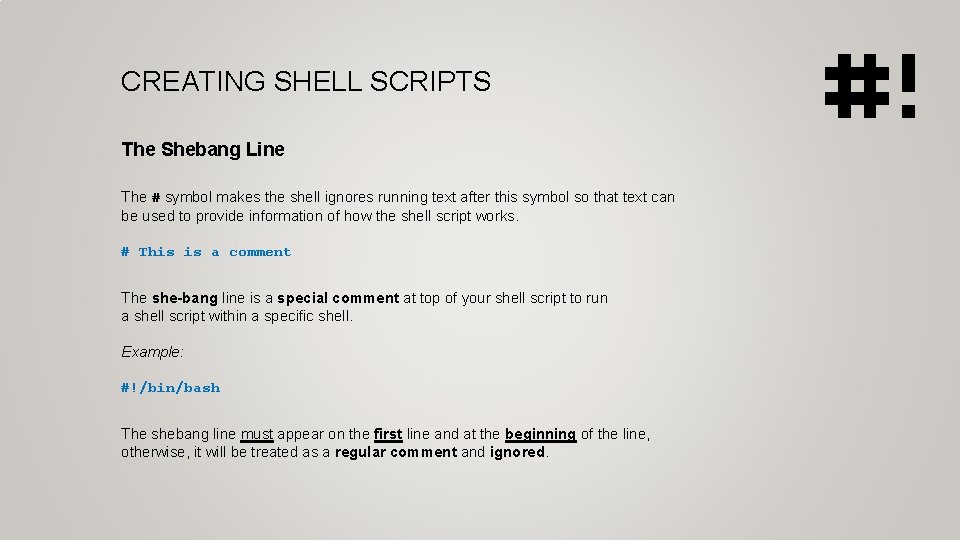
CREATING SHELL SCRIPTS The Shebang Line The # symbol makes the shell ignores running text after this symbol so that text can be used to provide information of how the shell script works. # This is a comment The she-bang line is a special comment at top of your shell script to run a shell script within a specific shell. Example: #!/bin/bash The shebang line must appear on the first line and at the beginning of the line, otherwise, it will be treated as a regular comment and ignored.
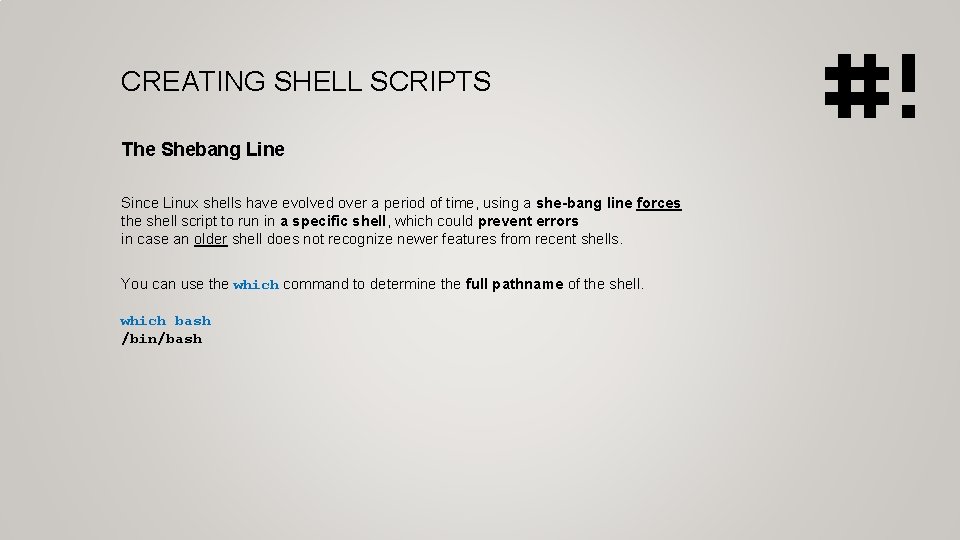
CREATING SHELL SCRIPTS The Shebang Line Since Linux shells have evolved over a period of time, using a she-bang line forces the shell script to run in a specific shell, which could prevent errors in case an older shell does not recognize newer features from recent shells. You can use the which command to determine the full pathname of the shell. which bash /bin/bash
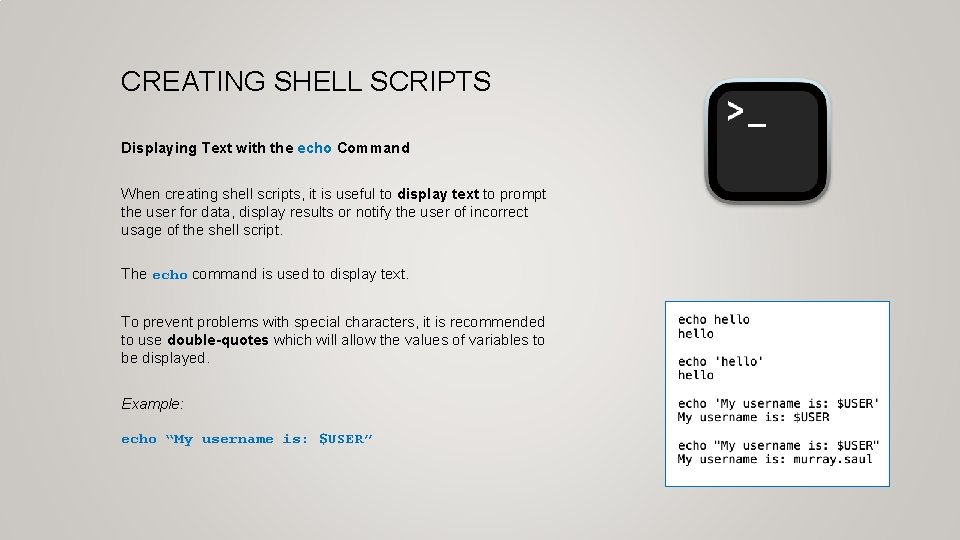
CREATING SHELL SCRIPTS Displaying Text with the echo Command When creating shell scripts, it is useful to display text to prompt the user for data, display results or notify the user of incorrect usage of the shell script. The echo command is used to display text. To prevent problems with special characters, it is recommended to use double-quotes which will allow the values of variables to be displayed. Example: echo “My username is: $USER”
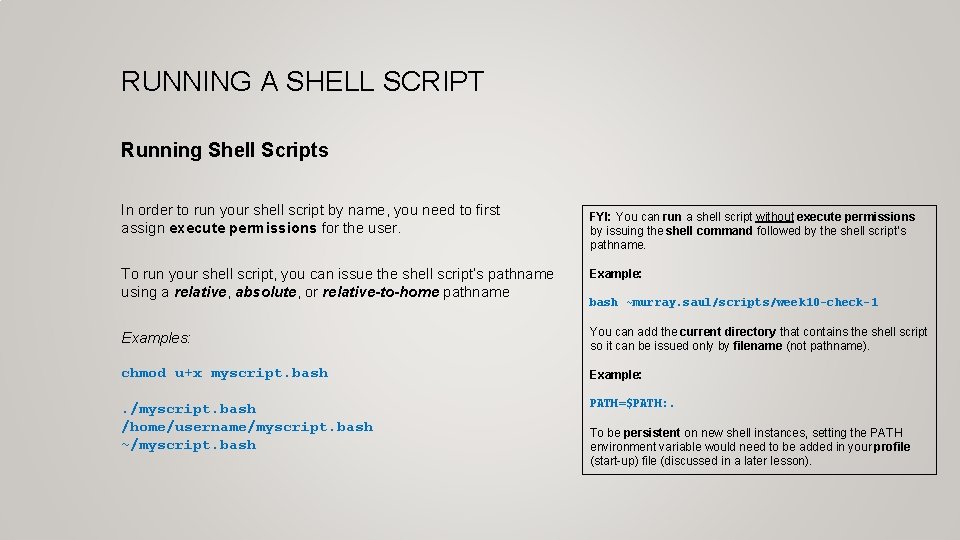
RUNNING A SHELL SCRIPT Running Shell Scripts In order to run your shell script by name, you need to first assign execute permissions for the user. FYI: You can run a shell script without execute permissions by issuing the shell command followed by the shell script’s pathname. To run your shell script, you can issue the shell script’s pathname using a relative, absolute, or relative-to-home pathname Example: Examples: You can add the current directory that contains the shell script so it can be issued only by filename (not pathname). chmod u+x myscript. bash Example: . /myscript. bash /home/username/myscript. bash ~/myscript. bash PATH=$PATH: . bash ~murray. saul/scripts/week 10 -check-1 To be persistent on new shell instances, setting the PATH environment variable would need to be added in your profile (start-up) file (discussed in a later lesson).
INSTRUCTOR DEMONSTRATION Task: Create a Bash Shell script to clear the screen and then display all users that are currently logged onto the system.
SHELL SCRIPTING Variables are used to store information to be referenced and manipulated in a computer program. They also provide a way of labeling data with a descriptive name, so our programs can be understood more clearly by the reader and ourselves… …It is helpful to think of variables as containers that hold information. Their sole purpose is to label and store data in memory. This data can then be used throughout your program. Reference: https: //launchschool. com/books/ruby/read/variables
SHELL SCRIPTING Using Variables Shell variables are classified into two groups: System (shell) variables: Describes the OS system’s working environment which can be used in a shell script. User-created variables: Customized variables created by the programmer for use in a shell script. The name of a variable can be any sequence of letters and numbers, but it must NOT begin with a number!
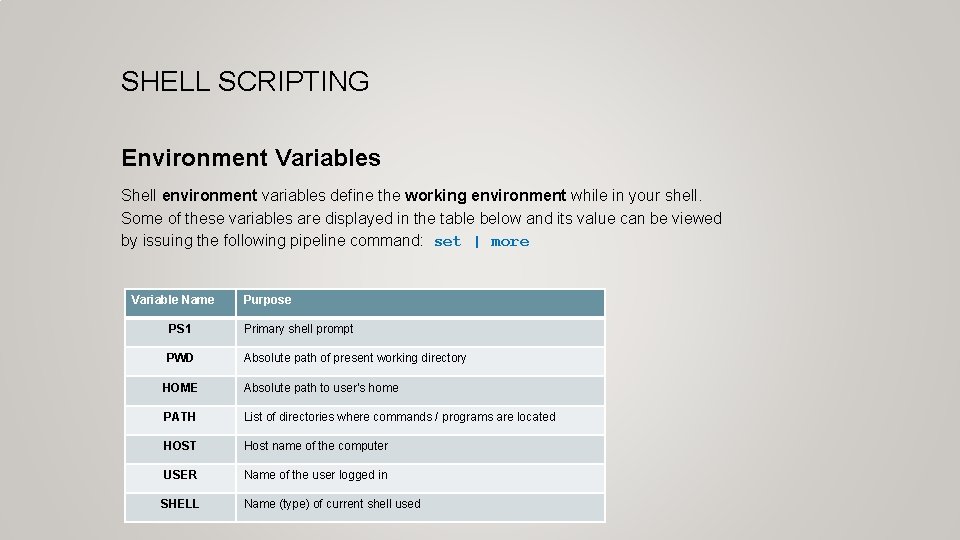
SHELL SCRIPTING Environment Variables Shell environment variables define the working environment while in your shell. Some of these variables are displayed in the table below and its value can be viewed by issuing the following pipeline command: set | more Variable Name Purpose PS 1 Primary shell prompt PWD Absolute path of present working directory HOME Absolute path to user's home PATH List of directories where commands / programs are located HOST Host name of the computer USER Name of the user logged in SHELL Name (type) of current shell used
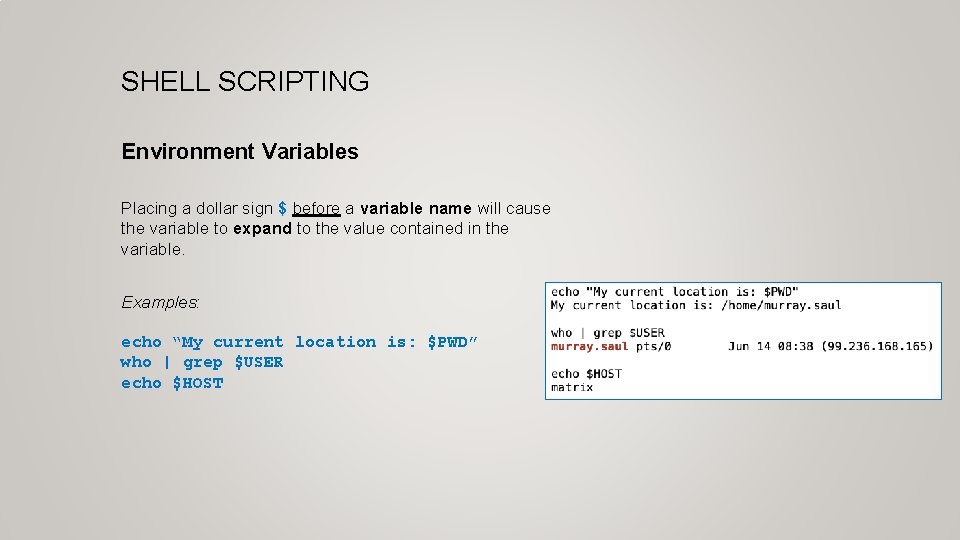
SHELL SCRIPTING Environment Variables Placing a dollar sign $ before a variable name will cause the variable to expand to the value contained in the variable. Examples: echo “My current location is: $PWD” who | grep $USER echo $HOST
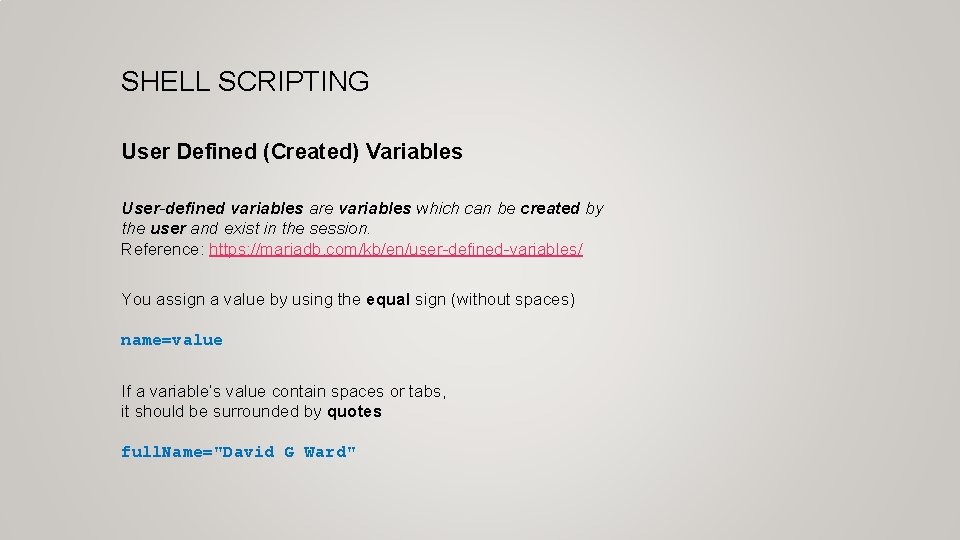
SHELL SCRIPTING User Defined (Created) Variables User-defined variables are variables which can be created by the user and exist in the session. Reference: https: //mariadb. com/kb/en/user-defined-variables/ You assign a value by using the equal sign (without spaces) name=value If a variable’s value contain spaces or tabs, it should be surrounded by quotes full. Name="David G Ward"
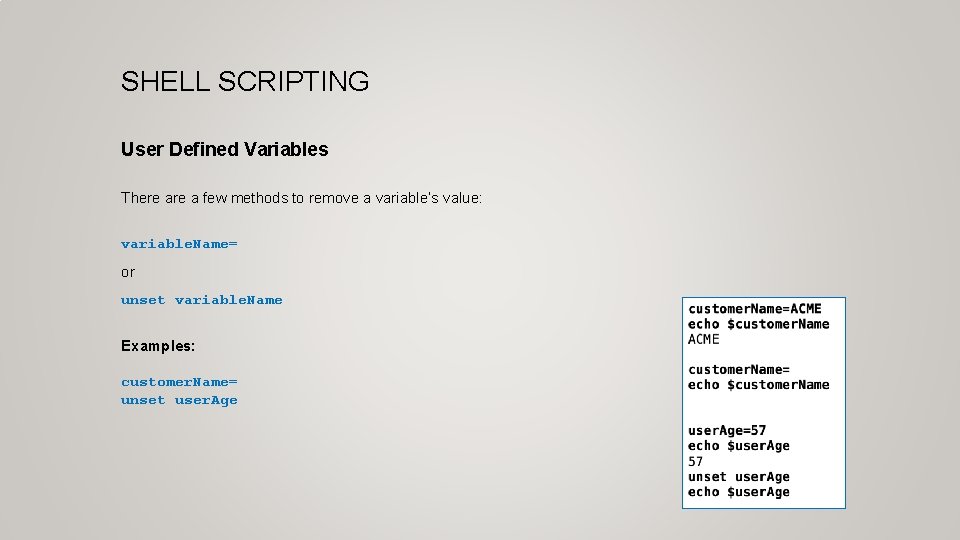
SHELL SCRIPTING User Defined Variables There a few methods to remove a variable’s value: variable. Name= or unset variable. Name Examples: customer. Name= unset user. Age
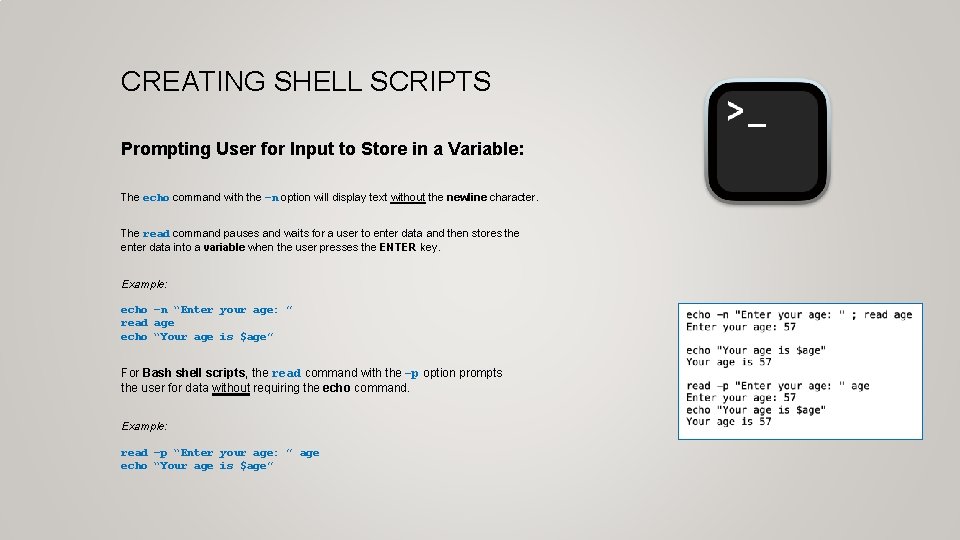
CREATING SHELL SCRIPTS Prompting User for Input to Store in a Variable: The echo command with the –n option will display text without the newline character. The read command pauses and waits for a user to enter data and then stores the enter data into a variable when the user presses the ENTER key. Example: echo –n “Enter your age: ” read age echo “Your age is $age” For Bash shell scripts, the read command with the –p option prompts the user for data without requiring the echo command. Example: read –p “Enter your age: ” age echo “Your age is $age”
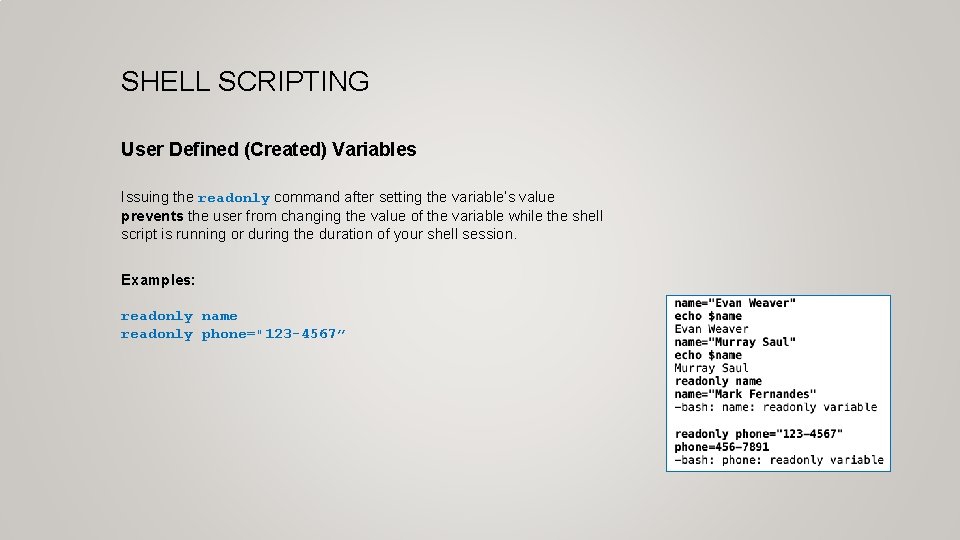
SHELL SCRIPTING User Defined (Created) Variables Issuing the readonly command after setting the variable’s value prevents the user from changing the value of the variable while the shell script is running or during the duration of your shell session. Examples: readonly name readonly phone="123 -4567”
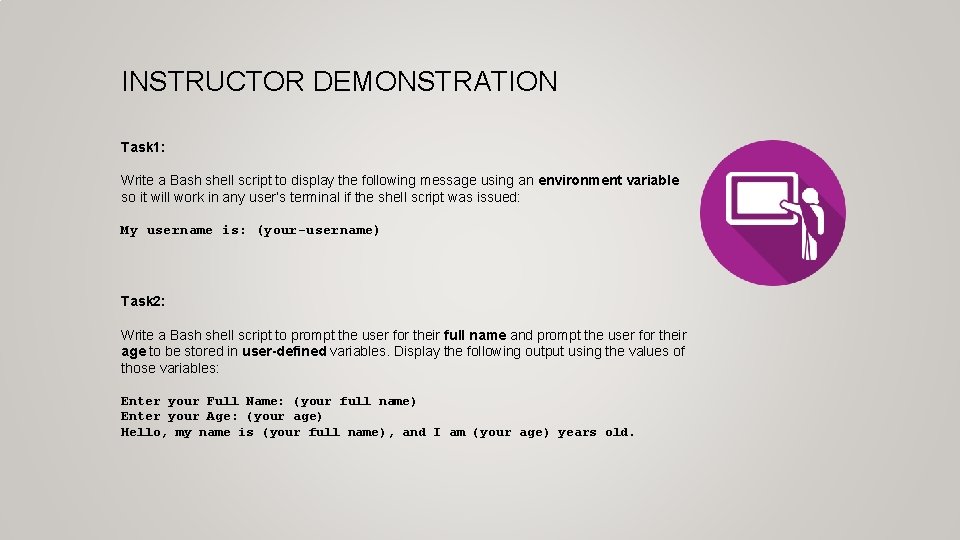
INSTRUCTOR DEMONSTRATION Task 1: Write a Bash shell script to display the following message using an environment variable so it will work in any user’s terminal if the shell script was issued: My username is: (your-username) Task 2: Write a Bash shell script to prompt the user for their full name and prompt the user for their age to be stored in user-defined variables. Display the following output using the values of those variables: Enter your Full Name: (your full name) Enter your Age: (your age) Hello, my name is (your full name), and I am (your age) years old.
SHELL SCRIPTING Getting Practice To get practice to help perform assignment #3, perform Week 10 Tutorial: • INVESTIGATION 1: CREATING A SHELL SCRIPT • INVESTIGATION 2: USING VARIABLES IN SHELL SCRIPTS • LINUX PRACTICE QUESTIONS (Part A 1 – 3 , Part B Walk-Thru #1)
ULI 101: INTRODUCTION TO UNIX / LINUX AND THE INTERNET WEEK 10: LESSON 2 POSITIONAL PARAMETERS / COMMAND SUBSTITUTION / MATH OPERATIONS TESTING CONDITIONS / CONTROL FLOW STATEMENTS (LOGIC / LOOPS) PHOTOS AND ICONS USED IN THIS SLIDE SHOW ARE LICENSED UNDER CC BYSA
LESSON 2 TOPICS Positional Parameters • Definition / Purpose / Usage / Demonstration Command Substitution / Math Operations • Definition / Purpose / Usage / Demonstration Control Flow Statements • Definition / Purpose • Exit Status $? / Testing Conditions (test) / Demonstration • Control Flow Statements (if, if-else, for) / Demonstration Perform Week 10 Tutorial • Investigation 2 • Review Questions (Questions Part A #4 , Part B Walk-Thru #2) Work on Assignment #3: (Sections 3 and 4)
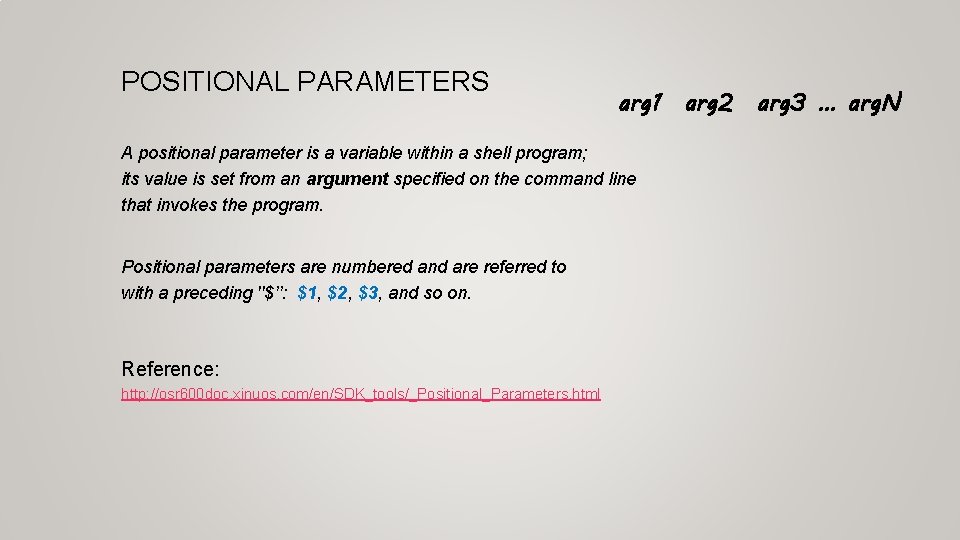
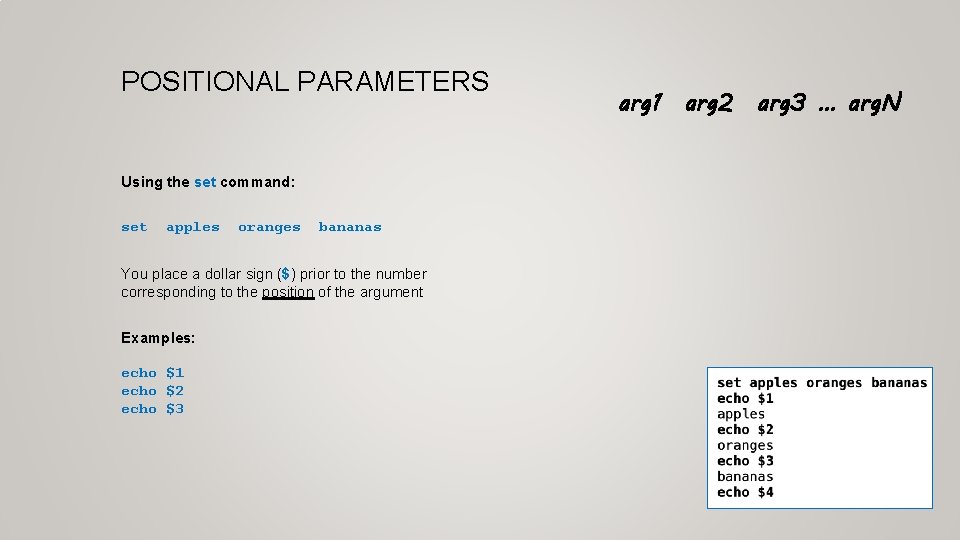
POSITIONAL PARAMETERS arg 1 arg 2 arg 3 … arg. N A positional parameter is a variable within a shell program; its value is set from an argument specified on the command line that invokes the program. Positional parameters are numbered and are referred to with a preceding ''$’’: $1, $2, $3, and so on. Reference: http: //osr 600 doc. xinuos. com/en/SDK_tools/_Positional_Parameters. html
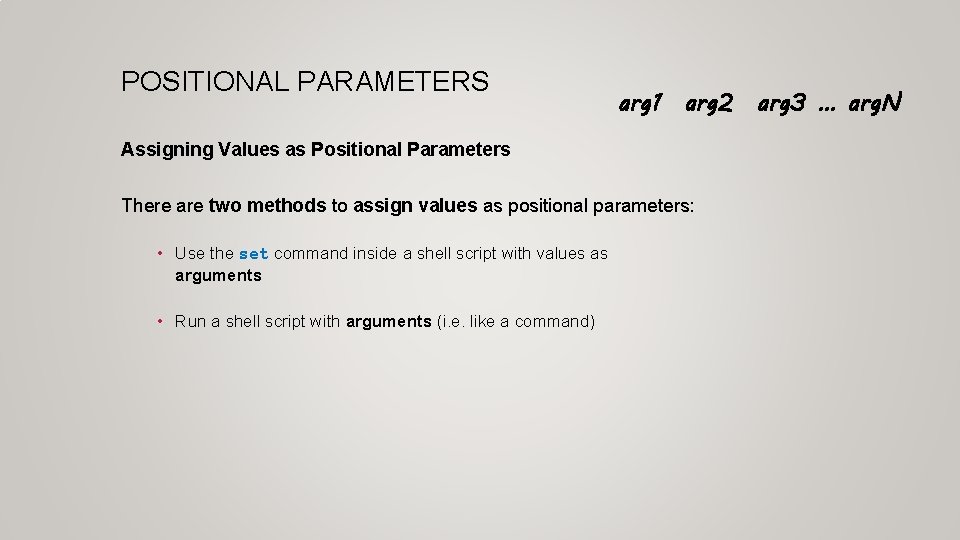
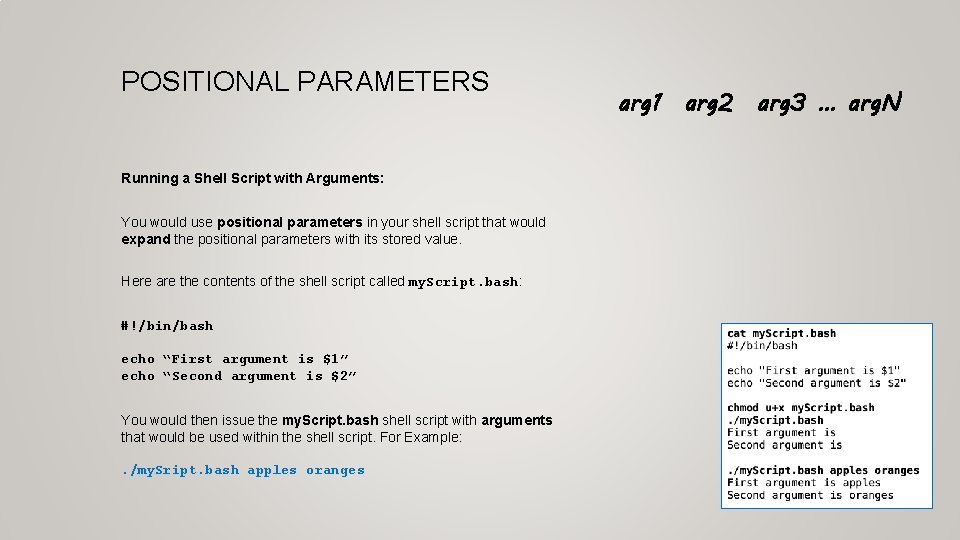
POSITIONAL PARAMETERS arg 1 arg 2 arg 3 … arg. N Assigning Values as Positional Parameters There are two methods to assign values as positional parameters: • Use the set command inside a shell script with values as arguments • Run a shell script with arguments (i. e. like a command)
POSITIONAL PARAMETERS Using the set command: set apples oranges bananas You place a dollar sign ($) prior to the number corresponding to the position of the argument Examples: echo $1 echo $2 echo $3 arg 1 arg 2 arg 3 … arg. N
POSITIONAL PARAMETERS Running a Shell Script with Arguments: You would use positional parameters in your shell script that would expand the positional parameters with its stored value. Here are the contents of the shell script called my. Script. bash: #!/bin/bash echo “First argument is $1” echo “Second argument is $2” You would then issue the my. Script. bash shell script with arguments that would be used within the shell script. For Example: . /my. Sript. bash apples oranges arg 1 arg 2 arg 3 … arg. N
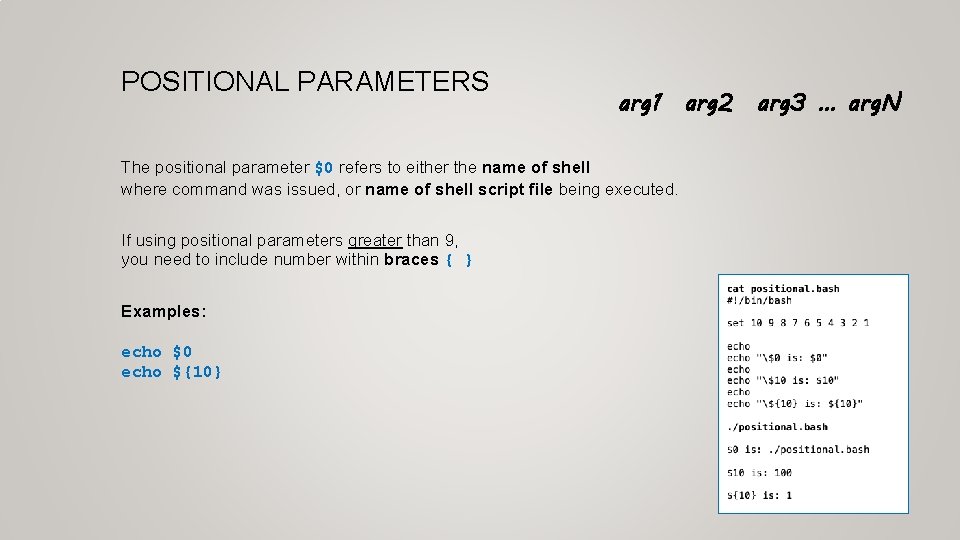
POSITIONAL PARAMETERS arg 1 arg 2 arg 3 … arg. N The positional parameter $0 refers to either the name of shell where command was issued, or name of shell script file being executed. If using positional parameters greater than 9, you need to include number within braces { } Examples: echo $0 echo ${10}
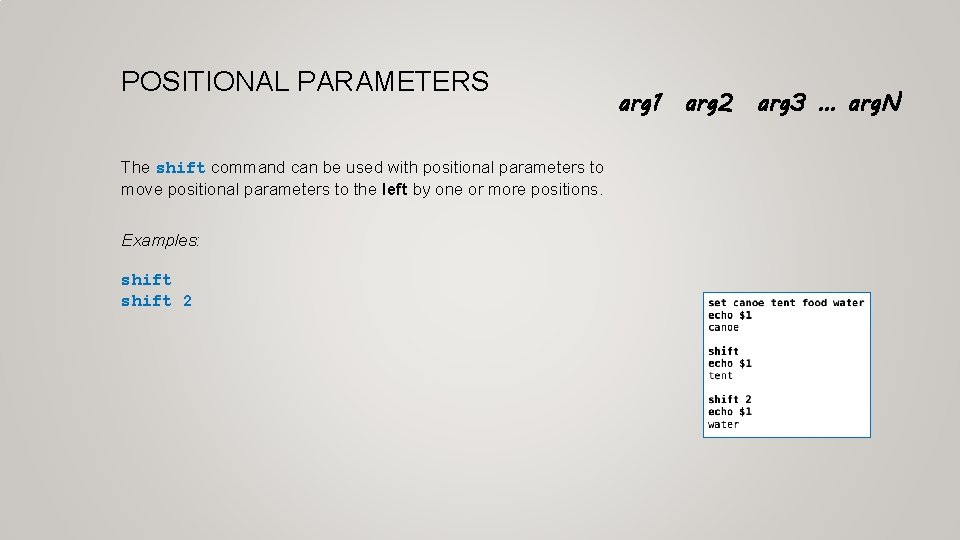
POSITIONAL PARAMETERS The shift command can be used with positional parameters to move positional parameters to the left by one or more positions. Examples: shift 2 arg 1 arg 2 arg 3 … arg. N
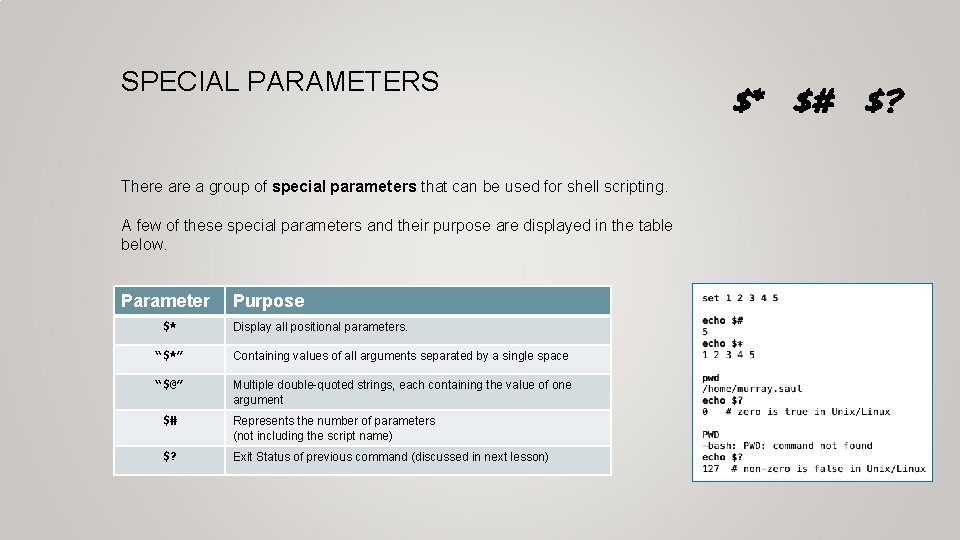
SPECIAL PARAMETERS There a group of special parameters that can be used for shell scripting. A few of these special parameters and their purpose are displayed in the table below. Parameter $* Purpose Display all positional parameters. “$*” Containing values of all arguments separated by a single space “$@” Multiple double-quoted strings, each containing the value of one argument $# Represents the number of parameters (not including the script name) $? Exit Status of previous command (discussed in next lesson) $* $# $?
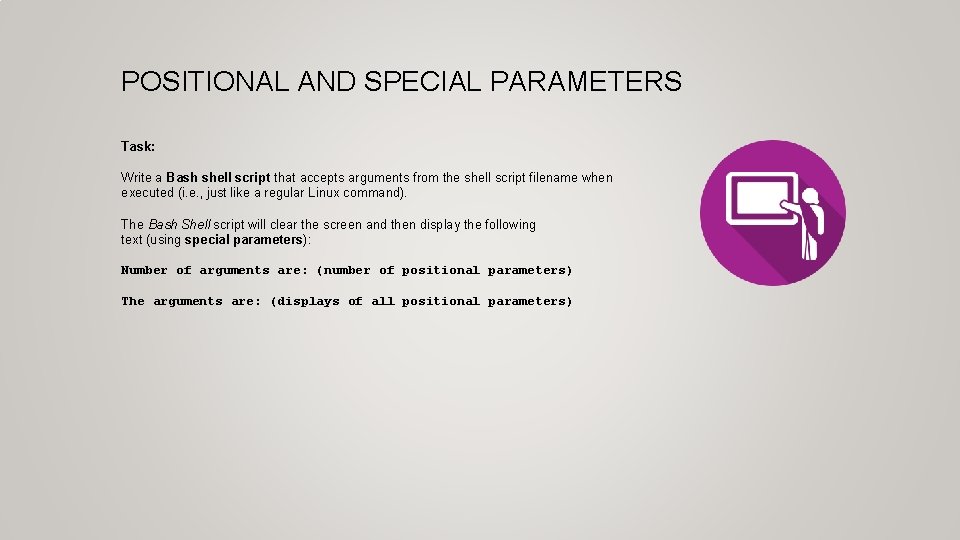
POSITIONAL AND SPECIAL PARAMETERS Task: Write a Bash shell script that accepts arguments from the shell script filename when executed (i. e. , just like a regular Linux command). The Bash Shell script will clear the screen and then display the following text (using special parameters): Number of arguments are: (number of positional parameters) The arguments are: (displays of all positional parameters)
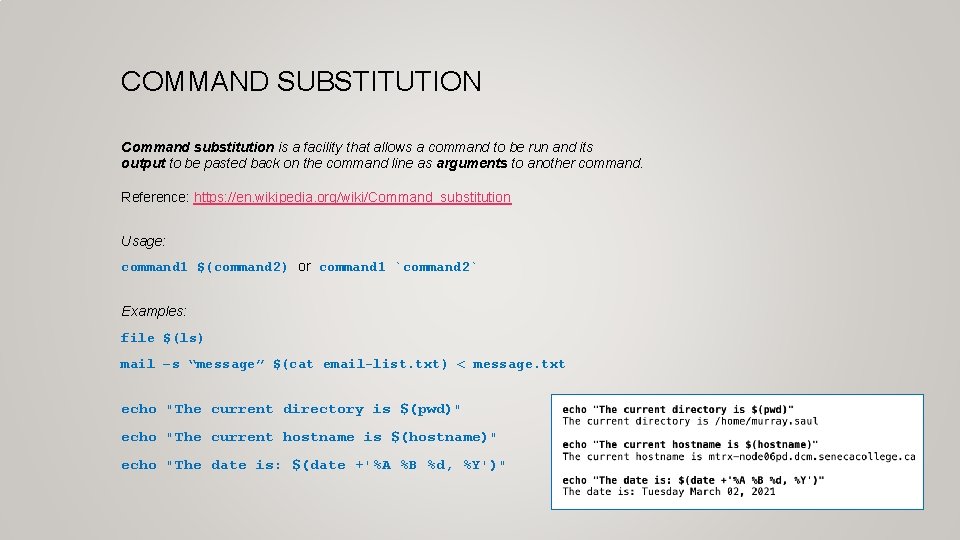
COMMAND SUBSTITUTION Command substitution is a facility that allows a command to be run and its output to be pasted back on the command line as arguments to another command. Reference: https: //en. wikipedia. org/wiki/Command_substitution Usage: command 1 $(command 2) or command 1 `command 2` Examples: file $(ls) mail –s “message” $(cat email-list. txt) < message. txt echo "The current directory is $(pwd)" echo "The current hostname is $(hostname)" echo "The date is: $(date +'%A %B %d, %Y')"
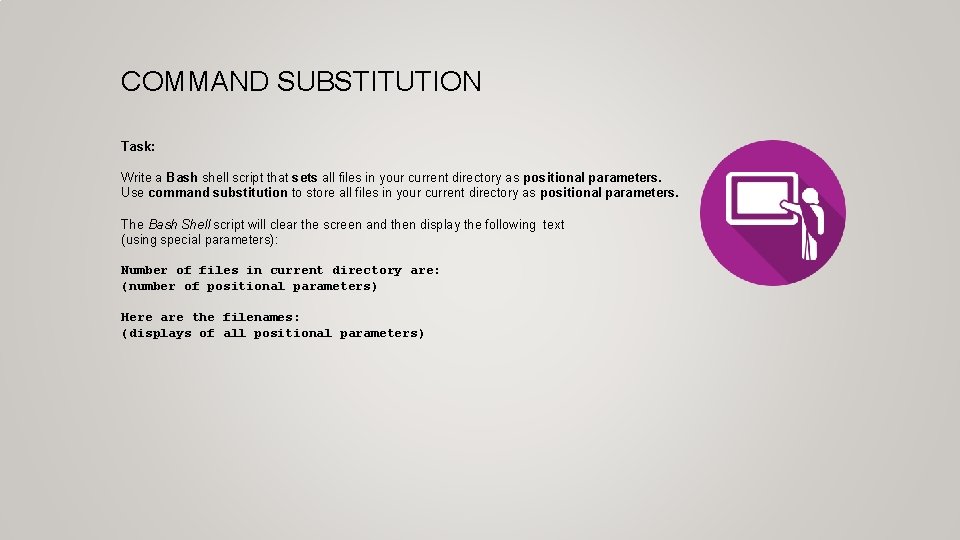
COMMAND SUBSTITUTION Task: Write a Bash shell script that sets all files in your current directory as positional parameters. Use command substitution to store all files in your current directory as positional parameters. The Bash Shell script will clear the screen and then display the following text (using special parameters): Number of files in current directory are: (number of positional parameters) Here are the filenames: (displays of all positional parameters)
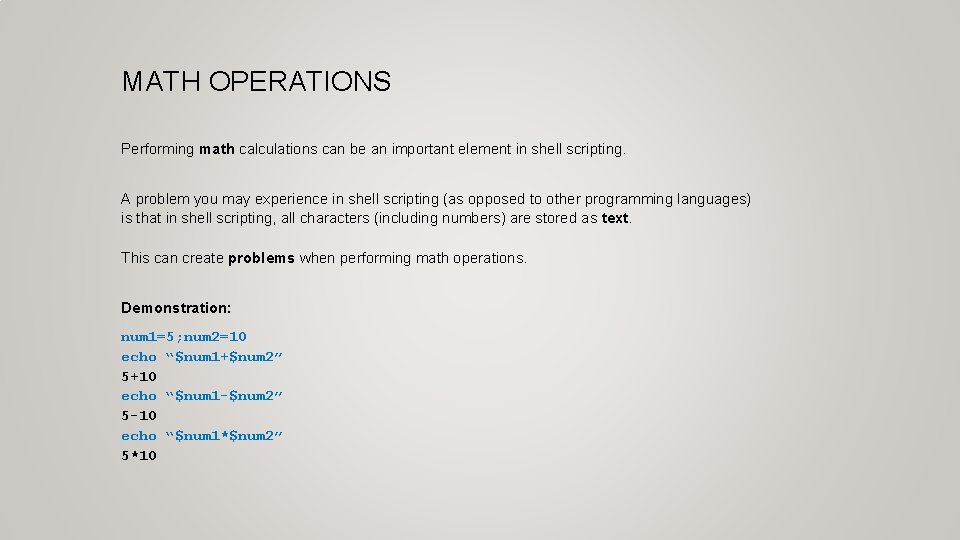
MATH OPERATIONS Performing math calculations can be an important element in shell scripting. A problem you may experience in shell scripting (as opposed to other programming languages) is that in shell scripting, all characters (including numbers) are stored as text. This can create problems when performing math operations. Demonstration: num 1=5; num 2=10 echo “$num 1+$num 2” 5+10 echo “$num 1 -$num 2” 5 -10 echo “$num 1*$num 2” 5*10
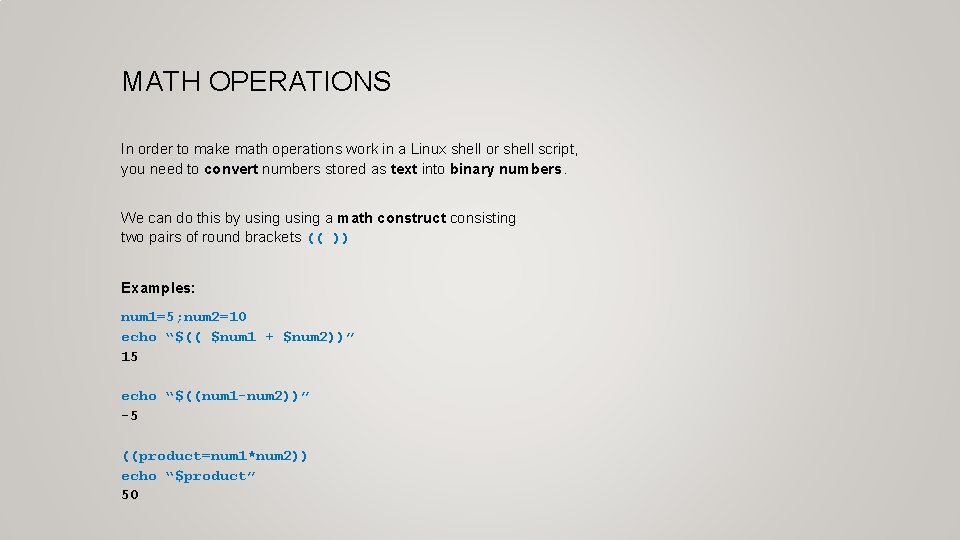
MATH OPERATIONS In order to make math operations work in a Linux shell or shell script, you need to convert numbers stored as text into binary numbers. We can do this by using a math construct consisting two pairs of round brackets (( )) Examples: num 1=5; num 2=10 echo “$(( $num 1 + $num 2))” 15 echo “$((num 1 -num 2))” -5 ((product=num 1*num 2)) echo “$product” 50
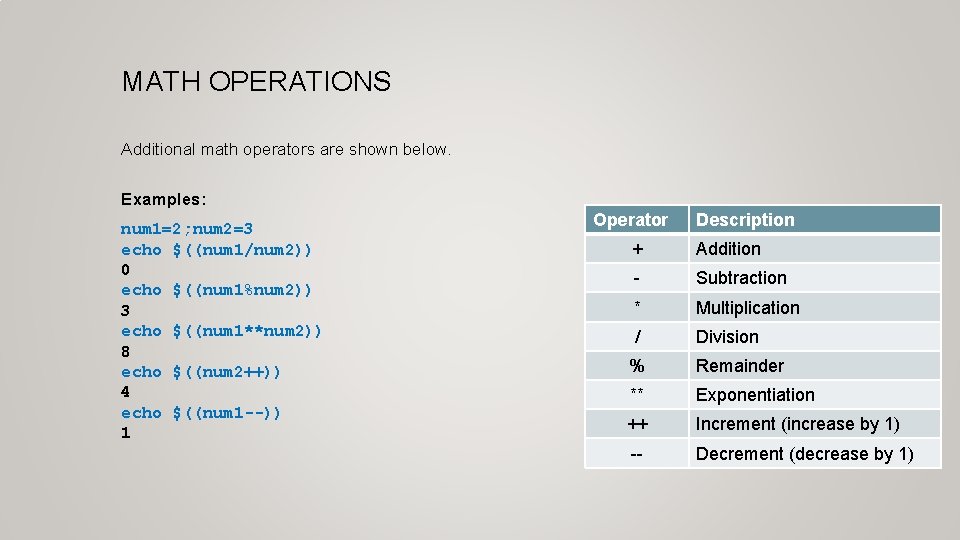
MATH OPERATIONS Additional math operators are shown below. Examples: num 1=2; num 2=3 echo $((num 1/num 2)) 0 echo $((num 1%num 2)) 3 echo $((num 1**num 2)) 8 echo $((num 2++)) 4 echo $((num 1 --)) 1 Operator Description + Addition - Subtraction * Multiplication / Division % Remainder ** Exponentiation ++ Increment (increase by 1) -- Decrement (decrease by 1)
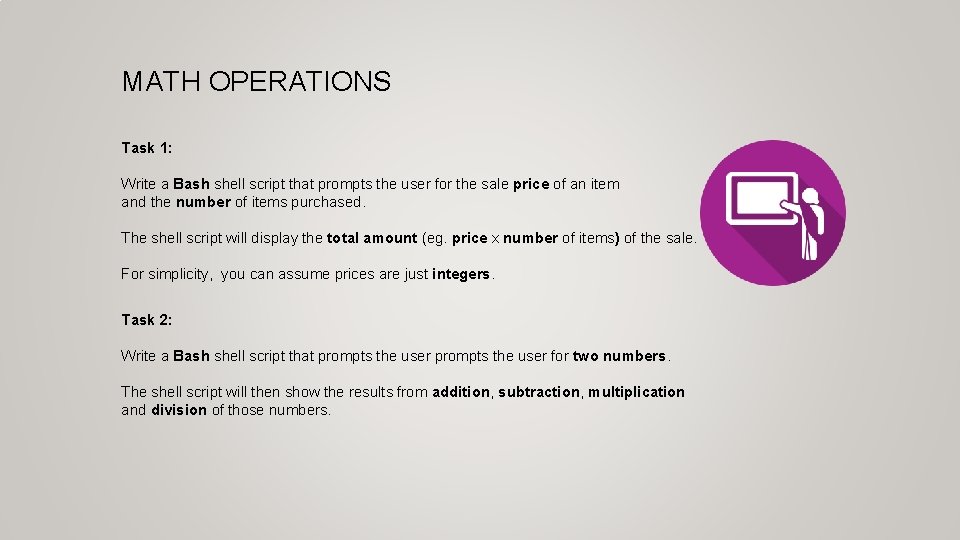
MATH OPERATIONS Task 1: Write a Bash shell script that prompts the user for the sale price of an item and the number of items purchased. The shell script will display the total amount (eg. price x number of items) of the sale. For simplicity, you can assume prices are just integers. Task 2: Write a Bash shell script that prompts the user for two numbers. The shell script will then show the results from addition, subtraction, multiplication and division of those numbers.
CONTROL FLOW STATEMENTS So far, we have created Bash Shell Scripts that execute Linux commands in a fixed sequence. Although those type of scripts can be useful, we can use control flow statements that will control the sequence of the running script based on various situations or conditions. Control Flow Statements are used to make your shell scripts more flexible and allow them to adapt to changing situations.
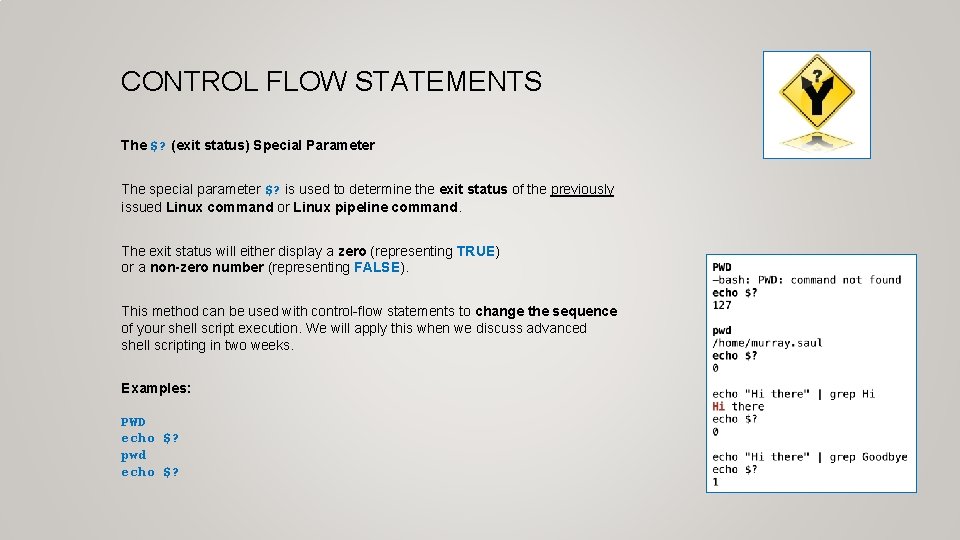
CONTROL FLOW STATEMENTS The $? (exit status) Special Parameter The special parameter $? is used to determine the exit status of the previously issued Linux command or Linux pipeline command. The exit status will either display a zero (representing TRUE) or a non-zero number (representing FALSE). This method can be used with control-flow statements to change the sequence of your shell script execution. We will apply this when we discuss advanced shell scripting in two weeks. Examples: PWD echo $? pwd echo $?
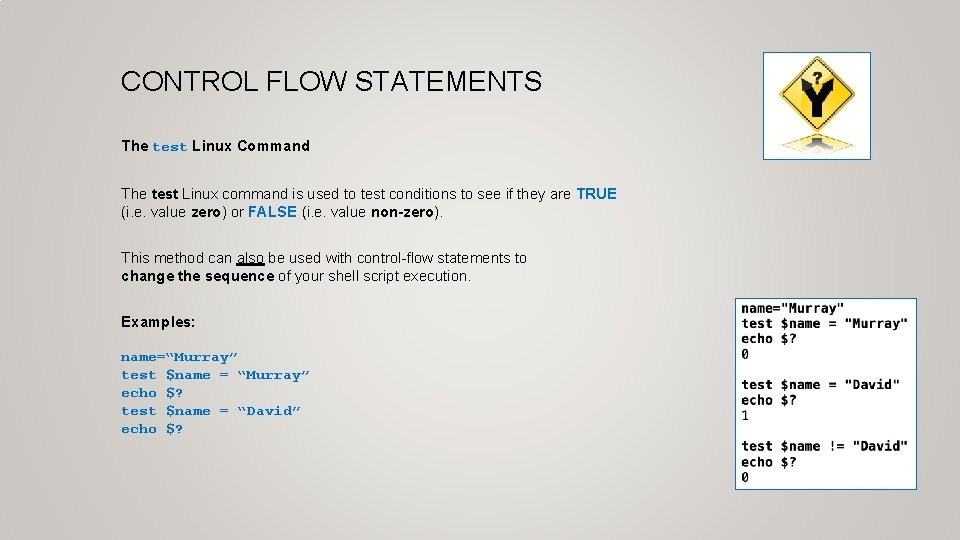
CONTROL FLOW STATEMENTS The test Linux Command The test Linux command is used to test conditions to see if they are TRUE (i. e. value zero) or FALSE (i. e. value non-zero). This method can also be used with control-flow statements to change the sequence of your shell script execution. Examples: name=“Murray” test $name = “Murray” echo $? test $name = “David” echo $?
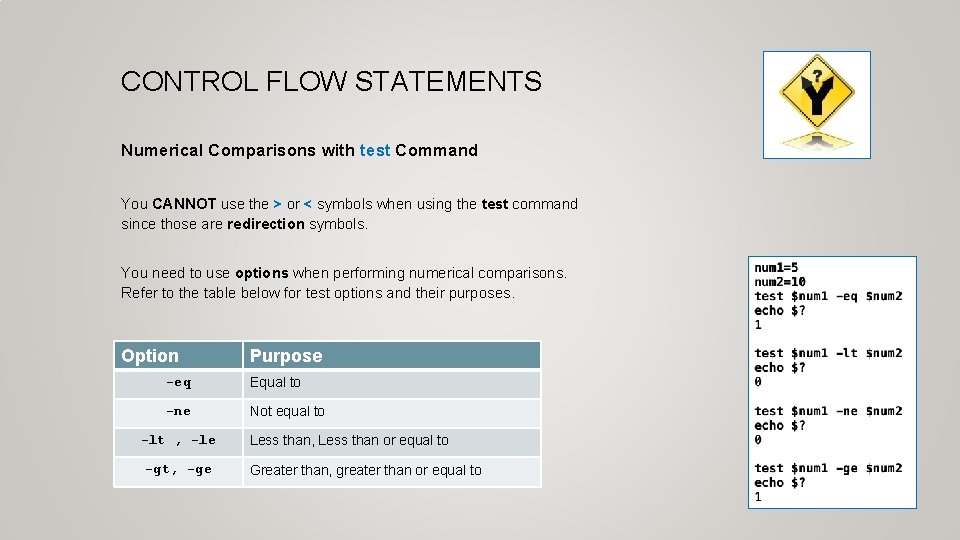
CONTROL FLOW STATEMENTS Numerical Comparisons with test Command You CANNOT use the > or < symbols when using the test command since those are redirection symbols. You need to use options when performing numerical comparisons. Refer to the table below for test options and their purposes. Option Purpose -eq Equal to -ne Not equal to -lt , -le -gt, -ge Less than, Less than or equal to Greater than, greater than or equal to
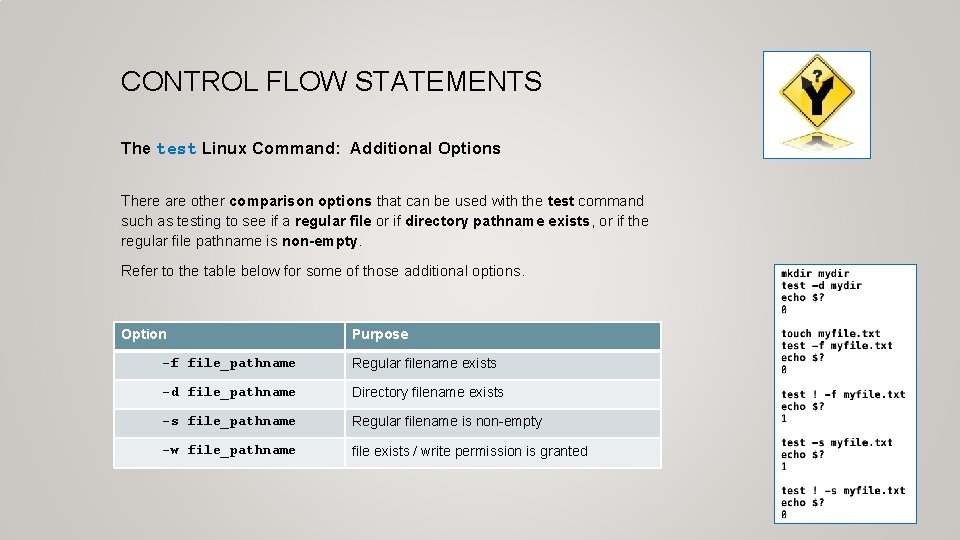
CONTROL FLOW STATEMENTS The test Linux Command: Additional Options There are other comparison options that can be used with the test command such as testing to see if a regular file or if directory pathname exists, or if the regular file pathname is non-empty. Refer to the table below for some of those additional options. Option Purpose -f file_pathname Regular filename exists -d file_pathname Directory filename exists -s file_pathname Regular filename is non-empty -w file_pathname file exists / write permission is granted
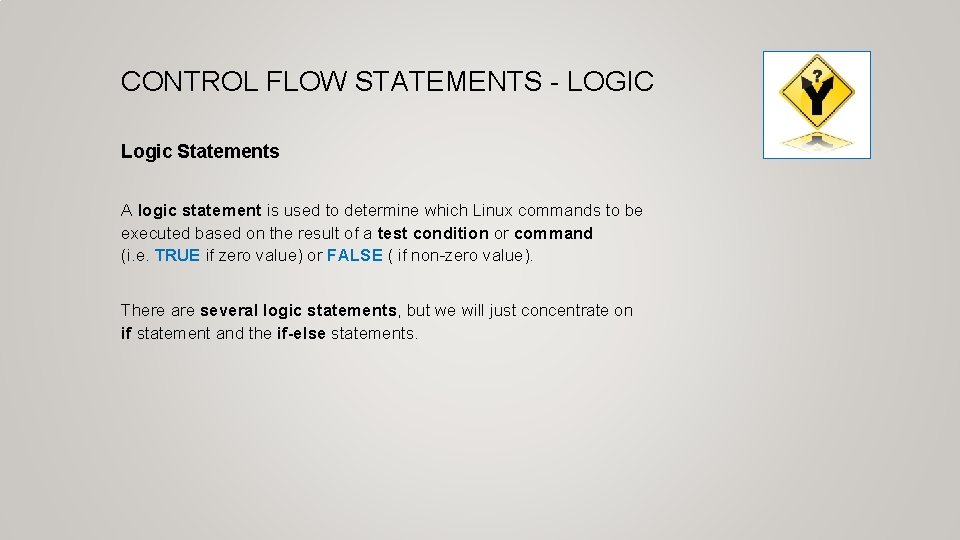
CONTROL FLOW STATEMENTS - LOGIC Logic Statements A logic statement is used to determine which Linux commands to be executed based on the result of a test condition or command (i. e. TRUE if zero value) or FALSE ( if non-zero value). There are several logic statements, but we will just concentrate on if statement and the if-else statements.
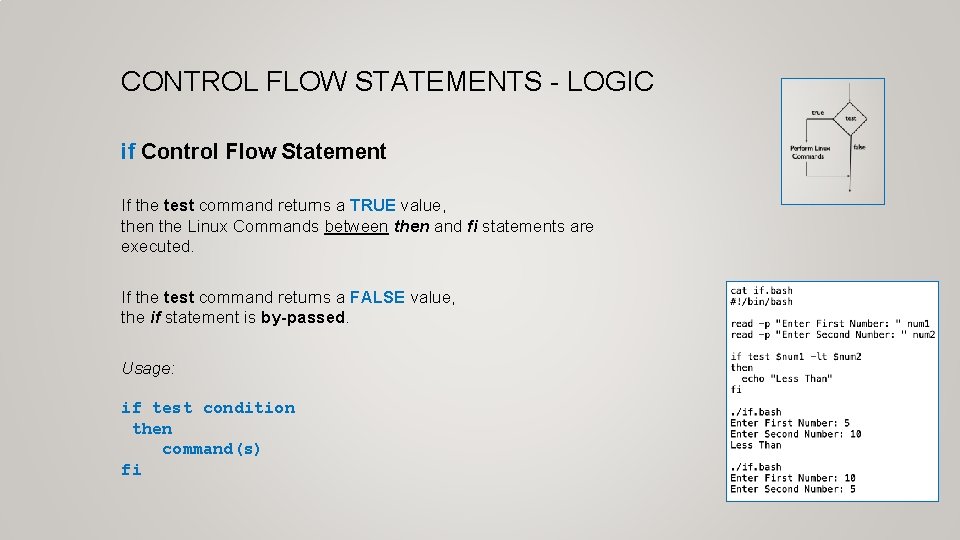
CONTROL FLOW STATEMENTS - LOGIC if Control Flow Statement If the test command returns a TRUE value, then the Linux Commands between then and fi statements are executed. If the test command returns a FALSE value, the if statement is by-passed. Usage: if test condition then command(s) fi
CONTROL FLOW STATEMENTS - LOGIC Using [ ] to Represent test Command A set of square brackets [ ] can be used to represent the test command. NOTE: There must be spaces between the square brackets and the test condition. Example: num 1=5 num 2=10 if [ $num 1 –lt $num 2 ] then echo “Less Than” fi
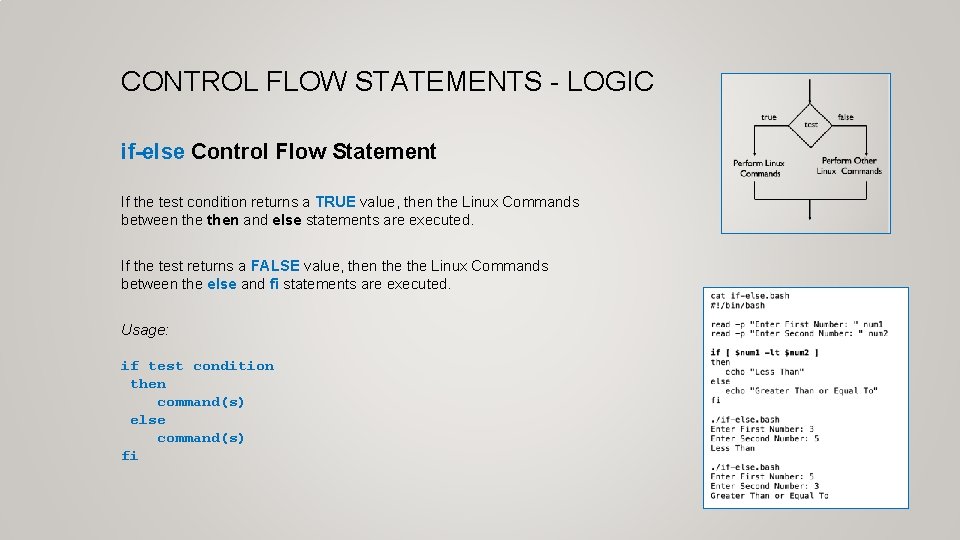
CONTROL FLOW STATEMENTS - LOGIC if-else Control Flow Statement If the test condition returns a TRUE value, then the Linux Commands between then and else statements are executed. If the test returns a FALSE value, then the Linux Commands between the else and fi statements are executed. Usage: if test condition then command(s) else command(s) fi
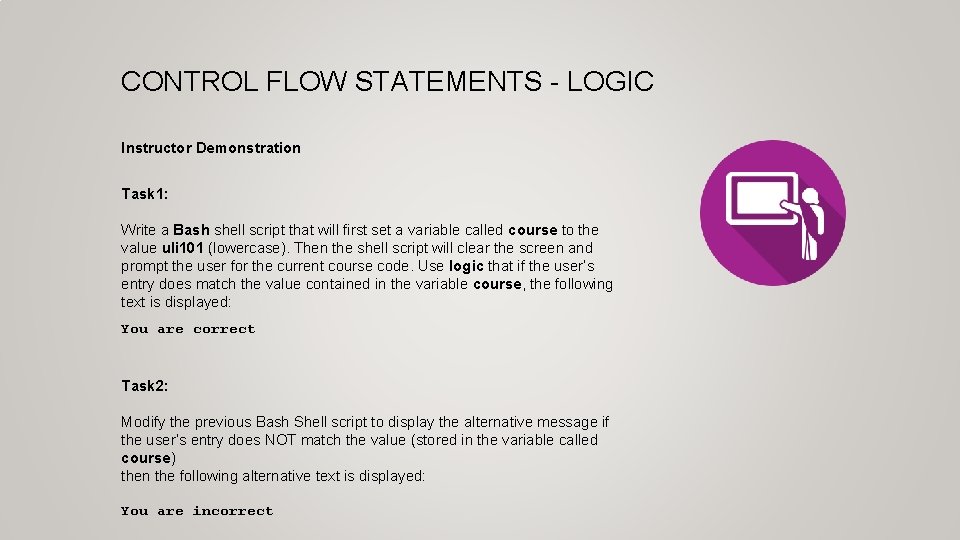
CONTROL FLOW STATEMENTS - LOGIC Instructor Demonstration Task 1: Write a Bash shell script that will first set a variable called course to the value uli 101 (lowercase). Then the shell script will clear the screen and prompt the user for the current course code. Use logic that if the user’s entry does match the value contained in the variable course, the following text is displayed: You are correct Task 2: Modify the previous Bash Shell script to display the alternative message if the user’s entry does NOT match the value (stored in the variable called course) then the following alternative text is displayed: You are incorrect
CONTROL FLOW STATEMENTS - LOOPS Loop Statements (iteration) A loop statement is a series of steps or sequence of statements executed repeatedly zero or more times satisfying the given condition. Reference: https: //www. chegg. com/homework-help/definitions/loop-statement-3
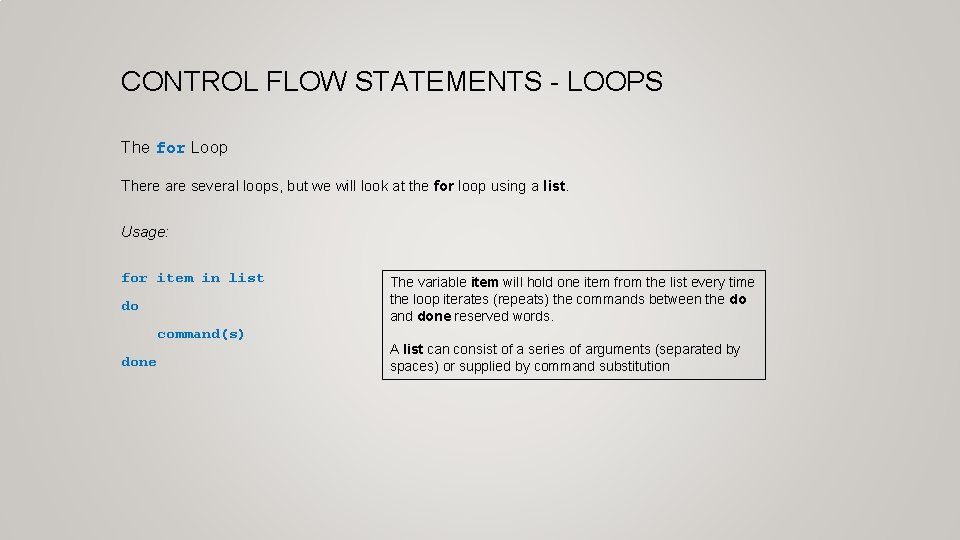
CONTROL FLOW STATEMENTS - LOOPS The for Loop There are several loops, but we will look at the for loop using a list. Usage: for item in list do command(s) done The variable item will hold one item from the list every time the loop iterates (repeats) the commands between the do and done reserved words. A list can consist of a series of arguments (separated by spaces) or supplied by command substitution
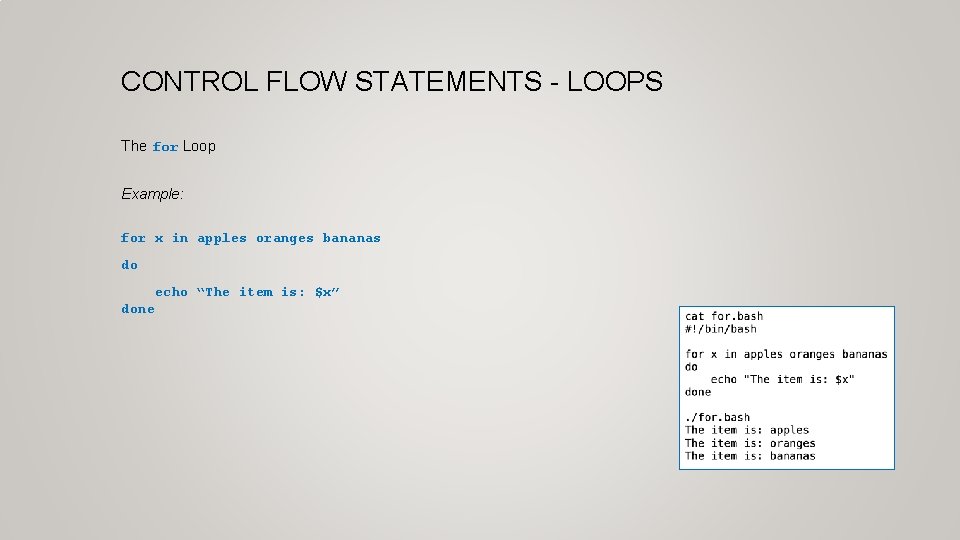
CONTROL FLOW STATEMENTS - LOOPS The for Loop Example: for x in apples oranges bananas do echo “The item is: $x” done
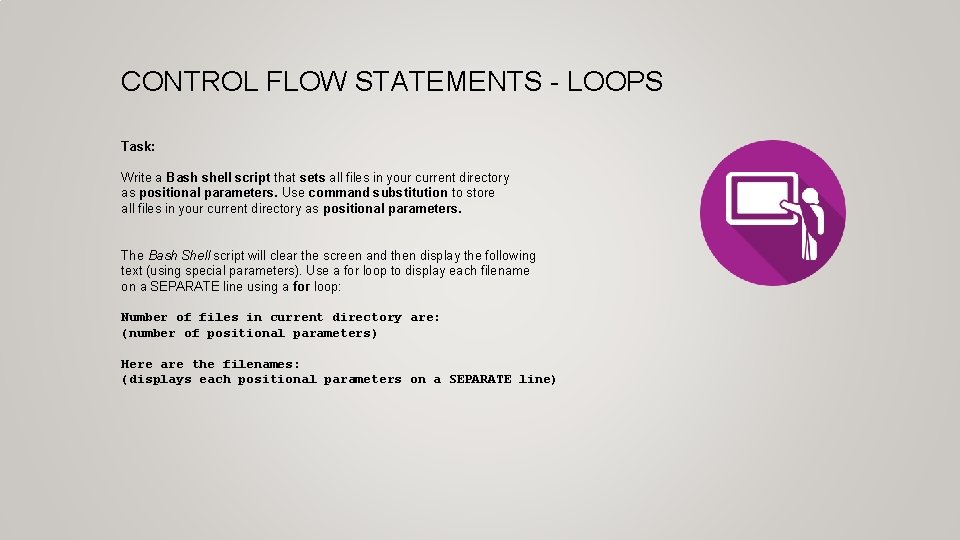
CONTROL FLOW STATEMENTS - LOOPS Task: Write a Bash shell script that sets all files in your current directory as positional parameters. Use command substitution to store all files in your current directory as positional parameters. The Bash Shell script will clear the screen and then display the following text (using special parameters). Use a for loop to display each filename on a SEPARATE line using a for loop: Number of files in current directory are: (number of positional parameters) Here are the filenames: (displays each positional parameters on a SEPARATE line)
HOMEWORK Getting Practice To get practice to help perform assignment #3, perform Week 10 Tutorial: • INVESTIGATION 3: COMMAND SUBSTITUTION / MATH OPERATIONS • INVESTIGATION 4: USING CONTROL FLOW STATEMENTS IN SHELL SCRIPTS • LINUX PRACTICE QUESTIONS (Part A 4 , Part B Walk-Thru #2) Work on Assignment #3: • Section 3: Interactive Shell Environment • Section 4: Introduction To Scripting (phone)