
Week 1 Class 2 Lab Activity Chapter 8
Week 1 Class 2 Lab Activity Chapter 8 Mobile Devices *Notebook Computers *Power Management *Mobile Devices *Mobile Networking *Mobile Security Labs: 8. 3. 5, 8. 3. 6, 8. 6. 7 CIAT CIS 101 B
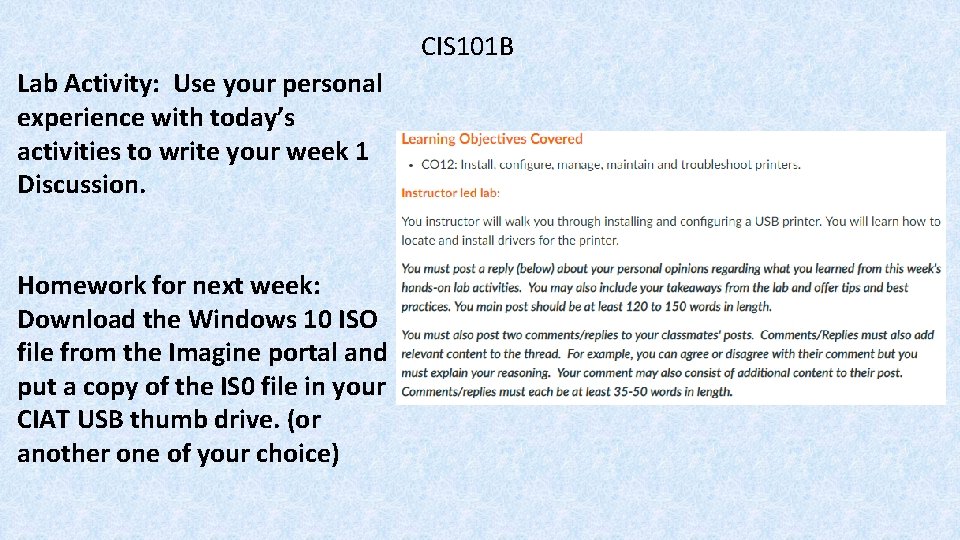
CIS 101 B Lab Activity: Use your personal experience with today’s activities to write your week 1 Discussion. Homework for next week: Download the Windows 10 ISO file from the Imagine portal and put a copy of the IS 0 file in your CIAT USB thumb drive. (or another one of your choice)
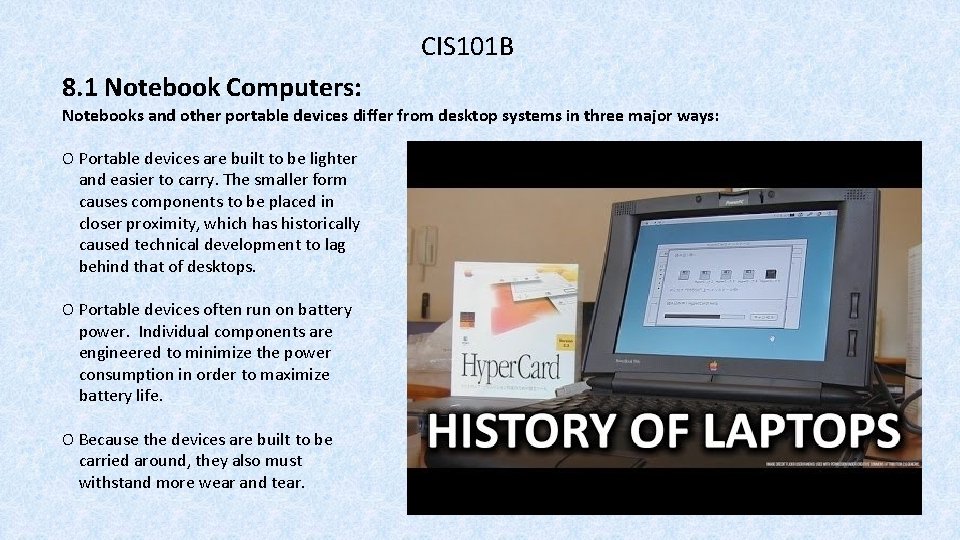
CIS 101 B 8. 1 Notebook Computers: Notebooks and other portable devices differ from desktop systems in three major ways: O Portable devices are built to be lighter and easier to carry. The smaller form causes components to be placed in closer proximity, which has historically caused technical development to lag behind that of desktops. O Portable devices often run on battery power. Individual components are engineered to minimize the power consumption in order to maximize battery life. O Because the devices are built to be carried around, they also must withstand more wear and tear.
CIS 101 B 8. 1 Notebook Computers: Be aware of the following classifications for portable devices: O A notebook (or laptop) O A Tablet PC O A PDA (Personal Digital Assistant) O A smart phone O A netbook
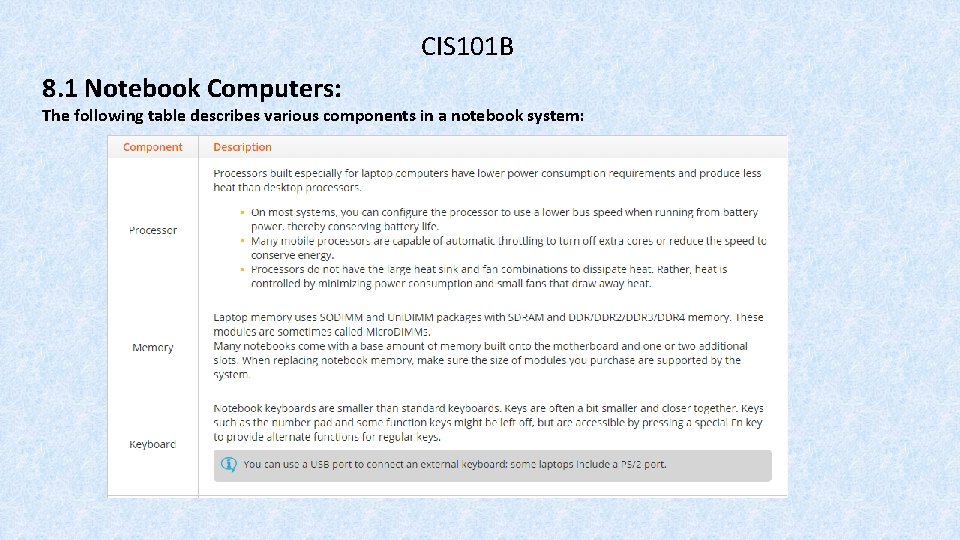
CIS 101 B 8. 1 Notebook Computers: The following table describes various components in a notebook system:
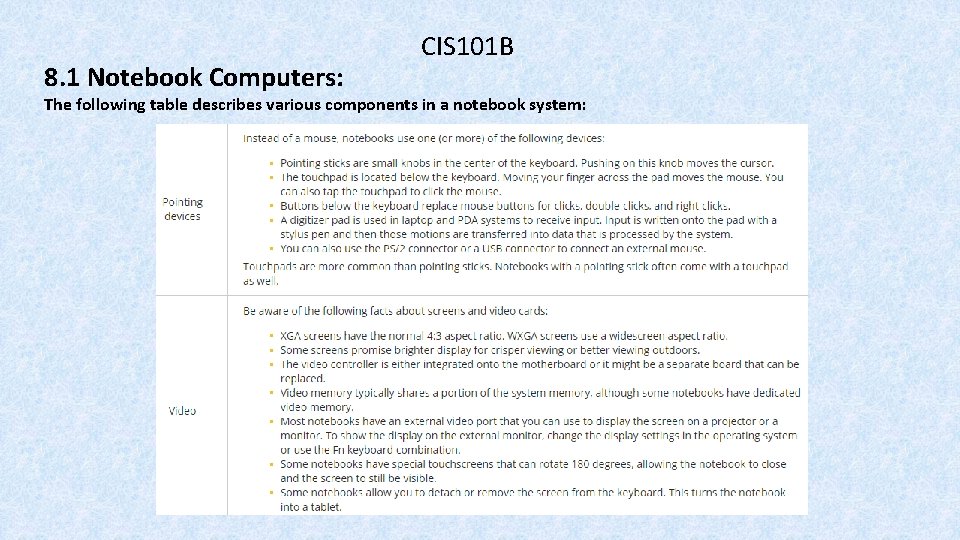
8. 1 Notebook Computers: CIS 101 B The following table describes various components in a notebook system:
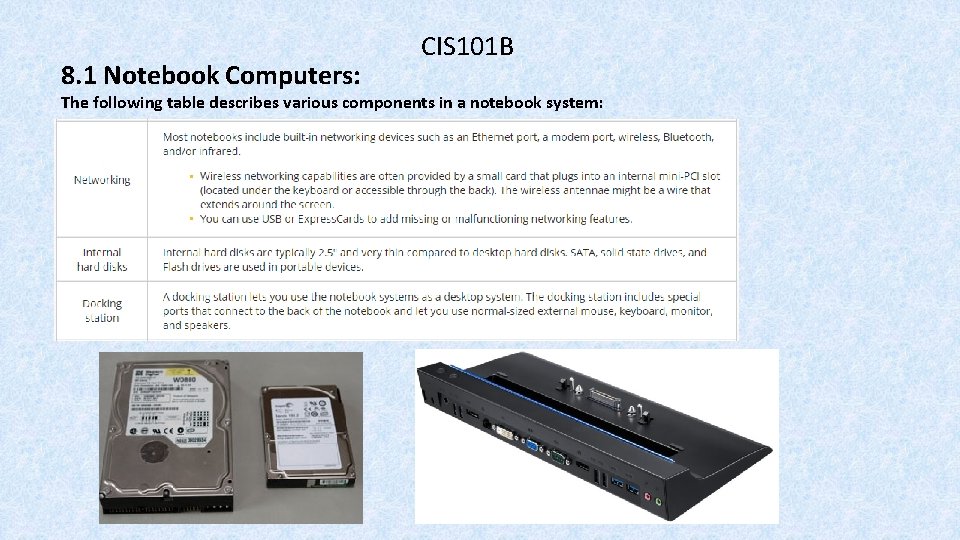
8. 1 Notebook Computers: CIS 101 B The following table describes various components in a notebook system:
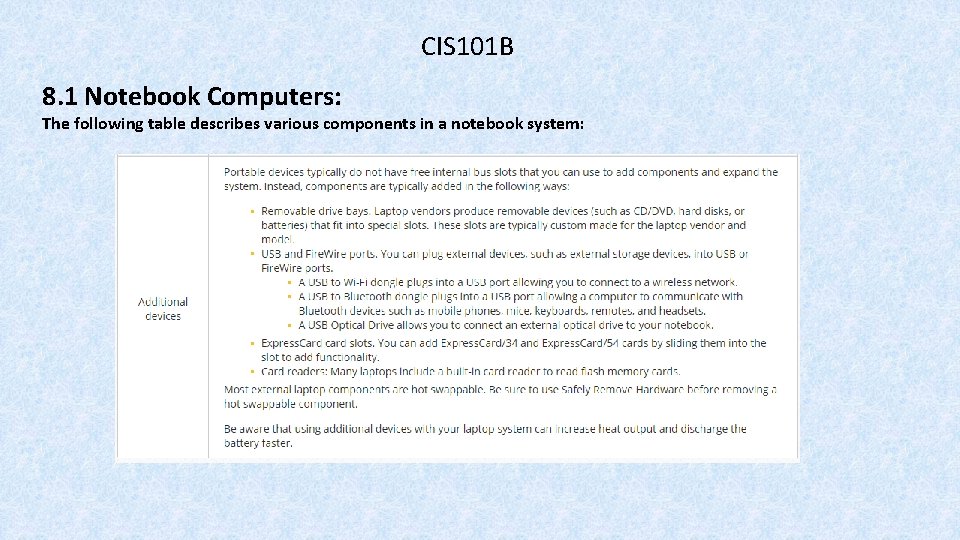
CIS 101 B 8. 1 Notebook Computers: The following table describes various components in a notebook system:
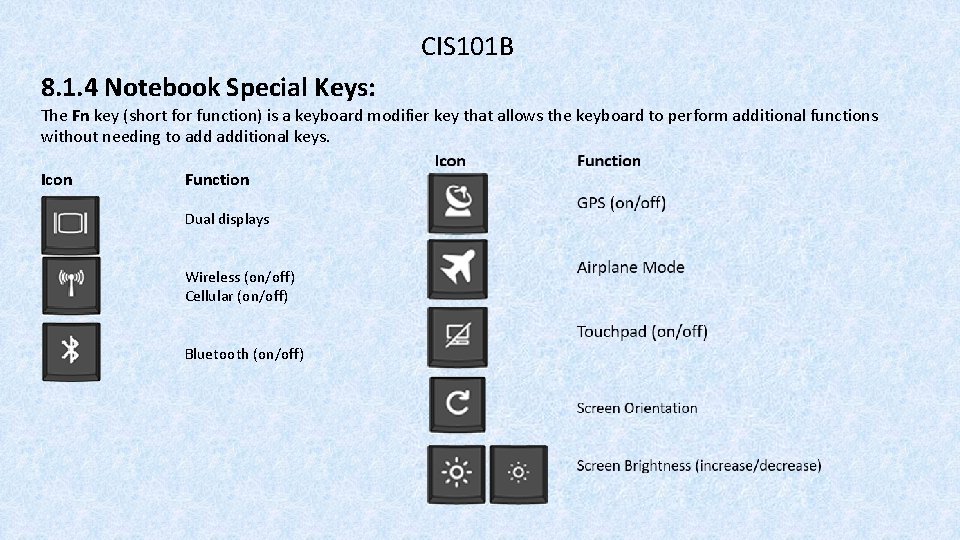
CIS 101 B 8. 1. 4 Notebook Special Keys: The Fn key (short for function) is a keyboard modifier key that allows the keyboard to perform additional functions without needing to additional keys. Icon Function Dual displays Wireless (on/off) Cellular (on/off) Bluetooth (on/off)
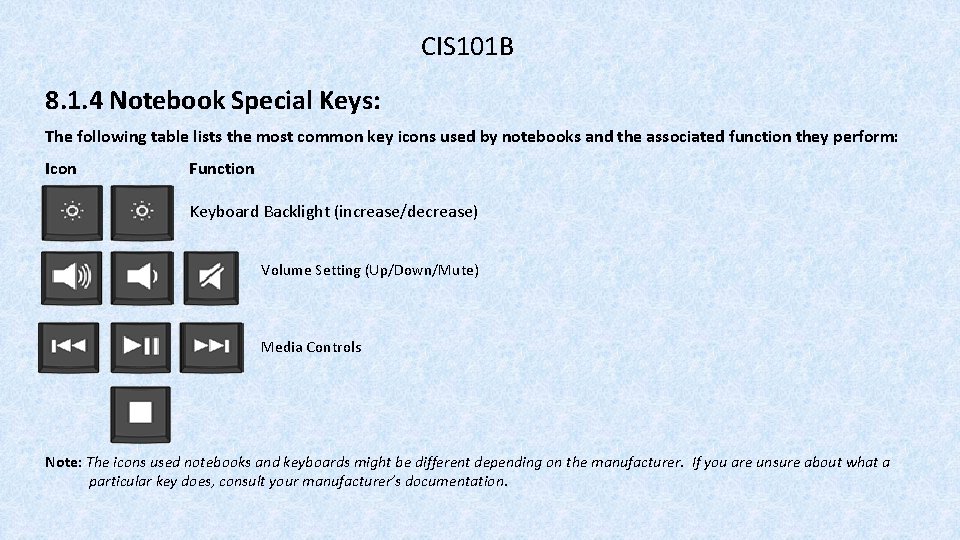
CIS 101 B 8. 1. 4 Notebook Special Keys: The following table lists the most common key icons used by notebooks and the associated function they perform: Icon Function Keyboard Backlight (increase/decrease) Volume Setting (Up/Down/Mute) Media Controls Note: The icons used notebooks and keyboards might be different depending on the manufacturer. If you are unsure about what a particular key does, consult your manufacturer’s documentation.
CIS 101 B 8. 2. 6 Notebook Upgrade and Repairs: When upgrading or repairing notebook components, keep in mind the following considerations: o To identify the source of problems on a notebook, plug in a known good external component. a. keyboard into the USB or PS/2 slot. b. external monitor. o If the external device works but the internal device doesn't, then replace the internal device if the component is removable. o Some notebook components are built into the motherboard and cannot be replaced without replacing the entire motherboard. In those cases, add a similar component using an external bus type (e. g. , PC Card/PCMCIA, Express. Card, or USB). o An alternative to replacing failed components (because of cost) is to add external components. For example, you can use your notebook as a desktop computer by connecting an external monitor. o Notebooks vary considerably in design and composition.
CIS 101 B 8. 2. 6 Notebook Upgrade and Repairs: When upgrading or repairing notebook components, keep in mind the following considerations: O Notebook parts are not as standardized as other PC components. In many cases, you will need to order from the manufacturer to get the correct part. O Plastic case components are sometimes screwed into place and sometimes snapped into place. For pieces of the case that snap into place, use a plastic tool to carefully pry the piece off. O When disassembling at notebook, make sure you: a. Document and label cable and screw locations b. Organize parts c. Refer to manufacturer resources d. Use the appropriate hand tools
CIS 101 B 8. 3 Notebook Power Management: Notebook systems are designed to use as little power as possible. Common ways notebook systems save power are: 1 - Turning off any drives that aren't currently being used 2 - Stepping down the bus speed in the CPU (Throttling) 3 - Turning off the monitor after a period of inactivity 4 - Putting the computer to sleep or turning it off automatically When your laptop is plugged into the wall, it is receiving power through an adapter that converts the AC power from the outlet to DC power usable by the computer. Most adapters can be used on both 110 and 220 AC volt power sources. The energy received through the adapter is divided between running the notebook system and charging the battery.
CIS 101 B 8. 3 Notebook Power Management: (continued) Notebook systems are designed to use as little power as possible. Remember that most adapters are not interchangeable between laptops because laptops require varying amounts of voltage and amperage and also have different plugs. Before connecting a laptop to an adapter, look at the information listed on the adapter to make sure that it supplies the correct amount of voltage and amperage necessary for your specific laptop and has a plug that will fit properly. Failing to use the correct adapter can cause a laptop to: o Receive insufficient power to turn on o Receive insufficient power to charge the battery o Receive an excess of power that will fry the system When a laptop is not plugged into the wall, it receives its power from the battery. Batteries wear out over time so you should expect to replace your battery every few years. It is best to never let a battery run extremely low because the life of a battery significantly decreases if it loses all of its charge.
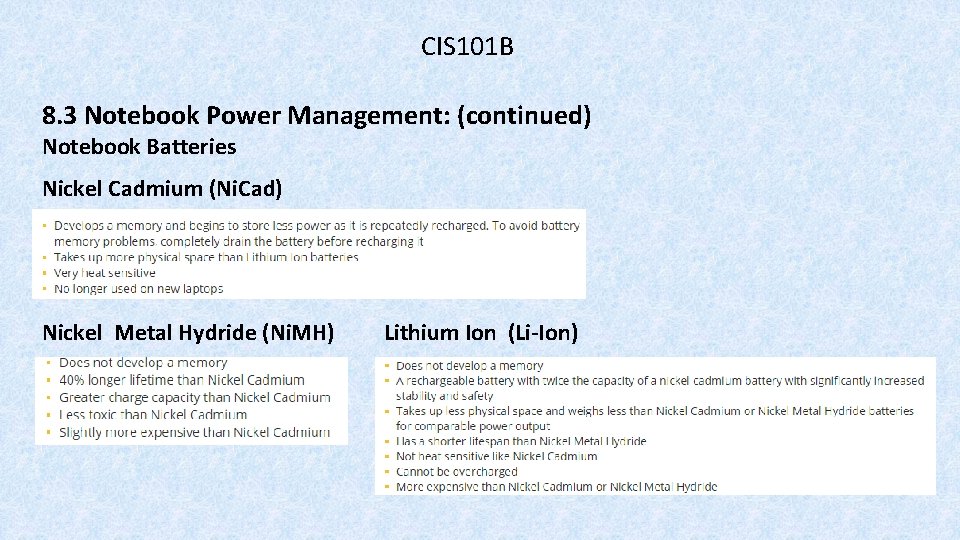
CIS 101 B 8. 3 Notebook Power Management: (continued) Notebook Batteries Nickel Cadmium (Ni. Cad) Nickel Metal Hydride (Ni. MH) Lithium Ion (Li-Ion)
CIS 101 B 8. 3. 4 Notebook Power Management: The ability for a computer to manage devices to conserve power is made possible by implementing the Advanced Configuration and Power Interface (ACPI) standards. O ACPI is also known as Instant Available and Always On. O The operating system, BIOS, and devices interact to manage power. O Users can configure settings O The system can monitor the battery O ACPI supports Plug and Play.
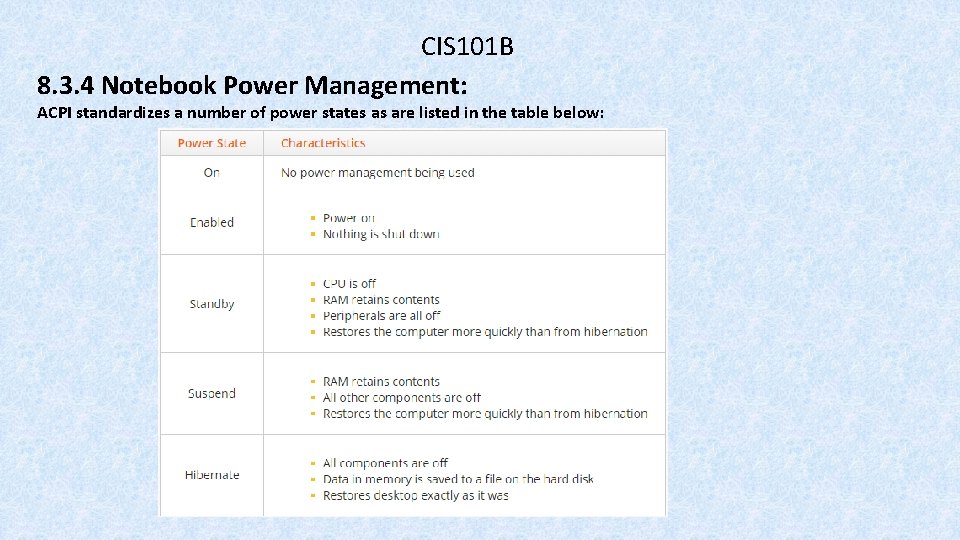
CIS 101 B 8. 3. 4 Notebook Power Management: ACPI standardizes a number of power states as are listed in the table below:
CIS 101 B 8. 3. 4 Notebook Power Management: Windows uses Power Schemes to manage power for the system. A power scheme is a collection of power settings that are either predefined or created by a user for use in different computing environments. O Each power scheme controls power down settings O You can modify the existing schemes O The preconfigured power schemes available depend on the operating system version and the computer type O Power schemes work for both laptop and desktop systems. O Edit the power scheme. O In Windows, sleep corresponds to the suspend ACPI state.
CIS 101 B 8. 3 Notebook Power Management: Do Labs 8. 3. 5 & 8. 3. 6
CIS 101 B 8. 4 Notebook Troubleshooting: Be aware of the following when working with portable devices: O Most notebook manufacturers provide service manuals on their websites O The components used in notebook systems are much smaller than those used in desktop system. O Keep devices away from food and drink. O For individual keys that stick O Clean the display with lint-free cloth and isopropyl alcohol.
8. 4 Notebook Troubleshooting: CIS 101 B Be aware of the following when working with portable devices: O Cooling is a major concern. Follow these recommendations: a. Keep all air vents clear and unobstructed. b. To help in heat dissipation, do not place a laptop on a surface where air cannot be circulated evenly beneath it. c. Adjust processor throttling O Allow the computer to warm up before using it. O Do not leave portable devices in cars O Protect portable devices O PCMCIA and Express. Card cards extend past the outer edge of the laptop
CIS 101 B 8. 4 Notebook Troubleshooting:
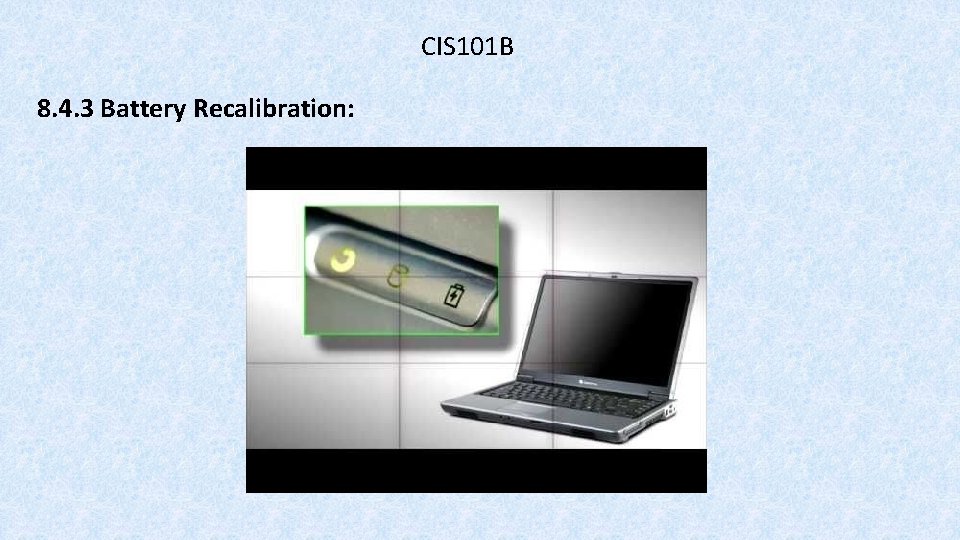
CIS 101 B 8. 4. 3 Battery Recalibration: Common for a laptop battery power meter to incorrectly report the amount of charge remaining in the battery. This becomes a problem because Windows Power Schemes use the power meter to automatically turn off the laptop when the battery level reaches a certain level (such as 5% remaining). When the power meter becomes incorrect, this might mean that the system shuts down even when there is sufficient battery power remaining. The way to correct this problem is to calibrate the battery. Calibration synchronizes the power meter to the actual charge capacity of the battery. Many laptops come with a software tool for calibrating the battery, while some include a function in the BIOS.
CIS 101 B 8. 4. 3 Battery Recalibration: Be aware of the following when working with laptop batteries: Calibrate the battery when you first use it, and every 3 months thereafter. Extreme high or low temperatures shorten the battery life. Turn down the display brightness, If you will not use the battery for longer than 2 weeks, remove and store it separately. Storing a battery longer than 3 months without use might affect its ability to hold a charge. Most batteries will last between 1 -3 years.
CIS 101 B 8. 4. 3 Battery Recalibration:
CIS 101 B 8. 4. 4 Notebook Troubleshooting: Due to the integrated nature of laptops, troubleshooting notebook components is significantly harder than troubleshooting desktop components. Most notebook manufacturers provide service manuals on their websites that you can use to learn specific troubleshooting procedures for a particular make and model. The following table provides some general troubleshooting guidelines to follow when working with laptop computers:
CIS 101 B
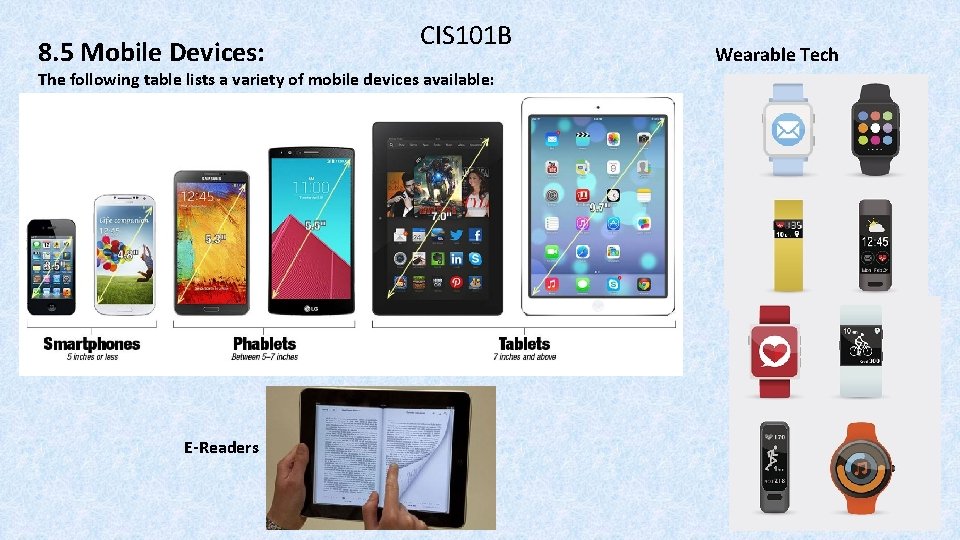
8. 5 Mobile Devices: CIS 101 B The following table lists a variety of mobile devices available: E-Readers Wearable Tech
CIS 101 B 8. 5 Mobile Devices
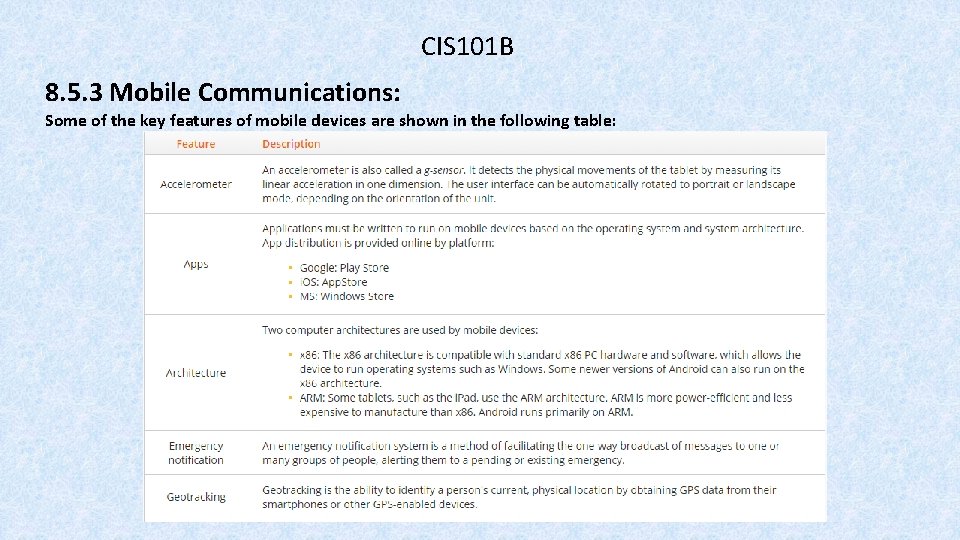
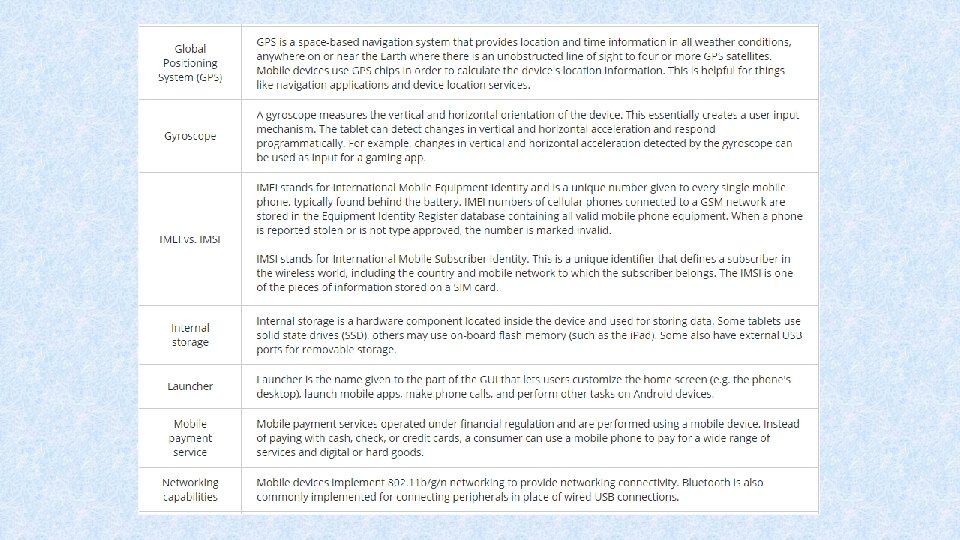
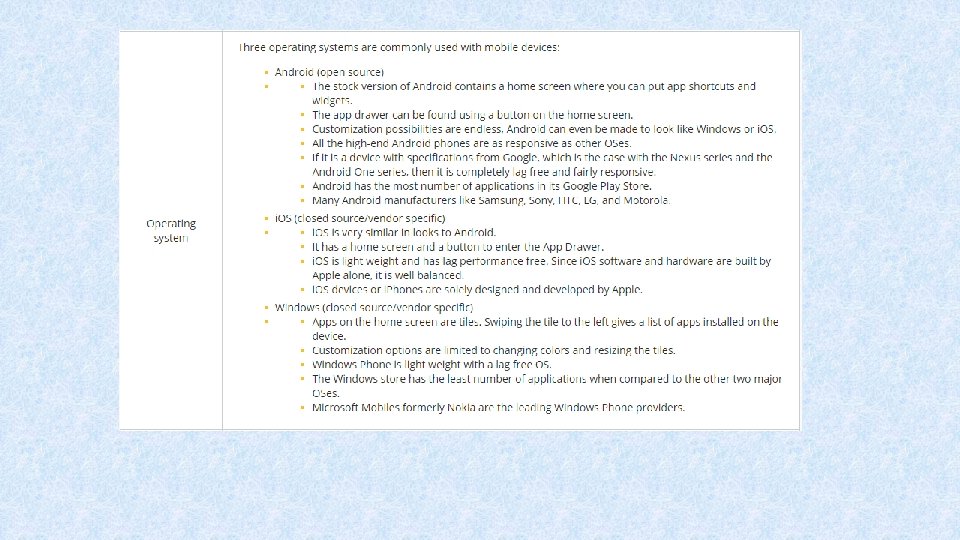
CIS 101 B 8. 5. 3 Mobile Communications: Some of the key features of mobile devices are shown in the following table:
CIS 101 B
CIS 101 B
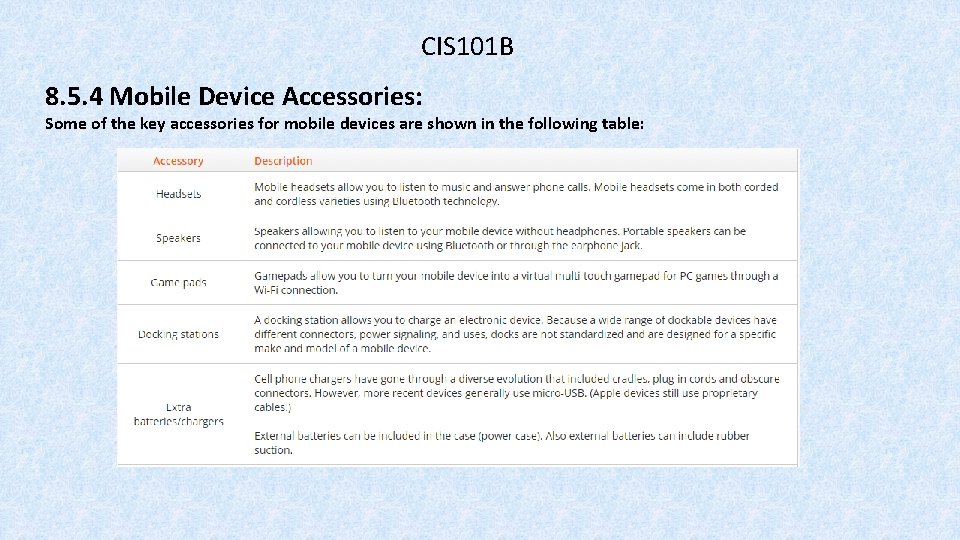
CIS 101 B 8. 5. 4 Mobile Device Accessories: Some of the key accessories for mobile devices are shown in the following table:
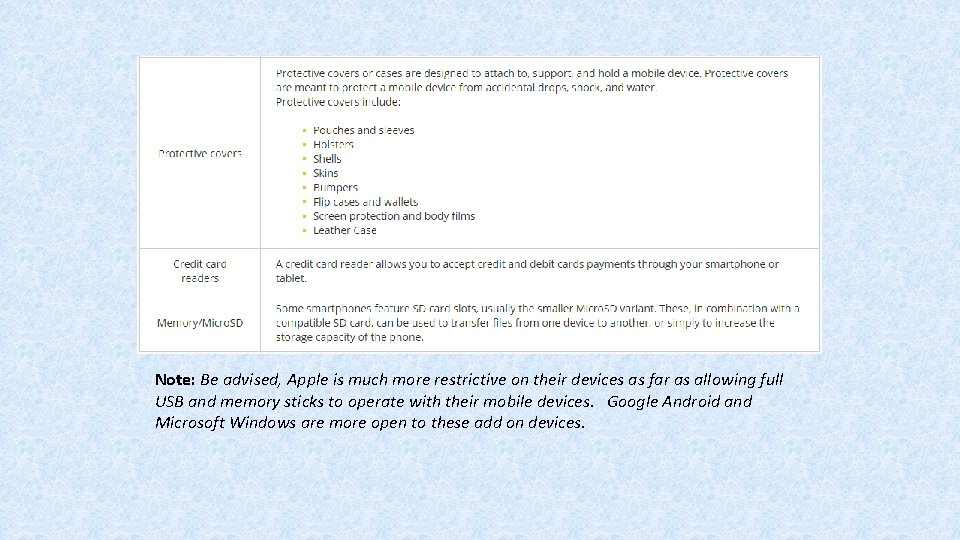
Note: Be advised, Apple is much more restrictive on their devices as far as allowing full USB and memory sticks to operate with their mobile devices. Google Android and Microsoft Windows are more open to these add on devices.
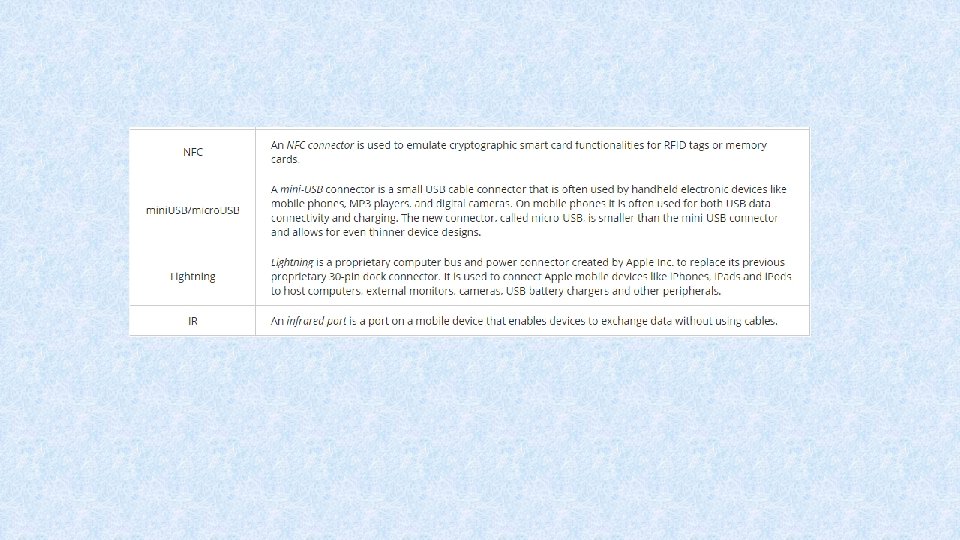
CIS 101 B 8. 6. 2 Mobile Device Network Connections: The following table lists different mobile connection types:
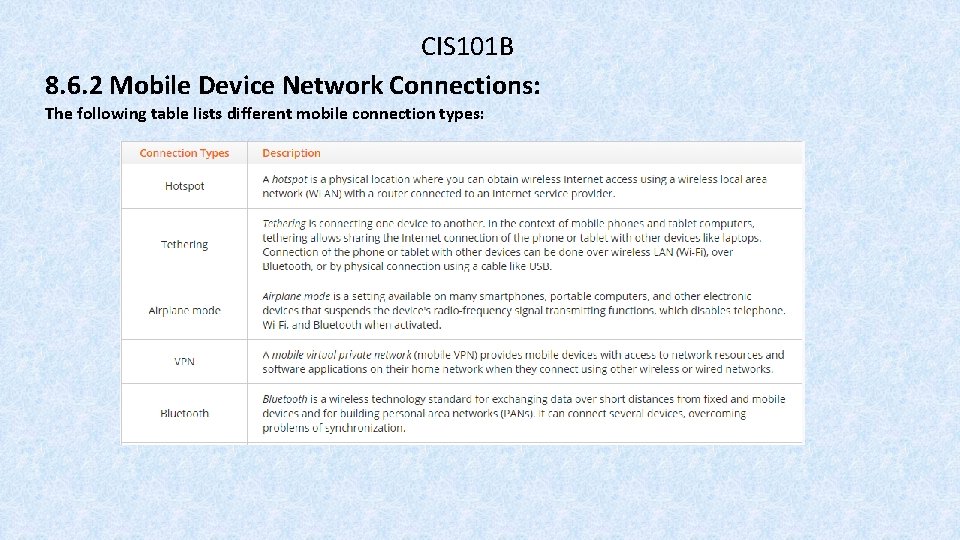
CIS 101 B 8. 6. 2 Mobile Device Network Connections: The following table lists different mobile connection types:
CIS 101 B 8. 6. 4 Data Synchronization: You can synchronize data between a PC system and a mobile device. You can also synchronize data between your PC or mobile device and the cloud. Use a USB cable or wireless connection to connect to a desktop or cloud to synchronize your data. You can also configure both a PC and a mobile device to use the same i. Cloud account. Online services use mutual authentication or single sign on to allow you to connect to their servers to sync data. Mutual authentication, also called two-way authentication, is a process or technology where both entities in a communications link authenticate each other. In a network environment, the client authenticates the server and viceversa. For example, i. Tunes requires you to authenticate using your Apple ID to its servers, while at the same time, Apple verifies that the i. Tunes app on your computer or device is the same app and computer used to access your i. Tunes account. Mutual authentication is used for multiple services like purchasing music and ebooks and saving content to the cloud. Also, be aware of any software requirements needed to install the application on your PC or mobile device. Some software requires a specific operating system and cannot run on any other operating system. For example, Android apps run only on Android devices. Apple apps run only on devices with i. OS.
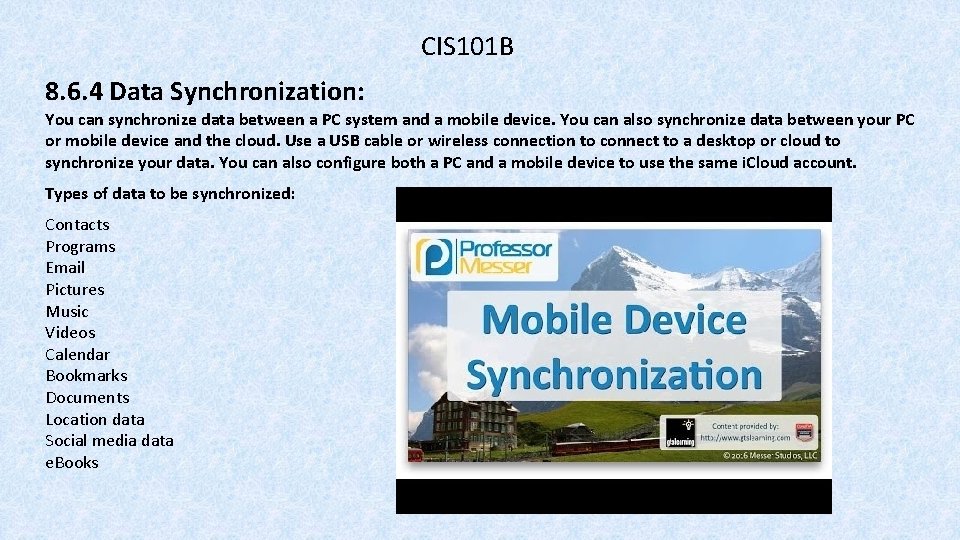
CIS 101 B 8. 6. 4 Data Synchronization: You can synchronize data between a PC system and a mobile device. You can also synchronize data between your PC or mobile device and the cloud. Use a USB cable or wireless connection to connect to a desktop or cloud to synchronize your data. You can also configure both a PC and a mobile device to use the same i. Cloud account. Types of data to be synchronized: Contacts Programs Email Pictures Music Videos Calendar Bookmarks Documents Location data Social media data e. Books
CIS 101 B 8. 6. 6 Mobile Email Configuration: You can configure email accounts on your mobile device using email service providers. Well-known email providers include: O Exchange (Microsoft) O Google/Inbox (Google) O i. Cloud (Apple) O Outlook. com (Microsoft) O Yahoo (Yahoo) You can also add your email account and setup the IP addresses of your POP 3, IMAP, or SMTP servers. To configure these email accounts, you may need to modify the port settings. To encrypt your email, configure the SSL and S/MIME settings. Both SSL and S/MIME securely sign and encrypt email. It is used to prove that the email came from the person says it is from.
CIS 101 B 8. 6 Mobile Device Management Do Lab 8. 6. 7
8. 7. 2 Mobile Device Security:
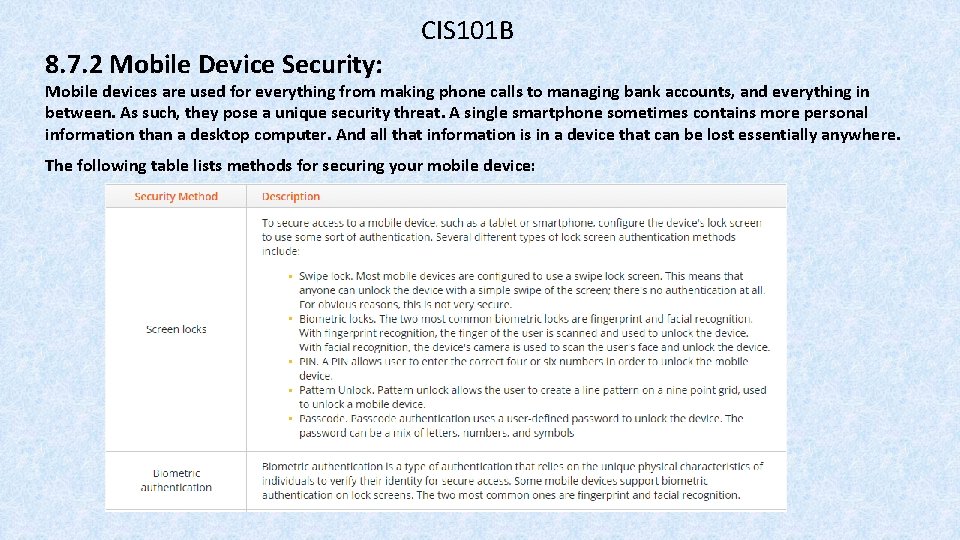
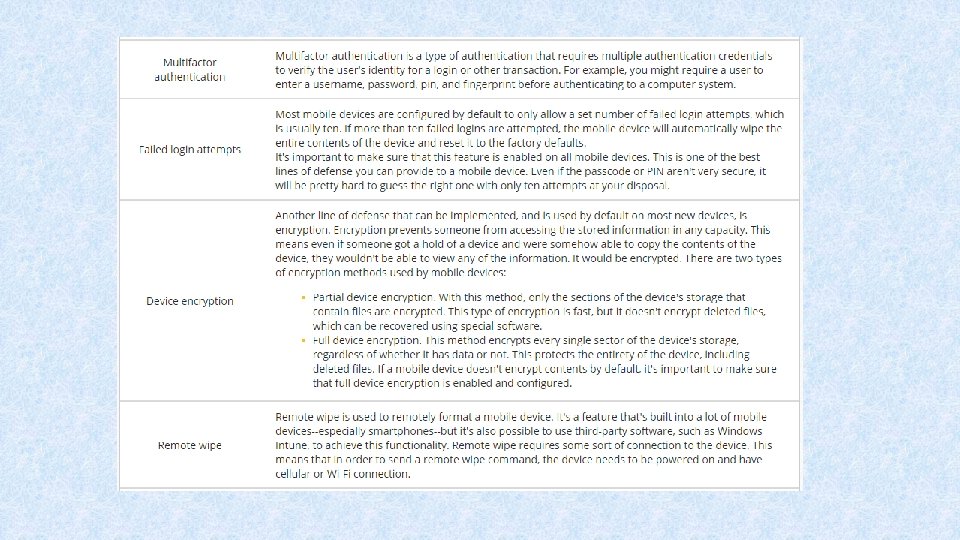
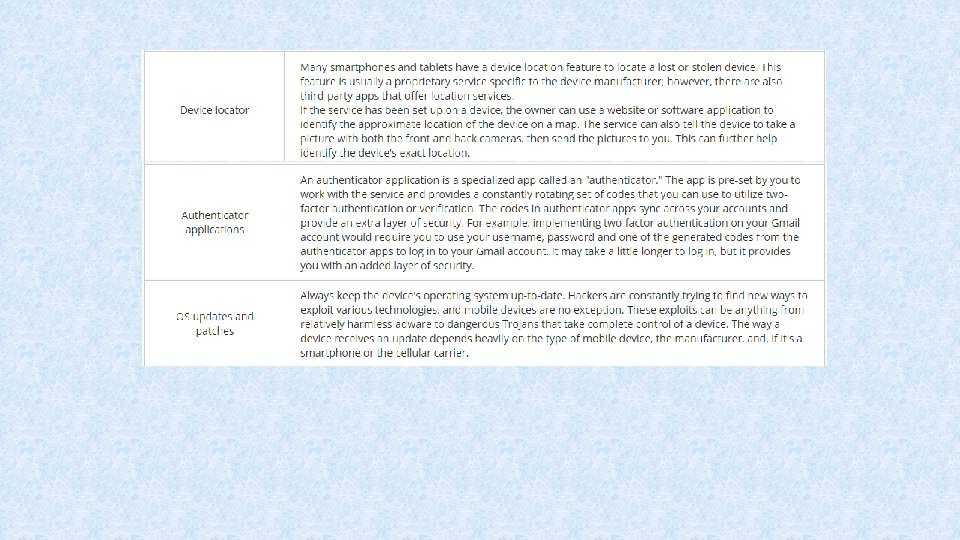
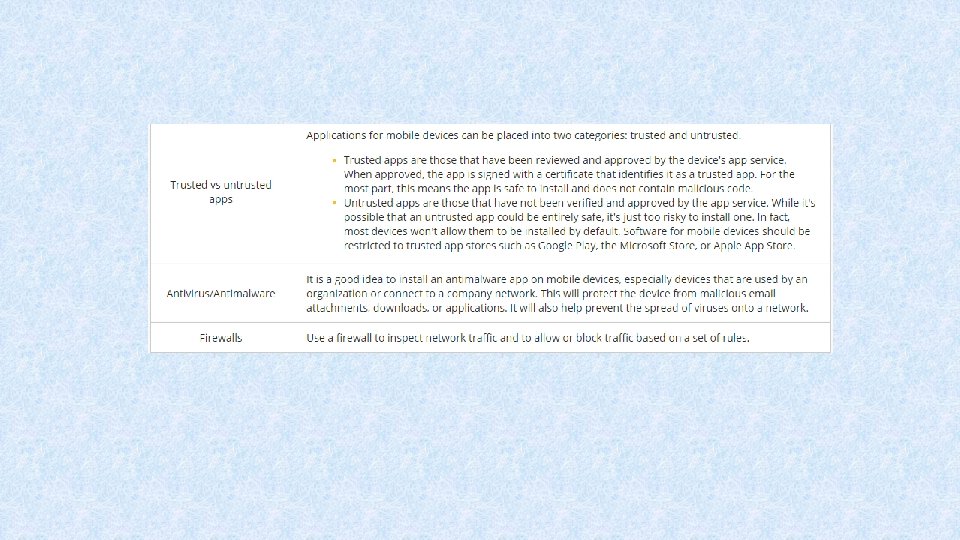
8. 7. 2 Mobile Device Security: CIS 101 B Mobile devices are used for everything from making phone calls to managing bank accounts, and everything in between. As such, they pose a unique security threat. A single smartphone sometimes contains more personal information than a desktop computer. And all that information is in a device that can be lost essentially anywhere. The following table lists methods for securing your mobile device:
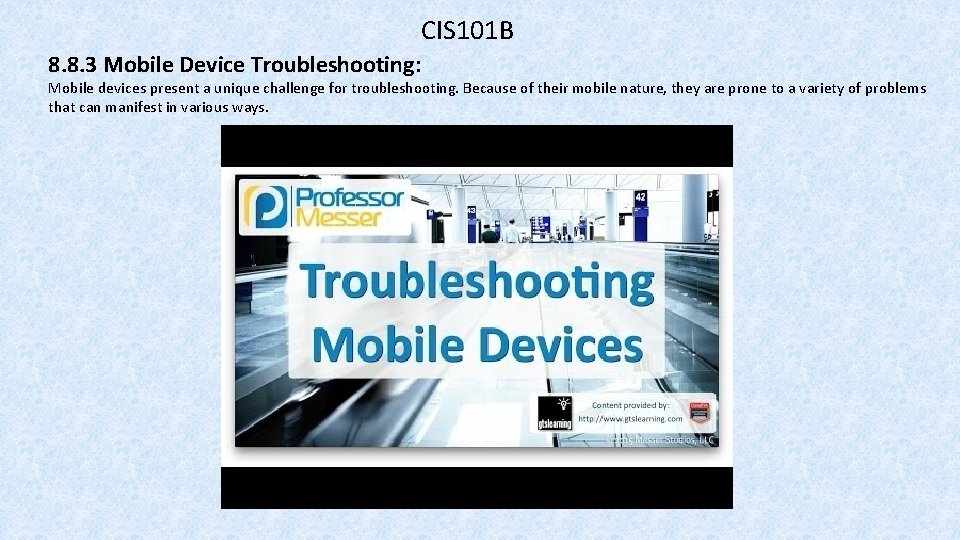
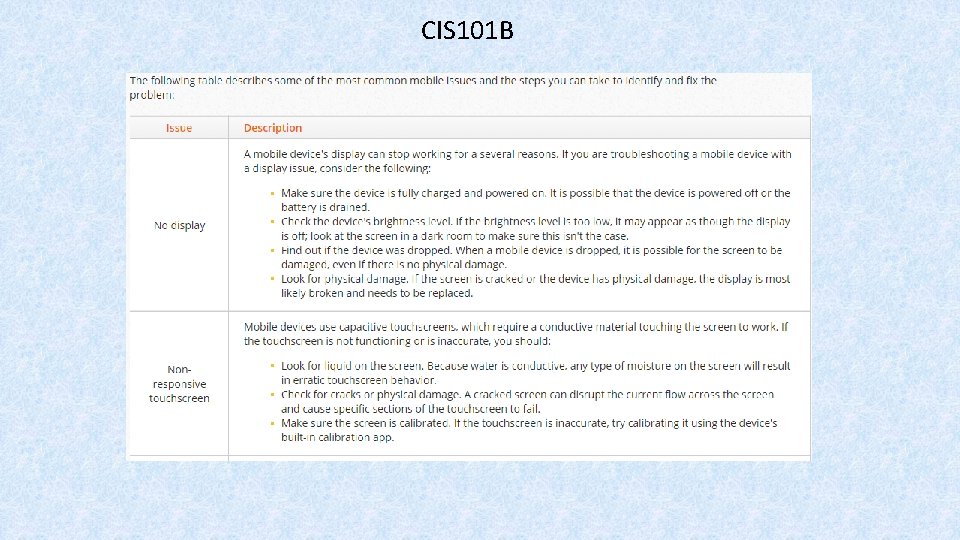
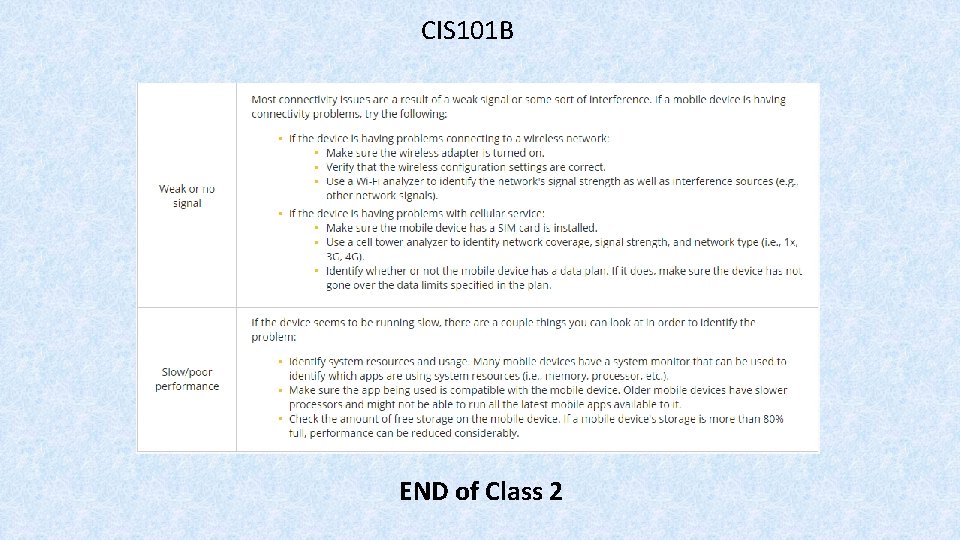
CIS 101 B 8. 8. 3 Mobile Device Troubleshooting: Mobile devices present a unique challenge for troubleshooting. Because of their mobile nature, they are prone to a variety of problems that can manifest in various ways.
CIS 101 B
CIS 101 B END of Class 2
- Slides: 49