
WEB TECHNOLOGIES Ms Rabeea Jaffari HTML HEAD ELEMENTS

WEB TECHNOLOGIES Ms Rabeea Jaffari
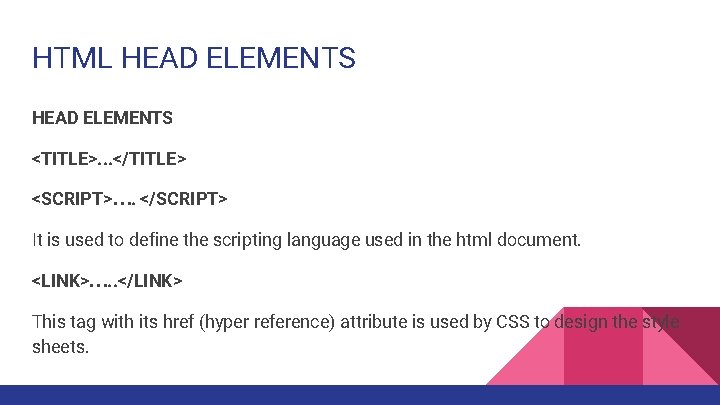
HTML HEAD ELEMENTS <TITLE>. . . </TITLE> <SCRIPT>…. </SCRIPT> It is used to define the scripting language used in the html document. <LINK>…. . </LINK> This tag with its href (hyper reference) attribute is used by CSS to design the style sheets.
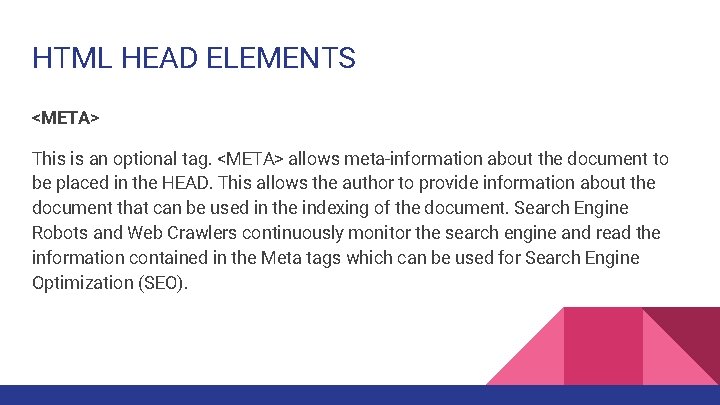
HTML HEAD ELEMENTS <META> This is an optional tag. <META> allows meta-information about the document to be placed in the HEAD. This allows the author to provide information about the document that can be used in the indexing of the document. Search Engine Robots and Web Crawlers continuously monitor the search engine and read the information contained in the Meta tags which can be used for Search Engine Optimization (SEO).
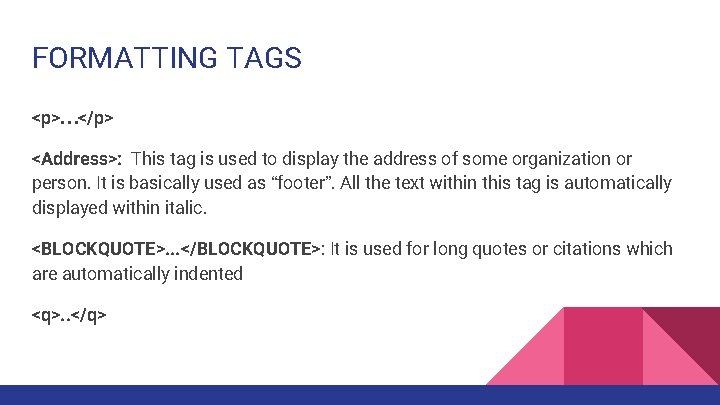
FORMATTING TAGS <p>…</p> <Address>: This tag is used to display the address of some organization or person. It is basically used as “footer”. All the text within this tag is automatically displayed within italic. <BLOCKQUOTE>. . . </BLOCKQUOTE>: It is used for long quotes or citations which are automatically indented <q>. . </q>
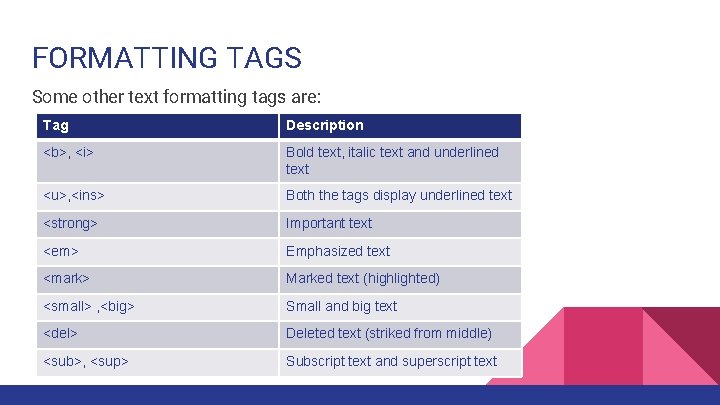
FORMATTING TAGS Some other text formatting tags are: Tag Description <b>, <i> Bold text, italic text and underlined text <u>, <ins> Both the tags display underlined text <strong> Important text <em> Emphasized text <mark> Marked text (highlighted) <small> , <big> Small and big text <del> Deleted text (striked from middle) <sub>, <sup> Subscript text and superscript text
HTML COMMENTS You can add comments to your HTML source by using the following syntax: <!-- Write your comments here --> It should be noted that, comments are not displayed by the browser, but they can help document your HTML source code. Example: <!-- This is a comment --> <p>This is a paragraph. </p> <!-- Remember to add more information here -->
LIST TAGS These tags are used to create lists in the following three ways: Unordered (Bulleted) Lists, <UL>. . . </UL>: These are used to display some non-step wise information and use a <LI> tag. It consists of a single attribute: Type: It defines the bullet used for the list such as a square, a circle (unfilled circle) and a disc (a filled circle).
LIST TAGS (Contd. . ) Ordered (Numbered) Lists, <OL>. . . </OL>: These are used to display some step wise information and use a <LI> tag. It consists of a two attributes: Type: It defines the bullet used for the list such as a uppercase alphabets (“A”), lower case alphabets (“a”), numbers (“ 1”), lower case roman numerals (“i”) or upper case roman numerals (“I”) Start: It defines the starting number for the list. For instance, if we specify start=” 10” the list will start from 10 and continue onwards.
LIST <li> TAG <LI>…. </LI>: This tag is used to define list items within ordered as well as unordered lists. VALUE: This attribute is used to specify the value of a list item. e. g. : <li value=” 15”>WT</li> So, WT will be displayed at 15 th position and the next list item would be displayed at 16 th and so on. Definition Lists <DL>. . . </DL>: These are used for creating glossaries and use the following tags: <DT>. . . </DT>: A definition term tag. Definition terms are used within the <DL> tag in a similar way that the <LI> tag is used within <UL> and <OL>.
Definition Lists (Contd. . ) <DD>. . . </DD> A definition description tag. It defines the corresponding definition to a definition term.
HTML TABLES <TABLE>. . <TABLE>: The TABLE tag must surround an entire table. It's attributes determine how the table looks. ATTRIBUTES: BORDER: This defines how big the borders of a table will be. CELLPADDING: This defines how far from the edge of a cell the content in that cell will be CELLSPACING: This defines how far apart the cells of the table will be.
HTML TABLES (Contd. . ) BGCOLOR: This defines the background color of the table. If a color is specified in the TR or TD tags BGCOLOR is ignored for that row, or cell respectively. <TR>. . </TR>: Creates a table row ATTRIBUTES: ALIGN: This determines how the content in all the cells in this row is aligned. <TR ALIGN=RIGHT> will make the cell right justified <TR ALIGN=CENTER> will make the cell centered
HTML TABLES (Contd. . ) <TR ALIGN=LEFT> will make the cell left justified BGCOLOR: background color for the table row. <TD>. . </TD>: The TD tag surrounds the contents of a cell within a table. Every TD tag is usually placed within the <tr></tr> tags ATTRIBUTES: ALIGN: same as <TR> align. BGCOLOR: sets the background color for the cell
HTML TABLES (Contd. . ) ROWSPAN: ROWSPAN controls how many rows the cell occupies, allowing you to merge the cells of three rows into one tall cell. COLSPAN: COLSPAN controls how many columns the cell occupies, allowing you to merge the cells of three columns into one long cell. <th>. . </th>: tag header is used for specifying the column headings in a row. (Similar to <td>…</td> tag for table data). <col>…. </col>: The <col> tag is useful for applying styles to entire columns, instead of repeating the styles for each cell, for each row.
HTML TABLES (Contd. . ) <col>…. </col> (contd…. ): The <col> tag specifies column properties for each column within a <colgroup> element which is used to group columns together. valign attribute: The valign attribute specifies the vertical alignment of the content related to a <col> element. Possible values of this attribute are: <col valign="top|middle|bottom|baseline"> (The valign attribute is only supported in Internet Explorer and Opera 12 and earlier. The valign attribute is not supported in HTML 5. )
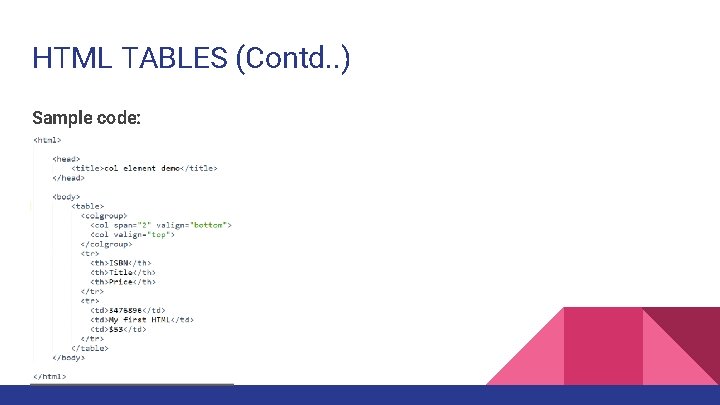
HTML TABLES (Contd. . ) Sample code:
HTML TABLES (Contd. . ) <thead>, <tbody> and <tfoot> tags: The <thead>, <tbody> and <tfoot> elements are used together to specify each part of a table (header, body, footer). Browsers can use these elements to enable scrolling of the table body independently of the header and footer. Also, when printing a large table that spans multiple pages, these elements can enable the table header and footer to be printed at the top and bottom of each page.
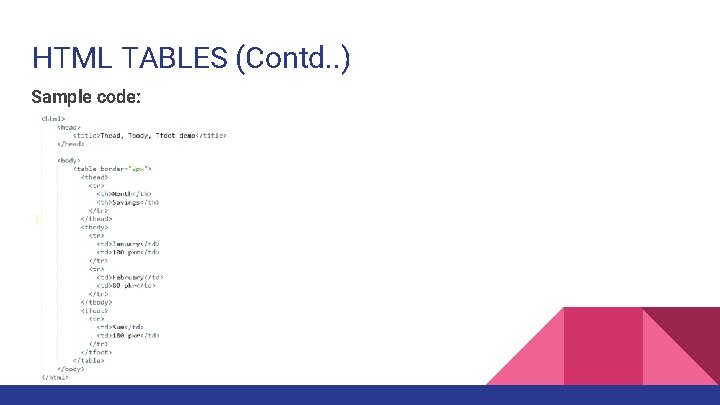
HTML TABLES (Contd. . ) Sample code:
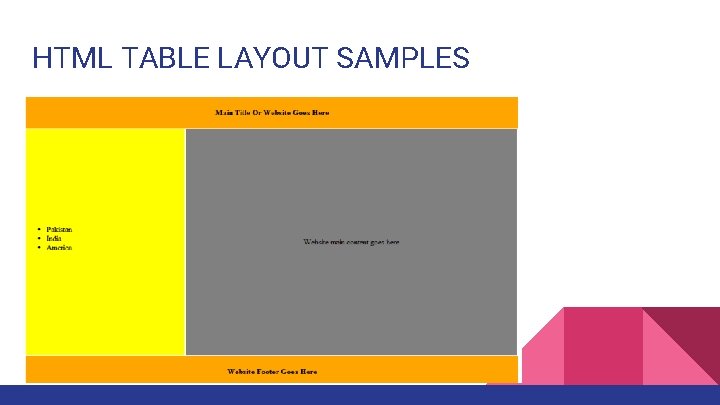
HTML TABLE LAYOUT SAMPLES
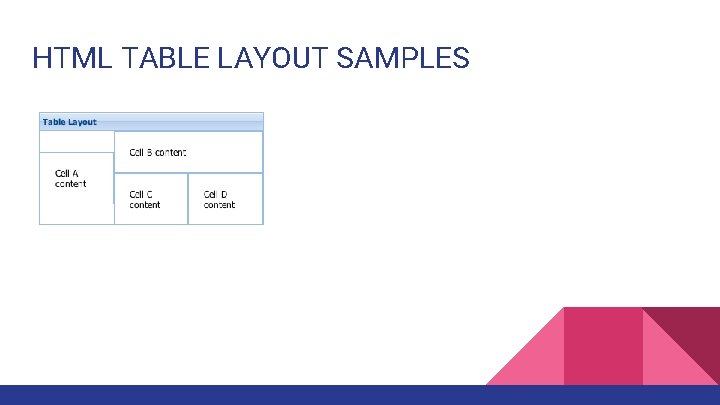
HTML TABLE LAYOUT SAMPLES
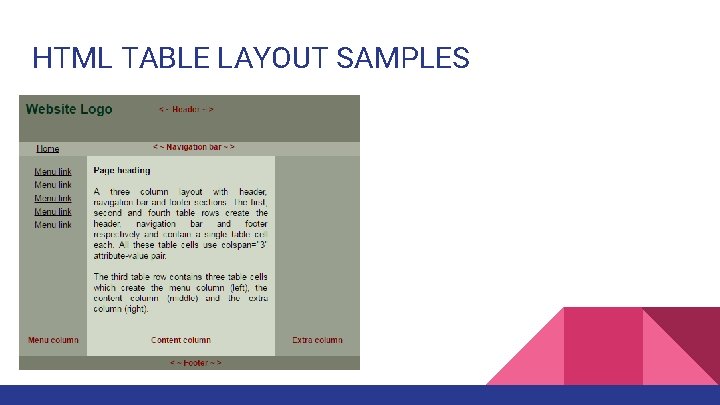
HTML TABLE LAYOUT SAMPLES
HTML 5 New HTML 5 elements: semantic elements like <header>, <footer>, <article>, <section>, <main>, <nav>, <aside>. attributes of form elements like number, date, time, calendar, and range, color graphic elements: <svg> and <canvas>. multimedia elements: <audio> and <video>.
HTML 5 (Contd. . ) HTML 5 API's (Application Programming Interfaces): The most interesting new API's in HTML 5 are: • HTML Geolocation • HTML Drag and Drop • HTML Local Storage • HTML Web Workers • HTML SSE
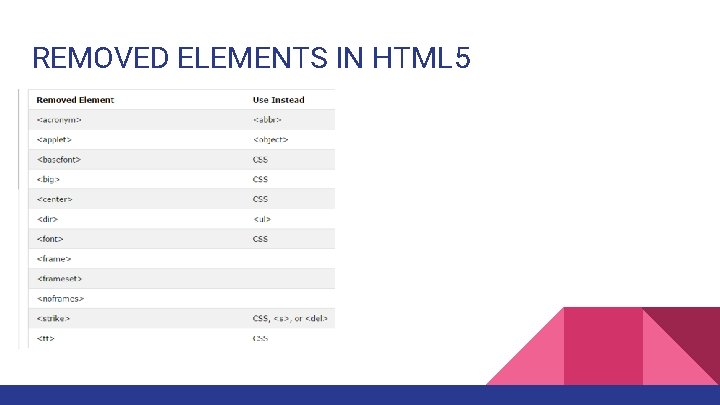
REMOVED ELEMENTS IN HTML 5
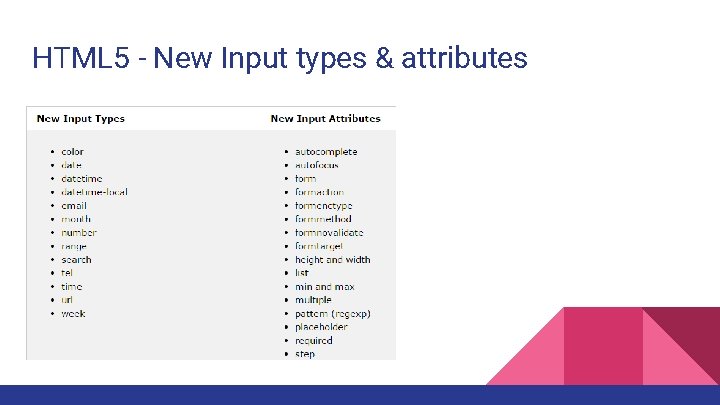
HTML 5 - New Input types & attributes
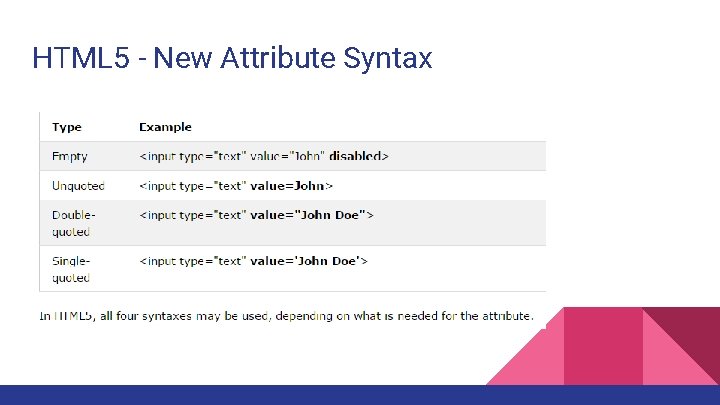
HTML 5 - New Attribute Syntax
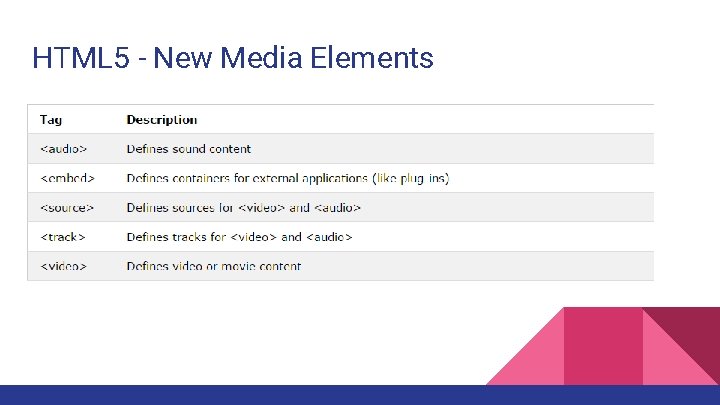
HTML 5 - New Media Elements
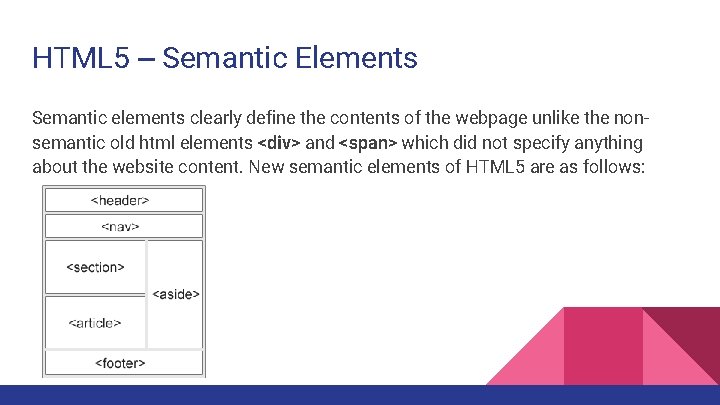
HTML 5 – Semantic Elements Semantic elements clearly define the contents of the webpage unlike the nonsemantic old html elements <div> and <span> which did not specify anything about the website content. New semantic elements of HTML 5 are as follows:
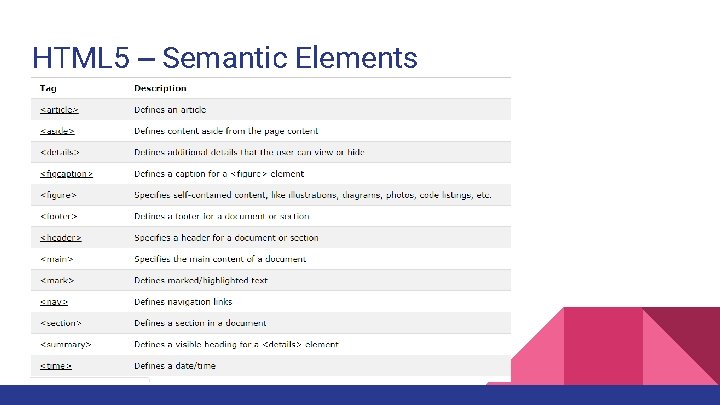
HTML 5 – Semantic Elements
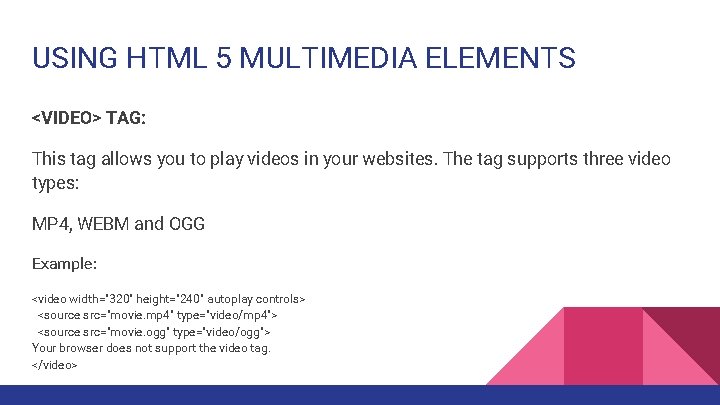
USING HTML 5 MULTIMEDIA ELEMENTS <VIDEO> TAG: This tag allows you to play videos in your websites. The tag supports three video types: MP 4, WEBM and OGG Example: <video width="320" height="240" autoplay controls> <source src="movie. mp 4" type="video/mp 4"> <source src="movie. ogg" type="video/ogg"> Your browser does not support the video tag. </video>
USING HTML 5 MULTIMEDIA ELEMENTS DETAILS: The <source> element allows you to specify alternative video files which the browser may choose from. The browser will use the first recognized format. The controls attribute adds video controls, like play, pause, and volume. autoplay automatically starts a video
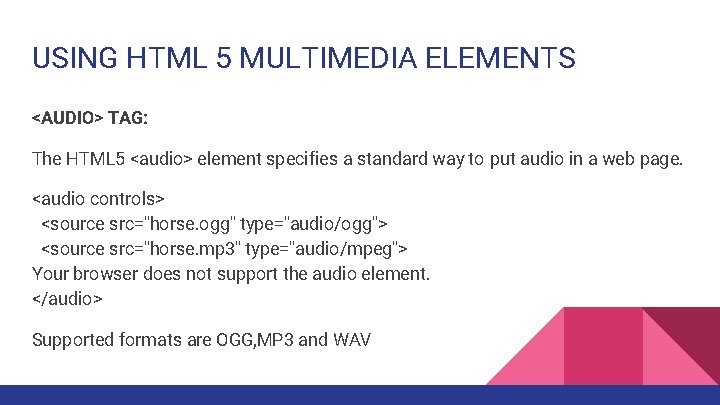
USING HTML 5 MULTIMEDIA ELEMENTS <AUDIO> TAG: The HTML 5 <audio> element specifies a standard way to put audio in a web page. <audio controls> <source src="horse. ogg" type="audio/ogg"> <source src="horse. mp 3" type="audio/mpeg"> Your browser does not support the audio element. </audio> Supported formats are OGG, MP 3 and WAV
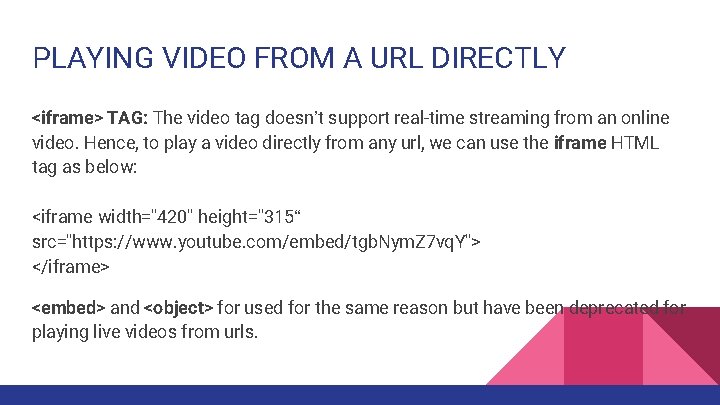
PLAYING VIDEO FROM A URL DIRECTLY <iframe> TAG: The video tag doesn’t support real-time streaming from an online video. Hence, to play a video directly from any url, we can use the iframe HTML tag as below: <iframe width="420" height="315“ src="https: //www. youtube. com/embed/tgb. Nym. Z 7 vq. Y"> </iframe> <embed> and <object> for used for the same reason but have been deprecated for playing live videos from urls.
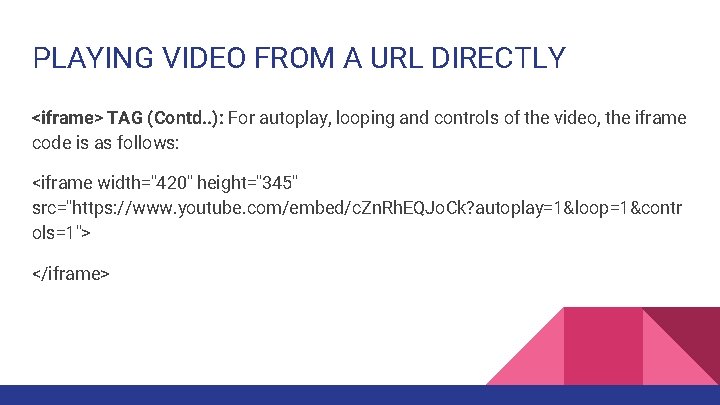
PLAYING VIDEO FROM A URL DIRECTLY <iframe> TAG (Contd. . ): For autoplay, looping and controls of the video, the iframe code is as follows: <iframe width="420" height="345" src="https: //www. youtube. com/embed/c. Zn. Rh. EQJo. Ck? autoplay=1&loop=1&contr ols=1"> </iframe>
HTML 5 BLOGS To learn more about HTML 5, refer to any of the resources below: • HTML 5 Rocks • HTML 5 doctor • W 3 schools. com
Lab 2 Tasks 1. Create a webpage in HTML 5 that plays a video along with subtitles added to it. Test the webpage on various browsers. Hint: Tutorial can be found at the link below: http: //html 5 doctor. com/video-subtitling-and-webvtt/
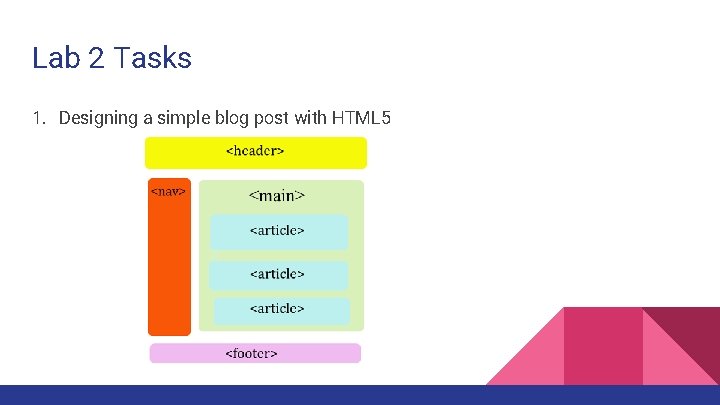
Lab 2 Tasks 1. Designing a simple blog post with HTML 5
- Slides: 37