
Web Technologies for Business Workshop 5 MS Front

Web Technologies for Business Workshop #5 – MS Front. Page Frames and Borders WTB - Workshop#5 1
Learning Objectives Organize and present information using frames and borders Create a frames page Create hyperlinks in a contents frame Resize frames Create shared borders Adjust navigation bar properties WTB - Workshop#5 2
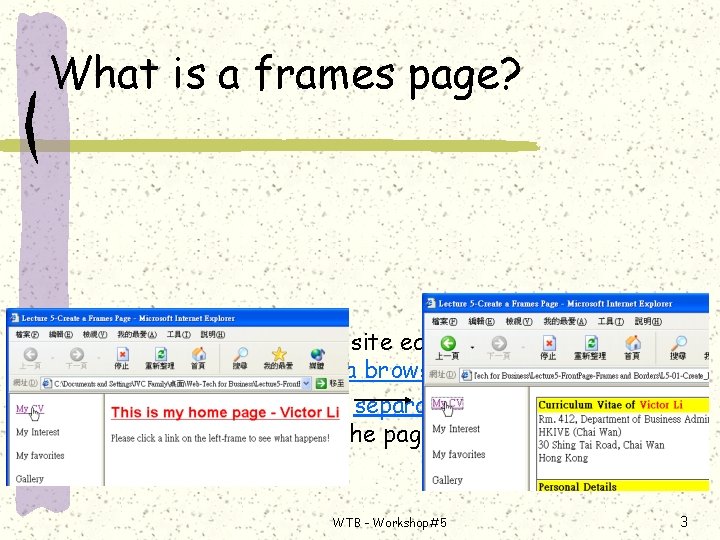
What is a frames page? Frames make a Web site easier to view and navigate by dividing a browser into 2 or more areas Each area contains a separate, independently scrolling portion of the page WTB - Workshop#5 3
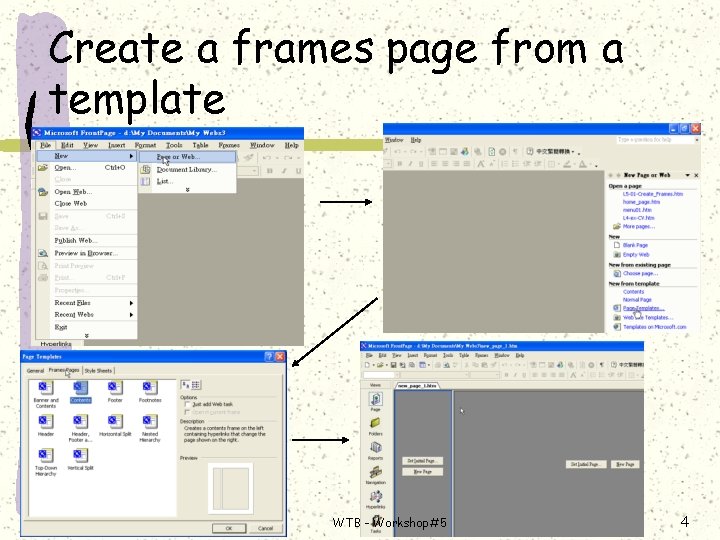
Create a frames page from a template WTB - Workshop#5 4

Create Hyperlinks in a Contents Frame “contents” frame “main” frame Link to the “CV” page WTB - Workshop#5 5
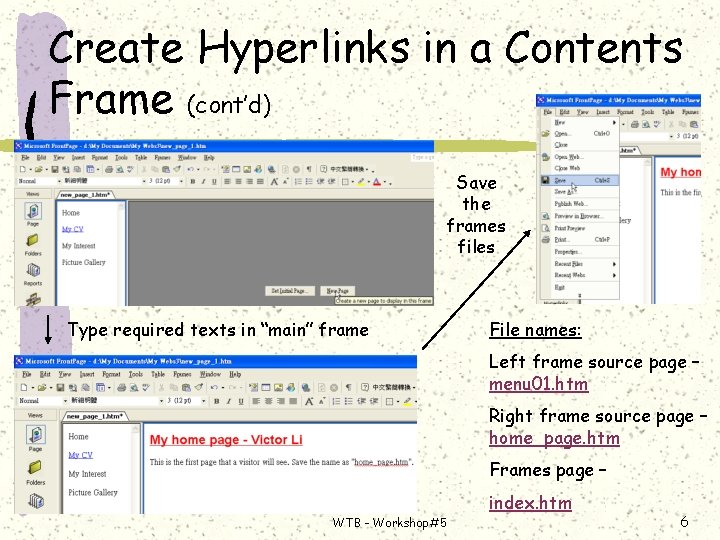
Create Hyperlinks in a Contents Frame (cont’d) Save the frames files Type required texts in “main” frame File names: Left frame source page – menu 01. htm Right frame source page – home_page. htm Frames page – index. htm WTB - Workshop#5 6
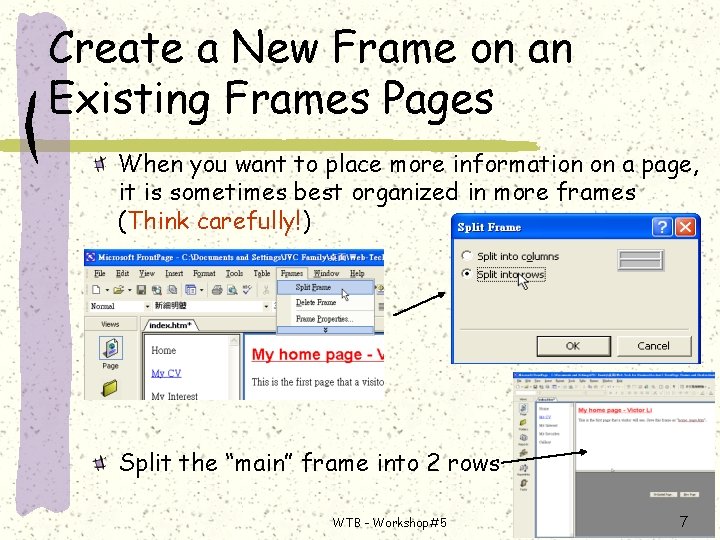
Create a New Frame on an Existing Frames Pages When you want to place more information on a page, it is sometimes best organized in more frames (Think carefully!) Split the “main” frame into 2 rows WTB - Workshop#5 7
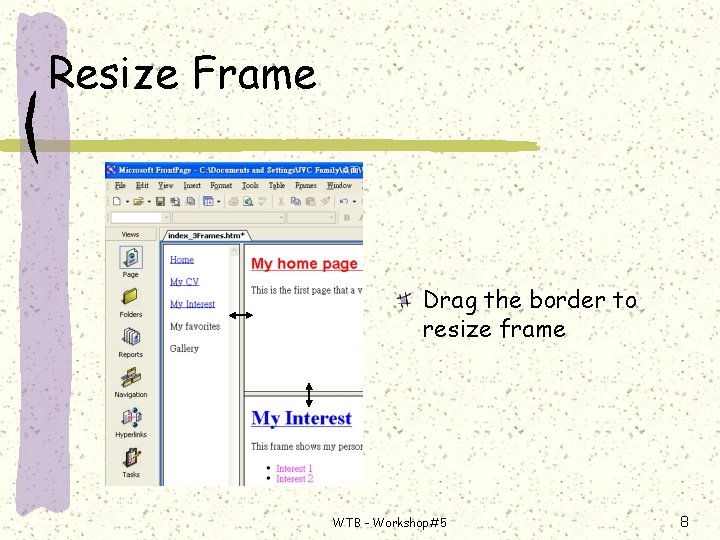
Resize Frame Drag the border to resize frame WTB - Workshop#5 8
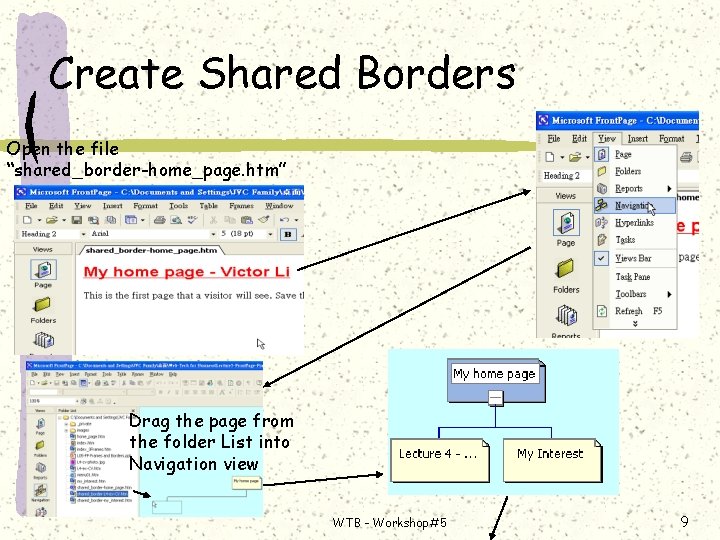
Create Shared Borders Open the file “shared_border-home_page. htm” Drag the page from the folder List into Navigation view WTB - Workshop#5 9
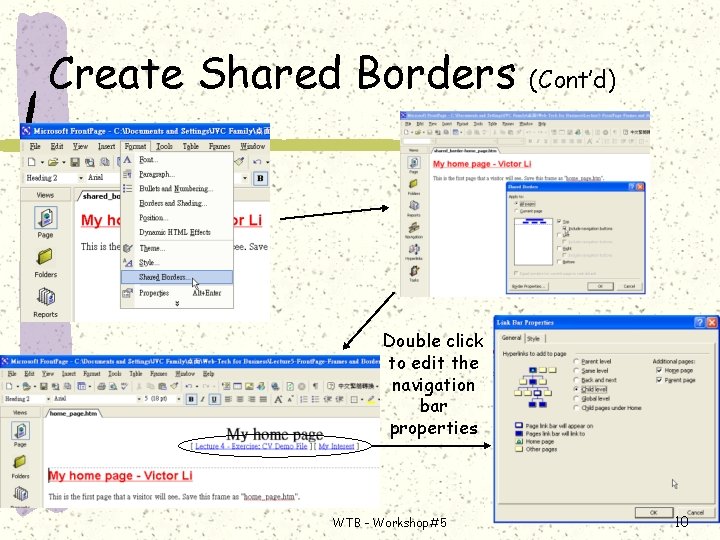
Create Shared Borders (Cont’d) Double click to edit the navigation bar properties WTB - Workshop#5 10
Exercise Create a frames page for your home page Assign appropriate pages to the frames page – e. g. CV, Interest Page, My Favorite, etc. WTB - Workshop#5 11
- Slides: 11