
WEB SYSTEMS TECHNOLOGIES 1 HTML Basics Table of
WEB SYSTEMS & TECHNOLOGIES 1. HTML Basics
Table of Contents 1. What is a Web Page? My First HTML Page Basic Tags: Hyperlinks, Images, Formatting Headings and Paragraphs 2. HTML in Details The <!DOCTYPE> Declaration The <head> Section: Title, Meta, Script, Style 2
Table of Contents (2) 2. HTML in Details The <body> Section Text Styling and Formatting Tags Hyperlinks: <a>, Hyperlinks and Sections Images: <img> Lists: <ol>, <ul> and <dl> 3. The <div> and <span> elements 4. HTML Tables 5. HTML Forms 3
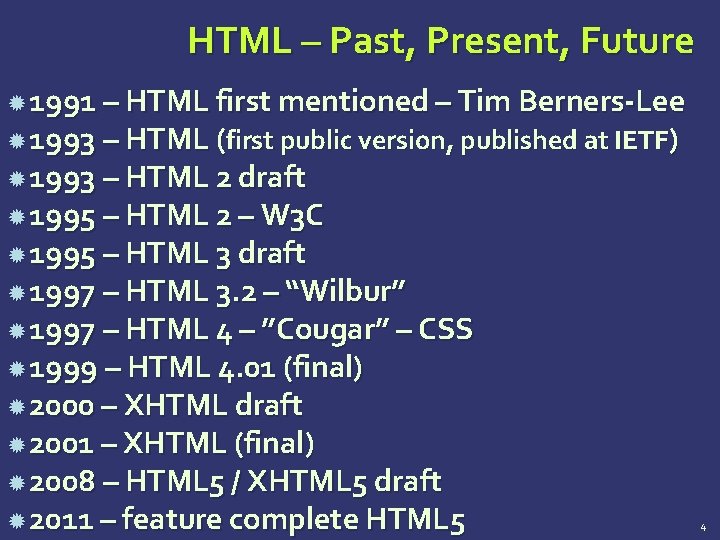
HTML – Past, Present, Future 1991 – HTML first mentioned – Tim Berners-Lee 1993 – HTML (first public version, published at IETF) 1993 – HTML 2 draft 1995 – HTML 2 – W 3 C 1995 – HTML 3 draft 1997 – HTML 3. 2 – “Wilbur” 1997 – HTML 4 – ”Cougar” – CSS 1999 – HTML 4. 01 (final) 2000 – XHTML draft 2001 – XHTML (final) 2008 – HTML 5 / XHTML 5 draft 2011 – feature complete HTML 5 4
What is a Web Page? Web pages are text files containing HTML – Hyper Text Markup Language A notation for describing document structure (semantic markup) formatting (presentation markup) Looks (looked? ) like: A Microsoft Word document The markup tags provide information about the page content structure 5
Creating HTML Pages An HTML file must have an. htm or. html file extension HTML files can be created with text editors: Note. Pad, Note. Pad ++, PSPad Or HTML editors (WYSIWYG Editors): Microsoft Front. Page Macromedia Dreamweaver Netscape Composer Microsoft Word Visual Studio 6
HTML Basics Text, Images, Tables, Forms
Concepts in HTML Tags Opening tag and closing tag The smallest piece in HTML Attributes Properties of the tag Size, color, etc… Elements Combination of opening, closing tag and attributes 8
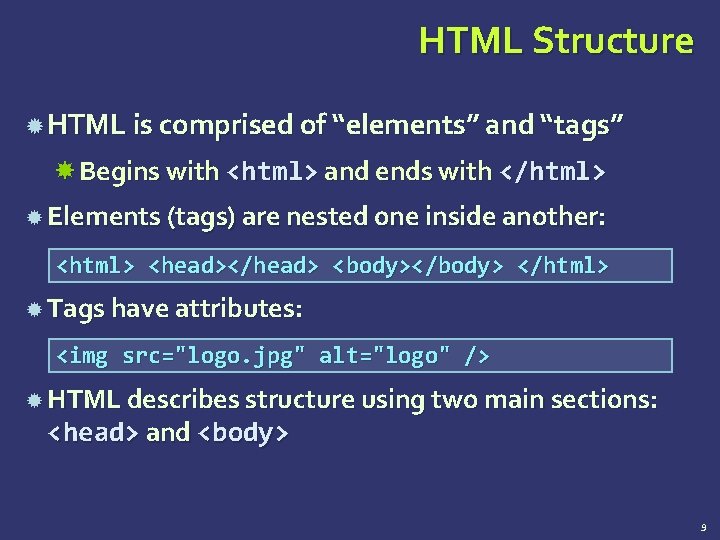
HTML Structure HTML is comprised of “elements” and “tags” Begins with <html> and ends with </html> Elements (tags) are nested one inside another: <html> <head></head> <body></body> </html> Tags have attributes: <img src="logo. jpg" alt="logo" /> HTML describes structure using two main sections: <head> and <body> 9
HTML Code Formatting The HTML source code should be formatted to increase readability and facilitate debugging. Every block element should start on a new line. Every nested (block) element should be indented. Browsers ignore multiple whitespaces in the page source, so formatting is harmless. For performance reasons, formatting can be sacrificed 10
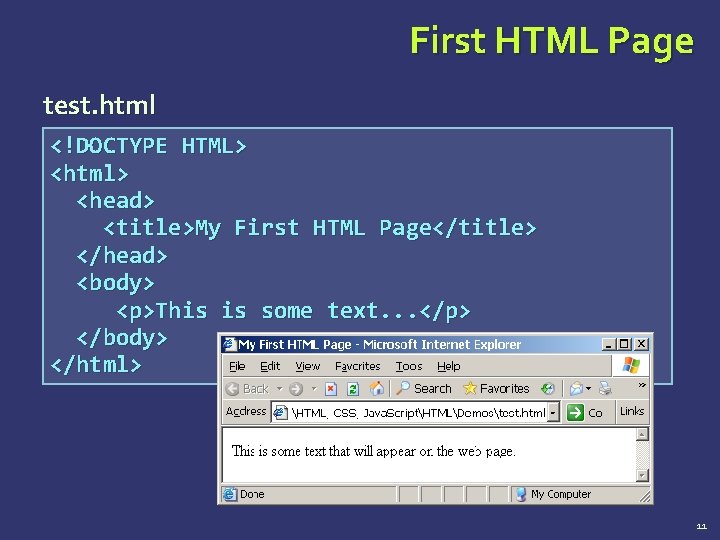
First HTML Page test. html <!DOCTYPE HTML> <html> <head> <title>My First HTML Page</title> </head> <body> <p>This is some text. . . </p> </body> </html> 11

First HTML Page: Tags <!DOCTYPE HTML> Opening tag <html> <head> <title>My First HTML Page</title> </head> Closing tag <body> <p>This is some text. . . </p> </body> </html> An HTML element consists of an opening tag, a closing tag and the content inside. 12
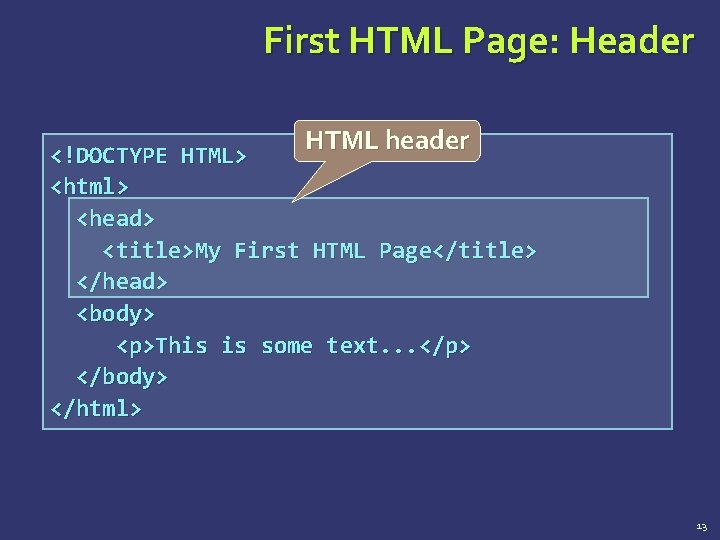
First HTML Page: Header HTML header <!DOCTYPE HTML> <html> <head> <title>My First HTML Page</title> </head> <body> <p>This is some text. . . </p> </body> </html> 13
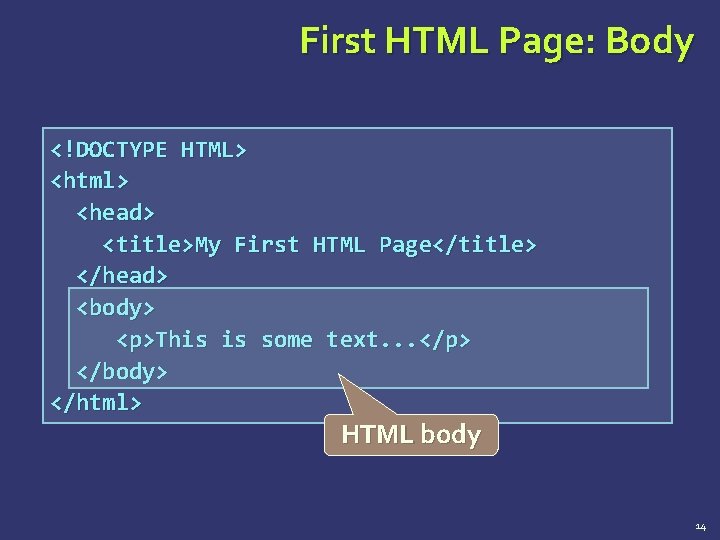
First HTML Page: Body <!DOCTYPE HTML> <html> <head> <title>My First HTML Page</title> </head> <body> <p>This is some text. . . </p> </body> </html> HTML body 14
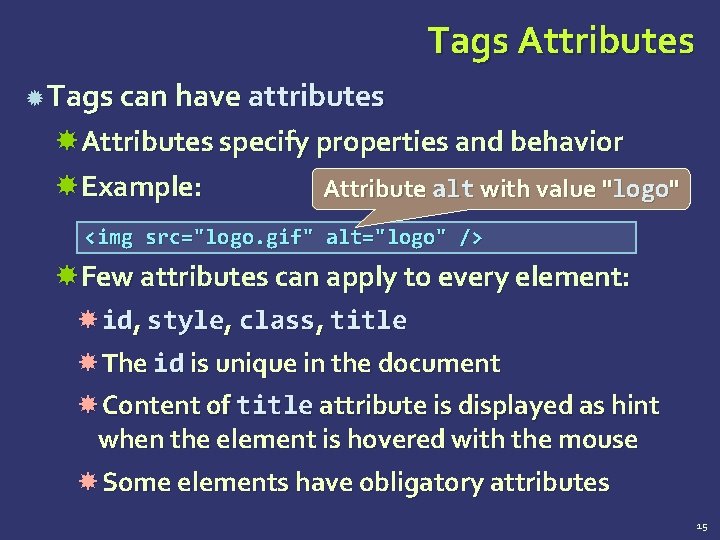
Tags Attributes Tags can have attributes Attributes specify properties and behavior Example: Attribute alt with value "logo" <img src="logo. gif" alt="logo" /> Few attributes can apply to every element: id, style, class, title The id is unique in the document Content of title attribute is displayed as hint when the element is hovered with the mouse Some elements have obligatory attributes 15
Introduction to HTML Document Structure in Depth
Preface It is important to have the correct vision and attitude towards HTML is only about structure, not appearance Browsers tolerate invalid HTML code and parse errors – you should not. 17
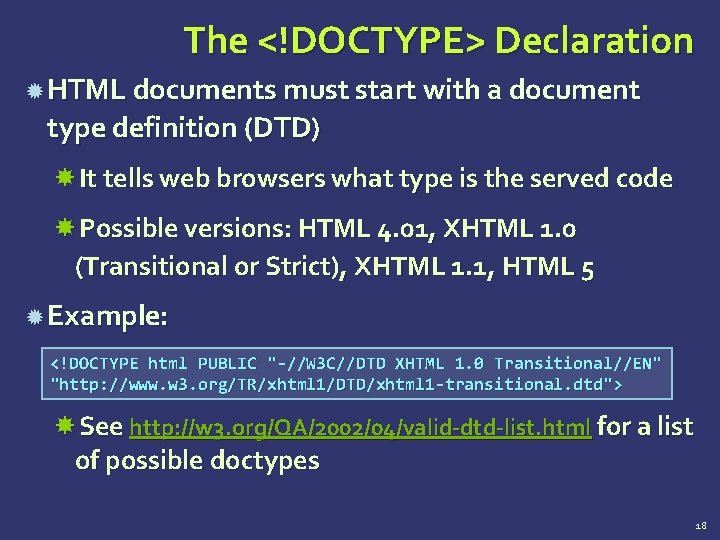
The <!DOCTYPE> Declaration HTML documents must start with a document type definition (DTD) It tells web browsers what type is the served code Possible versions: HTML 4. 01, XHTML 1. 0 (Transitional or Strict), XHTML 1. 1, HTML 5 Example: <!DOCTYPE html PUBLIC "-//W 3 C//DTD XHTML 1. 0 Transitional//EN" "http: //www. w 3. org/TR/xhtml 1/DTD/xhtml 1 -transitional. dtd"> See http: //w 3. org/QA/2002/04/valid-dtd-list. html for a list of possible doctypes 18
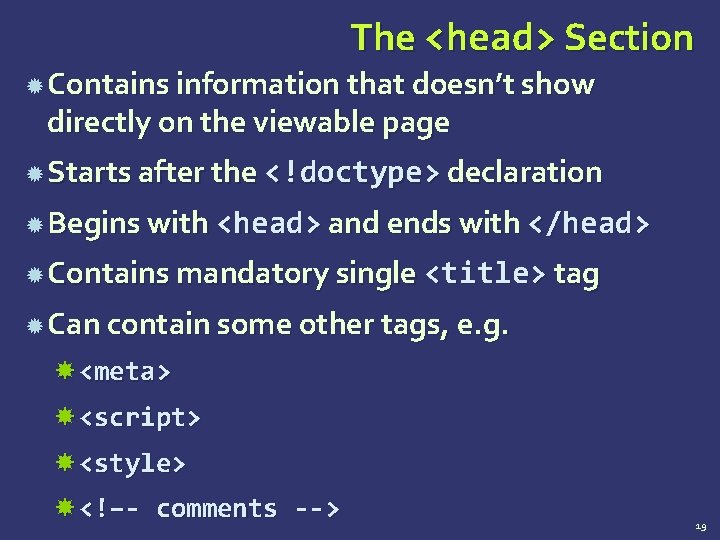
The <head> Section Contains information that doesn’t show directly on the viewable page Starts after the <!doctype> declaration Begins with <head> and ends with </head> Contains mandatory single <title> tag Can contain some other tags, e. g. <meta> <script> <style> <!–- comments --> 19
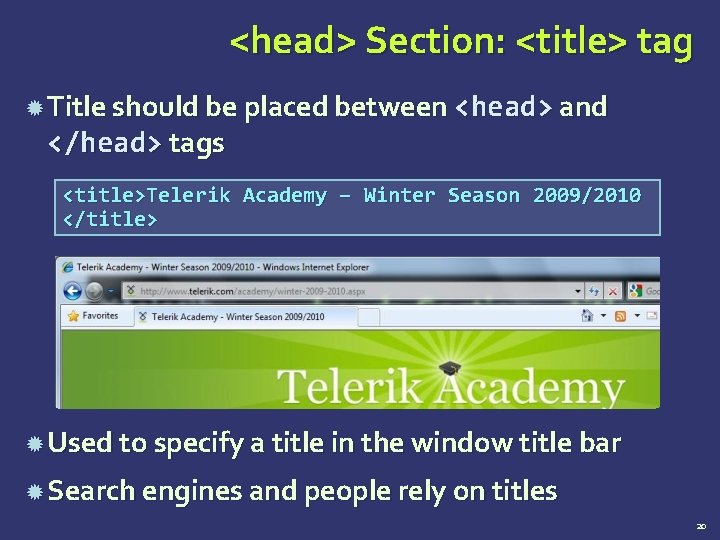
<head> Section: <title> tag Title should be placed between <head> and </head> tags <title>Telerik Academy – Winter Season 2009/2010 </title> Used to specify a title in the window title bar Search engines and people rely on titles 20
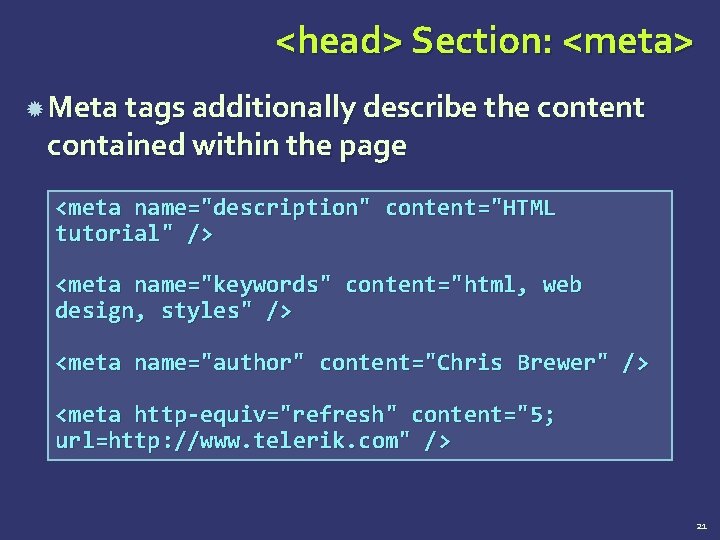
<head> Section: <meta> Meta tags additionally describe the content contained within the page <meta name="description" content="HTML tutorial" /> <meta name="keywords" content="html, web design, styles" /> <meta name="author" content="Chris Brewer" /> <meta http-equiv="refresh" content="5; url=http: //www. telerik. com" /> 21
<head> Section: <script> The <script> element is used to embed scripts into an HTML document Script are executed in the client's Web browser Scripts can live in the <head> and in the <body> sections Supported client-side scripting languages: Java. Script (it is not Java!) VBScript JScript 22
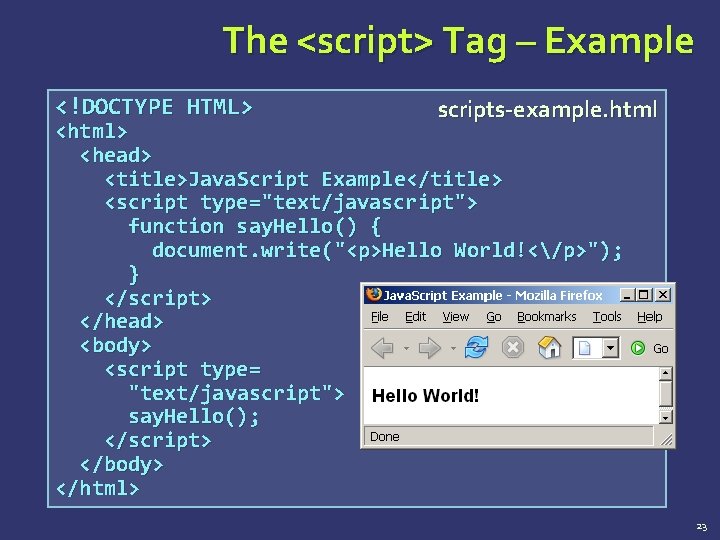
The <script> Tag – Example <!DOCTYPE HTML> scripts-example. html <html> <head> <title>Java. Script Example</title> <script type="text/javascript"> function say. Hello() { document. write("<p>Hello World!</p>"); } </script> </head> <body> <script type= "text/javascript"> say. Hello(); </script> </body> </html> 23
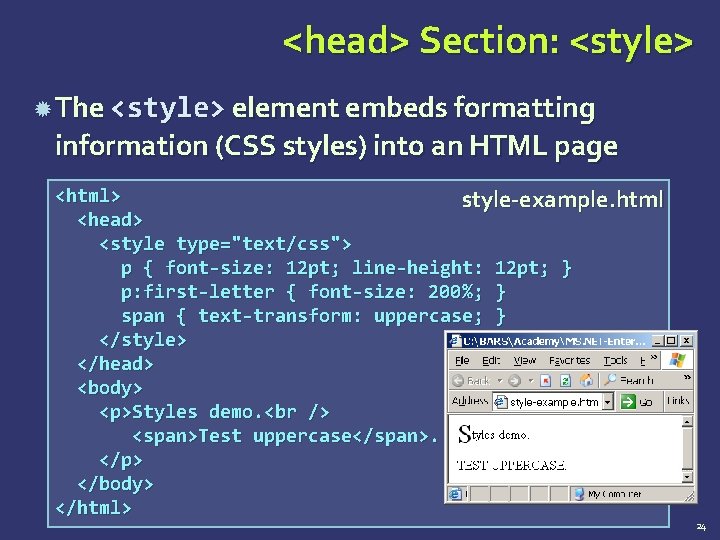
<head> Section: <style> The <style> element embeds formatting information (CSS styles) into an HTML page <html> style-example. html <head> <style type="text/css"> p { font-size: 12 pt; line-height: 12 pt; } p: first-letter { font-size: 200%; } span { text-transform: uppercase; } </style> </head> <body> <p>Styles demo. <span>Test uppercase</span>. </p> </body> </html> 24
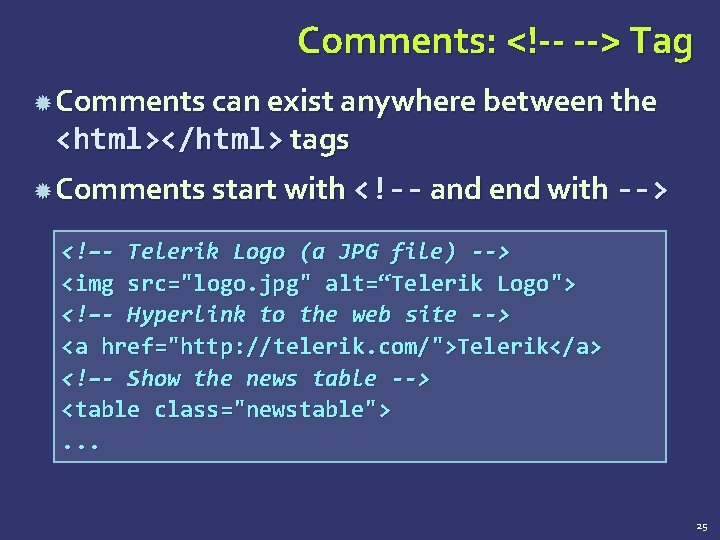
Comments: <!-- --> Tag Comments can exist anywhere between the <html></html> tags Comments start with <!-- and end with --> <!–- Telerik Logo (a JPG file) --> <img src="logo. jpg" alt=“Telerik Logo"> <!–- Hyperlink to the web site --> <a href="http: //telerik. com/">Telerik</a> <!–- Show the news table --> <table class="newstable">. . . 25
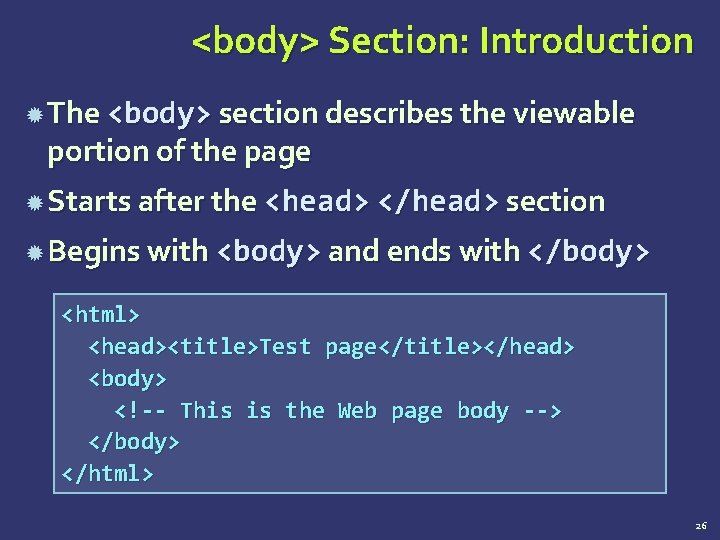
<body> Section: Introduction The <body> section describes the viewable portion of the page Starts after the <head> </head> section Begins with <body> and ends with </body> <html> <head><title>Test page</title></head> <body> <!-- This is the Web page body --> </body> </html> 26
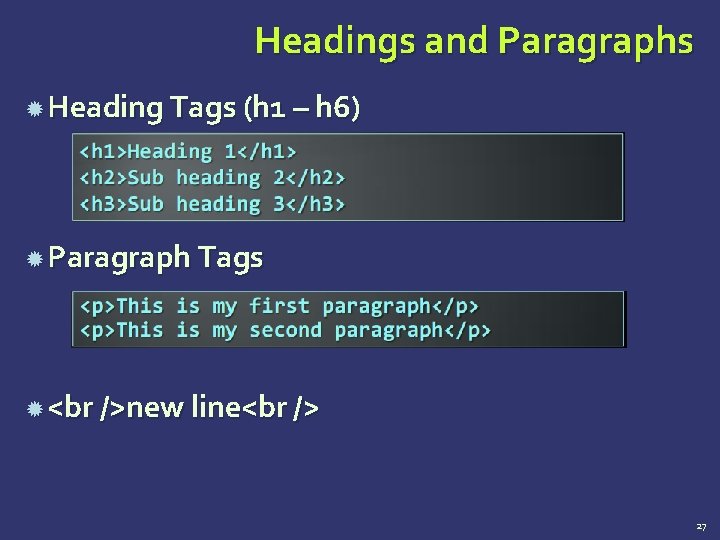
Headings and Paragraphs Heading Tags (h 1 – h 6) Paragraph Tags new line 27
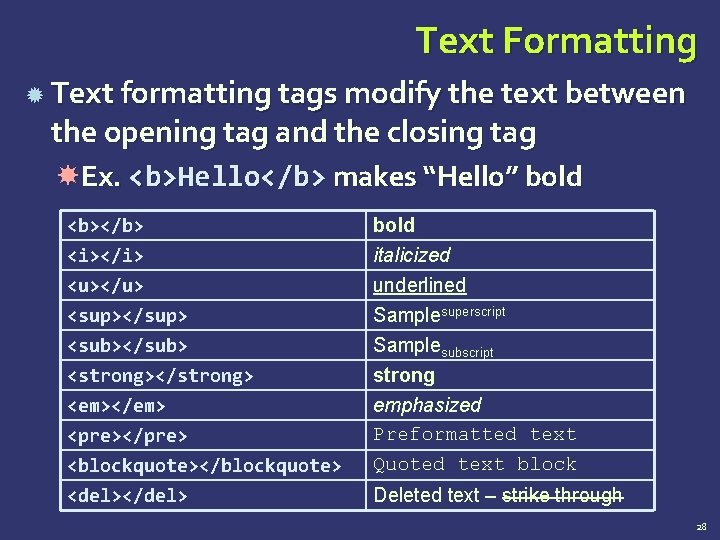
Text Formatting Text formatting tags modify the text between the opening tag and the closing tag Ex. <b>Hello</b> makes “Hello” bold <b></b> <i></i> <u></u> <sup></sup> <sub></sub> bold italicized underlined Samplesuperscript Samplesubscript <strong></strong> <em></em> <pre></pre> <blockquote></blockquote> <del></del> strong emphasized Preformatted text Quoted text block Deleted text – strike through 28
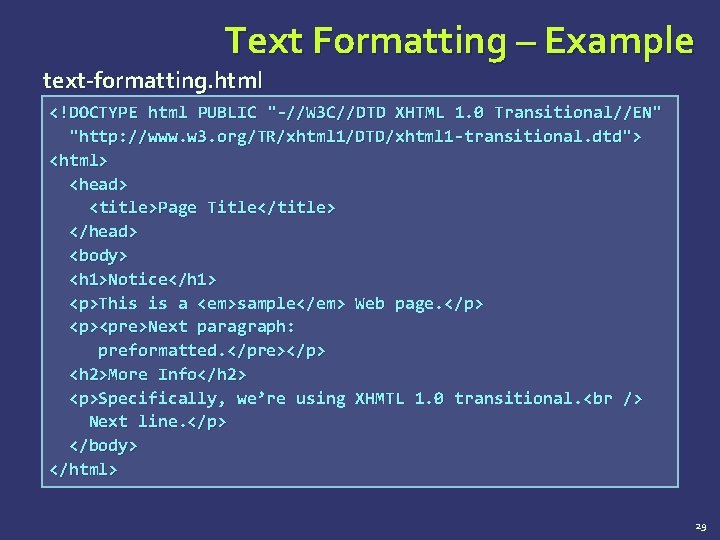
Text Formatting – Example text-formatting. html <!DOCTYPE html PUBLIC "-//W 3 C//DTD XHTML 1. 0 Transitional//EN" "http: //www. w 3. org/TR/xhtml 1/DTD/xhtml 1 -transitional. dtd"> <html> <head> <title>Page Title</title> </head> <body> <h 1>Notice</h 1> <p>This is a <em>sample</em> Web page. </p> <p><pre>Next paragraph: preformatted. </pre></p> <h 2>More Info</h 2> <p>Specifically, we’re using XHMTL 1. 0 transitional. < br /> Next line. </p> </body> </html> 29
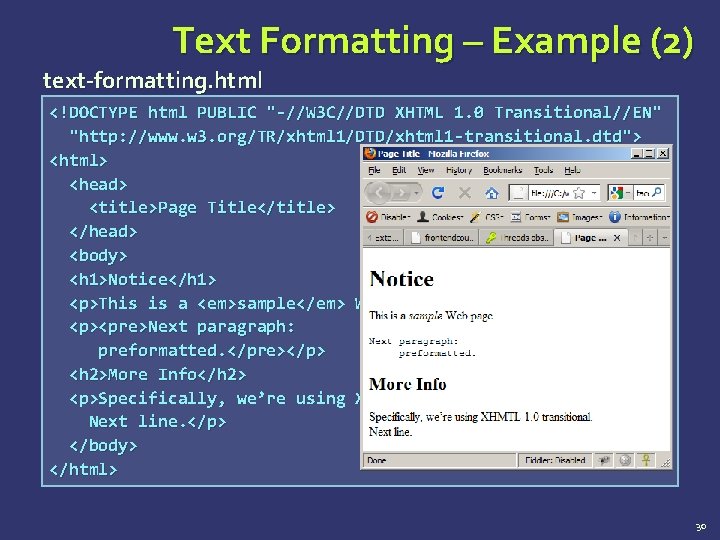
Text Formatting – Example (2) text-formatting. html <!DOCTYPE html PUBLIC "-//W 3 C//DTD XHTML 1. 0 Transitional//EN" "http: //www. w 3. org/TR/xhtml 1/DTD/xhtml 1 -transitional. dtd"> <html> <head> <title>Page Title</title> </head> <body> <h 1>Notice</h 1> <p>This is a <em>sample</em> Web page. </p> <p><pre>Next paragraph: preformatted. </pre></p> <h 2>More Info</h 2> <p>Specifically, we’re using XHMTL 1. 0 transitional. Next line. </p> </body> </html> 30
Hyperlinks: <a> Tag Link to a document called form. html on the same server in the same directory: <a href="form. html">Fill Our Form</a> Link to a document called parent. html on the same server in the parent directory: <a href=". . /parent. html">Parent</a> Link to a document called cat. html on the same server in the subdirectory stuff: <a href="stuff/cat. html">Catalog</a> 31
Hyperlinks: <a> Tag (2) Link to an external Web site: <a href="http: //www. devbg. org" target="_blank">BASD</a> Always use a full URL, including "http: //", not just "www. somesite. com" Using the target="_blank" attribute opens the link in a new window Link to an e-mail address: <a href="mailto: bugs@example. com? subject=Bug+Report"> Please report bugs here (by e-mail only)</a> 32
Hyperlinks: <a> Tag (3) Link to a document called apply-now. html On the same server, in same directory Using an image as a link button: <a href="apply-now. html"><img src="apply-now-button. jpg" /></a> Link to a document called index. html On the same server, in the subdirectory english of the parent directory: <a href=". . /english/index. html">Switch to English version</a> 33
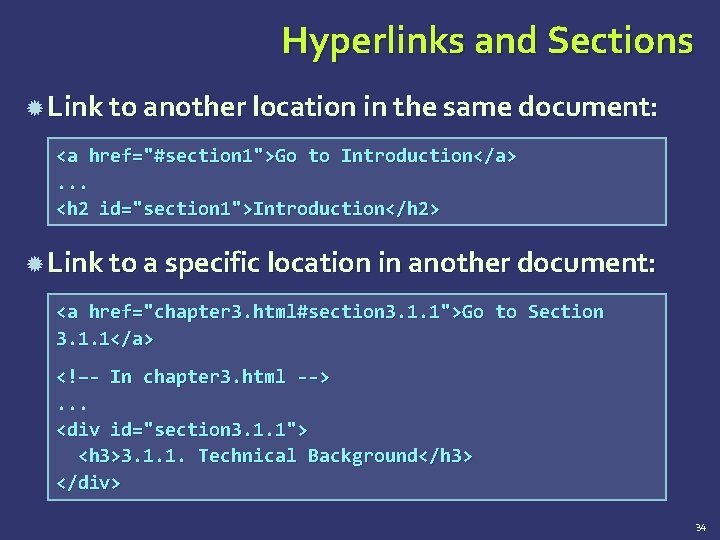
Hyperlinks and Sections Link to another location in the same document: <a href="#section 1">Go to Introduction</a>. . . <h 2 id="section 1">Introduction</h 2> Link to a specific location in another document: <a href="chapter 3. html#section 3. 1. 1">Go to Section 3. 1. 1</a> <!–- In chapter 3. html -->. . . <div id="section 3. 1. 1"> <h 3>3. 1. 1. Technical Background</h 3> </div> 34
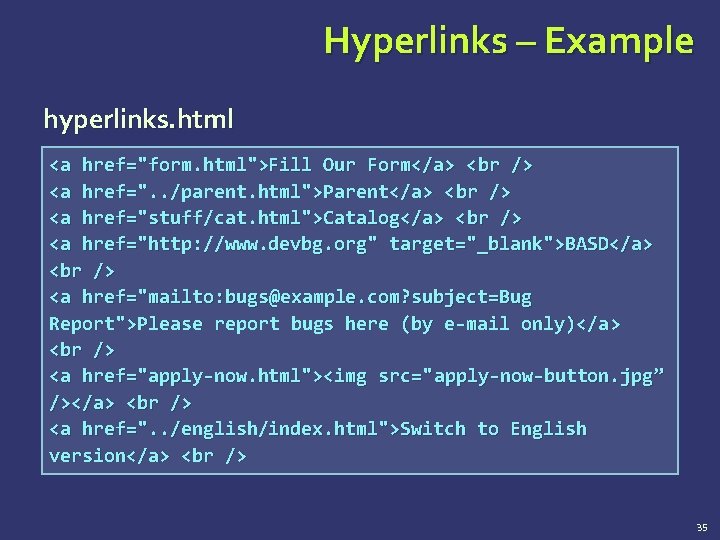
Hyperlinks – Example hyperlinks. html <a href="form. html">Fill Our Form</a> < br /> <a href=". . /parent. html">Parent</a> <a href="stuff/cat. html">Catalog</a> < br /> <a href="http: //www. devbg. org" target="_blank">BASD</a> <a href="mailto: bugs@example. com? subject=Bug Report">Please report bugs here (by e-mail only)</a > <a href="apply-now. html"><img src="apply-now-button. jpg” /></a> <a href=". . /english/index. html">Switch to English version</a> 35
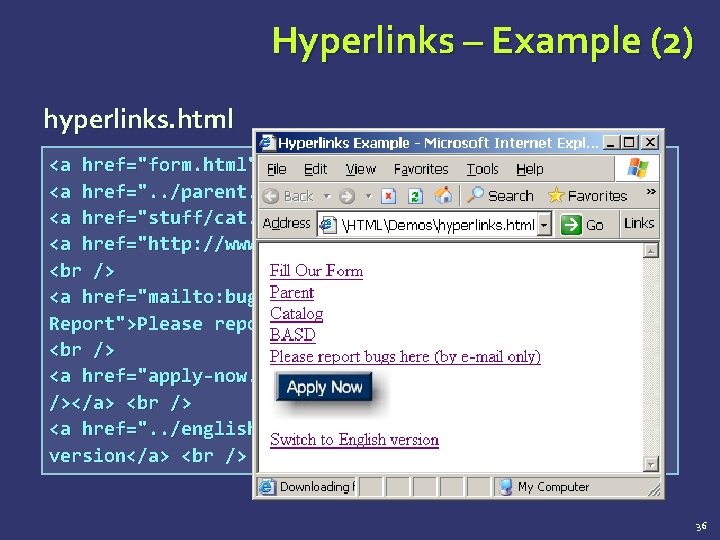
Hyperlinks – Example (2) hyperlinks. html <a href="form. html">Fill Our Form</a> <a href=". . /parent. html">Parent</a> <a href="stuff/cat. html">Catalog</a> <a href="http: //www. devbg. org" target="_blank">BASD</a> <a href="mailto: bugs@example. com? subject=Bug Report">Please report bugs here (by e-mail only)</a> <a href="apply-now. html"><img src="apply-now-button. jpg” /></a> <a href=". . /english/index. html">Switch to English version</a> 36
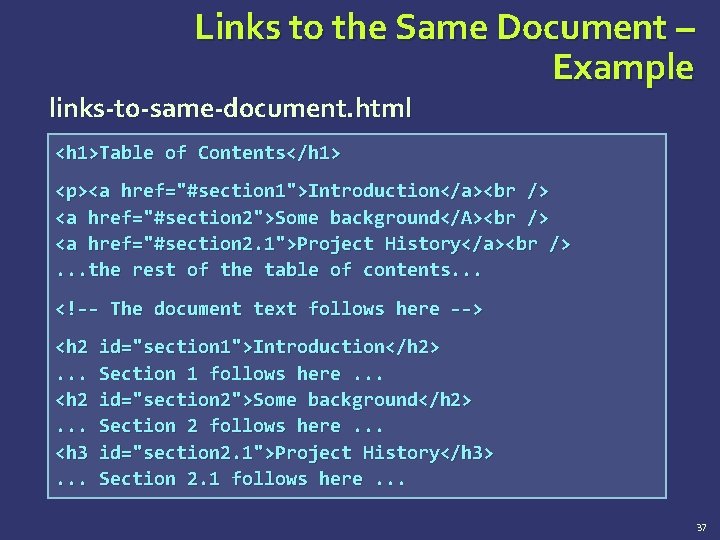
Links to the Same Document – Example links-to-same-document. html <h 1>Table of Contents</h 1> <p><a href="#section 1">Introduction</a> <a href="#section 2">Some background</A> <a href="#section 2. 1">Project History</a> . . . the rest of the table of contents. . . <!-- The document text follows here --> <h 2. . . <h 3. . . id="section 1">Introduction</h 2> Section 1 follows here. . . id="section 2">Some background</h 2> Section 2 follows here. . . id="section 2. 1">Project History</h 3> Section 2. 1 follows here. . . 37
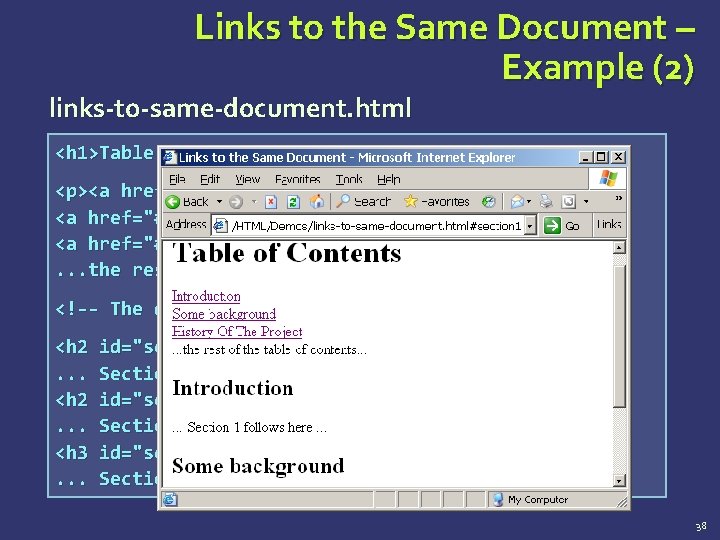
Links to the Same Document – Example (2) links-to-same-document. html <h 1>Table of Contents</h 1> <p><a href="#section 1">Introduction</a> <a href="#section 2">Some background</A> <a href="#section 2. 1">Project History</a> . . . the rest of the table of contents. . . <!-- The document text follows here --> <h 2. . . <h 3. . . id="section 1">Introduction</h 2> Section 1 follows here. . . id="section 2">Some background</h 2> Section 2 follows here. . . id="section 2. 1">Project History</h 3> Section 2. 1 follows here. . . 38
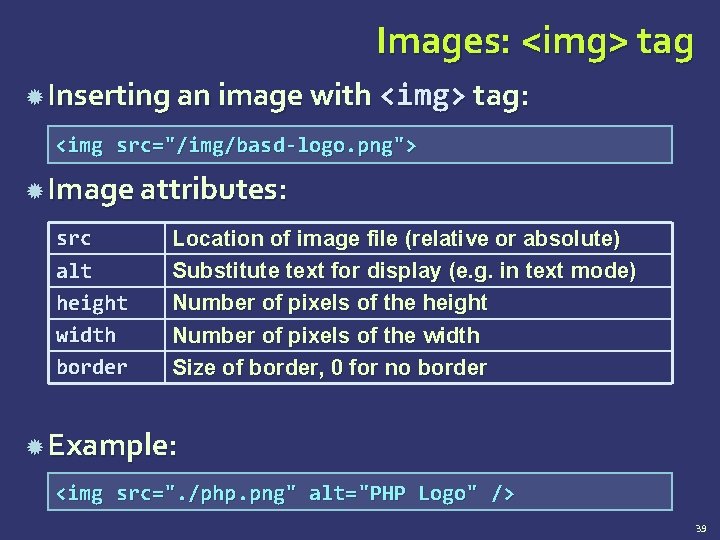
Images: <img> tag Inserting an image with <img> tag: <img src="/img/basd-logo. png"> Image attributes: src alt height width border Location of image file (relative or absolute) Substitute text for display (e. g. in text mode) Number of pixels of the height Number of pixels of the width Size of border, 0 for no border Example: <img src=". /php. png" alt="PHP Logo" /> 39
Image maps There are diferrent areas that act as links in an image. Map element AREA element
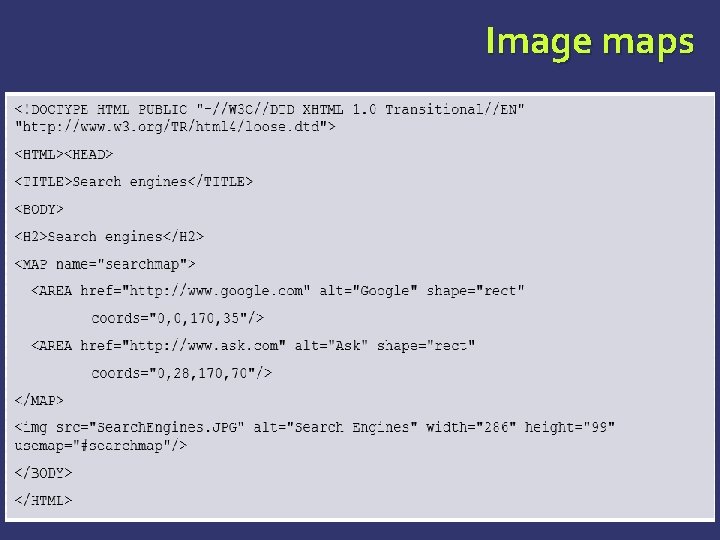
Image maps
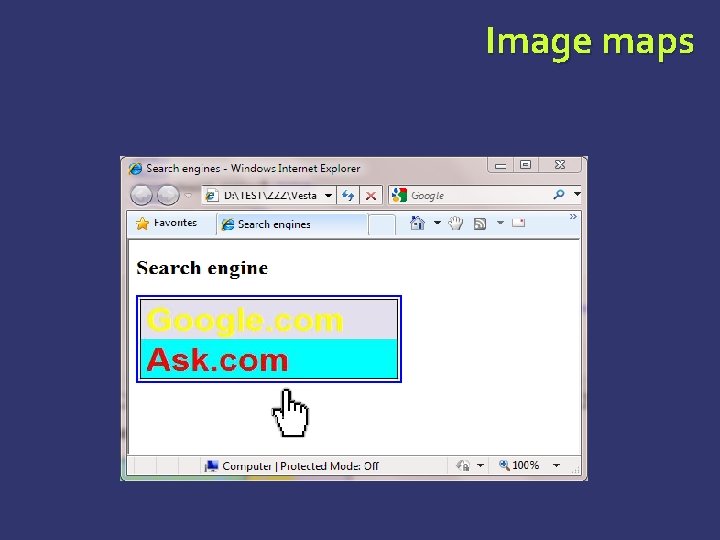
Image maps
OBJECT element DATA: url of the resource WIDTH HEGHT NAME TYPE: media type
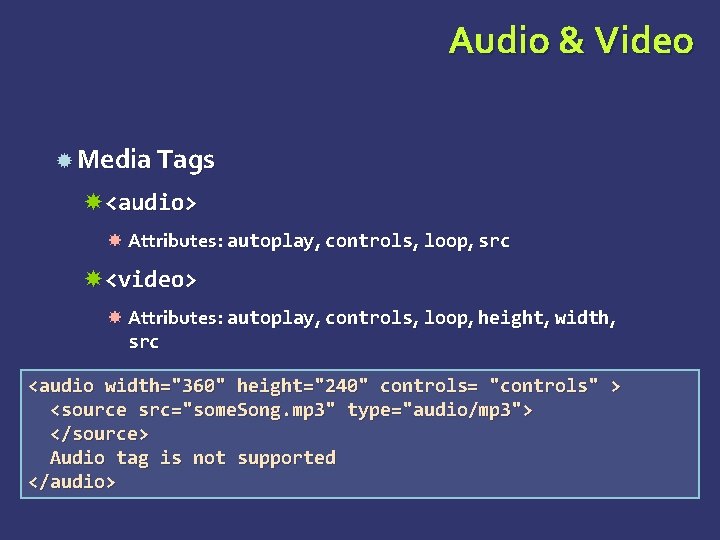
Audio & Video Media Tags <audio> Attributes: autoplay, controls, loop, src <video> Attributes: autoplay, controls, loop, height, width, src <audio width="360" height="240" controls= "controls" > <source src="some. Song. mp 3" type="audio/mp 3"> </source> Audio tag is not supported </audio>
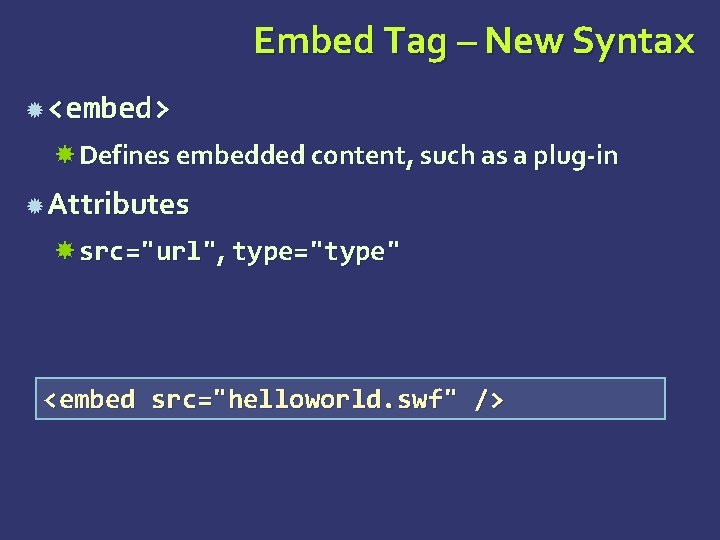
Embed Tag – New Syntax <embed> Defines embedded content, such as a plug-in Attributes src="url", type="type" <embed src="helloworld. swf" />
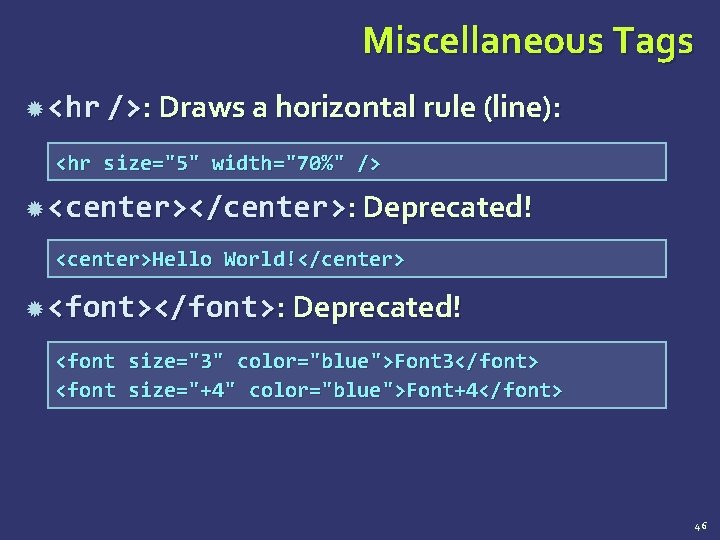
Miscellaneous Tags <hr />: Draws a horizontal rule (line): <hr size="5" width="70%" /> <center></center>: Deprecated! <center>Hello World!</center> <font></font>: Deprecated! <font size="3" color="blue">Font 3</font> <font size="+4" color="blue">Font+4</font> 46
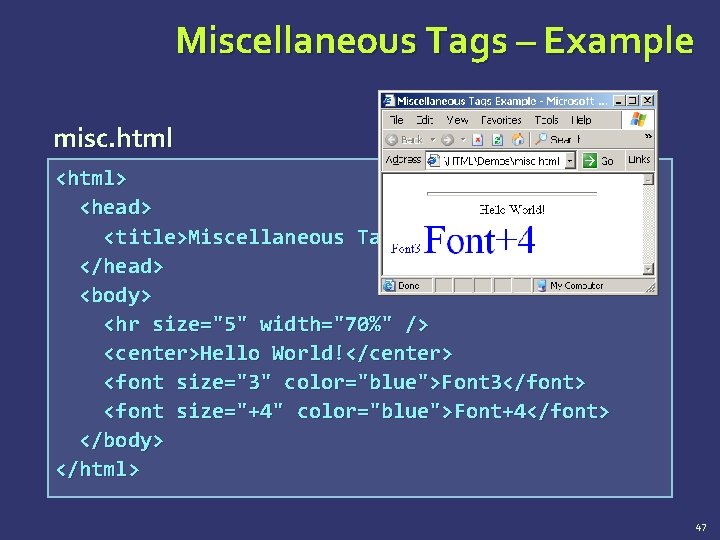
Miscellaneous Tags – Example misc. html <html> <head> <title>Miscellaneous Tags Example</title> </head> <body> <hr size="5" width="70%" /> <center>Hello World!</center> <font size="3" color="blue">Font 3</font> <font size="+4" color="blue">Font+4</font> </body> </html> 47
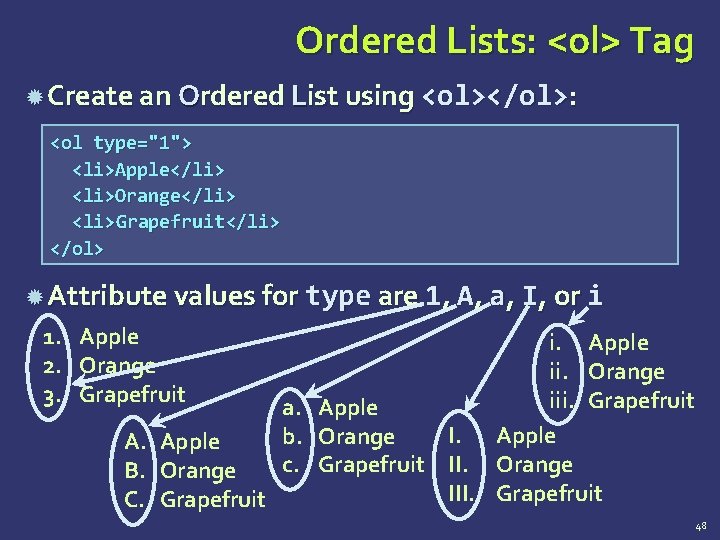
Ordered Lists: <ol> Tag Create an Ordered List using <ol></ol>: <ol type="1"> <li>Apple</li> <li>Orange</li> <li>Grapefruit</li> </ol> Attribute values for type are 1, A, a, I, or i 1. Apple 2. Orange 3. Grapefruit i. Apple ii. Orange iii. Grapefruit a. Apple I. Apple b. Orange A. Apple c. Grapefruit II. Orange B. Orange III. Grapefruit C. Grapefruit 48
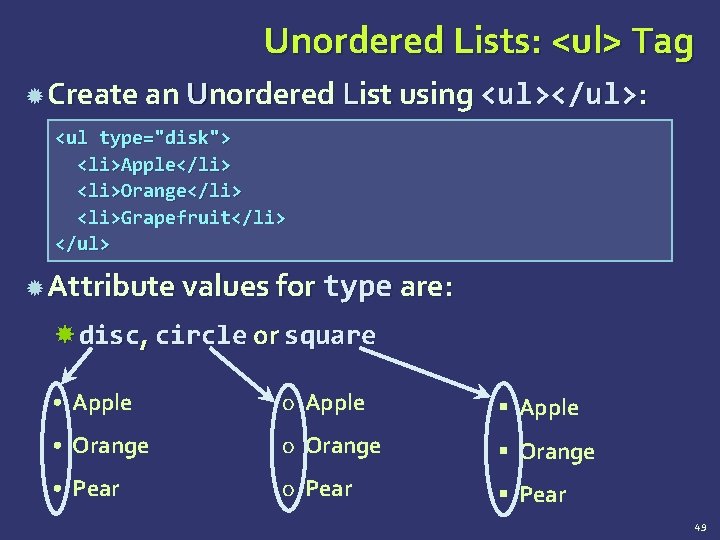
Unordered Lists: <ul> Tag Create an Unordered List using <ul></ul>: <ul type="disk"> <li>Apple</li> <li>Orange</li> <li>Grapefruit</li> </ul> Attribute values for type are: disc, circle or square • Apple o Apple § Apple • Orange o Orange § Orange • Pear o Pear § Pear 49
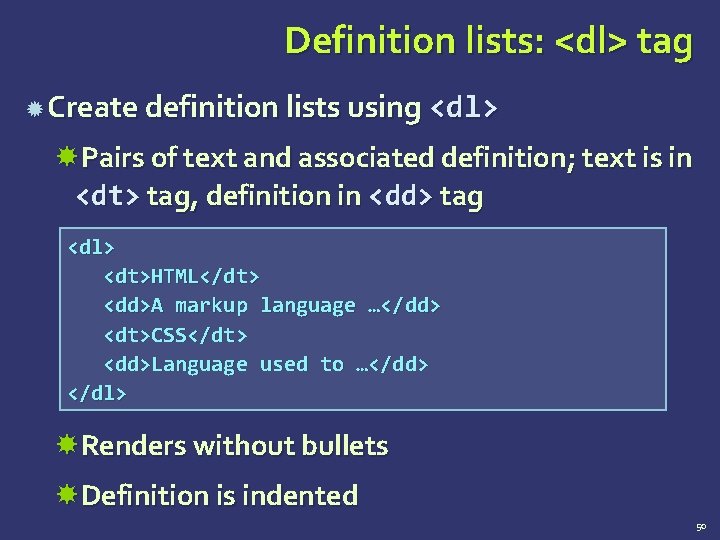
Definition lists: <dl> tag Create definition lists using <dl> Pairs of text and associated definition; text is in <dt> tag, definition in <dd> tag <dl> <dt>HTML</dt> <dd>A markup language …</dd> <dt>CSS</dt> <dd>Language used to …</dd> </dl> Renders without bullets Definition is indented 50
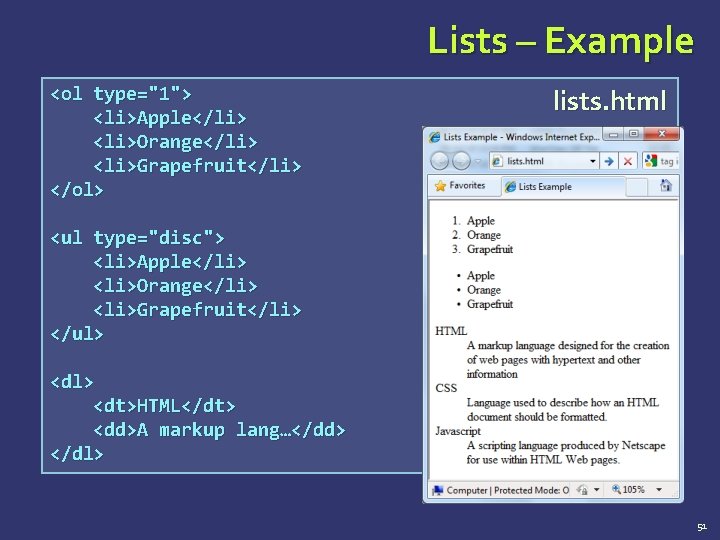
Lists – Example <ol type="1"> <li>Apple</li> <li>Orange</li> <li>Grapefruit</li> </ol> lists. html <ul type="disc"> <li>Apple</li> <li>Orange</li> <li>Grapefruit</li> </ul> <dt>HTML</dt> <dd>A markup lang…</dd> </dl> 51
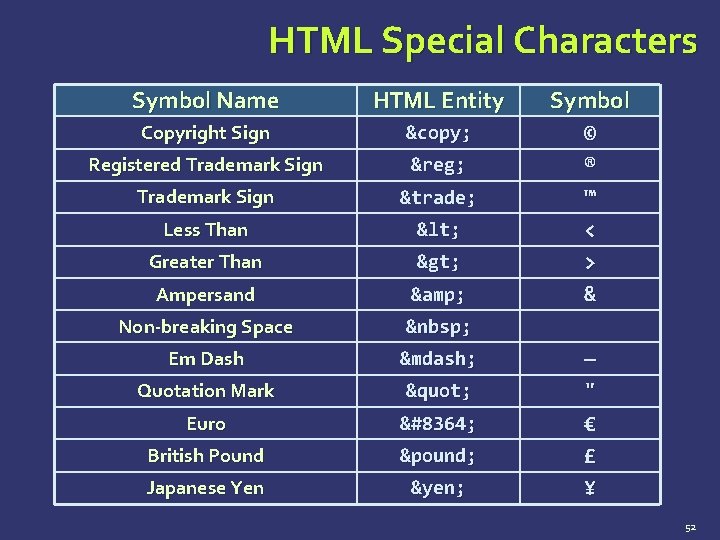
HTML Special Characters Symbol Name HTML Entity Symbol Copyright Sign © Registered Trademark Sign ® Trademark Sign ™ Less Than < Greater Than > Ampersand & © ® ™ < > & Non-breaking Space Em Dash — Quotation Mark " Euro € British Pound £ Japanese Yen ¥ — " € £ ¥ 52
![Special Characters – Example <p>[> Welcome special-chars. html < ]</p> <p>► I](http://slidetodoc.com/presentation_image_h2/301a72bf5a8c9e252977ce418d71d961/image-53.jpg "Special Characters – Example <p>[> Welcome special-chars. html < ]</p> <p>► I")
Special Characters – Example <p>[> Welcome special-chars. html < ]</p> <p>► I have following cards: A♣ , K♦ and 9♥ . </p> <p>► I prefer hard rock ♫ music ♫ </p> <p>© 2006 by Svetlin Nakov & his team</p> <p>Telerik Academy™</p> 53
![Special Chars – Example (2) <p>[> Welcome special-chars. html < ]</p> <p>►](http://slidetodoc.com/presentation_image_h2/301a72bf5a8c9e252977ce418d71d961/image-54.jpg "Special Chars – Example (2) <p>[> Welcome special-chars. html < ]</p> <p>►")
Special Chars – Example (2) <p>[> Welcome special-chars. html < ]</p> <p>► I have following cards: A♣ , K♦ and 9♥ . </p> <p>► I prefer hard rock ♫ music ♫ </p> <p>© 2006 by Svetlin Nakov & his team</p> <p>Telerik Academy™</p> 54
Using <DIV> and <SPAN> Block and Inline Elements
Block and Inline Elements Block elements add a line break before and after them <div> is a block element Other block elements are <table>, <hr>, headings, lists, <p> and etc. Inline elements don’t break the text before and after them <span> is an inline element Most HTML elements are inline, e. g. <a> 56
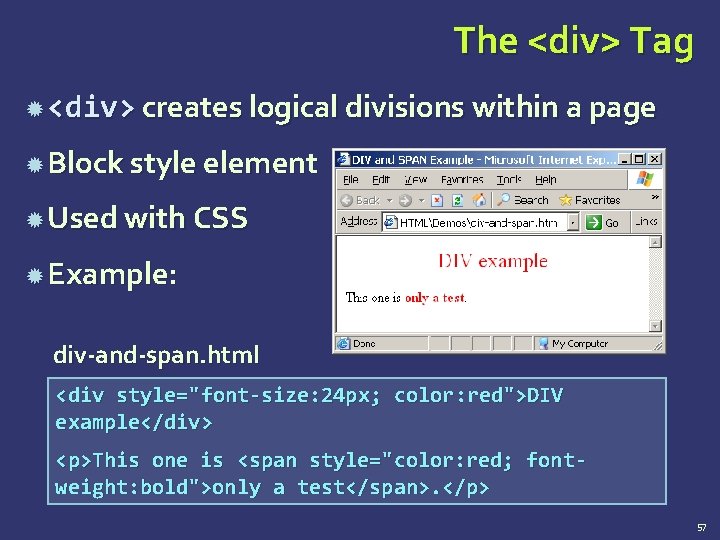
The <div> Tag <div> creates logical divisions within a page Block style element Used with CSS Example: div-and-span. html <div style="font-size: 24 px; color: red">DIV example</div> <p>This one is <span style="color: red; fontweight: bold">only a test</span>. </p> 57
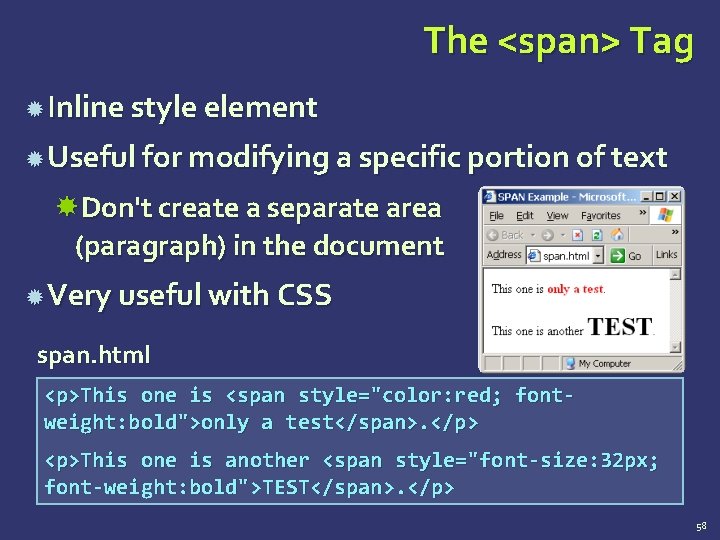
The <span> Tag Inline style element Useful for modifying a specific portion of text Don't create a separate area (paragraph) in the document Very useful with CSS span. html <p>This one is <span style="color: red; fontweight: bold">only a test</span>. </p> <p>This one is another <span style="font-size: 32 px; font-weight: bold">TEST</span>. </p> 58
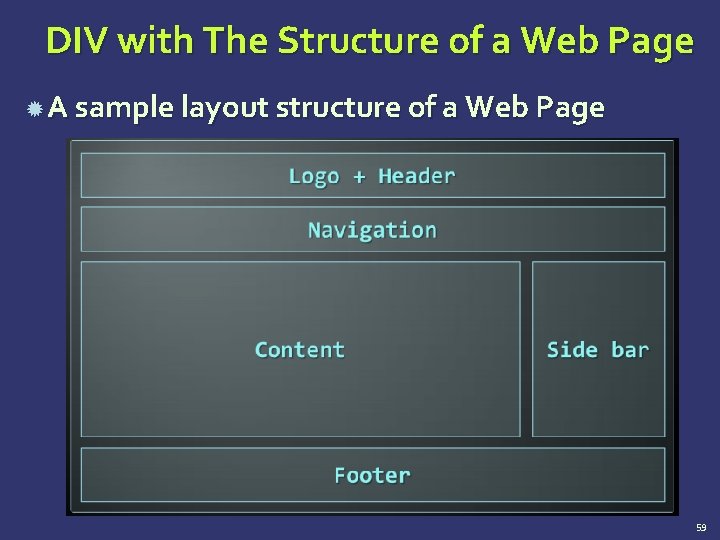
DIV with The Structure of a Web Page A sample layout structure of a Web Page 59
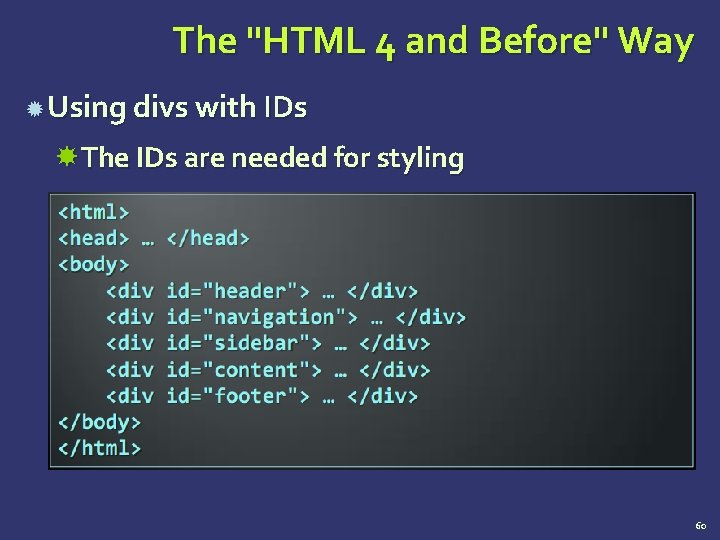
The "HTML 4 and Before" Way Using divs with IDs The IDs are needed for styling 60
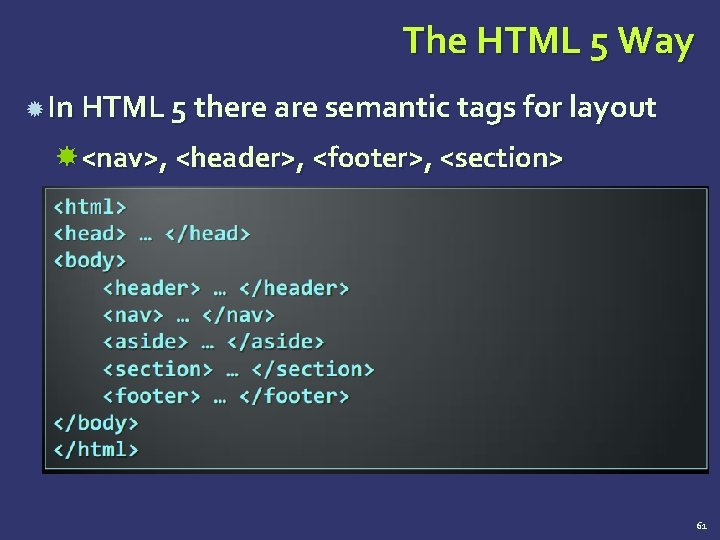
The HTML 5 Way In HTML 5 there are semantic tags for layout <nav>, <header>, <footer>, <section> 61
HTML Tables
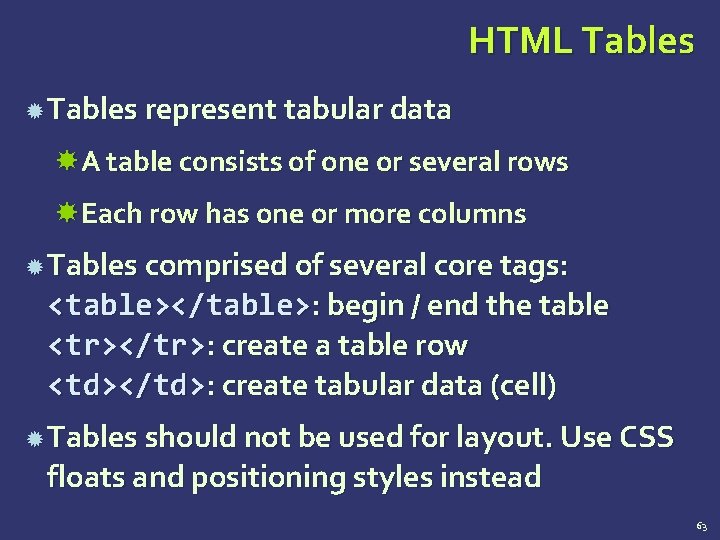
HTML Tables represent tabular data A table consists of one or several rows Each row has one or more columns Tables comprised of several core tags: <table></table>: begin / end the table <tr></tr>: create a table row <td></td>: create tabular data (cell) Tables should not be used for layout. Use CSS floats and positioning styles instead 63
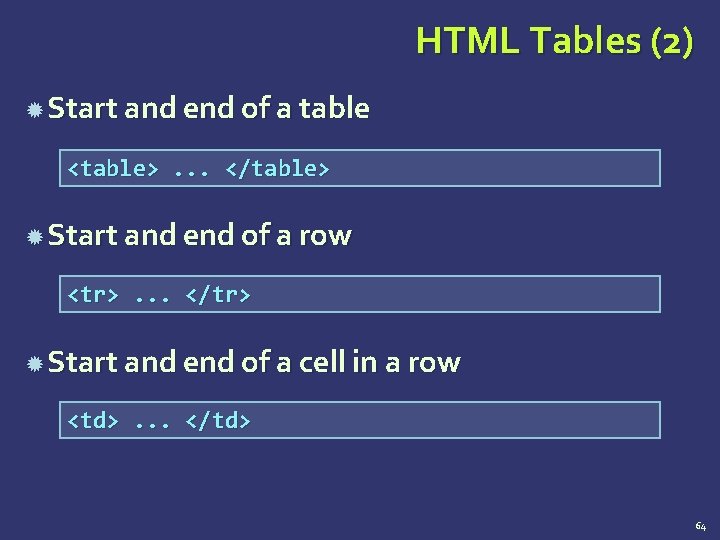
HTML Tables (2) Start and end of a table <table>. . . </table> Start and end of a row <tr>. . . </tr> Start and end of a cell in a row <td>. . . </td> 64
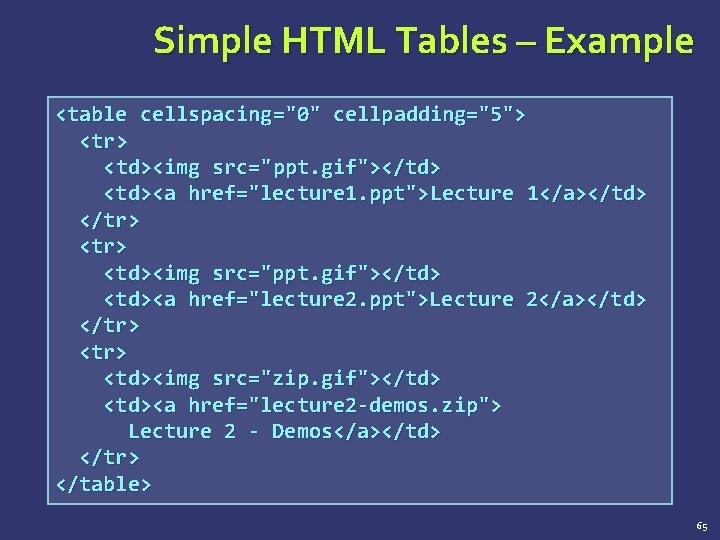
Simple HTML Tables – Example <table cellspacing="0" cellpadding="5"> <tr> <td><img src="ppt. gif"></td> <td><a href="lecture 1. ppt">Lecture 1</a></td> </tr> <td><img src="ppt. gif"></td> <td><a href="lecture 2. ppt">Lecture 2</a></td> </tr> <td><img src="zip. gif"></td> <td><a href="lecture 2 -demos. zip"> Lecture 2 - Demos</a></td> </tr> </table> 65
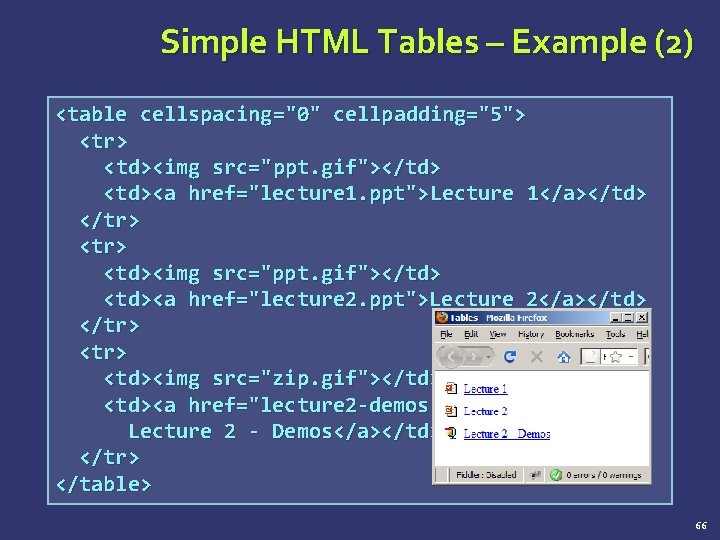
Simple HTML Tables – Example (2) <table cellspacing="0" cellpadding="5"> <tr> <td><img src="ppt. gif"></td> <td><a href="lecture 1. ppt">Lecture 1</a></td> </tr> <td><img src="ppt. gif"></td> <td><a href="lecture 2. ppt">Lecture 2</a></td> </tr> <td><img src="zip. gif"></td> <td><a href="lecture 2 -demos. zip"> Lecture 2 - Demos</a></td> </tr> </table> 66
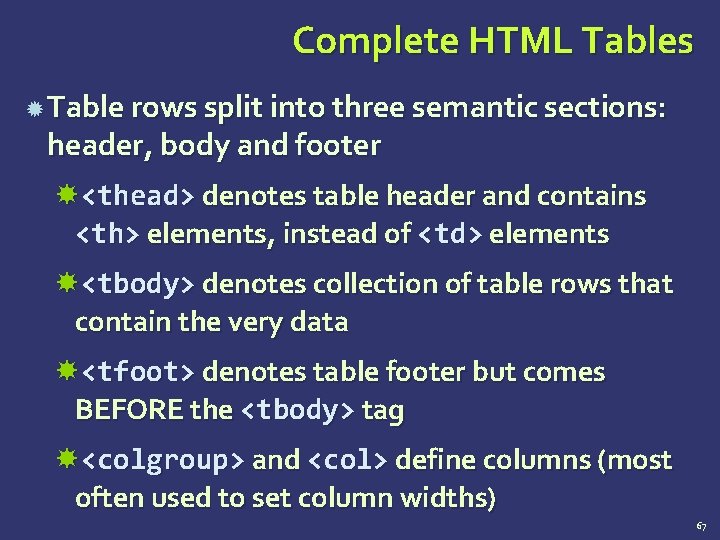
Complete HTML Tables Table rows split into three semantic sections: header, body and footer <thead> denotes table header and contains <th> elements, instead of <td> elements <tbody> denotes collection of table rows that contain the very data <tfoot> denotes table footer but comes BEFORE the <tbody> tag <colgroup> and <col> define columns (most often used to set column widths) 67
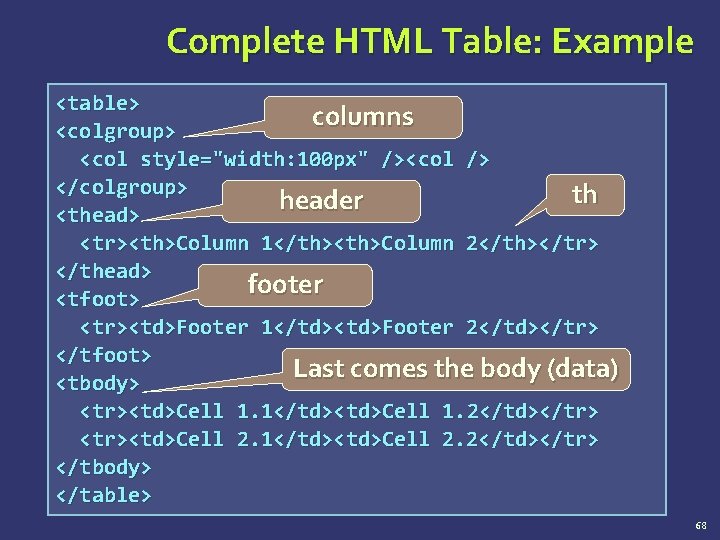
Complete HTML Table: Example <table> columns <colgroup> <col style="width: 100 px" /><col /> </colgroup> th header <thead> <tr><th>Column 1</th><th>Column 2</th></tr> </thead> footer <tfoot> <tr><td>Footer 1</td><td>Footer 2</td></tr> </tfoot> Last comes the body (data) <tbody> <tr><td>Cell 1. 1</td><td>Cell 1. 2</td></tr> <tr><td>Cell 2. 1</td><td>Cell 2. 2</td></tr> </tbody> </table> 68
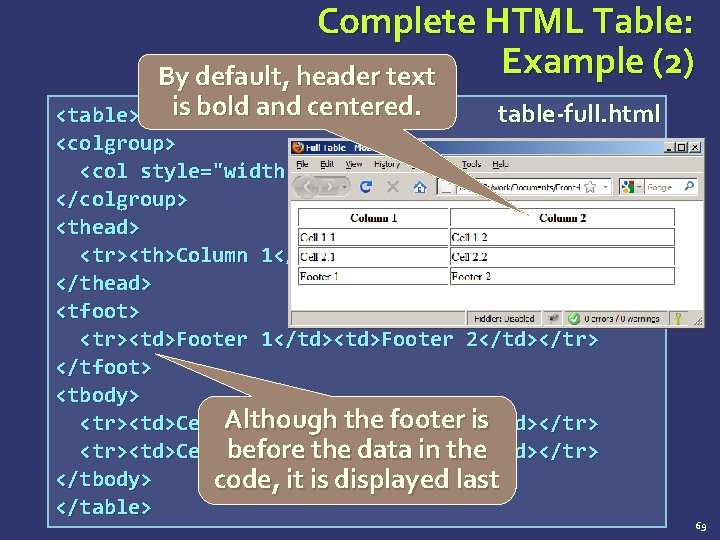
Complete HTML Table: Example (2) By default, header text <table> is bold and centered. table-full. html <colgroup> <col style="width: 200 px" /><col /> </colgroup> <thead> <tr><th>Column 1</th><th>Column 2</th></tr> </thead> <tfoot> <tr><td>Footer 1</td><td>Footer 2</td></tr> </tfoot> <tbody> the footer is <tr><td>Cell. Although 1. 1</td><td>Cell 1. 2</td></tr> <tr><td>Cell before 2. 1</td><td>Cell the data in 2. 2</td></tr> the </tbody> code, it is displayed last </table> 69
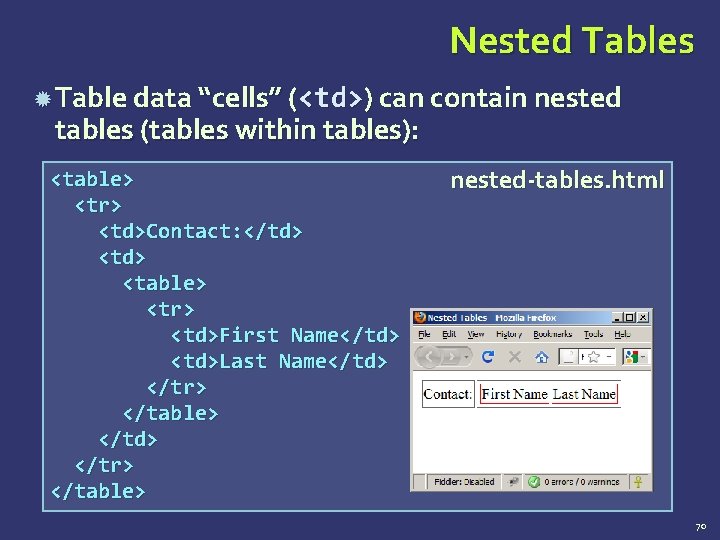
Nested Tables Table data “cells” (<td>) can contain nested tables (tables within tables): <table> <tr> <td>Contact: </td> <table> <tr> <td>First Name</td> <td>Last Name</td> </tr> </table> nested-tables. html 70
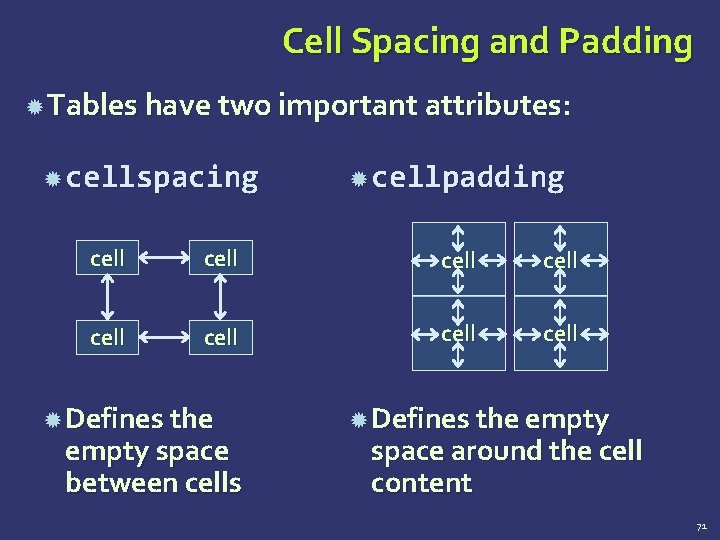
Cell Spacing and Padding Tables have two important attributes: cellspacing cellpadding cell cell Defines the empty space between cells Defines the empty space around the cell content 71
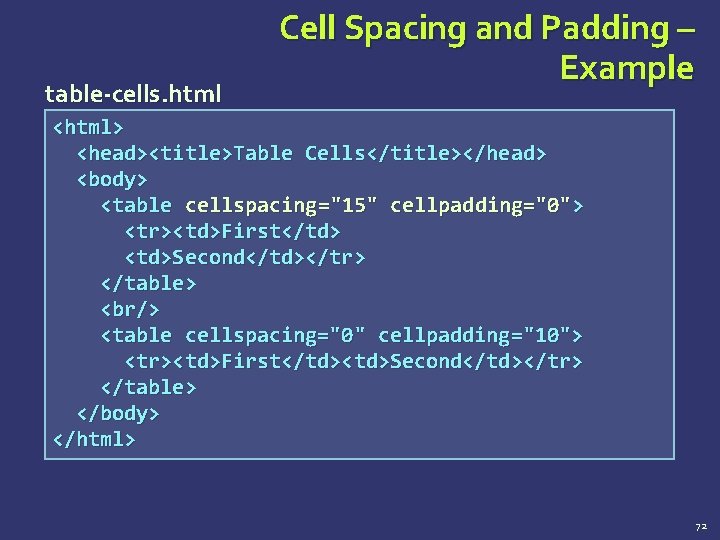
table-cells. html Cell Spacing and Padding – Example <html> <head><title>Table Cells</title></head> <body> <table cellspacing="15" cellpadding="0"> <tr><td>First</td> <td>Second</td></tr> </table> <br/> <table cellspacing="0" cellpadding="10"> <tr><td>First</td><td>Second</td></tr> </table> </body> </html> 72
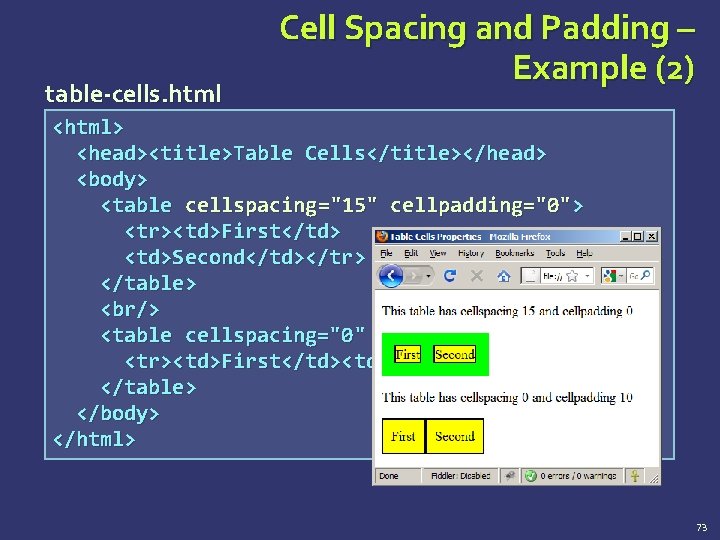
table-cells. html Cell Spacing and Padding – Example (2) <html> <head><title>Table Cells</title></head> <body> <table cellspacing="15" cellpadding="0"> <tr><td>First</td> <td>Second</td></tr> </table> <br/> <table cellspacing="0" cellpadding="10"> <tr><td>First</td><td>Second</td></tr> </table> </body> </html> 73
![Column and Row Span Table cells have two important attributes: colspan="1" cell[1, 1] rowspan](http://slidetodoc.com/presentation_image_h2/301a72bf5a8c9e252977ce418d71d961/image-74.jpg "Column and Row Span Table cells have two important attributes: colspan=\"1\" cell[1, 1] rowspan")
Column and Row Span Table cells have two important attributes: colspan="1" cell[1, 1] rowspan colspan="1" cell[1, 2] cell[2, 1] Defines how colspan="2" many columns the cell occupies rowspan="2" cell[1, 1] rowspan="1" cell[1, 2] cell[2, 1] rowspan="1" Defines how many rows the cell occupies 74
![Column and Row Span – Example table-colspan-rowspan. html <table cellspacing="0"> <tr class="1"><td>Cell[1, 1]</td> <td](http://slidetodoc.com/presentation_image_h2/301a72bf5a8c9e252977ce418d71d961/image-75.jpg "Column and Row Span – Example table-colspan-rowspan. html <table cellspacing=\"0\"> <tr class=\"1\"><td>Cell[1, 1]</td> <td")
Column and Row Span – Example table-colspan-rowspan. html <table cellspacing="0"> <tr class="1"><td>Cell[1, 1]</td> <td colspan="2">Cell[2, 1]</td></tr> <tr class=“ 2"><td>Cell[1, 2]</td> <td rowspan="2">Cell[2, 2]</td> <td>Cell[3, 2]</td></tr> <tr class=“ 3"><td>Cell[1, 3]</td> <td>Cell[2, 3]</td></tr> </table> 75
![Column and Row Span – Example (2) table-colspan-rowspan. html <table cellspacing="0"> <tr class="1"><td>Cell[1, 1]</td>](http://slidetodoc.com/presentation_image_h2/301a72bf5a8c9e252977ce418d71d961/image-76.jpg "Column and Row Span – Example (2) table-colspan-rowspan. html <table cellspacing=\"0\"> <tr class=\"1\"><td>Cell[1, 1]</td>")
Column and Row Span – Example (2) table-colspan-rowspan. html <table cellspacing="0"> <tr class="1"><td>Cell[1, 1]</td> <td colspan="2">Cell[2, 1]</td></tr> <tr class=“ 2"><td>Cell[1, 2]</td> <td rowspan="2">Cell[2, 2]</td> <td>Cell[3, 2]</td></tr> <tr class=“ 3"><td>Cell[1, 3]</td> <td>Cell[2, 3]</td></tr> Cell[1, 1] Cell[2, 1] </table> Cell[1, 2] Cell[3, 2] Cell[2, 2] Cell[1, 3] Cell[2, 3] 76
HTML Forms Entering User Data from a Web Page
What are HTML Forms? The primary method for gathering data from site visitors HTML Forms can contain Text fields for the user to type Buttons for interactions like "Register", "Login", "Search" Menus, Sliders, etc… Check Google, Yahoo, Facebook Google search field is a simple Text field 78
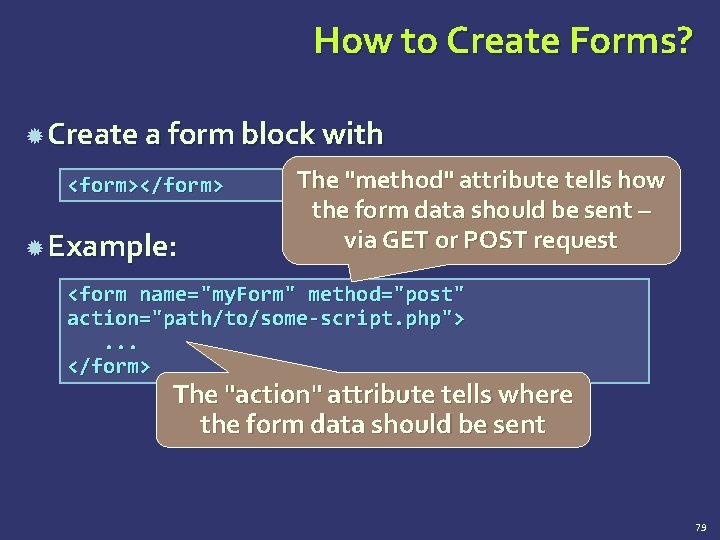
How to Create Forms? Create a form block with <form></form> Example: The "method" attribute tells how the form data should be sent – via GET or POST request <form name="my. Form" method="post" action="path/to/some-script. php">. . . </form> The "action" attribute tells where the form data should be sent 79
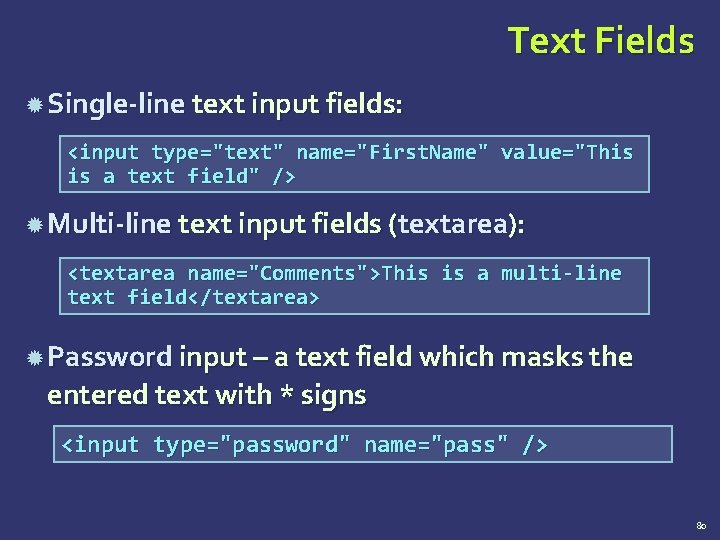
Text Fields Single-line text input fields: <input type="text" name="First. Name" value="This is a text field" /> Multi-line text input fields (textarea): <textarea name="Comments">This is a multi-line text field</textarea> Password input – a text field which masks the entered text with * signs <input type="password" name="pass" /> 80
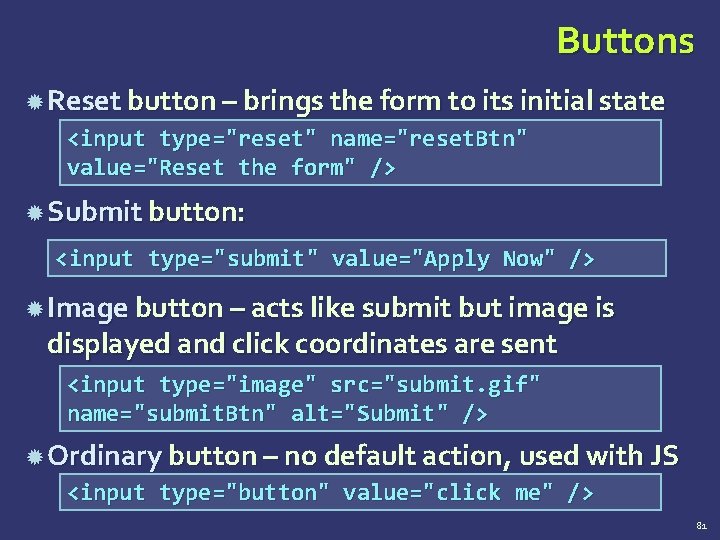
Buttons Reset button – brings the form to its initial state <input type="reset" name="reset. Btn" value="Reset the form" /> Submit button: <input type="submit" value="Apply Now" /> Image button – acts like submit but image is displayed and click coordinates are sent <input type="image" src="submit. gif" name="submit. Btn" alt="Submit" /> Ordinary button – no default action, used with JS <input type="button" value="click me" /> 81
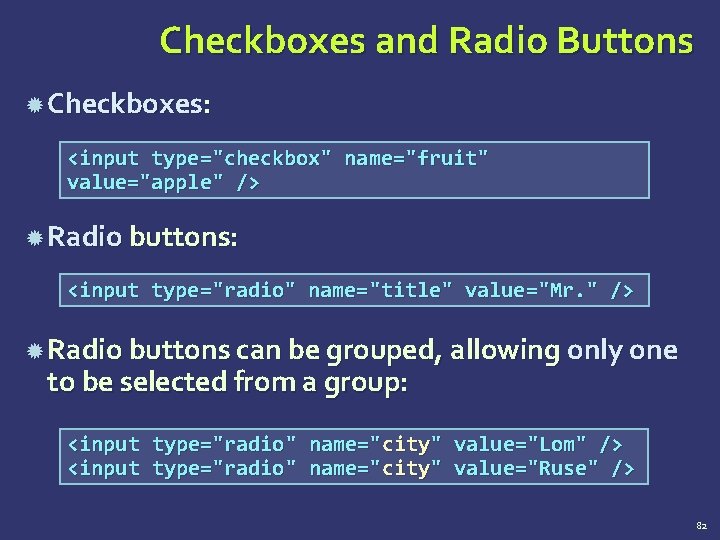
Checkboxes and Radio Buttons Checkboxes: <input type="checkbox" name="fruit" value="apple" /> Radio buttons: <input type="radio" name="title" value="Mr. " /> Radio buttons can be grouped, allowing only one to be selected from a group: <input type="radio" name="city" value="Lom" /> value="Ruse" /> 82
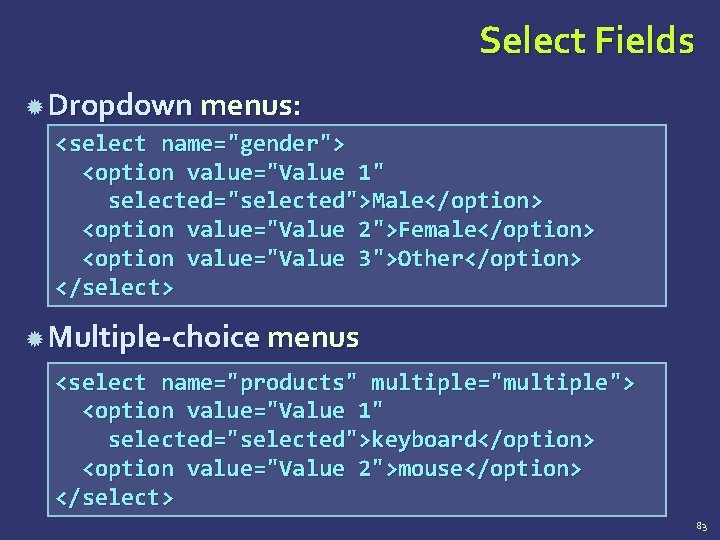
Select Fields Dropdown menus: <select name="gender"> <option value="Value 1" selected="selected">Male</option> <option value="Value 2">Female</option> <option value="Value 3">Other</option> </select> Multiple-choice menus <select name="products" multiple="multiple"> <option value="Value 1" selected="selected">keyboard</option> <option value="Value 2">mouse</option> </select> 83
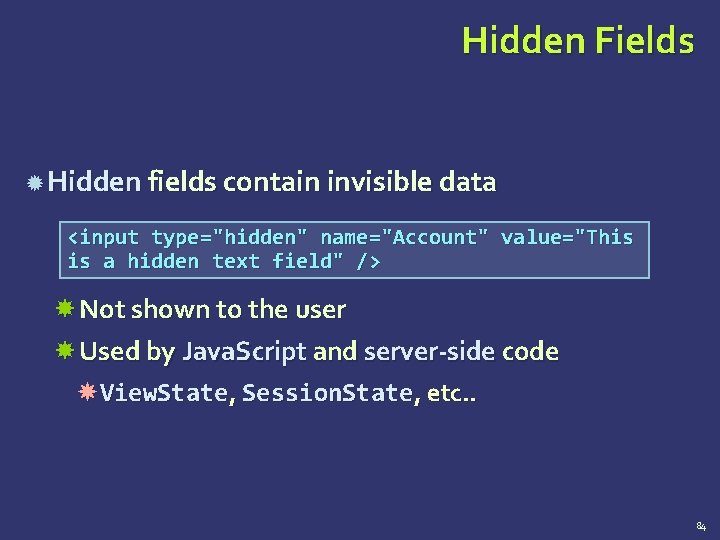
Hidden Fields Hidden fields contain invisible data <input type="hidden" name="Account" value="This is a hidden text field" /> Not shown to the user Used by Java. Script and server-side code View. State, Session. State, etc. . 84
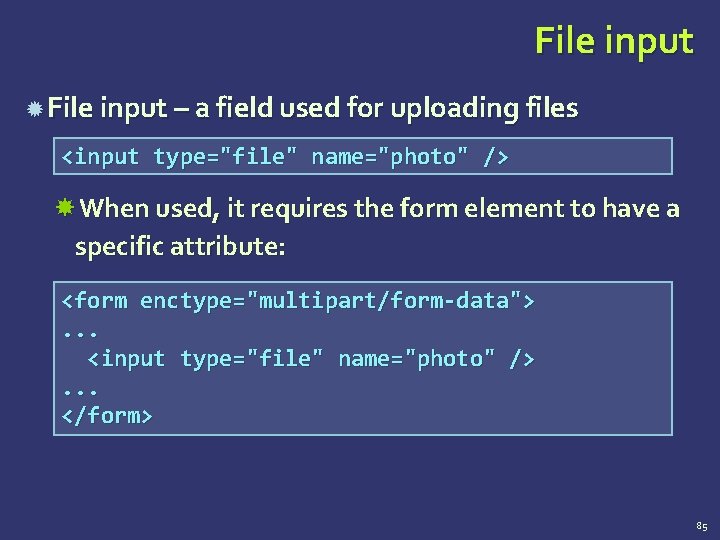
File input – a field used for uploading files <input type="file" name="photo" /> When used, it requires the form element to have a specific attribute: <form enctype="multipart/form-data">. . . <input type="file" name="photo" />. . . </form> 85
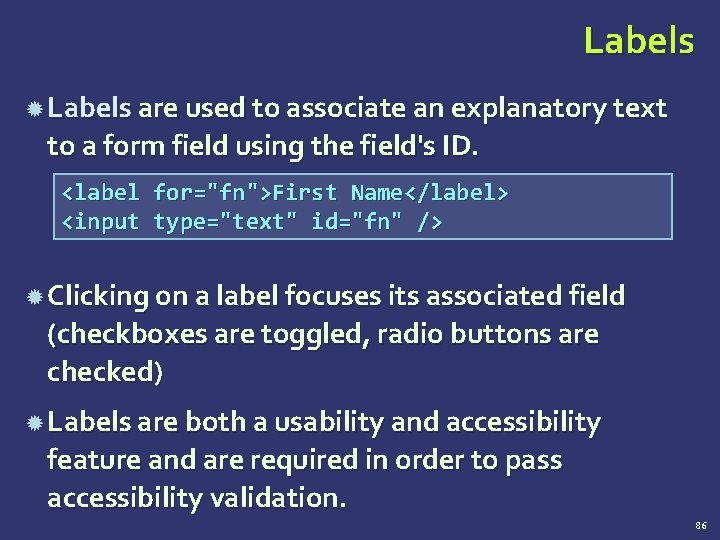
Labels are used to associate an explanatory text to a form field using the field's ID. <label for="fn">First Name</label> <input type="text" id="fn" /> Clicking on a label focuses its associated field (checkboxes are toggled, radio buttons are checked) Labels are both a usability and accessibility feature and are required in order to pass accessibility validation. 86
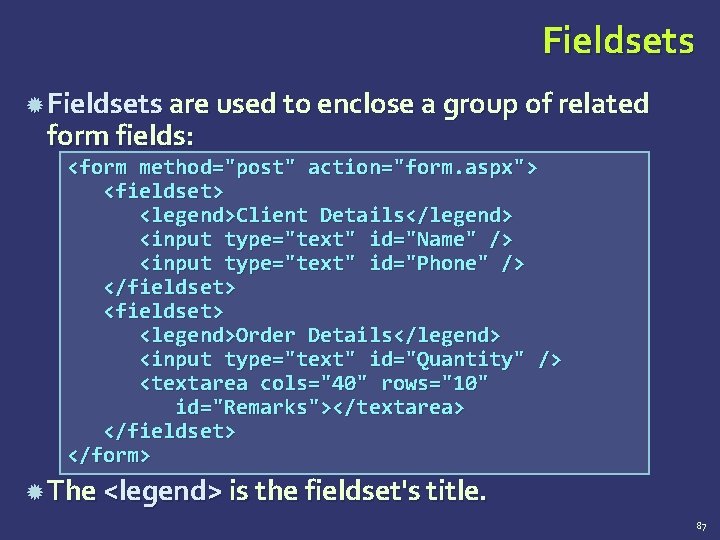
Fieldsets are used to enclose a group of related form fields: <form method="post" action="form. aspx"> <fieldset> <legend>Client Details</legend> <input type="text" id="Name" /> <input type="text" id="Phone" /> </fieldset> <legend>Order Details</legend> <input type="text" id="Quantity" /> <textarea cols="40" rows="10" id="Remarks"></textarea> </fieldset> </form> The <legend> is the fieldset's title. 87
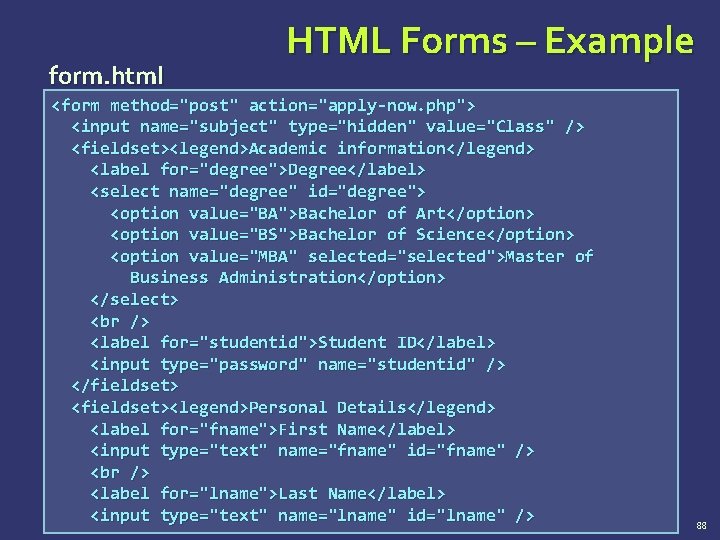
form. html HTML Forms – Example <form method="post" action="apply-now. php"> <input name="subject" type="hidden" value="Class" /> <fieldset><legend>Academic information</legend> <label for="degree">Degree</label> <select name="degree" id="degree"> <option value="BA">Bachelor of Art</option> <option value="BS">Bachelor of Science</option> <option value="MBA" selected="selected">Master of Business Administration</option> </select> <label for="studentid">Student ID</label> <input type="password" name="studentid" /> </fieldset> <fieldset><legend>Personal Details</legend> <label for="fname">First Name</label> <input type="text" name="fname" id="fname" /> <label for="lname">Last Name</label> <input type="text" name="lname" id="lname" /> 88
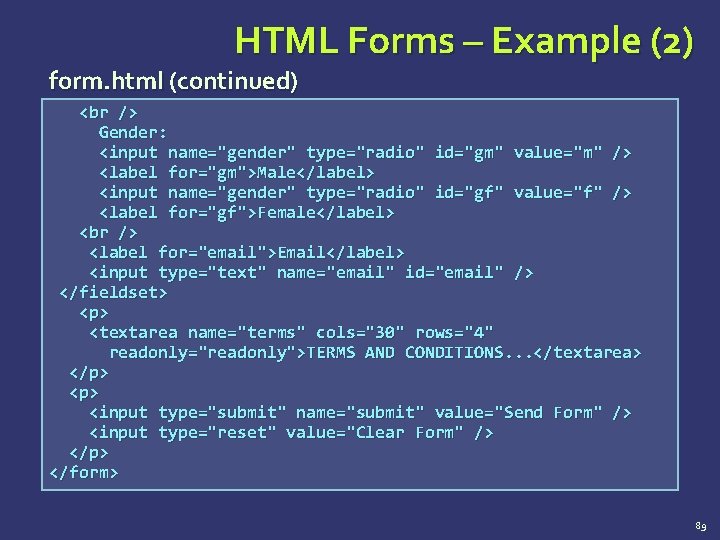
HTML Forms – Example (2) form. html (continued) Gender: <input name="gender" type="radio" id="gm" value="m" /> <label for="gm">Male</label> <input name="gender" type="radio" id="gf" value="f" /> <label for="gf">Female</label> <label for="email">Email</label> <input type="text" name="email" id="email" /> </fieldset> <p> <textarea name="terms" cols="30" rows="4" readonly="readonly">TERMS AND CONDITIONS. . . </textarea> </p> <input type="submit" name="submit" value="Send Form" /> <input type="reset" value="Clear Form" /> </p> </form> 89
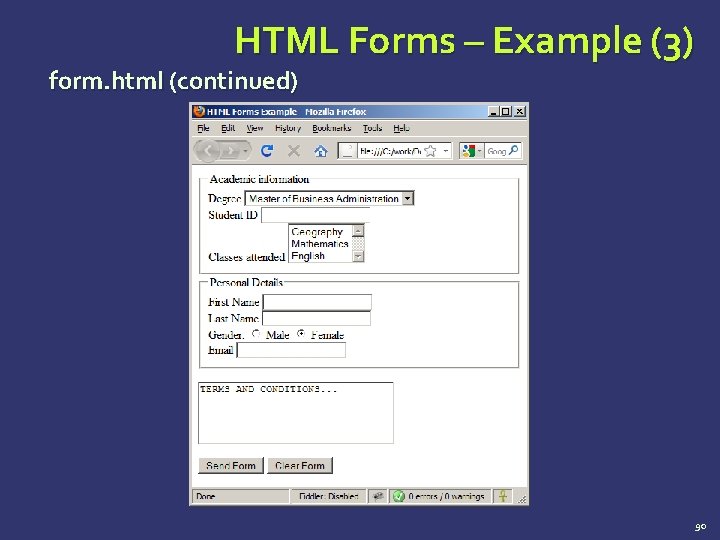
HTML Forms – Example (3) form. html (continued) 90
HTML 5 Forms Inputs Fields Live Demo 91
Sliders and Spinboxes Lets make it spin
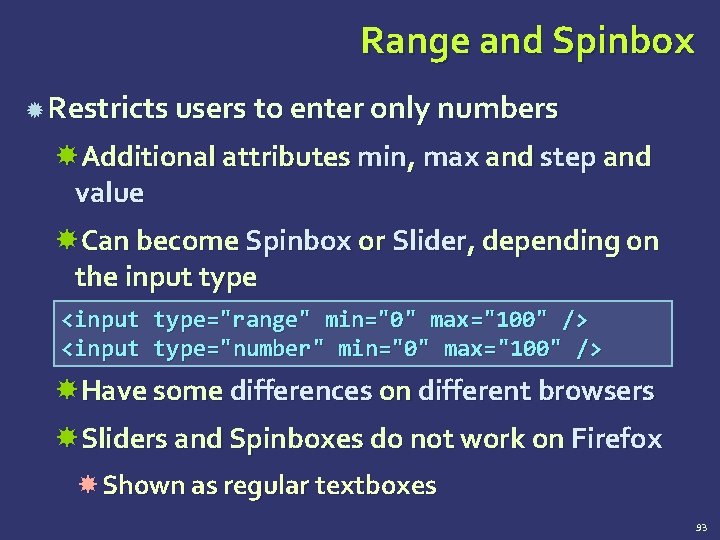
Range and Spinbox Restricts users to enter only numbers Additional attributes min, max and step and value Can become Spinbox or Slider, depending on the input type <input type="range" min="0" max="100" /> <input type="number" min="0" max="100" /> Have some differences on different browsers Sliders and Spinboxes do not work on Firefox Shown as regular textboxes 93

Sliders and Spinboxes Live Demo 94
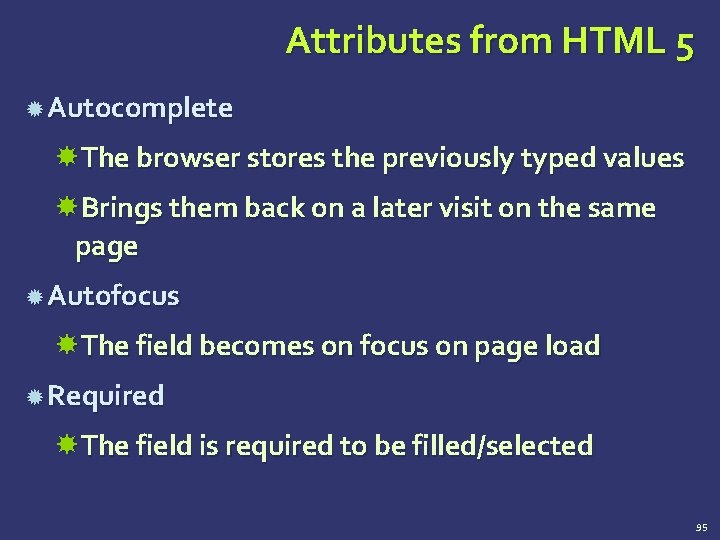
Attributes from HTML 5 Autocomplete The browser stores the previously typed values Brings them back on a later visit on the same page Autofocus The field becomes on focus on page load Required The field is required to be filled/selected 95
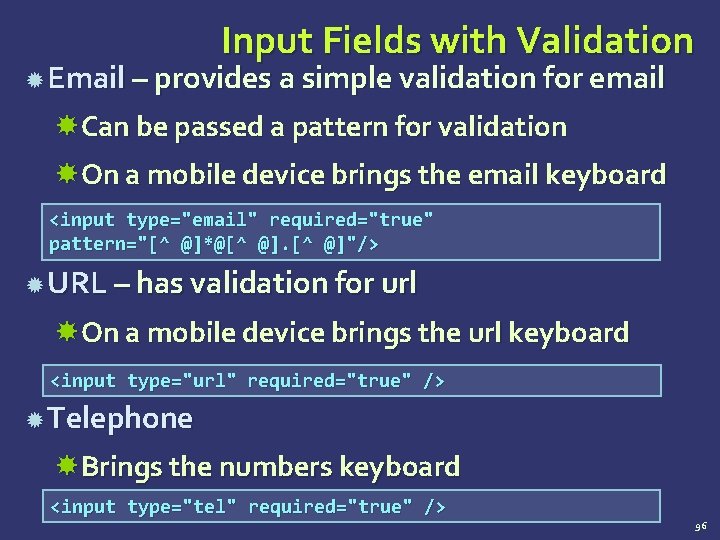
Input Fields with Validation Email – provides a simple validation for email Can be passed a pattern for validation On a mobile device brings the email keyboard <input type="email" required="true" pattern="[^ @]*@[^ @]"/> URL – has validation for url On a mobile device brings the url keyboard <input type="url" required="true" /> Telephone Brings the numbers keyboard <input type="tel" required="true" /> 96
HTML Forms Validation Live Demo 97
Tab. Index The tabindex HTML attribute controls the order in which form fields and hyperlinks are focused when repeatedly pressing the TAB key tabindex="0" (zero) - "natural" order If X < Y, then elements with tabindex="X" are iterated before elements with tabindex="Y" Elements with negative tabindex are skipped, however, this is not defined in the standard <input type="text" tabindex="10" /> 98

Tab Index Live Demo 99
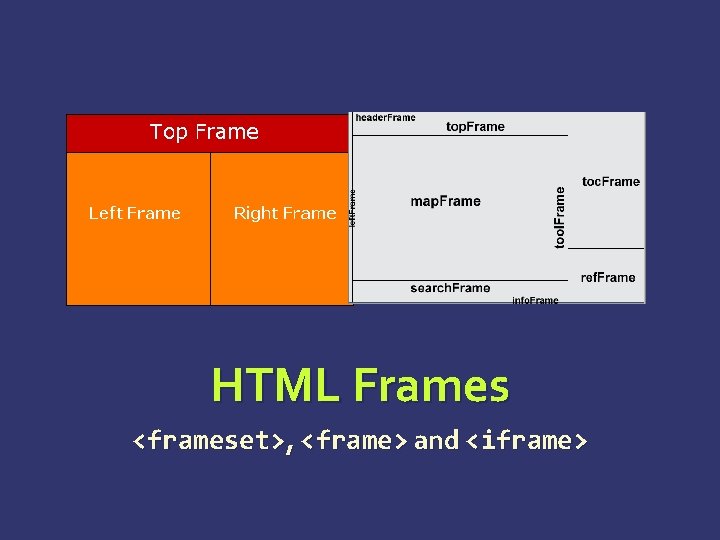
HTML Frames <frameset>, <frame> and <iframe>
HTML Frames provide a way to show multiple HTML documents in a single Web page The page can be split into separate views (frames) horizontally and vertically Frames were popular in the early ages of HTML development, but now their usage is rejected Frames are not supported by all user agents (browsers, search engines, etc. ) A <noframes> element is used to provide 101
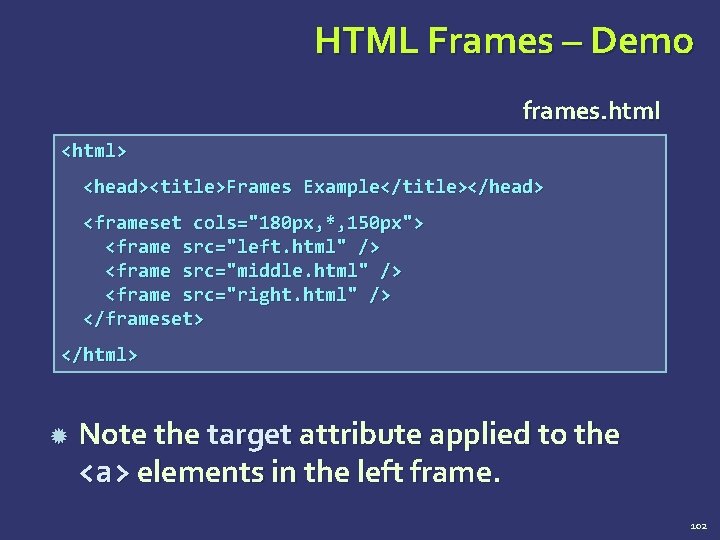
HTML Frames – Demo frames. html <html> <head><title>Frames Example</title></head> <frameset cols="180 px, *, 150 px"> <frame src="left. html" /> <frame src="middle. html" /> <frame src="right. html" /> </frameset> </html> Note the target attribute applied to the <a> elements in the left frame. 102
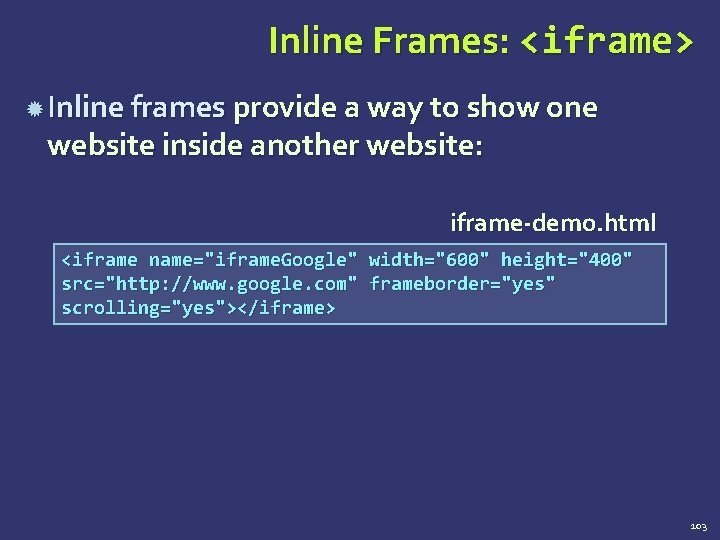
Inline Frames: <iframe> Inline frames provide a way to show one website inside another website: iframe-demo. html <iframe name="iframe. Google" width="600" height="400" src="http: //www. google. com" frameborder="yes" scrolling="yes"></iframe> 103
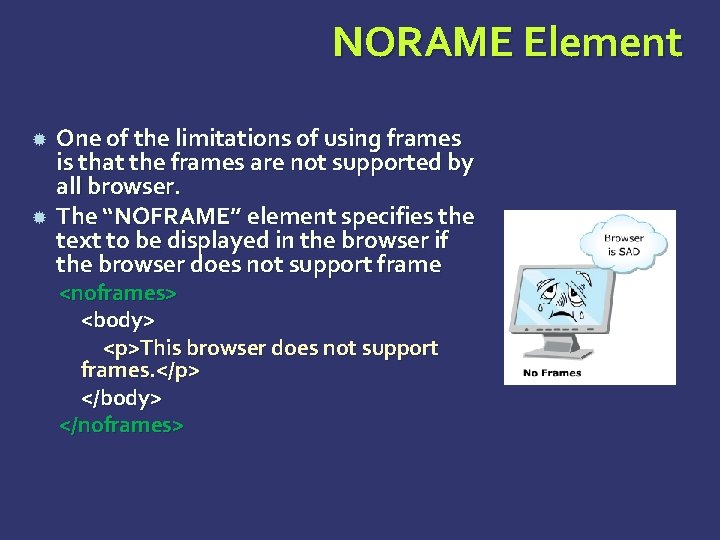
NORAME Element One of the limitations of using frames is that the frames are not supported by all browser. The “NOFRAME” element specifies the text to be displayed in the browser if the browser does not support frame <noframes> <body> <p>This browser does not support frames. </p> </body> </noframes>
HTML Basics ? ? ? Questions? ? ?
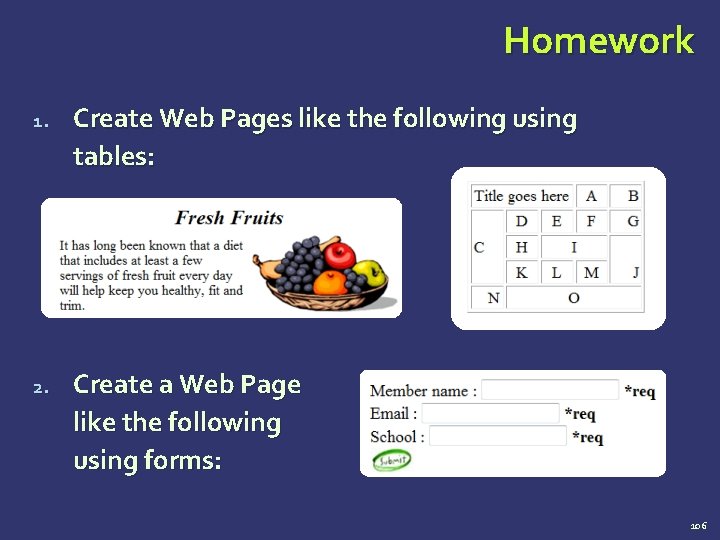
Homework 1. Create Web Pages like the following using tables: 2. Create a Web Page like the following using forms: 106
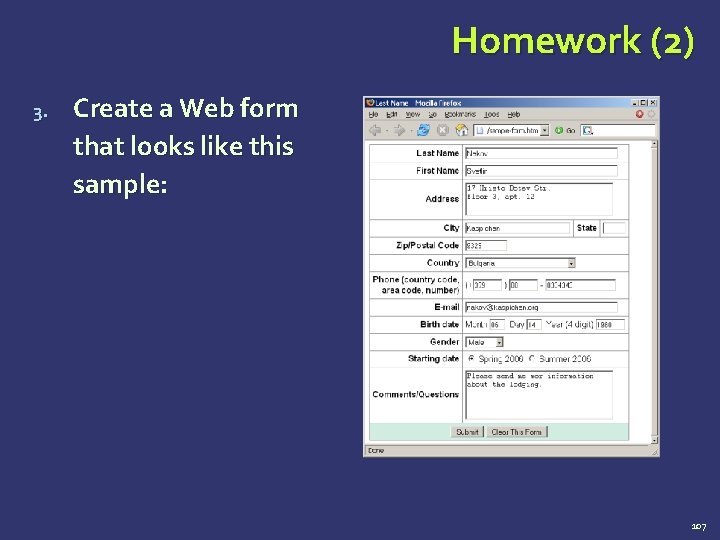
Homework (2) 3. Create a Web form that looks like this sample: 107
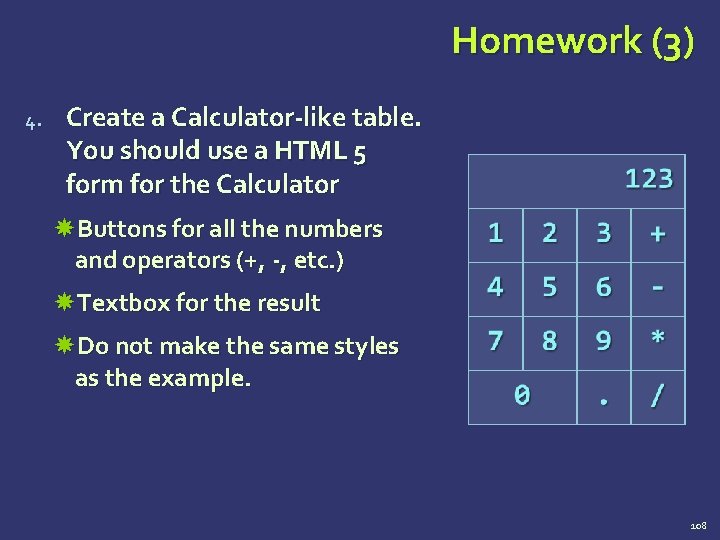
Homework (3) 4. Create a Calculator-like table. You should use a HTML 5 form for the Calculator Buttons for all the numbers and operators (+, -, etc. ) Textbox for the result Do not make the same styles as the example. 108
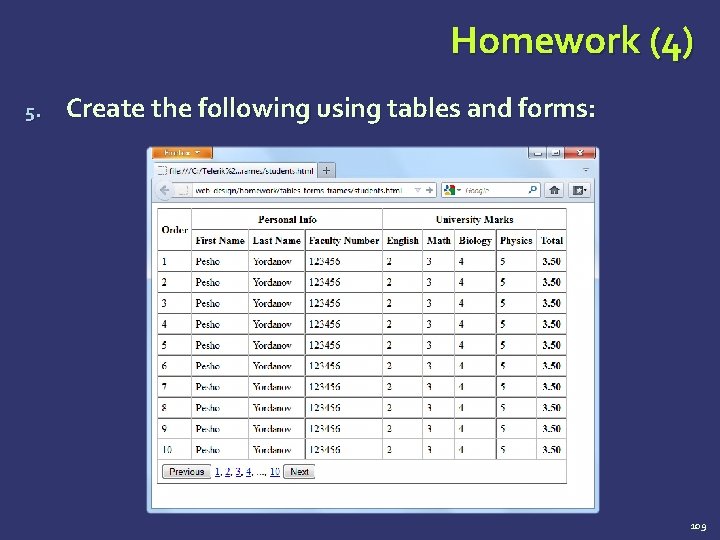
Homework (4) 5. Create the following using tables and forms: 109
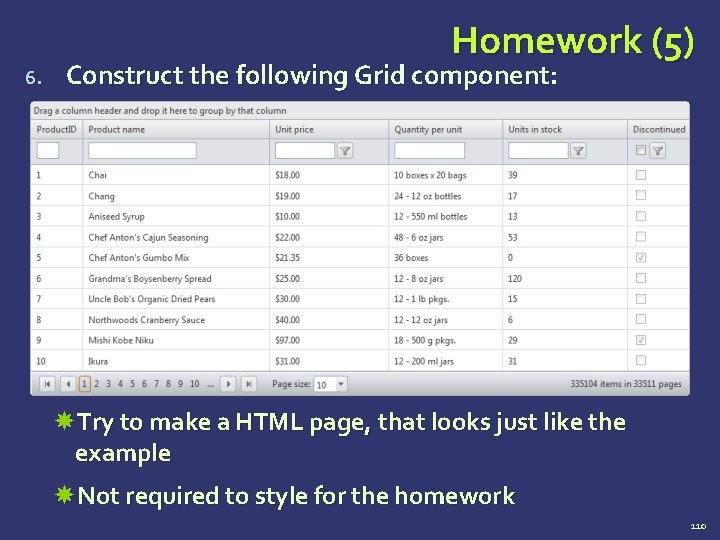
6. Homework (5) Construct the following Grid component: Try to make a HTML page, that looks just like the example Not required to style for the homework 110
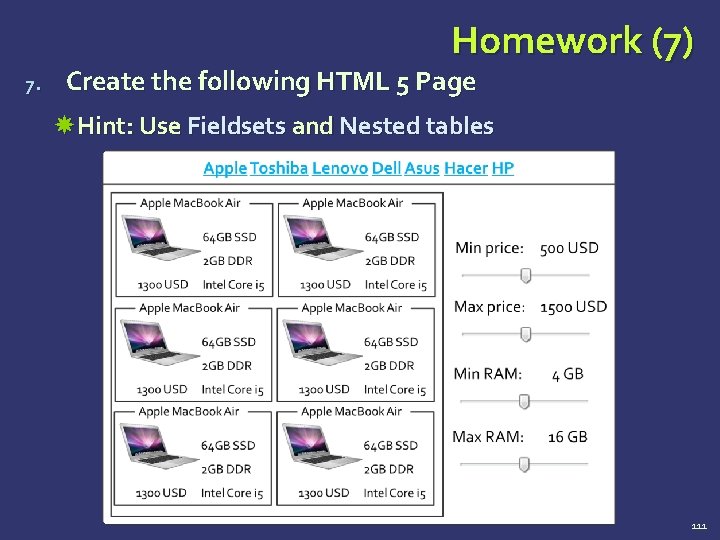
Homework (7) 7. Create the following HTML 5 Page Hint: Use Fieldsets and Nested tables 111
- Slides: 111