
Web Development IT 125 Spring Term 2017 Marymount
Web Development IT 125 Spring Term 2017 Marymount University School of Business Administration Professor Suydam Week 9 Tables (Chapter 8) MP 3 Preparation 1
Week 9 Agenda • • • Review Course Schedule Chapter 8 Tables Mini-Project 3 2
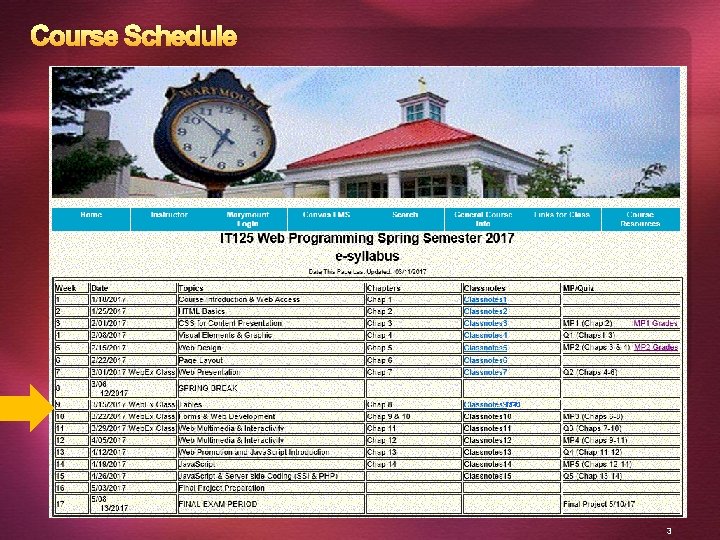
Course Schedule 3
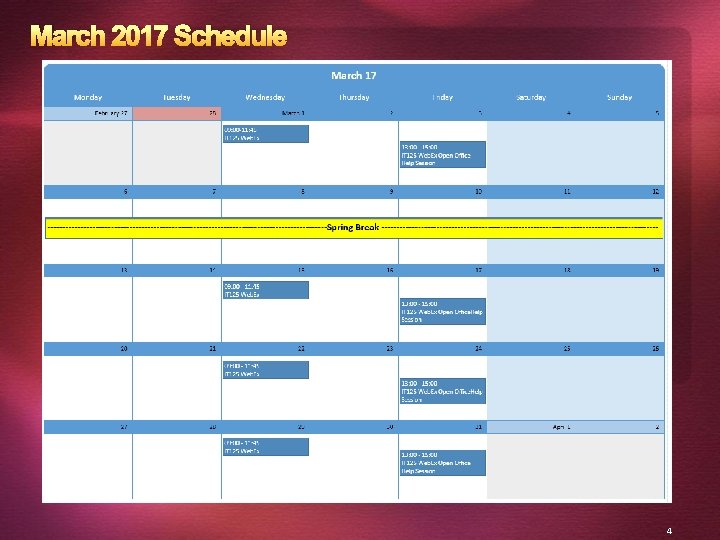
March 2017 Schedule 4
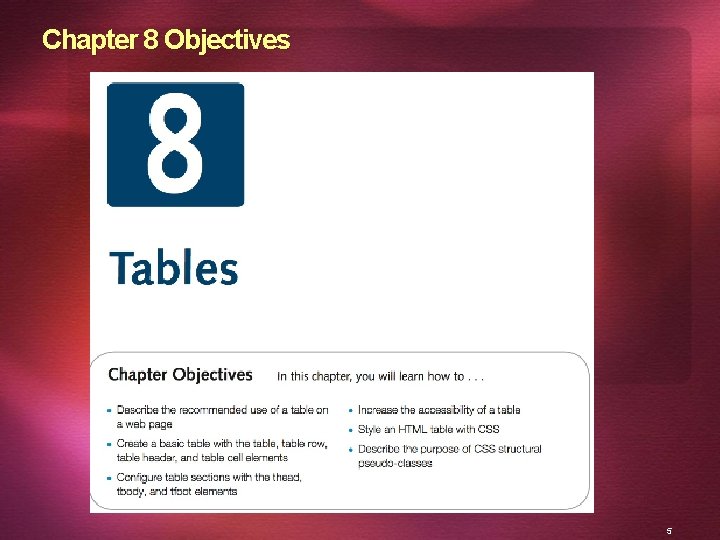
Chapter 8 Objectives 5
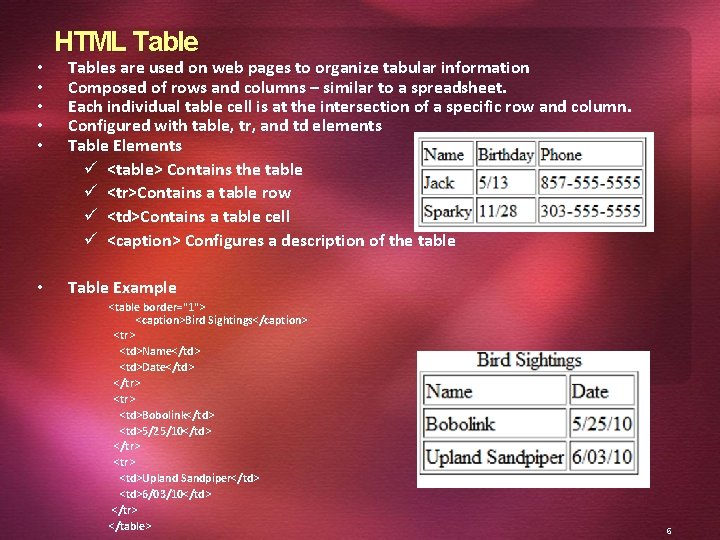
• • • HTML Tables are used on web pages to organize tabular information Composed of rows and columns – similar to a spreadsheet. Each individual table cell is at the intersection of a specific row and column. Configured with table, tr, and td elements Table Elements ü <table> Contains the table ü <tr>Contains a table row ü <td>Contains a table cell ü <caption> Configures a description of the table Table Example <table border="1"> <caption>Bird Sightings</caption> <tr> <td>Name</td> <td>Date</td> </tr> <tr> <td>Bobolink</td> <td>5/25/10</td> </tr> <tr> <td>Upland Sandpiper</td> <td>6/03/10</td> </tr> </table> 6
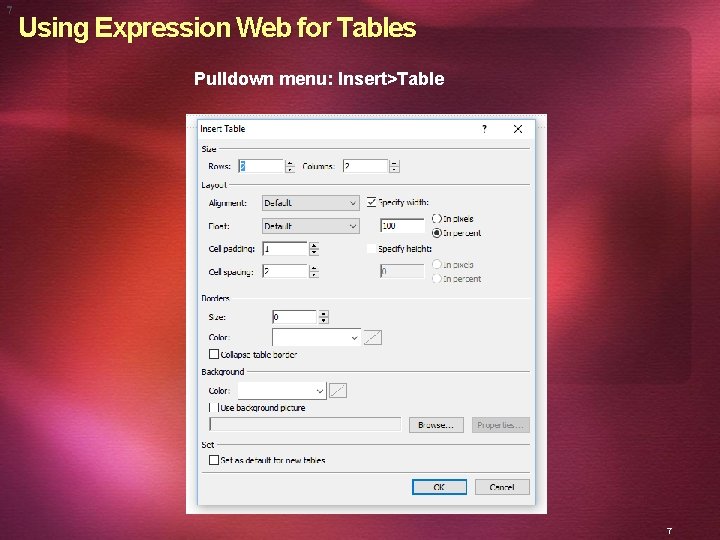
7 Using Expression Web for Tables Pulldown menu: Insert>Table 7
HTML Tables • Table Attributes ü align (obsolete) ü bgcolor (obsolete) ü border ü cellpadding (obsolete) ü cellspacing (obsolete) ü summary (obsolete but may be reinstated) ü width (obsolete) • Use CSS to configure table characteristics instead of HTML attributes • Table Cell Attributes ü align (obsolete) ü bgcolor (obsolete) ü colspan ü rowspan ü valign (obsolete) ü height (deprecated) ü width (deprecated) • Use CSS to configure most table cell characteristics instead of HTML attributes 8
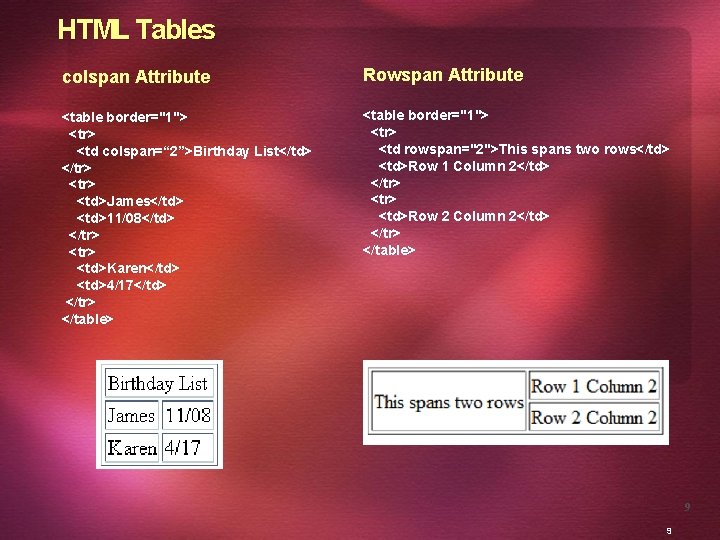
HTML Tables colspan Attribute Rowspan Attribute <table border="1"> <tr> <td colspan=“ 2”>Birthday List</td> </tr> <td>James</td> <td>11/08</td> </tr> <td>Karen</td> <td>4/17</td> </tr> </table> <table border="1"> <tr> <td rowspan="2">This spans two rows</td> <td>Row 1 Column 2</td> </tr> <td>Row 2 Column 2</td> </tr> </table> 9 9
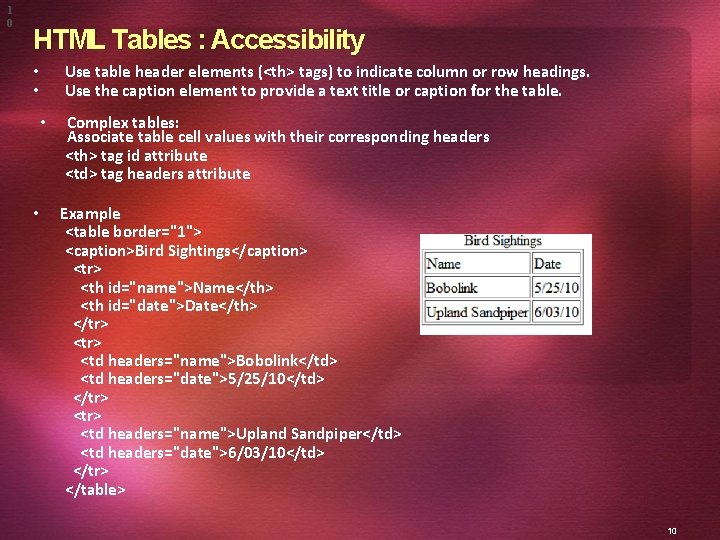
1 0 HTML Tables : Accessibility Use table header elements (<th> tags) to indicate column or row headings. Use the caption element to provide a text title or caption for the table. • • Complex tables: Associate table cell values with their corresponding headers <th> tag id attribute <td> tag headers attribute Example <table border="1"> <caption>Bird Sightings</caption> <tr> <th id="name">Name</th> <th id="date">Date</th> </tr> <tr> <td headers="name">Bobolink</td> <td headers="date">5/25/10</td> </tr> <tr> <td headers="name">Upland Sandpiper</td> <td headers="date">6/03/10</td> </tr> </table> 10
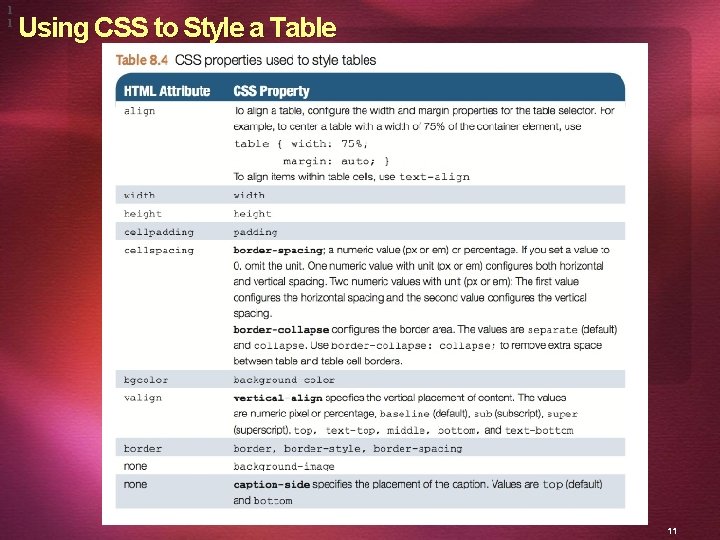
1 1 Using CSS to Style a Table 11
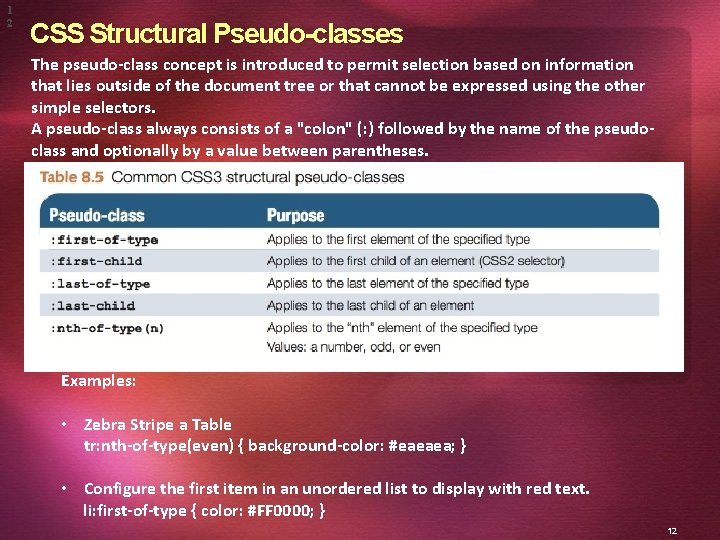
1 2 CSS Structural Pseudo-classes The pseudo-class concept is introduced to permit selection based on information that lies outside of the document tree or that cannot be expressed using the other simple selectors. A pseudo-class always consists of a "colon" (: ) followed by the name of the pseudoclass and optionally by a value between parentheses. Examples: • Zebra Stripe a Table tr: nth-of-type(even) { background-color: #eaeaea; } • Configure the first item in an unordered list to display with red text. li: first-of-type { color: #FF 0000; } 12
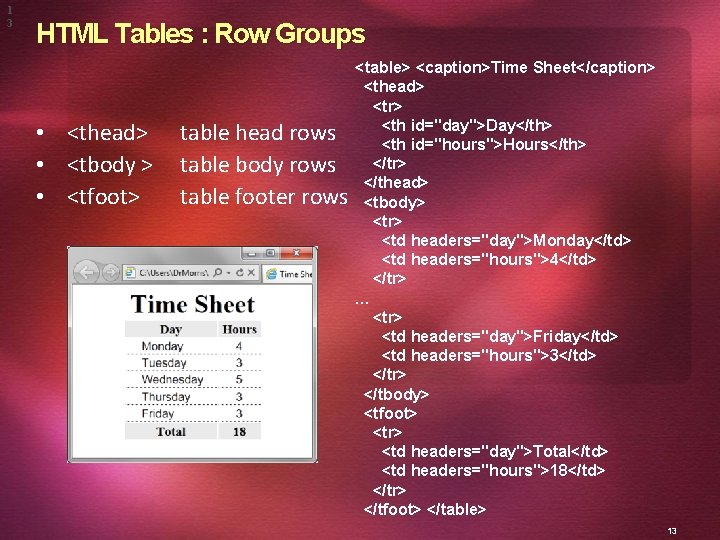
1 3 HTML Tables : Row Groups • <thead> • <tbody > • <tfoot> table head rows table body rows table footer rows <table> <caption>Time Sheet</caption> <thead> <tr> <th id="day">Day</th> <th id="hours">Hours</th> </tr> </thead> <tbody> <tr> <td headers="day">Monday</td> <td headers="hours">4</td> </tr> … <tr> <td headers="day">Friday</td> <td headers="hours">3</td> </tr> </tbody> <tfoot> <tr> <td headers="day">Total</td> <td headers="hours">18</td> </tr> </tfoot> </table> 13
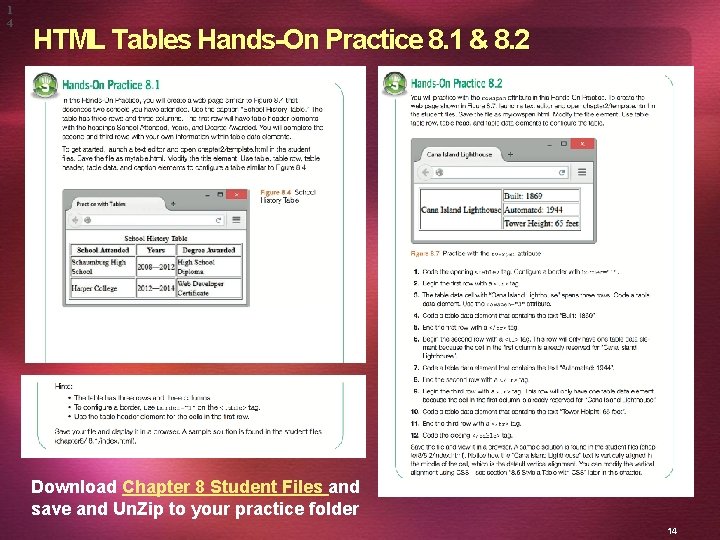
1 4 HTML Tables Hands-On Practice 8. 1 & 8. 2 Download Chapter 8 Student Files and save and Un. Zip to your practice folder 14
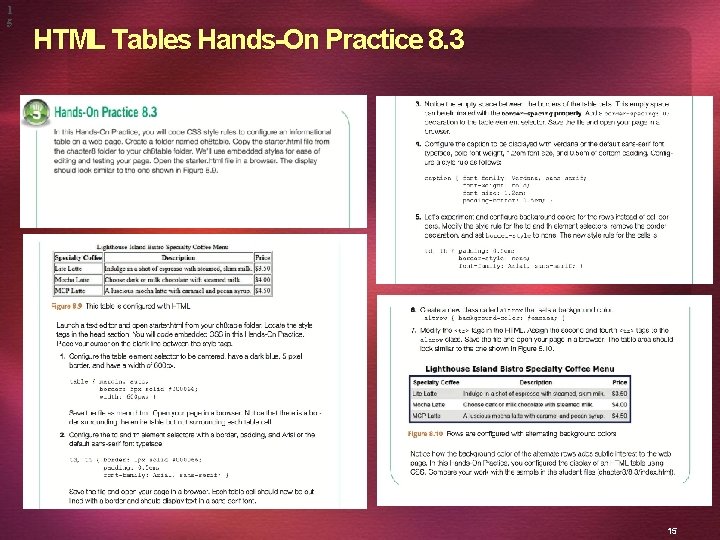
1 5 HTML Tables Hands-On Practice 8. 3 15
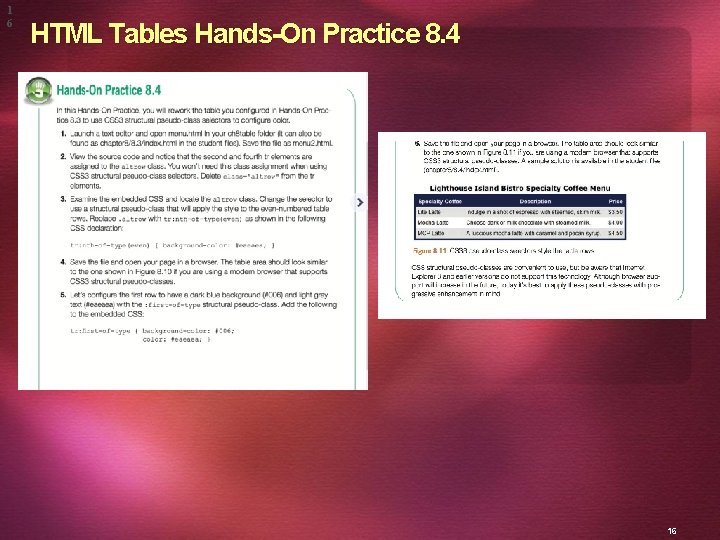
1 6 HTML Tables Hands-On Practice 8. 4 16
Mini-Project 3 17
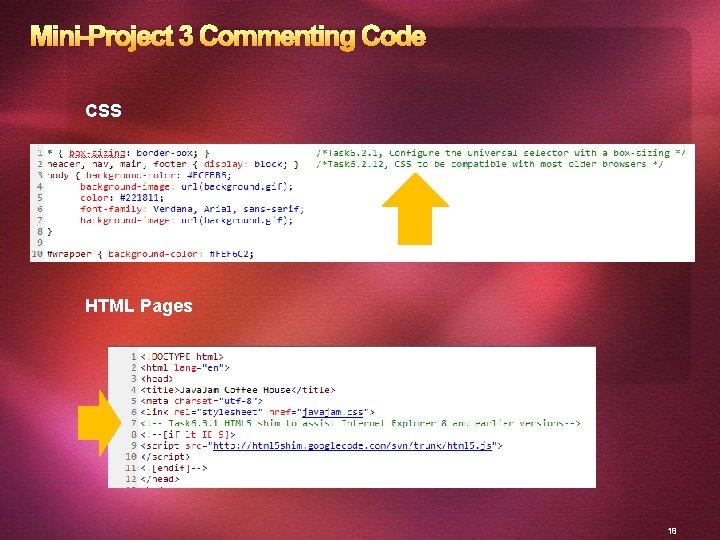
Mini-Project 3 Commenting Code CSS HTML Pages 18
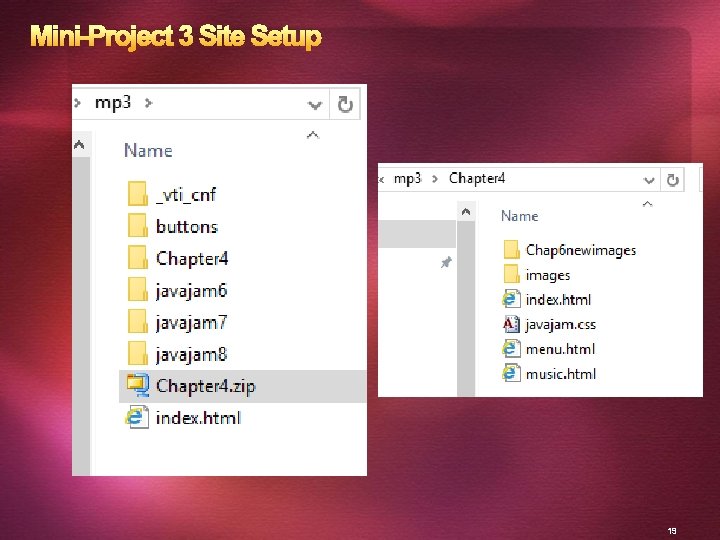
Mini-Project 3 Site Setup 19
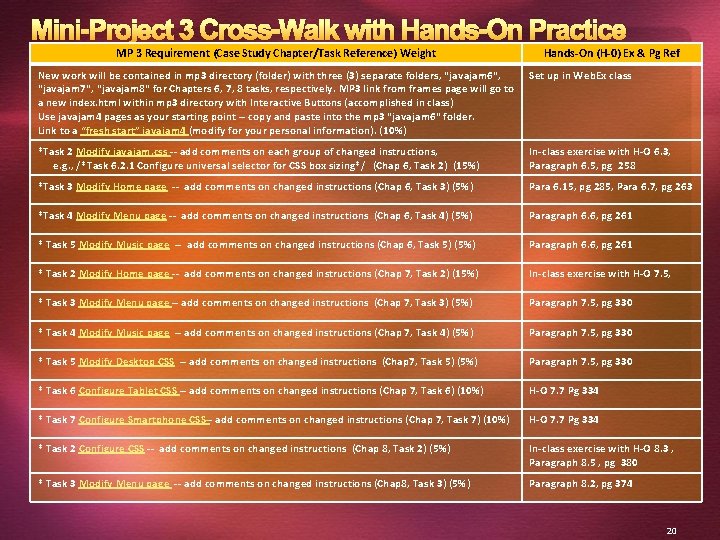
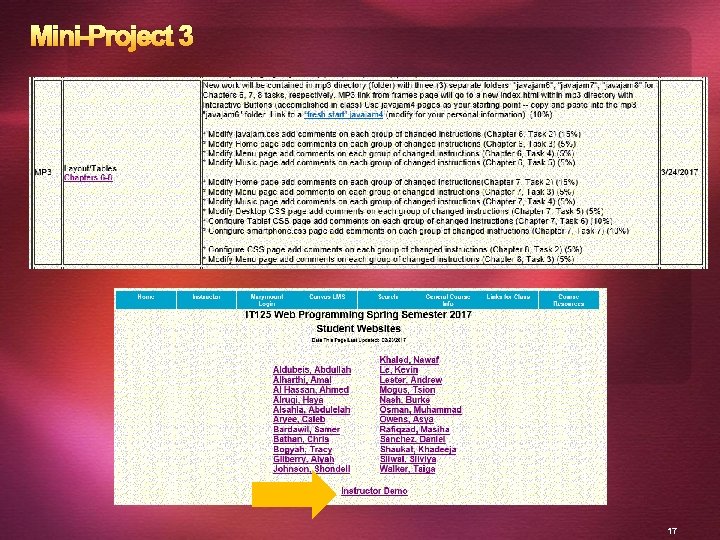
Mini-Project 3 Cross-Walk with Hands-On Practice MP 3 Requirement (Case Study Chapter/Task Reference) Weight Hands-On (H-0) Ex & Pg Ref New work will be contained in mp 3 directory (folder) with three (3) separate folders, "javajam 6", "javajam 7", "javajam 8" for Chapters 6, 7, 8 tasks, respectively. MP 3 link from frames page will go to a new index. html within mp 3 directory with Interactive Buttons (accomplished in class) Use javajam 4 pages as your starting point -- copy and paste into the mp 3 "javajam 6" folder. Link to a “fresh start” javajam 4 (modify for your personal information). (10%) Set up in Web. Ex class *Task 2 Modify javajam. css -- add comments on each group of changed instructions, e. g. , /*Task 6. 2. 1 Configure universal selector for CSS box sizing*/ (Chap 6, Task 2) (15%) In-class exercise with H-O 6. 3, Paragraph 6. 5, pg 258 *Task 3 Modify Home page -- add comments on changed instructions (Chap 6, Task 3) (5%) Para 6. 15, pg 285, Para 6. 7, pg 263 *Task 4 Modify Menu page -- add comments on changed instructions (Chap 6, Task 4) (5%) Paragraph 6. 6, pg 261 * Task 5 Modify Music page -- add comments on changed instructions (Chap 6, Task 5) (5%) Paragraph 6. 6, pg 261 * Task 2 Modify Home page -- add comments on changed instructions (Chap 7, Task 2) (15%) In-class exercise with H-O 7. 5, * Task 3 Modify Menu page -- add comments on changed instructions (Chap 7, Task 3) (5%) Paragraph 7. 5, pg 330 * Task 4 Modify Music page -- add comments on changed instructions (Chap 7, Task 4) (5%) Paragraph 7. 5, pg 330 * Task 5 Modify Desktop CSS -- add comments on changed instructions (Chap 7, Task 5) (5%) Paragraph 7. 5, pg 330 * Task 6 Configure Tablet CSS -- add comments on changed instructions (Chap 7, Task 6) (10%) H-O 7. 7 Pg 334 * Task 7 Configure Smartphone CSS-- add comments on changed instructions (Chap 7, Task 7) (10%) H-O 7. 7 Pg 334 * Task 2 Configure CSS -- add comments on changed instructions (Chap 8, Task 2) (5%) In-class exercise with H-O 8. 3 , Paragraph 8. 5 , pg 380 * Task 3 Modify Menu page -- add comments on changed instructions (Chap 8, Task 3) (5%) Paragraph 8. 2, pg 374 20
Java. Jam Case Study MP 3 Chapter 6 (2 -column layout) In this case study, you will implement a new two- column CSS page layout for Java. Jam. Figure 6. 49 shows a wireframe for a two-column page layout with wrapper, header, navigation, main content, hero image, and footer areas. Preparation(in-class): Download “freshstart”, Un. Zip, and place in javajam 6 folder. File includes new Chap 6 images -- place in images folder. Task 2 Modify javajam. css : Configure the CSS. Open javajam. css in a text editor. Edit the style rules as follows: 1. Configure the universal selector with a box-sizing: border-box style declaration. * { box-sizing: border-box; } 2. Configure id selectors for the hero image on each page. a. Configure an id selector named heroroad. Set the background image to heroroad. jpg. Configure 100% background-size and height of 250 pixels. b. Configure an id selector named heromugs. Set the background image to heromugs. jpg. Configure 100% background-size and height of 250 pixels. c. Configure an id selector named heroguitar. Set the background image to heroguitar. jpg. Configure 100% background-size and height of 250 pixels. 3. Edit the style rules for the main selector so that the hero image will fill the entire area. Change left padding to 0. Change right padding to 0. Also configure a 200 px left margin, 0 top padding, and #FEF 6 C 2 background color. 4. Since the main content area no longer has any left or right padding, configure descendant selectors to configure style rules for the following elements within the main element: h 2, h 3, h 4, p, div, ul, dl. Set left padding to 3 em and right padding to 2 em. #heroroad { background-image: url(heroroad. jpg); background-size: 100%; height: 250 px; } #heromugs { background-image: url(heromugs. jpg); background-size: 100%; height: 250 px; } #heroguitar { background-image: url(heroguitar. jpg); background-size: 100%; height: 250 px; } main { padding: 0 0 2 em 0; margin-left: 200 px; background-color: #FEF 6 C 2; } main h 2, main h 3, main h 4, main p, main div, main ul, main dl { padding-left: 3 em; padding-right: 2 em; } 21
Java. Jam Case Study MP 3 Chapter 6 (2 -column layout) 5. Configure the left-column navigation area. Add style declarations to the nav element selector to configure an area that floats to the left and is 200 pixels wide. 6. Configure the : link, : visited, and : hover pseudo-classes for the navigation hyper-links. Use the following text colors: #FEF 6 C 2 (unvisited hyperlinks), #D 2 B 48 C (visited hyperlinks), and #CC 9933 (hyperlinks with : hover). For example, nav a: link { color: #FEF 6 C 2; } 7. You will organize the navigation hyperlinks within an unordered list in later tasks. The navigation area in Figure 6. 50 does not show list markers. Code a nav ul descendant selector to configure unordered lists in the navigation area to display without list mark- ers and with 0 left padding. 8. Modify the wrapper id. Configure a dark background color (#231814) which will display behind the column with the navigation area. 9. Modify the h 4 element selector style rules. View the Music page shown in Figure 6. 52 and notice that the <h 4> tags are styled differently, with all uppercase text (use text-transform), a bottom border, and 0 bottom padding. Also configure a style declaration to clear floats on the left. 10. Refer to the Music page shown in Figure 6. 52 and notice how the images float on the left side of the paragraph description. Configure a new class named floatleft that floats to the left with 20 pixels of right and bottom padding. 11. Modify the style rules for the details class and add the overflow: auto; style declaration. 12. Add the following CSS to be compatible with most older browsers: header, nav, main, footer { display: block; } Save the javajam. css file. nav { text-align: center; font-weight: bold; font-size: 1. 5 em; padding-top: 10 px; float: left; width: 200 px; nav a { text-decoration: none; } nav a: link { color: #FEF 6 C 2; } nav a: visited{ color: #D 2 B 48 C; } nav a: hover { color: #CC 9933; } nav ul { list-style-type: none; padding-left: 0; } #wrapper { background-color: #231814; h 4 { background-color: #d 2 B 48 C; font-size: 1. 2 em; padding-left: 10 px; padding-bottom: 0; text-transform: uppercase; border-bottom: 1 px solid #000033; clear: left; }. floatleft { float: left; padding-right: 20 px; padding-bottom: 20 px; }. details { padding-left: 20%; padding-right: 20%; } overflow: auto; 22
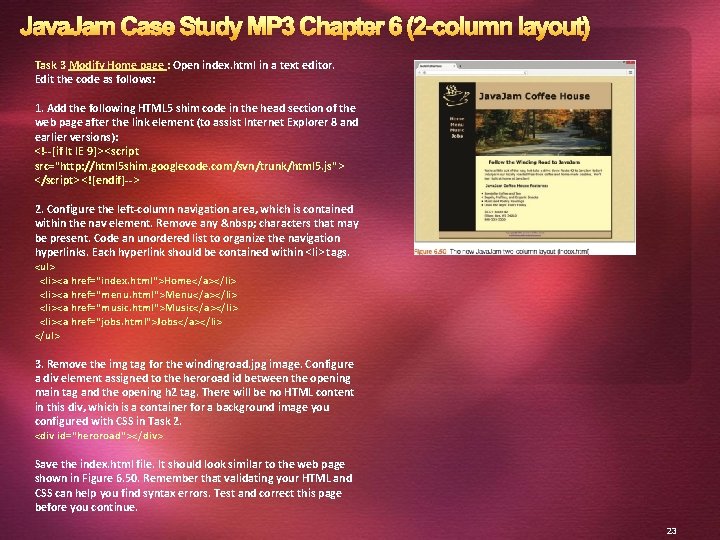
Java. Jam Case Study MP 3 Chapter 6 (2 -column layout) Task 3 Modify Home page : Open index. html in a text editor. Edit the code as follows: 1. Add the following HTML 5 shim code in the head section of the web page after the link element (to assist Internet Explorer 8 and earlier versions): <!--[if lt IE 9]> <script src="http: //html 5 shim. googlecode. com/svn/trunk/html 5. js"> </script> <![endif]--> 2. Configure the left-column navigation area, which is contained within the nav element. Remove any characters that may be present. Code an unordered list to organize the navigation hyperlinks. Each hyperlink should be contained within <li> tags. <ul> <li><a href="index. html">Home</a></li> <li><a href="menu. html">Menu</a></li> <li><a href="music. html">Music</a></li> <li><a href="jobs. html">Jobs</a></li> </ul> 3. Remove the img tag for the windingroad. jpg image. Configure a div element assigned to the heroroad id between the opening main tag and the opening h 2 tag. There will be no HTML content in this div, which is a container for a background image you configured with CSS in Task 2. <div id="heroroad"></div> Save the index. html file. It should look similar to the web page shown in Figure 6. 50. Remember that validating your HTML and CSS can help you find syntax errors. Test and correct this page before you continue. 23
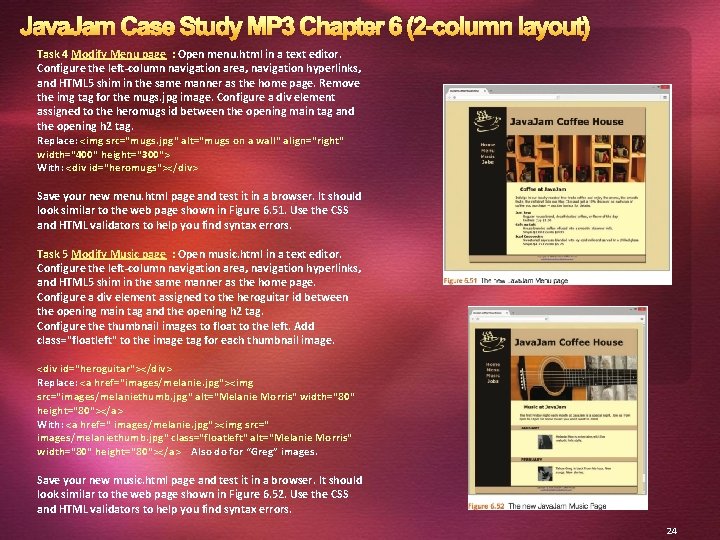
Java. Jam Case Study MP 3 Chapter 6 (2 -column layout) Task 4 Modify Menu page : Open menu. html in a text editor. Configure the left-column navigation area, navigation hyperlinks, and HTML 5 shim in the same manner as the home page. Remove the img tag for the mugs. jpg image. Configure a div element assigned to the heromugs id between the opening main tag and the opening h 2 tag. Replace: <img src="mugs. jpg" alt="mugs on a wall" align="right" width="400" height="300"> With: <div id="heromugs"></div> Save your new menu. html page and test it in a browser. It should look similar to the web page shown in Figure 6. 51. Use the CSS and HTML validators to help you find syntax errors. Task 5 Modify Music page : Open music. html in a text editor. Configure the left-column navigation area, navigation hyperlinks, and HTML 5 shim in the same manner as the home page. Configure a div element assigned to the heroguitar id between the opening main tag and the opening h 2 tag. Configure thumbnail images to float to the left. Add class="floatleft" to the image tag for each thumbnail image. <div id="heroguitar"></div> Replace: <a href="images/melanie. jpg"><img src="images/melaniethumb. jpg" alt="Melanie Morris" width="80" height="80"></a> With: <a href=" images/melanie. jpg"><img src=" images/melaniethumb. jpg" class="floatleft" alt="Melanie Morris" width="80" height="80"></a> Also do for “Greg” images. Save your new music. html page and test it in a browser. It should look similar to the web page shown in Figure 6. 52. Use the CSS and HTML validators to help you find syntax errors. 24
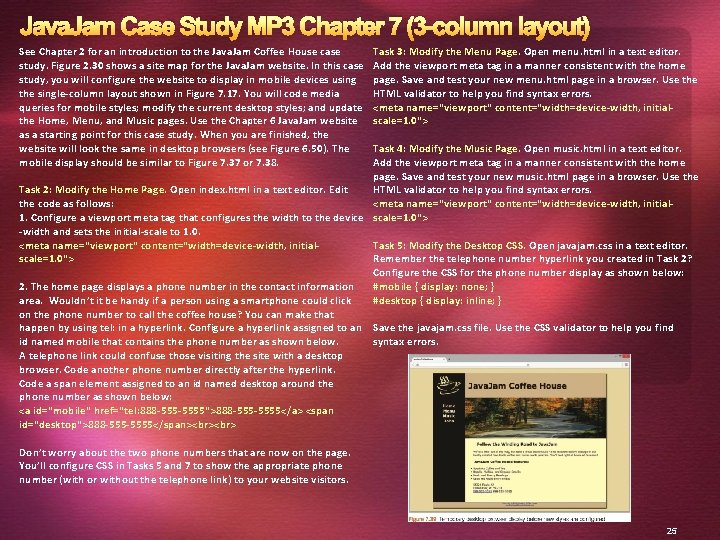
Java. Jam Case Study MP 3 Chapter 7 (3 -column layout) See Chapter 2 for an introduction to the Java. Jam Coffee House case study. Figure 2. 30 shows a site map for the Java. Jam website. In this case study, you will configure the website to display in mobile devices using the single-column layout shown in Figure 7. 17. You will code media queries for mobile styles; modify the current desktop styles; and update the Home, Menu, and Music pages. Use the Chapter 6 Java. Jam website as a starting point for this case study. When you are finished, the website will look the same in desktop browsers (see Figure 6. 50). The mobile display should be similar to Figure 7. 37 or 7. 38. Task 3: Modify the Menu Page. Open menu. html in a text editor. Add the viewport meta tag in a manner consistent with the home page. Save and test your new menu. html page in a browser. Use the HTML validator to help you find syntax errors. <meta name="viewport" content="width=device-width, initialscale=1. 0"> Task 4: Modify the Music Page. Open music. html in a text editor. Add the viewport meta tag in a manner consistent with the home page. Save and test your new music. html page in a browser. Use the Task 2: Modify the Home Page. Open index. html in a text editor. Edit HTML validator to help you find syntax errors. the code as follows: <meta name="viewport" content="width=device-width, initial 1. Configure a viewport meta tag that configures the width to the device scale=1. 0"> -width and sets the initial-scale to 1. 0. <meta name="viewport" content="width=device-width, initial. Task 5: Modify the Desktop CSS. Open javajam. css in a text editor. scale=1. 0"> Remember the telephone number hyperlink you created in Task 2? Configure the CSS for the phone number display as shown below: 2. The home page displays a phone number in the contact information #mobile { display: none; } area. Wouldn’t it be handy if a person using a smartphone could click #desktop { display: inline; } on the phone number to call the coffee house? You can make that happen by using tel: in a hyperlink. Configure a hyperlink assigned to an Save the javajam. css file. Use the CSS validator to help you find id named mobile that contains the phone number as shown below. syntax errors. A telephone link could confuse those visiting the site with a desktop browser. Code another phone number directly after the hyperlink. Code a span element assigned to an id named desktop around the phone number as shown below: <a id="mobile" href="tel: 888 -5555">888 -5555</a> <span id="desktop">888 -5555</span> Don’t worry about the two phone numbers that are now on the page. You’ll configure CSS in Tasks 5 and 7 to show the appropriate phone number (with or without the telephone link) to your website visitors. 25
Java. Jam Case Study MP 3 Chapter@media only screen and (max-width: 1024 px) { 7 (3 -column layout)(Cont’d) body { background-image: none; } #wrapper { width: auto; Task 6: Configure the Tablet CSS. Open javajam. css in a text editor. Edit the style rules as follows: 1. Code a media query to select for typical tablet device viewport size, such as @media only screen and (max-width: 1024 px) { } min-width: 0; margin: 0; 2. Code the following new styles within the media query: a. Configure a body element selector with margin set to 0. Set the background-image property to none. b. Configure a wrapper id selector. Set the width to auto, min-width to 0, margin to 0, padding to 0, and box-shadow to none. c. Configure the header element selector. Configure a 5 px solid #FEF 6 C 2 bottom border. d. Configure the h 1 element selector. Set top margin to 0, bottom margin to 1 em, top padding to 1 em, bottom padding to 1 em, and 2. 5 em font size. e. Configure the nav element selector. The mobile layout uses a single column. Set the float to none, auto width, 0 top padding, 10 px margin, and 1. 3 em font size. f. Configure the nav li selector. Set display to inline-block. g. Configure the nav a selector. Set padding to 1 em, width to 8 em, font weight to bold, and border-style to none. h. Configure the nav ul selector with 0 padding and margin. i. Configure the #heroroad, #heromugs, and #heroguitar selectors. Configure 0 margin and 0 padding. j. Configure the main element selector. Set padding to 0, margin to 0, and font size to 90%. Save the javajam. css file. Use the CSS validator to help you find syntax errors. padding: 0; } } box-shadow: none; } header { border-bottom: 5 px solid #FEF 6 C 2; } h 1 { margin-top: 0; margin-bottom: 1 em; padding-top: 1 em; padding-bottom: 1 em; font-size: 2. 5 em; } nav { float: none; width: auto; padding-top: 0; margin: 10 px; font-size: 1. 3 em; } nav li { display: inline-block; } nav a { padding: 1 em; width: 8 em; font-weight: bold; border-style: none; } nav ul { padding: 0; margin: 0; } #heroroad, #heromugs, #heroguitar { margin: main { padding: 0; margin: 0; font-size: 90%; } 26
Java. Jam Case Study MP 3 Chapter 7 (3 -column layout)(Cont’d) Task 7: Configure the Smartphone CSS. Open javajam. css in a text editor. Note that any device with a screen max-width of 1024 pixels or less will apply the styles you coded in Task 6. In this task you will code additional styles needed for smaller devices. Edit the style rules as follows: 1. Code a media query to select for typical smartphone device viewport size, such as @media only screen and (max-width: 768 px) { } 2. Code the following new styles within the media query: a. Configure the header element selector to display an image designed for small mobile devices. Set the background image to javajammini. jpg. Set the height to 128 px. b. Configure the h 1 element selector. Set 2 em font size, centered text, and 0 left padding. c. Configure the nav element selector. Set the margin to 0. d. Configure the anchor tags in the navigation area. Code a style rule for the nav a selector. Set the display to block, padding to 0. 2 em, and width to auto. Also con- figure a 1 pixel bottom border (use #FEF 6 C 2 for the border color). e. Configure the nav li selector. Set the display to block. f. Configure the main element selector. Set top padding to 1 px. g. Configure the h 2 element selector. Set 0. 5 em top padding, 0 right padding, 0 bottom padding, and 0. 5 em left padding. Set the right margin to 0. 5 em. h. Configure the details class selector. Set left and right padding to 0. i. Configure the #heroroad, #heromugs, and #heroguitar selectors. Set the background image to none. Set the height to auto. j. Configure the floatleft class selector. Set left and right padding to 0. 5 em. k. Remember the telephone number hyperlink you created in Task 2? Configure the CSS for the phone number display as shown below: #mobile { display: inline; } #desktop { display: none; } @media only screen and (max-width: 768 px) { header { background-image: url(javajammini. jpg); height: 128 px; } h 1 { font-size: 2 em; text-align: center; padding-left: 0; } nav { margin: 0; } nav a { display: block; padding: 0. 2 em; width: auto; border-bottom: 1 px solid #FEF 6 C 2; } nav li { display: block; } main { padding-top: 1 px; } h 2 { padding: 0. 5 em 0 0 0. 5 em; margin-right: 0. 5 em; }. details { padding-left: 0; paddingright: 0; } #heroroad, #heromugs, #heroguitar { background-image: none; height: auto; } . floatleft { padding-left: 0. 5 em; padding-right: 0. 5 em; } #mobile { display: inline; } #desktop { display: none; } } 27
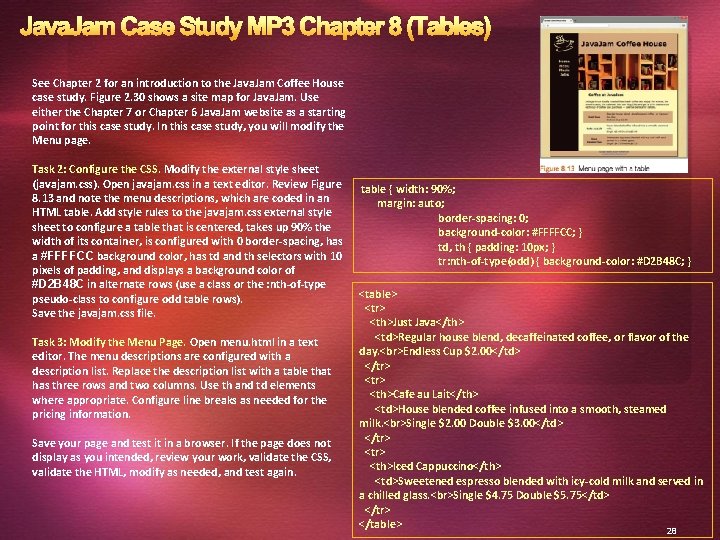
Java. Jam Case Study MP 3 Chapter 8 (Tables) See Chapter 2 for an introduction to the Java. Jam Coffee House case study. Figure 2. 30 shows a site map for Java. Jam. Use either the Chapter 7 or Chapter 6 Java. Jam website as a starting point for this case study. In this case study, you will modify the Menu page. Task 2: Configure the CSS. Modify the external style sheet (javajam. css). Open javajam. css in a text editor. Review Figure 8. 13 and note the menu descriptions, which are coded in an HTML table. Add style rules to the javajam. css external style sheet to configure a table that is centered, takes up 90% the width of its container, is configured with 0 border-spacing, has a #FFFFCC background color, has td and th selectors with 10 pixels of padding, and displays a background color of #D 2 B 48 C in alternate rows (use a class or the : nth-of-type pseudo-class to configure odd table rows). Save the javajam. css file. Task 3: Modify the Menu Page. Open menu. html in a text editor. The menu descriptions are configured with a description list. Replace the description list with a table that has three rows and two columns. Use th and td elements where appropriate. Configure line breaks as needed for the pricing information. Save your page and test it in a browser. If the page does not display as you intended, review your work, validate the CSS, validate the HTML, modify as needed, and test again. table { width: 90%; margin: auto; border-spacing: 0; background-color: #FFFFCC; } td, th { padding: 10 px; } tr: nth-of-type(odd) { background-color: #D 2 B 48 C; } <table> <tr> <th>Just Java</th> <td>Regular house blend, decaffeinated coffee, or flavor of the day. Endless Cup $2. 00</td> </tr> <tr> <th>Cafe au Lait</th> <td>House blended coffee infused into a smooth, steamed milk. Single $2. 00 Double $3. 00</td> </tr> <tr> <th>Iced Cappuccino</th> <td>Sweetened espresso blended with icy-cold milk and served in a chilled glass. Single $4. 75 Double $5. 75</td> </tr> </table> 28
- Slides: 28