
Web Development Design Foundations with HTML 5 8

Web Development & Design Foundations with HTML 5 8 th Edition CHAPTER 6 KEY CONCEPTS Copyright © Terry Felke-Morris http: //terrymorris. net 1
Learning Outcomes In this chapter, you will learn how to. . . ◦ ◦ ◦ ◦ Describe and apply the CSS Box Model Configure margin with CSS Configure float with CSS Configure fixed, relative, and absolute positioning with CSS Create two-column page layouts using CSS Configure navigation in unordered lists and style with CSS Add interactivity to hyperlinks with CSS pseudo-classes Configure web pages with HTML 5 structural elements, including section, article, and aside Copyright © Terry Felke-Morris http: //terrymorris. net 2
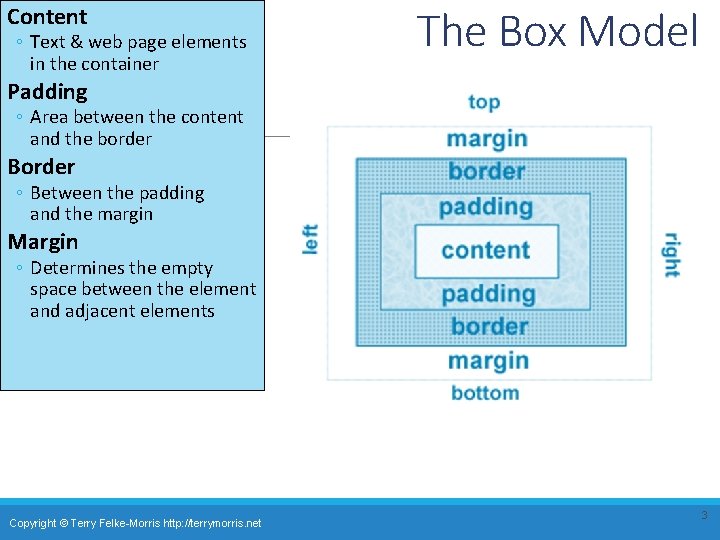
Content ◦ Text & web page elements in the container The Box Model Padding ◦ Area between the content and the border Border ◦ Between the padding and the margin Margin ◦ Determines the empty space between the element and adjacent elements Copyright © Terry Felke-Morris http: //terrymorris. net 3
Configure Margin with CSS ◦ The margin property ◦ Related properties: ◦ margin-top, margin-right, margin-left, margin-bottom ◦ Configures empty space between the element and adjacent elements ◦ Syntax examples h 1 { margin: 0; } h 1 { margin: 20 px 10 px; } h 1 { margin: 10 px 30 px 20 px; } h 1 { margin: 20 px 30 px 0 30 px; } Copyright © Terry Felke-Morris http: //terrymorris. net
Configure Padding with CSS ◦ The padding property ◦ Related properties: ◦ padding-top, padding-right, padding-left, padding-bottom ◦ Configures empty space between the content of the HTML element (such as text) and the border ◦ Syntax examples h 1 { padding: 0; } h 1 { padding : 20 px 10 px; } h 1 { padding : 10 px 30 px 20 px; } h 1 { padding : 20 px 30 px 0 30 px; } Copyright © Terry Felke-Morris http: //terrymorris. net
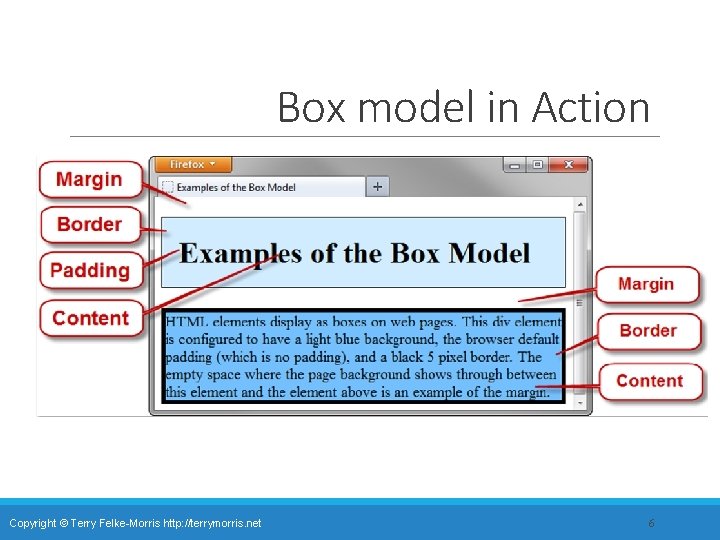
Box model in Action Copyright © Terry Felke-Morris http: //terrymorris. net 6
The CSS box-sizing Property Default value for width or height is the value for ONLY the content (not including border and padding). The box-sizing property is used to selector to direct the browser to calculate the width and height of an element to include the value for content, padding, and border. Use the universal selector (*) to apply this to all the element on the page Example: * { box-sizing: border-box; } Copyright © Terry Felke-Morris http: //terrymorris. net 7

Normal Flow Browser display of elements in the order they are coded in the web page document Copyright © Terry Felke-Morris http: //terrymorris. net
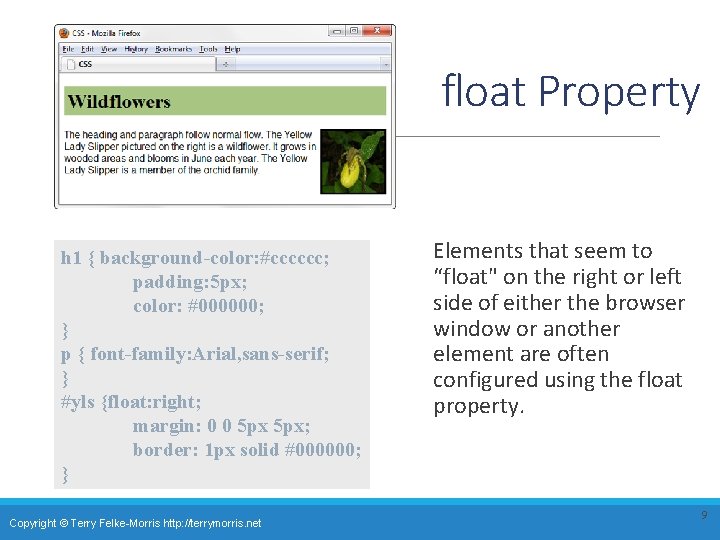
float Property h 1 { background-color: #cccccc; padding: 5 px; color: #000000; } p { font-family: Arial, sans-serif; } #yls {float: right; margin: 0 0 5 px; border: 1 px solid #000000; } Copyright © Terry Felke-Morris http: //terrymorris. net Elements that seem to “float" on the right or left side of either the browser window or another element are often configured using the float property. 9
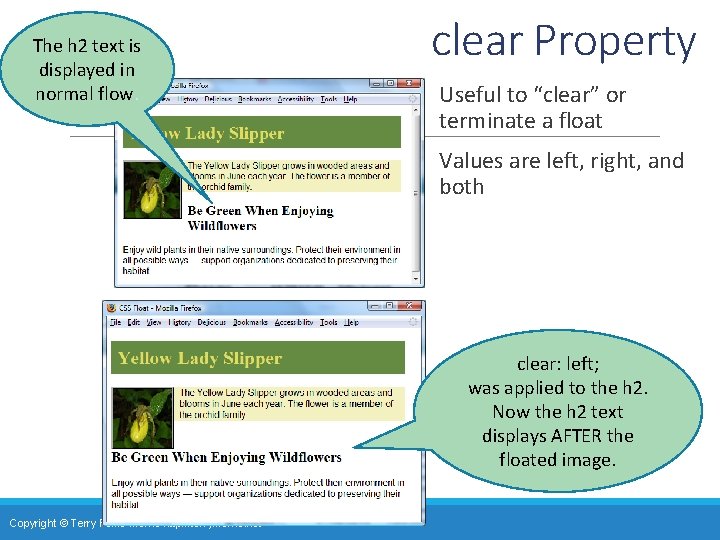
The h 2 text is displayed in normal flow. clear Property Useful to “clear” or terminate a float Values are left, right, and both clear: left; was applied to the h 2. Now the h 2 text displays AFTER the floated image. Copyright © Terry Felke-Morris http: //terrymorris. net
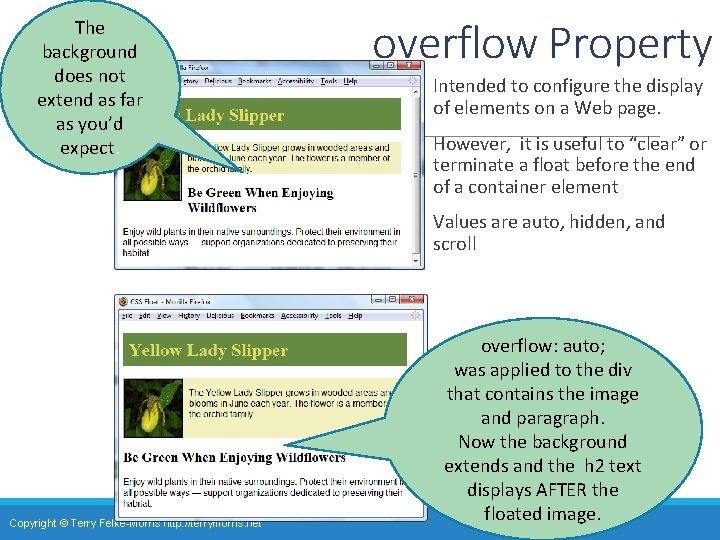
The background does not extend as far as you’d expect. overflow Property Intended to configure the display of elements on a Web page. However, it is useful to “clear” or terminate a float before the end of a container element Values are auto, hidden, and scroll Copyright © Terry Felke-Morris http: //terrymorris. net overflow: auto; was applied to the div that contains the image and paragraph. Now the background extends and the h 2 text displays AFTER the floated image.
Checkpoint 1. List the components of the box model from innermost to outermost. 2. Describe the purpose of the CSS float property. 3. Which two CSS properties can be used to clear a float? Copyright © Terry Felke-Morris http: //terrymorris. net 12
CSS display Property Configures how and if an element is displayed ◦ display: none; ◦ The element will not be displayed. ◦ display: block; ◦ The element is rendered as a block element – even if it is actually an inline element, such as a hyperlink. ◦ display: inline; ◦ The element will be rendered as an inline element – even if it is actually a block element – such as a <li>. o display: inline-block; o The element will display as an inline display element adjacent to other inline display elements but also can be configured with properties of block display elements including width and height. Copyright © Terry Felke-Morris http: //terrymorris. net 13
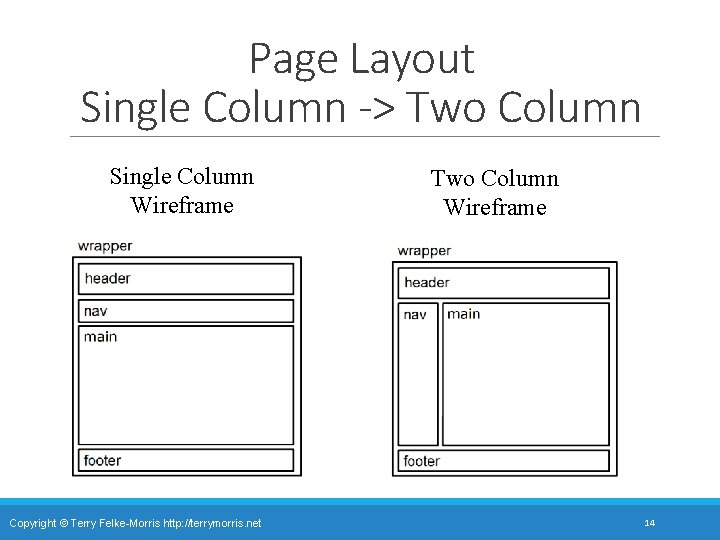
Page Layout Single Column -> Two Column Single Column Wireframe Copyright © Terry Felke-Morris http: //terrymorris. net Two Column Wireframe 14
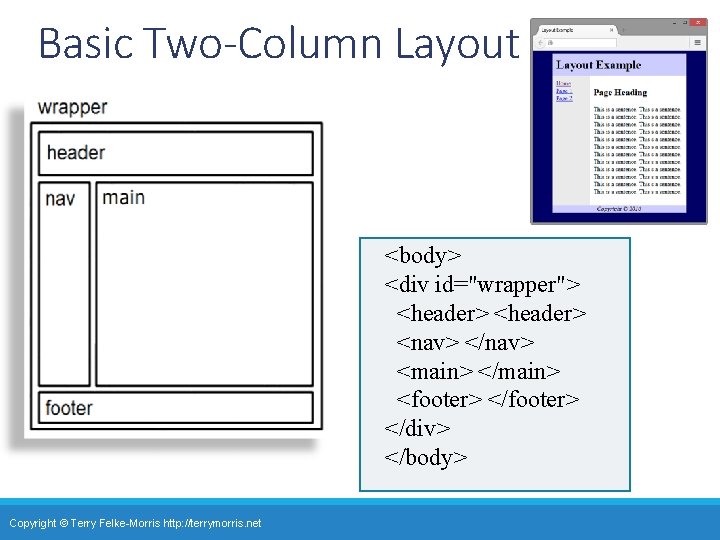
Basic Two-Column Layout <body> <div id="wrapper"> <header> <nav> </nav> <main> </main> <footer> </div> </body> Copyright © Terry Felke-Morris http: //terrymorris. net
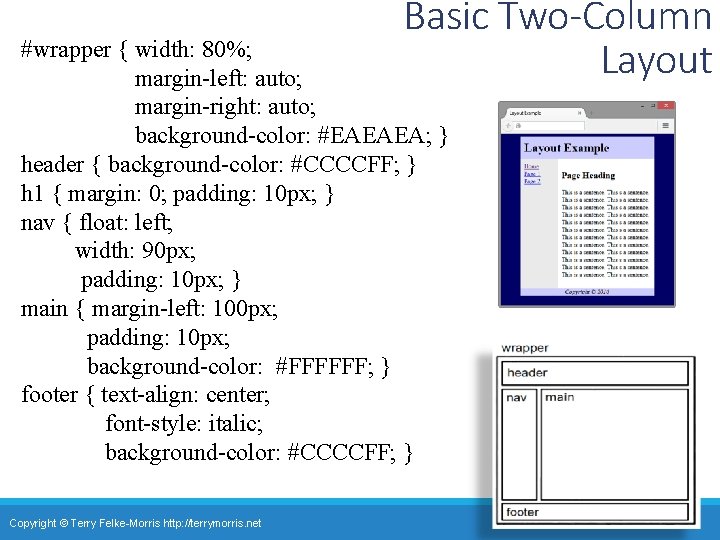
Basic Two-Column Layout #wrapper { width: 80%; margin-left: auto; margin-right: auto; background-color: #EAEAEA; } header { background-color: #CCCCFF; } h 1 { margin: 0; padding: 10 px; } nav { float: left; width: 90 px; padding: 10 px; } main { margin-left: 100 px; padding: 10 px; background-color: #FFFFFF; } footer { text-align: center; font-style: italic; background-color: #CCCCFF; } Copyright © Terry Felke-Morris http: //terrymorris. net
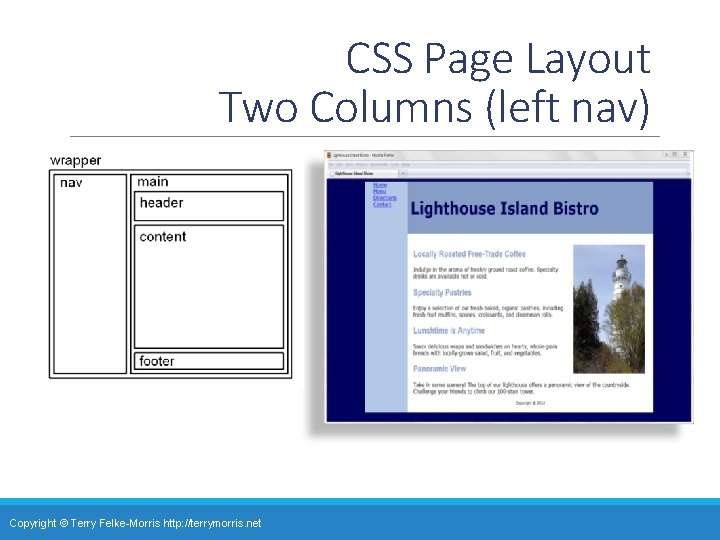
CSS Page Layout Two Columns (left nav) Copyright © Terry Felke-Morris http: //terrymorris. net
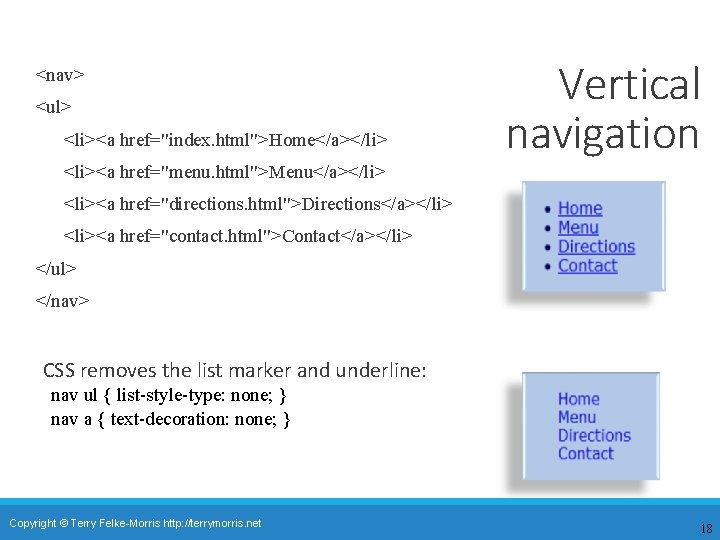
<nav> <ul> <li><a href="index. html">Home</a></li> Vertical navigation <li><a href="menu. html">Menu</a></li> <li><a href="directions. html">Directions</a></li> <li><a href="contact. html">Contact</a></li> </ul> </nav> CSS removes the list marker and underline: nav ul { list-style-type: none; } nav a { text-decoration: none; } Copyright © Terry Felke-Morris http: //terrymorris. net 18
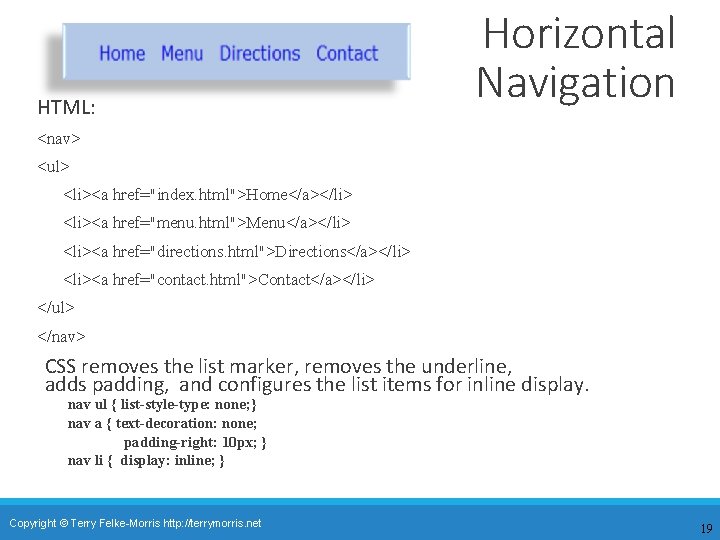
HTML: Horizontal Navigation <nav> <ul> <li><a href="index. html">Home</a></li> <li><a href="menu. html">Menu</a></li> <li><a href="directions. html">Directions</a></li> <li><a href="contact. html">Contact</a></li> </ul> </nav> CSS removes the list marker, removes the underline, adds padding, and configures the list items for inline display. nav ul { list-style-type: none; } nav a { text-decoration: none; padding-right: 10 px; } nav li { display: inline; } Copyright © Terry Felke-Morris http: //terrymorris. net 19
CSS Pseudo-classes and the anchor element ◦ link – default state for a hyperlink ◦ visited – a hyperlink that has been visited ◦ focus – triggered when the hyperlink has focus a: link {color: #000066; } a: visited {color: #003366; } a: focus {color: #FF 0000; } a: hover {color: #0099 CC; } a: active {color: #FF 0000; } ◦ hover – triggered when the mouse moves over the hyperlink ◦ active – triggered when the hyperlink is being clicked Copyright © Terry Felke-Morris http: //terrymorris. net
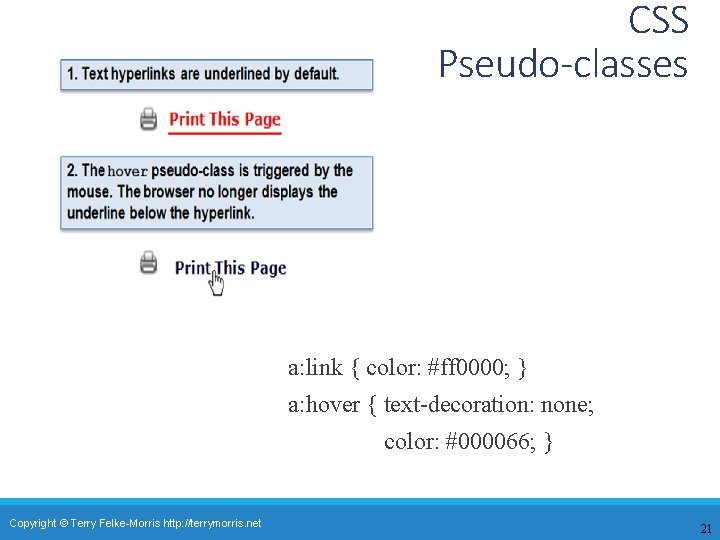
CSS Pseudo-classes a: link { color: #ff 0000; } a: hover { text-decoration: none; color: #000066; } Copyright © Terry Felke-Morris http: //terrymorris. net 21
Header Text Image Replacement Useful when a non web-safe font must be used in the header logo banner area Display the banner image but also configure text in the h 1 for use by search engines and assistive technologies. 1. Configure styles for the header element set the header banner image as the background of the header or h 1 element. 2. Code the company or website name with the h 1 element. 3. Configure the placement of the h 1 text to be beyond the browser viewport: h 1 { text-indent: 100%; white-space: nowrap; overflow: hidden; } SOURCE: http: //www. zeldman. com/2012/03/01/replacing-the-9999 px-hack-new-image-replacement/ Copyright © Terry Felke-Morris http: //terrymorris. net 22
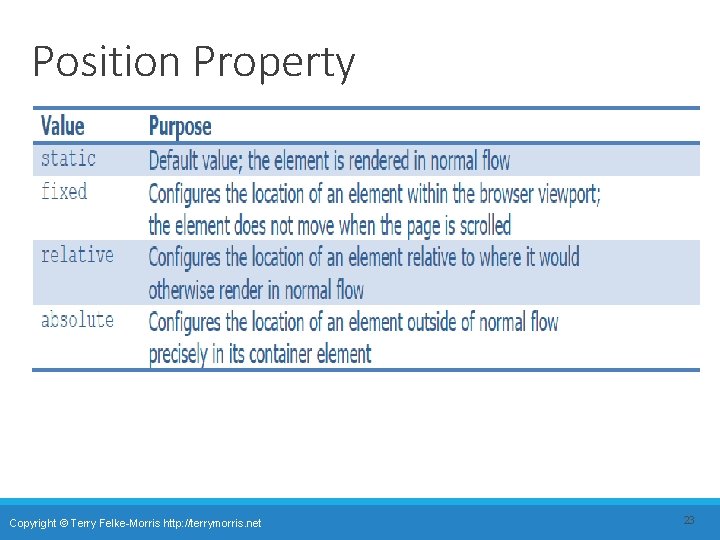
Position Property Copyright © Terry Felke-Morris http: //terrymorris. net 23
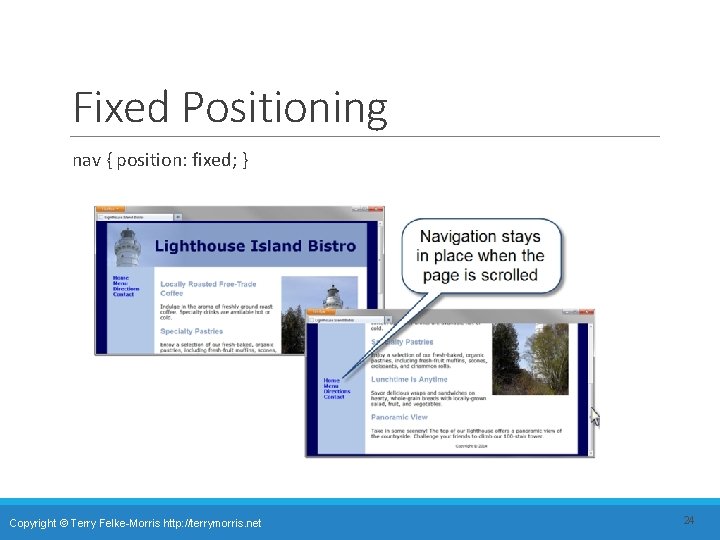
Fixed Positioning nav { position: fixed; } Copyright © Terry Felke-Morris http: //terrymorris. net 24
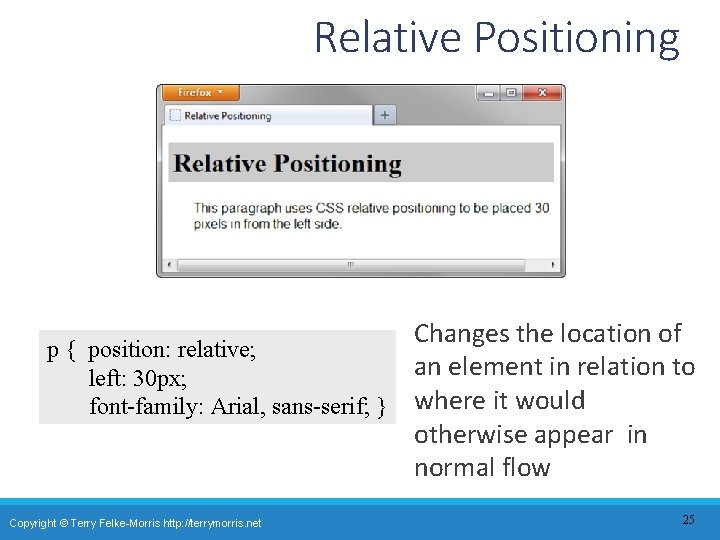
Relative Positioning Changes the location of p { position: relative; an element in relation to left: 30 px; font-family: Arial, sans-serif; } where it would otherwise appear in normal flow Copyright © Terry Felke-Morris http: //terrymorris. net 25
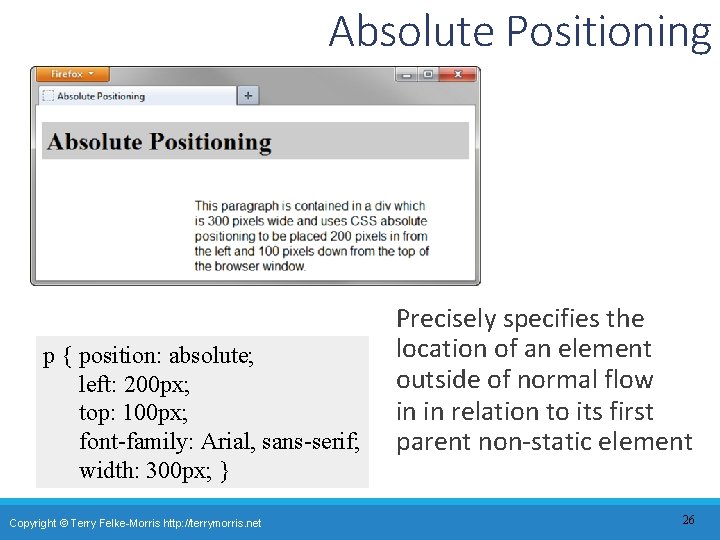
Absolute Positioning p { position: absolute; left: 200 px; top: 100 px; font-family: Arial, sans-serif; width: 300 px; } Copyright © Terry Felke-Morris http: //terrymorris. net Precisely specifies the location of an element outside of normal flow in in relation to its first parent non-static element 26

CSS Debugging Tips Manually check syntax errors Use W 3 C CSS Validator to check syntax errors ◦ http: //jigsaw. w 3. org/css-validator/ Configure temporary background colors Configure temporary borders Use CSS comments to find the unexpected /* the browser ignores this code */ Don’t expect your pages to look exactly the same in all browsers! Be patient! Copyright © Terry Felke-Morris http: //terrymorris. net 27
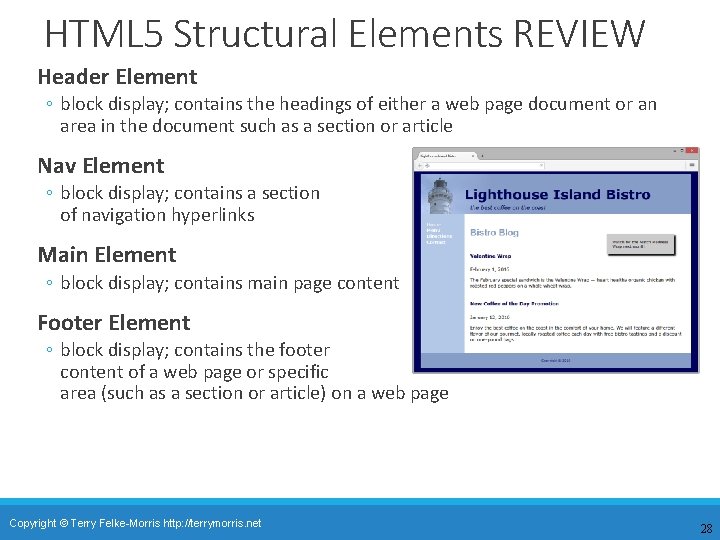
HTML 5 Structural Elements REVIEW Header Element ◦ block display; contains the headings of either a web page document or an area in the document such as a section or article Nav Element ◦ block display; contains a section of navigation hyperlinks Main Element ◦ block display; contains main page content Footer Element ◦ block display; contains the footer content of a web page or specific area (such as a section or article) on a web page Copyright © Terry Felke-Morris http: //terrymorris. net 28
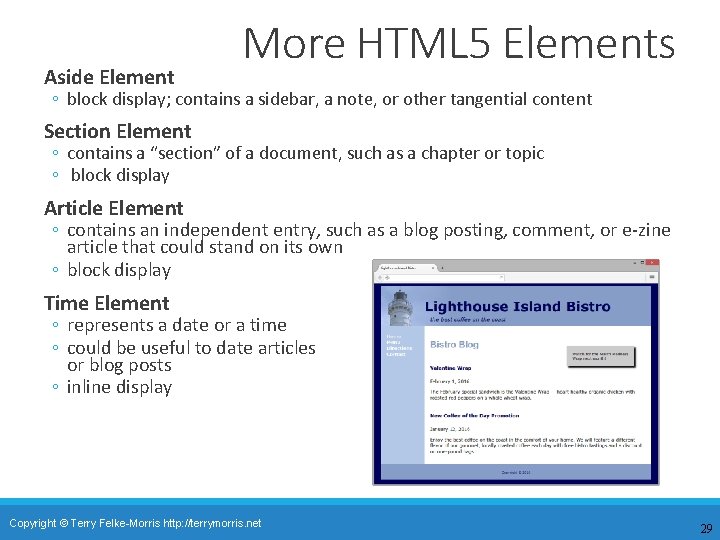
Aside Element More HTML 5 Elements ◦ block display; contains a sidebar, a note, or other tangential content Section Element ◦ contains a “section” of a document, such as a chapter or topic ◦ block display Article Element ◦ contains an independent entry, such as a blog posting, comment, or e-zine article that could stand on its own ◦ block display Time Element ◦ represents a date or a time ◦ could be useful to date articles or blog posts ◦ inline display Copyright © Terry Felke-Morris http: //terrymorris. net 29
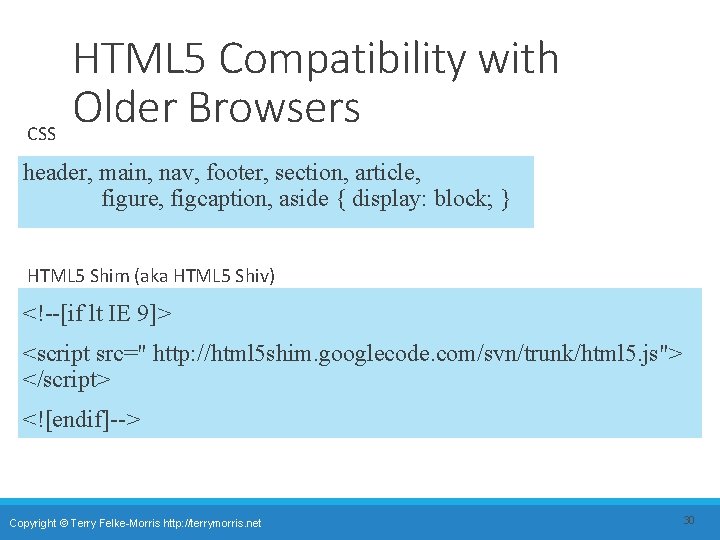
CSS HTML 5 Compatibility with Older Browsers header, main, nav, footer, section, article, figure, figcaption, aside { display: block; } HTML 5 Shim (aka HTML 5 Shiv) <!--[if lt IE 9]> <script src=" http: //html 5 shim. googlecode. com/svn/trunk/html 5. js"> </script> <![endif]--> Copyright © Terry Felke-Morris http: //terrymorris. net 30
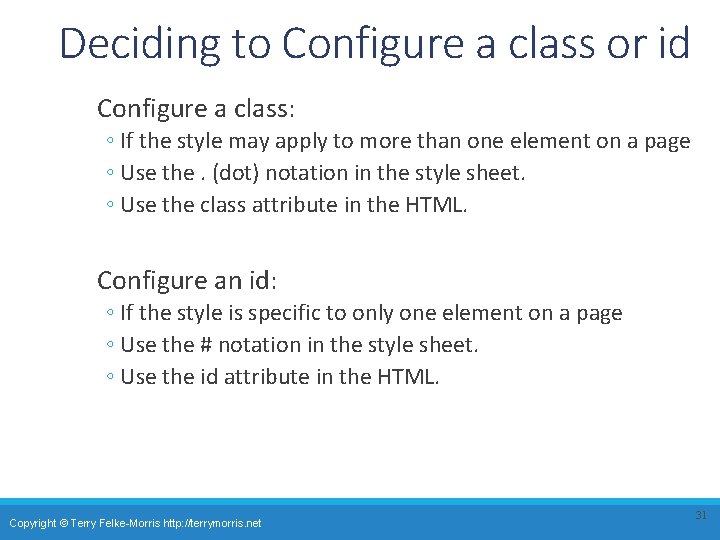
Deciding to Configure a class or id Configure a class: ◦ If the style may apply to more than one element on a page ◦ Use the. (dot) notation in the style sheet. ◦ Use the class attribute in the HTML. Configure an id: ◦ If the style is specific to only one element on a page ◦ Use the # notation in the style sheet. ◦ Use the id attribute in the HTML. Copyright © Terry Felke-Morris http: //terrymorris. net 31
CHECKPOINT 1. Describe a reason to use HTML 5 structural elements instead of div elements for some page areas. 2. Describe one CSS debugging tip that you have found to be helpful. 3. Describe how to choose whether to configure an HTML element selector, create a class, or create an id when working with CSS. Copyright © Terry Felke-Morris http: //terrymorris. net 32
Summary This chapter introduced you to the box model, CSS pseudo-classes, configuring two-column page layouts with CSS, and additional HTML 5 structural elements. Copyright © Terry Felke-Morris http: //terrymorris. net 33
- Slides: 33