
Web Design Power Point 3 Intro to CSS
Web Design Power. Point #3 – Intro to CSS Cyrus Saadat, Web. Master
Agenda HTML Part 1 HTML Part 2 Introduction to CSS Part 1 CSS Part 2 Java. Script Part 1 Java. Script Part 2 Java. Script Part 3 Java Applet Integration Hmmm…
Assignment Modify the HTML code you created for your Tech Review to include all the elements taught in the last PPT IF YOU HAVE NOT ALREADY Once done: (1) Let me know, (2) Login to Weebly and open the review site you had published last time Create a new page, called “Review Part 2” Add your HTML code into the new page you created Visit http: //rhhpcexamples. weebly. com for an example on how this should look
READ THIS MESSAGE THROUGHOUT THIS POWERPOINT, THERE WILL BE GREENISH-BROWN RECTANGLES WITH HYPERLINKS ON THEM DO NOT CLICK ON THEM UNTIL THE VERY END. THEY EXIST FOR THE PURPOSE OF NAVIGATING THE POWERPOINT
READ THIS MESSAGE Go to the Programming Club website: CLICK HERE Go to Web Design and download PPT #2 from last week As Well… Quickly skim through PPT #2 MOST of CSS requires you to know and understand last week’s Power. Point Ask me any questions you have

Block Seperation <div> - Used as a container for grouping other HTML elements Has no special meaning, other than having a line break before and after it <span> - Used as a container for text With CSS, span is used to style attributes to parts of the text Although we discussed this last time, Block Separation is very important in CSS
Style Tag We discussed how the Style tag is used in HTML in the last PPT Similar to changing color in HTML, the style tag is used in CSS For our purposes, all of our CSS elements will be embedded within HTML All color, font, and size elements can be placed in the <style> tag at the very beginning (also ends in </style>)
Why CSS? CSS Styling solved a big problem for webmasters HTML was created to define the content of a document (ex. <h 1> or <p>) When color, font, and other text attributes were added to HTML, web developers had to adjust one page at a time if they wanted to change the style of the entire site CSS was created to remove the styling from the HTML document/code and apply it to the overall site
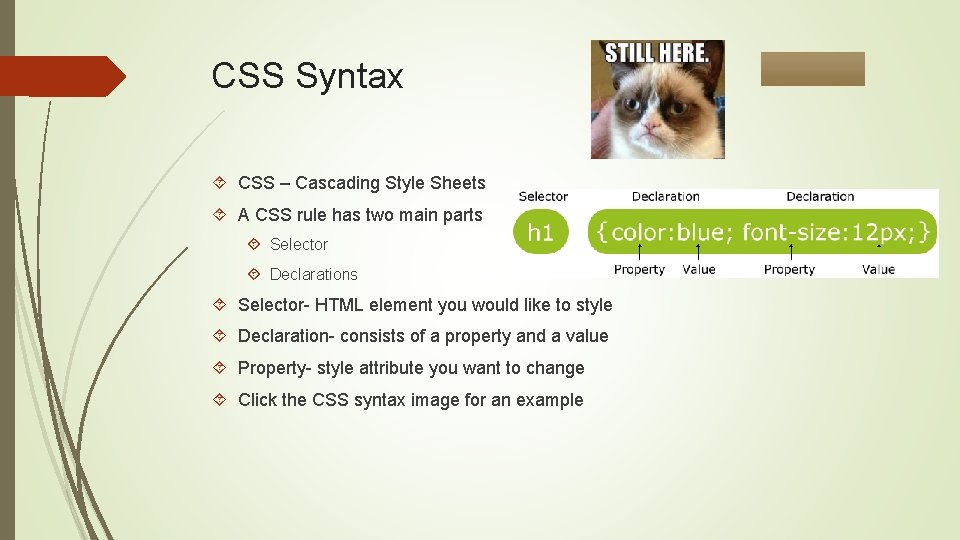
CSS Syntax CSS – Cascading Style Sheets A CSS rule has two main parts Selector Declarations Selector- HTML element you would like to style Declaration- consists of a property and a value Property- style attribute you want to change Click the CSS syntax image for an example
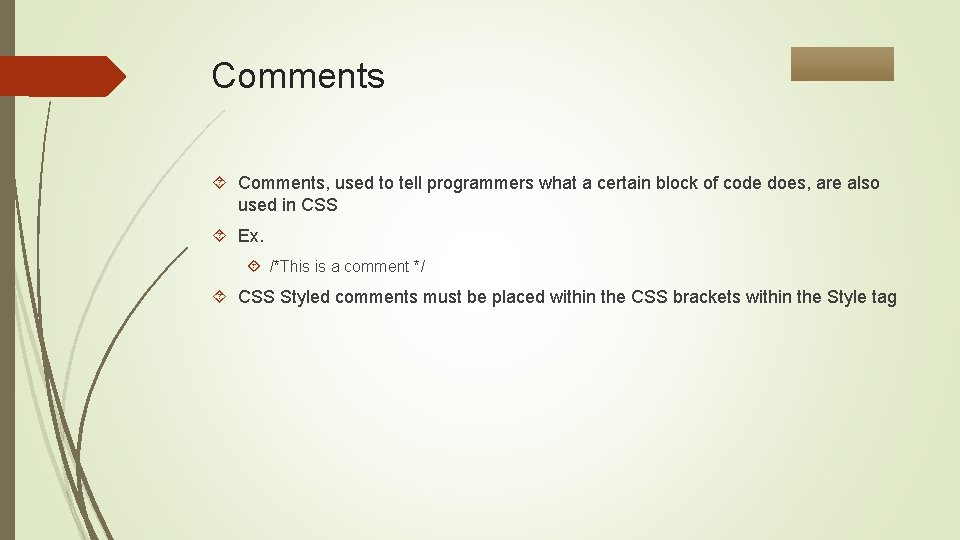
Comments Comments, used to tell programmers what a certain block of code does, are also used in CSS Ex. /*This is a comment */ CSS Styled comments must be placed within the CSS brackets within the Style tag
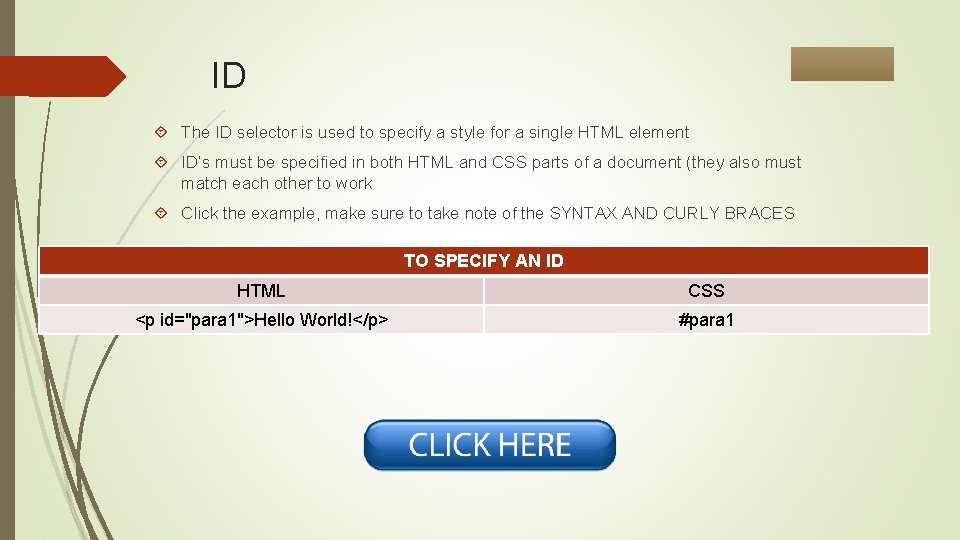
ID The ID selector is used to specify a style for a single HTML element ID’s must be specified in both HTML and CSS parts of a document (they also must match each other to work Click the example, make sure to take note of the SYNTAX AND CURLY BRACES TO SPECIFY AN ID HTML CSS <p id="para 1">Hello World!</p> #para 1
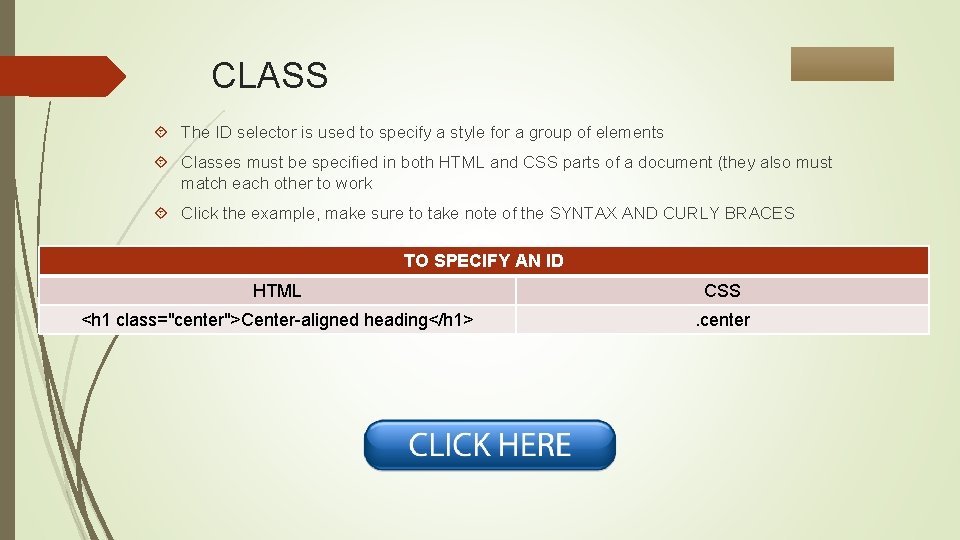
CLASS The ID selector is used to specify a style for a group of elements Classes must be specified in both HTML and CSS parts of a document (they also must match each other to work Click the example, make sure to take note of the SYNTAX AND CURLY BRACES TO SPECIFY AN ID HTML CSS <h 1 class="center">Center-aligned heading</h 1> . center
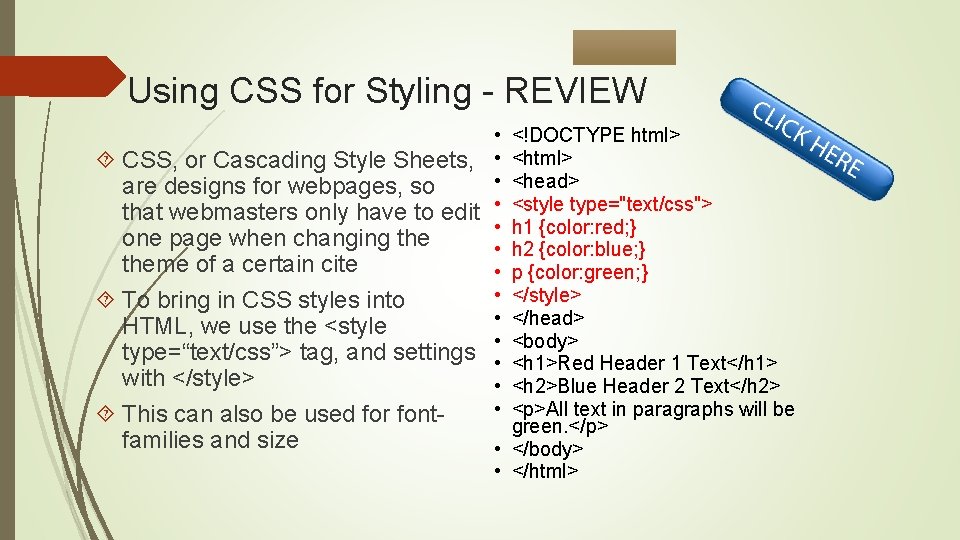
Using CSS for Styling - REVIEW • CSS, or Cascading Style Sheets, • • are designs for webpages, so that webmasters only have to edit • • one page when changing the • theme of a certain cite • • To bring in CSS styles into • HTML, we use the <style • type=“text/css”> tag, and settings • with </style> • • This can also be used for font- families and size <!DOCTYPE html> <head> <style type="text/css"> h 1 {color: red; } h 2 {color: blue; } p {color: green; } </style> </head> <body> <h 1>Red Header 1 Text</h 1> <h 2>Blue Header 2 Text</h 2> <p>All text in paragraphs will be green. </p> • </body> • </html>
Internal Style Sheet VS. Inline Styles Click the link below to see how CSS is used in real-world website styles, and the different ways to bring CSS into HTML We will only be using Internal Style Sheets and Inline Styles
Background Color Whenever I introduce new CSS code, you should place it within your style declarations body {background-color: COLORNAME; } Although the example uses an RGB/HEX value, you should insert colors using the color’s name, as shown above This will set a background for all elements within the html <body>
Background Color - Continued ELEMENT {background-color: COLORNAME; } To change background colors for different areas of the text, we replace the “ELEMENT” above with the name of the HTML elements that we want to configure Click the example and notice the how the <div> is used to specific a background group
Summary of Power. Point Block Separation Style Tag Why CSS? Syntax Comments ID Class CSS Styling Review Background Color Part 2 Use the Green Rectangle to come back to this summary slide, for easier navigation through the Power. Point.
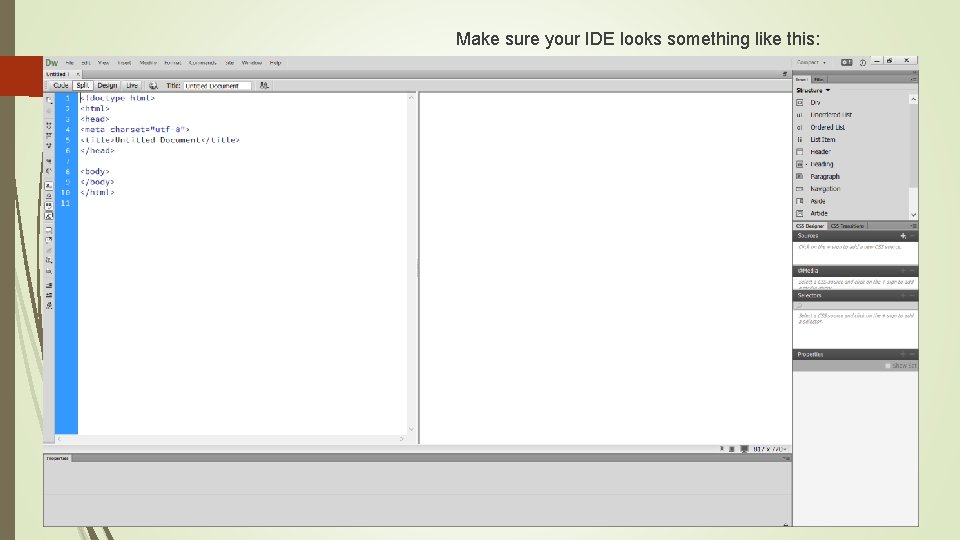
Make sure your IDE looks something like this:
Assignment Modify the HTML code you created for your Tech Review to include all the elements taught in this Power. Point Once done: (1) Let me know, (2) Login to Weebly and open the review site you had published last time Create a new page, called “Review in CSS” Add your HTML code into the new page you created Visit http: //rhhpcexamples. weebly. com for an example on how this should look
- Slides: 19