
We can split asana into 3 main windows

- Slides: 12
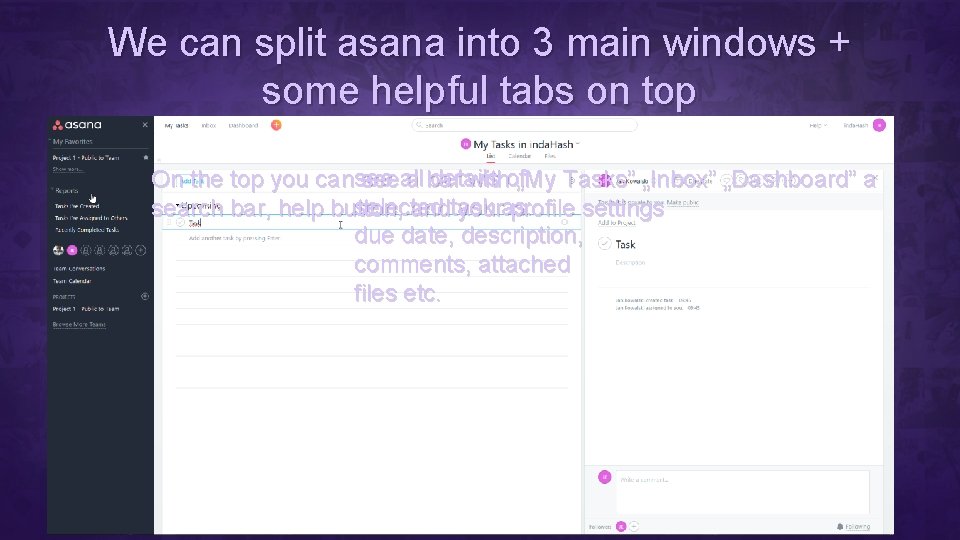
We can split asana into 3 main windows + some helpful tabs on top To the left we To the right you can In the middle details Onhave the top you cansee seeall a bar withof„My Tasks” „Dashboard” a you„Inbox” can see a a panel selected search bar, help button, andtask youras: profile settings list (or board) with all Teams due date, description, with all tasks and Projects comments, attached within the you are a files etc. project (or „My member of Tasks” tab)
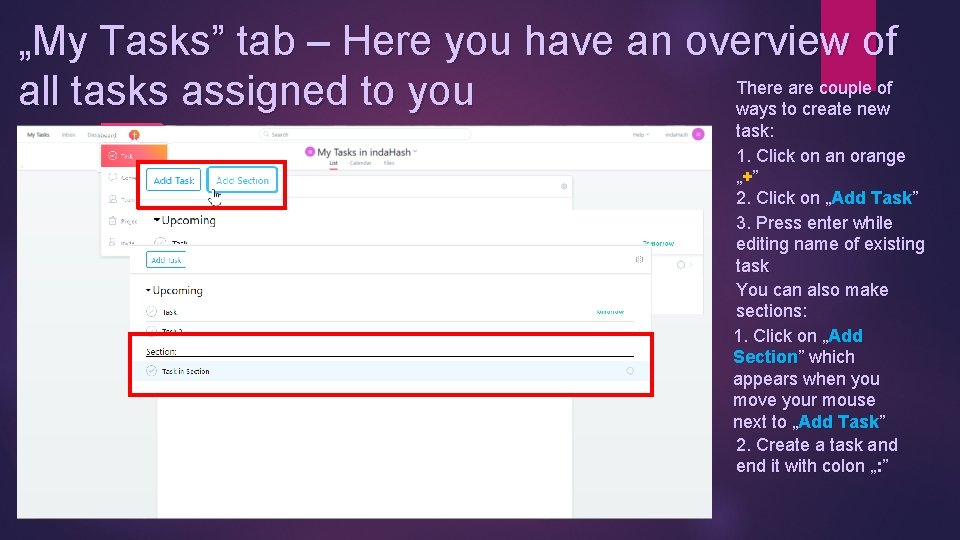
„My Tasks” tab – Here you have an overview of There are couple of all tasks assigned to you ways to create new task: 1. Click on an orange „+ ” 2. Click on „Add Task” 3. Press enter while editing name of existing task You can also make sections: 1. Click on „Add Section” which appears when you move your mouse next to „Add Task” 2. Create a task and end it with colon „: ”
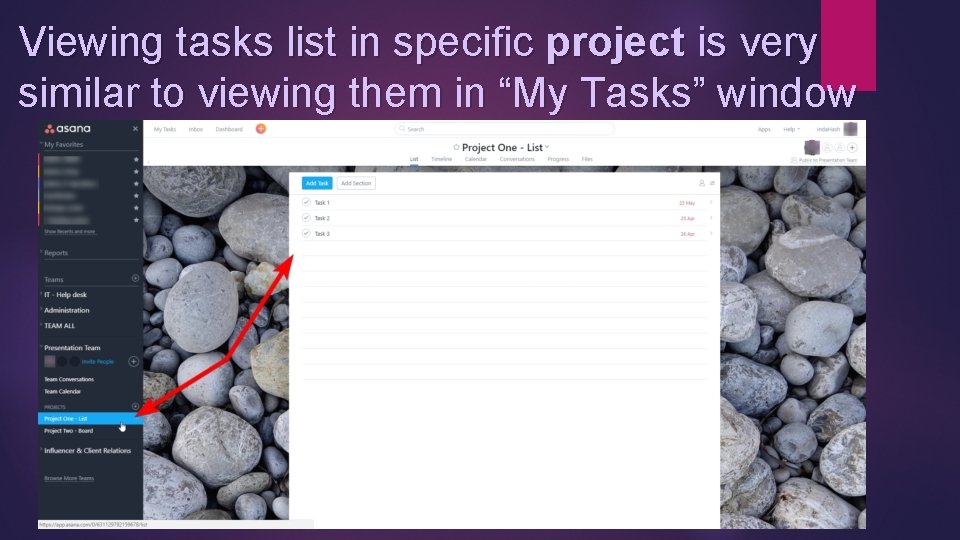
Viewing tasks list in specific project is very similar to viewing them in “My Tasks” window
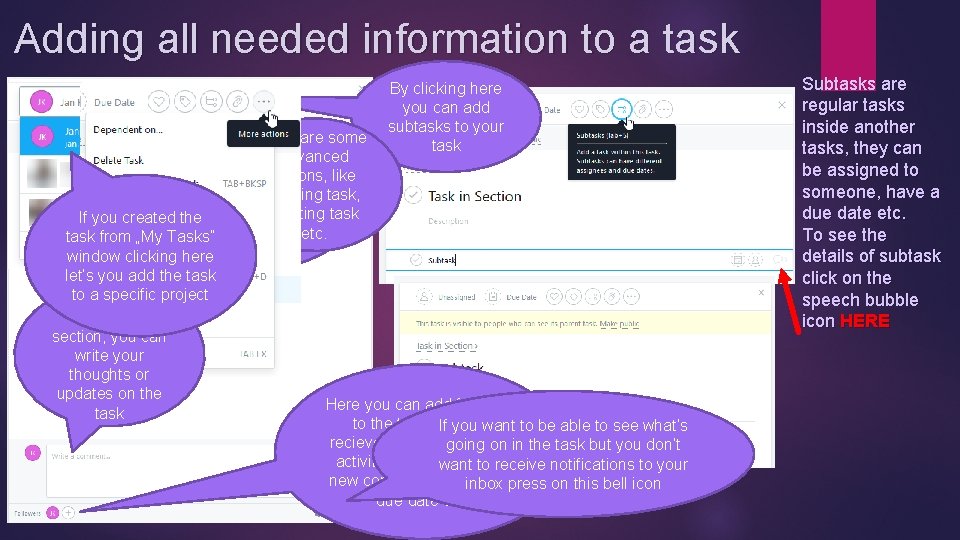
Adding all needed information to a task By clicking here you can add subtasks to your task Here are some By clicking Heart icon is here By clicking advanced you cantags attach just the same you can assign By clicking here you can add options, like to the as forfiles ex. the task to you can add to ayour task so ittask copying task, (PDF’s, Facebook’s someone or due date will be easier. JPEG’s to deleting task If you created the etc. ) „Like” yourself find via search etc. task from „My Tasks” bar window clicking here let’s you add the task to a specific Here is the project comment section, you can write your thoughts or updates on the Here you can add followers task to the task, they If youwill want to be able to see what’s recieve notifications about going on in the task but you don’t activities in thiswant taskto like: receive notifications to your new comments, change inboxof press on this bell icon due date etc. Subtasks are regular tasks inside another tasks, they can be assigned to someone, have a due date etc. To see the details of subtask click on the speech bubble icon HERE
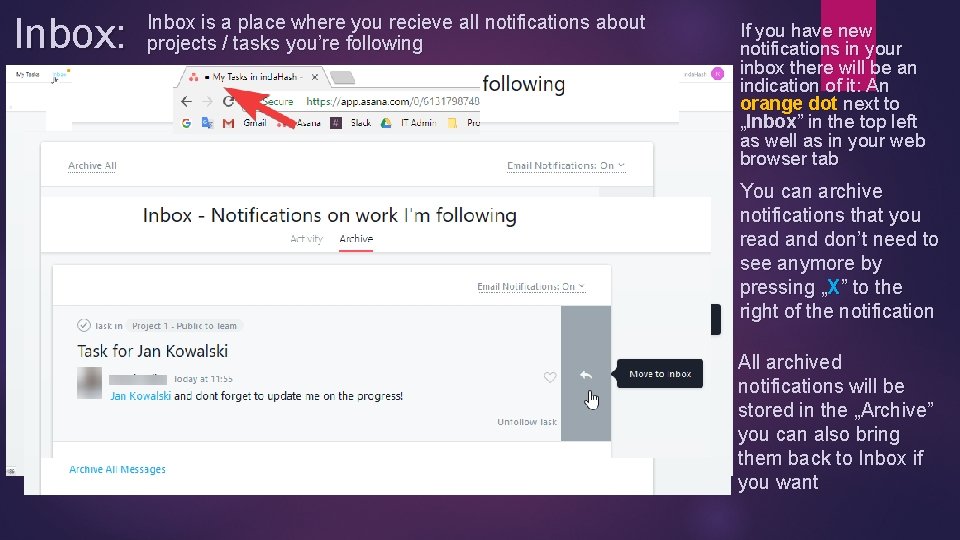
Inbox: Inbox is a place where you recieve all notifications about projects / tasks you’re following If you have new notifications in your inbox there will be an indication of it: An orange dot next to „Inbox” in the top left as well as in your web browser tab You can archive notifications that you read and don’t need to see anymore by pressing „X” to the right of the notification All archived notifications will be stored in the „Archive” you can also bring them back to Inbox if you want
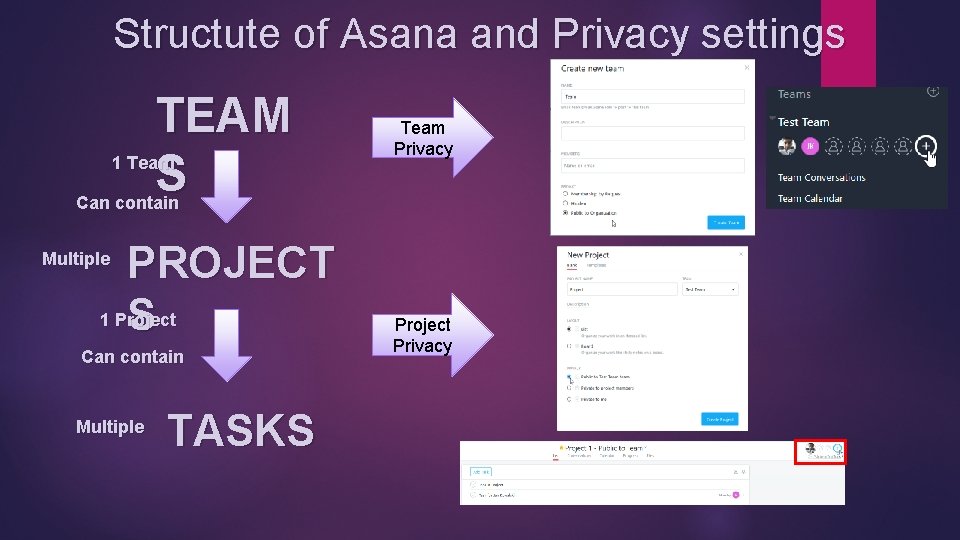
Structute of Asana and Privacy settings TEAM S 1 Team Privacy Can contain PROJECT 1 Project S Multiple Can contain Multiple TASKS Project Privacy
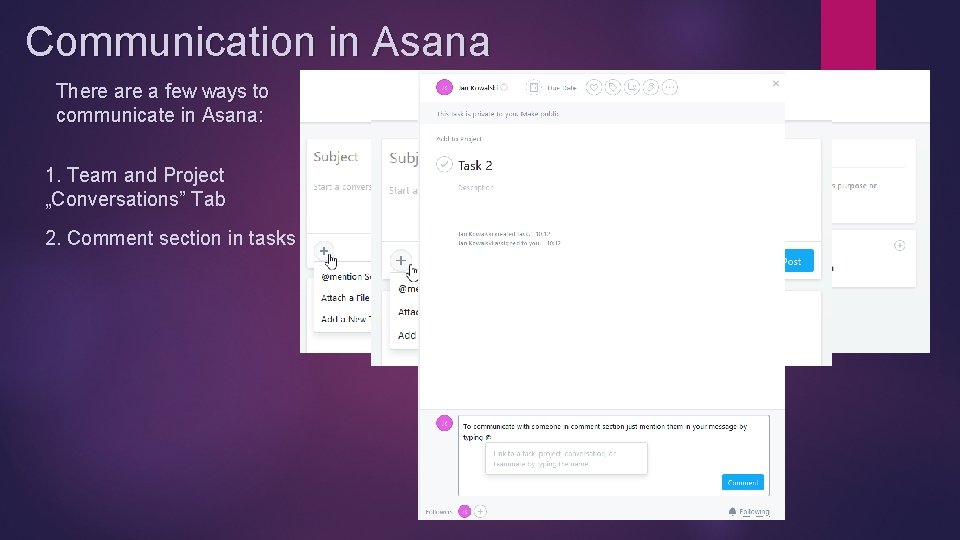
Communication in Asana There a few ways to communicate in Asana: 1. Team and Project „Conversations” Tab 2. Comment section in tasks
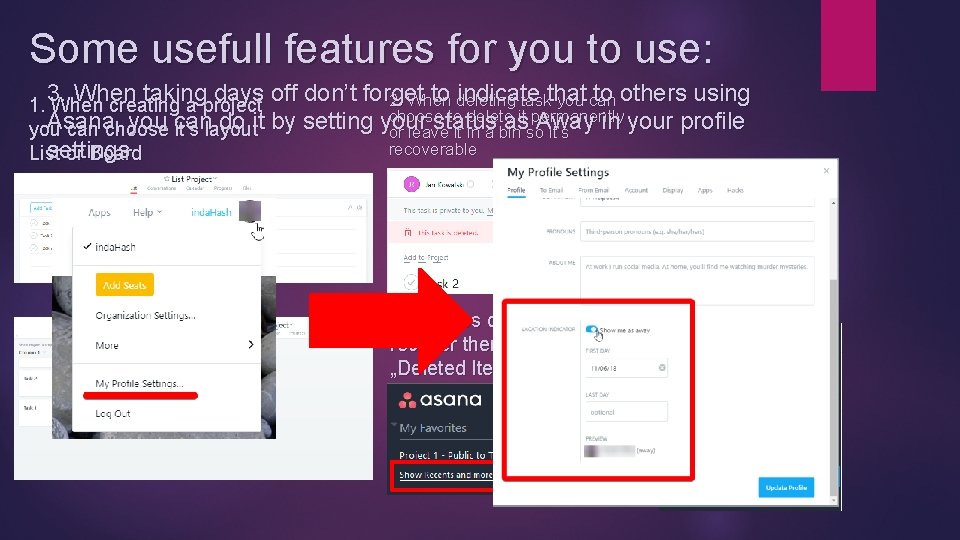
Some usefull features for you to use: 3. When taking days off don’t forget to indicate that to others using 2. When deleting task you can 1. When creating a project choose to delete it permanently Asana, you can do it by setting your status as Away in your profile you can choose it’s layout or leave it in a bin so it’s recoverable settings List or Board To access deleted items and recover them go into „Deleted Items”
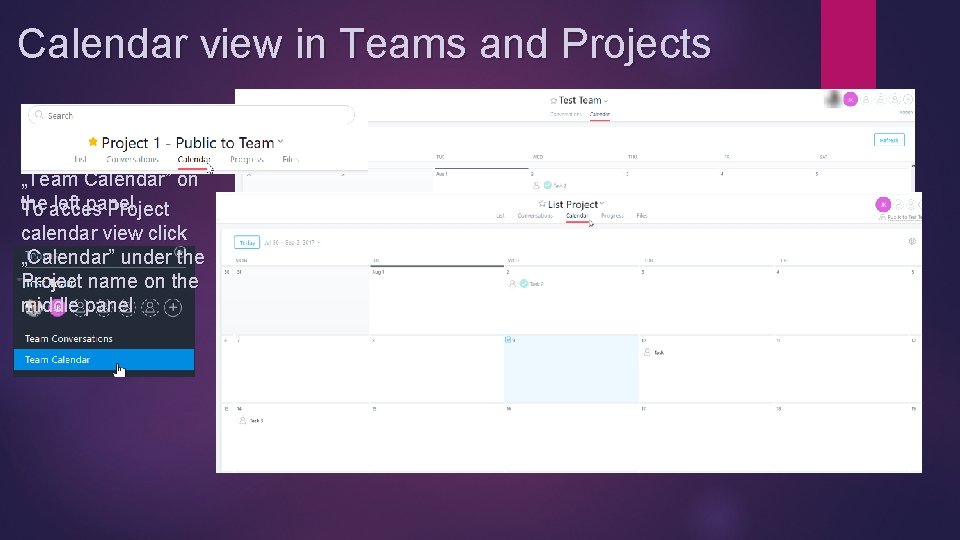
Calendar view in Teams and Projects To acces calendar view in teams click „Team Calendar” on the acces left panel To Project calendar view click „Calendar” under the Project name on the middle panel
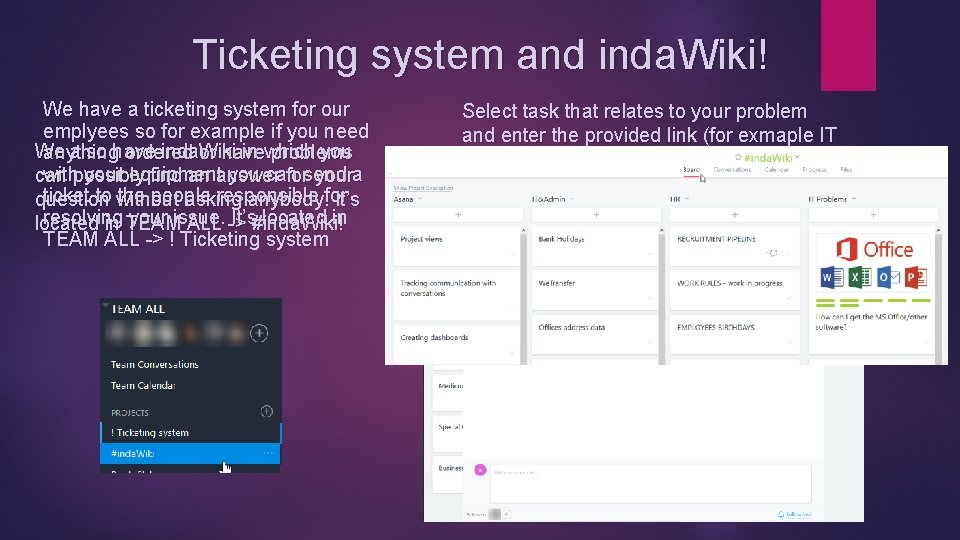
Ticketing system and inda. Wiki! We have a ticketing system for our emplyees so for example if you need We also have inda. Wiki in which you anything ordered or have problems withpossibly your equipment you can find an answer forsend youra ticket to without the people responsible question asking anybody!for It’s resolving your issue. It’s#inda. Wiki! located in TEAM ALL -> ! Ticketing system Select task that relates to your problem and enter the provided link (for exmaple IT Help. Desk Ticket)
Thank you for your attention! If you’ll have any further questions regarding asana feel free to ask! In case any problems in the future contact someone from IT Help. Desk we’ll try to help you the best we can!