
WCM 4 0 Tutorial Quick Installation Guide Learn



- Slides: 59
WCM 4. 0 Tutorial Quick Installation Guide Learn How to Create Your 1 st Playlist
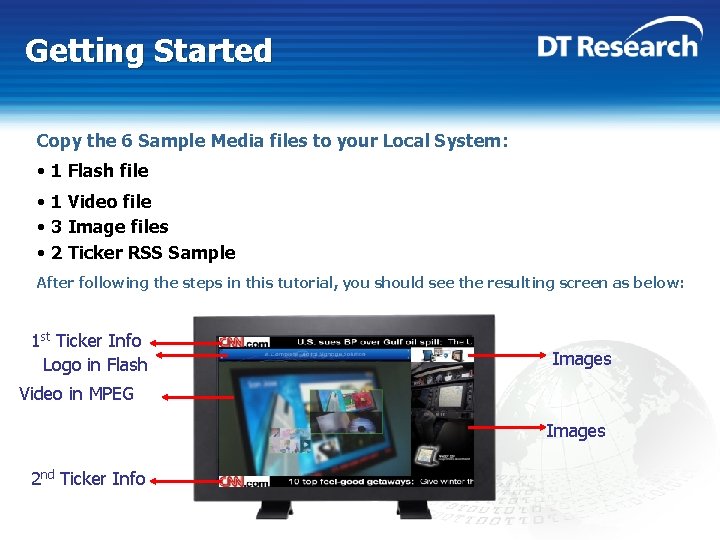
Getting Started Copy the 6 Sample Media files to your Local System: • 1 Flash file • 1 Video file • 3 Image files • 2 Ticker RSS Sample After following the steps in this tutorial, you should see the resulting screen as below: 1 st Ticker Info Logo in Flash Images Video in MPEG Images 2 nd Ticker Info
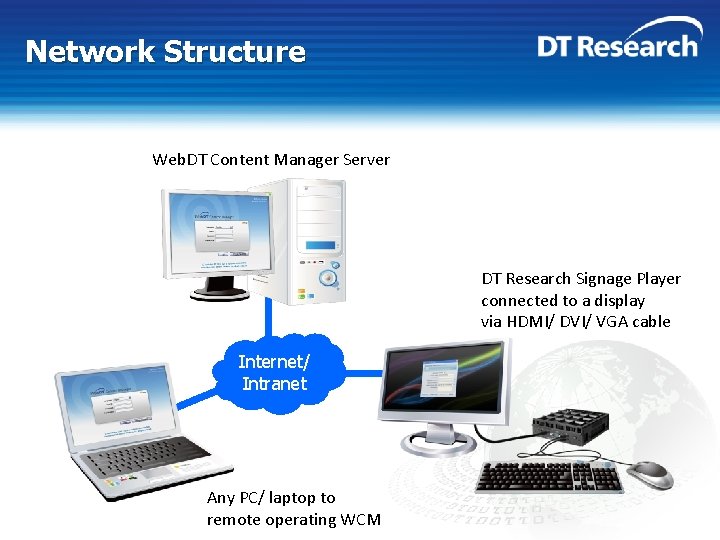
Network Structure Web. DT Content Manager Server DT Research Signage Player connected to a display via HDMI/ DVI/ VGA cable Internet/ Intranet Any PC/ laptop to remote operating WCM
Before Installation 1. Download Java SDK 1. 6 or latest version 2. Ensure that any firewall settings are disabled; firewall can be enabled after installation Insert the Web. DT Content Manager CD & select Install Web. DT Content Manager to begin installation During the installation, you will need the serial number on the cover of the CD Case
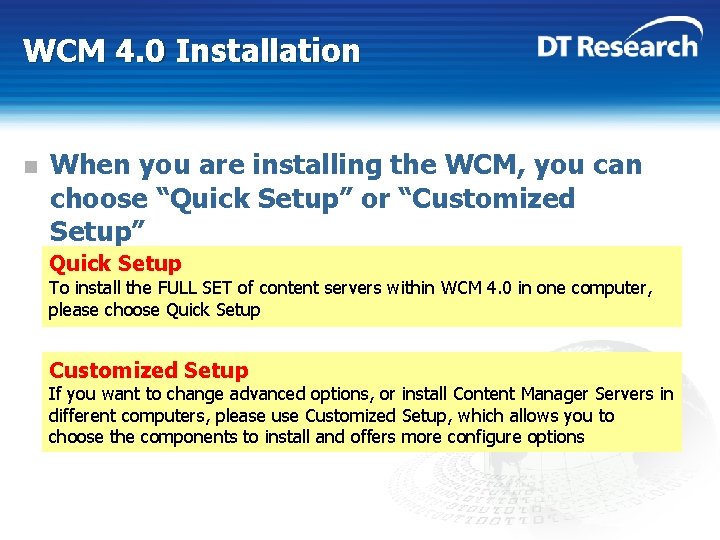
WCM 4. 0 Installation n When you are installing the WCM, you can choose “Quick Setup” or “Customized Setup” Quick Setup To install the FULL SET of content servers within WCM 4. 0 in one computer, please choose Quick Setup Customized Setup If you want to change advanced options, or install Content Manager Servers in different computers, please use Customized Setup, which allows you to choose the components to install and offers more configure options
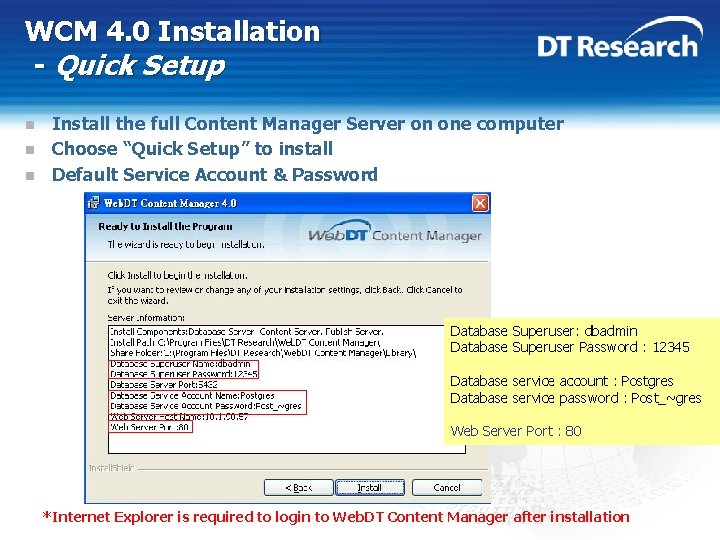
WCM 4. 0 Installation - Quick Setup n n n Install the full Content Manager Server on one computer Choose “Quick Setup” to install Default Service Account & Password 1 Database Superuser: dbadmin Database Superuser Password : 12345 2 Database service account : Postgres Database service password : Post_~gres You can Change Web. DT Content Folder Web Server Port : Manager 80 *Internet Explorer is required to login to Web. DT Content Manager after installation
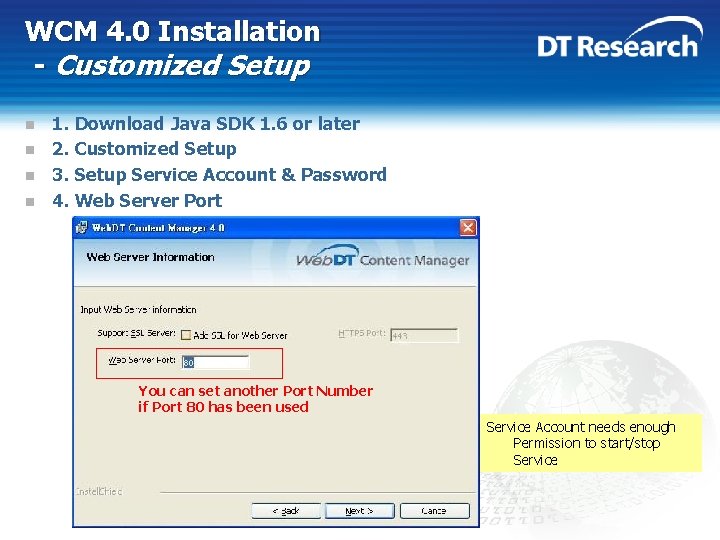
WCM 4. 0 Installation - Customized Setup n n 1. Download Java SDK 1. 6 or later 2. Customized Setup 3. Setup Service Account & Password 4. Web Server Port Default Setting You can set another Port Number if Port 80 has been used Service You can. Account Change needs Web. DTenough Permission to start/stop Content Manager Folder Service
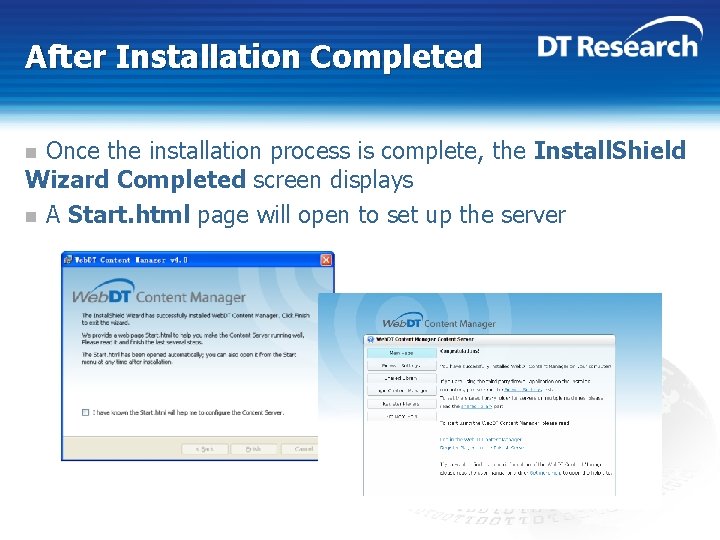
After Installation Completed Once the installation process is complete, the Install. Shield Wizard Completed screen displays n A Start. html page will open to set up the server n
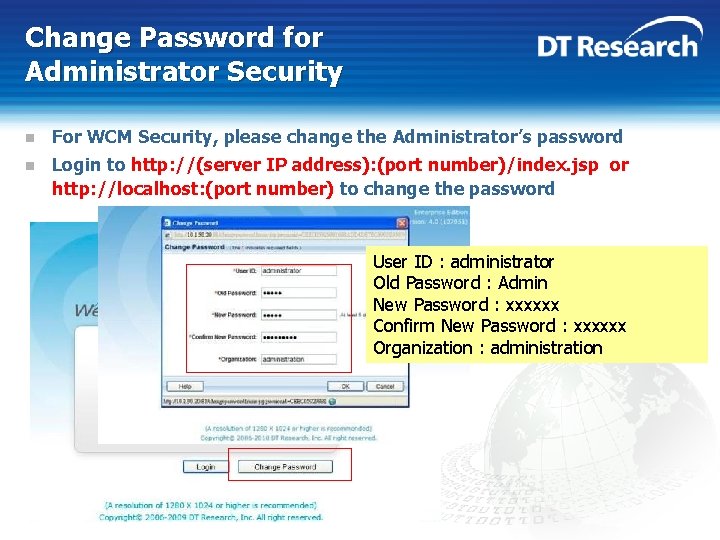
Change Password for Administrator Security n For WCM Security, please change the Administrator’s password n Login to http: //(server IP address): (port number)/index. jsp or http: //localhost: (port number) to change the password User ID : administrator Old Password : Admin New Password : xxxxxx Confirm New Password : xxxxxx Organization : administration
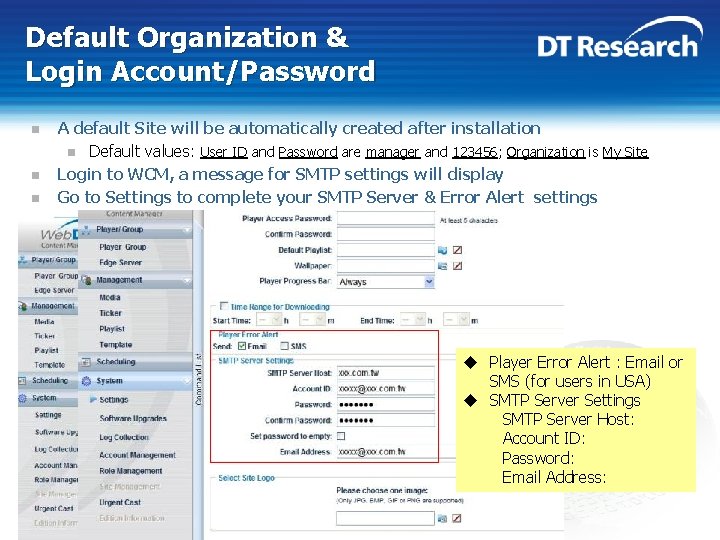
Default Organization & Login Account/Password n n n A default Site will be automatically created after installation n Default values: User ID and Password are manager and 123456; Organization is My Site Login to WCM, a message for SMTP settings will display Go to Settings to complete your SMTP Server & Error Alert settings u Player Error Alert : Email or User ID : manager. SMS (for users in USA) Password : 123456 u SMTP Server Settings Organization: My site SMTP Server Host: Account ID: Password: Email Address:
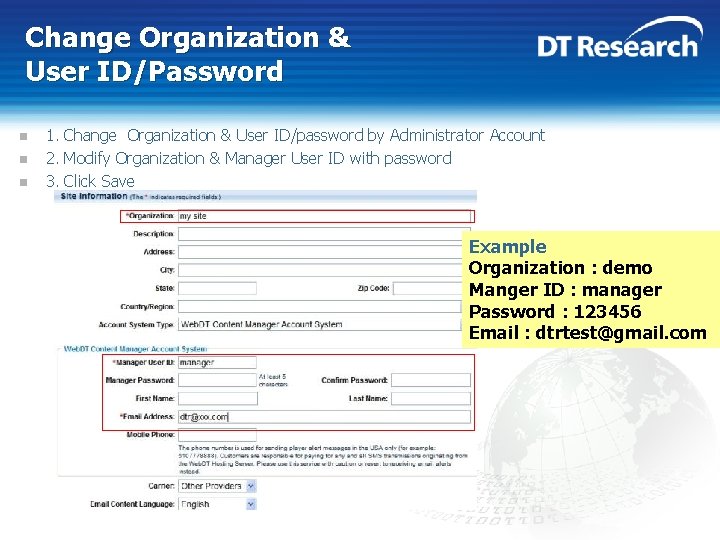
Change Organization & User ID/Password n n n 1. Change Organization & User ID/password by Administrator Account 2. Modify Organization & Manager User ID with password 3. Click Save Example Organization : demo Manger ID : manager Password : 123456 Email : dtrtest@gmail. com
Start to Create the Playlist
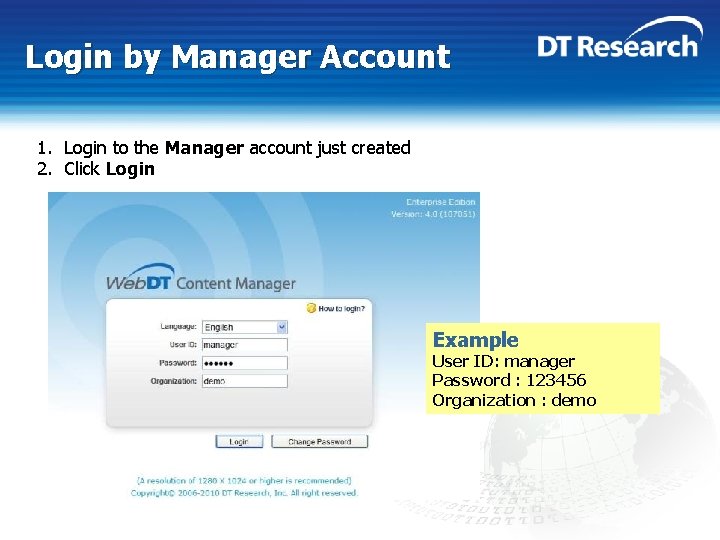
Login by Manager Account 1. Login to the Manager account just created 2. Click Login Example User ID: manager Password : 123456 Organization : demo
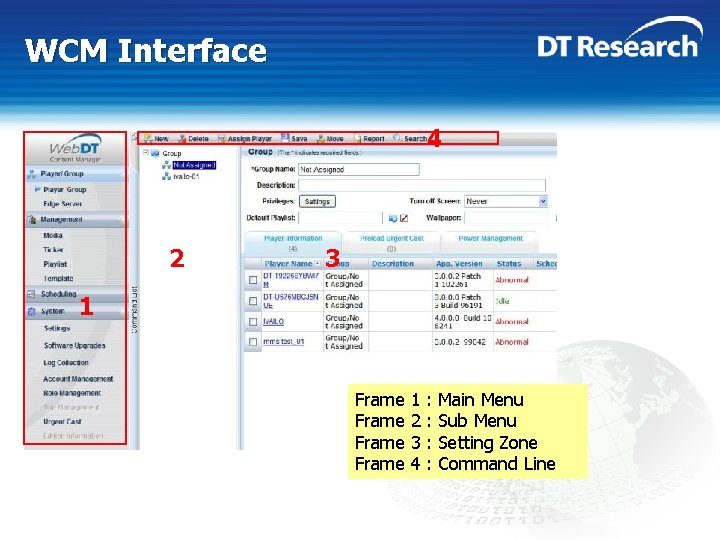
WCM Interface 4 2 3 1 Frame 1 2 3 4 : : Main Menu Sub Menu Setting Zone Command Line
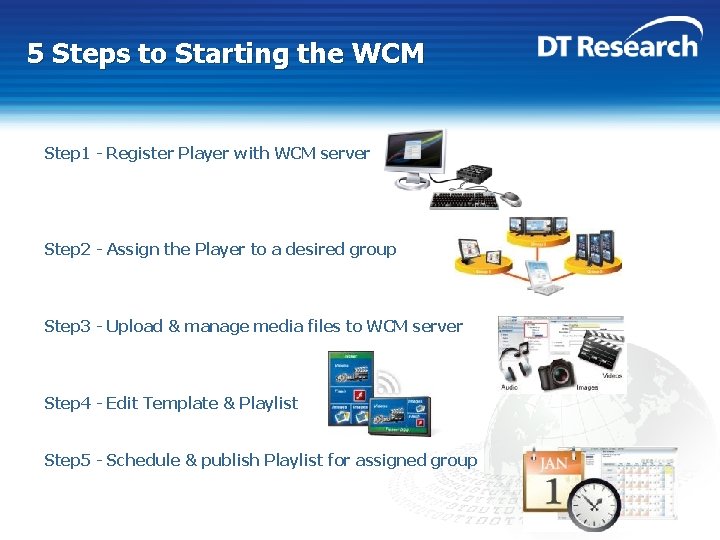
5 Steps to Starting the WCM Step 1 - Register Player with WCM server Step 2 - Assign the Player to a desired group Step 3 - Upload & manage media files to WCM server Step 4 - Edit Template & Playlist Step 5 - Schedule & publish Playlist for assigned group
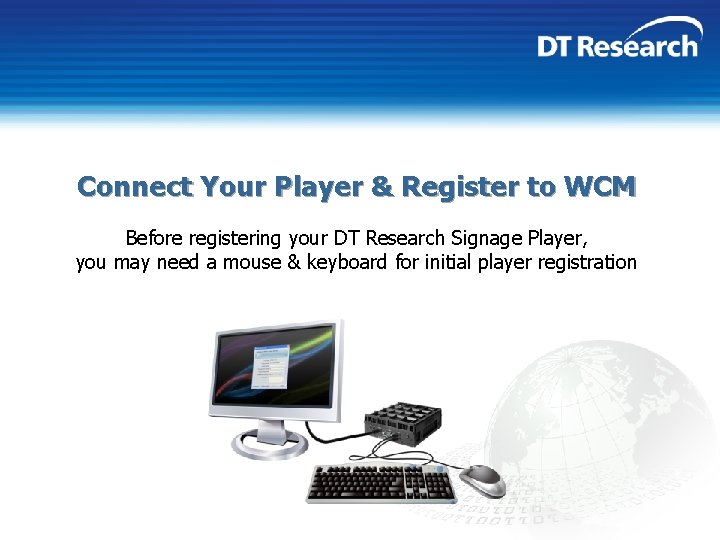
Connect Your Player & Register to WCM Before registering your DT Research Signage Player, you may need a mouse & keyboard for initial player registration
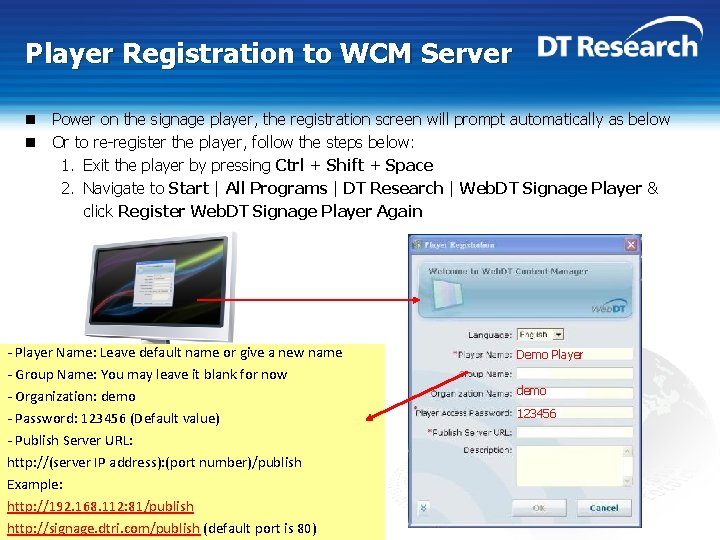
Player Registration to WCM Server n Power on the signage player, the registration screen will prompt automatically as below n Or to re-register the player, follow the steps below: 1. Exit the player by pressing Ctrl + Shift + Space 2. Navigate to Start | All Programs | DT Research | Web. DT Signage Player & click Register Web. DT Signage Player Again - Player Name: Leave default name or give a new name - Group Name: You may leave it blank for now - Organization: demo - Password: 123456 (Default value) - Publish Server URL: http: //(server IP address): (port number)/publish Example: http: //192. 168. 112: 81/publish http: //signage. dtri. com/publish (default port is 80) Demo Player demo 123456
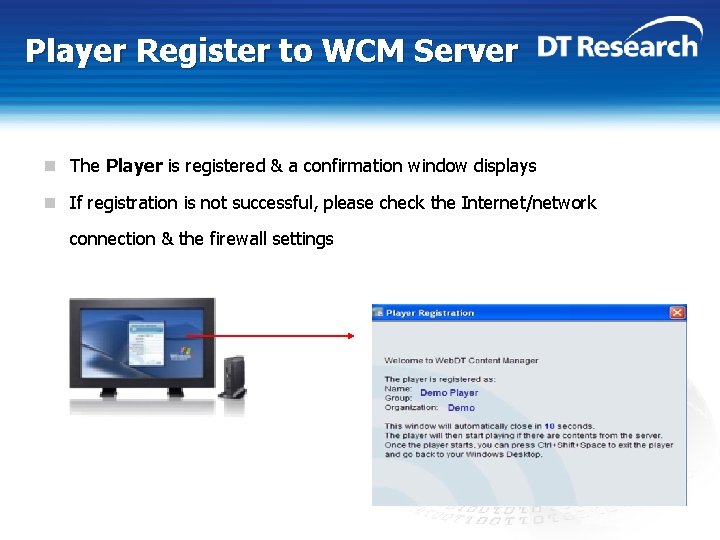
Player Register to WCM Server n The Player is registered & a confirmation window displays n If registration is not successful, please check the Internet/network connection & the firewall settings
Creating Groups and Assigning Players to Groups
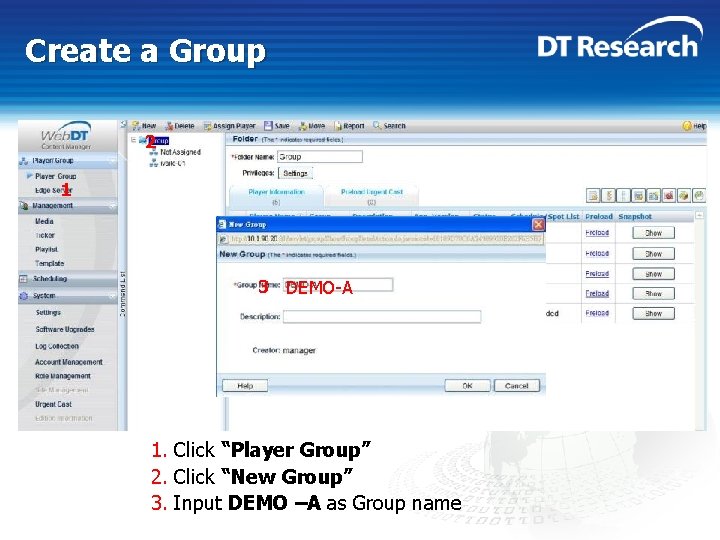
Create a Group 2 1 3 DEMO-A 1. Click “Player Group” 2. Click “New Group” 3. Input DEMO –A as Group name
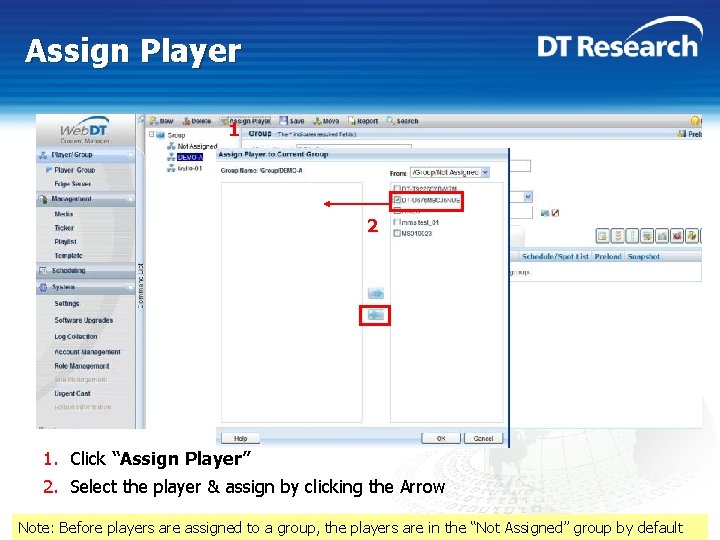
Assign Player 1 2 1. Click “Assign Player” 2. Select the player & assign by clicking the Arrow Note: Before players are assigned to a group, the players are in the “Not Assigned” group by default
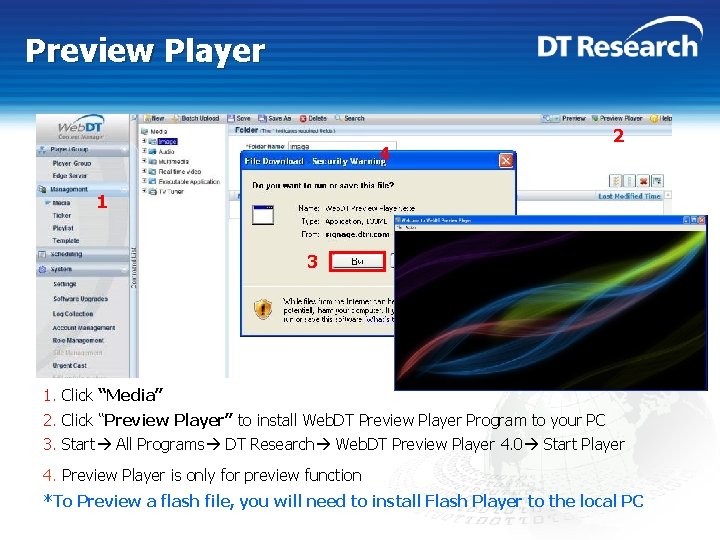
Preview Player 4 2 1 3 1. Click “Media” 2. Click “Preview Player” to install Web. DT Preview Player Program to your PC 3. Start All Programs DT Research Web. DT Preview Player 4. 0 Start Player 4. Preview Player is only for preview function *To Preview a flash file, you will need to install Flash Player to the local PC
Preview 4 5 2 6 1 3 1. Click “Account Management” 2. Select the Account 3. Click to add preview players in the displayed window 4. Select the player you registered (or other players) to add as Preview Player(s) 5. Your selected Preview Player(s) will be listed 6. Save the settings
Upload and Manage Media files
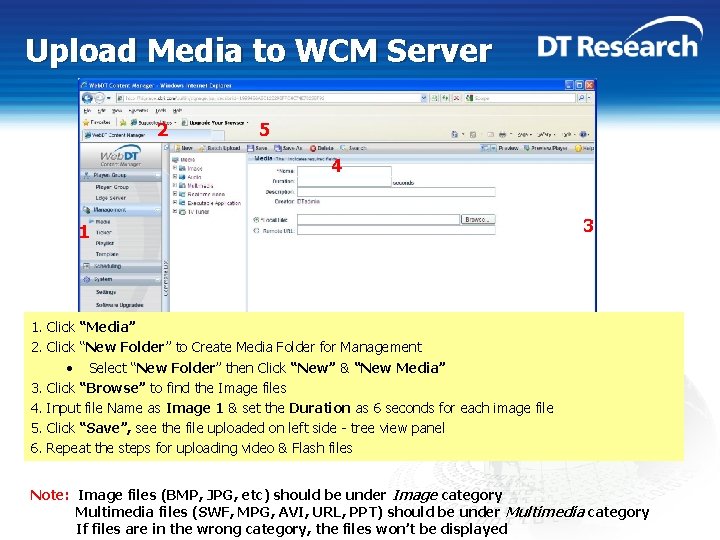
Upload Media to WCM Server 2 5 4 1 3 1. Click “Media” 2. Click “New Folder” to Create Media Folder for Management • Select “New Folder” then Click “New” & “New Media” 3. Click “Browse” to find the Image files 4. Input file Name as Image 1 & set the Duration as 6 seconds for each image file 5. Click “Save”, see the file uploaded on left side - tree view panel 6. Repeat the steps for uploading video & Flash files Note: Image files (BMP, JPG, etc) should be under Image category Multimedia files (SWF, MPG, AVI, URL, PPT) should be under Multimedia category If files are in the wrong category, the files won’t be displayed
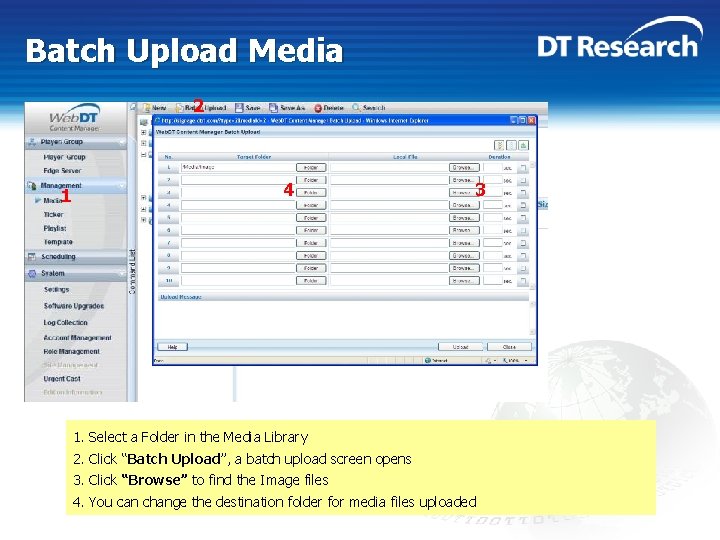
Batch Upload Media 2 1 4 3 1. Select a Folder in the Media Library 2. Click “Batch Upload”, a batch upload screen opens 3. Click “Browse” to find the Image files 4. You can change the destination folder for media files uploaded
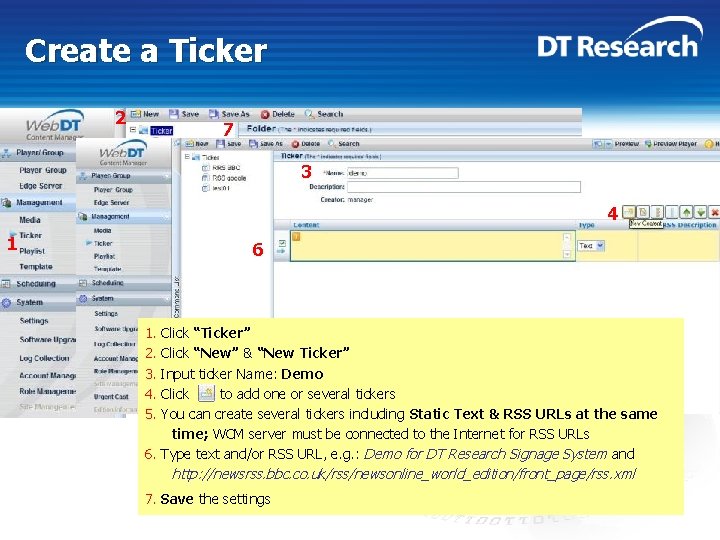
Create a Ticker 2 7 3 4 1 6 1. 2. 3. 4. 5. Click “Ticker” Click “New” & “New Ticker” Input ticker Name: Demo Click to add one or several tickers You can create several tickers including Static Text & RSS URLs at the same time; WCM server must be connected to the Internet for RSS URLs 6. Type text and/or RSS URL, e. g. : Demo for DT Research Signage System and http: //newsrss. bbc. co. uk/rss/newsonline_world_edition/front_page/rss. xml 7. Save the settings
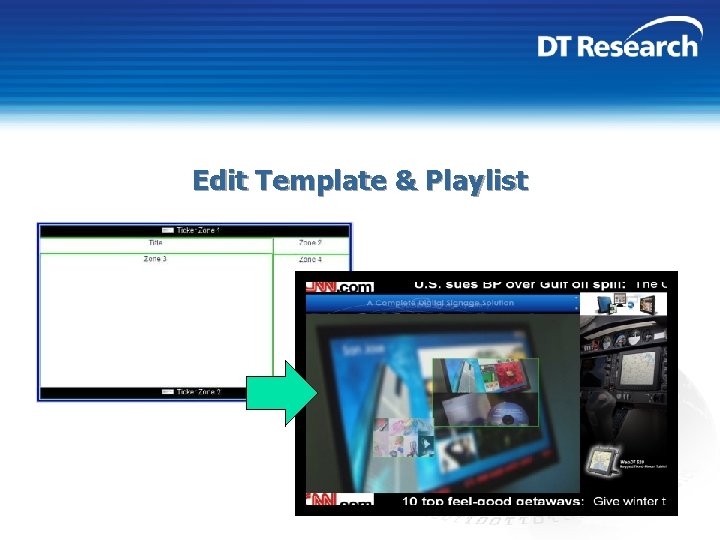
Edit Template & Playlist
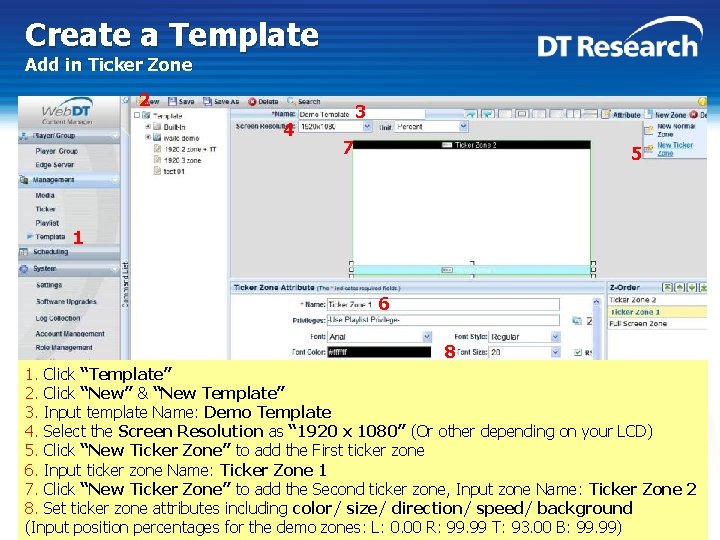
Create a Template Add in Ticker Zone 2 4 3 7 5 1 6 8 1. Click “Template” 2. Click “New” & “New Template” 3. Input template Name: Demo Template 4. Select the Screen Resolution as “ 1920 x 1080” (Or other depending on your LCD) 5. Click “New Ticker Zone” to add the First ticker zone 6. Input ticker zone Name: Ticker Zone 1 7. Click “New Ticker Zone” to add the Second ticker zone, Input zone Name: Ticker Zone 2 8. Set ticker zone attributes including color/ size/ direction/ speed/ background (Input position percentages for the demo zones: L: 0. 00 R: 99. 99 T: 93. 00 B: 99. 99)
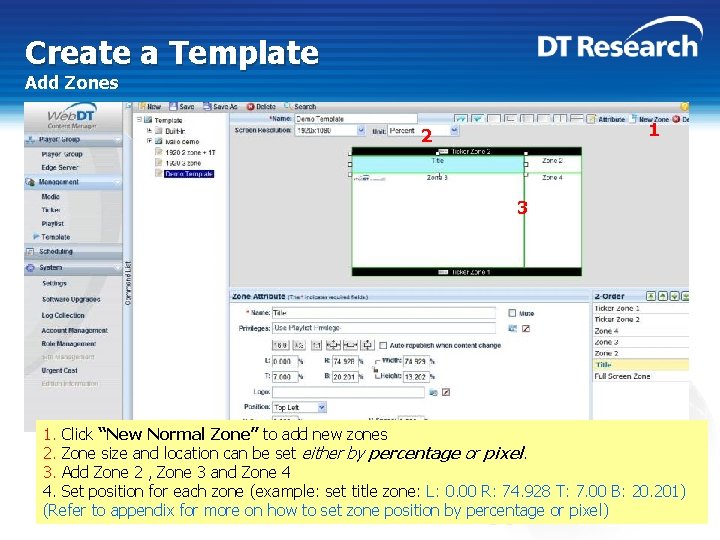
Create a Template Add Zones 1 2 3 1. Click “New Normal Zone” to add new zones 2. Zone size and location can be set either by percentage or pixel. 3. Add Zone 2 , Zone 3 and Zone 4 4. Set position for each zone (example: set title zone: L: 0. 00 R: 74. 928 T: 7. 00 B: 20. 201) (Refer to appendix for more on how to set zone position by percentage or pixel)
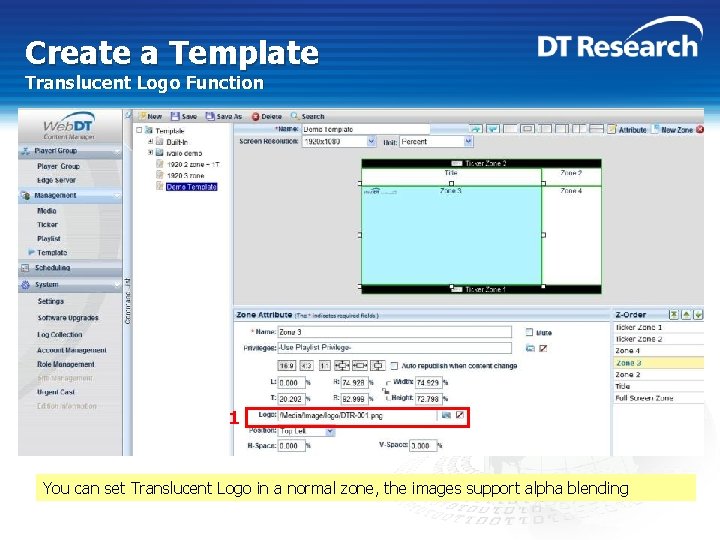
Create a Template Translucent Logo Function 1 You can set Translucent Logo in a normal zone, the images support alpha blending
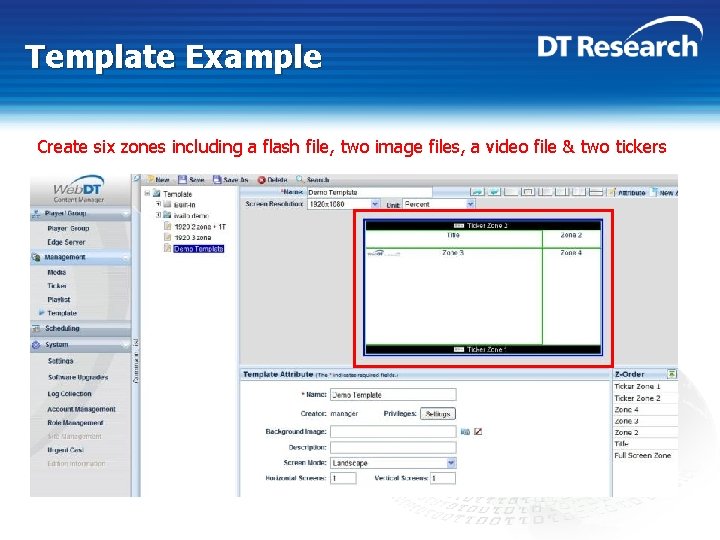
Template Example Create six zones including a flash file, two image files, a video file & two tickers
Create & Preview your Playlist
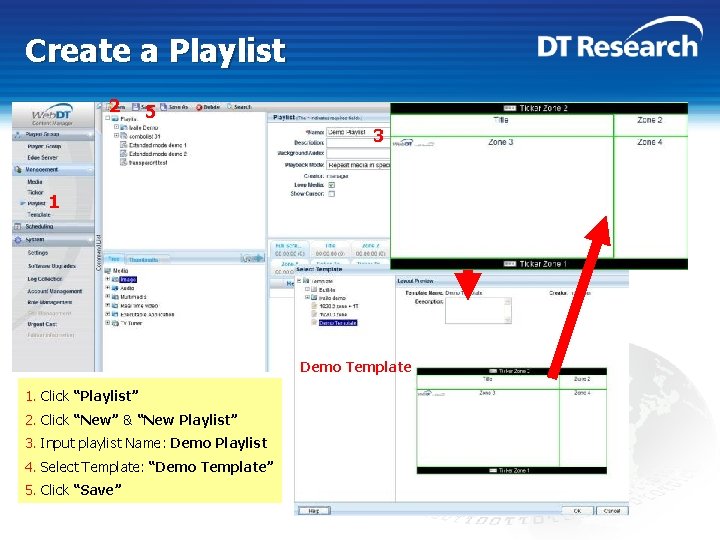
Create a Playlist 2 5 3 1 4 Demo Template 1. Click “Playlist” 2. Click “New” & “New Playlist” 3. Input playlist Name: Demo Playlist 4. Select Template: “Demo Template” 5. Click “Save”
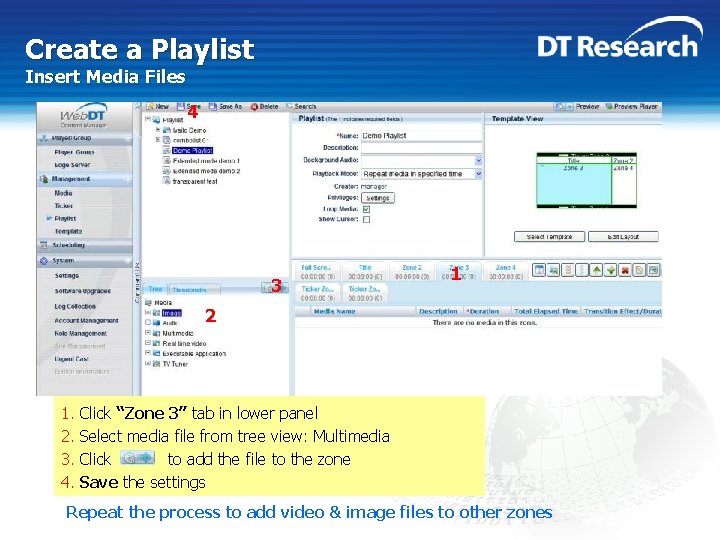
Create a Playlist Insert Media Files 4 3 1 2 1. 2. 3. 4. Click “Zone 3” tab in lower panel Select media file from tree view: Multimedia Click to add the file to the zone Save the settings Repeat the process to add video & image files to other zones
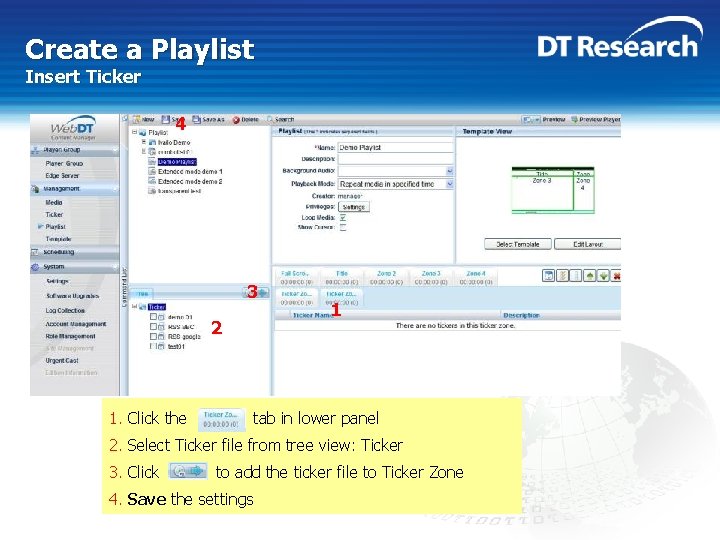
Create a Playlist Insert Ticker 4 3 2 1. Click the 1 tab in lower panel 2. Select Ticker file from tree view: Ticker 3. Click to add the ticker file to Ticker Zone 4. Save the settings
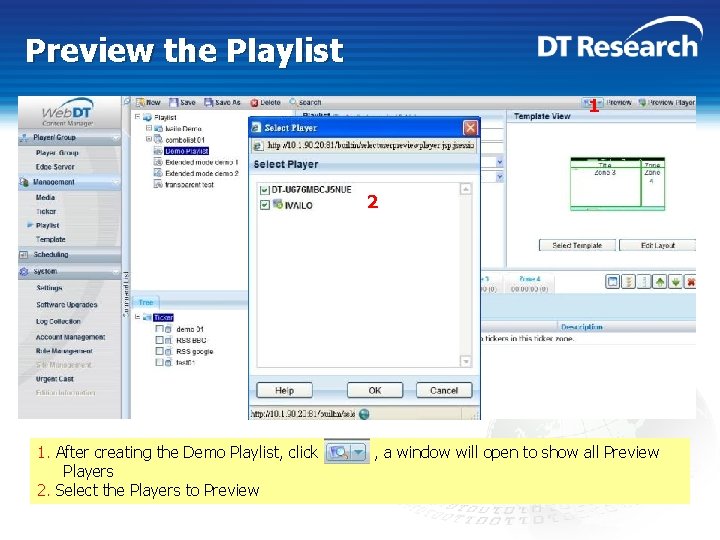
Preview the Playlist 1 2 1. After creating the Demo Playlist, click Players 2. Select the Players to Preview , a window will open to show all Preview
Schedule & Publish the Playlist
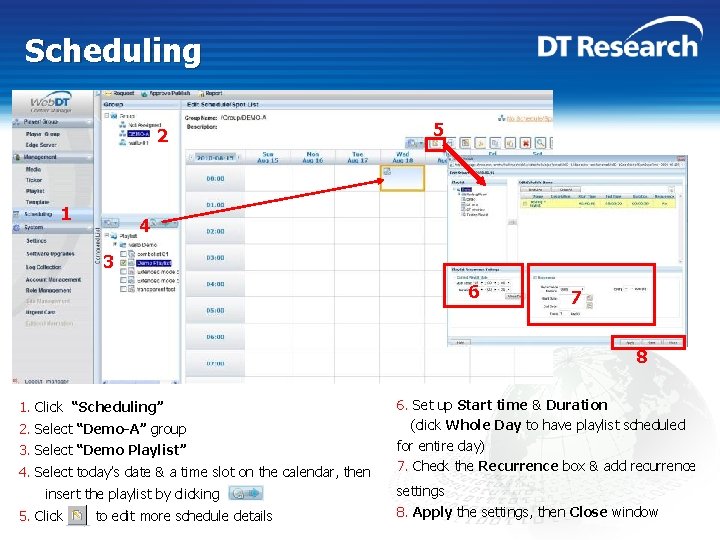
Scheduling 2 1 5 4 3 6 7 8 1. Click “Scheduling” 2. Select “Demo-A” group 3. Select “Demo Playlist” 4. Select today’s date & a time slot on the calendar, then insert the playlist by clicking 5. Click to edit more schedule details 6. Set up Start time & Duration (click Whole Day to have playlist scheduled for entire day) 7. Check the Recurrence box & add recurrence settings 8. Apply the settings, then Close window
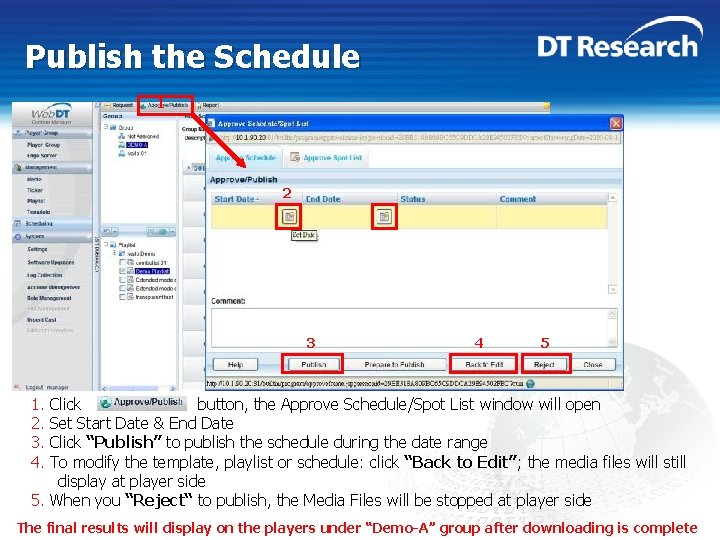
Publish the Schedule 1 2 3 4 5 1. 2. 3. 4. Click button, the Approve Schedule/Spot List window will open Set Start Date & End Date Click “Publish” to publish the schedule during the date range To modify the template, playlist or schedule: click “Back to Edit”; the media files will still display at player side 5. When you “Reject“ to publish, the Media Files will be stopped at player side The final results will display on the players under “Demo-A” group after downloading is complete
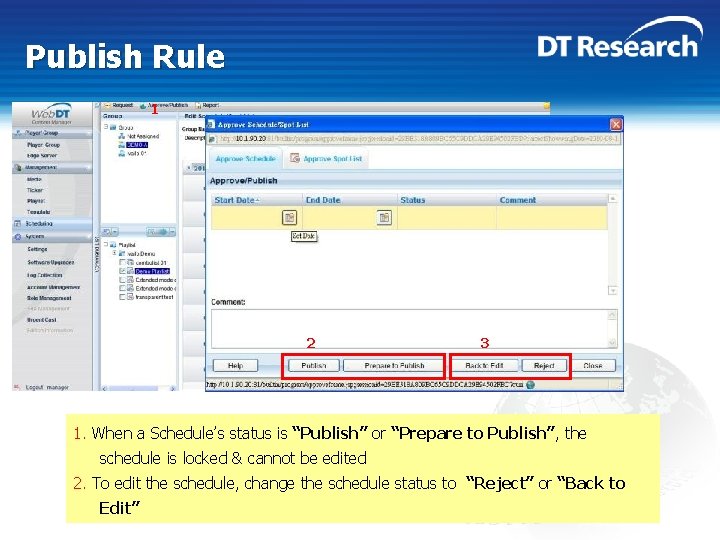
Publish Rule 1 2 3 1. When a Schedule’s status is “Publish” or “Prepare to Publish”, the schedule is locked & cannot be edited 2. To edit the schedule, change the schedule status to “Reject” or “Back to Edit”
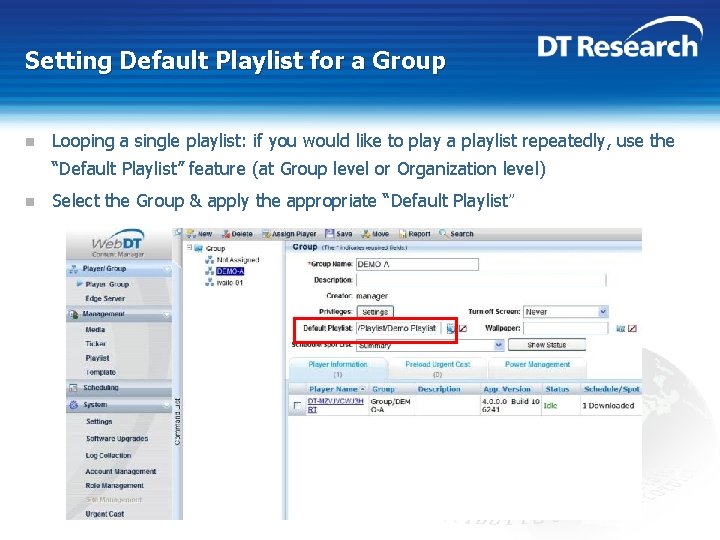
Setting Default Playlist for a Group n Looping a single playlist: if you would like to play a playlist repeatedly, use the “Default Playlist” feature (at Group level or Organization level) n Select the Group & apply the appropriate “Default Playlist ”
Congratulations! You have learned how to quickly create and manage digital signage content on WCM 4. 0 For more detailed information, please read the WCM User Manual
Appendix 1. 2. 3. 4. 5. 6. 7. 8. 9. 10. 11. 12. Set Zone Attributes Power Management Settings Advanced Settings Group Settings Player Reboot / Remote Desktop Functions Active Directory Support Role/Privilege Management Batch Register Tool Wi-Fi & Resolution Tool Software Development Kit (SDK) Urgent Cast Power. Point Plugin
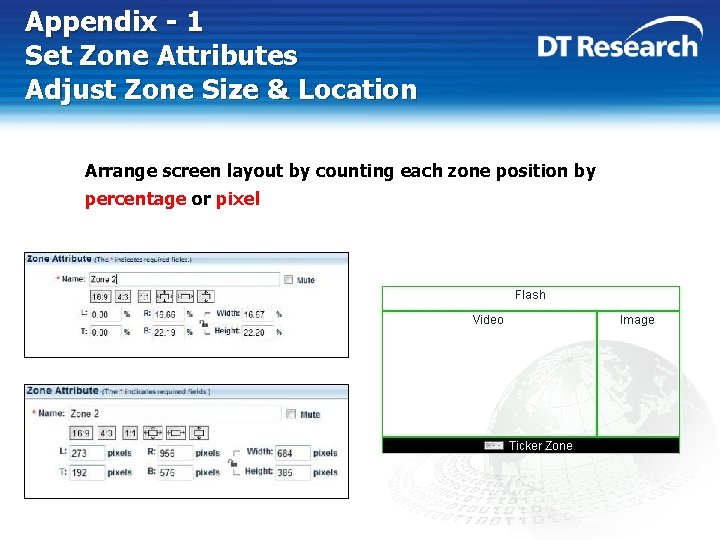
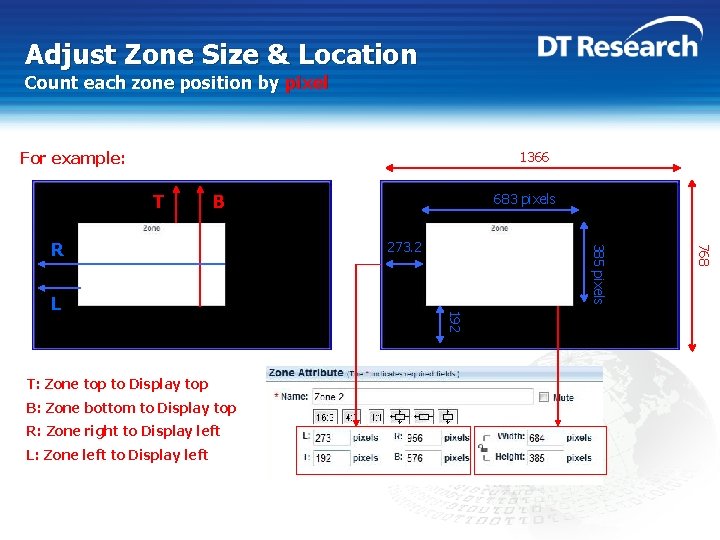
Appendix - 1 Set Zone Attributes Adjust Zone Size & Location Arrange screen layout by counting each zone position by percentage or pixel
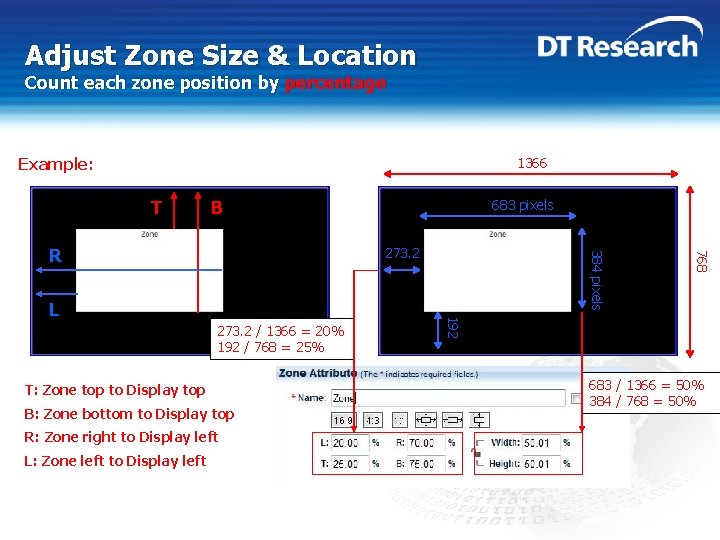
Adjust Zone Size & Location Count each zone position by percentage Example: 1366 T B 273. 2 / 1366 = 20% 192 / 768 = 25% T: Zone top to Display top B: Zone bottom to Display top R: Zone right to Display left L: Zone left to Display left 192 L 384 pixels 273. 2 768 R 683 pixels 683 / 1366 = 50% 384 / 768 = 50%
Adjust Zone Size & Location Count each zone position by pixel For example: 1366 T B B: Zone bottom to Display top R: Zone right to Display left L: Zone left to Display left 768 T: Zone top to Display top 192 L 273. 2 385 pixels R 683 pixels
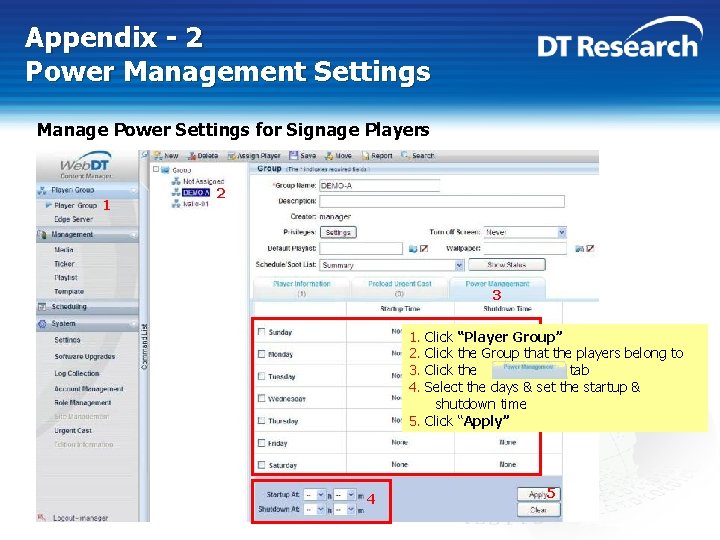
Appendix - 2 Power Management Settings Manage Power Settings for Signage Players 1 2 3 1. 2. 3. 4. Click “Player Group” Click the Group that the players belong to Click the tab Select the days & set the startup & shutdown time 5. Click “Apply” 4 5
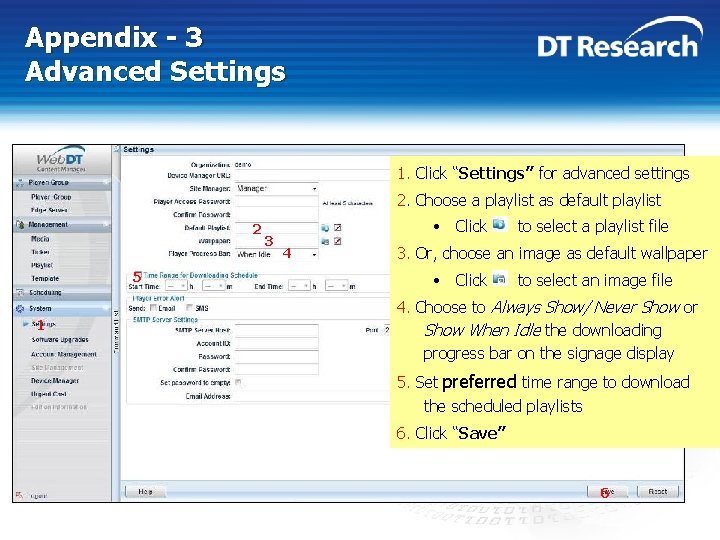
Appendix - 3 Advanced Settings 1. Click “Settings” for advanced settings 2. Choose a playlist as default playlist 2 5 1 3 • Click 4 to select a playlist file 3. Or, choose an image as default wallpaper • Click to select an image file 4. Choose to Always Show/ Never Show or Show When Idle the downloading progress bar on the signage display 5. Set preferred time range to download the scheduled playlists 6. Click “Save” 6
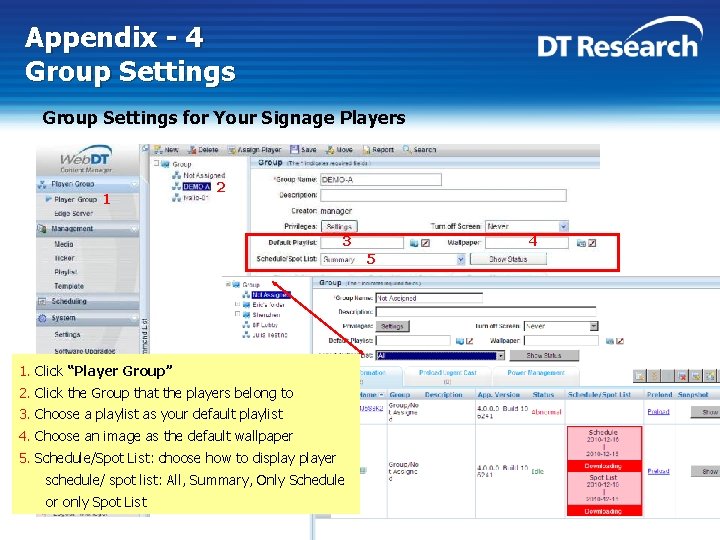
Appendix - 4 Group Settings for Your Signage Players 1 2 3 4 5 1. Click “Player Group” 2. Click the Group that the players belong to 3. Choose a playlist as your default playlist 4. Choose an image as the default wallpaper 5. Schedule/Spot List: choose how to displayer schedule/ spot list: All, Summary, Only Schedule or only Spot List
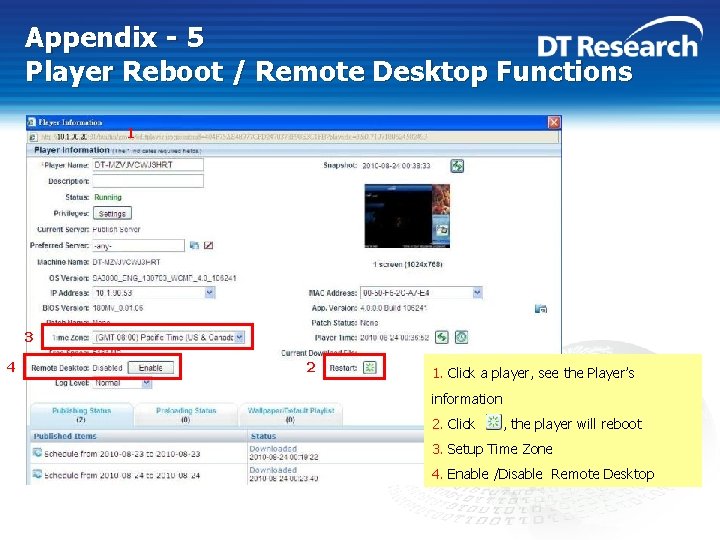
Appendix - 5 Player Reboot / Remote Desktop Functions 1 3 4 2 1. Click a player, see the Player’s information 2. Click , the player will reboot 3. Setup Time Zone 4. Enable /Disable Remote Desktop
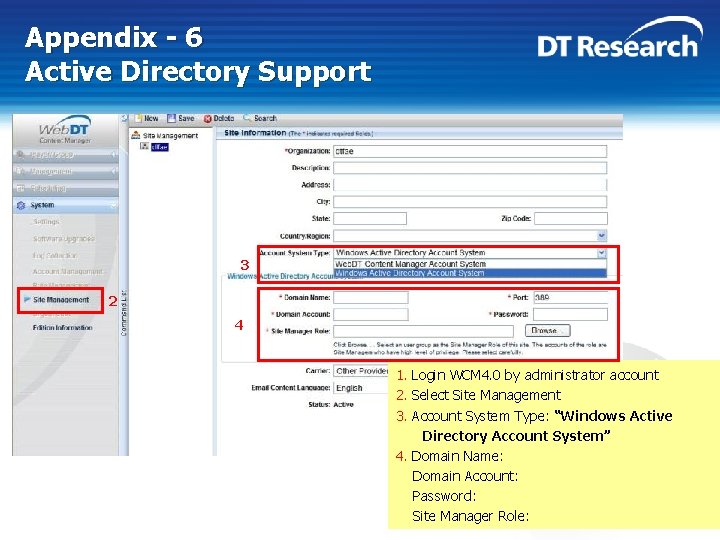
Appendix - 6 Active Directory Support 3 2 1 4 1. Login WCM 4. 0 by administrator account 2. Select Site Management 3. Account System Type: “Windows Active Directory Account System” 4. Domain Name: Domain Account: Password: Site Manager Role:
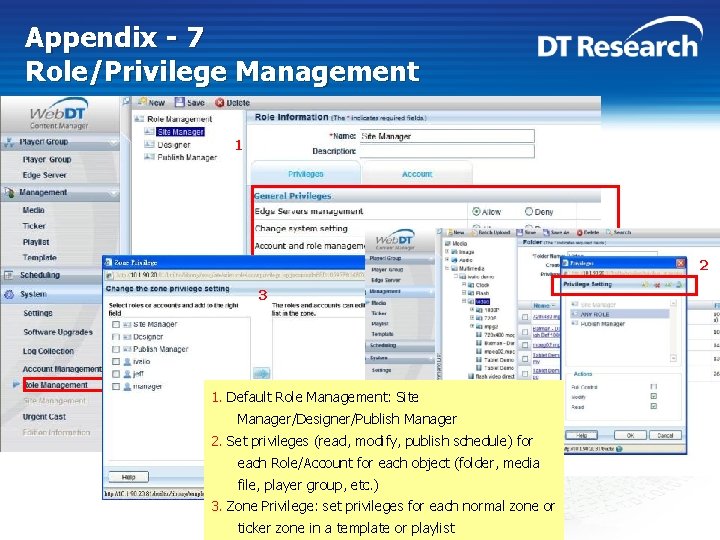
Appendix - 7 Role/Privilege Management 1 2 3 1. Default Role Management: Site Manager/Designer/Publish Manager 2. Set privileges (read, modify, publish schedule) for each Role/Account for each object (folder, media file, player group, etc. ) 3. Zone Privilege: set privileges for each normal zone or ticker zone in a template or playlist
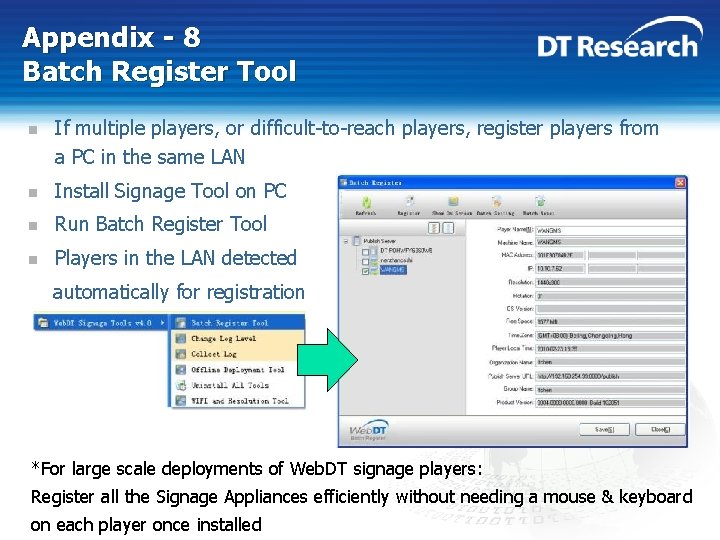
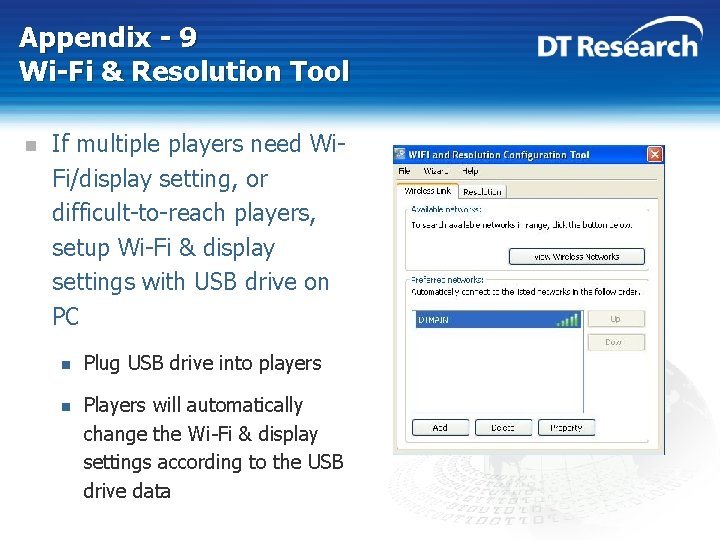
Appendix - 8 Batch Register Tool n If multiple players, or difficult-to-reach players, register players from a PC in the same LAN n Install Signage Tool on PC n Run Batch Register Tool n Players in the LAN detected automatically for registration *For large scale deployments of Web. DT signage players: Register all the Signage Appliances efficiently without needing a mouse & keyboard on each player once installed
Appendix - 9 Wi-Fi & Resolution Tool n If multiple players need Wi. Fi/display setting, or difficult-to-reach players, setup Wi-Fi & display settings with USB drive on PC n Plug USB drive into players n Players will automatically change the Wi-Fi & display settings according to the USB drive data
Appendix - 10 Software Development Kit (SDK) n Allows third party developer to: n n Customize content playback according to “events” n (touch screen, definable activation) n Java. Script/Flash or C/C++ Add new hardware events, C/C++ n RFID, Queuing System, etc. n Create a log about events in Java. Script or C/C++ n Integrate with other systems n Example: Urgent. CAST via HTTP requests
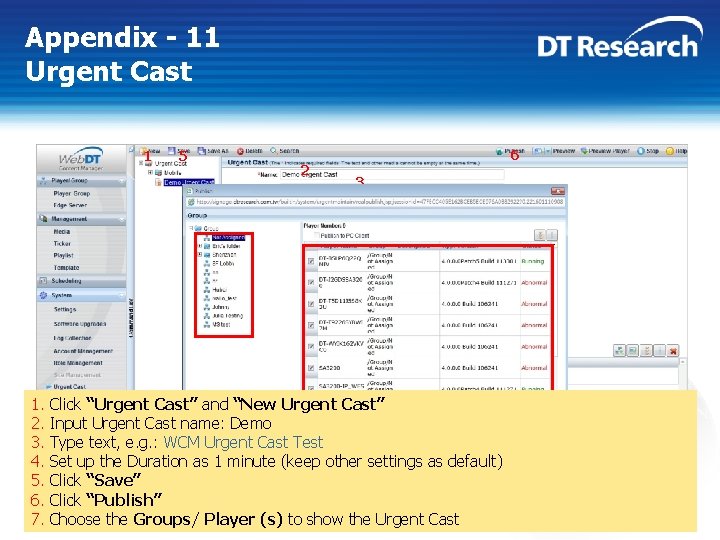
Appendix - 11 Urgent Cast 1 1. 2. 3. 4. 5. 6. 7. 5 2 6 3 4 Click “Urgent Cast” and “New Urgent Cast” Input Urgent Cast name: Demo Type text, e. g. : WCM Urgent Cast Test Set up the Duration as 1 minute (keep other settings as default) Click “Save” Click “Publish” Choose the Groups/ Player (s) to show the Urgent Cast
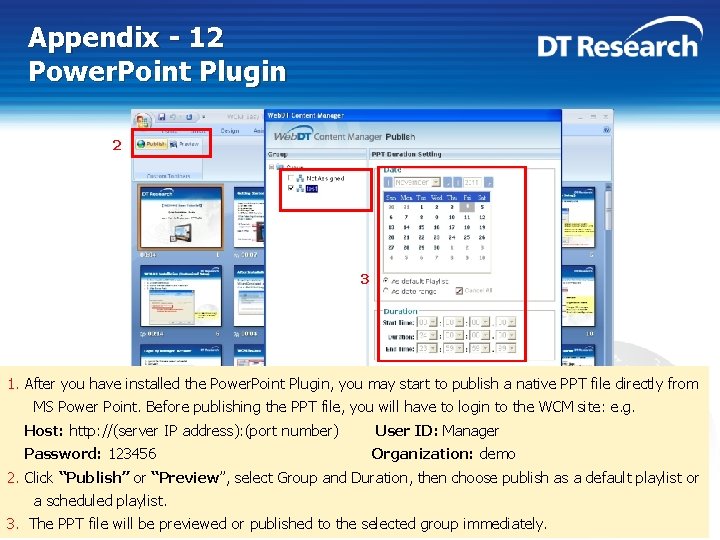
Appendix - 12 Power. Point Plugin 2 http: //(server IP address): (port number) Manager 3 123456 demo 1. After you have installed the Power. Point Plugin, you may start to publish a native PPT file directly from MS Power Point. Before publishing the PPT file, you will have to login to the WCM site: e. g. Host: http: //(server IP address): (port number) User ID: Manager Password: 123456 Organization: demo 2. Click “Publish” or “Preview”, select Group and Duration, then choose publish as a default playlist or a scheduled playlist. 3. The PPT file will be previewed or published to the selected group immediately.
Thank you for choosing DT Research! -Please contact technical support for further questionswww. dtresearch. com signage. dtri. com