
Watch Face Development Guide for Huawei Watch Simple

- Slides: 9
Watch Face Development Guide for Huawei Watch (Simple Version) 2019 -12 -30
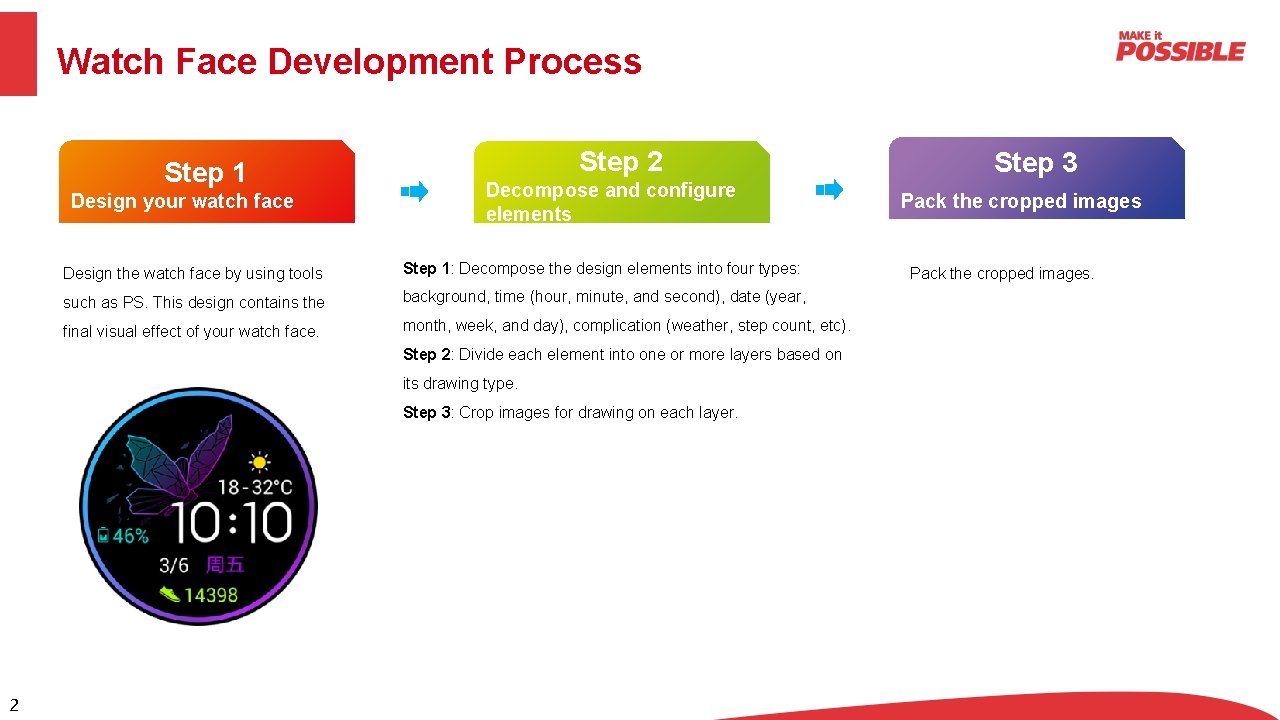
Watch Face Development Process Step 1 Design your watch face Step 2 Decompose and configure elements Design the watch face by using tools Step 1: Decompose the design elements into four types: such as PS. This design contains the background, time (hour, minute, and second), date (year, final visual effect of your watch face. month, week, and day), complication (weather, step count, etc). Step 2: Divide each element into one or more layers based on its drawing type. Step 3: Crop images for drawing on each layer. 2 Step 3 Pack the cropped images.
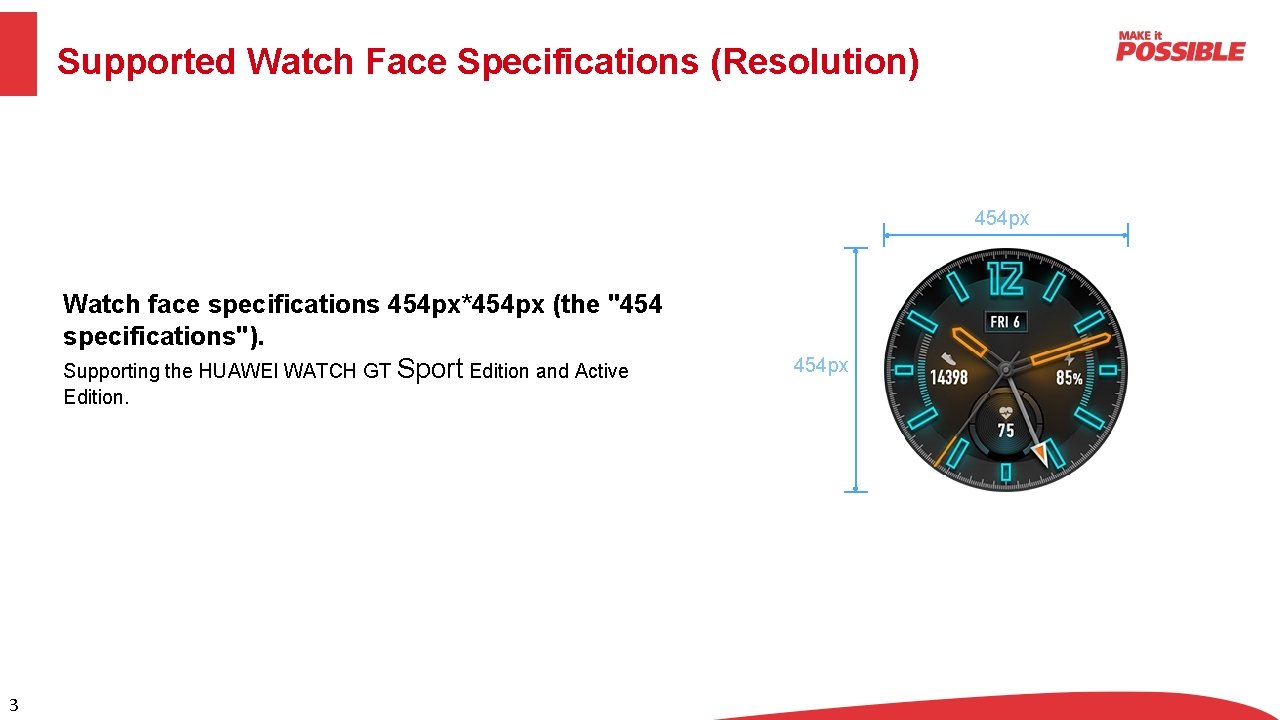
Supported Watch Face Specifications (Resolution) 454 px Watch face specifications 454 px*454 px (the "454 specifications"). Supporting the HUAWEI WATCH GT Sport Edition and Active Edition. 3 454 px
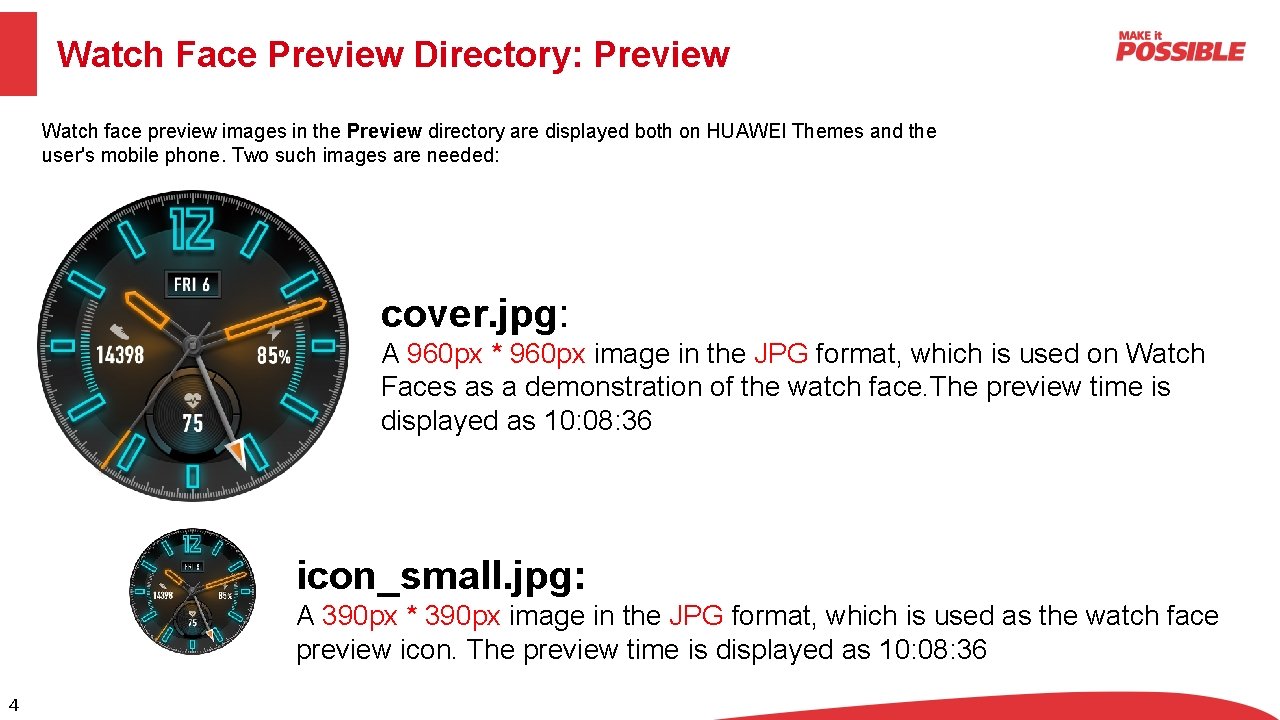
Watch Face Preview Directory: Preview Watch face preview images in the Preview directory are displayed both on HUAWEI Themes and the user's mobile phone. Two such images are needed: cover. jpg: A 960 px * 960 px image in the JPG format, which is used on Watch Faces as a demonstration of the watch face. The preview time is displayed as 10: 08: 36 icon_small. jpg: A 390 px * 390 px image in the JPG format, which is used as the watch face preview icon. The preview time is displayed as 10: 08: 36 4
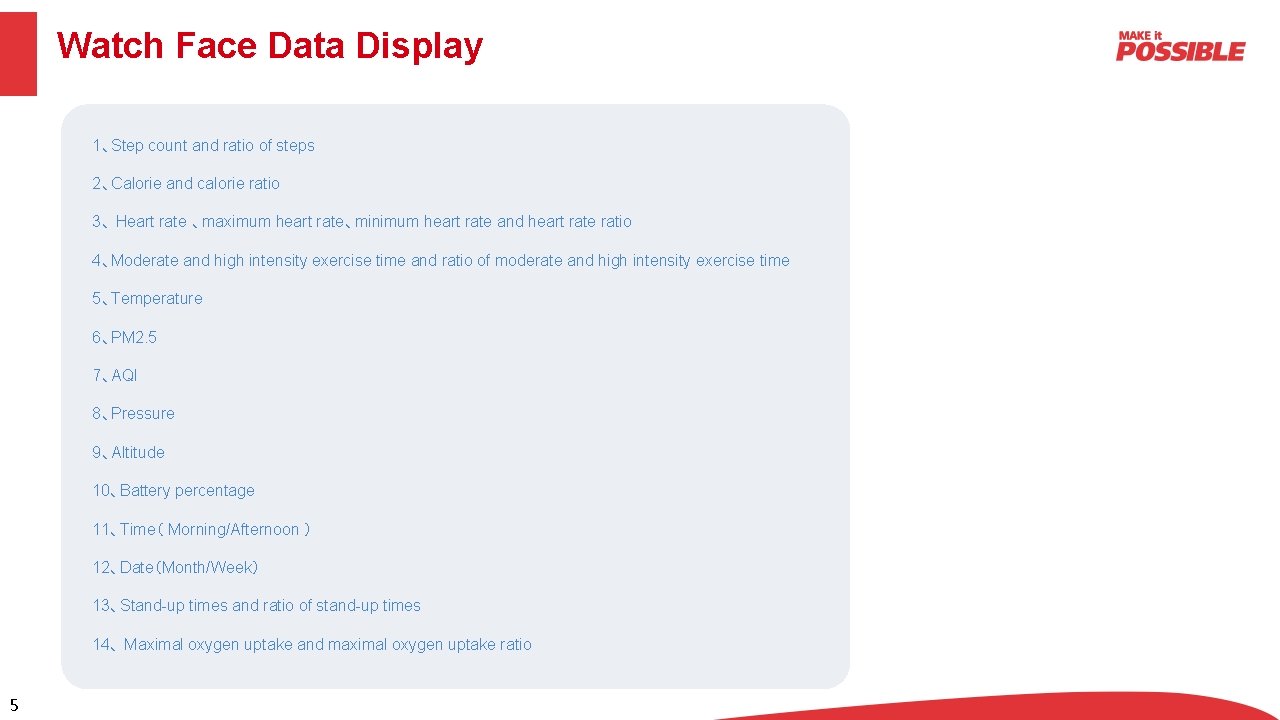
Watch Face Data Display 1、Step count and ratio of steps 2、Calorie and calorie ratio 3、 Heart rate 、maximum heart rate、minimum heart rate and heart rate ratio 4、Moderate and high intensity exercise time and ratio of moderate and high intensity exercise time 5、Temperature 6、PM 2. 5 7、AQI 8、Pressure 9、Altitude 10、Battery percentage 11、Time( Morning/Afternoon ) 12、Date(Month/Week) 13、Stand-up times and ratio of stand-up times 14、 Maximal oxygen uptake and maximal oxygen uptake ratio 5
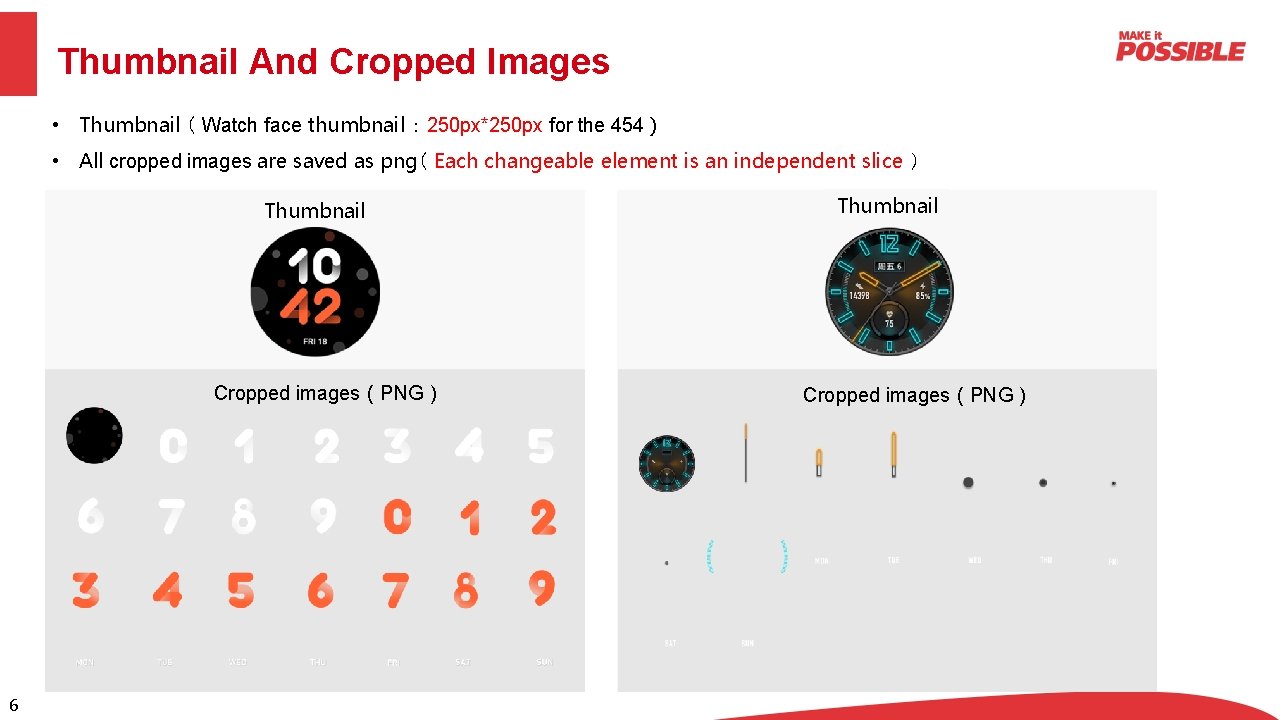
Thumbnail And Cropped Images • Thumbnail ( Watch face thumbnail : 250 px*250 px for the 454 ) • All cropped images are saved as png( Each changeable element is an independent slice ) Thumbnail Cropped images(PNG) 6 Thumbnail Cropped images(PNG)
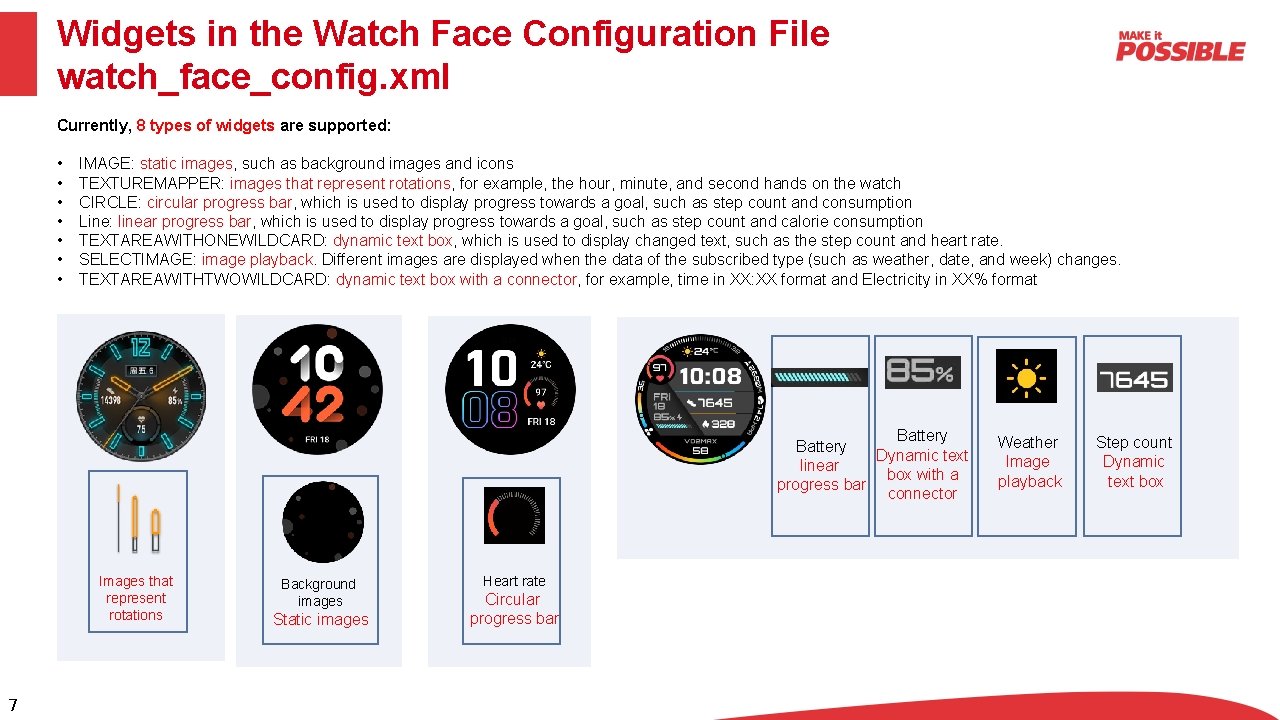
Widgets in the Watch Face Configuration File watch_face_config. xml Currently, 8 types of widgets are supported: • • IMAGE: static images, such as background images and icons TEXTUREMAPPER: images that represent rotations, for example, the hour, minute, and second hands on the watch CIRCLE: circular progress bar, which is used to display progress towards a goal, such as step count and consumption Line: linear progress bar, which is used to display progress towards a goal, such as step count and calorie consumption TEXTAREAWITHONEWILDCARD: dynamic text box, which is used to display changed text, such as the step count and heart rate. SELECTIMAGE: image playback. Different images are displayed when the data of the subscribed type (such as weather, date, and week) changes. TEXTAREAWITHTWOWILDCARD: dynamic text box with a connector, for example, time in XX: XX format and Electricity in XX% format Battery Dynamic text linear box with a progress bar connector Images that represent rotations 7 Background images Static images Heart rate Circular progress bar Weather Image playback Step count Dynamic text box
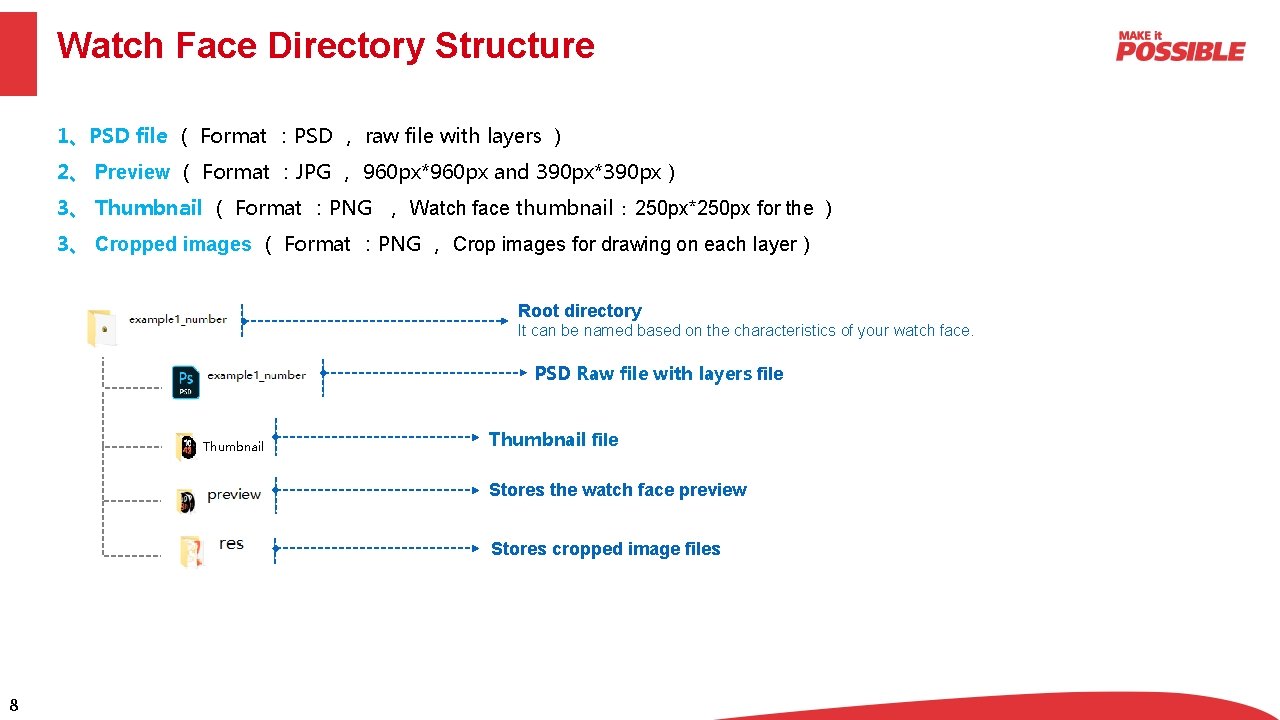
Watch Face Directory Structure 1、PSD file ( Format :PSD , raw file with layers ) 2、 Preview ( Format :JPG , 960 px*960 px and 390 px*390 px) 3、 Thumbnail ( Format :PNG , Watch face thumbnail : 250 px*250 px for the ) 3、 Cropped images ( Format :PNG , Crop images for drawing on each layer) Root directory It can be named based on the characteristics of your watch face. PSD Raw file with layers file Thumbnail file Stores the watch face preview Stores cropped image files 8
Thank You