
VSPS Veterinary Services Process Streamlining Animal Import Module



- Slides: 45
VSPS Veterinary Services Process Streamlining Animal Import Module (AIM) On-Line Process for Land Border Port Importers/Brokers 1
Obtain a Level 1 e-Authentication Account You will need an e-Auth user ID and password to login to VSPS. If you don’t have your e-Auth user ID and password yet refer to the Welcome to VSPS for Importers and Brokers document for detailed instructions and print screens. 1. Go to the e. Authentication website: http: //www. eauth. usda. gov 2. Click on Create an Account. 3. Click on Register for a Level 1 Account. 4. Create your brief customer profile. 5. Respond to the confirmation e-mail within 7 days to activate your account. 2
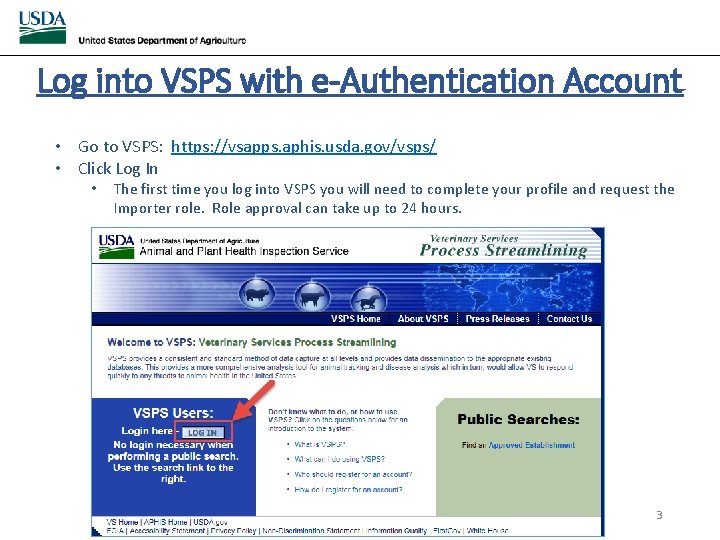
Log into VSPS with e-Authentication Account • Go to VSPS: https: //vsapps. aphis. usda. gov/vsps/ • Click Log In • The first time you log into VSPS you will need to complete your profile and request the Importer role. Role approval can take up to 24 hours. 3
Log into VSPS with e-Authentication Account • Enter your e-Authentication user ID and password • Click Login 4
Create New Importation How to create a new importation request 5
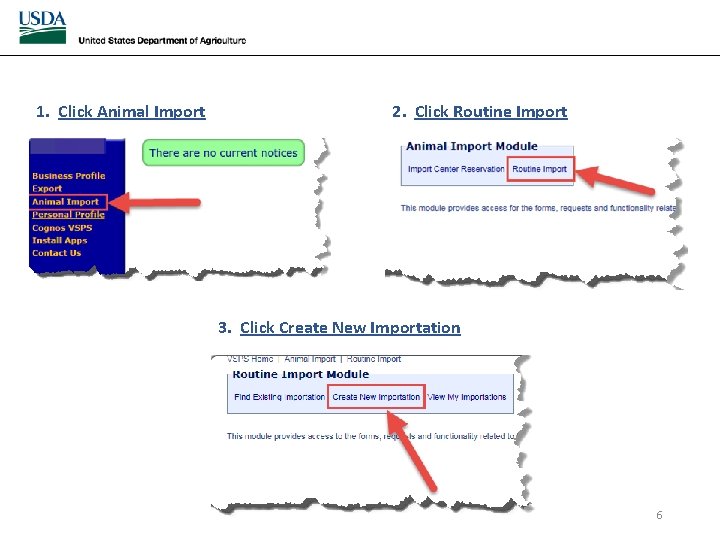
1. Click Animal Import 2. Click Routine Import 3. Click Create New Importation 6
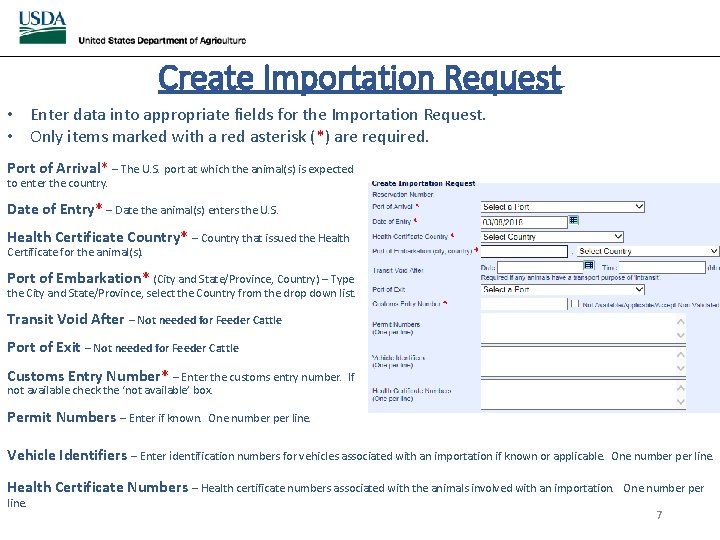
Create Importation Request • Enter data into appropriate fields for the Importation Request. • Only items marked with a red asterisk (*) are required. Port of Arrival* – The U. S. port at which the animal(s) is expected to enter the country. Date of Entry* – Date the animal(s) enters the U. S. Health Certificate Country* – Country that issued the Health Certificate for the animal(s). Port of Embarkation* (City and State/Province, Country) – Type the City and State/Province, select the Country from the drop down list. Transit Void After – Not needed for Feeder Cattle Port of Exit – Not needed for Feeder Cattle Customs Entry Number* – Enter the customs entry number. not available check the ‘not available’ box. Permit Numbers – Enter if known. If One number per line. Vehicle Identifiers – Enter identification numbers for vehicles associated with an importation if known or applicable. One number per line. Health Certificate Numbers – Health certificate numbers associated with the animals involved with an importation. line. One number per 7
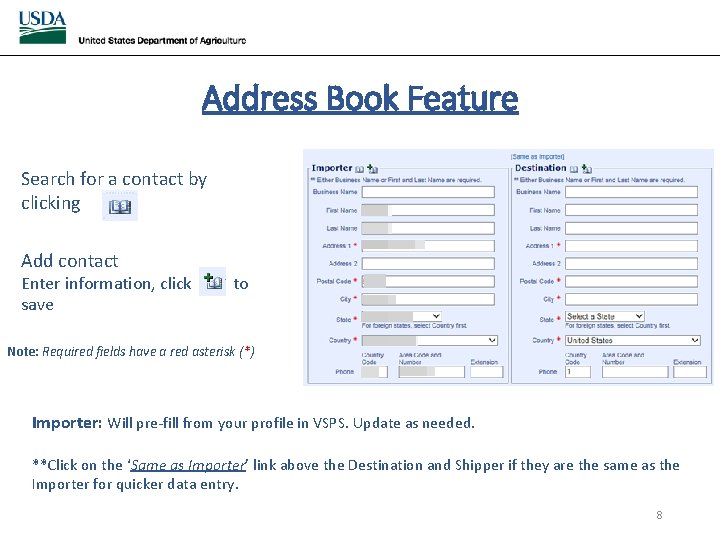
Address Book Feature Search for a contact by clicking Add contact Enter information, click save to Note: Required fields have a red asterisk (*) Importer: Will pre-fill from your profile in VSPS. Update as needed. **Click on the ‘Same as Importer’ link above the Destination and Shipper if they are the same as the Importer for quicker data entry. 8
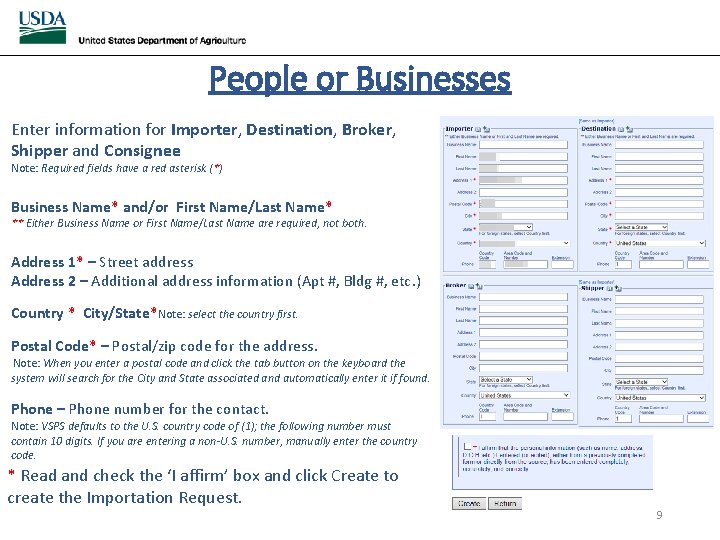
People or Businesses Enter information for Importer, Destination, Broker, Shipper and Consignee Note: Required fields have a red asterisk (*) Business Name* and/or First Name/Last Name* ** Either Business Name or First Name/Last Name are required, not both. Address 1* – Street address Address 2 – Additional address information (Apt #, Bldg #, etc. ) Country * City/State*Note: select the country first. Postal Code* – Postal/zip code for the address. Note: When you enter a postal code and click the tab button on the keyboard the system will search for the City and State associated and automatically enter it if found. Phone – Phone number for the contact. Note: VSPS defaults to the U. S. country code of (1); the following number must contain 10 digits. If you are entering a non-U. S. number, manually enter the country code. * Read and check the ‘I affirm’ box and click Create to create the Importation Request. 9
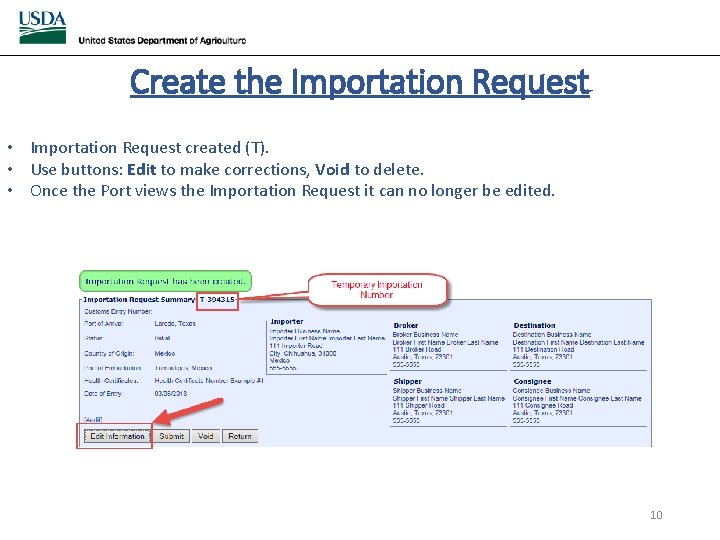
Create the Importation Request • Importation Request created (T). • Use buttons: Edit to make corrections, Void to delete. • Once the Port views the Importation Request it can no longer be edited. 10
Add Animal Information Add the animals to the importation request 11
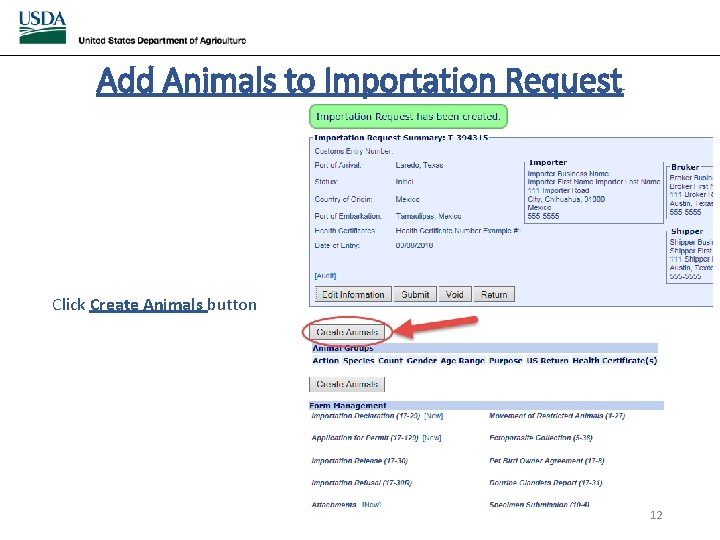
Add Animals to Importation Request Click Create Animals button 12
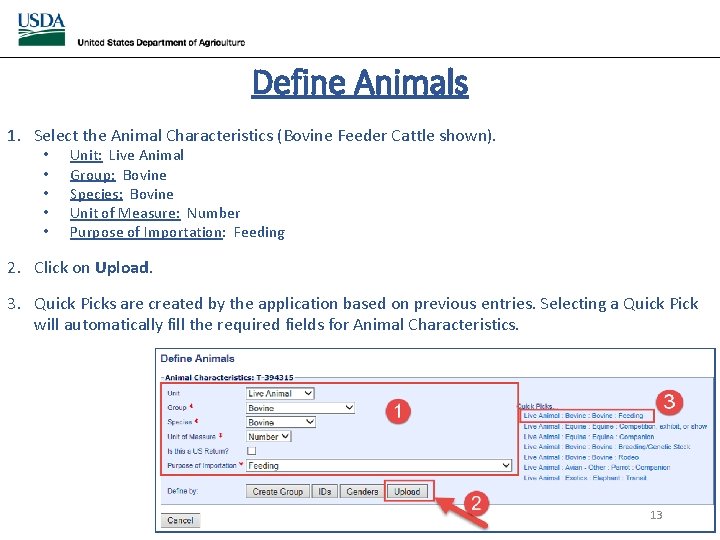
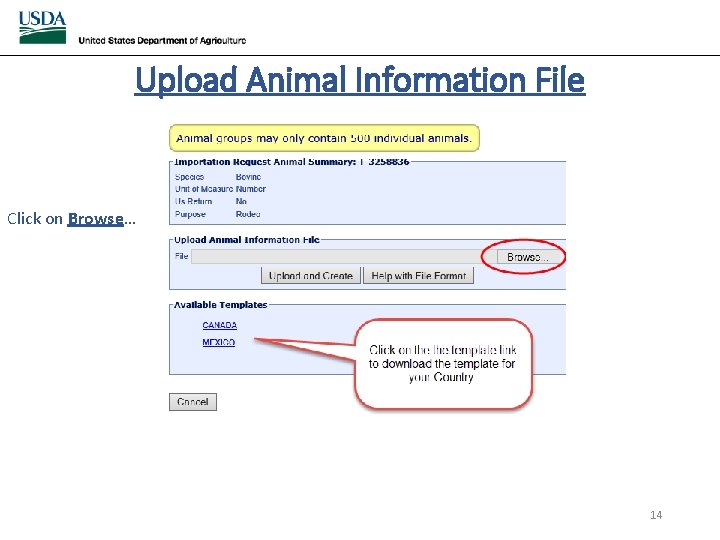
Define Animals 1. Select the Animal Characteristics (Bovine Feeder Cattle shown). • • • Unit: Live Animal Group: Bovine Species: Bovine Unit of Measure: Number Purpose of Importation: Feeding 2. Click on Upload. 3. Quick Picks are created by the application based on previous entries. Selecting a Quick Pick will automatically fill the required fields for Animal Characteristics. 13
Upload Animal Information File Click on Browse… 14
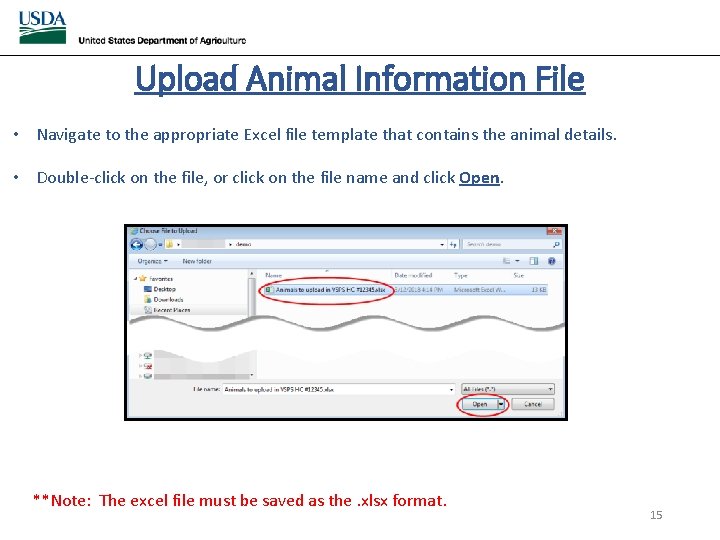
Upload Animal Information File • Navigate to the appropriate Excel file template that contains the animal details. • Double-click on the file, or click on the file name and click Open. **Note: The excel file must be saved as the. xlsx format. 15
Upload Animal Information File • Click Upload and Create to upload the selected file. • Click Cancel to go back to the previous screen and not upload a file. 16
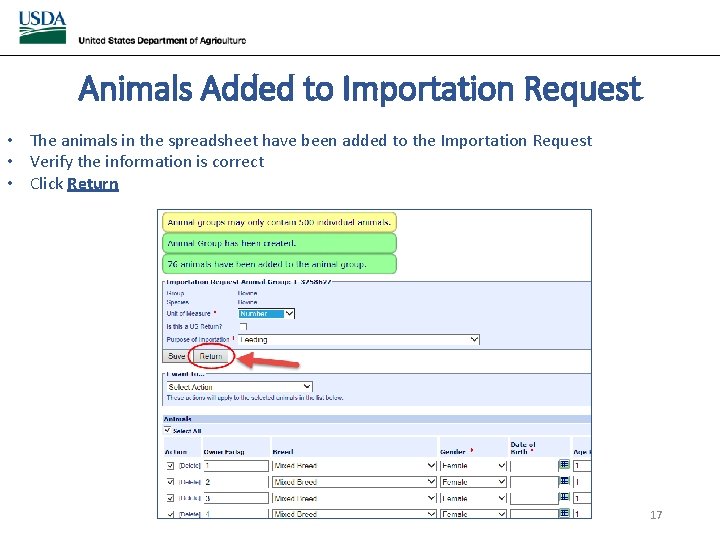
Animals Added to Importation Request • The animals in the spreadsheet have been added to the Importation Request • Verify the information is correct • Click Return 17
Attaching documents Attach the spreadsheet template of animals, health certificate(s) and/or other documents. 18
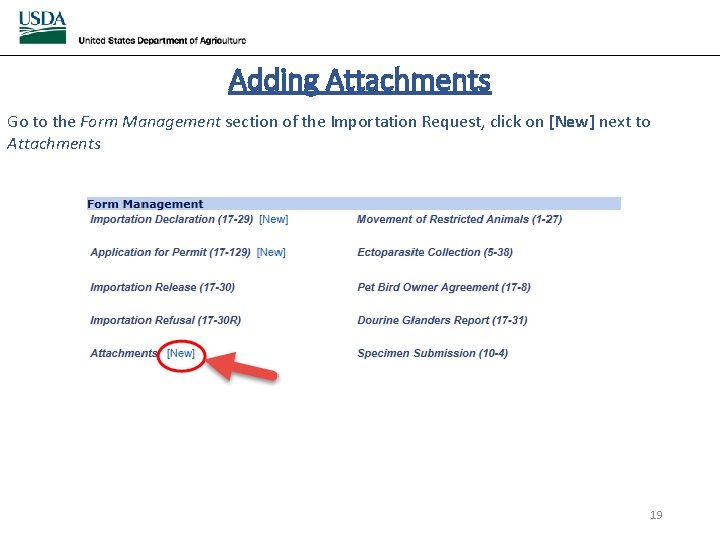
Adding Attachments Go to the Form Management section of the Importation Request, click on [New] next to Attachments 19
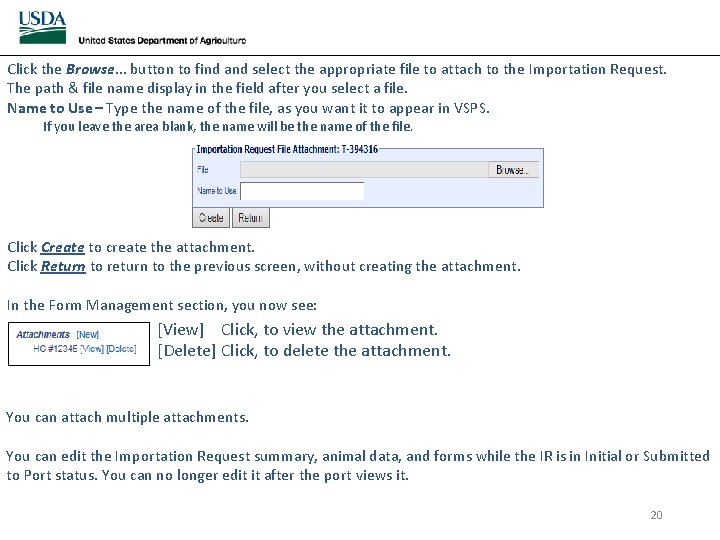
Click the Browse… button to find and select the appropriate file to attach to the Importation Request. The path & file name display in the field after you select a file. Name to Use – Type the name of the file, as you want it to appear in VSPS. If you leave the area blank, the name will be the name of the file. Click Create to create the attachment. Click Return to return to the previous screen, without creating the attachment. In the Form Management section, you now see: [View] Click, to view the attachment. [Delete] Click, to delete the attachment. You can attach multiple attachments. You can edit the Importation Request summary, animal data, and forms while the IR is in Initial or Submitted to Port status. You can no longer edit it after the port views it. 20
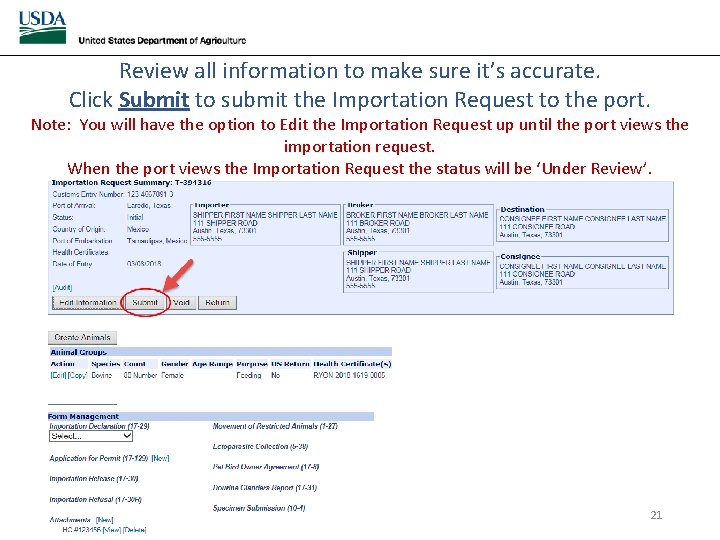
Review all information to make sure it’s accurate. Click Submit to submit the Importation Request to the port. Note: You will have the option to Edit the Importation Request up until the port views the importation request. When the port views the Importation Request the status will be ‘Under Review’. 21
Find Existing Importations • Use to narrow search results for the importations you have created. • View, edit, copy or void created importation requests. • Changes can only be made if the status is ‘Initial’ or ‘Submitted to Port’. 22
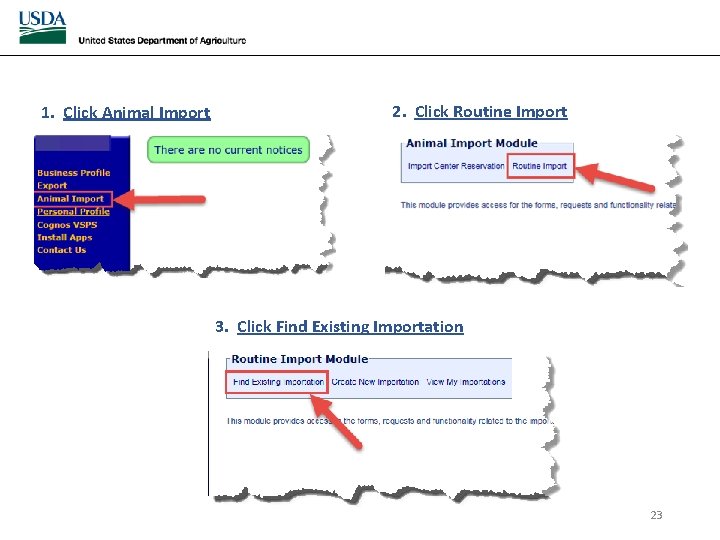
1. Click Animal Import 2. Click Routine Import 3. Click Find Existing Importation 23
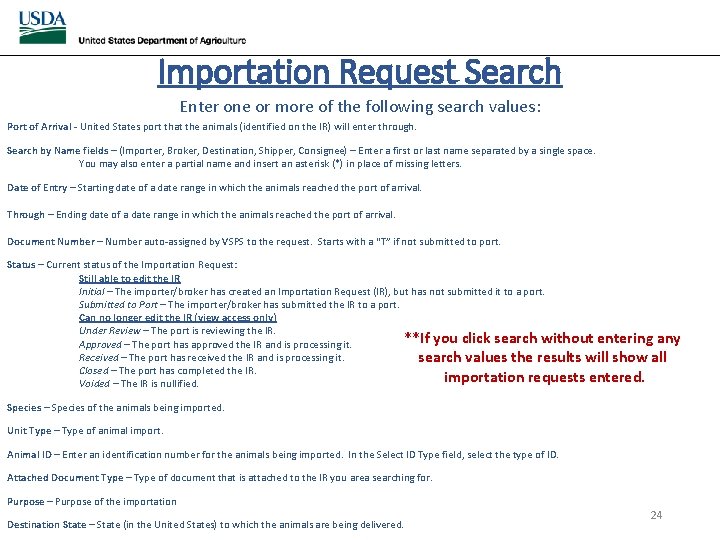
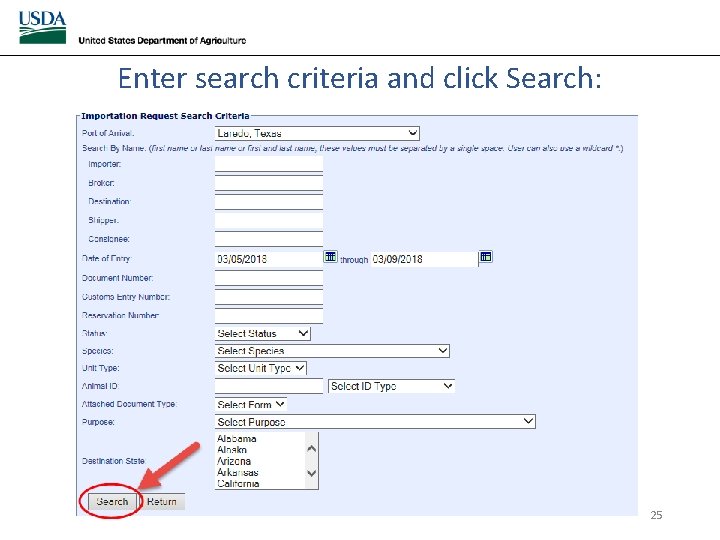
Importation Request Search Enter one or more of the following search values: Port of Arrival - United States port that the animals (identified on the IR) will enter through. Search by Name fields – (Importer, Broker, Destination, Shipper, Consignee) – Enter a first or last name separated by a single space. You may also enter a partial name and insert an asterisk (*) in place of missing letters. Date of Entry – Starting date of a date range in which the animals reached the port of arrival. Through – Ending date of a date range in which the animals reached the port of arrival. Document Number – Number auto-assigned by VSPS to the request. Starts with a “T” if not submitted to port. Status – Current status of the Importation Request: Still able to edit the IR Initial – The importer/broker has created an Importation Request (IR), but has not submitted it to a port. Submitted to Port – The importer/broker has submitted the IR to a port. Can no longer edit the IR (view access only) Under Review – The port is reviewing the IR. **If you click search without entering any Approved – The port has approved the IR and is processing it. Received – The port has received the IR and is processing it. search values the results will show all Closed – The port has completed the IR. importation requests entered. Voided – The IR is nullified. Species – Species of the animals being imported. Unit Type – Type of animal import. Animal ID – Enter an identification number for the animals being imported. In the Select ID Type field, select the type of ID. Attached Document Type – Type of document that is attached to the IR you area searching for. Purpose – Purpose of the importation Destination State – State (in the United States) to which the animals are being delivered. 24
Enter search criteria and click Search: 25
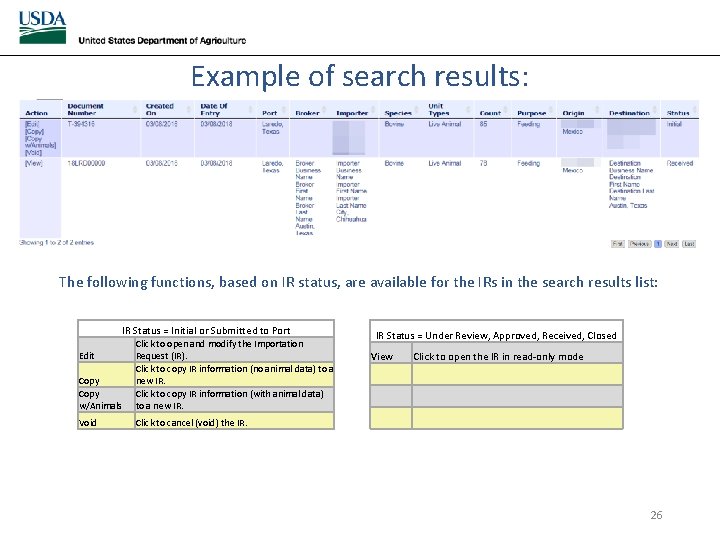
Example of search results: The following functions, based on IR status, are available for the IRs in the search results list: IR Status = Initial or Submitted to Port Copy w/Animals Click to open and modify the Importation Request (IR). Click to copy IR information (no animal data) to a new IR. Click to copy IR information (with animal data) to a new IR. Void Click to cancel (void) the IR. Edit IR Status = Under Review, Approved, Received, Closed View Click to open the IR in read-only mode 26
Declined Importation Request These instructions show to edit information on your Importation Request. You can edit the Importation Request as long as the status is: Initial or Submitted to Port. • If after submitting an Importation Request to a port, the port finds something on the Importation Request that needs to be changed, they will Decline it and enter comments for what needs to be changed. • An email will be sent to the person that created the Importation Request notifying of the changes required. • Edit the Importation Request, make the changes, and Submit again. 27
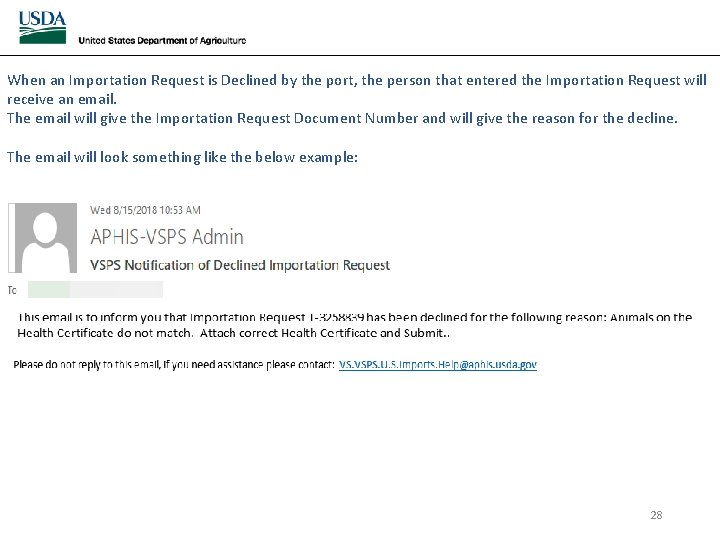
When an Importation Request is Declined by the port, the person that entered the Importation Request will receive an email. The email will give the Importation Request Document Number and will give the reason for the decline. The email will look something like the below example: 28
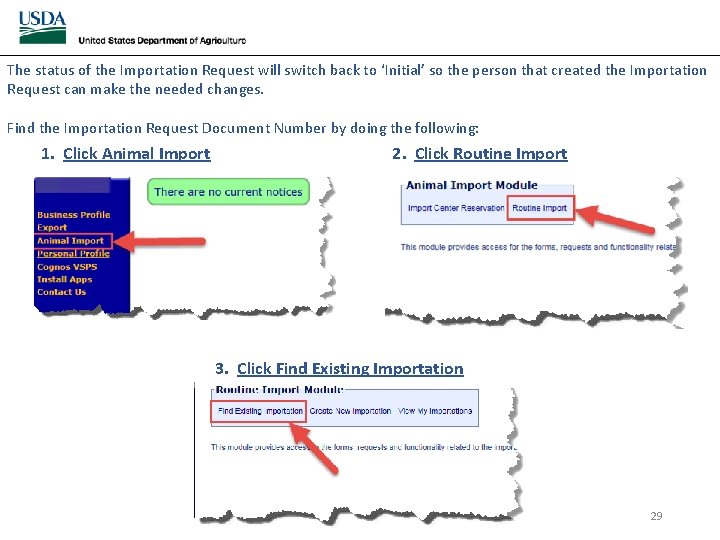
The status of the Importation Request will switch back to ‘Initial’ so the person that created the Importation Request can make the needed changes. Find the Importation Request Document Number by doing the following: 1. Click Animal Import 2. Click Routine Import 3. Click Find Existing Importation 29
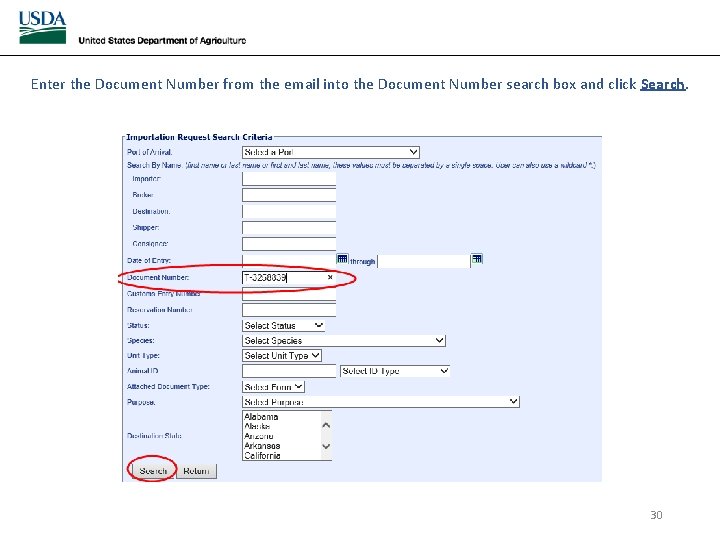
Enter the Document Number from the email into the Document Number search box and click Search. 30
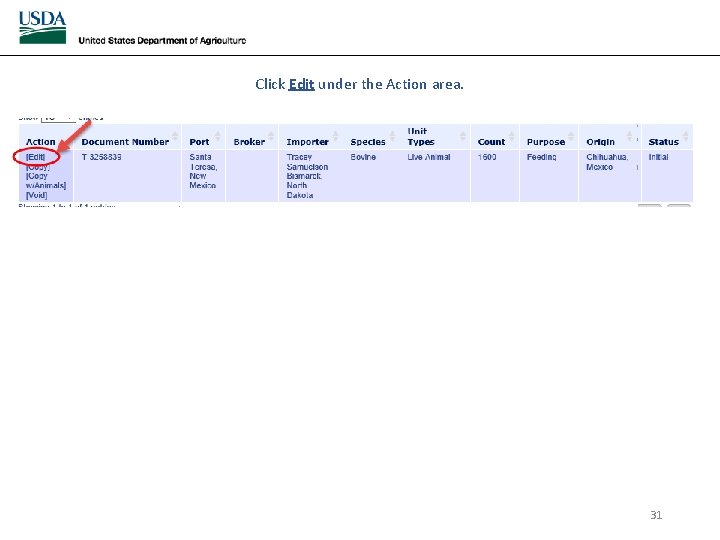
Click Edit under the Action area. 31
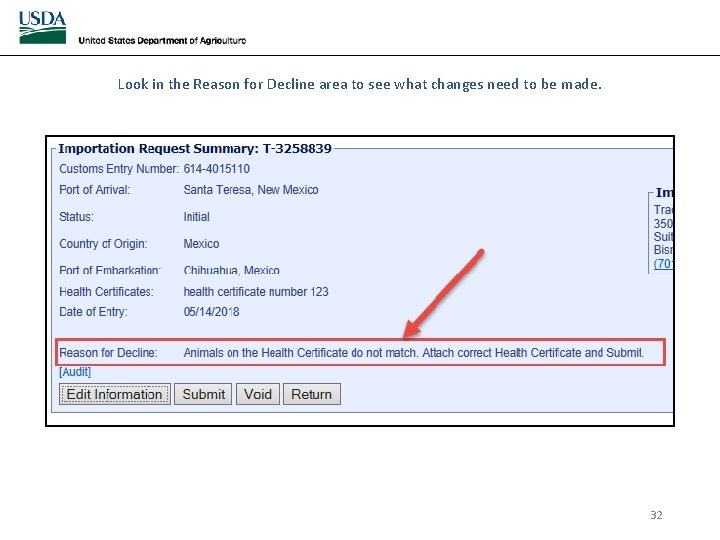
Look in the Reason for Decline area to see what changes need to be made. 32
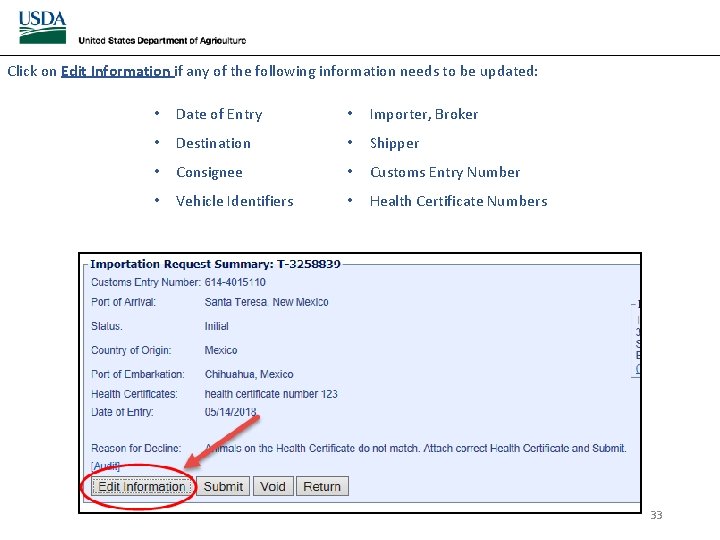
Click on Edit Information if any of the following information needs to be updated: • Date of Entry • Importer, Broker • Destination • Shipper • Consignee • Customs Entry Number • Vehicle Identifiers • Health Certificate Numbers 33
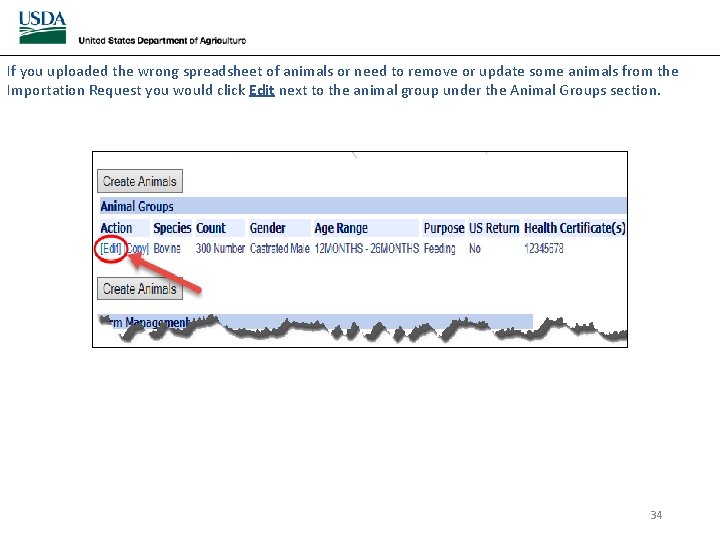
If you uploaded the wrong spreadsheet of animals or need to remove or update some animals from the Importation Request you would click Edit next to the animal group under the Animal Groups section. 34
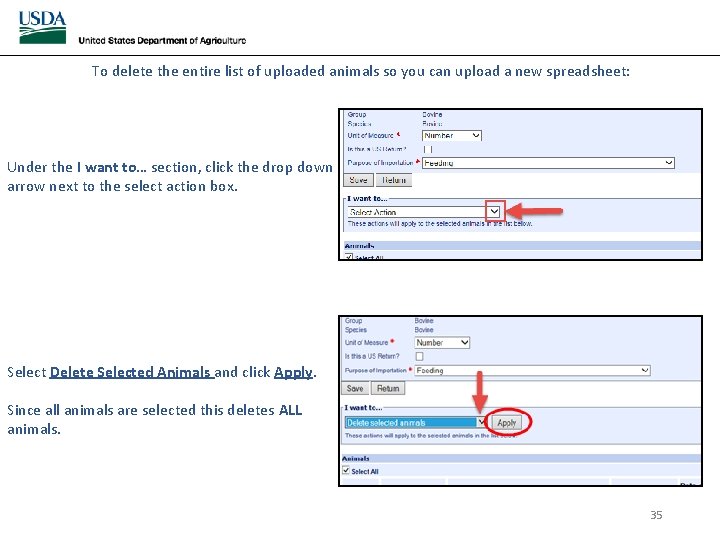
To delete the entire list of uploaded animals so you can upload a new spreadsheet: Under the I want to… section, click the drop down arrow next to the select action box. Select Delete Selected Animals and click Apply. Since all animals are selected this deletes ALL animals. 35
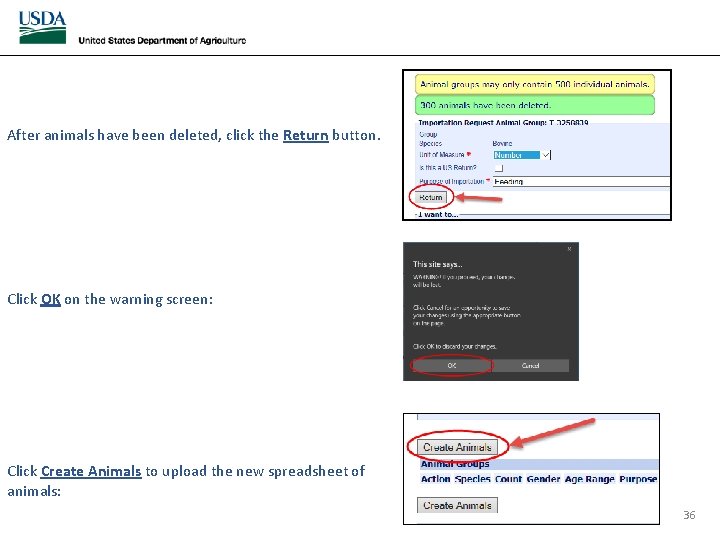
After animals have been deleted, click the Return button. Click OK on the warning screen: Click Create Animals to upload the new spreadsheet of animals: 36
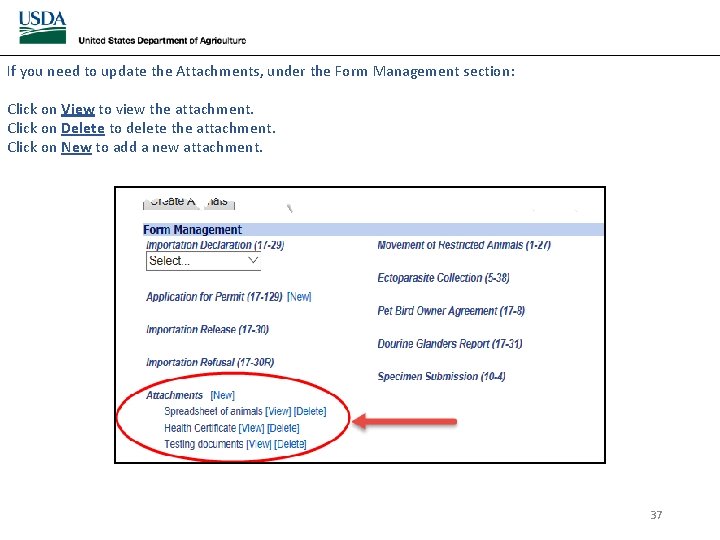
If you need to update the Attachments, under the Form Management section: Click on View to view the attachment. Click on Delete to delete the attachment. Click on New to add a new attachment. 37
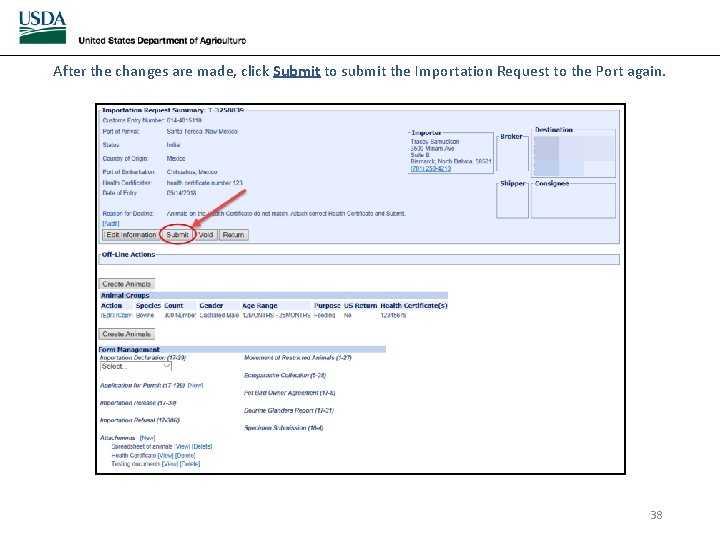
After the changes are made, click Submit to submit the Importation Request to the Port again. 38
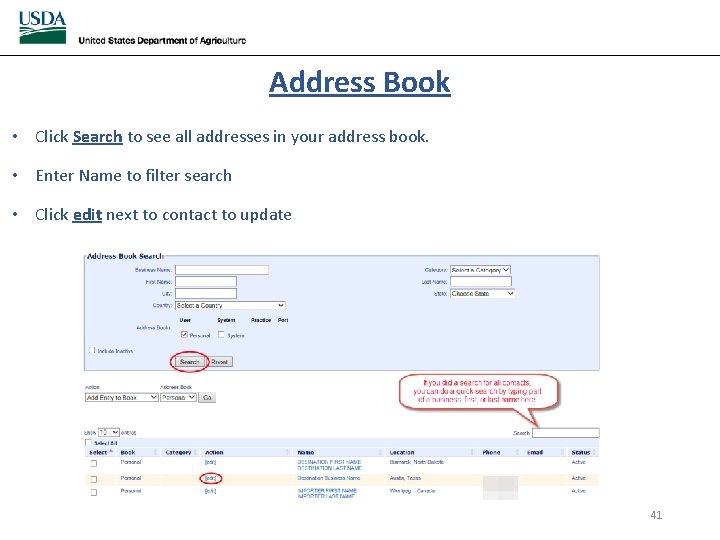
Address Book • Add contacts to the address book for faster data entry later. • Update contact information that has been added to the address book. • Delete contacts from the address book. 39
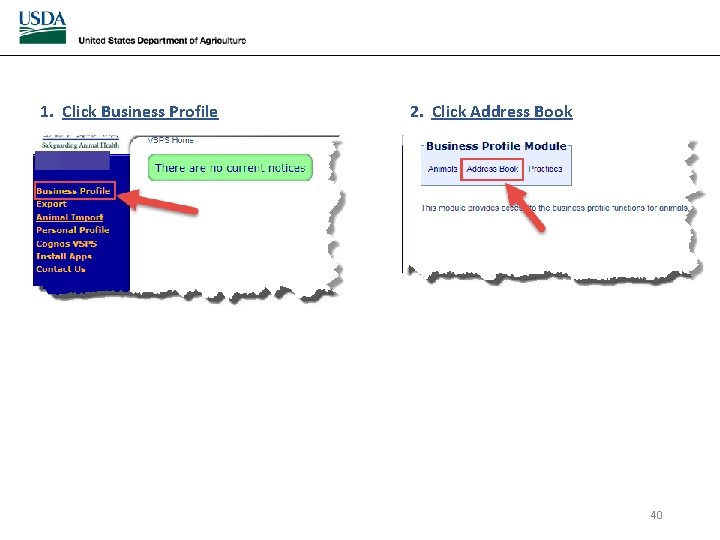
1. Click Business Profile 2. Click Address Book 40
Address Book • Click Search to see all addresses in your address book. • Enter Name to filter search • Click edit next to contact to update 41
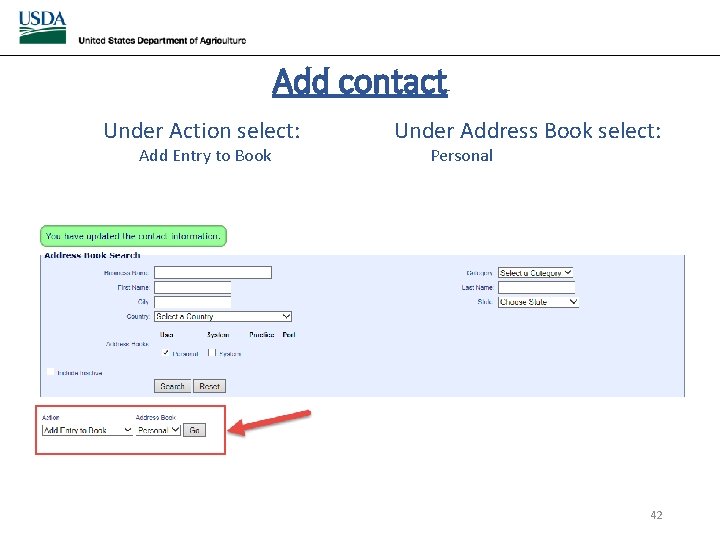
Add contact Under Action select: Add Entry to Book Under Address Book select: Personal 42
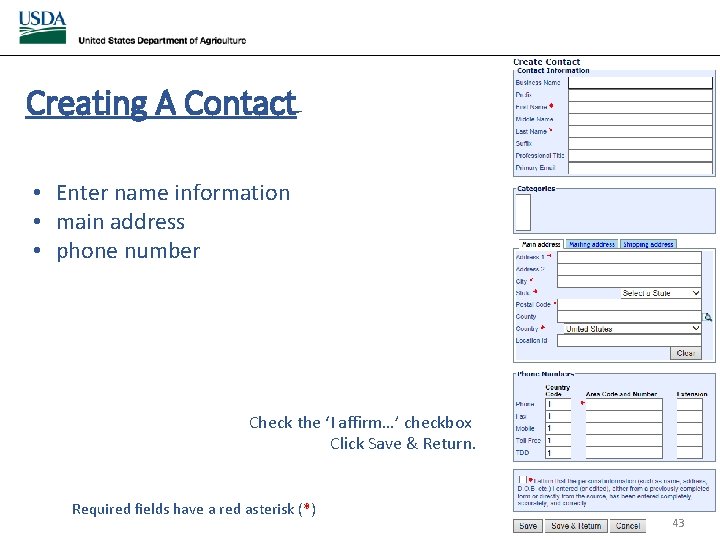
Creating A Contact • Enter name information • main address • phone number Check the ‘I affirm…’ checkbox Click Save & Return. Required fields have a red asterisk (*) 43
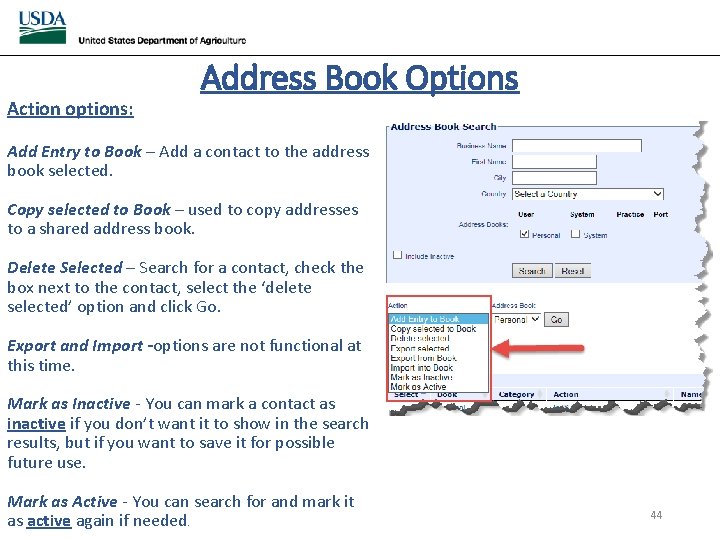
Action options: Address Book Options Add Entry to Book – Add a contact to the address book selected. Copy selected to Book – used to copy addresses to a shared address book. Delete Selected – Search for a contact, check the box next to the contact, select the ‘delete selected’ option and click Go. Export and Import -options are not functional at this time. Mark as Inactive - You can mark a contact as inactive if you don’t want it to show in the search results, but if you want to save it for possible future use. Mark as Active - You can search for and mark it as active again if needed. 44
For problems with your e-Authentication username/password: e-Authentication Helpdesk: 1 -800 -457 -3642 (Option 1) e. Auth. Help. Desk@ftc. usda. gov For problems with using VSPS contact: Email: VS. VSPS. U. S. Imports. Help@aphis. usda. gov 45