
VRay Render Animation Moving Objects Lesson Introduction Orientation
V-Ray Render Animation: Moving Objects
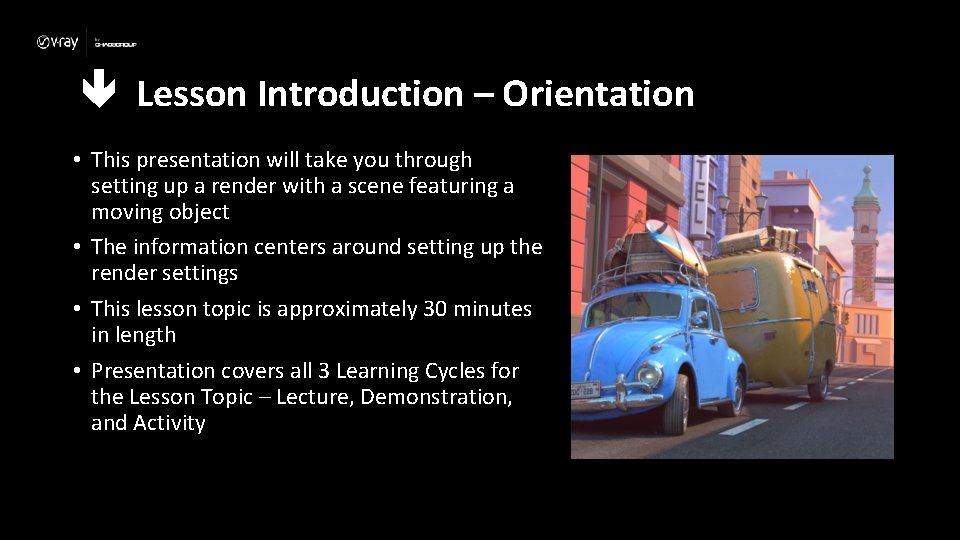
Lesson Introduction – Orientation • This presentation will take you through setting up a render with a scene featuring a moving object • The information centers around setting up the render settings • This lesson topic is approximately 30 minutes in length • Presentation covers all 3 Learning Cycles for the Lesson Topic – Lecture, Demonstration, and Activity
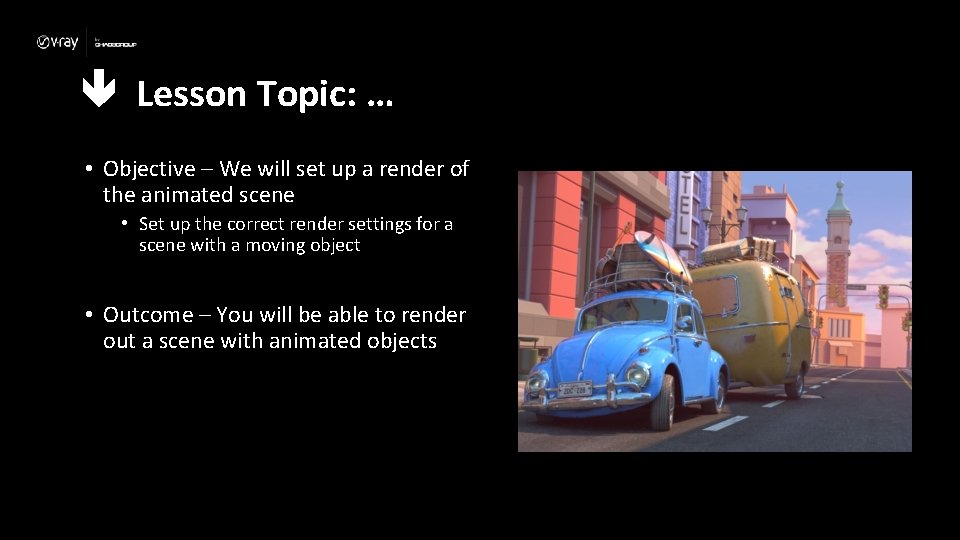
Lesson Topic: … • Objective – We will set up a render of the animated scene • Set up the correct render settings for a scene with a moving object • Outcome – You will be able to render out a scene with animated objects
Lecture: Terminology • Here are some terms to be aware of when thinking about rendering animated objects – Image Sampler – An image sampler refers to an algorithm for sampling and filtering the image function, and producing the final array of pixels that constitute the rendered image. – Camera path – The path a camera travels along – Global Illumination – How light is bounced off of surfaces onto other surfaces via indirect light rather than being limited to just the light that hits a surface directly from a direct light source. – Antialiasing is the smoothing of the image or sound roughness caused by aliasing. With images, approaches include adjusting pixel positions or setting pixel intensities so that there is a more gradual transition between the color of a line and the background color.

Lecture: Moving objects in the real world • Moving Objects – Lighting will change as an object moves – A car driving along a street will hit both areas of light and shadow.

Lecture: Light Interaction with Moving Objects • Light interaction with a moving object – A person walking from outdoors to indoors – Transitions from outdoor to indoor lighting scheme with changes of light and shadow interacting with the person – A space ship crashing into a city – Lighting from the sky, then before it hits the ground / a building in the city shadows and caustics could appear as a result of the different lighting at ground level in a city to that in the sky. – A dolphin jumping out of the water – A transition from underwater lighting to the sunlight above the surface of the water
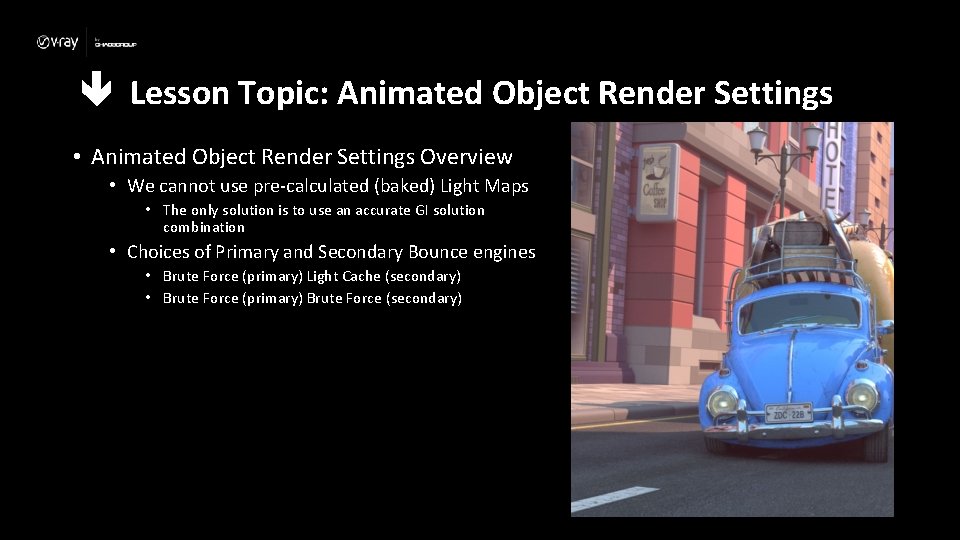
Lesson Topic: Animated Object Render Settings • Animated Object Render Settings Overview • We cannot use pre-calculated (baked) Light Maps • The only solution is to use an accurate GI solution combination • Choices of Primary and Secondary Bounce engines • Brute Force (primary) Light Cache (secondary) • Brute Force (primary) Brute Force (secondary)

Lesson Topic: V-Ray Quick Presets • V-Ray Quick Presets Overview • • Allows quick selection of presets Icon is found on the V-Ray shelf Select the ‘Arch. Viz Exterior’ preset Leaving the GI Preset to BF + BF is most accurate, but at a cost of render time • This sets both Primary and Secondary Engines at Brute Force • Changing the GI Preset to BF + LC (accurate) • This sets your Primary Engine to Brute Force and Secondary Engine to Light Cache • This combination gives a good combination of lighting accuracy and render speed • AA Quality controls the Anti. Aliasing quality of your render, not the quality of the GI. However, AA Quality will help greatly reduce noise. 50% is a good value generally
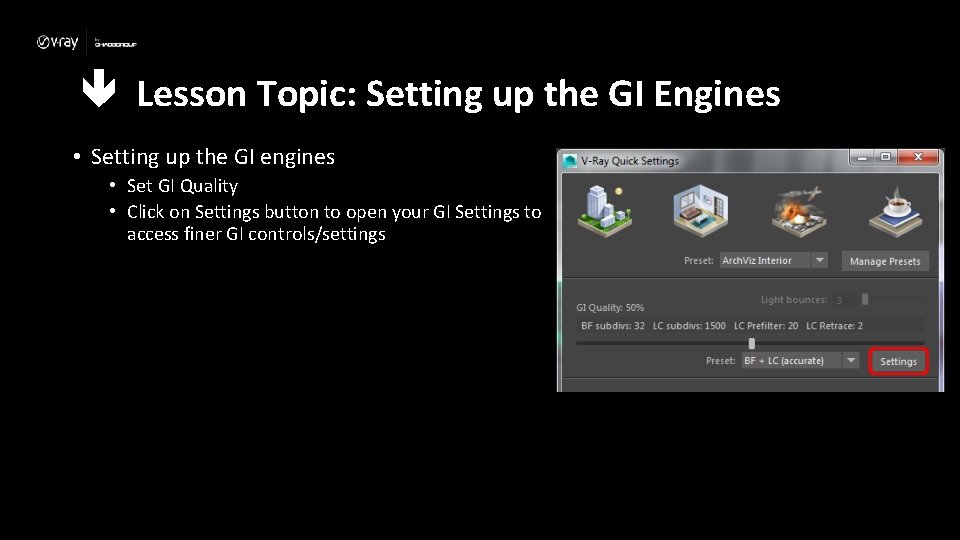
Lesson Topic: Setting up the GI Engines • Setting up the GI engines • Set GI Quality • Click on Settings button to open your GI Settings to access finer GI controls/settings
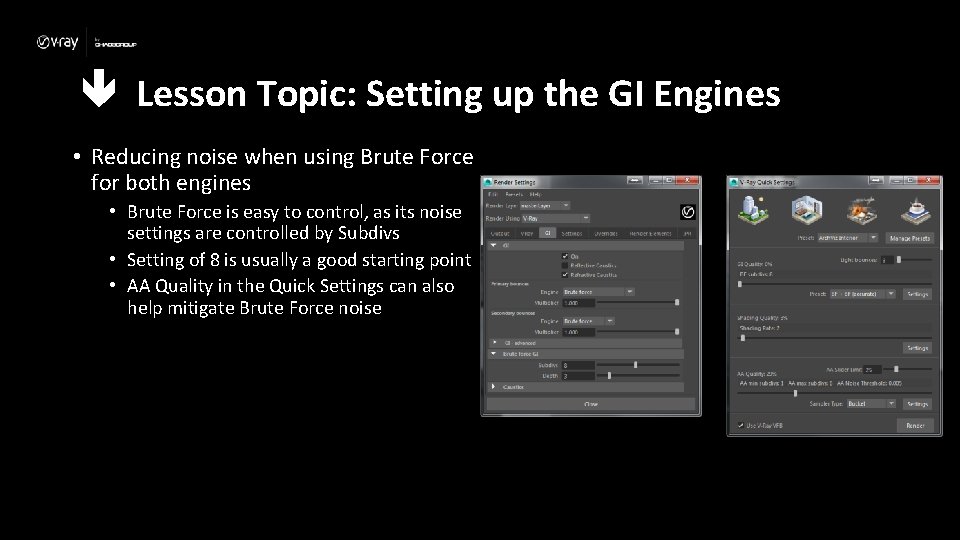
Lesson Topic: Setting up the GI Engines • Reducing noise when using Brute Force for both engines • Brute Force is easy to control, as its noise settings are controlled by Subdivs • Setting of 8 is usually a good starting point • AA Quality in the Quick Settings can also help mitigate Brute Force noise

Lesson Topic: Setting up the GI Engines • The higher the Subdivs, the cleaner the image, at a render time cost • Lower Sample Sizes need higher Subdivs but give more detail in the image • Reducing flickering when in Light Cache (Single Frame Mode) for animations • Use camera path option – Calculates the light cache samples along the path of the camera as opposed to just the current view • Useful when rendering animations with moving objects and a moving camera. Will help to reduce any flickering, because the GI samples on static geometry will not change • This greatly reduces any flickering in the GI that comes from the secondary bounce rays, especially on the non-moving parts of the scene
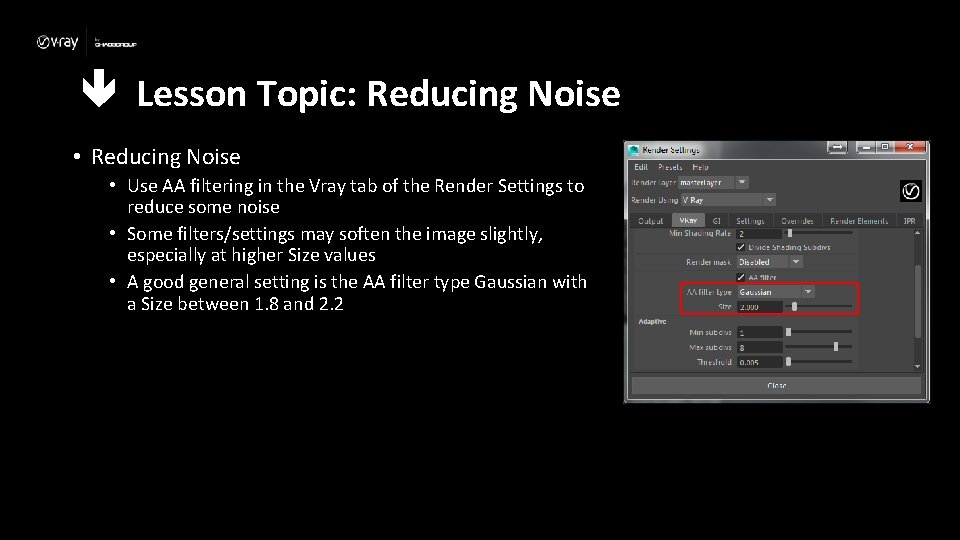
Lesson Topic: Reducing Noise • Use AA filtering in the Vray tab of the Render Settings to reduce some noise • Some filters/settings may soften the image slightly, especially at higher Size values • A good general setting is the AA filter type Gaussian with a Size between 1. 8 and 2. 2
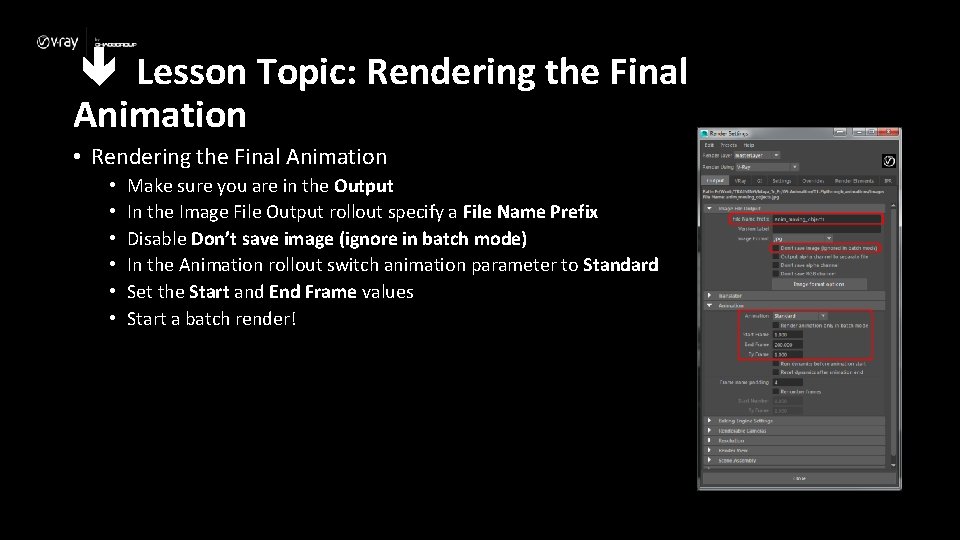
Lesson Topic: Rendering the Final Animation • • Make sure you are in the Output In the Image File Output rollout specify a File Name Prefix Disable Don’t save image (ignore in batch mode) In the Animation rollout switch animation parameter to Standard Set the Start and End Frame values Start a batch render!
Lecture Conclusion: Rendering Moving objects • Lighting changes when an object is moving – How it hits and interacts with the surface • How we can help reduce flicker with Brute Force – By using the Subdivs – AA Quality • How we can help reduce flicker with Light Cache – By using the Use camera path option • How we can help reduce image noise in the render – By changing the AA filter type • Rendering out the final animation • Rendering it out to a sequence
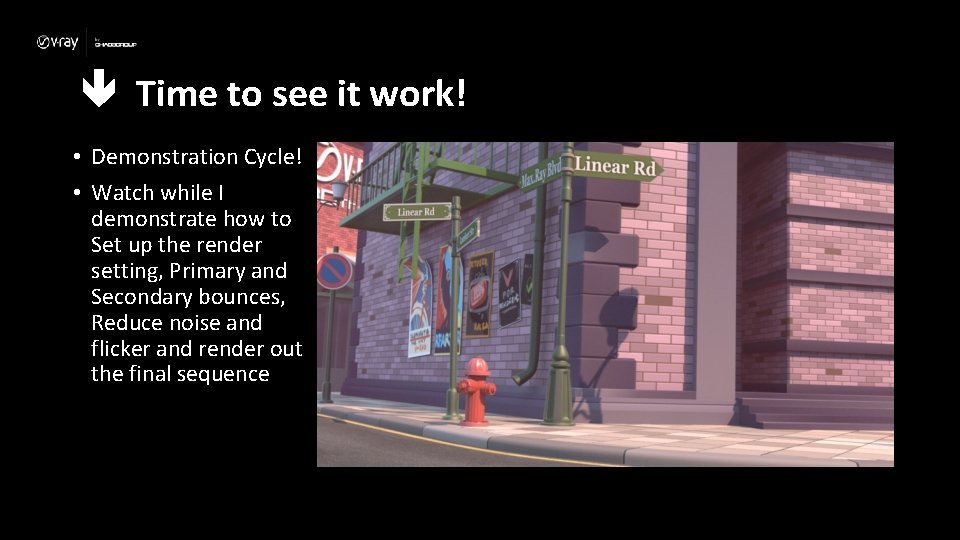
Time to see it work! • Demonstration Cycle! • Watch while I demonstrate how to Set up the render setting, Primary and Secondary bounces, Reduce noise and flicker and render out the final sequence
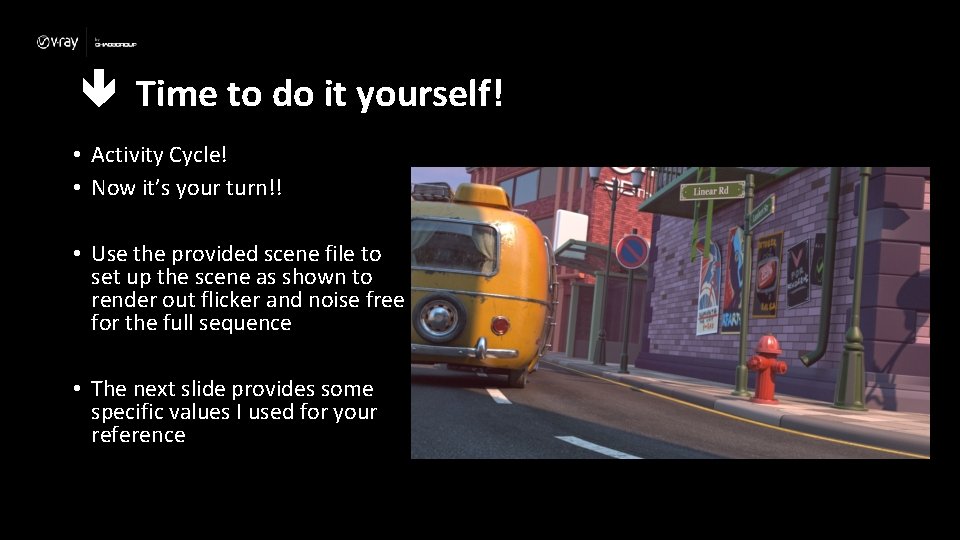
Time to do it yourself! • Activity Cycle! • Now it’s your turn!! • Use the provided scene file to set up the scene as shown to render out flicker and noise free for the full sequence • The next slide provides some specific values I used for your reference
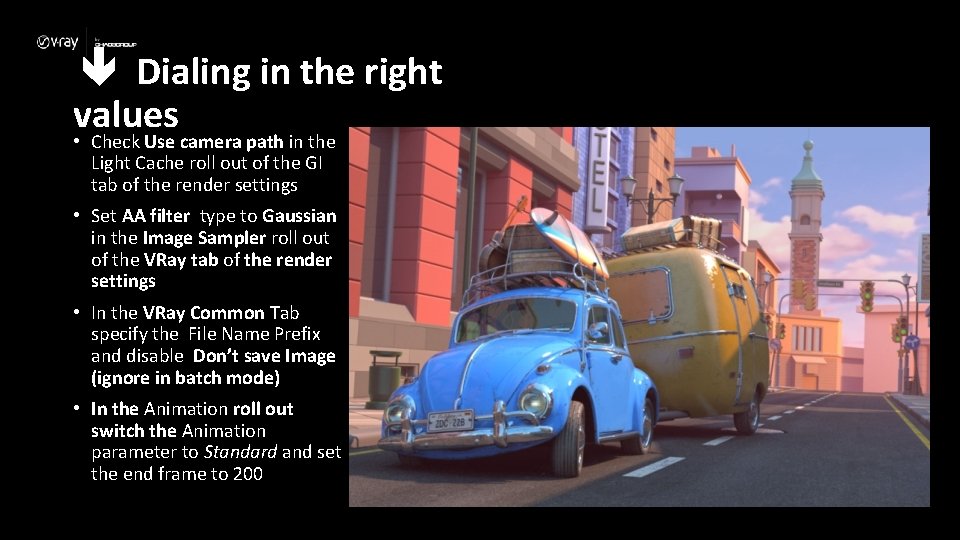
Dialing in the right values • Check Use camera path in the Light Cache roll out of the GI tab of the render settings • Set AA filter type to Gaussian in the Image Sampler roll out of the VRay tab of the render settings • In the VRay Common Tab specify the File Name Prefix and disable Don’t save Image (ignore in batch mode) • In the Animation roll out switch the Animation parameter to Standard and set the end frame to 200
- Slides: 19