
Vodacom DOH Customer Support Process This information is








- Slides: 46
Vodacom DOH Customer Support Process
This information is classified C 3 - VODACOM CONFIDENTIAL. This information is to be used within Vodacom and is restricted on a need-to-know basis. Distribution to authorised partners is subject to nondisclosure agreements. 2
Contents Topics • Vodacom DOH Support Process • Value Added Services • SIM Lock • Network Coverage • SIM SWAP • Self Service • Purchase Order • SVS Mobile Application Installation • PIN and PUK Guide • Blacklisting 3
1 Vodacom Department of Health Support Process 4
Overview • This presentation aims to guide the DOH IT Administrator on how to log support requests with Vodacom Support Team. • The presentation covers Product Application; Device and SIM Support. 5
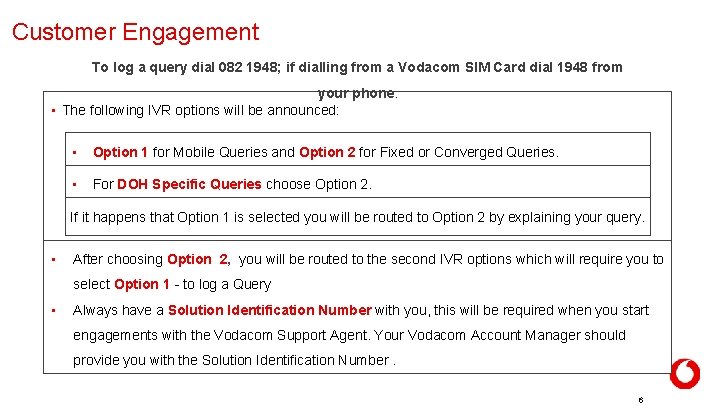
Customer Engagement To log a query dial 082 1948; if dialling from a Vodacom SIM Card dial 1948 from your phone. • The following IVR options will be announced: • Option 1 for Mobile Queries and Option 2 for Fixed or Converged Queries. • For DOH Specific Queries choose Option 2. If it happens that Option 1 is selected you will be routed to Option 2 by explaining your query. • After choosing Option 2, you will be routed to the second IVR options which will require you to select Option 1 - to log a Query • Always have a Solution Identification Number with you, this will be required when you start engagements with the Vodacom Support Agent. Your Vodacom Account Manager should provide you with the Solution Identification Number. 6
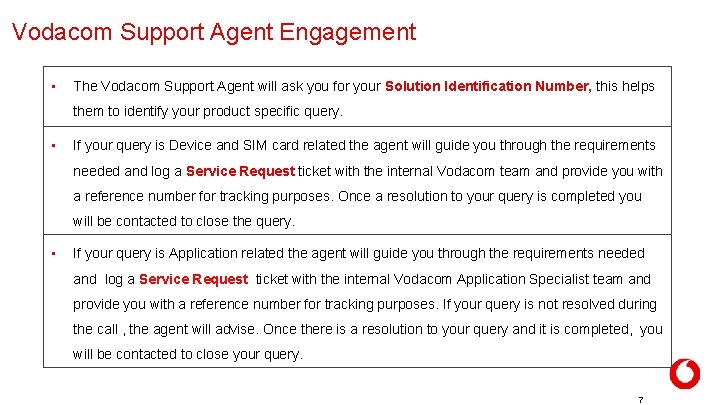
Vodacom Support Agent Engagement • The Vodacom Support Agent will ask you for your Solution Identification Number, this helps them to identify your product specific query. • If your query is Device and SIM card related the agent will guide you through the requirements needed and log a Service Request ticket with the internal Vodacom team and provide you with a reference number for tracking purposes. Once a resolution to your query is completed you will be contacted to close the query. • If your query is Application related the agent will guide you through the requirements needed and log a Service Request ticket with the internal Vodacom Application Specialist team and provide you with a reference number for tracking purposes. If your query is not resolved during the call , the agent will advise. Once there is a resolution to your query and it is completed, you will be contacted to close your query. 7
Vodacom Account Manager Engagement • For any additional queries relating to contractual agreements and more requirements on the product please contact your Account Manager for further assistance. 8
2 SIM Lock 9 22 May 2021
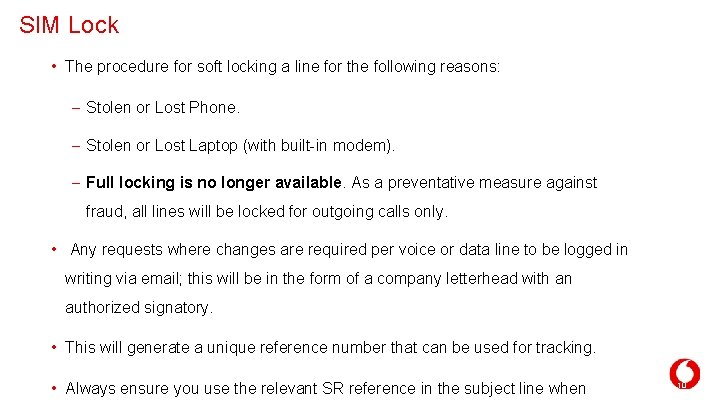
SIM Lock • The procedure for soft locking a line for the following reasons: – Stolen or Lost Phone. – Stolen or Lost Laptop (with built-in modem). – Full locking is no longer available. As a preventative measure against fraud, all lines will be locked for outgoing calls only. • Any requests where changes are required per voice or data line to be logged in writing via email; this will be in the form of a company letterhead with an authorized signatory. • This will generate a unique reference number that can be used for tracking. • Always ensure you use the relevant SR reference in the subject line when 10
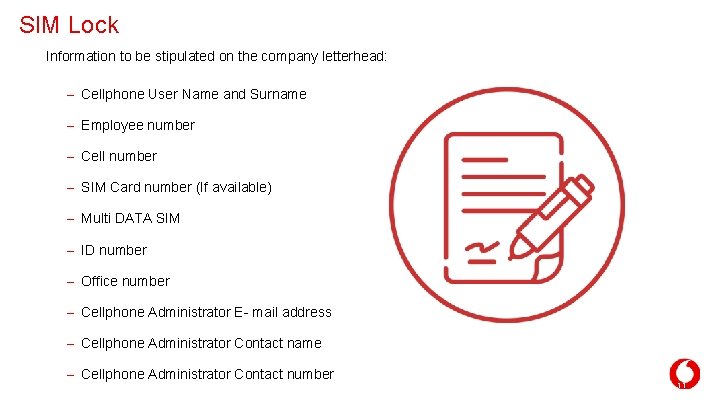
SIM Lock Information to be stipulated on the company letterhead: – Cellphone User Name and Surname – Employee number – Cell number – SIM Card number (If available) – Multi DATA SIM – ID number – Office number – Cellphone Administrator E- mail address – Cellphone Administrator Contact name – Cellphone Administrator Contact number 11
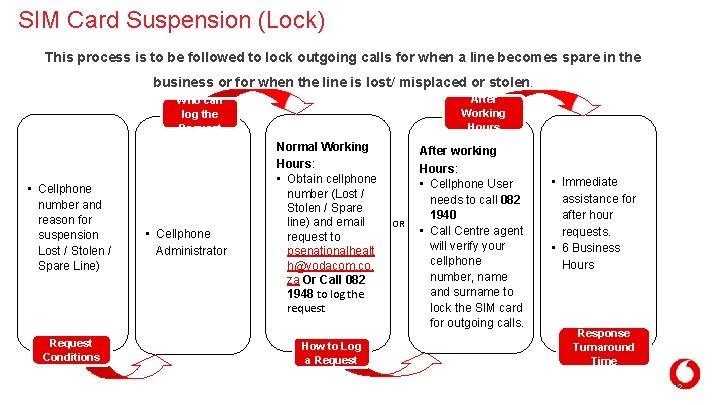
SIM Card Suspension (Lock) This process is to be followed to lock outgoing calls for when a line becomes spare in the business or for when the line is lost/ misplaced or stolen. After Working Hours Who can log the Request • Cellphone number and reason for suspension Lost / Stolen / Spare Line) Request Conditions • Cellphone Administrator Normal Working Hours: • Obtain cellphone number (Lost / Stolen / Spare line) and email request to psenationalhealt h@vodacom. co. za Or Call 082 1948 to log the request How to Log a Request OR After working Hours: • Cellphone User needs to call 082 1940 • Call Centre agent will verify your cellphone number, name and surname to lock the SIM card for outgoing calls. • Immediate assistance for after hour requests. • 6 Business Hours Response Turnaround Time 12
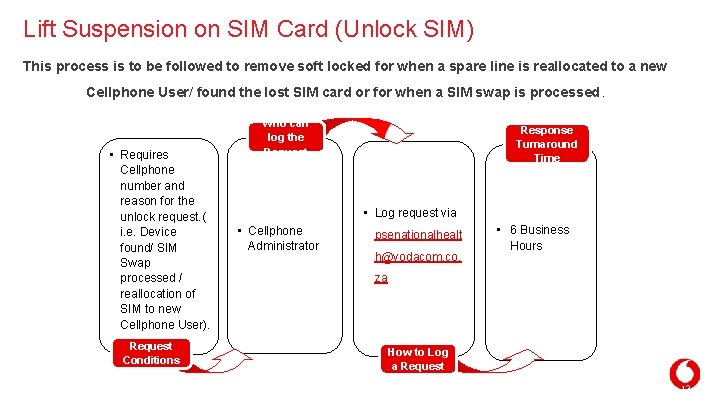
Lift Suspension on SIM Card (Unlock SIM) This process is to be followed to remove soft locked for when a spare line is reallocated to a new Cellphone User/ found the lost SIM card or for when a SIM swap is processed. • Requires Cellphone number and reason for the unlock request. ( i. e. Device found/ SIM Swap processed / reallocation of SIM to new Cellphone User). Request Conditions Who can log the Request Response Turnaround Time • Log request via • Cellphone Administrator psenationalhealt h@vodacom. co. • 6 Business Hours za How to Log a Request 13
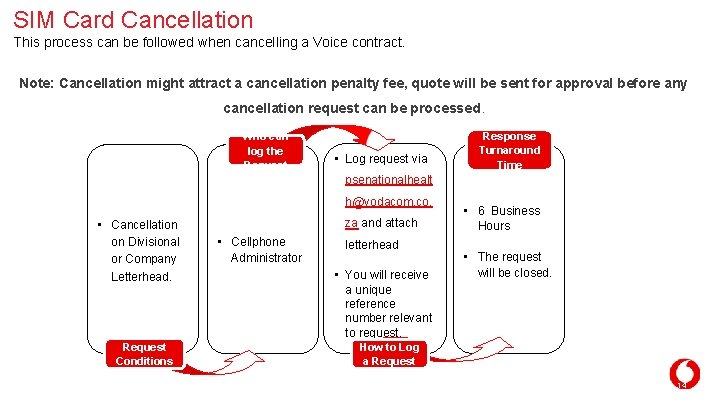
SIM Card Cancellation This process can be followed when cancelling a Voice contract. Note: Cancellation might attract a cancellation penalty fee, quote will be sent for approval before any cancellation request can be processed. Who can log the Request • Log request via Response Turnaround Time psenationalhealt h@vodacom. co. • Cancellation on Divisional or Company Letterhead. Request Conditions za and attach • Cellphone Administrator letterhead • You will receive a unique reference number relevant to request. • 6 Business Hours • The request will be closed. How to Log a Request 14
3 SIM Swap 15 22 May 2021
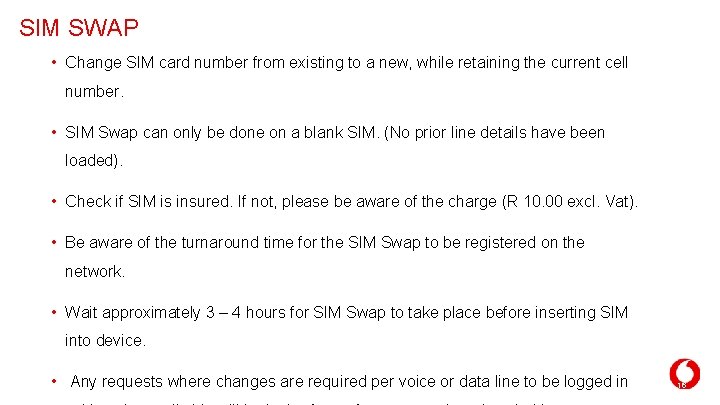
SIM SWAP • Change SIM card number from existing to a new, while retaining the current cell number. • SIM Swap can only be done on a blank SIM. (No prior line details have been loaded). • Check if SIM is insured. If not, please be aware of the charge (R 10. 00 excl. Vat). • Be aware of the turnaround time for the SIM Swap to be registered on the network. • Wait approximately 3 – 4 hours for SIM Swap to take place before inserting SIM into device. • Any requests where changes are required per voice or data line to be logged in 16
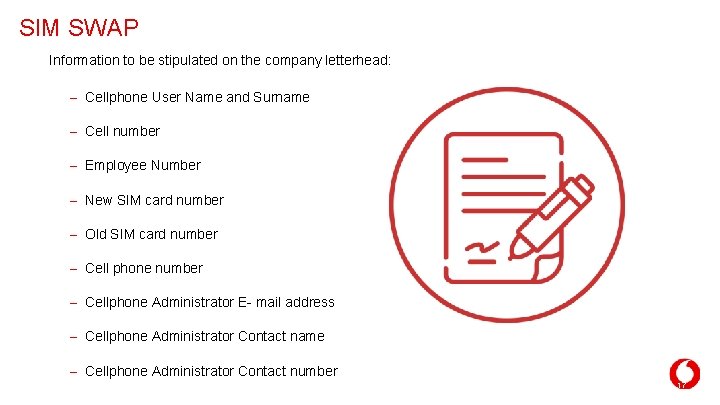
SIM SWAP Information to be stipulated on the company letterhead: – Cellphone User Name and Surname – Cell number – Employee Number – New SIM card number – Old SIM card number – Cell phone number – Cellphone Administrator E- mail address – Cellphone Administrator Contact name – Cellphone Administrator Contact number 17
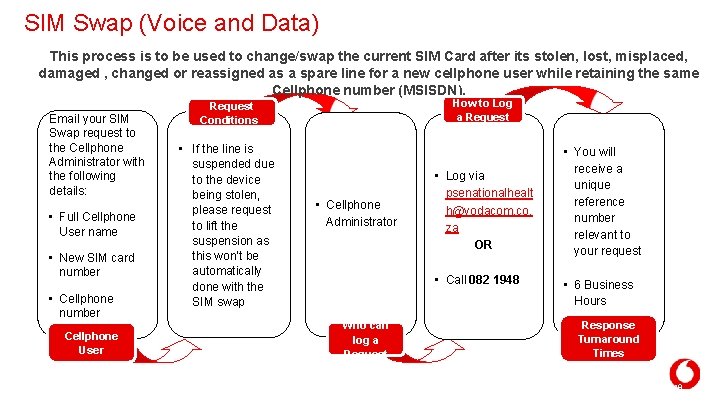
SIM Swap (Voice and Data) This process is to be used to change/swap the current SIM Card after its stolen, lost, misplaced, damaged , changed or reassigned as a spare line for a new cellphone user while retaining the same Cellphone number (MSISDN). Email your SIM Swap request to the Cellphone Administrator with the following details: • Full Cellphone User name • New SIM card number • Cellphone number Cellphone User How to Log a Request Conditions • If the line is suspended due to the device being stolen, please request to lift the suspension as this won’t be automatically done with the SIM swap • Cellphone Administrator • Log via psenationalhealt h@vodacom. co. za OR • Call 082 1948 Who can log a Request • You will receive a unique reference number relevant to your request • 6 Business Hours Response Turnaround Times 18
4 Purchase Order 19 22 May 2021
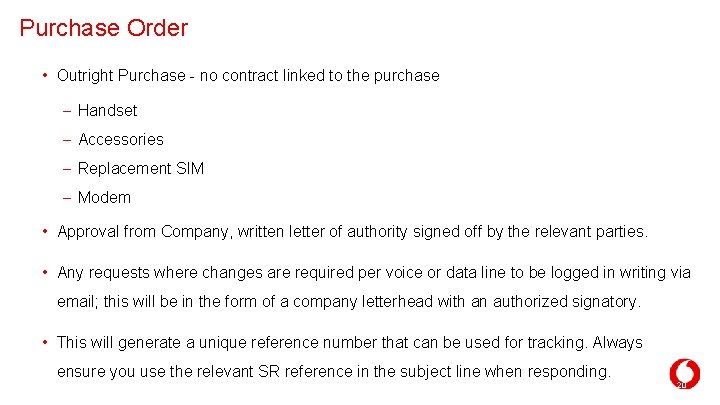
Purchase Order • Outright Purchase - no contract linked to the purchase – Handset – Accessories – Replacement SIM – Modem • Approval from Company, written letter of authority signed off by the relevant parties. • Any requests where changes are required per voice or data line to be logged in writing via email; this will be in the form of a company letterhead with an authorized signatory. • This will generate a unique reference number that can be used for tracking. Always ensure you use the relevant SR reference in the subject line when responding. 20
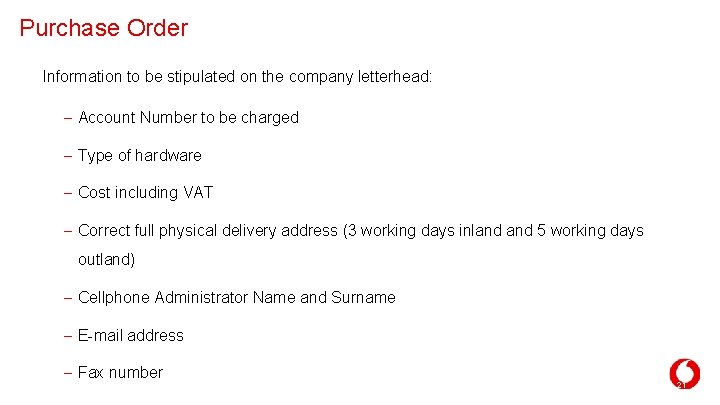
Purchase Order Information to be stipulated on the company letterhead: – Account Number to be charged – Type of hardware – Cost including VAT – Correct full physical delivery address (3 working days inland 5 working days outland) – Cellphone Administrator Name and Surname – E-mail address – Fax number 21
5 PIN and PUK 22 22 May 2021
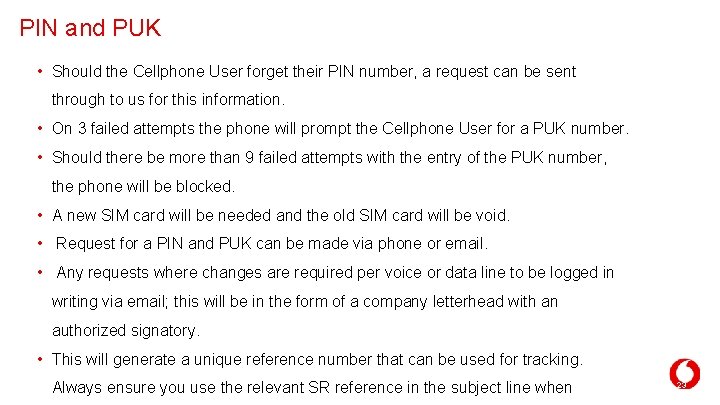
PIN and PUK • Should the Cellphone User forget their PIN number, a request can be sent through to us for this information. • On 3 failed attempts the phone will prompt the Cellphone User for a PUK number. • Should there be more than 9 failed attempts with the entry of the PUK number, the phone will be blocked. • A new SIM card will be needed and the old SIM card will be void. • Request for a PIN and PUK can be made via phone or email. • Any requests where changes are required per voice or data line to be logged in writing via email; this will be in the form of a company letterhead with an authorized signatory. • This will generate a unique reference number that can be used for tracking. Always ensure you use the relevant SR reference in the subject line when 23
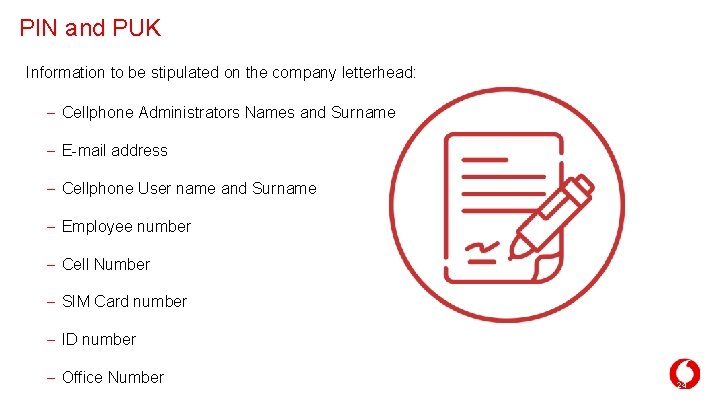
PIN and PUK Information to be stipulated on the company letterhead: – Cellphone Administrators Names and Surname – E-mail address – Cellphone User name and Surname – Employee number – Cell Number – SIM Card number – ID number – Office Number 24
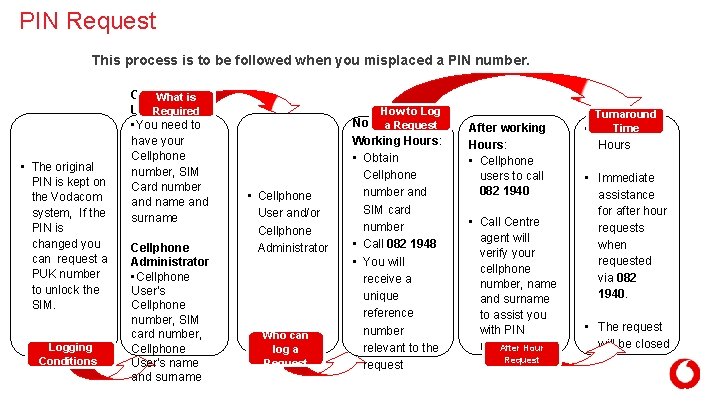
PIN Request This process is to be followed when you misplaced a PIN number. • The original PIN is kept on the Vodacom system, If the PIN is changed you can request a PUK number to unlock the SIM. Logging Conditions Cellphone What is User: Required • You need to have your Cellphone number, SIM Card number and name and surname Cellphone Administrator • Cellphone User’s Cellphone number, SIM card number, Cellphone User’s name and surname How to Log • Cellphone User and/or Cellphone Administrator Who can log a Request Normal a Request Working Hours: • Obtain Cellphone number and SIM card number • Call 082 1948 • You will receive a unique reference number relevant to the request After working Hours: • Cellphone users to call 082 1940 • Call Centre agent will verify your cellphone number, name and surname to assist you with PIN number. After Hour Turnaround Time • 6 Business Hours • Immediate assistance for after hour requests when requested via 082 1940. • The request will be closed Request 25
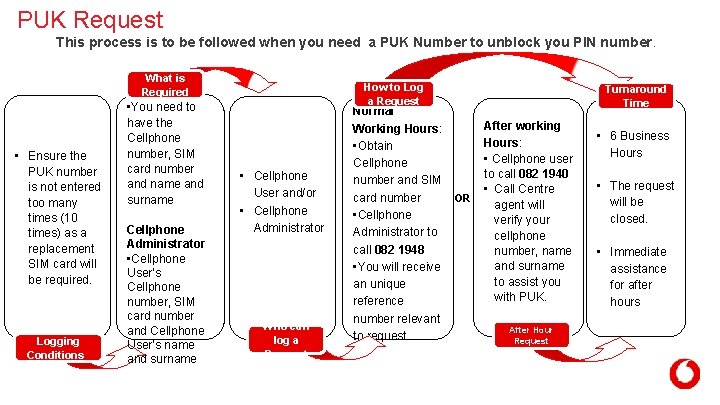
PUK Request This process is to be followed when you need a PUK Number to unblock you PIN number. • Ensure the PUK number is not entered too many times (10 times) as a replacement SIM card will be required. Logging Conditions Cellphone What is User: Required • You need to have the Cellphone number, SIM card number and name and surname Cellphone Administrator • Cellphone User’s Cellphone number, SIM card number and Cellphone User’s name and surname How to Log a Request • Cellphone User and/or • Cellphone Administrator Who can log a Request Normal Working Hours: • Obtain Cellphone number and SIM card number • Cellphone Administrator to call 082 1948 • You will receive an unique reference number relevant to request Turnaround Time OR After working Hours: • Cellphone user to call 082 1940 • Call Centre agent will verify your cellphone number, name and surname to assist you with PUK. • 6 Business Hours • The request will be closed. • Immediate assistance for after hours After Hour Request 26
6 Blacklisting 27 22 May 2021
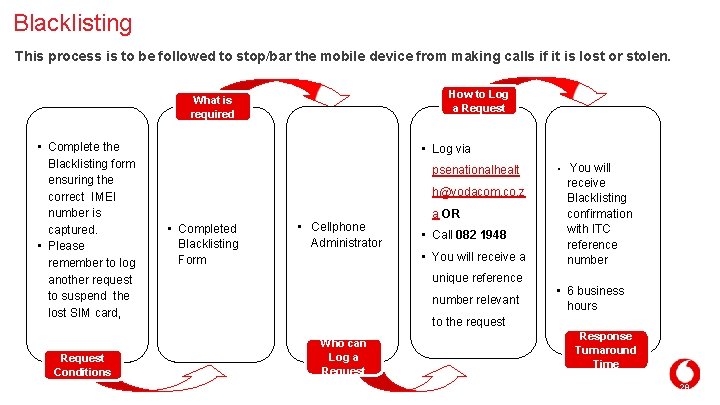
Blacklisting This process is to be followed to stop/bar the mobile device from making calls if it is lost or stolen. How to Log a Request What is required • Complete the Blacklisting form ensuring the correct IMEI number is captured. • Please remember to log another request to suspend the lost SIM card, Request Conditions • Log via psenationalhealt h@vodacom. co. z a OR • Completed Blacklisting Form • Cellphone Administrator • Call 082 1948 • You will receive a unique reference number relevant • You will receive Blacklisting confirmation with ITC reference number • 6 business hours to the request Who can Log a Request Response Turnaround Time 28
7 Value Added Services 29 22 May 2021
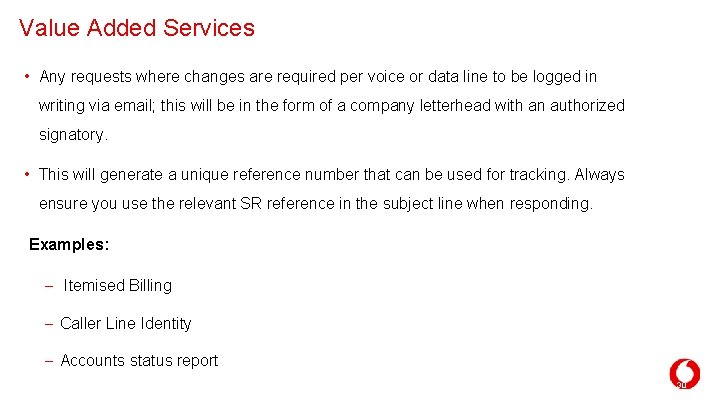
Value Added Services • Any requests where changes are required per voice or data line to be logged in writing via email; this will be in the form of a company letterhead with an authorized signatory. • This will generate a unique reference number that can be used for tracking. Always ensure you use the relevant SR reference in the subject line when responding. Examples: – Itemised Billing – Caller Line Identity – Accounts status report 30
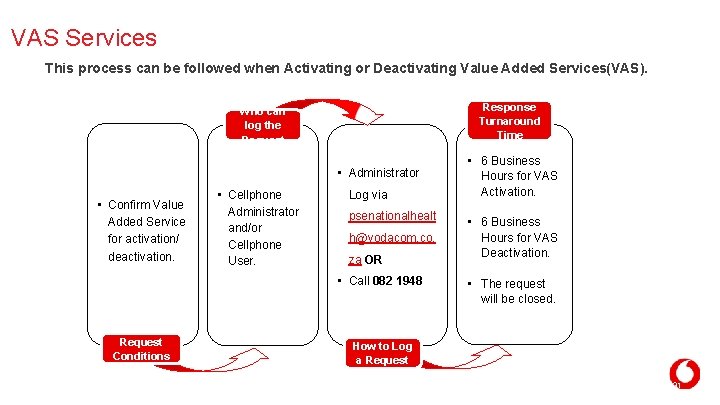
VAS Services This process can be followed when Activating or Deactivating Value Added Services(VAS). Response Turnaround Time Who can log the Request • Administrator • Confirm Value Added Service for activation/ deactivation. • Cellphone Administrator and/or Cellphone User. Log via psenationalhealt h@vodacom. co. za OR • Call 082 1948 Request Conditions • 6 Business Hours for VAS Activation. • 6 Business Hours for VAS Deactivation. • The request will be closed. How to Log a Request 31
8 Network Coverage 32 22 May 2021
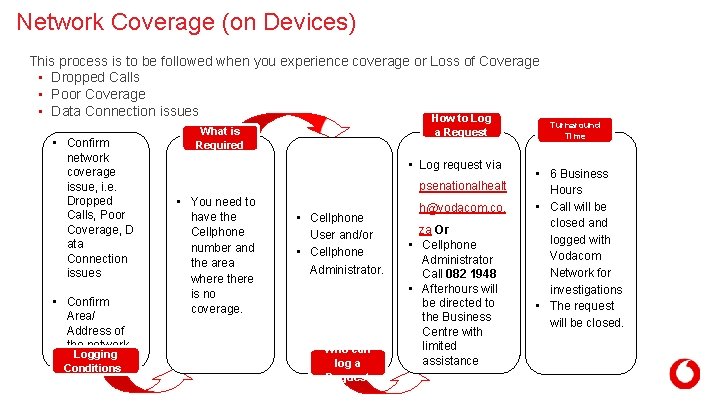
Network Coverage (on Devices) This process is to be followed when you experience coverage or Loss of Coverage • Dropped Calls • Poor Coverage • Data Connection issues How to Log • Confirm network coverage issue, i. e. Dropped Calls, Poor Coverage, D ata Connection issues • Confirm Area/ Address of the network Logging issue. Conditions What is Required a Request • Log request via psenationalhealt • You need to have the Cellphone number and the area where there is no coverage. • Cellphone User and/or • Cellphone Administrator. Who can log a Request h@vodacom. co. za Or • Cellphone Administrator Call 082 1948 • Afterhours will be directed to the Business Centre with limited assistance Turnaround Time • 6 Business Hours • Call will be closed and logged with Vodacom Network for investigations • The request will be closed. 77
9 Self Service 34 22 May 2021
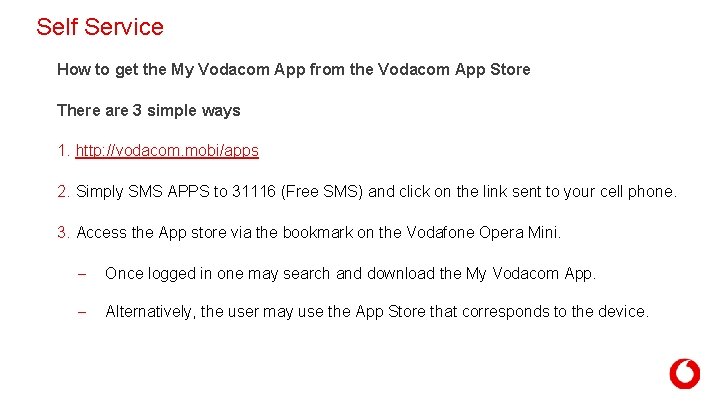
Self Service How to get the My Vodacom App from the Vodacom App Store There are 3 simple ways 1. http: //vodacom. mobi/apps 2. Simply SMS APPS to 31116 (Free SMS) and click on the link sent to your cell phone. 3. Access the App store via the bookmark on the Vodafone Opera Mini. – Once logged in one may search and download the My Vodacom App. – Alternatively, the user may use the App Store that corresponds to the device. 35
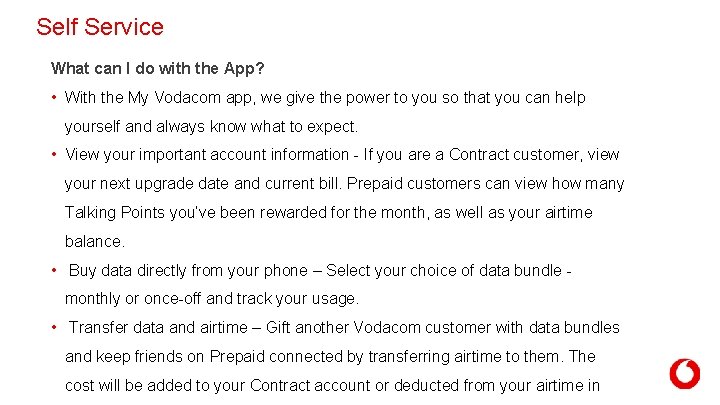
Self Service What can I do with the App? • With the My Vodacom app, we give the power to you so that you can help yourself and always know what to expect. • View your important account information - If you are a Contract customer, view your next upgrade date and current bill. Prepaid customers can view how many Talking Points you’ve been rewarded for the month, as well as your airtime balance. • Buy data directly from your phone – Select your choice of data bundle monthly or once-off and track your usage. • Transfer data and airtime – Gift another Vodacom customer with data bundles and keep friends on Prepaid connected by transferring airtime to them. The 36 or deducted from your airtime in cost will be added to your Contract account
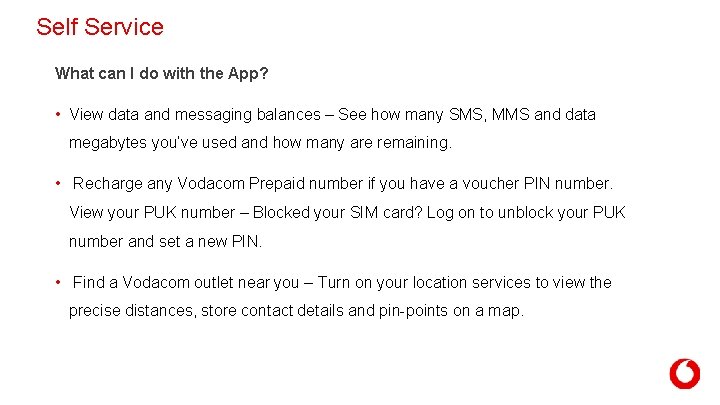
Self Service What can I do with the App? • View data and messaging balances – See how many SMS, MMS and data megabytes you’ve used and how many are remaining. • Recharge any Vodacom Prepaid number if you have a voucher PIN number. View your PUK number – Blocked your SIM card? Log on to unblock your PUK number and set a new PIN. • Find a Vodacom outlet near you – Turn on your location services to view the precise distances, store contact details and pin-points on a map. 37
10 SVS Mobile Application Installation Guide 38
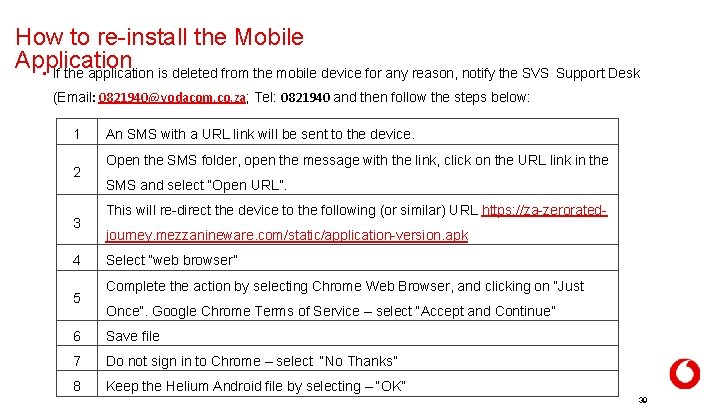
How to re-install the Mobile Application • If the application is deleted from the mobile device for any reason, notify the SVS Support Desk (Email: 0821940@vodacom. co. za; Tel: 0821940 and then follow the steps below: 1 2 3 4 5 An SMS with a URL link will be sent to the device. Open the SMS folder, open the message with the link, click on the URL link in the SMS and select “Open URL”. This will re-direct the device to the following (or similar) URL https: //za-zeroratedjourney. mezzanineware. com/static/application-version. apk Select “web browser” Complete the action by selecting Chrome Web Browser, and clicking on “Just Once”. Google Chrome Terms of Service – select “Accept and Continue” 6 Save file 7 Do not sign in to Chrome – select “No Thanks” 8 Keep the Helium Android file by selecting – “OK” 39
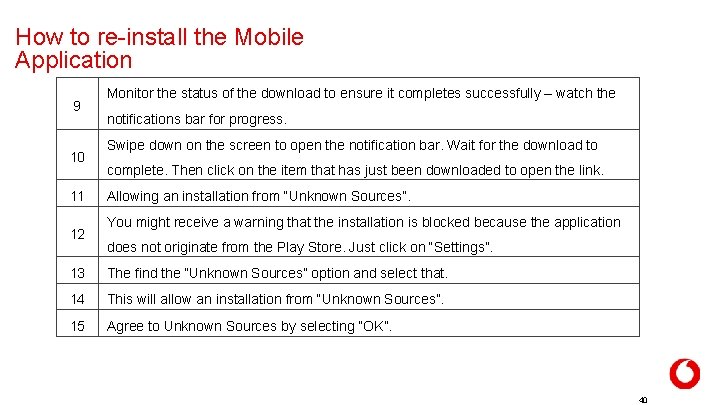
How to re-install the Mobile Application 9 10 11 12 Monitor the status of the download to ensure it completes successfully – watch the notifications bar for progress. Swipe down on the screen to open the notification bar. Wait for the download to complete. Then click on the item that has just been downloaded to open the link. Allowing an installation from “Unknown Sources”. You might receive a warning that the installation is blocked because the application does not originate from the Play Store. Just click on “Settings”. 13 The find the “Unknown Sources” option and select that. 14 This will allow an installation from “Unknown Sources”. 15 Agree to Unknown Sources by selecting “OK”. 40
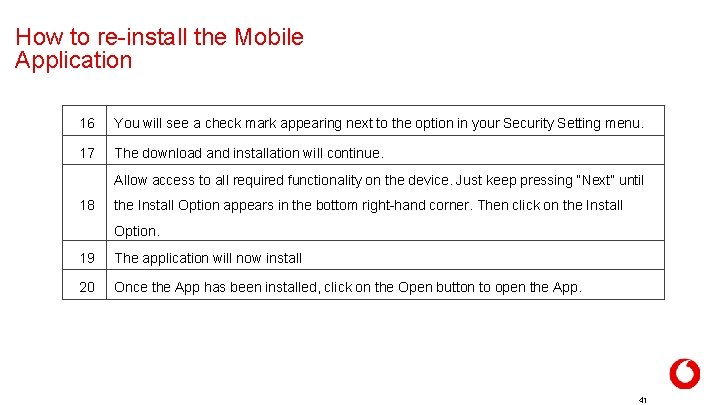
How to re-install the Mobile Application 16 You will see a check mark appearing next to the option in your Security Setting menu. 17 The download and installation will continue. Allow access to all required functionality on the device. Just keep pressing “Next” until 18 the Install Option appears in the bottom right-hand corner. Then click on the Install Option. 19 The application will now install 20 Once the App has been installed, click on the Open button to open the App. 41
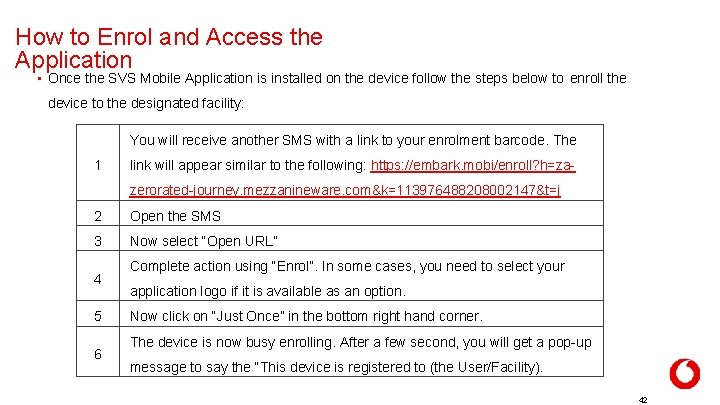
How to Enrol and Access the Application • Once the SVS Mobile Application is installed on the device follow the steps below to enroll the device to the designated facility: You will receive another SMS with a link to your enrolment barcode. The 1 link will appear similar to the following: https: //embark. mobi/enroll? h=zazerorated-journey. mezzanineware. com&k=113976488208002147&t=j 2 Open the SMS 3 Now select “Open URL” 4 5 6 Complete action using “Enrol”. In some cases, you need to select your application logo if it is available as an option. Now click on “Just Once” in the bottom right hand corner. The device is now busy enrolling. After a few second, you will get a pop-up message to say the “This device is registered to (the User/Facility). 42
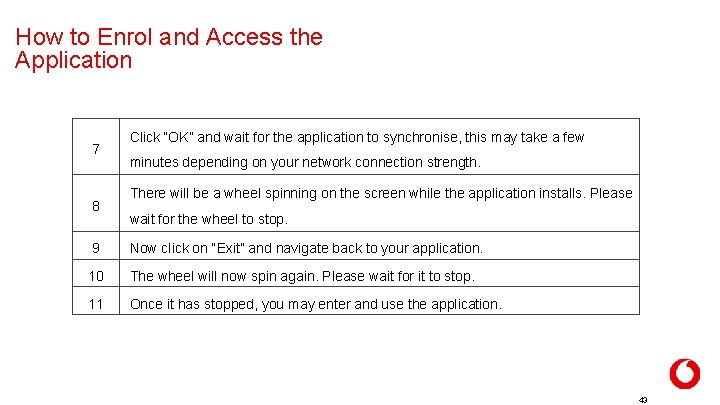
How to Enrol and Access the Application 7 8 Click “OK” and wait for the application to synchronise, this may take a few minutes depending on your network connection strength. There will be a wheel spinning on the screen while the application installs. Please wait for the wheel to stop. 9 Now click on “Exit” and navigate back to your application. 10 The wheel will now spin again. Please wait for it to stop. 11 Once it has stopped, you may enter and use the application. 43
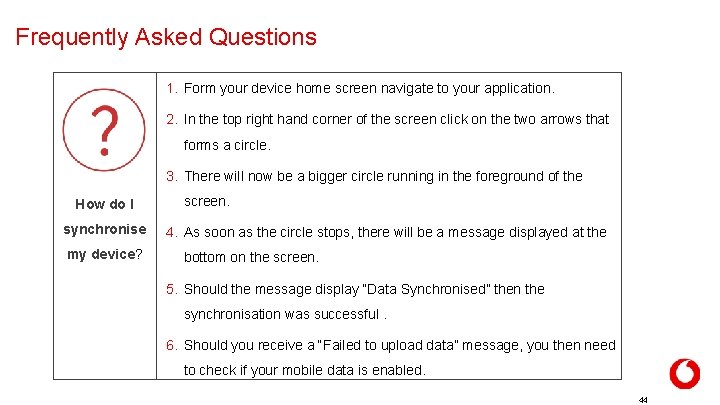
Frequently Asked Questions 1. Form your device home screen navigate to your application. 2. In the top right hand corner of the screen click on the two arrows that forms a circle. 3. There will now be a bigger circle running in the foreground of the How do I synchronise my device? screen. 4. As soon as the circle stops, there will be a message displayed at the bottom on the screen. 5. Should the message display “Data Synchronised” then the synchronisation was successful. 6. Should you receive a “Failed to upload data” message, you then need to check if your mobile data is enabled. 44
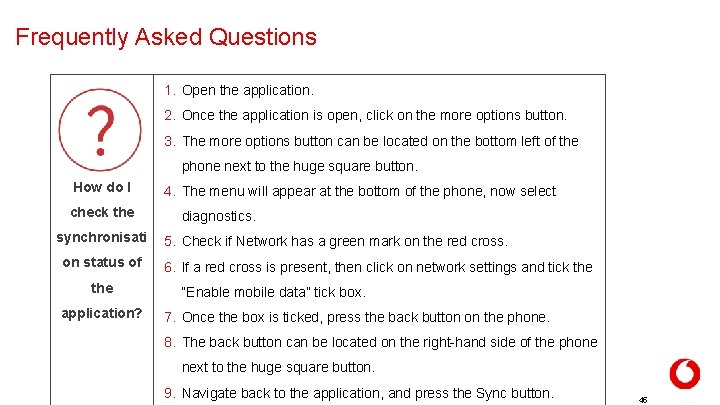
Frequently Asked Questions 1. Open the application. 2. Once the application is open, click on the more options button. 3. The more options button can be located on the bottom left of the phone next to the huge square button. How do I check the synchronisati on status of the application? 4. The menu will appear at the bottom of the phone, now select diagnostics. 5. Check if Network has a green mark on the red cross. 6. If a red cross is present, then click on network settings and tick the “Enable mobile data” tick box. 7. Once the box is ticked, press the back button on the phone. 8. The back button can be located on the right-hand side of the phone next to the huge square button. 9. Navigate back to the application, and press the Sync button. 45
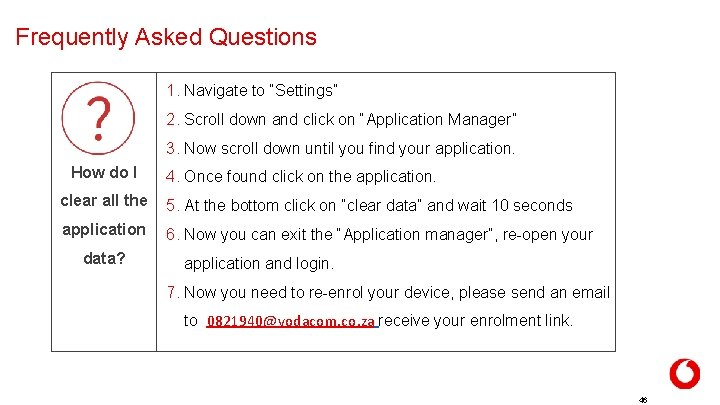
Frequently Asked Questions 1. Navigate to “Settings” 2. Scroll down and click on “Application Manager” 3. Now scroll down until you find your application. How do I 4. Once found click on the application. clear all the 5. At the bottom click on “clear data” and wait 10 seconds application 6. Now you can exit the “Application manager”, re-open your data? application and login. 7. Now you need to re-enrol your device, please send an email to 0821940@vodacom. co. za receive your enrolment link. 46