
Vo IP Application Welltech Computer Co Ltd Date

- Slides: 43
Vo. IP Application Welltech Computer Co. , Ltd. Date: September/04/2003 http: //www. welltech. com. tw 1
Main Vo. IP Products - Well. Gate 3502/3502 A/3504 A FXS - Well. Gate 3802/3804/3806 FXO - Well. Gate 3701 A/3702 A FXS+FXO - Well. Gate 1501 one port FXS gateway plus 4 -port Switch-Hub - LAN Phone 101/201 - Well. Gate 5200 T 1/E 1 Gateway - K-1000 USB Phone - Free. Talk / Soft. Phone (PC to PC and PC to Phone ) - Call Manager (H 323 Gatekeeper) - ITSP Solutions 2
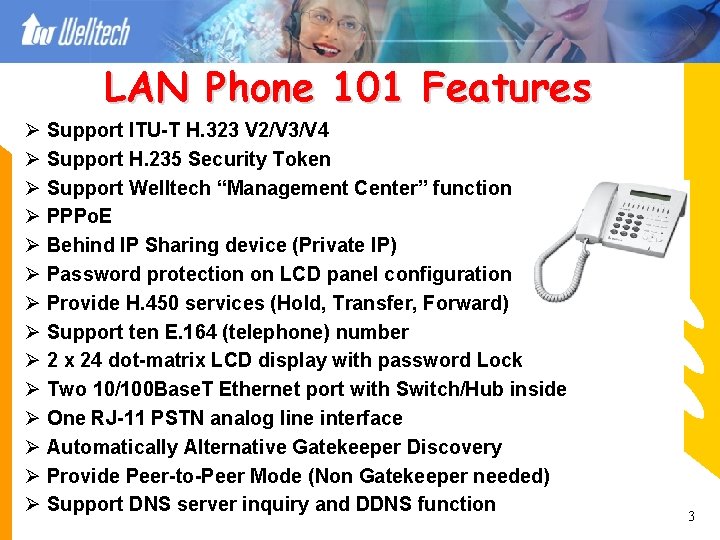
LAN Phone 101 Features Ø Support ITU-T H. 323 V 2/V 3/V 4 Ø Support H. 235 Security Token Ø Support Welltech “Management Center” function Ø PPPo. E Ø Behind IP Sharing device (Private IP) Ø Password protection on LCD panel configuration Ø Provide H. 450 services (Hold, Transfer, Forward) Ø Support ten E. 164 (telephone) number Ø 2 x 24 dot-matrix LCD display with password Lock Ø Two 10/100 Base. T Ethernet port with Switch/Hub inside Ø One RJ-11 PSTN analog line interface Ø Automatically Alternative Gatekeeper Discovery Ø Provide Peer-to-Peer Mode (Non Gatekeeper needed) Ø Support DNS server inquiry and DDNS function 3
Well. Gate 3502/3502 A/3504 FXS gateway Ø Support both ITU-T H. 323 V 2/V 3 V 4 and SIP RFC 3261 protocol Ø Support H. 235 Security Token Ø Configure by Web Browser, Telnet and Console port Ø Support Welltech “Management Center” function Ø Provide H. 450 services (Hold, Transfer, Forward) Ø Transparency PBX “Flash” function Ø Automatically Alternative Gatekeeper Discovery Ø PPPo. E Ø Support DNS server inquiry Ø FSK Caller ID Ø Behind IP Sharing device (Private IP) Ø Two 10/100 Base. T Ethernet port with Switch/Hub inside Ø Provide Peer-to-Peer Mode (Non Gatekeeper needed) 4
Well. Gate 3802/3804/3806 FXO gateway Ø Support both ITU-T H. 323 V 2/V 3 V 4 and SIP RFC 3261 protocol Ø Support DNS server inquiry Ø Built-in Simple Gatekeeper function (10 endpoints) Ø Configure by Web Browser, Telnet and Console port Ø Support Welltech “Management Center” function Ø Provide H. 450 services (Hold, Transfer and Forward) Ø Hot Line function in both P 2 P and GK mode Ø Transparency PBX “Flash” function Ø Users recorded Voice greeting inside Ø Flexible dial plan and dial number replacement Ø Automatically Alternative Gatekeeper Discovery Ø PPPo. E Ø Support T. 38/FAX transmission Ø Behind IP Sharing device (Private IP) Ø Provide Peer-to-Peer Mode (Non Gatekeeper needed) 5
Welltech Management Center Ø Support Mass-upgrade and Mass-configuration Ø Manage all Welltech endpoints H 323 and SIP products, LAN Phone and FXO/FXS gateway Ø TFTP server built-in Ø All endpoints to ask for firmware upgrade Ø Endpoints can be behind NAT IP Sharing device Ø PC based Windows 2000 platform 6
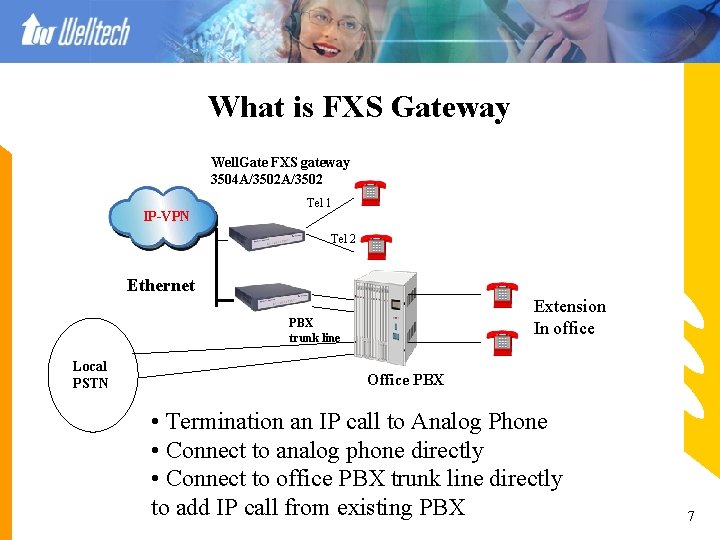
What is FXS Gateway Well. Gate FXS gateway 3504 A/3502 IP-VPN Tel 1 Tel 2 Ethernet Extension In office PBX trunk line Local PSTN Office PBX • Termination an IP call to Analog Phone • Connect to analog phone directly • Connect to office PBX trunk line directly to add IP call from existing PBX 7
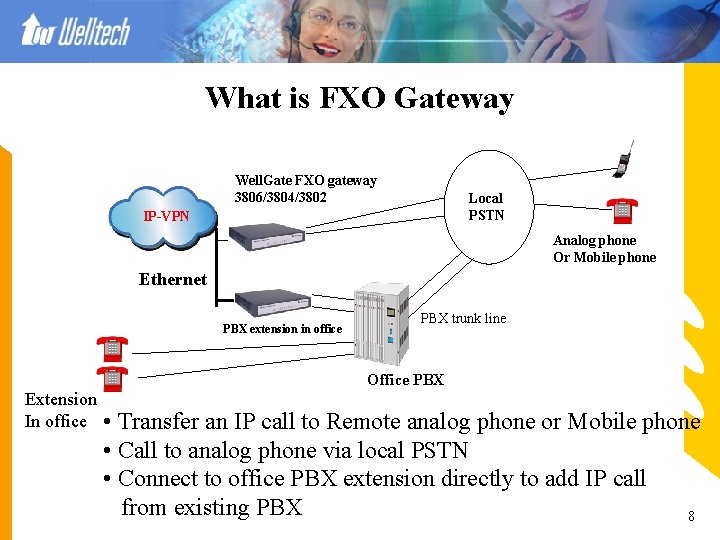
What is FXO Gateway Well. Gate FXO gateway 3806/3804/3802 Local PSTN IP-VPN Analog phone Or Mobile phone Ethernet PBX extension in office PBX trunk line Office PBX Extension In office • Transfer an IP call to Remote analog phone or Mobile phone • Call to analog phone via local PSTN • Connect to office PBX extension directly to add IP call from existing PBX 8
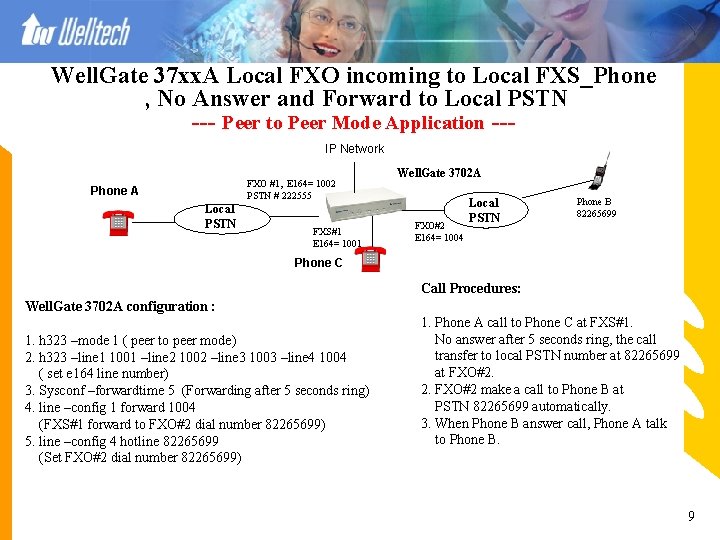
Well. Gate 37 xx. A Local FXO incoming to Local FXS_Phone , No Answer and Forward to Local PSTN --- Peer to Peer Mode Application --IP Network FXO #1, E 164= 1002 PSTN # 222555 Phone A Local PSTN FXS#1 E 164= 1001 Well. Gate 3702 A FXO#2 E 164= 1004 Local PSTN Phone B 82265699 Phone C Call Procedures: Well. Gate 3702 A configuration : 1. h 323 –mode 1 ( peer to peer mode) 2. h 323 –line 1 1001 –line 2 1002 –line 3 1003 –line 4 1004 ( set e 164 line number) 3. Sysconf –forwardtime 5 (Forwarding after 5 seconds ring) 4. line –config 1 forward 1004 (FXS#1 forward to FXO#2 dial number 82265699) 5. line –config 4 hotline 82265699 (Set FXO#2 dial number 82265699) 1. Phone A call to Phone C at FXS#1. No answer after 5 seconds ring, the call transfer to local PSTN number at 82265699 at FXO#2. 2. FXO#2 make a call to Phone B at PSTN 82265699 automatically. 3. When Phone B answer call, Phone A talk to Phone B. 9
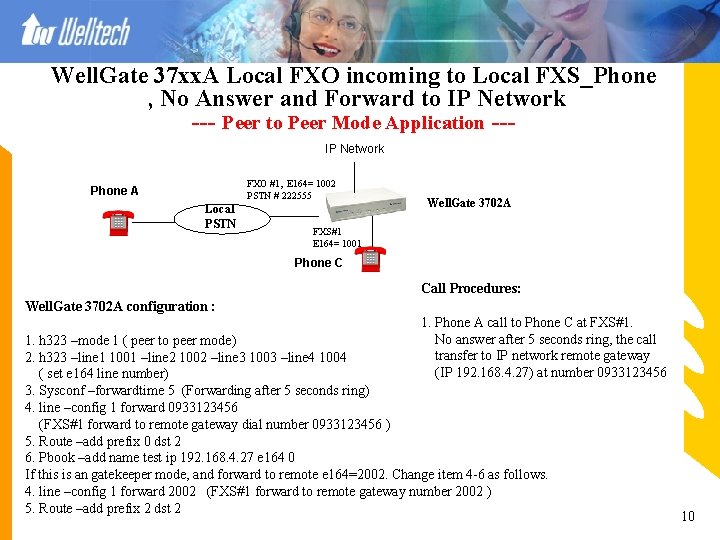
Well. Gate 37 xx. A Local FXO incoming to Local FXS_Phone , No Answer and Forward to IP Network --- Peer to Peer Mode Application --IP Network FXO #1, E 164= 1002 PSTN # 222555 Phone A Local PSTN Well. Gate 3702 A FXS#1 E 164= 1001 Phone C Call Procedures: Well. Gate 3702 A configuration : 1. Phone A call to Phone C at FXS#1. No answer after 5 seconds ring, the call transfer to IP network remote gateway (IP 192. 168. 4. 27) at number 0933123456 1. h 323 –mode 1 ( peer to peer mode) 2. h 323 –line 1 1001 –line 2 1002 –line 3 1003 –line 4 1004 ( set e 164 line number) 3. Sysconf –forwardtime 5 (Forwarding after 5 seconds ring) 4. line –config 1 forward 0933123456 (FXS#1 forward to remote gateway dial number 0933123456 ) 5. Route –add prefix 0 dst 2 6. Pbook –add name test ip 192. 168. 4. 27 e 164 0 If this is an gatekeeper mode, and forward to remote e 164=2002. Change item 4 -6 as follows. 4. line –config 1 forward 2002 (FXS#1 forward to remote gateway number 2002 ) 5. Route –add prefix 2 dst 2 10
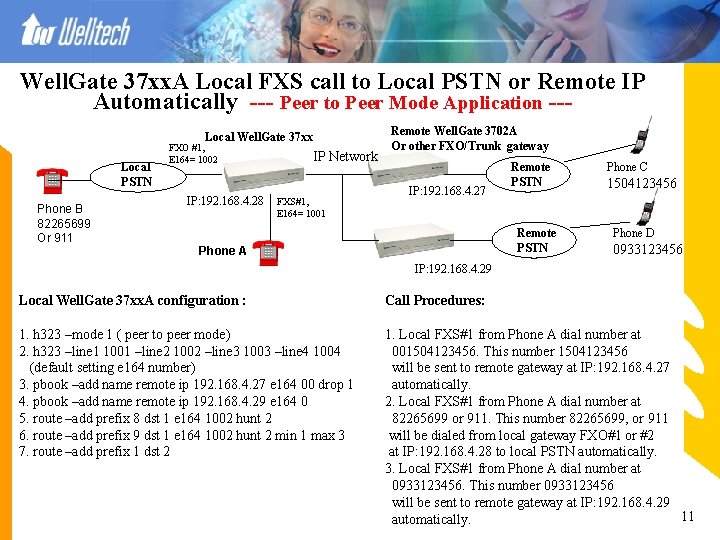
Well. Gate 37 xx. A Local FXS call to Local PSTN or Remote IP Automatically --- Peer to Peer Mode Application --Local Well. Gate 37 xx Local PSTN Phone B 82265699 Or 911 FXO #1, E 164= 1002 IP: 192. 168. 4. 28 IP Network FXS#1, E 164= 1001 Remote Well. Gate 3702 A Or other FXO/Trunk gateway IP: 192. 168. 4. 27 Remote PSTN Phone A Phone C 1504123456 Phone D 0933123456 IP: 192. 168. 4. 29 Local Well. Gate 37 xx. A configuration : Call Procedures: 1. h 323 –mode 1 ( peer to peer mode) 2. h 323 –line 1 1001 –line 2 1002 –line 3 1003 –line 4 1004 (default setting e 164 number) 3. pbook –add name remote ip 192. 168. 4. 27 e 164 00 drop 1 4. pbook –add name remote ip 192. 168. 4. 29 e 164 0 5. route –add prefix 8 dst 1 e 164 1002 hunt 2 6. route –add prefix 9 dst 1 e 164 1002 hunt 2 min 1 max 3 7. route –add prefix 1 dst 2 1. Local FXS#1 from Phone A dial number at 001504123456. This number 1504123456 will be sent to remote gateway at IP: 192. 168. 4. 27 automatically. 2. Local FXS#1 from Phone A dial number at 82265699 or 911. This number 82265699, or 911 will be dialed from local gateway FXO#1 or #2 at IP: 192. 168. 4. 28 to local PSTN automatically. 3. Local FXS#1 from Phone A dial number at 0933123456. This number 0933123456 will be sent to remote gateway at IP: 192. 168. 4. 29 11 automatically.
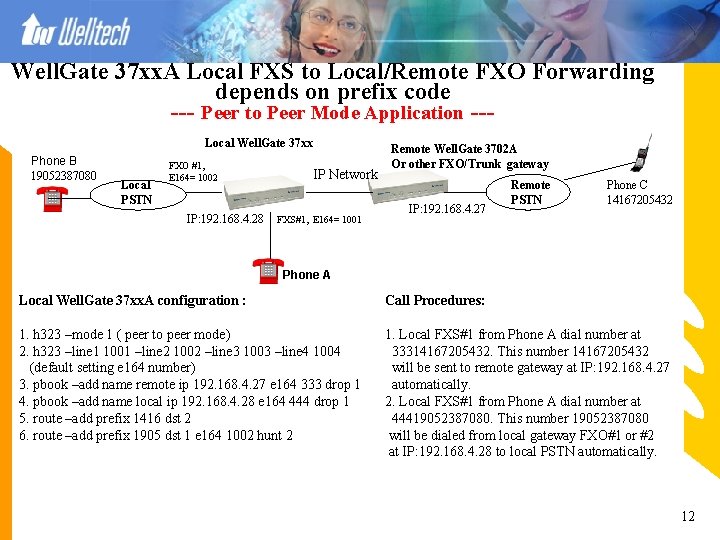
Well. Gate 37 xx. A Local FXS to Local/Remote FXO Forwarding depends on prefix code --- Peer to Peer Mode Application --Local Well. Gate 37 xx Phone B 19052387080 Local PSTN FXO #1, E 164= 1002 IP: 192. 168. 4. 28 IP Network FXS#1, E 164= 1001 Remote Well. Gate 3702 A Or other FXO/Trunk gateway IP: 192. 168. 4. 27 Remote PSTN Phone C 14167205432 Phone A Local Well. Gate 37 xx. A configuration : Call Procedures: 1. h 323 –mode 1 ( peer to peer mode) 2. h 323 –line 1 1001 –line 2 1002 –line 3 1003 –line 4 1004 (default setting e 164 number) 3. pbook –add name remote ip 192. 168. 4. 27 e 164 333 drop 1 4. pbook –add name local ip 192. 168. 4. 28 e 164 444 drop 1 5. route –add prefix 1416 dst 2 6. route –add prefix 1905 dst 1 e 164 1002 hunt 2 1. Local FXS#1 from Phone A dial number at 33314167205432. This number 14167205432 will be sent to remote gateway at IP: 192. 168. 4. 27 automatically. 2. Local FXS#1 from Phone A dial number at 44419052387080. This number 19052387080 will be dialed from local gateway FXO#1 or #2 at IP: 192. 168. 4. 28 to local PSTN automatically. 12
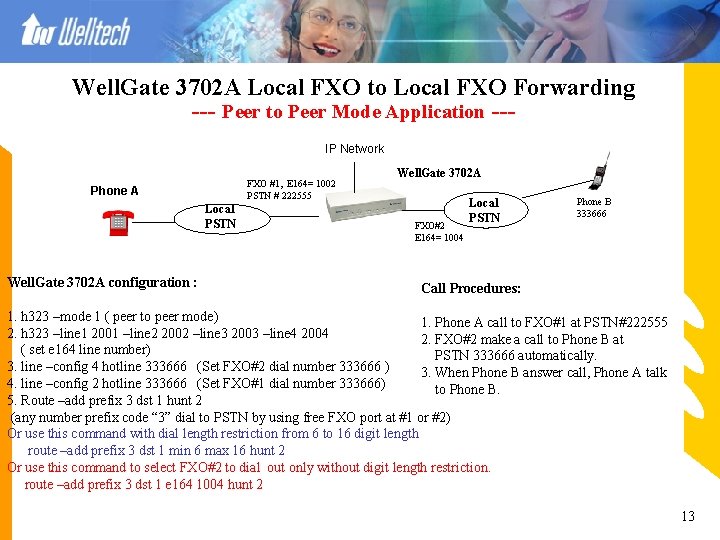
Well. Gate 3702 A Local FXO to Local FXO Forwarding --- Peer to Peer Mode Application --IP Network FXO #1, E 164= 1002 PSTN # 222555 Phone A Local PSTN Well. Gate 3702 A configuration : Well. Gate 3702 A FXO#2 E 164= 1004 Local PSTN Phone B 333666 Call Procedures: 1. h 323 –mode 1 ( peer to peer mode) 1. Phone A call to FXO#1 at PSTN#222555 2. h 323 –line 1 2001 –line 2 2002 –line 3 2003 –line 4 2004 2. FXO#2 make a call to Phone B at ( set e 164 line number) PSTN 333666 automatically. 3. line –config 4 hotline 333666 (Set FXO#2 dial number 333666 ) 3. When Phone B answer call, Phone A talk 4. line –config 2 hotline 333666 (Set FXO#1 dial number 333666) to Phone B. 5. Route –add prefix 3 dst 1 hunt 2 (any number prefix code “ 3” dial to PSTN by using free FXO port at #1 or #2) Or use this command with dial length restriction from 6 to 16 digit length route –add prefix 3 dst 1 min 6 max 16 hunt 2 Or use this command to select FXO#2 to dial out only without digit length restriction. route –add prefix 3 dst 1 e 164 1004 hunt 2 13
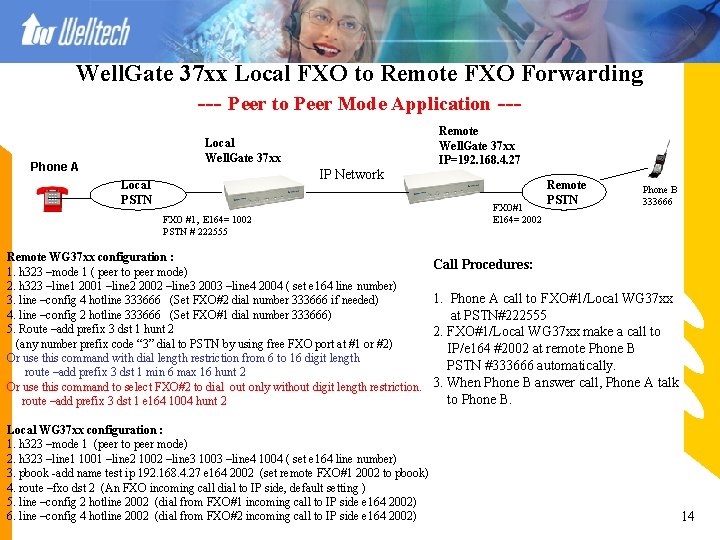
Well. Gate 37 xx Local FXO to Remote FXO Forwarding --- Peer to Peer Mode Application --Remote Well. Gate 37 xx IP=192. 168. 4. 27 Local Well. Gate 37 xx Phone A IP Network Local PSTN FXO #1, E 164= 1002 PSTN # 222555 Remote WG 37 xx configuration : 1. h 323 –mode 1 ( peer to peer mode) 2. h 323 –line 1 2001 –line 2 2002 –line 3 2003 –line 4 2004 ( set e 164 line number) 3. line –config 4 hotline 333666 (Set FXO#2 dial number 333666 if needed) 4. line –config 2 hotline 333666 (Set FXO#1 dial number 333666) 5. Route –add prefix 3 dst 1 hunt 2 (any number prefix code “ 3” dial to PSTN by using free FXO port at #1 or #2) Or use this command with dial length restriction from 6 to 16 digit length route –add prefix 3 dst 1 min 6 max 16 hunt 2 Or use this command to select FXO#2 to dial out only without digit length restriction. route –add prefix 3 dst 1 e 164 1004 hunt 2 Local WG 37 xx configuration : 1. h 323 –mode 1 (peer to peer mode) 2. h 323 –line 1 1001 –line 2 1002 –line 3 1003 –line 4 1004 ( set e 164 line number) 3. pbook -add name test ip 192. 168. 4. 27 e 164 2002 (set remote FXO#1 2002 to pbook) 4. route –fxo dst 2 (An FXO incoming call dial to IP side, default setting ) 5. line –config 2 hotline 2002 (dial from FXO#1 incoming call to IP side e 164 2002) 6. line –config 4 hotline 2002 (dial from FXO#2 incoming call to IP side e 164 2002) FXO#1 E 164= 2002 Remote PSTN Phone B 333666 Call Procedures: 1. Phone A call to FXO#1/Local WG 37 xx at PSTN#222555 2. FXO#1/Local WG 37 xx make a call to IP/e 164 #2002 at remote Phone B PSTN #333666 automatically. 3. When Phone B answer call, Phone A talk to Phone B. 14
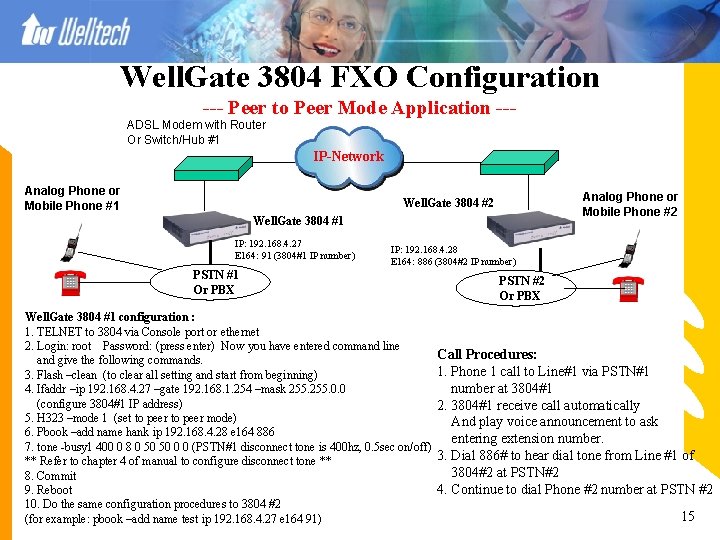
Well. Gate 3804 FXO Configuration --- Peer to Peer Mode Application --ADSL Modem with Router Or Switch/Hub #1 IP-Network Analog Phone or Mobile Phone #1 Analog Phone or Mobile Phone #2 Well. Gate 3804 #1 IP: 192. 168. 4. 27 E 164: 91 (3804#1 IP number) IP: 192. 168. 4. 28 E 164: 886 (3804#2 IP number) PSTN #1 Or PBX Well. Gate 3804 #1 configuration : 1. TELNET to 3804 via Console port or ethernet 2. Login: root Password: (press enter) Now you have entered command line and give the following commands. 3. Flash –clean (to clear all setting and start from beginning) 4. Ifaddr –ip 192. 168. 4. 27 –gate 192. 168. 1. 254 –mask 255. 0. 0 (configure 3804#1 IP address) 5. H 323 –mode 1 (set to peer mode) 6. Pbook –add name hank ip 192. 168. 4. 28 e 164 886 7. tone -busy 1 400 0 8 0 50 50 0 0 (PSTN#1 disconnect tone is 400 hz, 0. 5 sec on/off) ** Refer to chapter 4 of manual to configure disconnect tone ** 8. Commit 9. Reboot 10. Do the same configuration procedures to 3804 #2 (for example: pbook –add name test ip 192. 168. 4. 27 e 164 91) PSTN #2 Or PBX Call Procedures: 1. Phone 1 call to Line#1 via PSTN#1 number at 3804#1 2. 3804#1 receive call automatically And play voice announcement to ask entering extension number. 3. Dial 886# to hear dial tone from Line #1 of 3804#2 at PSTN#2 4. Continue to dial Phone #2 number at PSTN #2 15
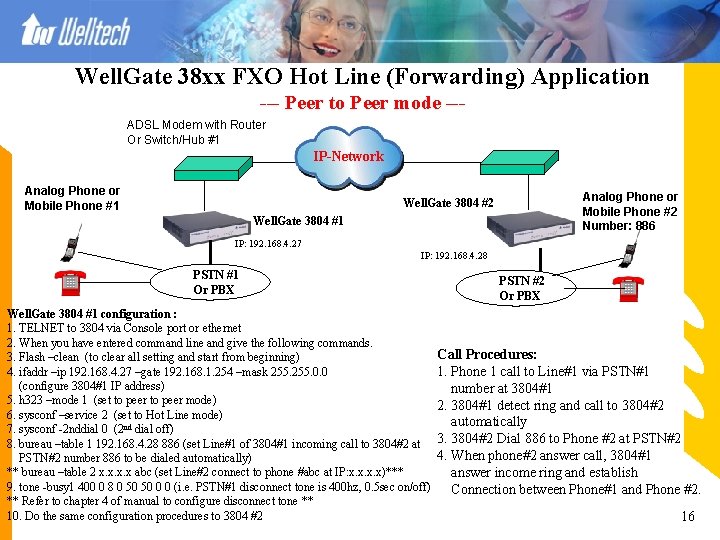
Well. Gate 38 xx FXO Hot Line (Forwarding) Application --- Peer to Peer mode --ADSL Modem with Router Or Switch/Hub #1 IP-Network Analog Phone or Mobile Phone #1 Analog Phone or Mobile Phone #2 Number: 886 Well. Gate 3804 #2 Well. Gate 3804 #1 IP: 192. 168. 4. 27 IP: 192. 168. 4. 28 PSTN #1 Or PBX Well. Gate 3804 #1 configuration : 1. TELNET to 3804 via Console port or ethernet 2. When you have entered command line and give the following commands. 3. Flash –clean (to clear all setting and start from beginning) 4. ifaddr –ip 192. 168. 4. 27 –gate 192. 168. 1. 254 –mask 255. 0. 0 (configure 3804#1 IP address) 5. h 323 –mode 1 (set to peer mode) 6. sysconf –service 2 (set to Hot Line mode) 7. sysconf -2 nddial 0 (2 nd dial off) 8. bureau –table 1 192. 168. 4. 28 886 (set Line#1 of 3804#1 incoming call to 3804#2 at PSTN#2 number 886 to be dialed automatically) ** bureau –table 2 x. x abc (set Line#2 connect to phone #abc at IP: x. x)*** 9. tone -busy 1 400 0 8 0 50 50 0 0 (i. e. PSTN#1 disconnect tone is 400 hz, 0. 5 sec on/off) ** Refer to chapter 4 of manual to configure disconnect tone ** 10. Do the same configuration procedures to 3804 #2 PSTN #2 Or PBX Call Procedures: 1. Phone 1 call to Line#1 via PSTN#1 number at 3804#1 2. 3804#1 detect ring and call to 3804#2 automatically 3. 3804#2 Dial 886 to Phone #2 at PSTN#2 4. When phone#2 answer call, 3804#1 answer income ring and establish Connection between Phone#1 and Phone #2. 16
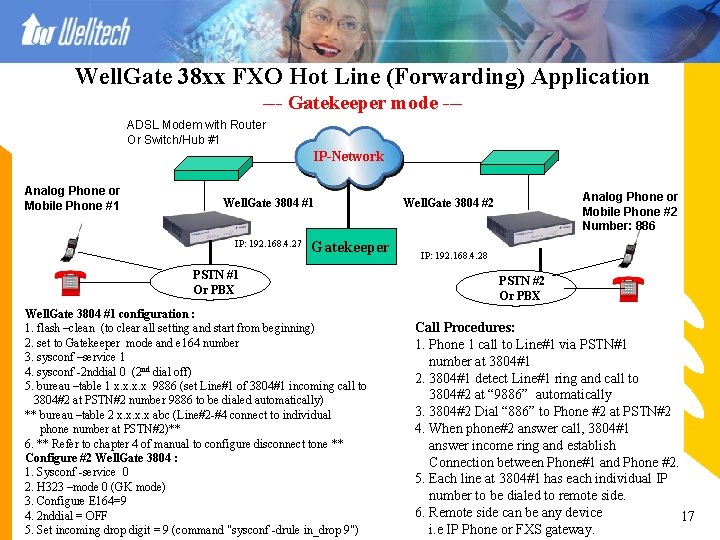
Well. Gate 38 xx FXO Hot Line (Forwarding) Application --- Gatekeeper mode --ADSL Modem with Router Or Switch/Hub #1 IP-Network Analog Phone or Mobile Phone #1 Well. Gate 3804 #1 IP: 192. 168. 4. 27 Gatekeeper PSTN #1 Or PBX Well. Gate 3804 #1 configuration : 1. flash –clean (to clear all setting and start from beginning) 2. set to Gatekeeper mode and e 164 number 3. sysconf –service 1 4. sysconf -2 nddial 0 (2 nd dial off) 5. bureau –table 1 x. x 9886 (set Line#1 of 3804#1 incoming call to 3804#2 at PSTN#2 number 9886 to be dialed automatically) ** bureau –table 2 x. x abc (Line#2 -#4 connect to individual phone number at PSTN#2)** 6. ** Refer to chapter 4 of manual to configure disconnect tone ** Configure #2 Well. Gate 3804 : 1. Sysconf -service 0 2. H 323 –mode 0 (GK mode) 3. Configure E 164=9 4. 2 nddial = OFF 5. Set incoming drop digit = 9 (command "sysconf -drule in_drop 9") Analog Phone or Mobile Phone #2 Number: 886 Well. Gate 3804 #2 IP: 192. 168. 4. 28 PSTN #2 Or PBX Call Procedures: 1. Phone 1 call to Line#1 via PSTN#1 number at 3804#1 2. 3804#1 detect Line#1 ring and call to 3804#2 at “ 9886” automatically 3. 3804#2 Dial “ 886” to Phone #2 at PSTN#2 4. When phone#2 answer call, 3804#1 answer income ring and establish Connection between Phone#1 and Phone #2. 5. Each line at 3804#1 has each individual IP number to be dialed to remote side. 6. Remote side can be any device 17 i. e IP Phone or FXS gateway.
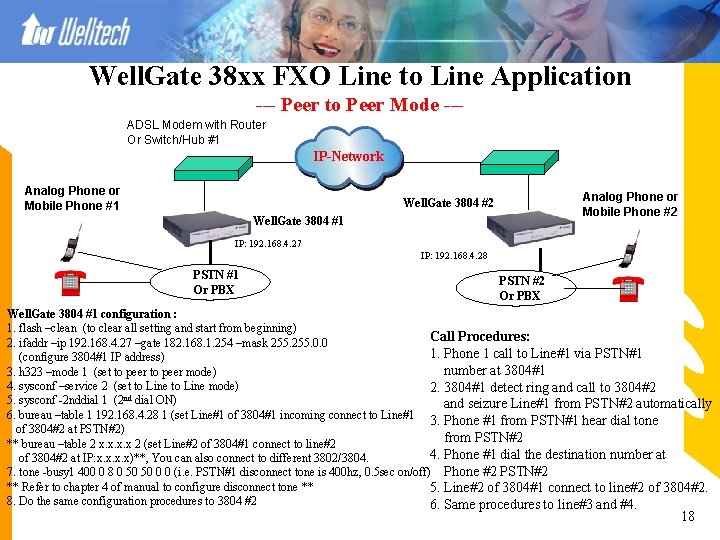
Well. Gate 38 xx FXO Line to Line Application --- Peer to Peer Mode --ADSL Modem with Router Or Switch/Hub #1 IP-Network Analog Phone or Mobile Phone #1 Analog Phone or Mobile Phone #2 Well. Gate 3804 #1 IP: 192. 168. 4. 27 IP: 192. 168. 4. 28 PSTN #1 Or PBX PSTN #2 Or PBX Well. Gate 3804 #1 configuration : 1. flash –clean (to clear all setting and start from beginning) Call Procedures: 2. ifaddr –ip 192. 168. 4. 27 –gate 182. 168. 1. 254 –mask 255. 0. 0 1. Phone 1 call to Line#1 via PSTN#1 (configure 3804#1 IP address) number at 3804#1 3. h 323 –mode 1 (set to peer mode) 4. sysconf –service 2 (set to Line mode) 2. 3804#1 detect ring and call to 3804#2 nd 5. sysconf -2 nddial 1 (2 dial ON) and seizure Line#1 from PSTN#2 automatically 6. bureau –table 1 192. 168. 4. 28 1 (set Line#1 of 3804#1 incoming connect to Line#1 3. Phone #1 from PSTN#1 hear dial tone of 3804#2 at PSTN#2) from PSTN#2 ** bureau –table 2 x. x 2 (set Line#2 of 3804#1 connect to line#2 4. Phone #1 dial the destination number at of 3804#2 at IP: x. x)**, You can also connect to different 3802/3804. 7. tone -busy 1 400 0 8 0 50 50 0 0 (i. e. PSTN#1 disconnect tone is 400 hz, 0. 5 sec on/off) Phone #2 PSTN#2 ** Refer to chapter 4 of manual to configure disconnect tone ** 5. Line#2 of 3804#1 connect to line#2 of 3804#2. 8. Do the same configuration procedures to 3804 #2 6. Same procedures to line#3 and #4. 18
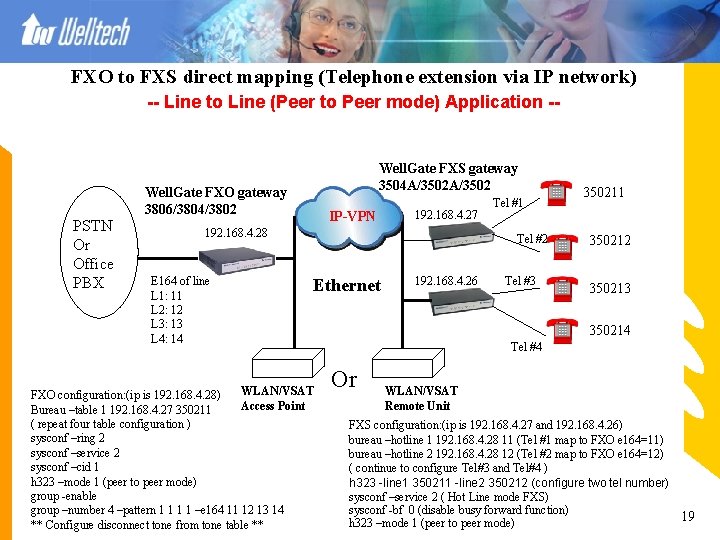
FXO to FXS direct mapping (Telephone extension via IP network) -- Line to Line (Peer to Peer mode) Application -- PSTN Or Office PBX Well. Gate FXS gateway 3504 A/3502 Well. Gate FXO gateway 3806/3804/3802 IP-VPN 192. 168. 4. 27 192. 168. 4. 28 E 164 of line L 1: 11 L 2: 12 L 3: 13 L 4: 14 Tel #1 Tel #2 Ethernet WLAN/VSAT FXO configuration: (ip is 192. 168. 4. 28) Access Point Bureau –table 1 192. 168. 4. 27 350211 ( repeat four table configuration ) sysconf –ring 2 sysconf –service 2 sysconf –cid 1 h 323 –mode 1 (peer to peer mode) group -enable group –number 4 –pattern 1 1 –e 164 11 12 13 14 ** Configure disconnect tone from tone table ** 192. 168. 4. 26 Tel #3 350211 350212 350213 350214 Tel #4 Or WLAN/VSAT Remote Unit FXS configuration: (ip is 192. 168. 4. 27 and 192. 168. 4. 26) bureau –hotline 1 192. 168. 4. 28 11 (Tel #1 map to FXO e 164=11) bureau –hotline 2 192. 168. 4. 28 12 (Tel #2 map to FXO e 164=12) ( continue to configure Tel#3 and Tel#4 ) h 323 -line 1 350211 -line 2 350212 (configure two tel number) sysconf –service 2 ( Hot Line mode FXS) sysconf -bf 0 (disable busy forward function) 19 h 323 –mode 1 (peer to peer mode)
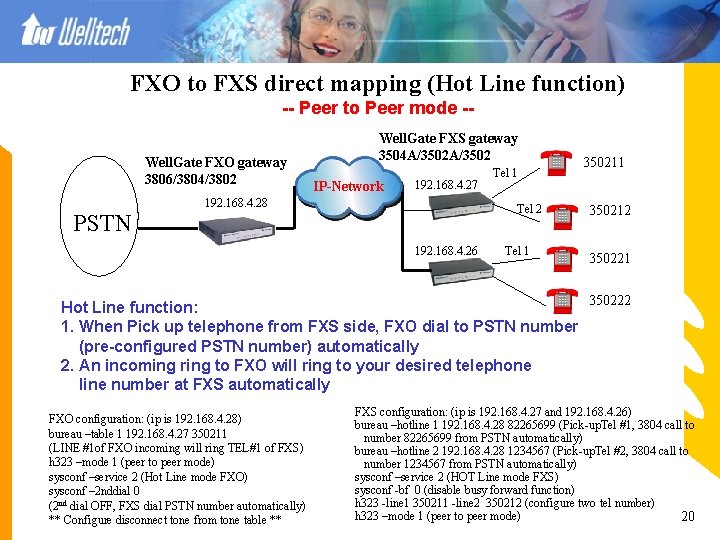
FXO to FXS direct mapping (Hot Line function) -- Peer to Peer mode -Well. Gate FXO gateway 3806/3804/3802 PSTN Well. Gate FXS gateway 3504 A/3502 IP-Network 192. 168. 4. 27 192. 168. 4. 28 Tel 1 Tel 2 192. 168. 4. 26 Tel 1 Hot Line function: 1. When Pick up telephone from FXS side, FXO dial to PSTN number (pre-configured PSTN number) automatically 2. An incoming ring to FXO will ring to your desired telephone line number at FXS automatically FXO configuration: (ip is 192. 168. 4. 28) bureau –table 1 192. 168. 4. 27 350211 (LINE #1 of FXO incoming will ring TEL#1 of FXS) h 323 –mode 1 (peer to peer mode) sysconf –service 2 (Hot Line mode FXO) sysconf – 2 nddial 0 (2 nd dial OFF, FXS dial PSTN number automatically) ** Configure disconnect tone from tone table ** 350211 350212 350221 350222 FXS configuration: (ip is 192. 168. 4. 27 and 192. 168. 4. 26) bureau –hotline 1 192. 168. 4. 28 82265699 (Pick-up. Tel #1, 3804 call to number 82265699 from PSTN automatically) bureau –hotline 2 192. 168. 4. 28 1234567 (Pick-up. Tel #2, 3804 call to number 1234567 from PSTN automatically) sysconf –service 2 (HOT Line mode FXS) sysconf -bf 0 (disable busy forward function) h 323 -line 1 350211 -line 2 350212 (configure two tel number) h 323 –mode 1 (peer to peer mode) 20
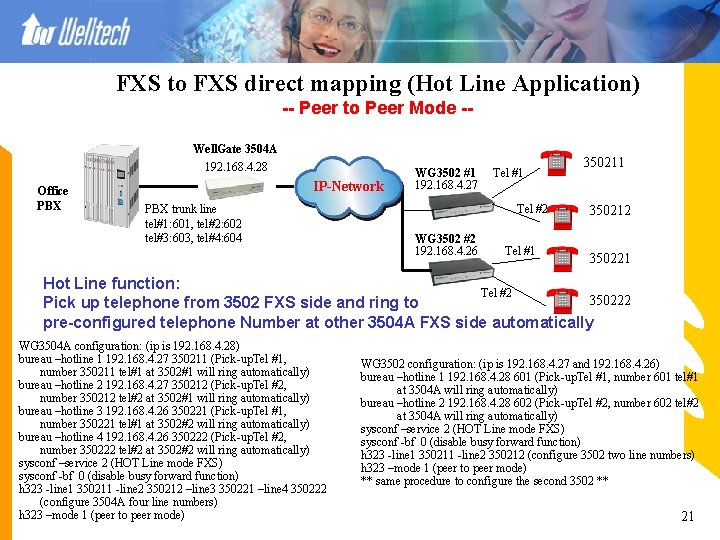
FXS to FXS direct mapping (Hot Line Application) -- Peer to Peer Mode -Well. Gate 3504 A 192. 168. 4. 28 Office PBX IP-Network PBX trunk line tel#1: 601, tel#2: 602 tel#3: 603, tel#4: 604 WG 3502 #1 192. 168. 4. 27 Tel #1 Tel #2 WG 3502 #2 192. 168. 4. 26 Tel #1 350212 350221 Hot Line function: Tel #2 350222 Pick up telephone from 3502 FXS side and ring to pre-configured telephone Number at other 3504 A FXS side automatically WG 3504 A configuration: (ip is 192. 168. 4. 28) bureau –hotline 1 192. 168. 4. 27 350211 (Pick-up. Tel #1, number 350211 tel#1 at 3502#1 will ring automatically) bureau –hotline 2 192. 168. 4. 27 350212 (Pick-up. Tel #2, number 350212 tel#2 at 3502#1 will ring automatically) bureau –hotline 3 192. 168. 4. 26 350221 (Pick-up. Tel #1, number 350221 tel#1 at 3502#2 will ring automatically) bureau –hotline 4 192. 168. 4. 26 350222 (Pick-up. Tel #2, number 350222 tel#2 at 3502#2 will ring automatically) sysconf –service 2 (HOT Line mode FXS) sysconf -bf 0 (disable busy forward function) h 323 -line 1 350211 -line 2 350212 –line 3 350221 –line 4 350222 (configure 3504 A four line numbers) h 323 –mode 1 (peer to peer mode) WG 3502 configuration: (ip is 192. 168. 4. 27 and 192. 168. 4. 26) bureau –hotline 1 192. 168. 4. 28 601 (Pick-up. Tel #1, number 601 tel#1 at 3504 A will ring automatically) bureau –hotline 2 192. 168. 4. 28 602 (Pick-up. Tel #2, number 602 tel#2 at 3504 A will ring automatically) sysconf –service 2 (HOT Line mode FXS) sysconf -bf 0 (disable busy forward function) h 323 -line 1 350211 -line 2 350212 (configure 3502 two line numbers) h 323 –mode 1 (peer to peer mode) ** same procedure to configure the second 3502 ** 21
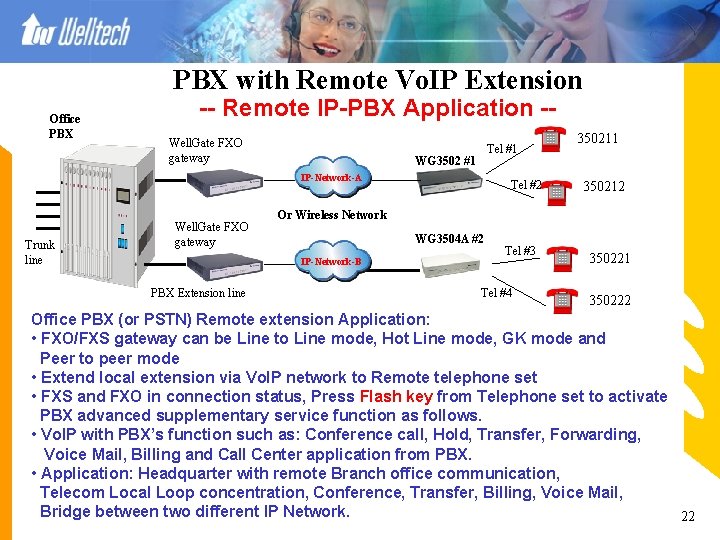
PBX with Remote Vo. IP Extension Office PBX -- Remote IP-PBX Application -- Well. Gate FXO gateway Tel #1 WG 3502 #1 IP-Network-A Trunk line Well. Gate FXO gateway 350212 Or Wireless Network WG 3504 A #2 IP-Network-B PBX Extension line Tel #2 350211 Tel #3 Tel #4 350221 350222 Office PBX (or PSTN) Remote extension Application: • FXO/FXS gateway can be Line to Line mode, Hot Line mode, GK mode and Peer to peer mode • Extend local extension via Vo. IP network to Remote telephone set • FXS and FXO in connection status, Press Flash key from Telephone set to activate PBX advanced supplementary service function as follows. • Vo. IP with PBX’s function such as: Conference call, Hold, Transfer, Forwarding, Voice Mail, Billing and Call Center application from PBX. • Application: Headquarter with remote Branch office communication, Telecom Local Loop concentration, Conference, Transfer, Billing, Voice Mail, Bridge between two different IP Network. 22
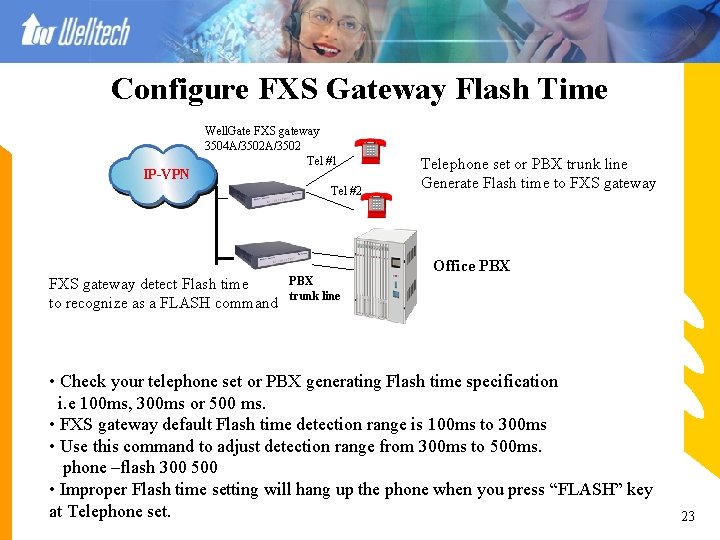
Configure FXS Gateway Flash Time IP-VPN Well. Gate FXS gateway 3504 A/3502 Tel #1 Tel #2 FXS gateway detect Flash time to recognize as a FLASH command PBX trunk line Telephone set or PBX trunk line Generate Flash time to FXS gateway Office PBX • Check your telephone set or PBX generating Flash time specification i. e 100 ms, 300 ms or 500 ms. • FXS gateway default Flash time detection range is 100 ms to 300 ms • Use this command to adjust detection range from 300 ms to 500 ms. phone –flash 300 500 • Improper Flash time setting will hang up the phone when you press “FLASH” key at Telephone set. 23
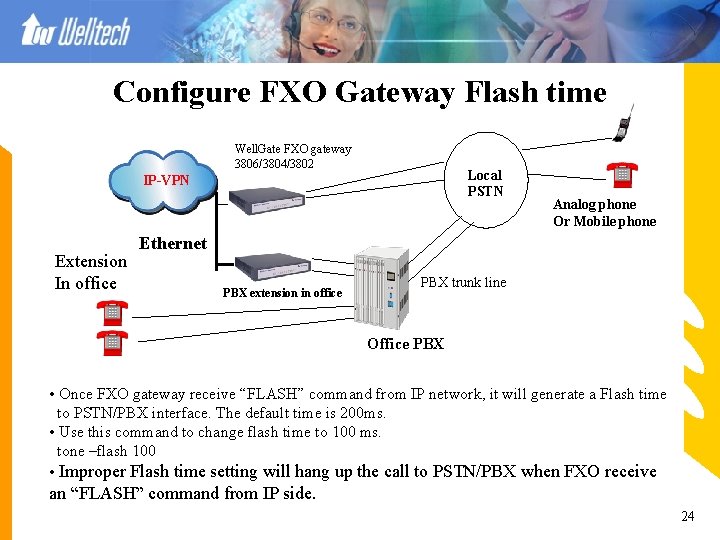
Configure FXO Gateway Flash time Well. Gate FXO gateway 3806/3804/3802 Local PSTN IP-VPN Extension In office Analog phone Or Mobile phone Ethernet PBX extension in office PBX trunk line Office PBX • Once FXO gateway receive “FLASH” command from IP network, it will generate a Flash time to PSTN/PBX interface. The default time is 200 ms. • Use this command to change flash time to 100 ms. tone –flash 100 • Improper Flash time setting will hang up the call to PSTN/PBX when FXO receive an “FLASH” command from IP side. 24
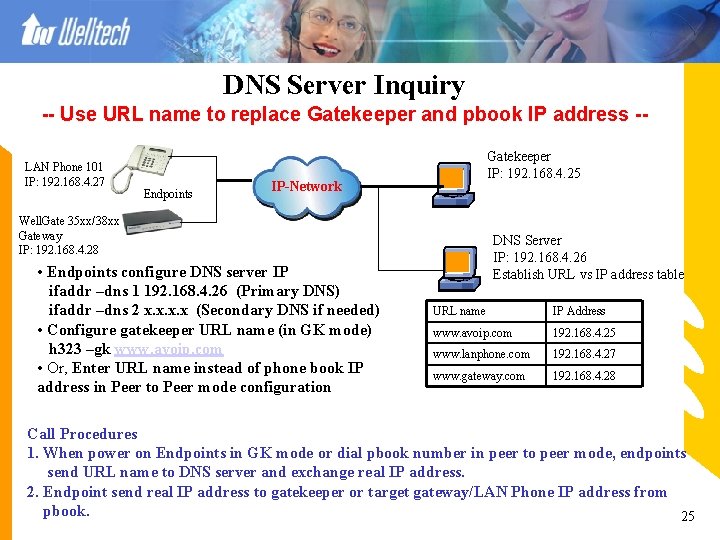
DNS Server Inquiry -- Use URL name to replace Gatekeeper and pbook IP address -LAN Phone 101 IP: 192. 168. 4. 27 Endpoints Gatekeeper IP: 192. 168. 4. 25 IP-Network Well. Gate 35 xx/38 xx Gateway IP: 192. 168. 4. 28 • Endpoints configure DNS server IP ifaddr –dns 1 192. 168. 4. 26 (Primary DNS) ifaddr –dns 2 x. x (Secondary DNS if needed) • Configure gatekeeper URL name (in GK mode) h 323 –gk www. avoip. com • Or, Enter URL name instead of phone book IP address in Peer to Peer mode configuration DNS Server IP: 192. 168. 4. 26 Establish URL vs IP address table URL name IP Address www. avoip. com 192. 168. 4. 25 www. lanphone. com 192. 168. 4. 27 www. gateway. com 192. 168. 4. 28 Call Procedures 1. When power on Endpoints in GK mode or dial pbook number in peer to peer mode, endpoints send URL name to DNS server and exchange real IP address. 2. Endpoint send real IP address to gatekeeper or target gateway/LAN Phone IP address from pbook. 25
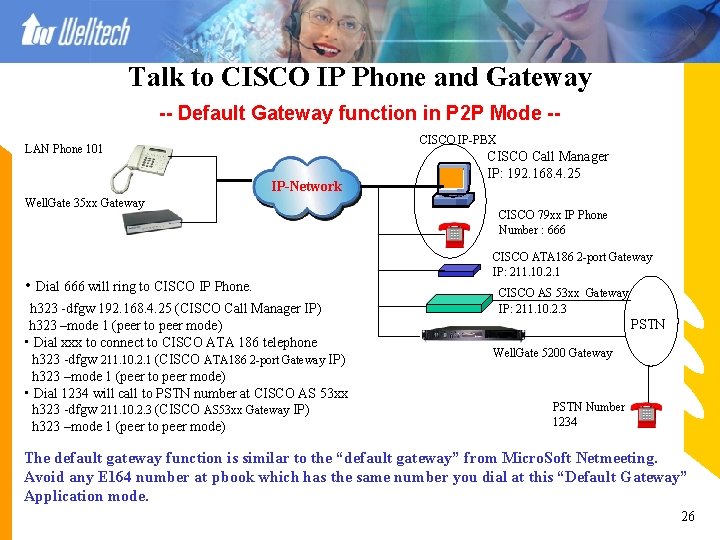
Talk to CISCO IP Phone and Gateway -- Default Gateway function in P 2 P Mode -CISCO IP-PBX LAN Phone 101 IP-Network Well. Gate 35 xx Gateway • Dial 666 will ring to CISCO IP Phone. h 323 -dfgw 192. 168. 4. 25 (CISCO Call Manager IP) h 323 –mode 1 (peer to peer mode) • Dial xxx to connect to CISCO ATA 186 telephone h 323 -dfgw 211. 10. 2. 1 (CISCO ATA 186 2 -port Gateway IP) h 323 –mode 1 (peer to peer mode) • Dial 1234 will call to PSTN number at CISCO AS 53 xx h 323 -dfgw 211. 10. 2. 3 (CISCO AS 53 xx Gateway IP) h 323 –mode 1 (peer to peer mode) CISCO Call Manager IP: 192. 168. 4. 25 CISCO 79 xx IP Phone Number : 666 CISCO ATA 186 2 -port Gateway IP: 211. 10. 2. 1 CISCO AS 53 xx Gateway IP: 211. 10. 2. 3 PSTN Well. Gate 5200 Gateway PSTN Number 1234 The default gateway function is similar to the “default gateway” from Micro. Soft Netmeeting. Avoid any E 164 number at pbook which has the same number you dial at this “Default Gateway” Application mode. 26
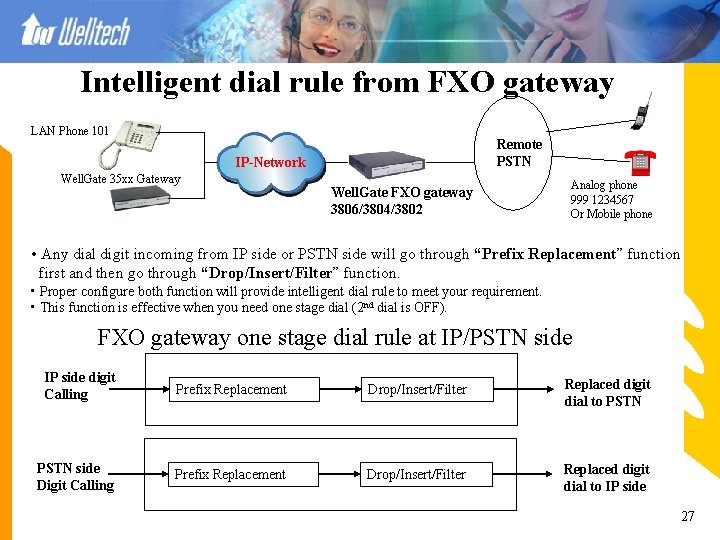
Intelligent dial rule from FXO gateway LAN Phone 101 Remote PSTN IP-Network Well. Gate 35 xx Gateway Well. Gate FXO gateway 3806/3804/3802 Analog phone 999 1234567 Or Mobile phone • Any dial digit incoming from IP side or PSTN side will go through “Prefix Replacement” function first and then go through “Drop/Insert/Filter” function. • Proper configure both function will provide intelligent dial rule to meet your requirement. • This function is effective when you need one stage dial (2 nd dial is OFF). FXO gateway one stage dial rule at IP/PSTN side IP side digit Calling Prefix Replacement Drop/Insert/Filter Replaced digit dial to PSTN side Digit Calling Prefix Replacement Drop/Insert/Filter Replaced digit dial to IP side 27
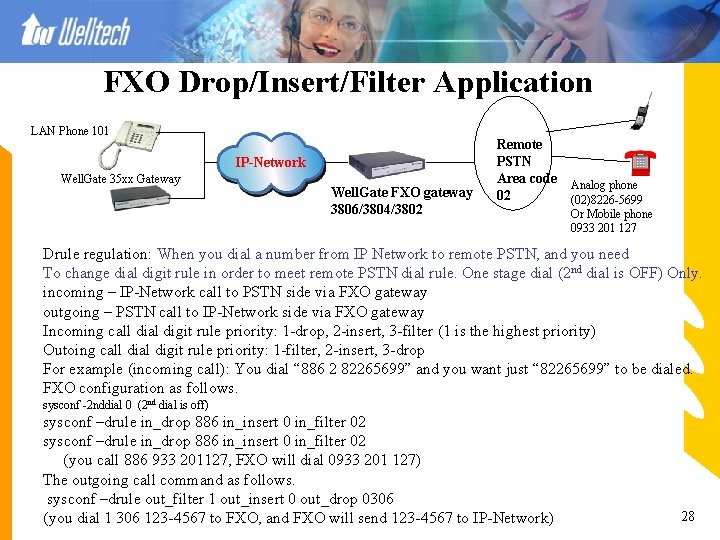
FXO Drop/Insert/Filter Application LAN Phone 101 IP-Network Well. Gate 35 xx Gateway Well. Gate FXO gateway 3806/3804/3802 Remote PSTN Area code 02 Analog phone (02)8226 -5699 Or Mobile phone 0933 201 127 Drule regulation: When you dial a number from IP Network to remote PSTN, and you need To change dial digit rule in order to meet remote PSTN dial rule. One stage dial (2 nd dial is OFF) Only. incoming – IP-Network call to PSTN side via FXO gateway outgoing – PSTN call to IP-Network side via FXO gateway Incoming call dial digit rule priority: 1 -drop, 2 -insert, 3 -filter (1 is the highest priority) Outoing call dial digit rule priority: 1 -filter, 2 -insert, 3 -drop For example (incoming call): You dial “ 886 2 82265699” and you want just “ 82265699” to be dialed. FXO configuration as follows. sysconf -2 nddial 0 (2 nd dial is off) sysconf –drule in_drop 886 in_insert 0 in_filter 02 (you call 886 933 201127, FXO will dial 0933 201 127) The outgoing call command as follows. sysconf –drule out_filter 1 out_insert 0 out_drop 0306 (you dial 1 306 123 -4567 to FXO, and FXO will send 123 -4567 to IP-Network) 28
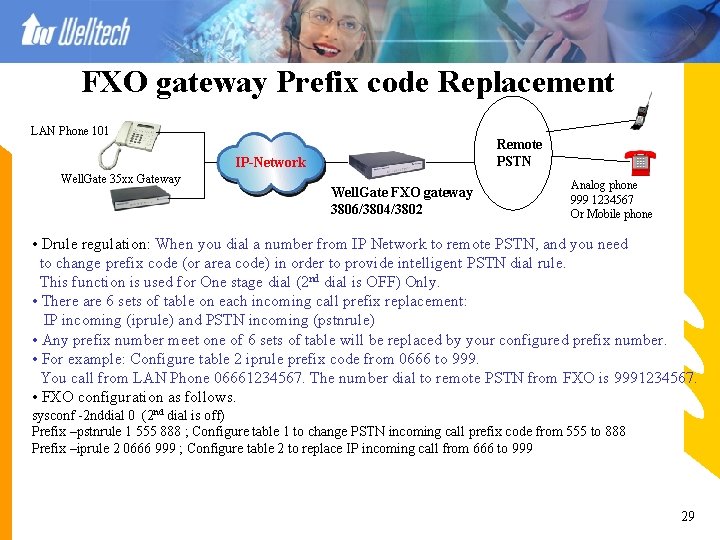
FXO gateway Prefix code Replacement LAN Phone 101 Remote PSTN IP-Network Well. Gate 35 xx Gateway Well. Gate FXO gateway 3806/3804/3802 Analog phone 999 1234567 Or Mobile phone • Drule regulation: When you dial a number from IP Network to remote PSTN, and you need to change prefix code (or area code) in order to provide intelligent PSTN dial rule. This function is used for One stage dial (2 nd dial is OFF) Only. • There are 6 sets of table on each incoming call prefix replacement: IP incoming (iprule) and PSTN incoming (pstnrule) • Any prefix number meet one of 6 sets of table will be replaced by your configured prefix number. • For example: Configure table 2 iprule prefix code from 0666 to 999. You call from LAN Phone 06661234567. The number dial to remote PSTN from FXO is 9991234567. • FXO configuration as follows. sysconf -2 nddial 0 (2 nd dial is off) Prefix –pstnrule 1 555 888 ; Configure table 1 to change PSTN incoming call prefix code from 555 to 888 Prefix –iprule 2 0666 999 ; Configure table 2 to replace IP incoming call from 666 to 999 29
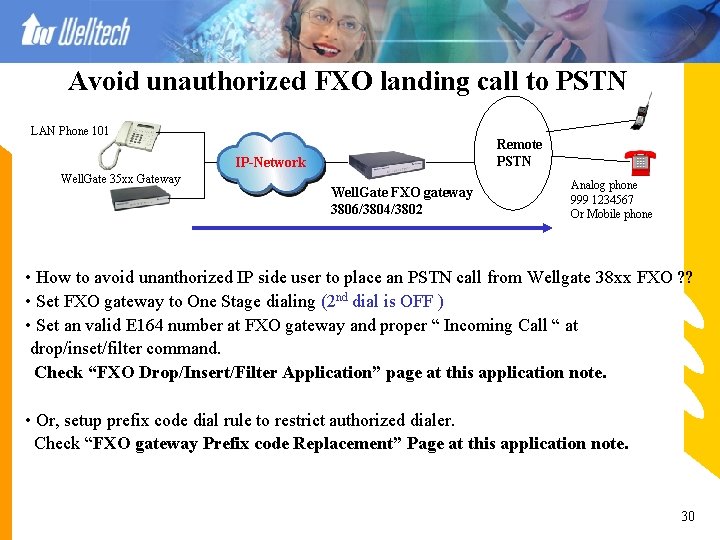
Avoid unauthorized FXO landing call to PSTN LAN Phone 101 Remote PSTN IP-Network Well. Gate 35 xx Gateway Well. Gate FXO gateway 3806/3804/3802 Analog phone 999 1234567 Or Mobile phone • How to avoid unanthorized IP side user to place an PSTN call from Wellgate 38 xx FXO ? ? • Set FXO gateway to One Stage dialing (2 nd dial is OFF ) • Set an valid E 164 number at FXO gateway and proper “ Incoming Call “ at drop/inset/filter command. Check “FXO Drop/Insert/Filter Application” page at this application note. • Or, setup prefix code dial rule to restrict authorized dialer. Check “FXO gateway Prefix code Replacement” Page at this application note. 30
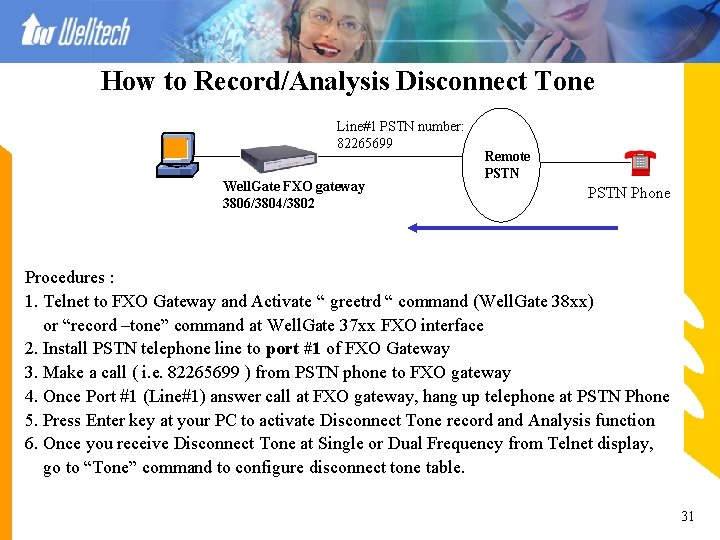
How to Record/Analysis Disconnect Tone Line#1 PSTN number: 82265699 Well. Gate FXO gateway 3806/3804/3802 Remote PSTN Phone Procedures : 1. Telnet to FXO Gateway and Activate “ greetrd “ command (Well. Gate 38 xx) or “record –tone” command at Well. Gate 37 xx FXO interface 2. Install PSTN telephone line to port #1 of FXO Gateway 3. Make a call ( i. e. 82265699 ) from PSTN phone to FXO gateway 4. Once Port #1 (Line#1) answer call at FXO gateway, hang up telephone at PSTN Phone 5. Press Enter key at your PC to activate Disconnect Tone record and Analysis function 6. Once you receive Disconnect Tone at Single or Dual Frequency from Telnet display, go to “Tone” command to configure disconnect tone table. 31
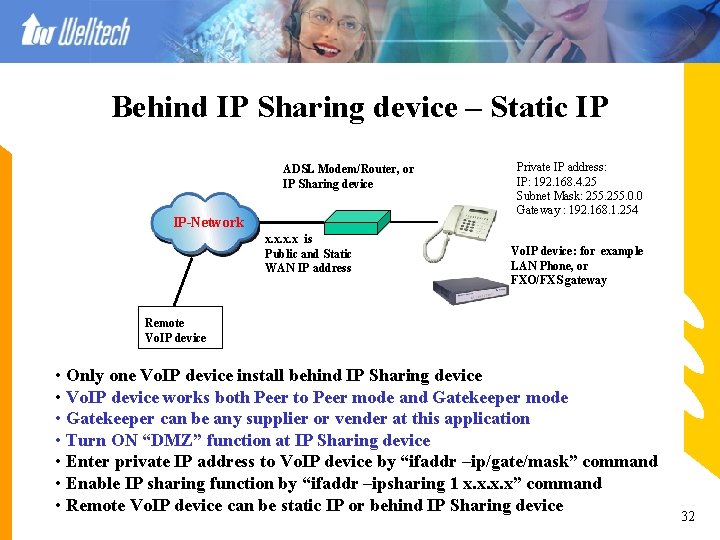
Behind IP Sharing device – Static IP ADSL Modem/Router, or IP Sharing device IP-Network x. x is Public and Static WAN IP address Private IP address: IP: 192. 168. 4. 25 Subnet Mask: 255. 0. 0 Gateway : 192. 168. 1. 254 Vo. IP device: for example LAN Phone, or FXO/FXS gateway Remote Vo. IP device • Only one Vo. IP device install behind IP Sharing device • Vo. IP device works both Peer to Peer mode and Gatekeeper mode • Gatekeeper can be any supplier or vender at this application • Turn ON “DMZ” function at IP Sharing device • Enter private IP address to Vo. IP device by “ifaddr –ip/gate/mask” command • Enable IP sharing function by “ifaddr –ipsharing 1 x. x” command • Remote Vo. IP device can be static IP or behind IP Sharing device 32
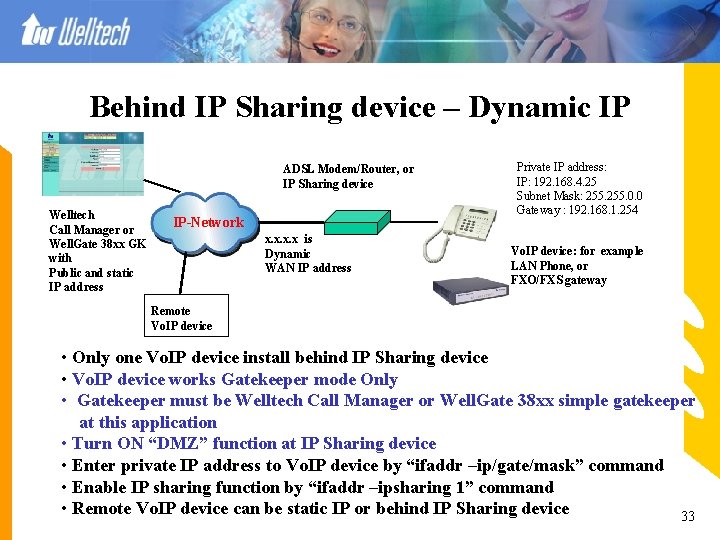
Behind IP Sharing device – Dynamic IP ADSL Modem/Router, or IP Sharing device Welltech Call Manager or Well. Gate 38 xx GK with Public and static IP address IP-Network x. x is Dynamic WAN IP address Private IP address: IP: 192. 168. 4. 25 Subnet Mask: 255. 0. 0 Gateway : 192. 168. 1. 254 Vo. IP device: for example LAN Phone, or FXO/FXS gateway Remote Vo. IP device • Only one Vo. IP device install behind IP Sharing device • Vo. IP device works Gatekeeper mode Only • Gatekeeper must be Welltech Call Manager or Well. Gate 38 xx simple gatekeeper at this application • Turn ON “DMZ” function at IP Sharing device • Enter private IP address to Vo. IP device by “ifaddr –ip/gate/mask” command • Enable IP sharing function by “ifaddr –ipsharing 1” command • Remote Vo. IP device can be static IP or behind IP Sharing device 33
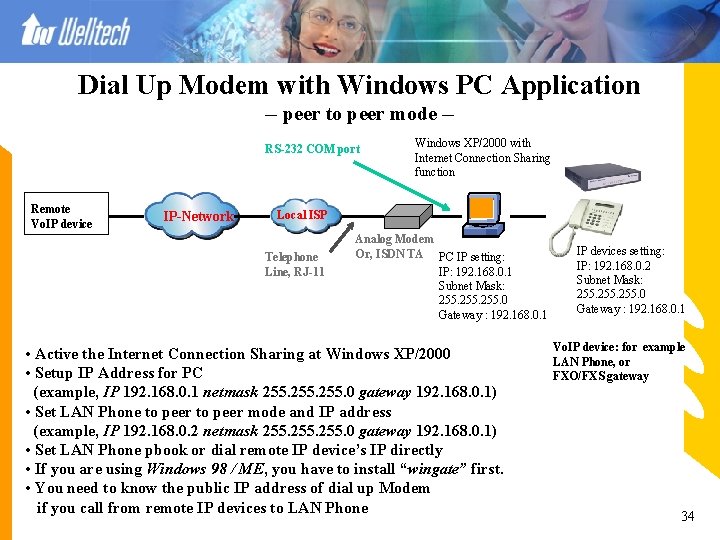
Dial Up Modem with Windows PC Application -- peer to peer mode -RS-232 COM port Remote Vo. IP device IP-Network Windows XP/2000 with Internet Connection Sharing function Local ISP Telephone Line, RJ-11 Analog Modem Or, ISDN TA PC IP setting: IP: 192. 168. 0. 1 Subnet Mask: 255. 0 Gateway : 192. 168. 0. 1 • Active the Internet Connection Sharing at Windows XP/2000 • Setup IP Address for PC (example, IP 192. 168. 0. 1 netmask 255. 0 gateway 192. 168. 0. 1) • Set LAN Phone to peer mode and IP address (example, IP 192. 168. 0. 2 netmask 255. 0 gateway 192. 168. 0. 1) • Set LAN Phone pbook or dial remote IP device’s IP directly • If you are using Windows 98 / ME, you have to install “wingate” first. • You need to know the public IP address of dial up Modem if you call from remote IP devices to LAN Phone IP devices setting: IP: 192. 168. 0. 2 Subnet Mask: 255. 0 Gateway : 192. 168. 0. 1 Vo. IP device: for example LAN Phone, or FXO/FXS gateway 34
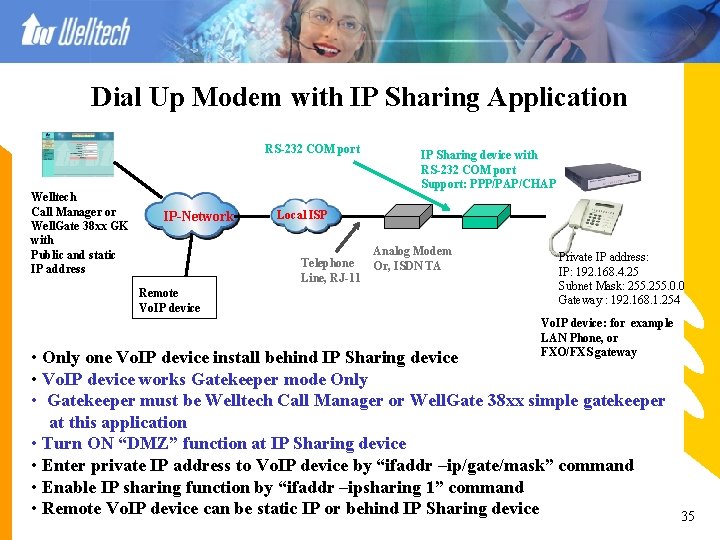
Dial Up Modem with IP Sharing Application RS-232 COM port Welltech Call Manager or Well. Gate 38 xx GK with Public and static IP address IP-Network Local ISP Telephone Line, RJ-11 Remote Vo. IP device IP Sharing device with RS-232 COM port Support: PPP/PAP/CHAP Analog Modem Or, ISDN TA Private IP address: IP: 192. 168. 4. 25 Subnet Mask: 255. 0. 0 Gateway : 192. 168. 1. 254 Vo. IP device: for example LAN Phone, or FXO/FXS gateway • Only one Vo. IP device install behind IP Sharing device • Vo. IP device works Gatekeeper mode Only • Gatekeeper must be Welltech Call Manager or Well. Gate 38 xx simple gatekeeper at this application • Turn ON “DMZ” function at IP Sharing device • Enter private IP address to Vo. IP device by “ifaddr –ip/gate/mask” command • Enable IP sharing function by “ifaddr –ipsharing 1” command • Remote Vo. IP device can be static IP or behind IP Sharing device 35
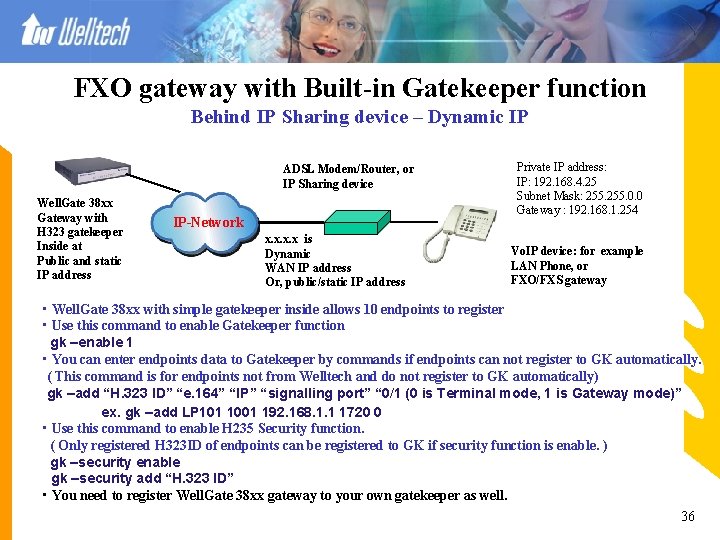
FXO gateway with Built-in Gatekeeper function Behind IP Sharing device – Dynamic IP ADSL Modem/Router, or IP Sharing device Well. Gate 38 xx Gateway with H 323 gatekeeper Inside at Public and static IP address IP-Network x. x is Dynamic WAN IP address Or, public/static IP address Private IP address: IP: 192. 168. 4. 25 Subnet Mask: 255. 0. 0 Gateway : 192. 168. 1. 254 Vo. IP device: for example LAN Phone, or FXO/FXS gateway • Well. Gate 38 xx with simple gatekeeper inside allows 10 endpoints to register • Use this command to enable Gatekeeper function gk –enable 1 • You can enter endpoints data to Gatekeeper by commands if endpoints can not register to GK automatically. ( This command is for endpoints not from Welltech and do not register to GK automatically) gk –add “H. 323 ID” “e. 164” “IP” “signalling port” “ 0/1 (0 is Terminal mode, 1 is Gateway mode)” ex. gk –add LP 101 1001 192. 168. 1. 1 1720 0 • Use this command to enable H 235 Security function. ( Only registered H 323 ID of endpoints can be registered to GK if security function is enable. ) gk –security enable gk –security add “H. 323 ID” • You need to register Well. Gate 38 xx gateway to your own gatekeeper as well. 36
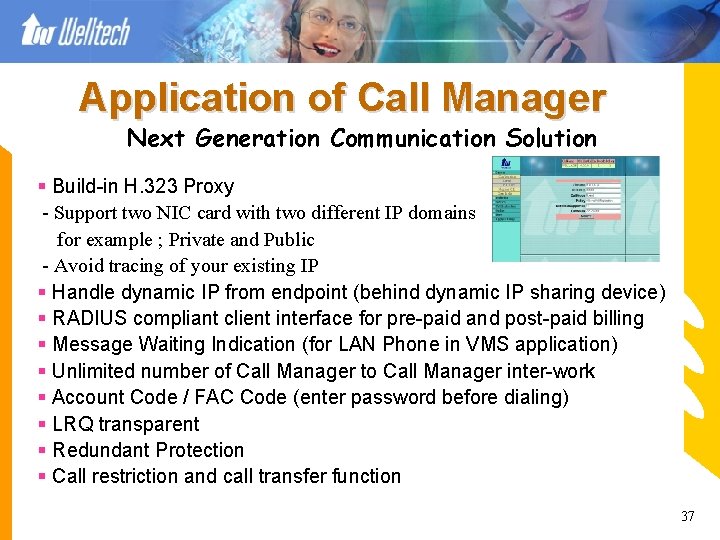
Application of Call Manager Next Generation Communication Solution § Build-in H. 323 Proxy - Support two NIC card with two different IP domains for example ; Private and Public - Avoid tracing of your existing IP § Handle dynamic IP from endpoint (behind dynamic IP sharing device) § RADIUS compliant client interface for pre-paid and post-paid billing § Message Waiting Indication (for LAN Phone in VMS application) § Unlimited number of Call Manager to Call Manager inter-work § Account Code / FAC Code (enter password before dialing) § LRQ transparent § Redundant Protection § Call restriction and call transfer function 37
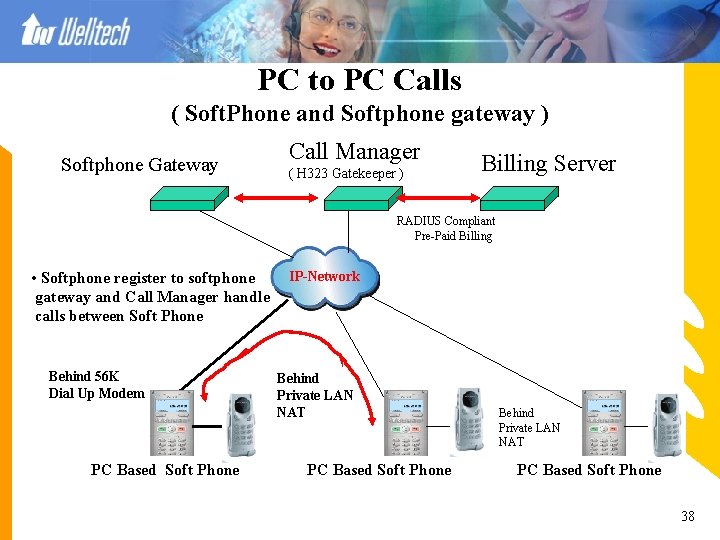
PC to PC Calls ( Soft. Phone and Softphone gateway ) Softphone Gateway Call Manager ( H 323 Gatekeeper ) Billing Server RADIUS Compliant Pre-Paid Billing • Softphone register to softphone gateway and Call Manager handle calls between Soft Phone Behind 56 K Dial Up Modem PC Based Soft Phone IP-Network Behind Private LAN NAT PC Based Soft Phone 38
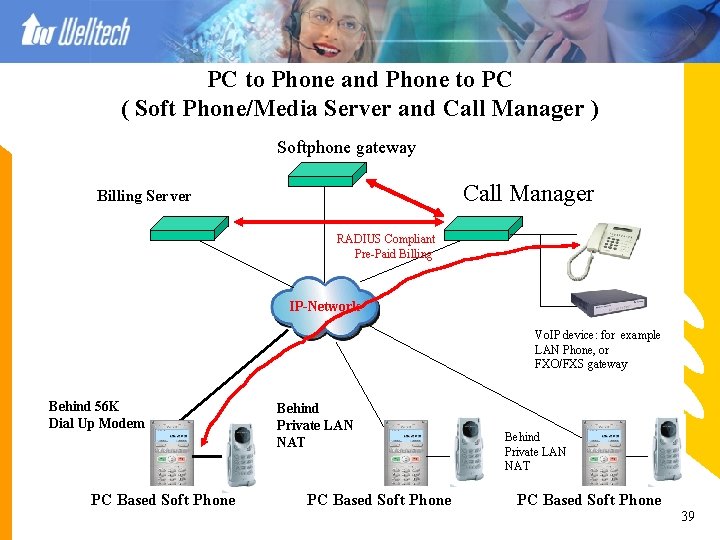
PC to Phone and Phone to PC ( Soft Phone/Media Server and Call Manager ) Softphone gateway Call Manager Billing Server RADIUS Compliant Pre-Paid Billing IP-Network Vo. IP device: for example LAN Phone, or FXO/FXS gateway Behind 56 K Dial Up Modem PC Based Soft Phone Behind Private LAN NAT PC Based Soft Phone 39
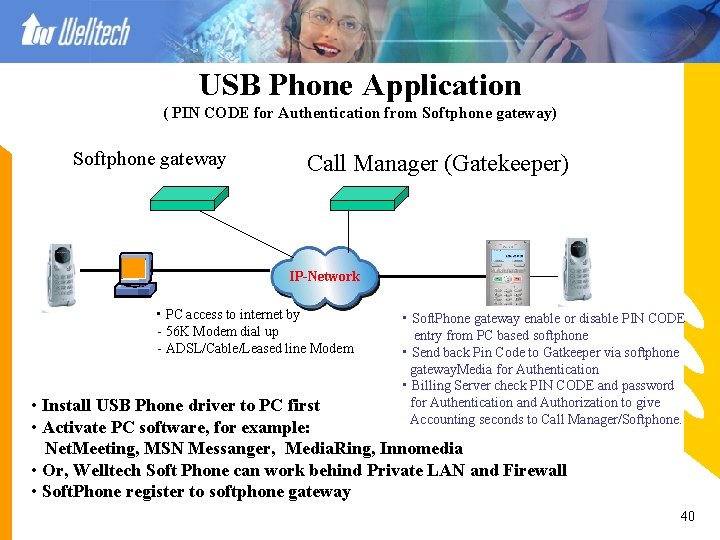
USB Phone Application ( PIN CODE for Authentication from Softphone gateway) Softphone gateway Call Manager (Gatekeeper) IP-Network • PC access to internet by - 56 K Modem dial up - ADSL/Cable/Leased line Modem • Soft. Phone gateway enable or disable PIN CODE entry from PC based softphone • Send back Pin Code to Gatkeeper via softphone gateway. Media for Authentication • Billing Server check PIN CODE and password for Authentication and Authorization to give Accounting seconds to Call Manager/Softphone. • Install USB Phone driver to PC first • Activate PC software, for example: Net. Meeting, MSN Messanger, Media. Ring, Innomedia • Or, Welltech Soft Phone can work behind Private LAN and Firewall • Soft. Phone register to softphone gateway 40
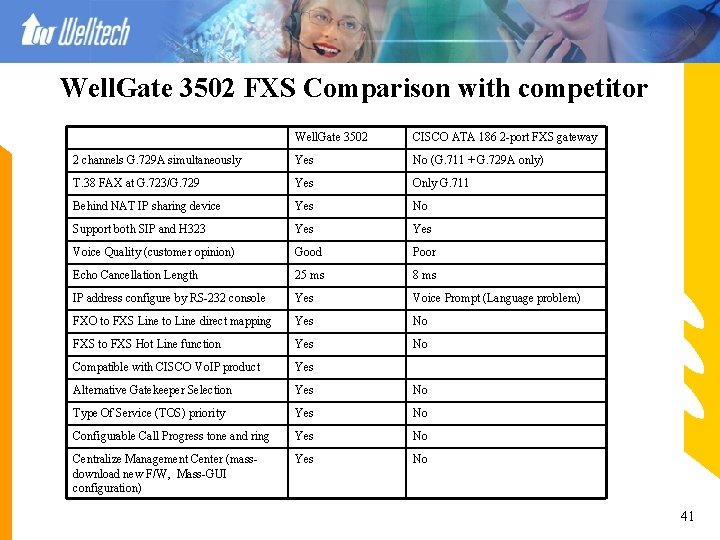
Well. Gate 3502 FXS Comparison with competitor Well. Gate 3502 CISCO ATA 186 2 -port FXS gateway 2 channels G. 729 A simultaneously Yes No (G. 711 + G. 729 A only) T. 38 FAX at G. 723/G. 729 Yes Only G. 711 Behind NAT IP sharing device Yes No Support both SIP and H 323 Yes Voice Quality (customer opinion) Good Poor Echo Cancellation Length 25 ms 8 ms IP address configure by RS-232 console Yes Voice Prompt (Language problem) FXO to FXS Line to Line direct mapping Yes No FXS to FXS Hot Line function Yes No Compatible with CISCO Vo. IP product Yes Alternative Gatekeeper Selection Yes No Type Of Service (TOS) priority Yes No Configurable Call Progress tone and ring Yes No Centralize Management Center (massdownload new F/W, Mass-GUI configuration) Yes No 41
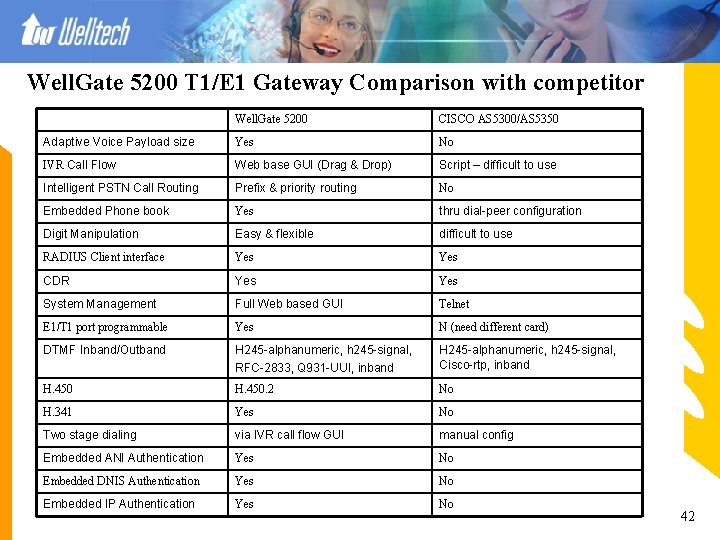
Well. Gate 5200 T 1/E 1 Gateway Comparison with competitor Well. Gate 5200 CISCO AS 5300/AS 5350 Adaptive Voice Payload size Yes No IVR Call Flow Web base GUI (Drag & Drop) Script – difficult to use Intelligent PSTN Call Routing Prefix & priority routing No Embedded Phone book Yes thru dial-peer configuration Digit Manipulation Easy & flexible difficult to use RADIUS Client interface Yes CDR Yes System Management Full Web based GUI Telnet E 1/T 1 port programmable Yes N (need different card) DTMF Inband/Outband H 245 -alphanumeric, h 245 -signal, RFC-2833, Q 931 -UUI, inband H 245 -alphanumeric, h 245 -signal, Cisco-rtp, inband H. 450. 2 No H. 341 Yes No Two stage dialing via IVR call flow GUI manual config Embedded ANI Authentication Yes No Embedded DNIS Authentication Yes No Embedded IP Authentication Yes No 42
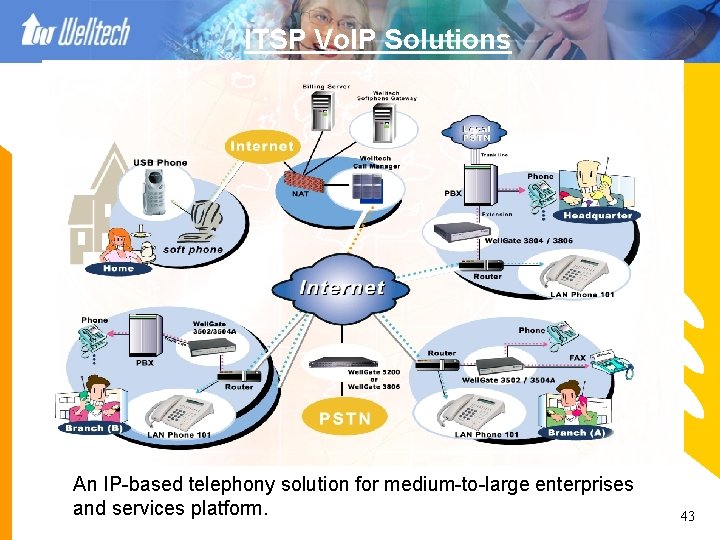
ITSP Vo. IP Solutions An IP-based telephony solution for medium-to-large enterprises and services platform. 43