
Visual Programming Week 09 Tiny DB Web API
Visual Programming Week # 09 Tiny. DB, Web API
Outline 1. 2. 3. 4. 5. Database Tiny. DB Web. API: stock quotes & charts References VP Lecture Note by Dr. Hanh Pham 2
Database • Purpose: to store data permanently • Similar: Files • In APP Inventor: TAG = key or name (file name) VALUE = data (info in file) Two cases: – Tiny. DB: store data on the phone/tablet – Web. Tiny. DB: store data on the web(cloud) VP Lecture Note by Dr. Hanh Pham 3
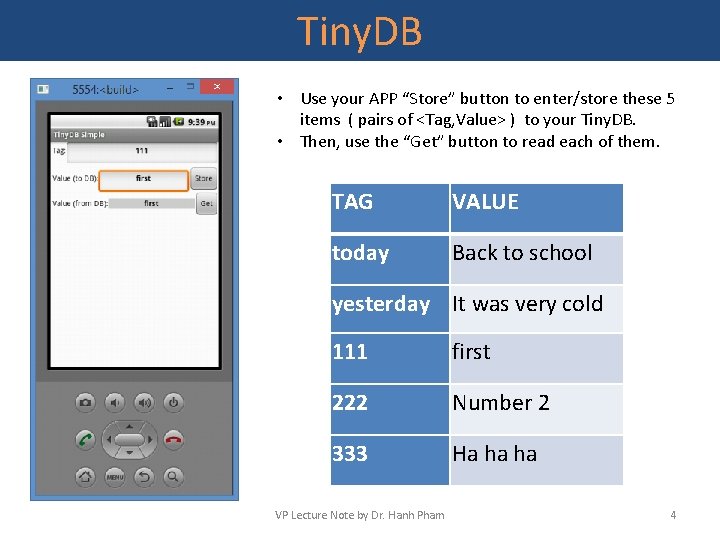
Tiny. DB • Use your APP “Store” button to enter/store these 5 items ( pairs of <Tag, Value> ) to your Tiny. DB. • Then, use the “Get” button to read each of them. TAG VALUE today Back to school yesterday It was very cold 111 first 222 Number 2 333 Ha ha ha VP Lecture Note by Dr. Hanh Pham 4
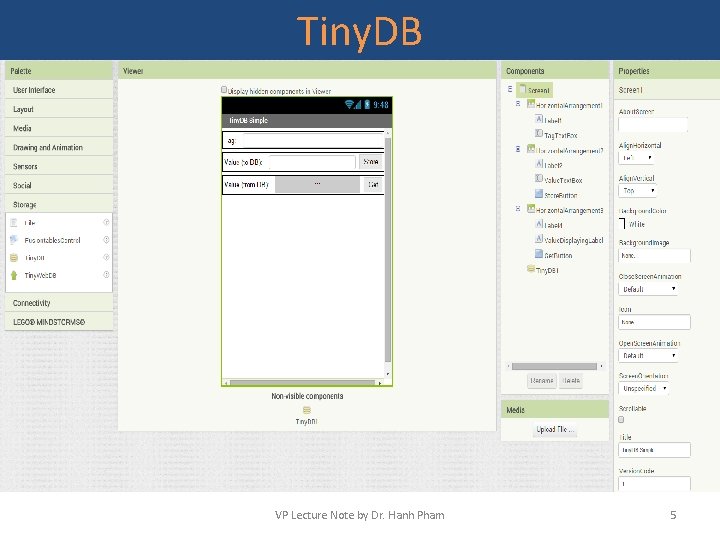
Tiny. DB VP Lecture Note by Dr. Hanh Pham 5

Tiny. DB VP Lecture Note by Dr. Hanh Pham 6
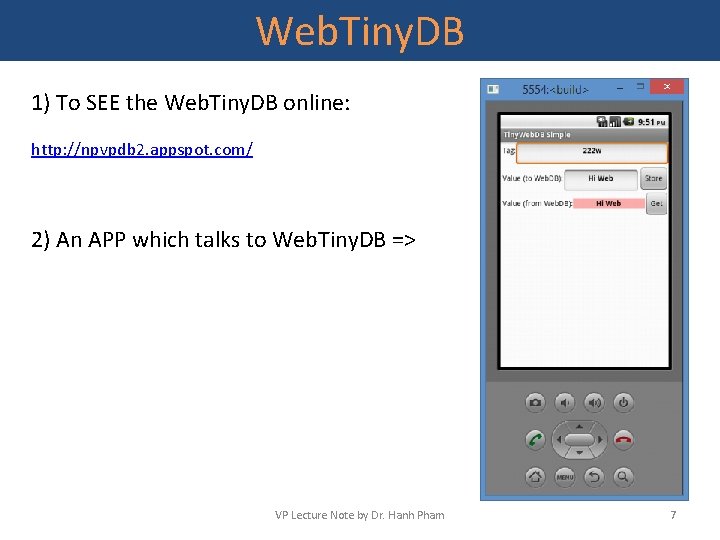
Web. Tiny. DB 1) To SEE the Web. Tiny. DB online: http: //npvpdb 2. appspot. com/ 2) An APP which talks to Web. Tiny. DB => VP Lecture Note by Dr. Hanh Pham 7
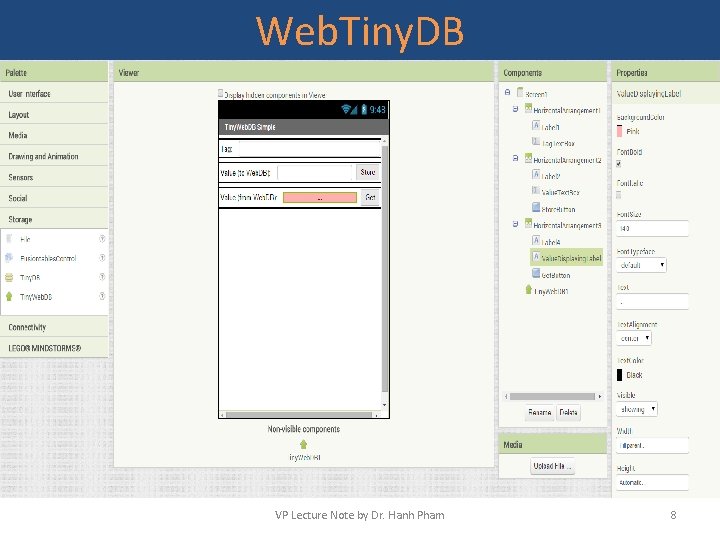
Web. Tiny. DB VP Lecture Note by Dr. Hanh Pham 8
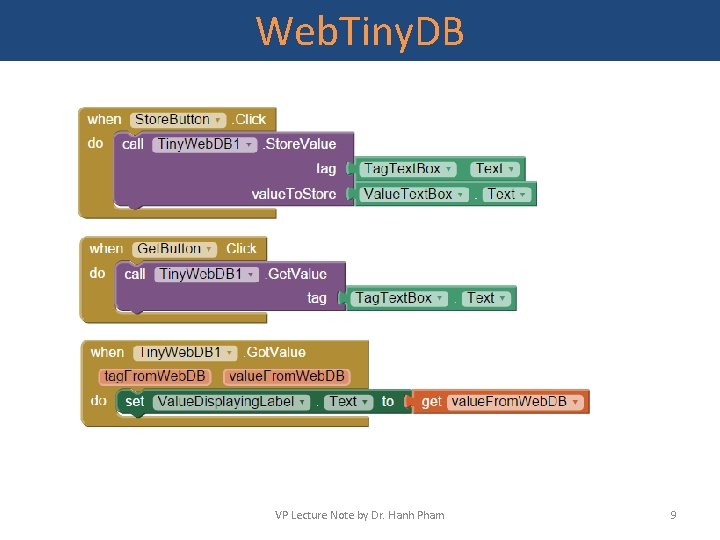
Web. Tiny. DB VP Lecture Note by Dr. Hanh Pham 9
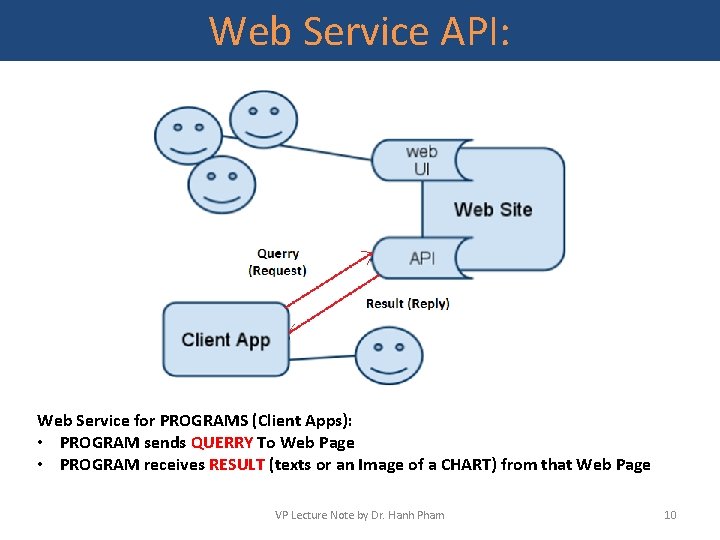
Web Service API: Web Service for PROGRAMS (Client Apps): • PROGRAM sends QUERRY To Web Page • PROGRAM receives RESULT (texts or an Image of a CHART) from that Web Page VP Lecture Note by Dr. Hanh Pham 10
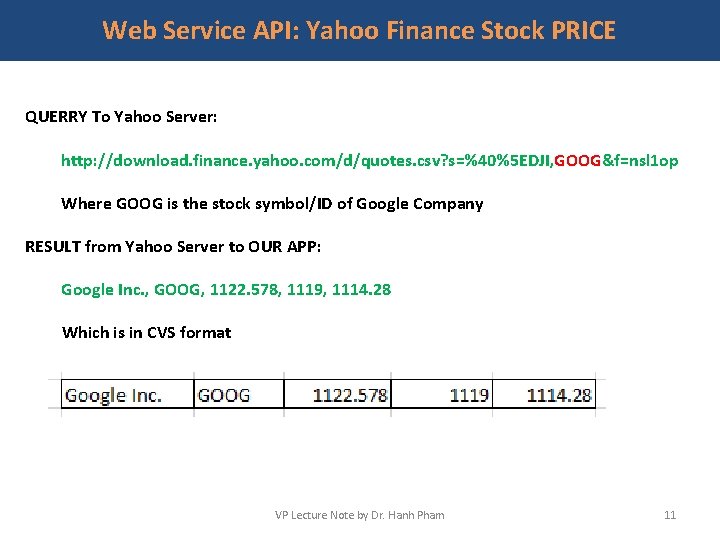
Web Service API: Yahoo Finance Stock PRICE QUERRY To Yahoo Server: http: //download. finance. yahoo. com/d/quotes. csv? s=%40%5 EDJI, GOOG&f=nsl 1 op Where GOOG is the stock symbol/ID of Google Company RESULT from Yahoo Server to OUR APP: Google Inc. , GOOG, 1122. 578, 1119, 1114. 28 Which is in CVS format VP Lecture Note by Dr. Hanh Pham 11
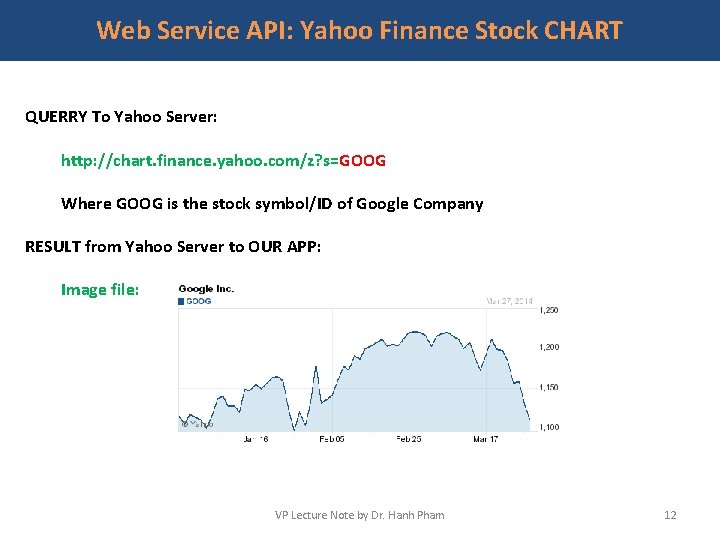
Web Service API: Yahoo Finance Stock CHART QUERRY To Yahoo Server: http: //chart. finance. yahoo. com/z? s=GOOG Where GOOG is the stock symbol/ID of Google Company RESULT from Yahoo Server to OUR APP: Image file: VP Lecture Note by Dr. Hanh Pham 12
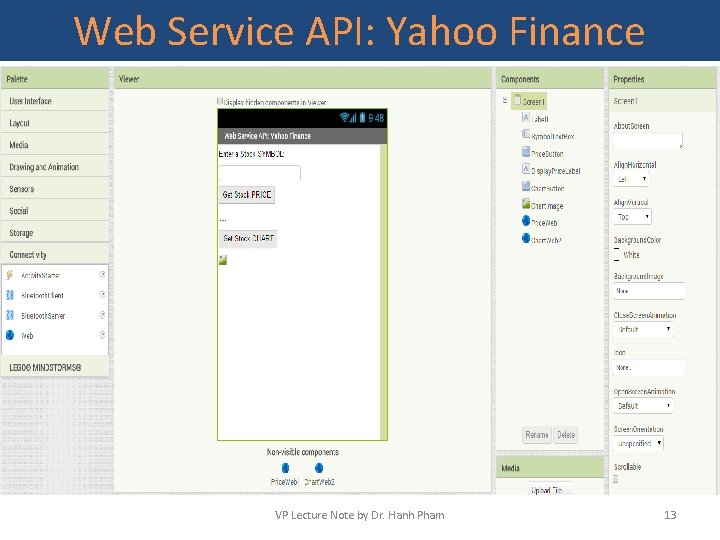
Web Service API: Yahoo Finance VP Lecture Note by Dr. Hanh Pham 13
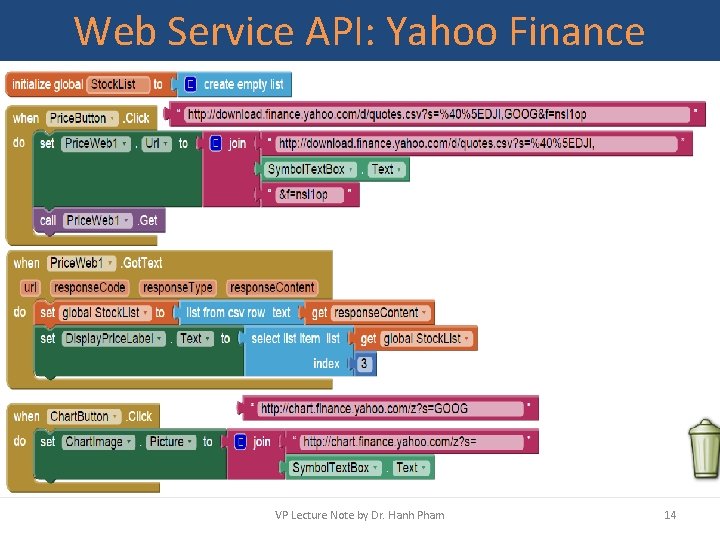
Web Service API: Yahoo Finance VP Lecture Note by Dr. Hanh Pham 14
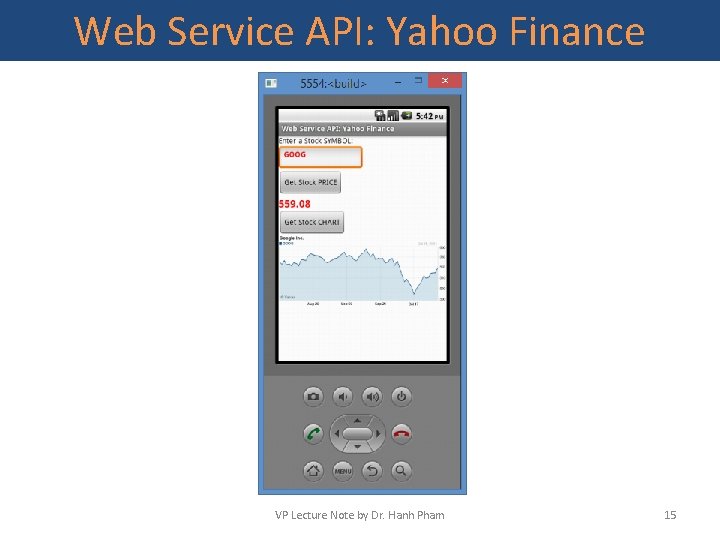
Web Service API: Yahoo Finance VP Lecture Note by Dr. Hanh Pham 15
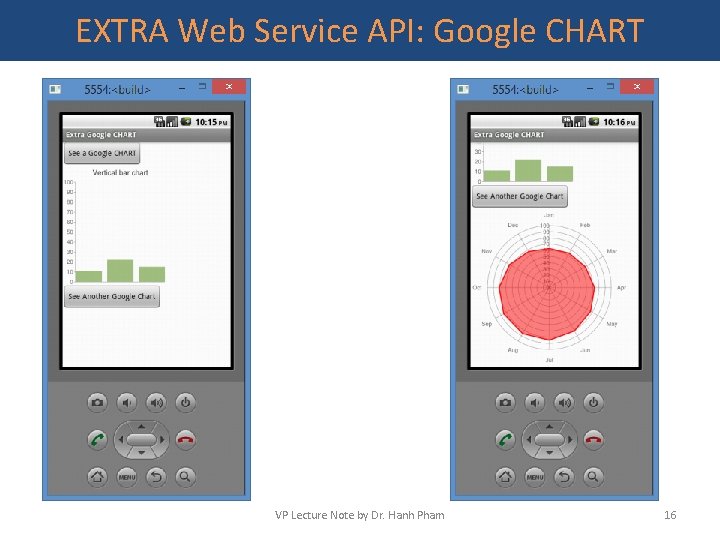
EXTRA Web Service API: Google CHART VP Lecture Note by Dr. Hanh Pham 16
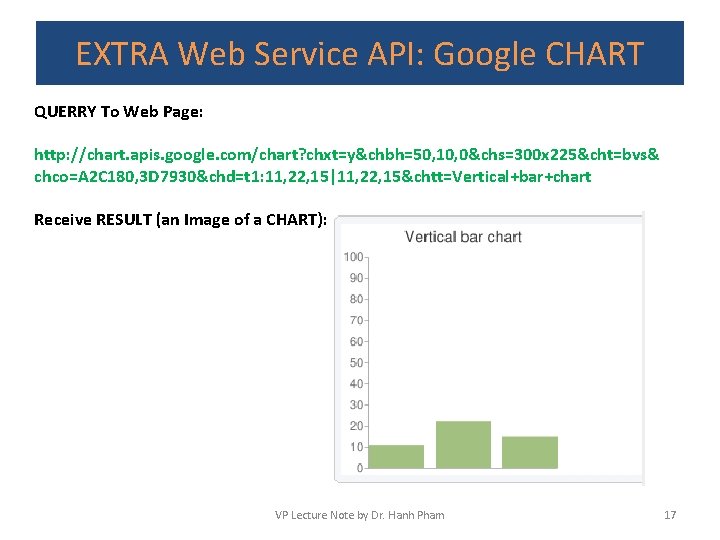
EXTRA Web Service API: Google CHART QUERRY To Web Page: http: //chart. apis. google. com/chart? chxt=y&chbh=50, 10, 0&chs=300 x 225&cht=bvs& chco=A 2 C 180, 3 D 7930&chd=t 1: 11, 22, 15|11, 22, 15&chtt=Vertical+bar+chart Receive RESULT (an Image of a CHART): VP Lecture Note by Dr. Hanh Pham 17
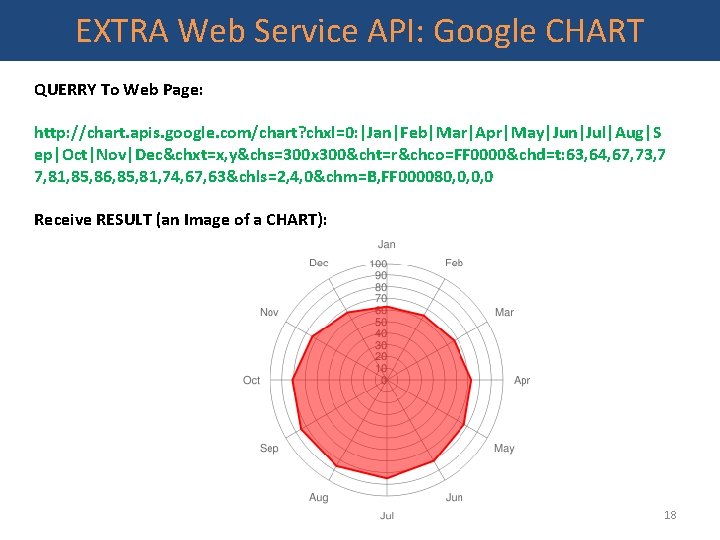
EXTRA Web Service API: Google CHART QUERRY To Web Page: http: //chart. apis. google. com/chart? chxl=0: |Jan|Feb|Mar|Apr|May|Jun|Jul|Aug|S ep|Oct|Nov|Dec&chxt=x, y&chs=300 x 300&cht=r&chco=FF 0000&chd=t: 63, 64, 67, 73, 7 7, 81, 85, 86, 85, 81, 74, 67, 63&chls=2, 4, 0&chm=B, FF 000080, 0, 0, 0 Receive RESULT (an Image of a CHART): VP Lecture Note by Dr. Hanh Pham 18
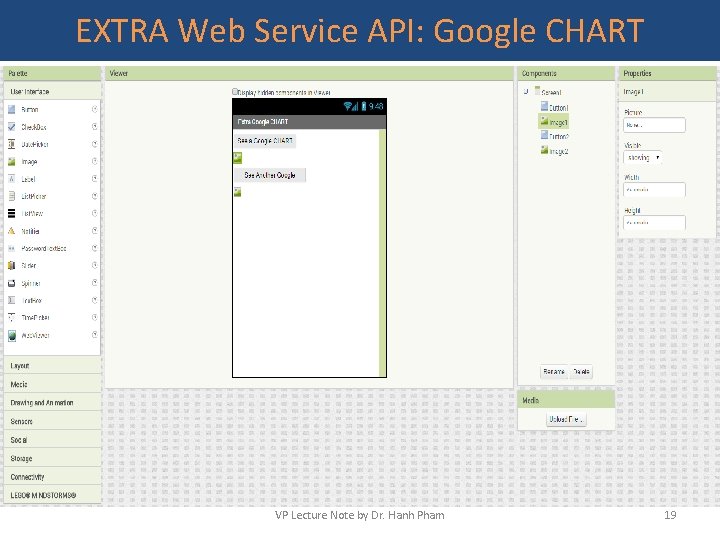
EXTRA Web Service API: Google CHART VP Lecture Note by Dr. Hanh Pham 19
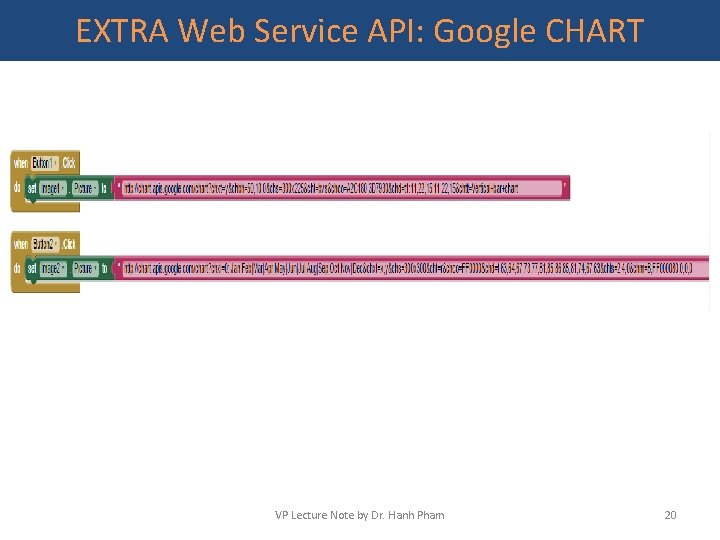
EXTRA Web Service API: Google CHART VP Lecture Note by Dr. Hanh Pham 20
EXTRA Web Service API: Google CHART VP Lecture Note by Dr. Hanh Pham 21
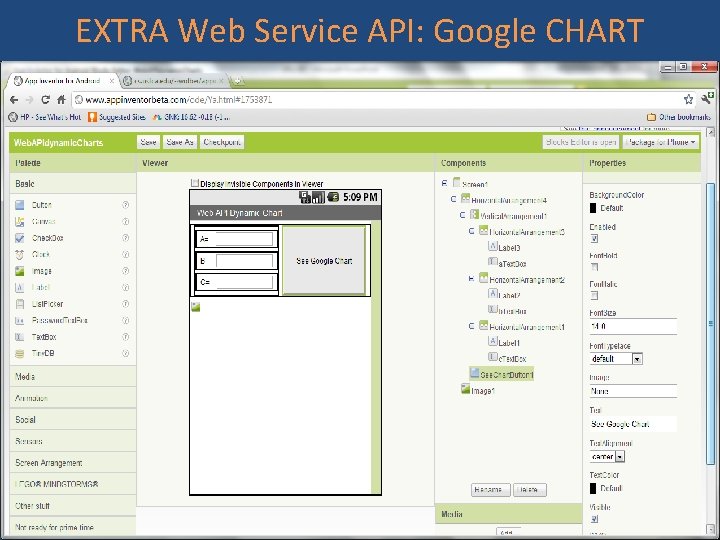
EXTRA Web Service API: Google CHART VP Lecture Note by Dr. Hanh Pham 22
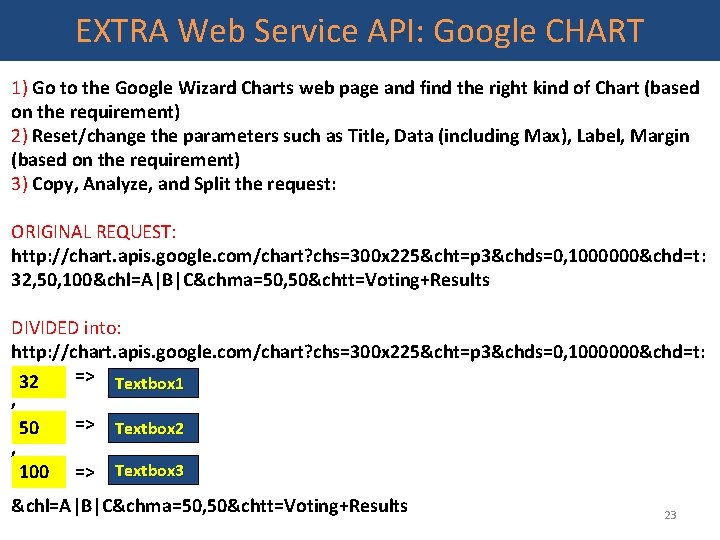
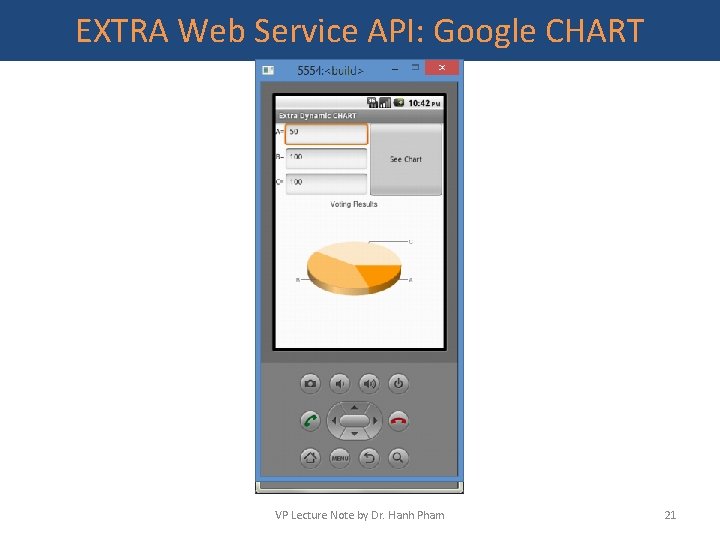
EXTRA Web Service API: Google CHART 1) Go to the Google Wizard Charts web page and find the right kind of Chart (based on the requirement) 2) Reset/change the parameters such as Title, Data (including Max), Label, Margin (based on the requirement) 3) Copy, Analyze, and Split the request: ORIGINAL REQUEST: http: //chart. apis. google. com/chart? chs=300 x 225&cht=p 3&chds=0, 1000000&chd=t: 32, 50, 100&chl=A|B|C&chma=50, 50&chtt=Voting+Results DIVIDED into: http: //chart. apis. google. com/chart? chs=300 x 225&cht=p 3&chds=0, 1000000&chd=t: => Textbox 1 32 , => Textbox 2 50 , 100 => Textbox 3 &chl=A|B|C&chma=50, 50&chtt=Voting+Results 23
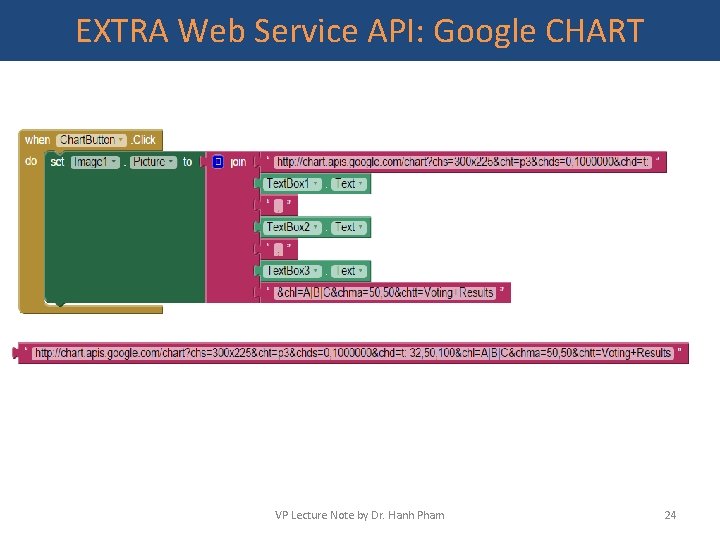
EXTRA Web Service API: Google CHART VP Lecture Note by Dr. Hanh Pham 24
- Slides: 24