
Visual Programming COMP315 Chapter 5 Multithreading Windows Applications
- Slides: 41
Visual Programming COMP-315 Chapter #5 Multithreading & Windows Applications
Multithreading Fundamentals There are two distinct types of multitasking: processbased and thread-based. It is important to understand the difference between the two. A process is, in essence, a program that is executing. Thus, processbased multitasking is the feature that allows your computer to run two or more programs concurrently. For example, process-based multitasking allows you to run a word processor at the same time you are using a spreadsheet or browsing the Internet. In process-based multitasking, a program is the smallest unit of code that can be dispatched by the scheduler. 2
Multithreading Fundamentals A thread is a dispatchable unit of executable code. The name comes from the concept of a “thread of execution. ” In a thread-based multitasking environment, all processes have at least one thread, but they can have more. This means that a single program can perform two or more tasks at once. For instance, a text editor can be formatting text at the same time that it is printing, as long as these two actions are being performed by two separate threads. 3
Thread States A thread can be in one of several states. In general terms, it can be running. It can be ready to run as soon as it gets CPU time. A running thread can be suspended, which is a temporary halt to its execution. It can later be resumed. A thread can be blocked when waiting for a resource. A thread can be terminated, in which case its execution ends and cannot be resumed. 4
Types of Threads The. NET Framework defines two types of threads: foreground and background. By default, when you create a thread, it is a foreground thread, but you can change it to a background thread. The only difference between foreground and background threads is that a background thread will be automatically terminated when all foreground threads in its process have stopped. 5
Main Thread All processes have at least one thread of execution, which is usually called the main thread because it is the one that is executed when your program begins. From the main thread, you can create other threads. 6
System. Threading namespace The classes that support multithreaded programming are defined in the System. Threading namespace. Thus, you will usually include this statement at the start of any multithreaded program: using System. Threading; 7
The Thread Class The multithreading system is built upon the Thread class, which encapsulates a thread of execution. The Thread class is sealed, which means that it cannot be inherited. Thread defines several methods and properties that help manage threads. 8
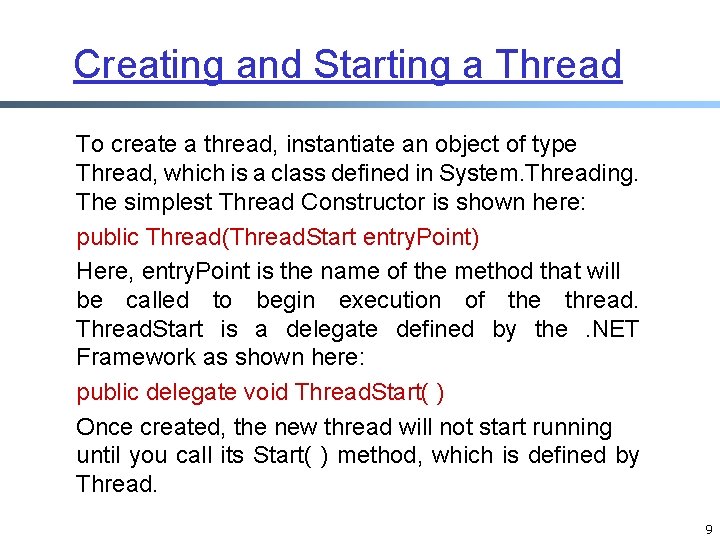
Creating and Starting a Thread To create a thread, instantiate an object of type Thread, which is a class defined in System. Threading. The simplest Thread Constructor is shown here: public Thread(Thread. Start entry. Point) Here, entry. Point is the name of the method that will be called to begin execution of the thread. Thread. Start is a delegate defined by the. NET Framework as shown here: public delegate void Thread. Start( ) Once created, the new thread will not start running until you call its Start( ) method, which is defined by Thread. 9
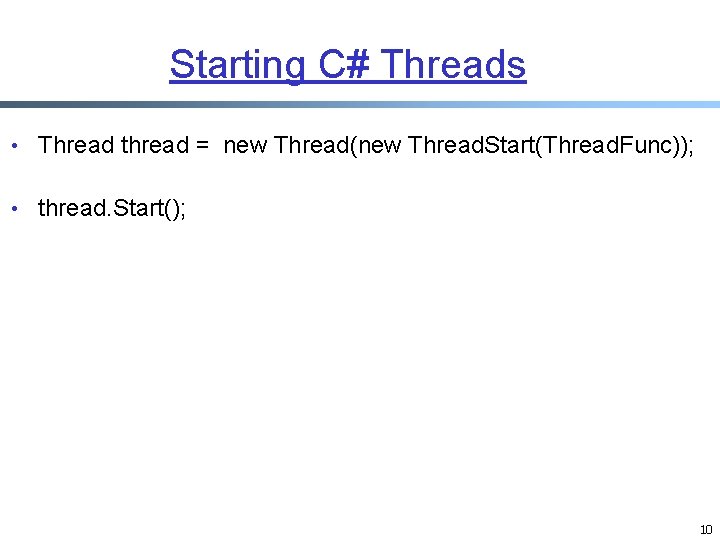
Starting C# Threads • Thread thread = new Thread(new Thread. Start(Thread. Func)); • thread. Start(); 10
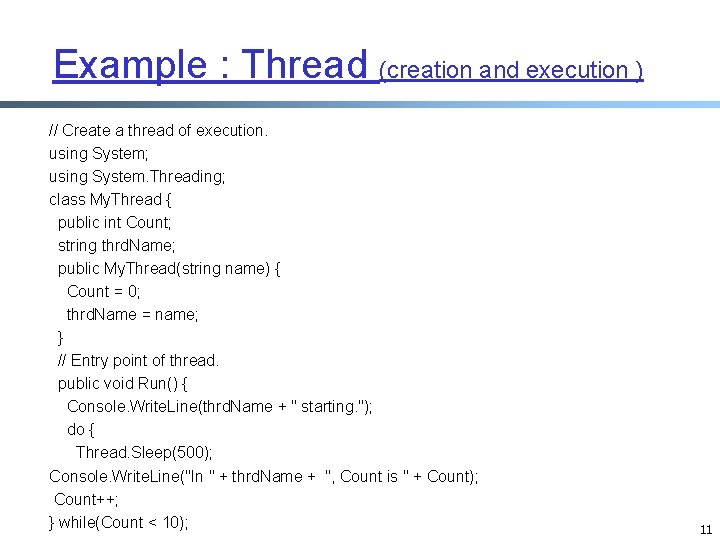
Example : Thread (creation and execution ) // Create a thread of execution. using System; using System. Threading; class My. Thread { public int Count; string thrd. Name; public My. Thread(string name) { Count = 0; thrd. Name = name; } // Entry point of thread. public void Run() { Console. Write. Line(thrd. Name + " starting. "); do { Thread. Sleep(500); Console. Write. Line("In " + thrd. Name + ", Count is " + Count); Count++; } while(Count < 10); 11
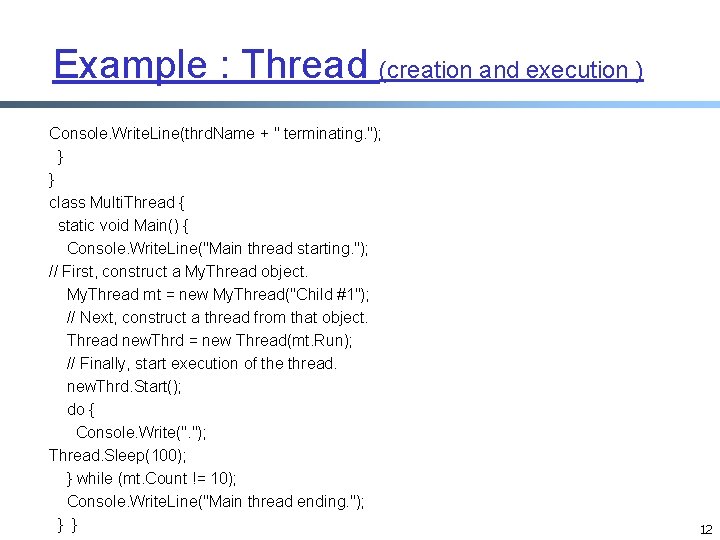
Example : Thread (creation and execution ) Console. Write. Line(thrd. Name + " terminating. "); } } class Multi. Thread { static void Main() { Console. Write. Line("Main thread starting. "); // First, construct a My. Thread object. My. Thread mt = new My. Thread("Child #1"); // Next, construct a thread from that object. Thread new. Thrd = new Thread(mt. Run); // Finally, start execution of the thread. new. Thrd. Start(); do { Console. Write(". "); Thread. Sleep(100); } while (mt. Count != 10); Console. Write. Line("Main thread ending. "); } } 12
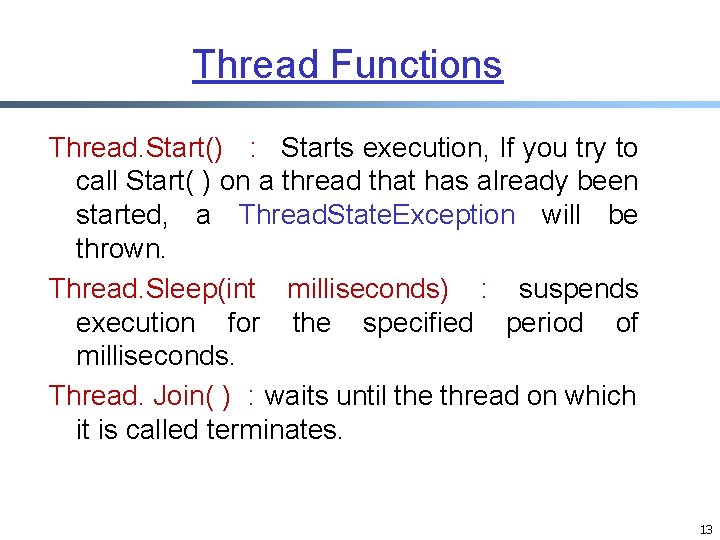
Thread Functions Thread. Start() : Starts execution, If you try to call Start( ) on a thread that has already been started, a Thread. State. Exception will be thrown. Thread. Sleep(int milliseconds) : suspends execution for the specified period of milliseconds. Thread. Join( ) : waits until the thread on which it is called terminates. 13
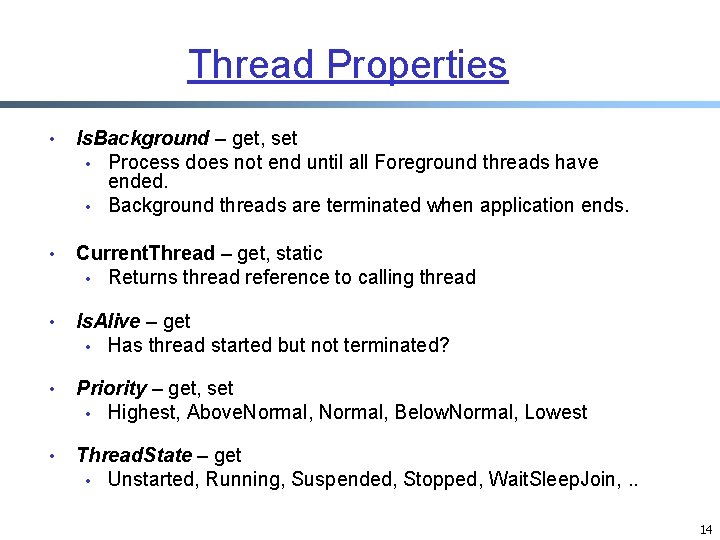
Thread Properties • Is. Background – get, set • Process does not end until all Foreground threads have ended. • Background threads are terminated when application ends. • Current. Thread – get, static • Returns thread reference to calling thread • Is. Alive – get • Has thread started but not terminated? • Priority – get, set • Highest, Above. Normal, Below. Normal, Lowest • Thread. State – get • Unstarted, Running, Suspended, Stopped, Wait. Sleep. Join, . . 14
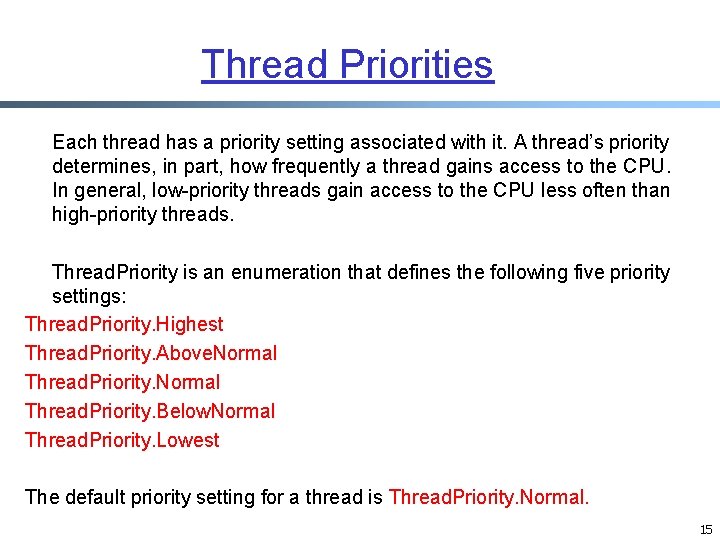
Thread Priorities Each thread has a priority setting associated with it. A thread’s priority determines, in part, how frequently a thread gains access to the CPU. In general, low-priority threads gain access to the CPU less often than high-priority threads. Thread. Priority is an enumeration that defines the following five priority settings: Thread. Priority. Highest Thread. Priority. Above. Normal Thread. Priority. Below. Normal Thread. Priority. Lowest The default priority setting for a thread is Thread. Priority. Normal. 15
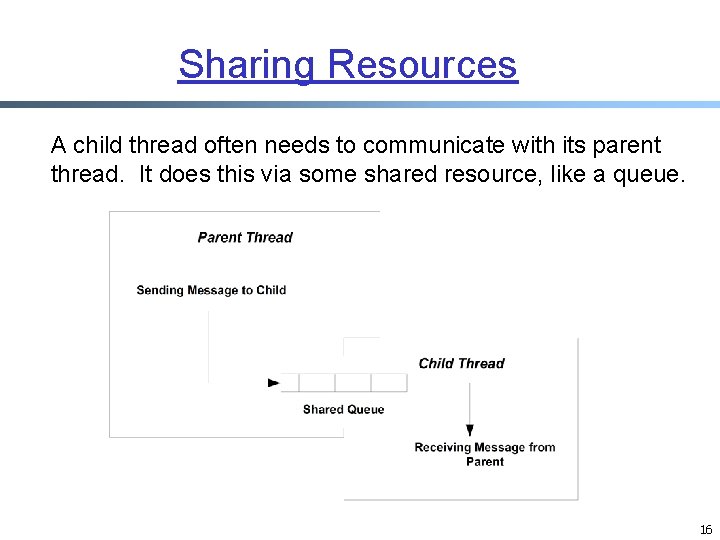
Sharing Resources A child thread often needs to communicate with its parent thread. It does this via some shared resource, like a queue. 16
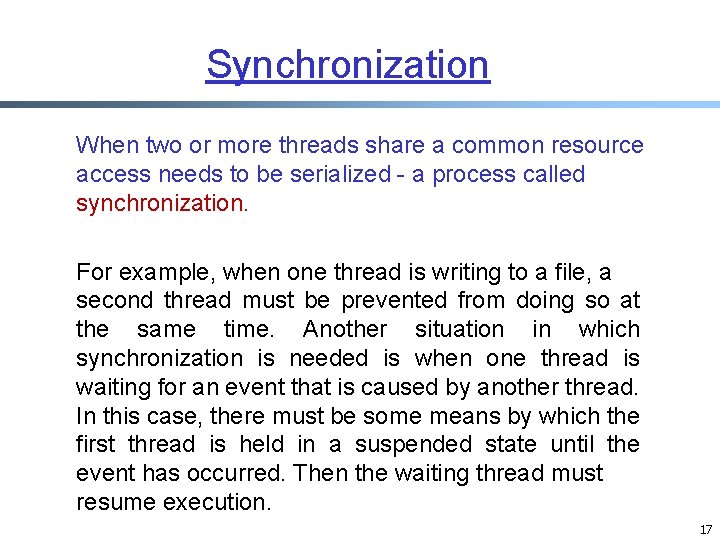
Synchronization When two or more threads share a common resource access needs to be serialized - a process called synchronization. For example, when one thread is writing to a file, a second thread must be prevented from doing so at the same time. Another situation in which synchronization is needed is when one thread is waiting for an event that is caused by another thread. In this case, there must be some means by which the first thread is held in a suspended state until the event has occurred. Then the waiting thread must resume execution. 17
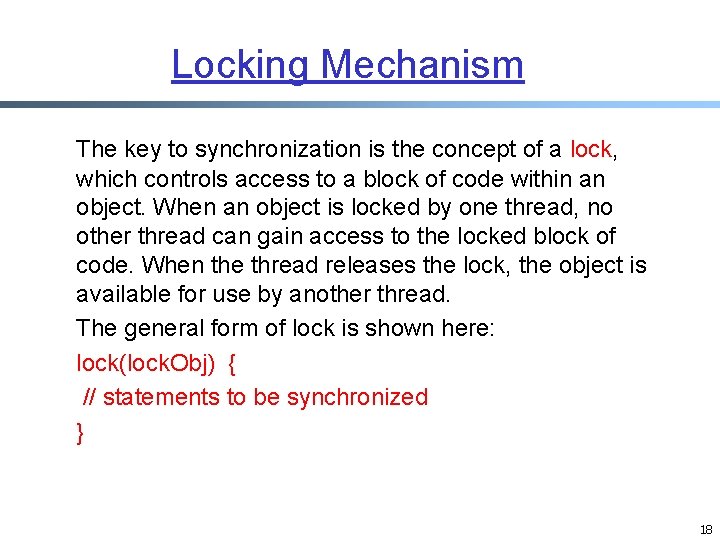
Locking Mechanism The key to synchronization is the concept of a lock, which controls access to a block of code within an object. When an object is locked by one thread, no other thread can gain access to the locked block of code. When the thread releases the lock, the object is available for use by another thread. The general form of lock is shown here: lock(lock. Obj) { // statements to be synchronized } 18
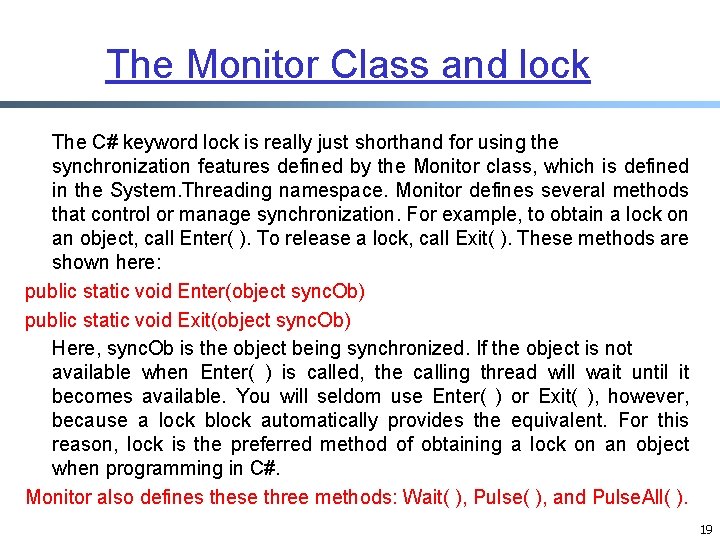
The Monitor Class and lock The C# keyword lock is really just shorthand for using the synchronization features defined by the Monitor class, which is defined in the System. Threading namespace. Monitor defines several methods that control or manage synchronization. For example, to obtain a lock on an object, call Enter( ). To release a lock, call Exit( ). These methods are shown here: public static void Enter(object sync. Ob) public static void Exit(object sync. Ob) Here, sync. Ob is the object being synchronized. If the object is not available when Enter( ) is called, the calling thread will wait until it becomes available. You will seldom use Enter( ) or Exit( ), however, because a lock block automatically provides the equivalent. For this reason, lock is the preferred method of obtaining a lock on an object when programming in C#. Monitor also defines these three methods: Wait( ), Pulse( ), and Pulse. All( ). 19
Windows Applications
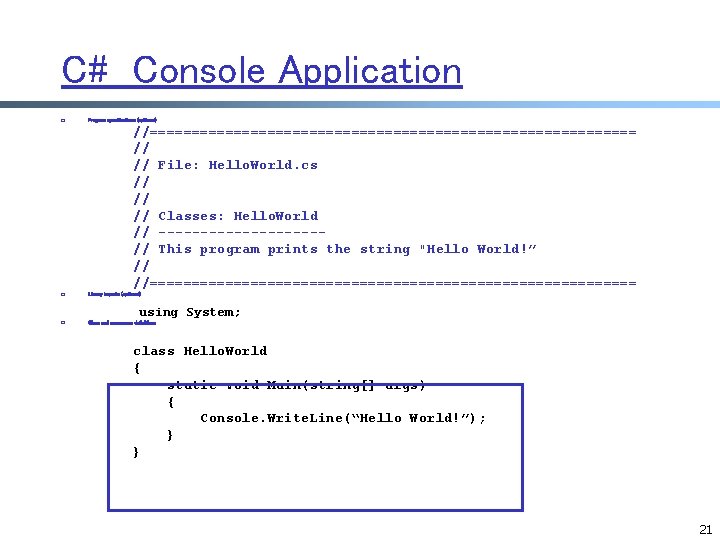
C# Console Application r Program specifications (optional) //============================= // // File: Hello. World. cs // // // Classes: Hello. World // ----------// This program prints the string "Hello World!” // //============================= r Library imports (optional) r Class and namespace definitions using System; class Hello. World { static void Main(string[] args) { Console. Write. Line(“Hello World!”); } } 21
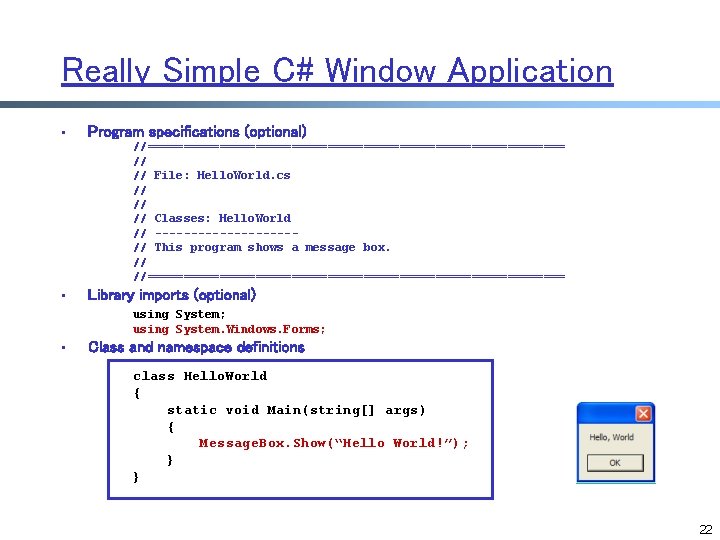
Really Simple C# Window Application • Program specifications (optional) //============================= // // File: Hello. World. cs // // // Classes: Hello. World // ----------// This program shows a message box. // //============================= • Library imports (optional) using System; using System. Windows. Forms; • Class and namespace definitions class Hello. World { static void Main(string[] args) { Message. Box. Show(“Hello World!”); } } 22
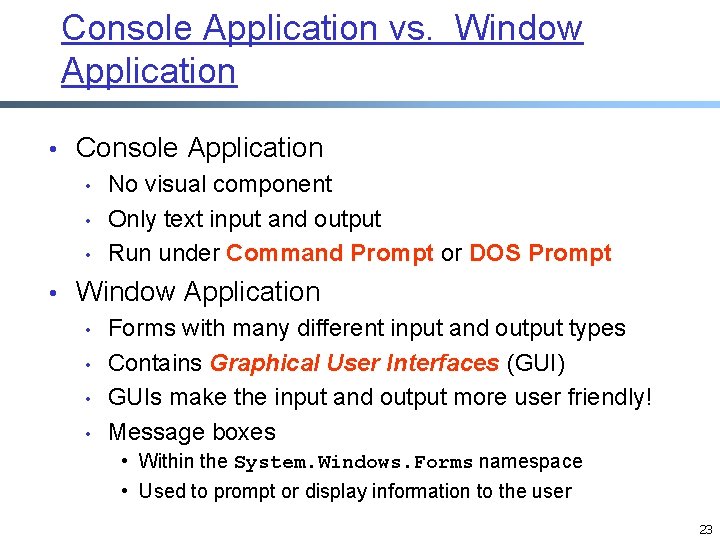
Console Application vs. Window Application • Console Application • No visual component • Only text input and output • Run under Command Prompt or DOS Prompt • Window Application • Forms with many different input and output types • Contains Graphical User Interfaces (GUI) • GUIs make the input and output more user friendly! • Message boxes • Within the System. Windows. Forms namespace • Used to prompt or display information to the user 23
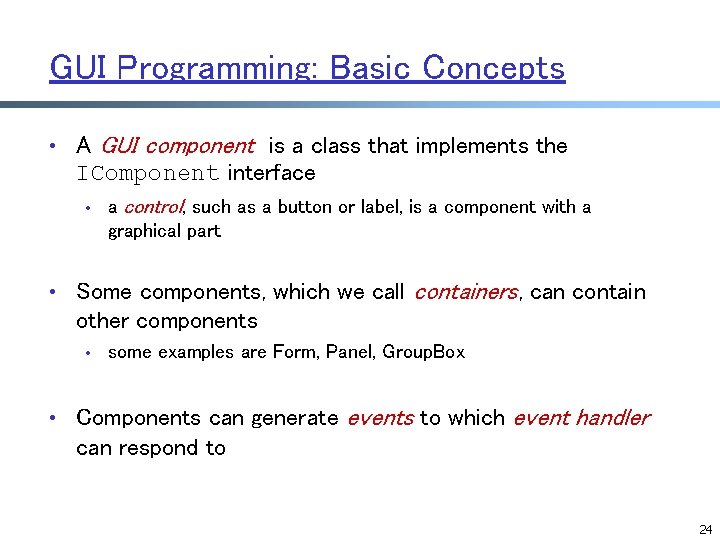
GUI Programming: Basic Concepts • A GUI component is a class that implements the IComponent interface • a control, such as a button or label, is a component with a graphical part • Some components, which we call containers, can contain other components • some examples are Form, Panel, Group. Box • Components can generate events to which event handler can respond to 24
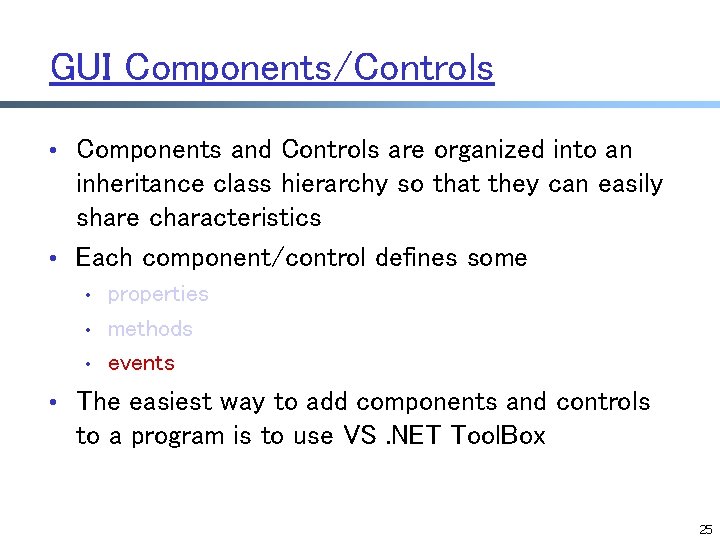
GUI Components/Controls • Components and Controls are organized into an inheritance class hierarchy so that they can easily share characteristics • Each component/control defines some • • • properties methods events • The easiest way to add components and controls to a program is to use VS. NET Tool. Box 25
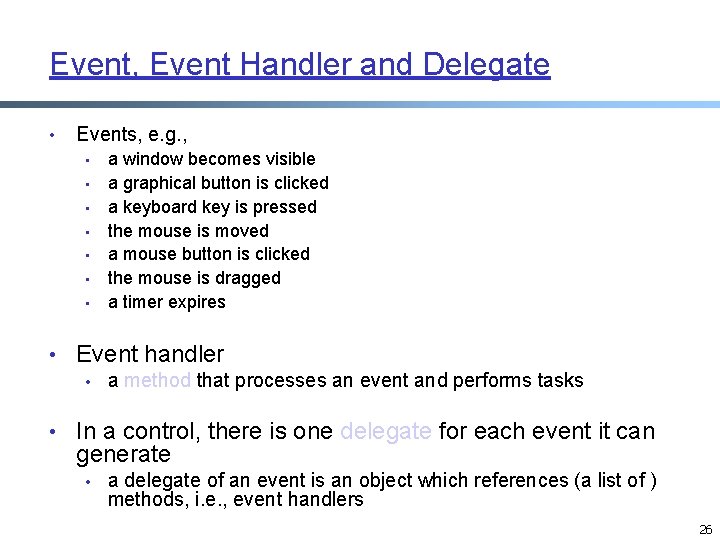
Event, Event Handler and Delegate • Events, e. g. , • • a window becomes visible a graphical button is clicked a keyboard key is pressed the mouse is moved a mouse button is clicked the mouse is dragged a timer expires • Event handler • a method that processes an event and performs tasks • In a control, there is one delegate for each event it can generate • a delegate of an event is an object which references (a list of ) methods, i. e. , event handlers 26
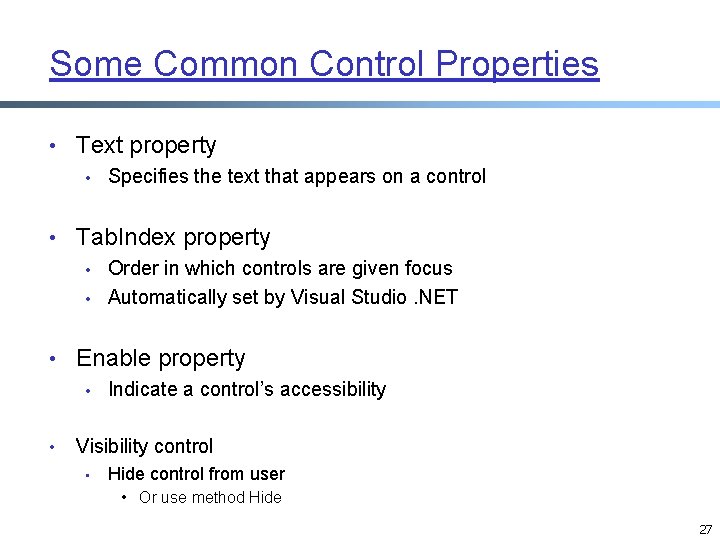
Some Common Control Properties • Text property • Specifies the text that appears on a control • Tab. Index property • Order in which controls are given focus • Automatically set by Visual Studio. NET • Enable property • Indicate a control’s accessibility • Visibility control • Hide control from user • Or use method Hide 27
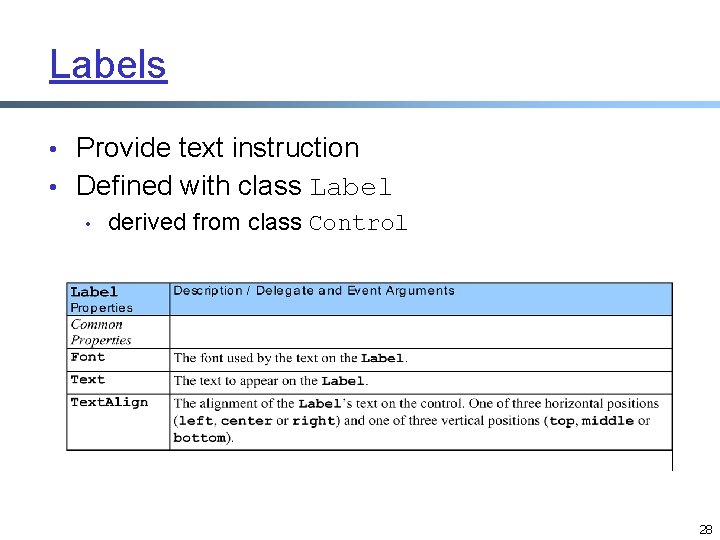
Labels • Provide text instruction • Defined with class Label • derived from class Control 28
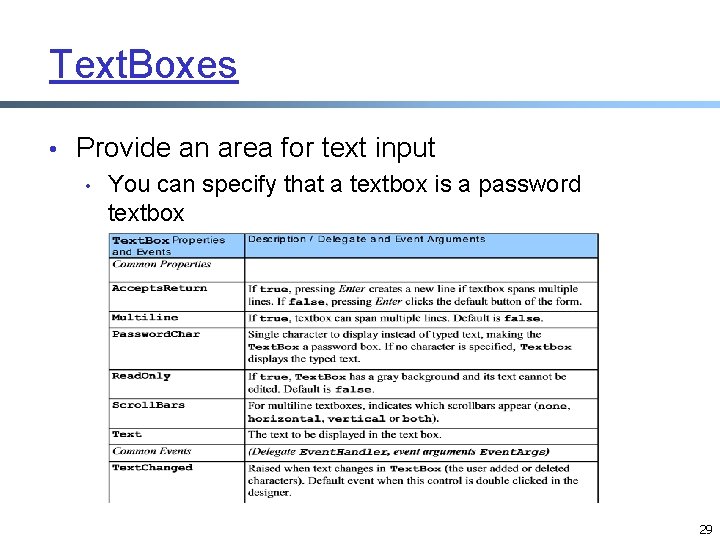
Text. Boxes • Provide an area for text input • You can specify that a textbox is a password textbox 29
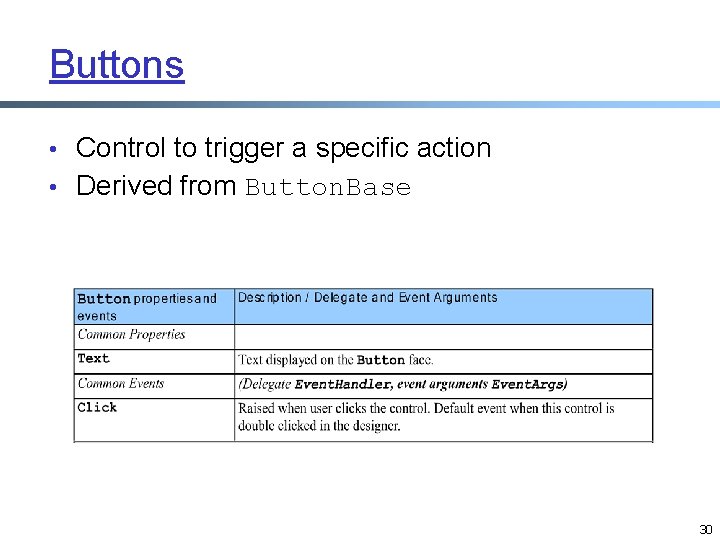
Buttons • Control to trigger a specific action • Derived from Button. Base 30
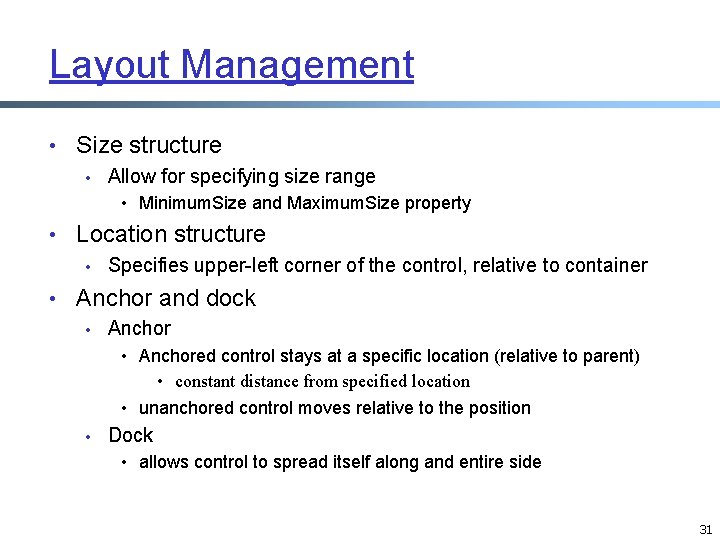
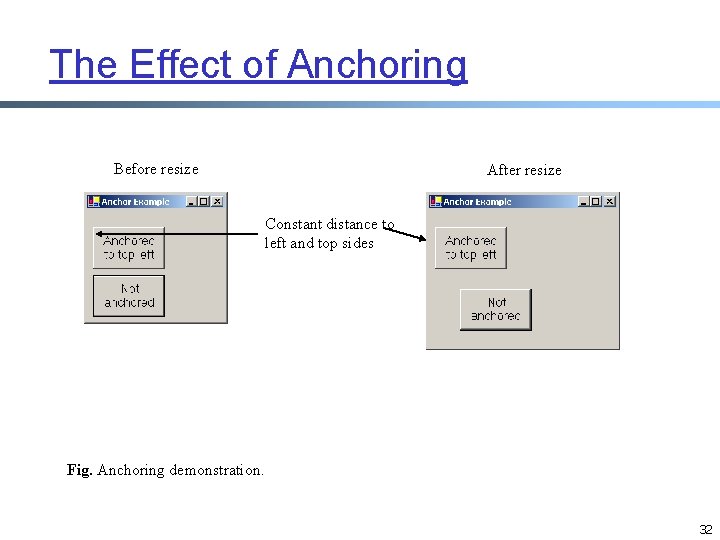
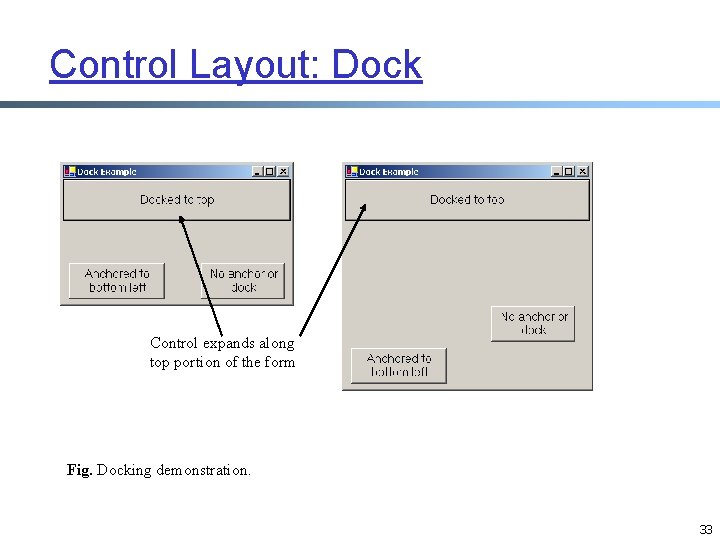
Layout Management • Size structure • Allow for specifying size range • Minimum. Size and Maximum. Size property • Location structure • Specifies upper-left corner of the control, relative to container • Anchor and dock • Anchored control stays at a specific location (relative to parent) • constant distance from specified location • unanchored control moves relative to the position • Dock • allows control to spread itself along and entire side 31
The Effect of Anchoring Before resize After resize Constant distance to left and top sides Fig. Anchoring demonstration. 32
Control Layout: Dock Control expands along top portion of the form Fig. Docking demonstration. 33
Keyboard Event Handling • Two types of key events • Delegate Key. Event. Handler • Handles two sub types of events: Key. Up or Key. Down • Delegate Key. Press. Event. Handler • Handles one type of event: Key. Press 34
GUI • • Introduction: Components and controls; Event handling model Controls • Common properties • Layout management • Basic controls • Label, textbox, checkbox, radiobutton, picturebox, Link. Labels, List. Box, Checked. List. Box • Containers • Groupbox, panel: for layout • Tab controls • Multiple-document interface windows • • Event handling: mouse, keyboard More controls • Menus • Combo. Boxes • Tree. View control 35
Advanced GUI: Introduction • Continues study of Graphical User Interface • Explores: • Menus • Link. Labels • List. Box • Checked. List. Box • Combo. Boxes • Tree. View control • Tab controls 36
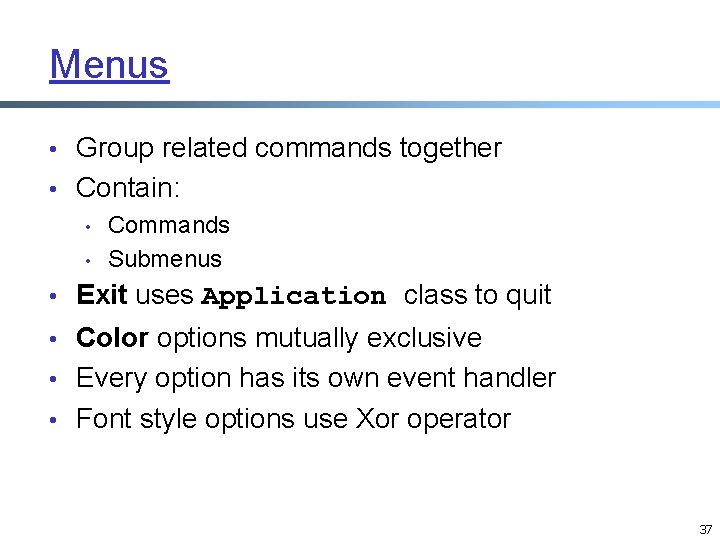
Menus • Group related commands together • Contain: • Commands • Submenus • Exit uses Application class to quit • Color options mutually exclusive • Every option has its own event handler • Font style options use Xor operator 37
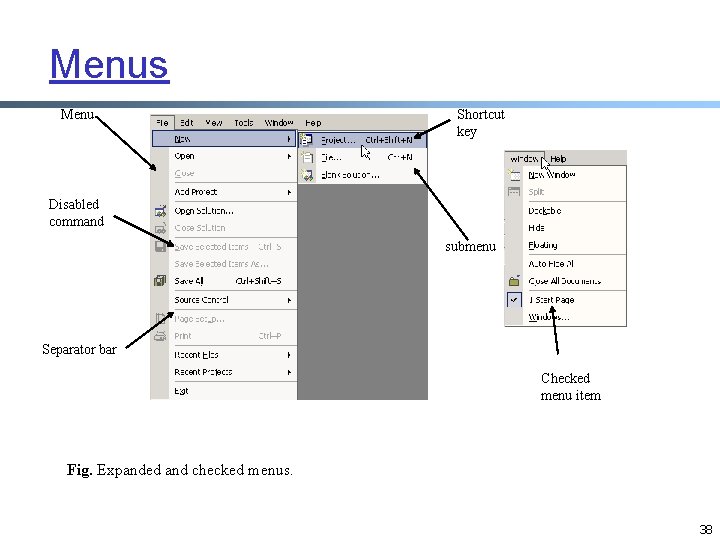
Menus Menu Shortcut key Disabled command submenu Separator bar Checked menu item Fig. Expanded and checked menus. 38
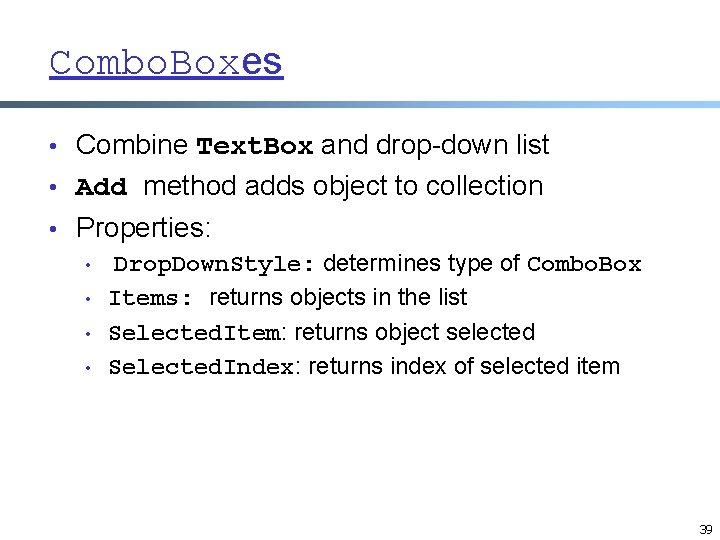
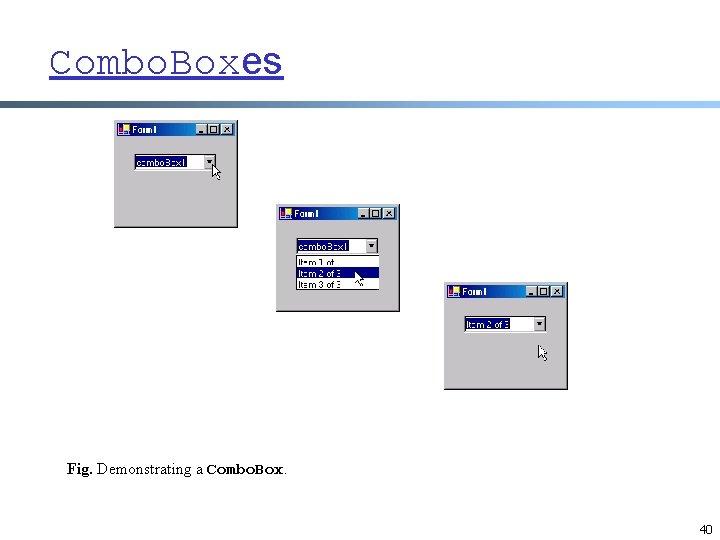
Combo. Boxes • Combine Text. Box and drop-down list • Add method adds object to collection • Properties: • Drop. Down. Style: determines type of Combo. Box • Items: returns objects in the list • Selected. Item: returns object selected • Selected. Index: returns index of selected item 39
Combo. Boxes Fig. Demonstrating a Combo. Box. 40
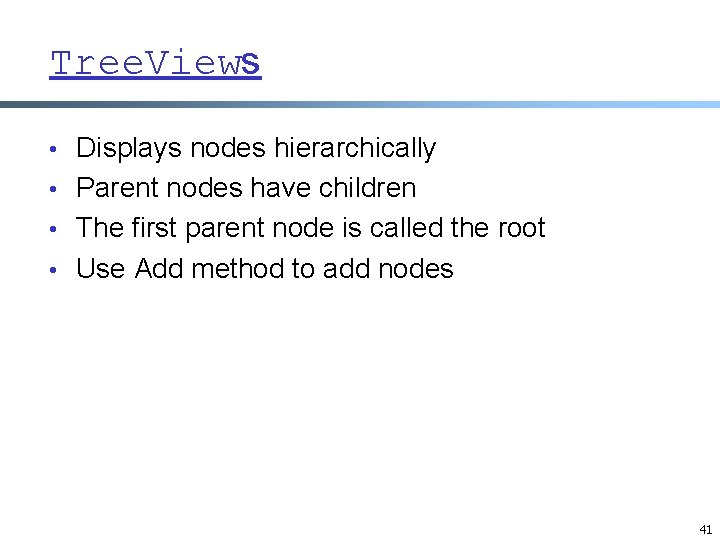
Tree. Views • Displays nodes hierarchically • Parent nodes have children • The first parent node is called the root • Use Add method to add nodes 41