
Visual programming Chapter 4 GUI Graphical User Interface

- Slides: 71
Visual programming Chapter 4: GUI (Graphical User Interface) Part II Eman Alnaji Dareen Hamoudeh
Contents �Mouse Events �Keyboard Events �Numeric. Up. Down �Tool. Tip �Link. Label �Menus �List. Box �Combo. Box �List View �Image List �Tree. View �Multiple Forms 2
Mouse Events �Mouse Events: Are those events that associated to mouse actions. And can be related to the form as a whole, or to a certain control. 3
Mouse Events � Mouse. Move: occurs when the mouse cursor moves over a form or a certain control. � Mouse. Click: occurs when the user clicks on the form or on certain control with the mouse button (any button click will cause this event). � Mouse. Enter: occurs when the mouse cursor enters in the borders of a form or a certain control. � Mouse. Leave: occurs when the mouse cursor leaves the area of a form or a certain control. � Mouse. Down: occurs when the user presses over a mouse button, and keeps pressing. (any button). � Mouse. Up: occurs when the user releases the mouse button. (any button). � Mouse. Hover: occurs when the mouse cursor hovers over a form or a certain control. 4
Mouse Events Arguments �According to the mouse event handled, certain events arguments are used. �One of two event arguments classes would appear in the header of the Mouse Event Handler. �Mouse. Event. Args: This event arguments class will be used in the events (Mouse. Click, Mouse. Move, Mouse. Down and Mouse. Up), and it contains special properties of the mouse. �Event. Args: The ordinary event arguments class, that is usually associated with any event handler. It doesn’t contain any special properties of the mouse. 5
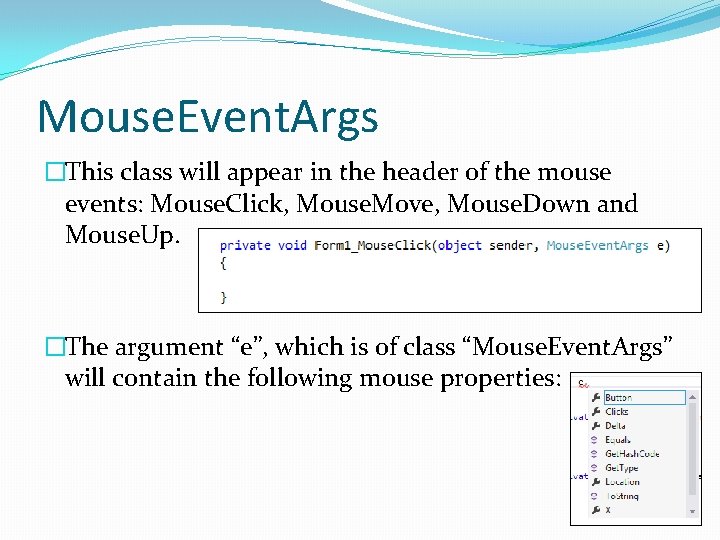
Mouse. Event. Args �This class will appear in the header of the mouse events: Mouse. Click, Mouse. Move, Mouse. Down and Mouse. Up. �The argument “e”, which is of class “Mouse. Event. Args” will contain the following mouse properties: 6
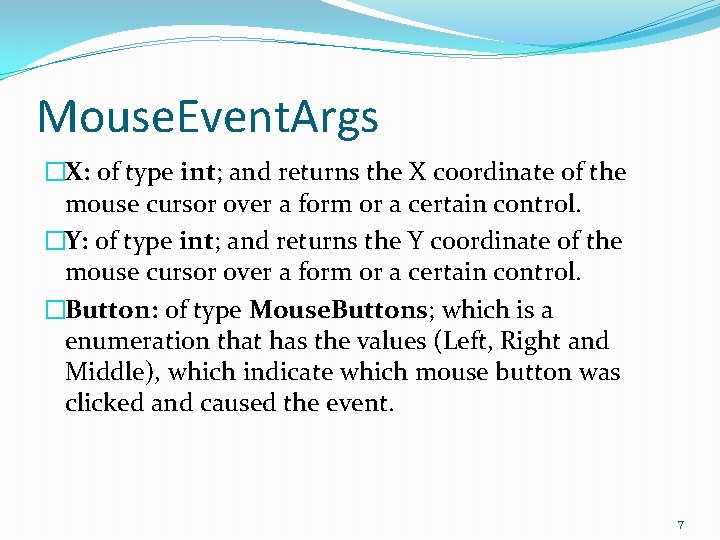
Mouse. Event. Args �X: of type int; and returns the X coordinate of the mouse cursor over a form or a certain control. �Y: of type int; and returns the Y coordinate of the mouse cursor over a form or a certain control. �Button: of type Mouse. Buttons; which is a enumeration that has the values (Left, Right and Middle), which indicate which mouse button was clicked and caused the event. 7
Keyboard Events �Keyboard Events: Are events associated with the keyboard keys. Whenever a user presses on any key on the keyboard, these events take place. 8
Keyboard Events �Key. Press: occurs when the user presses on a certain key in the keyboard. �Key. Down: occurs when the user presses on a certain key in the keyboard and keeps pressing. �Key. Up: occurs directly when the user releases the key in the keyboard. 9
Keyboard Events Arguments �According to the keyboard event handled, certain events arguments are used. �One of two event arguments classes would appear in the header of the keyboard Event Handler. �Key. Press. Event. Args: This event arguments class will be used in the event Key. Press, and it contains special properties of the key. �Key. Event. Args: This event arguments class will be used in the event Key. Down and Key. Up, and it contains special properties of the key. 10
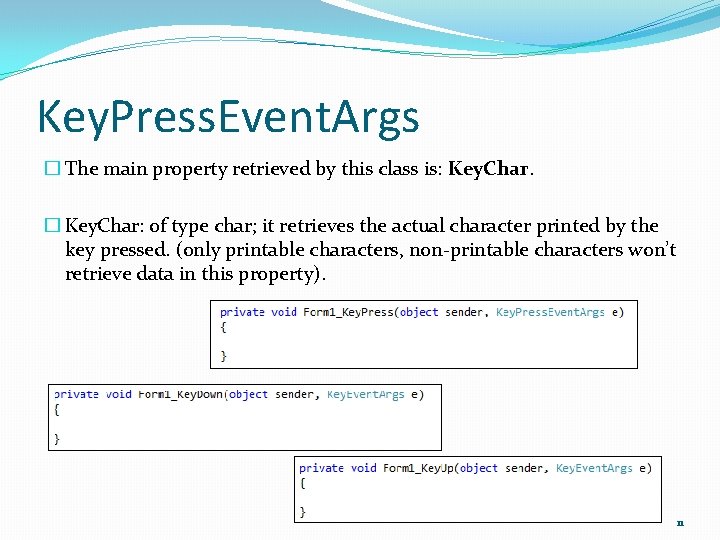
Key. Press. Event. Args � The main property retrieved by this class is: Key. Char. � Key. Char: of type char; it retrieves the actual character printed by the key pressed. (only printable characters, non-printable characters won’t retrieve data in this property). 11
Key. Event. Args �Exists in both Key. Down and Key. Up event handlers. �Properties enclosed in this class: � Key. Code: of type Keys; which is an enumeration that contains all possible keys on the keyboard (printable and non-printable). � Key. Data: of type Keys; but it differs that Key. Code will return the last pressed key, while Key. Data will return all keys pressed at the same time. � Key. Value: of type int; returns an integer value that represents the key on the keyboard. � Alt: of type bool; returns true if Alt key is pressed, false if not. � Shift: of type bool; returns ture if Shift key is pressed, false if not. � Control: of type bool; returns true if Ctrl key is pressed, false if not. 12
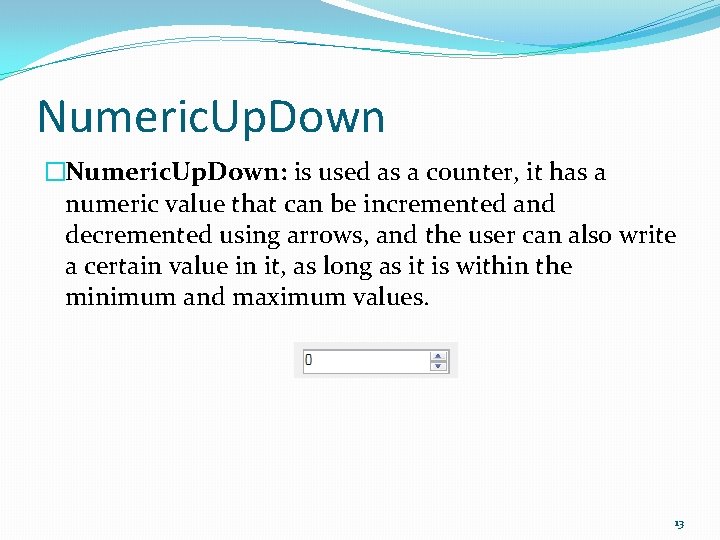
Numeric. Up. Down �Numeric. Up. Down: is used as a counter, it has a numeric value that can be incremented and decremented using arrows, and the user can also write a certain value in it, as long as it is within the minimum and maximum values. 13
Numeric. Up. Down - Properties �Value: the current numeric value displayed on the control. �Minimum: The minimum value allowed in the Numeric. Up. Down. �Maximum: The maximum value allowed in the Numeric. Up. Down. �Increment: The amount added or subtracted from the value when using the arrows. �Decimal. Places: Number of decimal places displayed in the value. (the default is 0). If the decimal places is more that 0, then you can set Increment property to a fraction number. (i. e. you can increase and decrease by 0. 5). 14
Numeric. Up. Down – Default Event �Value. Changed: Occurs when the value is changed either by using the arrows, or by writing on it, or changed in code. 15
Tool. Tip �Tool. Tip: is a hint added to a certain control, you can use to give a certain tip or help to the user. �The tooltip is not an ordinary control, since it is added to a tray in your project, and doesn’t occupy a space on the form. �You can create a tooltip, and set its property, then associate it to several controls. 16
Tool. Tip Creation �To create a tooltip, just double click on it, and it will be added to the project tray. At Run Time 17
Tool. Tip Properties: �Auto. Pop. Delay: Determines the length of time a certain tooltip window remains visible when the mouse hovers over a certain control. �Initial. Delay: Determines the length of time the pointer must remain on a certain control to display the tooltip window. �Automatic. Delay: According to the number inserted, both Auto. Pop. Delay and Initial. Delay are automatically set. 18
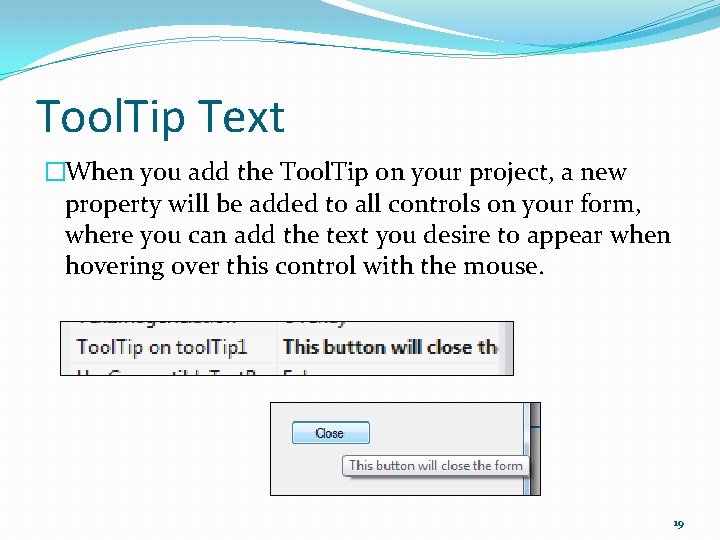
Tool. Tip Text �When you add the Tool. Tip on your project, a new property will be added to all controls on your form, where you can add the text you desire to appear when hovering over this control with the mouse. 19
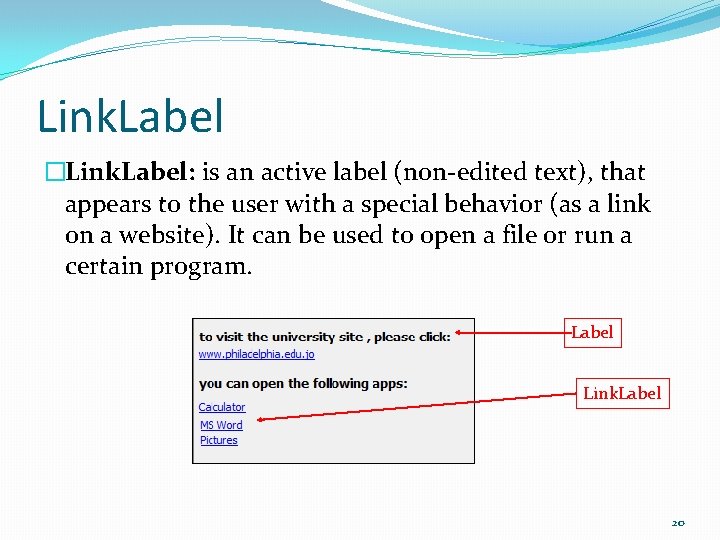
Link. Label �Link. Label: is an active label (non-edited text), that appears to the user with a special behavior (as a link on a website). It can be used to open a file or run a certain program. Label Link. Label 20
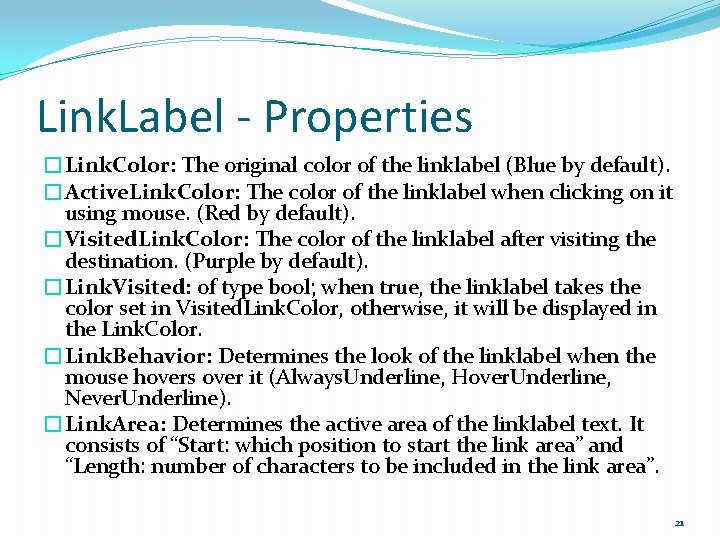
Link. Label - Properties �Link. Color: The original color of the linklabel (Blue by default). �Active. Link. Color: The color of the linklabel when clicking on it using mouse. (Red by default). �Visited. Link. Color: The color of the linklabel after visiting the destination. (Purple by default). �Link. Visited: of type bool; when true, the linklabel takes the color set in Visited. Link. Color, otherwise, it will be displayed in the Link. Color. �Link. Behavior: Determines the look of the linklabel when the mouse hovers over it (Always. Underline, Hover. Underline, Never. Underline). �Link. Area: Determines the active area of the linklabel text. It consists of “Start: which position to start the link area” and “Length: number of characters to be included in the link area”. 21
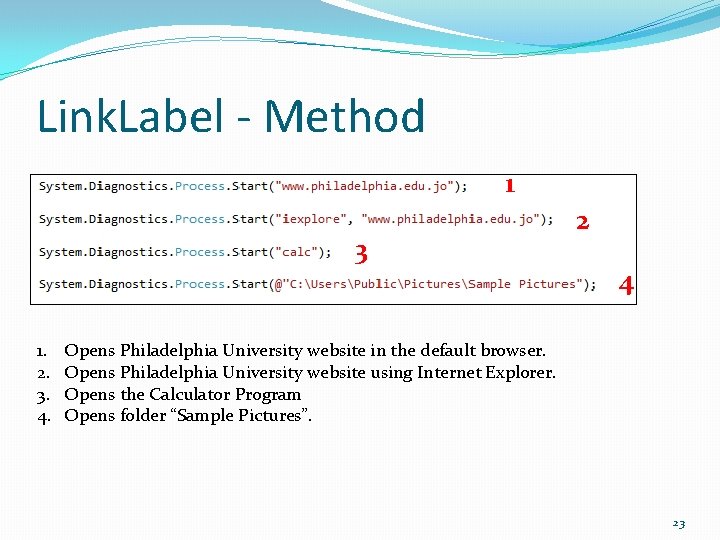
Link. Label – Default Event and Method �Link. Clicked: Occurs when the user clicks on the linklabel using mouse. �To activate a link, call a method “Start”, from class “Process” from namespace “System. Diagnostics”, and send the name of the program you want to start. (Note: when writing the name of a program, use the name of the. exe file on your computer). 22
Link. Label - Method 1 3 1. 2. 3. 4. 2 4 Opens Philadelphia University website in the default browser. Opens Philadelphia University website using Internet Explorer. Opens the Calculator Program Opens folder “Sample Pictures”. 23
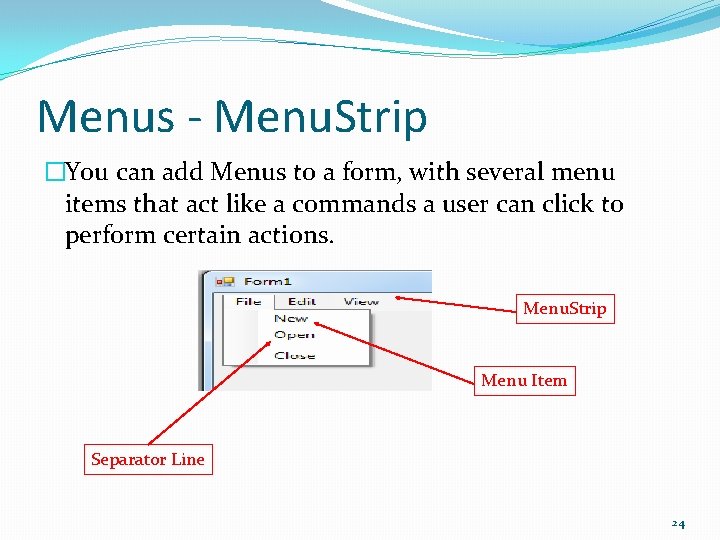
Menus - Menu. Strip �You can add Menus to a form, with several menu items that act like a commands a user can click to perform certain actions. Menu. Strip Menu Item Separator Line 24
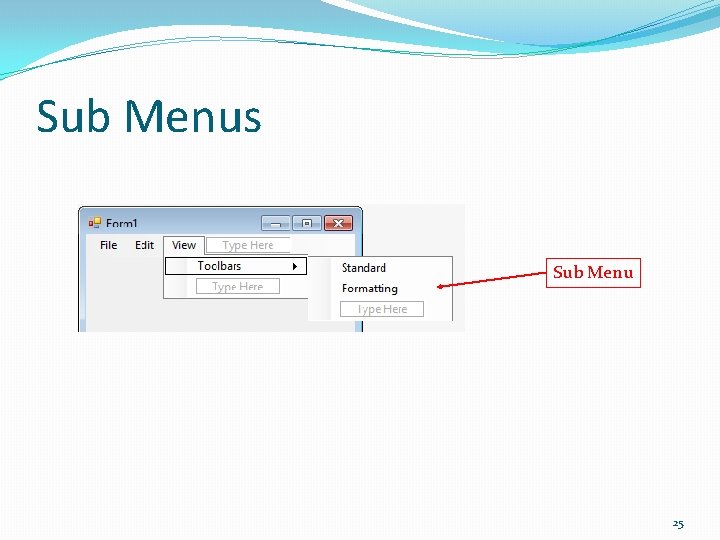
Sub Menus Sub Menu 25
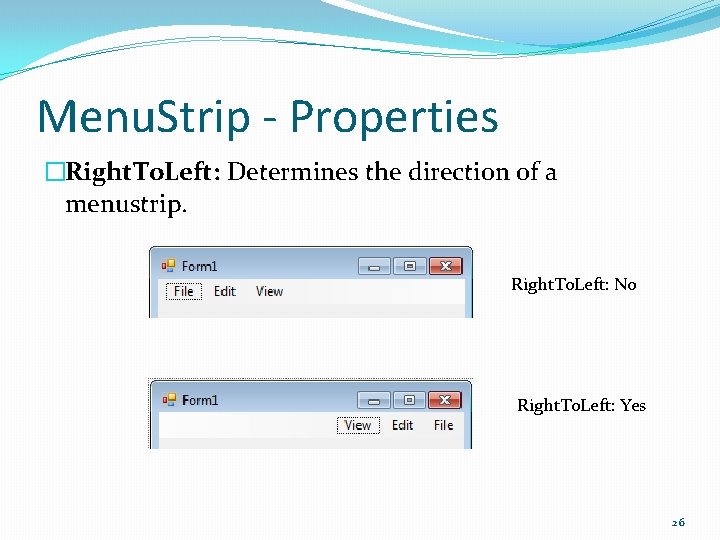
Menu. Strip - Properties �Right. To. Left: Determines the direction of a menustrip. Right. To. Left: No Right. To. Left: Yes 26
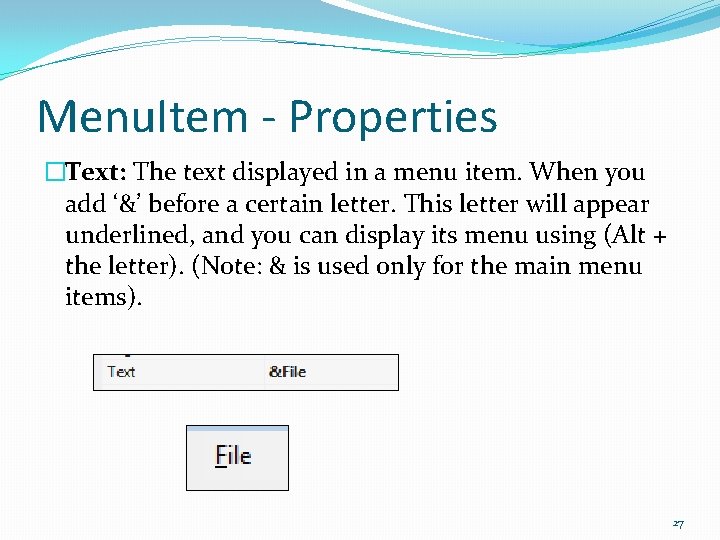
Menu. Item - Properties �Text: The text displayed in a menu item. When you add ‘&’ before a certain letter. This letter will appear underlined, and you can display its menu using (Alt + the letter). (Note: & is used only for the main menu items). 27
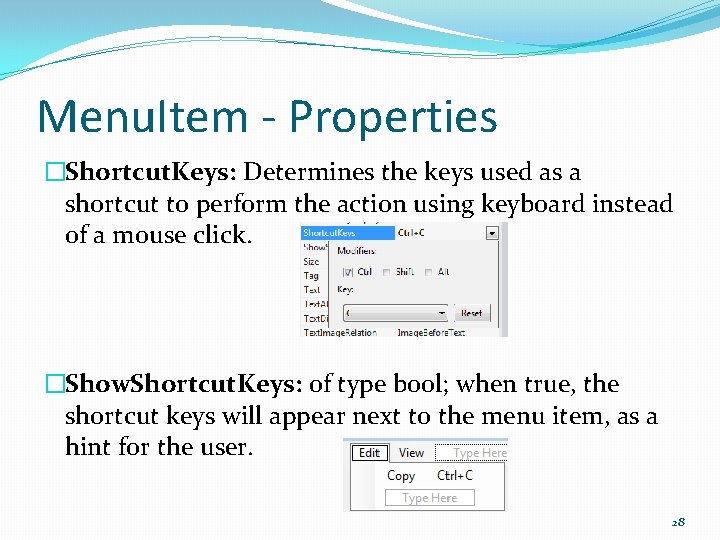
Menu. Item - Properties �Shortcut. Keys: Determines the keys used as a shortcut to perform the action using keyboard instead of a mouse click. �Show. Shortcut. Keys: of type bool; when true, the shortcut keys will appear next to the menu item, as a hint for the user. 28
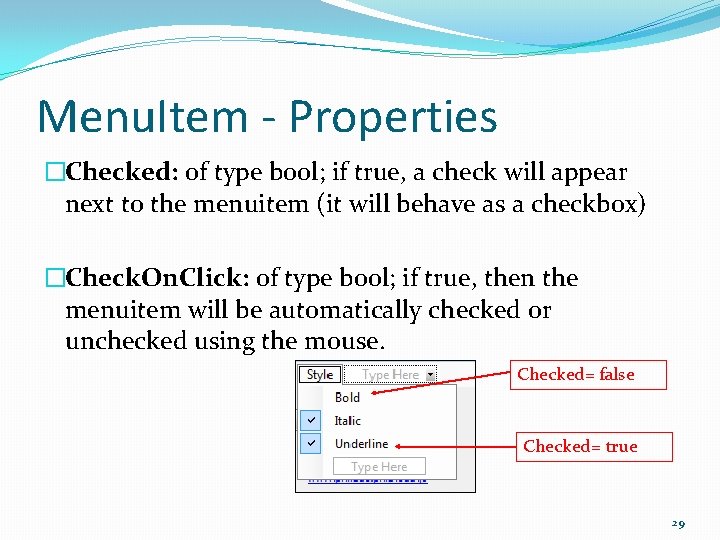
Menu. Item - Properties �Checked: of type bool; if true, a check will appear next to the menuitem (it will behave as a checkbox) �Check. On. Click: of type bool; if true, then the menuitem will be automatically checked or unchecked using the mouse. Checked= false Checked= true 29
Menu. Item – Default Event �Click: Occurs when the user clicks on the menu item with a mouse, or by using the shortcut keys. 30
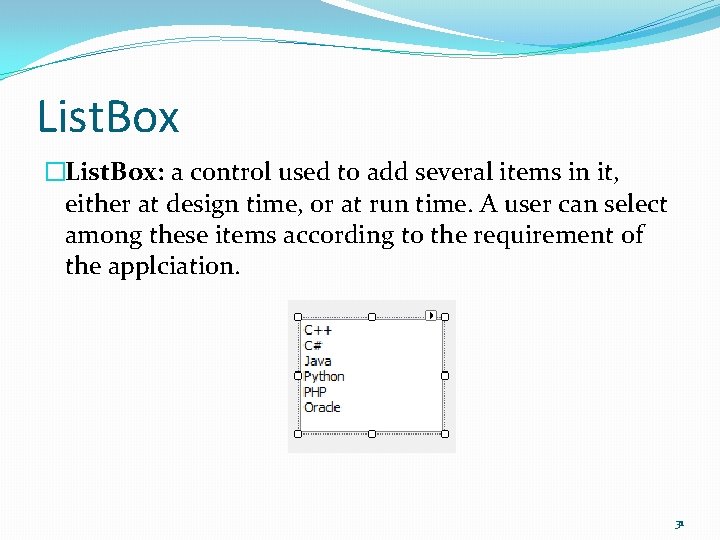
List. Box �List. Box: a control used to add several items in it, either at design time, or at run time. A user can select among these items according to the requirement of the applciation. 31
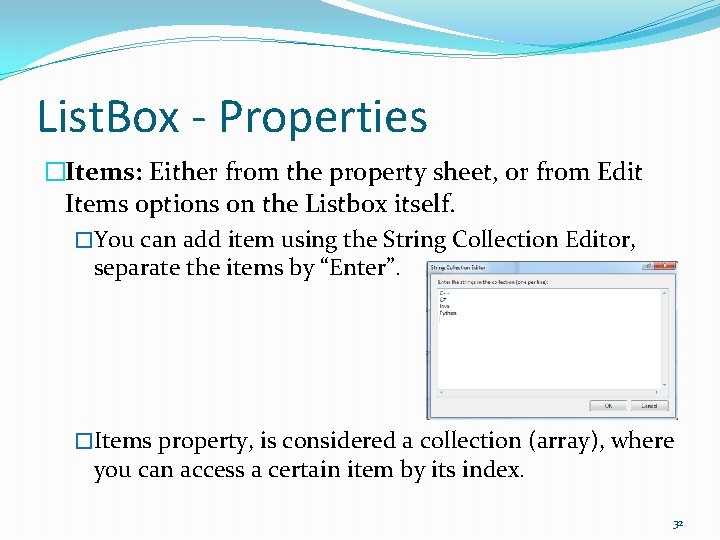
List. Box - Properties �Items: Either from the property sheet, or from Edit Items options on the Listbox itself. �You can add item using the String Collection Editor, separate the items by “Enter”. �Items property, is considered a collection (array), where you can access a certain item by its index. 32
List. Box - Properties �Selection. Mode: Determines number of items a user can select from the listbox. �One (single-selection) �Multi. Simple (Multi-selection, using mouse only) �Multi. Extended (Multi – selection using mouse along with Ctrl or Shift keys) �Sorted: of type bool; if true, the items will be sorted from A-Z. 33
List. Box - Properties �Select. Item: a run-time property, that retrieves the current selected item (as an object). �If more than one item is selected, this property will retrieve the first selected item in the listbox. �Selected. Index: a run-time property, that retrieves the current selected index (as an int). (Note: will return -1 if there is no selection). �If more than one item is selected, this property will retrieve the index of the first selected item in the listbox. 34
List. Box - Properties �Selected. Items: a run-time property, is a collection (array) of objects, that contains all the selected items in a special array (different index than Items array). �Selected. Indecies: a run-time property, is a collection (array) of integers that represent indecies of selected items. �list. Box 1. Items. Count: a run-time property, that returns the number of items in a listbox. �list. Box 1. Selected. Items. Count: a run-time property, that returns the number of selected items in a listbox. 35
List. Box – Default Event �Selected. Index. Changed: Occurs when the user selects a different item. 36
List. Box - Methods �Get. Selected(index): Takes an index as a parameter, and returns true if it is selected, and false if not. �list. Box 1. Items. Add (object/text): Adds a new item in a listbox. �list. Box 1. Items. Add. Range(Items): Adds an array of items in the listbox. �list. Box 1. Items. Remove(Object): Removes the first occurrence of the passed item. �list. Box 1. Items. Remove. At(Index): Removes the first occurrence of the passed index. 37
List. Box - Methods �list. Box 1. Items. Clear(): Removes all items in a list. Box. �list. Box 1. Clear. Selected(): Cancel the selection of items in a list. Box (i. e. sets the Selected. Index property to -1). 38
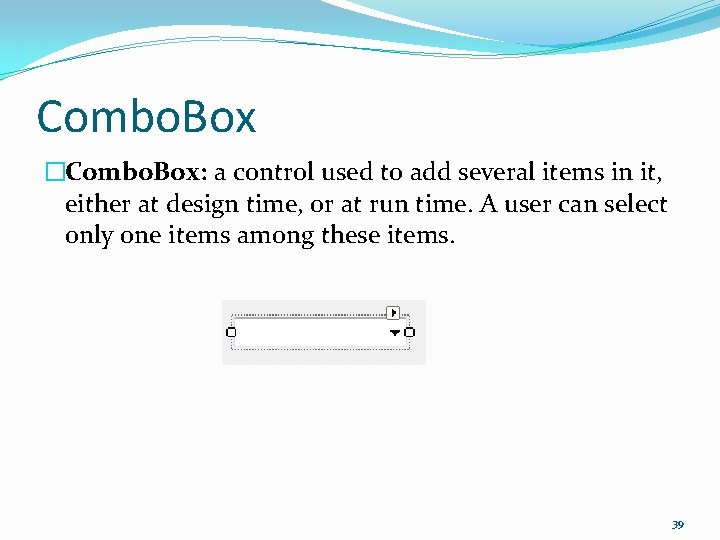
Combo. Box �Combo. Box: a control used to add several items in it, either at design time, or at run time. A user can select only one items among these items. 39
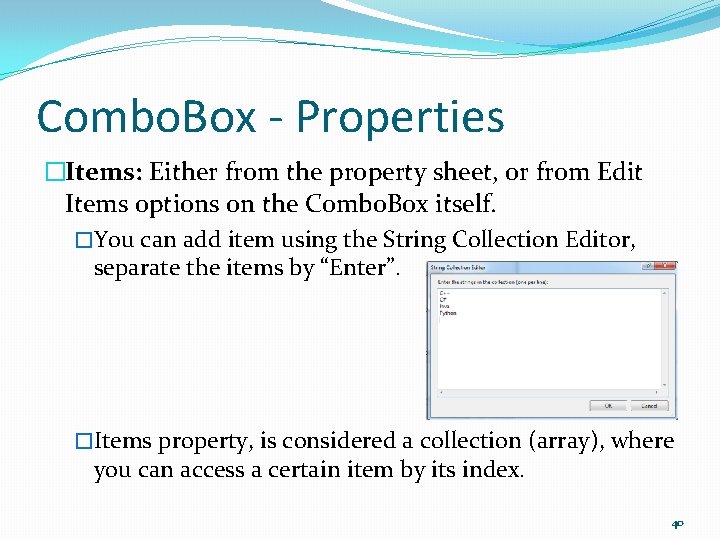
Combo. Box - Properties �Items: Either from the property sheet, or from Edit Items options on the Combo. Box itself. �You can add item using the String Collection Editor, separate the items by “Enter”. �Items property, is considered a collection (array), where you can access a certain item by its index. 40
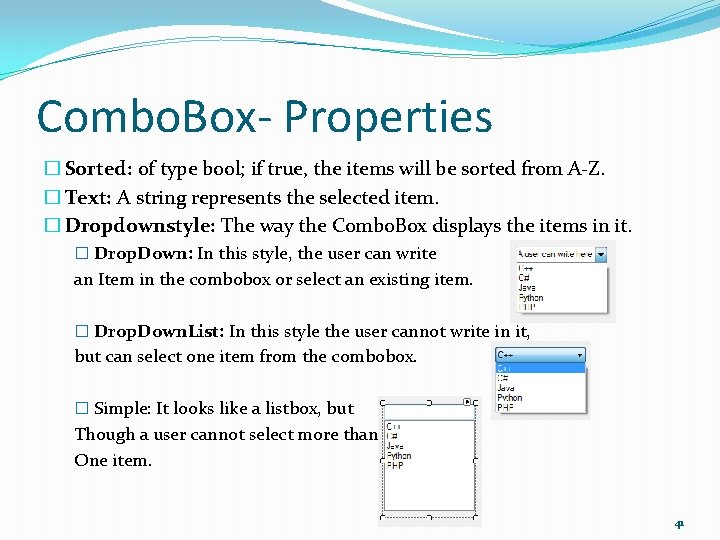
Combo. Box- Properties � Sorted: of type bool; if true, the items will be sorted from A-Z. � Text: A string represents the selected item. � Dropdownstyle: The way the Combo. Box displays the items in it. � Drop. Down: In this style, the user can write an Item in the combobox or select an existing item. � Drop. Down. List: In this style the user cannot write in it, but can select one item from the combobox. � Simple: It looks like a listbox, but Though a user cannot select more than One item. 41
Combo. Box- Properties �Select. Item: a run-time property, that retrieves the current selected item (as an object). �Combobox doesn’t allow multi-selection of items. �Selected. Index: a run-time property, that retrieves the current selected index (as an int). (Note: will return -1 if there is no selection). 42
Combo. Box- Properties �Combo. Box. Items. Count: a run-time property, that returns the number of items in a listbox. 43
Combo. Box– Default Event �Selected. Index. Changed: Occurs when the user selects a different item. 44
Combo. Box- Methods �combo. Box 1. Items. Add (object/text): Adds a new item in a combobox. �combo. Box 1. Items. Add. Range(Items): Adds an array of items in the combobox. �combo. Box 1. Items. Remove(Object): Removes the first occurrence of the passed item. �combo. Box 1. Items. Remove. At(Index): Removes the first occurrence of the passed index. 45
Combo. Box - Methods �combo. Box 1. Items. Clear(): Removes all items in a combobox. 46
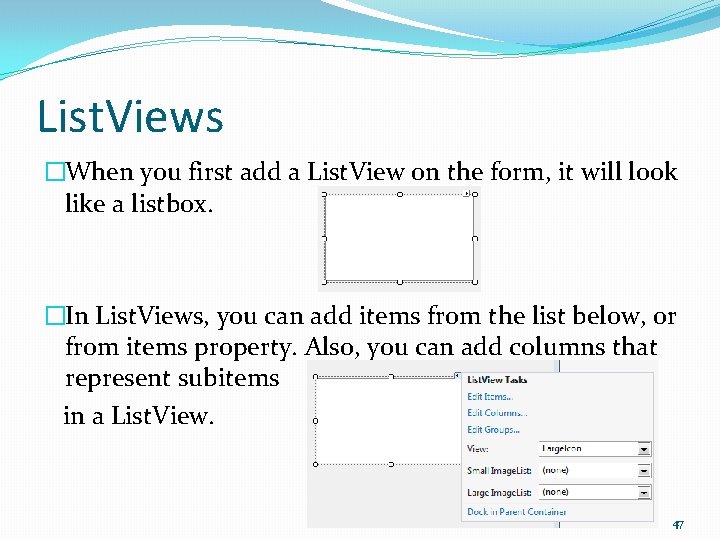
List. Views �When you first add a List. View on the form, it will look like a listbox. �In List. Views, you can add items from the list below, or from items property. Also, you can add columns that represent subitems in a List. View. 47
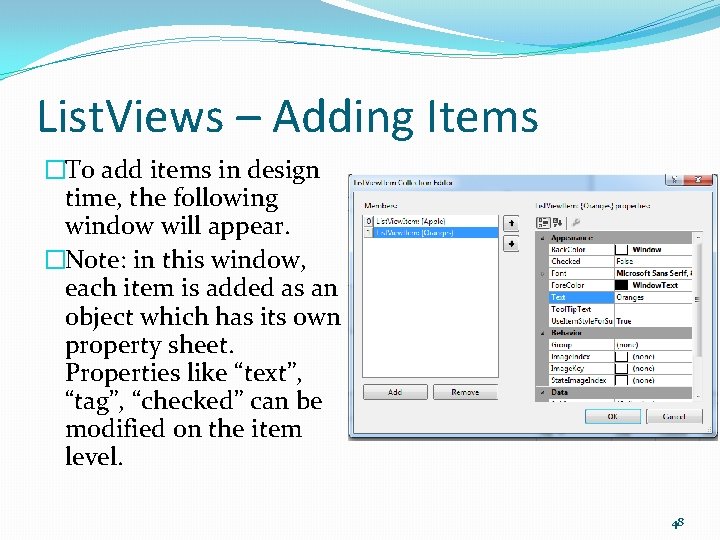
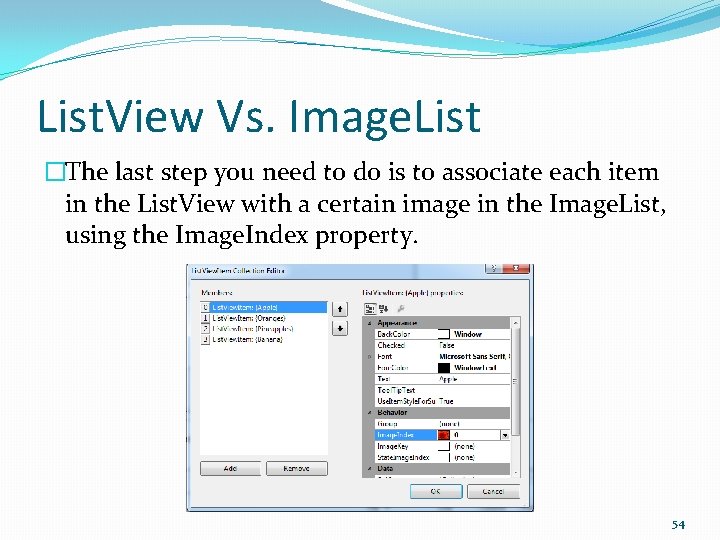
List. Views – Adding Items �To add items in design time, the following window will appear. �Note: in this window, each item is added as an object which has its own property sheet. Properties like “text”, “tag”, “checked” can be modified on the item level. 48
List. Views - View �View: is a property that specifies the way items are displayed in the List. View. �Large. Icon �Small. Icon �Details �List �Tile �These views are similar to the views of items in an ordinary Windows opened folder. 49
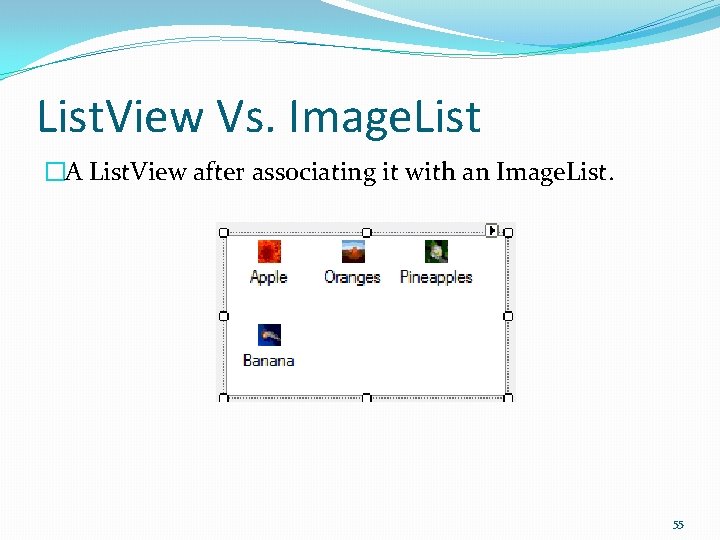
List. Views - View �These views will look much different when you associate imagelist to the listview, and associate each item with a certain image. 50
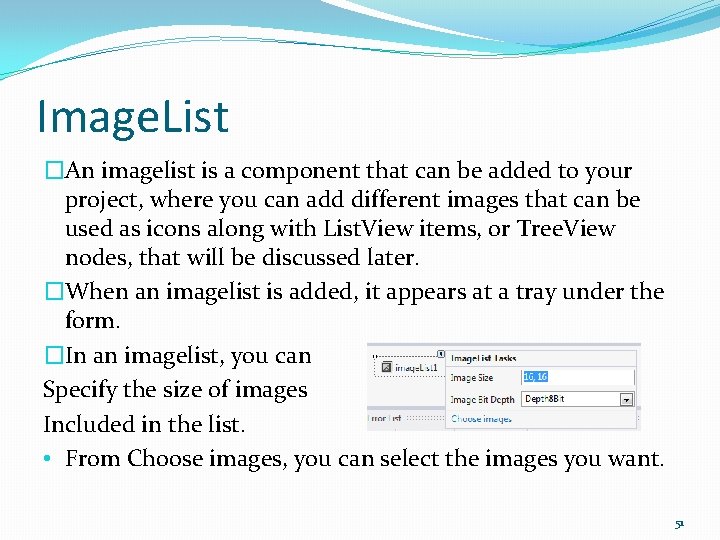
Image. List �An imagelist is a component that can be added to your project, where you can add different images that can be used as icons along with List. View items, or Tree. View nodes, that will be discussed later. �When an imagelist is added, it appears at a tray under the form. �In an imagelist, you can Specify the size of images Included in the list. • From Choose images, you can select the images you want. 51
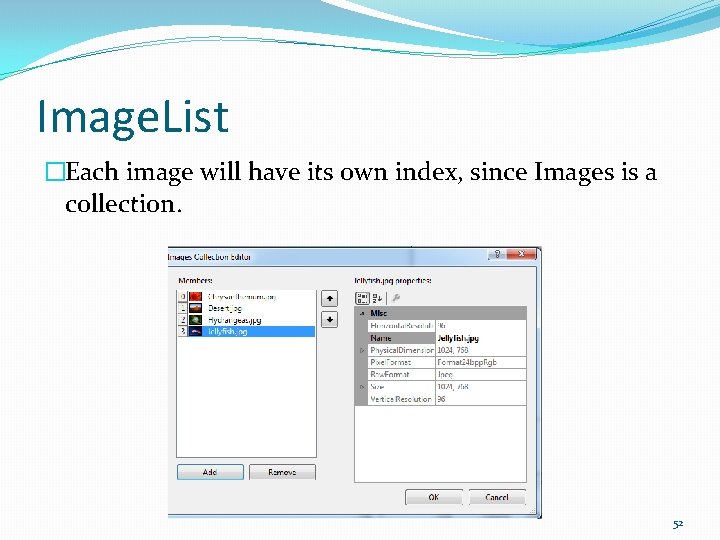
Image. List �Each image will have its own index, since Images is a collection. 52
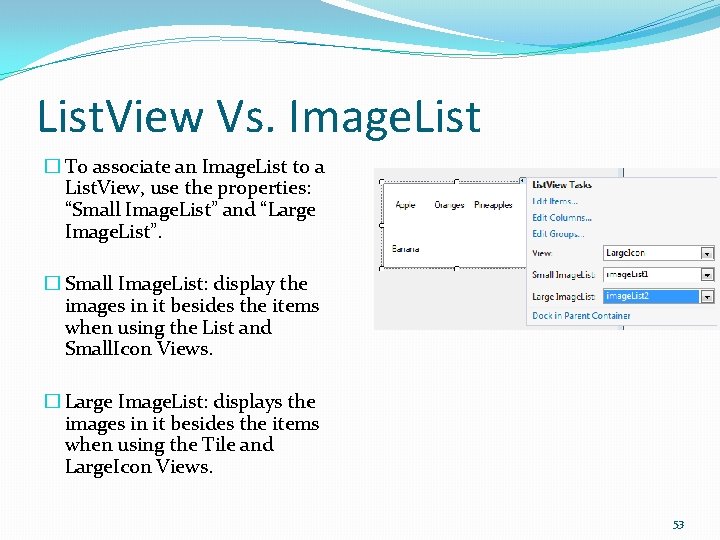
List. View Vs. Image. List � To associate an Image. List to a List. View, use the properties: “Small Image. List” and “Large Image. List”. � Small Image. List: display the images in it besides the items when using the List and Small. Icon Views. � Large Image. List: displays the images in it besides the items when using the Tile and Large. Icon Views. 53
List. View Vs. Image. List �The last step you need to do is to associate each item in the List. View with a certain image in the Image. List, using the Image. Index property. 54
List. View Vs. Image. List �A List. View after associating it with an Image. List. 55
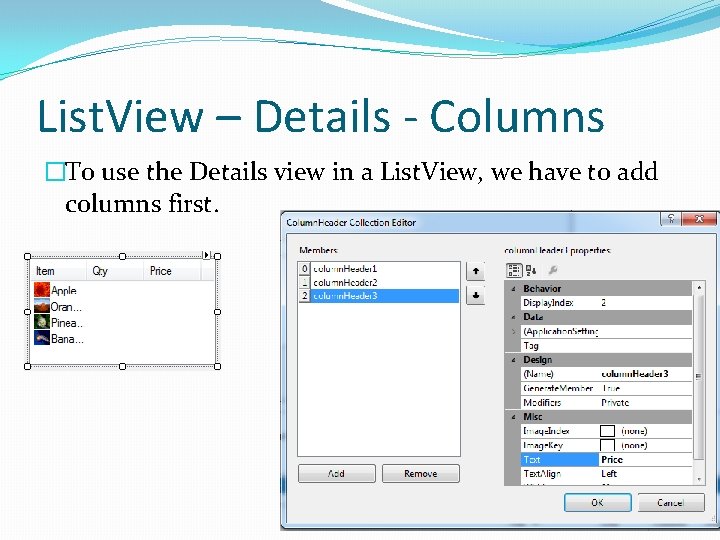
List. View – Details - Columns �To use the Details view in a List. View, we have to add columns first. 56
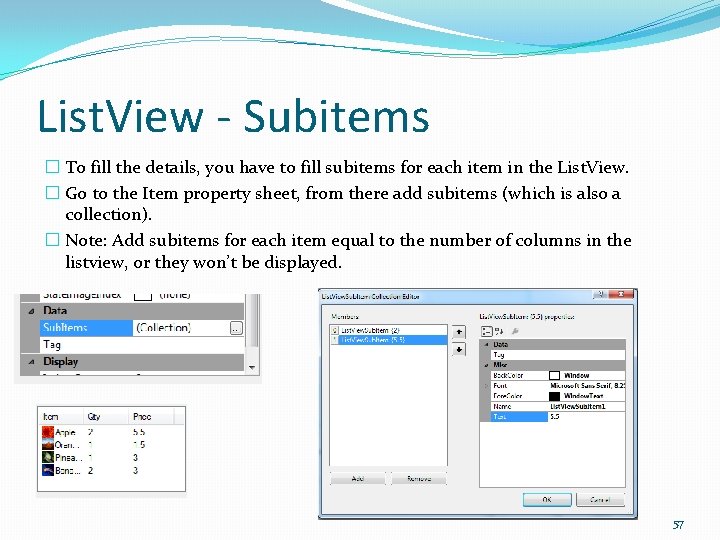
List. View - Subitems � To fill the details, you have to fill subitems for each item in the List. View. � Go to the Item property sheet, from there add subitems (which is also a collection). � Note: Add subitems for each item equal to the number of columns in the listview, or they won’t be displayed. 57
List. View – Other Properties �Multiselect: Specifies wither you can select more than one item in a listview or not (boolean, default: true). �Selected. Items: an array of the items selected in the List. View. �Note: There is no Selected. Item property for a List. View, but you can get the selected item in a certain way that will be discussed later. �list. View 1. Items. Count: Number of items in the listview. 58
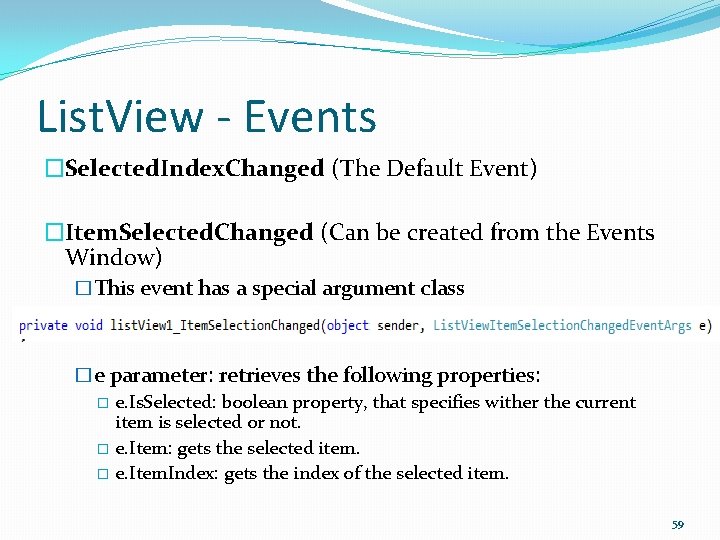
List. View - Events �Selected. Index. Changed (The Default Event) �Item. Selected. Changed (Can be created from the Events Window) �This event has a special argument class �e parameter: retrieves the following properties: � e. Is. Selected: boolean property, that specifies wither the current item is selected or not. � e. Item: gets the selected item. � e. Item. Index: gets the index of the selected item. 59
List. View - Methods �list. View 1. Items. Add (…): used to add a new item to the listview. �list. View 1. Items[0]. Sub. Items. Add(…): used to add a subitem to the first item in the listview. �e. Item. Sub. Items. Add(…): used to add a subitem to the selected item. �list. View 1. Items. Clear(): Clears all items and subitems in the listview. �list. View 1. Clear(): Clears all components in the listview, even the columns. 60
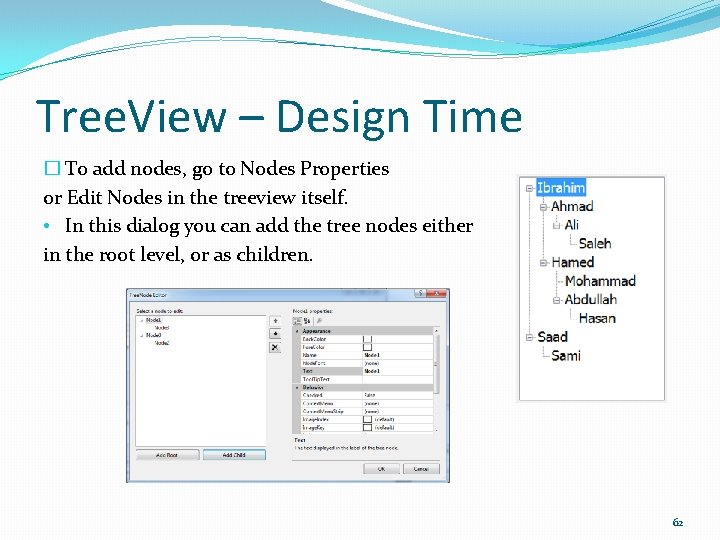
Tree. Views �A Treeview is a control used to display items in a tree style, that looks like the folders in Windows Explorer. �Item in a treeview is called Node. �Trees consists of several levels. �Terms used in a tree structure: �Root: A node in the first level, that doesn’t have a parent. �Parent: A node that has child nodes. �Child: A node that has a parent node. �Siblings: Nodes in the same level, and have the same parent. �Leaf: A node in the last level of the tree, and don’t have child nodes. 61
Tree. View – Design Time � To add nodes, go to Nodes Properties or Edit Nodes in the treeview itself. • In this dialog you can add the tree nodes either in the root level, or as children. 62
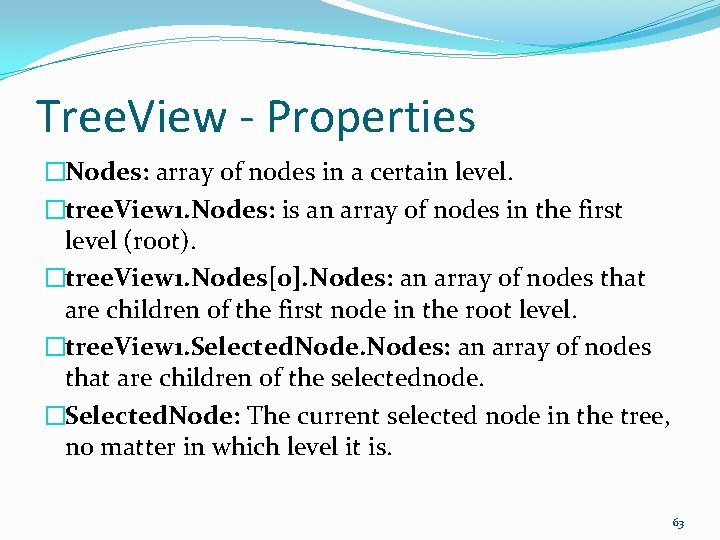
Tree. View - Properties �Nodes: array of nodes in a certain level. �tree. View 1. Nodes: is an array of nodes in the first level (root). �tree. View 1. Nodes[0]. Nodes: an array of nodes that are children of the first node in the root level. �tree. View 1. Selected. Nodes: an array of nodes that are children of the selectednode. �Selected. Node: The current selected node in the tree, no matter in which level it is. 63
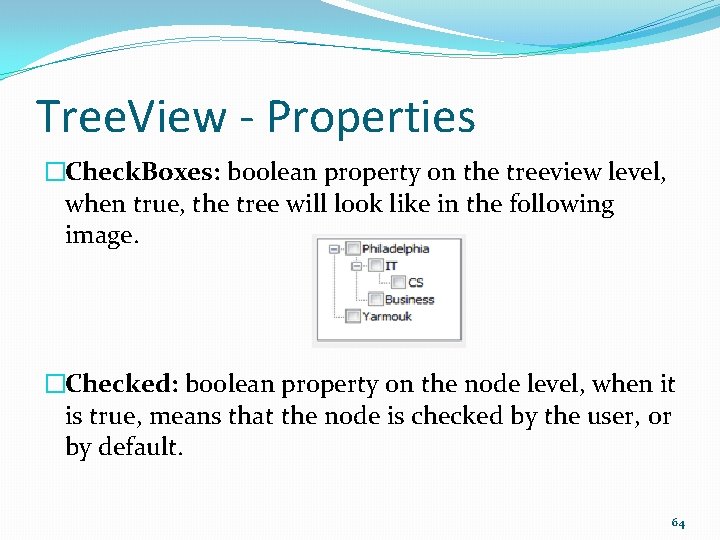
Tree. View - Properties �Check. Boxes: boolean property on the treeview level, when true, the tree will look like in the following image. �Checked: boolean property on the node level, when it is true, means that the node is checked by the user, or by default. 64
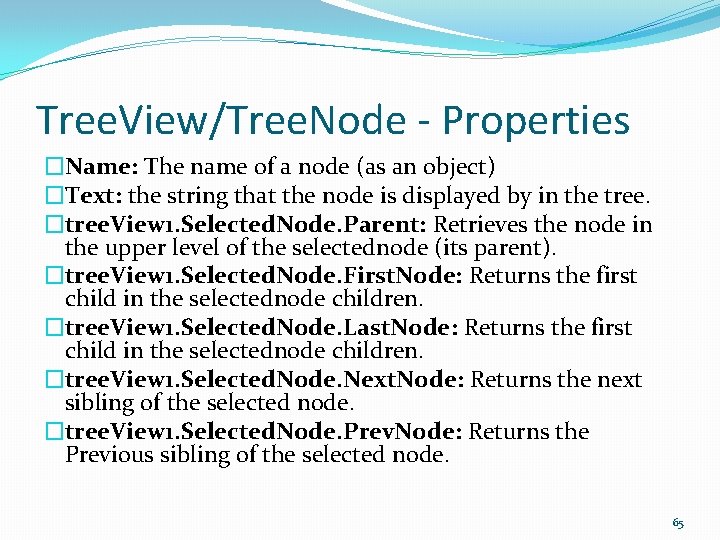
Tree. View/Tree. Node - Properties �Name: The name of a node (as an object) �Text: the string that the node is displayed by in the tree. �tree. View 1. Selected. Node. Parent: Retrieves the node in the upper level of the selectednode (its parent). �tree. View 1. Selected. Node. First. Node: Returns the first child in the selectednode children. �tree. View 1. Selected. Node. Last. Node: Returns the first child in the selectednode children. �tree. View 1. Selected. Node. Next. Node: Returns the next sibling of the selected node. �tree. View 1. Selected. Node. Prev. Node: Returns the Previous sibling of the selected node. 65
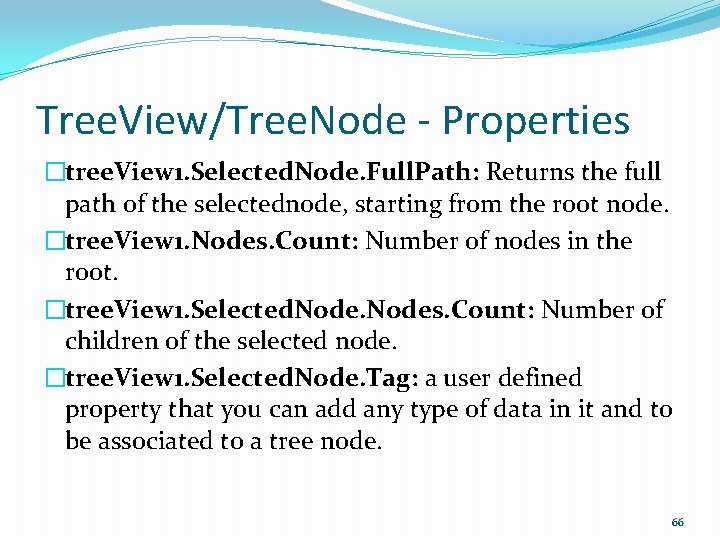
Tree. View/Tree. Node - Properties �tree. View 1. Selected. Node. Full. Path: Returns the full path of the selectednode, starting from the root node. �tree. View 1. Nodes. Count: Number of nodes in the root. �tree. View 1. Selected. Nodes. Count: Number of children of the selected node. �tree. View 1. Selected. Node. Tag: a user defined property that you can add any type of data in it and to be associated to a tree node. 66
Tree. View – Default Event �After. Select: Occurs after a node is selected in the Tree. View 67
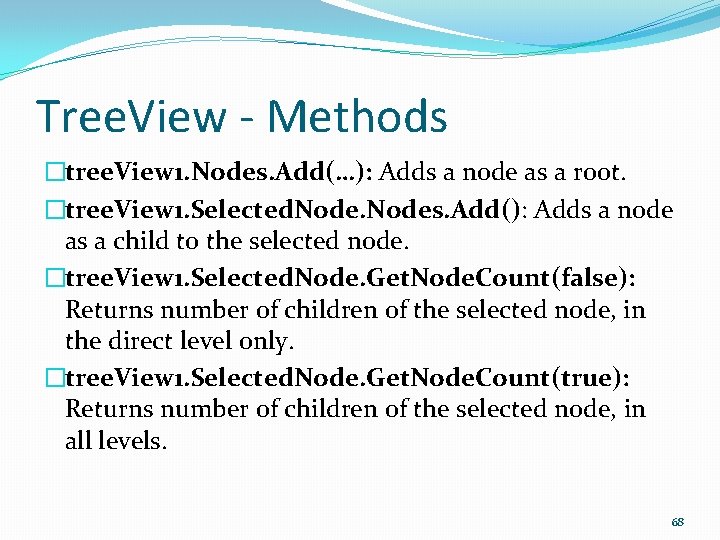
Tree. View - Methods �tree. View 1. Nodes. Add(…): Adds a node as a root. �tree. View 1. Selected. Nodes. Add(): Adds a node as a child to the selected node. �tree. View 1. Selected. Node. Get. Node. Count(false): Returns number of children of the selected node, in the direct level only. �tree. View 1. Selected. Node. Get. Node. Count(true): Returns number of children of the selected node, in all levels. 68
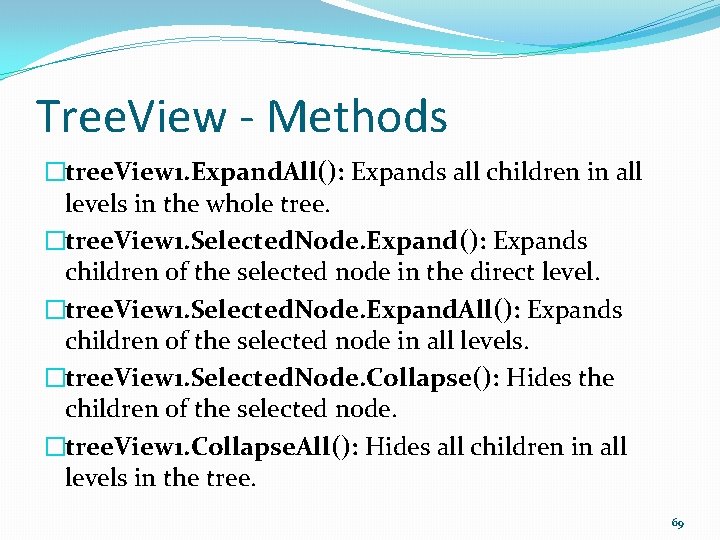
Tree. View - Methods �tree. View 1. Expand. All(): Expands all children in all levels in the whole tree. �tree. View 1. Selected. Node. Expand(): Expands children of the selected node in the direct level. �tree. View 1. Selected. Node. Expand. All(): Expands children of the selected node in all levels. �tree. View 1. Selected. Node. Collapse(): Hides the children of the selected node. �tree. View 1. Collapse. All(): Hides all children in all levels in the tree. 69
Multiple Forms �Check Worksheet 11 for details. 70
The End 71