
Visual programming Chapter 1 Introduction Eman Alnaji Dareen
![Forms. cs �Form 1. cs [Design] This window displays the file form 1. cs](https://slidetodoc.com/presentation_image_h2/fb6afab00e112d8de07c7de92deddc50/image-10.jpg "Forms. cs �Form 1. cs [Design] This window displays the file form 1. cs")
- Slides: 25
Visual programming Chapter 1: Introduction Eman Alnaji Dareen Hamoudeh
Contents �Introduction – Visual Studio 2012 �Start Page �Create a New Project �Forms. cs �Solution Explorer �Toolbox �Properties Window �Project Physical Folder �Run the Project 2
Introduction – Visual Studio 2012 �Visual Studio 2012 is Microsoft’s Integrated Development Environment (IDE) for creating, running and debugging apps (also called applications) written in various. NET programming languages. 3
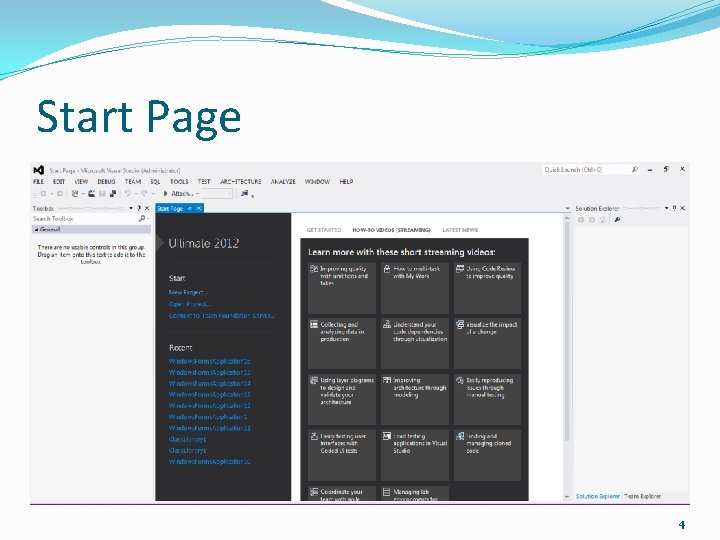
Start Page 4
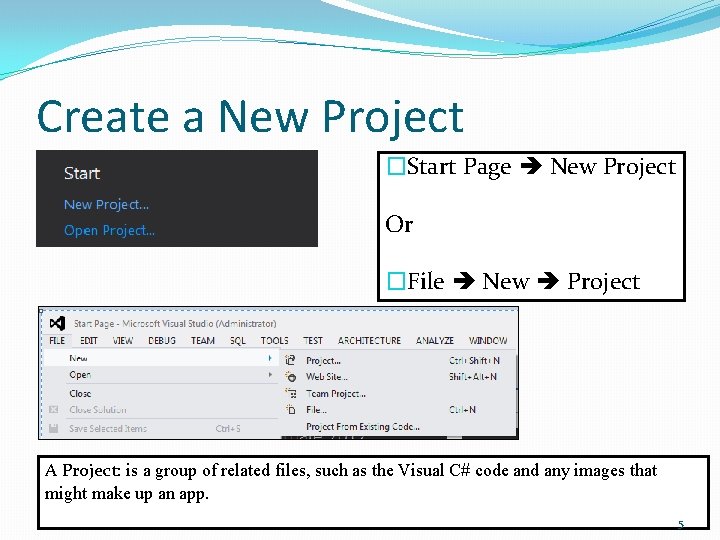
Create a New Project �Start Page New Project Or �File New Project A Project: is a group of related files, such as the Visual C# code and any images that might make up an app. 5
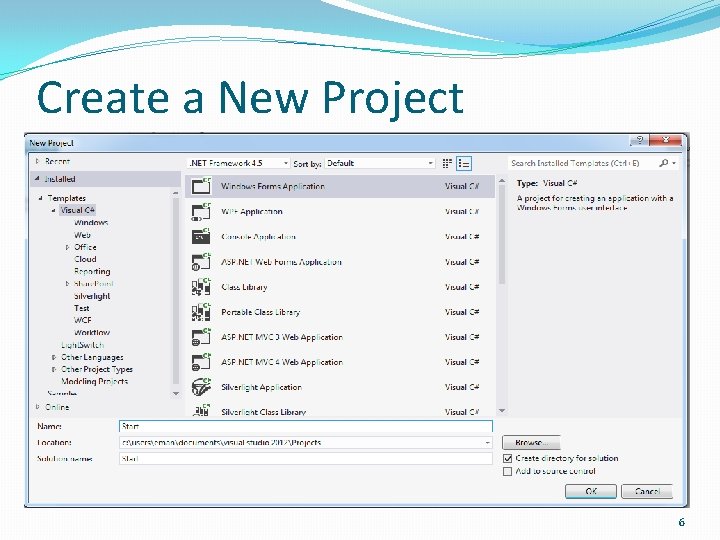
Create a New Project 6
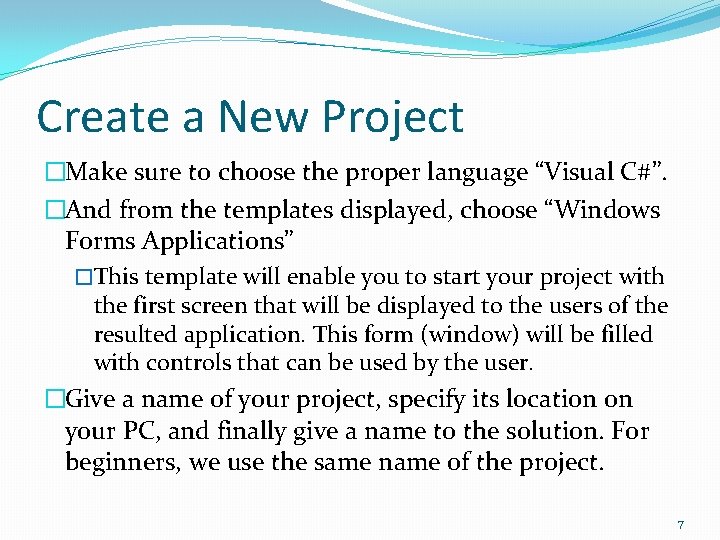
Create a New Project �Make sure to choose the proper language “Visual C#”. �And from the templates displayed, choose “Windows Forms Applications” �This template will enable you to start your project with the first screen that will be displayed to the users of the resulted application. This form (window) will be filled with controls that can be used by the user. �Give a name of your project, specify its location on your PC, and finally give a name to the solution. For beginners, we use the same name of the project. 7
Create a New Project �A Solution: contains several projects, and it is usually used for large systems. �In this course, we will create only one project in a solution. �Now, Press “OK” 8
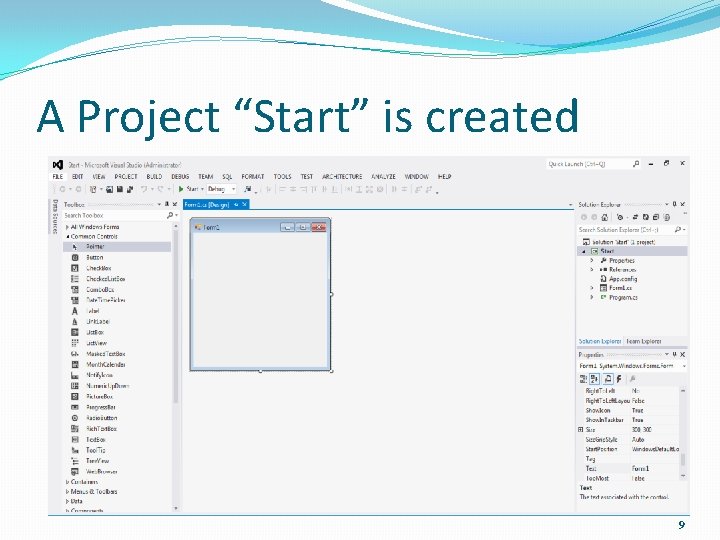
A Project “Start” is created 9
Forms. cs �Form 1. cs [Design] This window displays the file form 1. cs in design mode. In this window you can add the needed controls to the form. Your project may contain several forms that act as the windows of the application. 10
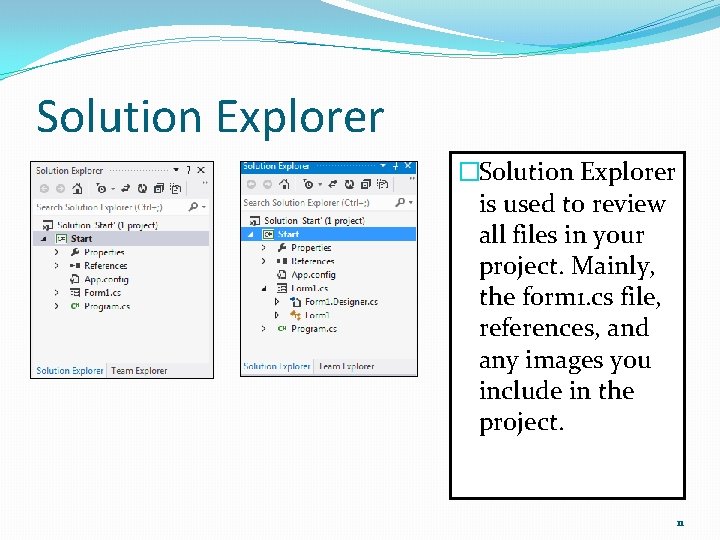
Solution Explorer �Solution Explorer is used to review all files in your project. Mainly, the form 1. cs file, references, and any images you include in the project. 11
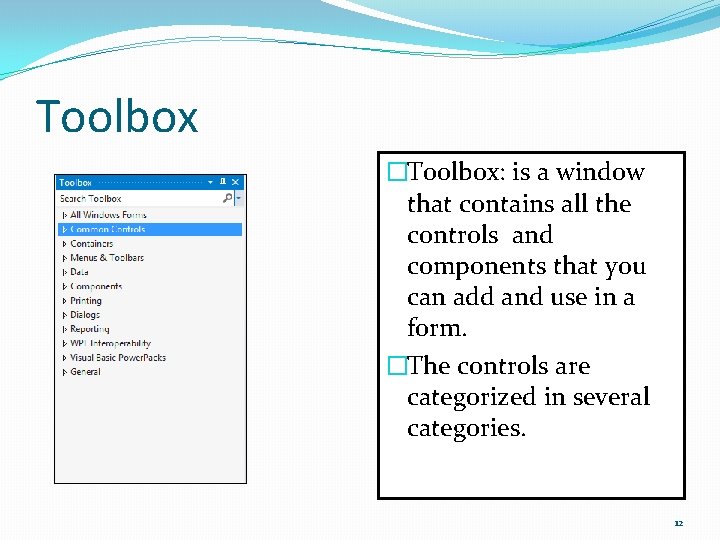
Toolbox �Toolbox: is a window that contains all the controls and components that you can add and use in a form. �The controls are categorized in several categories. 12
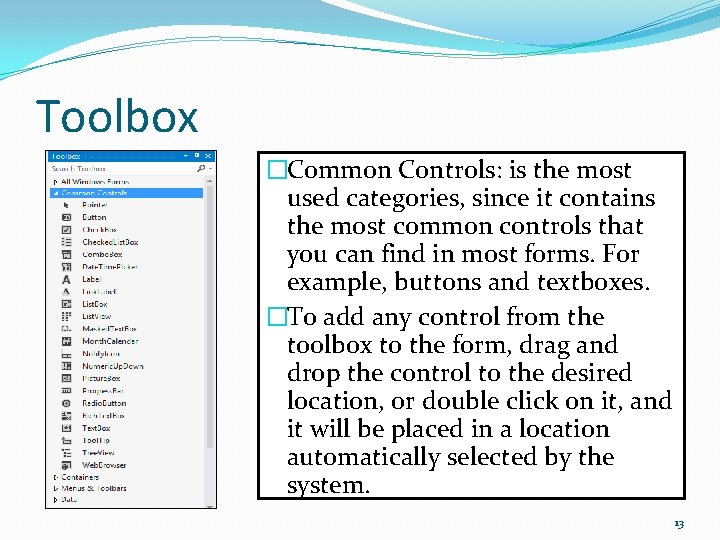
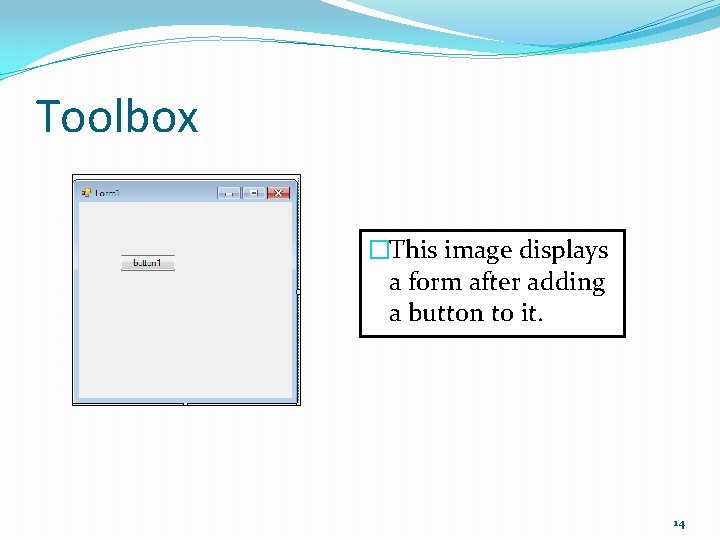
Toolbox �Common Controls: is the most used categories, since it contains the most common controls that you can find in most forms. For example, buttons and textboxes. �To add any control from the toolbox to the form, drag and drop the control to the desired location, or double click on it, and it will be placed in a location automatically selected by the system. 13
Toolbox �This image displays a form after adding a button to it. 14
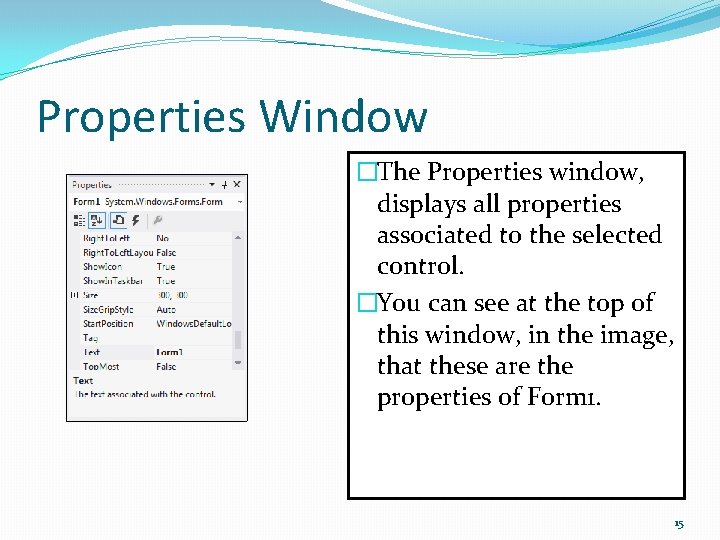
Properties Window �The Properties window, displays all properties associated to the selected control. �You can see at the top of this window, in the image, that these are the properties of Form 1. 15
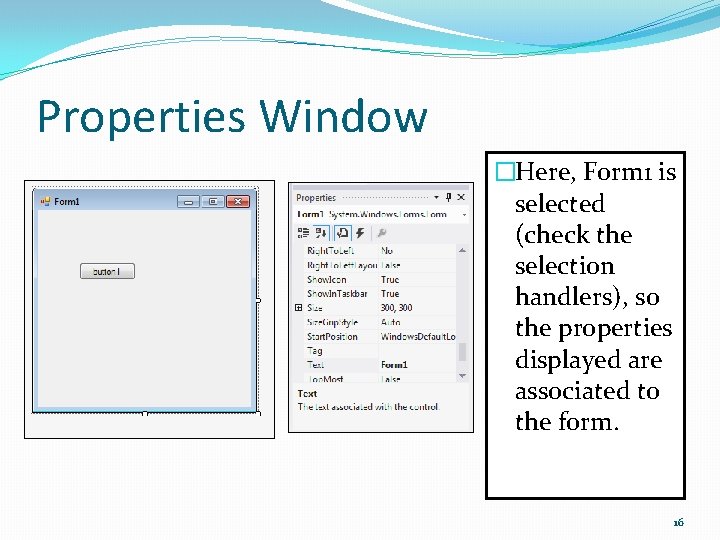
Properties Window �Here, Form 1 is selected (check the selection handlers), so the properties displayed are associated to the form. 16
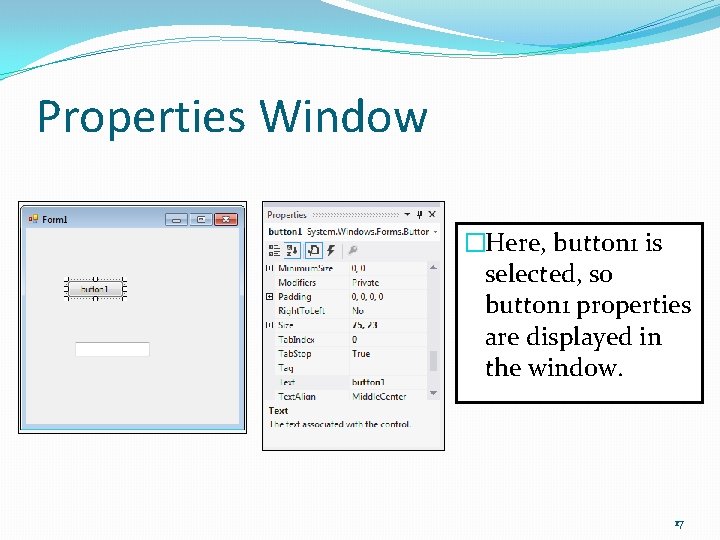
Properties Window �Here, button 1 is selected, so button 1 properties are displayed in the window. 17
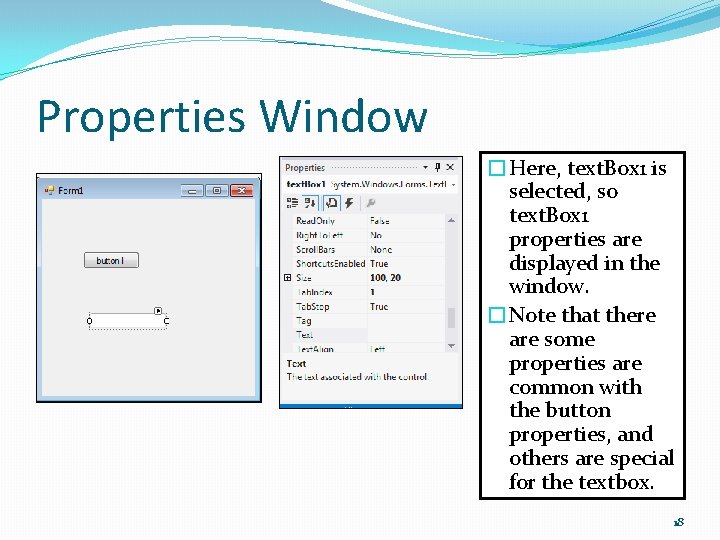
Properties Window �Here, text. Box 1 is selected, so text. Box 1 properties are displayed in the window. �Note that there are some properties are common with the button properties, and others are special for the textbox. 18
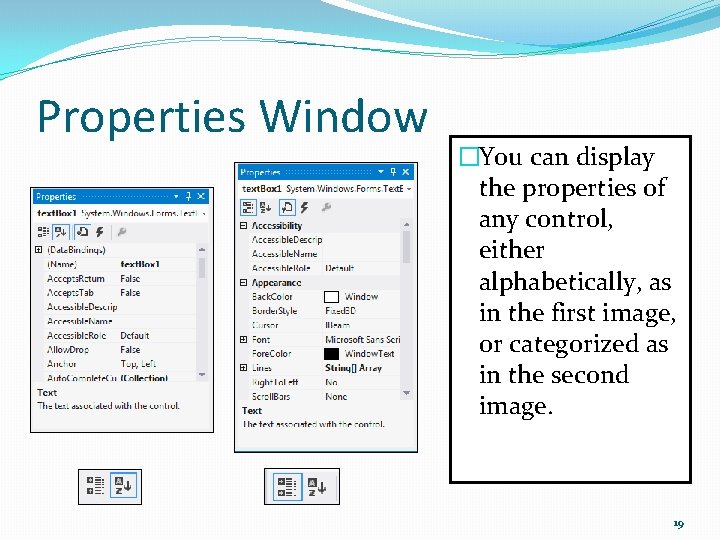
Properties Window �You can display the properties of any control, either alphabetically, as in the first image, or categorized as in the second image. 19
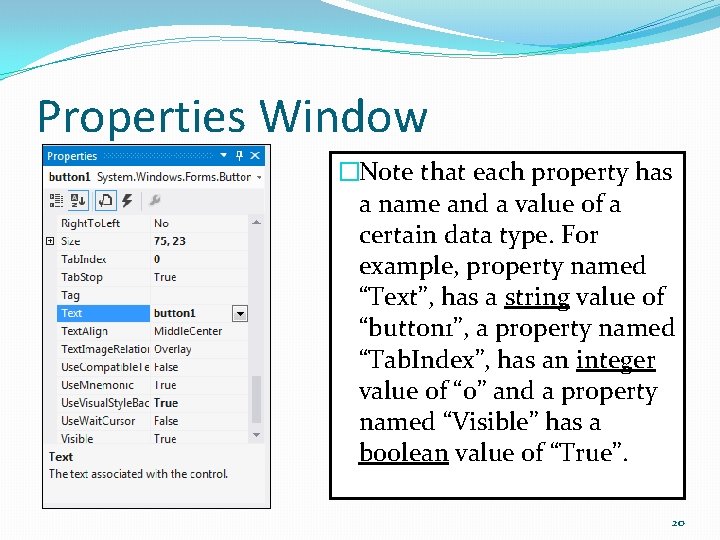
Properties Window �Note that each property has a name and a value of a certain data type. For example, property named “Text”, has a string value of “button 1”, a property named “Tab. Index”, has an integer value of “ 0” and a property named “Visible” has a boolean value of “True”. 20
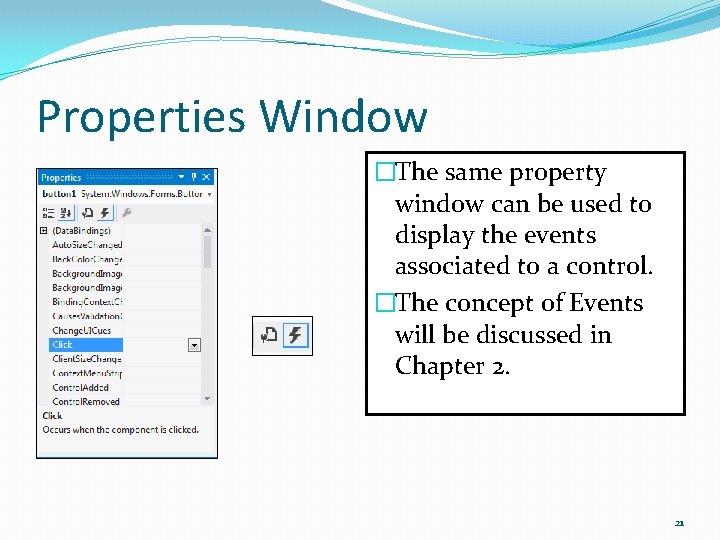
Properties Window �The same property window can be used to display the events associated to a control. �The concept of Events will be discussed in Chapter 2. 21
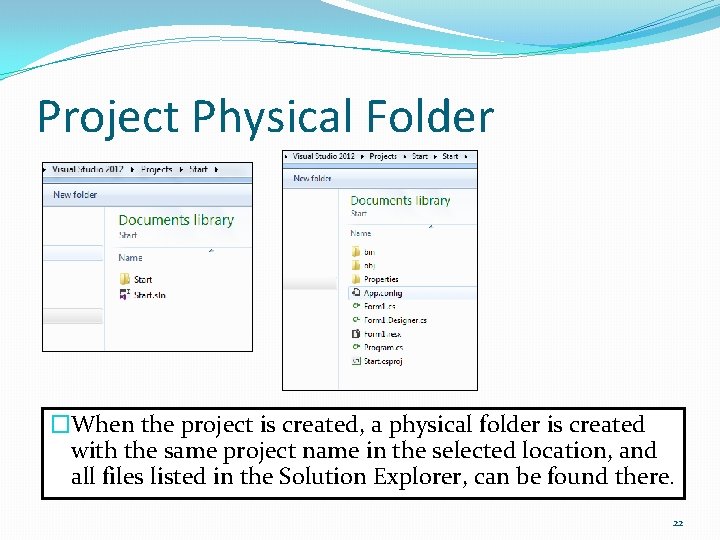
Project Physical Folder �When the project is created, a physical folder is created with the same project name in the selected location, and all files listed in the Solution Explorer, can be found there. 22
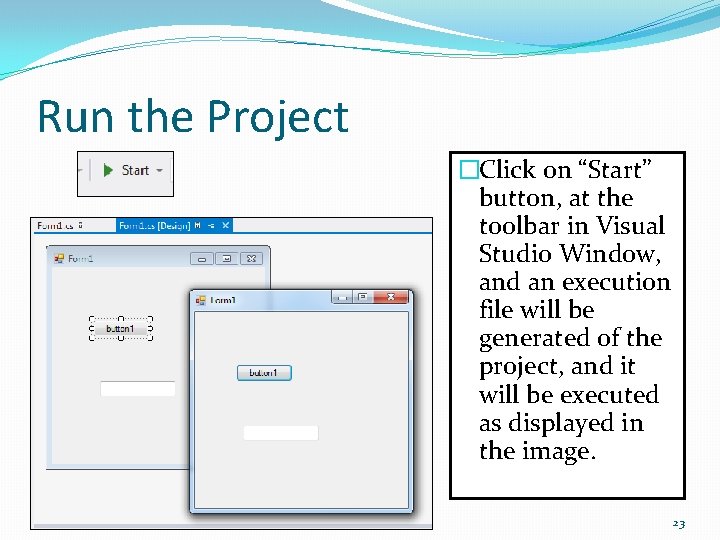
Run the Project �Click on “Start” button, at the toolbar in Visual Studio Window, and an execution file will be generated of the project, and it will be executed as displayed in the image. 23
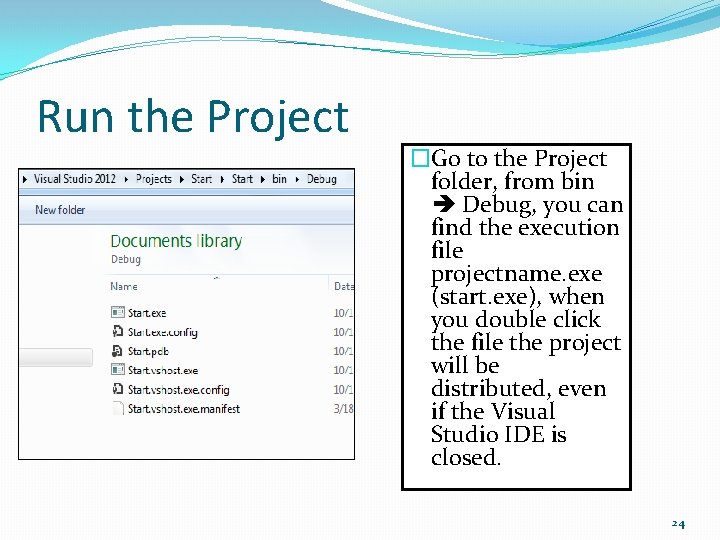
Run the Project �Go to the Project folder, from bin Debug, you can find the execution file projectname. exe (start. exe), when you double click the file the project will be distributed, even if the Visual Studio IDE is closed. 24
The End 25