
Visual Modeling 101 Speakers Background Industrial Engineer from
Visual Modeling 101
Speaker’s Background • Industrial Engineer from Southern Poly-Tech • 30+ years experience in process engineering, operations, and project management • 15+ years on the road as a PM/BA • Worked in many companies, industries and countries – which gives me a unique perspective on best practices in actual use • Belonged to many IIBA chapters over the years, and helped start some
Abstract • This presentation is a high level introduction to the various visual models that Business Analyst typically create in the inception and solution definition phases of a project. • Visual models help to convey “blueprint” style information to project stakeholders to assure everyone sees the same project objectives. • Models discussed here are: – Context Model – Use Case Model – Business Object State Model – Workflows (process flows) – Storyboarding (screen mock-ups) 3
Intent • Teach you the importance of visual modeling • Teach you how to build 6 of the 8 common project front-end models • We will not cover the two that are more design/architectural: – Sequence diagrams – Deployment diagrams
Introduction • Visual modeling has been around a very long time • It is the most effective way to convey information across a wide variety of people • It bridges the gap between the technical minded and the non-technical minded • Models help to form the “blueprints” for a system Note: Examples in this presentation were created using MS Visio & MS Power. Point – A BA needs to be very skilled with using tools of these types 5

What will we learn? • This slide deck discusses six common front end visual models: – Context Model – Use Case Model – Business Object State Model – Workflows (process flows) – Storyboarding (screen mock-ups) 6

Context Models
What is Context Modeling? • The modeling of a system to show its business interfaces and boundaries • A Context Model should have: – – Systems identified Significant interfaces identified Information flow identified Significant actors might be identified Creating a Context Model during elicitation can quickly help with clarification of requirements and project scope boundaries 8
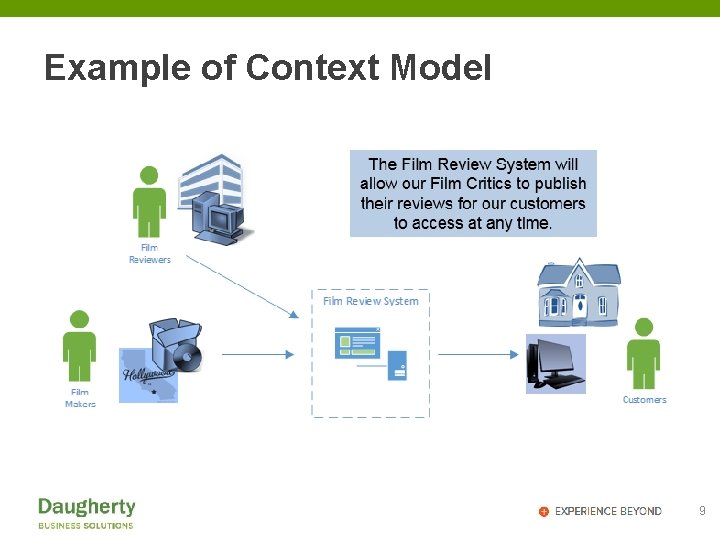
Example of Context Model 9
Benefits of Context Modeling • Puts focus on the business problem being solved • Gets development team on the right page • Supports scope discussions • Supports estimation of work 10
Defining the Context • Best Practice for the Context Model is to depict the system of interest in the center and all of the connected systems around it – Arrows are used to show information flow directions • The easiest way to find the connected systems is by identifying where information comes from and goes to – The process workflows should have this • Best time to create the context model is while eliciting the process workflow in preparation of the business case 11
What is needed? • Choose a modeling tool: – MS Visio – MS Power. Point – Paper, Pencil & Eraser 12
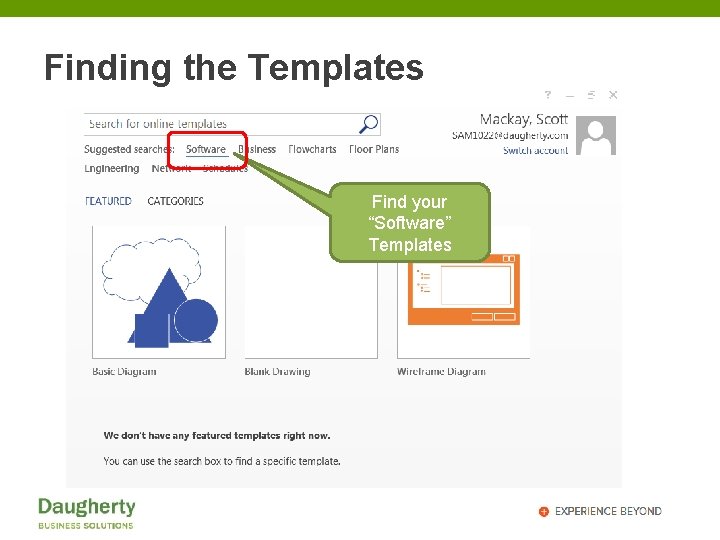
Finding the Templates Find your “Software” Templates
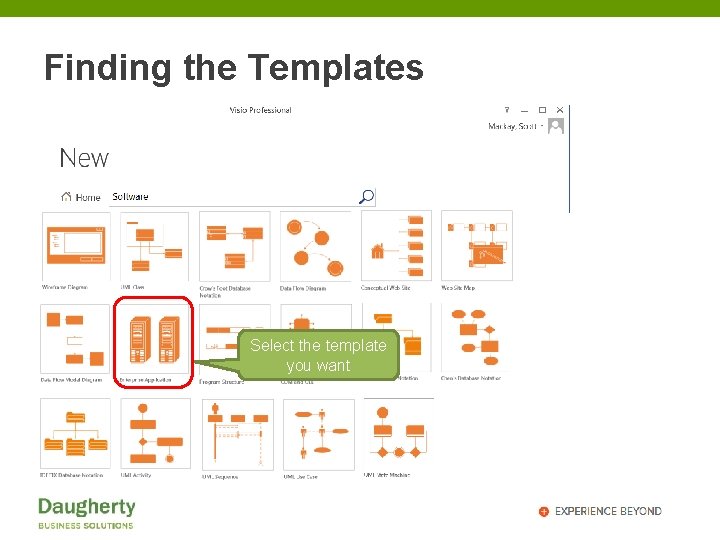
Finding the Templates Select the template you want
Rules of Context Modeling • Single Page • Executive Level • Minimal Labeling • Tell the goal of the Project 15
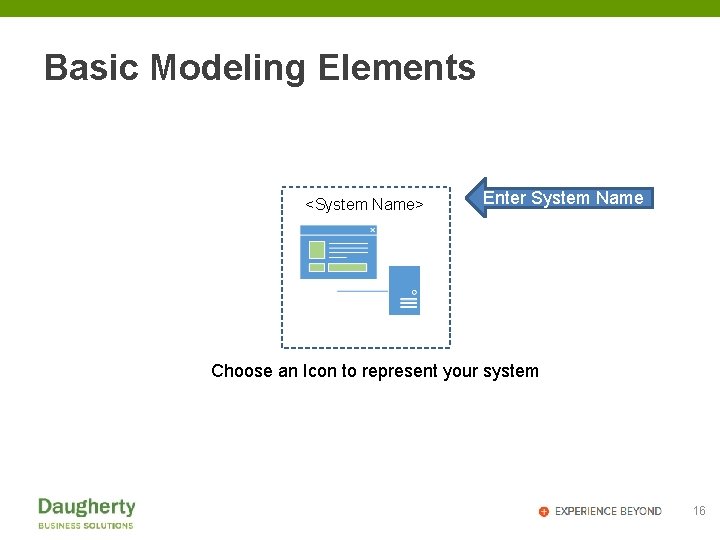
Basic Modeling Elements <System Name> Enter System Name Choose an Icon to represent your system 16
Developing the Model • Study the information flow on the system boundaries • Identify: – Where information comes from – Where information goes to • Focus on the business problem being solved 17
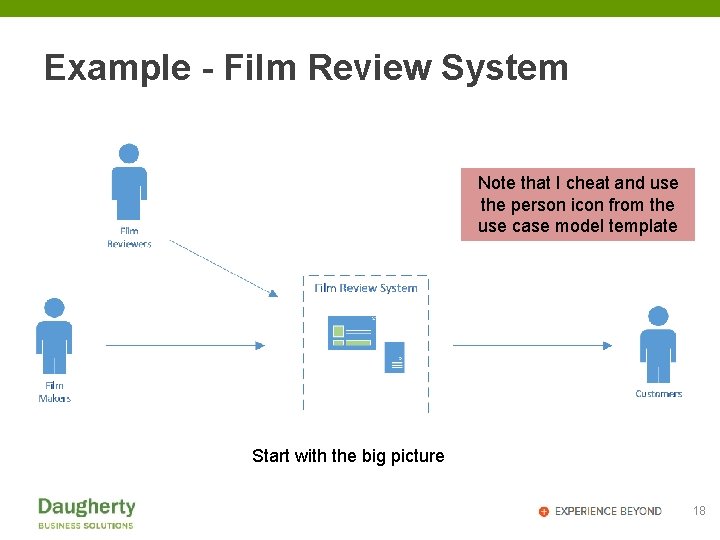
Example - Film Review System Note that I cheat and use the person icon from the use case model template Start with the big picture 18
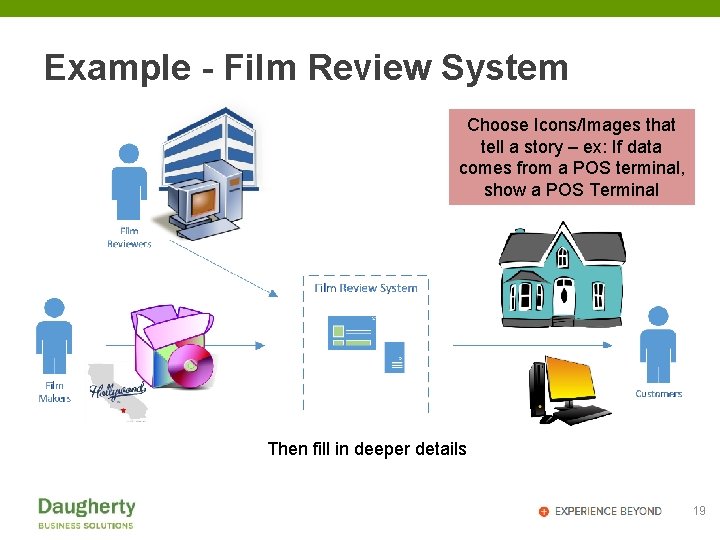
Example - Film Review System Choose Icons/Images that tell a story – ex: If data comes from a POS terminal, show a POS Terminal Then fill in deeper details 19
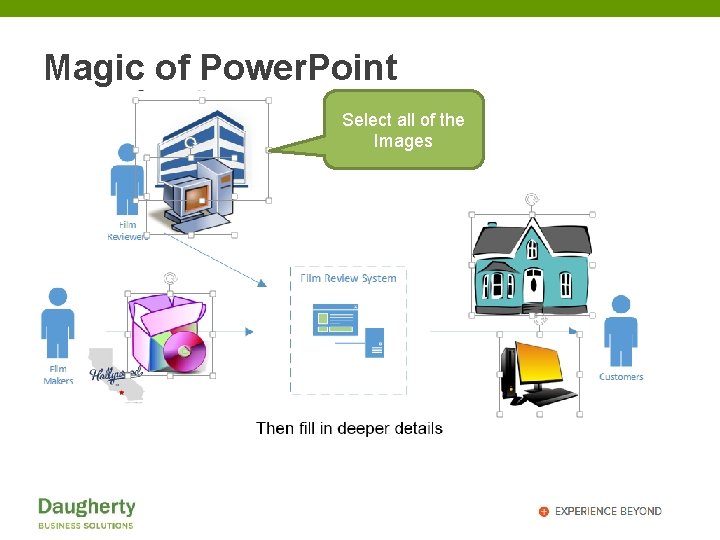
Magic of Power. Point Select all of the Images
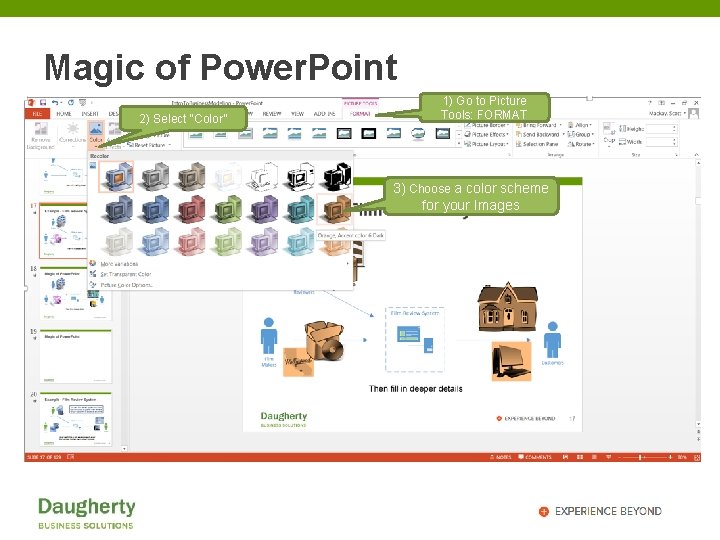
Magic of Power. Point 2) Select “Color” 1) Go to Picture Tools: FORMAT 3) Choose a color scheme for your Images
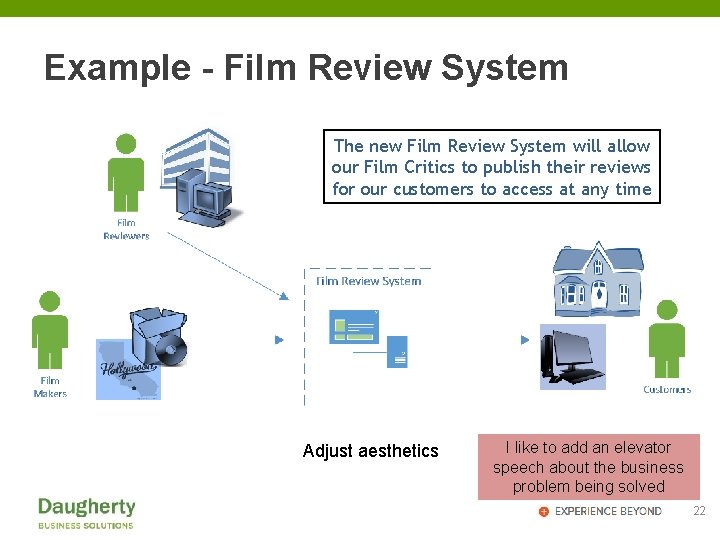
Example - Film Review System The new Film Review System will allow our Film Critics to publish their reviews for our customers to access at any time Adjust aesthetics I like to add an elevator speech about the business problem being solved 22
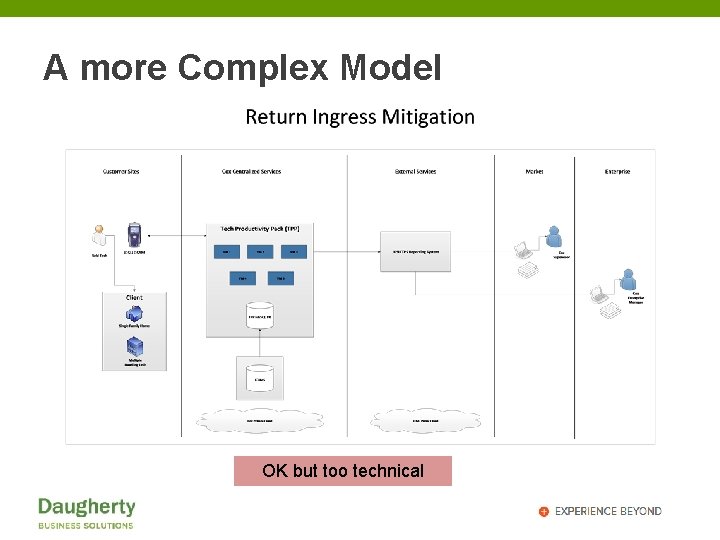
A more Complex Model OK but too technical
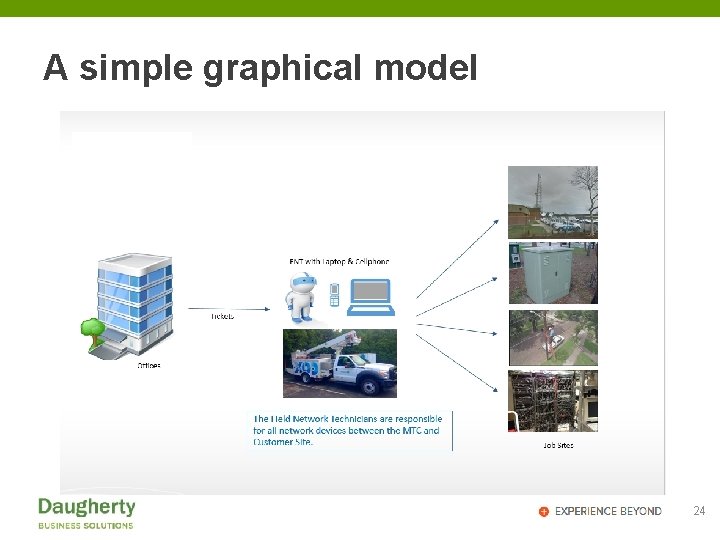
A simple graphical model 24
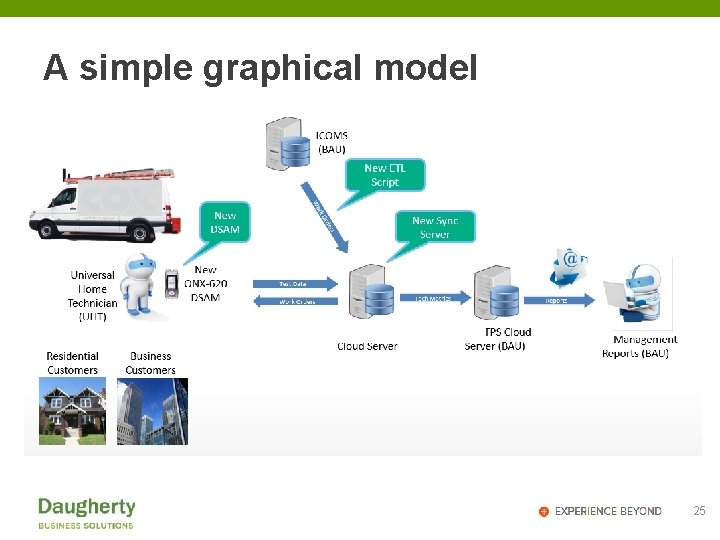
A simple graphical model 25
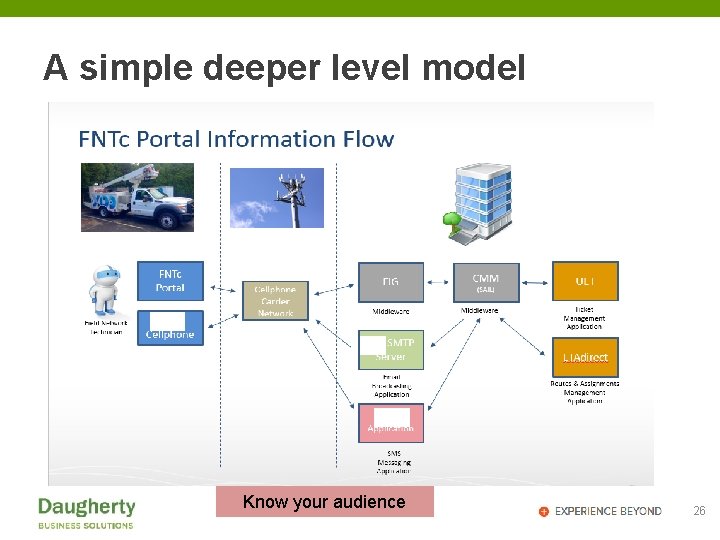
A simple deeper level model Know your audience 26
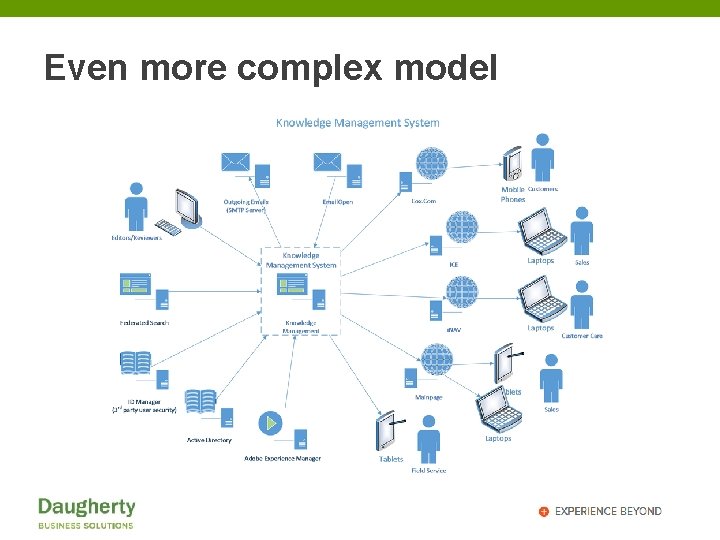
Even more complex model
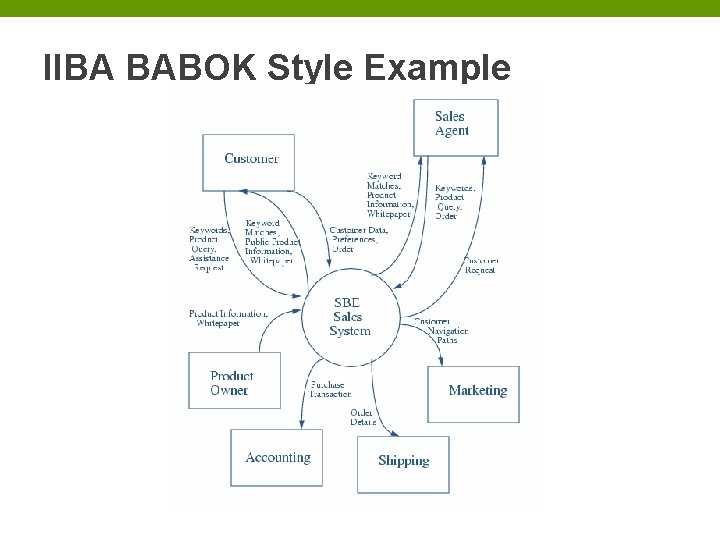
IIBA BABOK Style Example
What Next? • Peer review with team • Validate with real users • Put to use Tip: Put the context model in the business case and share it with all team members 29
Use Case Models
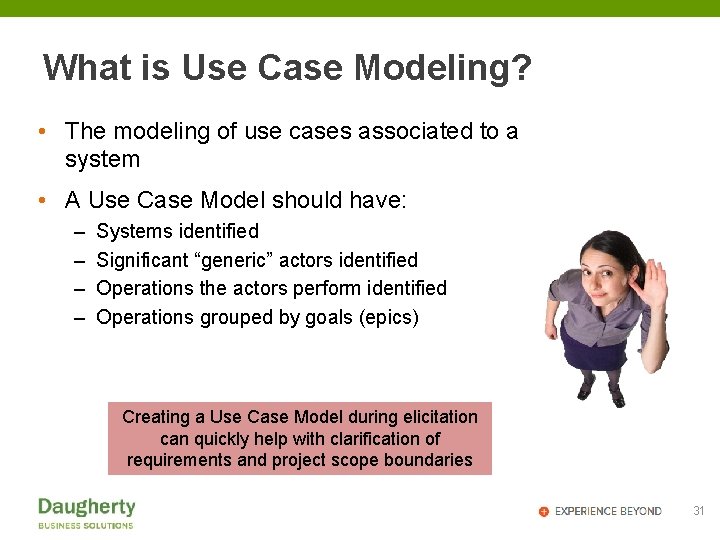
What is Use Case Modeling? • The modeling of use cases associated to a system • A Use Case Model should have: – – Systems identified Significant “generic” actors identified Operations the actors perform identified Operations grouped by goals (epics) Creating a Use Case Model during elicitation can quickly help with clarification of requirements and project scope boundaries 31
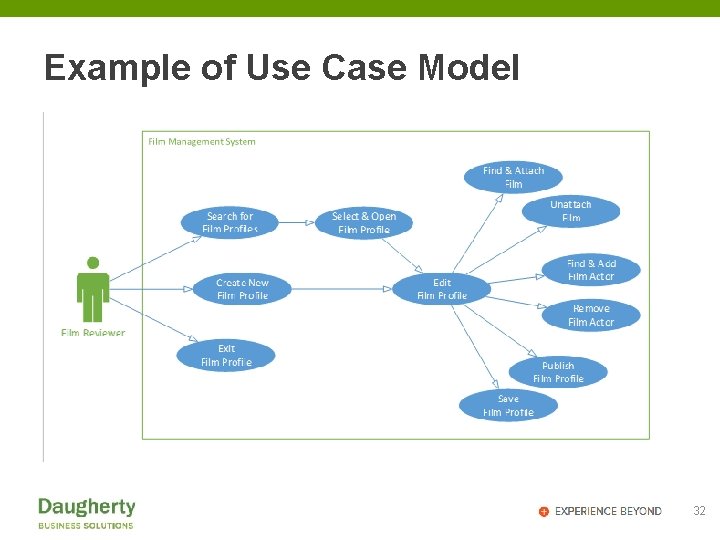
Example of Use Case Model 32
Benefits of Use Case Modeling • Helps identify missing scope • Clarifies scope • Shows dependencies • Supports estimation • Supports system segmentation • Supports project planning (and sprint 0) 33
What is needed? • Choose a UML modeling tool: – MS Visio – MS Power. Point – can be done – Paper, Pencil & Eraser UML = Unified Modeling Language. Standardized symbol notation maintained by the International Organization for Standardization (ISO) 34
Rules of Use Case Modeling • Reduce Actors to their lowest common denominator – System Admin, Worker, Manager, etc. • Do not try to show roles/permissions in the use case model • Ignore “Cancel” – assume it exists at all times • Ignore exceptions (user error pop-ups) – save that for the use case itself • Ignore navigation – show dependency only • Neatness & accuracy do count • Keep each model simple - 7 to 9 Use Cases per Page • Most important is that all use cases get identified – Use Cases = Scope 35
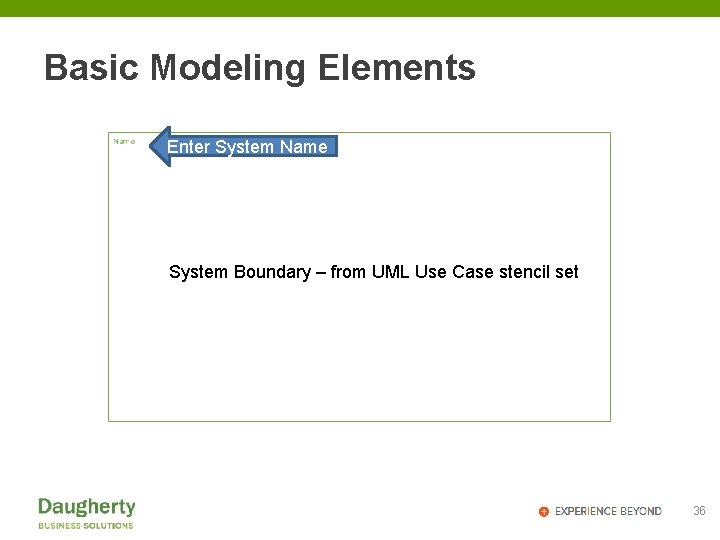
Basic Modeling Elements Enter System Name System Boundary – from UML Use Case stencil set 36
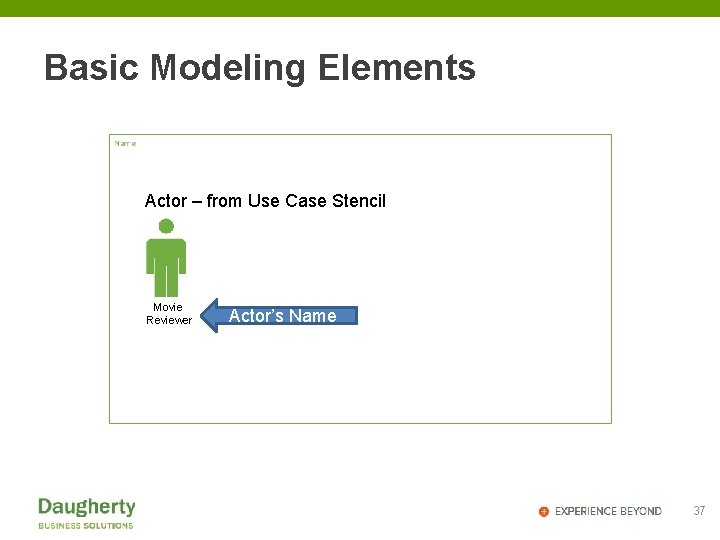
Basic Modeling Elements Actor – from Use Case Stencil Movie Reviewer Actor’s Name 37
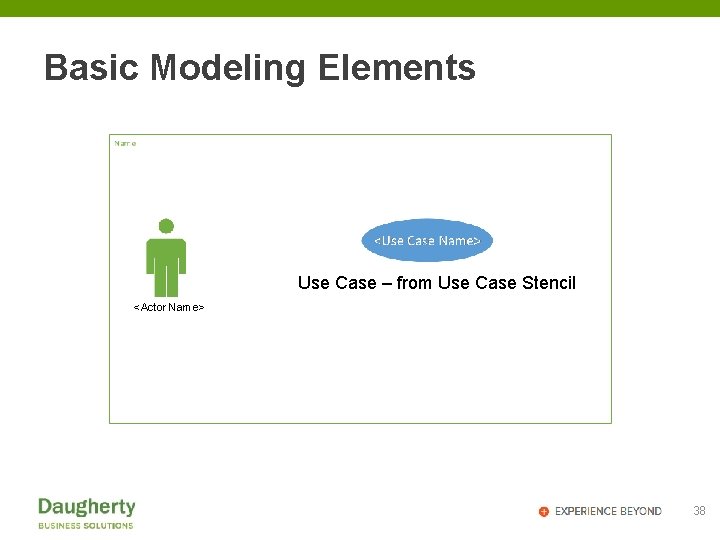
Basic Modeling Elements Use Case – from Use Case Stencil <Actor Name> 38
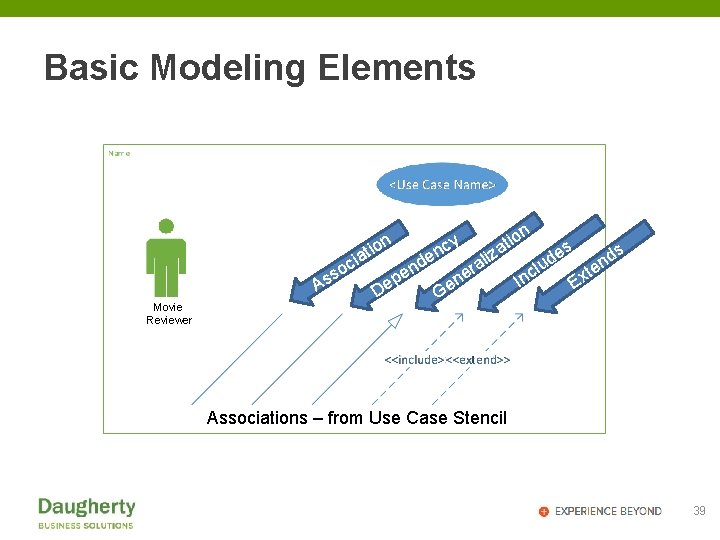
Basic Modeling Elements on i t ia c o ss A Movie Reviewer n de D en p e n cy e en o ati r z ali G es ds d n u l te x Inc E Associations – from Use Case Stencil 39
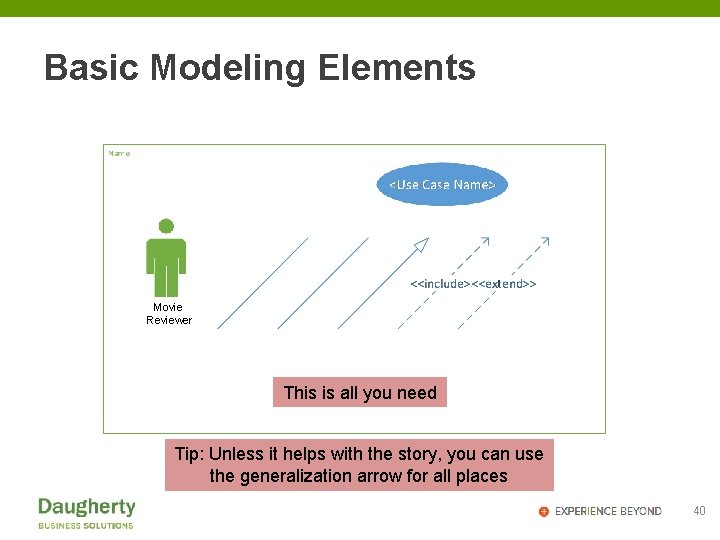
Basic Modeling Elements Movie Reviewer This is all you need Tip: Unless it helps with the story, you can use the generalization arrow for all places 40
Finding Use Cases • Use Cases are operations (actions) performed by an actor using the system – Yes, you can model use cases that are not part of the system if needed to show that they are out of scope • The easiest way to find use cases is by studying the actor’s process workflows – Look for action verbs (operations) that are performed on nouns (business objects) – Ex: Search for Movies (<action verb>…<noun>) • Best time to create the use case model is while eliciting the process workflows 41
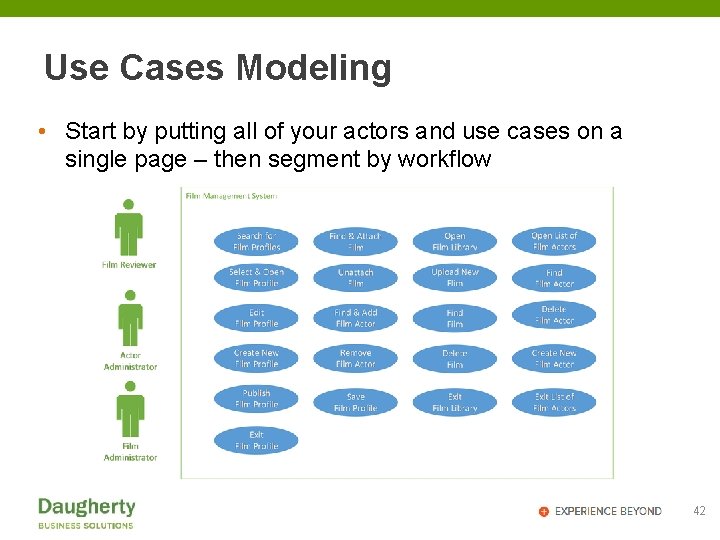
Use Cases Modeling • Start by putting all of your actors and use cases on a single page – then segment by workflow 42
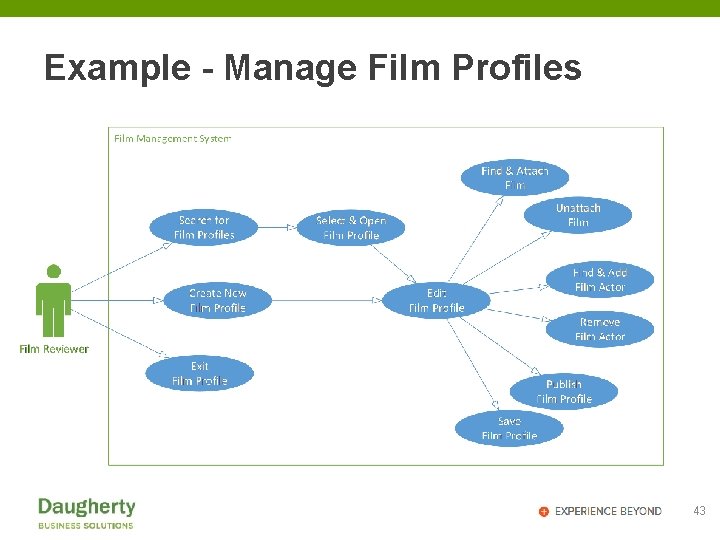
Example - Manage Film Profiles 43
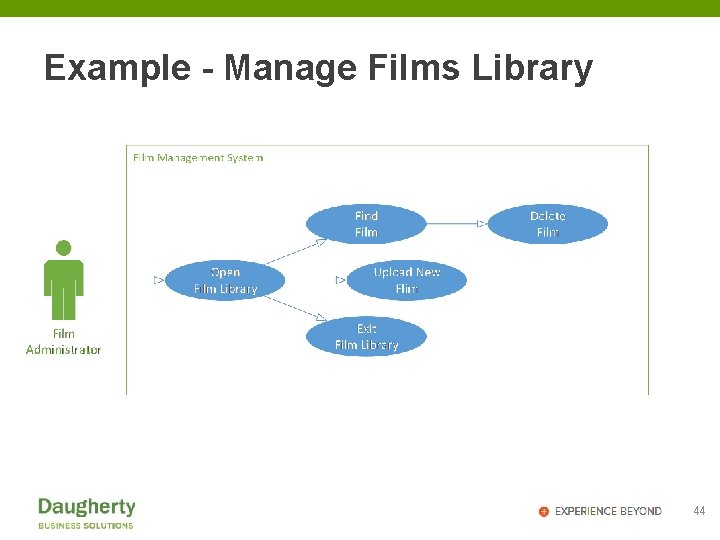
Example - Manage Films Library 44
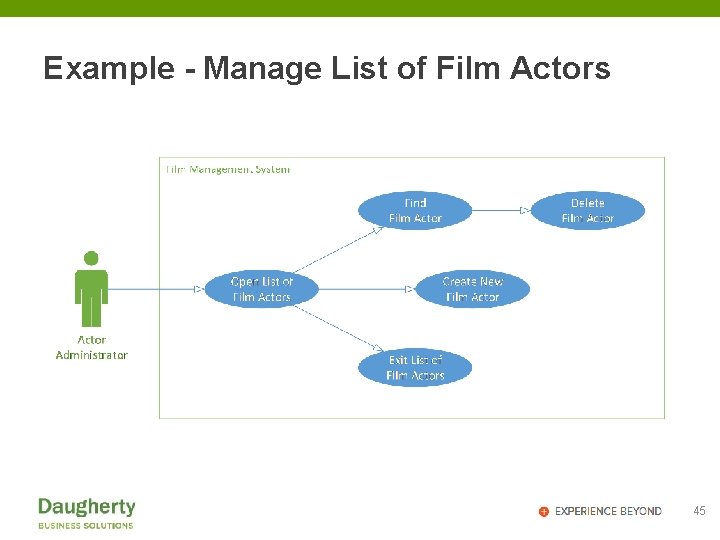
Example - Manage List of Film Actors 45
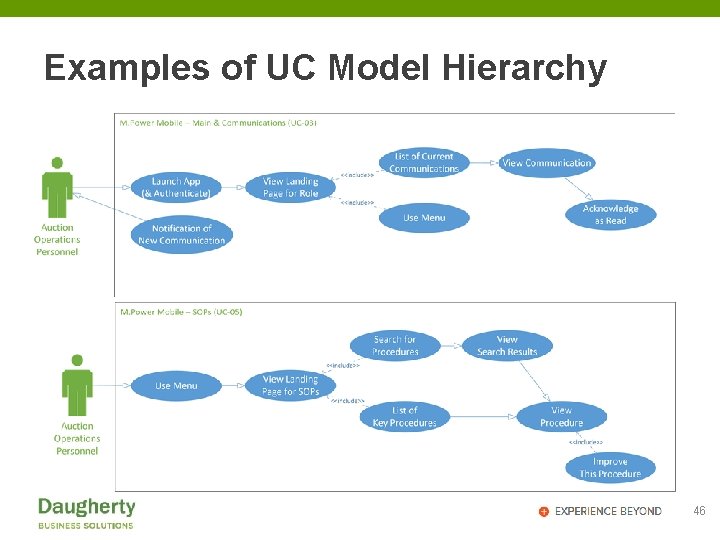
Examples of UC Model Hierarchy 46
What Next? • Peer review with team • Validate with real users Tip: Use the list of grouped use cases to plan the development work (Project Backlog) 47
Business Object Models
What is Business Object Modeling? • The modeling of business objects associated to a system • A Business Object Model should have: – – All associated business objects modeled Attributes displayed Operations displayed Relationships between objects displayed • The Business Object Model is also known as (aka) an “Entity Relationship Model” Creating an Object Model during elicitation can quickly help with clarification of requirements and project scope boundaries 49
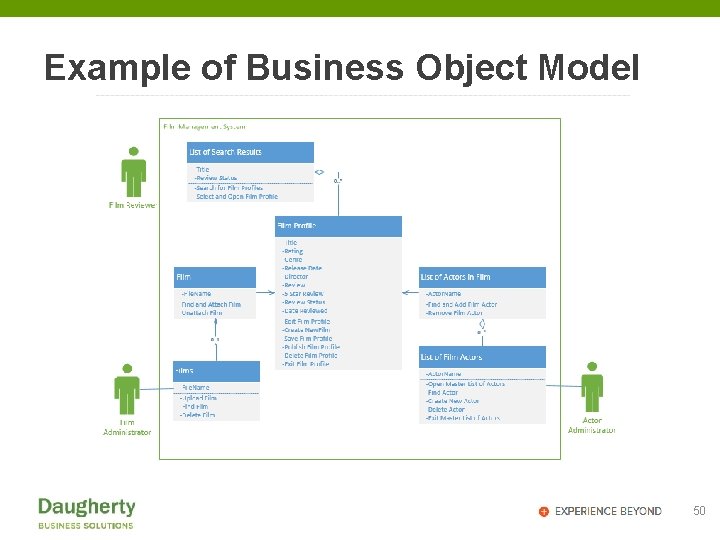
Example of Business Object Model 50
Like a Class Model? • Business Object model differs from a Class Model – No system objects – No attribute details (type, character count, etc. ) – No system attributes (ex: IDs, Keys, etc. ) – Does share stencils and structure 51
Benefits of Business Object Modeling • Shows dependencies • Supports the database modeling • Supports the UI modeling • Shows where the use case operations exist • Shows the important attributes of each object • Supports system segmentation 52
What is needed? • Choose a UML modeling tool: – MS Visio – MS Power. Point – can be done – Paper, Pencil & Eraser 53
Rules of Business Object Modeling • Only model what is important to the picture you want to portray • There is no perfect model – its like a blueprint • Neatness & accuracy do count • Keep each model simple – use hierarchy structure like you would for flowcharts • Most important is that viewers all perceive the same conclusions 54
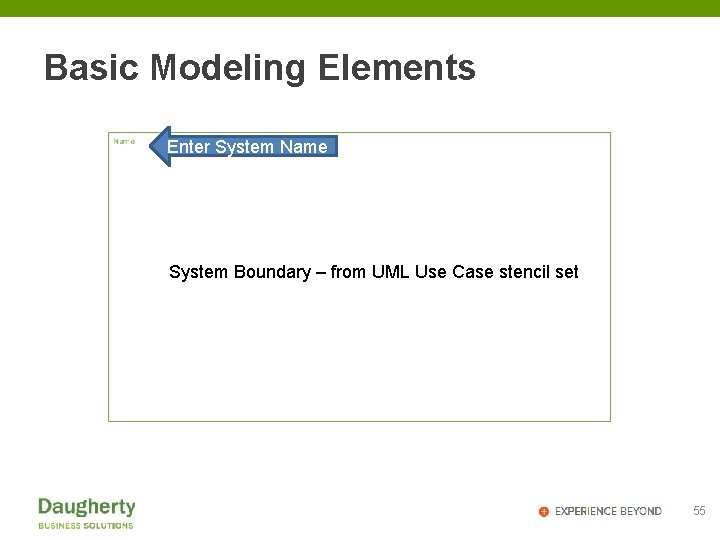
Basic Modeling Elements Enter System Name System Boundary – from UML Use Case stencil set 55
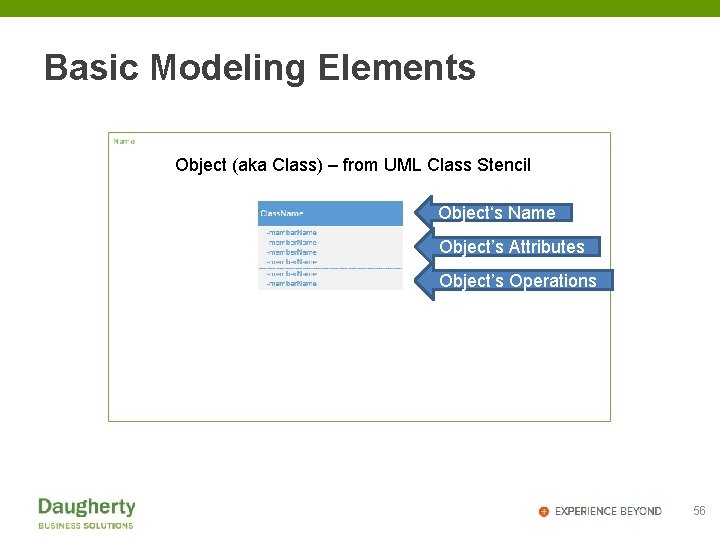
Basic Modeling Elements Object (aka Class) – from UML Class Stencil Object‘s Name Object’s Attributes Object’s Operations 56
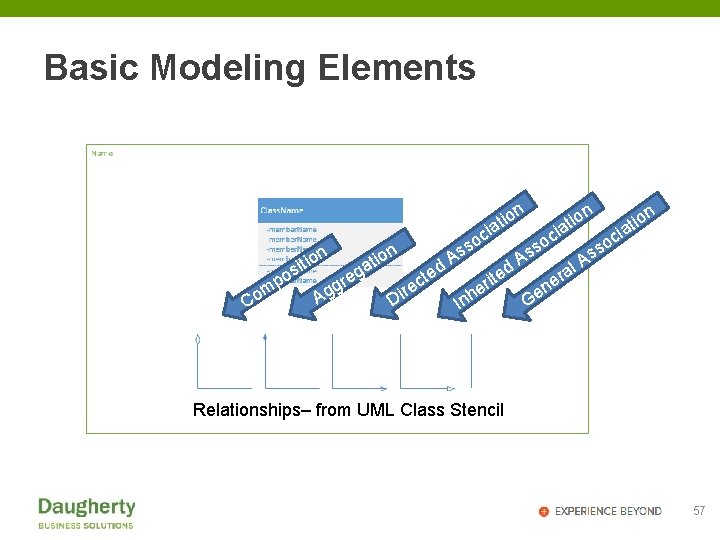
Basic Modeling Elements n n io t a i o p m Co io sit on i t a reg n g Ag oc s s D c ire A d e t A d te oc s s In s A al er n e i r he on i t cia o s io t a i G Relationships– from UML Class Stencil 57
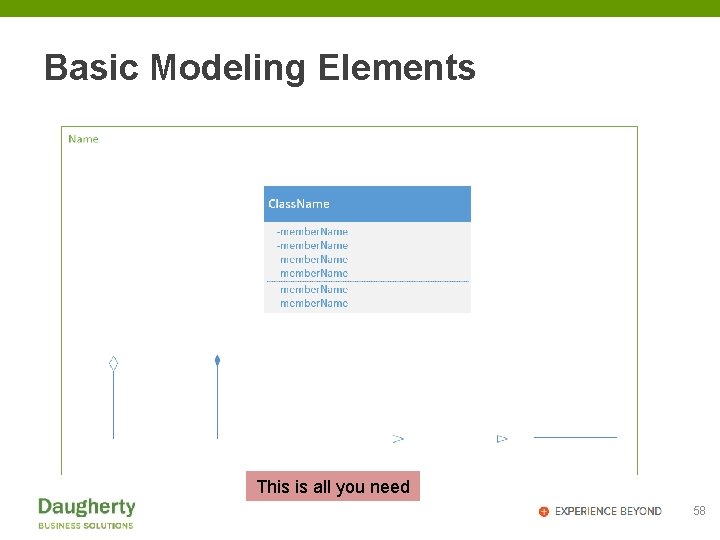
Basic Modeling Elements This is all you need 58
Finding Business Objects • The easiest way to find business objects is by studying the actor’s process workflows – Look for the nouns (business objects) that are being interacted with by the actor • Best time to create the business object model is while eliciting the process workflows 59
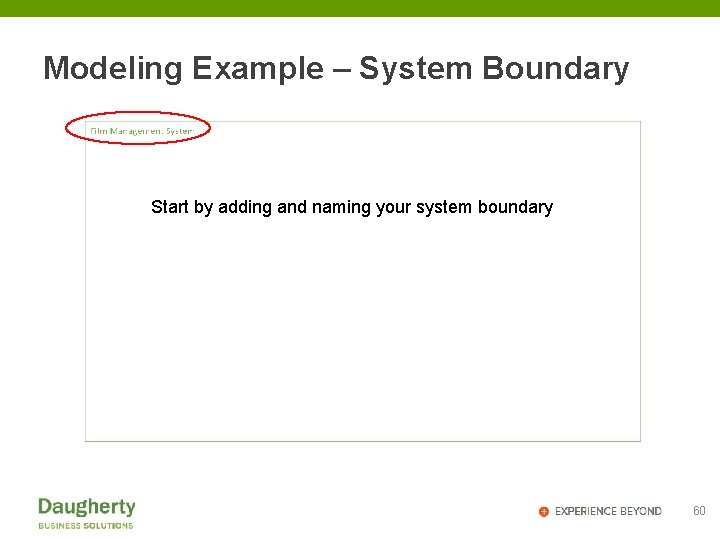
Modeling Example – System Boundary Start by adding and naming your system boundary 60
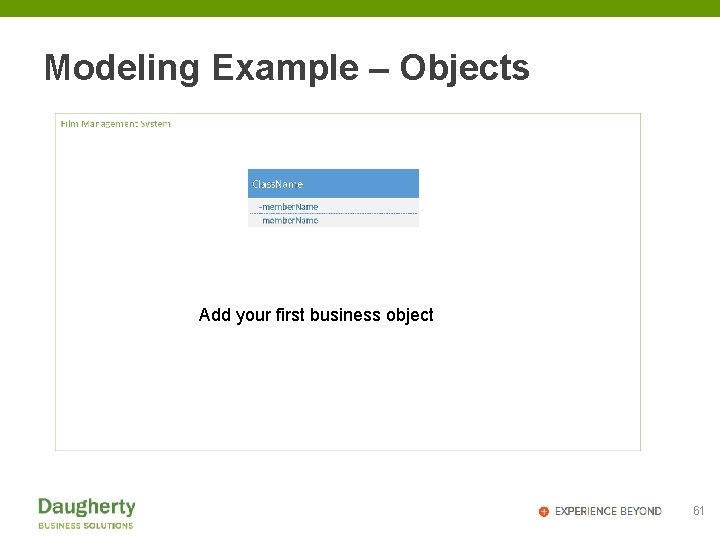
Modeling Example – Objects Add your first business object 61
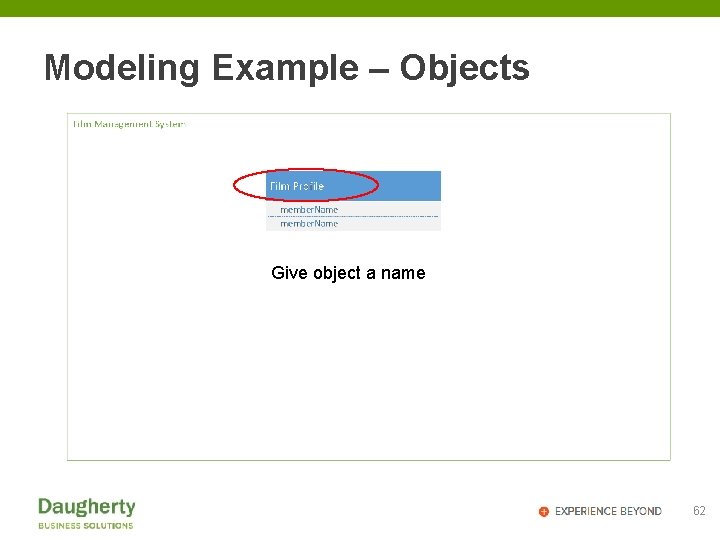
Modeling Example – Objects Give object a name 62
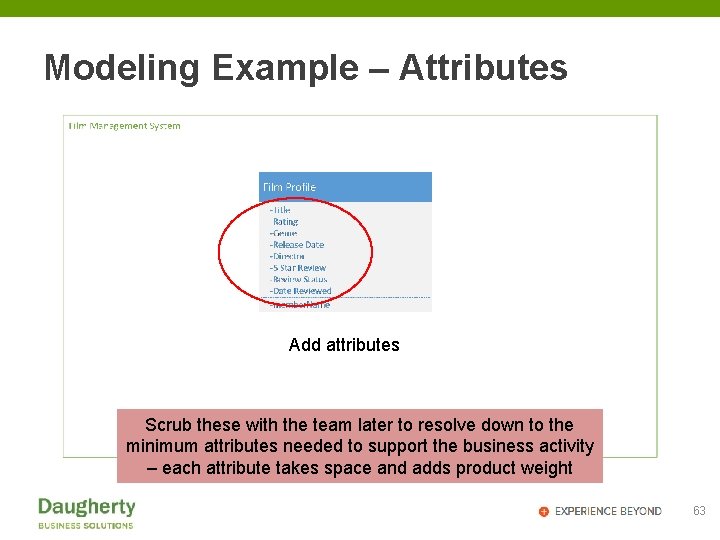
Modeling Example – Attributes Add attributes Scrub these with the team later to resolve down to the minimum attributes needed to support the business activity – each attribute takes space and adds product weight 63
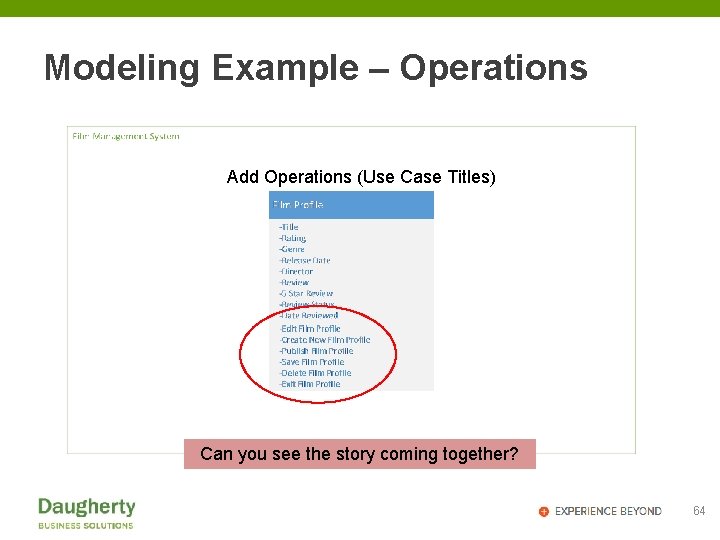
Modeling Example – Operations Add Operations (Use Case Titles) Can you see the story coming together? 64
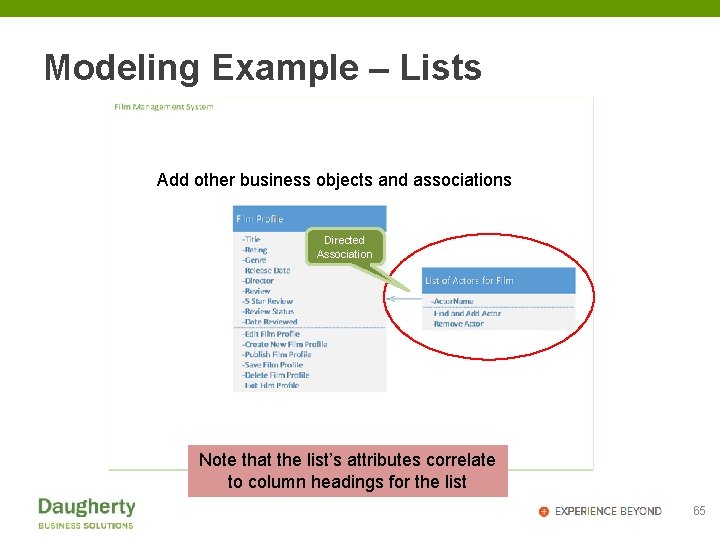
Modeling Example – Lists Add other business objects and associations Directed Association Note that the list’s attributes correlate to column headings for the list 65
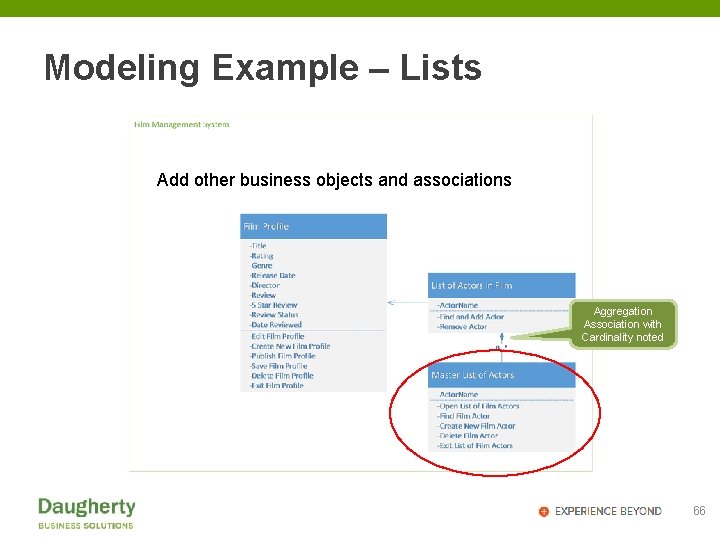
Modeling Example – Lists Add other business objects and associations Aggregation Association with Cardinality noted 66
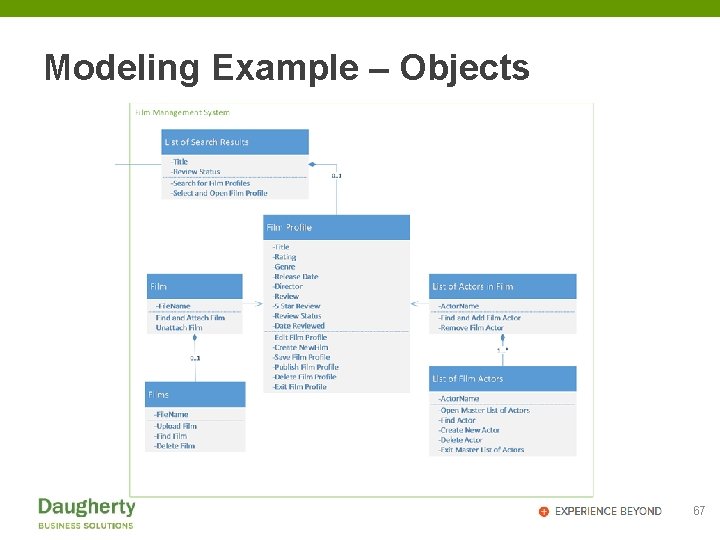
Modeling Example – Objects 67
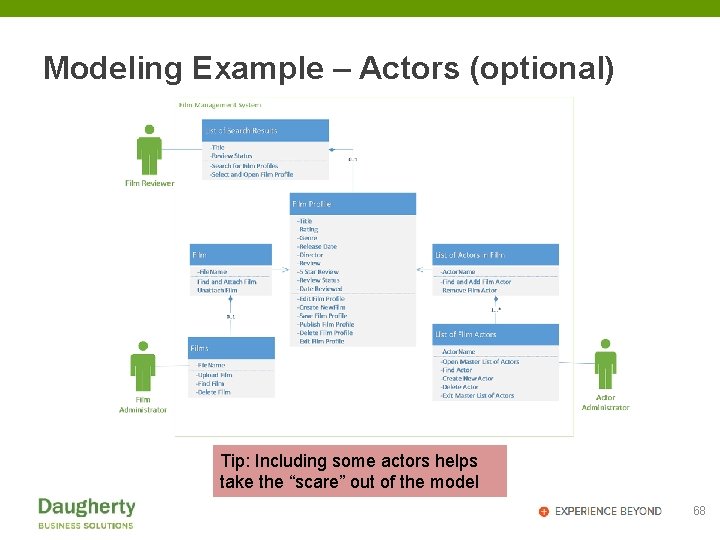
Modeling Example – Actors (optional) Tip: Including some actors helps take the “scare” out of the model 68
What Next? • Peer review with team • Validate with real users Tip: Use the object model to plan the development work 69
Business Object State Models
What is State Modeling? • The modeling of the different states a business object can be in over its lifecycle • A Business Object State Model should have: – Business Object identified – States are identified – Significant actors might be identified Creating a State Model during elicitation can quickly help with clarification of requirements 71
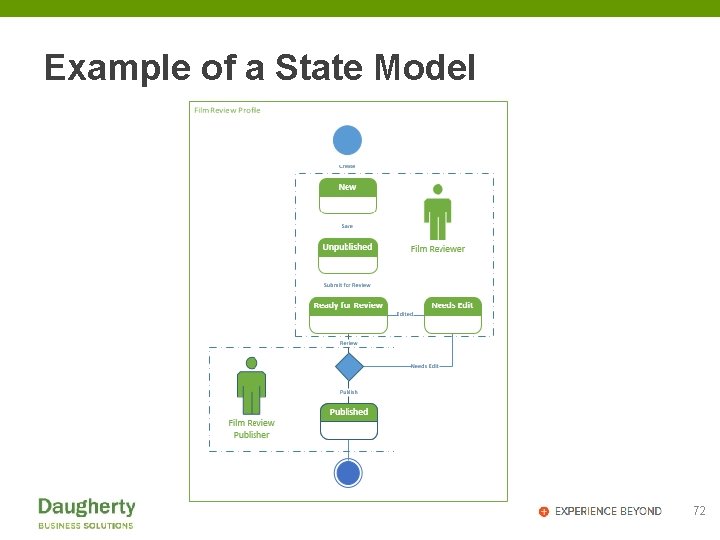
Example of a State Model 72
Benefits of State Modeling • State changes are not easily depicted in process workflows • State changes can be important to the system • Having the state model can clear up behavioral misconceptions 73
Defining the States • Best Practice for the State Model is to depict each business object separately – Unless relationships are affected by the state changes • The easiest way to find the state changes is by studying the process workflows • Best time to create the state model is while eliciting the process workflow • The model is only needed if it adds value to the team 74
What is needed? • Choose a UML modeling tool: – MS Visio – MS Power. Point – can be done – Paper, Pencil & Eraser 75
Rules of State Modeling • Single Page • Typically single business object – but can be multiple • Minimal Labeling – but adding business rules can help 76
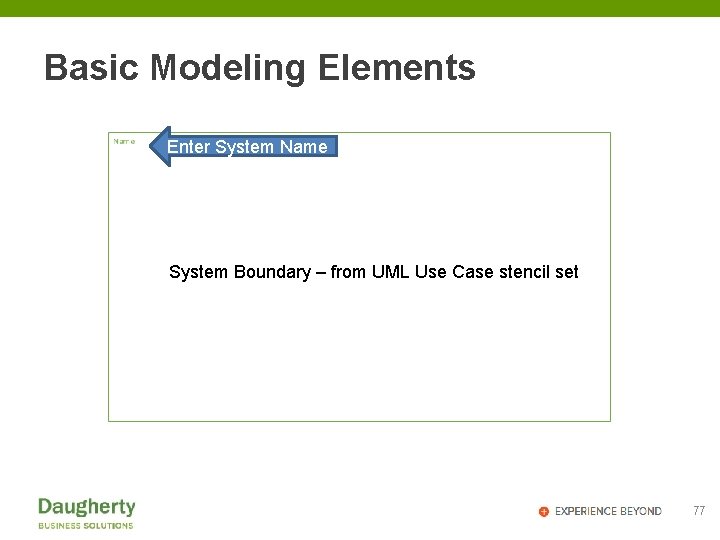
Basic Modeling Elements Enter System Name System Boundary – from UML Use Case stencil set 77
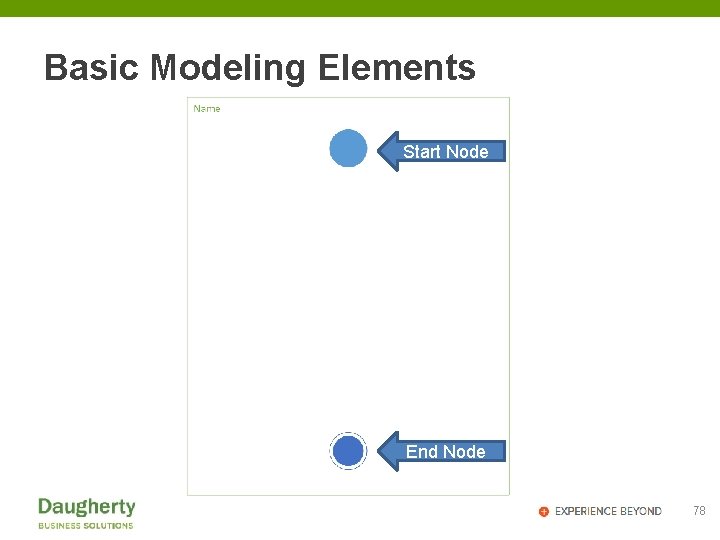
Basic Modeling Elements Start Node End Node 78
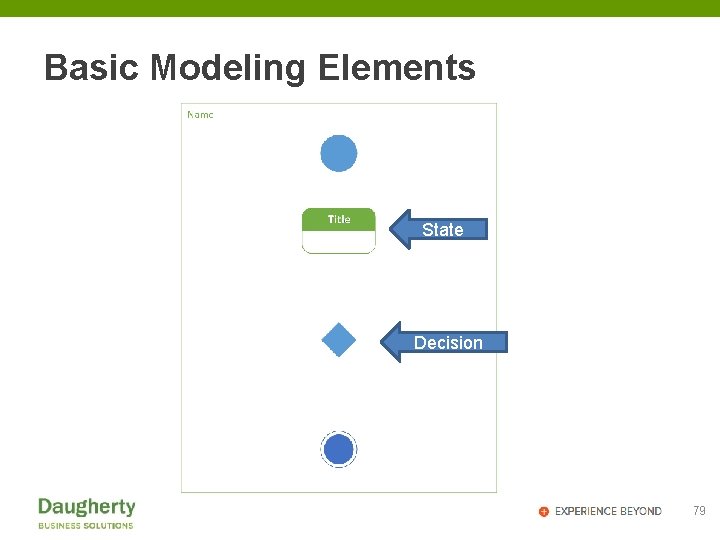
Basic Modeling Elements State Decision 79
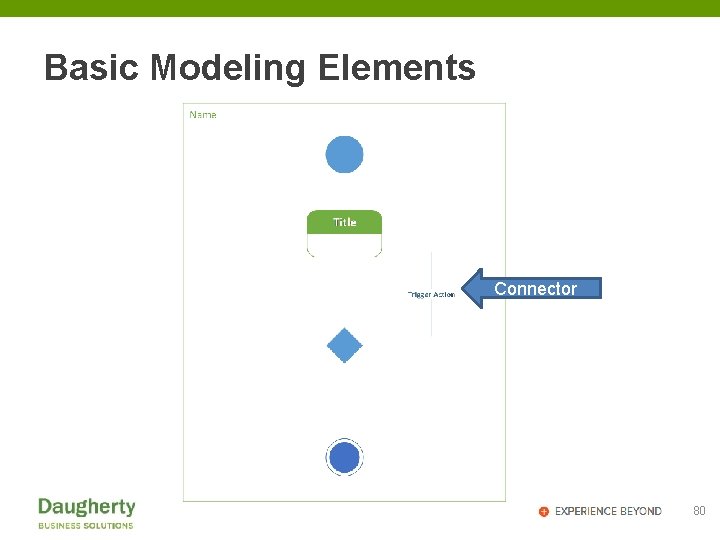
Basic Modeling Elements Connector 80
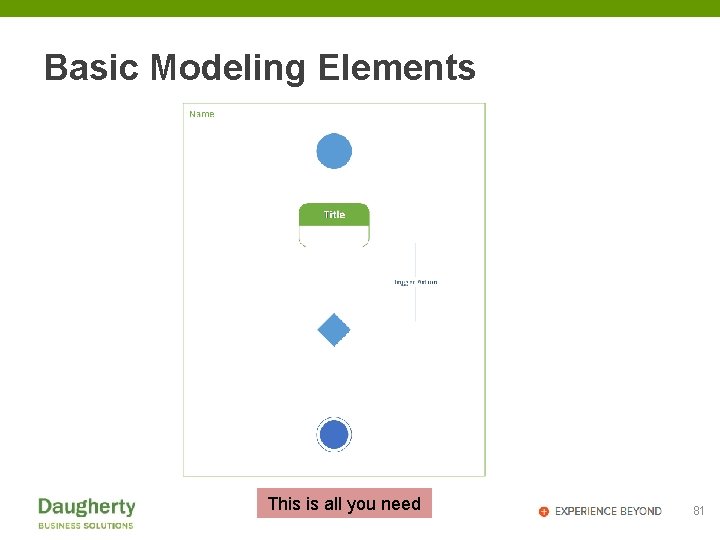
Basic Modeling Elements This is all you need 81
Developing the Model • Study the status changes for a business object along its workflows through its entire lifecycle • Identify: – What are the different statuses (states) – What action triggers the status change – What rules control the status change – Which actors can execute the status change 82
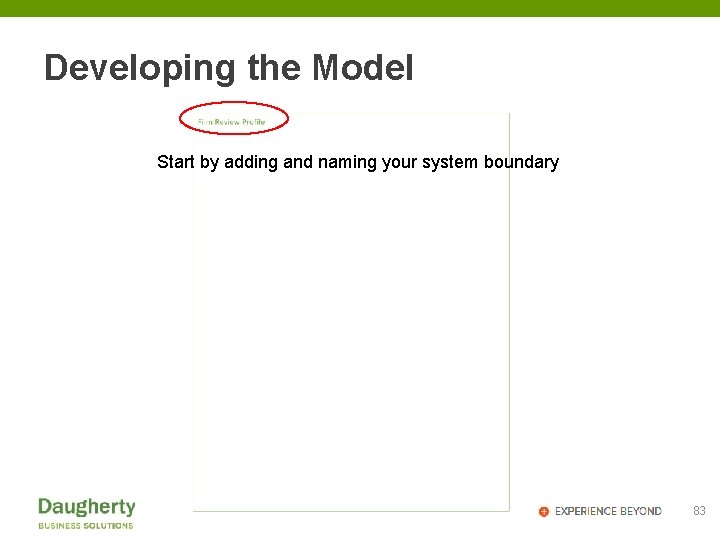
Developing the Model Start by adding and naming your system boundary 83
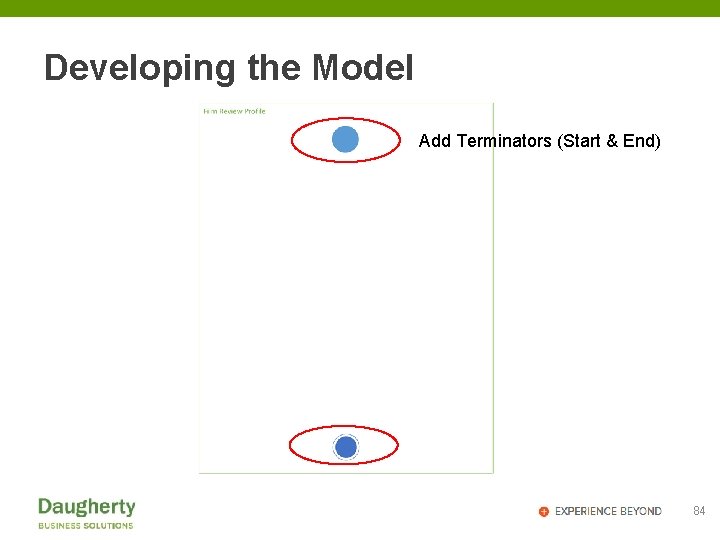
Developing the Model Add Terminators (Start & End) 84
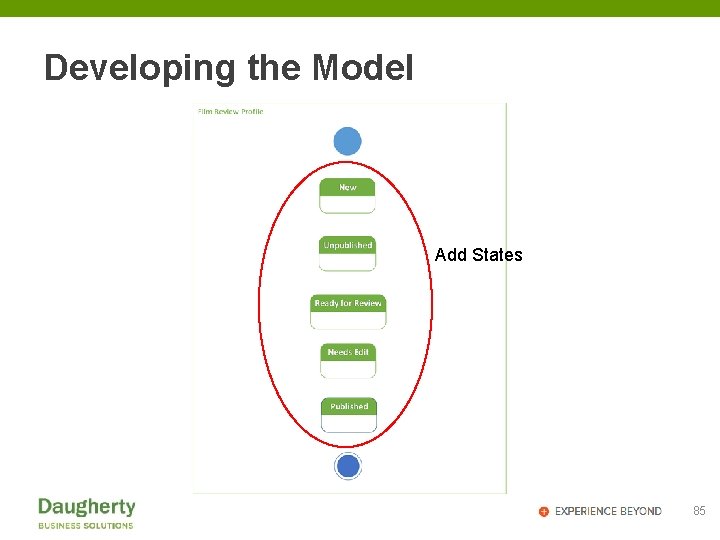
Developing the Model Add States 85
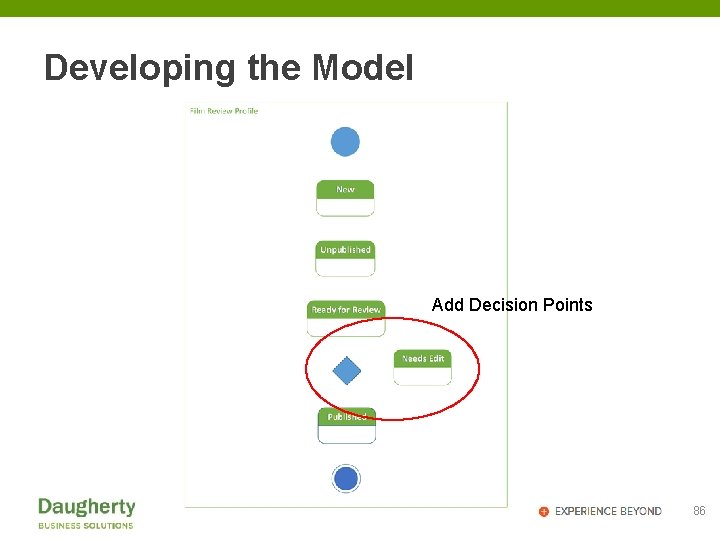
Developing the Model Add Decision Points 86
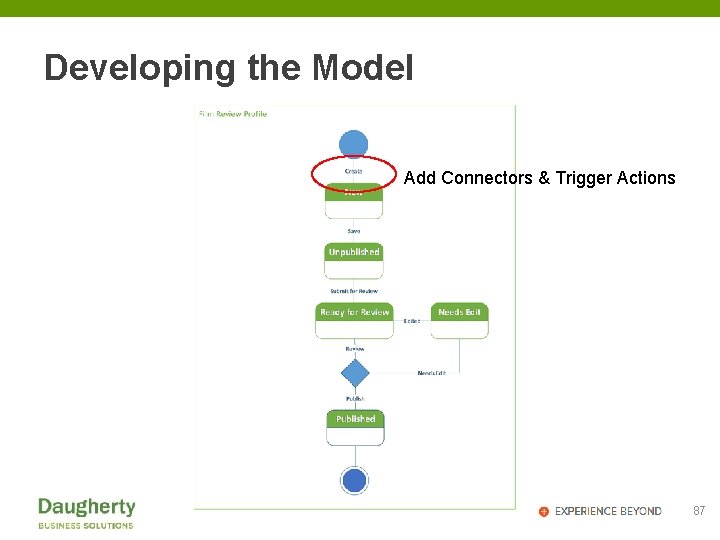
Developing the Model Add Connectors & Trigger Actions 87
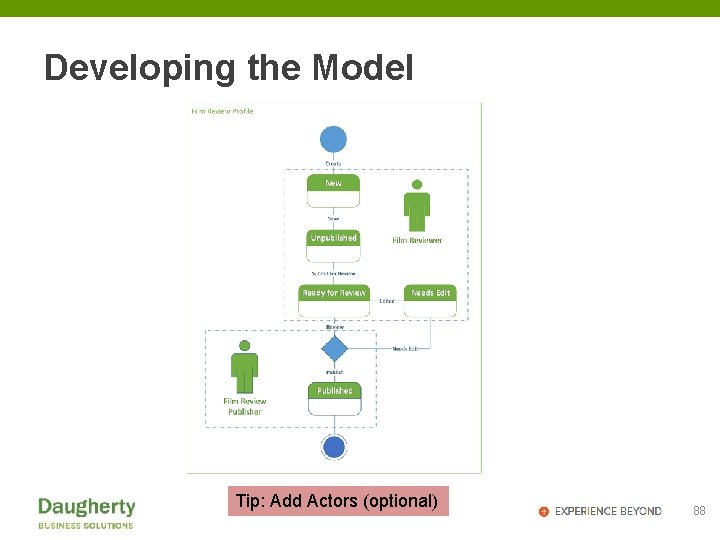
Developing the Model Tip: Add Actors (optional) 88
What Next? • Peer review with team • Validate with real users • Put to use 89
Business Workflow Models
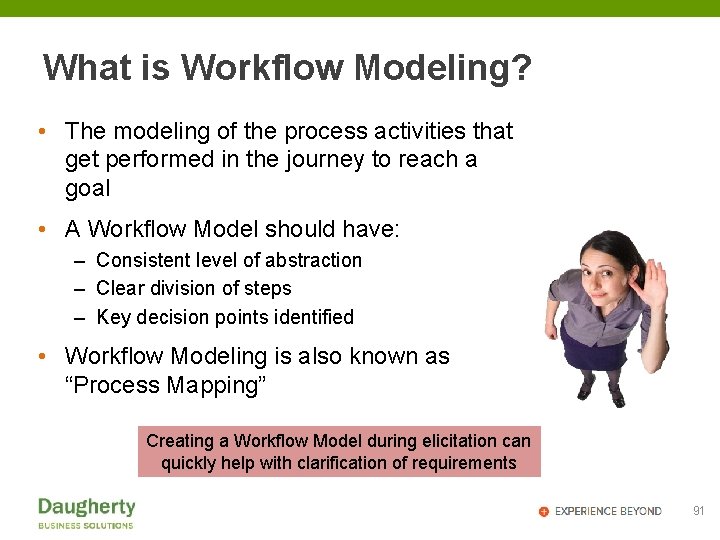
What is Workflow Modeling? • The modeling of the process activities that get performed in the journey to reach a goal • A Workflow Model should have: – Consistent level of abstraction – Clear division of steps – Key decision points identified • Workflow Modeling is also known as “Process Mapping” Creating a Workflow Model during elicitation can quickly help with clarification of requirements 91
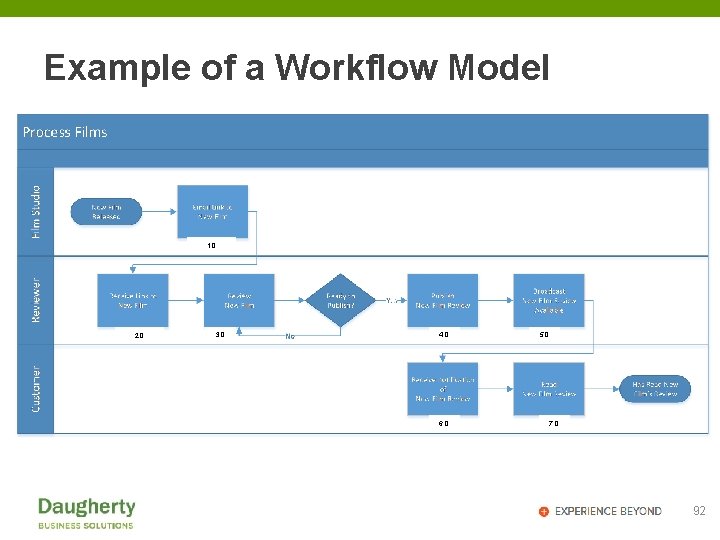
Example of a Workflow Model 1. 0 2. 0 3. 0 4. 0 6. 0 5. 0 7. 0 92
Benefits of Workflow Modeling • Activities are exposed to: – Identify what is part of or not part of the system (scope) – Depict the one best way to perform the work – Help determine what can be automated – Contrast current and future processes – Support discussion about the process 93
Defining the Workflow • Best Practice for the Workflow Model is to depict each process at the same level of abstraction – Use separate models to detail out lower level workflows • Swim lanes help when there is a need to depict ownership of activities (ex: by department, machine vs manual, etc. ) • Breaks in time (delays, waits) can be very important • The model is needed to properly analyze the process being discussed • Decide if both current and future state flows are needed 94
What is needed? • Choose a UML modeling tool: – MS Visio – MS Power. Point – can be done – Paper, Pencil & Eraser There is a symbol set called BPMN that uses 30+ symbols – Recommend not using this in requirements elicitation – save it for the analysis & design phase 95
Rules of Workflow Modeling • Single Pages • Separate pages for separate levels of abstraction – This segregation can wait until clean-up – Label levels (level 0 = top) • Simple symbols - KISS • Minimal Labeling – but adding business rules can help 96
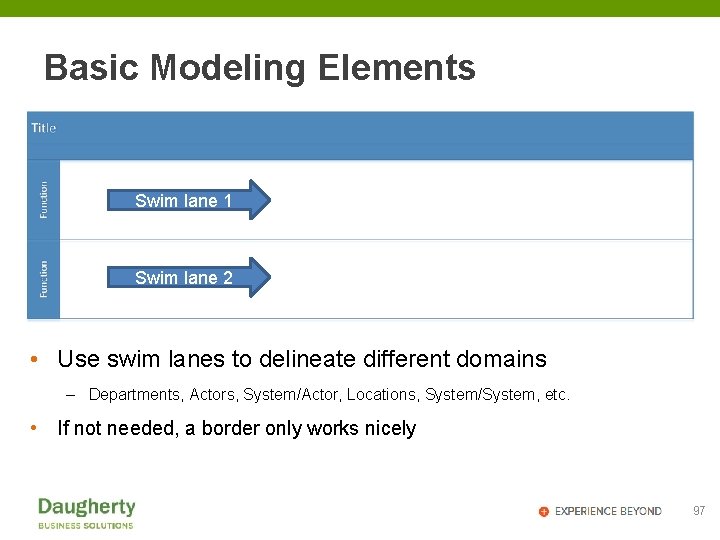
Basic Modeling Elements Swim lane 1 Swim lane 2 • Use swim lanes to delineate different domains – Departments, Actors, System/Actor, Locations, System/System, etc. • If not needed, a border only works nicely 97
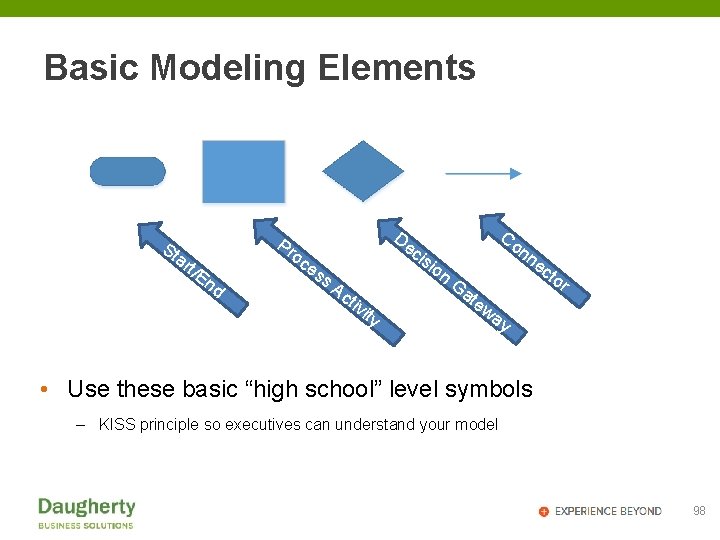
Basic Modeling Elements St ar Pr t/E oc De nd Co ion es s. A cti vit y nn cis Ga te w ec to r ay • Use these basic “high school” level symbols – KISS principle so executives can understand your model 98
Developing the Model • Study the business process • Identify: – What are the explicit / implicit activities being performed – What triggers the next step – Where are the key decision points – Who performs the activity – Who is the audience for this model – What level of abstraction is needed for the story 99
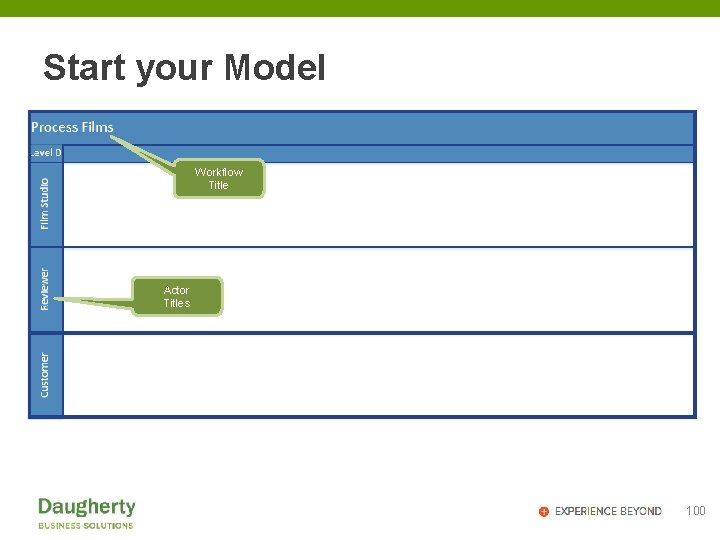
Start your Model Workflow Title Actor Titles 100
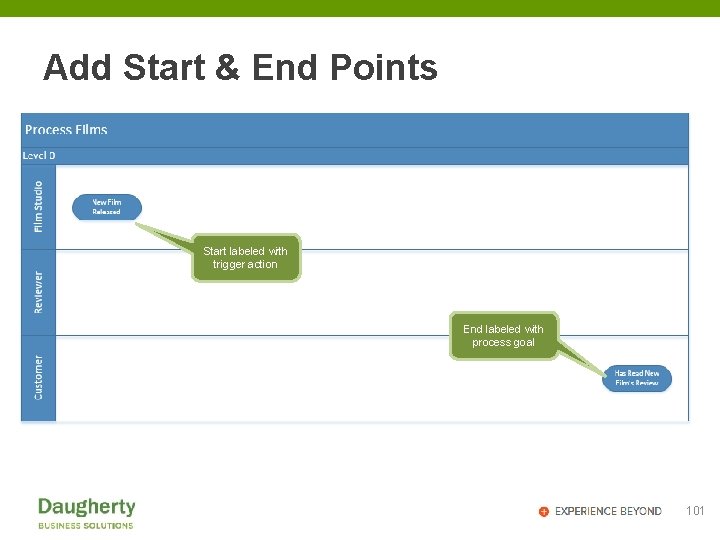
Add Start & End Points Start labeled with trigger action End labeled with process goal 101
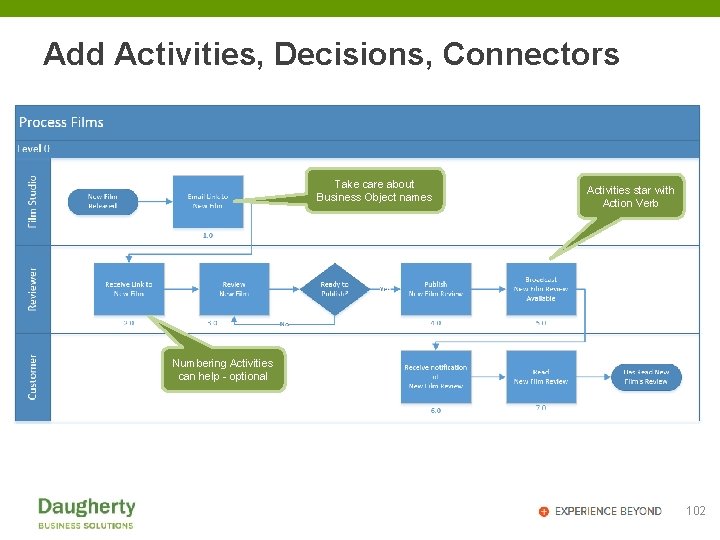
Add Activities, Decisions, Connectors Take care about Business Object names Activities star with Action Verb Numbering Activities can help - optional 102
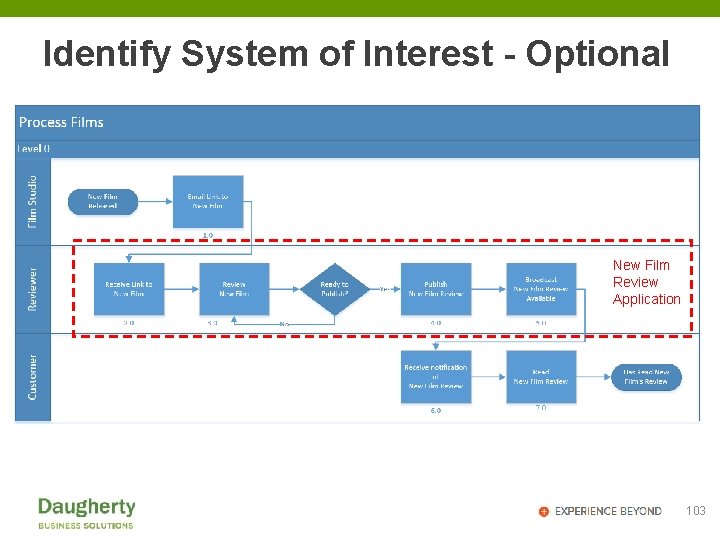
Identify System of Interest - Optional New Film Review Application 103
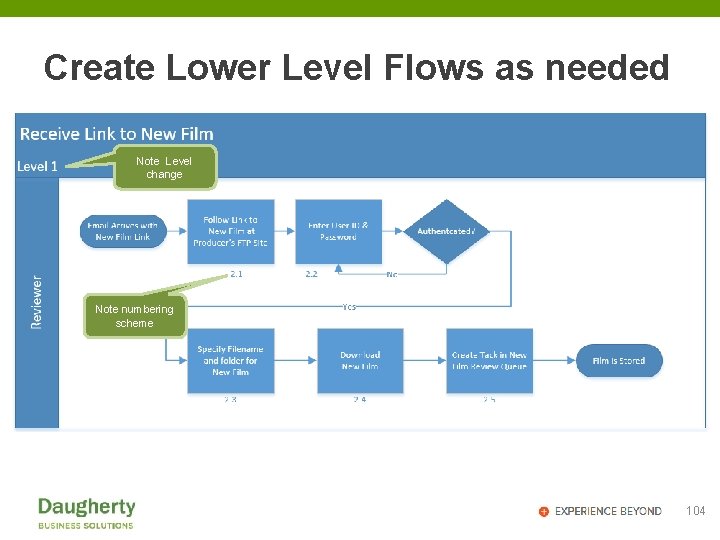
Create Lower Level Flows as needed Note Level change Note numbering scheme 104
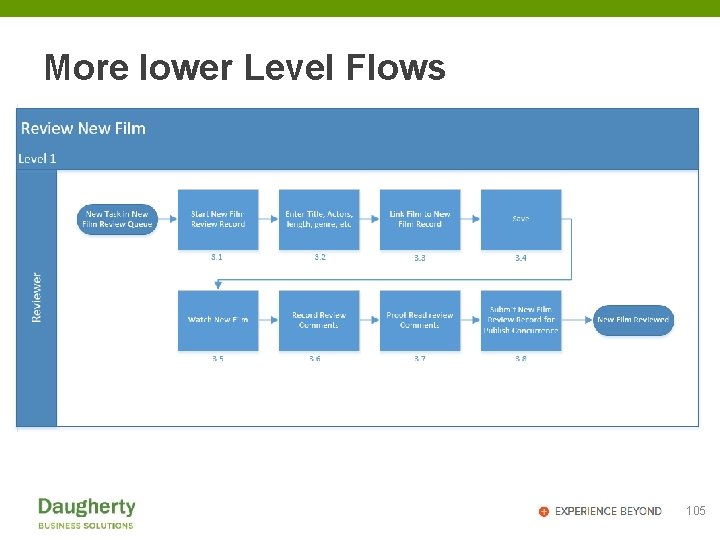
More lower Level Flows 105
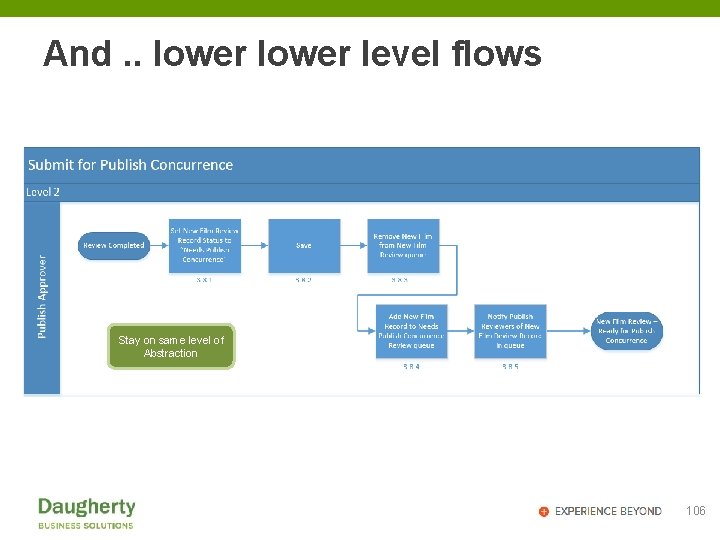
And. . lower level flows Stay on same level of Abstraction 106
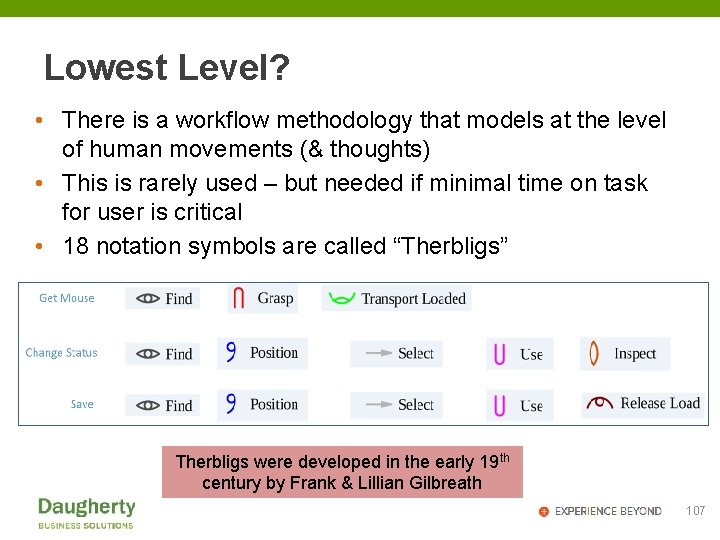
Lowest Level? • There is a workflow methodology that models at the level of human movements (& thoughts) • This is rarely used – but needed if minimal time on task for user is critical • 18 notation symbols are called “Therbligs” Therbligs were developed in the early 19 th century by Frank & Lillian Gilbreath 107
What Next? • Peer review with team • Validate with real users • Put to use 108
Storyboarding Modeling
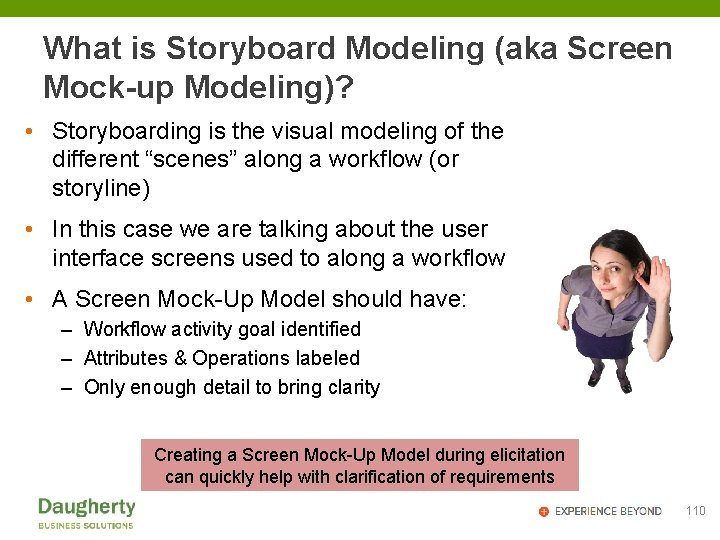
What is Storyboard Modeling (aka Screen Mock-up Modeling)? • Storyboarding is the visual modeling of the different “scenes” along a workflow (or storyline) • In this case we are talking about the user interface screens used to along a workflow • A Screen Mock-Up Model should have: – Workflow activity goal identified – Attributes & Operations labeled – Only enough detail to bring clarity Creating a Screen Mock-Up Model during elicitation can quickly help with clarification of requirements 110
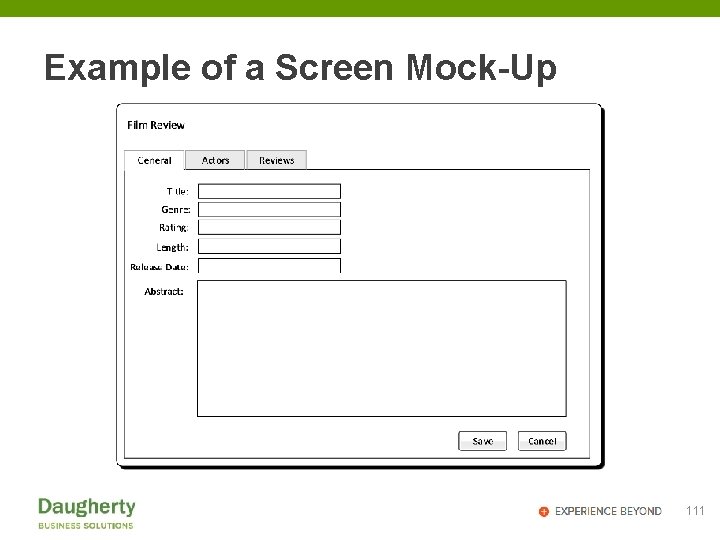
Example of a Screen Mock-Up 111
Benefits of Screen Mock-Up Modeling • A visual story of the workflow emerges • Business attributes and operations become clear • Scope of work for user interface becomes clear 112
Defining the Screens • Best Practice for the Screen Mock-ups is to depict each screen separately • Avoid putting in any “look & feel” style - that is typically a different task at a different time with a different audience • Label attributes and operations • Consider using “Lorem ipsum dolor” for data – to avoid distracting the audience Helpful hint: Try entering =lorem() on a new line in Word or Power. Point. 113
What is needed? • Choose a modeling tool: – MS Visio – MS Power. Point – can be done – Paper, Pencil & Eraser 114
Rules of Screen Mock-Up Modeling • Single page per screen • Typically single business object – but can be multiple • Only include what is needed – just enough detail to define the requirements • If marking up an existing screen, blur or shade over any details that are not relevant 115
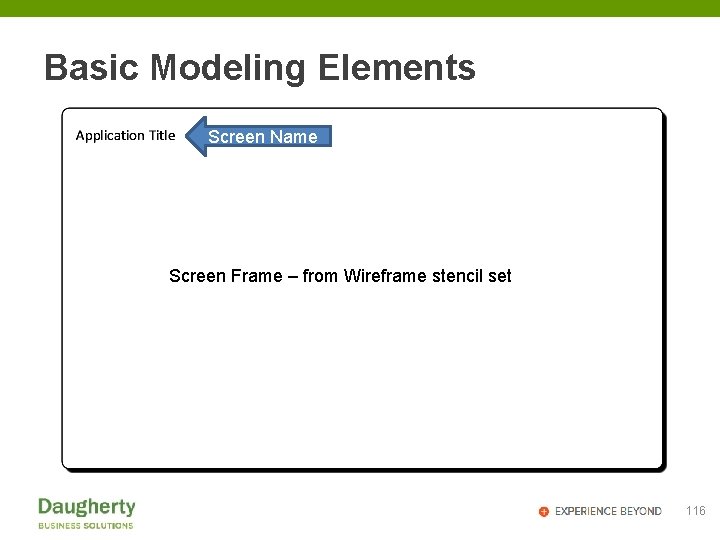
Basic Modeling Elements Screen Name Screen Frame – from Wireframe stencil set 116
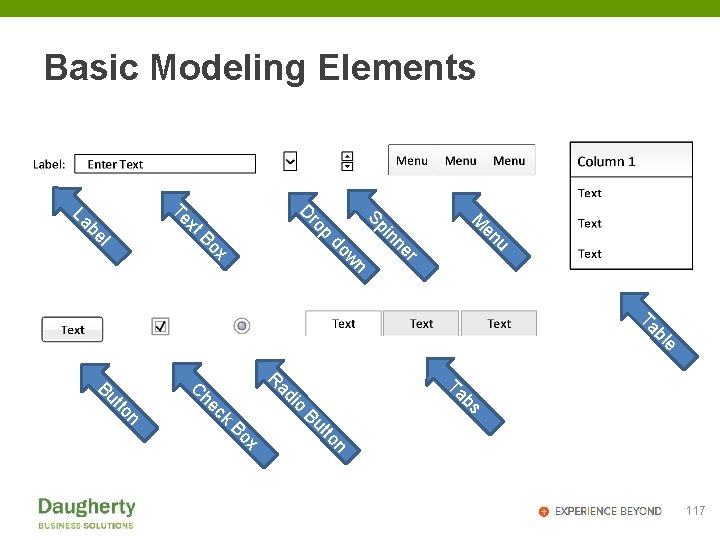
Basic Modeling Elements u r ne in en M Sp n w do x Bo p xt ro D Te l be La e bl Ta bs Ta io n x Bo tto Bu ck he ad R C n tto Bu 117
Developing the Model • Study the value added objects, attributes, and operations along the workflow • Identify: – What are the different business objects – Which business object attributes are needed – Which business object attributes are required – What operations need to be performed 118
Developing the Model Start with a “clean canvas” 119
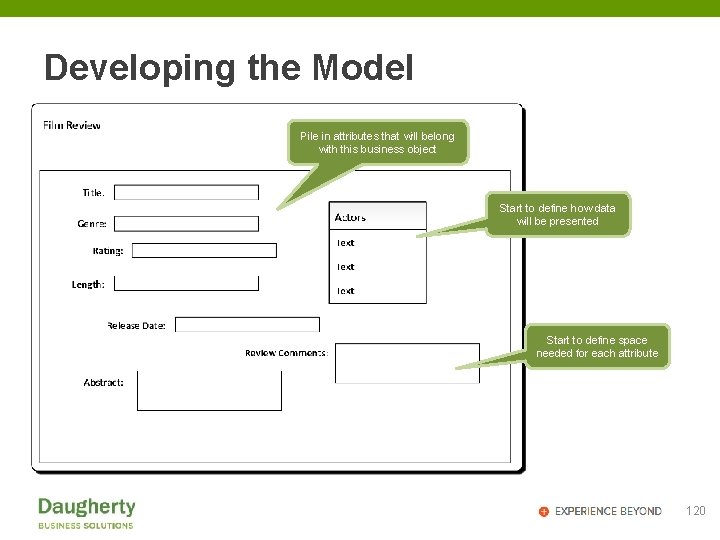
Developing the Model Pile in attributes that will belong with this business object Start to define how data will be presented Start to define space needed for each attribute 120
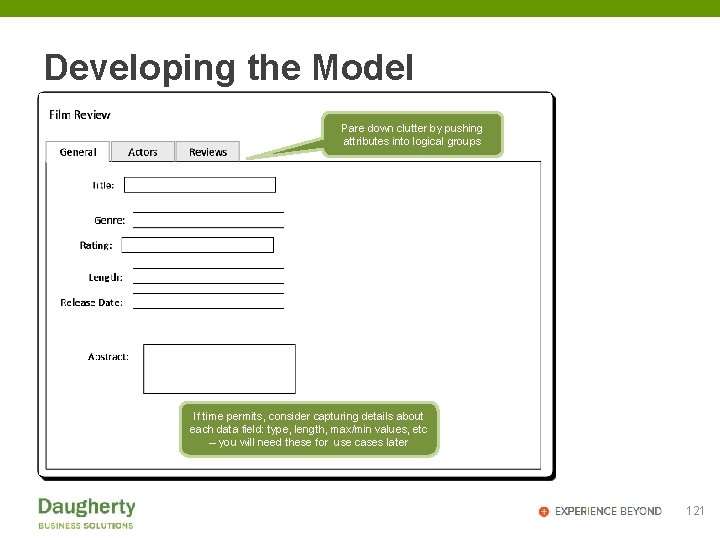
Developing the Model Pare down clutter by pushing attributes into logical groups If time permits, consider capturing details about each data field: type, length, max/min values, etc – you will need these for use cases later 121
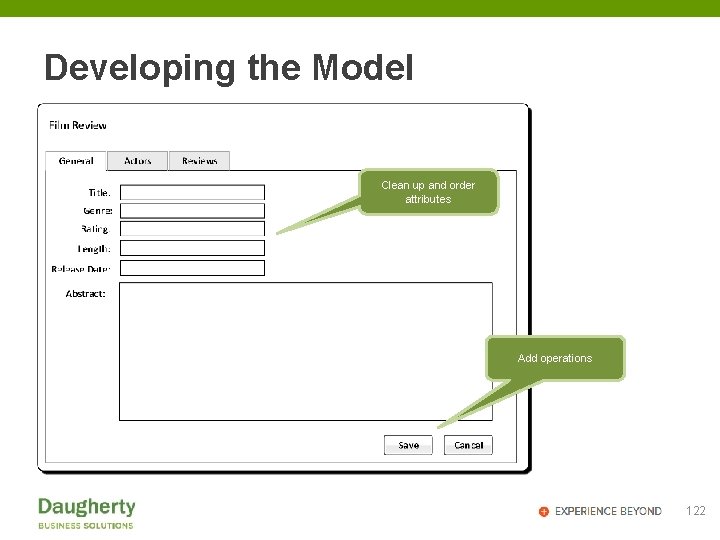
Developing the Model Clean up and order attributes Add operations 122
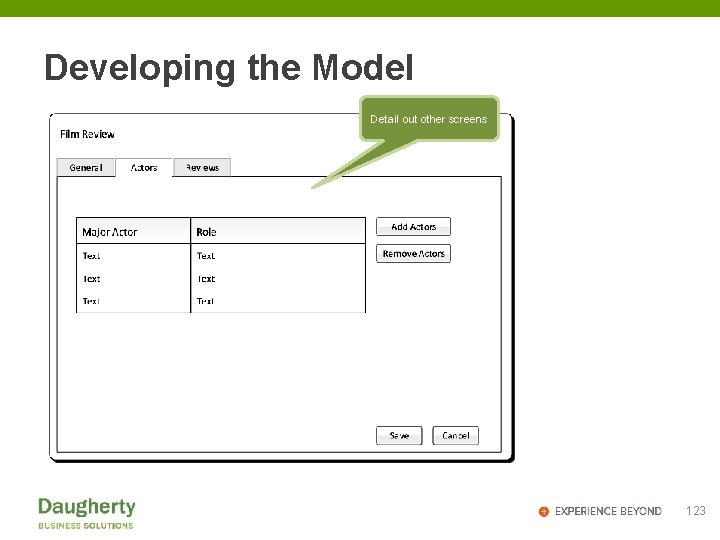
Developing the Model Detail out other screens 123
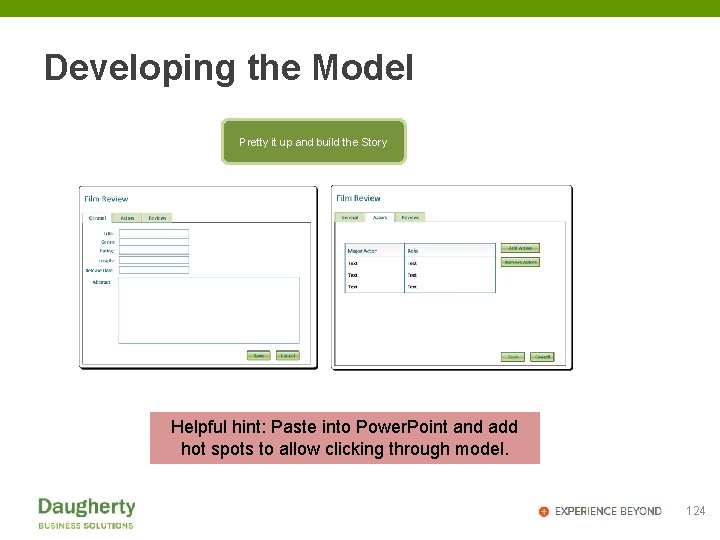
Developing the Model Pretty it up and build the Story Helpful hint: Paste into Power. Point and add hot spots to allow clicking through model. 124
What Next? • Peer review with team • Validate with real users • Put to use 125
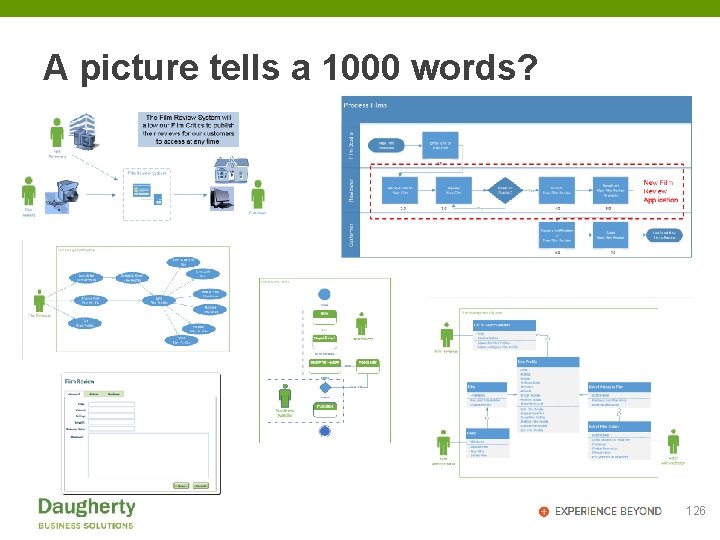
A picture tells a 1000 words? 126
Recap • We have looked at 6 common visual models • All are created during early stages of a project • All add value to the project • Each is fairly simple to create • Getting the correct information is the hardest part 127
Experience Notes • No two modelers will create in the same way – what is important is that viewers perceive the correct conclusions. • Having visual models adds clarity to your project • As a PM, you might need to ask your BA to create some visual models 128
Questions? 129
Bonus Section System Sequence Diagrams
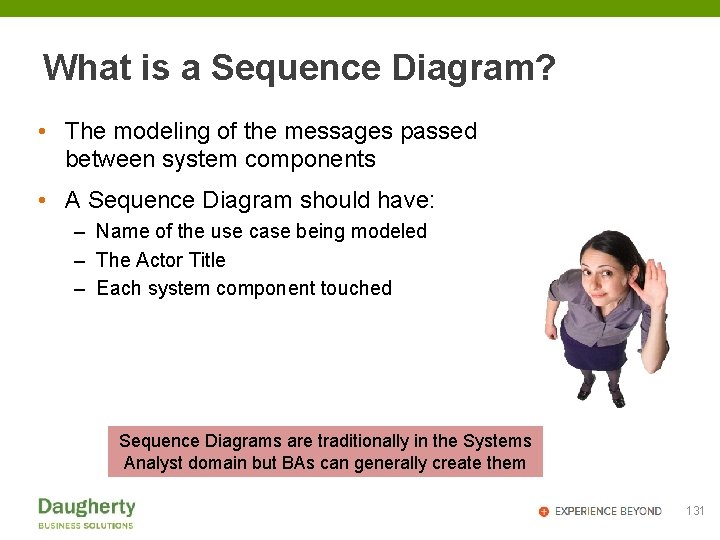
What is a Sequence Diagram? • The modeling of the messages passed between system components • A Sequence Diagram should have: – Name of the use case being modeled – The Actor Title – Each system component touched Sequence Diagrams are traditionally in the Systems Analyst domain but BAs can generally create them 131
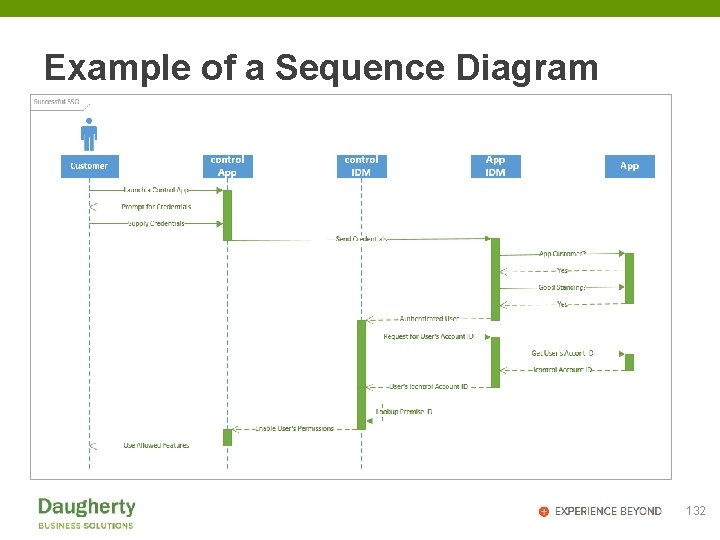
Example of a Sequence Diagram 132
Benefits of Sequence Modeling • Messages between system components can be traced • Deeper understanding of the system is revealed 133
What is needed? • Choose a UML modeling tool: – MS Visio – MS Power. Point – can be done – Paper, Pencil & Eraser 134
Rules of Sequence Modeling • Depict only one use case • Single Page • Landscape unless forced to be Portrait • Messages use <verb> <business object> format • Show message direction • Message to self (recursive) might be needed for clarity 135
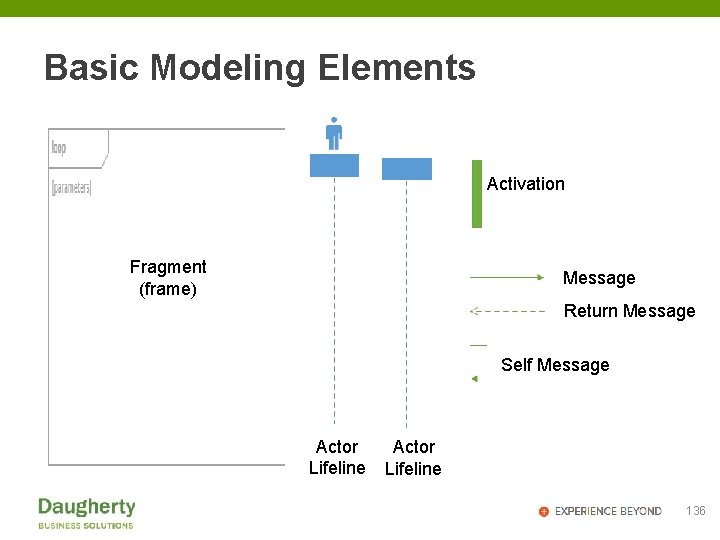
Basic Modeling Elements Activation Fragment (frame) Message Return Message Self Message Actor Lifeline 136
Defining the Model • Determine what each system component actually does • Validate that you have the correct system components • Use intuitiveness & critical thinking to determine the message names and sequence order • Validate with others 137
Start your Model Use Case Title 138
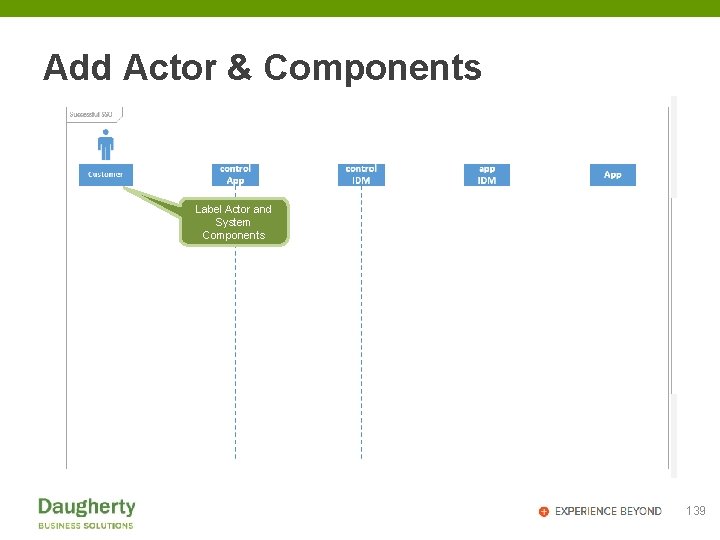
Add Actor & Components Label Actor and System Components 139
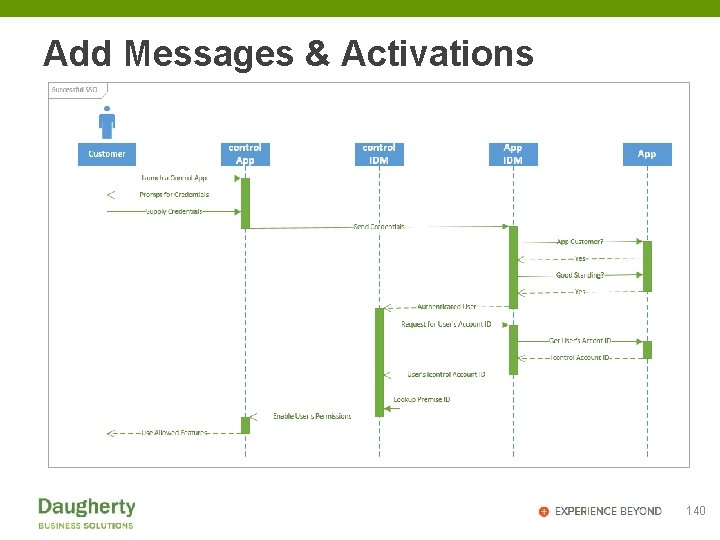
Add Messages & Activations 140
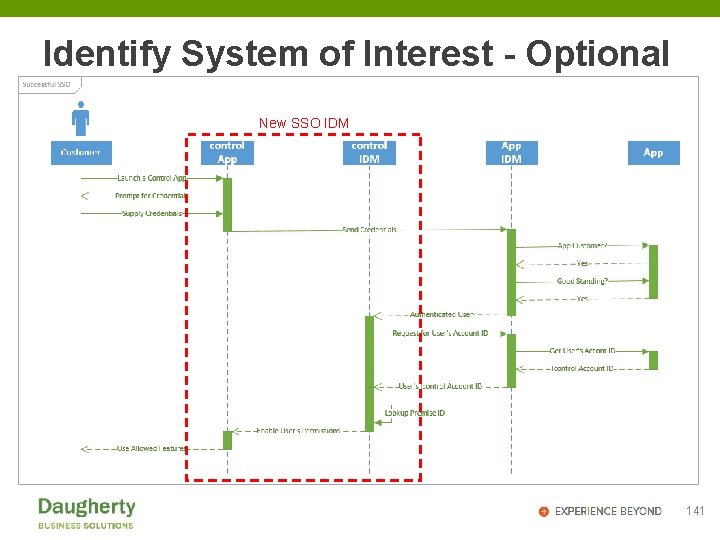
Identify System of Interest - Optional New SSO IDM 141
What Next? • Peer review with team • Validate with real users • Put to use 142
Bonus Section Deployment Diagrams
What is a Deployment Diagram? • The modeling of “hardware” where system components reside and their intercommunication protocols • A Deployment Diagram should have: – Name of the system being modeled – Name of each Hardware Node – Names of System Components at each Hardware Node – Name of Communication Protocol between each Hardware None Deployment Diagrams are traditionally in the Systems Analyst domain but BAs can generally create them 144
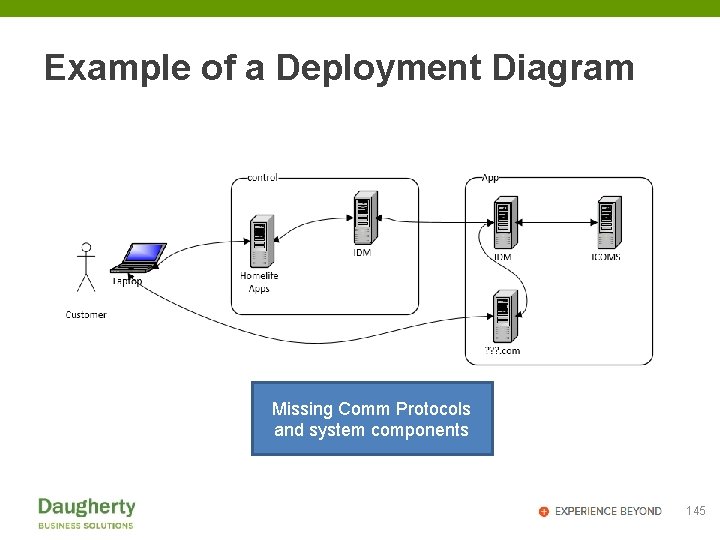
Example of a Deployment Diagram Missing Comm Protocols and system components 145
Benefits of Deployment Modeling • Physical & Geographical aspects of the system can be visualized • Minimum components to operate at each hardware node are known • Can be used for configuration management & field installation guidance 146
What is needed? • Choose a UML modeling tool: – MS Visio – MS Power. Point – can be done – Paper, Pencil & Eraser 147
Rules of Deployment Modeling • Depict only one system • Single Page • Landscape unless forced to be Portrait • List all system components and versions • List communications lines with their protocols 148
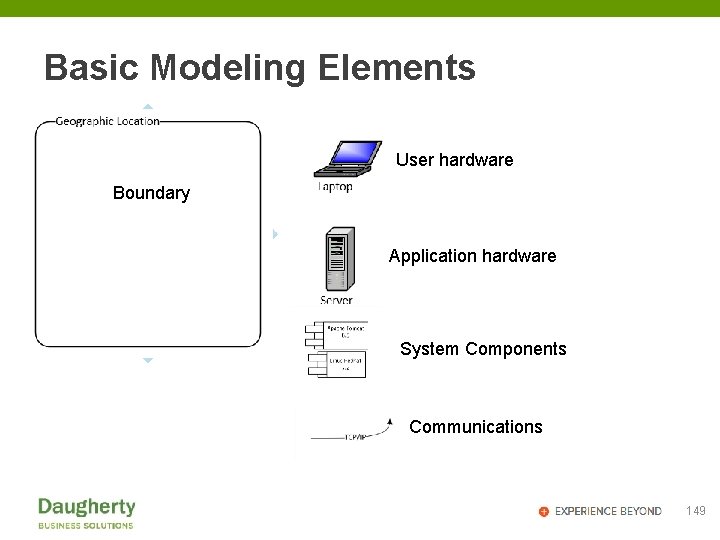
Basic Modeling Elements User hardware Boundary Application hardware System Components Communications 149
Defining the Model • Determine list of hardware used (can be virtual) – Note CPU speed, RAM, etc • Determine list of system components at each hardware – Include operating system – If customer hardware, include browser types and versions • Determine communication protocol between hardware • Validate with others 150
Start your Model 151
Add Hardware & Communications 152
Add Components & Versions 153
Identify System of Interest - Optional New SSO IDM 154
What Next? • Peer review with team • Validate with real users • Put to use 155
- Slides: 155