
Visual Learning on a Budget Region One Technology
Visual Learning on a Budget Region One Technology Conference Instructional Technology Department – Brownsville ISD Lorena Martinez & David Mitchell May 15, 2008 Contact info: lomartinez@bisd. us / david@bisd. us
“ Without image, thinking is impossible. ” - Aristotle Stokes, Suzanne, Visual Literacy in Teaching and Learning: A Literature Perspective, Electronic Journal for the Integration of Technology in Education, vol. 1, no. 1

Visual Learning in the Classroom Wikipedia defines Visual learning as: a teaching method in which ideas, concepts, data and other information are associated with images and represented graphically. Graphic organizers, such as webs, concept maps and idea maps, and plots, such as stack plots and Venn plots, are some of the techniques used in visual learning to enhance thinking and learning skills. Visual Literacy: is the ability to interpret, negotiate, and make meaning from information presented in the form of an image.
According to data gathered by the Thornburg Institute and presented by Dr. L. Burmark: • Humans process visuals 60, 000 times faster than text • Words are processed sequentially; images simultaneously • Using illustrated materials can boost retention and recall up 42% and transfer up 89% • Images are stored in long-term memory Data from: Adam’s Technology Spot (http: //k 5 tech. blogspot. com)
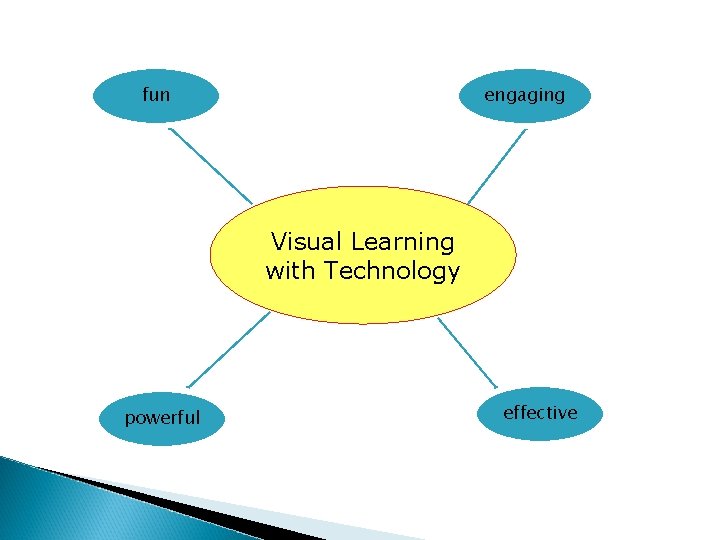
fun engaging Visual Learning with Technology powerful effective
fun engaging Visual Learning with Technology powerful effective
Software Available for Visual Learning Three P’s: Paint, Power. Point & Photo. Story Microsoft Paint is only one of the programs that can be used to enhance visual learning and literacy. We will also be discussing ways in which Power. Point and Photo. Story can be used to develop visual learning skills, as well as literacy skills.
Sample Projects / Options Photo. Story with Paint Projects Power. Point Slideshow Sample Photostory with Power. Point presentation saved as. jpgs
MS Paint Features Text Toolbar Page setup Image Attributes – w 750 - h 450 (preferably) Use “Shift” key to make perfect circles, squares, or a line Make an image transparent by clicking on the transparent button
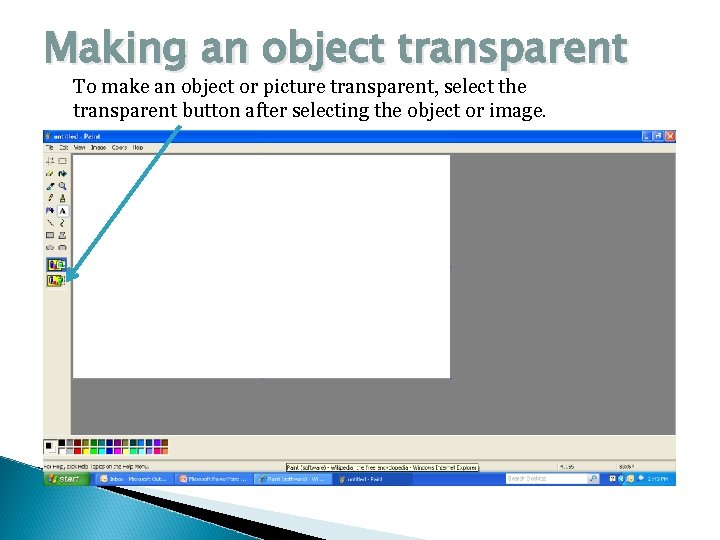
Making an object transparent To make an object or picture transparent, select the transparent button after selecting the object or image.
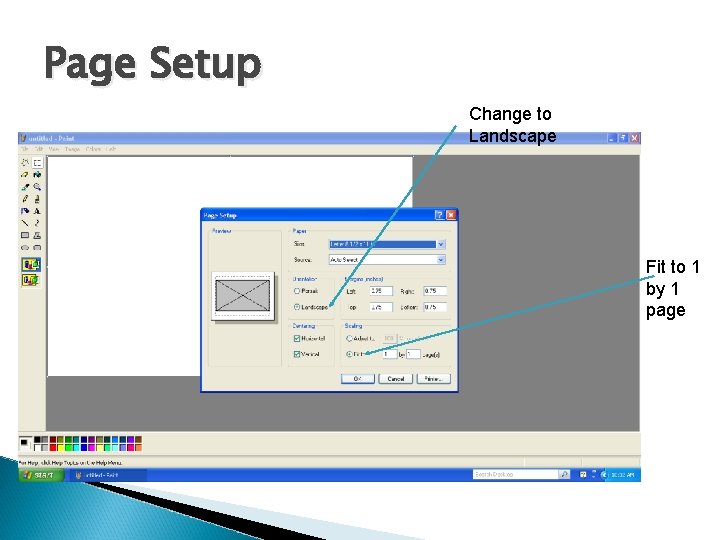
Page Setup Change to Landscape Fit to 1 by 1 page
Sample Activities Concept Maps Word Webs Idea Maps Graphs & Charts Study Notes Math Concept Review Pre-Writing Activities Post Read Aloud Activities
Using Power. Point to Create Digital Stories and Concept Maps To save as a slideshow in Power. Point: Once you’ve chosen a topic, added text, images, and sound to your slides, you can save your presentation as a slideshow. (Tip: use a planning sheet if necessary with students before creating the presentation) To save a Power. Point as a slideshow, go to Save As and under Save As Type, select Power. Point Show.
Get a Little Help from Photo. Story: It’s free! Use Photo. Story to create digital stories as well using a collection of images you have or will take with your digital camera. You can also import pictures or a project from Paint that the students have created. Use a Power. Point presentation and save it as. jpgs. To do this, go to the Save As Type and select. jpg format. Next, import all the images into Photo. Story to create your story.
How to Get Photo. Story 3 for Windows Photo. Story 3 is available for free download at: http: //www. microsoft. com (use the search window to find and download) Make sure you have Windows Media Player 10 or higher installed on your computer so your Photo. Story plays well For detailed instructions on how to create a Photo. Story project, visit: http: //www. microsoft. com/windowsxp/using/ digitalphotography/photostory/tips/firststory. mspx
Other Ideas Use digital camera to take pictures to use in Paint Find free pictures at educational sites such as www. pics 4 learning. com and http: //kitzu. org Have students create their own artwork for a specific project or assignment Integrate subject areas to create projects for Reading, Math, Science, S. S. , Technology Skills (books by Stuart J. Murphy are great for visual learning) Import finished Paint Project in Word to develop a story, outline, recipe, etc. .
Media Sources and Helpful Websites http: //www. pics 4 learning. com/ search for Photo. Story http: //www. pics 4 learning. com images http: //kitzu. org images organized by topics http: //www. online-stopwatch. com download stop-watch to help students rotate during their assigned computer time (can download. exe file to use when not on the Internet) http: //www. bubbl. us create free online concept maps http: //www. skrbl. com online multi-user whiteboard
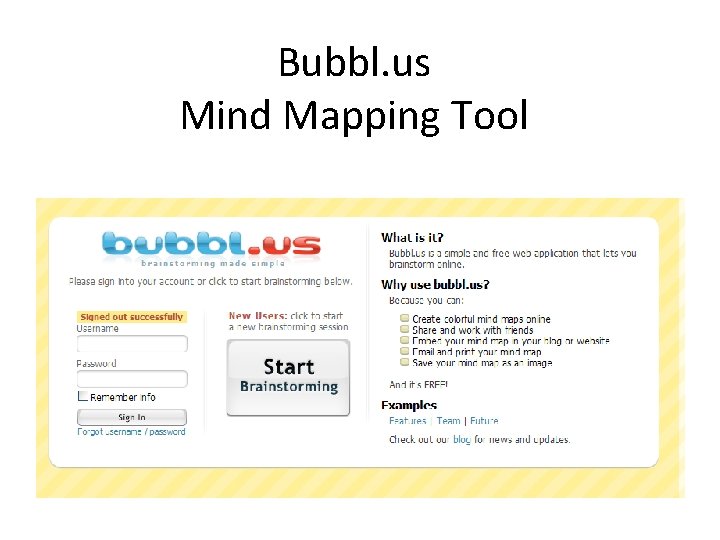
Bubbl. us Mind Mapping Tool
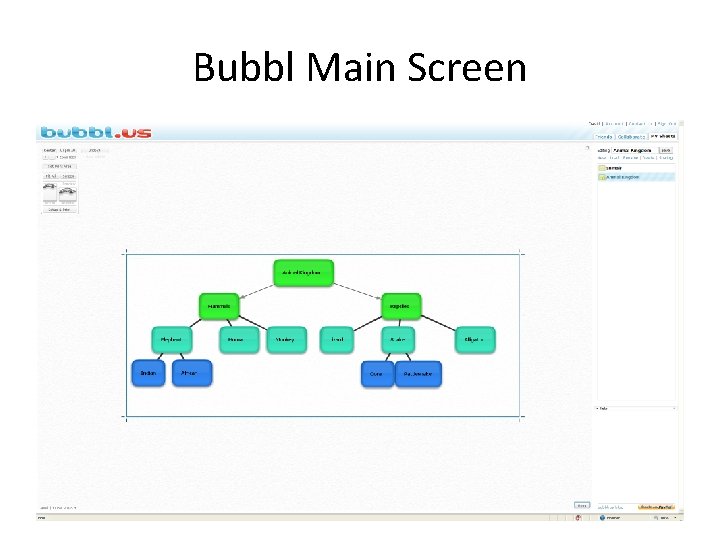
Bubbl Main Screen
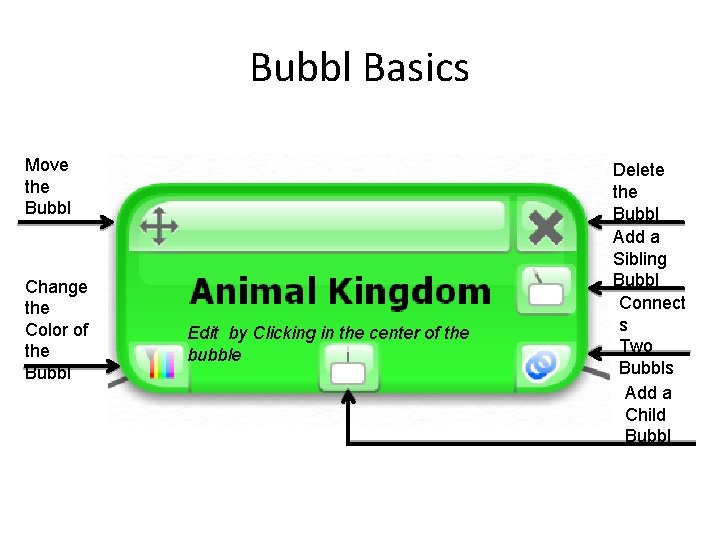
Bubbl Basics Move the Bubbl Change the Color of the Bubbl Edit by Clicking in the center of the bubble Delete the Bubbl Add a Sibling Bubbl Connect s Two Bubbls Add a Child Bubbl
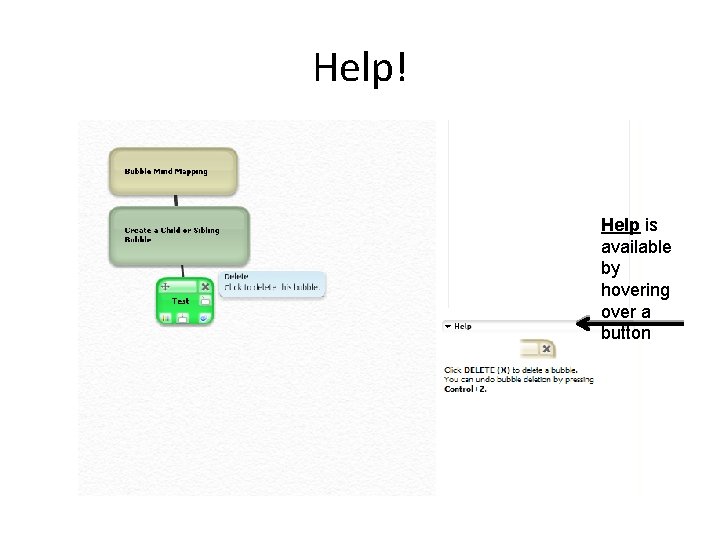
Help! Help is available by hovering over a button
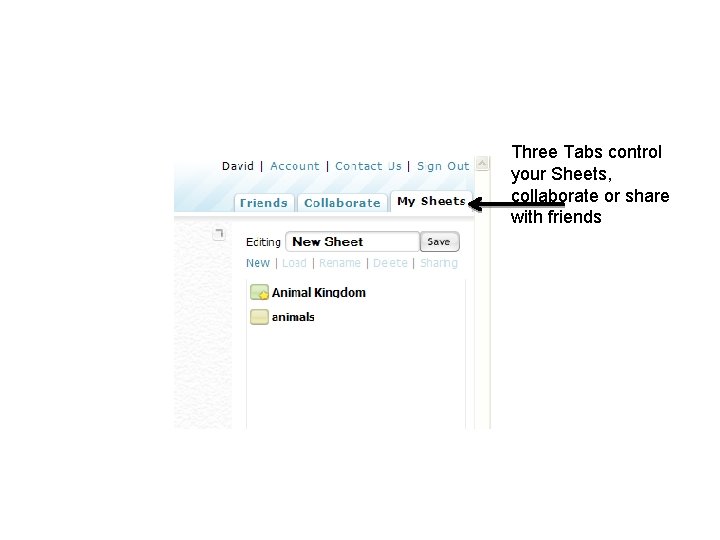
Three Tabs control your Sheets, collaborate or share with friends
Good Reasons to Use bubbl. us • All you need to use it is Internet access • It’s a great TAKS tool (Higher Order Thinking) • Mind Maps help students understand concepts • Access from anywhere so you don’t need a pen drive • Exports in standard JPG or PNG format or as html • Students can have their own accounts • Less expensive than other mind mapping tools (free)
- Slides: 23