
Visual Basic NET Comprehensive Concepts and Techniques Chapter
Visual Basic. NET Comprehensive Concepts and Techniques Chapter 2 The Visual Basic. NET Integrated Development Environment
Starting Visual Basic. NET If you are opening VB. NET then you probably want to create applications! Chapter 2 gives you a chance to explore the programming environment! • Integrated Development Environment (IDE) – the part of the VB. NET application that contains windows and toolbars that allow you to develop applications. • A project is a collection of code and other files that usually encompasses one program. 2
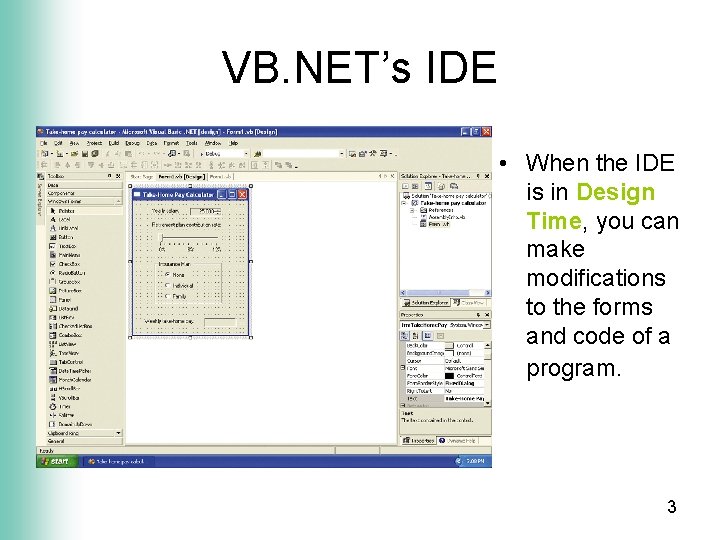
VB. NET’s IDE • When the IDE is in Design Time, you can make modifications to the forms and code of a program. 3
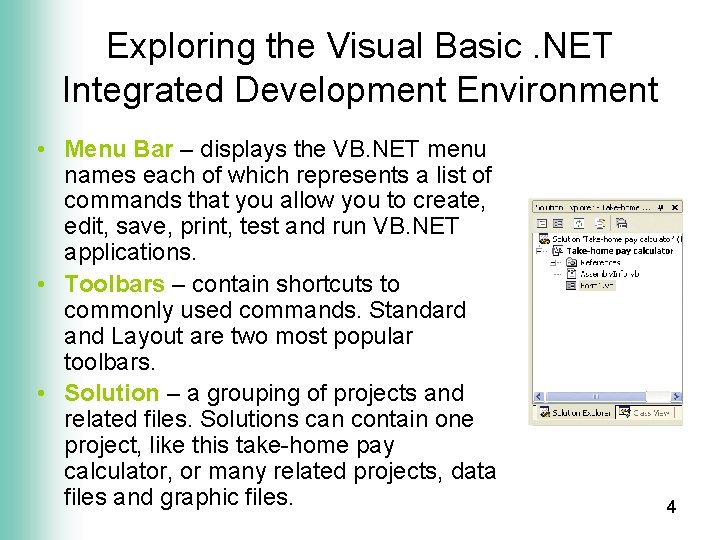
Exploring the Visual Basic. NET Integrated Development Environment • Menu Bar – displays the VB. NET menu names each of which represents a list of commands that you allow you to create, edit, save, print, test and run VB. NET applications. • Toolbars – contain shortcuts to commonly used commands. Standard and Layout are two most popular toolbars. • Solution – a grouping of projects and related files. Solutions can contain one project, like this take-home pay calculator, or many related projects, data files and graphic files. 4
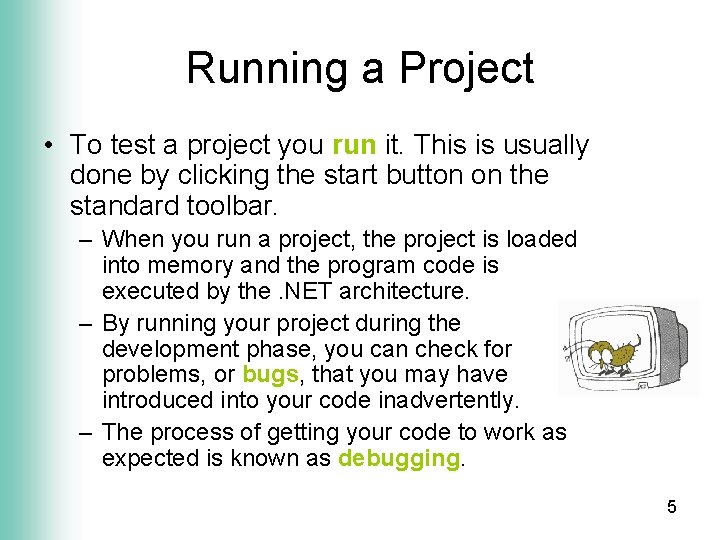
Running a Project • To test a project you run it. This is usually done by clicking the start button on the standard toolbar. – When you run a project, the project is loaded into memory and the program code is executed by the. NET architecture. – By running your project during the development phase, you can check for problems, or bugs, that you may have introduced into your code inadvertently. – The process of getting your code to work as expected is known as debugging. 5
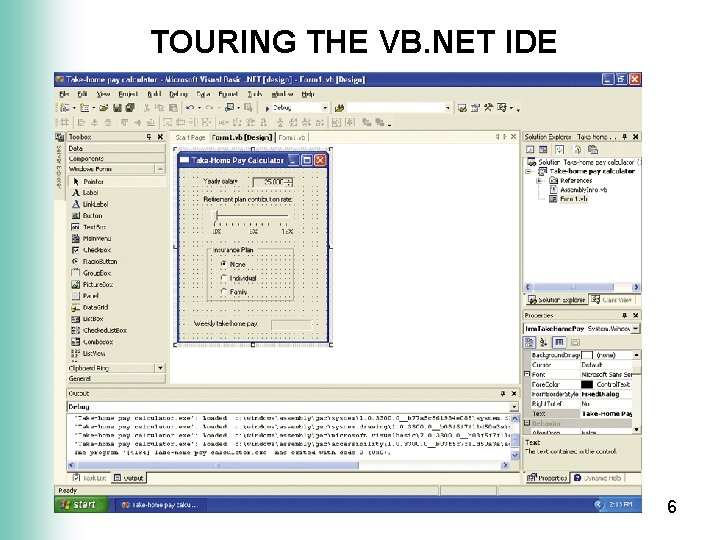
TOURING THE VB. NET IDE 6
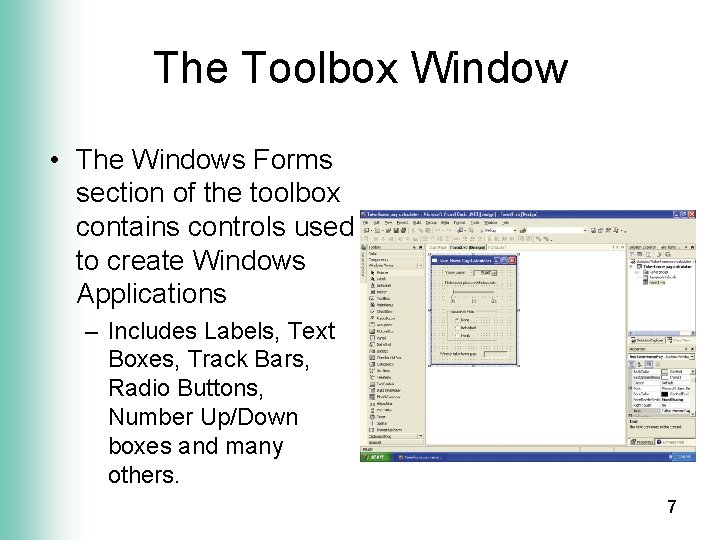
The Toolbox Window • The Windows Forms section of the toolbox contains controls used to create Windows Applications – Includes Labels, Text Boxes, Track Bars, Radio Buttons, Number Up/Down boxes and many others. 7
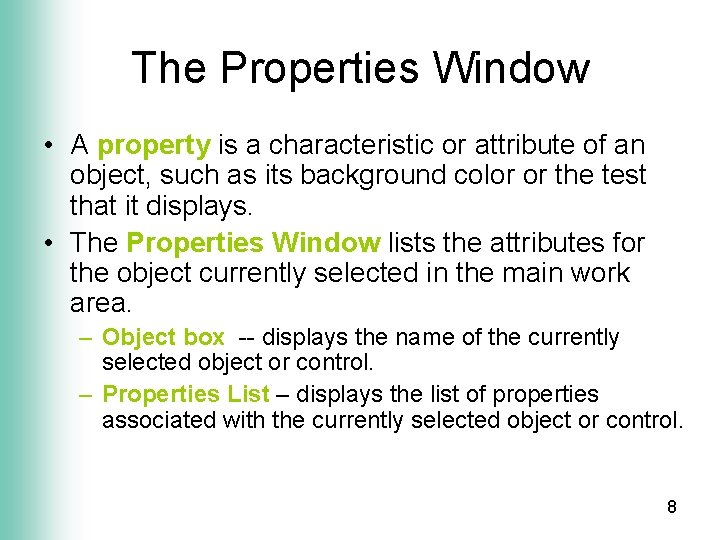
The Properties Window • A property is a characteristic or attribute of an object, such as its background color or the test that it displays. • The Properties Window lists the attributes for the object currently selected in the main work area. – Object box -- displays the name of the currently selected object or control. – Properties List – displays the list of properties associated with the currently selected object or control. 8
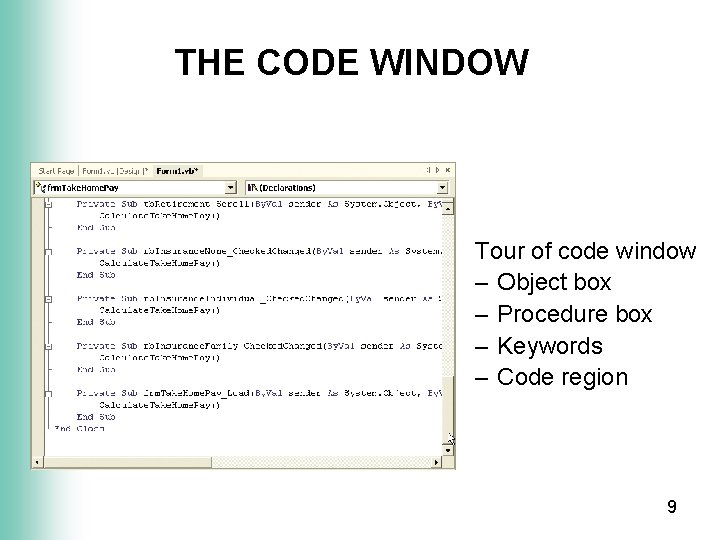
THE CODE WINDOW Tour of code window – Object box – Procedure box – Keywords – Code region 9
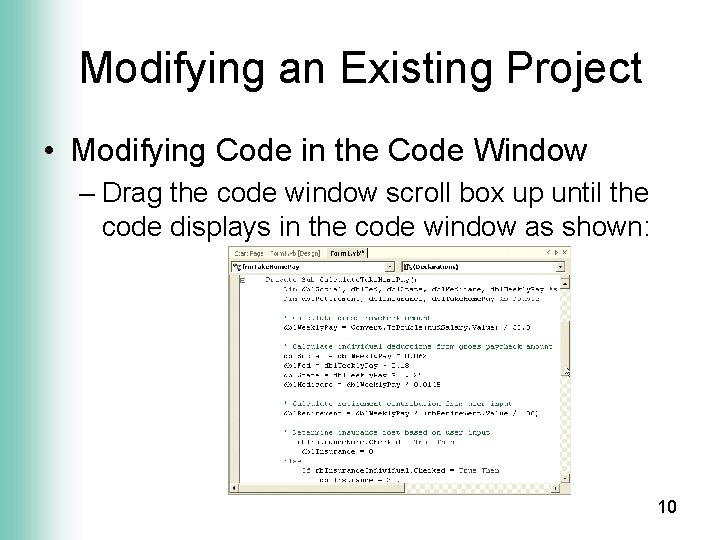
Modifying an Existing Project • Modifying Code in the Code Window – Drag the code window scroll box up until the code displays in the code window as shown: 10
![Saving a Project • Click the Form 1. vb [Design] tab • Click the](http://slidetodoc.com/presentation_image_h2/f0f7ec4da1e845a6293a5107b5dd5461/image-11.jpg "Saving a Project • Click the Form 1. vb [Design] tab • Click the")
Saving a Project • Click the Form 1. vb [Design] tab • Click the Save All button on the Standard toolbar 11
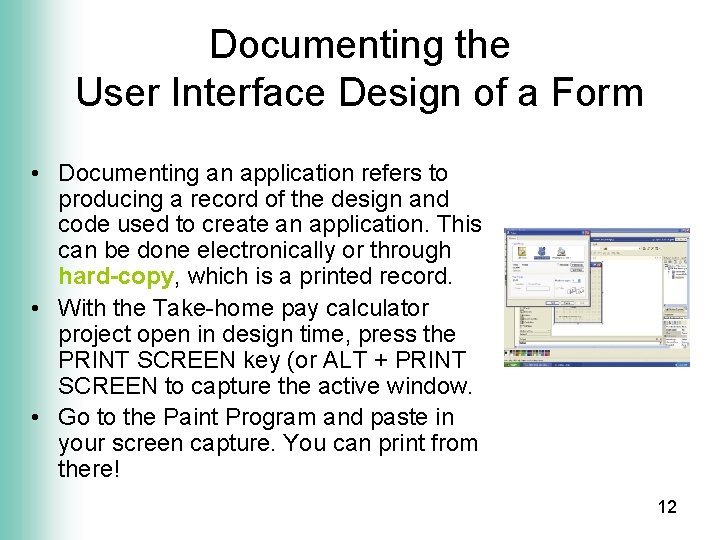
Documenting the User Interface Design of a Form • Documenting an application refers to producing a record of the design and code used to create an application. This can be done electronically or through hard-copy, which is a printed record. • With the Take-home pay calculator project open in design time, press the PRINT SCREEN key (or ALT + PRINT SCREEN to capture the active window. • Go to the Paint Program and paste in your screen capture. You can print from there! 12
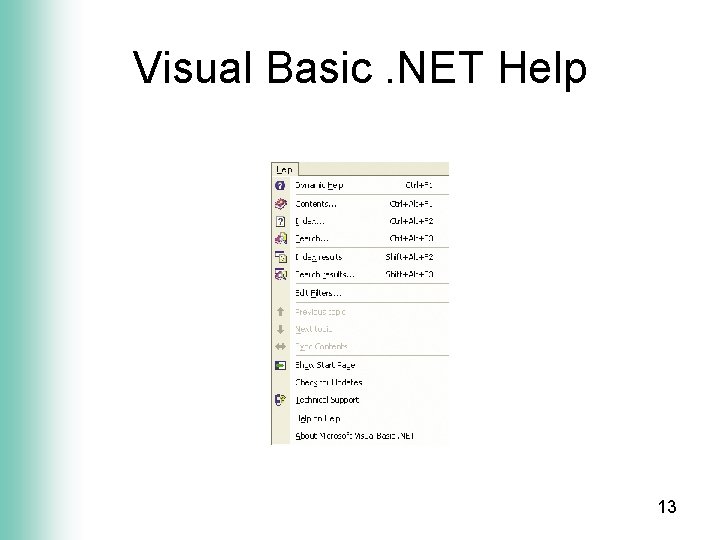
Visual Basic. NET Help 13
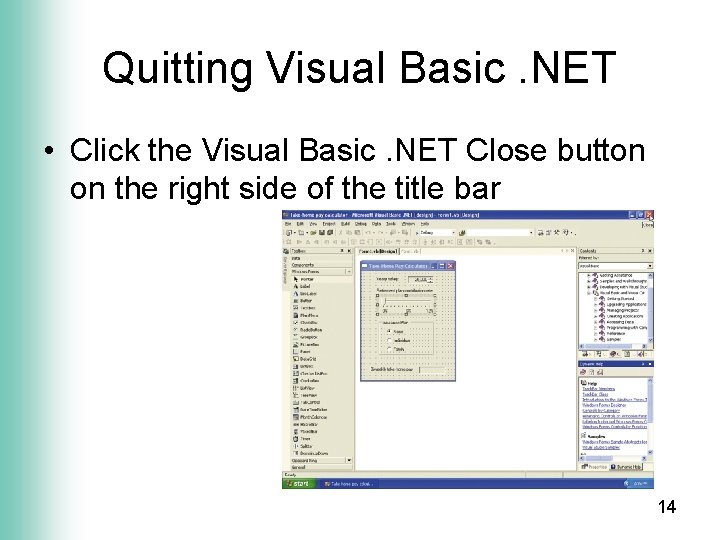
Quitting Visual Basic. NET • Click the Visual Basic. NET Close button on the right side of the title bar 14
Visual Basic. NET Comprehensive Concepts and Techniques Chapter 2 Complete
- Slides: 15