
Visual Basic for Applications VBA Comp 1000 Lecturer

Visual Basic for Applications (VBA) Comp 1000 Lecturer: Ali Darejeh Resources: Darejeh, A. 2011. Reference guide to Access 2010. Saheer engineering group.
Objectives • • Introducing VBA syntax. Introducing different VBA functions. Working with VBA language in a practical project.
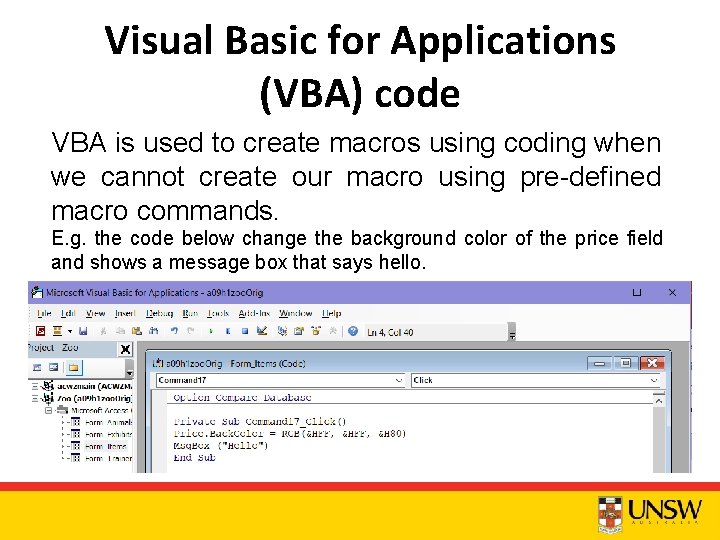
Visual Basic for Applications (VBA) code VBA is used to create macros using coding when we cannot create our macro using pre-defined macro commands. E. g. the code below change the background color of the price field and shows a message box that says hello.
Demo 1 Add a button on the form to change the background color of a textbox to red and show a confirmation message. textboxali. Back. Color = vb. Red Msg. Box ("The color is changed successfully")
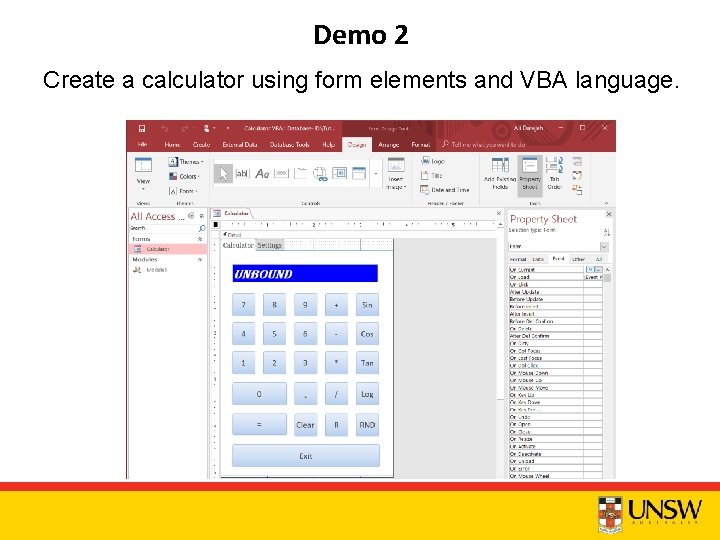
Demo 2 Create a calculator using form elements and VBA language.
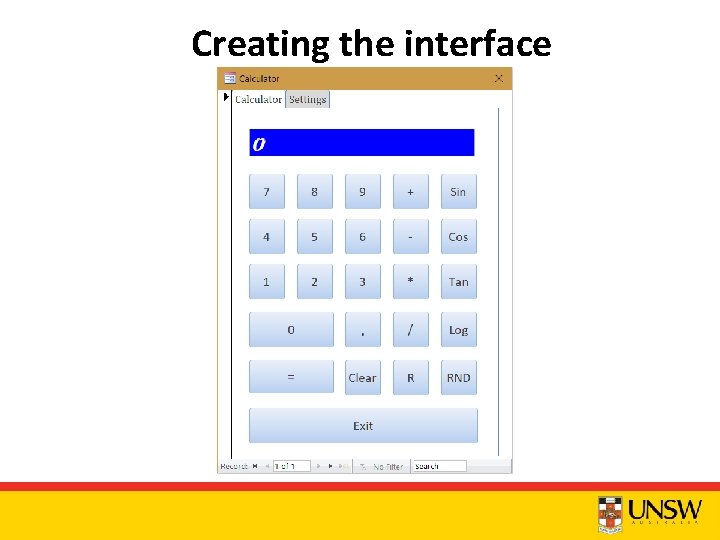
Creating the interface
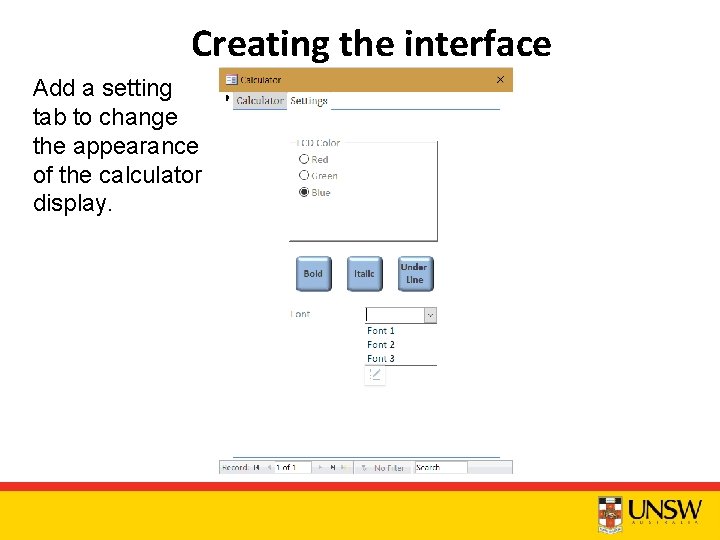
Creating the interface Add a setting tab to change the appearance of the calculator display.
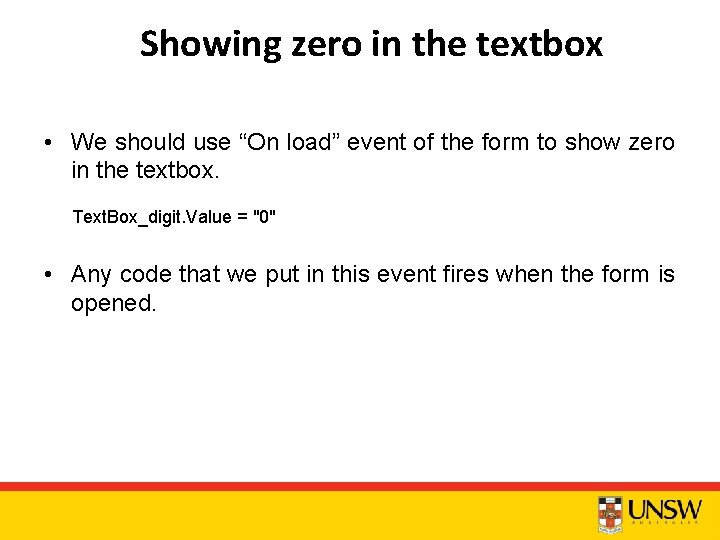
Showing zero in the textbox • We should use “On load” event of the form to show zero in the textbox. Text. Box_digit. Value = "0" • Any code that we put in this event fires when the form is opened.
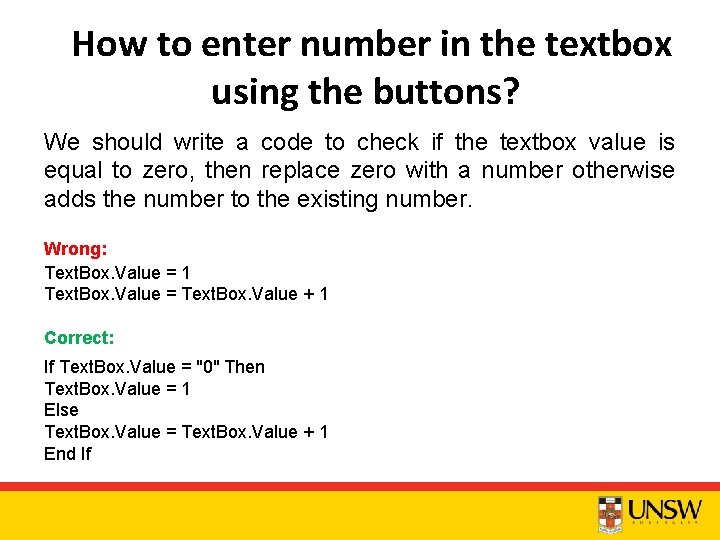
How to enter number in the textbox using the buttons? We should write a code to check if the textbox value is equal to zero, then replace zero with a number otherwise adds the number to the existing number. Wrong: Text. Box. Value = 1 Text. Box. Value = Text. Box. Value + 1 Correct: If Text. Box. Value = "0" Then Text. Box. Value = 1 Else Text. Box. Value = Text. Box. Value + 1 End If
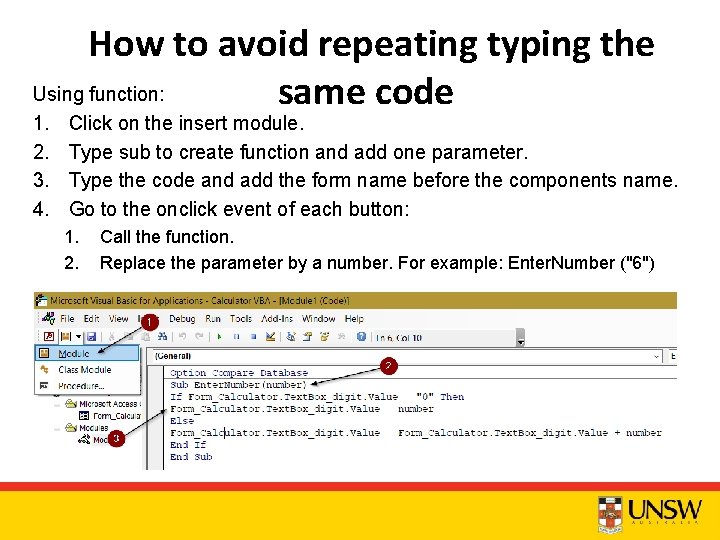
How to avoid repeating typing the Using function: same code 1. 2. 3. 4. Click on the insert module. Type sub to create function and add one parameter. Type the code and add the form name before the components name. Go to the onclick event of each button: 1. 2. Call the function. Replace the parameter by a number. For example: Enter. Number ("6")
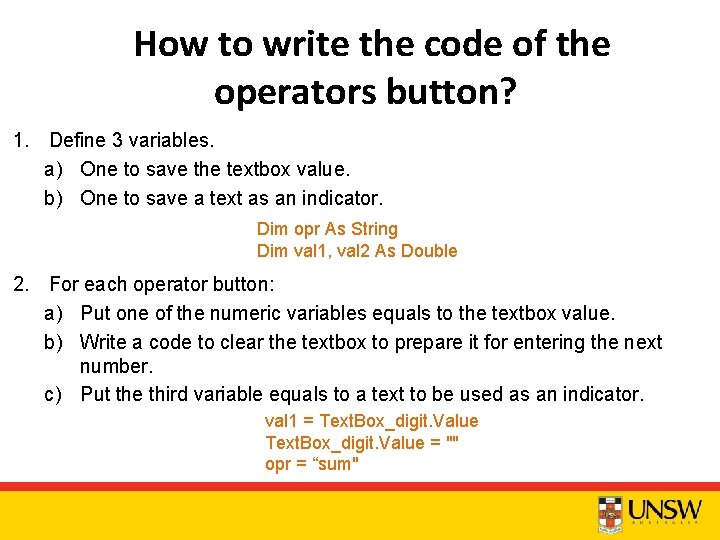
How to write the code of the operators button? 1. Define 3 variables. a) One to save the textbox value. b) One to save a text as an indicator. Dim opr As String Dim val 1, val 2 As Double 2. For each operator button: a) Put one of the numeric variables equals to the textbox value. b) Write a code to clear the textbox to prepare it for entering the next number. c) Put the third variable equals to a text to be used as an indicator. val 1 = Text. Box_digit. Value = "" opr = “sum"
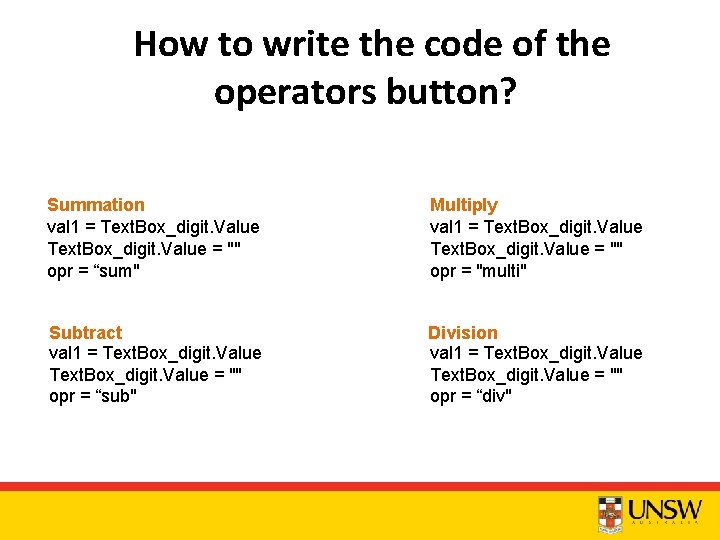
How to write the code of the operators button? Summation val 1 = Text. Box_digit. Value = "" opr = “sum" Multiply val 1 = Text. Box_digit. Value = "" opr = "multi" Subtract val 1 = Text. Box_digit. Value = "" opr = “sub" Division val 1 = Text. Box_digit. Value = "" opr = “div"
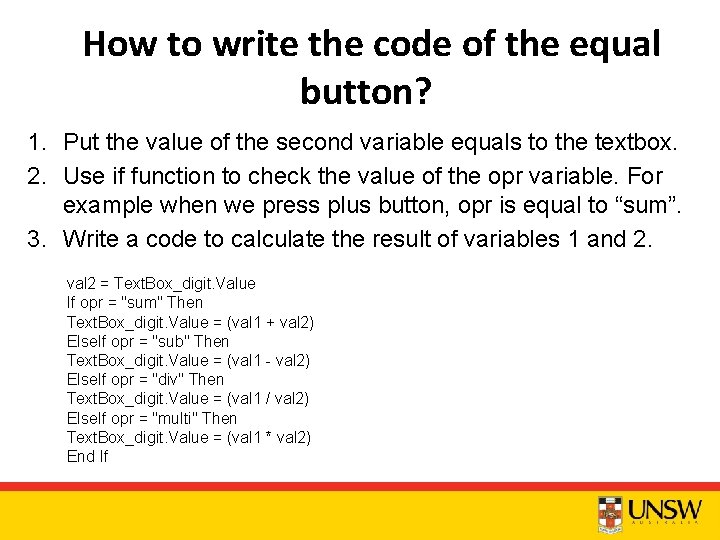
How to write the code of the equal button? 1. Put the value of the second variable equals to the textbox. 2. Use if function to check the value of the opr variable. For example when we press plus button, opr is equal to “sum”. 3. Write a code to calculate the result of variables 1 and 2. val 2 = Text. Box_digit. Value If opr = "sum" Then Text. Box_digit. Value = (val 1 + val 2) Else. If opr = "sub" Then Text. Box_digit. Value = (val 1 - val 2) Else. If opr = "div" Then Text. Box_digit. Value = (val 1 / val 2) Else. If opr = "multi" Then Text. Box_digit. Value = (val 1 * val 2) End If
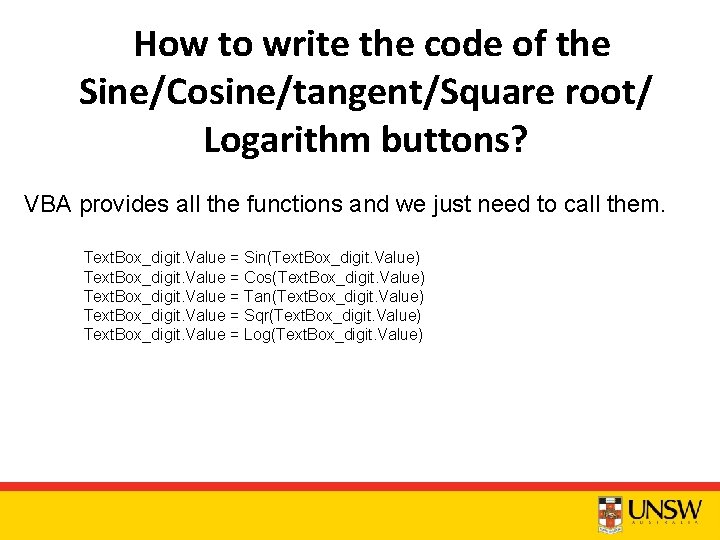
How to write the code of the Sine/Cosine/tangent/Square root/ Logarithm buttons? VBA provides all the functions and we just need to call them. Text. Box_digit. Value = Sin(Text. Box_digit. Value) Text. Box_digit. Value = Cos(Text. Box_digit. Value) Text. Box_digit. Value = Tan(Text. Box_digit. Value) Text. Box_digit. Value = Sqr(Text. Box_digit. Value) Text. Box_digit. Value = Log(Text. Box_digit. Value)
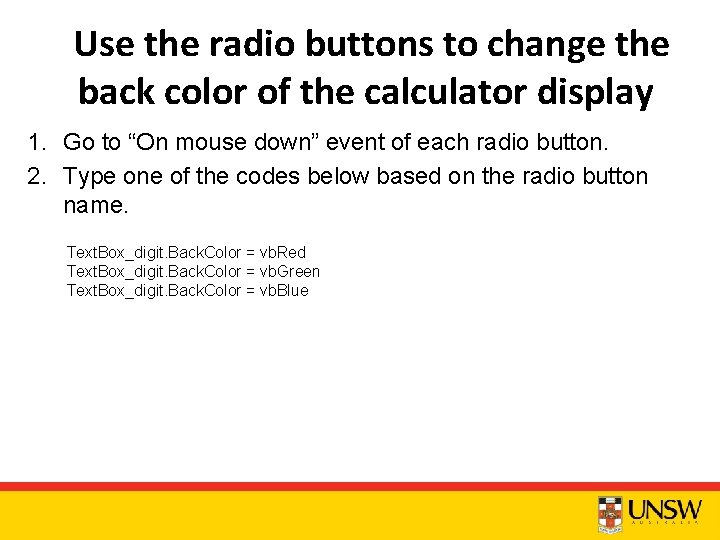
Use the radio buttons to change the back color of the calculator display 1. Go to “On mouse down” event of each radio button. 2. Type one of the codes below based on the radio button name. Text. Box_digit. Back. Color = vb. Red Text. Box_digit. Back. Color = vb. Green Text. Box_digit. Back. Color = vb. Blue
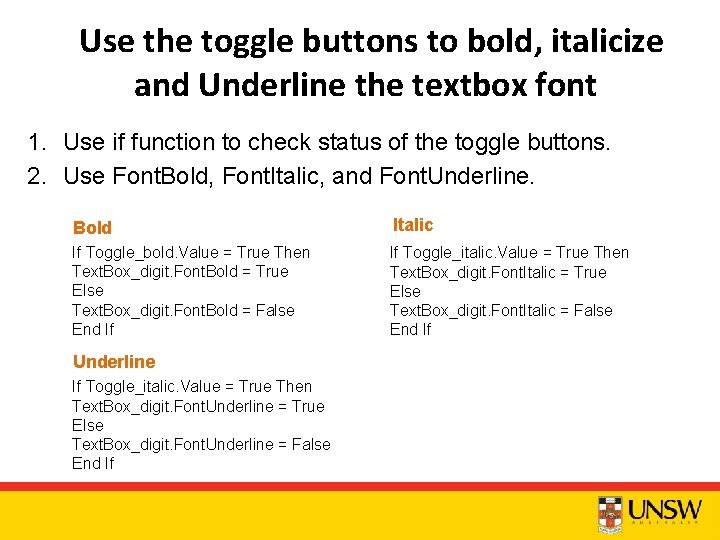
Use the toggle buttons to bold, italicize and Underline the textbox font 1. Use if function to check status of the toggle buttons. 2. Use Font. Bold, Font. Italic, and Font. Underline. Bold Italic If Toggle_bold. Value = True Then Text. Box_digit. Font. Bold = True Else Text. Box_digit. Font. Bold = False End If If Toggle_italic. Value = True Then Text. Box_digit. Font. Italic = True Else Text. Box_digit. Font. Italic = False End If Underline If Toggle_italic. Value = True Then Text. Box_digit. Font. Underline = True Else Text. Box_digit. Font. Underline = False End If
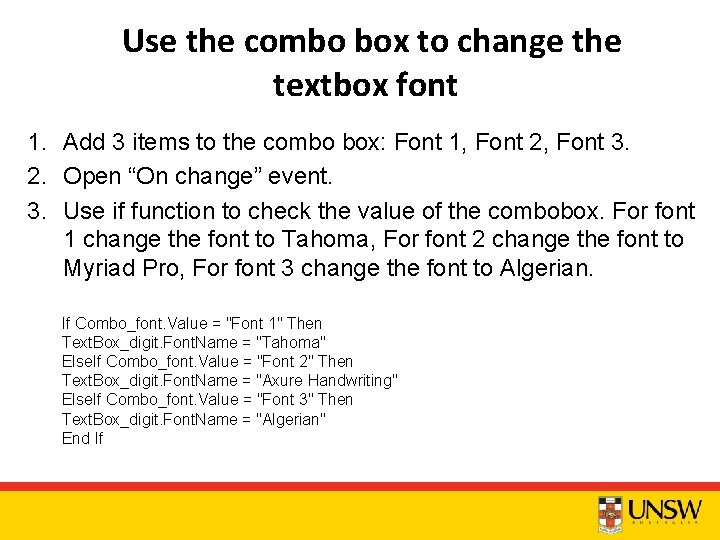
Use the combo box to change the textbox font 1. Add 3 items to the combo box: Font 1, Font 2, Font 3. 2. Open “On change” event. 3. Use if function to check the value of the combobox. For font 1 change the font to Tahoma, For font 2 change the font to Myriad Pro, For font 3 change the font to Algerian. If Combo_font. Value = "Font 1" Then Text. Box_digit. Font. Name = "Tahoma" Else. If Combo_font. Value = "Font 2" Then Text. Box_digit. Font. Name = "Axure Handwriting" Else. If Combo_font. Value = "Font 3" Then Text. Box_digit. Font. Name = "Algerian" End If
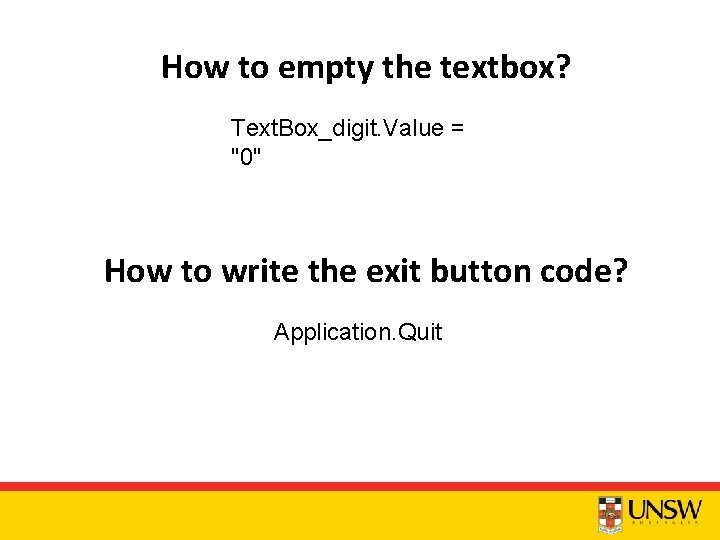
How to empty the textbox? Text. Box_digit. Value = "0" How to write the exit button code? Application. Quit

Question time
- Slides: 19