
Virtualization and Open source Software Mr Lau Ka
- Slides: 19
Virtualization and Open source Software Mr. Lau Ka Lun – Lai King Catholic Secondary Date: 9 th , 21 st , 22 nd March, 2011 School
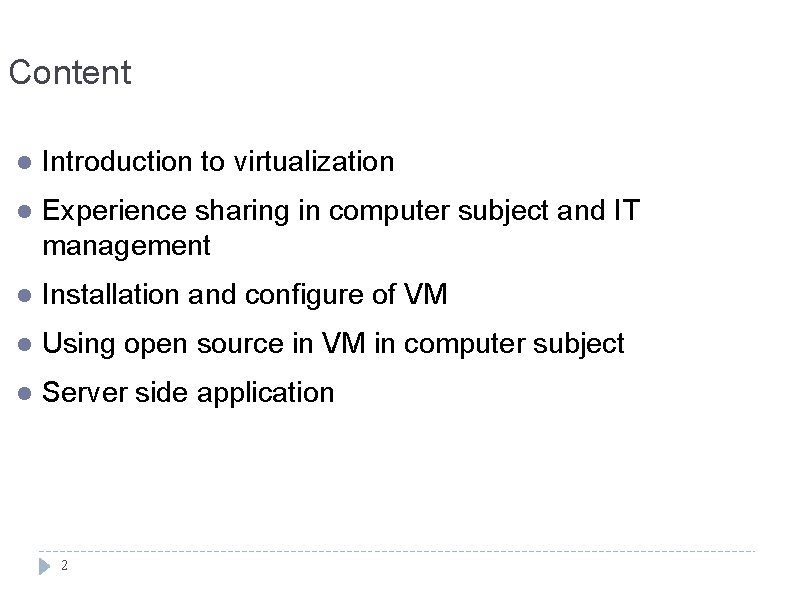
Content l Introduction to virtualization l Experience sharing in computer subject and IT management l Installation and configure of VM l Using open source in VM in computer subject l Server side application 2
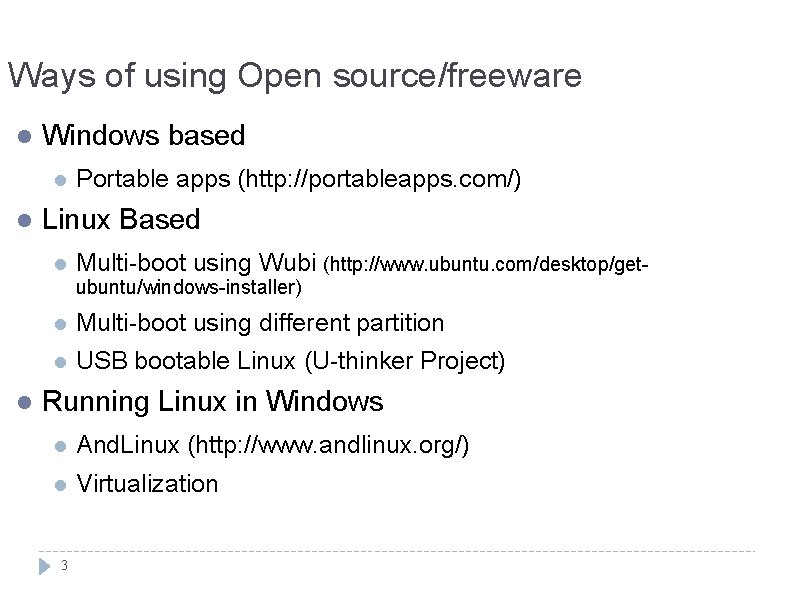
Ways of using Open source/freeware l Windows based l l Portable apps (http: //portableapps. com/) Linux Based l Multi-boot using Wubi (http: //www. ubuntu. com/desktop/getubuntu/windows-installer) l l Multi-boot using different partition l USB bootable Linux (U-thinker Project) Running Linux in Windows l And. Linux (http: //www. andlinux. org/) l Virtualization 3
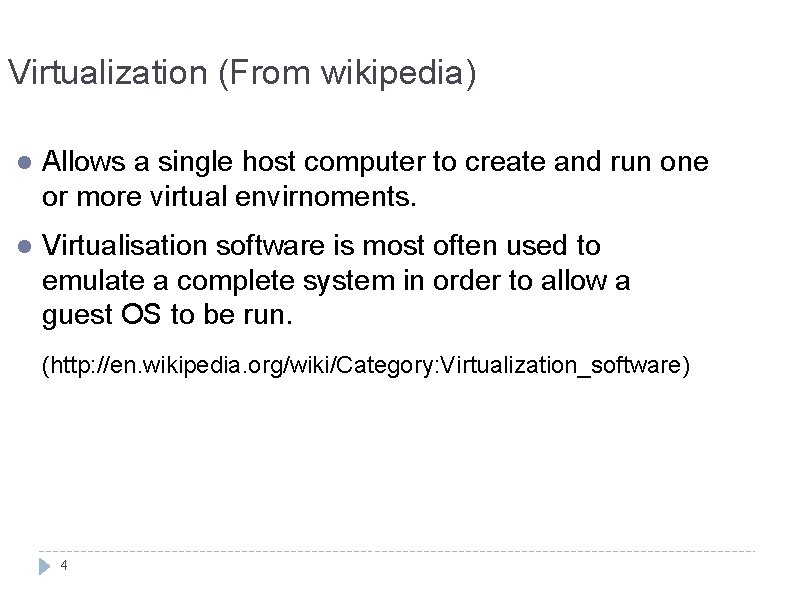
Virtualization (From wikipedia) l Allows a single host computer to create and run one or more virtual envirnoments. l Virtualisation software is most often used to emulate a complete system in order to allow a guest OS to be run. (http: //en. wikipedia. org/wiki/Category: Virtualization_software) 4
Benefits of using VM in computer subject l No ”extra” computer needed. Better hardware utilization. Several VM can be set up in a new PC. l The Guest OS is independent of Host OS. Suitable for access ”Dangerous site” l ”Easier” to back up. l Faster installation. l Predictable Hardware behavior 5
Usage of Virtualization in Computer subjects l A platform to use of Linux based open source software. l Students can install and config OS using the Virtual machine. l Network Experiment can be done with several Virtual machines. l Practice of Configuration of server become easier. l Stored VM in USB drive for homework. 6
VM used in workshop l Hosted OS: Windows XP l Guest OS (VM): Ubuntu 10. 10 Desktop, Ubuntu 10. 10 Server (LAMP) l l Difference between Desktop and Server version Beware of Licence issue of VM (guest OS) l 7 Microsoft licensing http: //www. microsoft. com/licensing/
Four Common Desktop Virtualization products l Xen (http: //www. xen. org/) l l Host OS: Linux Microsoft Virtual PC (http: //www. microsoft. com/windows/virtual-pc/) l Host OS must be Windows l Support Limited distribution of Linux l Suitable for use of Trial VM downloaded from Microsoft 8
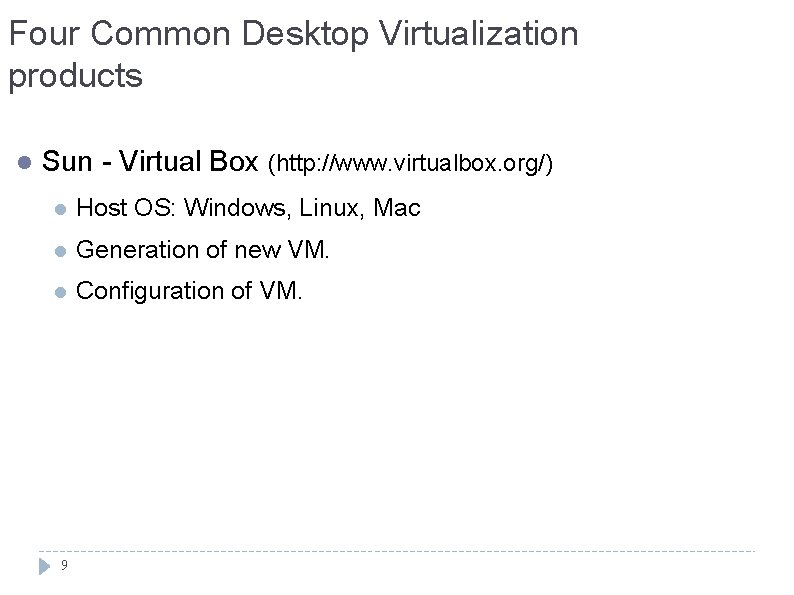
Four Common Desktop Virtualization products l Sun - Virtual Box (http: //www. virtualbox. org/) l Host OS: Windows, Linux, Mac l Generation of new VM. l Configuration of VM. 9
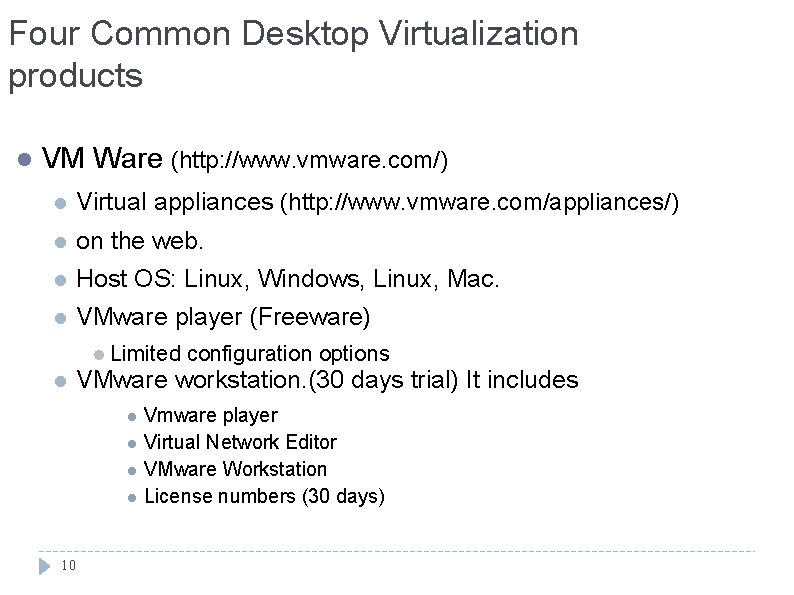
Four Common Desktop Virtualization products l VM Ware (http: //www. vmware. com/) l Virtual appliances (http: //www. vmware. com/appliances/) l on the web. l Host OS: Linux, Windows, Linux, Mac. l VMware player (Freeware) l Limited l configuration options VMware workstation. (30 days trial) It includes l l 10 Vmware player Virtual Network Editor VMware Workstation License numbers (30 days)
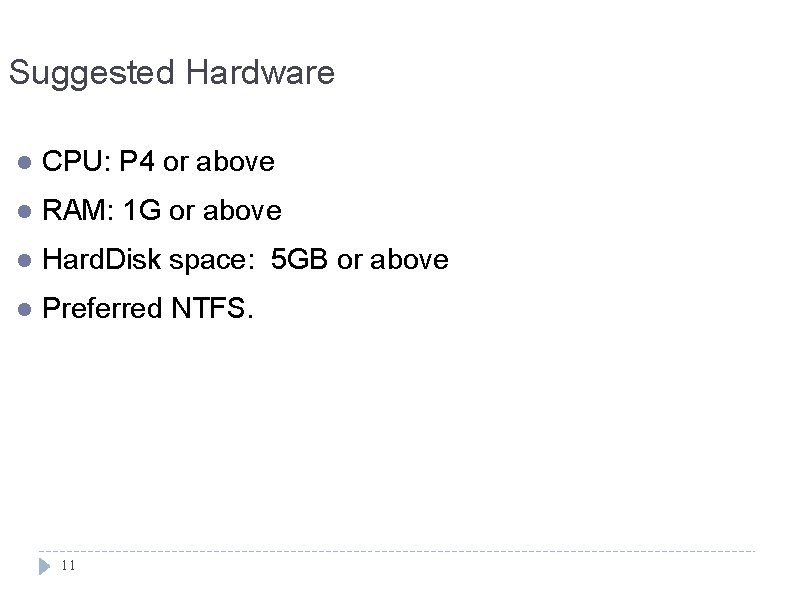
Suggested Hardware l CPU: P 4 or above l RAM: 1 G or above l Hard. Disk space: 5 GB or above l Preferred NTFS. 11
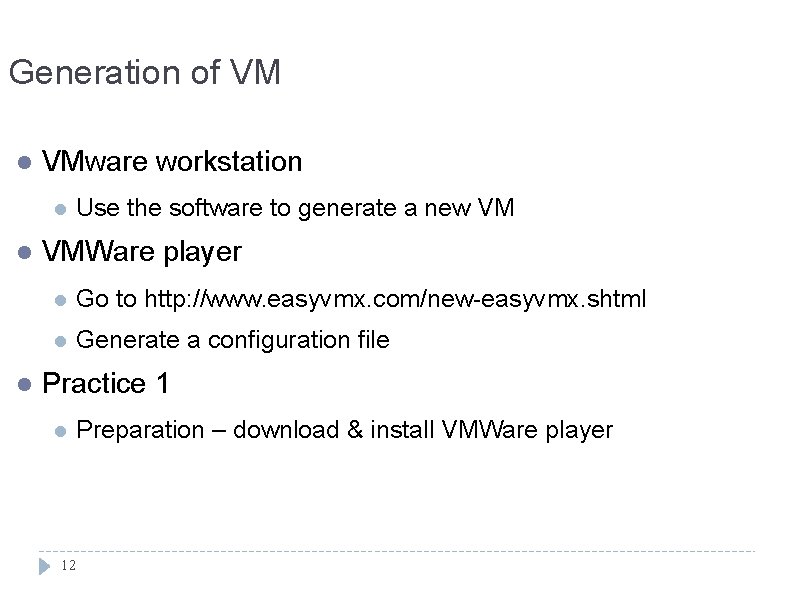
Generation of VM l VMware workstation l l l Use the software to generate a new VM VMWare player l Go to http: //www. easyvmx. com/new-easyvmx. shtml l Generate a configuration file Practice 1 l Preparation – download & install VMWare player 12
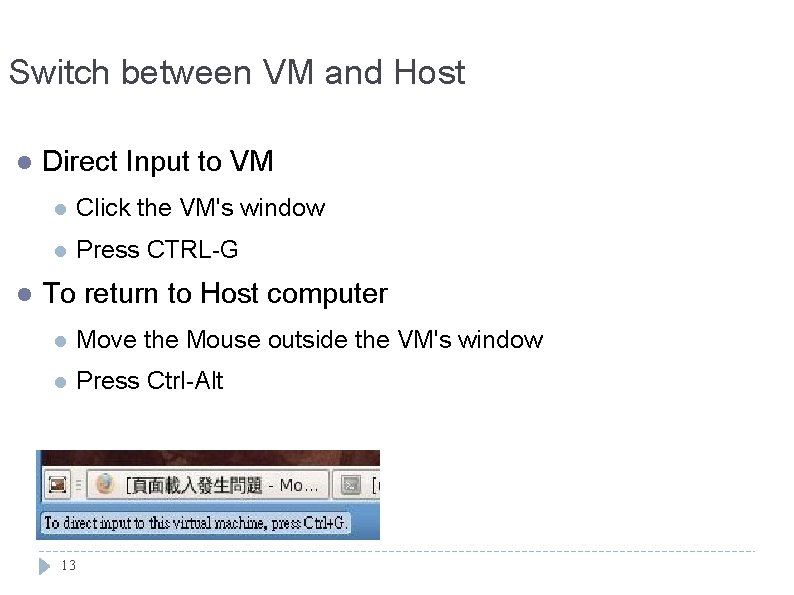
Switch between VM and Host l l Direct Input to VM l Click the VM's window l Press CTRL-G To return to Host computer l Move the Mouse outside the VM's window l Press Ctrl-Alt 13
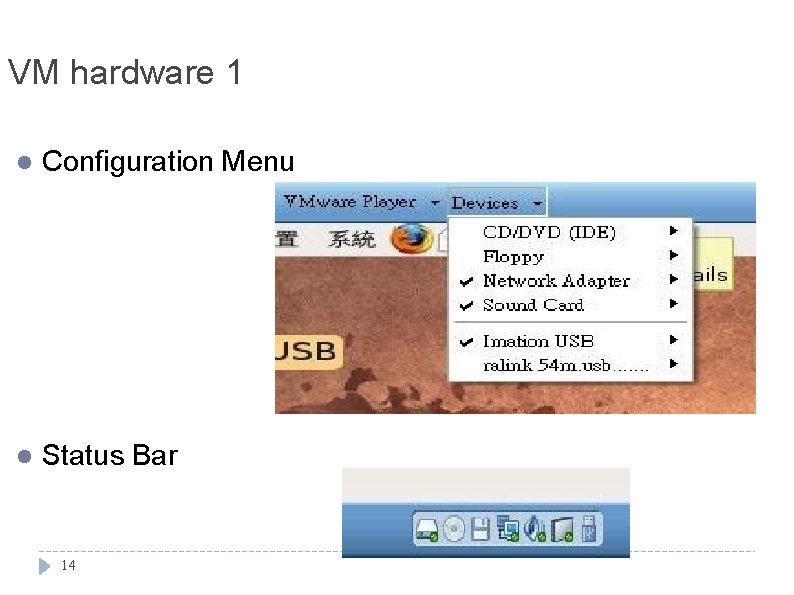
VM hardware 1 l Configuration Menu l Status Bar 14
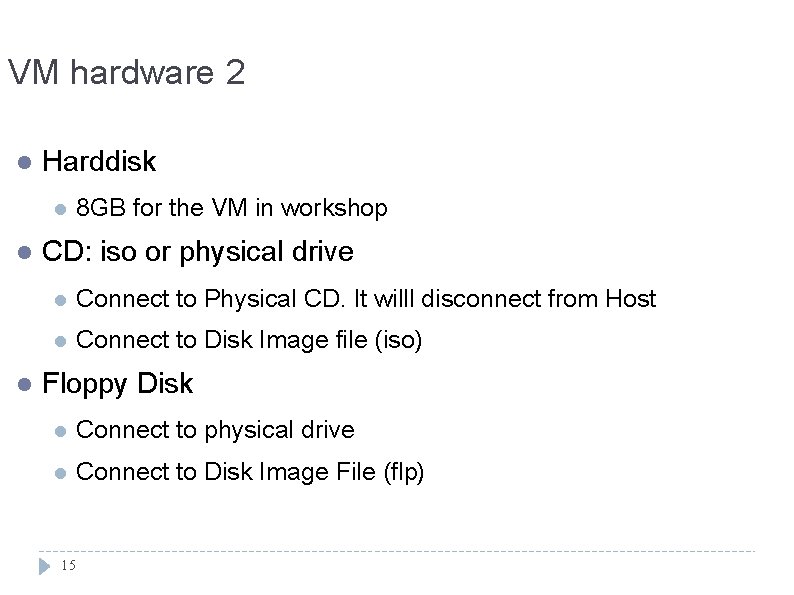
VM hardware 2 l Harddisk l l l 8 GB for the VM in workshop CD: iso or physical drive l Connect to Physical CD. It willl disconnect from Host l Connect to Disk Image file (iso) Floppy Disk l Connect to physical drive l Connect to Disk Image File (flp) 15
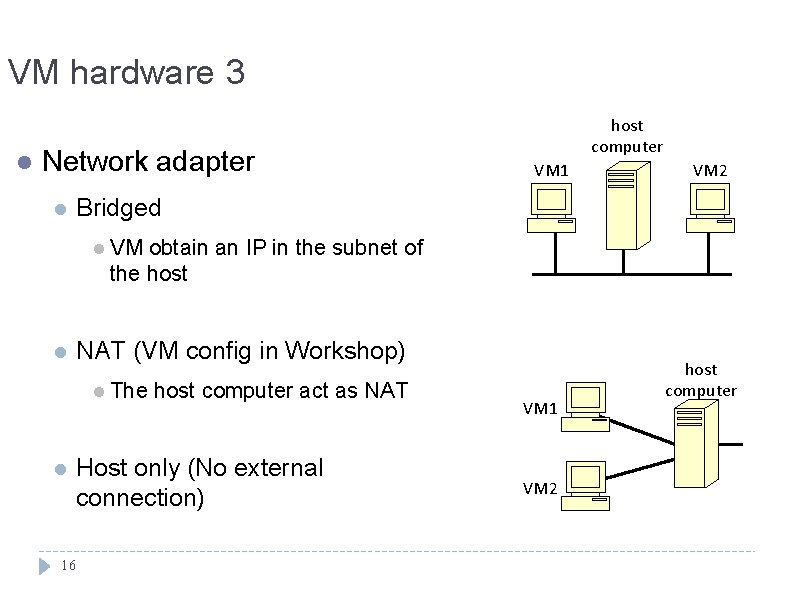
VM hardware 3 l Network adapter l host computer VM 1 VM 2 Bridged l VM obtain an IP in the subnet of the host l NAT (VM config in Workshop) l The l host computer act as NAT Host only (No external connection) 16 VM 1 VM 2 host computer
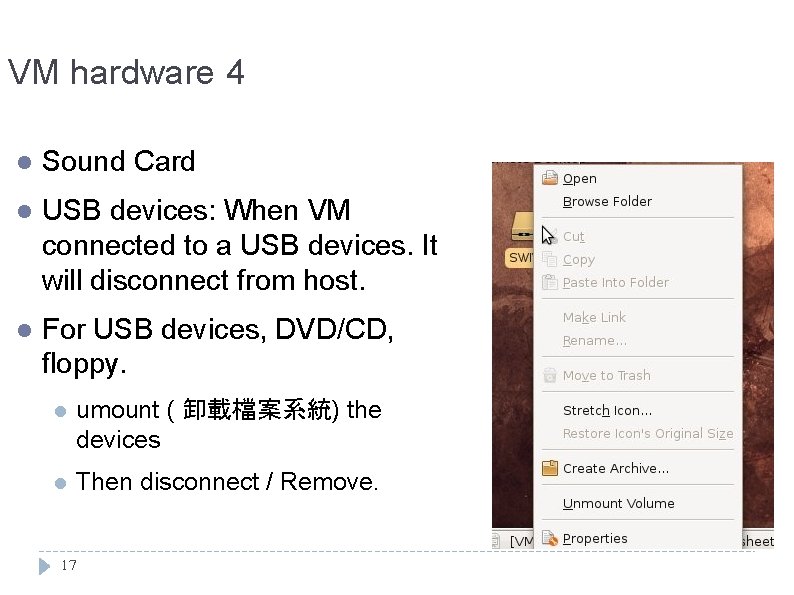
VM hardware 4 l Sound Card l USB devices: When VM connected to a USB devices. It will disconnect from host. l For USB devices, DVD/CD, floppy. l umount ( 卸載檔案系統) the devices l Then disconnect / Remove. 17
Run VM in USB drive l Practice 2: Generation of VM l - Using a 3 rd party tool l http: //www. easyvmx. com/new-easyvmx. shtml 18
Hand-on practice 3: Install a virtual appliance (Ubuntu 10. 1 Server) Hand-on practice 4: Install a virtual appliance (Ubuntu 10. 1 Deskstop)