
Virtual Visits Training Guide Step by step instructions
Virtual Visits Training Guide Step by step instructions for Bookings clinicians/healthcare professionals to join meetings and communicate with patients.
Microsoft Teams NHSmail Users Training Guide Online booking and appointment scheduling made easy across health and social care. Use this guide to find out how to: 01 02 03 Approve calendar Membership. Receive notifications and reminders for New Bookings. Respond to appointments. 04 05 06 Join your Teams meetings. Communicate with patients. End the meeting and decide on follow-up appointments. Tools you will be using: • Microsoft Bookings is a scheduling tool that is part of the Microsoft Office family of products and can be directly added to the MS Teams app. The calendar in MS Bookings is automatically synced with your Teams and NHSmail Outlook calendar. • Microsoft Teams is a unified communication and collaboration platform that combines Copyright © 2018 Accenture. All rights reserved. 2 persistent workplace chat, video meetings, and file storage.

01 ALL USERS MUST APPROVE THEIR MEMBERSHIP TO THE CALENDAR Please note that when users are added to a calendar, all users will be sent an email and will need to approve their membership of that calendar. This needs to be manually monitored to make sure they have accepted their membership to the calendar as the system will not update the calendar admin to let them know if this has been done. If users have not accepted, they will not be able to be part of the calendar and administrators will not be able to manage their calendars on the Bookings app. Once users have approved their membership on the calendar, they will receive a confirmation email letting them know their membership is active. They can stop their membership at any time by clicking on “Stop membership” on the same email.
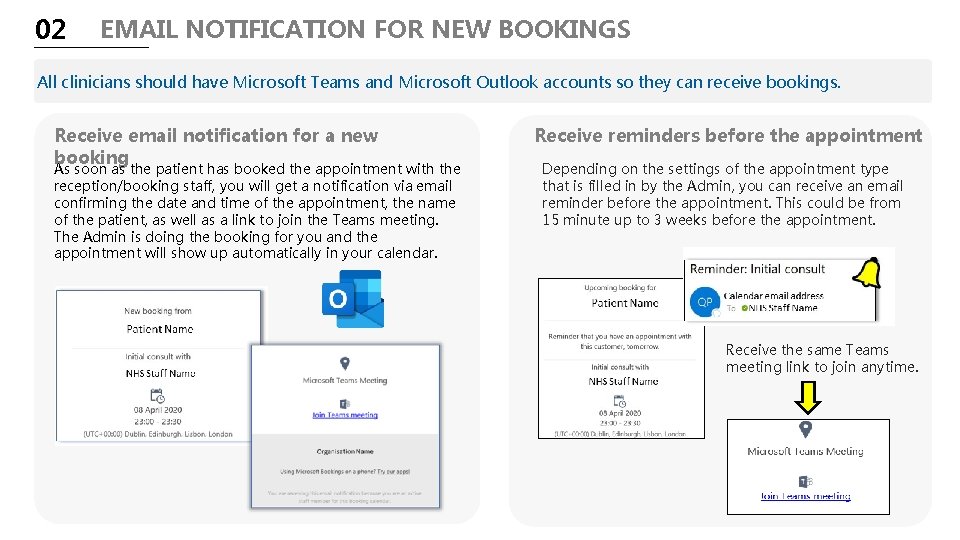
02 EMAIL NOTIFICATION FOR NEW BOOKINGS All clinicians should have Microsoft Teams and Microsoft Outlook accounts so they can receive bookings. Receive email notification for a new booking As soon as the patient has booked the appointment with the reception/booking staff, you will get a notification via email confirming the date and time of the appointment, the name of the patient, as well as a link to join the Teams meeting. The Admin is doing the booking for you and the appointment will show up automatically in your calendar. Receive reminders before the appointment Depending on the settings of the appointment type that is filled in by the Admin, you can receive an email reminder before the appointment. This could be from 15 minute up to 3 weeks before the appointment. Receive the same Teams meeting link to join anytime.
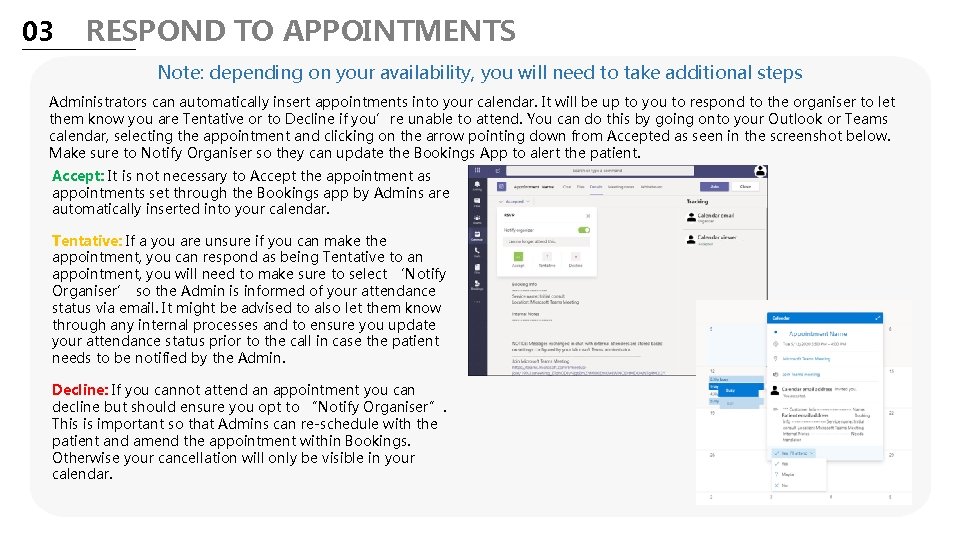
03 RESPOND TO APPOINTMENTS Note: depending on your availability, you will need to take additional steps Administrators can automatically insert appointments into your calendar. It will be up to you to respond to the organiser to let them know you are Tentative or to Decline if you’re unable to attend. You can do this by going onto your Outlook or Teams calendar, selecting the appointment and clicking on the arrow pointing down from Accepted as seen in the screenshot below. Make sure to Notify Organiser so they can update the Bookings App to alert the patient. Accept: It is not necessary to Accept the appointment as appointments set through the Bookings app by Admins are automatically inserted into your calendar. Tentative: If a you are unsure if you can make the appointment, you can respond as being Tentative to an appointment, you will need to make sure to select ‘Notify Organiser’ so the Admin is informed of your attendance status via email. It might be advised to also let them know through any internal processes and to ensure you update your attendance status prior to the call in case the patient needs to be notified by the Admin. Decline: If you cannot attend an appointment you can decline but should ensure you opt to “Notify Organiser”. This is important so that Admins can re-schedule with the patient and amend the appointment within Bookings. Otherwise your cancellation will only be visible in your calendar.
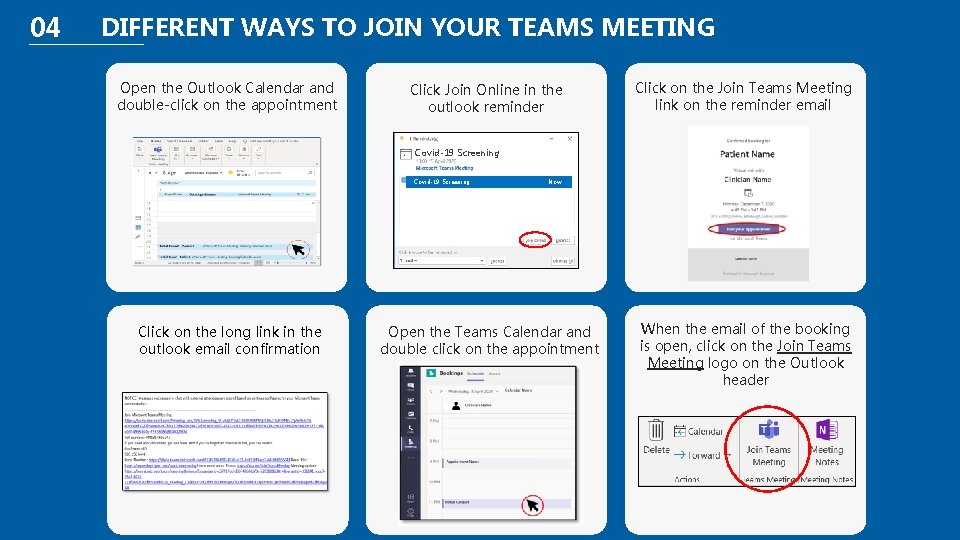
04 DIFFERENT WAYS TO JOIN YOUR TEAMS MEETING Open the Outlook Calendar and double-click on the appointment Click Join Online in the outlook reminder Click on the Join Teams Meeting link on the reminder email Covid-19 Screening Click on the long link in the outlook email confirmation Now Open the Teams Calendar and double click on the appointment When the email of the booking is open, click on the Join Teams Meeting logo on the Outlook header
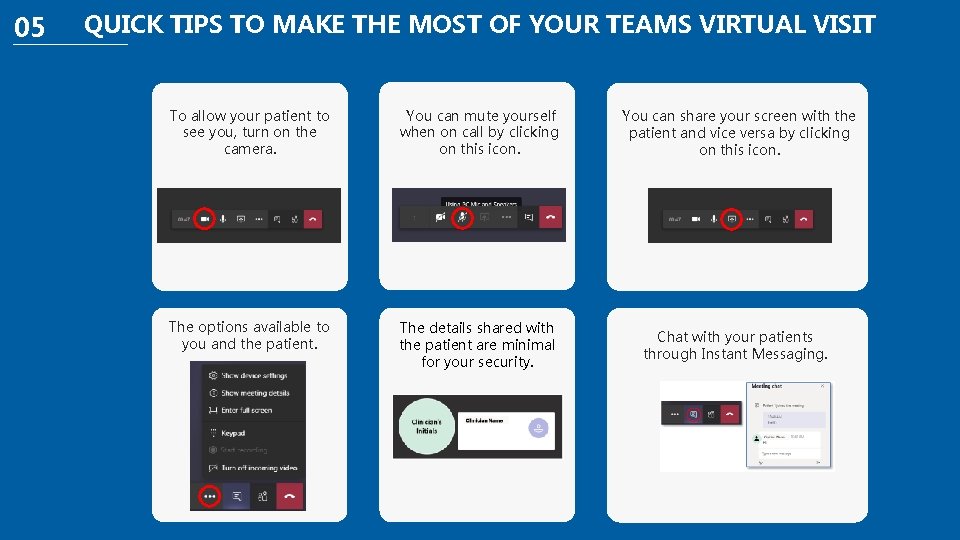
05 QUICK TIPS TO MAKE THE MOST OF YOUR TEAMS VIRTUAL VISIT To allow your patient to see you, turn on the camera. You can mute yourself when on call by clicking on this icon. You can share your screen with the patient and vice versa by clicking on this icon. The options available to you and the patient. The details shared with the patient are minimal for your security. Chat with your patients through Instant Messaging.
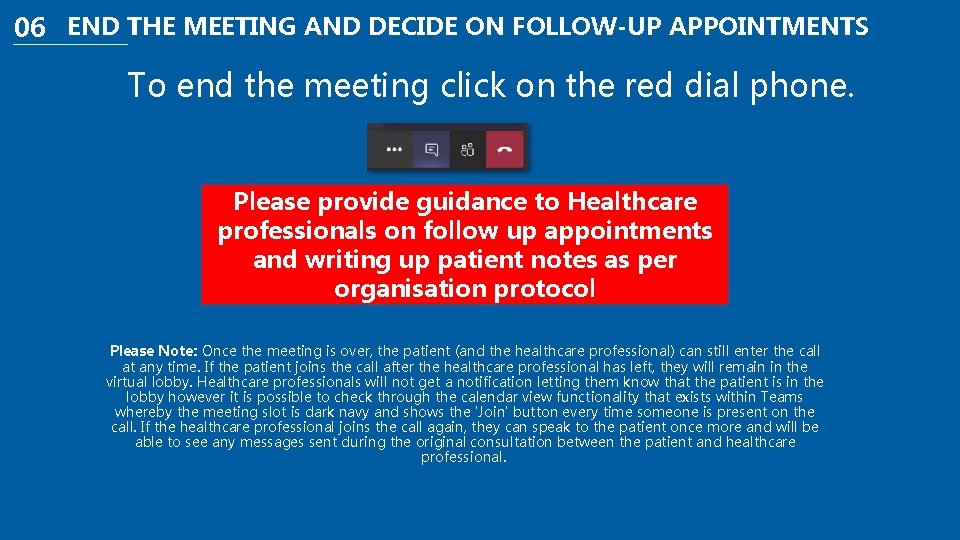
06 END THE MEETING AND DECIDE ON FOLLOW-UP APPOINTMENTS To end the meeting click on the red dial phone. Please provide guidance to Healthcare professionals on follow up appointments and writing up patient notes as per organisation protocol Please Note: Once the meeting is over, the patient (and the healthcare professional) can still enter the call at any time. If the patient joins the call after the healthcare professional has left, they will remain in the virtual lobby. Healthcare professionals will not get a notification letting them know that the patient is in the lobby however it is possible to check through the calendar view functionality that exists within Teams whereby the meeting slot is dark navy and shows the 'Join' button every time someone is present on the call. If the healthcare professional joins the call again, they can speak to the patient once more and will be able to see any messages sent during the original consultation between the patient and healthcare professional.
- Slides: 8