
Virtual Machine and UNIX What is a VM
- Slides: 11
Virtual Machine and UNIX
What is a VM? • VM stands for Virtual Machine. It is a software emulation of hardware. • By using a VM, you can have the same hardware and software environment that CSUG has
How do I get it? • The image for CSUG is at https: //confluence. cornell. edu/display/coecis/CIS+UGC+Linux+Lab+V M+Information • Follow the directions there. There is even a helpful video! If you have any questions, feel free to ask for help! • Note: Make sure that virtualization is enabled in your BIOS.
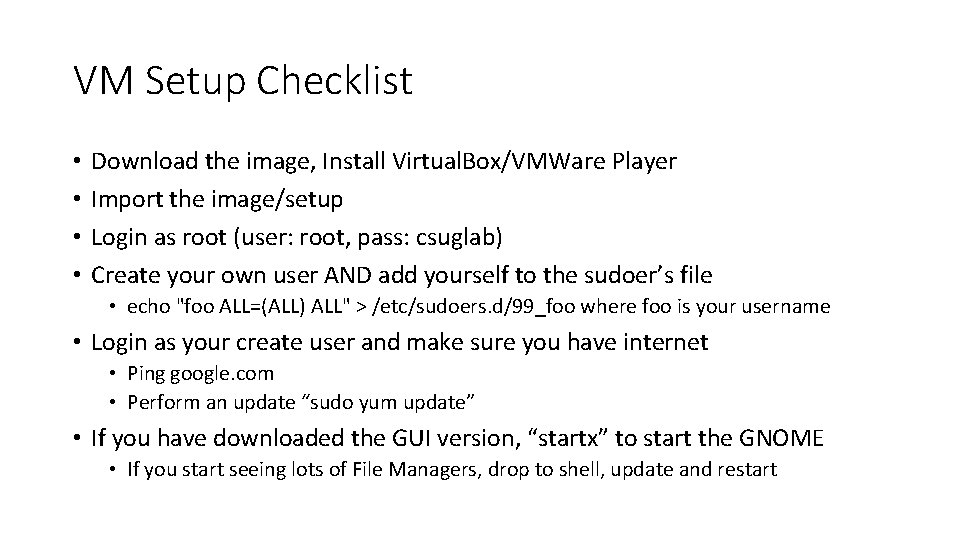
VM Setup Checklist • • Download the image, Install Virtual. Box/VMWare Player Import the image/setup Login as root (user: root, pass: csuglab) Create your own user AND add yourself to the sudoer’s file • echo "foo ALL=(ALL) ALL" > /etc/sudoers. d/99_foo where foo is your username • Login as your create user and make sure you have internet • Ping google. com • Perform an update “sudo yum update” • If you have downloaded the GUI version, “startx” to start the GNOME • If you start seeing lots of File Managers, drop to shell, update and restart
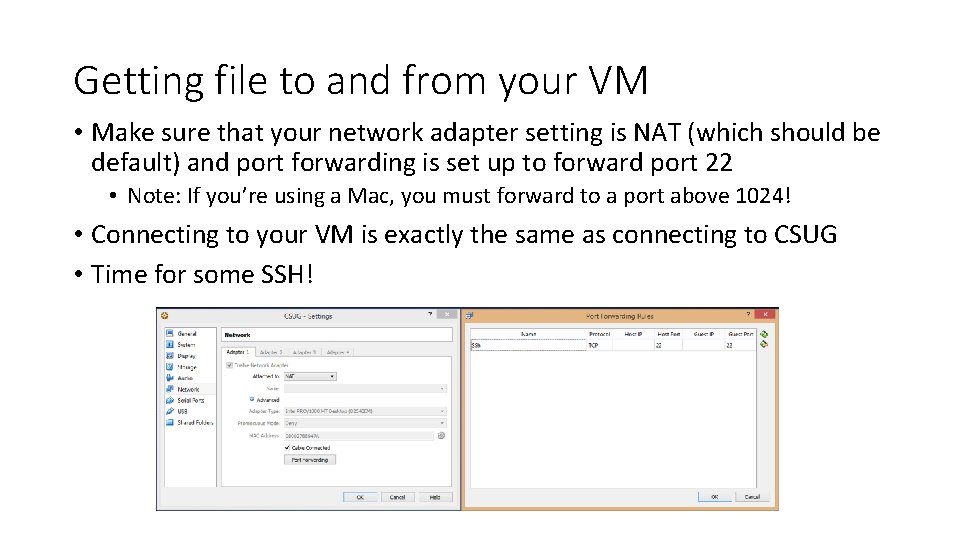
Getting file to and from your VM • Make sure that your network adapter setting is NAT (which should be default) and port forwarding is set up to forward port 22 • Note: If you’re using a Mac, you must forward to a port above 1024! • Connecting to your VM is exactly the same as connecting to CSUG • Time for some SSH!
SSH (Secure Shell) • Allows you to execute commands on a remote computer (as if you were there). Your VM’s host will be localhost • Command: ssh user@host • If you’re on Windows: use Putty or Cygwin • Specify the port by using –p # • Hint: If you are on Mac or Linux, and your remote computer has a GUI interface, you can forward the X session (GUI) in addition to the shell by giving ssh the –X parameter
Unix Basics • The root of the file system (think C: ) is ‘/’ • Your home folder (think Documents) is ‘/home/[username]’ • Most terminals will expand ‘~’ to be your home folder • Your current directory shortcut is “. ” • Files and folders are case sensitive • CS 3410 != cs 3410 • Spaces MUST be quoted or escaped (unlike in CMD) • For more info, you can take a half semester course in Unix Scripting offered every year
Basic Unix Commands • man (p 7): The Hitchhiker's Guide to the Galaxy, for UNIX • Your first and primary source for help on any command • Control-c (p 35): Kill the current process • Do NOT use Control-z as this suspends the process! • ls (p 4): lists the files in the current directory (cmd equivalent is dir) • mkdir (p 41): create a directory • rmdir(p 41): remove a directory • pwd (p 41): prints the current working directory
More Unix Commands • rm (p 39): remove files and directories • Note that by default you cannot remove directories with files. Use –r (recursive) to do so • Use –rf when you don’t care and just want things gone. BE VERY CAREFUL. No confirmation will be given. • cp (p 38): copies from source to destination • mv (p 38): move from source to destination (also used to rename) • cat (p 44): can be used to quickly display the content of a file • less (45): view a text file will scrolling (q to quit)
Rsync (p 115) and SCP (p 152) • Use to copy to and from your VM • If you want to copy to your real local machine, you should be in a shell on your real local machine • Cygwin provides both of these. You can also use a GUI such as Win. SCP • For example to copy from the VM to your machine (where user is your username that you created): • rsync user@localhost: /home/user/file. • scp user@localhost: /home/user/file. • You should now be able to see “file” if you do ls
Questions?