
Viewing Shading III Pertemuan 14 Hand out Komputer
- Slides: 29
Viewing & Shading III Pertemuan 14 Hand out Komputer Grafik
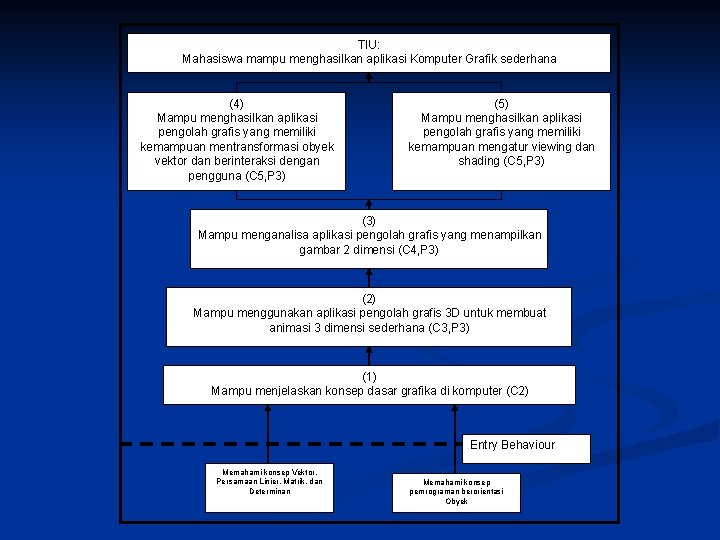
TIU: Mahasiswa mampu menghasilkan aplikasi Komputer Grafik sederhana (4) Mampu menghasilkan aplikasi pengolah grafis yang memiliki kemampuan mentransformasi obyek vektor dan berinteraksi dengan pengguna (C 5, P 3) (5) Mampu menghasilkan aplikasi pengolah grafis yang memiliki kemampuan mengatur viewing dan shading (C 5, P 3) (3) Mampu menganalisa aplikasi pengolah grafis yang menampilkan gambar 2 dimensi (C 4, P 3) (2) Mampu menggunakan aplikasi pengolah grafis 3 D untuk membuat animasi 3 dimensi sederhana (C 3, P 3) (1) Mampu menjelaskan konsep dasar grafika di komputer (C 2) Entry Behaviour Memahami konsep Vektor, Persamaan Linier, Matrik, dan Determinan Memahami konsep pemrograman berorientasi Obyek
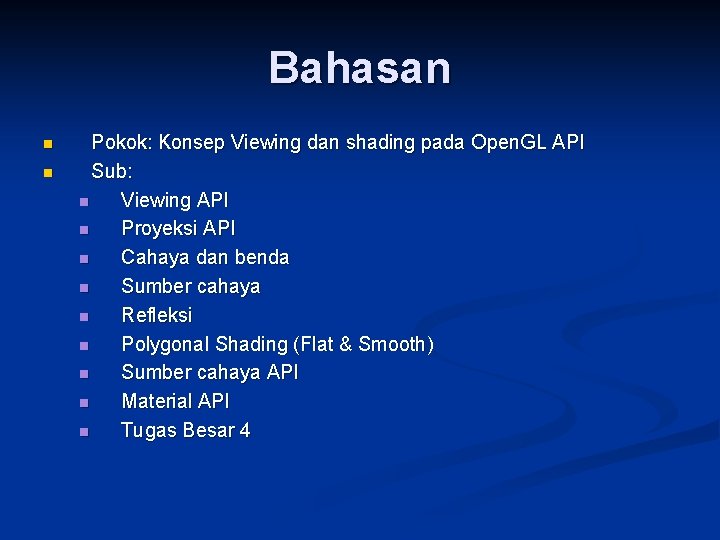
Bahasan n n Pokok: Konsep Viewing dan shading pada Open. GL API Sub: n Viewing API n Proyeksi API n Cahaya dan benda n Sumber cahaya n Refleksi n Polygonal Shading (Flat & Smooth) n Sumber cahaya API n Material API n Tugas Besar 4
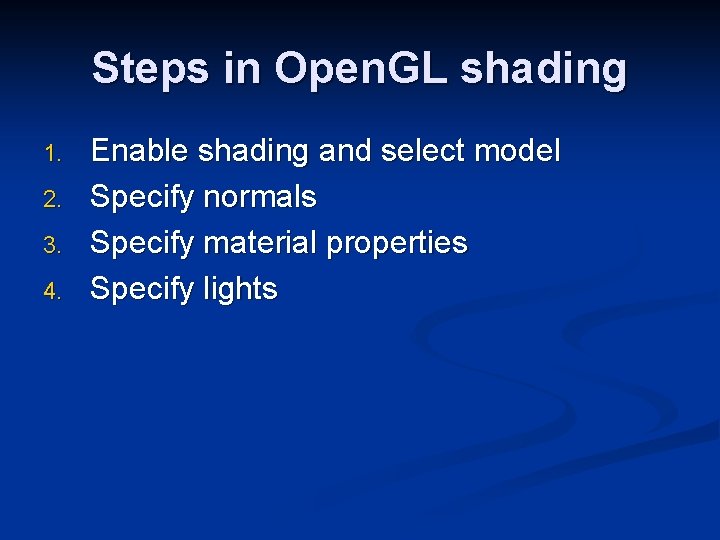
Steps in Open. GL shading 1. 2. 3. 4. Enable shading and select model Specify normals Specify material properties Specify lights
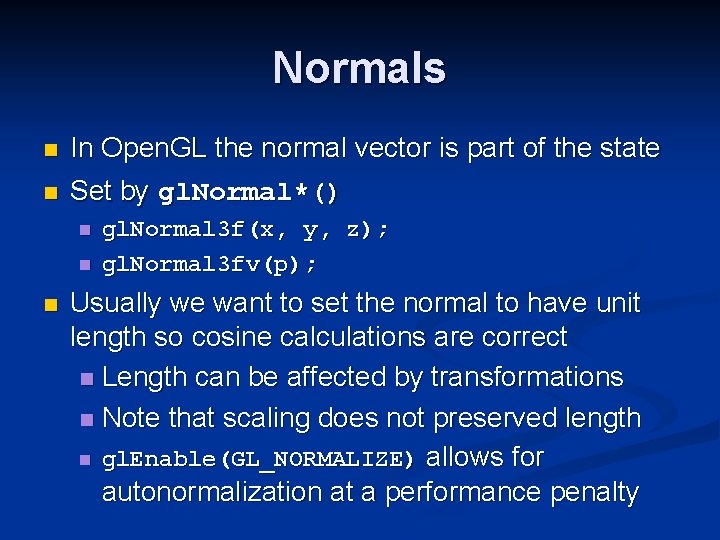
Normals n In Open. GL the normal vector is part of the state n Set by gl. Normal*() n n n gl. Normal 3 f(x, y, z); gl. Normal 3 fv(p); Usually we want to set the normal to have unit length so cosine calculations are correct n Length can be affected by transformations n Note that scaling does not preserved length n gl. Enable(GL_NORMALIZE) allows for autonormalization at a performance penalty
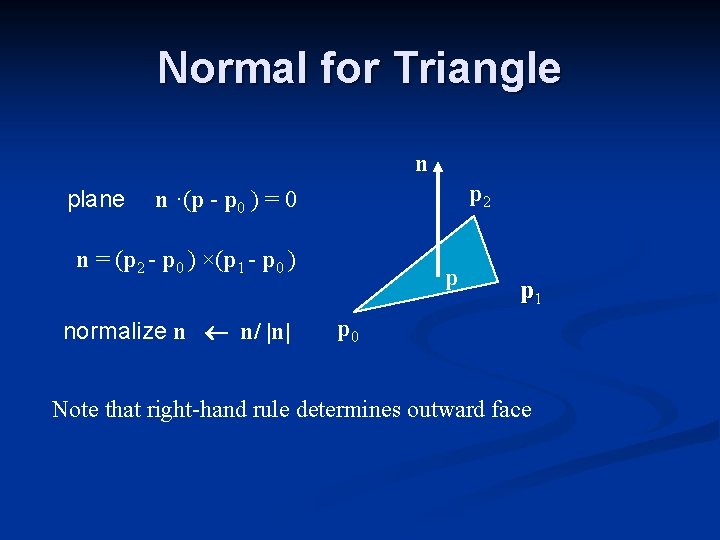
Normal for Triangle n plane p 2 n ·(p - p 0 ) = 0 n = (p 2 - p 0 ) ×(p 1 - p 0 ) normalize n n/ |n| p p 1 p 0 Note that right-hand rule determines outward face
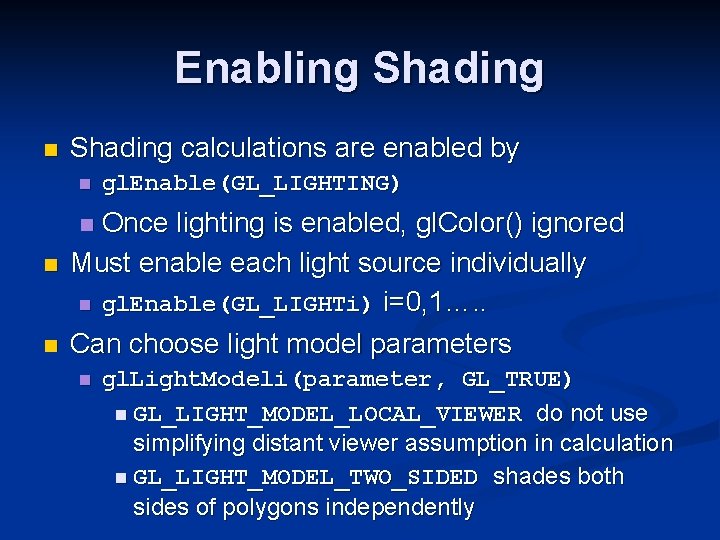
Enabling Shading n Shading calculations are enabled by n gl. Enable(GL_LIGHTING) Once lighting is enabled, gl. Color() ignored Must enable each light source individually n gl. Enable(GL_LIGHTi) i=0, 1…. . Can choose light model parameters n n gl. Light. Modeli(parameter, GL_TRUE) n GL_LIGHT_MODEL_LOCAL_VIEWER do not use simplifying distant viewer assumption in calculation n GL_LIGHT_MODEL_TWO_SIDED shades both sides of polygons independently
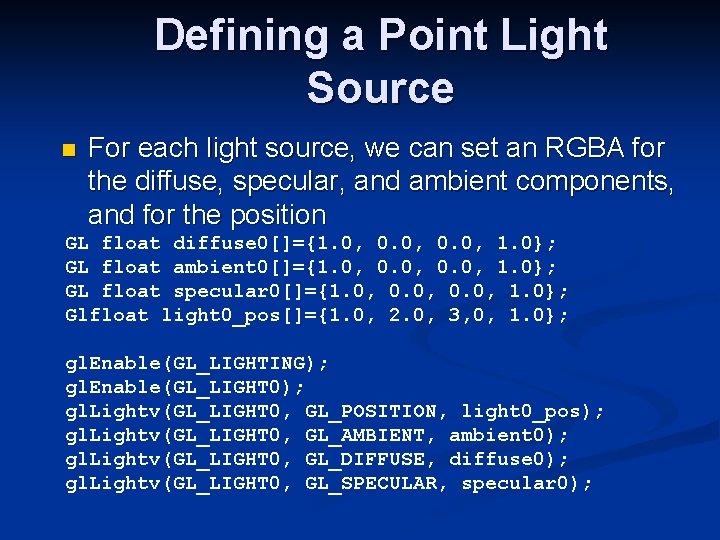
Defining a Point Light Source n For each light source, we can set an RGBA for the diffuse, specular, and ambient components, and for the position GL float diffuse 0[]={1. 0, 0. 0, 1. 0}; GL float ambient 0[]={1. 0, 0. 0, 1. 0}; GL float specular 0[]={1. 0, 0. 0, 1. 0}; Glfloat light 0_pos[]={1. 0, 2. 0, 3, 0, 1. 0}; gl. Enable(GL_LIGHTING); gl. Enable(GL_LIGHT 0); gl. Lightv(GL_LIGHT 0, GL_POSITION, light 0_pos); gl. Lightv(GL_LIGHT 0, GL_AMBIENT, ambient 0); gl. Lightv(GL_LIGHT 0, GL_DIFFUSE, diffuse 0); gl. Lightv(GL_LIGHT 0, GL_SPECULAR, specular 0);
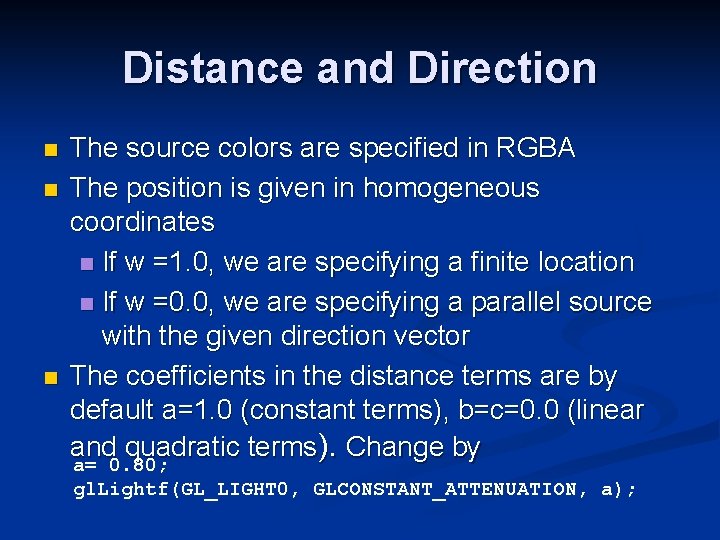
Distance and Direction n The source colors are specified in RGBA The position is given in homogeneous coordinates n If w =1. 0, we are specifying a finite location n If w =0. 0, we are specifying a parallel source with the given direction vector The coefficients in the distance terms are by default a=1. 0 (constant terms), b=c=0. 0 (linear and quadratic terms). Change by a= 0. 80; gl. Lightf(GL_LIGHT 0, GLCONSTANT_ATTENUATION, a);
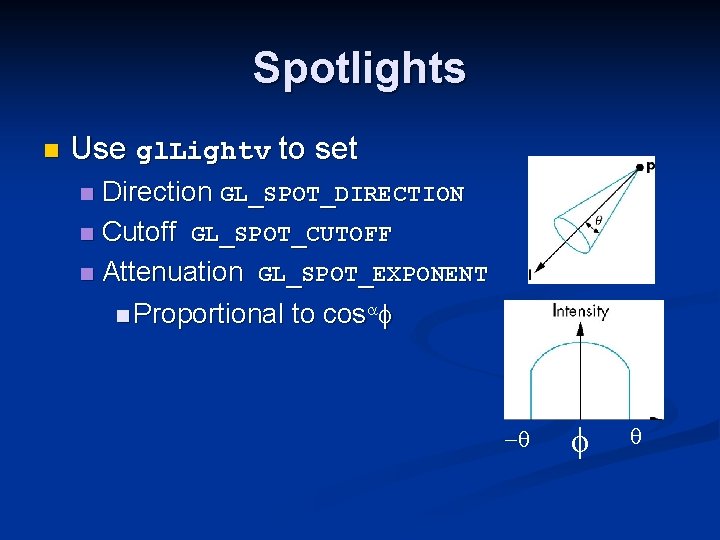
Spotlights n Use gl. Lightv to set Direction GL_SPOT_DIRECTION n Cutoff GL_SPOT_CUTOFF n Attenuation GL_SPOT_EXPONENT n Proportional to cosaf n -q f q
Global Ambient Light n Ambient light depends on color of light sources n n A red light in a white room will cause a red ambient term that disappears when the light is turned off Open. GL also allows a global ambient term that is often helpful for testing n gl. Light. Modelfv(GL_LIGHT_MODEL_AMBIENT, global_ambient)
Moving Light Sources Light sources are geometric objects whose positions or directions are affected by the model-view matrix n Depending on where we place the position (direction) setting function, we can n Move the light source(s) with the object(s) n Fix the object(s) and move the light source(s) n Fix the light source(s) and move the object(s) n Move the light source(s) and object(s) independently n
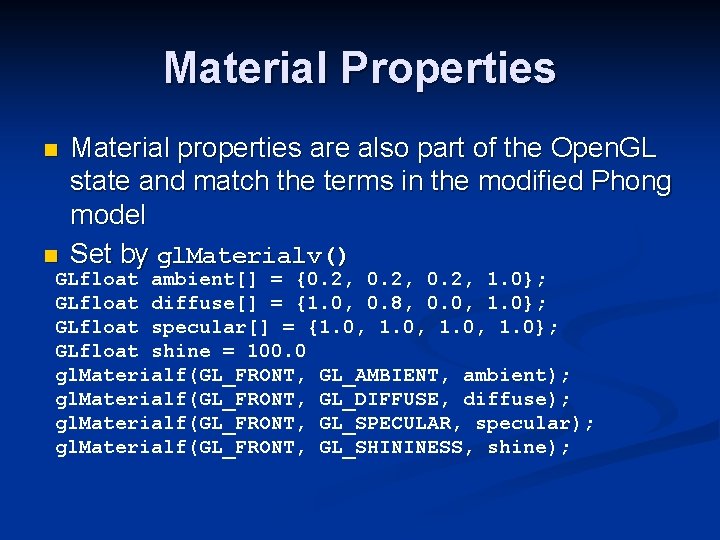
Material Properties n Material properties are also part of the Open. GL state and match the terms in the modified Phong model Set by gl. Materialv() n GLfloat ambient[] = {0. 2, 1. 0}; GLfloat diffuse[] = {1. 0, 0. 8, 0. 0, 1. 0}; GLfloat specular[] = {1. 0, 1. 0}; GLfloat shine = 100. 0 gl. Materialf(GL_FRONT, GL_AMBIENT, ambient); gl. Materialf(GL_FRONT, GL_DIFFUSE, diffuse); gl. Materialf(GL_FRONT, GL_SPECULAR, specular); gl. Materialf(GL_FRONT, GL_SHININESS, shine);
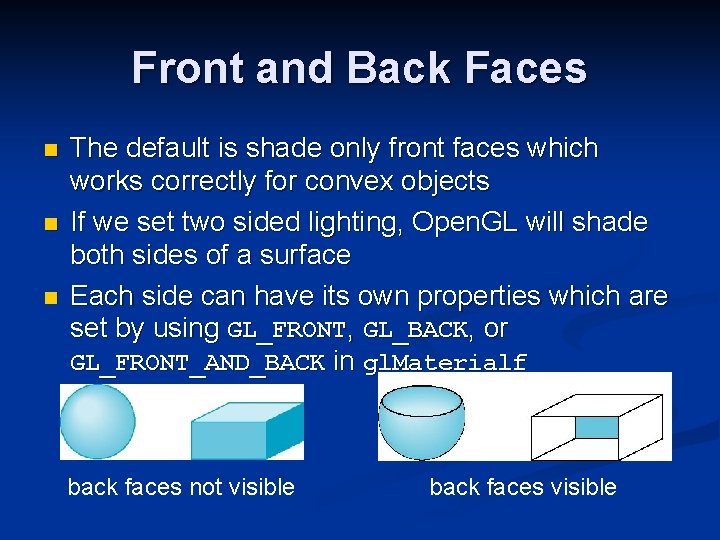
Front and Back Faces n n n The default is shade only front faces which works correctly for convex objects If we set two sided lighting, Open. GL will shade both sides of a surface Each side can have its own properties which are set by using GL_FRONT, GL_BACK, or GL_FRONT_AND_BACK in gl. Materialf back faces not visible back faces visible
Emissive Term We can simulate a light source in Open. GL by giving a material an emissive component n This component is unaffected by any sources or transformations n GLfloat emission[] = 0. 0, 0. 3, 1. 0); gl. Materialf(GL_FRONT, GL_EMISSION, emission);
Transparency Material properties are specified as RGBA values n The A value can be used to make the surface translucent n The default is that all surfaces are opaque regardless of A n Later we will enable blending and use this feature n
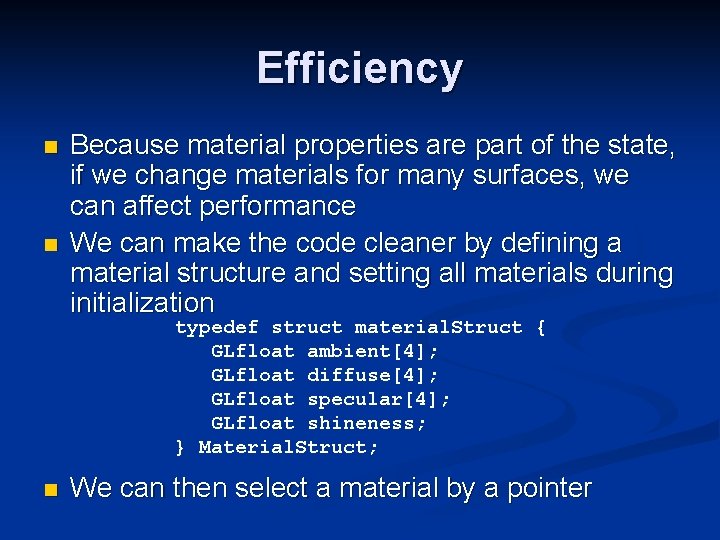
Efficiency n n Because material properties are part of the state, if we change materials for many surfaces, we can affect performance We can make the code cleaner by defining a material structure and setting all materials during initialization typedef struct material. Struct { GLfloat ambient[4]; GLfloat diffuse[4]; GLfloat specular[4]; GLfloat shineness; } Material. Struct; n We can then select a material by a pointer
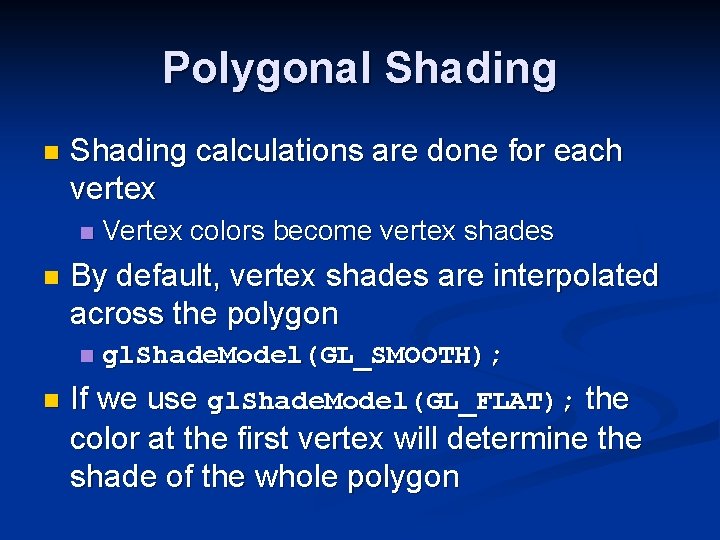
Polygonal Shading n Shading calculations are done for each vertex n n By default, vertex shades are interpolated across the polygon n n Vertex colors become vertex shades gl. Shade. Model(GL_SMOOTH); If we use gl. Shade. Model(GL_FLAT); the color at the first vertex will determine the shade of the whole polygon
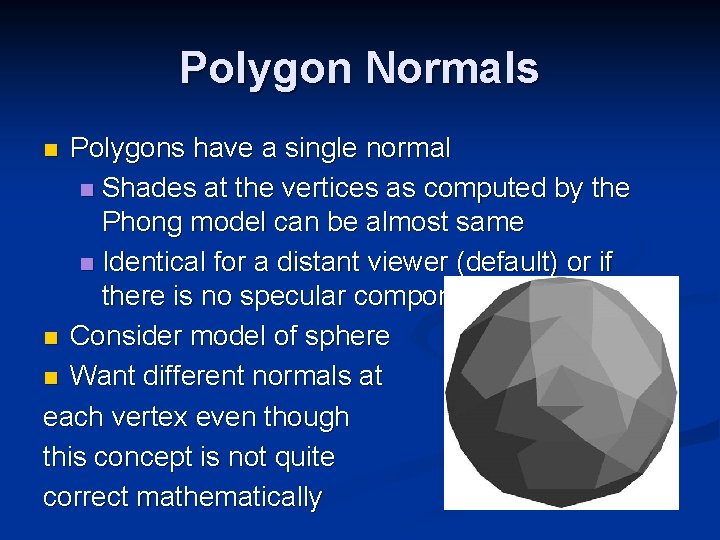
Polygon Normals Polygons have a single normal n Shades at the vertices as computed by the Phong model can be almost same n Identical for a distant viewer (default) or if there is no specular component n Consider model of sphere n Want different normals at each vertex even though this concept is not quite correct mathematically n
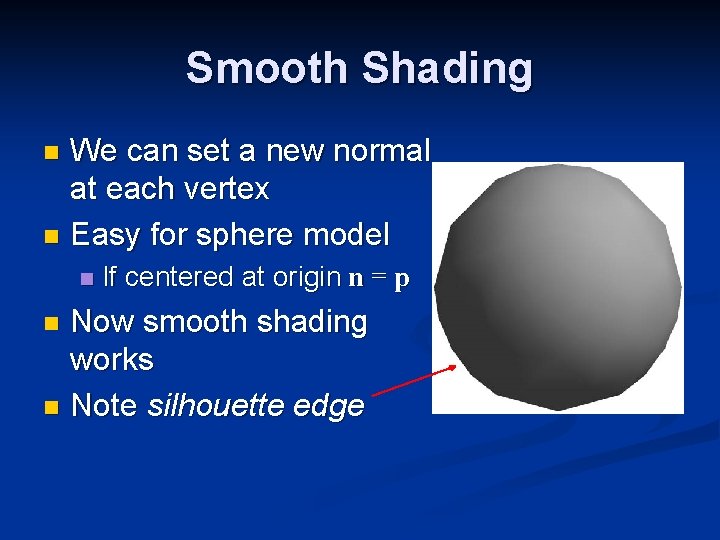
Smooth Shading We can set a new normal at each vertex n Easy for sphere model n n If centered at origin n = p Now smooth shading works n Note silhouette edge n
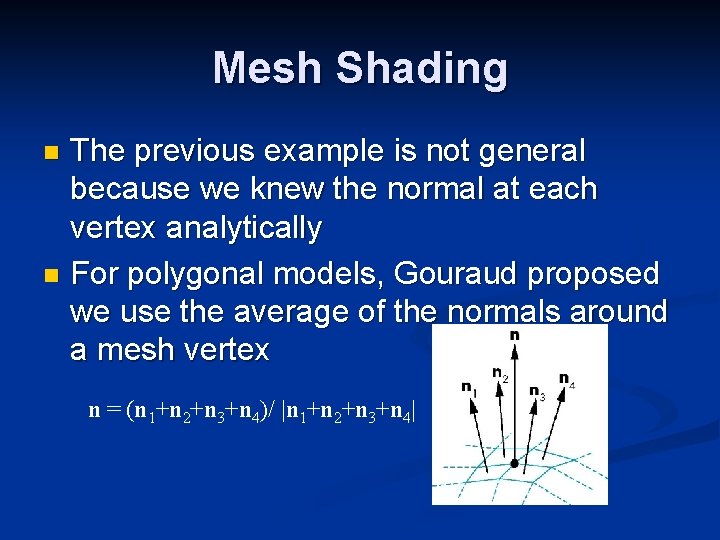
Mesh Shading The previous example is not general because we knew the normal at each vertex analytically n For polygonal models, Gouraud proposed we use the average of the normals around a mesh vertex n n = (n 1+n 2+n 3+n 4)/ |n 1+n 2+n 3+n 4|
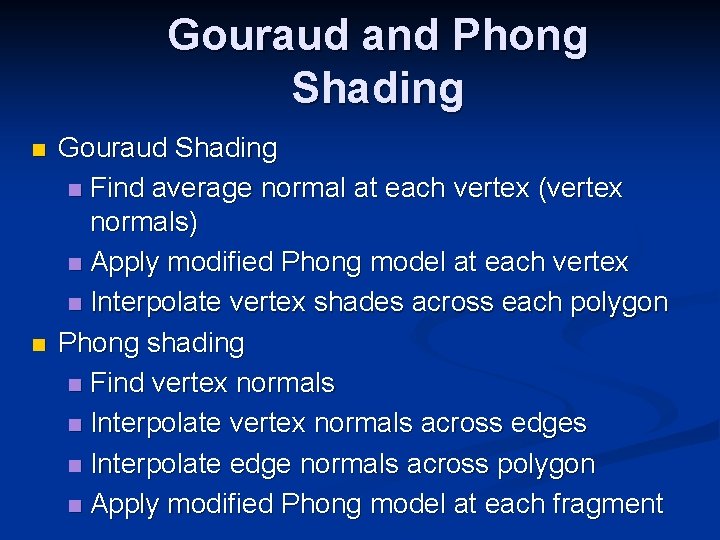
Gouraud and Phong Shading n n Gouraud Shading n Find average normal at each vertex (vertex normals) n Apply modified Phong model at each vertex n Interpolate vertex shades across each polygon Phong shading n Find vertex normals n Interpolate vertex normals across edges n Interpolate edge normals across polygon n Apply modified Phong model at each fragment
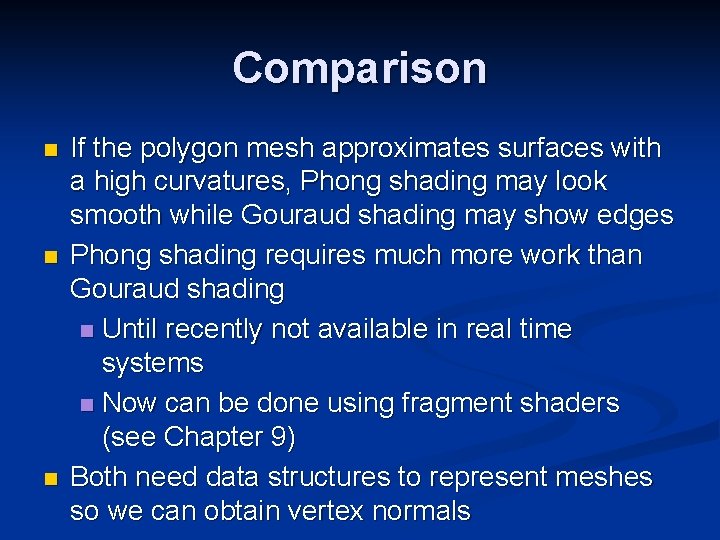
Comparison n If the polygon mesh approximates surfaces with a high curvatures, Phong shading may look smooth while Gouraud shading may show edges Phong shading requires much more work than Gouraud shading n Until recently not available in real time systems n Now can be done using fragment shaders (see Chapter 9) Both need data structures to represent meshes so we can obtain vertex normals
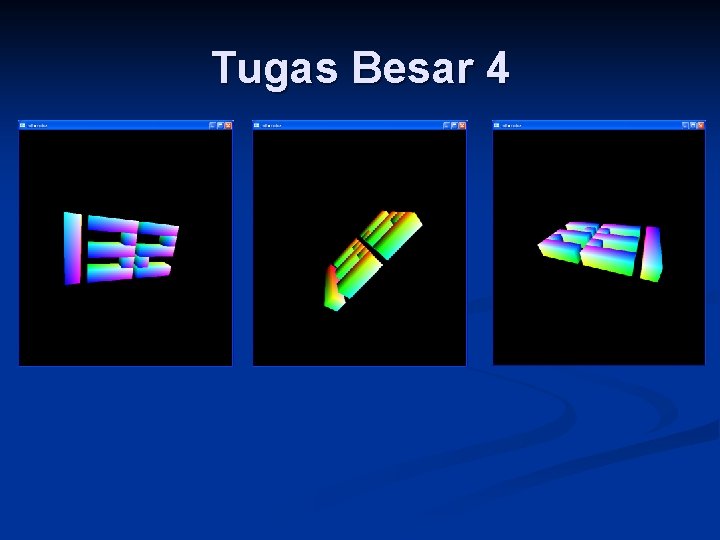
Tugas Besar 4 Buat program Open. GL: • Menampilkan 3 digit terakhir NRP anda dalam format 3 dimensi. • Pertama kali dijalankan, NRP berputar pada sumbu Z. • Klik tombol mouse kiri, NRP berputar pada sumbu X • Klik tombol mouse tengah, NRP berputar pada sumbu Y • Klik tombol mouse kanan, NRP berputar pada sumbu Z • Tekan tombol x, kamera bergerak 1 poin ke sumbu X negatif • Tekan tombol X, kamera bergerak 1 poin ke sumbu X positif • Tekan tombol y, kamera bergerak 1 poin ke sumbu Y negatif • Tekan tombol Y, kamera bergerak 1 poin ke sumbu Y positif • Tekan tombol z, kamera bergerak 1 poin ke sumbu Z
Tugas Besar 4
Penilaian n n n n Tampil digit NRP dalam format 3 D 50 NRP berputar pada sumbu Z 5 Klik kiri mouse membuat NRP berputar pada sumbu x 5 Klik tengah mouse membuat NRP berputar pada sumbu y 5 Klik kanan mouse membuat NRP berputar pada sumbu z 5 Tombol ‘x’, kamera geser ke sumbu x negatif 5 Tombol ‘X’, kamera geser ke sumbu x positif 5 Tombol ‘y’, kamera geser ke sumbu y negatif 5
Rangkuman n Penambahan shading memberikan efek mempercantik tampilan
Contoh Soal: Memori Frame Buffer haruslah cukup cepat untuk dibaca isinya. Hal ini dimaksudkan agar jika Monitor CRT butuh me-refresh tampilan terhindar dari tampilnya kedip/flicker. Jika sebuah monitor memiliki resolusi 1280 x 1024 piksel, di-refresh 72 kali per detik, berapa kecepatan baca memori frame buffer? Dalam bahasa lain, berapa waktu maksimum yang dibutuhkan untuk membaca informasi 1 piksel dari frame buffer?
Referensi n n Edward Angel, “Interactive Computer Graphics Fourth Edition”, Pearson, 2006, ch 5, p 233 – 284, ch 6, p 285 – 322 F. S. Hill, Jr. , “Computer Graphics Using Open. GL Second Edition”, Prentice Hall, 2001, ch 5, p 259 – 276, ch 7, p 358 – 407, ch 8, p 408 – 439