
Viewing Journal Approval Concept Viewing Journal Approval Viewing
- Slides: 19
Viewing Journal Approval Concept
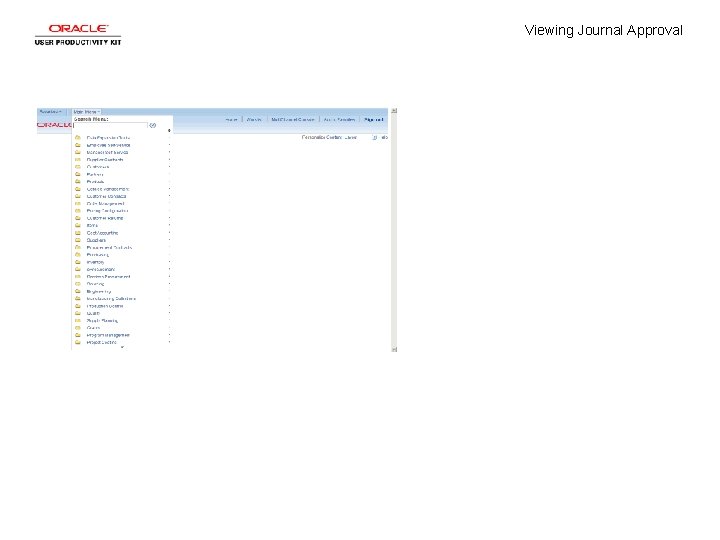
Viewing Journal Approval
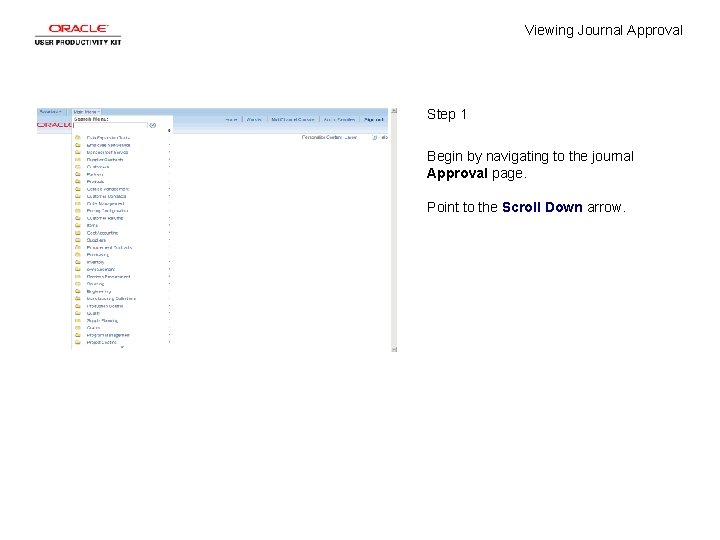
Viewing Journal Approval Step 1 Begin by navigating to the journal Approval page. Point to the Scroll Down arrow.
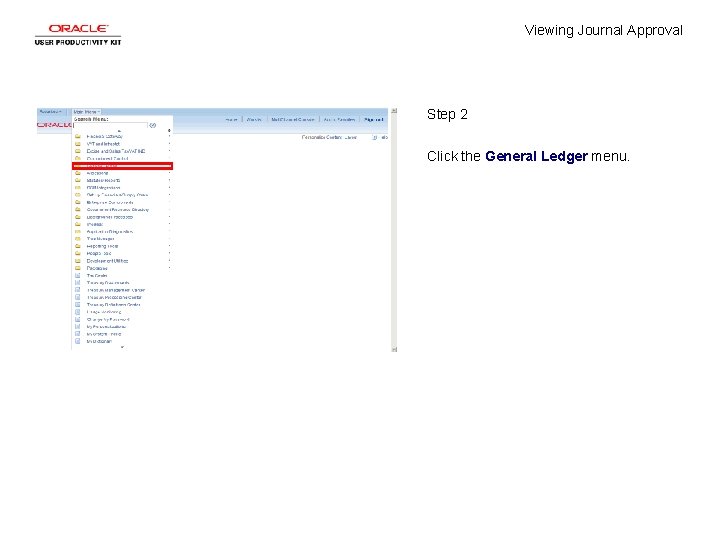
Viewing Journal Approval Step 2 Click the General Ledger menu.
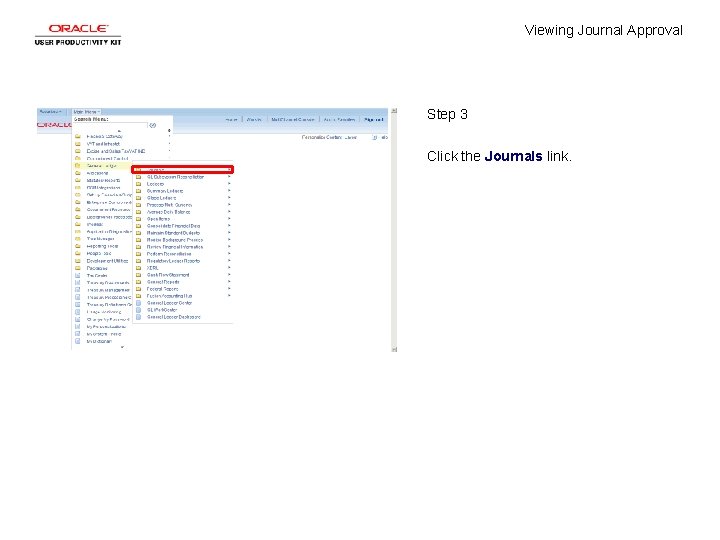
Viewing Journal Approval Step 3 Click the Journals link.
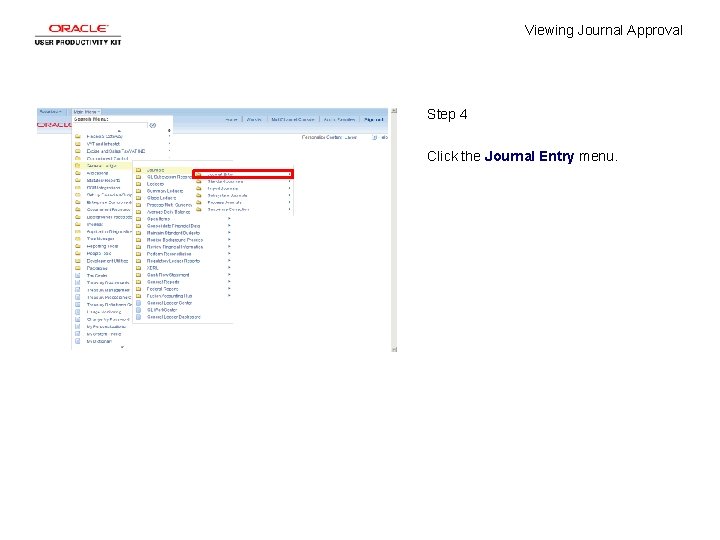
Viewing Journal Approval Step 4 Click the Journal Entry menu.
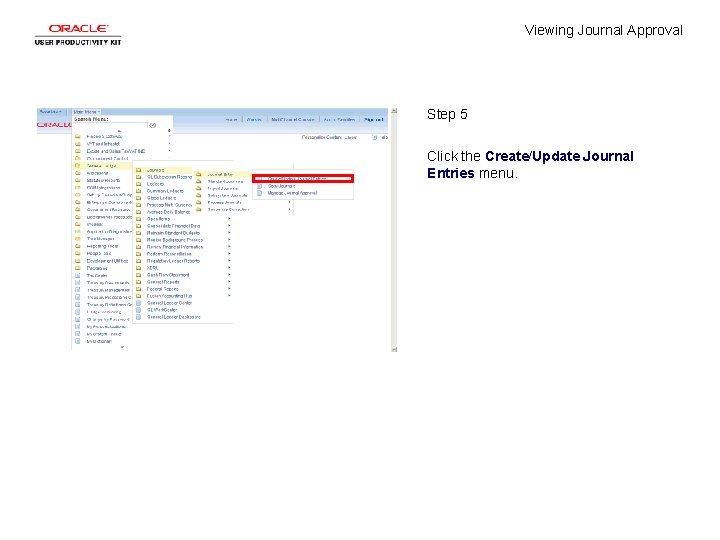
Viewing Journal Approval Step 5 Click the Create/Update Journal Entries menu.
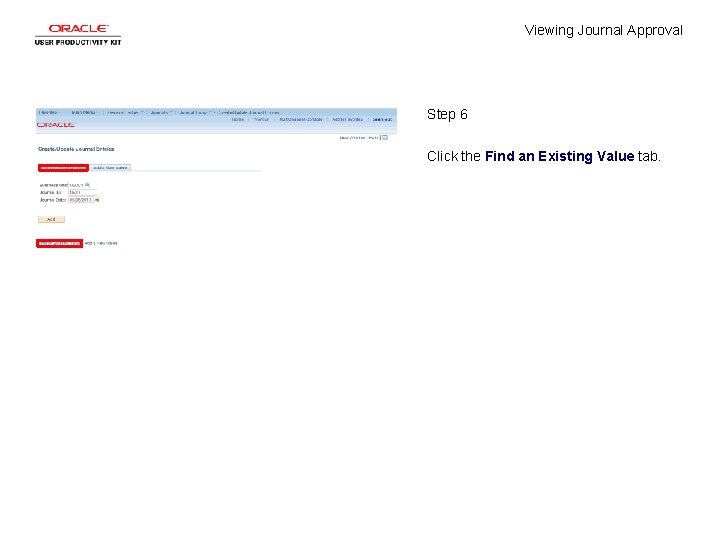
Viewing Journal Approval Step 6 Click the Find an Existing Value tab.
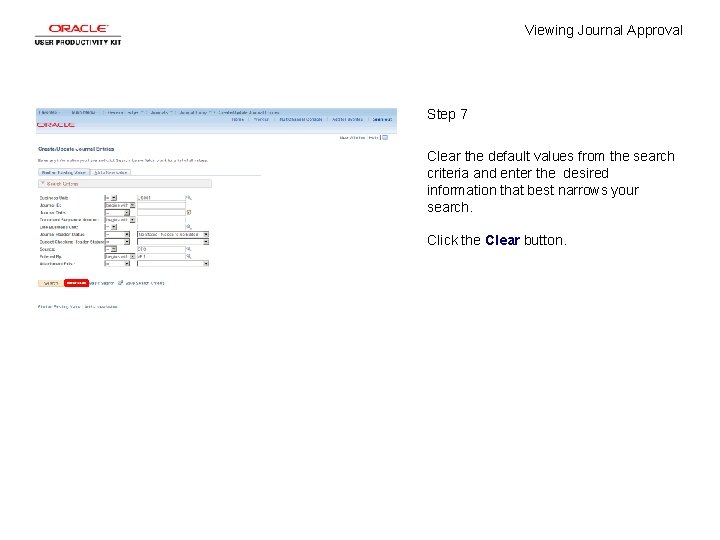
Viewing Journal Approval Step 7 Clear the default values from the search criteria and enter the desired information that best narrows your search. Click the Clear button.
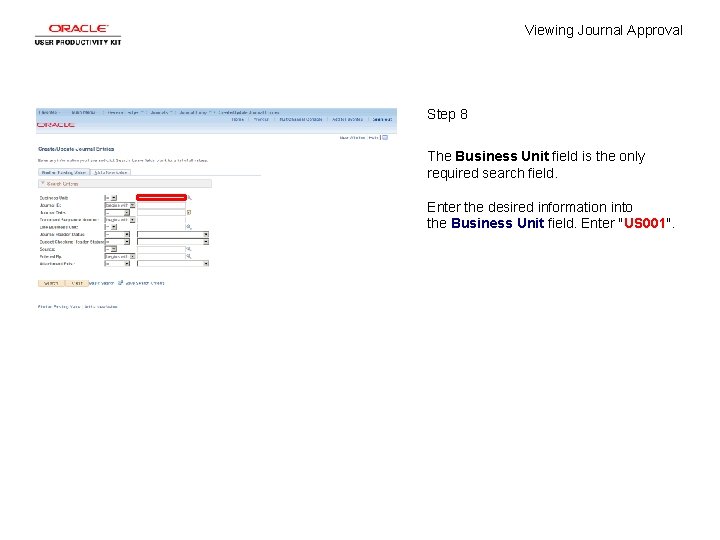
Viewing Journal Approval Step 8 The Business Unit field is the only required search field. Enter the desired information into the Business Unit field. Enter "US 001".
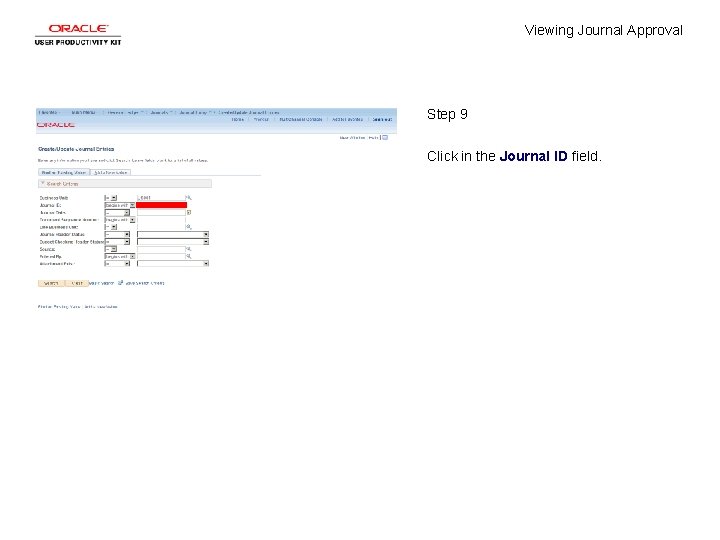
Viewing Journal Approval Step 9 Click in the Journal ID field.
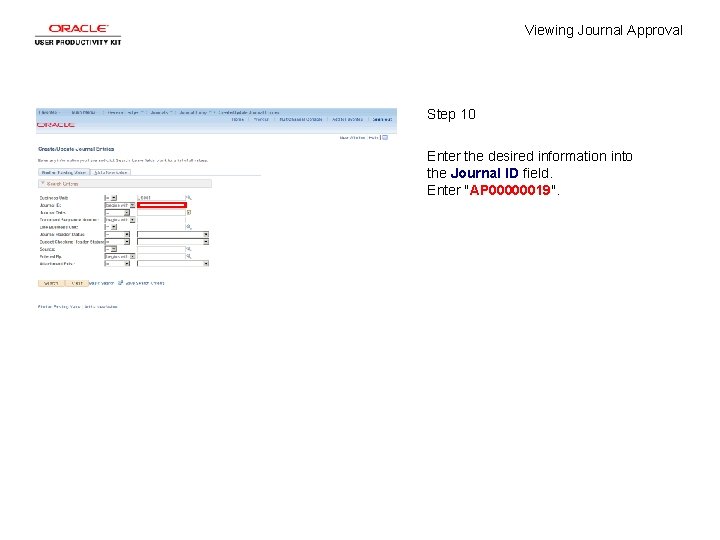
Viewing Journal Approval Step 10 Enter the desired information into the Journal ID field. Enter "AP 00000019".
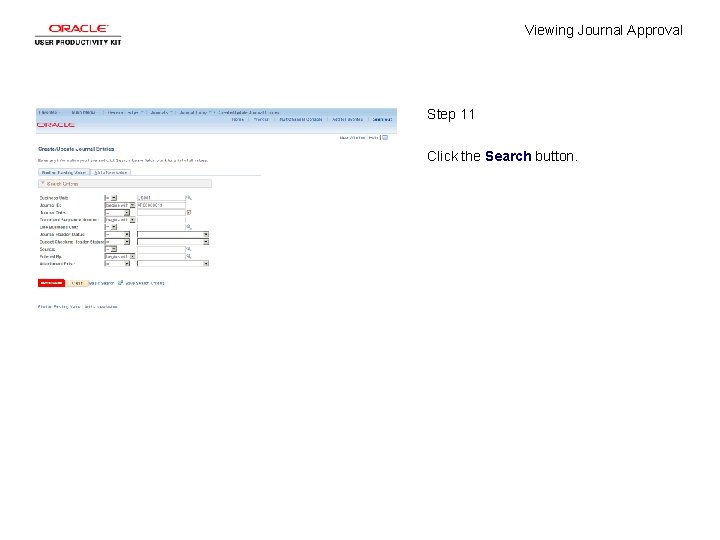
Viewing Journal Approval Step 11 Click the Search button.
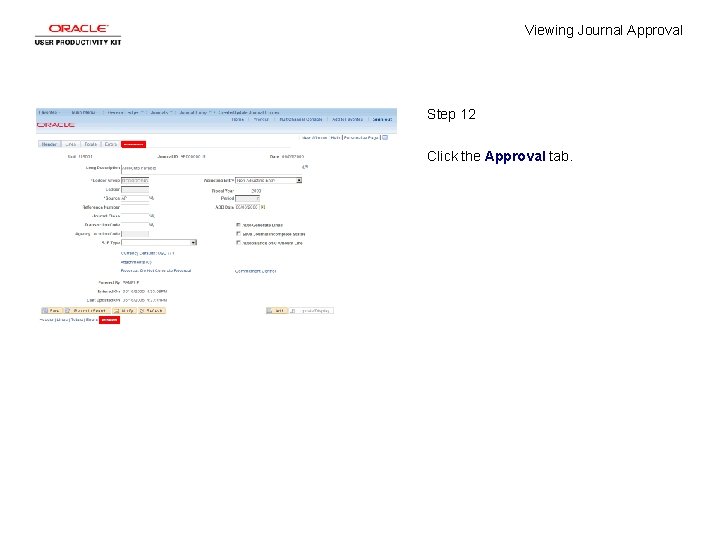
Viewing Journal Approval Step 12 Click the Approval tab.
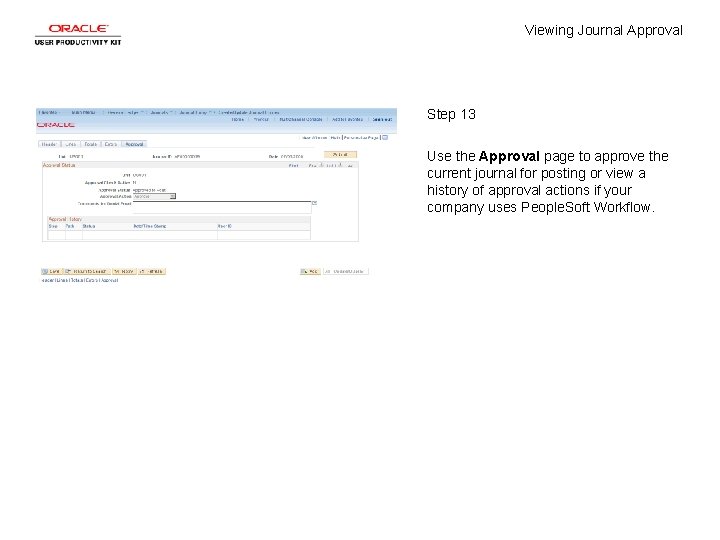
Viewing Journal Approval Step 13 Use the Approval page to approve the current journal for posting or view a history of approval actions if your company uses People. Soft Workflow.
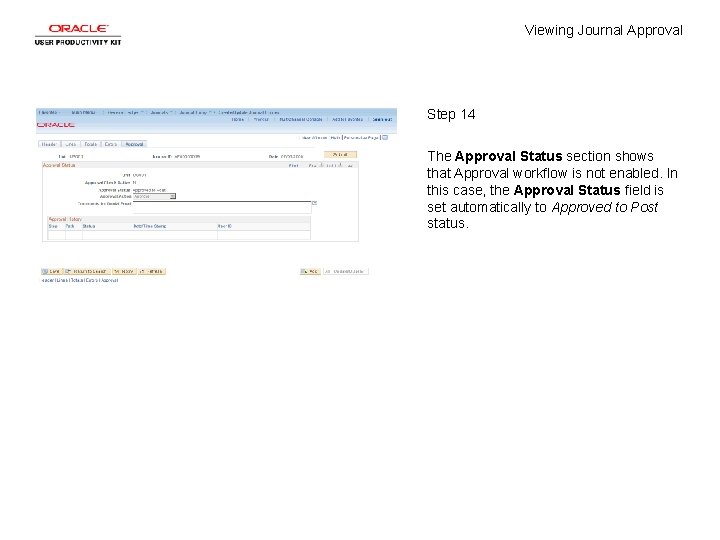
Viewing Journal Approval Step 14 The Approval Status section shows that Approval workflow is not enabled. In this case, the Approval Status field is set automatically to Approved to Post status.
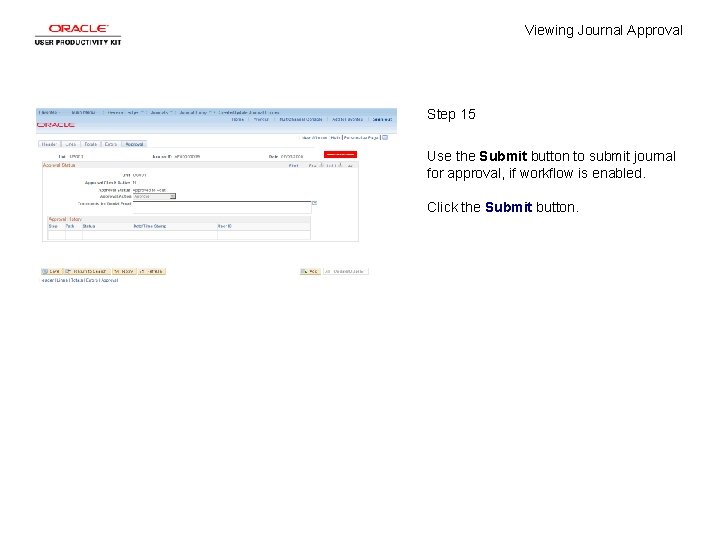
Viewing Journal Approval Step 15 Use the Submit button to submit journal for approval, if workflow is enabled. Click the Submit button.
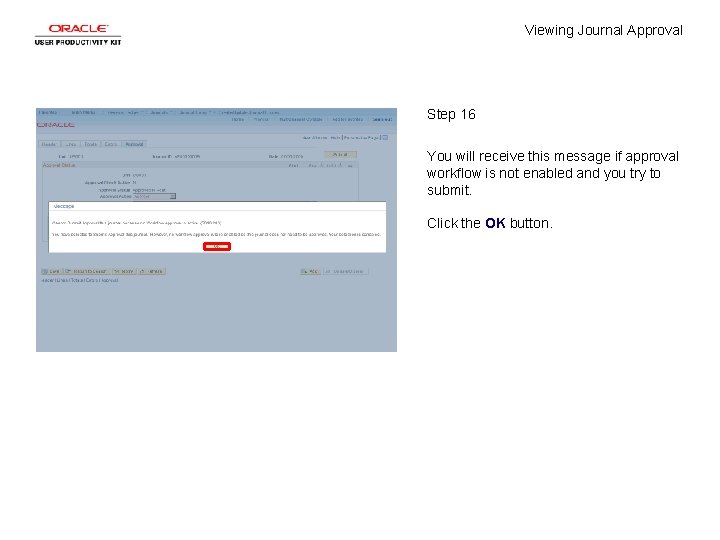
Viewing Journal Approval Step 16 You will receive this message if approval workflow is not enabled and you try to submit. Click the OK button.
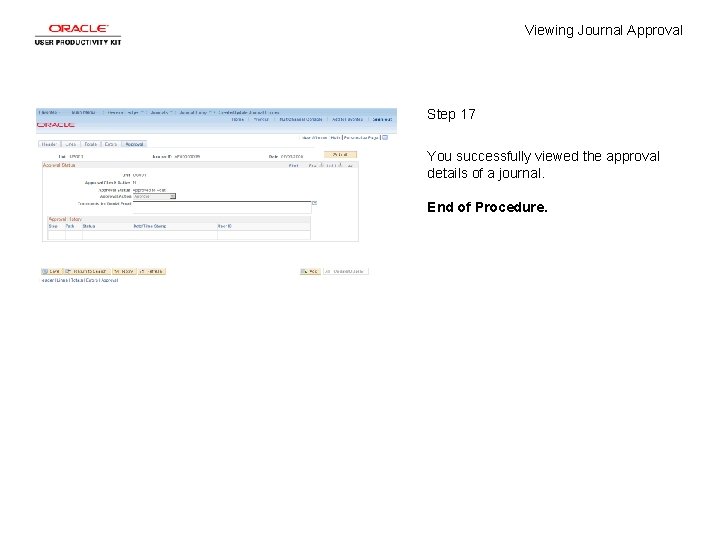
Viewing Journal Approval Step 17 You successfully viewed the approval details of a journal. End of Procedure.