
Viewing Expense Reports Concept Viewing Expense Reports Viewing
- Slides: 18
Viewing Expense Reports Concept
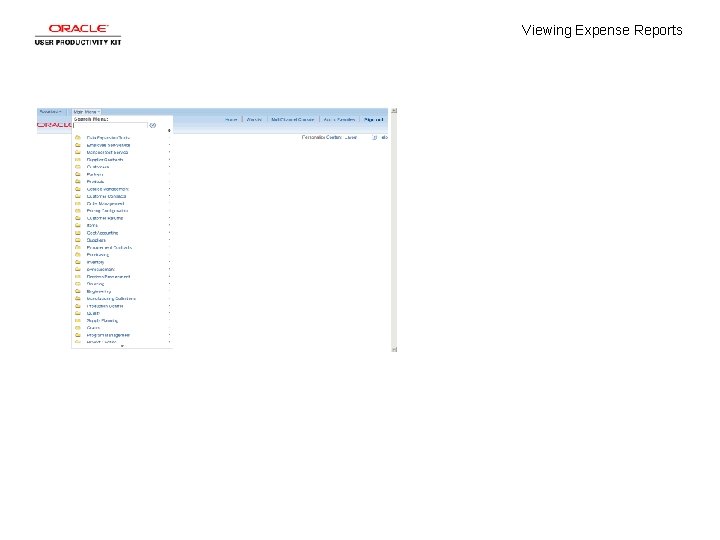
Viewing Expense Reports
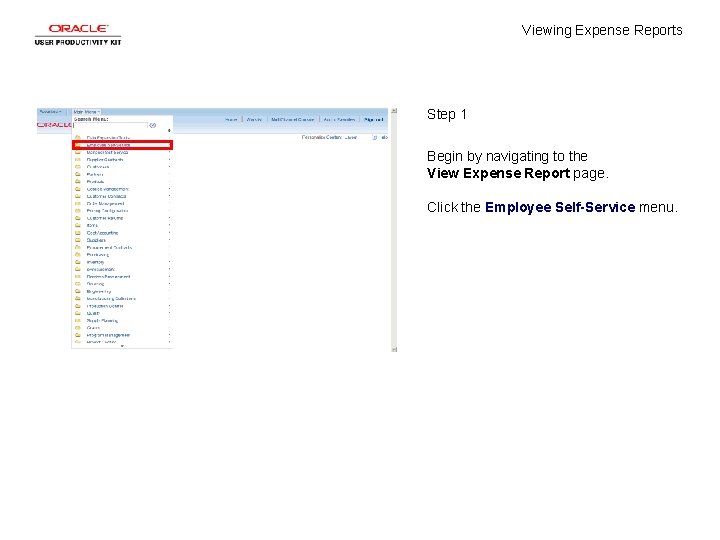
Viewing Expense Reports Step 1 Begin by navigating to the View Expense Report page. Click the Employee Self-Service menu.
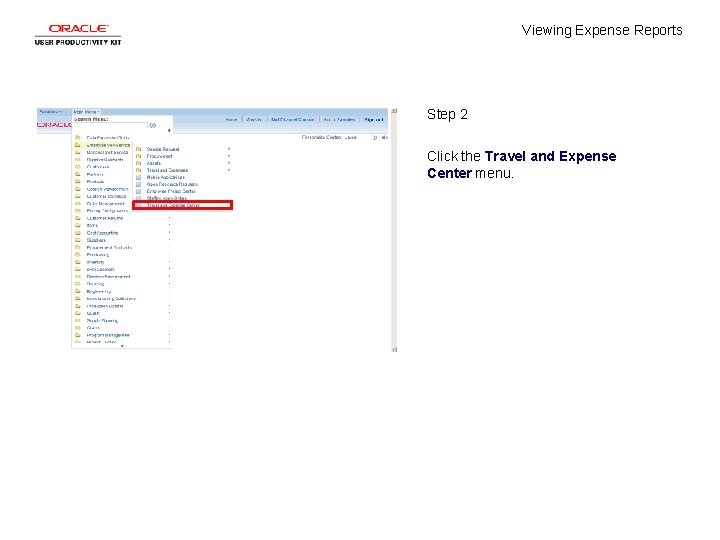
Viewing Expense Reports Step 2 Click the Travel and Expense Center menu.
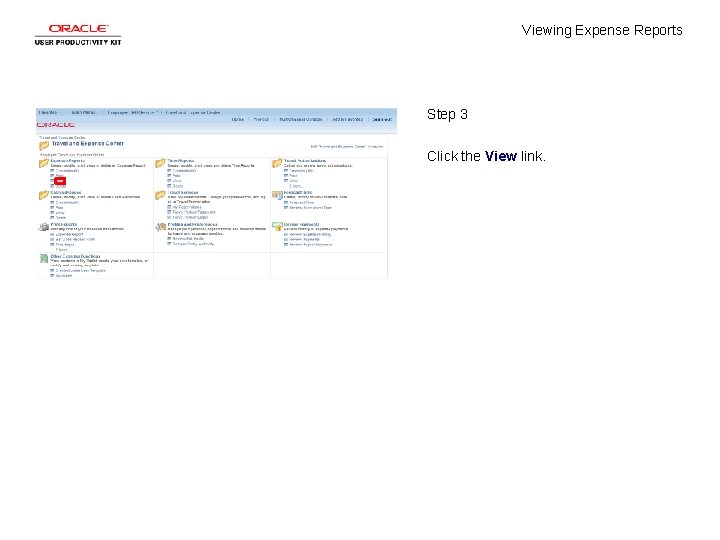
Viewing Expense Reports Step 3 Click the View link.
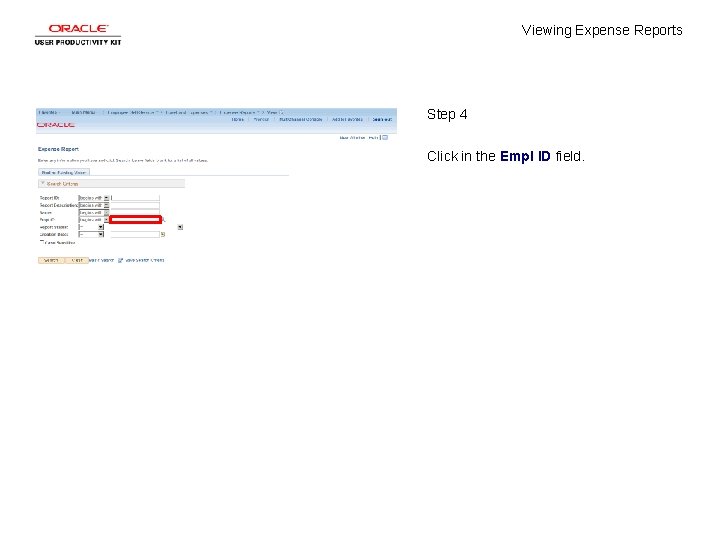
Viewing Expense Reports Step 4 Click in the Empl ID field.
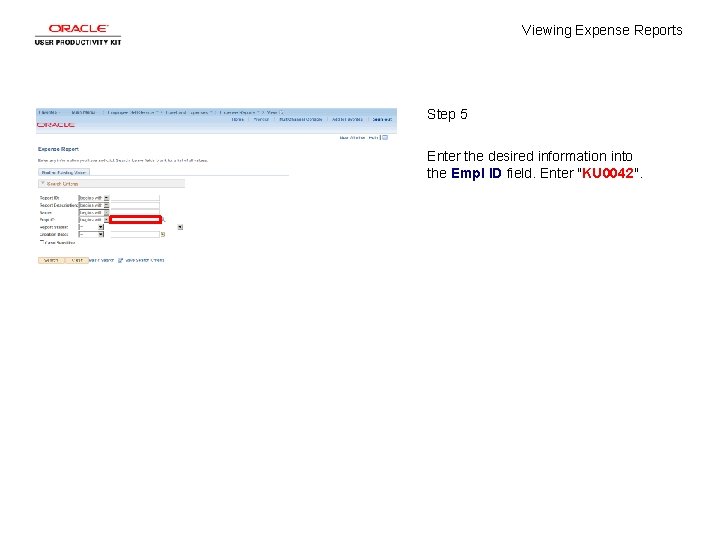
Viewing Expense Reports Step 5 Enter the desired information into the Empl ID field. Enter "KU 0042".
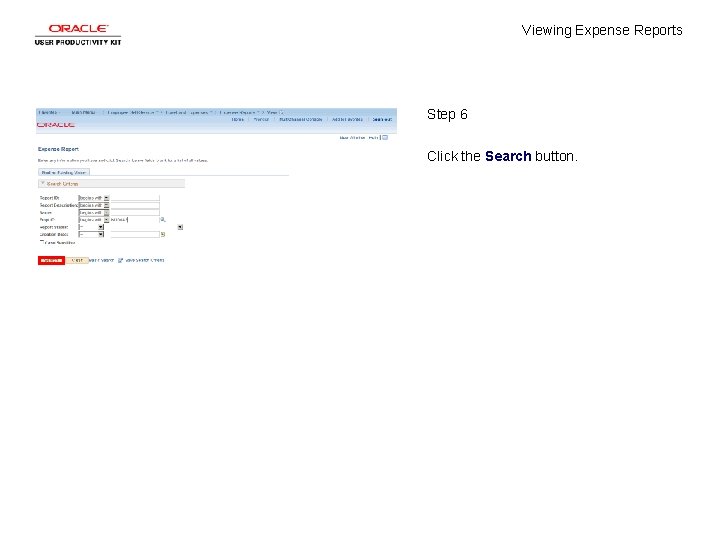
Viewing Expense Reports Step 6 Click the Search button.
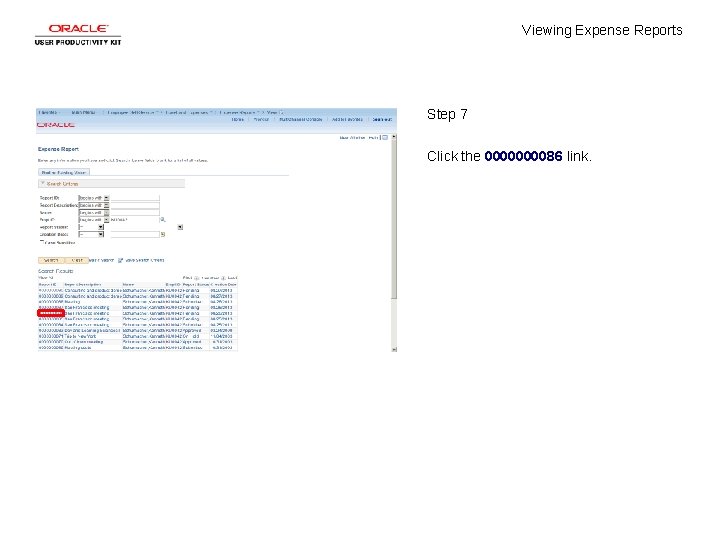
Viewing Expense Reports Step 7 Click the 000086 link.
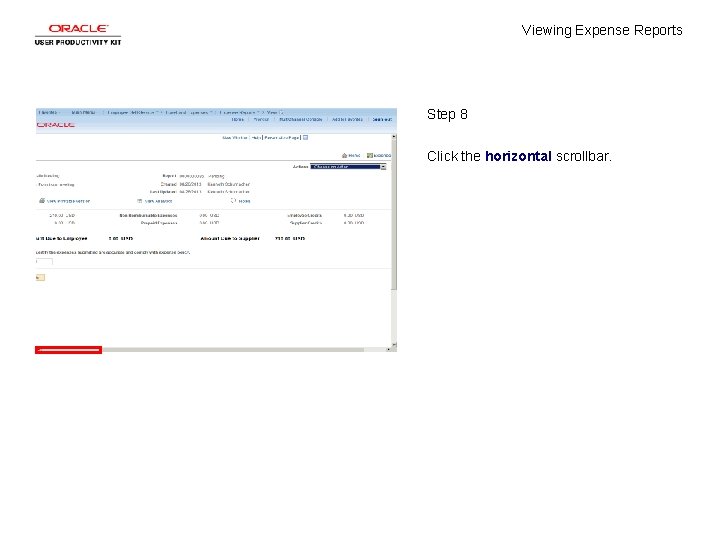
Viewing Expense Reports Step 8 Click the horizontal scrollbar.
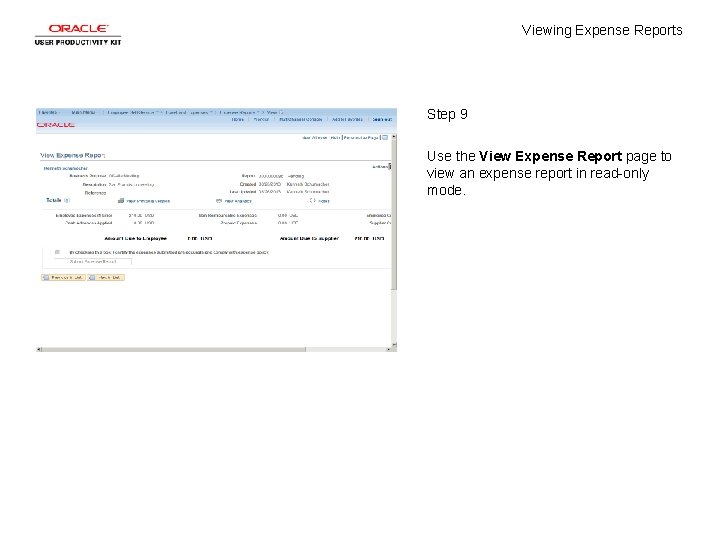
Viewing Expense Reports Step 9 Use the View Expense Report page to view an expense report in read-only mode.
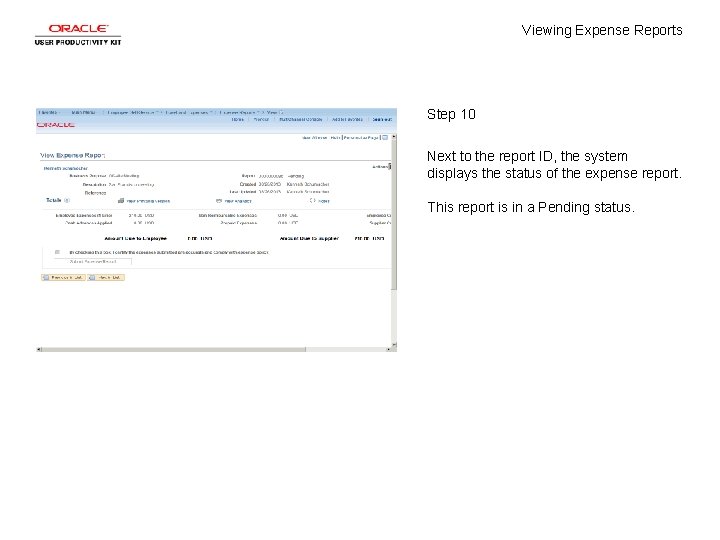
Viewing Expense Reports Step 10 Next to the report ID, the system displays the status of the expense report. This report is in a Pending status.
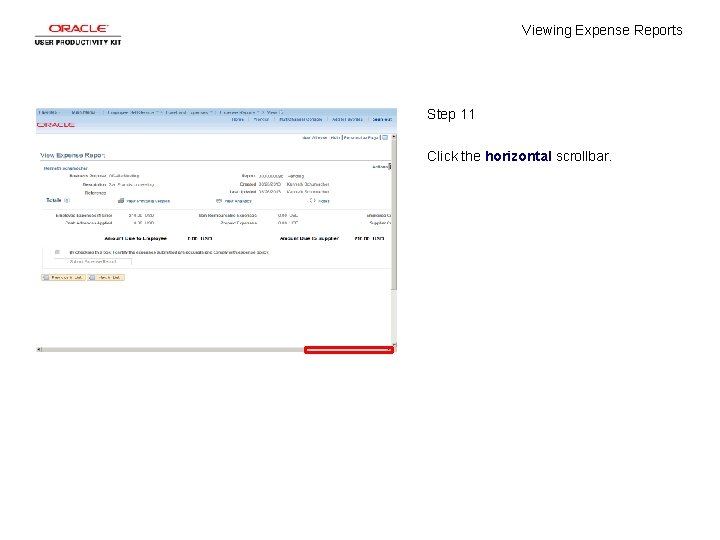
Viewing Expense Reports Step 11 Click the horizontal scrollbar.
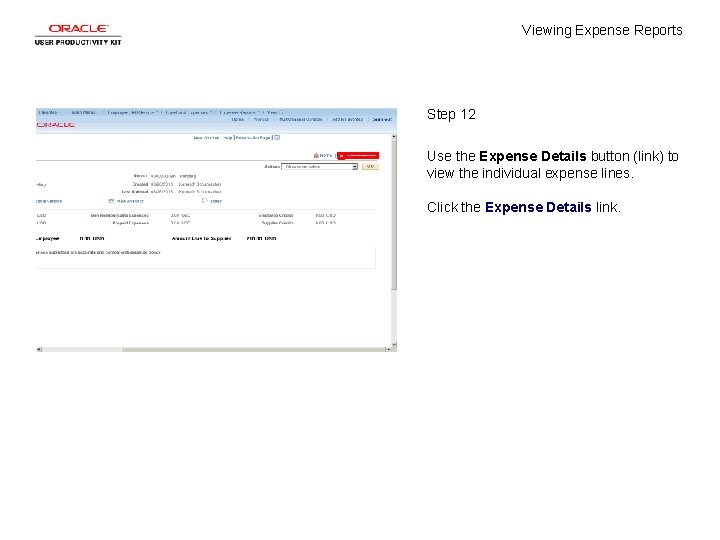
Viewing Expense Reports Step 12 Use the Expense Details button (link) to view the individual expense lines. Click the Expense Details link.
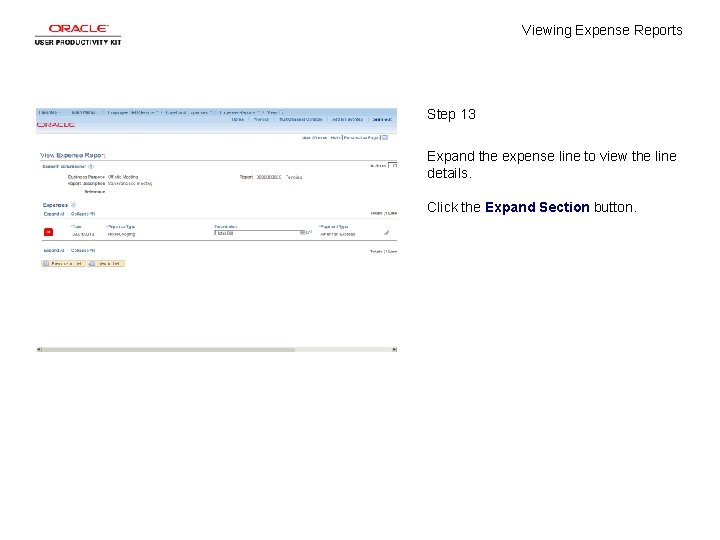
Viewing Expense Reports Step 13 Expand the expense line to view the line details. Click the Expand Section button.
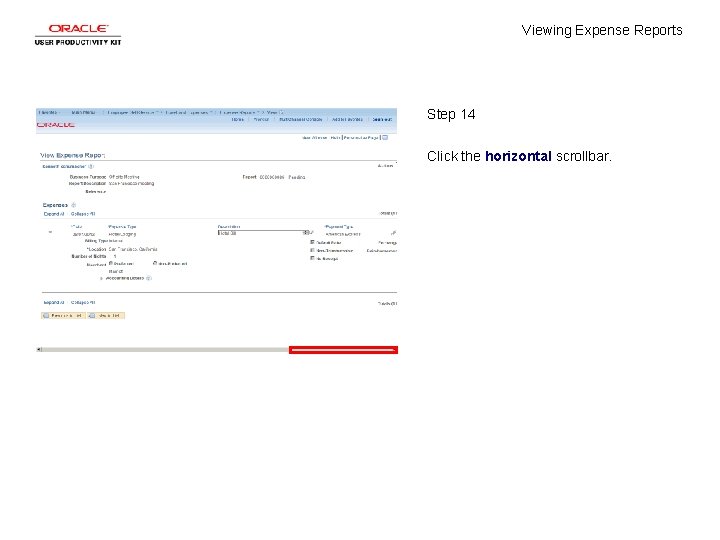
Viewing Expense Reports Step 14 Click the horizontal scrollbar.
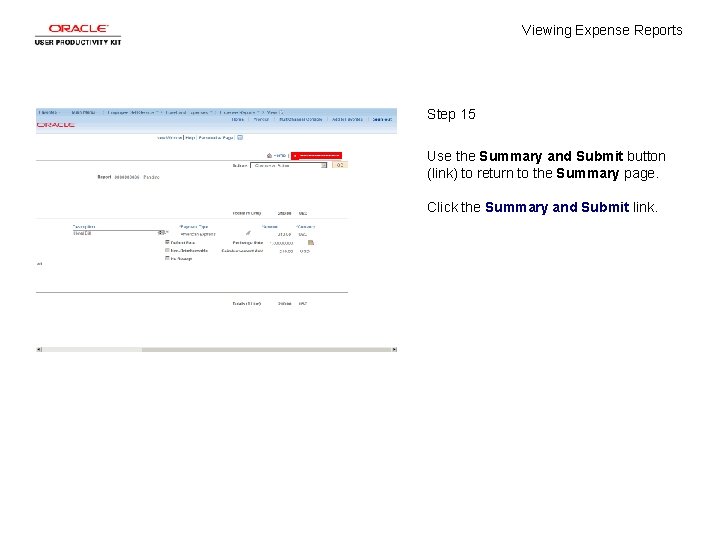
Viewing Expense Reports Step 15 Use the Summary and Submit button (link) to return to the Summary page. Click the Summary and Submit link.
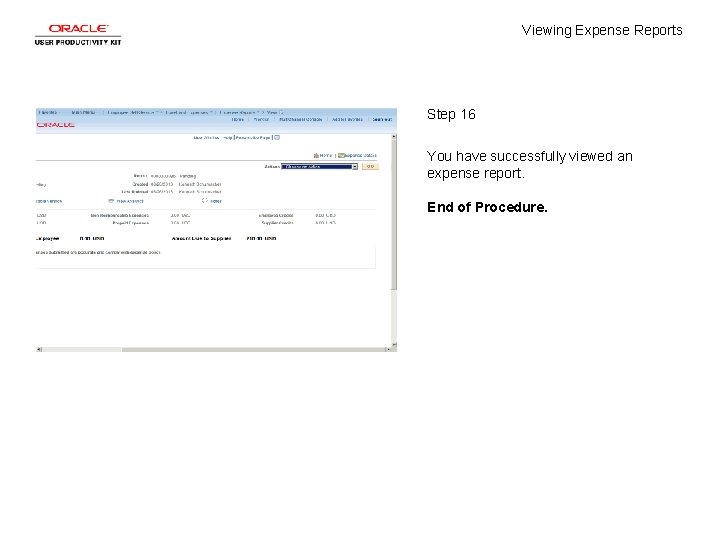
Viewing Expense Reports Step 16 You have successfully viewed an expense report. End of Procedure.