
Viewing a Journal with an Incomplete Status Concept
- Slides: 42
Viewing a Journal with an Incomplete Status Concept
Viewing a Journal with an Incomplete Status
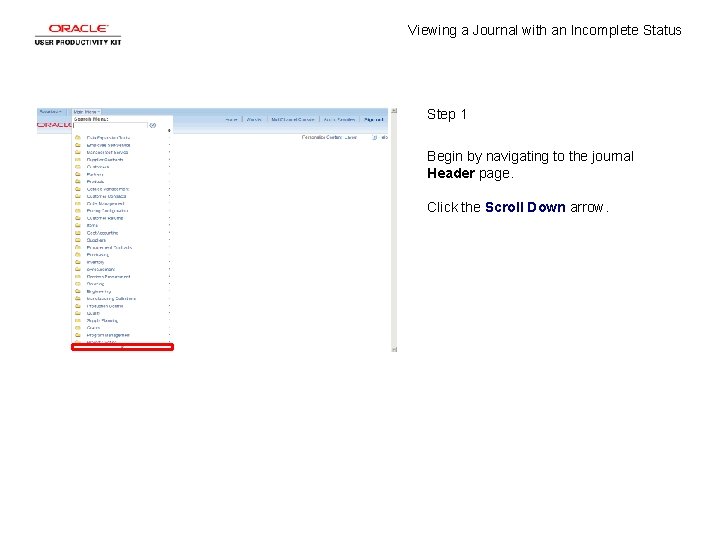
Viewing a Journal with an Incomplete Status Step 1 Begin by navigating to the journal Header page. Click the Scroll Down arrow.
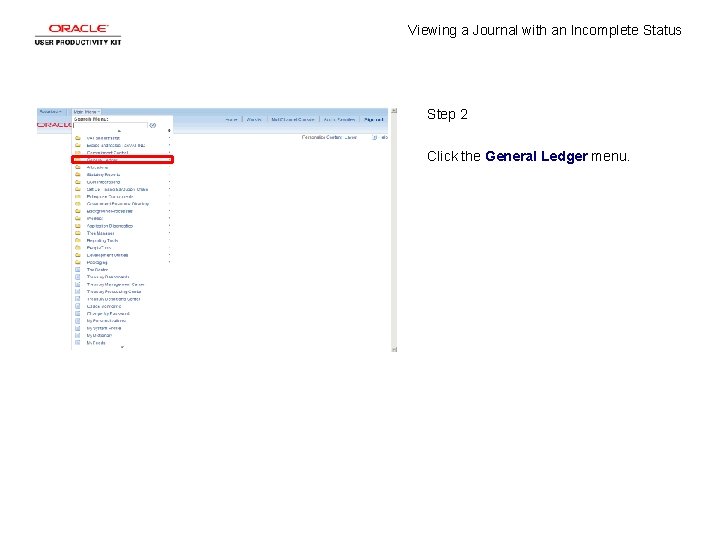
Viewing a Journal with an Incomplete Status Step 2 Click the General Ledger menu.
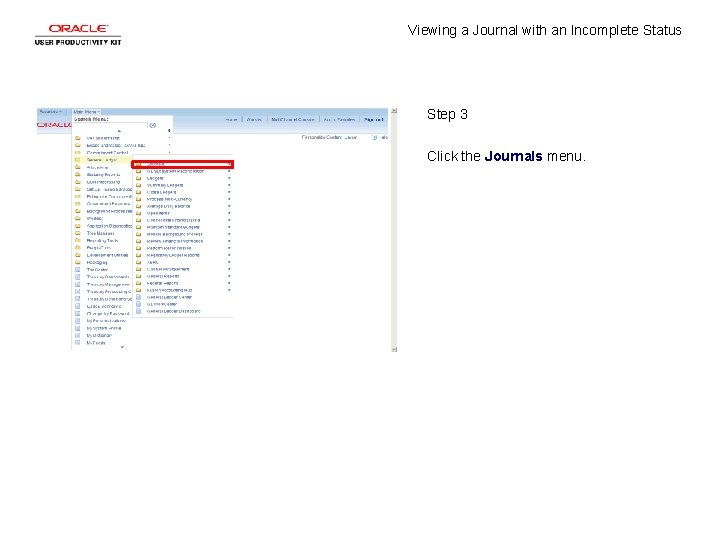
Viewing a Journal with an Incomplete Status Step 3 Click the Journals menu.
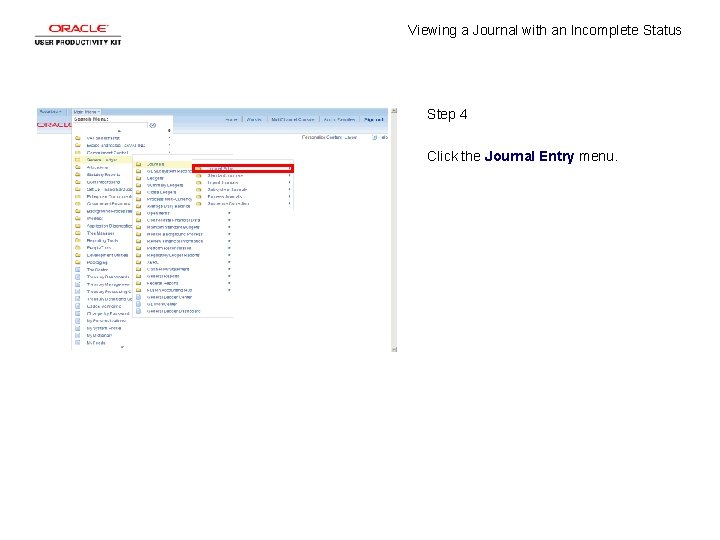
Viewing a Journal with an Incomplete Status Step 4 Click the Journal Entry menu.
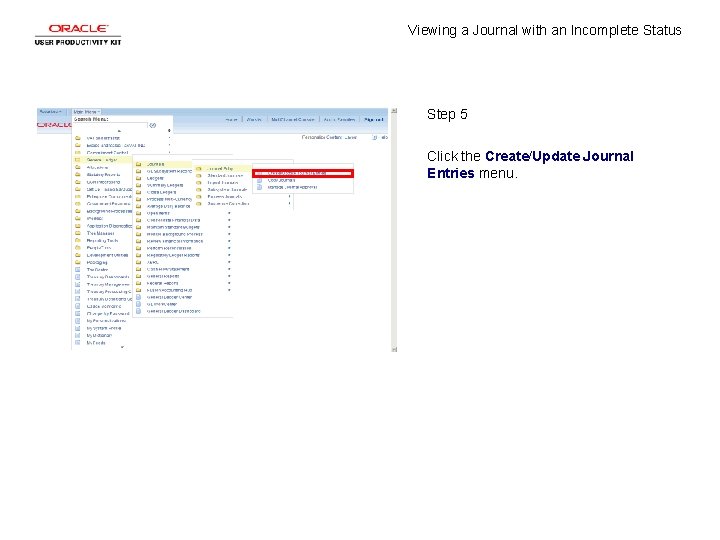
Viewing a Journal with an Incomplete Status Step 5 Click the Create/Update Journal Entries menu.
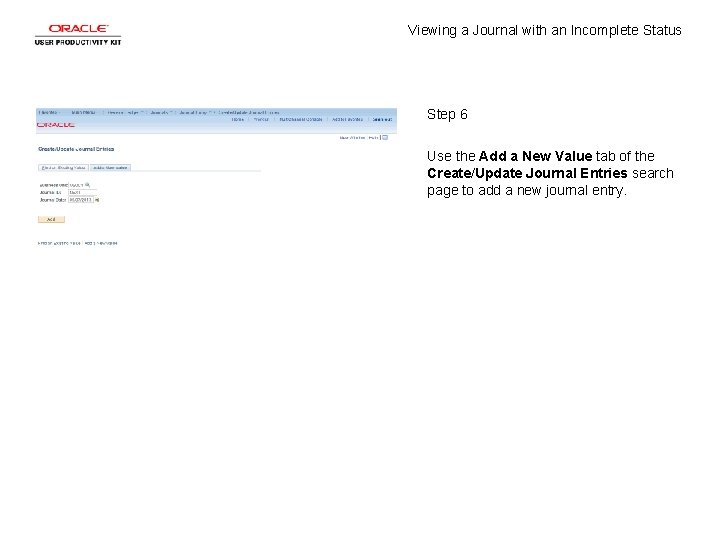
Viewing a Journal with an Incomplete Status Step 6 Use the Add a New Value tab of the Create/Update Journal Entries search page to add a new journal entry.
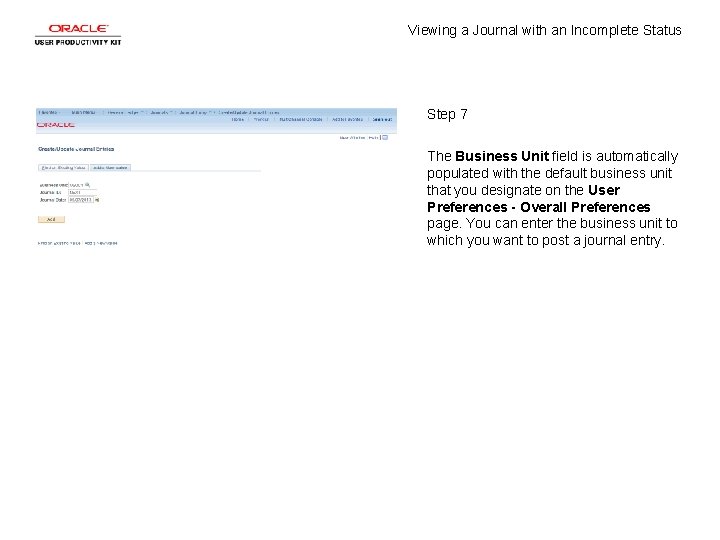
Viewing a Journal with an Incomplete Status Step 7 The Business Unit field is automatically populated with the default business unit that you designate on the User Preferences - Overall Preferences page. You can enter the business unit to which you want to post a journal entry.
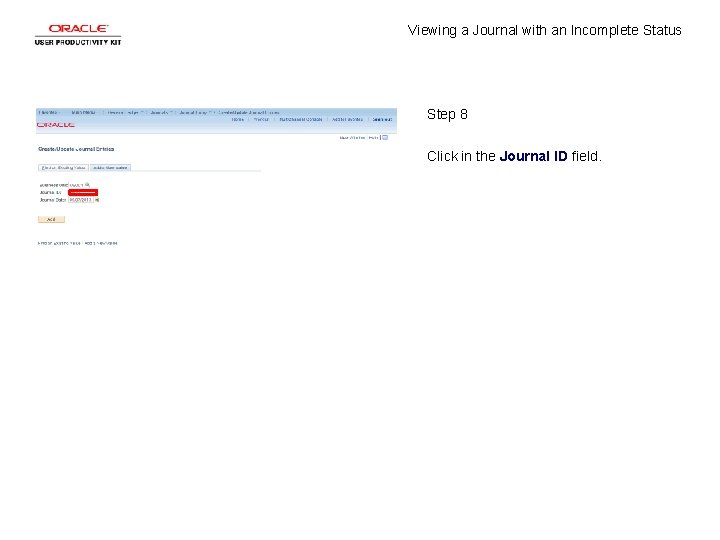
Viewing a Journal with an Incomplete Status Step 8 Click in the Journal ID field.
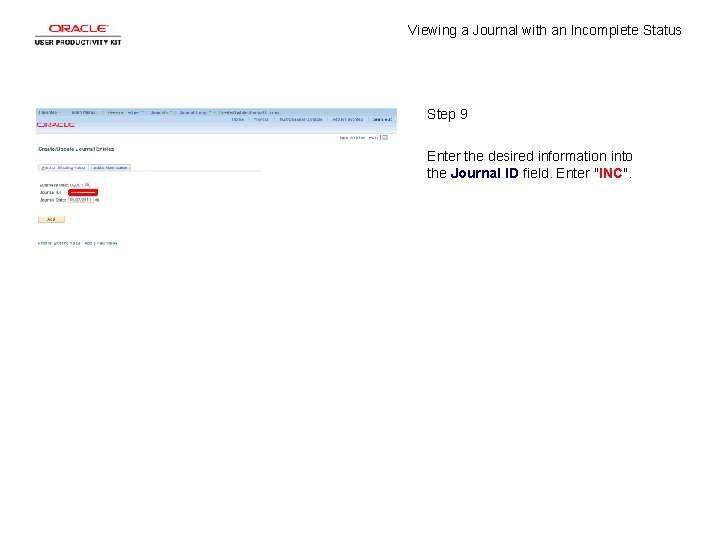
Viewing a Journal with an Incomplete Status Step 9 Enter the desired information into the Journal ID field. Enter "INC".
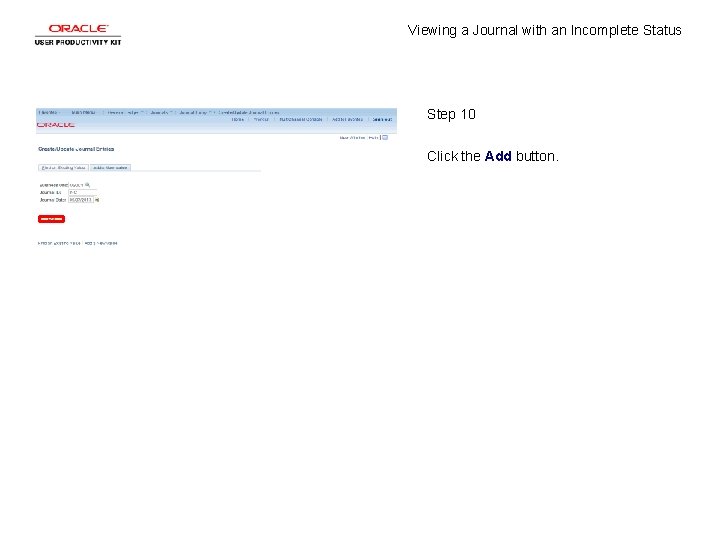
Viewing a Journal with an Incomplete Status Step 10 Click the Add button.
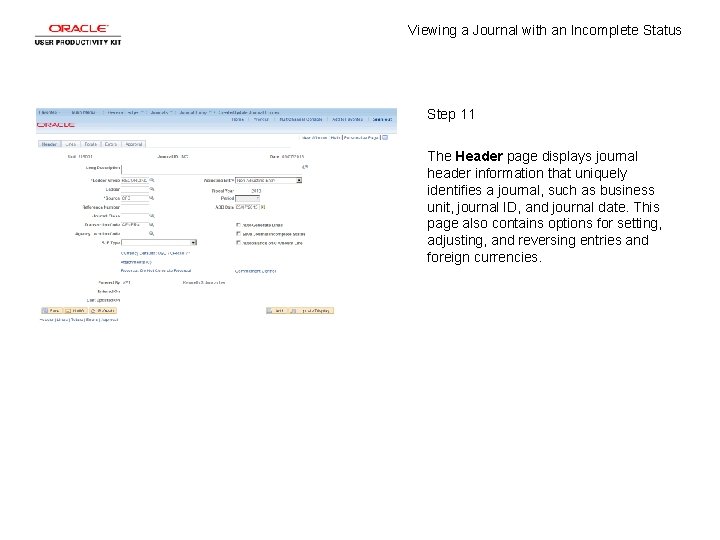
Viewing a Journal with an Incomplete Status Step 11 The Header page displays journal header information that uniquely identifies a journal, such as business unit, journal ID, and journal date. This page also contains options for setting, adjusting, and reversing entries and foreign currencies.
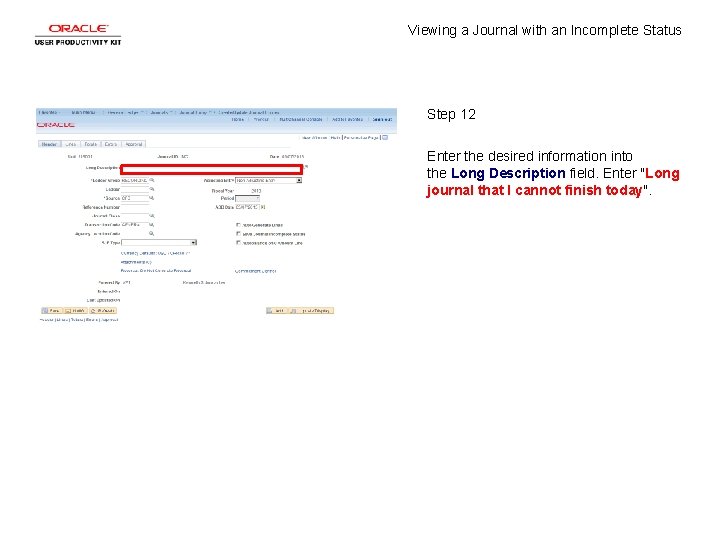
Viewing a Journal with an Incomplete Status Step 12 Enter the desired information into the Long Description field. Enter "Long journal that I cannot finish today".
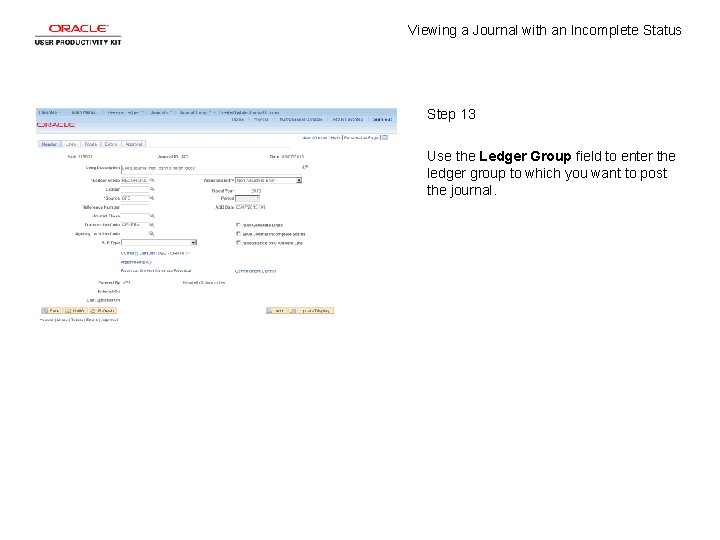
Viewing a Journal with an Incomplete Status Step 13 Use the Ledger Group field to enter the ledger group to which you want to post the journal.
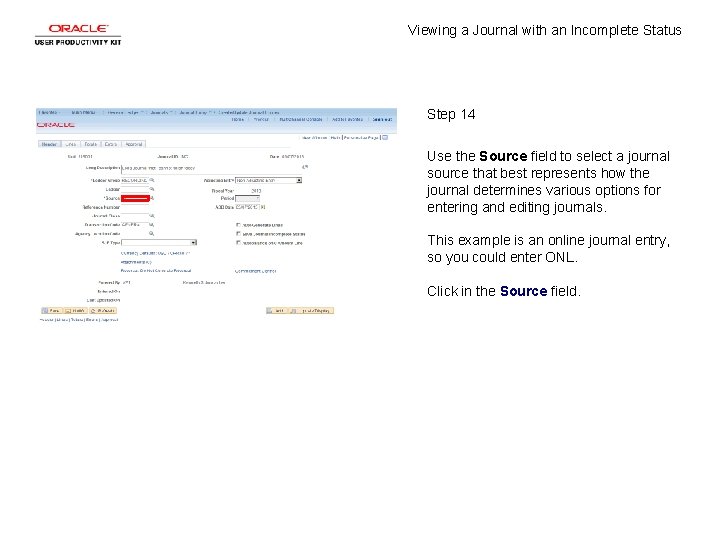
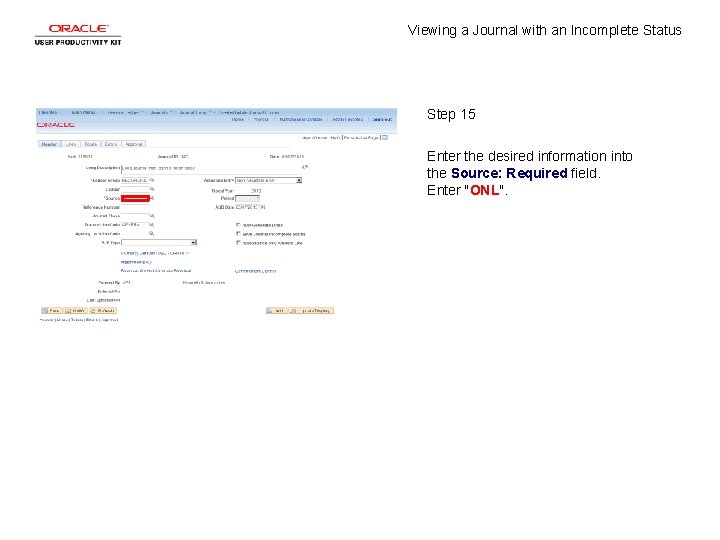
Viewing a Journal with an Incomplete Status Step 14 Use the Source field to select a journal source that best represents how the journal determines various options for entering and editing journals. This example is an online journal entry, so you could enter ONL. Click in the Source field.
Viewing a Journal with an Incomplete Status Step 15 Enter the desired information into the Source: Required field. Enter "ONL".
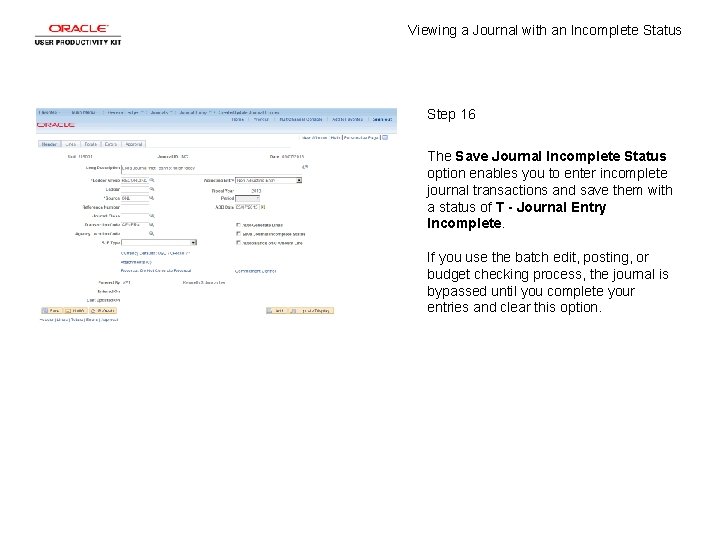
Viewing a Journal with an Incomplete Status Step 16 The Save Journal Incomplete Status option enables you to enter incomplete journal transactions and save them with a status of T - Journal Entry Incomplete. If you use the batch edit, posting, or budget checking process, the journal is bypassed until you complete your entries and clear this option.
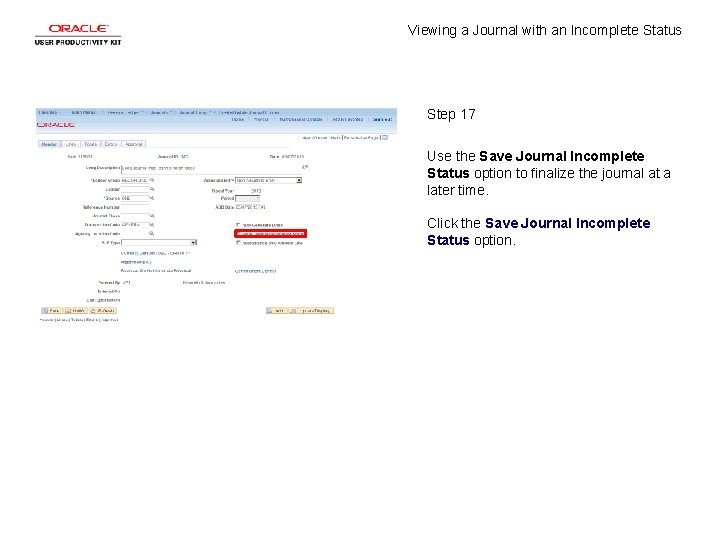
Viewing a Journal with an Incomplete Status Step 17 Use the Save Journal Incomplete Status option to finalize the journal at a later time. Click the Save Journal Incomplete Status option.
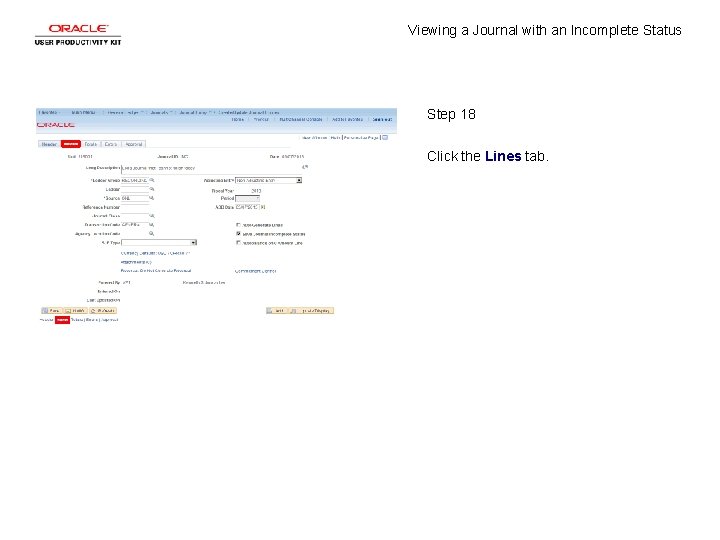
Viewing a Journal with an Incomplete Status Step 18 Click the Lines tab.
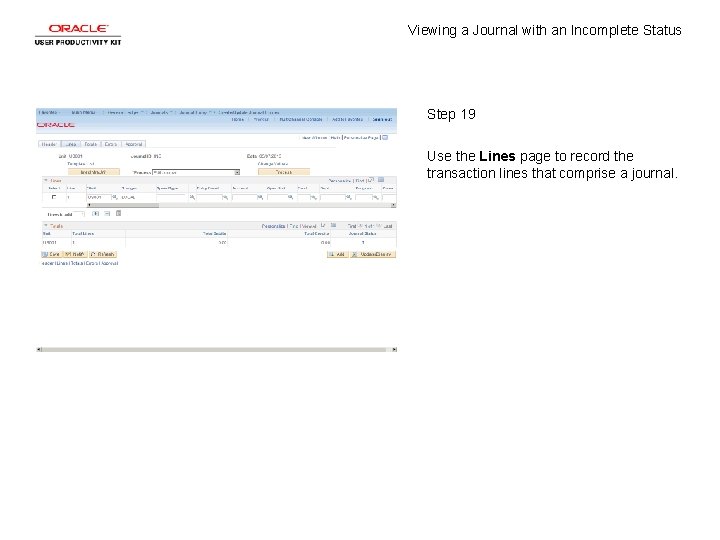
Viewing a Journal with an Incomplete Status Step 19 Use the Lines page to record the transaction lines that comprise a journal.
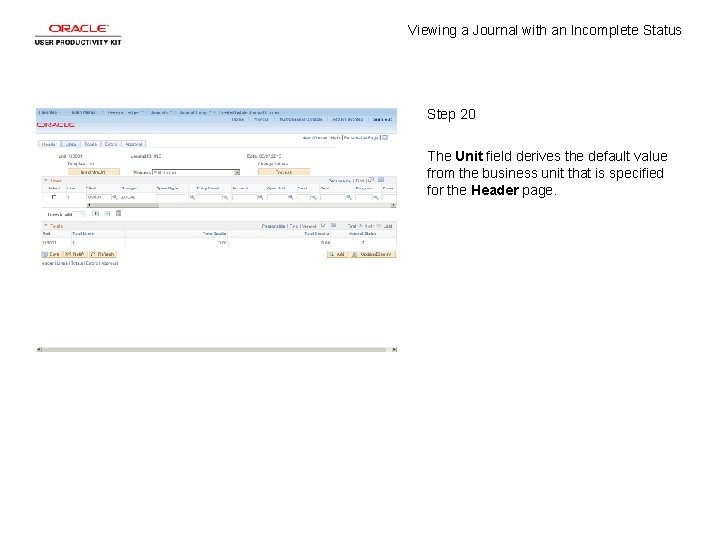
Viewing a Journal with an Incomplete Status Step 20 The Unit field derives the default value from the business unit that is specified for the Header page.
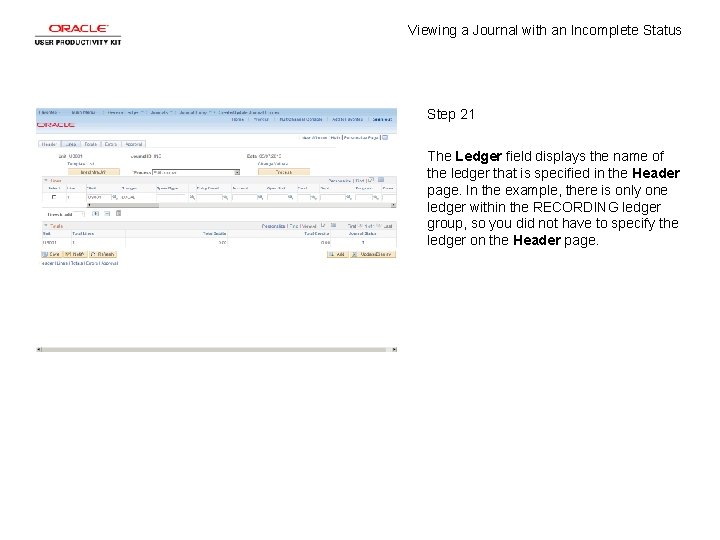
Viewing a Journal with an Incomplete Status Step 21 The Ledger field displays the name of the ledger that is specified in the Header page. In the example, there is only one ledger within the RECORDING ledger group, so you did not have to specify the ledger on the Header page.
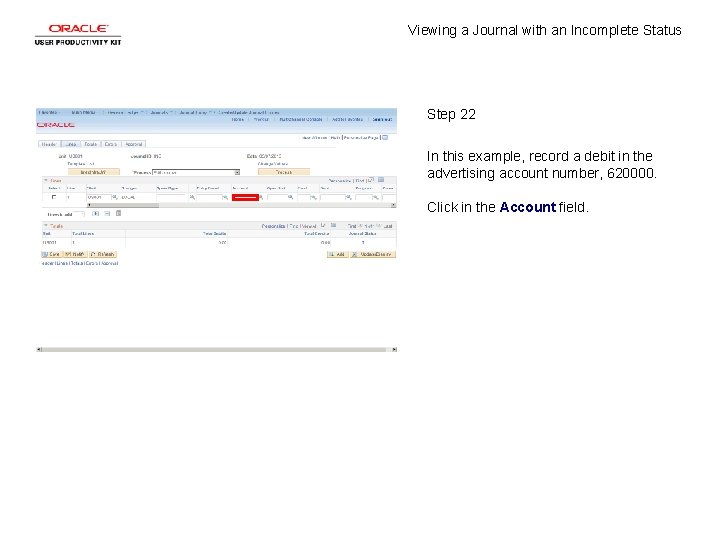
Viewing a Journal with an Incomplete Status Step 22 In this example, record a debit in the advertising account number, 620000. Click in the Account field.
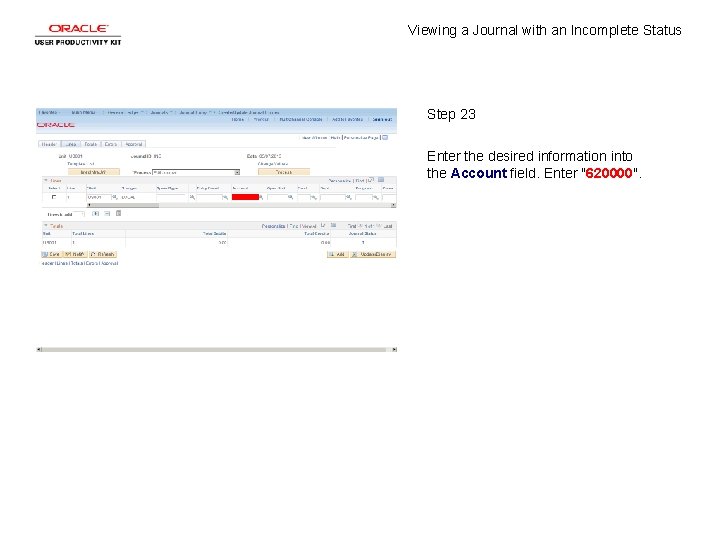
Viewing a Journal with an Incomplete Status Step 23 Enter the desired information into the Account field. Enter "620000".
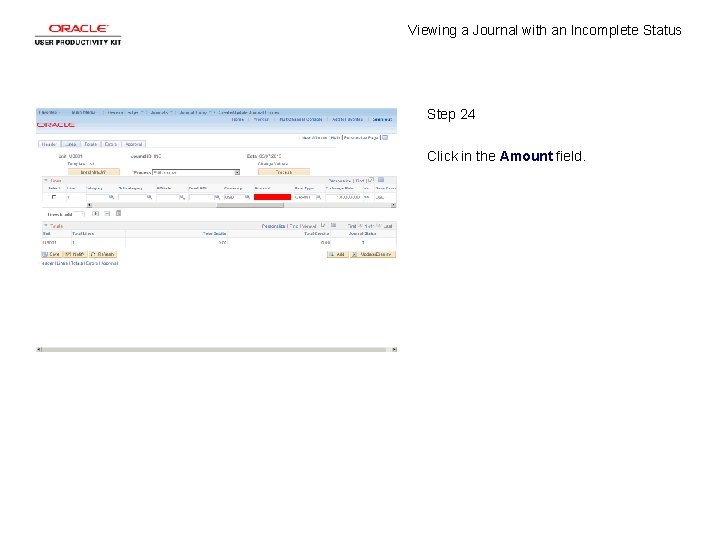
Viewing a Journal with an Incomplete Status Step 24 Click in the Amount field.
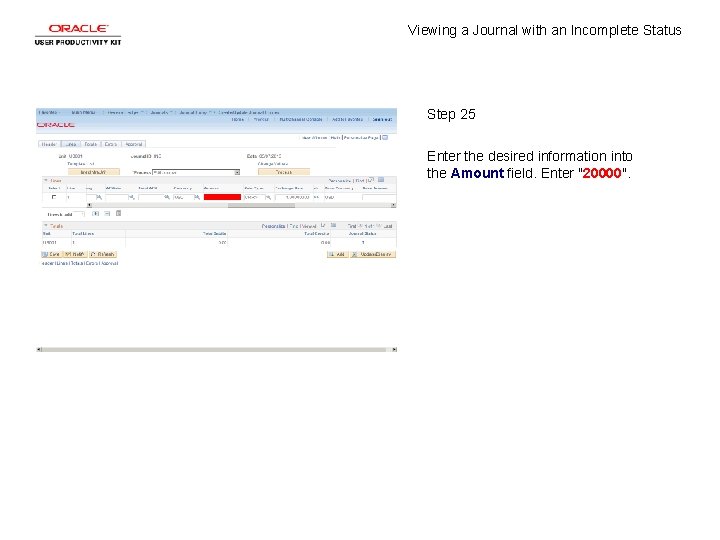
Viewing a Journal with an Incomplete Status Step 25 Enter the desired information into the Amount field. Enter "20000".
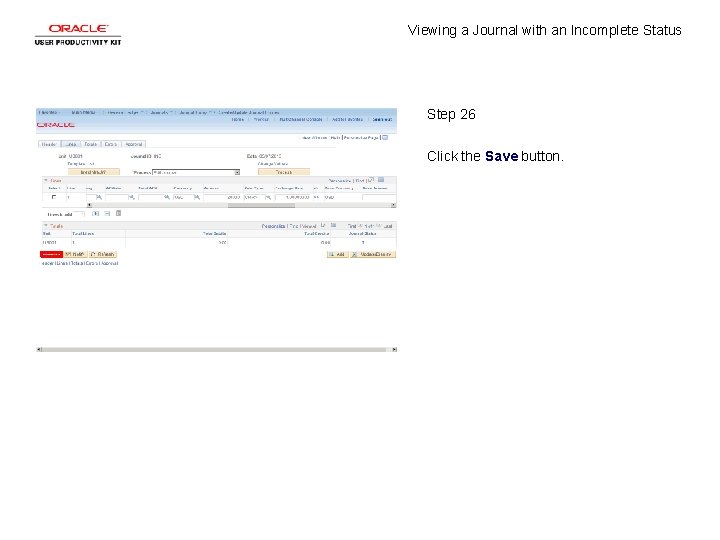
Viewing a Journal with an Incomplete Status Step 26 Click the Save button.
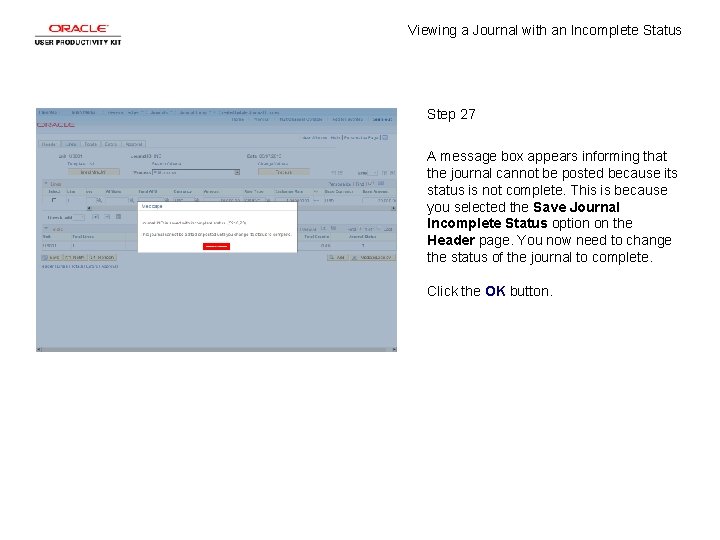
Viewing a Journal with an Incomplete Status Step 27 A message box appears informing that the journal cannot be posted because its status is not complete. This is because you selected the Save Journal Incomplete Status option on the Header page. You now need to change the status of the journal to complete. Click the OK button.
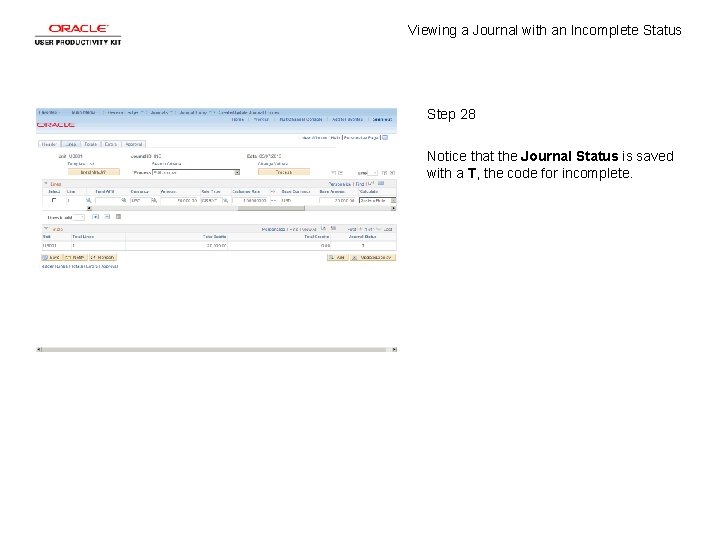
Viewing a Journal with an Incomplete Status Step 28 Notice that the Journal Status is saved with a T, the code for incomplete.
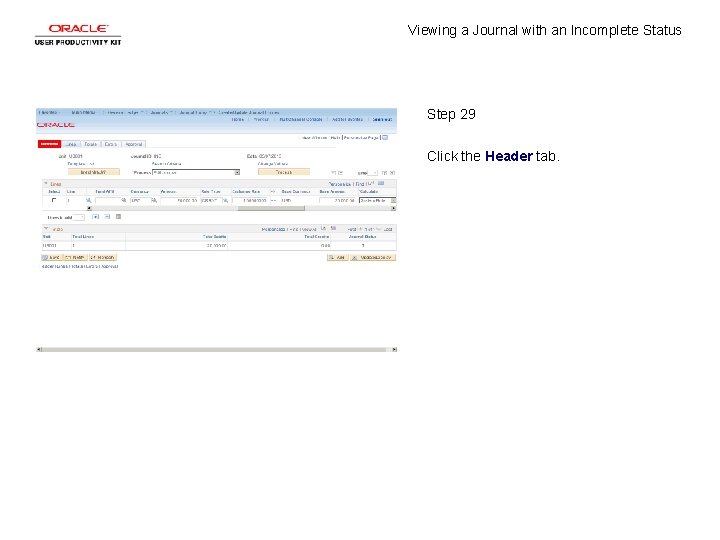
Viewing a Journal with an Incomplete Status Step 29 Click the Header tab.
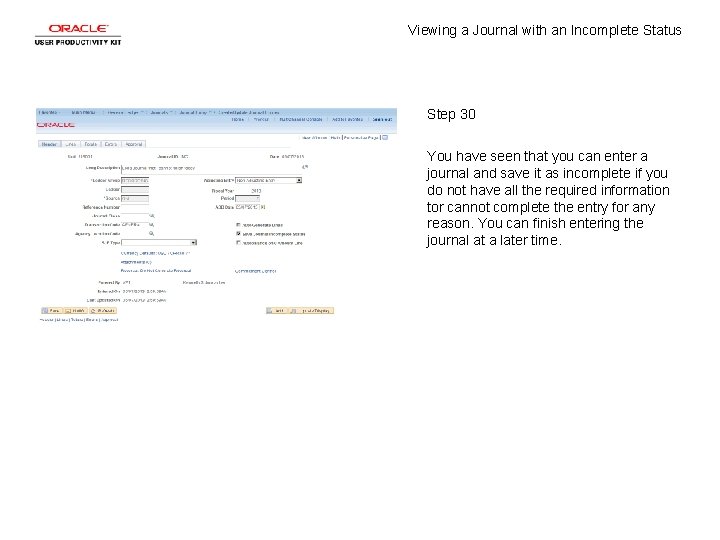
Viewing a Journal with an Incomplete Status Step 30 You have seen that you can enter a journal and save it as incomplete if you do not have all the required information tor cannot complete the entry for any reason. You can finish entering the journal at a later time.
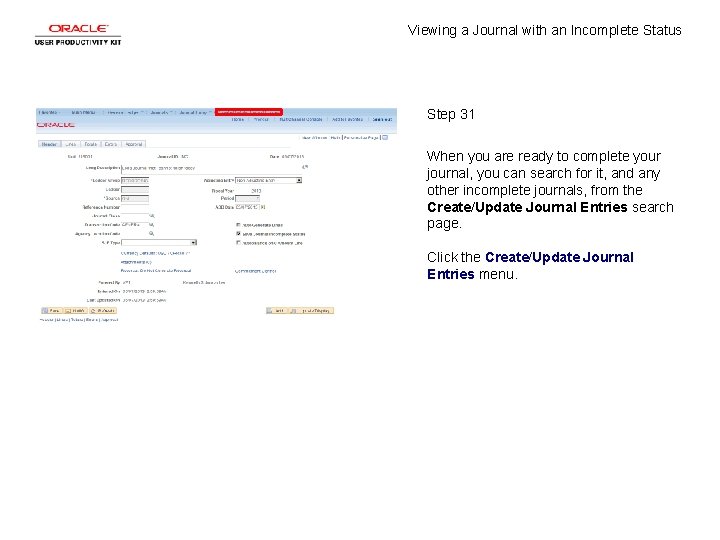
Viewing a Journal with an Incomplete Status Step 31 When you are ready to complete your journal, you can search for it, and any other incomplete journals, from the Create/Update Journal Entries search page. Click the Create/Update Journal Entries menu.
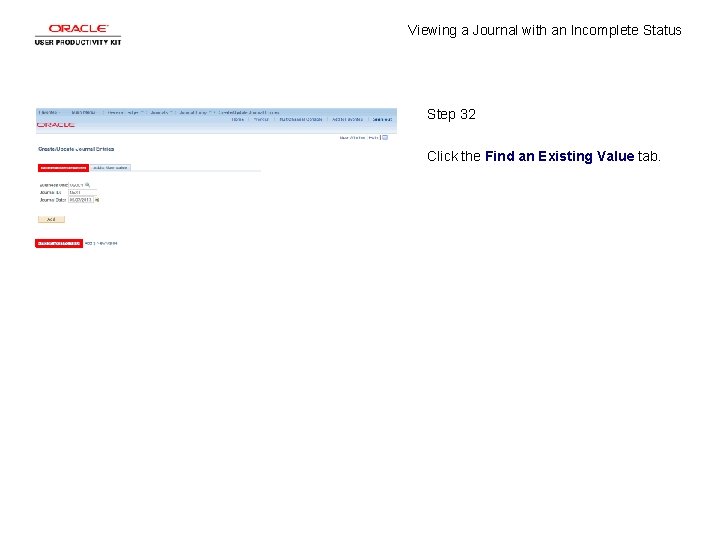
Viewing a Journal with an Incomplete Status Step 32 Click the Find an Existing Value tab.
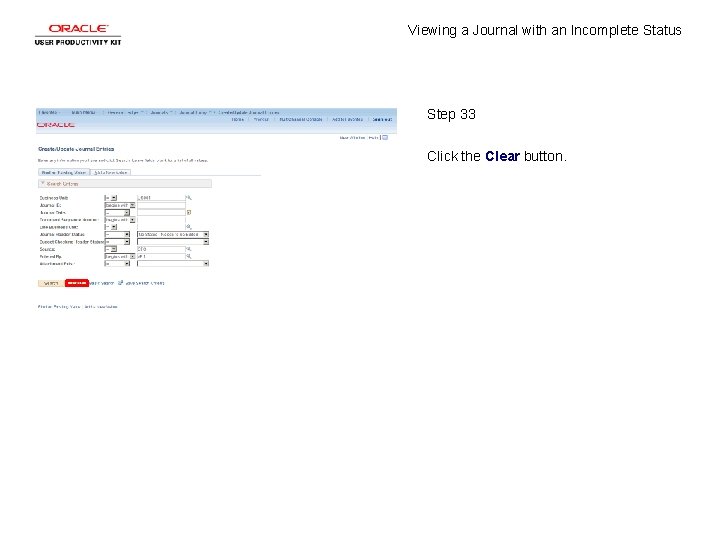
Viewing a Journal with an Incomplete Status Step 33 Click the Clear button.
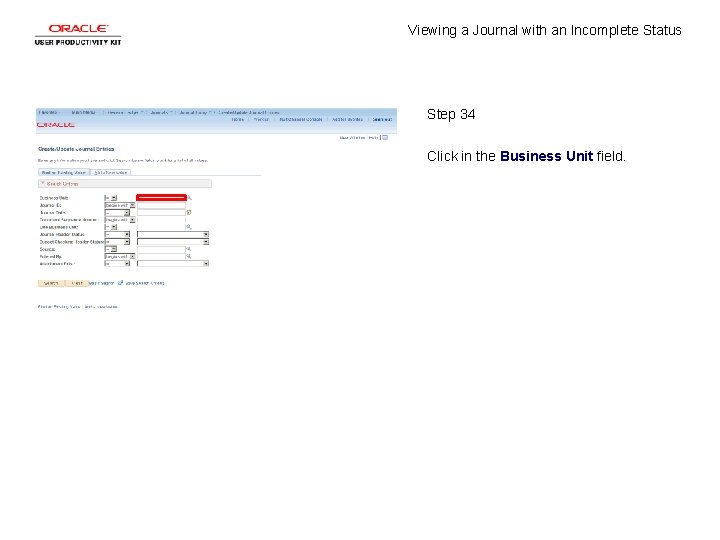
Viewing a Journal with an Incomplete Status Step 34 Click in the Business Unit field.
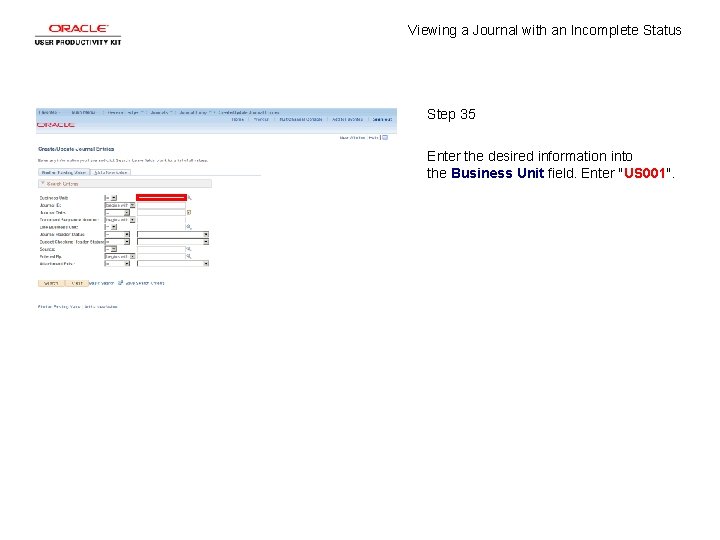
Viewing a Journal with an Incomplete Status Step 35 Enter the desired information into the Business Unit field. Enter "US 001".
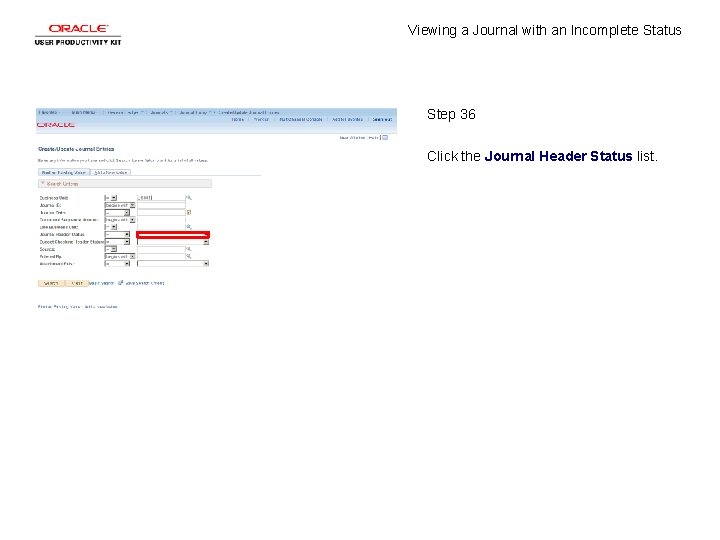
Viewing a Journal with an Incomplete Status Step 36 Click the Journal Header Status list.
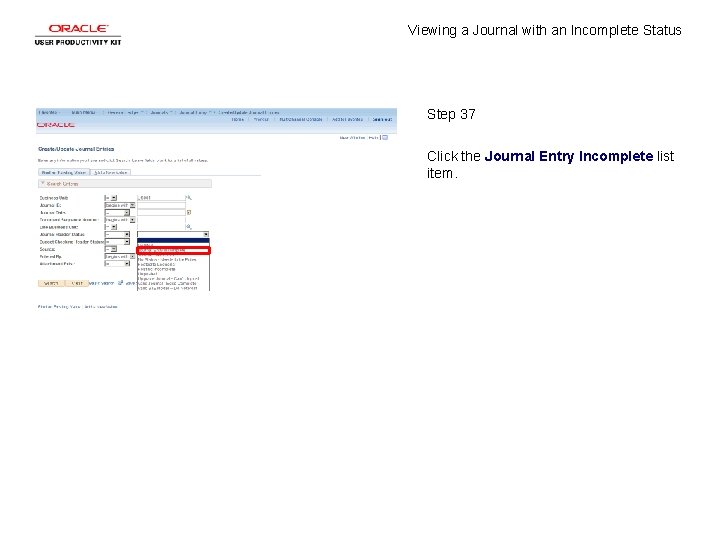
Viewing a Journal with an Incomplete Status Step 37 Click the Journal Entry Incomplete list item.
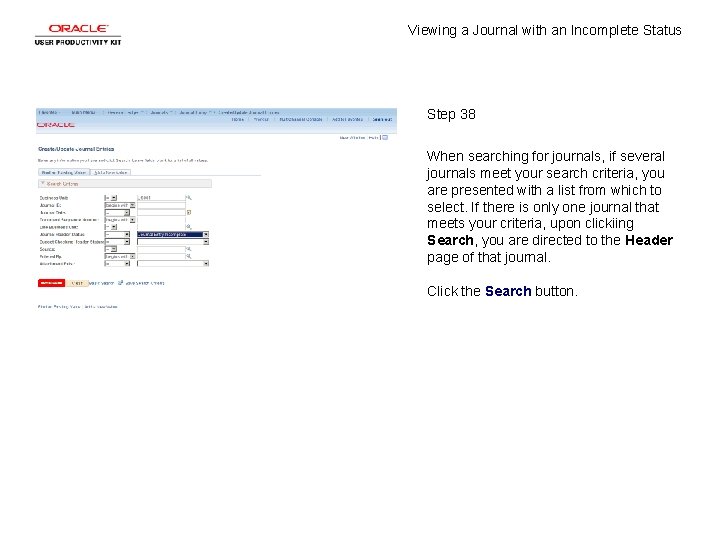
Viewing a Journal with an Incomplete Status Step 38 When searching for journals, if several journals meet your search criteria, you are presented with a list from which to select. If there is only one journal that meets your criteria, upon clickiing Search, you are directed to the Header page of that journal. Click the Search button.
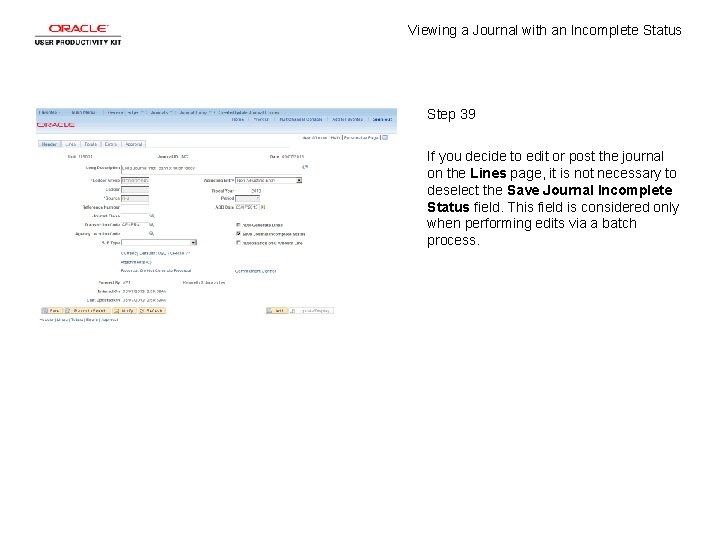
Viewing a Journal with an Incomplete Status Step 39 If you decide to edit or post the journal on the Lines page, it is not necessary to deselect the Save Journal Incomplete Status field. This field is considered only when performing edits via a batch process.
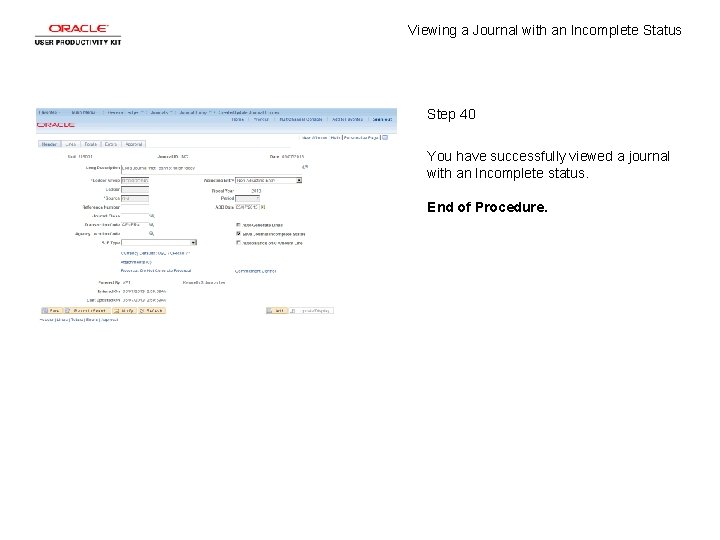
Viewing a Journal with an Incomplete Status Step 40 You have successfully viewed a journal with an Incomplete status. End of Procedure.