
VFR Module 2 G 1000 Transition VFR Module
- Slides: 44
VFR – Module 2 G 1000 Transition VFR – Module 2
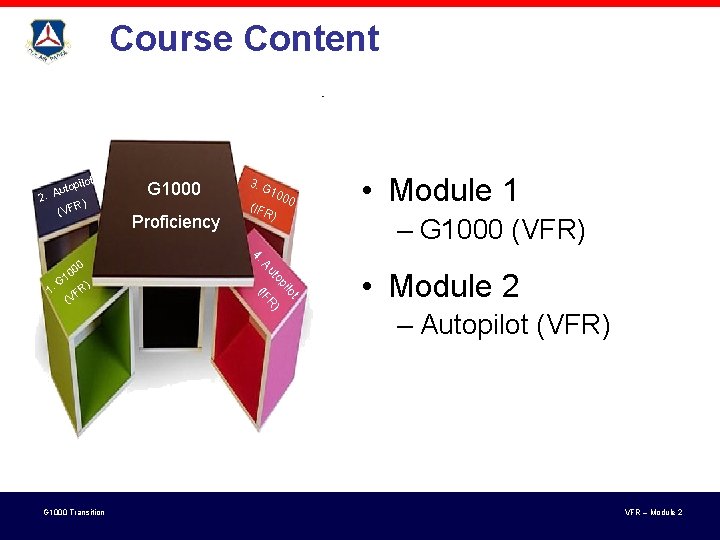
Course Content pilot o t u 2. A R) (VF t IF ilo op ut ( R) G 1000 Transition A ) FR V ( 100 0 (IF R) • Module 1 – G 1000 (VFR) 4. 1. Proficiency 3. G 00 0 G 1000 • Module 2 – Autopilot (VFR) VFR – Module 2
G 1000 Flight Management Skills Information Management • Personal preference (e. g. , PFD/MFD configuration) • Operation at hand (e. g. , navigation, weather) • Situational awareness • Know what is “know-able” (and how to find it) Automation Management • Autopilot • Nav source • CDI sensitivity Risk Management G 1000 Transition • Limitations of the aircraft & the glass cockpit technology • Limitations of the pilot’s knowledge, experience, proficiency VFR – Module 2
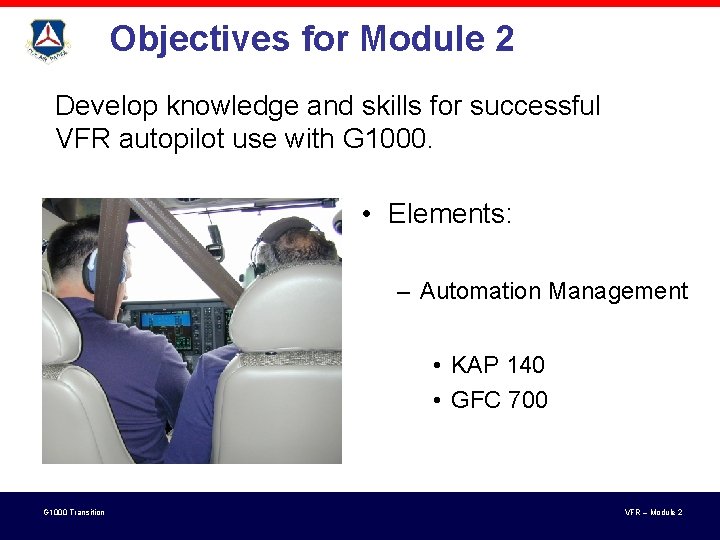
Objectives for Module 2 Develop knowledge and skills for successful VFR autopilot use with G 1000. • Elements: – Automation Management • KAP 140 • GFC 700 G 1000 Transition VFR – Module 2
Let’s talk Autopilots! G 1000 Transition VFR – Module 2
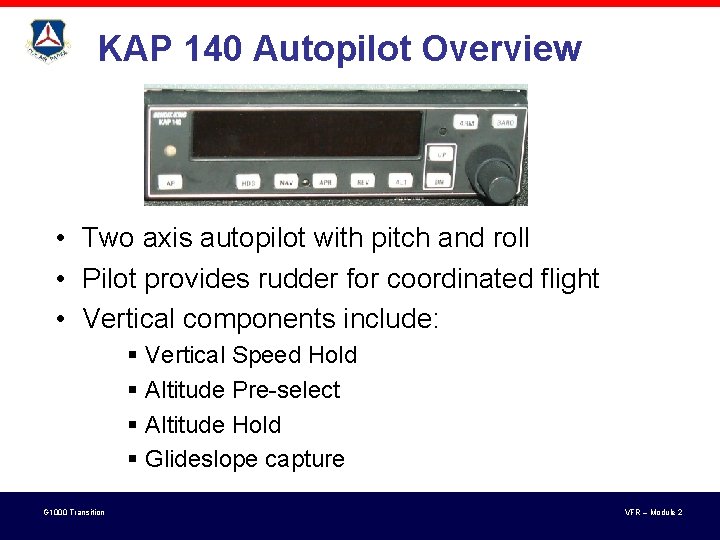
KAP 140 Autopilot Overview • Two axis autopilot with pitch and roll • Pilot provides rudder for coordinated flight • Vertical components include: § Vertical Speed Hold § Altitude Pre-select § Altitude Hold § Glideslope capture G 1000 Transition VFR – Module 2
KAP 140 Autopilot Operations • Lateral control about the longitudinal axis includes: § § Roll control (wing leveler), Heading hold, Navigation tracking, and Approach tracking (including REV (“reverse” for backcourse)) • DC-powered turn coordinator (TC) (behind MFD) supplies rate information to the AP • Failure of the AHRS unit has no effect on the autopilot ROLL control G 1000 Transition VFR – Module 2
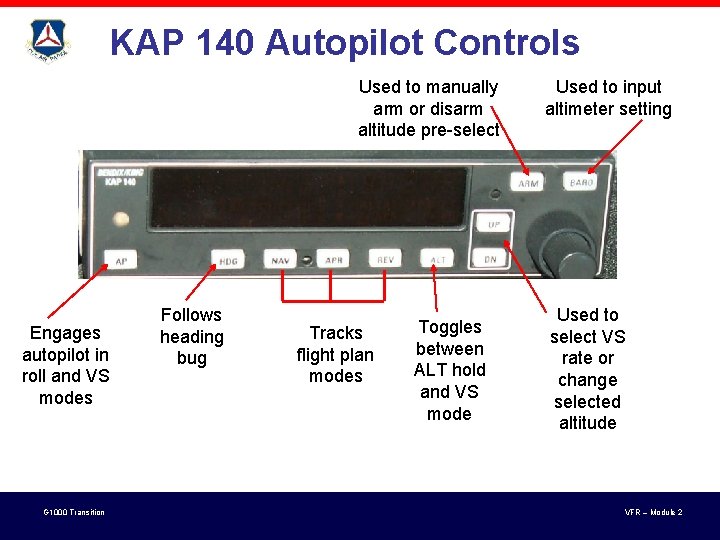
KAP 140 Autopilot Controls Used to manually arm or disarm altitude pre-select Engages autopilot in roll and VS modes G 1000 Transition Follows heading bug Tracks flight plan modes Toggles between ALT hold and VS mode Used to input altimeter setting Used to select VS rate or change selected altitude VFR – Module 2
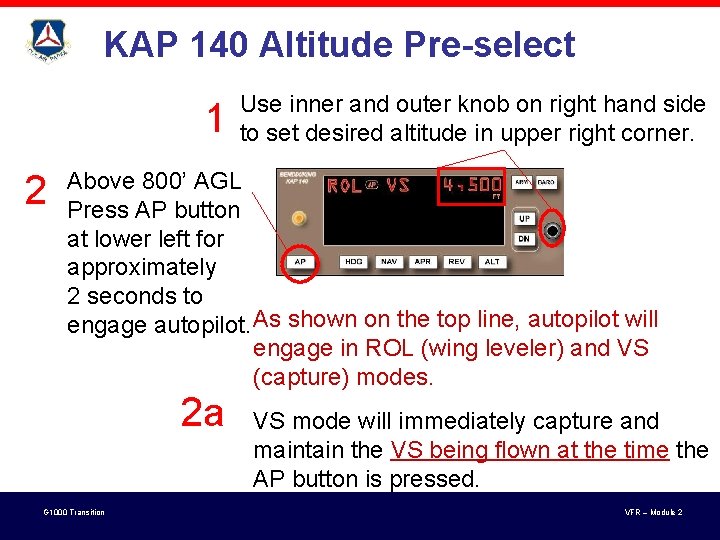
KAP 140 Altitude Pre-select 1 2 Use inner and outer knob on right hand side to set desired altitude in upper right corner. Above 800’ AGL Press AP button at lower left for approximately 2 seconds to engage autopilot. As shown on the top line, autopilot will engage in ROL (wing leveler) and VS (capture) modes. 2 a G 1000 Transition VS mode will immediately capture and maintain the VS being flown at the time the AP button is pressed. VFR – Module 2
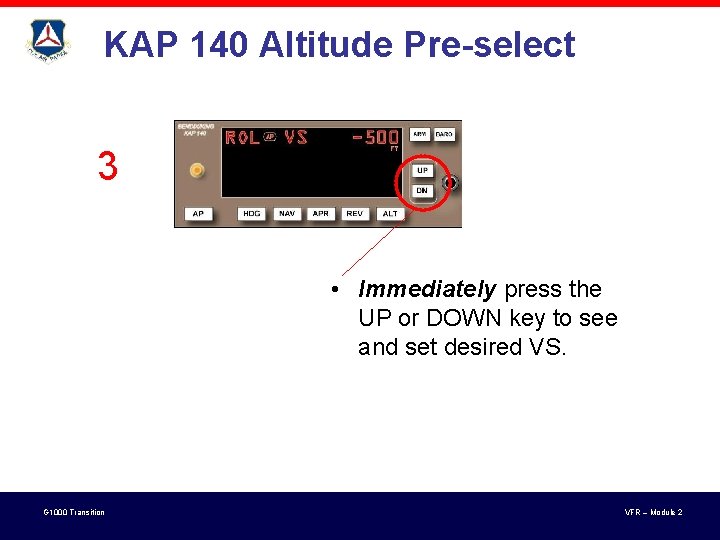
KAP 140 Altitude Pre-select 3 • Immediately press the UP or DOWN key to see and set desired VS. G 1000 Transition VFR – Module 2
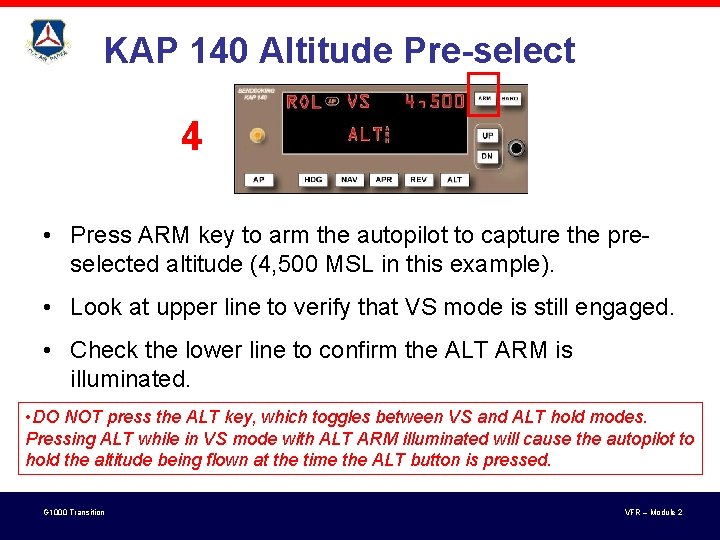
KAP 140 Altitude Pre-select 4 • Press ARM key to arm the autopilot to capture the preselected altitude (4, 500 MSL in this example). • Look at upper line to verify that VS mode is still engaged. • Check the lower line to confirm the ALT ARM is illuminated. • DO NOT press the ALT key, which toggles between VS and ALT hold modes. Pressing ALT while in VS mode with ALT ARM illuminated will cause the autopilot to hold the altitude being flown at the time the ALT button is pressed. G 1000 Transition VFR – Module 2
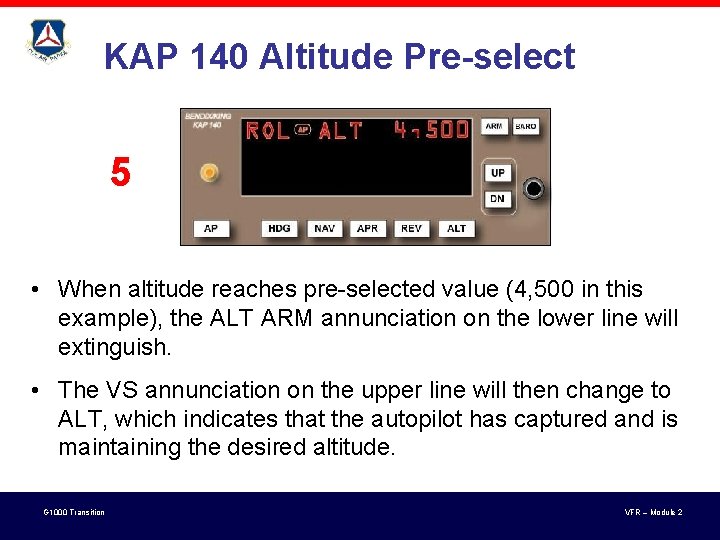
KAP 140 Altitude Pre-select 5 • When altitude reaches pre-selected value (4, 500 in this example), the ALT ARM annunciation on the lower line will extinguish. • The VS annunciation on the upper line will then change to ALT, which indicates that the autopilot has captured and is maintaining the desired altitude. G 1000 Transition VFR – Module 2
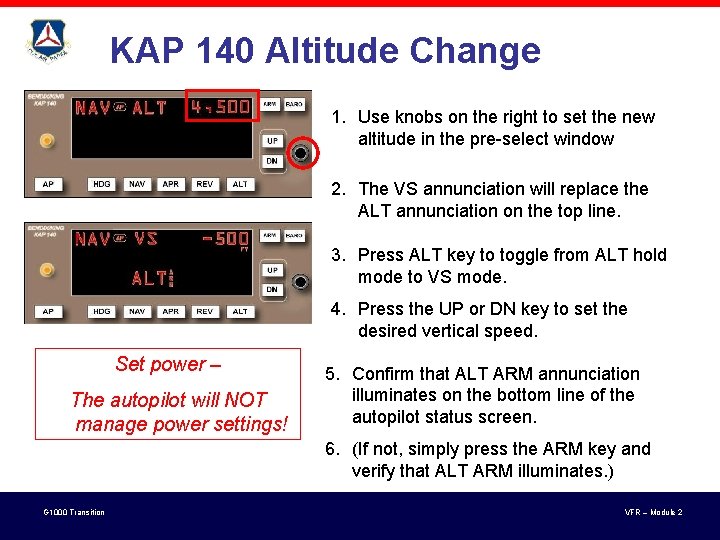
KAP 140 Altitude Change 1. Use knobs on the right to set the new altitude in the pre-select window 2. The VS annunciation will replace the ALT annunciation on the top line. 3. Press ALT key to toggle from ALT hold mode to VS mode. 4. Press the UP or DN key to set the desired vertical speed. Set power – The autopilot will NOT manage power settings! 5. Confirm that ALT ARM annunciation illuminates on the bottom line of the autopilot status screen. 6. (If not, simply press the ARM key and verify that ALT ARM illuminates. ) G 1000 Transition VFR – Module 2
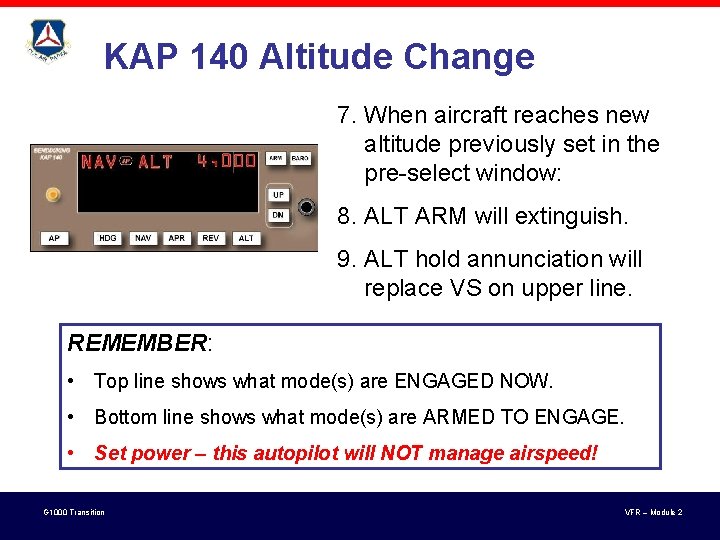
KAP 140 Altitude Change 7. When aircraft reaches new altitude previously set in the pre-select window: 8. ALT ARM will extinguish. 9. ALT hold annunciation will replace VS on upper line. REMEMBER: • Top line shows what mode(s) are ENGAGED NOW. • Bottom line shows what mode(s) are ARMED TO ENGAGE. • Set power – this autopilot will NOT manage airspeed! G 1000 Transition VFR – Module 2
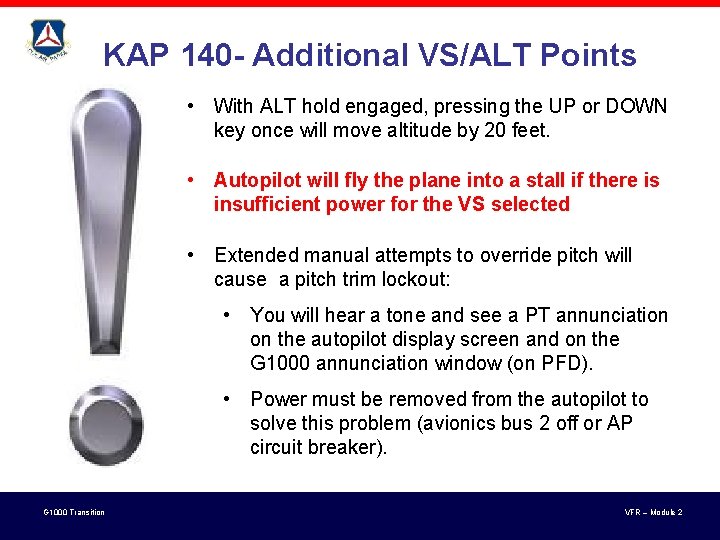
KAP 140 - Additional VS/ALT Points • With ALT hold engaged, pressing the UP or DOWN key once will move altitude by 20 feet. • Autopilot will fly the plane into a stall if there is insufficient power for the VS selected • Extended manual attempts to override pitch will cause a pitch trim lockout: • You will hear a tone and see a PT annunciation on the autopilot display screen and on the G 1000 annunciation window (on PFD). • Power must be removed from the autopilot to solve this problem (avionics bus 2 off or AP circuit breaker). G 1000 Transition VFR – Module 2
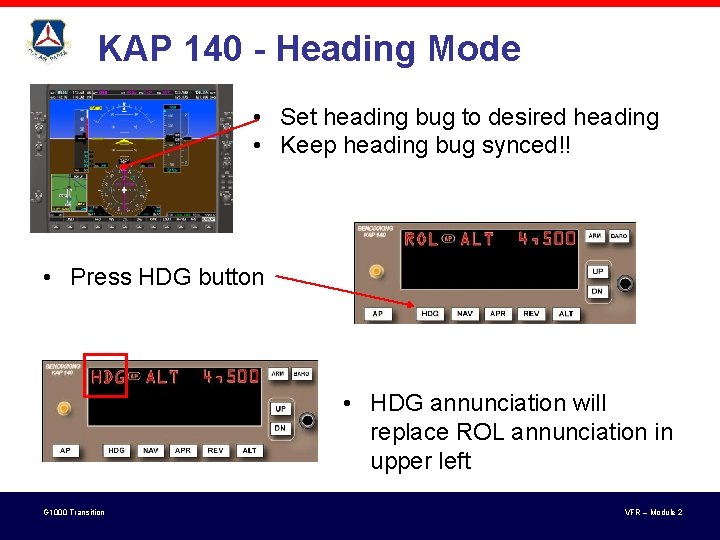
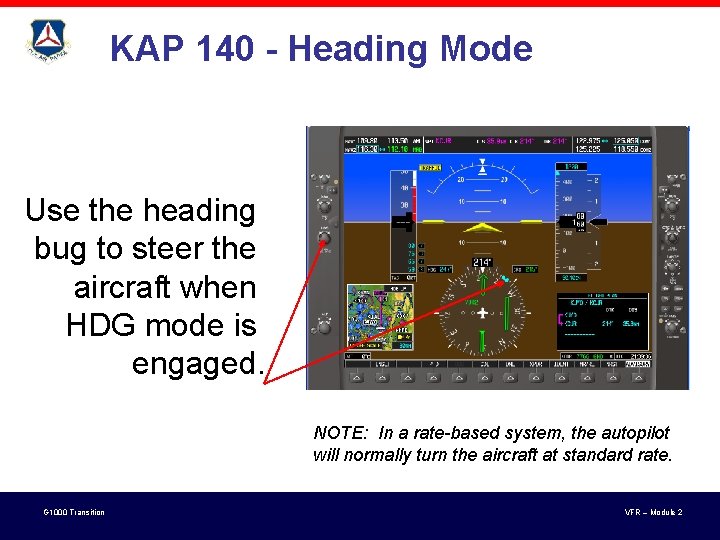
KAP 140 - Heading Mode • Set heading bug to desired heading • Keep heading bug synced!! • Press HDG button • HDG annunciation will replace ROL annunciation in upper left G 1000 Transition VFR – Module 2
KAP 140 - Heading Mode Use the heading bug to steer the aircraft when HDG mode is engaged. NOTE: In a rate-based system, the autopilot will normally turn the aircraft at standard rate. G 1000 Transition VFR – Module 2
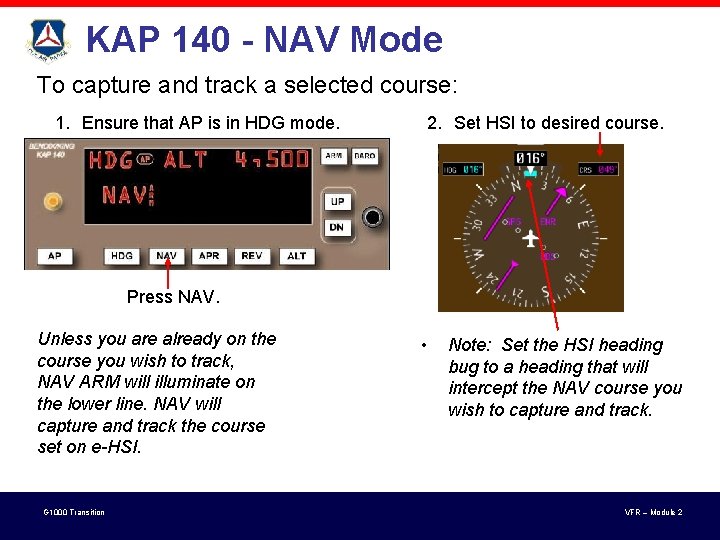
KAP 140 - NAV Mode To capture and track a selected course: 1. Ensure that AP is in HDG mode. 2. Set HSI to desired course. Press NAV. Unless you are already on the course you wish to track, NAV ARM will illuminate on the lower line. NAV will capture and track the course set on e-HSI. G 1000 Transition • Note: Set the HSI heading bug to a heading that will intercept the NAV course you wish to capture and track. VFR – Module 2
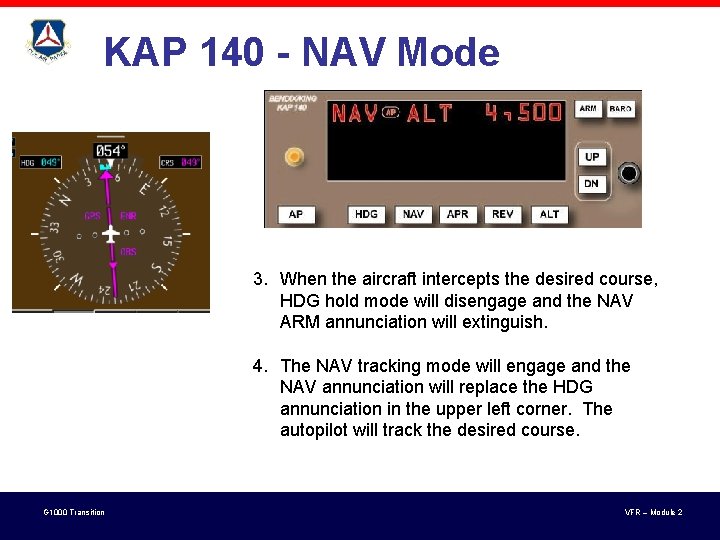
KAP 140 - NAV Mode 3. When the aircraft intercepts the desired course, HDG hold mode will disengage and the NAV ARM annunciation will extinguish. 4. The NAV tracking mode will engage and the NAV annunciation will replace the HDG annunciation in the upper left corner. The autopilot will track the desired course. G 1000 Transition VFR – Module 2
KAP 140 - NAV Mode • NAV mode will disengage if you change the G 1000 nav source (e. g. , from GPS to VOR 1) while NAV mode is engaged. • AP will revert to ROL mode. • NAV annunciation will flash. • Pilot action: • Ensure that the desired course / heading are set. • Press NAV (twice) to re-engage NAV mode with new source. G 1000 Transition VFR – Module 2
KAP 140 - Limitations • Preflight test of autopilot and trim system required before each flight • A pilot must be in the left seat position with seat belt fastened during AP operation • AP must be disengaged for TO / LDG • AP airspeed limitations: § minimum 80 KIAS; maximum 160 KIAS G 1000 Transition VFR – Module 2
KAP 140 - Limitations • Maximum flap extension 10° • Maximum fuel imbalance with AP engaged is 90 pounds • AP must be disengaged below: • 200 AGL during approach and • 800 AGL for all other phases of flight G 1000 Transition VFR – Module 2
Everybody got that? !? G 1000 Transition VFR – Module 2
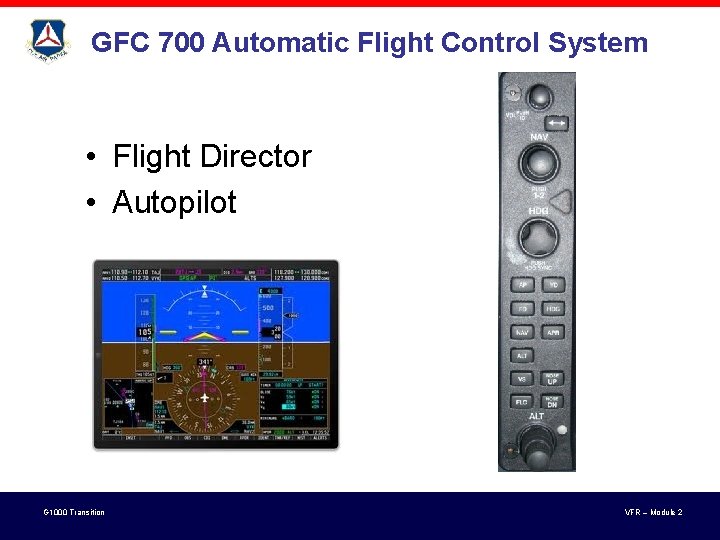
GFC 700 Automatic Flight Control System • Flight Director • Autopilot G 1000 Transition VFR – Module 2
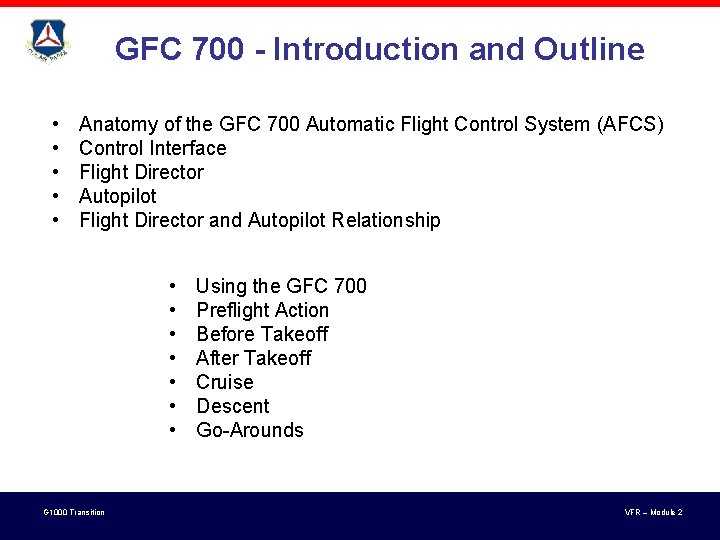
GFC 700 - Introduction and Outline • • • Anatomy of the GFC 700 Automatic Flight Control System (AFCS) Control Interface Flight Director Autopilot Flight Director and Autopilot Relationship • • G 1000 Transition Using the GFC 700 Preflight Action Before Takeoff After Takeoff Cruise Descent Go-Arounds VFR – Module 2
GFC 700 - Anatomy The “Garmin autopilot” is more correctly known as the GFC 700 Automatic Flight Control System (AFCS). The terminology matters because the GFC 700 AFCS is not just an autopilot. It fact, it includes both a flight director and an autopilot. For consistency and convenience, this presentation uses the term GFC 700 to refer to the entire Automatic Flight Control System. Note: Aircraft with the KAP 140 Autopilot will not have a Flight Director Display G 1000 Transition VFR – Module 2
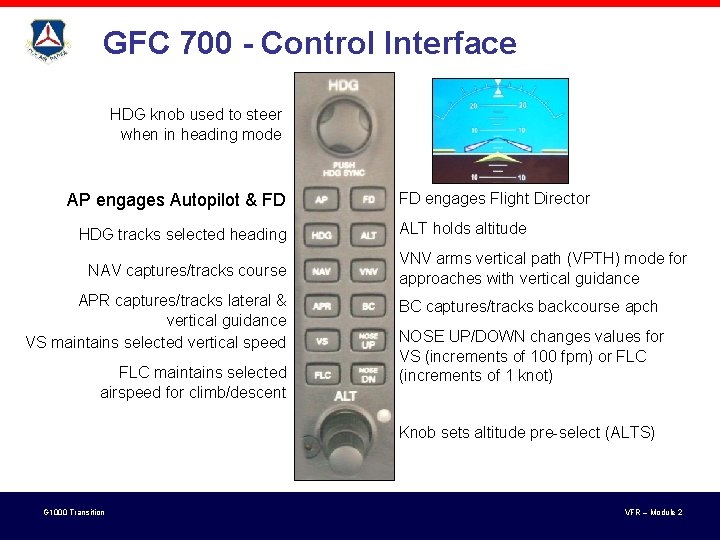
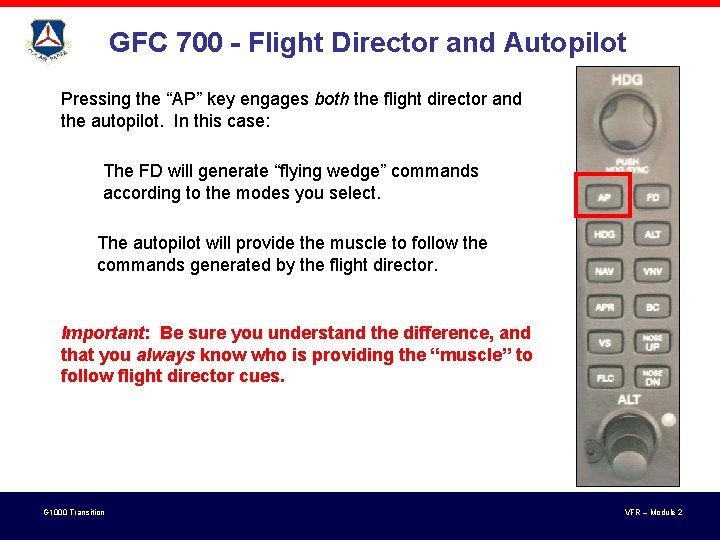
GFC 700 - Control Interface HDG knob used to steer when in heading mode AP engages Autopilot & FD HDG tracks selected heading NAV captures/tracks course APR captures/tracks lateral & vertical guidance VS maintains selected vertical speed FLC maintains selected airspeed for climb/descent FD engages Flight Director ALT holds altitude VNV arms vertical path (VPTH) mode for approaches with vertical guidance BC captures/tracks backcourse apch NOSE UP/DOWN changes values for VS (increments of 100 fpm) or FLC (increments of 1 knot) Knob sets altitude pre-select (ALTS) G 1000 Transition VFR – Module 2
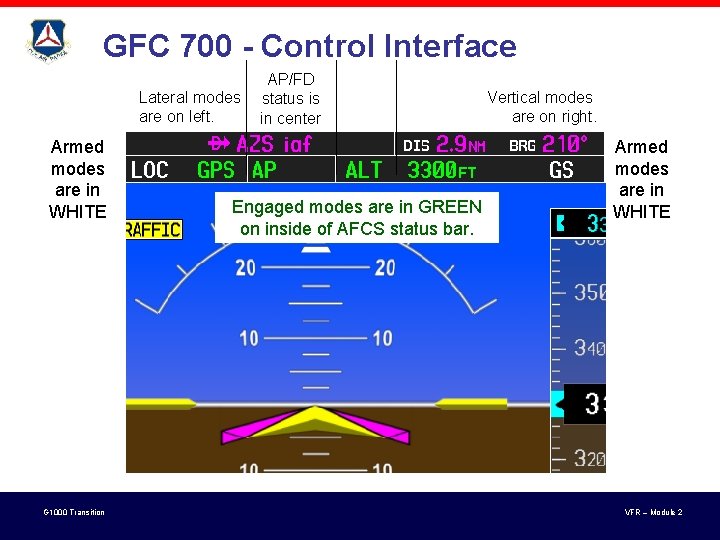
GFC 700 - Control Interface AP/FD Lateral modes status is are on left. in center Armed modes are in WHITE G 1000 Transition Engaged modes are in GREEN on inside of AFCS status bar. Vertical modes are on right. Armed modes are in WHITE VFR – Module 2
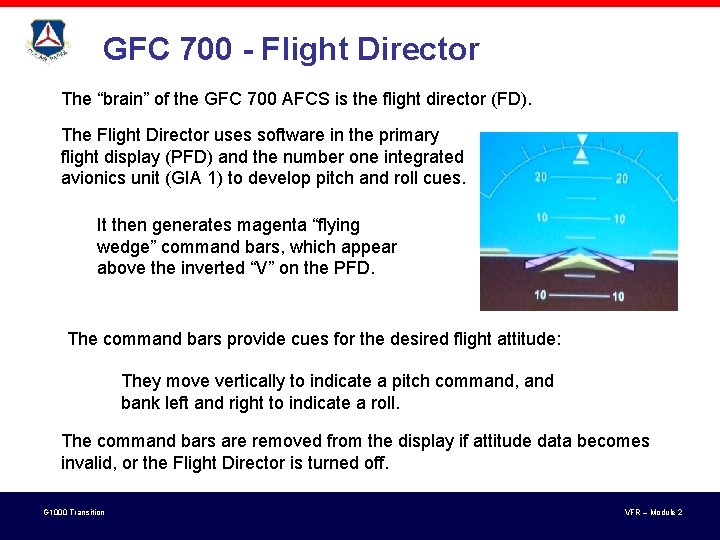
GFC 700 - Flight Director The “brain” of the GFC 700 AFCS is the flight director (FD). The Flight Director uses software in the primary flight display (PFD) and the number one integrated avionics unit (GIA 1) to develop pitch and roll cues. It then generates magenta “flying wedge” command bars, which appear above the inverted “V” on the PFD. The command bars provide cues for the desired flight attitude: They move vertically to indicate a pitch command, and bank left and right to indicate a roll. The command bars are removed from the display if attitude data becomes invalid, or the Flight Director is turned off. G 1000 Transition VFR – Module 2
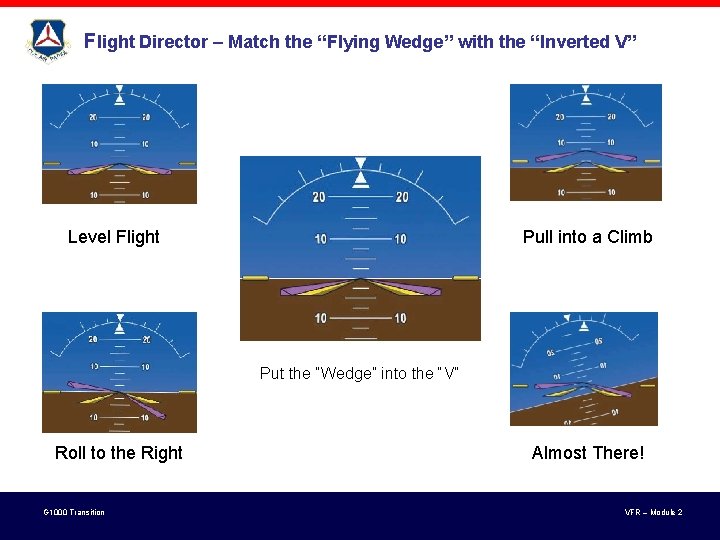
Flight Director – Match the “Flying Wedge” with the “Inverted V” Level Flight Pull into a Climb Put the “Wedge” into the “V” Roll to the Right G 1000 Transition Almost There! VFR – Module 2
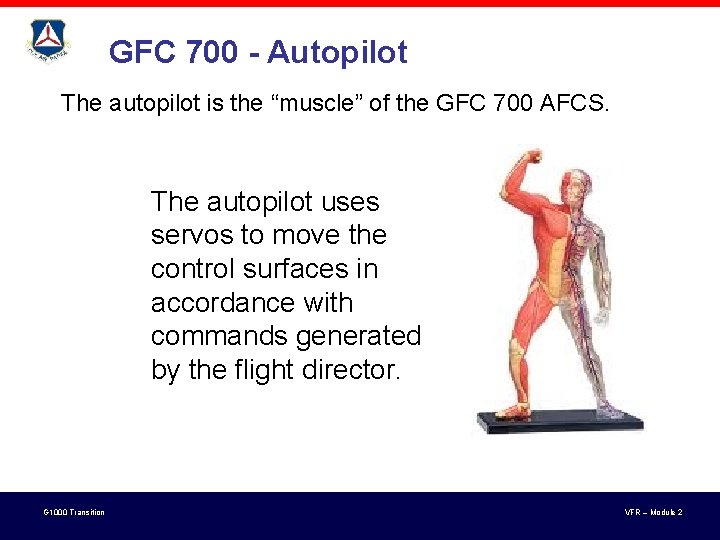
GFC 700 - Autopilot The autopilot is the “muscle” of the GFC 700 AFCS. The autopilot uses servos to move the control surfaces in accordance with commands generated by the flight director. G 1000 Transition VFR – Module 2
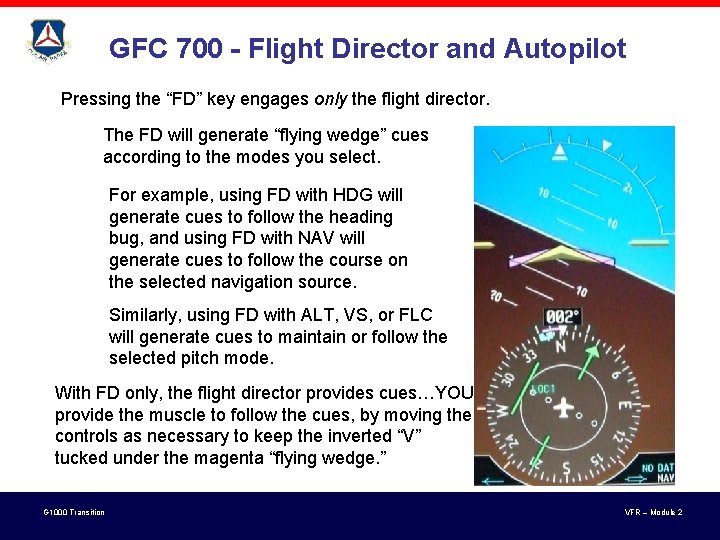
GFC 700 - Flight Director and Autopilot Pressing the “FD” key engages only the flight director. The FD will generate “flying wedge” cues according to the modes you select. For example, using FD with HDG will generate cues to follow the heading bug, and using FD with NAV will generate cues to follow the course on the selected navigation source. Similarly, using FD with ALT, VS, or FLC will generate cues to maintain or follow the selected pitch mode. With FD only, the flight director provides cues…YOU provide the muscle to follow the cues, by moving the controls as necessary to keep the inverted “V” tucked under the magenta “flying wedge. ” G 1000 Transition VFR – Module 2
GFC 700 - Flight Director and Autopilot Pressing the “AP” key engages both the flight director and the autopilot. In this case: The FD will generate “flying wedge” commands according to the modes you select. The autopilot will provide the muscle to follow the commands generated by the flight director. Important: Be sure you understand the difference, and that you always know who is providing the “muscle” to follow flight director cues. G 1000 Transition VFR – Module 2
GFC 700 – Basic Operations Remember, YOU are Pilot In Command, not the Passenger In Command! Don’t let the autopilot take somewhere you didn’t plan on going! G 1000 Transition VFR – Module 2
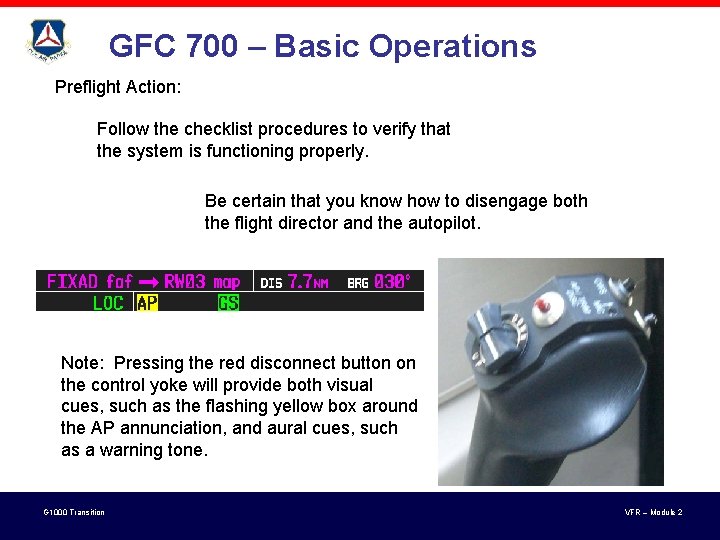
GFC 700 – Basic Operations Preflight Action: Follow the checklist procedures to verify that the system is functioning properly. Be certain that you know how to disengage both the flight director and the autopilot. Note: Pressing the red disconnect button on the control yoke will provide both visual cues, such as the flashing yellow box around the AP annunciation, and aural cues, such as a warning tone. G 1000 Transition VFR – Module 2
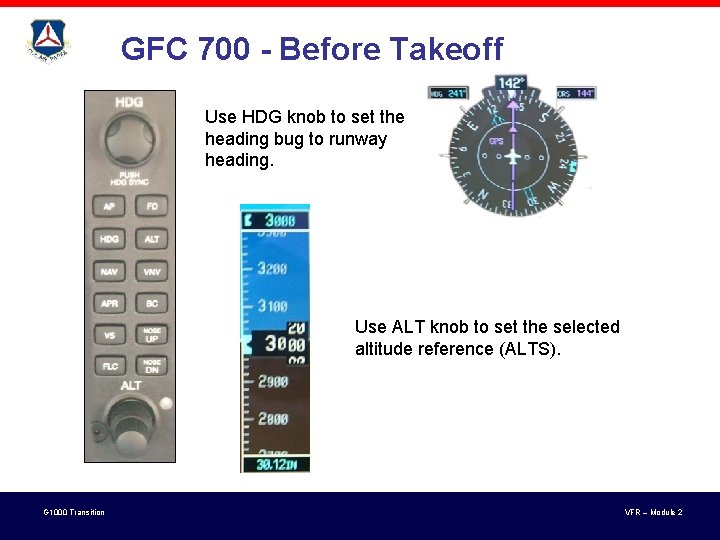
GFC 700 - Before Takeoff Use HDG knob to set the heading bug to runway heading. Use ALT knob to set the selected altitude reference (ALTS). G 1000 Transition VFR – Module 2
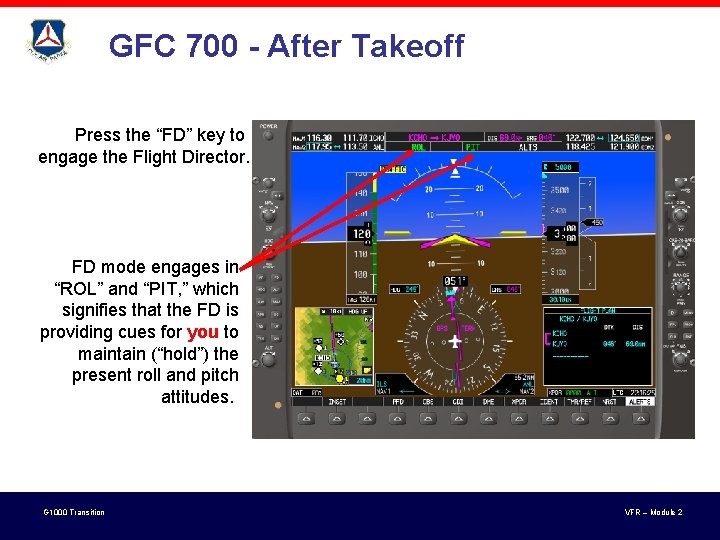
GFC 700 - After Takeoff Press the “FD” key to engage the Flight Director. FD mode engages in “ROL” and “PIT, ” which signifies that the FD is providing cues for you to maintain (“hold”) the present roll and pitch attitudes. G 1000 Transition VFR – Module 2
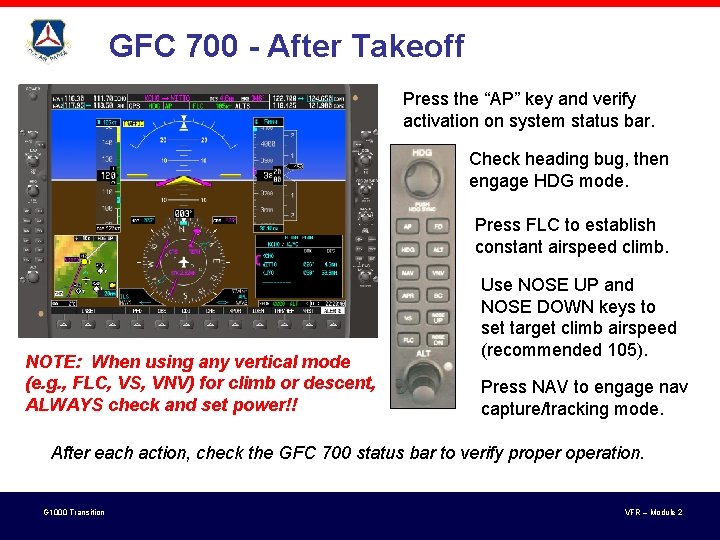
GFC 700 - After Takeoff Press the “AP” key and verify activation on system status bar. Check heading bug, then engage HDG mode. Press FLC to establish constant airspeed climb. NOTE: When using any vertical mode (e. g. , FLC, VS, VNV) for climb or descent, ALWAYS check and set power!! Use NOSE UP and NOSE DOWN keys to set target climb airspeed (recommended 105). Press NAV to engage nav capture/tracking mode. After each action, check the GFC 700 status bar to verify properation. G 1000 Transition VFR – Module 2
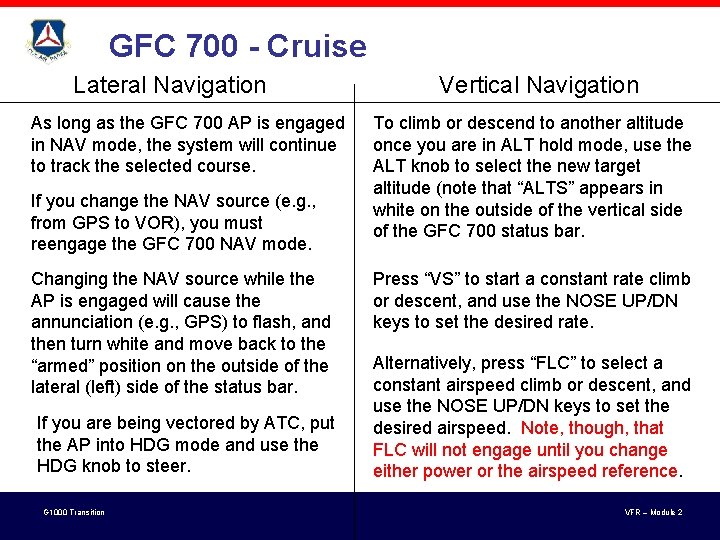
GFC 700 - Cruise Lateral Navigation As long as the GFC 700 AP is engaged in NAV mode, the system will continue to track the selected course. If you change the NAV source (e. g. , from GPS to VOR), you must reengage the GFC 700 NAV mode. Changing the NAV source while the AP is engaged will cause the annunciation (e. g. , GPS) to flash, and then turn white and move back to the “armed” position on the outside of the lateral (left) side of the status bar. If you are being vectored by ATC, put the AP into HDG mode and use the HDG knob to steer. G 1000 Transition Vertical Navigation To climb or descend to another altitude once you are in ALT hold mode, use the ALT knob to select the new target altitude (note that “ALTS” appears in white on the outside of the vertical side of the GFC 700 status bar. Press “VS” to start a constant rate climb or descent, and use the NOSE UP/DN keys to set the desired rate. Alternatively, press “FLC” to select a constant airspeed climb or descent, and use the NOSE UP/DN keys to set the desired airspeed. Note, though, that FLC will not engage until you change either power or the airspeed reference. VFR – Module 2
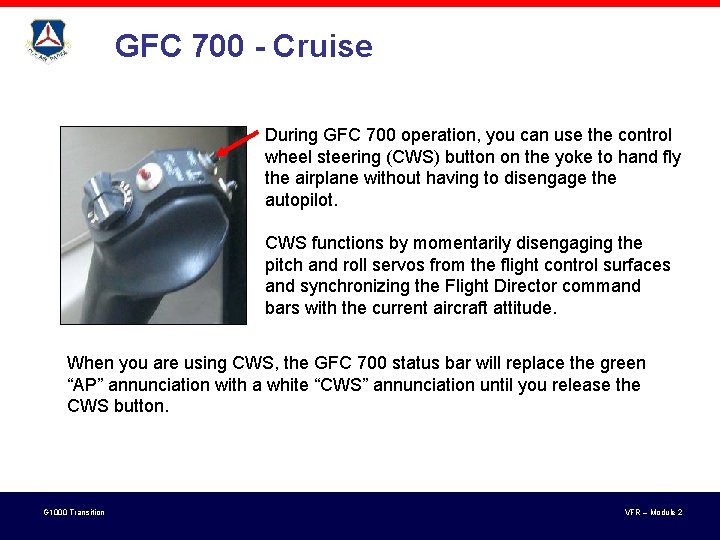
GFC 700 - Cruise During GFC 700 operation, you can use the control wheel steering (CWS) button on the yoke to hand fly the airplane without having to disengage the autopilot. CWS functions by momentarily disengaging the pitch and roll servos from the flight control surfaces and synchronizing the Flight Director command bars with the current aircraft attitude. When you are using CWS, the GFC 700 status bar will replace the green “AP” annunciation with a white “CWS” annunciation until you release the CWS button. G 1000 Transition VFR – Module 2
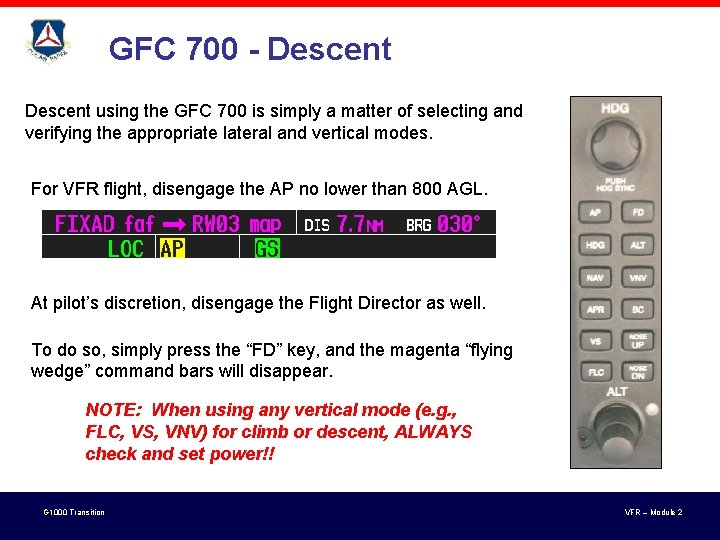
GFC 700 - Descent using the GFC 700 is simply a matter of selecting and verifying the appropriate lateral and vertical modes. For VFR flight, disengage the AP no lower than 800 AGL. At pilot’s discretion, disengage the Flight Director as well. To do so, simply press the “FD” key, and the magenta “flying wedge” command bars will disappear. NOTE: When using any vertical mode (e. g. , FLC, VS, VNV) for climb or descent, ALWAYS check and set power!! G 1000 Transition VFR – Module 2
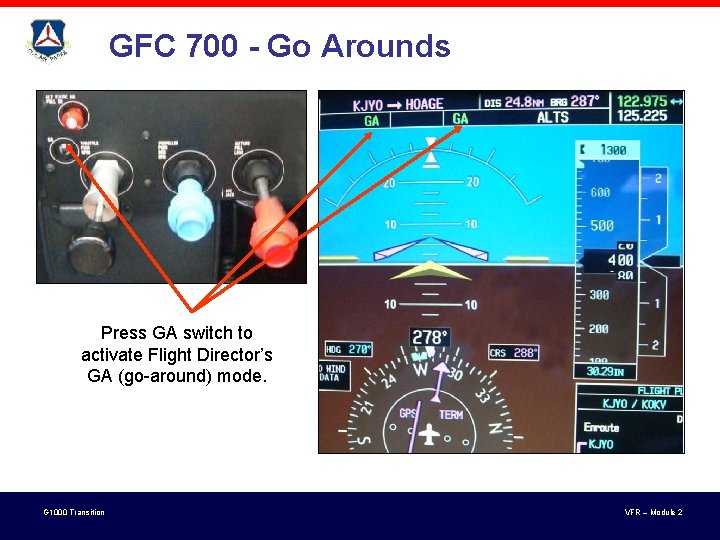
GFC 700 - Go Arounds Press GA switch to activate Flight Director’s GA (go-around) mode. G 1000 Transition VFR – Module 2
Questions? G 1000 Transition VFR – Module 2
End VFR – Part 2 G 1000 Transition VFR – Module 2