
VFC 400 Data Logger Updated 62217 Original created

- Slides: 60
VFC 400 (Data Logger) Updated 6/22/17 Original created by Alan Butler (Region 7) for Model TRED 30 -7 R Feb 2016
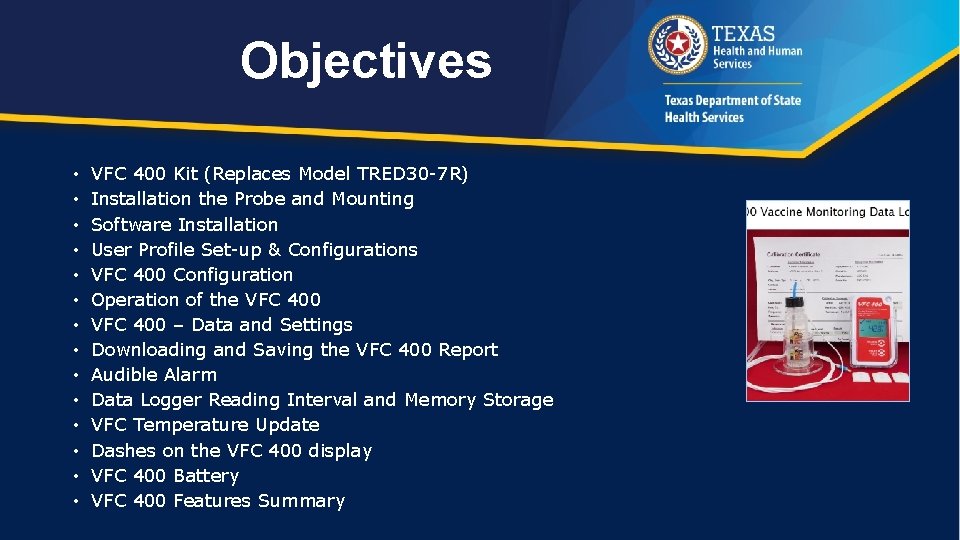
Objectives • • • • VFC 400 Kit (Replaces Model TRED 30 -7 R) Installation the Probe and Mounting Software Installation User Profile Set-up & Configurations VFC 400 Configuration Operation of the VFC 400 – Data and Settings Downloading and Saving the VFC 400 Report Audible Alarm Data Logger Reading Interval and Memory Storage VFC Temperature Update Dashes on the VFC 400 display VFC 400 Battery VFC 400 Features Summary
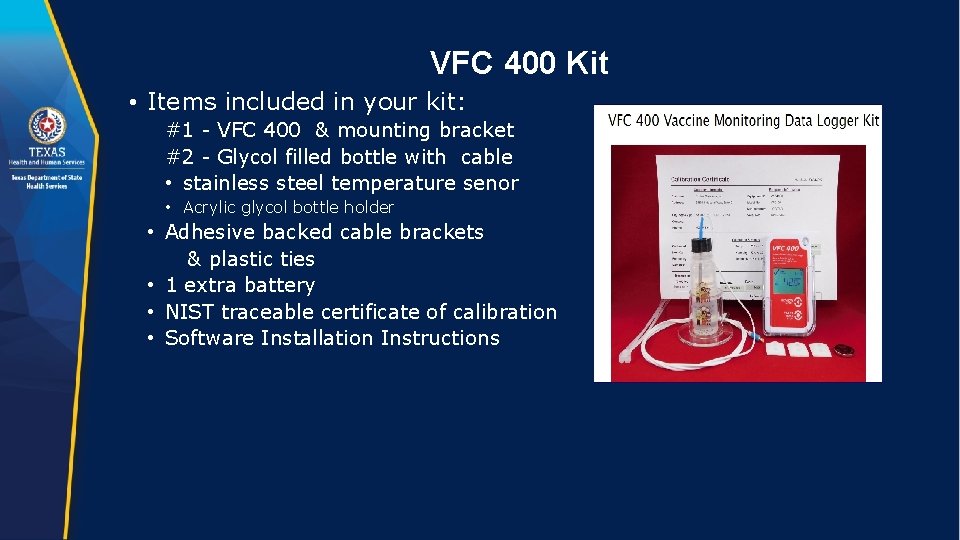
VFC 400 Kit • Items included in your kit: #1 - VFC 400 & mounting bracket #2 - Glycol filled bottle with cable • stainless steel temperature senor • Acrylic glycol bottle holder • Adhesive backed cable brackets & plastic ties • 1 extra battery • NIST traceable certificate of calibration • Software Installation Instructions
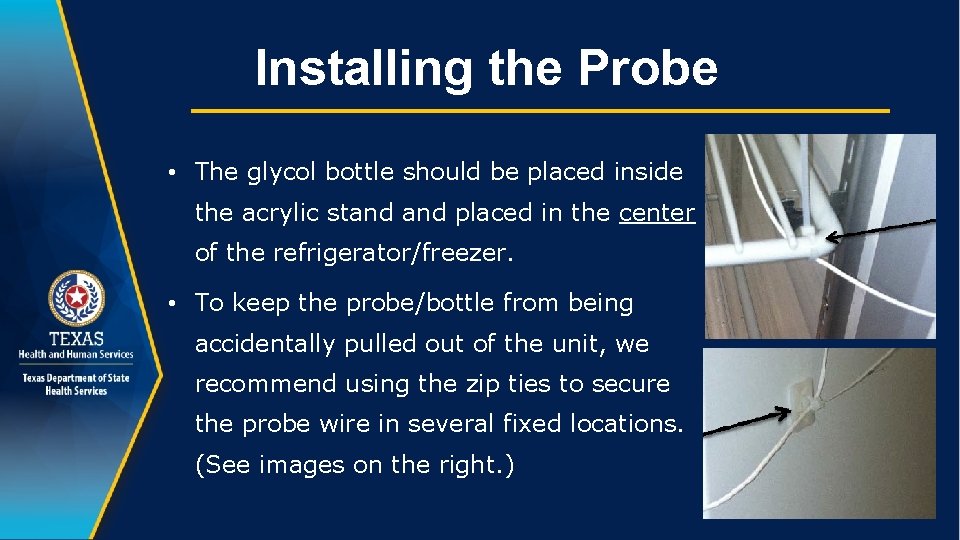
Installing the Probe • The glycol bottle should be placed inside the acrylic stand placed in the center of the refrigerator/freezer. • To keep the probe/bottle from being accidentally pulled out of the unit, we recommend using the zip ties to secure the probe wire in several fixed locations. (See images on the right. )
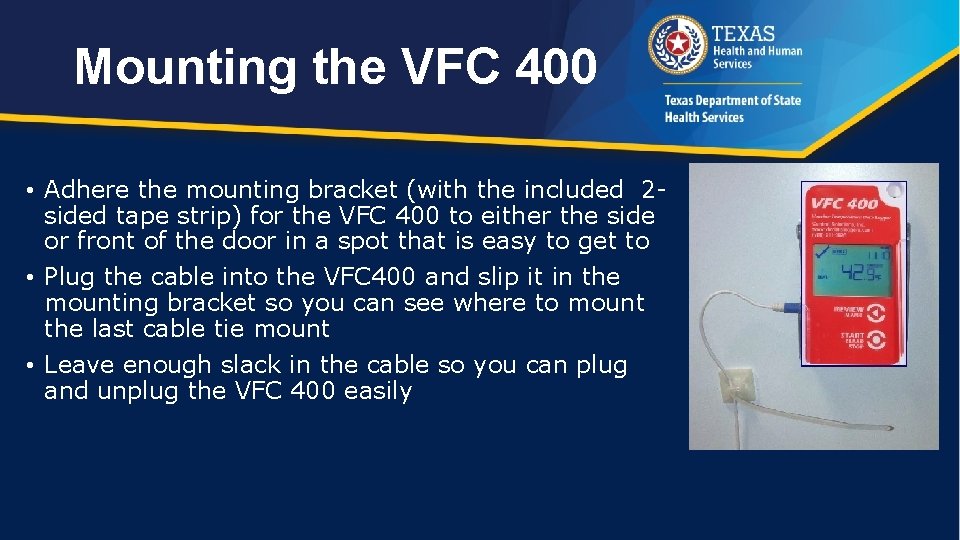
Mounting the VFC 400 • Adhere the mounting bracket (with the included 2 sided tape strip) for the VFC 400 to either the side or front of the door in a spot that is easy to get to • Plug the cable into the VFC 400 and slip it in the mounting bracket so you can see where to mount the last cable tie mount • Leave enough slack in the cable so you can plug and unplug the VFC 400 easily
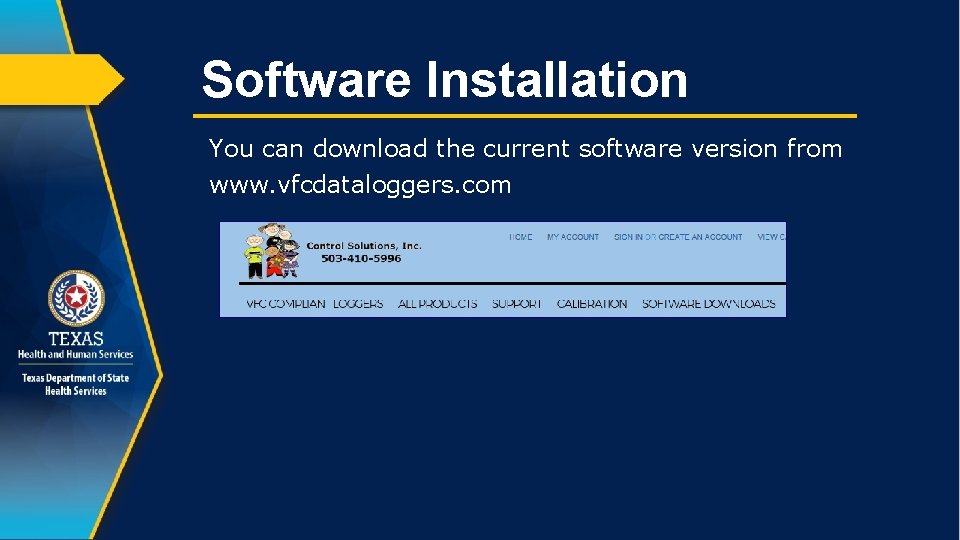
Software Installation You can download the current software version from www. vfcdataloggers. com
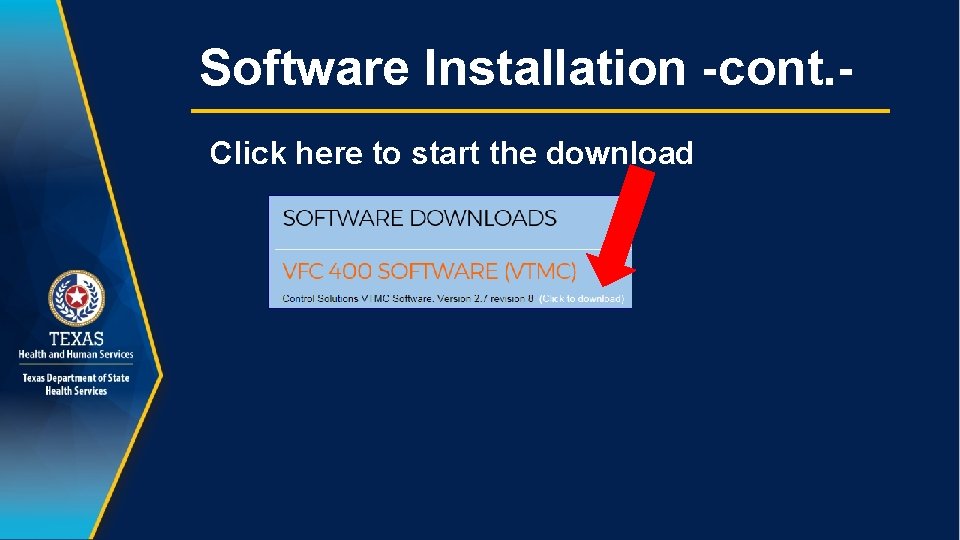
Software Installation -cont. Click here to start the download
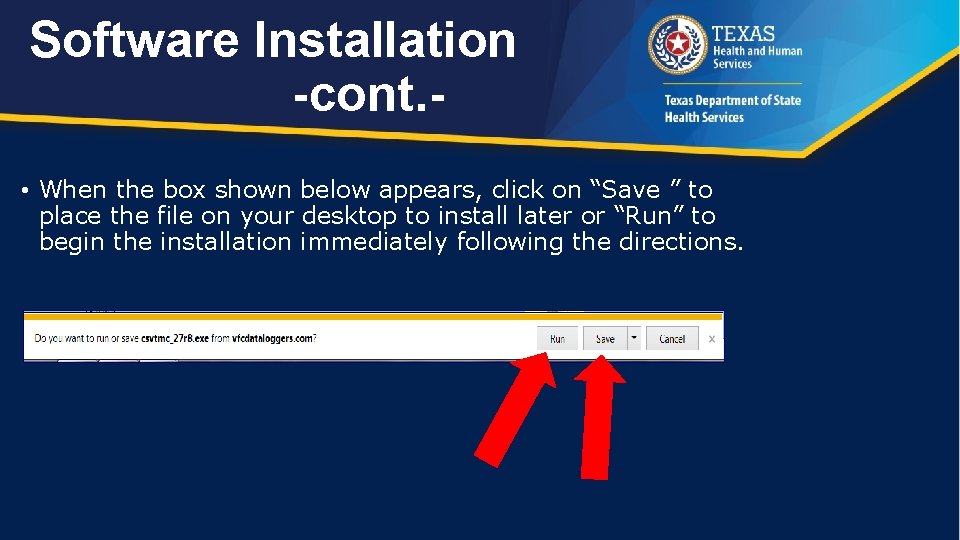
Software Installation -cont. • When the box shown below appears, click on “Save ” to place the file on your desktop to install later or “Run” to begin the installation immediately following the directions.
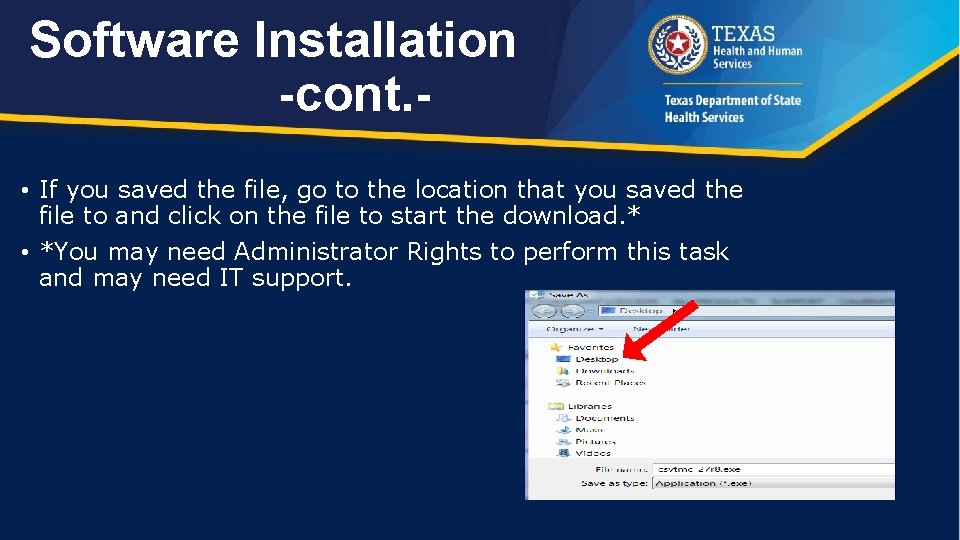
Software Installation -cont. • If you saved the file, go to the location that you saved the file to and click on the file to start the download. * • *You may need Administrator Rights to perform this task and may need IT support.
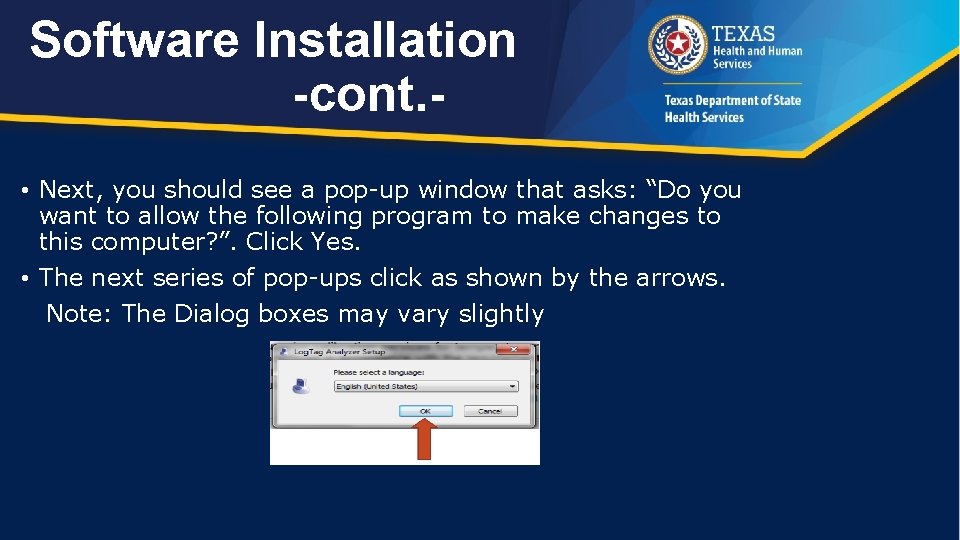
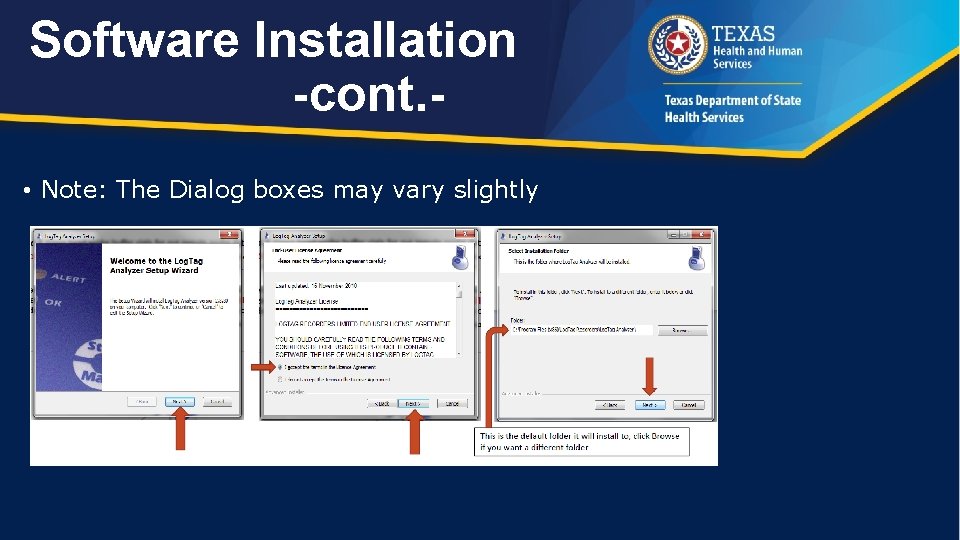
Software Installation -cont. • Next, you should see a pop-up window that asks: “Do you want to allow the following program to make changes to this computer? ”. Click Yes. • The next series of pop-ups click as shown by the arrows. Note: The Dialog boxes may vary slightly
Software Installation -cont. • Note: The Dialog boxes may vary slightly
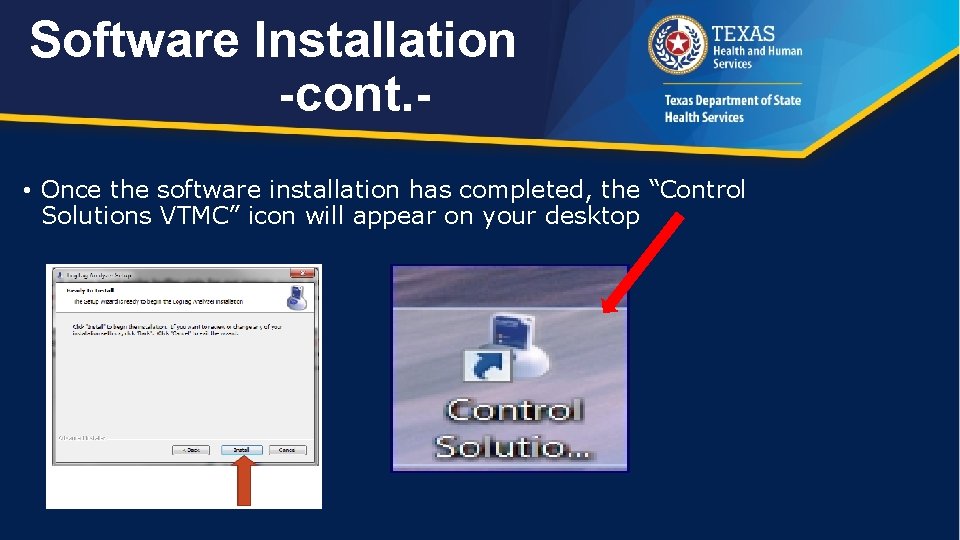
Software Installation -cont. • Once the software installation has completed, the “Control Solutions VTMC” icon will appear on your desktop
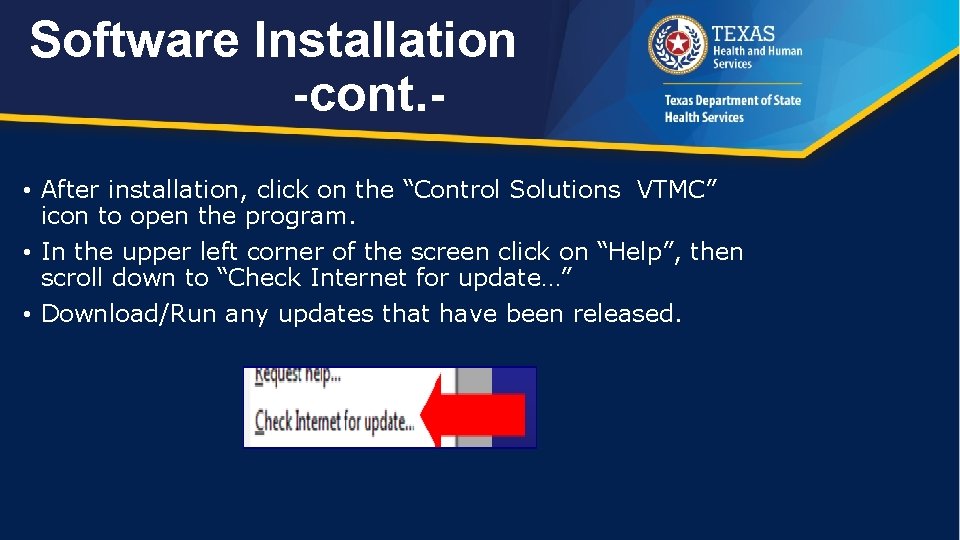
Software Installation -cont. • After installation, click on the “Control Solutions VTMC” icon to open the program. • In the upper left corner of the screen click on “Help”, then scroll down to “Check Internet for update…” • Download/Run any updates that have been released.
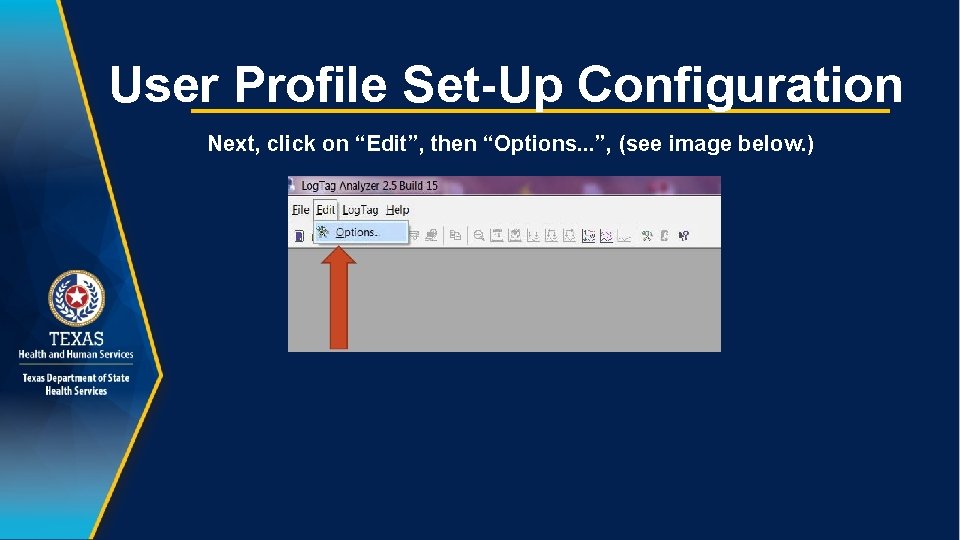
User Profile Set-Up Configuration Next, click on “Edit”, then “Options. . . ”, (see image below. )
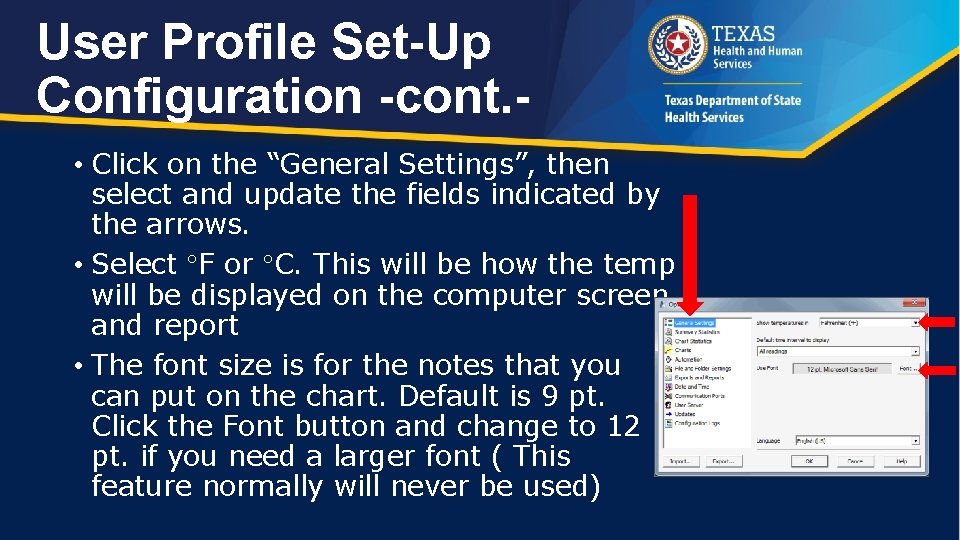
User Profile Set-Up Configuration -cont. • Click on the “General Settings”, then select and update the fields indicated by the arrows. • Select F or C. This will be how the temp will be displayed on the computer screen and report • The font size is for the notes that you can put on the chart. Default is 9 pt. Click the Font button and change to 12 pt. if you need a larger font ( This feature normally will never be used)
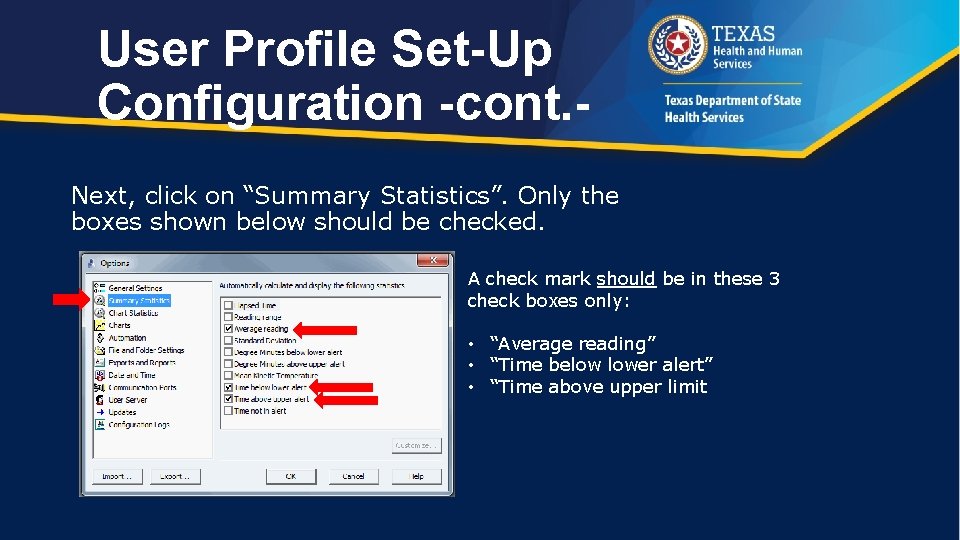
User Profile Set-Up Configuration -cont. Next, click on “Summary Statistics”. Only the boxes shown below should be checked. A check mark should be in these 3 check boxes only: • “Average reading” • “Time below lower alert” • “Time above upper limit
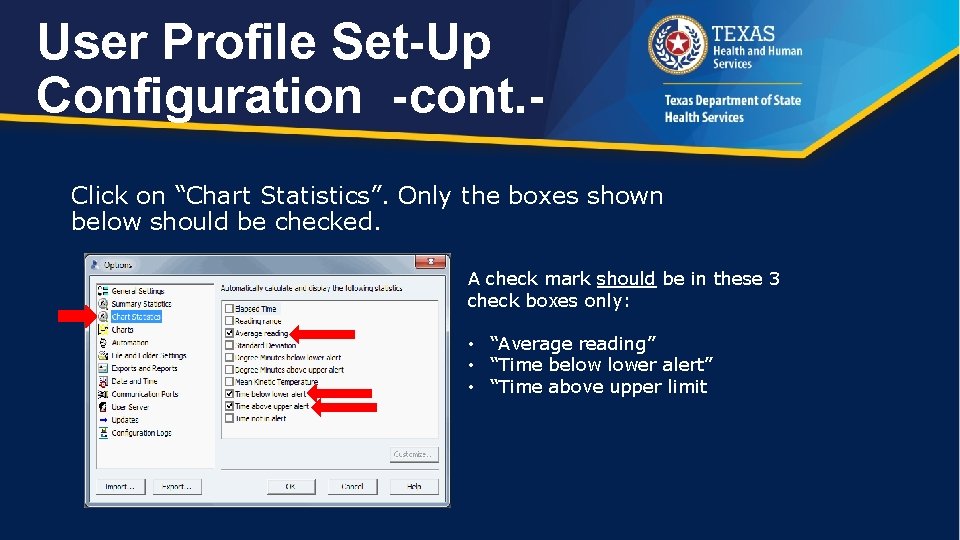
User Profile Set-Up Configuration -cont. Click on “Chart Statistics”. Only the boxes shown below should be checked. A check mark should be in these 3 check boxes only: • “Average reading” • “Time below lower alert” • “Time above upper limit
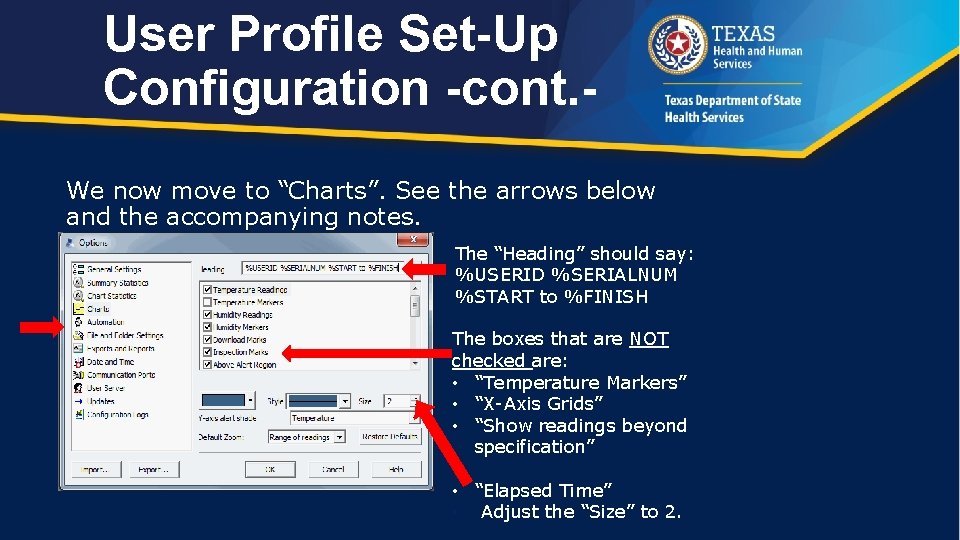
User Profile Set-Up Configuration -cont. We now move to “Charts”. See the arrows below and the accompanying notes. The “Heading” should say: %USERID %SERIALNUM %START to %FINISH The boxes that are NOT checked are: • “Temperature Markers” • “X-Axis Grids” • “Show readings beyond specification” • “Elapsed Time” • Adjust the “Size” to 2.
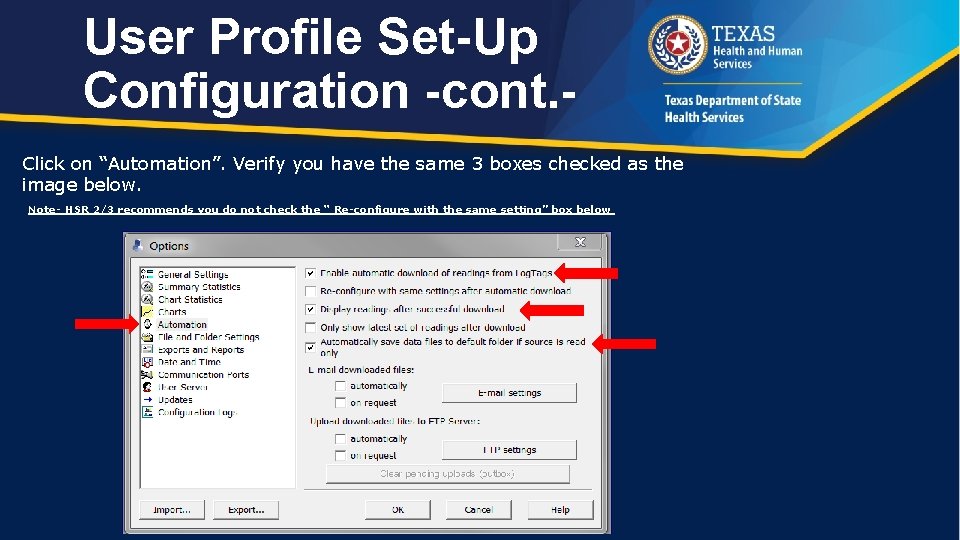
User Profile Set-Up Configuration -cont. Click on “Automation”. Verify you have the same 3 boxes checked as the image below. Note- HSR 2/3 recommends you do not check the “ Re-configure with the same setting” box below
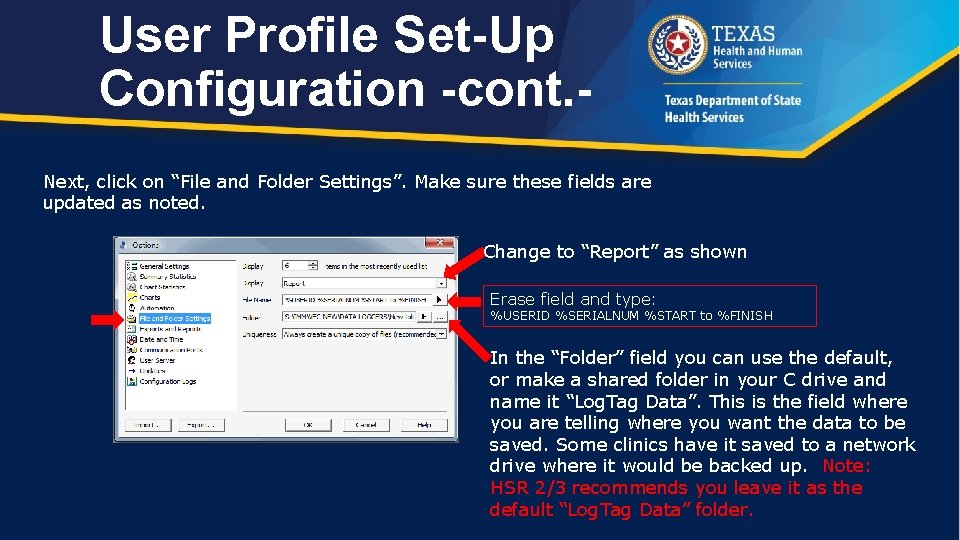
User Profile Set-Up Configuration -cont. Next, click on “File and Folder Settings”. Make sure these fields are updated as noted. Change to “Report” as shown Erase field and type: %USERID %SERIALNUM %START to %FINISH In the “Folder” field you can use the default, or make a shared folder in your C drive and name it “Log. Tag Data”. This is the field where you are telling where you want the data to be saved. Some clinics have it saved to a network drive where it would be backed up. Note: HSR 2/3 recommends you leave it as the default “Log. Tag Data” folder.
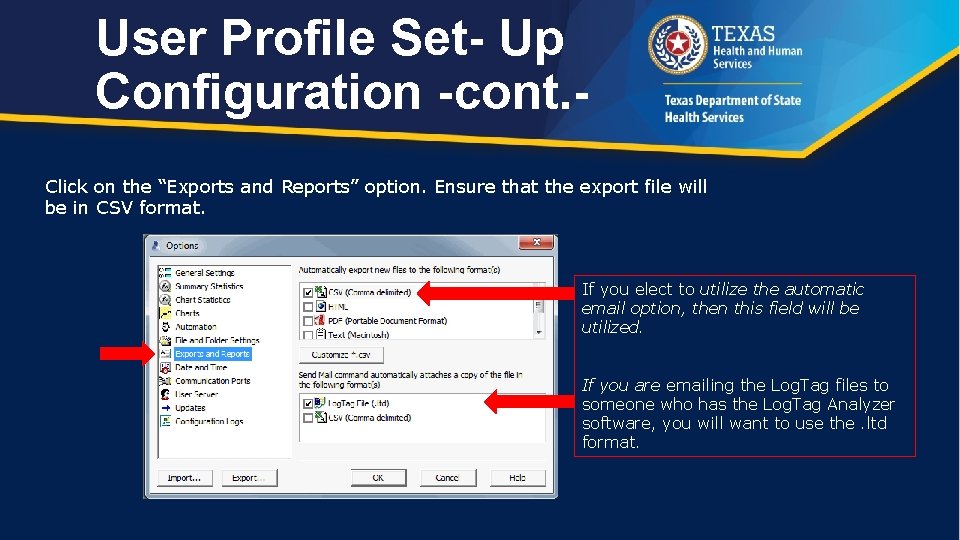
User Profile Set- Up Configuration -cont. Click on the “Exports and Reports” option. Ensure that the export file will be in CSV format. If you elect to utilize the automatic email option, then this field will be utilized. If you are emailing the Log. Tag files to someone who has the Log. Tag Analyzer software, you will want to use the. ltd format.
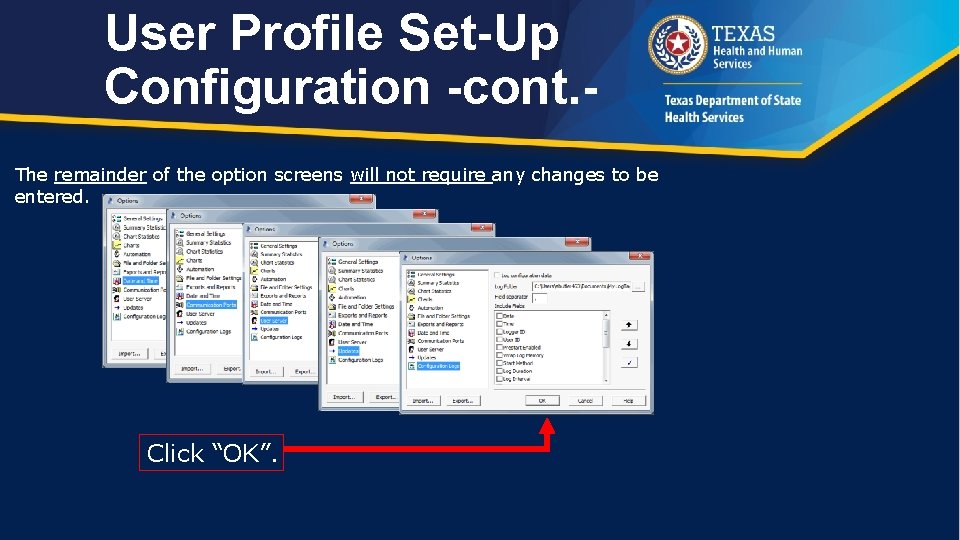
User Profile Set-Up Configuration -cont. The remainder of the option screens will not require any changes to be entered. Click “OK”.
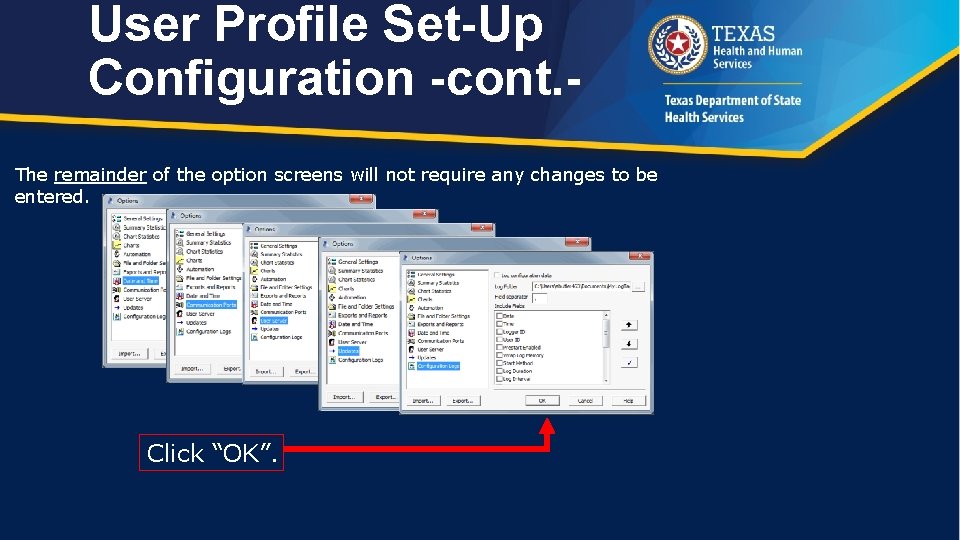
User Profile Set-Up Configuration -cont. The remainder of the option screens will not require any changes to be entered. Click “OK”.
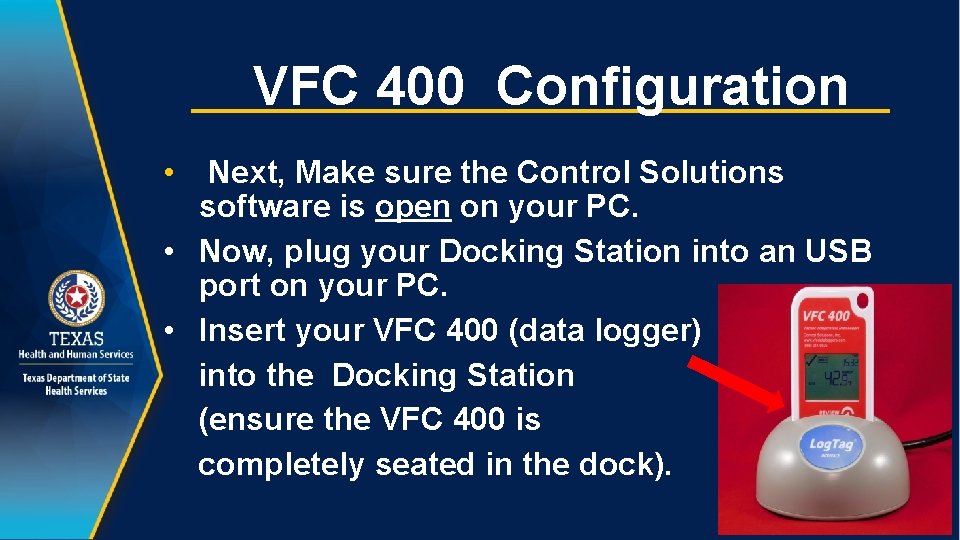
VFC 400 Configuration • Next, Make sure the Control Solutions software is open on your PC. • Now, plug your Docking Station into an USB port on your PC. • Insert your VFC 400 (data logger) into the Docking Station (ensure the VFC 400 is completely seated in the dock).
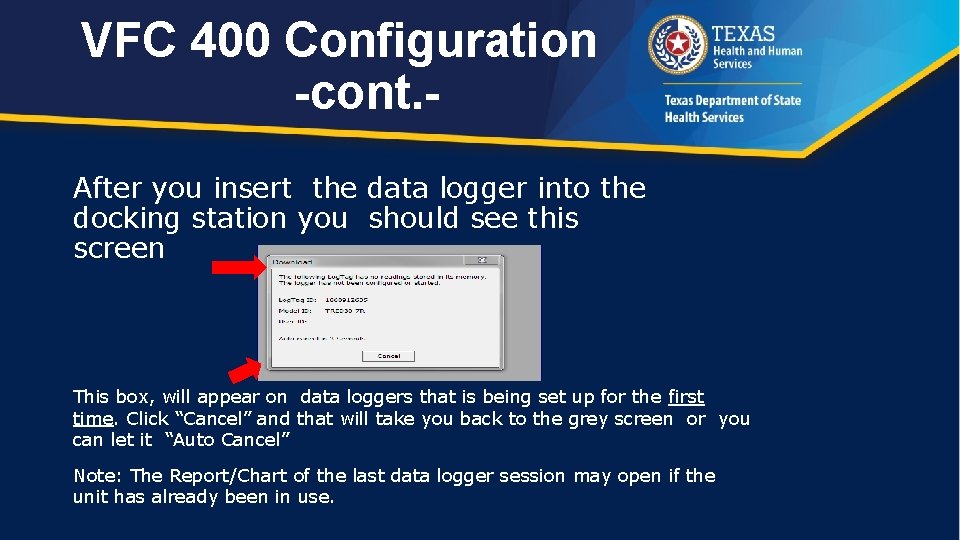
VFC 400 Configuration -cont. After you insert the data logger into the docking station you should see this screen This box, will appear on data loggers that is being set up for the first time. Click “Cancel” and that will take you back to the grey screen or you can let it “Auto Cancel” Note: The Report/Chart of the last data logger session may open if the unit has already been in use.
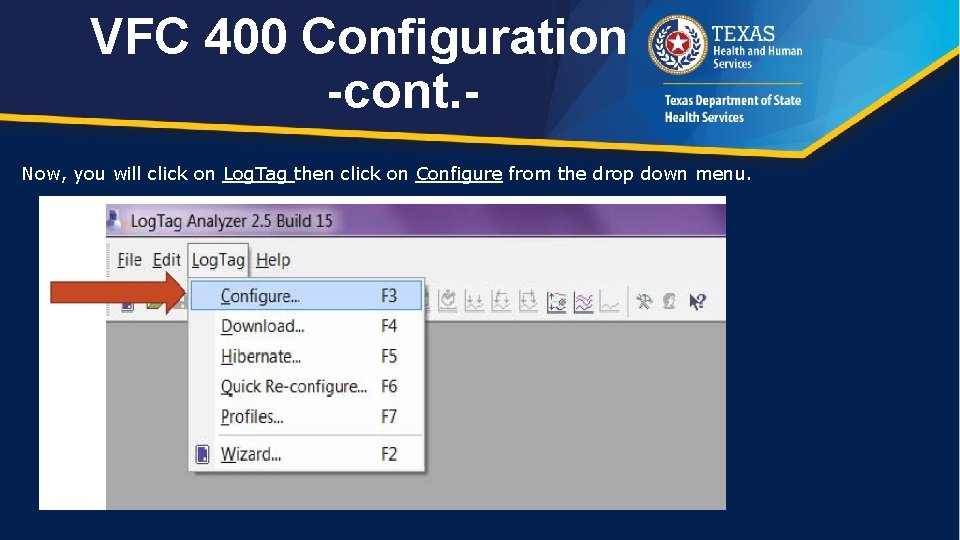
VFC 400 Configuration -cont. Now, you will click on Log. Tag then click on Configure from the drop down menu.
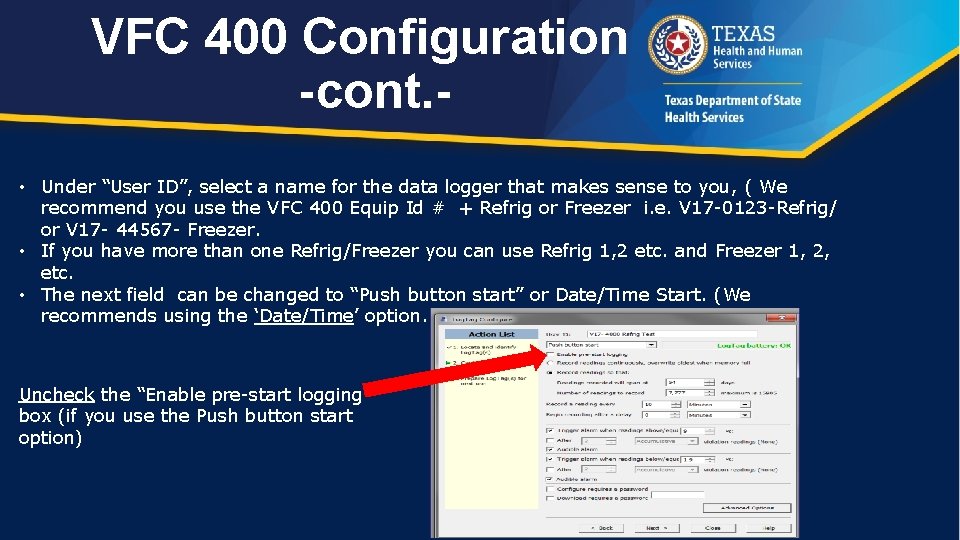
VFC 400 Configuration -cont. • Under “User ID”, select a name for the data logger that makes sense to you, ( We recommend you use the VFC 400 Equip Id # + Refrig or Freezer i. e. V 17 -0123 -Refrig/ or V 17 - 44567 - Freezer. • If you have more than one Refrig/Freezer you can use Refrig 1, 2 etc. and Freezer 1, 2, etc. • The next field can be changed to “Push button start” or Date/Time Start. (We recommends using the ‘Date/Time’ option. Uncheck the “Enable pre-start logging” box (if you use the Push button start option)
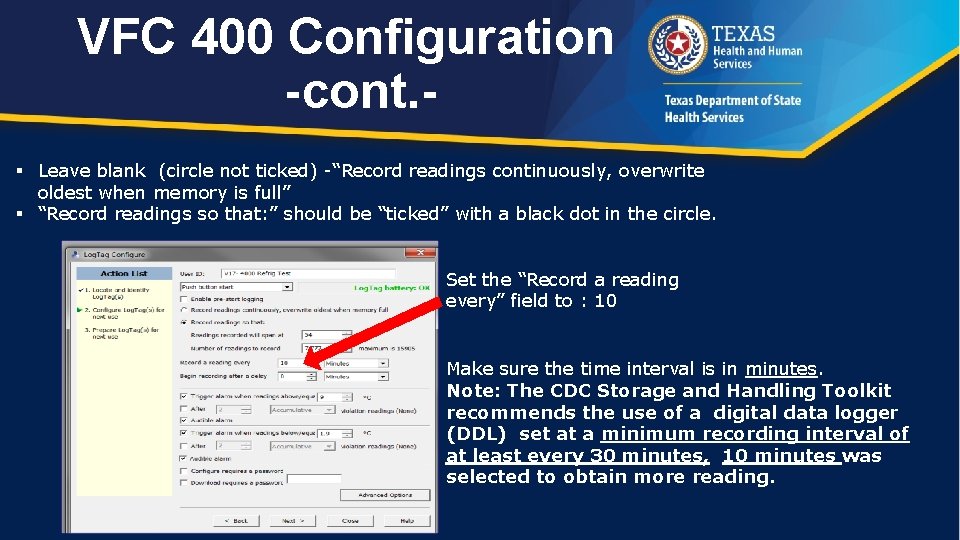
VFC 400 Configuration -cont. § Leave blank (circle not ticked) -“Record readings continuously, overwrite oldest when memory is full” § “Record readings so that: ” should be “ticked” with a black dot in the circle. Set the “Record a reading every” field to : 10 Make sure the time interval is in minutes. Note: The CDC Storage and Handling Toolkit recommends the use of a digital data logger (DDL) set at a minimum recording interval of at least every 30 minutes, 10 minutes was selected to obtain more reading.
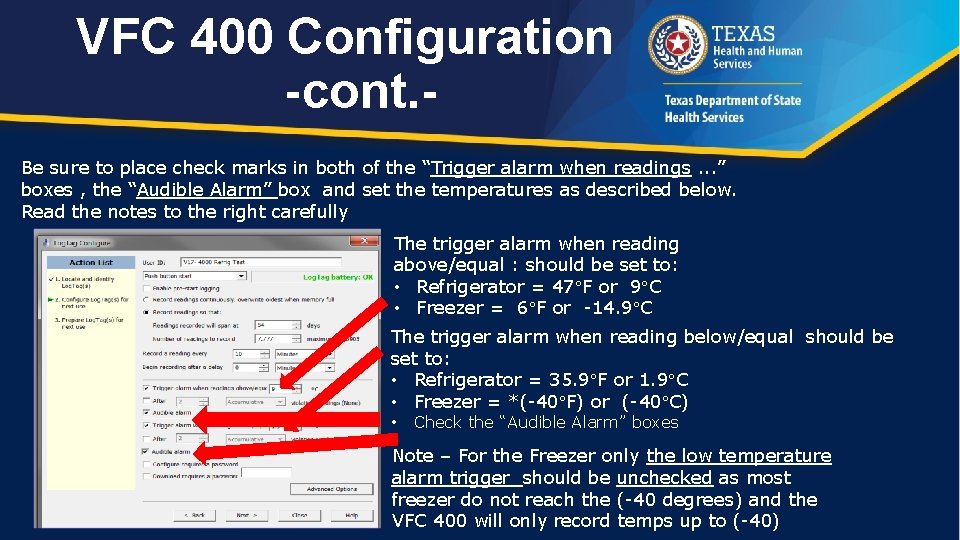
VFC 400 Configuration -cont. Be sure to place check marks in both of the “Trigger alarm when readings. . . ” boxes , the “Audible Alarm” box and set the temperatures as described below. Read the notes to the right carefully The trigger alarm when reading above/equal : should be set to: • Refrigerator = 47 F or 9 C • Freezer = 6 F or -14. 9 C The trigger alarm when reading below/equal should be set to: • Refrigerator = 35. 9 F or 1. 9 C • Freezer = *(-40 F) or (-40 C) • Check the “Audible Alarm” boxes Note – For the Freezer only the low temperature alarm trigger should be unchecked as most freezer do not reach the (-40 degrees) and the VFC 400 will only record temps up to (-40)
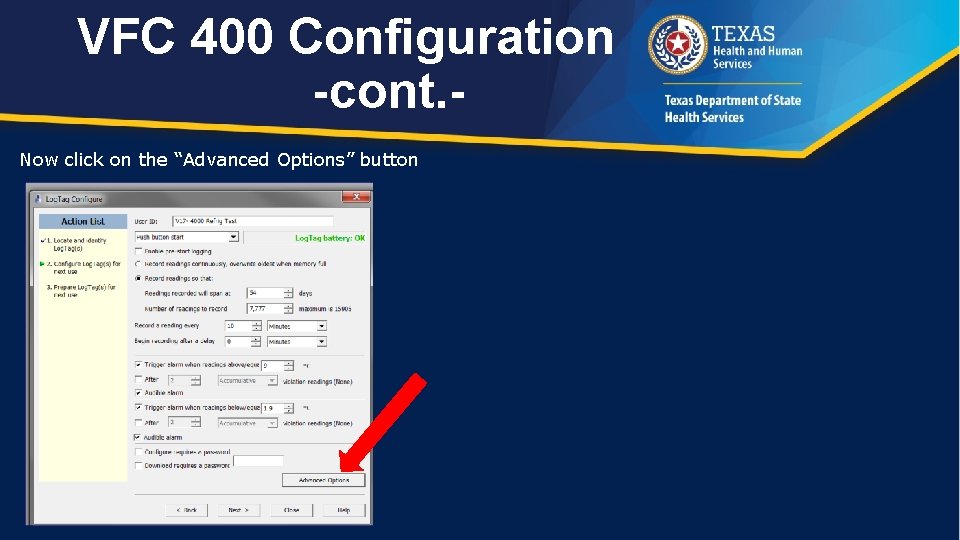
VFC 400 Configuration -cont. Now click on the “Advanced Options” button
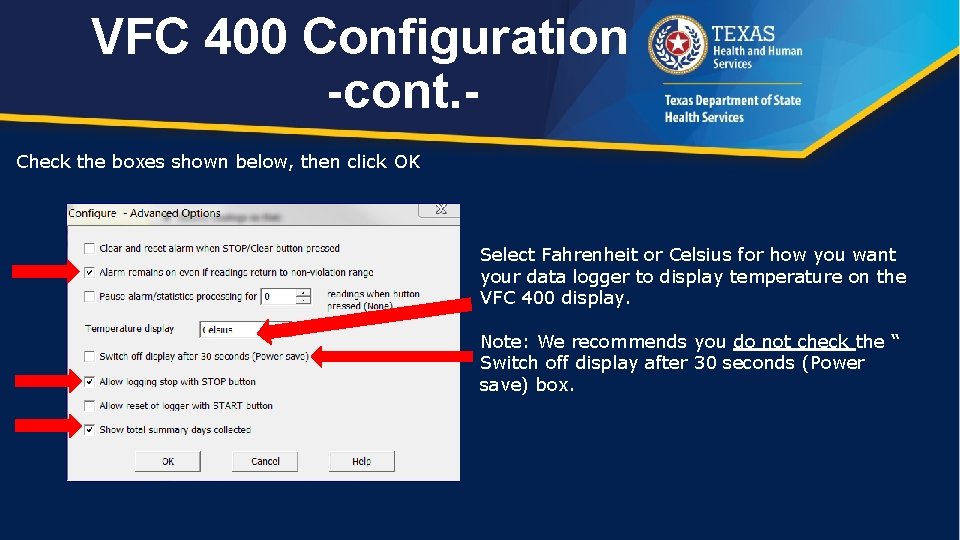
VFC 400 Configuration -cont. Check the boxes shown below, then click OK Select Fahrenheit or Celsius for how you want your data logger to display temperature on the VFC 400 display. Note: We recommends you do not check the “ Switch off display after 30 seconds (Power save) box.
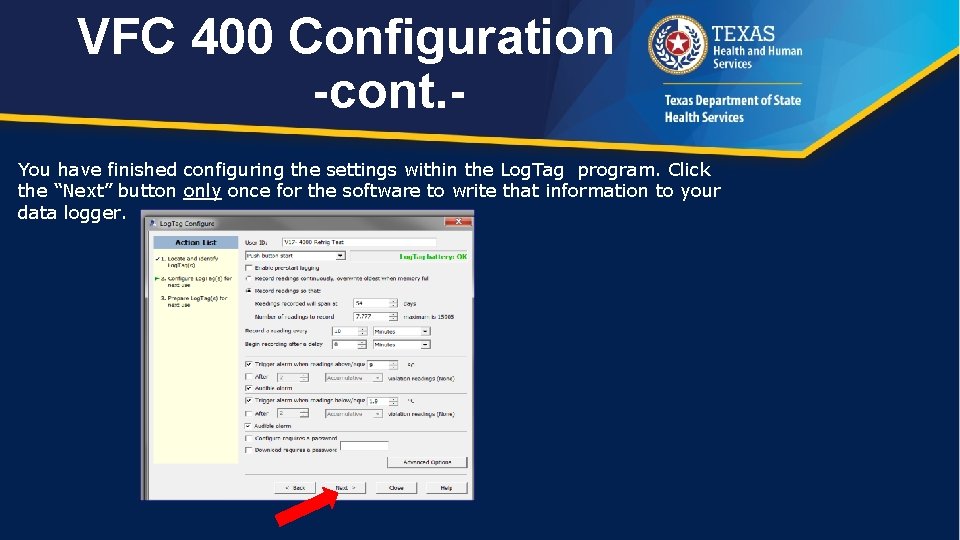
VFC 400 Configuration -cont. You have finished configuring the settings within the Log. Tag program. Click the “Next” button only once for the software to write that information to your data logger.
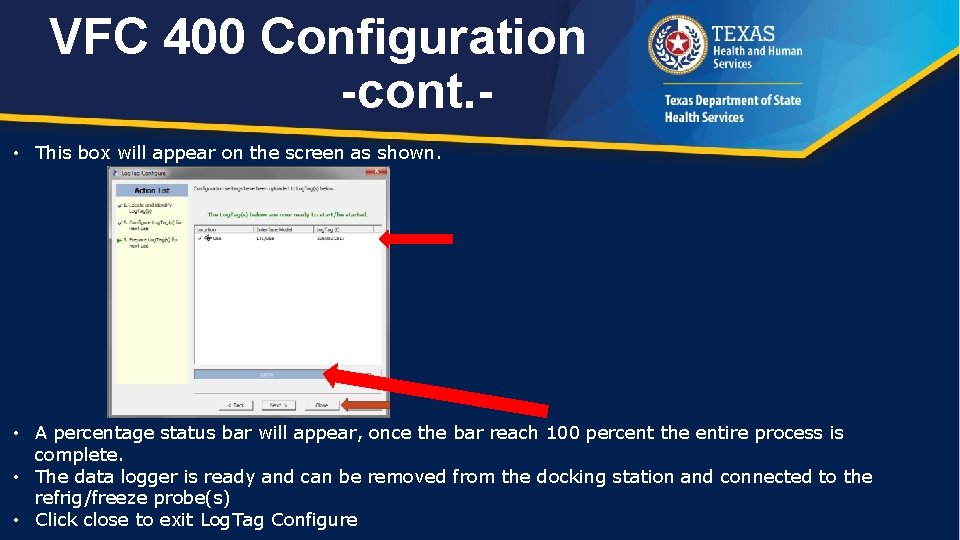
VFC 400 Configuration -cont. • This box will appear on the screen as shown. • A percentage status bar will appear, once the bar reach 100 percent the entire process is complete. • The data logger is ready and can be removed from the docking station and connected to the refrig/freeze probe(s) • Click close to exit Log. Tag Configure
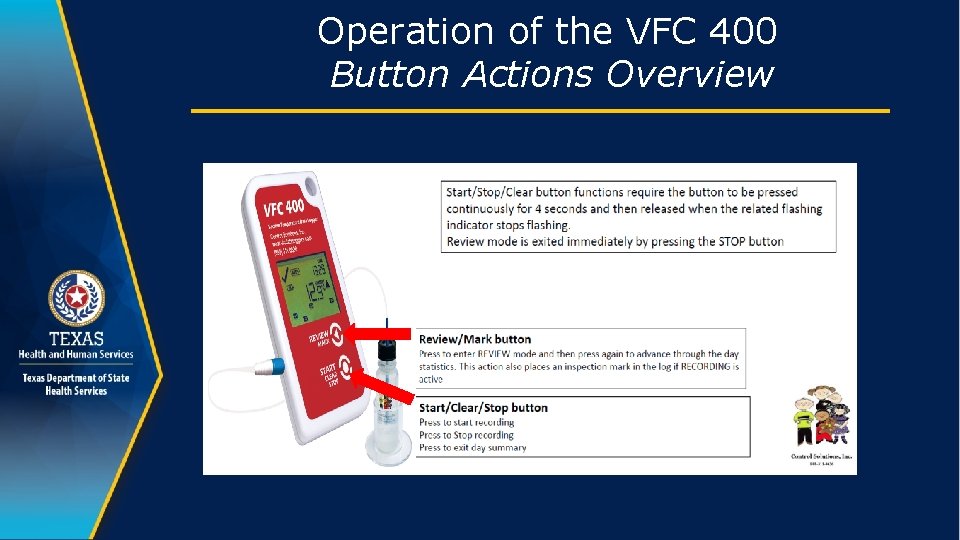
Operation of the VFC 400 Button Actions Overview
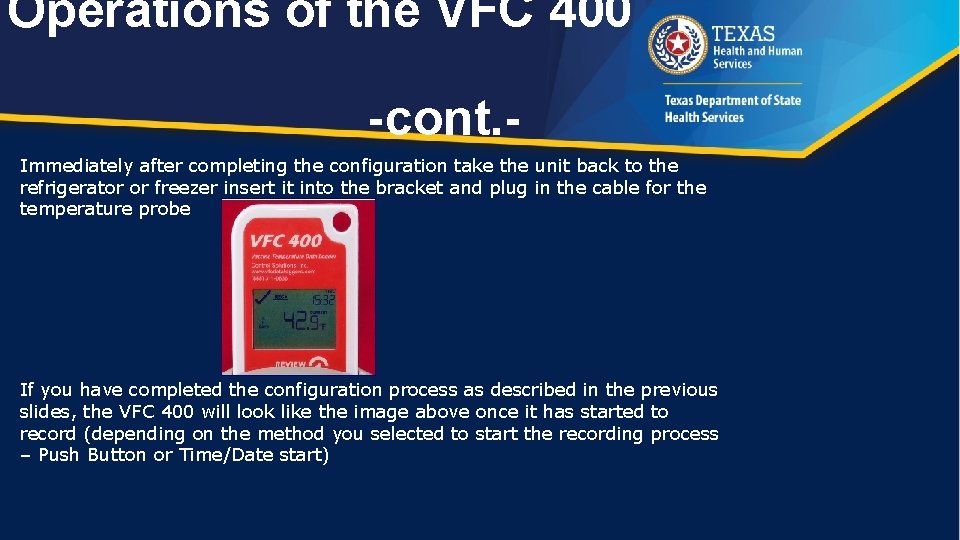
Operations of the VFC 400 -cont. Immediately after completing the configuration take the unit back to the refrigerator or freezer insert it into the bracket and plug in the cable for the temperature probe If you have completed the configuration process as described in the previous slides, the VFC 400 will look like the image above once it has started to record (depending on the method you selected to start the recording process – Push Button or Time/Date start)
Operations of the VFC 400 Starting the Logger To start the VFC 400 using : The Push Button method: • Hold the start button down; the word "starting" will display a second later the word “ready” disappears • When the word “ready” disappears you must remove your thumb/ finger within 1 -2 seconds or it will go back to the "ready" state. Date Time Start Method: • When using this method the recorder will start automatically at the pre-set date and time (no other action is needed)
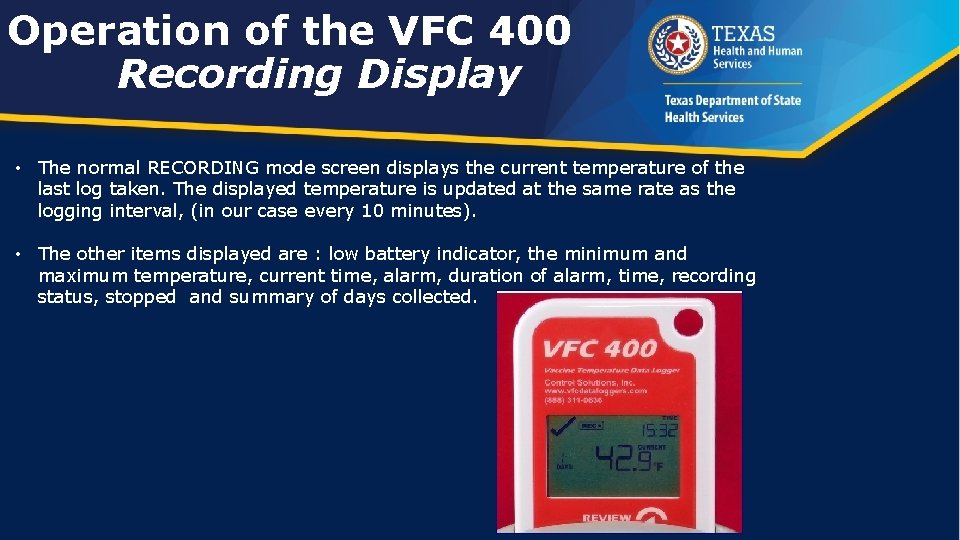
Operation of the VFC 400 Recording Display • The normal RECORDING mode screen displays the current temperature of the last log taken. The displayed temperature is updated at the same rate as the logging interval, (in our case every 10 minutes). • The other items displayed are : low battery indicator, the minimum and maximum temperature, current time, alarm, duration of alarm, time, recording status, stopped and summary of days collected.
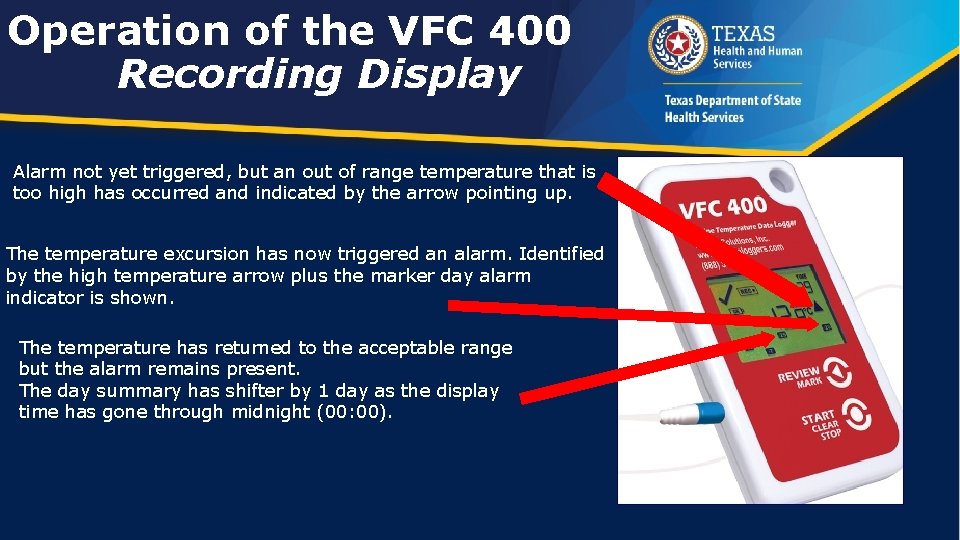
Operation of the VFC 400 Recording Display Alarm not yet triggered, but an out of range temperature that is too high has occurred and indicated by the arrow pointing up. The temperature excursion has now triggered an alarm. Identified by the high temperature arrow plus the marker day alarm indicator is shown. The temperature has returned to the acceptable range but the alarm remains present. The day summary has shifter by 1 day as the display time has gone through midnight (00: 00).
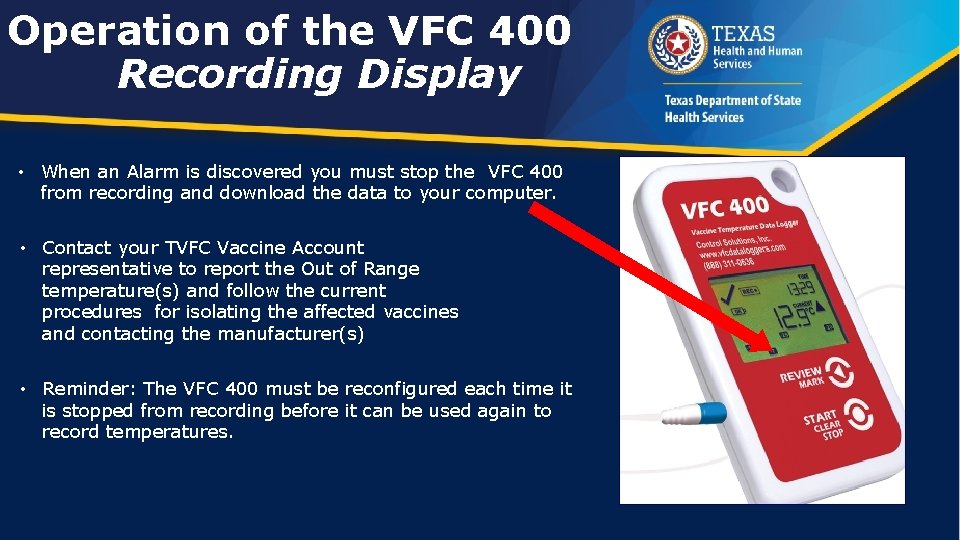
Operation of the VFC 400 Recording Display • When an Alarm is discovered you must stop the VFC 400 from recording and download the data to your computer. • Contact your TVFC Vaccine Account representative to report the Out of Range temperature(s) and follow the current procedures for isolating the affected vaccines and contacting the manufacturer(s) • Reminder: The VFC 400 must be reconfigured each time it is stopped from recording before it can be used again to record temperatures.
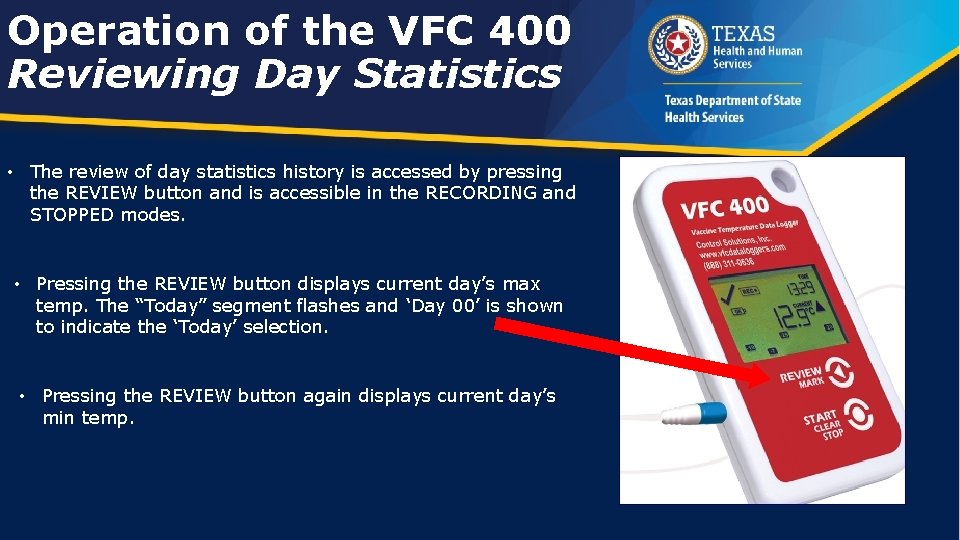
Operation of the VFC 400 Reviewing Day Statistics • The review of day statistics history is accessed by pressing the REVIEW button and is accessible in the RECORDING and STOPPED modes. • Pressing the REVIEW button displays current day’s max temp. The “Today” segment flashes and ‘Day 00’ is shown to indicate the ‘Today’ selection. • Pressing the REVIEW button again displays current day’s min temp.
VFC 400 - Data The Data Logger data (report) must • Be downloaded to your computer a minimum of once each month • Be downloaded to your computer and submitted to the responsible entity if an excursion occurs. • Must be keep for 5 years and available to send to DSHS if requested.
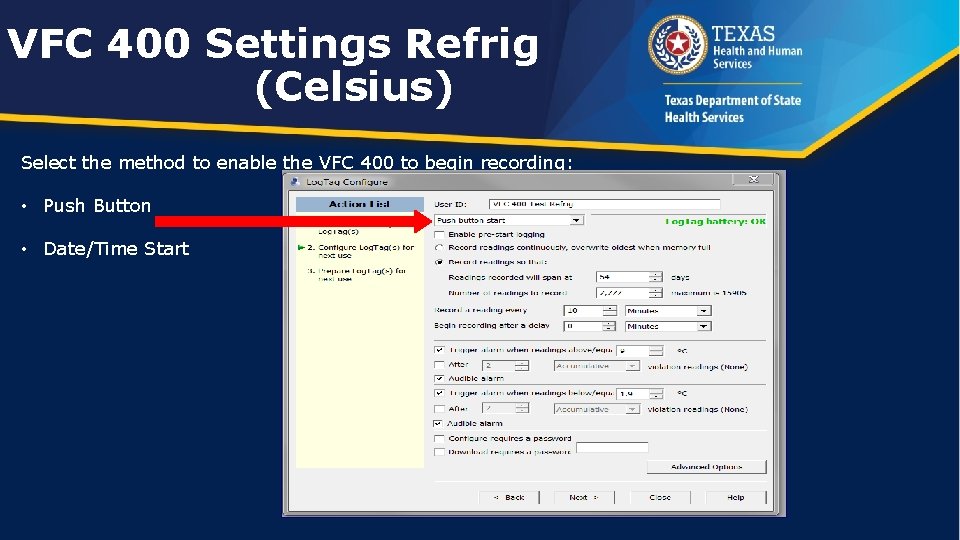
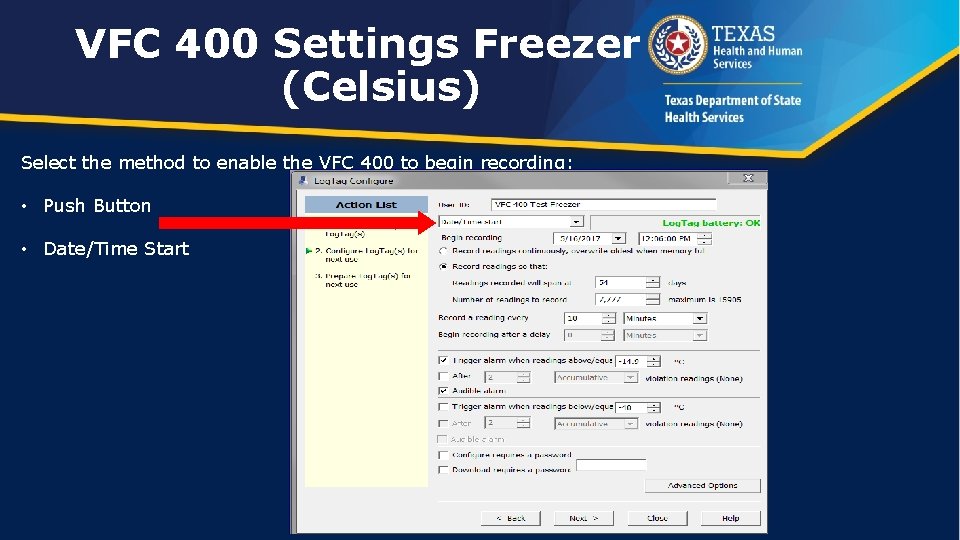
VFC 400 Settings • The following slides are the VFC 400 (Parameters) configuration Settings for the Refrigerator and Freezer in Fahrenheit and Celsius • Your User Id and/or the method you choose to start the VFC 400 to record after configuration will be different.
VFC 400 Settings Refrig (Celsius) Select the method to enable the VFC 400 to begin recording: • Push Button • Date/Time Start
VFC 400 Settings Freezer (Celsius) Select the method to enable the VFC 400 to begin recording: • Push Button • Date/Time Start
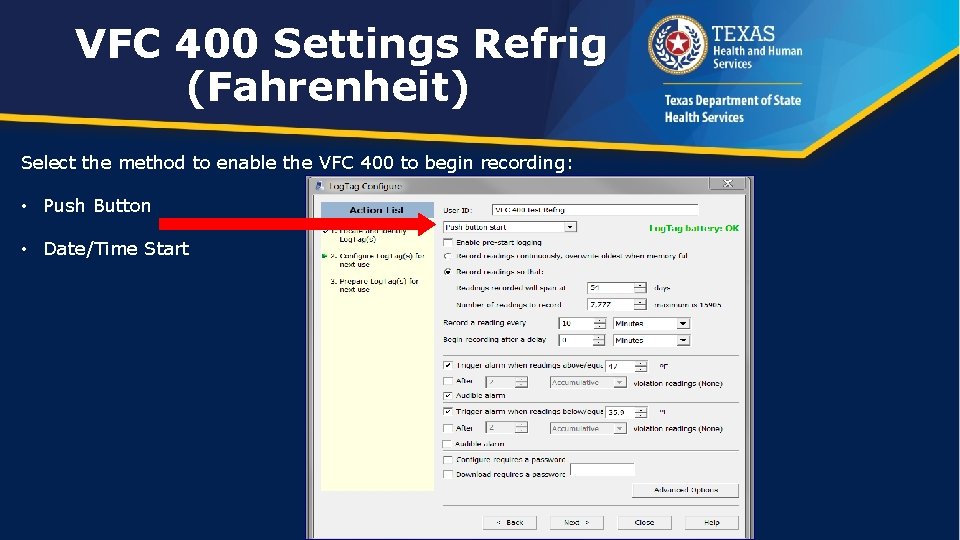
VFC 400 Settings Refrig (Fahrenheit) Select the method to enable the VFC 400 to begin recording: • Push Button • Date/Time Start
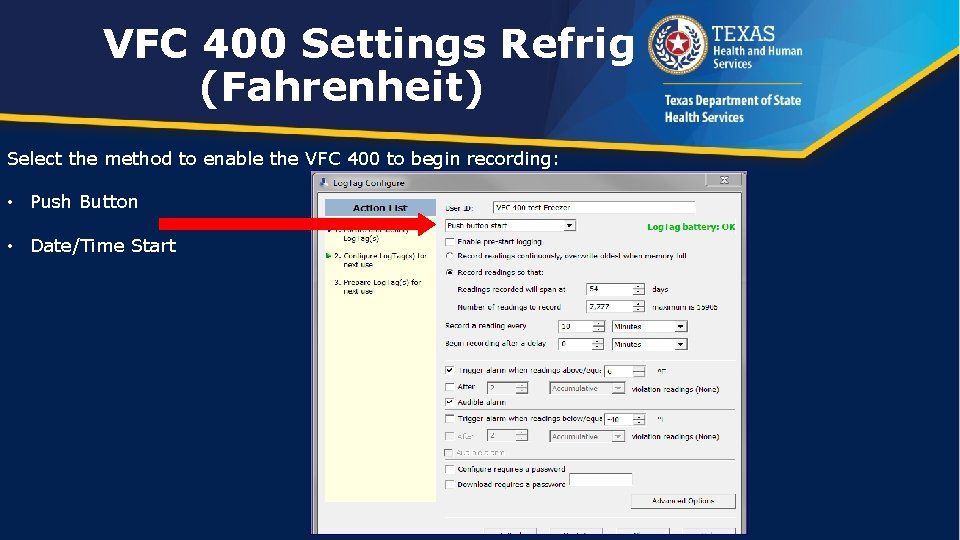
VFC 400 Settings Refrig (Fahrenheit) Select the method to enable the VFC 400 to begin recording: • Push Button • Date/Time Start
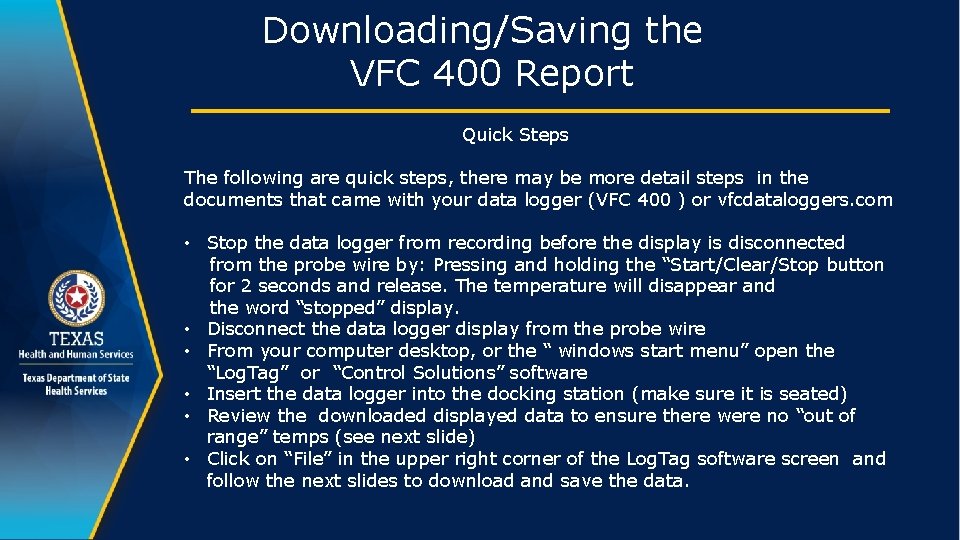
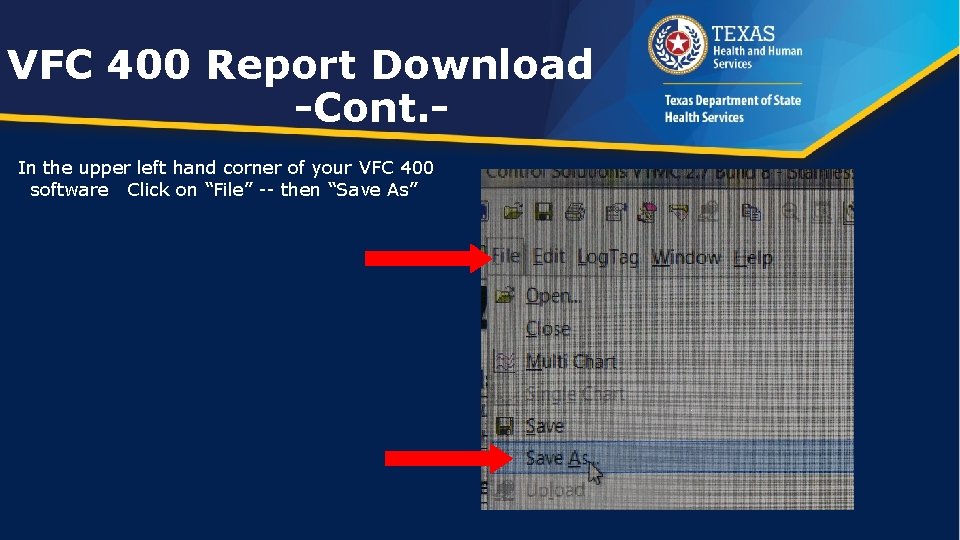
Downloading/Saving the VFC 400 Report Quick Steps The following are quick steps, there may be more detail steps in the documents that came with your data logger (VFC 400 ) or vfcdataloggers. com • Stop the data logger from recording before the display is disconnected from the probe wire by: Pressing and holding the “Start/Clear/Stop button for 2 seconds and release. The temperature will disappear and the word “stopped” display. • Disconnect the data logger display from the probe wire • From your computer desktop, or the “ windows start menu” open the “Log. Tag” or “Control Solutions” software • Insert the data logger into the docking station (make sure it is seated) • Review the downloaded displayed data to ensure there were no “out of range” temps (see next slide) • Click on “File” in the upper right corner of the Log. Tag software screen and follow the next slides to download and save the data.
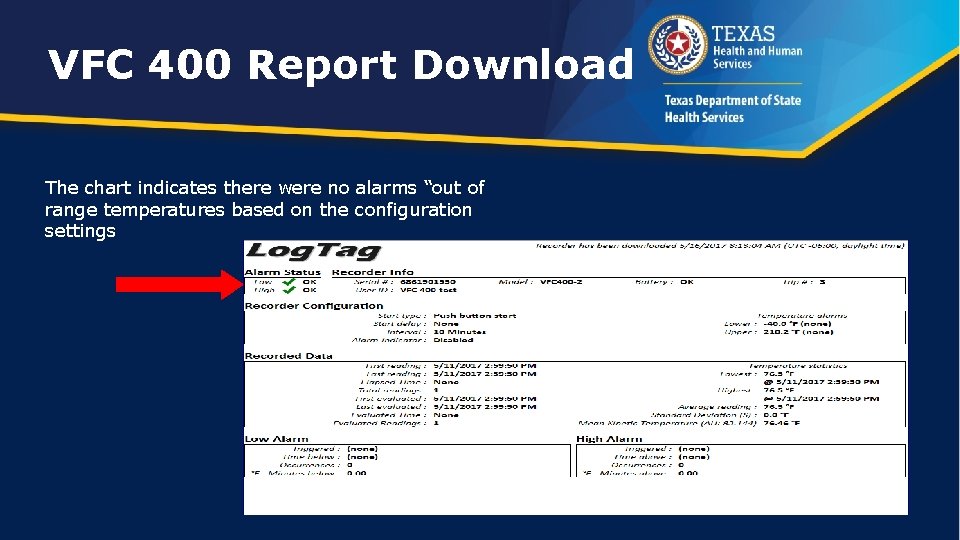
VFC 400 Report Download The chart indicates there were no alarms “out of range temperatures based on the configuration settings
VFC 400 Report Download -Cont. In the upper left hand corner of your VFC 400 software Click on “File” -- then “Save As”
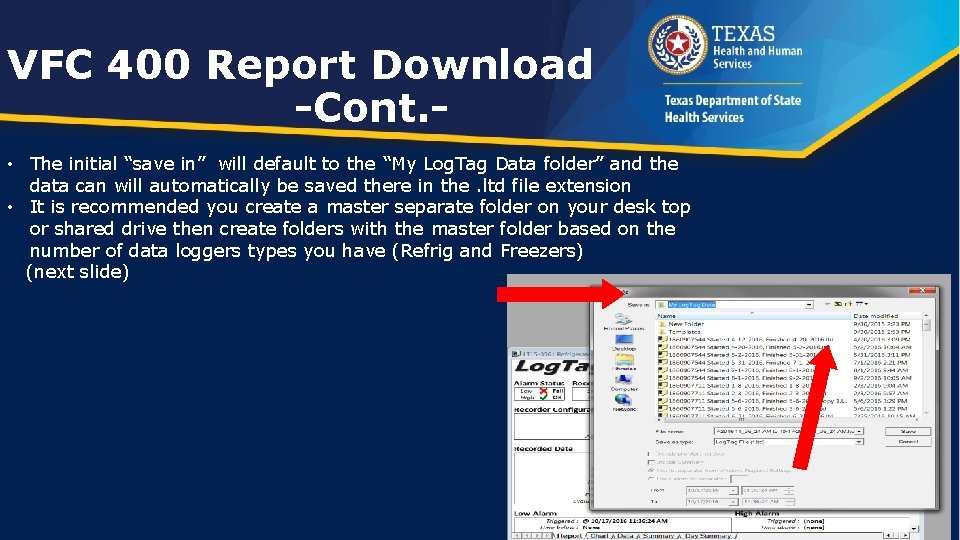
VFC 400 Report Download -Cont. • The initial “save in” will default to the “My Log. Tag Data folder” and the data can will automatically be saved there in the. ltd file extension • It is recommended you create a master separate folder on your desk top or shared drive then create folders with the master folder based on the number of data loggers types you have (Refrig and Freezers) (next slide)
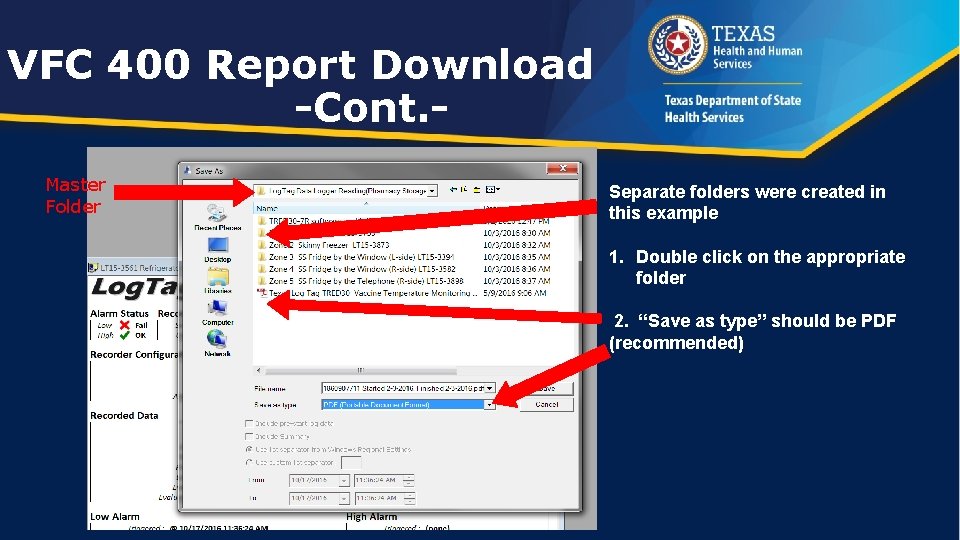
VFC 400 Report Download -Cont. Master Folder Separate folders were created in this example 1. Double click on the appropriate folder 2. “Save as type” should be PDF (recommended)
Audible Alarm • During the initial set up of the VFC 400 data logger(s) the “audible alarm” feature was enabled. • When the audible alarm sounds , the data logger has detected an excursion (out of range temperature). • You are required to download the data onto your computer, review the data, then take the appropriate actions. • Downloading the data and re-configuring the VFC 400 is the only way to stop the audible alarm.
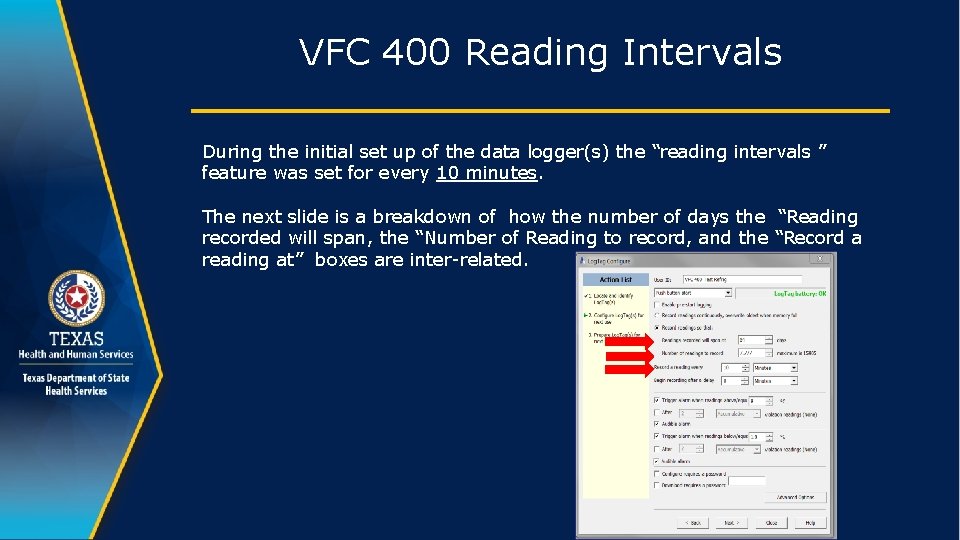
VFC 400 Reading Intervals During the initial set up of the data logger(s) the “reading intervals ” feature was set for every 10 minutes. The next slide is a breakdown of how the number of days the “Reading recorded will span, the “Number of Reading to record, and the “Record a reading at” boxes are inter-related.
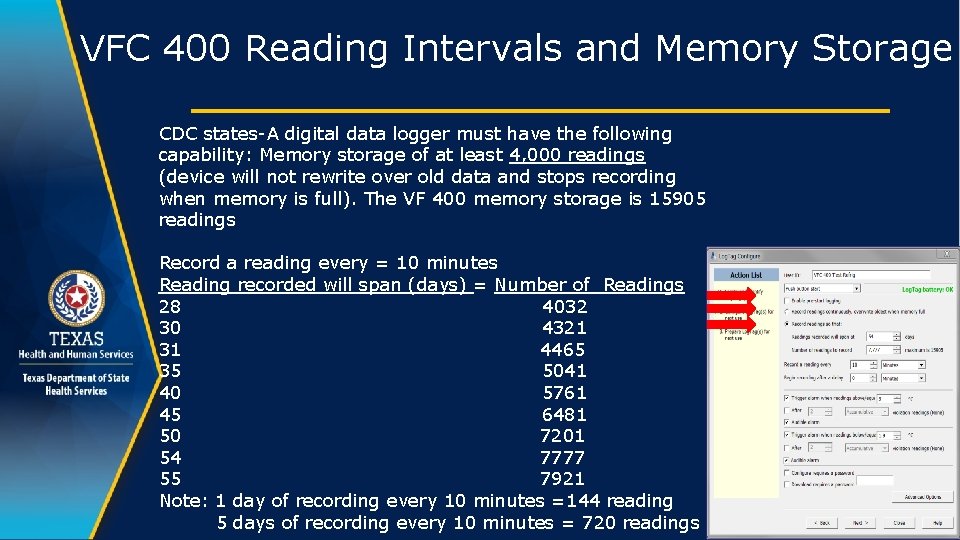
VFC 400 Reading Intervals and Memory Storage CDC states-A digital data logger must have the following capability: Memory storage of at least 4, 000 readings (device will not rewrite over old data and stops recording when memory is full). The VF 400 memory storage is 15905 readings Record a reading every = 10 minutes Reading recorded will span (days) = Number of Readings 28 4032 30 4321 31 4465 35 5041 40 5761 45 6481 50 7201 54 7777 55 7921 Note: 1 day of recording every 10 minutes =144 reading 5 days of recording every 10 minutes = 720 readings
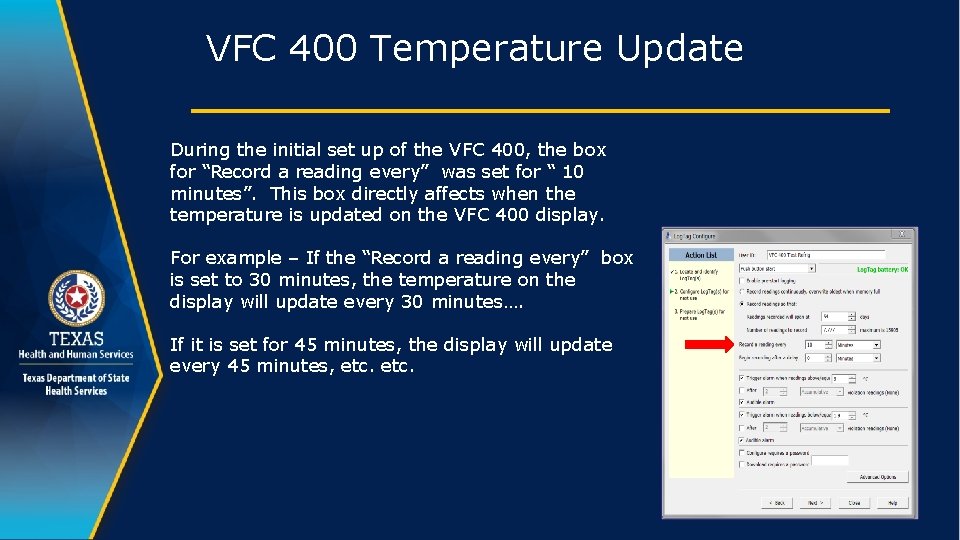
VFC 400 Temperature Update During the initial set up of the VFC 400, the box for “Record a reading every” was set for “ 10 minutes”. This box directly affects when the temperature is updated on the VFC 400 display. For example – If the “Record a reading every” box is set to 30 minutes, the temperature on the display will update every 30 minutes…. If it is set for 45 minutes, the display will update every 45 minutes, etc.
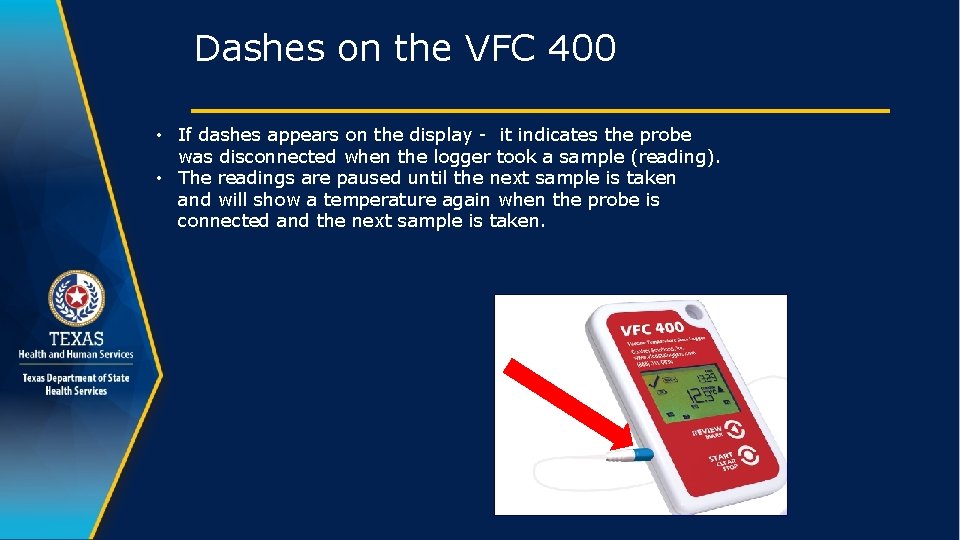
Dashes on the VFC 400 • If dashes appears on the display - it indicates the probe was disconnected when the logger took a sample (reading). • The readings are paused until the next sample is taken and will show a temperature again when the probe is connected and the next sample is taken.
VFC 400 Battery • The VFC 400 comes with 1 battery that is preinstalled and 1 spare 3 V CR 2032 (Li. Mn. O 2) coin cell battery that is user replaceable • Battery Life is typically 1 year of operation. • Typical battery life - assumes 6 minute logging, day statistics are reviewed on the display no more than once daily for no longer than 30 seconds each time, and download data once each month. • Continual activation of the audible alarm will reduce the working life of the battery. When an alarm is triggered, the data should be downloaded, reviewed , and the alarm should be cleared and reset as soon as possible through the configuration process.
VFC 400 Features Summary • The VFC 400 Vaccine Monitoring Kit measures and stores 16, 905 temperature readings from an External Probe. • The display is designed to show ‘at a glance’ if temperature excursions have occurred during the current day and up to the previous 29 days. • The display also shows the current temperature reading, the current time, recording status and battery status. • The alarm is trigged if temperature readings are outside pre-set alarm limits. • The status indicator changes from a � to an X and the audible alarm will sound. • From the display you can review the minimum and maximum temperatures for each day the VFC 400 has been logging up to 30 days. • The VFC 400 resets the min/max temperature at midnight every night • An inspection mark is placed on the chart each time the “Review” button is pressed indicating the min/max or other data has been checked.
Question?
Thank you Frederick Grimes DSHS HSR 2/3 fred. grimes@dshs. texas. gov 817 -264 -4796