
VERSION CONTROL USING SVN AND GIT WITH UNITY


![UDK Required Files/folders: • • • Binaries Config Content Source [Your_project_Name]. sln [you_project_name]. uproject](https://slidetodoc.com/presentation_image_h2/c9b84f81390a3c8f403944ba6b1ec09d/image-23.jpg "UDK Required Files/folders: • • • Binaries Config Content Source [Your_project_Name]. sln [you_project_name]. uproject")
- Slides: 24
VERSION CONTROL USING SVN AND GIT WITH UNITY AND SDK
SUBVERSION (SVN)
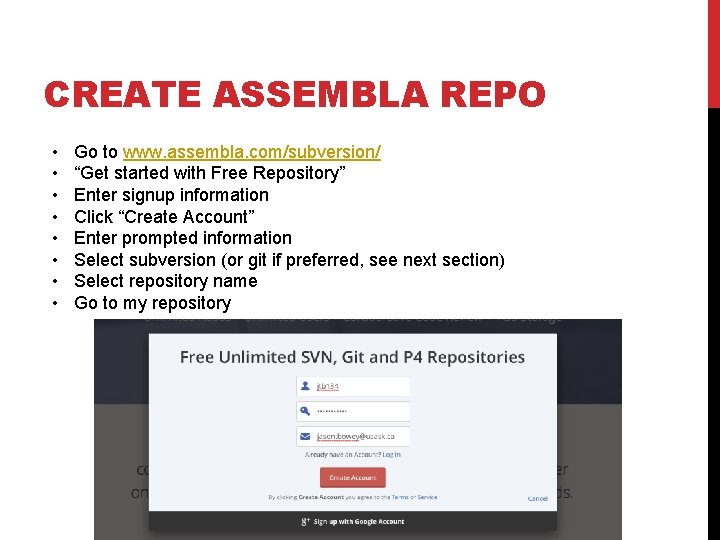
CREATE ASSEMBLA REPO • • Go to www. assembla. com/subversion/ “Get started with Free Repository” Enter signup information Click “Create Account” Enter prompted information Select subversion (or git if preferred, see next section) Select repository name Go to my repository
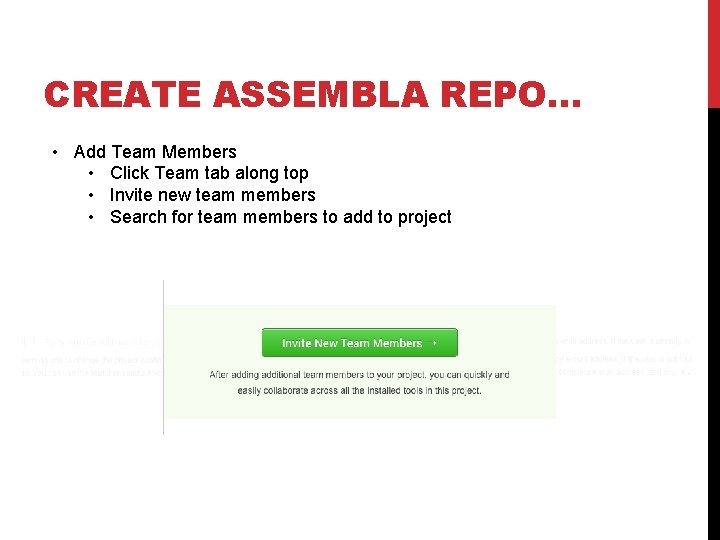
CREATE ASSEMBLA REPO… • Add Team Members • Click Team tab along top • Invite new team members • Search for team members to add to project
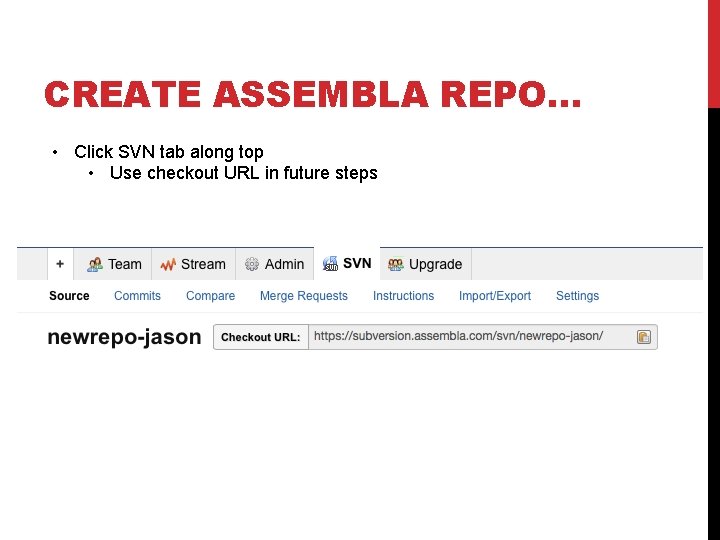
CREATE ASSEMBLA REPO… • Click SVN tab along top • Use checkout URL in future steps
SVN • Checkout repository • Add files • Commit changes
TORTOISE SVN (WINDOWS) • Graphical tool to use SVN with on Windows
CREATE REPOSITORY 1. 2. 3. 4. Make local directory containing files to be added to repository Right-click > Import Enter repository URL Enter username and password
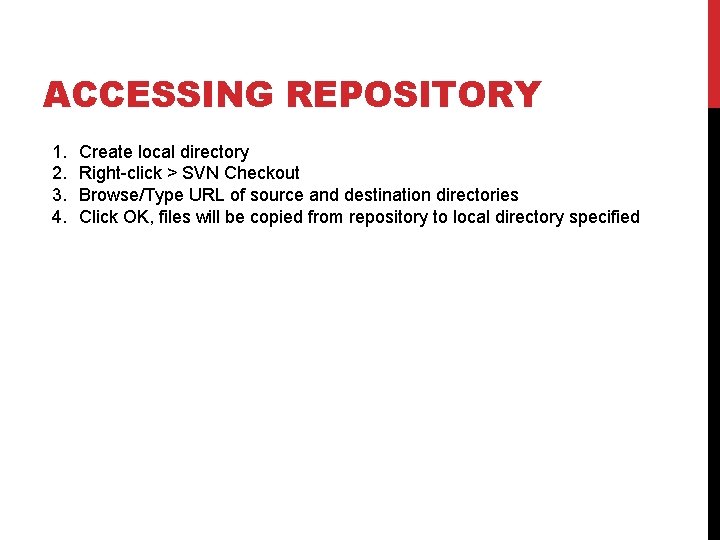
ACCESSING REPOSITORY 1. 2. 3. 4. Create local directory Right-click > SVN Checkout Browse/Type URL of source and destination directories Click OK, files will be copied from repository to local directory specified
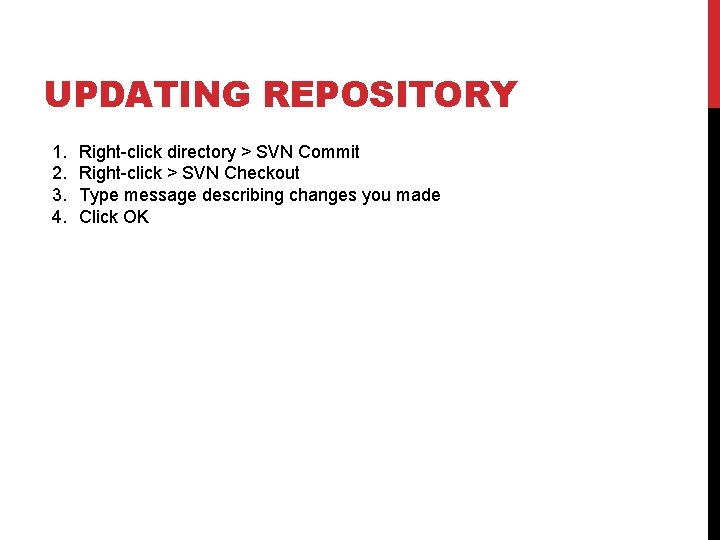
UPDATING REPOSITORY 1. 2. 3. 4. Right-click directory > SVN Commit Right-click > SVN Checkout Type message describing changes you made Click OK
UPDATING LOCAL REPOSITORY 1. Right-click directory > SVN Update
GIT
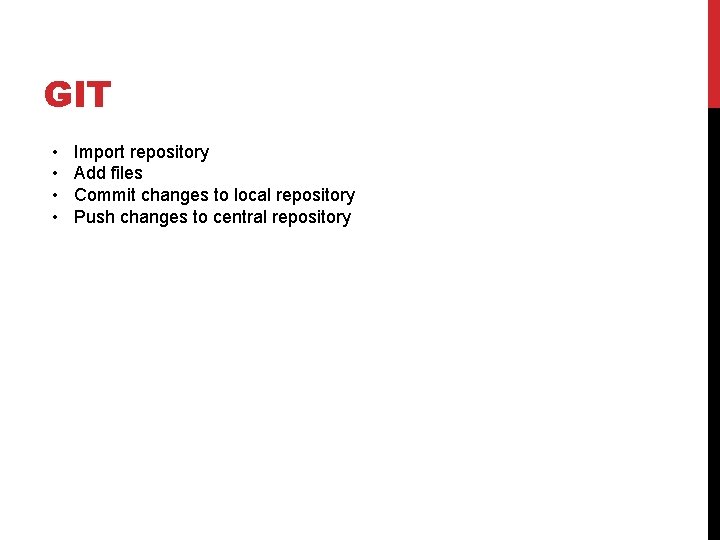
GIT • • Import repository Add files Commit changes to local repository Push changes to central repository
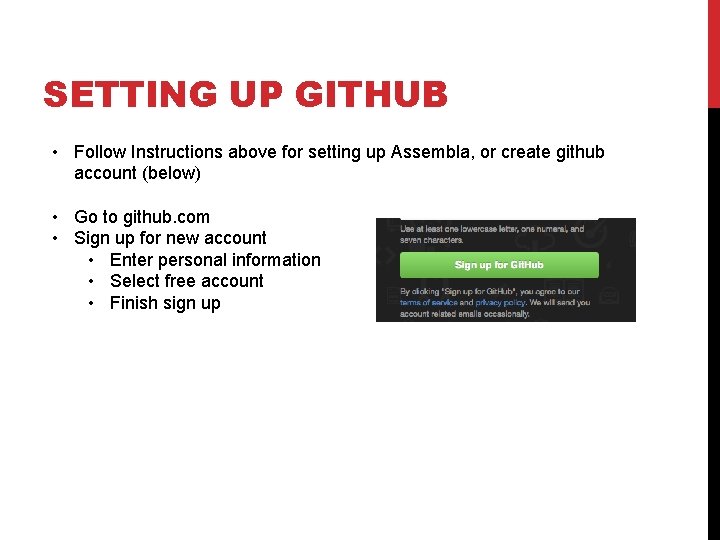
SETTING UP GITHUB • Follow Instructions above for setting up Assembla, or create github account (below) • Go to github. com • Sign up for new account • Enter personal information • Select free account • Finish sign up
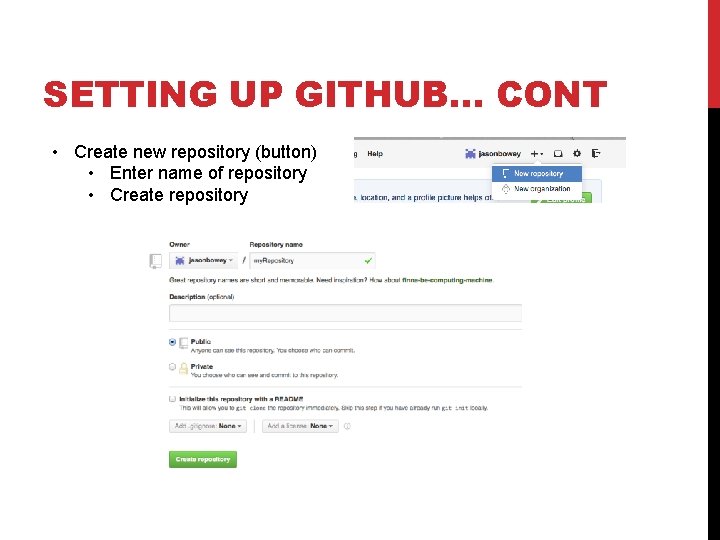
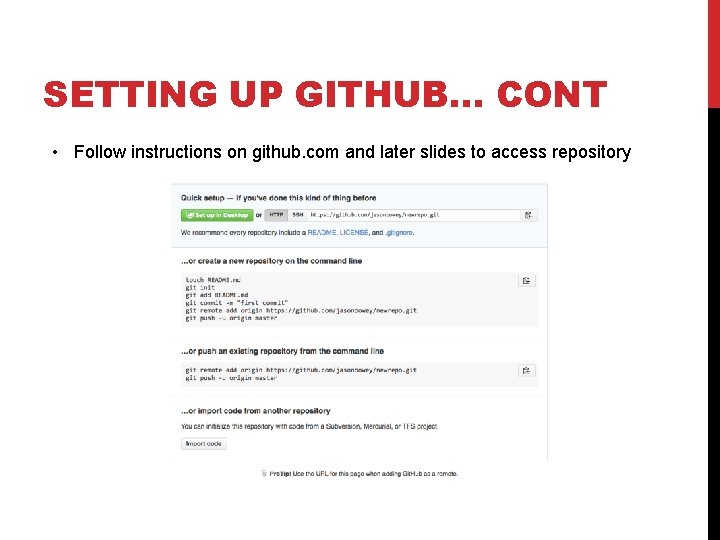
SETTING UP GITHUB… CONT • Create new repository (button) • Enter name of repository • Create repository
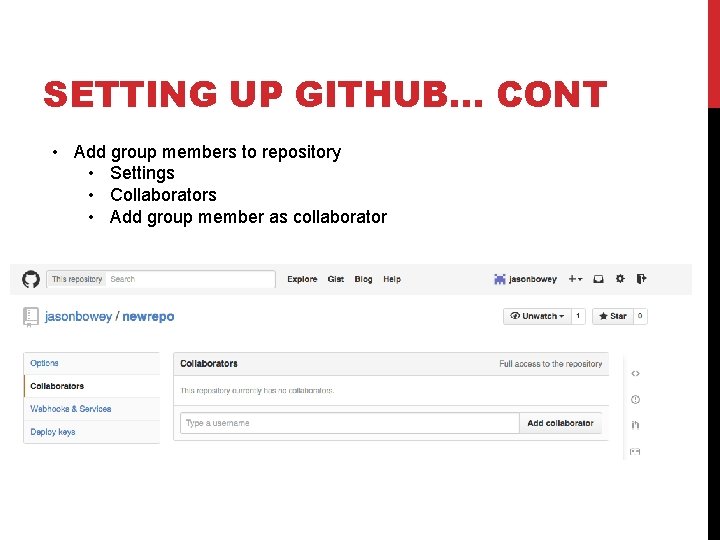
SETTING UP GITHUB… CONT • Add group members to repository • Settings • Collaborators • Add group member as collaborator
SETTING UP GITHUB… CONT • Follow instructions on github. com and later slides to access repository
GIT – CLONING REPOSITORY • git clone project_url local_directory_name • Creates a copy of git repository from ‘project_url’ into ‘local_directory_name’
GIT – UPDATING • git pull • Gets files from repository and merges with your files • git add file 1 file 2… etc • Staged listed files to be committed to local copy of repository • git commit –m “message describing changed made” • Adds all files staged to be commited to local copy of repository • git push • Updates central repository with contents of your local repository
UNITY
UNITY 1. Enable Metadata: Edit -> project settings -> editor -> version control -> visible meta files. 2. Add ‘Assets/’ and ‘Project. Settings/’ directories to SVN or GIT 3. Ignore ‘Library/’ directory
UDK
UDK Required Files/folders: • • • Binaries Config Content Source [Your_project_Name]. sln [you_project_name]. uproject • Everything else can be ignored
RELEVANT TUTORIALS Unreal + git http: //synestry. com/blog/unreal-engine-4 -collaborating-team-members-hackday/ Unreal + svn http: //thejahangir. com/svn-source-control-with-unreal-engine-4 -tortoisesvn/ https: //wiki. unrealengine. com/Subversion_source_control_(Tutorial) Unity+svn http: //docs. unity 3 d. com/Manual/External. Version. Control. System. Support. html