
Veriloga Tutorial Create a spring symbol Create a
Veriloga Tutorial • Create a spring symbol • Create a spring veriloga • Simulate this spring
Create “spring” symbol • Create a spring symbol: – start a “spring” symbol view – draw geometry – define pins – save
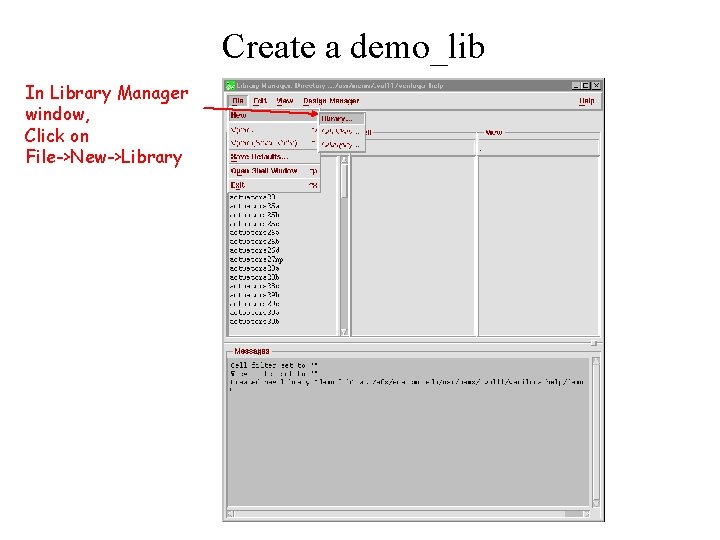
Create a demo_lib In Library Manager window, Click on File->New->Library
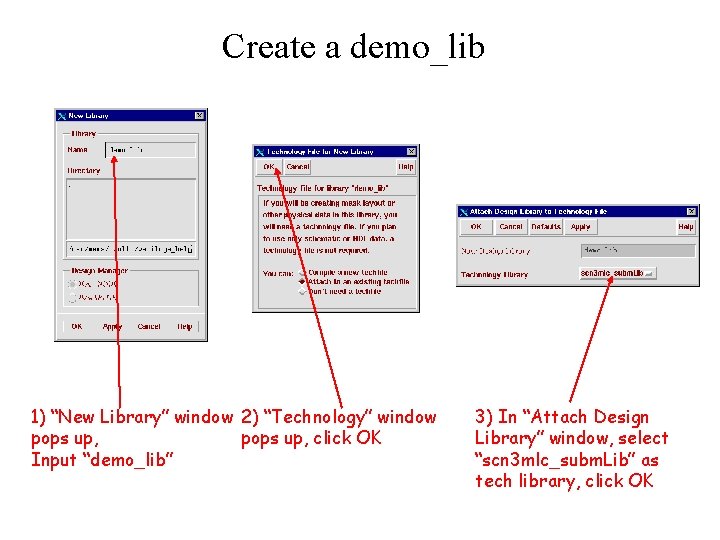
Create a demo_lib 1) “New Library” window 2) “Technology” window pops up, click OK Input “demo_lib” 3) In “Attach Design Library” window, select “scn 3 mlc_subm. Lib” as tech library, click OK
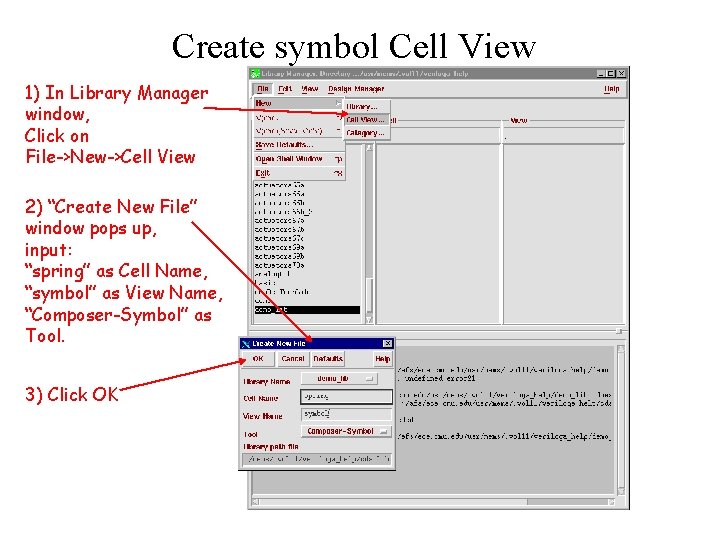
Create symbol Cell View 1) In Library Manager window, Click on File->New->Cell View 2) “Create New File” window pops up, input: “spring” as Cell Name, “symbol” as View Name, “Composer-Symbol” as Tool. 3) Click OK
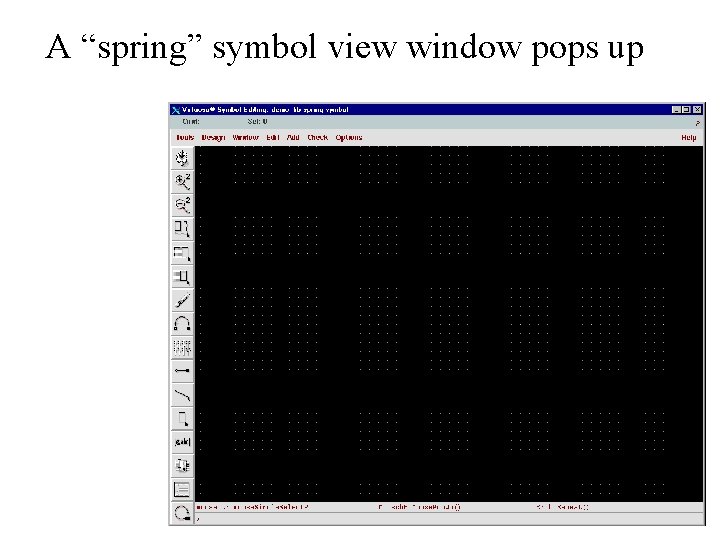
A “spring” symbol view window pops up
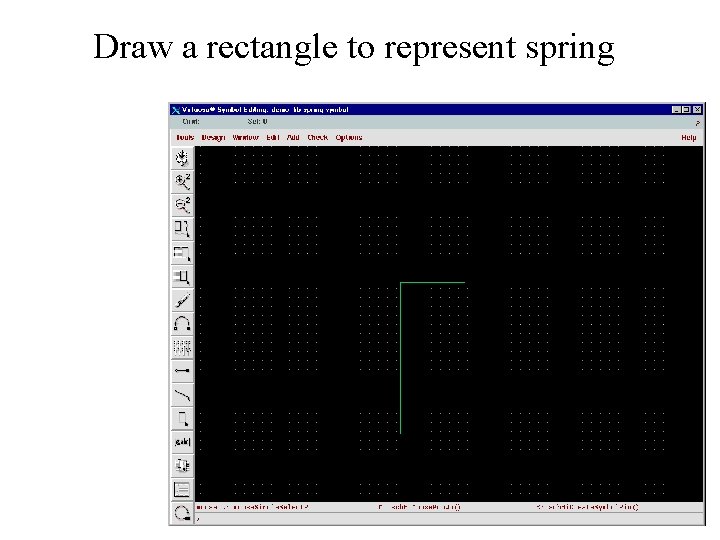
Draw a rectangle to represent spring
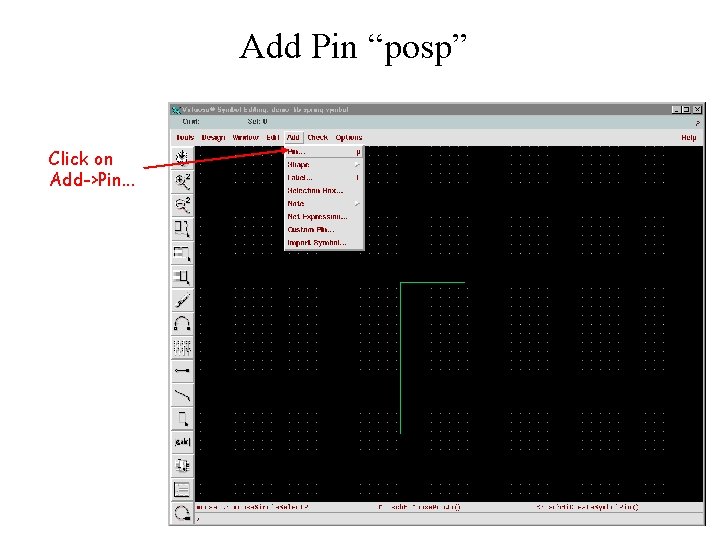
Add Pin “posp” Click on Add->Pin. . .
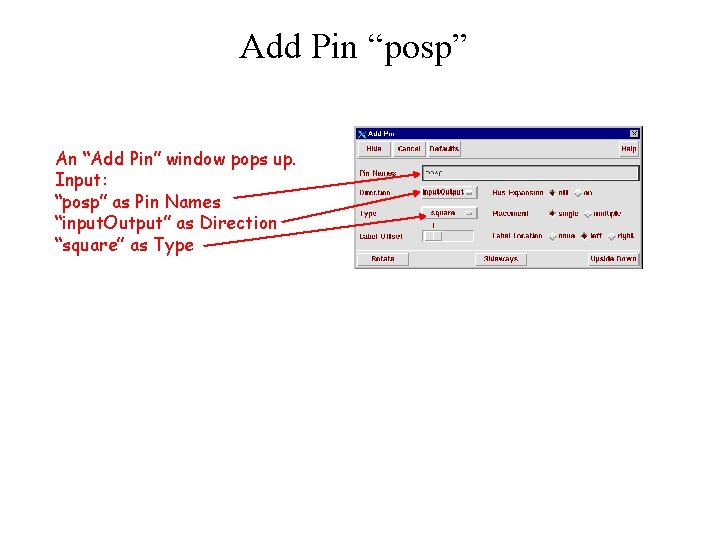
Add Pin “posp” An “Add Pin” window pops up. Input: “posp” as Pin Names “input. Output” as Direction “square” as Type
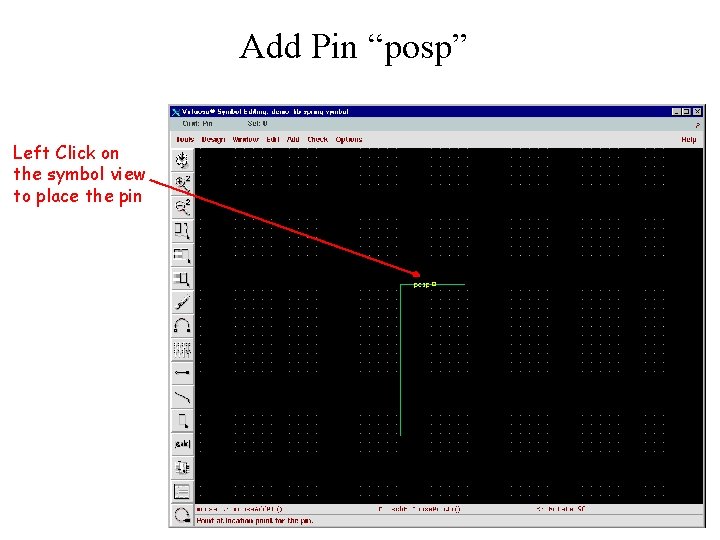
Add Pin “posp” Left Click on the symbol view to place the pin
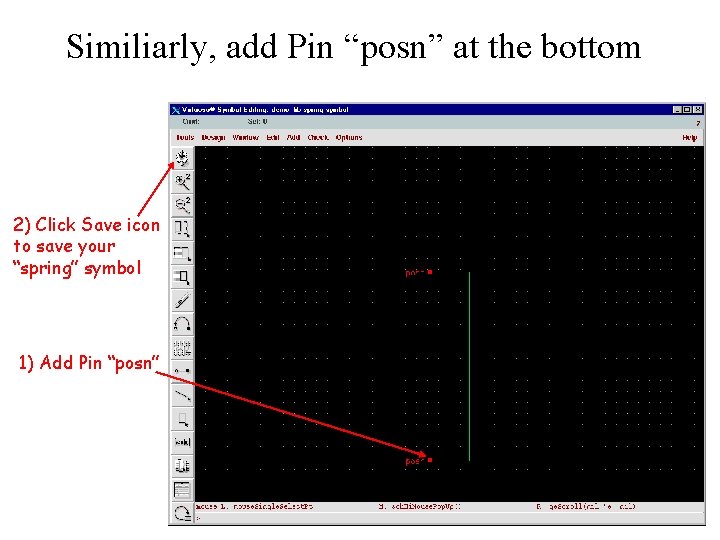
Similiarly, add Pin “posn” at the bottom 2) Click Save icon to save your “spring” symbol 1) Add Pin “posn”
Create “spring” veriloga • Create a spring veriloga: – start a “spring” veriloga view – copy over header files from NODAS_basic library – input the veriloga code – save
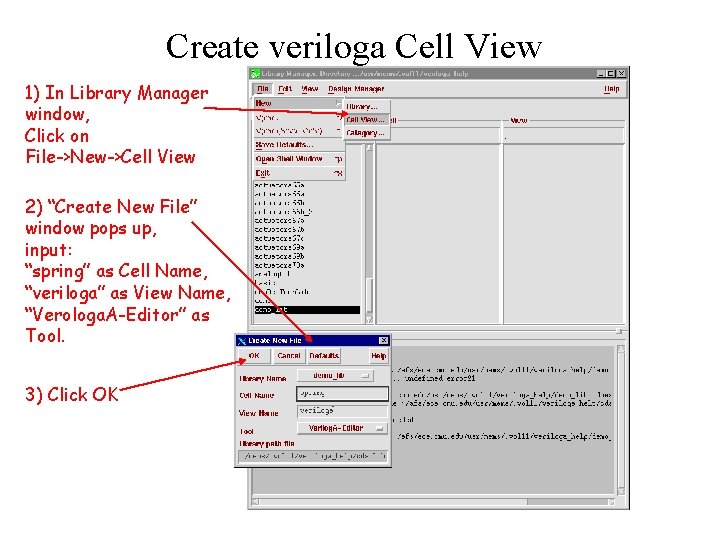
Create veriloga Cell View 1) In Library Manager window, Click on File->New->Cell View 2) “Create New File” window pops up, input: “spring” as Cell Name, “veriloga” as View Name, “Verologa. A-Editor” as Tool. 3) Click OK
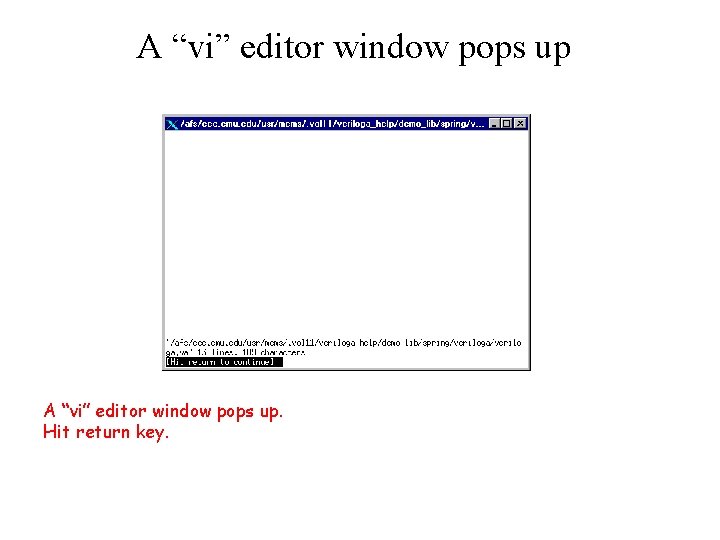
A “vi” editor window pops up. Hit return key.
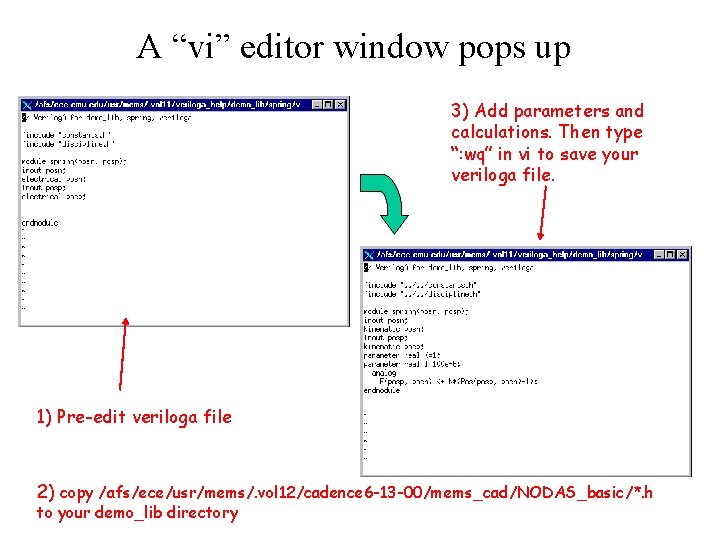
A “vi” editor window pops up 3) Add parameters and calculations. Then type “: wq” in vi to save your veriloga file. 1) Pre-edit veriloga file 2) copy /afs/ece/usr/mems/. vol 12/cadence 6 -13 -00/mems_cad/NODAS_basic/*. h to your demo_lib directory
Simulate this spring • Simulate this spring: – start a “test” schematic view – attach one end of the spring to ground – attach the other end to a force source – start analog enviroment – transit simulation
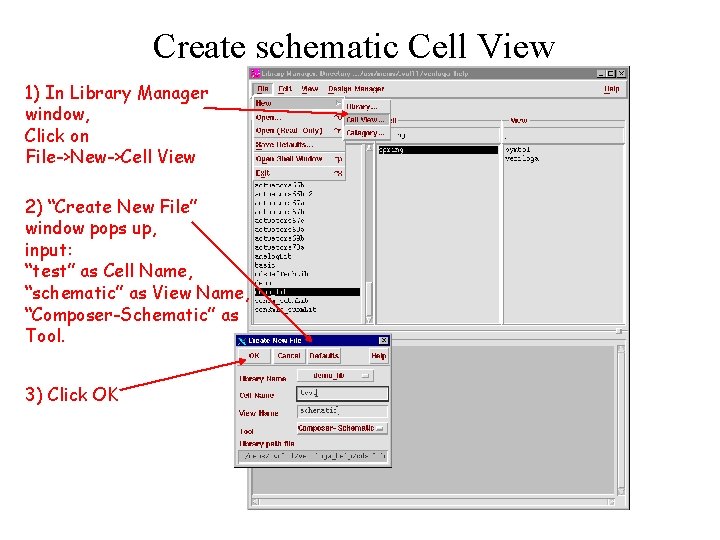
Create schematic Cell View 1) In Library Manager window, Click on File->New->Cell View 2) “Create New File” window pops up, input: “test” as Cell Name, “schematic” as View Name, “Composer-Schematic” as Tool. 3) Click OK
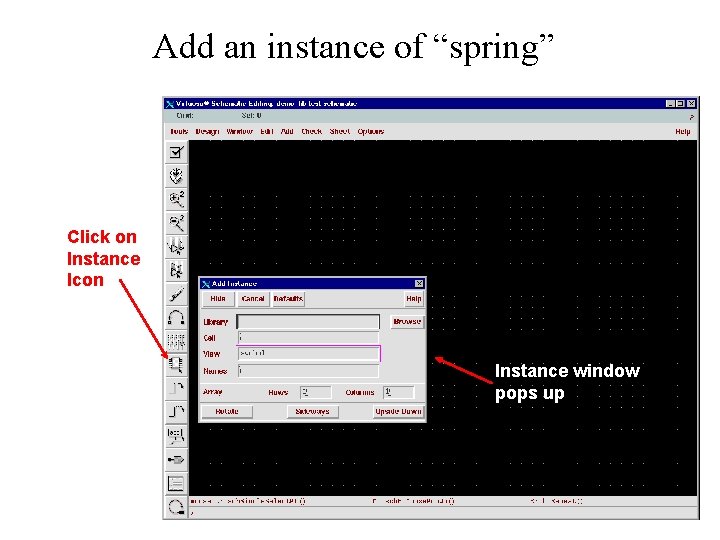
Add an instance of “spring” Click on Instance Icon Instance window pops up
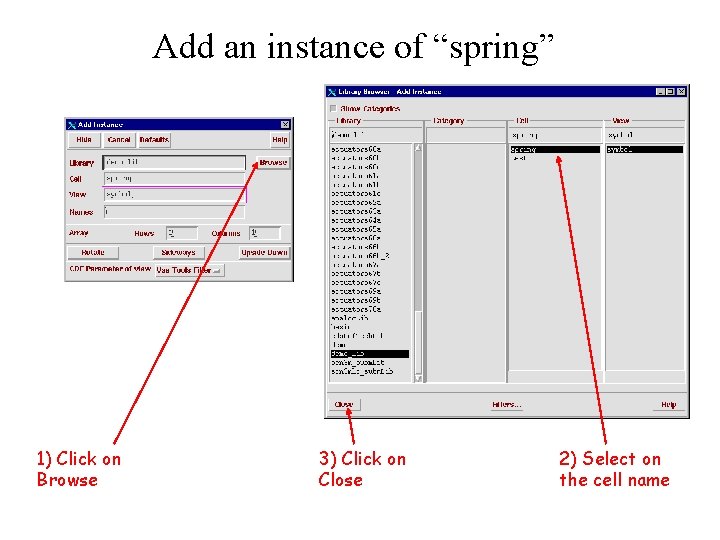
Add an instance of “spring” 1) Click on Browse 3) Click on Close 2) Select on the cell name
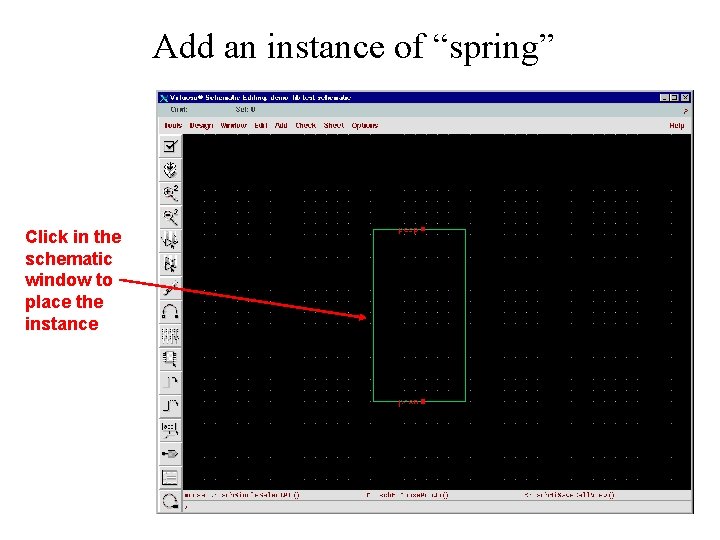
Add an instance of “spring” Click in the schematic window to place the instance
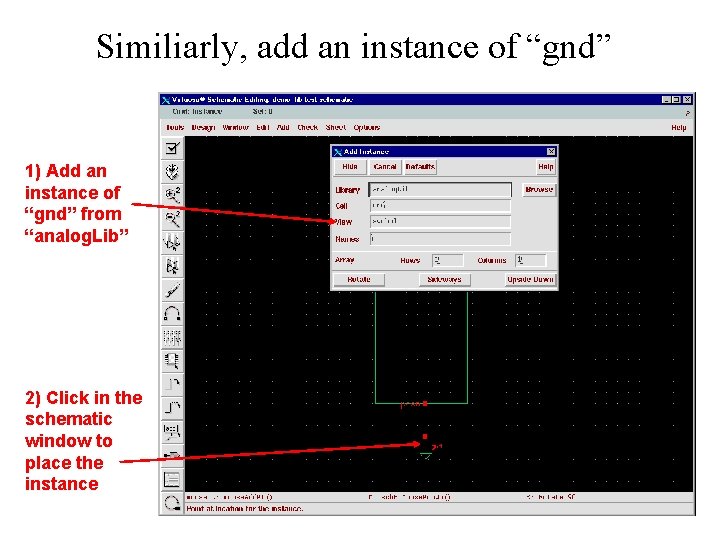
Similiarly, add an instance of “gnd” 1) Add an instance of “gnd” from “analog. Lib” 2) Click in the schematic window to place the instance
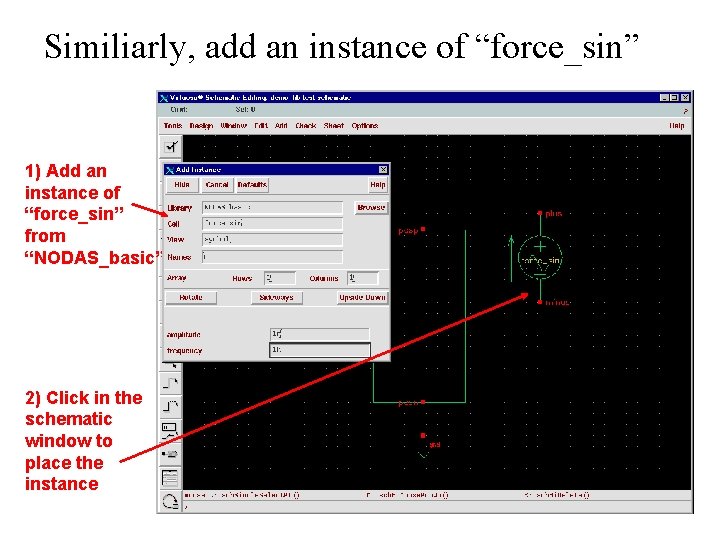
Similiarly, add an instance of “force_sin” 1) Add an instance of “force_sin” from “NODAS_basic” 2) Click in the schematic window to place the instance
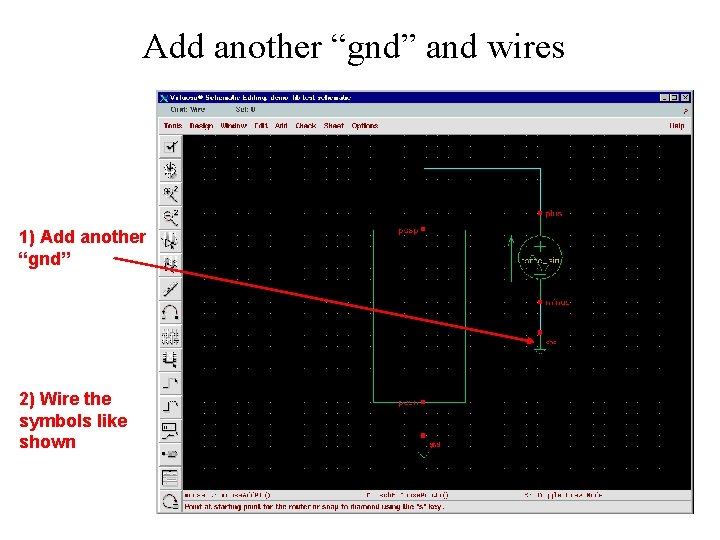
Add another “gnd” and wires 1) Add another “gnd” 2) Wire the symbols like shown
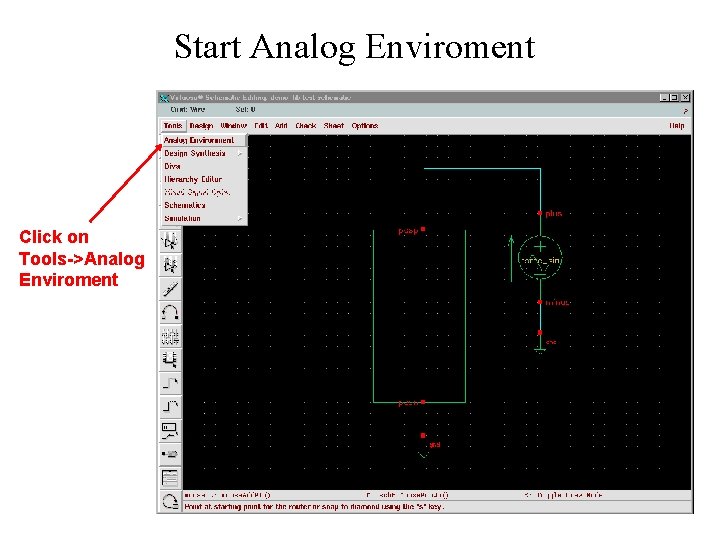
Start Analog Enviroment Click on Tools->Analog Enviroment
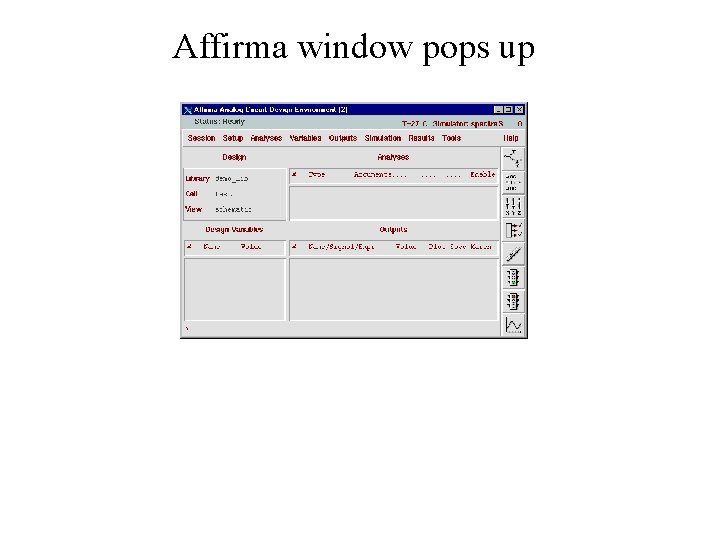
Affirma window pops up
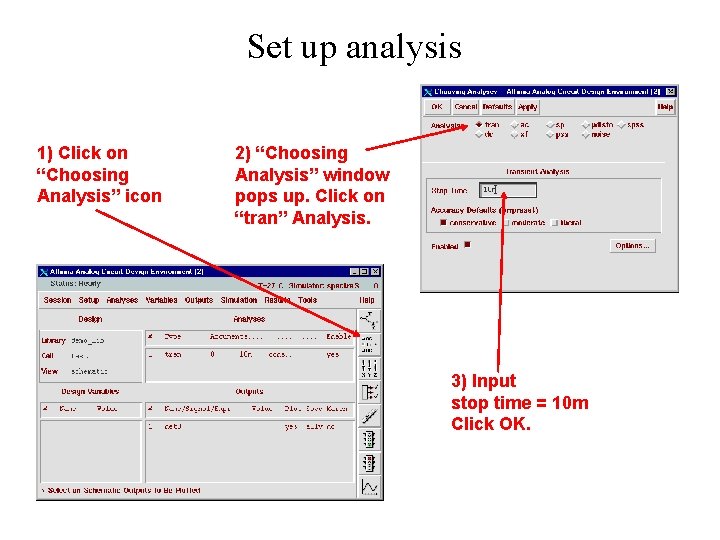
Set up analysis 1) Click on “Choosing Analysis” icon 2) “Choosing Analysis” window pops up. Click on “tran” Analysis. 3) Input stop time = 10 m Click OK.
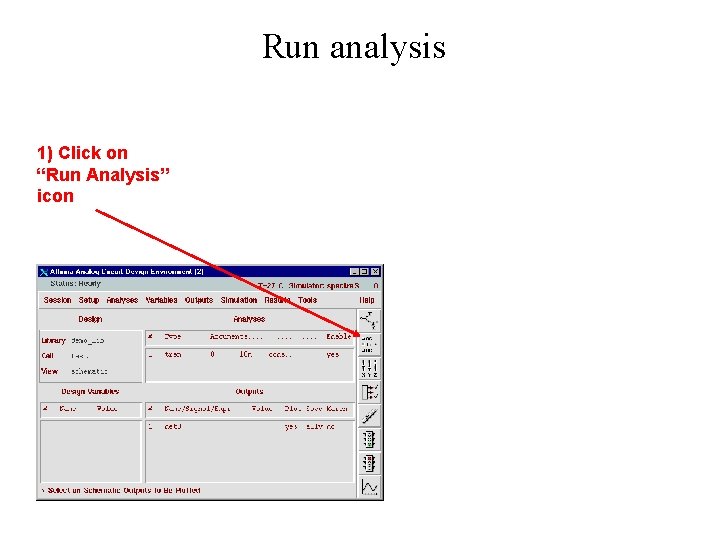
Run analysis 1) Click on “Run Analysis” icon
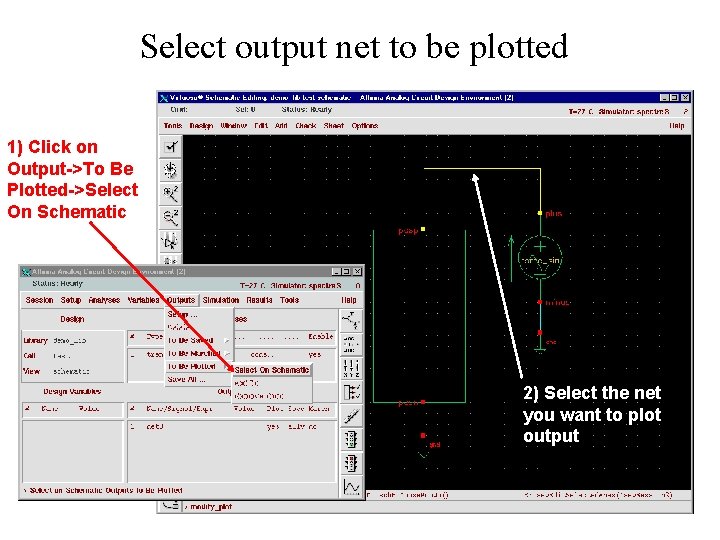
Select output net to be plotted 1) Click on Output->To Be Plotted->Select On Schematic 2) Select the net you want to plot output
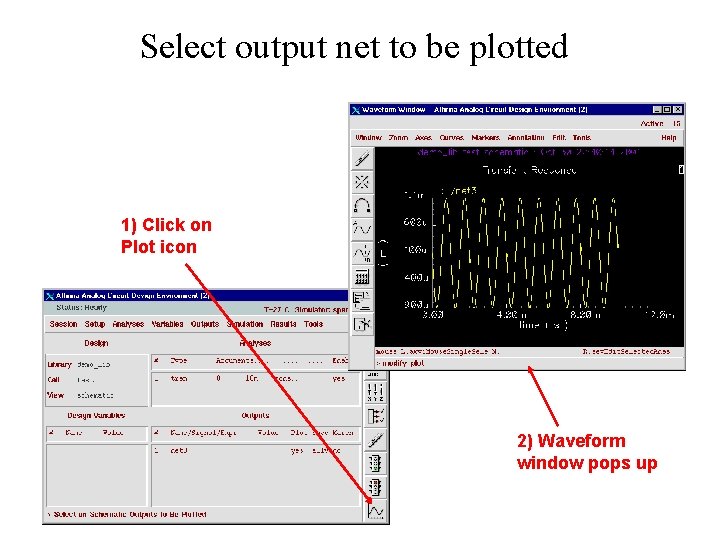
Select output net to be plotted 1) Click on Plot icon 2) Waveform window pops up
- Slides: 29