
Veri Fone EMV VX 680 WiFiBT Terminal Release
Veri. Fone EMV® VX 680 Wi-Fi/BT Terminal Release XEVA 440 K February 2018

VX 680 WI-FI/ BLUETOOTH 2
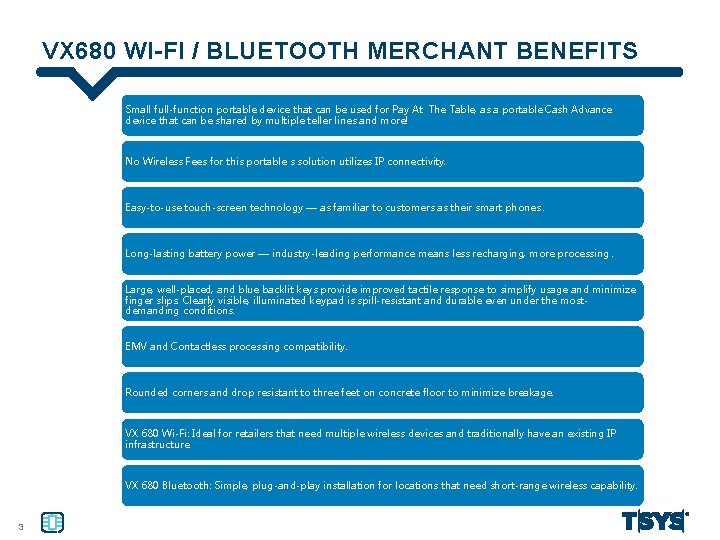
VX 680 WI-FI / BLUETOOTH MERCHANT BENEFITS Small full-function portable device that can be used for Pay At The Table, as a portable Cash Advance device that can be shared by multiple teller lines and more! No Wireless Fees for this portable s solution utilizes IP connectivity. Easy-to-use touch-screen technology — as familiar to customers as their smart phones. Long-lasting battery power — industry-leading performance means less recharging, more processing. Large, well-placed, and blue backlit keys provide improved tactile response to simplify usage and minimize finger slips. Clearly visible, illuminated keypad is spill-resistant and durable even under the mostdemanding conditions. EMV and Contactless processing compatibility. Rounded corners and drop resistant to three feet on concrete floor to minimize breakage. VX 680 Wi-Fi: Ideal for retailers that need multiple wireless devices and traditionally have an existing IP infrastructure. VX 680 Bluetooth: Simple, plug-and-play installation for locations that need short-range wireless capability. 3
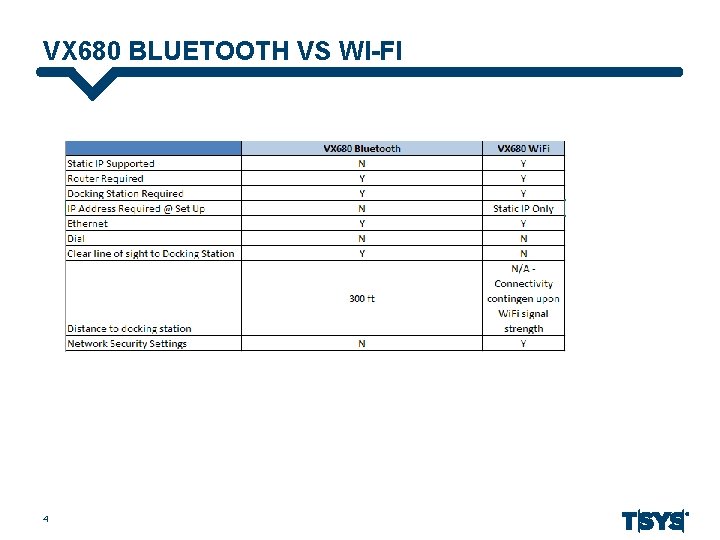
VX 680 BLUETOOTH VS WI-FI 4
BLUETOOTH 5
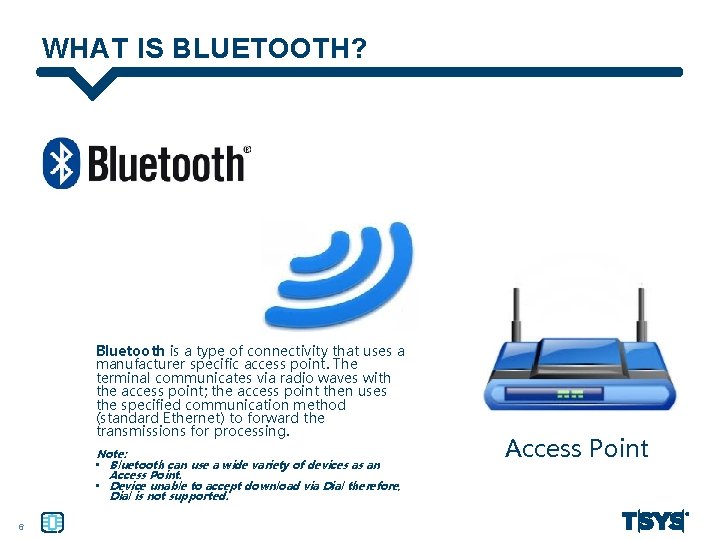
WHAT IS BLUETOOTH? Bluetooth is a type of connectivity that uses a manufacturer specific access point. The terminal communicates via radio waves with the access point; the access point then uses the specified communication method (standard Ethernet) to forward the transmissions for processing. Note: • Bluetooth can use a wide variety of devices as an Access Point. • Device unable to accept download via Dial therefore, Dial is not supported. 6 Access Point
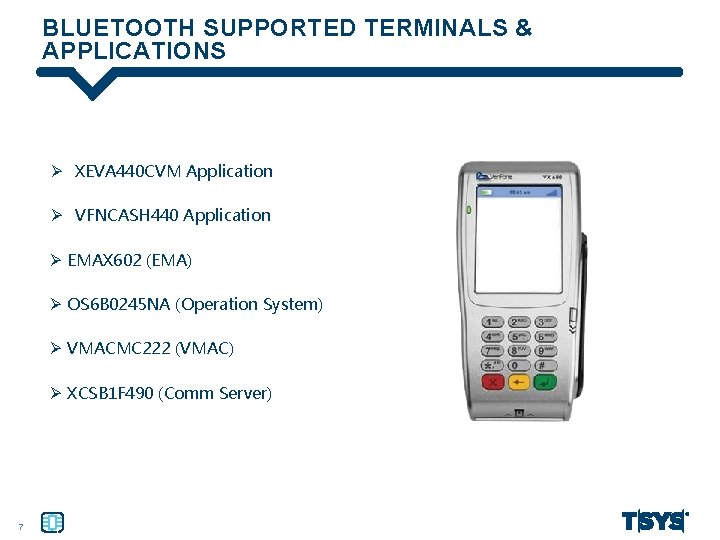
BLUETOOTH SUPPORTED TERMINALS & APPLICATIONS Ø XEVA 440 CVM Application Ø VFNCASH 440 Application Ø EMAX 602 (EMA) Ø OS 6 B 0245 NA (Operation System) Ø VMACMC 222 (VMAC) Ø XCSB 1 F 490 (Comm Server) 7
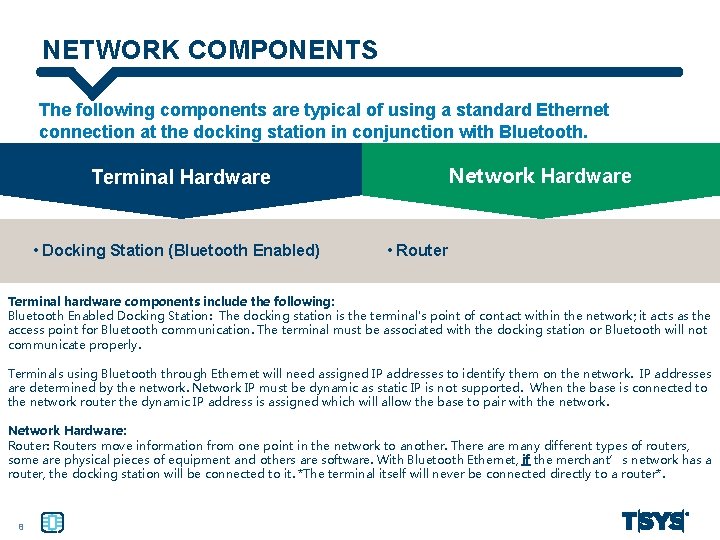
NETWORK COMPONENTS The following components are typical of using a standard Ethernet connection at the docking station in conjunction with Bluetooth. Network Hardware Terminal Hardware • Docking Station (Bluetooth Enabled) • Router Terminal hardware components include the following: Bluetooth Enabled Docking Station: The docking station is the terminal's point of contact within the network; it acts as the access point for Bluetooth communication. The terminal must be associated with the docking station or Bluetooth will not communicate properly. Terminals using Bluetooth through Ethernet will need assigned IP addresses to identify them on the network. IP addresses are determined by the network. Network IP must be dynamic as static IP is not supported. When the base is connected to the network router the dynamic IP address is assigned which will allow the base to pair with the network. Network Hardware: Routers move information from one point in the network to another. There are many different types of routers, some are physical pieces of equipment and others are software. With Bluetooth Ethernet, if the merchant’s network has a router, the docking station will be connected to it. *The terminal itself will never be connected directly to a router*. 8
BLUETOOTH & TERMINAL COMMUNICATION Ø Ø Docking Station is an access point for the VX 680. Terminal and docking station must be paired to communicate properly. Docking Stations that connect via Ethernet are assigned IP addresses. Distance or objects can affect connectivity. Ø Terminal and docking station must have a clear line of sight. Bluetooth communicates with an access point using frequencies. Bluetooth does not require cables to be physically connected to the terminal. The VX 680 communicates with a docking station that acts as an access point. The docking station is connected to the network using an Ethernet cable and directs the terminal's communications. The terminal must be associated with the docking station to communicate properly. Because the docking station can be connected to the network using Ethernet cables, the docking station is considered a network device and will need to be paired with the IP addresses so it can pass information through the network and out to the internet. The distance and/or objects between the terminal and its docking station are critical factors and can affect the connectivity. If the terminal is moved too far away from the docking station, or if there are too many walls in the way, the frequency will be weakened, resulting in communication errors. Similarly, electronic devices between the terminal and the docking station may cause electronic 'background noise' and interfere with signal integrity. Veri. Fone recommends the terminal have 'line of sight' with the docking station, meaning an individual standing in front of the terminal should be able to visually see the docking station with no objects in the way. Additionally, the docking station may be no more than 300 feet away from the terminal. 9
WI-FI 10
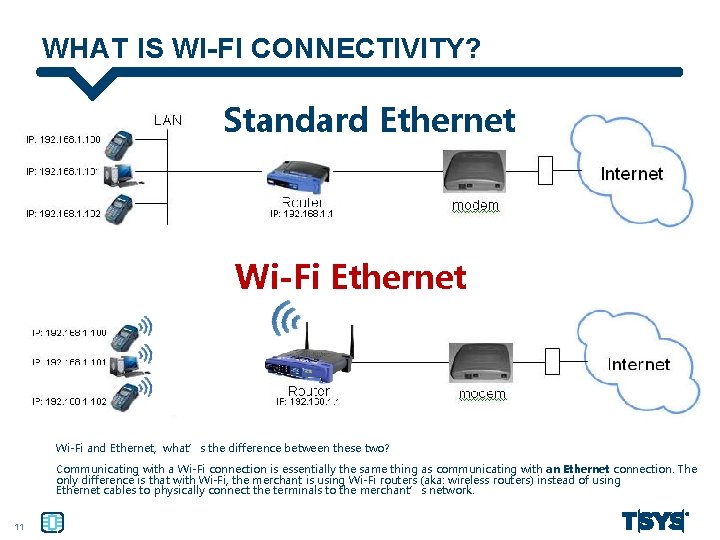
WHAT IS WI-FI CONNECTIVITY? Standard Ethernet Wi-Fi and Ethernet, what’s the difference between these two? Communicating with a Wi-Fi connection is essentially the same thing as communicating with an Ethernet connection. The only difference is that with Wi-Fi, the merchant is using Wi-Fi routers (aka: wireless routers) instead of using Ethernet cables to physically connect the terminals to the merchant’s network. 11
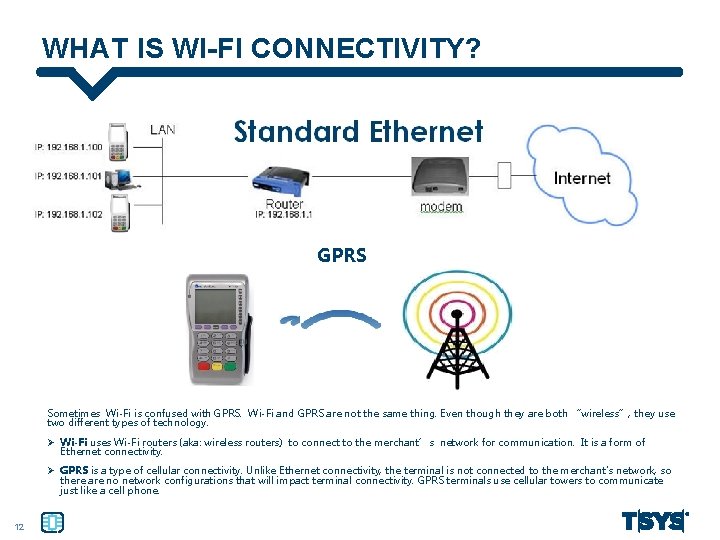
WHAT IS WI-FI CONNECTIVITY? GPRS Sometimes Wi-Fi is confused with GPRS. Wi-Fi and GPRS are not the same thing. Even though they are both “wireless”, they use two different types of technology. Ø Wi-Fi uses Wi-Fi routers (aka: wireless routers) to connect to the merchant’s network for communication. It is a form of Ethernet connectivity. Ø GPRS is a type of cellular connectivity. Unlike Ethernet connectivity, the terminal is not connected to the merchant's network, so there are no network configurations that will impact terminal connectivity. GPRS terminals use cellular towers to communicate just like a cell phone. 12
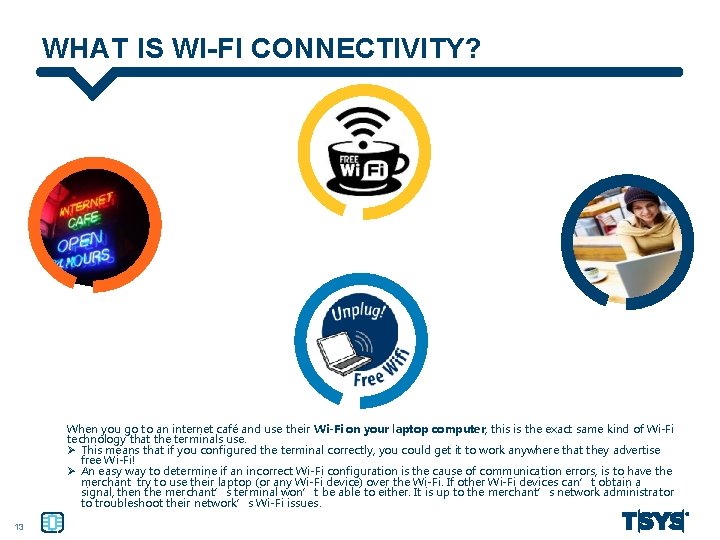
WHAT IS WI-FI CONNECTIVITY? When you go to an internet café and use their Wi-Fi on your laptop computer, this is the exact same kind of Wi-Fi technology that the terminals use. Ø This means that if you configured the terminal correctly, you could get it to work anywhere that they advertise free Wi-Fi! Ø An easy way to determine if an incorrect Wi-Fi configuration is the cause of communication errors, is to have the merchant try to use their laptop (or any Wi-Fi device) over the Wi-Fi. If other Wi-Fi devices can’t obtain a signal, then the merchant’s terminal won’t be able to either. It is up to the merchant’s network administrator to troubleshoot their network’s Wi-Fi issues. 13
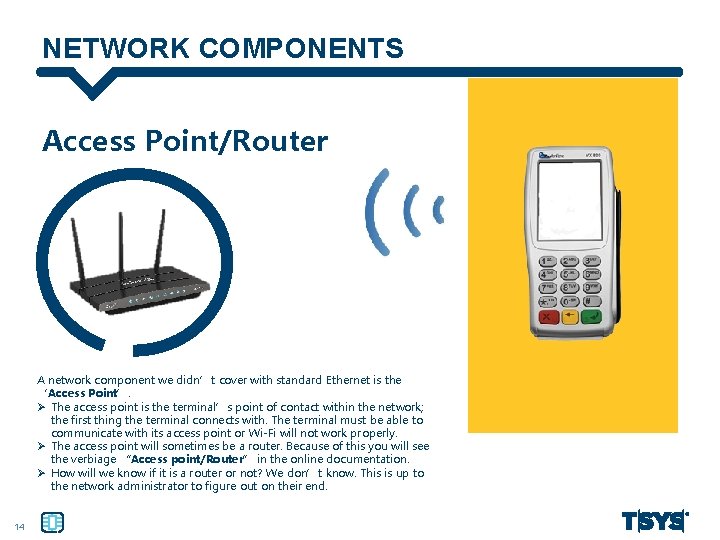
NETWORK COMPONENTS Access Point/Router A network component we didn’t cover with standard Ethernet is the ‘Access Point’. Ø The access point is the terminal’s point of contact within the network; the first thing the terminal connects with. The terminal must be able to communicate with its access point or Wi-Fi will not work properly. Ø The access point will sometimes be a router. Because of this you will see the verbiage “Access point/Router” in the online documentation. Ø How will we know if it is a router or not? We don’t know. This is up to the network administrator to figure out on their end. 14
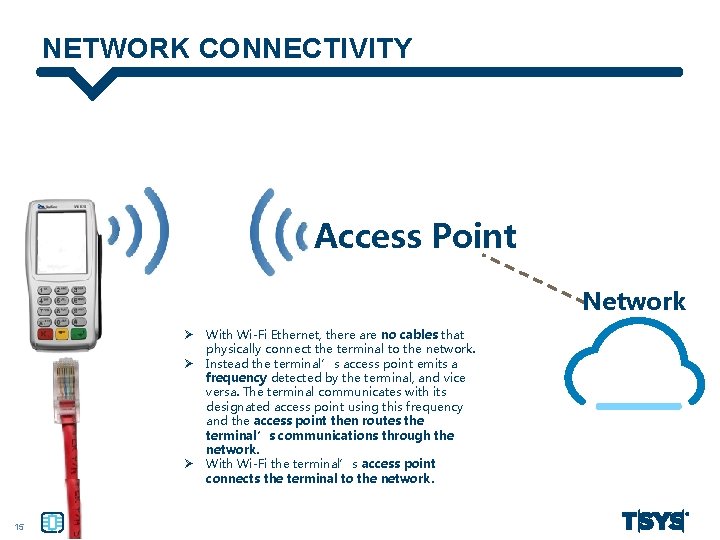
NETWORK CONNECTIVITY Access Point Network Ø Ø Ø 15 With Wi-Fi Ethernet, there are no cables that physically connect the terminal to the network. Instead the terminal’s access point emits a frequency detected by the terminal, and vice versa. The terminal communicates with its designated access point using this frequency and the access point then routes the terminal’s communications through the network. With Wi-Fi the terminal’s access point connects the terminal to the network.
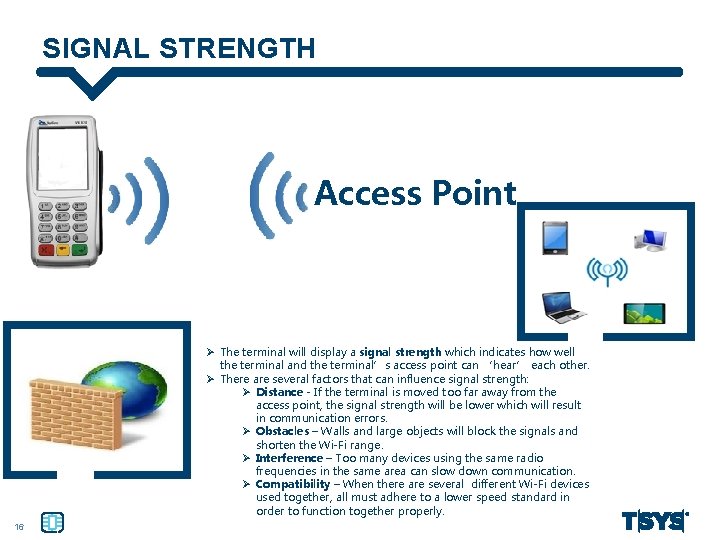
SIGNAL STRENGTH Access Point Ø The terminal will display a signal strength which indicates how well the terminal and the terminal’s access point can ‘hear’ each other. Ø There are several factors that can influence signal strength: Ø Distance - If the terminal is moved too far away from the access point, the signal strength will be lower which will result in communication errors. Ø Obstacles – Walls and large objects will block the signals and shorten the Wi-Fi range. Ø Interference – Too many devices using the same radio frequencies in the same area can slow down communication. Ø Compatibility – When there are several different Wi-Fi devices used together, all must adhere to a lower speed standard in order to function together properly. 16
NETWORK SECURITY Wi-Fi Security Methods Ø None Ø WEP Ø WPA Each security method has specific network settings… A network administrator configures these settings at the access point. Terminal must have the same Wi-Fi settings as the access point. Earlier we mentioned internet cafes and Wi-Fi hotspots. With these types of Wi-Fi setups, anyone with a Wi-Fi device can connect with the Access Point as long as they are within range. Most merchants do not want their Wi-Fi to be accessible to just anyone. The merchants who want to block their Wi-Fi access will have some kind of network security setup to ensure that only certain devices will work with their Wi-Fi. Most of our merchants will have this kind of network security. Ø There are three methods of security for Wi-Fi networks. Ø None Ø WEP Ø WPA Ø The merchant’s network will be configured for one of these security methods. They cannot be set for more then one and they have to be set for something. *Merchants offering free Wi-Fi to their customers will typically be set to ‘None’. Ø Each of these three security methods have specific network settings (fields/parameters). These security settings are configured by the network administrator at the access point. Ø The terminal must be configured with the same Wi-Fi settings as the access point in order for the terminal to gain access to the access point’s Wi-Fi. This configuration must be done at the terminal level. Instructions for configuration at the terminal level can be found here https: //sharepoint. tsys. com/projects/taskb/Site. Pages/Home. aspx 17
NETWORK SECURITY SETTINGS Common Network Settings The merchant network administrator is responsible for defining network configuration. SSID – Ø Setting Definition ØSSID = Service Set Identifier. This parameter identifies the network. This parameter is case sensitive. Ø Corresponding Terminal Parameter ØThe SSID setting corresponds with the terminal parameter “Network Name” The only setting that is common to all three security methods is the SSID. Network Security Settings Format Name 18 ►► Number ►► Code
NETWORK SECURITY SETTINGS Security Method Settings The merchant network administrator is responsible for defining network configuration. There are three security methods for WIFI networks: Ø None Ø WEP Ø WPA The WIFI settings in the terminal corresponds directly with this security setting. The security settings are usually configured at the access point/router. The terminal’s WIFI settings must match the access point/router’s security settings or there will be communication errors. Reference KB here: https: //sharepoint. tsys. com/projects/taskb/Site. Pages/Home. aspx for details on the settings for each of these three security settings. 19
WI-FI PASSWORDS Ø The nature of Wi-Fi is such that a Wi-Fi network can be used by anyone within the proximity of the Wi-Fi network. Ø Because of this network administrators have developed ways to keep their Wi-Fi networks secure. Ø When a device attempts to connect with a Wi-Fi network, it must provide the proper password or it will be denied access to the network. 20
NETWORK SECURITY- WPA Different security settings establish the Wi-Fi network password in different ways. Ø For WPA, it’s easy. On the network, there is a ‘Shared Key’ setting that defines the Wi-Fi password. Ø The terminal also has a parameter that you key this password into…the terminal calls it the ‘Pass Phrase’ *different terminology for the same thing. Ø When the terminal tries to communicate with the network, it is asked to present the WIFI password and the terminal uses the ‘Pass Phrase’ parameter for this. Ø If the Pass Phrase programmed in the terminal’s memory is the same as the shared key programmed in the network, the terminal is granted access. 21
NETWORK SECURITY- WEP Ø For WEP networks it’s a little more secure…which means it is a little bit more complicated. Ø With WEP security there are four passwords. The network administrator can create up to four different passwords and save them all in the network’s WIFI security settings. The network calls these the Keys. i. e. Key 1, Key 2, Key 3, Key 4. Ø The network administrator then establishes the ‘Transmit Key’. Ø The Transmit Key tells the network which of the four passwords to use. Ø For example, if the transmit key is set to 3, then the password in the Key 3 parameter will be used. 22
IP ADDRESSES Ø Just like regular Ethernet connectivity, terminals using Wi-Fi connectivity require IP addresses to identify them on the network. Ø Wi-Fi Ethernet Networks will be either static or dynamic. ØDynamic means that the IP addresses will be assigned from the access point/router. This means it happens on its own and you do not have to configure anything in the terminal. ØStatic means that the IP addresses will need to be manually configured in the terminal through Comm. Server. See Comm. Server Configuration on pages 32 and 33. **Note: We do not know if a merchant’s network has static or dynamic IP’s. The merchant will need to determine this through their IT group. 23
IP AND SECURITY SETTINGS This is where you come in if you are assisting the merchant during the activation process. Merchants will need our help to key the appropriate network settings into the terminal. So what information do merchants needs to provide to TSYS for Wi-Fi setup? 1. Access point/router’s IP address configuration: Ø Dynamic IP Ø Static IP (this is recommended this is added to the terminal file build so it is not overwritten during the auto download process) 2. Security Settings Network Information: Ø Network Name – Sometimes this is also called the SSID Ø The encryption/security mode settings used by the access point/router. The options are: Ø WEP Ø WPA Ø None Ø WEP and WPA security modes will have additional network information required as illustrated in the online docs. A few things to note: • If they don’t know what kind of security method they’re using (WEP, WPA, None) or IP address configuration, they’ll need to check with their network administrator before you can continue. The call is over if they don’t have this information. • If they are the network administrator and they don’t know, they’ll need to investigate on their end and call back. We cannot help them find out. • If they don’t have the network setting when they call (i. e. SSID)they will need to get that information before we can proceed. We can’t help them key things in if they don’t have the data to key in. 24

Merchant Boarding 25
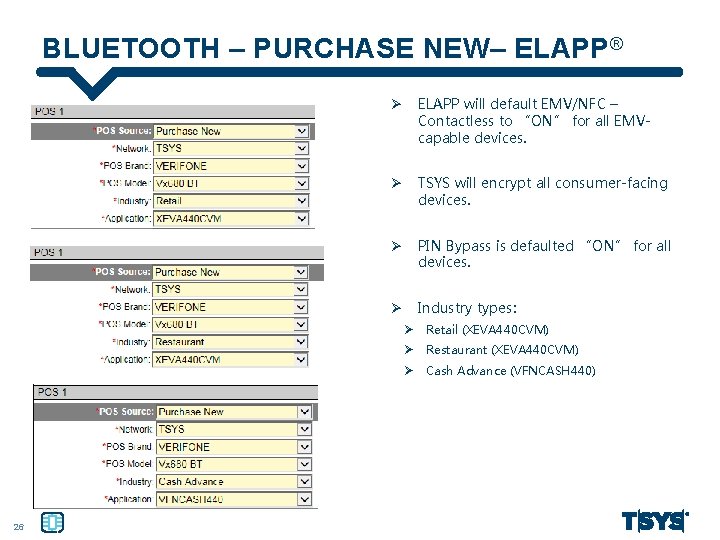
BLUETOOTH – PURCHASE NEW– ELAPP ® Ø ELAPP will default EMV/NFC – Contactless to “ON” for all EMVcapable devices. Ø TSYS will encrypt all consumer-facing devices. Ø PIN Bypass is defaulted “ON” for all devices. Ø Industry types: Ø Retail (XEVA 440 CVM) Ø Restaurant (XEVA 440 CVM) Ø Cash Advance (VFNCASH 440) 26
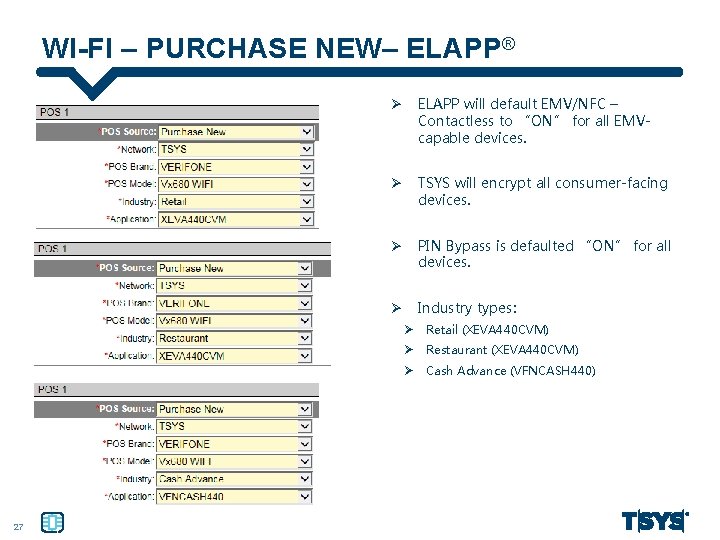
WI-FI – PURCHASE NEW– ELAPP ® Ø ELAPP will default EMV/NFC – Contactless to “ON” for all EMVcapable devices. Ø TSYS will encrypt all consumer-facing devices. Ø PIN Bypass is defaulted “ON” for all devices. Ø Industry types: Ø Retail (XEVA 440 CVM) Ø Restaurant (XEVA 440 CVM) Ø Cash Advance (VFNCASH 440) 27
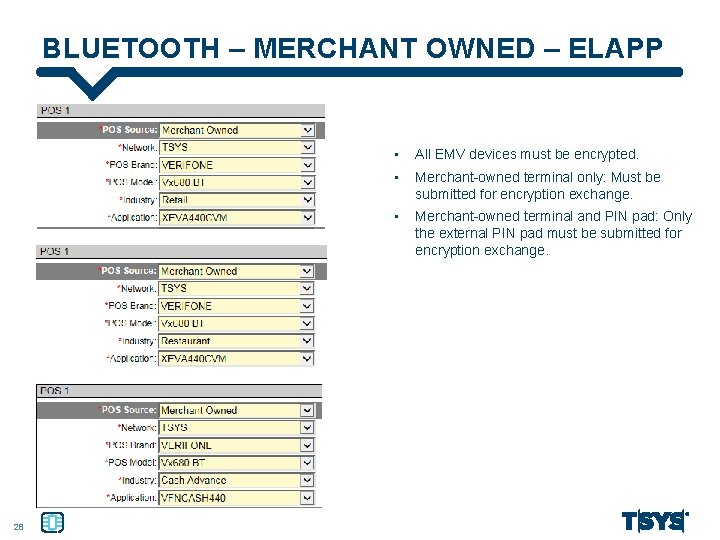
BLUETOOTH – MERCHANT OWNED – ELAPP 28 • All EMV devices must be encrypted. • Merchant-owned terminal only: Must be submitted for encryption exchange. • Merchant-owned terminal and PIN pad: Only the external PIN pad must be submitted for encryption exchange.
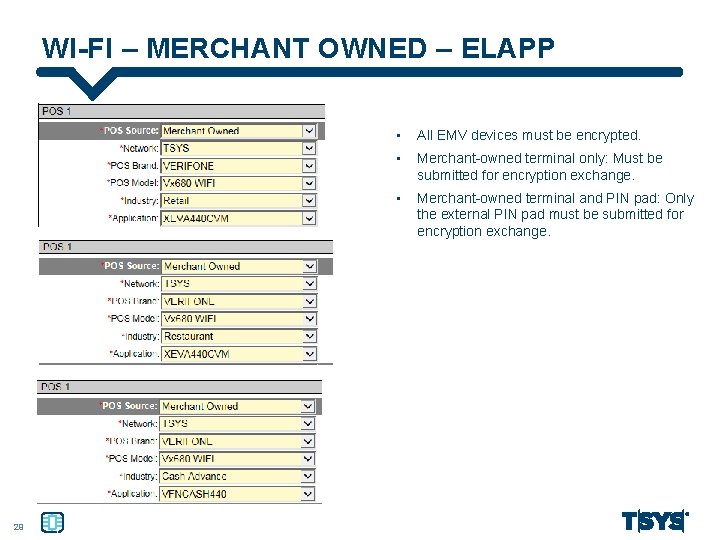
WI-FI – MERCHANT OWNED – ELAPP 29 • All EMV devices must be encrypted. • Merchant-owned terminal only: Must be submitted for encryption exchange. • Merchant-owned terminal and PIN pad: Only the external PIN pad must be submitted for encryption exchange.
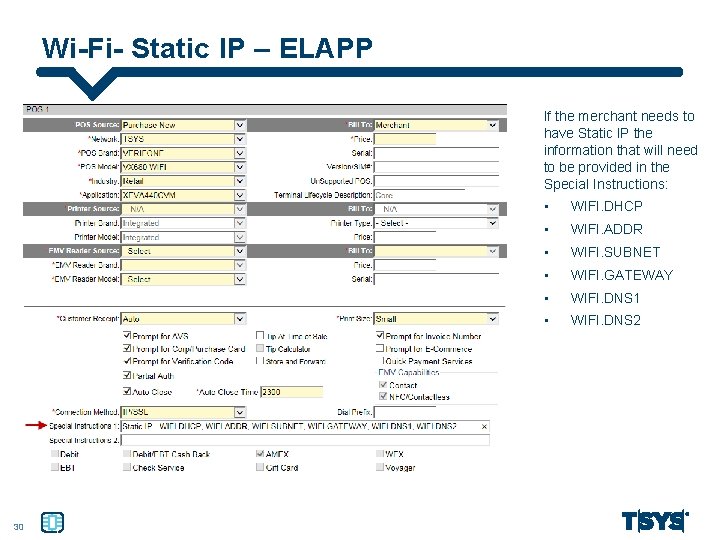
Wi-Fi- Static IP – ELAPP If the merchant needs to have Static IP the information that will need to be provided in the Special Instructions: 30 • WIFI. DHCP • WIFI. ADDR • WIFI. SUBNET • WIFI. GATEWAY • WIFI. DNS 1 • WIFI. DNS 2
AUTO DOWNLOAD FUNCTIONALITY 31
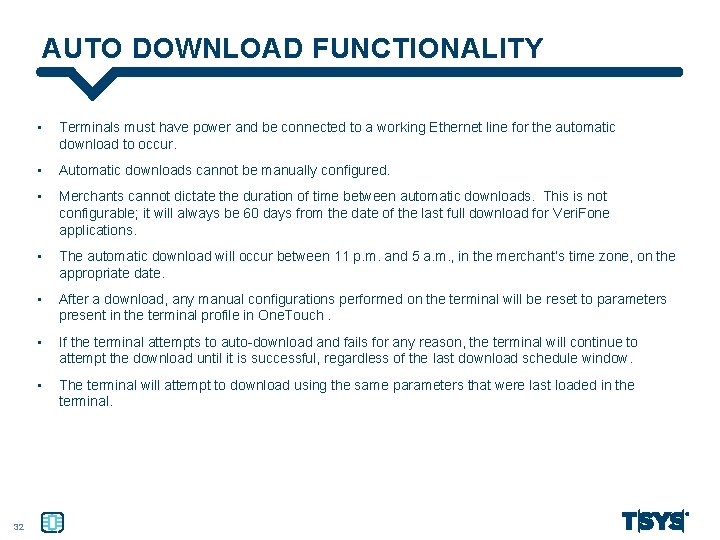
AUTO DOWNLOAD FUNCTIONALITY 32 • Terminals must have power and be connected to a working Ethernet line for the automatic download to occur. • Automatic downloads cannot be manually configured. • Merchants cannot dictate the duration of time between automatic downloads. This is not configurable; it will always be 60 days from the date of the last full download for Veri. Fone applications. • The automatic download will occur between 11 p. m. and 5 a. m. , in the merchant’s time zone, on the appropriate date. • After a download, any manual configurations performed on the terminal will be reset to parameters present in the terminal profile in One. Touch. • If the terminal attempts to auto-download and fails for any reason, the terminal will continue to attempt the download until it is successful, regardless of the last download schedule window. • The terminal will attempt to download using the same parameters that were last loaded in the terminal.
DOCKING STATIONS/BASES/DONGLES 33
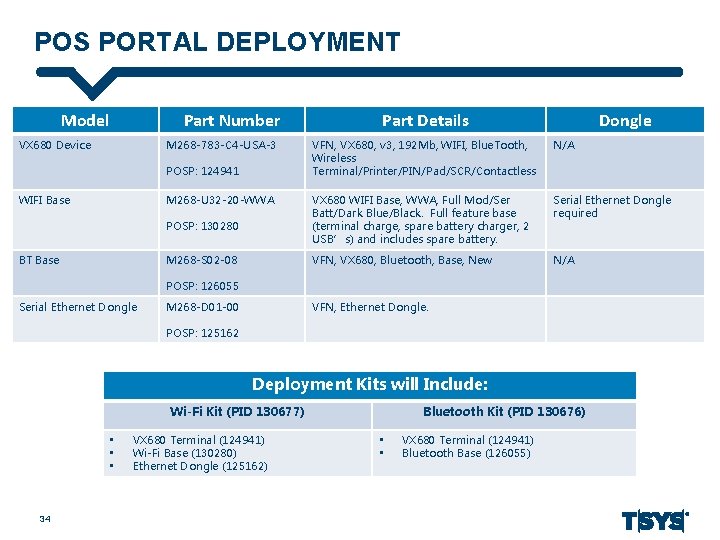
POS PORTAL DEPLOYMENT Model Part Number VX 680 Device M 268 -783 -C 4 -USA-3 POSP: 124941 WIFI Base M 268 -U 32 -20 -WWA POSP: 130280 BT Base M 268 -S 02 -08 Part Details Dongle VFN, VX 680, v 3, 192 Mb, WIFI, Blue. Tooth, Wireless Terminal/Printer/PIN/Pad/SCR/Contactless N/A VX 680 WIFI Base, WWA, Full Mod/Ser Batt/Dark Blue/Black. Full feature base (terminal charge, spare battery charger, 2 USB’s) and includes spare battery. Serial Ethernet Dongle required VFN, VX 680, Bluetooth, Base, New N/A POSP: 126055 Serial Ethernet Dongle M 268 -D 01 -00 VFN, Ethernet Dongle. POSP: 125162 Deployment Kits will Include: Wi-Fi Kit (PID 130677) • • • 34 VX 680 Terminal (124941) Wi-Fi Base (130280) Ethernet Dongle (125162) Bluetooth Kit (PID 130676) • • VX 680 Terminal (124941) Bluetooth Base (126055)
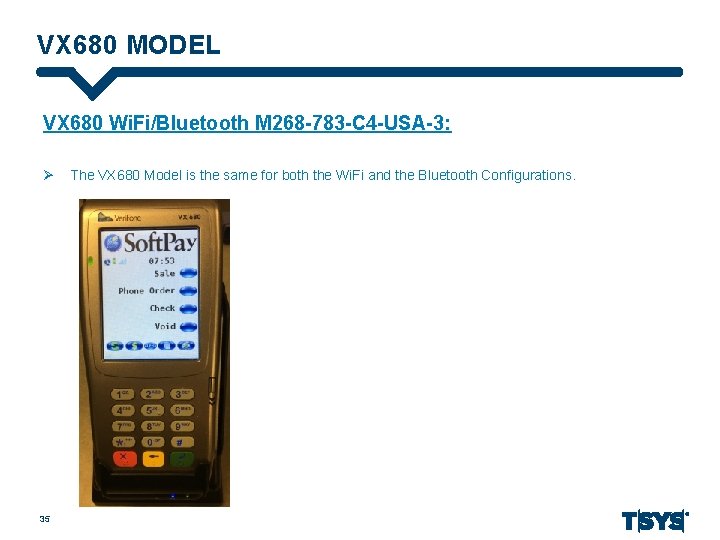
VX 680 MODEL VX 680 Wi. Fi/Bluetooth M 268 -783 -C 4 -USA-3: Ø 35 The VX 680 Model is the same for both the Wi. Fi and the Bluetooth Configurations.
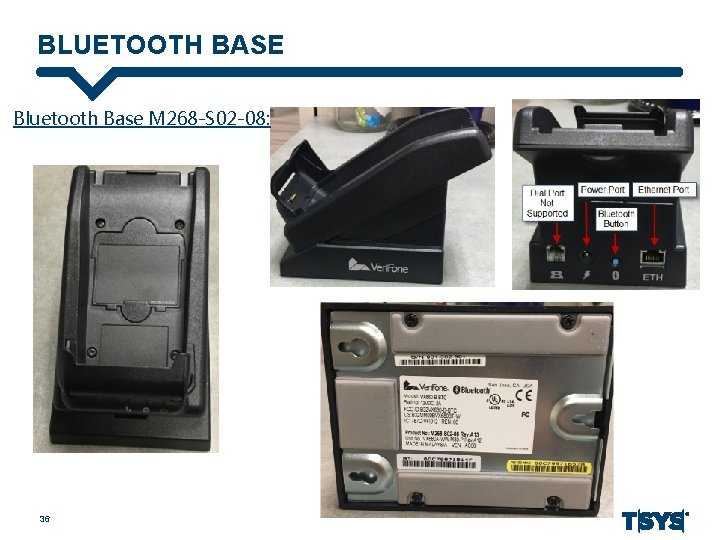
BLUETOOTH BASE Bluetooth Base M 268 -S 02 -08: 36
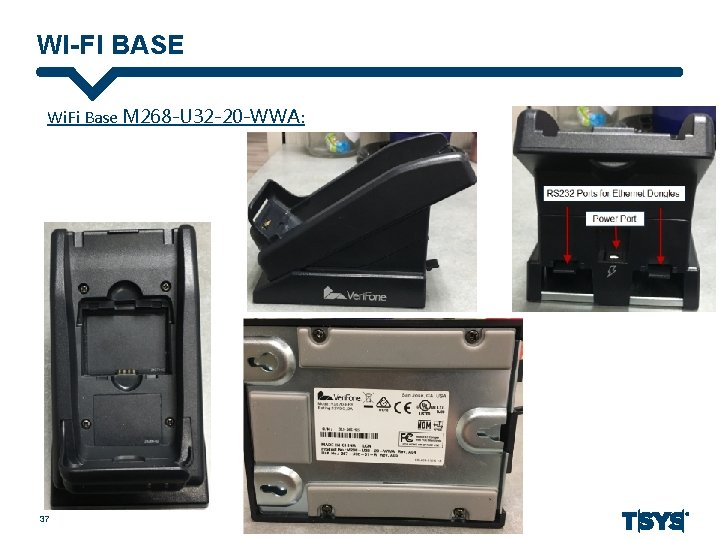
WI-FI BASE Wi. Fi Base M 268 -U 32 -20 -WWA: 37
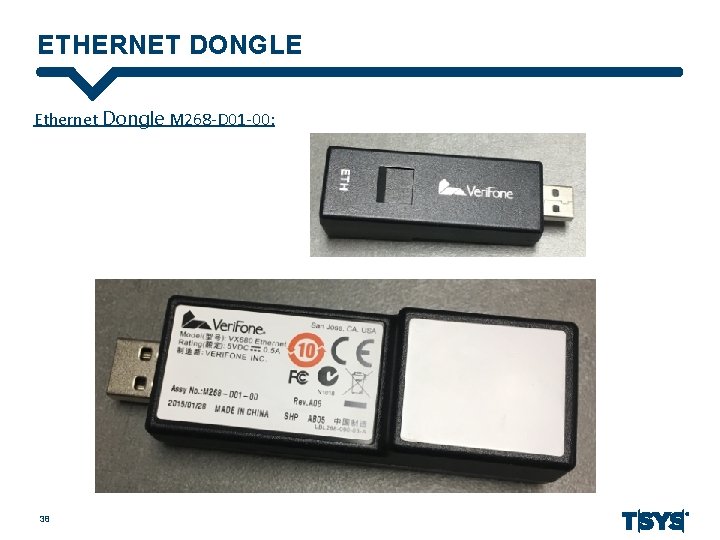
ETHERNET DONGLE Ethernet Dongle M 268 -D 01 -00: 38
- Slides: 38