
Vendor Sales Reporting VSR APP Portal A guide
- Slides: 12
Vendor Sales Reporting (VSR) APP Portal A guide to the VSR Portal
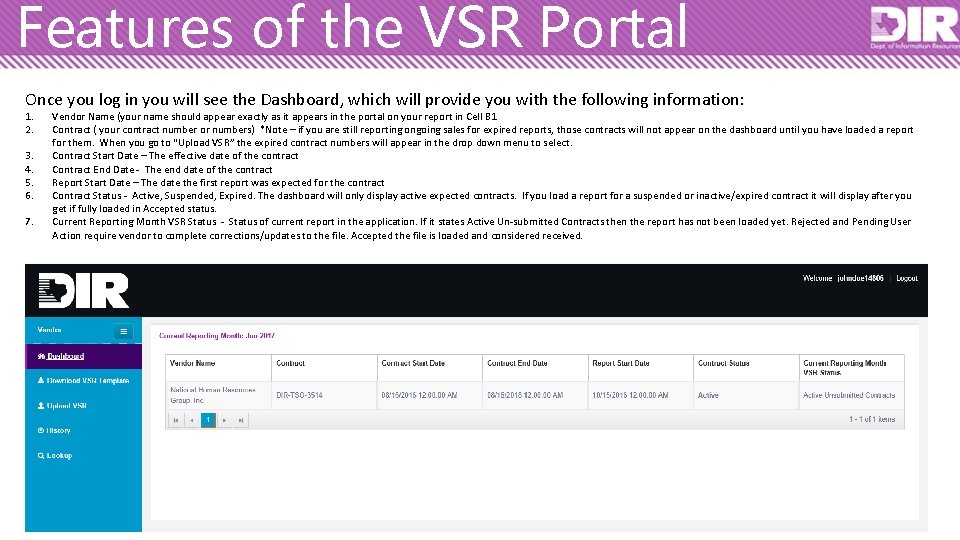
Features of the VSR Portal Once you log in you will see the Dashboard, which will provide you with the following information: 1. 2. 3. 4. 5. 6. 7. Vendor Name (your name should appear exactly as it appears in the portal on your report in Cell B 1 Contract ( your contract number or numbers) *Note – if you are still reporting ongoing sales for expired reports, those contracts will not appear on the dashboard until you have loaded a report for them. When you go to “Upload VSR” the expired contract numbers will appear in the drop down menu to select. Contract Start Date – The effective date of the contract Contract End Date - The end date of the contract Report Start Date – The date the first report was expected for the contract Contract Status - Active, Suspended, Expired. The dashboard will only display active expected contracts. If you load a report for a suspended or inactive/expired contract it will display after you get if fully loaded in Accepted status. Current Reporting Month VSR Status - Status of current report in the application. If it states Active Un-submitted Contracts then the report has not been loaded yet. Rejected and Pending User Action require vendor to complete corrections/updates to the file. Accepted the file is loaded and considered received.
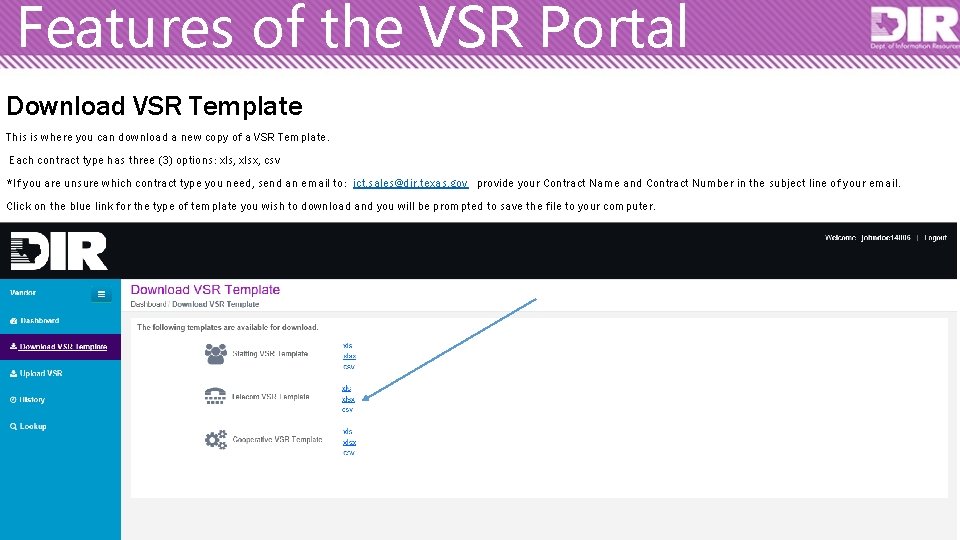
Features of the VSR Portal Download VSR Template This is where you can download a new copy of a VSR Template. Each contract type has three (3) options: xls, xlsx, csv *If you are unsure which contract type you need, send an email to: ict. sales@dir. texas. gov provide your Contract Name and Contract Number in the subject line of your email. Click on the blue link for the type of template you wish to download and you will be prompted to save the file to your computer.
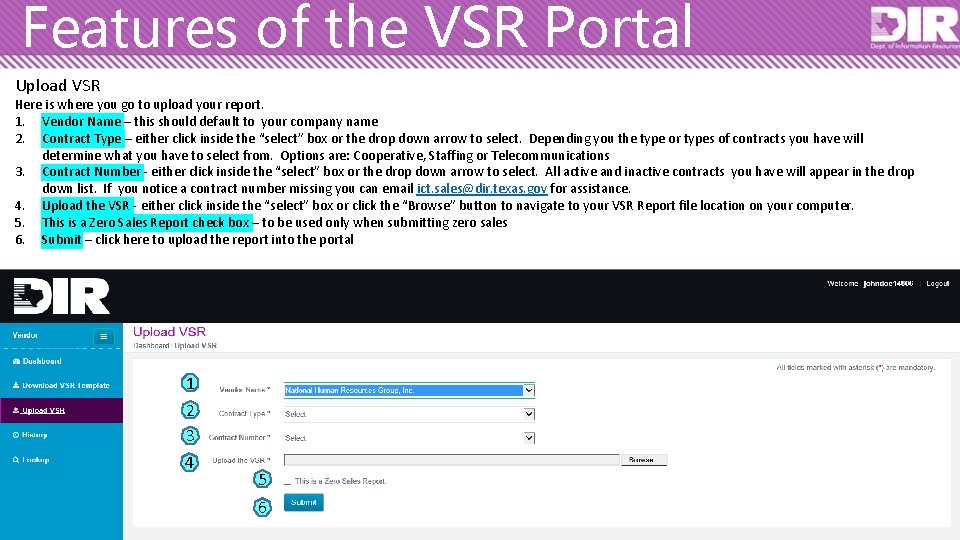
Features of the VSR Portal Upload VSR Here is where you go to upload your report. 1. Vendor Name – this should default to your company name 2. Contract Type – either click inside the “select” box or the drop down arrow to select. Depending you the type or types of contracts you have will determine what you have to select from. Options are: Cooperative, Staffing or Telecommunications 3. Contract Number - either click inside the “select” box or the drop down arrow to select. All active and inactive contracts you have will appear in the drop down list. If you notice a contract number missing you can email ict. sales@dir. texas. gov for assistance. 4. Upload the VSR - either click inside the “select” box or click the “Browse” button to navigate to your VSR Report file location on your computer. 5. This is a Zero Sales Report check box – to be used only when submitting zero sales 6. Submit – click here to upload the report into the portal 1 2 3 4 5 6
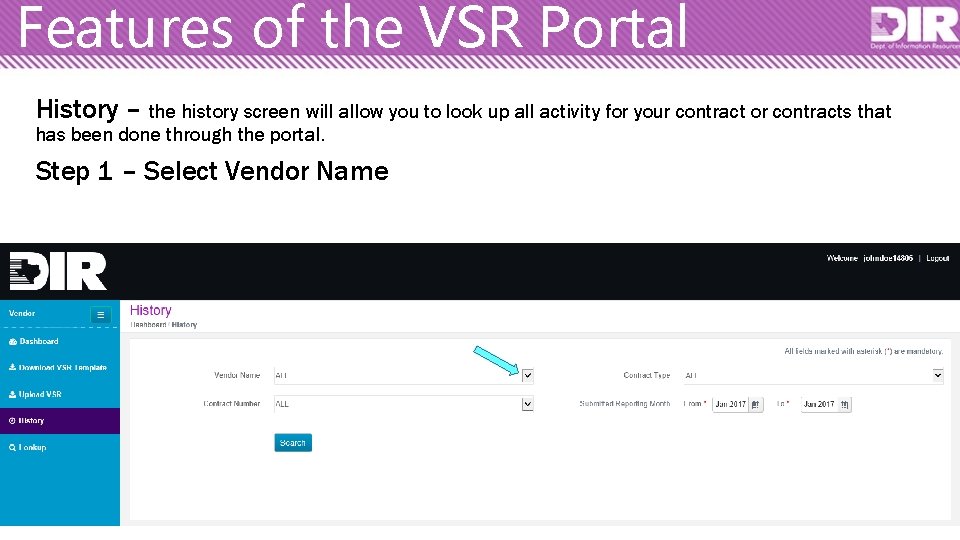
Features of the VSR Portal History – the history screen will allow you to look up all activity for your contract or contracts that has been done through the portal. Step 1 – Select Vendor Name
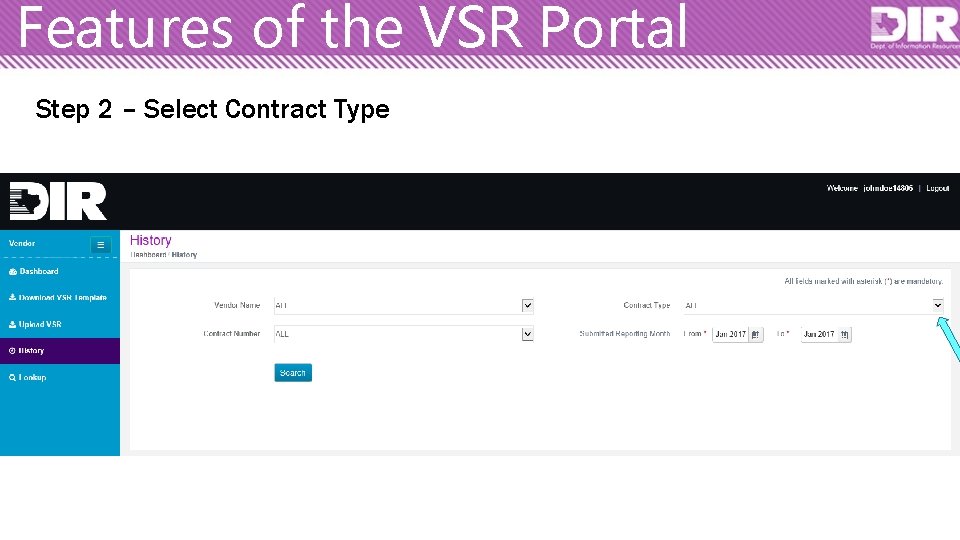
Features of the VSR Portal Step 2 – Select Contract Type
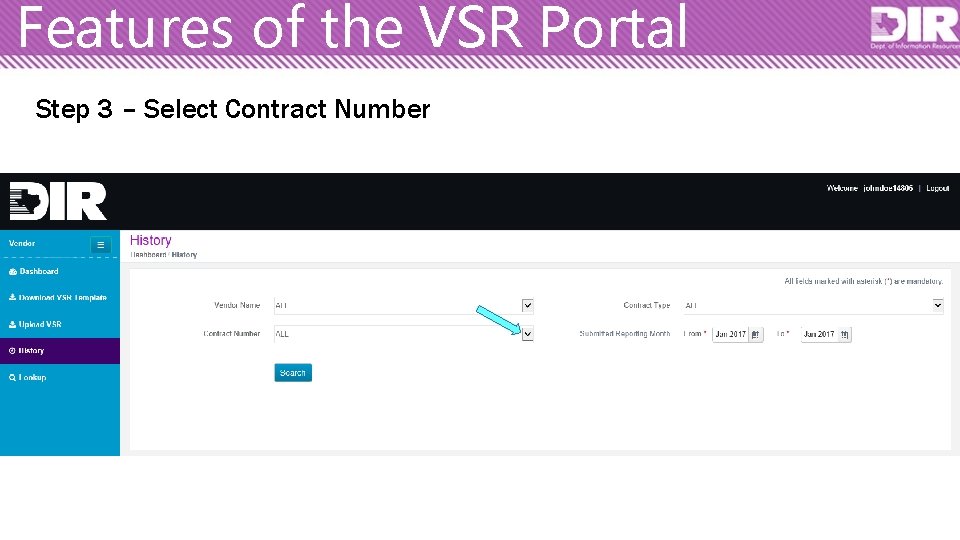
Features of the VSR Portal Step 3 – Select Contract Number
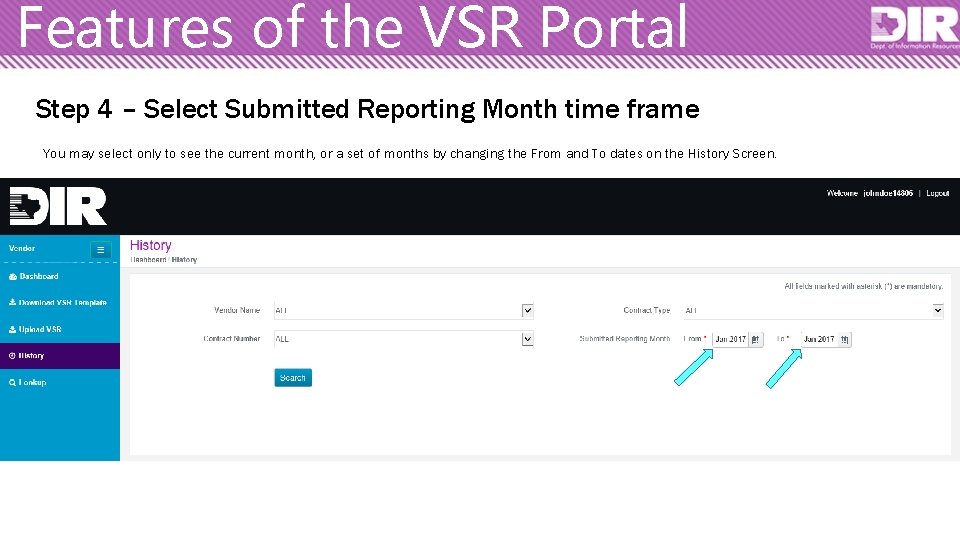
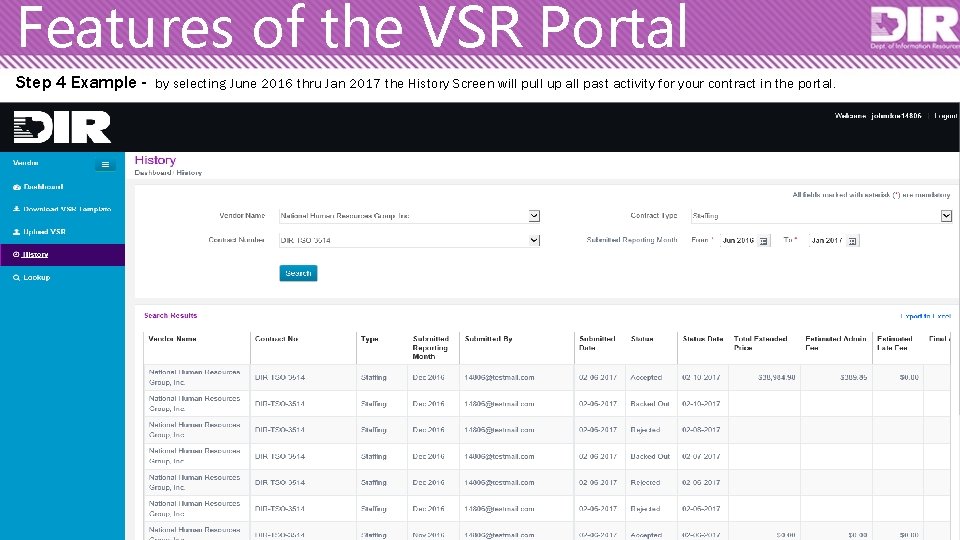
Features of the VSR Portal Step 4 – Select Submitted Reporting Month time frame You may select only to see the current month, or a set of months by changing the From and To dates on the History Screen.
Features of the VSR Portal Step 4 Example - by selecting June 2016 thru Jan 2017 the History Screen will pull up all past activity for your contract in the portal.
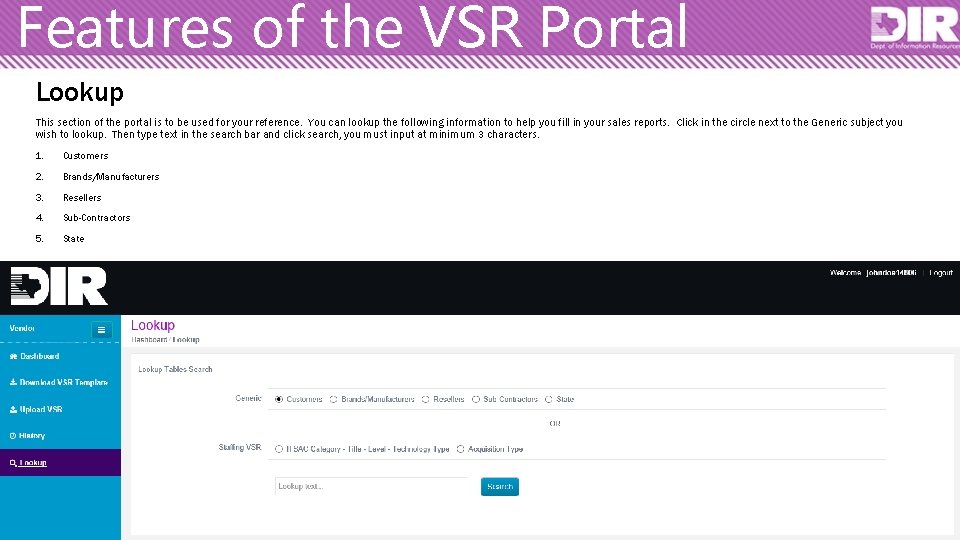
Features of the VSR Portal Lookup This section of the portal is to be used for your reference. You can lookup the following information to help you fill in your sales reports. Click in the circle next to the Generic subject you wish to lookup. Then type text in the search bar and click search, you must input at minimum 3 characters. 1. Customers 2. Brands/Manufacturers 3. Resellers 4. Sub-Contractors 5. State
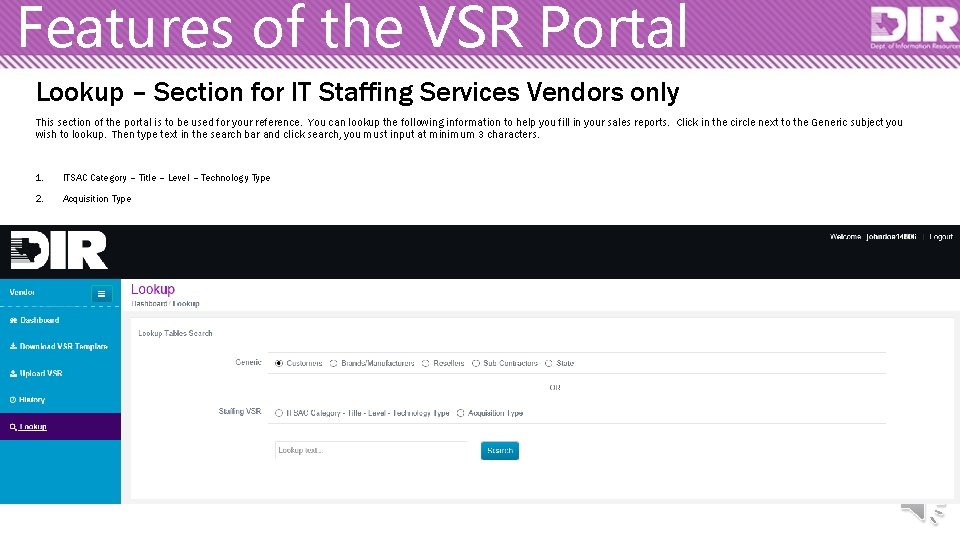
Features of the VSR Portal Lookup – Section for IT Staffing Services Vendors only This section of the portal is to be used for your reference. You can lookup the following information to help you fill in your sales reports. Click in the circle next to the Generic subject you wish to lookup. Then type text in the search bar and click search, you must input at minimum 3 characters. 1. ITSAC Category – Title – Level – Technology Type 2. Acquisition Type
VSR Subject Matter Experts Tanya Skaarup, PMP, CTCM Compliance, Analytics, Reporting & Special Projects, Manager Ann Texter Laura Reardon Cooperative, ITSAC & Telecom VSR Sales Loading For VSR assistance send email, with topic in Subject Line and include your DIR contract name & number: ICT Sales <ict. sales@dir. texas. gov John Dechene Contracts Data Analytics & Reporting Jeff Booth, CTPM Contracts Data Analytics Admin & Late Fees