
VBA Tutorial Week 5 Formatting cells setting the
VBA: Tutorial Week 5 • • Formatting cells: setting the fill color, changing fonts and font effects Accessing cell data Inserting and simple configuring of chart properties Accessing specific workbooks Data analysis of a worksheet: counting occurrences, specifying search criteria Sorting spreadsheets Nested loops Official resource for MS-Office products: https: //support. office. com
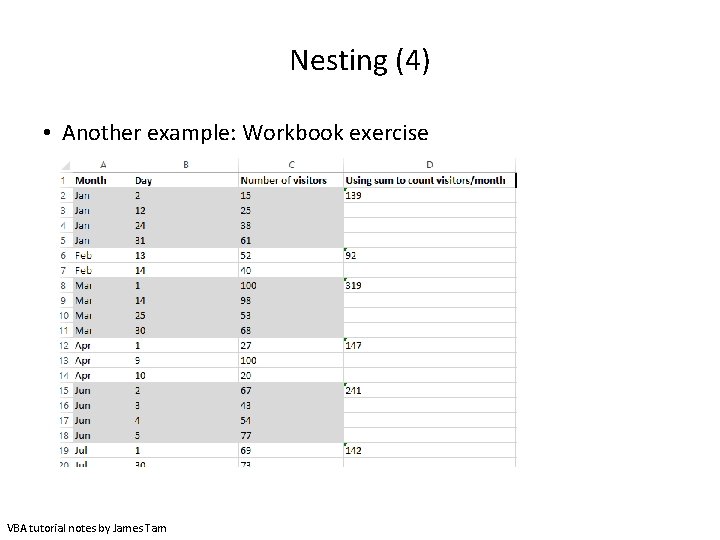
Workbook Exercise #5 • Counting the total number of town visitors (count is written to the spreadsheet). • Counting the number of visitors for each month (count appears in a popup Msg. Box). VBA tutorial notes by James Tam
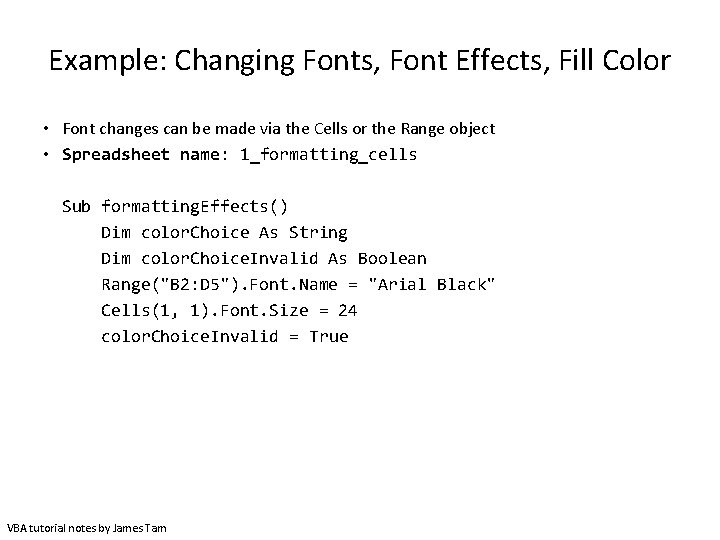
Example: Changing Fonts, Font Effects, Fill Color • Font changes can be made via the Cells or the Range object • Spreadsheet name: 1_formatting_cells Sub formatting. Effects() Dim color. Choice As String Dim color. Choice. Invalid As Boolean Range("B 2: D 5"). Font. Name = "Arial Black" Cells(1, 1). Font. Size = 24 color. Choice. Invalid = True VBA tutorial notes by James Tam
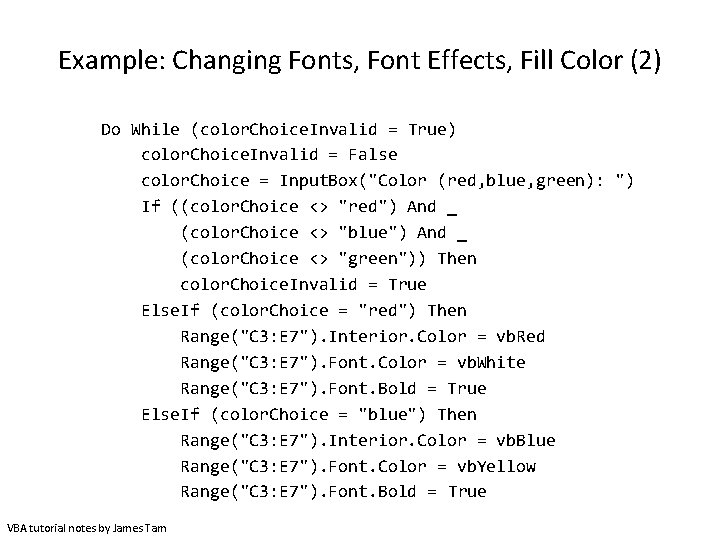
Example: Changing Fonts, Font Effects, Fill Color (2) Do While (color. Choice. Invalid = True) color. Choice. Invalid = False color. Choice = Input. Box("Color (red, blue, green): ") If ((color. Choice <> "red") And _ (color. Choice <> "blue") And _ (color. Choice <> "green")) Then color. Choice. Invalid = True Else. If (color. Choice = "red") Then Range("C 3: E 7"). Interior. Color = vb. Red Range("C 3: E 7"). Font. Color = vb. White Range("C 3: E 7"). Font. Bold = True Else. If (color. Choice = "blue") Then Range("C 3: E 7"). Interior. Color = vb. Blue Range("C 3: E 7"). Font. Color = vb. Yellow Range("C 3: E 7"). Font. Bold = True VBA tutorial notes by James Tam
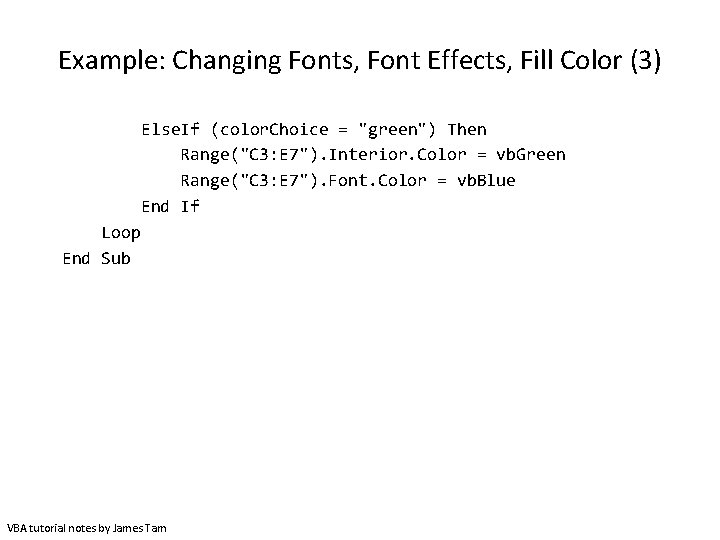
Example: Changing Fonts, Font Effects, Fill Color (3) Else. If (color. Choice = "green") Then Range("C 3: E 7"). Interior. Color = vb. Green Range("C 3: E 7"). Font. Color = vb. Blue End If Loop End Sub VBA tutorial notes by James Tam
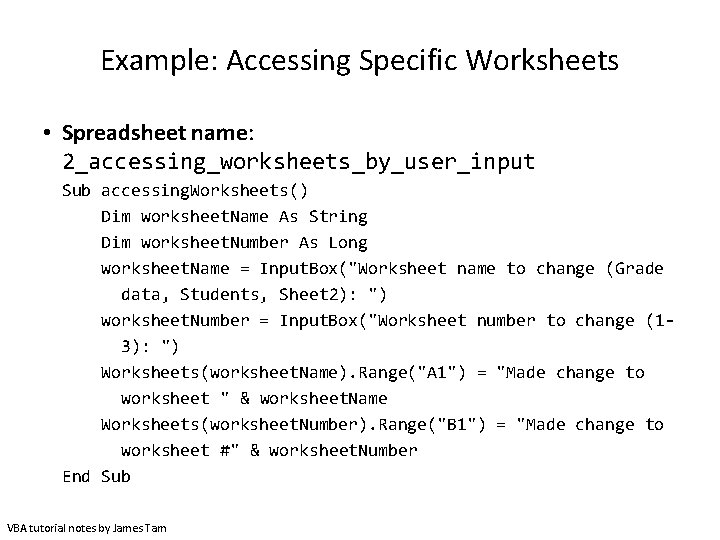
Example: Accessing Specific Worksheets • Spreadsheet name: 2_accessing_worksheets_by_user_input Sub accessing. Worksheets() Dim worksheet. Name As String Dim worksheet. Number As Long worksheet. Name = Input. Box("Worksheet name to change (Grade data, Students, Sheet 2): ") worksheet. Number = Input. Box("Worksheet number to change (13): ") Worksheets(worksheet. Name). Range("A 1") = "Made change to worksheet " & worksheet. Name Worksheets(worksheet. Number). Range("B 1") = "Made change to worksheet #" & worksheet. Number End Sub VBA tutorial notes by James Tam
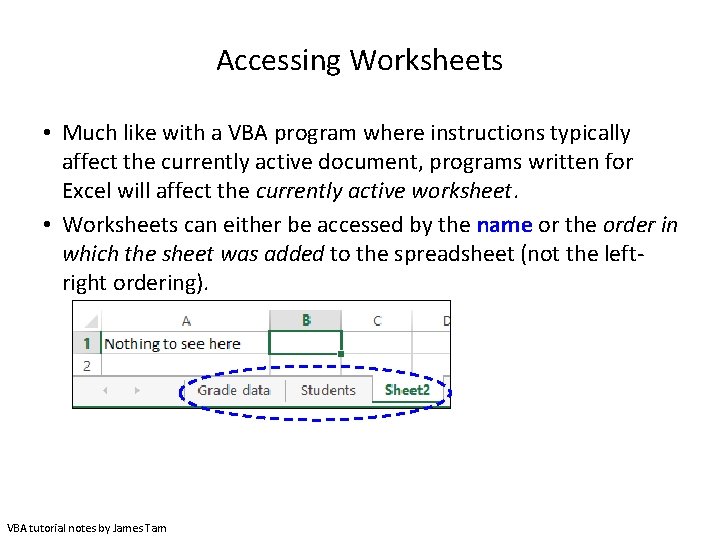
Accessing Worksheets • Much like with a VBA program where instructions typically affect the currently active document, programs written for Excel will affect the currently active worksheet. • Worksheets can either be accessed by the name or the order in which the sheet was added to the spreadsheet (not the leftright ordering). VBA tutorial notes by James Tam
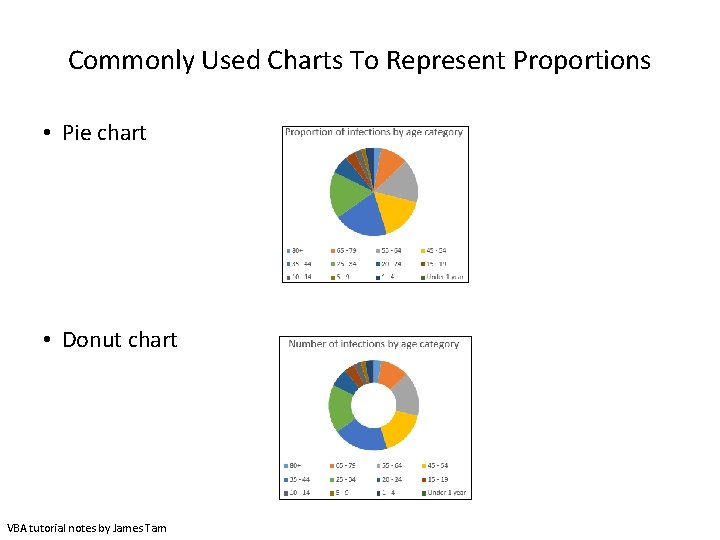
Commonly Used Charts To Represent Proportions • Pie chart • Donut chart VBA tutorial notes by James Tam
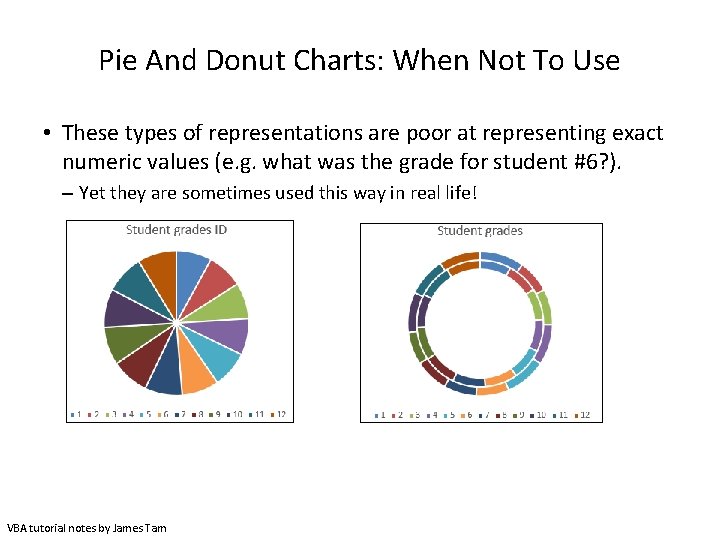
Pie And Donut Charts: When Not To Use • These types of representations are poor at representing exact numeric values (e. g. what was the grade for student #6? ). – Yet they are sometimes used this way in real life! VBA tutorial notes by James Tam
Example: Inserting Charts Representing Proportions • Spreadsheet name: 3_inserting_portional_charts Sub insert. Pie. Chart() Range("A 2: A 14, C 2: D 14"). Select Active. Sheet. Shapes. Add. Chart 2(201, xl. Pie). Select Active. Chart. Title. Text = "Proportion of infections by age" End Sub insert. Donut. Chart() Range("A 2: A 14, C 2: C 14"). Select Active. Sheet. Shapes. Add. Chart 2(201, xl. Doughnut). Select Active. Chart. Title. Text = "Number of infections by age" End Sub VBA tutorial notes by James Tam
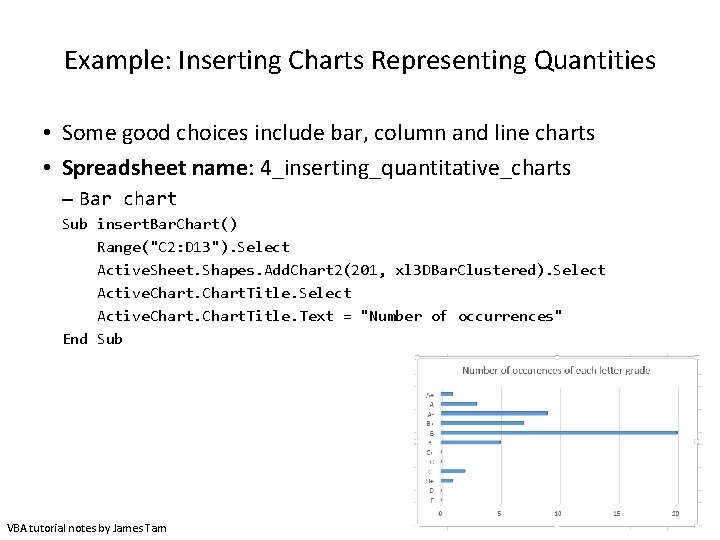
Example: Inserting Charts Representing Quantities • Some good choices include bar, column and line charts • Spreadsheet name: 4_inserting_quantitative_charts – Bar chart Sub insert. Bar. Chart() Range("C 2: D 13"). Select Active. Sheet. Shapes. Add. Chart 2(201, xl 3 DBar. Clustered). Select Active. Chart. Title. Text = "Number of occurrences" End Sub VBA tutorial notes by James Tam
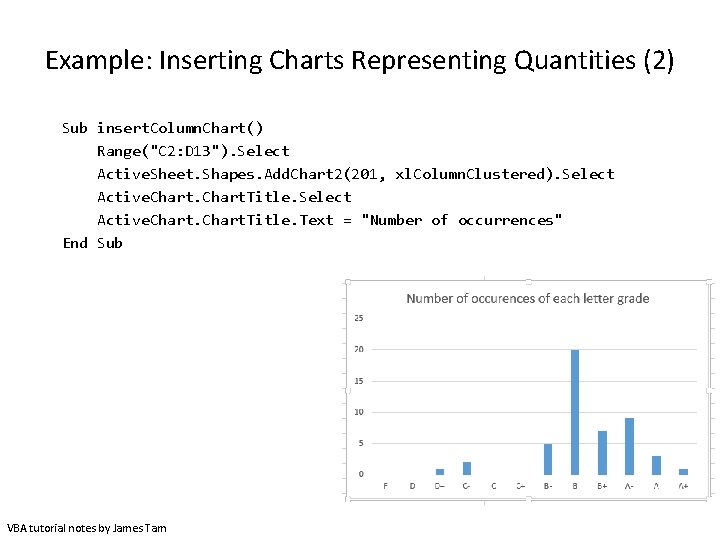
Example: Inserting Charts Representing Quantities (2) Sub insert. Column. Chart() Range("C 2: D 13"). Select Active. Sheet. Shapes. Add. Chart 2(201, xl. Column. Clustered). Select Active. Chart. Title. Text = "Number of occurrences" End Sub VBA tutorial notes by James Tam
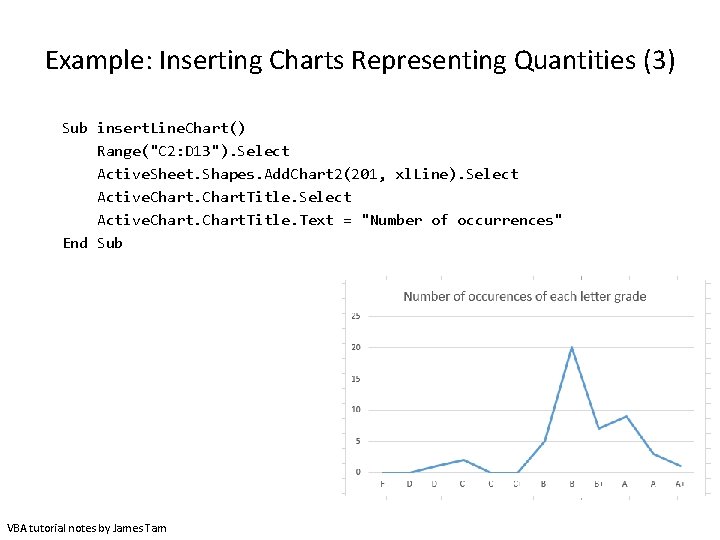
Example: Inserting Charts Representing Quantities (3) Sub insert. Line. Chart() Range("C 2: D 13"). Select Active. Sheet. Shapes. Add. Chart 2(201, xl. Line). Select Active. Chart. Title. Text = "Number of occurrences" End Sub VBA tutorial notes by James Tam
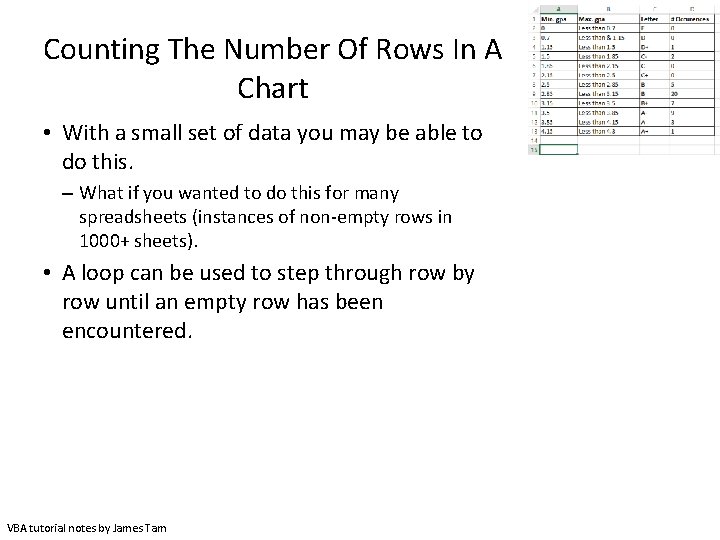
Counting The Number Of Rows In A Chart • With a small set of data you may be able to do this. – What if you wanted to do this for many spreadsheets (instances of non-empty rows in 1000+ sheets). • A loop can be used to step through row by row until an empty row has been encountered. VBA tutorial notes by James Tam
Example: Counting Rows • Name of spreadsheet: 5_counting_rows_for_chart This program will only include in the chart the actual number of rows of data. Sub counting. Rows. To. Shart() Const LETTER_GRADE_COLUMN As Long = 3 Const START_ROW As Long = 1 Const EMPTY_ROW As String = "" Dim row. Data As String Dim current. Row As Long Dim count As Long VBA tutorial notes by James Tam
Example: Counting Rows (2) 'Counting number of rows current. Row = START_ROW count = 0 row. Data = Cells(current. Row, LETTER_GRADE_COLUMN) Do While (row. Data <> EMPTY_ROW) count = count + 1 current. Row = current. Row + 1 row. Data = Cells(current. Row, LETTER_GRADE_COLUMN) Loop 'Insert chart based on range. Will always start at C 1 'but last row determined by number of rows Range("C 1" & ": " & "D" & count). Select Active. Sheet. Shapes. Add. Chart 2(201, xl. Line. Markers). Select End Sub VBA tutorial notes by James Tam
Exercise 1 • Program description: – Counts the number of rows containing data (headings and student data). – The count will be written to cell address that is specified by the user. • Spreadsheet containing the solution (don’t look at it until you have at least made an attempt): Exercise 1_counting_rows_writing_user_specified_location VBA tutorial notes by James Tam
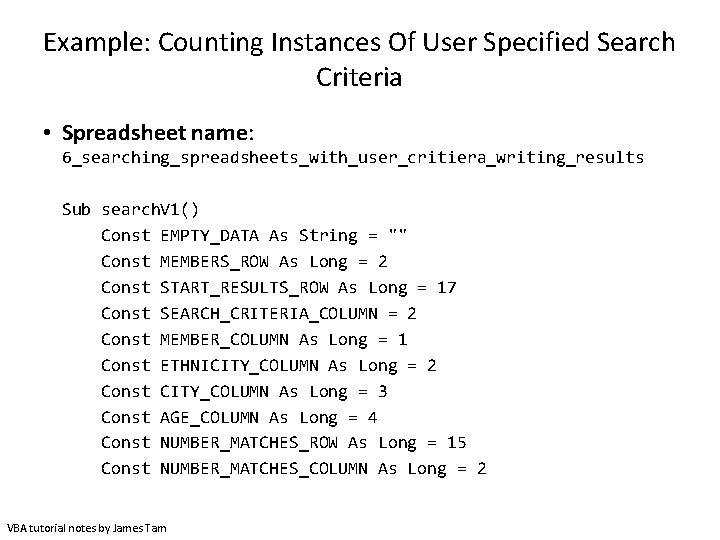
Example: Counting Instances Of User Specified Search Criteria • Spreadsheet name: 6_searching_spreadsheets_with_user_critiera_writing_results Sub search. V 1() Const EMPTY_DATA As String = "" Const MEMBERS_ROW As Long = 2 Const START_RESULTS_ROW As Long = 17 Const SEARCH_CRITERIA_COLUMN = 2 Const MEMBER_COLUMN As Long = 1 Const ETHNICITY_COLUMN As Long = 2 Const CITY_COLUMN As Long = 3 Const AGE_COLUMN As Long = 4 Const NUMBER_MATCHES_ROW As Long = 15 Const NUMBER_MATCHES_COLUMN As Long = 2 VBA tutorial notes by James Tam
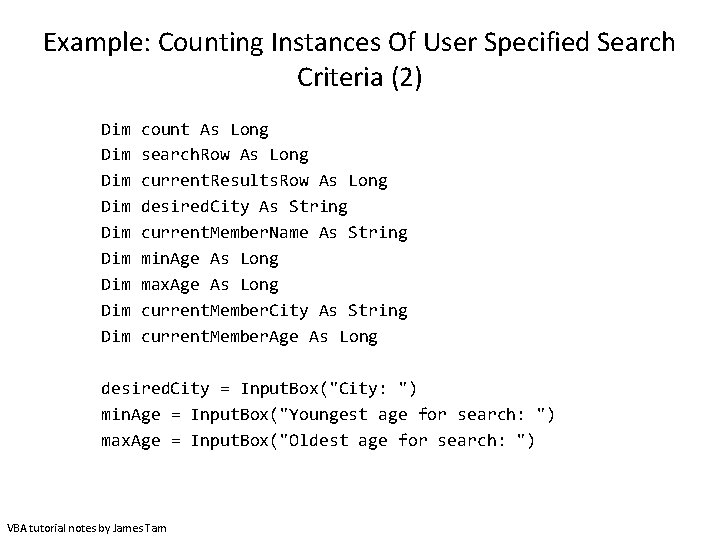
Example: Counting Instances Of User Specified Search Criteria (2) Dim Dim Dim count As Long search. Row As Long current. Results. Row As Long desired. City As String current. Member. Name As String min. Age As Long max. Age As Long current. Member. City As String current. Member. Age As Long desired. City = Input. Box("City: ") min. Age = Input. Box("Youngest age for search: ") max. Age = Input. Box("Oldest age for search: ") VBA tutorial notes by James Tam
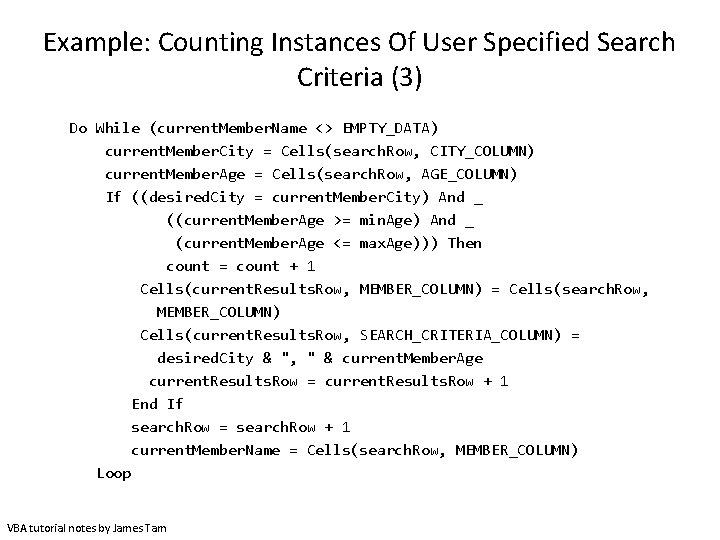
Example: Counting Instances Of User Specified Search Criteria (3) Do While (current. Member. Name <> EMPTY_DATA) current. Member. City = Cells(search. Row, CITY_COLUMN) current. Member. Age = Cells(search. Row, AGE_COLUMN) If ((desired. City = current. Member. City) And _ ((current. Member. Age >= min. Age) And _ (current. Member. Age <= max. Age))) Then count = count + 1 Cells(current. Results. Row, MEMBER_COLUMN) = Cells(search. Row, MEMBER_COLUMN) Cells(current. Results. Row, SEARCH_CRITERIA_COLUMN) = desired. City & ", " & current. Member. Age current. Results. Row = current. Results. Row + 1 End If search. Row = search. Row + 1 current. Member. Name = Cells(search. Row, MEMBER_COLUMN) Loop VBA tutorial notes by James Tam
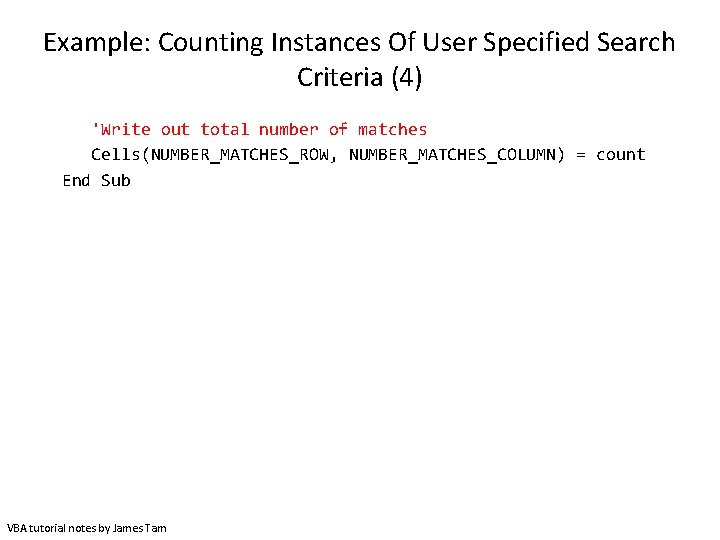
Example: Counting Instances Of User Specified Search Criteria (4) 'Write out total number of matches Cells(NUMBER_MATCHES_ROW, NUMBER_MATCHES_COLUMN) = count End Sub VBA tutorial notes by James Tam
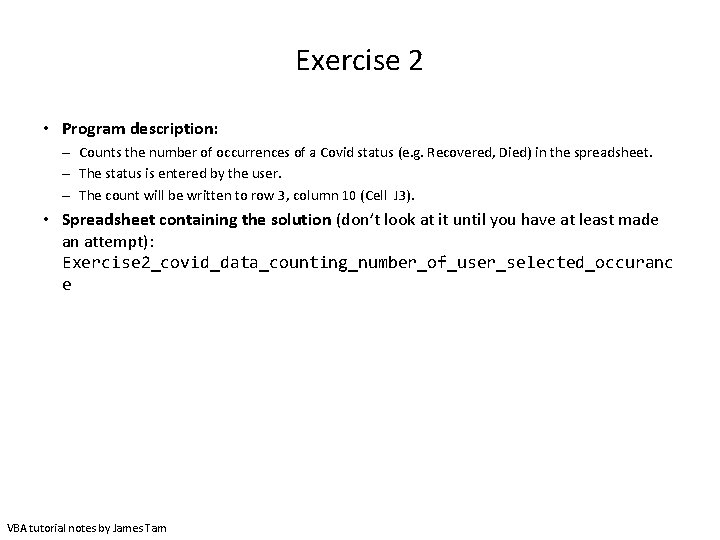
Exercise 2 • Program description: – Counts the number of occurrences of a Covid status (e. g. Recovered, Died) in the spreadsheet. – The status is entered by the user. – The count will be written to row 3, column 10 (Cell J 3). • Spreadsheet containing the solution (don’t look at it until you have at least made an attempt): Exercise 2_covid_data_counting_number_of_user_selected_occuranc e VBA tutorial notes by James Tam
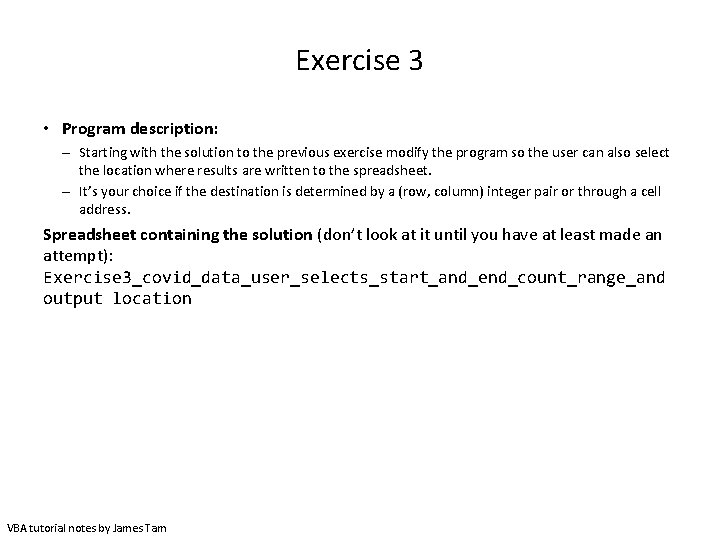
Exercise 3 • Program description: – Starting with the solution to the previous exercise modify the program so the user can also select the location where results are written to the spreadsheet. – It’s your choice if the destination is determined by a (row, column) integer pair or through a cell address. Spreadsheet containing the solution (don’t look at it until you have at least made an attempt): Exercise 3_covid_data_user_selects_start_and_end_count_range_and output location VBA tutorial notes by James Tam
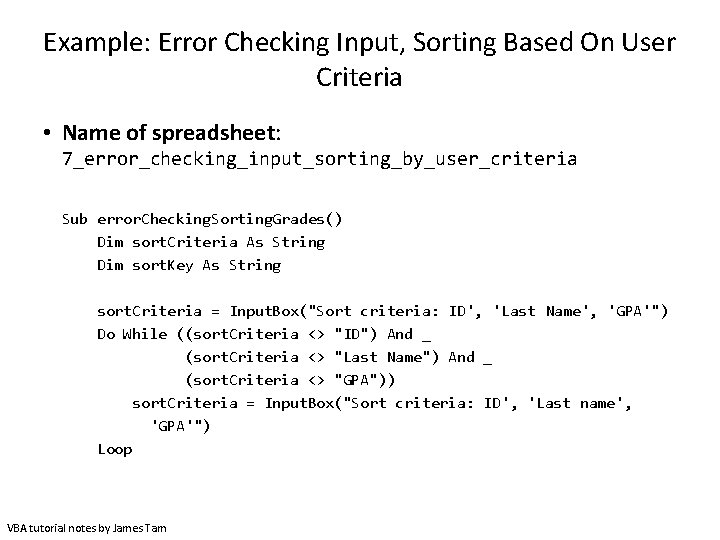
Example: Error Checking Input, Sorting Based On User Criteria • Name of spreadsheet: 7_error_checking_input_sorting_by_user_criteria Sub error. Checking. Sorting. Grades() Dim sort. Criteria As String Dim sort. Key As String sort. Criteria = Input. Box("Sort criteria: ID', 'Last Name', 'GPA'") Do While ((sort. Criteria <> "ID") And _ (sort. Criteria <> "Last Name") And _ (sort. Criteria <> "GPA")) sort. Criteria = Input. Box("Sort criteria: ID', 'Last name', 'GPA'") Loop VBA tutorial notes by James Tam
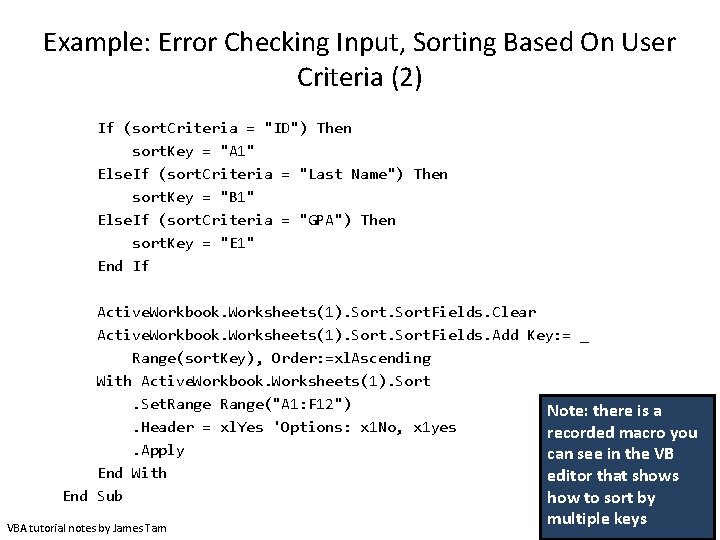
Example: Error Checking Input, Sorting Based On User Criteria (2) If (sort. Criteria = "ID") Then sort. Key = "A 1" Else. If (sort. Criteria = "Last Name") Then sort. Key = "B 1" Else. If (sort. Criteria = "GPA") Then sort. Key = "E 1" End If Active. Workbook. Worksheets(1). Sort. Fields. Clear Active. Workbook. Worksheets(1). Sort. Fields. Add Key: = _ Range(sort. Key), Order: =xl. Ascending With Active. Workbook. Worksheets(1). Sort. Set. Range("A 1: F 12") Note: there is a. Header = xl. Yes 'Options: x 1 No, x 1 yes recorded macro you. Apply can see in the VB End With editor that shows End Sub how to sort by VBA tutorial notes by James Tam multiple keys
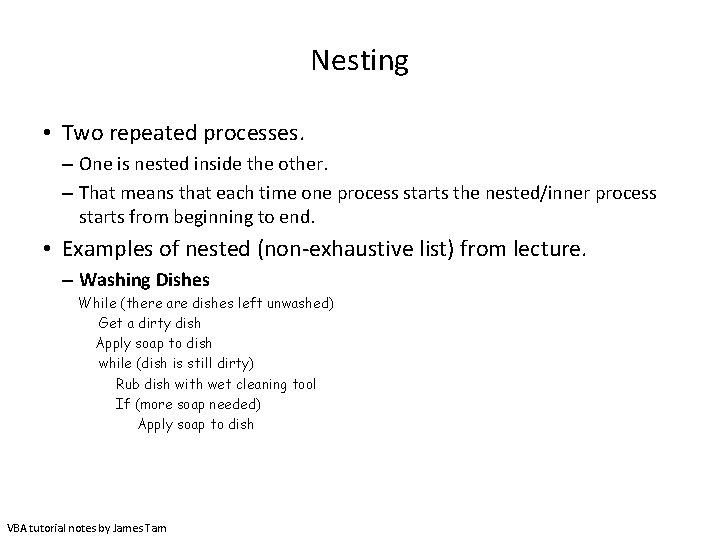
Nesting • Two repeated processes. – One is nested inside the other. – That means that each time one process starts the nested/inner process starts from beginning to end. • Examples of nested (non-exhaustive list) from lecture. – Washing Dishes While (there are dishes left unwashed) Get a dirty dish Apply soap to dish while (dish is still dirty) Rub dish with wet cleaning tool If (more soap needed) Apply soap to dish VBA tutorial notes by James Tam
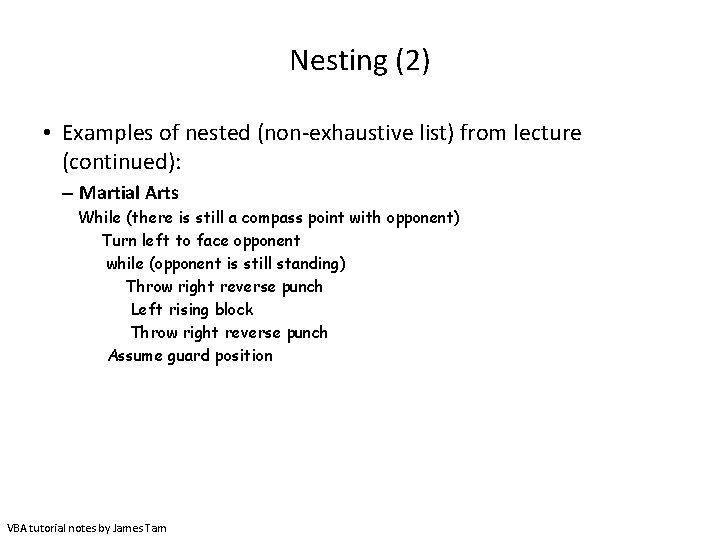
Nesting (2) • Examples of nested (non-exhaustive list) from lecture (continued): – Martial Arts While (there is still a compass point with opponent) Turn left to face opponent while (opponent is still standing) Throw right reverse punch Left rising block Throw right reverse punch Assume guard position VBA tutorial notes by James Tam
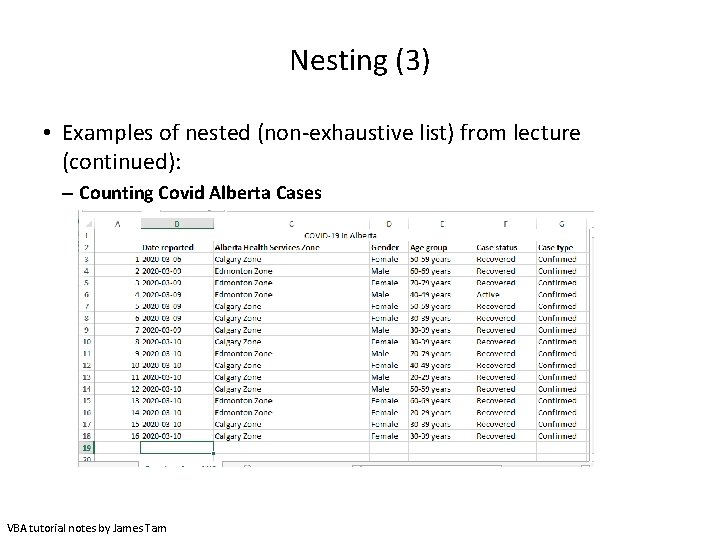
Nesting (3) • Examples of nested (non-exhaustive list) from lecture (continued): – Counting Covid Alberta Cases VBA tutorial notes by James Tam
Nesting (4) • Another example: Workbook exercise VBA tutorial notes by James Tam
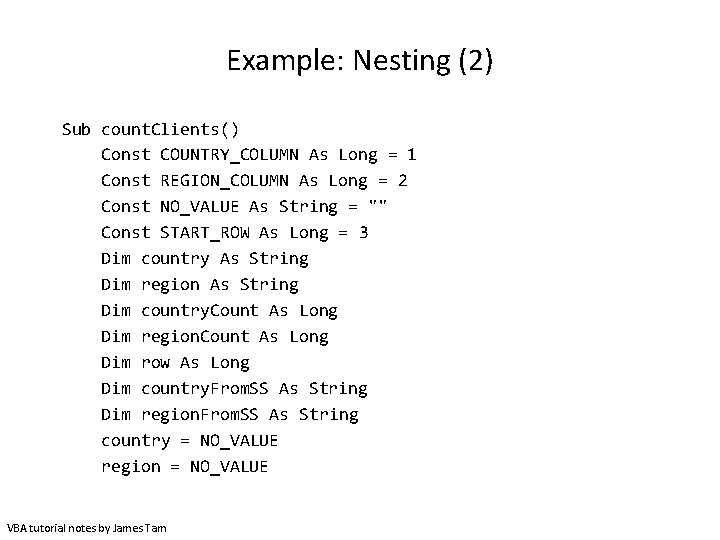
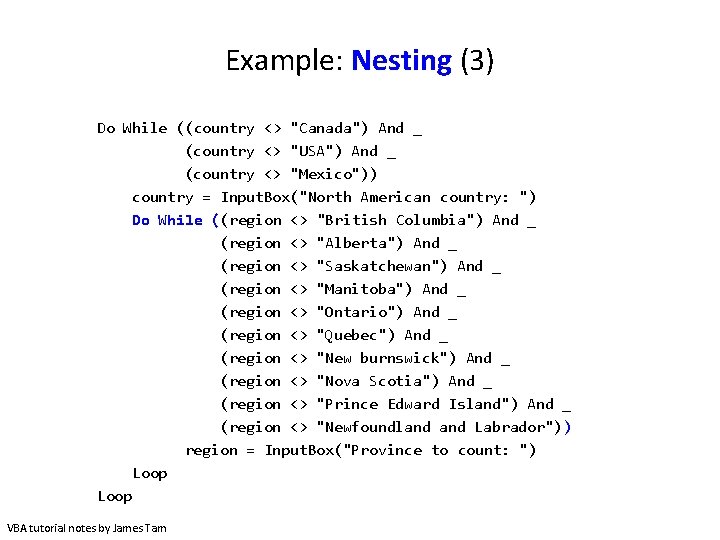
Example: Nesting • This program prompts the user for a North American country. • It will re-prompt so long as the country name isn’t one of three possibilities. • Each time the user enters a valid country the program will check if valid region has been entered (currently program only cross checks Canada with Canadian provinces). • Again the program re-prompts for a region until a valid one has been entered. • Spreadsheet name: 8_nested_loops_country_city_count VBA tutorial notes by James Tam
Example: Nesting (2) Sub count. Clients() Const COUNTRY_COLUMN As Long = 1 Const REGION_COLUMN As Long = 2 Const NO_VALUE As String = "" Const START_ROW As Long = 3 Dim country As String Dim region As String Dim country. Count As Long Dim region. Count As Long Dim row As Long Dim country. From. SS As String Dim region. From. SS As String country = NO_VALUE region = NO_VALUE VBA tutorial notes by James Tam
Example: Nesting (3) Do While ((country <> "Canada") And _ (country <> "USA") And _ (country <> "Mexico")) country = Input. Box("North American country: ") Do While ((region <> "British Columbia") And _ (region <> "Alberta") And _ (region <> "Saskatchewan") And _ (region <> "Manitoba") And _ (region <> "Ontario") And _ (region <> "Quebec") And _ (region <> "New burnswick") And _ (region <> "Nova Scotia") And _ (region <> "Prince Edward Island") And _ (region <> "Newfoundland Labrador")) region = Input. Box("Province to count: ") Loop VBA tutorial notes by James Tam
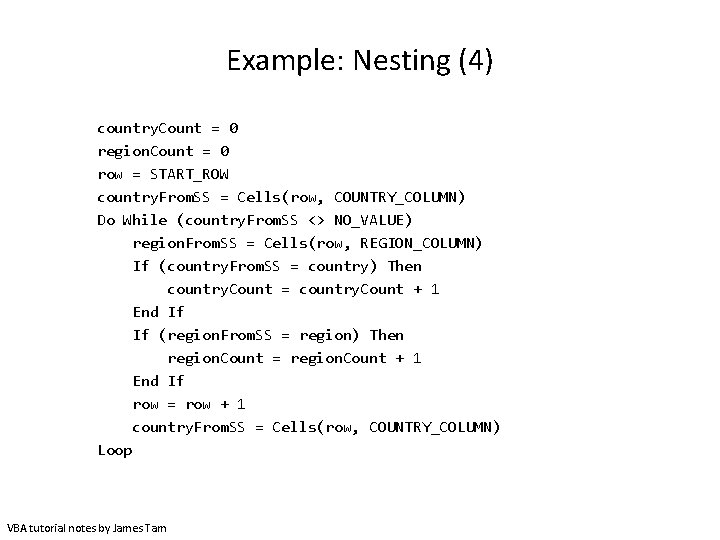
Example: Nesting (4) country. Count = 0 region. Count = 0 row = START_ROW country. From. SS = Cells(row, COUNTRY_COLUMN) Do While (country. From. SS <> NO_VALUE) region. From. SS = Cells(row, REGION_COLUMN) If (country. From. SS = country) Then country. Count = country. Count + 1 End If If (region. From. SS = region) Then region. Count = region. Count + 1 End If row = row + 1 country. From. SS = Cells(row, COUNTRY_COLUMN) Loop VBA tutorial notes by James Tam
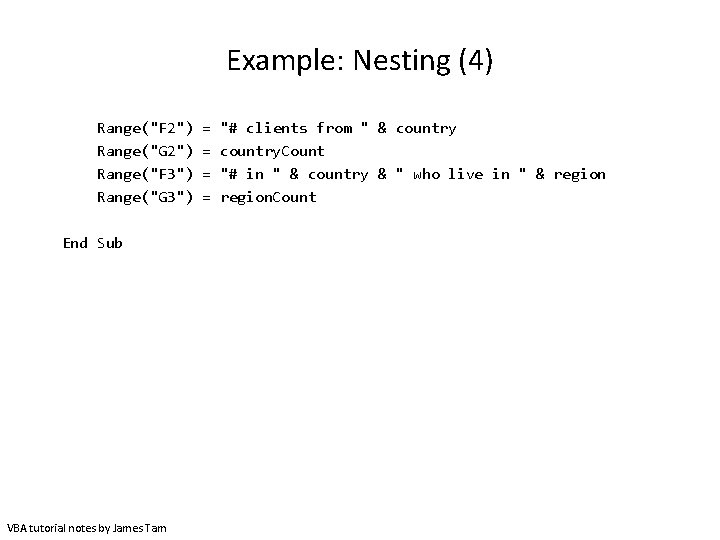
Example: Nesting (4) Range("F 2") Range("G 2") Range("F 3") Range("G 3") End Sub VBA tutorial notes by James Tam = = "# clients from " & country. Count "# in " & country & " who live in " & region. Count
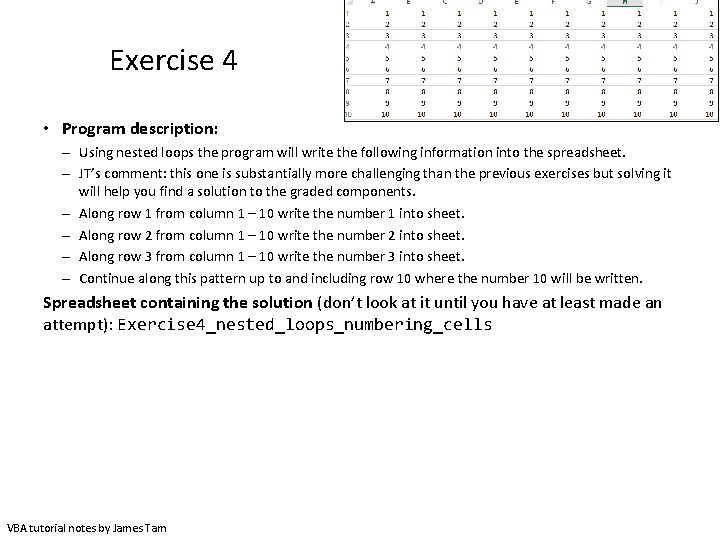
Exercise 4 • Program description: – Using nested loops the program will write the following information into the spreadsheet. – JT’s comment: this one is substantially more challenging than the previous exercises but solving it will help you find a solution to the graded components. – Along row 1 from column 1 – 10 write the number 1 into sheet. – Along row 2 from column 1 – 10 write the number 2 into sheet. – Along row 3 from column 1 – 10 write the number 3 into sheet. – Continue along this pattern up to and including row 10 where the number 10 will be written. Spreadsheet containing the solution (don’t look at it until you have at least made an attempt): Exercise 4_nested_loops_numbering_cells VBA tutorial notes by James Tam
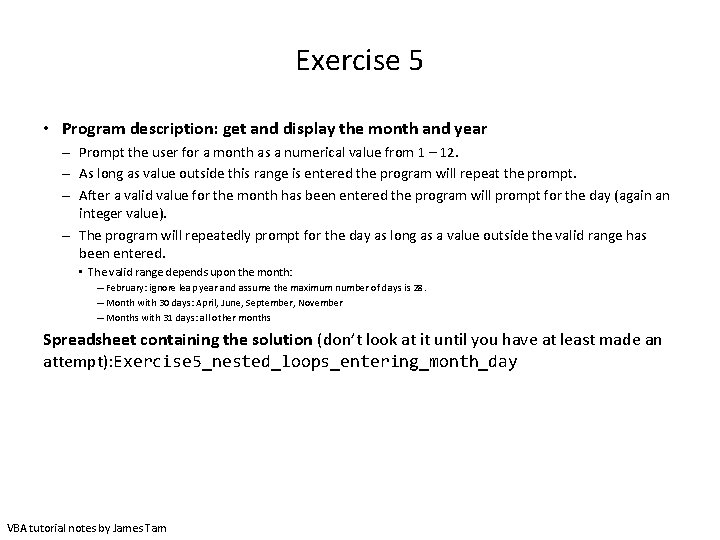
Exercise 5 • Program description: get and display the month and year – Prompt the user for a month as a numerical value from 1 – 12. – As long as value outside this range is entered the program will repeat the prompt. – After a valid value for the month has been entered the program will prompt for the day (again an integer value). – The program will repeatedly prompt for the day as long as a value outside the valid range has been entered. • The valid range depends upon the month: – February: ignore leap year and assume the maximum number of days is 28. – Month with 30 days: April, June, September, November – Months with 31 days: all other months Spreadsheet containing the solution (don’t look at it until you have at least made an attempt): Exercise 5_nested_loops_entering_month_day VBA tutorial notes by James Tam
An Excellent Exercise To Help You Prepare For The Assignment: The Last Workbook Exercise • The last exercise is quite challenging (you already have 3 graded components assigned which included the basics of VBA programming). • Similar to the full assignment the exercise requires that you implement a solution using nested loops. – Workbook Exercise: • Outer loop to traverse from the start of the days where visitors came to town until the end. • Inner (nested) loop runs from start to finish each time the outer loop runs: traverses all the visitor information for a particular month. – Assignment: • Outer loop to traverse from the start of the Covid cases until the end (empty row). • Inner (nested) loop runs from start to finish each time the outer loop runs: traverses or steps through all the Covid cases for a particular day. VBA tutorial notes by James Tam
- Slides: 37